Controllers
Categories:
Controllers are the possession layer of GS_Unit. A controller is the intelligence — human input or AI logic — that owns and drives a unit at any given moment. Because both player and AI controllers share the same possession interface, your unit entities do not need to know what is controlling them, and swapping control at runtime requires no special-casing.
For architecture details, component properties, and extending the system in C++, see the Framework API reference.
Contents
- The Possession Model
- Controller Types
- Player Controller
- AI Controller
- Switching Controllers at Runtime
- Querying Controller State
- Standby and Controllers
- Quick Reference
- Glossary
- See Also
The Possession Model
Breakdown
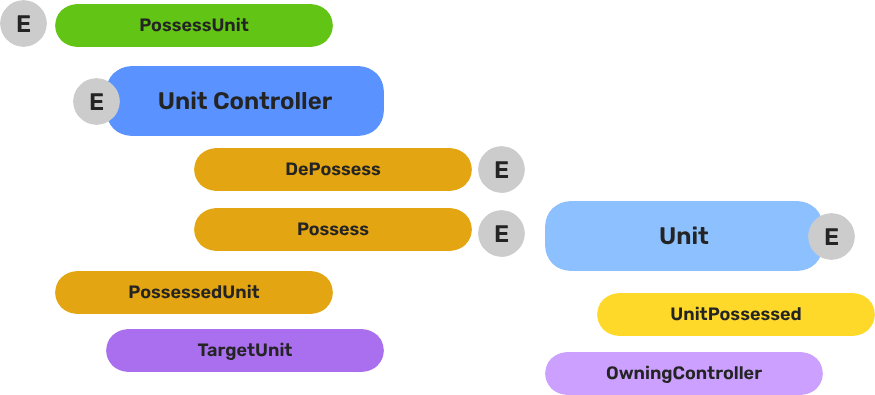
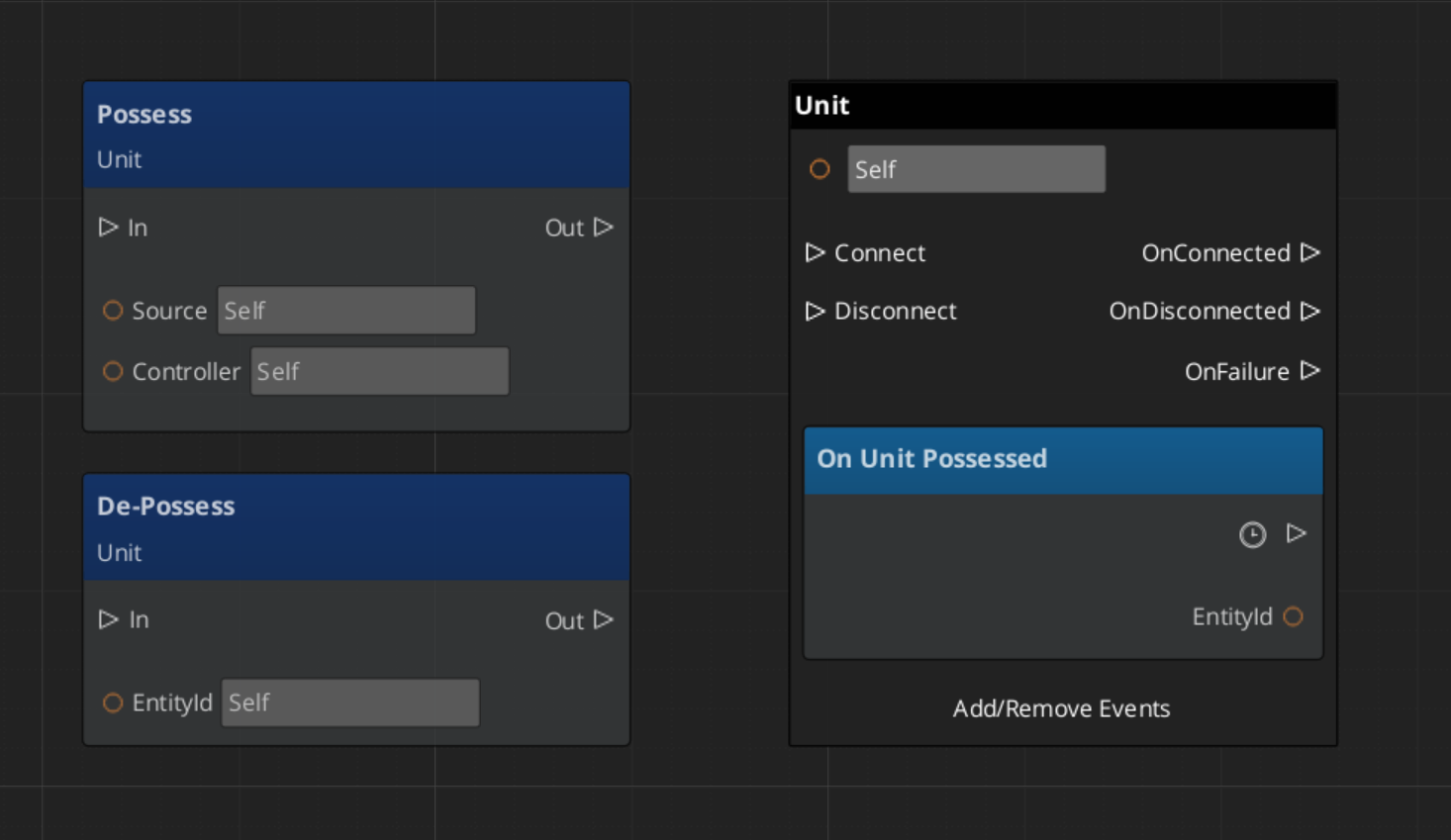
Every unit has exactly one controller at a time, or no controller at all. Possession is established by calling Possess on the unit and released by calling DePossess. The unit fires UnitPossessed on UnitNotificationBus whenever ownership changes so other systems can react.
| Concept | Description |
|---|---|
| Possession | A controller attaches to a unit. The unit accepts input and movement commands from that controller only. |
| DePossession | The controller releases the unit. The unit halts input processing and enters a neutral state. |
| UnitPossessed event | Fires on UnitNotificationBus (addressed by entity ID) whenever a unit’s controller changes. |
| GetController | Returns the entity ID of the current controller, or an invalid ID if none. |
| GetUniqueName | Returns the string name assigned by the Unit Manager when this unit was spawned. |
- The Basics: Controllers — Possession, input routing, and controller assignment.
- Framework API: Unit Controllers — Controller components, possession API, and C++ extension.
Controller Types
GS_Unit ships three controller components that cover the full range of typical game use:
| Component | Purpose |
|---|---|
GS_UnitControllerComponent | Base class establishing the possession contract. Extend this for custom controllers. |
GS_PlayerControllerComponent | Human-driven controller. Connects into the Input Data pipeline and routes player intent to the possessed unit. |
GS_AIControllerComponent | NPC controller. Provides the entry point for AI logic to issue movement commands through the same unit interface as player input. |
Both GS_PlayerControllerComponent and GS_AIControllerComponent extend the base controller, meaning any code that works with the base controller interface works transparently with either type.
Player Controller
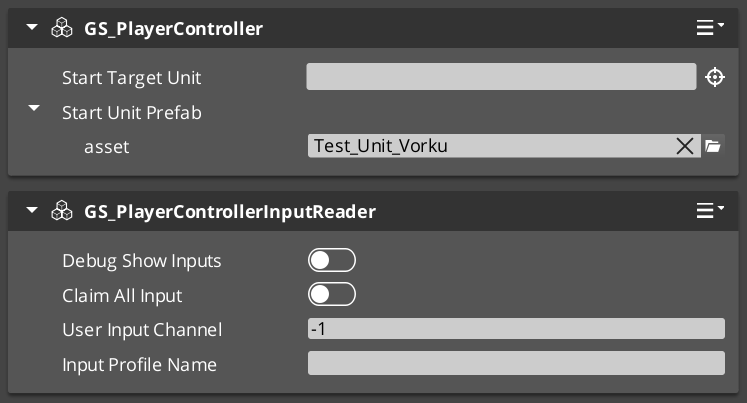
GS_PlayerControllerComponent registers itself with the Unit Manager on activation, making it visible to the game’s controller tracking system. It connects to the Input Data pipeline on the possessed unit so that raw input events are routed correctly as soon as possession is established.
Setup
- Add
GS_PlayerControllerComponentto a controller entity (not the unit entity itself). - Ensure
GS_InputDataComponentandGS_PlayerControllerInputReaderComponentare on the unit entity. - Call
Possessto attach the controller to the target unit.
ScriptCanvas — Possessing a Unit
AI Controller
GS_AIControllerComponent gives AI logic the same possession interface as the player controller. An AI behavior system possesses a unit, then issues movement commands through UnitRequestBus or directly drives the unit’s Input Data component to simulate input. The unit processes those commands through the same mover stack it would use for player input.
ScriptCanvas — Handing a Unit to AI
// Called from your behavior tree or AI activation event when the NPC starts acting
[AI behavior activates]
    └─► [UnitRequestBus(unitEntityId) → Possess(aiControllerEntityId)]

[UnitNotificationBus(unitEntityId) → UnitPossessed(aiControllerEntityId)]
    └─► [AI logic begins issuing movement / action commands]
Switching Controllers at Runtime
Because possession is a simple attach/detach operation on the unit, switching from player to AI control (or back) is two calls:
[Trigger: cutscene starts, character incapacitated, etc.]
    └─► [UnitRequestBus(unitEntityId) → DePossess]
            └─► [UnitRequestBus(unitEntityId) → Possess(aiControllerEntityId)]

[Trigger: cutscene ends, character recovers, etc.]
    └─► [UnitRequestBus(unitEntityId) → DePossess]
            └─► [UnitRequestBus(unitEntityId) → Possess(playerControllerEntityId)]
The DePossess call ensures the previous controller’s input pipeline is disconnected before the new controller attaches, preventing stale input state from leaking between ownership changes.
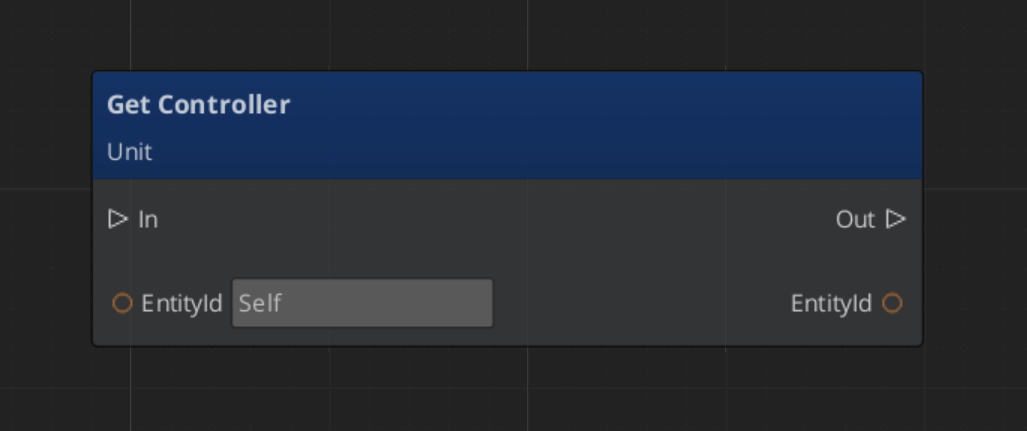
Querying Controller State
| ScriptCanvas Node | Returns | Notes |
|---|---|---|
GetController (on unit) | EntityId | Current controller entity. Invalid ID means no controller. |
GetUniqueName (on unit) | string | The name assigned to this unit at spawn time. |
ScriptCanvas
Standby and Controllers
When the Unit Manager broadcasts EnterStandby, both player and AI controllers should stop issuing commands. Player controllers automatically halt input reading. AI controllers must be suspended by whatever behavior system drives them. On ExitStandby, normal command flow resumes.
| Event | Controller Action |
|---|---|
UnitEnteringStandby | Halt input reads, suspend AI commands. |
UnitExitingStandby | Resume input reads, restart AI commands. |
Both events fire on UnitNotificationBus addressed by unit entity ID.
Quick Reference
| Need | Bus | Method / Event |
|---|---|---|
| Attach a controller to a unit | UnitRequestBus (by ID) | Possess(controllerEntityId) |
| Release a controller from a unit | UnitRequestBus (by ID) | DePossess |
| Know when possession changes | UnitNotificationBus (by ID) | UnitPossessed(controllerEntityId) |
| Get the current controller | UnitRequestBus (by ID) | GetController |
| Get a unit’s name | UnitRequestBus (by ID) | GetUniqueName |
| Know when unit enters standby | UnitNotificationBus (by ID) | UnitEnteringStandby |
| Know when unit exits standby | UnitNotificationBus (by ID) | UnitExitingStandby |
Glossary
| Term | Meaning |
|---|---|
| Possession | The act of a controller attaching to a unit and becoming its active intelligence |
| DePossession | Releasing a controller from a unit, halting its input processing |
| Player Controller | A human-driven controller that routes input from the Input Data pipeline to a unit |
| AI Controller | An NPC controller that issues movement commands through the same unit interface as player input |
For full definitions, see the Glossary.
See Also
For the full API, component properties, and C++ extension guide:
For related systems:
Get GS_Unit
GS_Unit — Explore this gem on the product page and add it to your project.