UI Interaction
Categories:
UI Interaction covers two systems that handle player input at the UI layer: enhanced buttons with motion-based hover and select animations, and the input interceptor that captures input events while a canvas is focused.
For component properties and the full API, see the Framework API reference.
Contents
Buttons
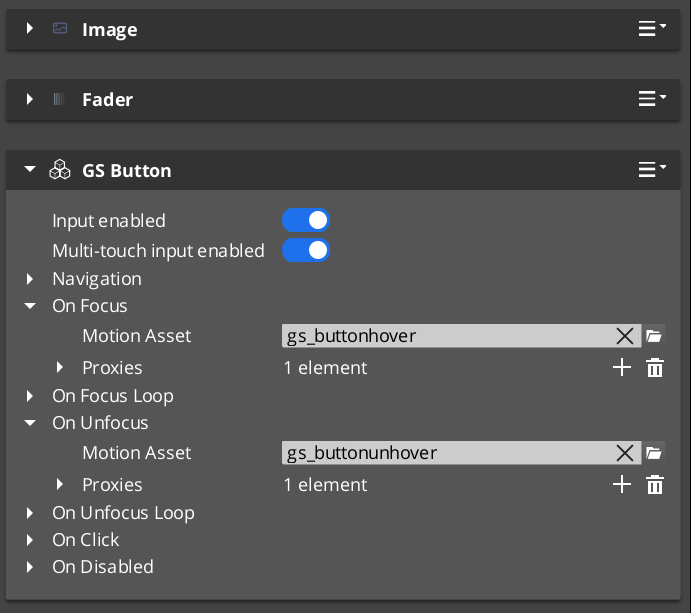
GS_ButtonComponent extends LyShine’s interactable system with UiAnimationMotion support. When the player hovers over a button (mouse or gamepad navigation), a configurable animation plays. When the button is selected, a separate animation fires. Both animations use .uiam assets, giving full control over position, scale, rotation, alpha, and color transitions.
Setup
- Add a LyShine
UiButtonComponent(or other interactable) to your entity. - Add
GS_ButtonComponentto the same entity. - Author
.uiamassets for hover, unhover, and select states. - Assign the assets to the corresponding fields in the Inspector.
Integration with Page Focus
When page navigation moves focus to a button (via keyboard or gamepad), the button treats focus as a hover event and plays its hover animation. This ensures consistent visual feedback regardless of input method.
Input Interception

GS_UIInputInterceptorComponent prevents input from leaking to gameplay systems while a UI canvas is active. It uses a GS_UIInputProfile asset to define which input channels to intercept. Intercepted events are re-broadcast on UIInputNotificationBus so UI-specific logic can respond to them.
When the canvas loses focus, the interceptor deactivates automatically and input flows normally back to gameplay.
Setup
- Add
GS_UIInputInterceptorComponentto the root page entity. - Configure a
GS_UIInputProfileasset with the channels to intercept. - Connect to
UIInputNotificationBusin any component that should respond to intercepted events.
Integration
Buttons and input interception work together on interactive canvases:
- The input interceptor blocks gameplay input while a menu is open.
- Buttons provide visual hover/select feedback driven by
UIInputNotificationBusevents. - The page system routes gamepad focus to the correct button automatically.
Glossary
| Term | Meaning |
|---|---|
| GS_ButtonComponent | An enhanced button with GS_Motion-based hover and select animations |
| Hover Animation | A .uiam motion that plays when the button receives focus or mouse hover |
| Select Animation | A .uiam motion that plays when the button is activated |
| GS_UIInputInterceptorComponent | Component that captures input events while a canvas is focused |
| GS_UIInputProfile | Data asset defining which input channels to intercept |
For full definitions, see the Glossary.
See Also
For the full API, component properties, and C++ extension guide:
For related systems:
Get GS_UI
GS_UI — Explore this gem on the product page and add it to your project.