UI Animation
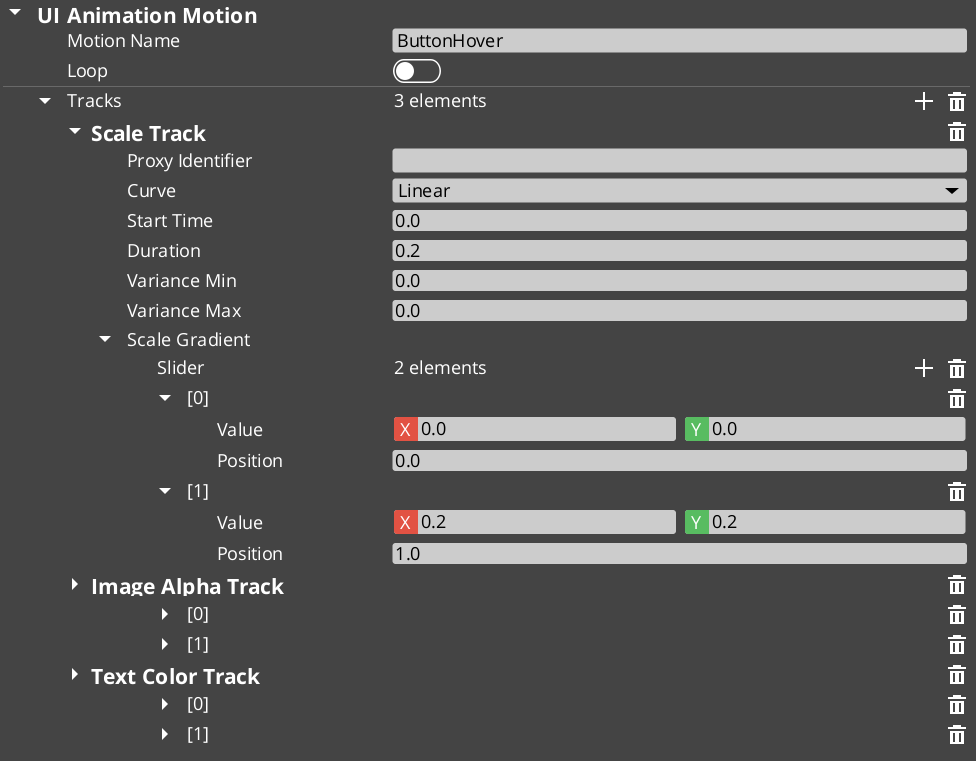
UI Animation extends the GS_Motion system with 8 LyShine-specific animation tracks. Animations are authored as .uiam (UI Animation Motion) assets in the O3DE Asset Editor and can be used for page transitions, button hover effects, and standalone component animation.
For track type details, the domain extension pattern, and component internals, see the Framework API reference.
Contents
- Available Tracks
- Where Animations Are Used
- Authoring Animations
- Proxy Targeting
- Quick Reference
- Glossary
- See Also
Available Tracks
Each track animates a single LyShine property over time:
| Track | Target Component | What It Animates |
|---|---|---|
| Position | Any LyShine element | Position offset from anchor |
| Scale | Any LyShine element | Element scale |
| Rotation | Any LyShine element | Element rotation |
| Element Alpha | Any LyShine element | Whole-element transparency |
| Image Alpha | UiImageComponent | Image-specific transparency |
| Image Color | UiImageComponent | Image color tint |
| Text Color | UiTextComponent | Text color |
| Text Size | UiTextComponent | Font size |
Multiple tracks can run simultaneously within a single motion — for example, a page show animation might fade in (Element Alpha) while sliding up (Position) and scaling from 90% to 100% (Scale).
Where Animations Are Used
| Context | How It’s Assigned |
|---|---|
| Page transitions | Assigned to onShow, onShowLoop, and onHide slots on GS_UIPageComponent. |
| Button states | Assigned to hover and select slots on GS_ButtonComponent. |
| Standalone playback | Assigned to UiAnimationMotionComponent on any entity. |
Authoring Animations
- Create a new
.uiamasset in the O3DE Asset Editor. - Add tracks for the properties you want to animate.
- Configure timing, easing curves, and property values for each track.
- Optionally set track identifiers for proxy targeting.
- Assign the asset to a component slot in the Inspector.
Proxy Targeting
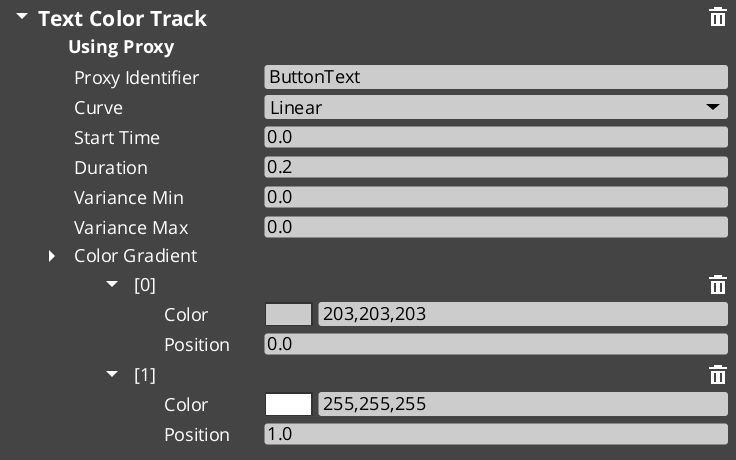
When tracks have identifiers (named labels), they appear in the motion’s proxy list. Proxies let you redirect a track to a different entity in the UI hierarchy — for example, animating a background panel separately from a content area within the same page transition.
Quick Reference
| Need | How |
|---|---|
| Animate a page transition | Assign .uiam assets to onShow/onHide slots on the page |
| Animate a button hover | Assign .uiam asset to the button’s hover slot |
| Play an animation on any entity | Add UiAnimationMotionComponent and assign a .uiam asset |
| Target a child element | Use proxy entries to redirect tracks |
| Loop an animation | Enable loop on the motion asset |
Glossary
| Term | Meaning |
|---|---|
| UI Animation Motion (.uiam) | A data asset containing LyShine-specific animation tracks for UI elements |
| UiAnimationMotionComponent | A standalone component for playing UI animations on any entity |
| Proxy Targeting | Redirecting a track to a different entity in the UI hierarchy via named labels |
For full definitions, see the Glossary.
See Also
For the full API, component properties, and C++ extension guide:
For related systems:
Get GS_UI
GS_UI — Explore this gem on the product page and add it to your project.