Page Navigation
Categories:
Page Navigation is the core of the GS_UI system. Pages are the fundamental unit of UI organization — each page represents a screen, panel, or section of your interface. Pages can be root pages (registered with the UI Manager as a canvas entry point) or nested child pages (managed by a parent page). Navigation uses a push/pop focus stack so the system always knows where to return when the player backs out.
For architecture details, the NavigateTo algorithm, and component internals, see the Framework API reference.
Contents
- Page Types
- Required Companion Components
- Navigation Methods
- Return Policies
- Page Transitions
- Quick Reference
- Glossary
- See Also
Page Types
| Type | How It’s Configured | What It Does |
|---|---|---|
| Root Page | m_isRoot = true | Registers with the UI Manager by name. Acts as the canvas entry point. |
| Child Page | m_isRoot = false | Registers with its parent page automatically. Managed by parent’s show/hide logic. |
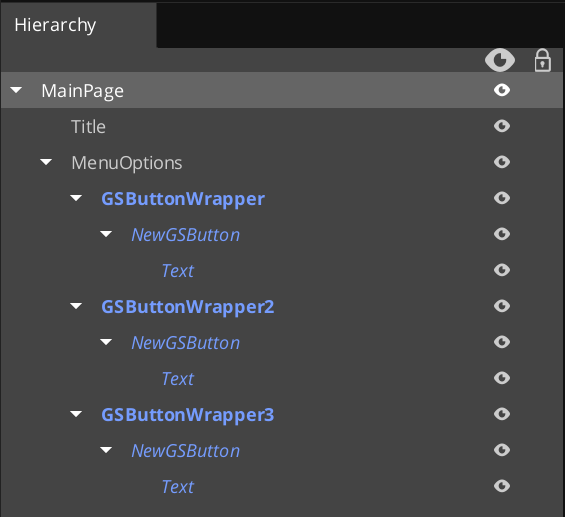
A canvas typically has one root page at the top, with child pages nested beneath it for sub-screens (settings tabs, inventory categories, confirmation dialogs).
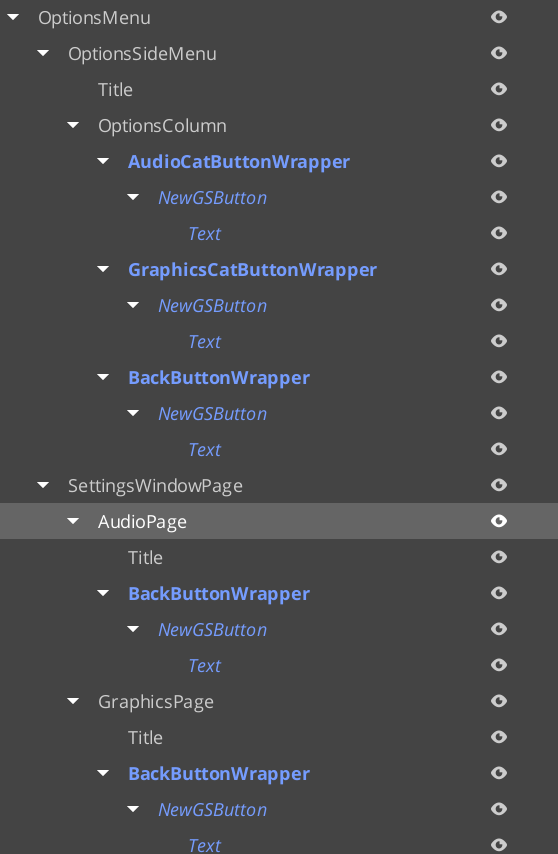
Example of pages within pages to determine UI display structure, and handling changing focus between pages. SettingsWindowPage represents the main options windows. The child pages are the actual different windows that display within the space, changing with side menu changes.
For guides on complex page navigation, see Lesson: Create UI.
Required Companion Components
Root page entities require two additional components alongside GS_UIPageComponent:
| Component | Why It’s Needed |
|---|---|
| FaderComponent | Drives alpha-based fade transitions for show/hide animations. |
| HierarchicalInteractionToggleComponent | Disables input on the entire page subtree when the page is hidden, preventing clicks from reaching invisible elements. |
Add both to every root page entity in the UI Editor.
Navigation Methods
These are the primary methods for controlling page flow:
| ScriptCanvas Node | What It Does |
|---|---|
NavigateTo(forced) | Focuses this page. Automatically pushes at the correct ancestor level in the hierarchy. |
NavigateBack | Walks up the page hierarchy to find the first ancestor with a non-empty focus stack and pops it. If no stack is found, calls NavLastUI on the UI Manager (closes the canvas). |
ChangePage(target, takeFocus, forced) | Swaps the displayed child page without pushing a new focus stack entry. |
ToggleShow(on) | Shows or hides this page. |
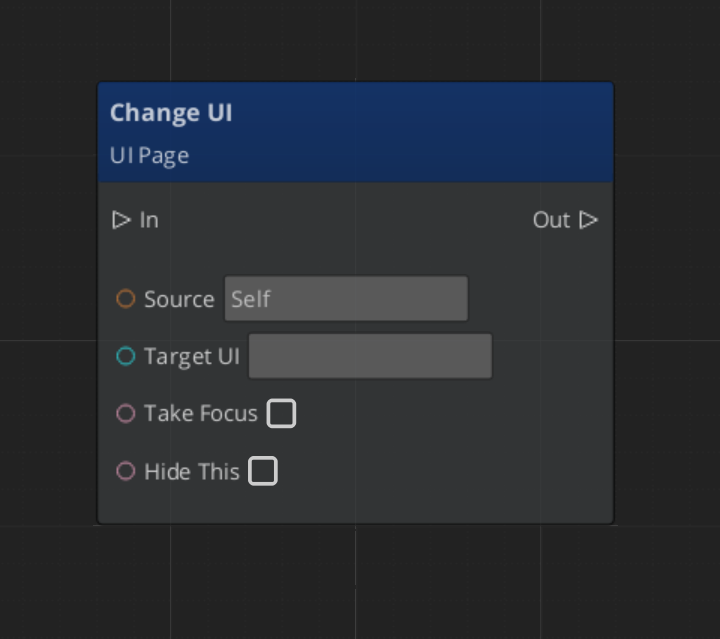
ChangeUI(targetUI, takeFocus, hideThis) | Cross-canvas navigation — switches to a different UI canvas. |
FocusChildPageByName(name, forced) | Focuses a child page by its m_pageName string. |
Handling Page Components
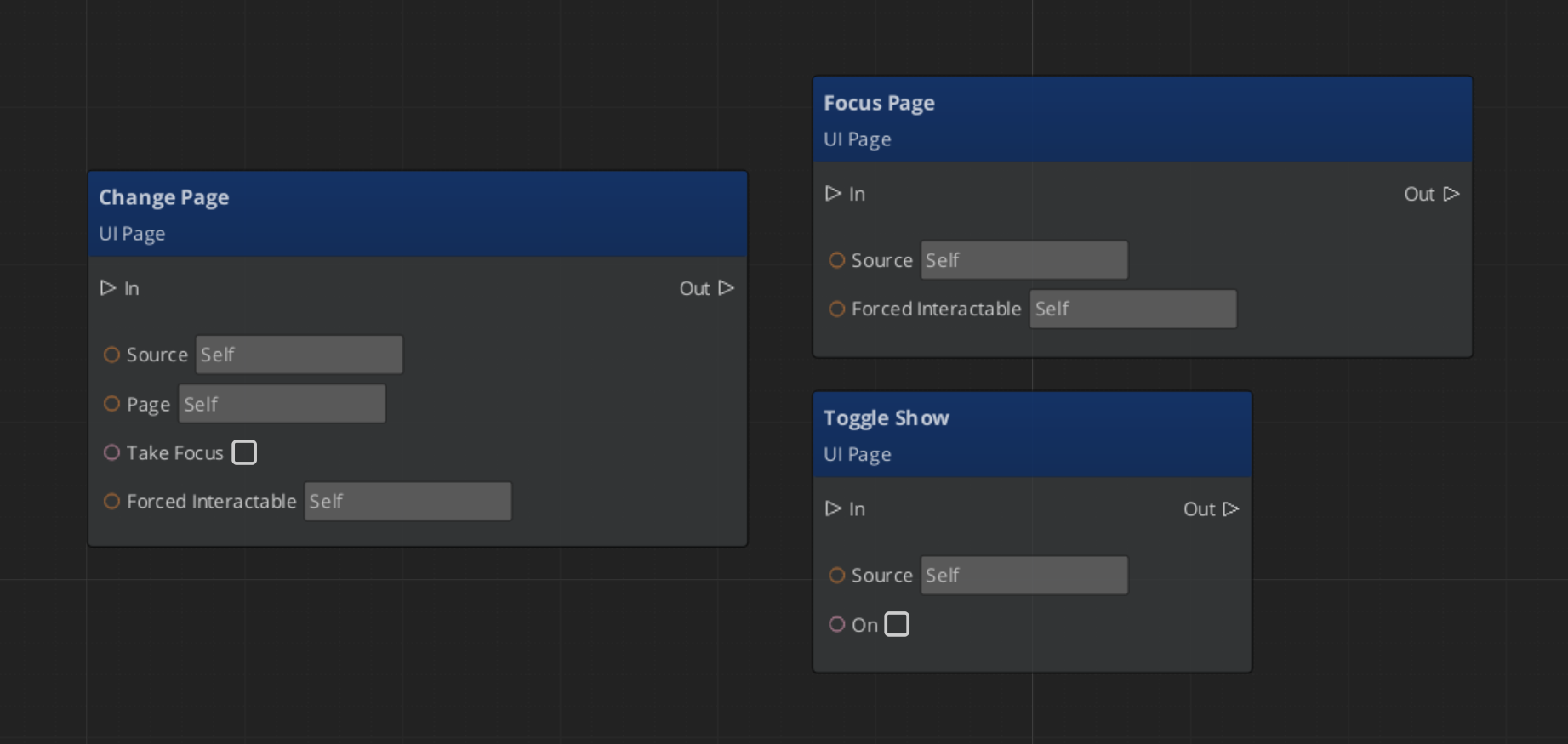
Navigating Pages
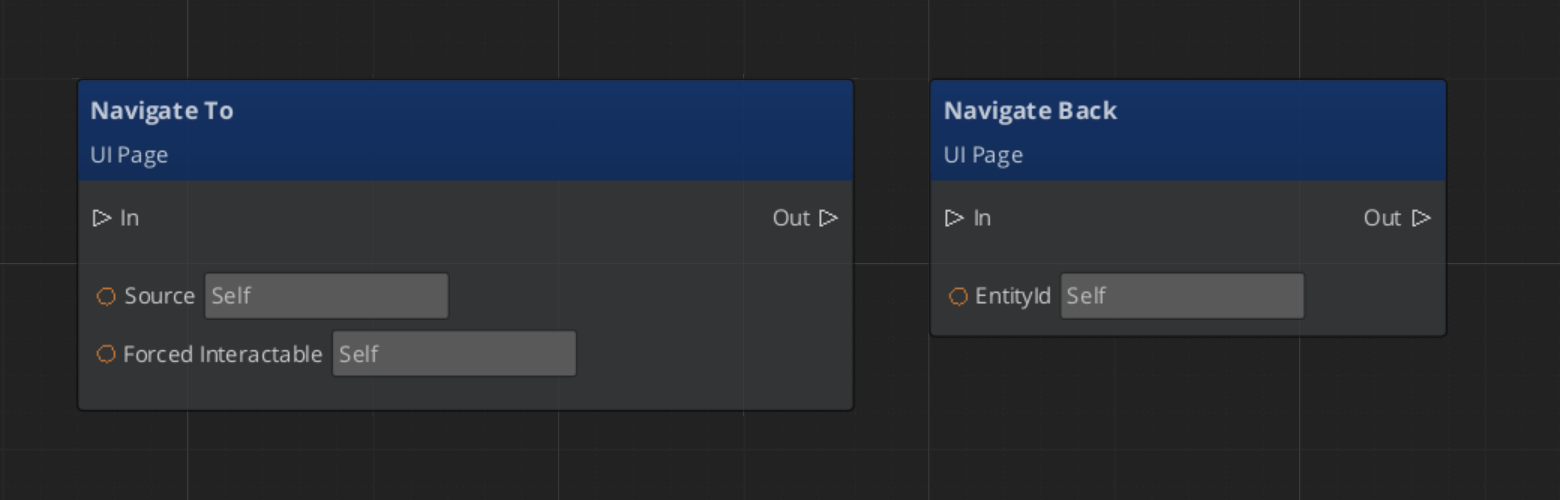
Changing UIs
Return Policies
Each page has a NavigationReturnPolicy that controls which element gets focus when the page is returned to:
| Policy | Behavior |
|---|---|
| RestoreLast | Returns focus to the last interactable the player was on (e.g., resume where you left off). |
| AlwaysDefault | Always returns to the page’s default interactable (e.g., always land on “New Game” button). |
Page Transitions
Pages support three motion slots for animated transitions:
| Slot | When It Plays |
|---|---|
onShow | When the page becomes visible. |
onShowLoop | Loops continuously while the page is visible. |
onHide | When the page is hidden. |
Each slot takes a .uiam (UI Animation Motion) asset. See UI Animation for track types.
Quick Reference
| Need | Bus | Method |
|---|---|---|
| Navigate to a page | UIPageRequestBus | NavigateTo(forced) |
| Go back | UIPageRequestBus | NavigateBack |
| Switch child page | UIPageRequestBus | ChangePage(target, takeFocus, forced) |
| Show/hide a page | UIPageRequestBus | ToggleShow(on) |
| Switch canvases | UIPageRequestBus | ChangeUI(targetUI, takeFocus, hideThis) |
| Focus child by name | UIPageRequestBus | FocusChildPageByName(name, forced) |
Glossary
| Term | Meaning |
|---|---|
| Page | The fundamental UI unit — a screen, panel, or section of the interface |
| Root Page | A page registered with the UI Manager as a canvas entry point |
| Child Page | A page managed by a parent page, navigated to via ChangePage or FocusChildPageByName |
| NavigationReturnPolicy | Controls which element gets focus when returning to a page (RestoreLast or AlwaysDefault) |
For full definitions, see the Glossary.
See Also
For the full API, component properties, and C++ extension guide:
For related systems:
Get GS_UI
GS_UI — Explore this gem on the product page and add it to your project.