Noise & Impulse
Categories:
Camera shake comes in two flavors, both as Noise additives on a Phantom Camera’s stage list:
PerlinNoise— continuous Perlin-noise displacement. Use for handheld feel, idle sway, low-frequency wobble. Always sampling.ImpulseNoise— event-triggered burst, gated by an ADSR envelope. Use for explosions, foot-stomps, gun kicks. Stays silent until you fire it.
Both consume the same .camnoiseprofile asset and the same six-axis Perlin layer model. Stack freely on the same cam — a baseline handheld profile plus an event-triggered impact profile is the canonical combination.
For step-by-step composition recipes (handheld baseline, event-triggered impact, stacked handheld + impact), see the recipes collection.
Camera Noise Configurations (Recipes) API
For the asset reference and per-axis layer details, see Noise Profiles (Framework API). For the stage variants’ authored fields and kinematic models, see Additive Stage Variants (Framework API).
Contents
- Preset Library
- Triggering an Impulse from Gameplay Code
- Stable vs Final Pose for Gameplay Readback
- Authoring a Custom Profile
- See Also
Preset Library
A starter library of .camnoiseprofile assets ships in gs_phantomcam/Assets/Noise Profiles/. Drop one onto a PerlinNoise or ImpulseNoise stage’s Profile slot to get an immediate baseline. Match the preset’s lens family to the cam’s lens for natural feel.
Handheld lens family — pair with PerlinNoise
| Asset | Lens character |
|---|---|
Normal_Mild.camnoiseprofile | Normal-lens baseline. Balanced position and rotation. |
Normal_Intense.camnoiseprofile | Normal-lens active handheld. Larger amplitudes. |
Telephoto_Mild.camnoiseprofile | Telephoto baseline. Tighter angular response, low position. |
Telephoto_Intense.camnoiseprofile | Aggressive telephoto handheld. |
Wide_Mild.camnoiseprofile | Wide-lens baseline. Translation dominates; rotation low. |
Wide_Intense.camnoiseprofile | Aggressive wide-lens handheld. |
All-axes shake family — pair with ImpulseNoise or aggressive PerlinNoise
| Asset | Character |
|---|---|
6D_Shake.camnoiseprofile | Earthquake / impact aftermath — all six axes, high-frequency micro-jitter on top of mid-frequency sway. |
6D_Wobble.camnoiseprofile | Floaty / dreamlike — all six axes, low-frequency long sway. |
Tuning intensity without re-authoring
Per-cam intensity is dialed on the additive stage’s AmplitudeGain (and FrequencyGain for speed). A single Normal_Mild profile can drive a subtle cutscene cam (AmplitudeGain = 0.3) and a frantic chase cam (AmplitudeGain = 1.8) without authoring new assets.
For project-specific characters — gunfire-tuned impulse profiles, ultra-mild cinematic sway, etc. — see Authoring a Custom Profile.
Triggering an Impulse from Gameplay Code
Fire TriggerCameraImpulse(strength) on the cam to play one burst of every ImpulseNoise additive on it.
C++
#include <GS_PhantomCam/Cameras/GS_PhantomCameraBus.h>

// Compute distance-based falloff.
const float strength = AZ::GetClamp(1.0f - distance / radius, 0.0f, 1.0f);

GS_PhantomCam::PhantomCameraRequestBus::Event(
    activeCameraEntityId,
    &GS_PhantomCam::PhantomCameraRequests::TriggerCameraImpulse,
    strength);
strength multiplies each stage’s AmplitudeGain for that specific burst. Pass 1.0 for full profile intensity, smaller for distance falloff, larger to boost.
Author pattern: distance-attenuated impact source
A typical “explosion at world position X” pattern:
const float distance     = (explosionPos - cameraPos).GetLength();
const float falloff      = AZ::GetClamp(1.0f - distance / kEffectRadius, 0.0f, 1.0f);
const float baseStrength = 1.5f;       // for the explosion's overall punch

const float impulseStrength = baseStrength * falloff;

GS_PhantomCam::PhantomCameraRequestBus::Event(
    activeCamId,
    &GS_PhantomCam::PhantomCameraRequests::TriggerCameraImpulse,
    impulseStrength);
Cams outside kEffectRadius receive strength = 0 and ignore. Cams at the explosion’s exact position receive full baseStrength.
Querying the active cam
TriggerCameraImpulse is per-cam, so you need a target cam id. The common pattern is to track the channel’s currently-active cam via SettingNewCam / SettingNewCamOnChannel and store it, or query CamManagerRequestBus::GetActiveCamCore() for the engine’s active view.
Stable vs Final Pose for Gameplay Readback
Cam pose snapshots come in three flavors:
| Snapshot | Where it lands | Use it for… |
|---|---|---|
| Desired pose | Post Body + Aim, pre-Reposition. Clean ideal. | Debug visualization. |
| Stable pose | Post Reposition, pre-Noise. Collision-corrected but shake-free. | Gameplay code that reads camera facing (e.g. movement-input direction). |
| Final pose | Post Noise. What gets rendered. | Audio listener, screen-space UI. |
The pitfall. If your character moves “where the camera is facing,” and you read
GetFinalPose(or the entity’sTransformBus), every shake event will momentarily drag the character around. UseGetStablePoseinstead — the cam’s pose without noise displacement.
AZ::Transform stable;
GS_PhantomCam::PhantomCameraRequestBus::EventResult(
    stable,
    activeCamId,
    &GS_PhantomCam::PhantomCameraRequests::GetStablePose);

const AZ::Vector3 cameraForward = stable.GetBasisY();   // O3DE forward axis
Authoring a Custom Profile
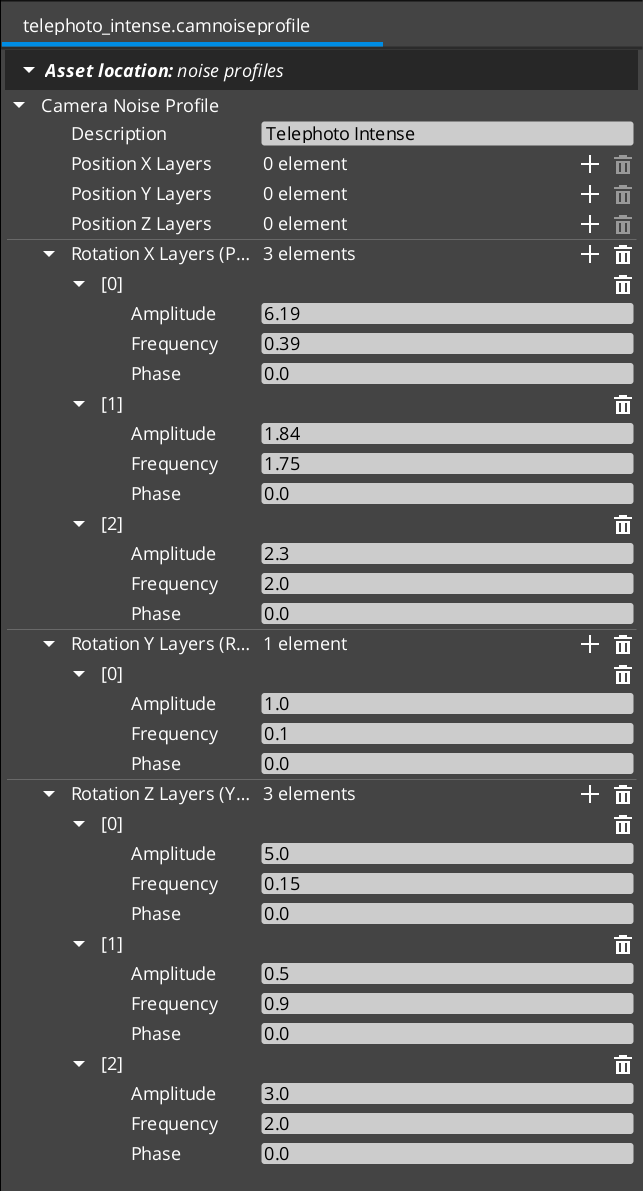
When the shipped presets don’t fit, author your own:
- Open the Asset Editor in O3DE.
- Select New and choose CameraNoiseProfile.
- For each axis where you want noise (typically translation X / Y and rotation pitch / yaw / roll), add 1–3 layers. Three layers per axis is the typical rhythm: one slow / large layer for sway, one mid layer for flutter, one fast / small layer for micro-jitter.
- For each layer set:
- Amplitude — in meters (position) or degrees (rotation).
- Frequency — in Hz. Handheld typically 0.1 – 2 Hz; shake / impact 3 – 60 Hz.
- Phase (optional) — decorrelates layers that share frequency.
- Set the Description to record intent and tuning history.
- Save the asset.
- Assign it to a
PerlinNoiseorImpulseNoiseadditive stage’s Profile slot.
See Noise Profiles (Framework API) for the full per-field reference.
See Also
Recipes:
- Camera Noise Configurations — handheld baseline, event-triggered impact, stacked.
Framework API:
- Noise Profiles — the
.camnoiseprofileasset. - Additive Stage Variants —
PerlinNoiseandImpulseNoisekinematic models. - Phantom Cameras —
TriggerCameraImpulseandGetStablePoseentry points. - GS_Core Noise — the Perlin primitives the asset is built on.
Related basics pages:
- The Basics: Stage Composition — broader stage composition primer.
- The Basics: Phantom Cameras — base component fields and lifecycle.
Get GS_PhantomCam
GS_PhantomCam — Explore this gem on the product page and add it to your project.