Phantom Cameras
Categories:
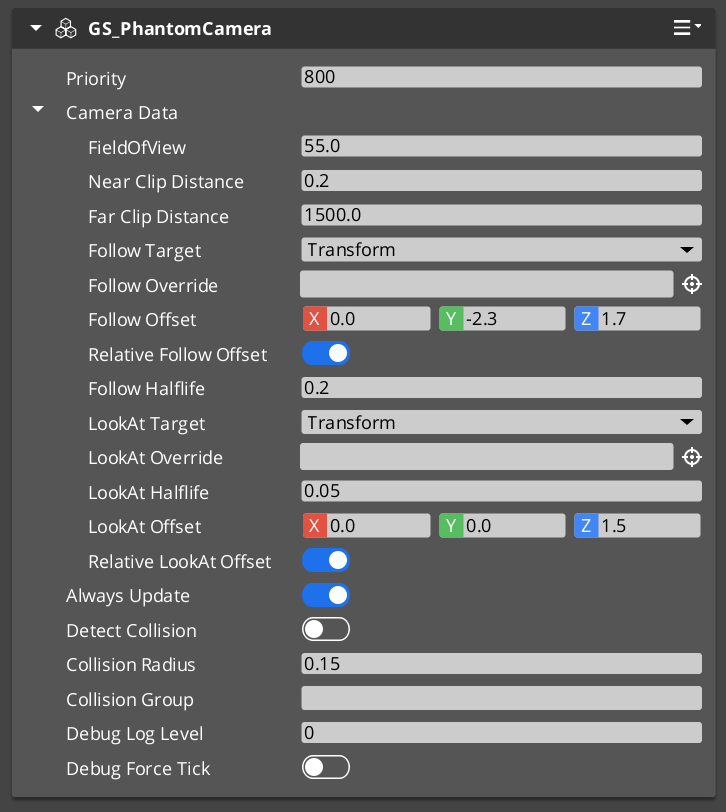
A Phantom Camera is a virtual camera definition placed in your level as a component on an ordinary entity. It does not render anything. Instead, the GS_PhantomCameraComponent holds priority, lens, target routing, and a stage pipeline slot that authors fill in to give the cam its behavior. The Cam Manager arbitrates priority across all registered Phantom Cameras in a channel — whichever active cam holds the highest priority drives the real camera at any given moment via the Cam Core.
Where previous versions of GS_PhantomCam shipped separate components for each behavior, all of those behaviors are now stage variants layered on top of the single base component. To make a cam follow, orbit, sweep along a spline, or track a group of subjects, you slot a Body stage and an Aim stage — and optionally one or more Additive stages — from the editor’s type-picker.
For architecture details, component properties, and extending the system in C++, see the Framework API reference.
Contents
- How Priority Works
- PhantomCamData Fields
- Stage Composition
- Channel Scope
- Snap and Focus
- Activating and Deactivating Cameras
- Requesting Camera Data
- Quick Reference
- Glossary
- See Also
How Priority Works
Every GS_PhantomCameraComponent has a base priority. The Cam Manager continuously evaluates priority across all active Phantom Cameras in a channel and routes camera control to the highest. Influences (Influence Fields, gameplay code) can add temporary priority modifiers without touching the base value. When the dominant camera changes, the Cam Manager notifies the Cam Core to begin blending toward the new winner.
| Condition | Result |
|---|---|
| Camera A priority 10, Camera B priority 5 — both active | Camera A is dominant. |
| Camera A is disabled or deactivated | Camera B becomes dominant immediately (or blends if a Blend Profile entry matches the A → B pair). |
| Camera A and Camera B both priority 10 | The most recently activated one is dominant. |
| No Phantom Cameras are active in a channel | The real camera holds its last known position. |
In multi-channel projects, each channel arbitrates independently — player 1 dominance changes do not affect player 2’s view.
PhantomCamData Fields
Each Phantom Camera stores a PhantomCamData record with its lens, priority, and follow target. Follow / look-at offsets, damping halflives, and target-mode resolution live on the stages, not on PhantomCamData.
| Field | Type | Purpose |
|---|---|---|
Priority | s32 | Base priority used in arbitration. Higher wins. |
FOV | float | Field of view in degrees. Applied to the real camera when dominant. |
NearClip | float | Near clip plane distance. |
FarClip | float | Far clip plane distance. |
CamTarget | EntityId | The follow target. May be left empty to inherit the channel target from the Cam Manager. |
A Phantom Camera with no CamTarget and no inherited channel target sits at its entity’s authored position until a target is bound.
Stage Composition
The cam’s behavior is the composition of one Body stage, one Aim stage, and zero-or-more Additive stages. Each is picked from the editor’s type-picker on the corresponding slot.
| Slot | Common picks | What it controls |
|---|---|---|
| Body | DefaultFollowBody, OrbitBody, DynamicOrbitBody, LeadingFollowBody, TrackBody | How the cam follows the target. |
| Aim | DefaultLookAtAim, ClampedLookAim | How the cam orients toward the target. |
| Additives (Reposition) | CollisionReposition, TugAimListener, TugBodyListener | Pose corrections — collision pushback, magnetic spatial pulls. |
| Additives (Noise) | PerlinNoise, ImpulseNoise | Pose perturbations — handheld sway, event-triggered shake. |
A third-person shoulder cam, for example, slots LeadingFollowBody + DefaultLookAtAim + a CollisionReposition additive. An orbital boss cam slots DynamicOrbitBody + DefaultLookAtAim + a PerlinNoise additive for handheld feel.
For full step-by-step composition recipes, see the recipes page.
Retired components
ClampedLook_PhantomCamComponent, StaticOrbit_PhantomCamComponent, and Track_PhantomCamComponent no longer exist as separate components. Their behavior is now provided by stage variants:
| Retired component | Replacement |
|---|---|
StaticOrbit_PhantomCamComponent | OrbitBody Body stage. |
ClampedLook_PhantomCamComponent | ClampedLookAim Aim stage. |
Track_PhantomCamComponent | TrackBody Body stage. |
AlwaysFaceCameraComponent is unchanged — it is still a billboard helper, not a camera type itself.
Channel Scope
Each Phantom Camera authors a Channel Scope that decides how it participates in the channel system. In single-player projects, leave this at the default (Local) and everything routes through channel 0. In multi-channel projects:
| Scope | Use for |
|---|---|
Local (default) | The cam lives in its rig’s channel. Each spawned rig instance has its own copy. |
AllChannels | In-rig per-player broadcast cam — every spawned rig carries a duplicate. |
TrueUnique | A single instance bound to a specific channel, or shared across every channel (e.g. cinematic collapse cams paired with Group Targets). |
For the full walkthrough, see Channels & Instancing.
Snap and Focus
A Phantom Camera ticks each frame when any of these is true:
m_hasFocus— this cam is the channel’s currently-driven cam.m_alwaysUpdate— authored opt-in to always tick (background-tracking cams).m_blendingOut— this cam is the outgoing source of an in-flight blend.
Outside that condition the cam is fully dormant — it does not tick, its stages do not run, and its body does not integrate input.
The cam automatically snaps to its evaluated ideal pose (bypassing damping for one tick) on:
- Focus gain.
- A new target binding (
SetCameraTarget). - A new group-target binding (
SetTargetFocusGroup). - An explicit
QueueSnapCamera()call.
For synchronous snap (typically only needed by framework code at mid-spawn binding), call SnapCameraNow() instead.
Activating and Deactivating Cameras
Phantom Cameras participate in priority arbitration only while their entity is active. Enable or disable the entity to add or remove a camera from the channel. The transition between dominant cameras is animated by whichever Blend Profile entry matches the outgoing → incoming pair (see Blend Profiles).
ScriptCanvas
To raise a camera’s priority and make it dominant:
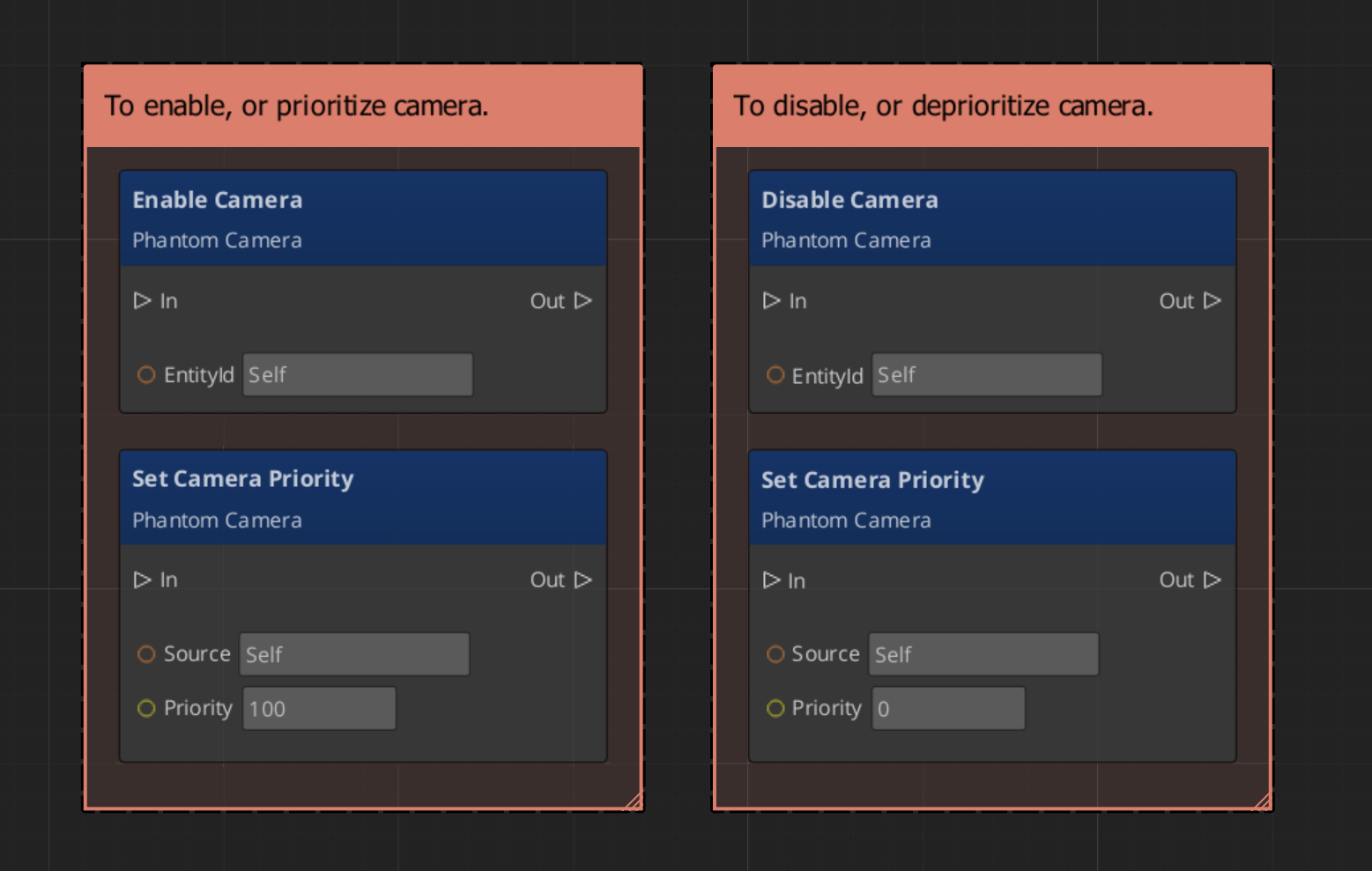
Because priority is numeric, you can activate multiple cameras simultaneously and let priority values determine dominance without manually disabling others.
Requesting Camera Data
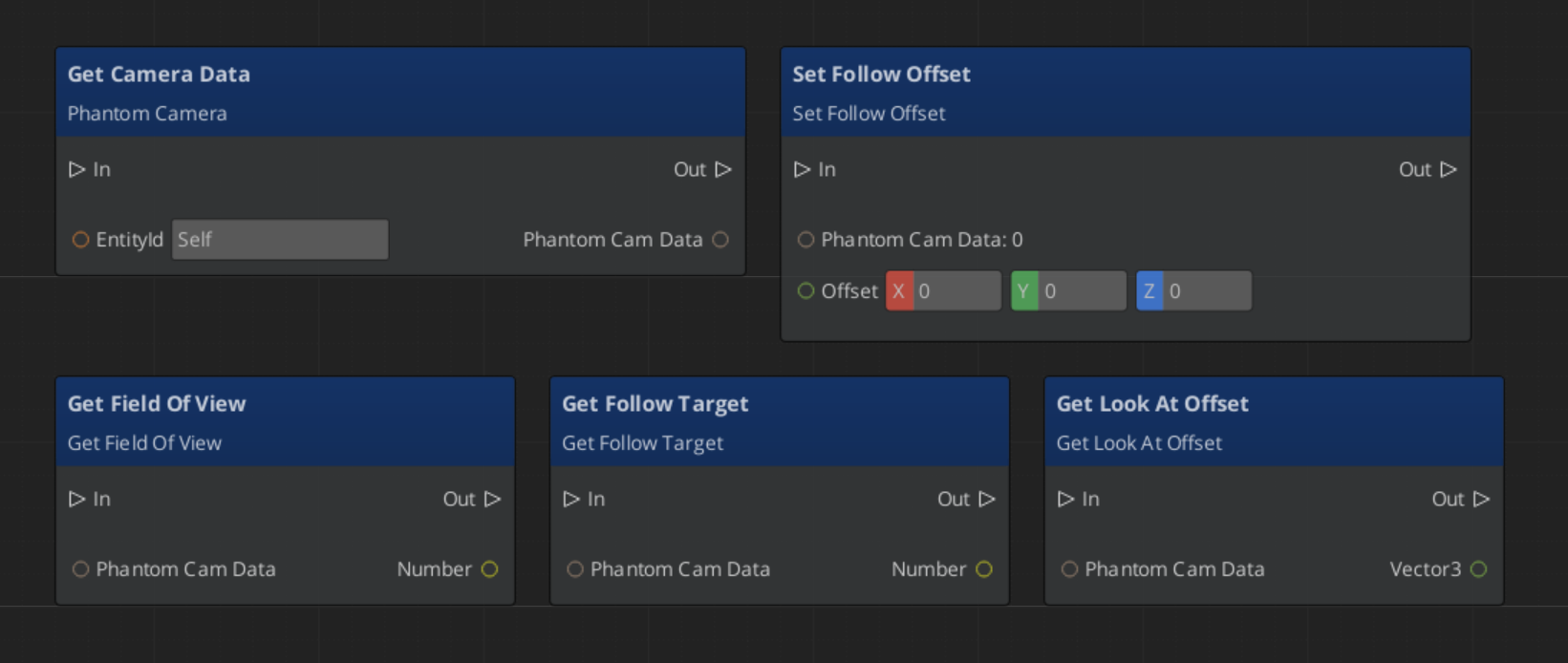
Use PhantomCameraRequestBus (addressed by the Phantom Camera entity’s ID) to read or write its configuration at runtime, query staged poses, or trigger an impulse on all ImpulseNoise additives.
ScriptCanvas
Quick Reference
| Need | Bus | Method / Event |
|---|---|---|
| Read a camera’s lens / priority data | PhantomCameraRequestBus(id) | GetCameraData |
| Change a camera’s follow target | PhantomCameraRequestBus(id) | SetCameraTarget(entityId) |
| Change a camera’s priority | PhantomCameraRequestBus(id) | SetCameraPriority(value) |
| Snap the camera to its ideal next tick | PhantomCameraRequestBus(id) | QueueSnapCamera |
Fire an impulse on all ImpulseNoise additives | PhantomCameraRequestBus(id) | TriggerCameraImpulse(strength) |
| Make a camera dominant | (entity activation) | Enable the Phantom Camera entity |
| Remove a camera from arbitration | (entity activation) | Disable the Phantom Camera entity |
| Know when the dominant camera changes | CamManagerNotificationBus | SettingNewCam (channel 0) or SettingNewCamOnChannel (multi-channel) |
| Read a stable pose for gameplay code | PhantomCameraRequestBus(id) | GetStablePose — preferred over GetFinalPose for movement input |
Glossary
| Term | Meaning |
|---|---|
| Phantom Camera | A virtual camera definition that publishes a candidate pose every tick. |
| Stage pipeline | The fixed Body → Aim → Reposition → Noise order that each cam runs each tick. |
| Body stage | The component that writes state.position. One slot per cam. |
| Aim stage | The component that writes state.rotation. One slot per cam. |
| Additive stage | A stackable correction or perturbation that runs after Body / Aim. |
| Priority | A numeric value that determines which Phantom Camera drives the real camera within its channel. |
| Channel | One player viewpoint slot. Channel 0 is the implicit default for single-player. |
For full definitions, see the Glossary.
See Also
For the full API, component properties, and C++ extension guide:
For related systems:
Get GS_PhantomCam
GS_PhantomCam — Explore this gem on the product page and add it to your project.