GS_PhantomCam
Categories:
GS_PhantomCam is the camera management system for GS_Play. Instead of driving a single camera directly, you place lightweight virtual cameras — Phantom Cameras — in your level. Each Phantom Camera carries a priority value and runs a per-tick stage pipeline that produces its candidate pose. The Cam Core drives the real engine camera to match whichever Phantom Camera currently has the highest priority. Transitions between cameras are animated by Blend Profile assets, and Influence Fields let spatial zones or gameplay states adjust priority dynamically.
For multi-player and split-screen, GS_PhantomCam can also run in a channel-aware mode where each player gets its own arbitration slot — Tier 1 single-cam, Tier 2 single-player rig, Tier 3 multi-channel co-op — without changing the per-cam authoring surface.
For architecture details, component properties, and extending the system in C++, see the GS_PhantomCam API.
Quick Navigation
| I want to… | Feature | API |
|---|---|---|
| Manage the camera system lifecycle, channel registries, and dispatch overrides | Cam Manager | API |
| Place virtual cameras with priority, target routing, and snap / focus state | Phantom Cameras | API |
| Compose camera behavior from Body, Aim, and Additive stages | Stage Pipeline | API |
| Drive the real camera, run blends, handle mid-blend interrupts | Cam Core | API |
| Define smooth transitions with custom easing, blend shape, and state inheritance | Blend Profiles | API |
| Create spatial zones that modify camera priority | Influence Fields | API |
Architecture
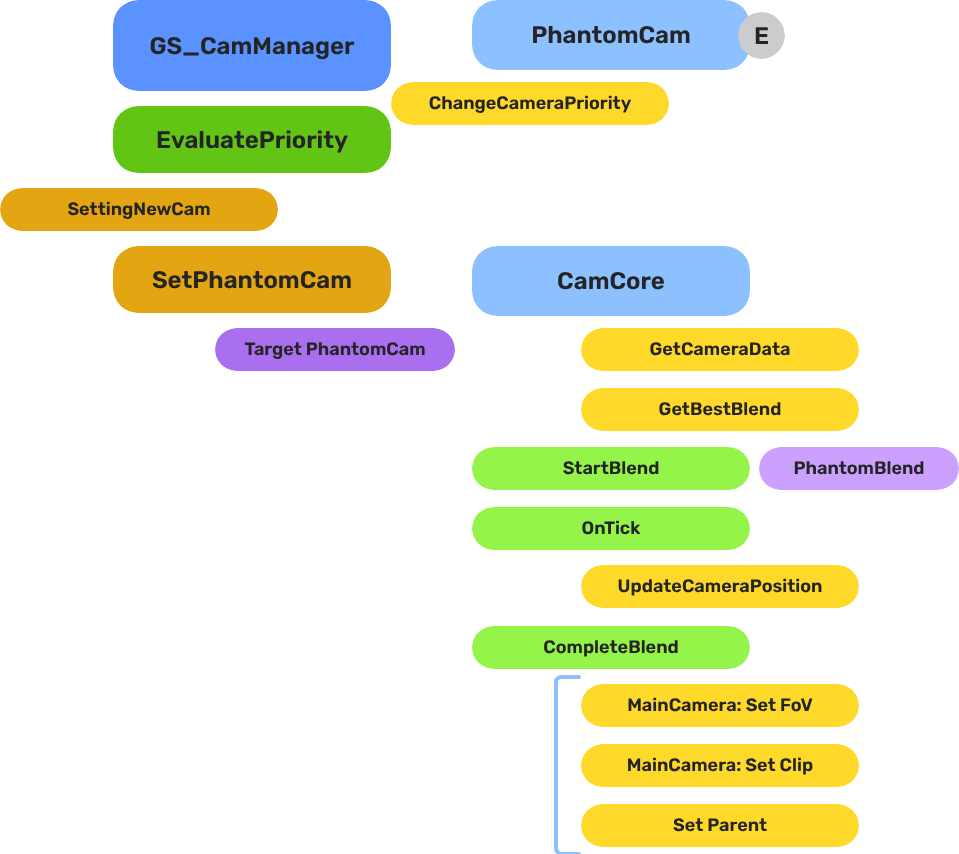
Breakdown
Each Phantom Camera publishes a candidate pose every tick by running its Body → Aim → Reposition → Noise pipeline. The Cam Manager arbitrates priority across all registered Phantom Cameras inside a channel (channel 0 covers all single-player projects). When the channel’s winner changes, the Cam Core looks up the best blend for the pair and animates the real camera from the outgoing pose to the new one — optionally inheriting pose state across the transition and applying mid-blend interrupt correction when a new winner appears before the current blend completes.
| Scenario | Which Blend Is Used |
|---|---|
| Camera A becomes inactive, Camera B was waiting | The Cam Core queries the assigned Blend Profile for an A → B entry. |
| No entry matches the pair | The Cam Core falls back to its own default blend time, easing, and shape. |
| A new transition starts before the current one finishes | The Cam Core applies a mid-blend correction window so the cam does not snap. |
| Blend entry’s Inherit State is set | The outgoing cam’s body publishes a pose snapshot; the incoming cam’s body adopts it before the blend executes. |
Because Blend Profiles are assets, the same profile can be shared across many Phantom Cameras. A single edit to the asset changes the feel of every camera that references it.
E Indicates extensible classes and methods.
Patterns - Complete list of system patterns used in GS_Play.
Installation
GS_PhantomCam requires GS_Core only. Add both gems to your project before placing PhantomCam components in a level.
For a full guided walkthrough, follow the Simple Project Setup guide.
Quick Installation Summary
- Enable the GS_PhantomCam gem in your project configuration.
- Create a Cam Manager prefab and add it to the Game Manager’s Managers list.
- Choose your authoring tier:
- Tier 1 / 2 (single-player) — Assign a rig prefab to the Cam Manager’s Primary Rig Prefab, or hand-place a Cam Core entity in the level.
- Tier 3 (split-screen / co-op) — Toggle Enable Instanced Channels on the Cam Manager and populate the Channel Configs list. Detailed walkthrough ships with the Channels & Instancing docs.
- Place Phantom Camera entities with desired Body, Aim, and Additive stages.
- Create Blend Profile assets for camera transitions.
Cam Manager
The Cam Manager is the singleton camera-system controller, integrated with GS_Core’s manager lifecycle. It handles startup and shutdown, owns per-channel registries (cameras, targets, influences, group targets), runs priority arbitration, dispatches cross-channel cinematic overrides, and orchestrates the engine’s active main view. In multi-channel projects, the Cam Manager also spawns rig prefabs at startup and re-spawns them on stage transitions.
Phantom Cameras
A Phantom Camera is a single entity component — GS_PhantomCameraComponent — that carries priority, lens, target routing, snap / focus / blendingOut state, and the stage pipeline slot that gives the cam its behavior. Where previous versions of GS_PhantomCam shipped separate components for each behavior (clamped-look, static-orbit, spline track), all those behaviors are now stage variants on the single base component.
Stage Pipeline
Every Phantom Camera runs the same per-tick pipeline:
Body → Aim → Reposition additives → Noise additives → Finalize
Authors compose a cam by picking a Body stage (follow, orbit, dynamic orbit, leading-follow, track), an Aim stage (default look, clamped look), and zero-or-more Additive stages (collision, tug listeners, Perlin noise, impulse). The same component becomes a follow cam, an orbital cam, a tracking dolly, or a third-person shoulder cam depending on what is slotted.
For step-by-step composition recipes — third-person shoulder cam, orbital boss cam, tracking dolly — see the recipes page.
Cam Core
Cam Core is the runtime bridge between the Phantom Camera system and the actual O3DE camera entity. It receives the channel’s arbitrated winner from the Cam Manager, looks up the matching Blend Profile entry, optionally runs a state-inheritance handoff between the outgoing and incoming cams, and animates the real camera over the blend duration. When a new transition starts before the current one completes, Cam Core applies a mid-blend correction window so the cam does not snap.
Blend Profiles
Blend Profiles are .camblendprofile data assets that define how the Cam Core transitions between Phantom Cameras. Each entry specifies a From / To pair, a duration, an easing curve, a blend shape (Linear / Cylindrical / Spherical around a pivot), an inherit-state flag, and a pivot source. Authors share one profile across many cameras for visual consistency, then add per-pair overrides where the feel needs to differ.
Influence Fields
Influence Fields are spatial or global modifiers that dynamically shift camera priority. GlobalCameraInfluence applies a constant priority modifier for its entire active lifetime (typically scoped to a level via the StageData entity); CameraInfluenceField applies a priority modifier when an entity enters a PhysX trigger volume. In multi-channel projects, influences are routed to the channel that owns the entity that triggered them — clean isolation between players in co-op.
See Also
For the full API, component properties, and C++ extension guide:
For step-by-step project setup:
Get GS_PhantomCam
GS_PhantomCam — Explore this gem on the product page and add it to your project.