GS_PhantomCam
Categories:
GS_PhantomCam is the camera management system for GS_Play. It uses virtual cameras — Phantom Cameras — that compete for control through a priority system. Whichever holds the highest priority drives the real camera’s position, rotation, and FOV. Transitions are governed by Blend Profile assets, and Influence Fields let spatial zones adjust camera behavior dynamically.
For architecture details, component properties, and extending the system in C++, see the GS_PhantomCam API.
Quick Navigation
| I want to… | Feature | API |
|---|---|---|
| Manage the camera system lifecycle and know which camera is active | Cam Manager | API |
| Place virtual cameras with follow targets, look-at, and priority-based switching | Phantom Cameras | API |
| Control how the real camera reads from the active phantom camera each frame | Cam Core | API |
| Define smooth transitions between cameras with custom easing | Blend Profiles | API |
| Create spatial zones that modify camera priority dynamically | Influence Fields | API |
Architecture
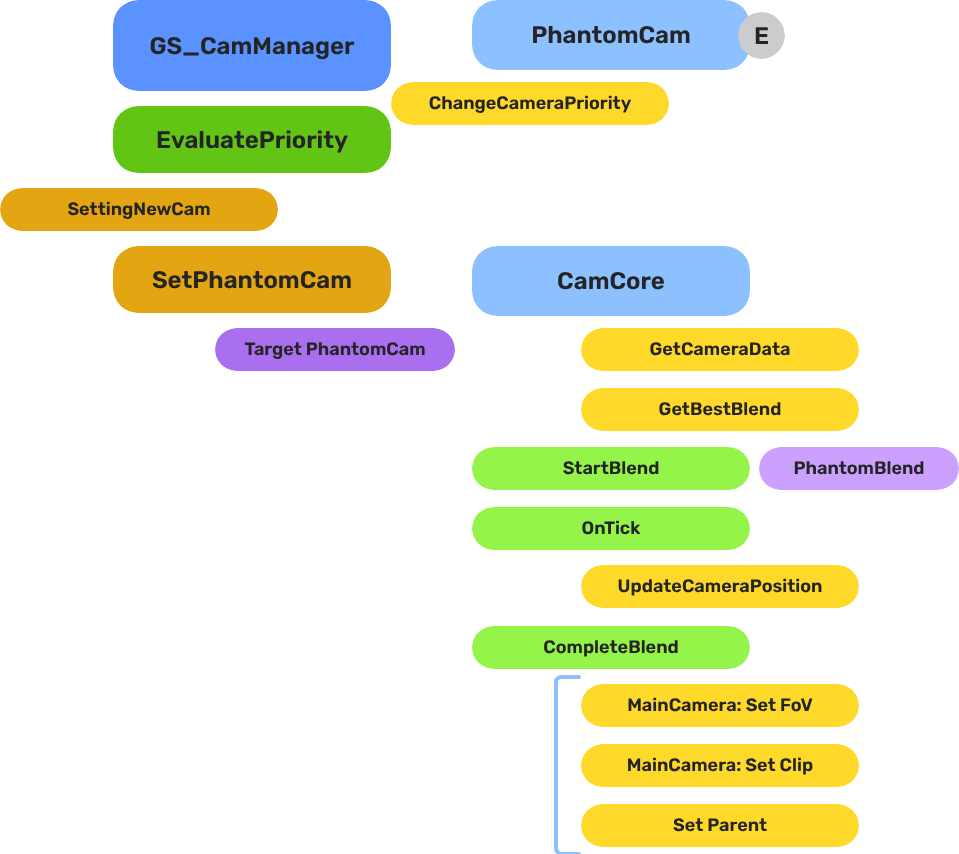
Breakdown
Blend Profiles are referenced from within a Phantom Camera’s blend settings. When the Cam Manager determines a transition is needed, it reads the outgoing camera’s blend settings to find the profile to use.
| Scenario | Which Profile Is Used |
|---|---|
| Camera A becomes inactive, Camera B was waiting | Camera A’s blend profile governs the outgoing transition. |
| Camera B is activated and is now highest priority | Camera B’s blend profile governs the incoming transition. |
| No blend profile is assigned | Transition is instantaneous — no interpolation. |
Because profiles are assets, the same profile can be shared across many Phantom Cameras. A single edit to the asset changes the feel of every camera that references it.
E Indicates extensible classes and methods.
Patterns - Complete list of system patterns used in GS_Play.
Installation
GS_PhantomCam requires GS_Core only. Add both gems to your project before placing PhantomCam components in a level.
For a full guided walkthrough, follow the Simple Project Setup guide.
Quick Installation Summary
- Enable the GS_PhantomCam gem in your project configuration.
- Create a Cam Manager prefab and add it to the Game Manager’s Managers list.
- Place a Cam Core entity with
GS_CamCoreComponentin every level. - Place Phantom Camera entities with desired behavior components.
- Create Blend Profile assets for camera transitions.
Cam Manager
The Cam Manager is the singleton camera system manager, integrated with GS_Core’s manager lifecycle. It handles startup and shutdown, responds to enable/disable events so the camera can be suspended during cinematics, and broadcasts whenever the dominant camera changes so downstream systems stay in sync.
Phantom Cameras
Phantom Cameras are virtual camera definitions placed as components on ordinary entities. Each holds field of view, clip planes, optional follow and look-at targets, positional and rotational offsets, and a priority value. The highest-priority camera drives the real camera. Specialized behavior components extend the vocabulary: first-person, orbit, static orbit, clamped look, and spline track.
Cam Core
Cam Core is the rendering bridge between the Phantom Camera system and the actual O3DE camera entity. It reads the current dominant camera’s data each frame and writes position, rotation, and FOV to the real camera. It also broadcasts per-frame camera position updates for shadow casters, audio listeners, and LOD controllers.
Blend Profiles
Blend Profiles are data assets that define how the camera transitions when control shifts between Phantom Cameras. Each profile specifies blend duration, position easing curve, and rotation easing curve — independently, so position can ease out while rotation snaps. Profiles are shared by name across cameras for visual consistency.
Influence Fields
Influence Fields are spatial or global modifiers that dynamically shift camera priority. GlobalCameraInfluence applies to cam core unconditionally, while CameraInfluenceField defines a physics trigger volume that modifies the priority when the player is inside it. Multiple fields with the same camera target stack influence.
See Also
For the full API, component properties, and C++ extension guide:
For step-by-step project setup:
Get GS_PhantomCam
GS_PhantomCam — Explore this gem on the product page and add it to your project.