Cinematics Manager
Categories:
The Cinematics Manager is the GS_Core-integrated manager component for the GS_Cinematics system. It signals when a cinematic sequence begins and ends, broadcasts events so other systems — UI, movement, input — know when to yield control to a cutscene, and maintains a registry of named CinematicStageMarkerComponent entities placed in each level.
For architecture details, component properties, and extending the system in C++, see the Framework API reference.
Contents
- Stage Markers
- Cinematic Events
- Starting and Ending Cinematics
- ScriptCanvas Usage
- Quick Reference
- Glossary
- See Also
Stage Markers
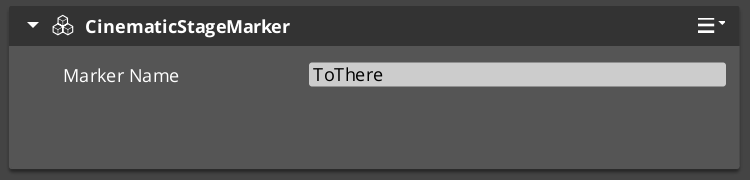
Stage markers are named anchor entities placed in each level that serve as spatial reference points for cinematic sequences. Performers and camera systems look up markers by name at runtime to determine where actors should stand, face, or move to during a cutscene.
This design decouples authored dialogue data from level-specific layout. The same sequence asset plays in any level as long as that level provides CinematicStageMarkerComponent entities with the expected names.
| Component | Purpose |
|---|---|
CinematicStageMarkerComponent | Marks a named position in the level for cinematic staging. |
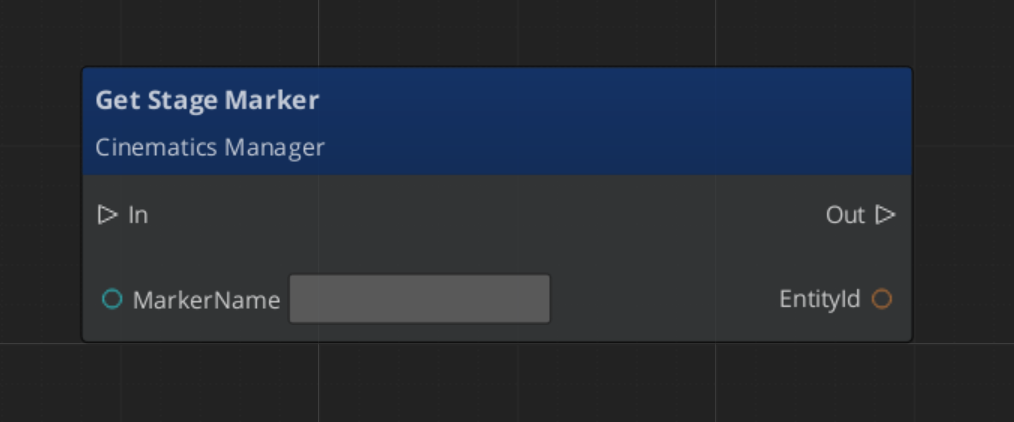
To register a marker, add CinematicStageMarkerComponent to an entity in the level and give it a name. The Cinematics Manager automatically discovers and registers all markers in the level on startup via RegisterStageMarker. At runtime, any system can retrieve a marker entity by name with GetStageMarker.
Cinematic Events
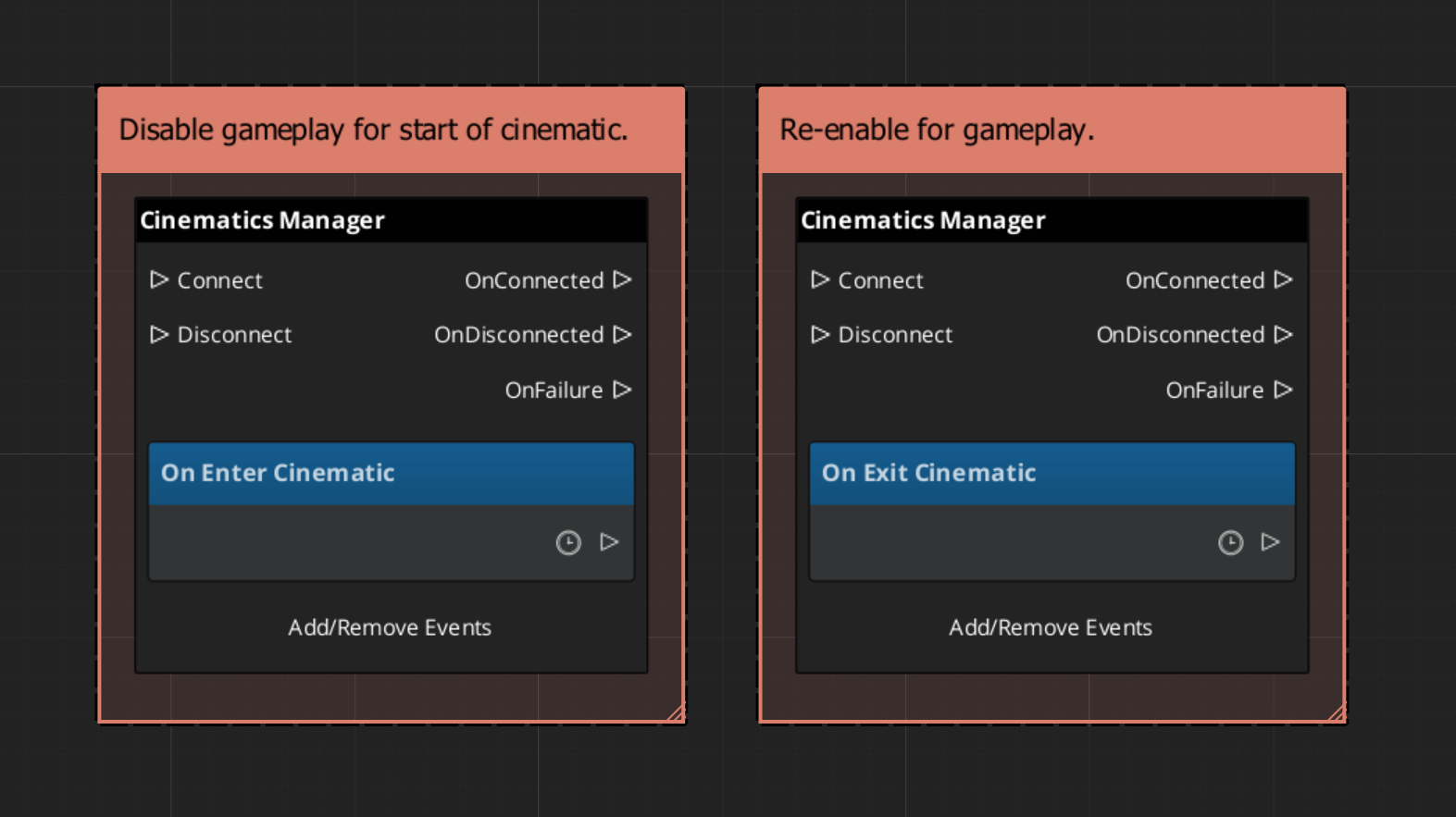
When a cinematic begins and ends, the Cinematics Manager broadcasts events on CinematicsManagerNotificationBus. Listen to these in any system that needs to yield or reclaim control during a cutscene — player input, HUD, AI, camera.
| Event | When It Fires | What to Do |
|---|---|---|
EnterCinematic | A cinematic sequence has started. | Disable player input, hide the HUD, suspend AI. |
ExitCinematic | The cinematic sequence has ended. | Re-enable input, restore HUD, resume AI. |
Starting and Ending Cinematics
Call BeginCinematic to signal that a cinematic is starting and EndCinematic when it completes. These calls broadcast EnterCinematic and ExitCinematic respectively. They do not drive animation or sequence playback directly — that is the role of DialogueSequencerComponent. The Cinematics Manager handles the global state change so all listening systems respond in one coordinated broadcast.
| Bus | Method | What It Does |
|---|---|---|
CinematicsManagerRequestBus | BeginCinematic | Broadcasts EnterCinematic to all listeners. |
CinematicsManagerRequestBus | EndCinematic | Broadcasts ExitCinematic to all listeners. |
CinematicsManagerRequestBus | RegisterStageMarker | Adds a marker to the registry by name. |
CinematicsManagerRequestBus | GetStageMarker | Returns the entity for a marker by name. |
ScriptCanvas Usage
Reacting to Cinematic State
To pause gameplay systems when a cinematic starts and resume them when it ends, connect to CinematicsManagerNotificationBus:
Triggering a Cinematic
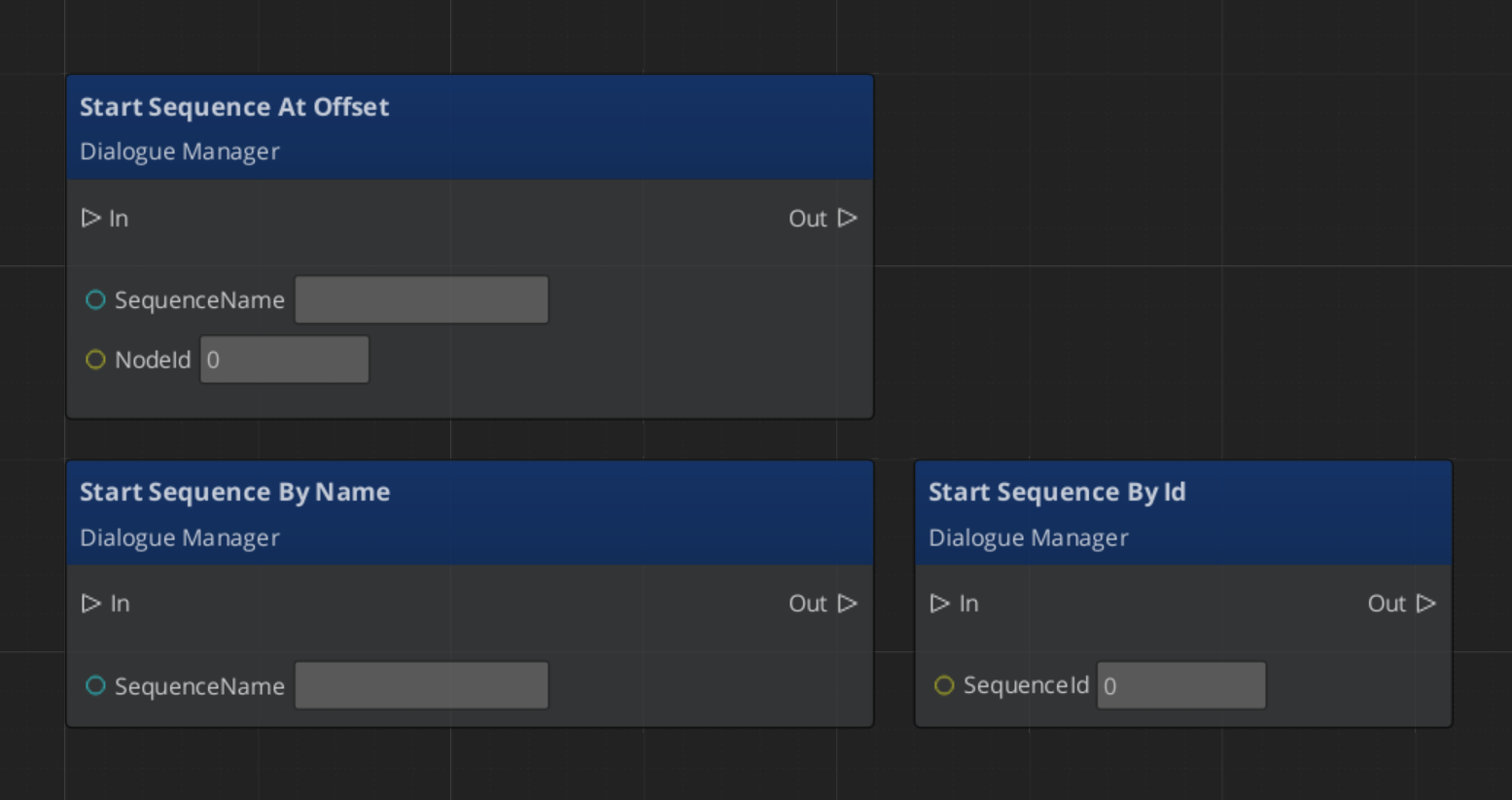
To start a cinematic from a trigger or cutscene entity, call BeginCinematic, drive the sequence through the Dialogue Sequencer, then call EndCinematic on completion:
Looking Up a Stage Marker
Quick Reference
| Need | Bus | Method / Event |
|---|---|---|
| Start a cinematic | CinematicsManagerRequestBus | BeginCinematic |
| End a cinematic | CinematicsManagerRequestBus | EndCinematic |
| Register a stage marker | CinematicsManagerRequestBus | RegisterStageMarker |
| Retrieve a stage marker entity | CinematicsManagerRequestBus | GetStageMarker |
| Know when a cinematic starts | CinematicsManagerNotificationBus | EnterCinematic |
| Know when a cinematic ends | CinematicsManagerNotificationBus | ExitCinematic |
Glossary
| Term | Meaning |
|---|---|
| Stage Marker | A named anchor entity in a level used as a spatial reference for cinematic positioning |
| Cinematic | A global state where the Cinematics Manager has signaled that a cutscene is in progress |
For full definitions, see the Glossary.
See Also
For the full API, component properties, and C++ extension guide:
For related systems:
Get GS_Cinematics
GS_Cinematics — Explore this gem on the product page and add it to your project.