Patterns
Outline
The strength of the GS_Play framework is in it’s straightforward, and intuitive patterns.
By creating simple ways to look at certain featuresets, you can reliably expand your gameplay knowing you’re always going to properly connect with the underlying system.
Using our extensive list of templates, you can even more rapidly develop the features that make your project unique.
Use this quick list to jump to the features you want to look at.
You can expect a diagram outlining the relationships between feature elements, and then explanations on how the pattern plays out.
Have fun!
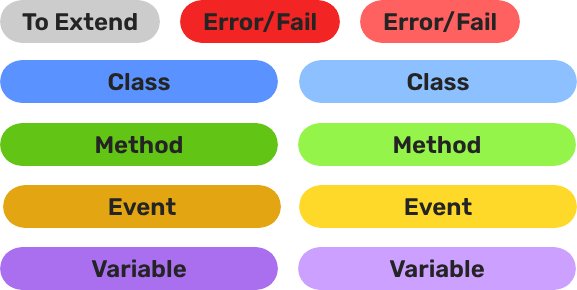
Legend
Contents
- Managers & Startup - GS_Core
- Save - GS_Core
- Stage Change - GS_Core
- Dialogue Authoring - GS_Cinematics
- Pulse - GS_Interaction
- World Triggers - GS_Interaction
- Camera Blend - GS_PhantomCam
- Unit Possession - GS_Unit
- Unit Input Handling - GS_Unit
- Movers & Grounders - GS_Unit
Managers & Startup - GS_Core
Breakdown
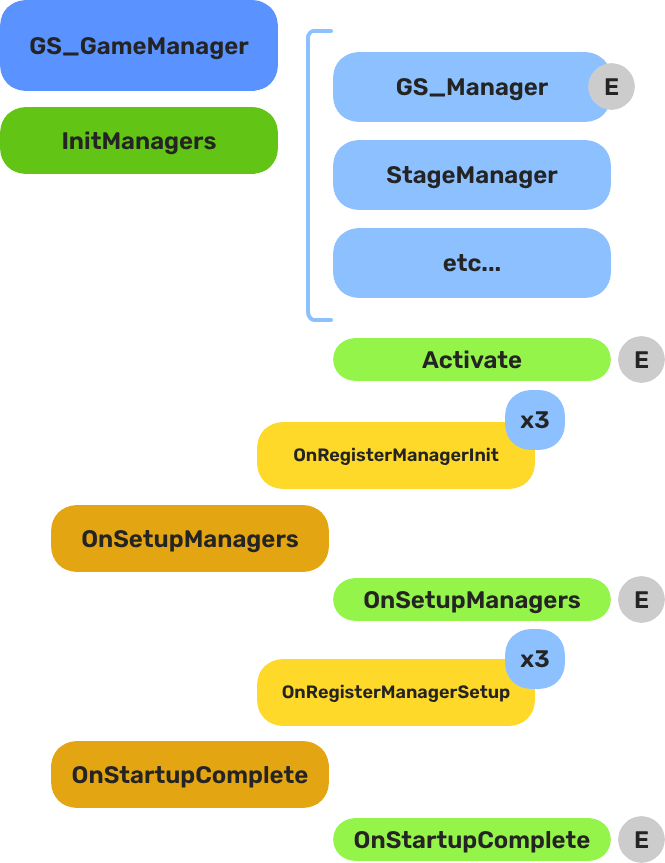
When the project starts, the Game Manager runs three stages before the game is considered ready:
| Stage | Broadcast Event | What It Means |
|---|---|---|
| 1 — Initialize | (internal) | Each manager is spawned. They activate, then report ready. |
| 2 — Setup | OnSetupManagers | Setup stage. Now safe to query other managers. |
| 3 — Complete | OnStartupComplete | Last stage. Everything is ready. Do any last minute things. Now safe to begin gameplay. |
For most scripts, you only need OnStartupComplete. Wait for this event before doing anything that depends on managers to be completely setup.
- The Basics: GS_Managers — Setup, startup events, and game navigation.
- Framework API: GS_Managers — Components, architecture, and C++ extension.
Save - GS_Core
Breakdown
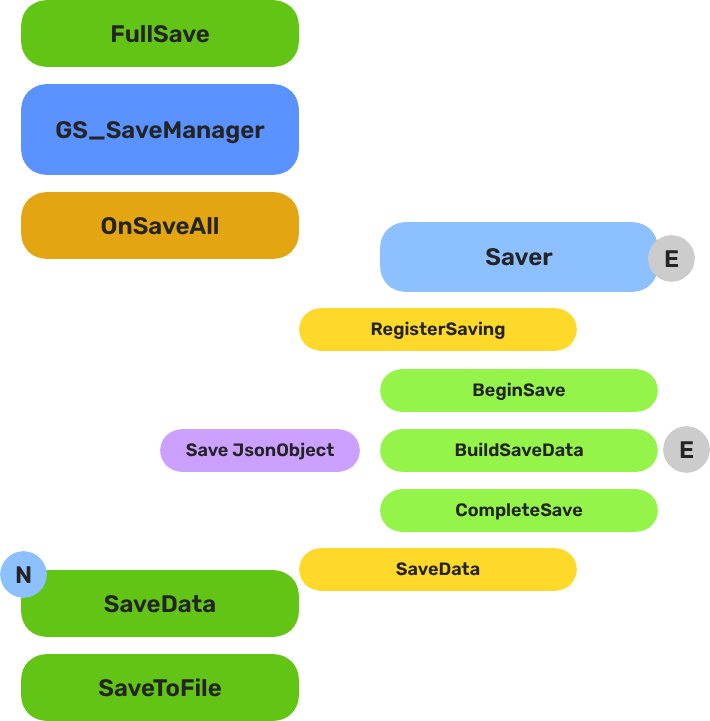
When a save or load is triggered, the Save Manager broadcasts to every Saver in the scene. Each Saver independently handles its own entity’s state. The Record Keeper persists flat progression data alongside the save file.
| Part | Broadcast Event | What It Means |
|---|---|---|
| Save Manager | OnSaveAll | Broadcasts to all Savers on save. Each serializes its entity state. |
| Save Manager | OnLoadAll | Broadcasts to all Savers on load. Each restores its entity state. |
| Record Keeper | RecordChanged | Fires when any progression flag is created, updated, or deleted. |
Savers are per-entity components — add them to anything that needs to persist across sessions. The Record Keeper is a global singleton for flags and counters.
- The Basics: GS_Save — Triggering saves, the Record Keeper, and built-in Savers.
- Framework API: GS_Save — Save Manager, Saver base class, and C++ extension.
Stage Change - GS_Core
Breakdown
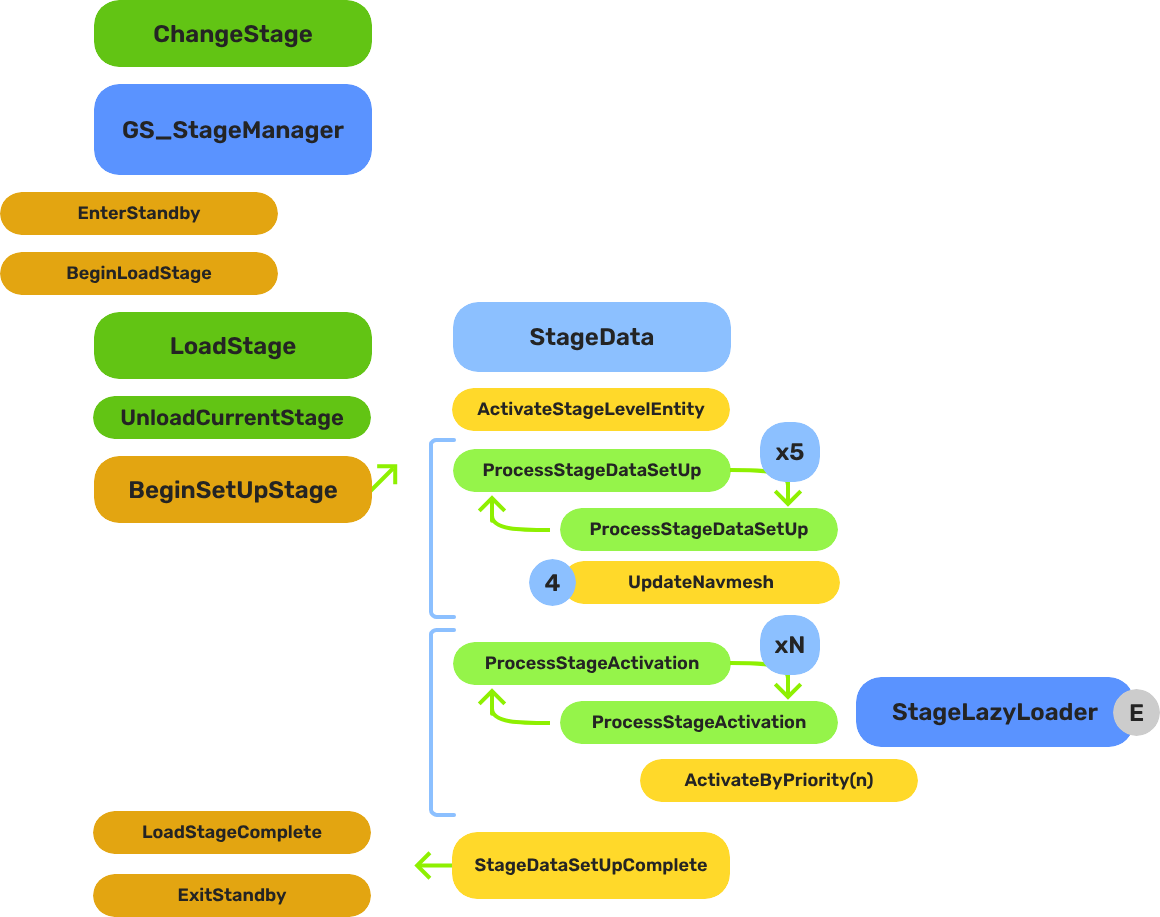
When a stage change is requested, the system follows a five-step sequence before gameplay resumes in the new level:
| Step | Broadcast Event | What It Means |
|---|---|---|
| 1 — Standby | OnEnterStandby | Game Manager enters standby, halting all gameplay systems. |
| 2 — Unload | (internal) | The current stage’s entities are torn down. |
| 3 — Spawn | (internal) | The target stage prefab is instantiated. |
| 4 — Set Up | OnBeginSetUpStage | Stage Data runs its layered startup: SetUpStage → ActivateByPriority → Complete. |
| 5 — Complete | LoadStageComplete | Stage Manager broadcasts completion. Standby exits. Gameplay resumes. |
The Stage Data startup is layered — OnBeginSetUpStage, ActivateByPriority, then OnLoadStageComplete — so heavy levels can initialize incrementally without causing frame-time spikes.
- The Basics: GS_StageManager — Triggering stage changes, Stage Data, and Exit Points.
- Framework API: GS_StageManager — Stage Manager, Stage Data component, and C++ extension.
Dialogue Authoring - GS_Cinematics
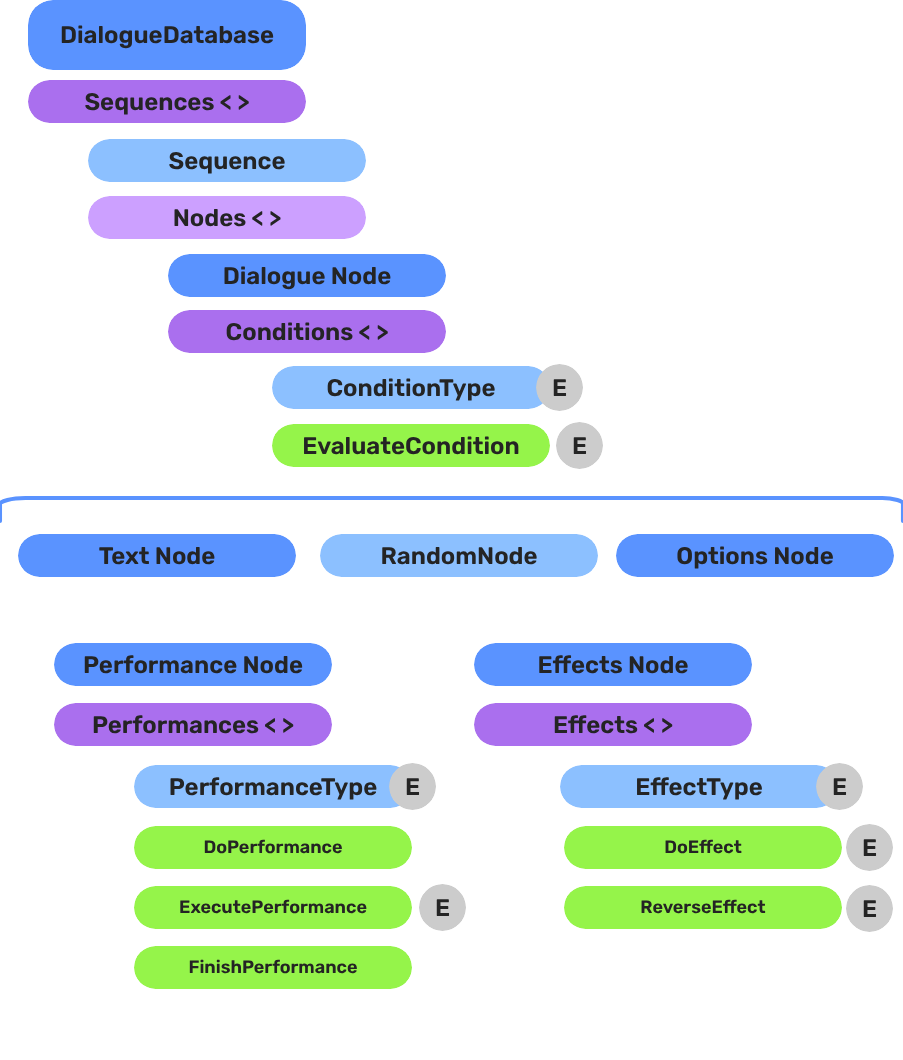
Breakdown
A dialogue sequence is authored in the node editor, stored in a .dialoguedb asset, and driven at runtime by the Dialogue Manager and Sequencer:
| Layer | What It Means |
|---|---|
| DialogueDatabase | Stores named actors and sequences. Loaded at runtime by the Dialogue Manager. |
| DialogueSequence | A directed node graph. The Sequencer walks from startNodeId through Text, Selection, Effects, and Performance nodes. |
| Conditions | Polymorphic evaluators on branches. Failed conditions skip that branch automatically. |
| Effects | Polymorphic actions at EffectsNodeData nodes — set records, toggle entities. |
| Performers | Named actor anchors in the level. Resolved from database actor names via DialoguePerformerMarkerComponent. |
Conditions, effects, and performances are discovered automatically at startup — custom types from any gem appear in the editor without modifying GS_Cinematics.
- The Basics: Dialogue System — Authoring sequences, node types, conditions, effects, and runtime playback.
- Framework API: Dialogue System — Manager and sequencer APIs, extensible types, and C++ extension.
Pulse - GS_Interaction
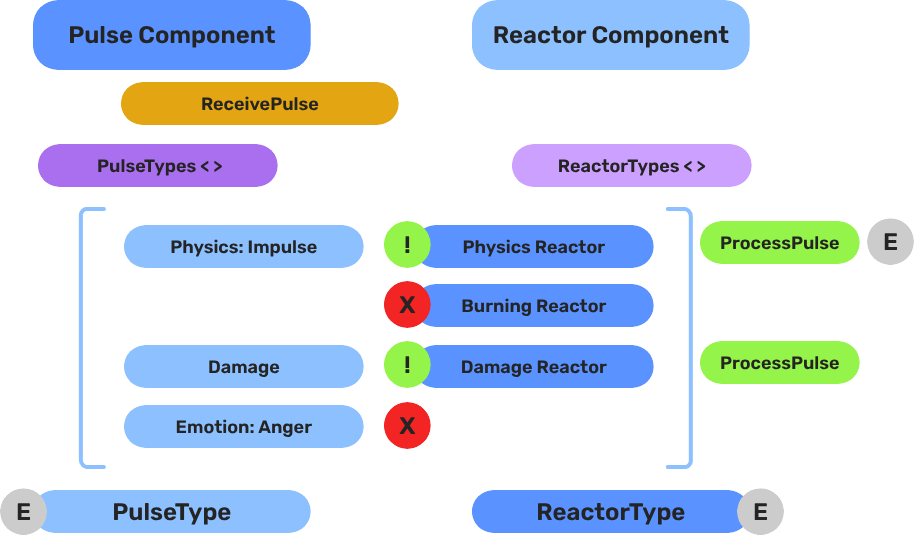
Breakdown
When an entity enters a Pulsor’s trigger volume, the Pulsor emits its configured pulse type to all Reactors on the entering entity:
| Step | What It Means |
|---|---|
| 1 — Collider overlap | Physics detects an entity entering the Pulsor’s trigger volume. |
| 2 — Pulse emit | PulsorComponent reads its configured PulseType and prepares the event. |
| 3 — Reactor query | Each PulseReactorComponent on the entering entity is checked with IsReactor(). |
| 4 — Reaction | Reactors returning true have ReceivePulses() called and execute their response. |
Pulse types are polymorphic — new types are discovered automatically at startup. Any gem can define custom interaction semantics without modifying GS_Interaction.
- The Basics: Pulsors — Pulse types, Reactor types, and ScriptCanvas usage.
- Framework API: Pulsors — Components, pulse and reactor type references, and C++ extension.
World Triggers - GS_Interaction
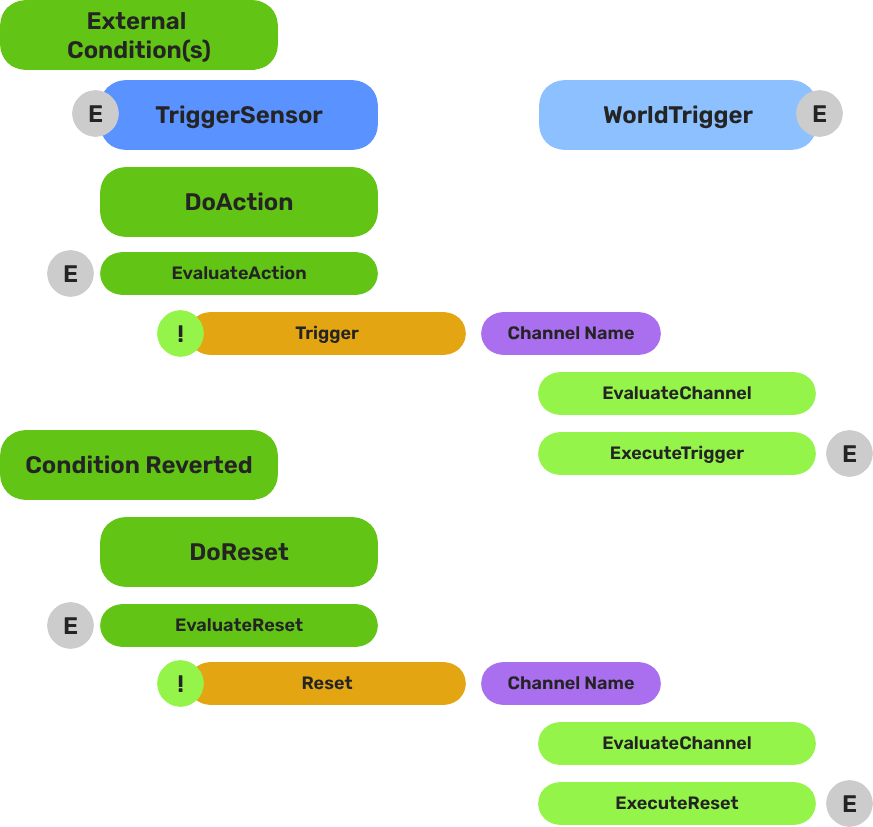
Breakdown
World Triggers split conditions from responses. Any number of World Triggers can stack on a single entity — each fires its own response independently when the condition is met.
| Part | What It Means |
|---|---|
| Trigger Sensor | Monitors for a condition. When satisfied, calls Trigger() on all WorldTriggerComponent instances on the same entity. |
| World Trigger | Executes a response when Trigger() is called. Can be reset with Reset() to re-arm for the next activation. |
No scripting is required for standard patterns. Compose Trigger Sensors and World Triggers in the editor to cover the majority of interactive world objects without writing any code.
- The Basics: World Triggers — Sensor types, trigger responses, and reset patterns.
- Framework API: World Triggers — Trigger Sensors, World Triggers, and C++ extension.
Camera Blend - GS_PhantomCam
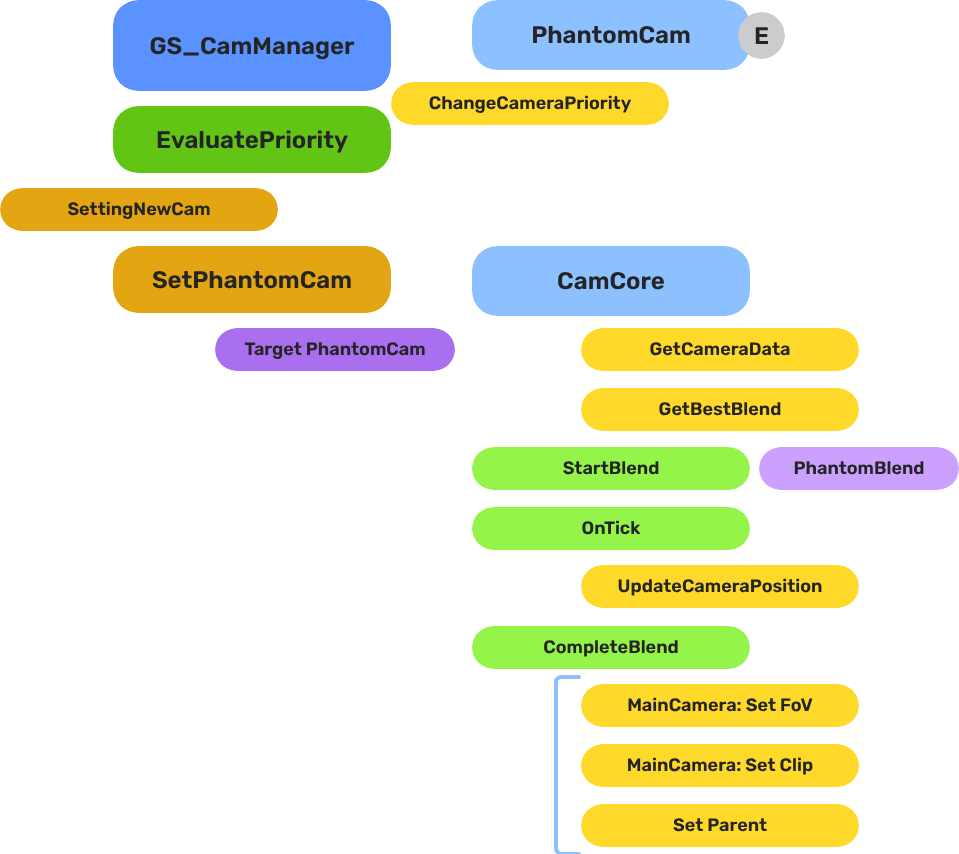
Breakdown
When the dominant Phantom Camera changes, the Cam Manager queries the Blend Profile to determine transition timing and easing:
| Step | What It Means |
|---|---|
| 1 — Priority change | A Phantom Camera gains highest priority or is activated. |
| 2 — Profile query | Cam Manager calls GetBestBlend(fromCam, toCam) on the assigned GS_PhantomCamBlendProfile asset. |
| 3 — Entry match | Entries are checked by specificity: exact match → any-to-specific → specific-to-any → default fallback. |
| 4 — Interpolation | Cam Core blends position, rotation, and FOV over the matched entry’s BlendTime using the configured EasingType. |
Because Blend Profiles are shared assets, editing one profile updates every camera that references it.
- The Basics: GS_PhantomCam — Camera system overview, Blend Profiles, and ScriptCanvas usage.
- Framework API: GS_PhantomCam — Data model, GetBestBlend resolution, and asset structure.
Unit Possession - GS_Unit
Breakdown
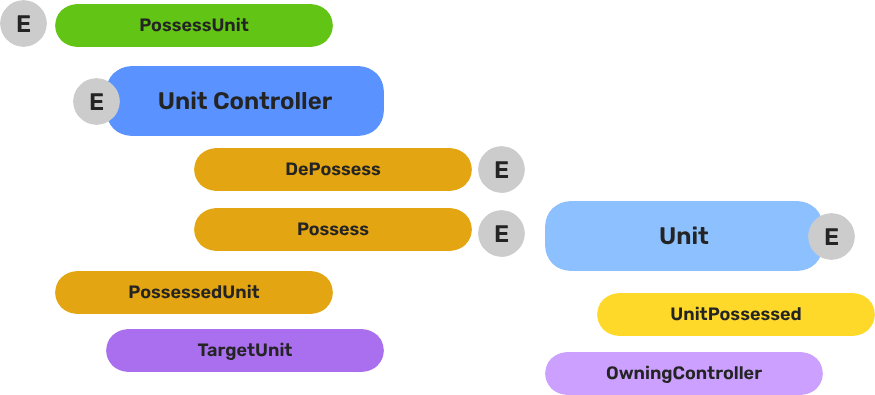
Every unit has exactly one controller at a time, or no controller at all. Possession is established by calling Possess on the unit and released by calling DePossess. The unit fires UnitPossessed on UnitNotificationBus whenever ownership changes so other systems can react.
| Concept | Description |
|---|---|
| Possession | A controller attaches to a unit. The unit accepts input and movement commands from that controller only. |
| DePossession | The controller releases the unit. The unit halts input processing and enters a neutral state. |
| UnitPossessed event | Fires on UnitNotificationBus (addressed by entity ID) whenever a unit’s controller changes. |
| GetController | Returns the entity ID of the current controller, or an invalid ID if none. |
| GetUniqueName | Returns the string name assigned by the Unit Manager when this unit was spawned. |
- The Basics: Controllers — Possession, input routing, and controller assignment.
- Framework API: Unit Controllers — Controller components, possession API, and C++ extension.
Unit Input Handling - GS_Unit
Breakdown
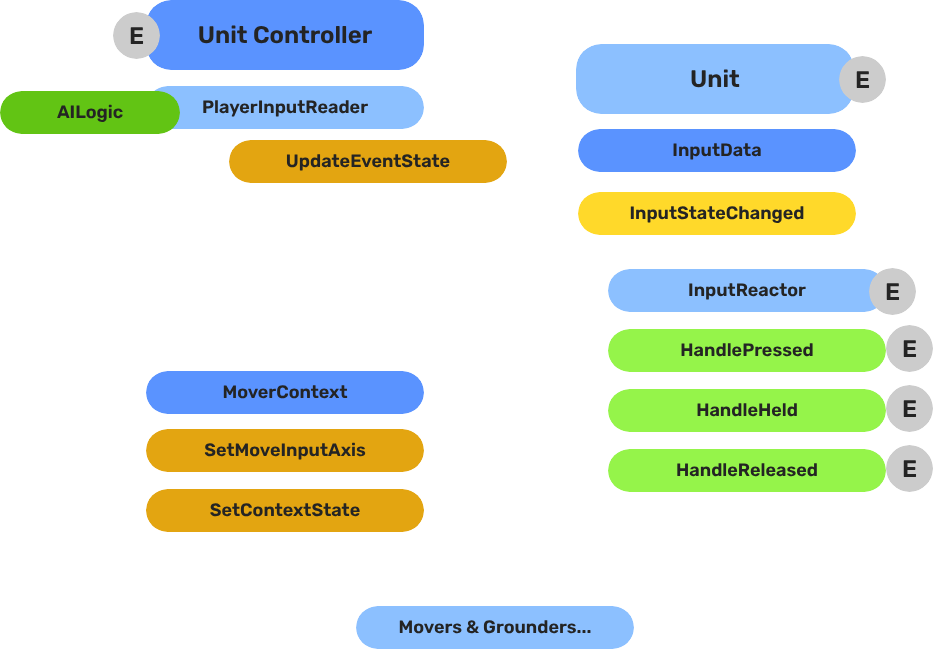
The input pipeline has three stages. Each stage is a separate component on the unit entity, and they run in order every frame:
| Stage | Component | What It Does |
|---|---|---|
| 1 — Read | GS_PlayerControllerInputReaderComponent | Reads raw input events from the active input profile and writes them into GS_InputDataComponent. |
| 2 — Store | GS_InputDataComponent | Holds the current frame’s input state — button presses, axis values — as structured data. |
| 3 — React | Reactor components | Read from GS_InputDataComponent and produce intent: movement vectors, action triggers, etc. |
All reactor components downstream of the store stage read from the same GS_InputDataComponent, so there is no duplicated hardware polling and no risk of two reactors seeing different input states for the same frame.
- The Basics: Controllers — Possession, input routing, and controller assignment.
- The Basics: Core Input — Input profiles, action mappings, and options setup.
- The Basics: Unit Input — Input readers, axis configuration, and ScriptCanvas usage.
- Framework API: Unit Controllers — Controller components, possession API, and C++ extension.
- Framework API: Input Reader — Profile binding, action event reading, and C++ extension.
- Framework API: Input Reactor — InputDataComponent schema, reactor base class, and C++ extension.
- Framework API: Mover Context — Context state, mode authority, and C++ extension.
Movers & Grounders - GS_Unit
Breakdown
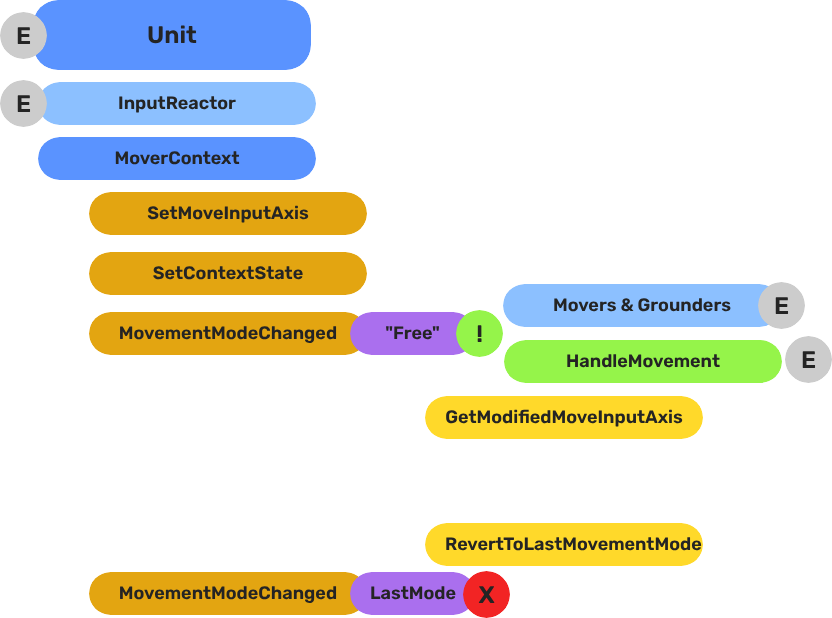
Movers and Grounders are multiple components on a Unit that are constantly changing activation based on the units state. When a mover is active, it freely processes the unit’s movement based on it’s functionality. At any moment, through internal or external forces, the Movement, Rotation, or Grounding state can change, which disables the old movers, and activates the new one to continue controlling the Unit.
Input
    ↓  InputDataNotificationBus::InputStateChanged
Input Reactor Components
    ↓  MoverContextRequestBus::SetMoveInputAxis
GS_MoverContextComponent
    ↓  ModifyInputAxis() → camera-relative
    ↓  GroundInputAxis() → ground-projected
    ↓  MoverContextNotificationBus::MovementModeChanged("Free")
GS_3DFreeMoverComponent  [active when mode == "Free"]
    ↓  AccelerationSpringDamper → rigidBody->SetLinearVelocity
GS_PhysicsRayGrounderComponent  [active when grounding mode == "Free"]
    ↓  MoverContextRequestBus::SetGroundNormal / SetContextState("grounding", ...)
    ↓  MoverContextRequestBus::ChangeMovementMode("Slide")  ← when slope too steep
GS_3DSlideMoverComponent  [active when mode == "Slide"]
The Slide mover activates when the Unit is walking on too steep an angle. It takes control over the unit, slides down the hill, then restores the previous movement behaviour.
- The Basics: Mover Context — Movement modes, grounding states, and configuration.
- The Basics: Movement — Mover types, grounder types, and ScriptCanvas usage.
- Framework API: Input Reactor — InputDataComponent schema, reactor base class, and C++ extension.
- Framework API: Mover Context — Context state, mode authority, and C++ extension.
- Framework API: Movers — Mover and grounder components, movement APIs, and C++ extension.