UI Manager
Categories:
For usage guides and setup examples, see The Basics: GS_UI.
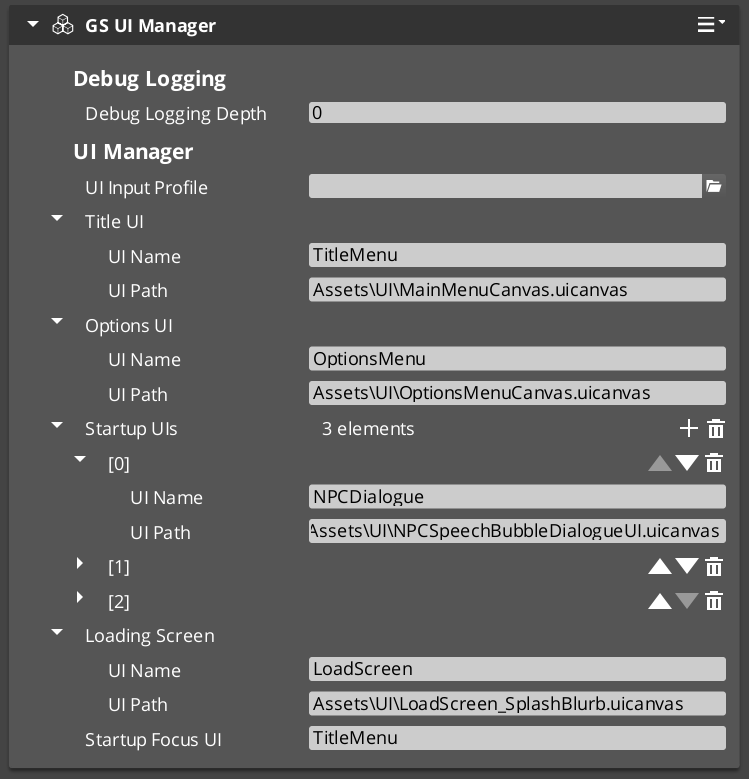
The UI Manager is the singleton that controls the lifecycle of every UI canvas in your project. It loads and unloads LyShine canvases by name, maintains a global focus stack that tracks which canvas is currently active, and drives the startup focus sequence so that the correct UI appears automatically when the game finishes initializing.
GS_UIManagerComponent extends GS_ManagerComponent, which means it participates in the Game Manager’s staged startup. It is spawned by the Game Manager alongside other managers and receives OnStartupComplete to begin loading canvases and focusing the startup UI.
Contents
How It Works
Canvas Lifecycle
Each UI canvas is identified by a unique name string. You call LoadGSUI(name, path) to load a canvas from a .uicanvas asset path and associate it with the given name. The manager stores this in its m_activeUIs map. When you no longer need the canvas, call UnloadGSUI(name) to destroy it and remove it from the map.
Once a canvas is loaded, its root page component (a GS_UIPageComponent with m_isRoot = true) calls RegisterRootPage(name, entity) to register itself as the entry point for that canvas. The manager returns true if registration succeeds, false if the name is already registered or does not match a loaded canvas.
Global Focus Stack
The UI Manager maintains m_globalFocusStack, which tracks the order of focused canvases. When you call FocusUI(name), the named canvas is pushed onto the focus stack and becomes the active UI. NavLastUI() pops the current canvas and returns focus to the previous one. This allows layered UI flows such as opening a settings menu on top of a pause menu and navigating back through them in order.
ToggleUI(name, on) shows or hides a canvas by name. When toggling on, it calls FocusUI internally; when toggling off, it removes the canvas from the focus stack.
GetFocusedUI() returns the name of the currently focused canvas (the top of the stack).
Startup Sequence
The UI Manager’s startup follows this deterministic sequence:
- OnStartupComplete — The Game Manager broadcasts startup complete. The UI Manager loads all configured canvases via
LoadGSUI. - Root Page Registration — Each canvas’s root page component calls
RegisterRootPage(name, entity)during its own activation. - Startup Focus — The UI Manager checks each registered root page name against
m_startupFocusUI. When it finds a match, it callsFocusUI(name)to focus that canvas as the initial UI.
This sequence ensures that canvases are loaded before pages register, and the correct startup UI receives focus without race conditions.
Data Types
UICanvasWindowPair
A pairing of a loaded LyShine canvas entity with its associated root page entity. Used internally by the UI Manager to track loaded canvases.
UINamePathPair
A pairing of a UI name string with a .uicanvas asset path. Used to configure which canvases the UI Manager loads on startup.
Inspector Properties
| Property | Type | Description |
|---|---|---|
| Startup Focus UI | AZStd::string | The name of the UI canvas to focus automatically after startup completes. Must match a registered root page name. |
| UI Name Path Pairs | AZStd::vector<UINamePathPair> | The list of canvas name/path pairs to load on startup. Each entry maps a unique name to a .uicanvas asset path. |
API Reference
Request Bus: UIManagerRequestBus
Commands sent to the UI Manager. Singleton bus — Single address, single handler.
| Method | Parameters | Returns | Description |
|---|---|---|---|
LoadGSUI | const AZStd::string& name, const AZStd::string& path | void | Loads a LyShine canvas from the given asset path and registers it under the given name. |
UnloadGSUI | const AZStd::string& name | void | Destroys the canvas registered under the given name and removes it from the active UI map. |
RegisterRootPage | const AZStd::string& name, AZ::EntityId entity | bool | Registers a root page entity for the named canvas. Returns true on success, false if the name is unrecognized or already registered. |
UnregisterRootPage | const AZStd::string& name | void | Removes the root page registration for the named canvas. |
FocusUI | const AZStd::string& name | void | Pushes the named canvas onto the global focus stack and activates it. |
NavLastUI | — | void | Pops the current canvas from the global focus stack and returns focus to the previous canvas. |
ToggleUI | const AZStd::string& name, bool on | void | Shows or hides the named canvas. Toggling on focuses it; toggling off removes it from the focus stack. |
GetFocusedUI | — | AZStd::string | Returns the name of the currently focused UI canvas (top of the global focus stack). |
GetUICanvasEntity | const AZStd::string& name | AZ::EntityId | Returns the LyShine canvas entity for the named UI. |
GetUIRootPageEntity | const AZStd::string& name | AZ::EntityId | Returns the root page entity registered for the named UI. |
Usage Examples
C++ – Loading and Focusing a UI Canvas
#include <GS_UI/GS_UIBus.h>

// Load a canvas
GS_UI::UIManagerRequestBus::Broadcast(
    &GS_UI::UIManagerRequestBus::Events::LoadGSUI,
    AZStd::string("TitleScreen"),
    AZStd::string("ui/titlescreen.uicanvas")
);

// Focus it
GS_UI::UIManagerRequestBus::Broadcast(
    &GS_UI::UIManagerRequestBus::Events::FocusUI,
    AZStd::string("TitleScreen")
);
C++ – Navigating Back
// Return to the previous UI in the focus stack
GS_UI::UIManagerRequestBus::Broadcast(
    &GS_UI::UIManagerRequestBus::Events::NavLastUI
);
C++ – Toggling a UI Canvas
// Show the pause menu
GS_UI::UIManagerRequestBus::Broadcast(
    &GS_UI::UIManagerRequestBus::Events::ToggleUI,
    AZStd::string("PauseMenu"),
    true
);
See Also
For conceptual overviews and usage guides:
- GS_UI Overview – Full gem overview and installation
For component references:
- Page Navigation – Core navigation component used by every canvas
- Manager Base Class – The base class pattern that UI Manager extends
- Game Manager – The root lifecycle controller that spawns the UI Manager
Get GS_UI
GS_UI — Explore this gem on the product page and add it to your project.