UI Input
Categories:
GS_UIInputInterceptorComponent intercepts input events when a UI canvas is active, preventing them from propagating to gameplay systems. This solves the common problem of button presses or navigation inputs leaking through to the game world while a menu is open.
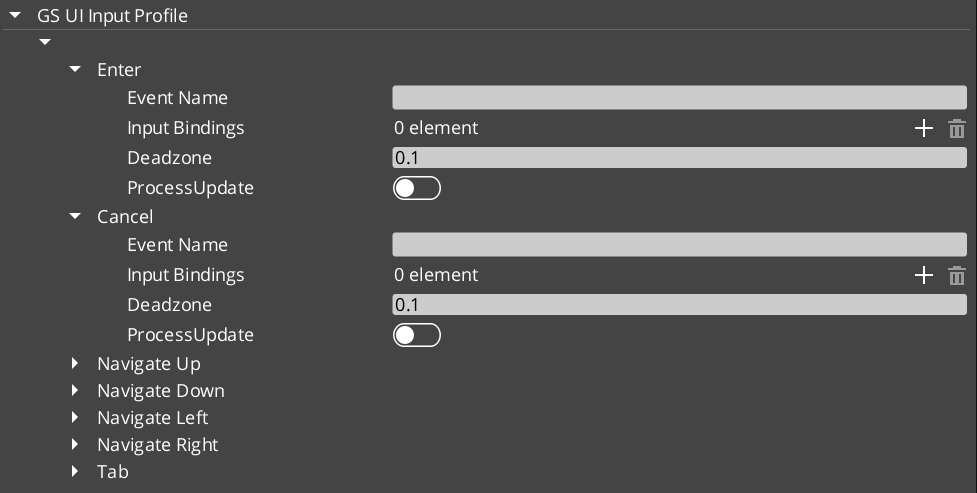
The component uses a GS_UIInputProfile to define which input events to intercept and how to route them. When the associated UI canvas is focused, the interceptor captures configured input events and broadcasts them on the UIInputNotificationBus instead of allowing them to reach gameplay input handlers.
For usage guides and setup examples, see The Basics: GS_UI.
Contents
How It Works
Input Interception
When a UI canvas receives focus through the UI Manager, the input interceptor activates. It listens for input events that match its configured GS_UIInputProfile and consumes them before they reach the gameplay input system. The intercepted events are then re-broadcast on the UIInputNotificationBus so that UI-specific logic can respond to them.
When the canvas loses focus, the interceptor deactivates and input flows normally to gameplay systems.
GS_UIInputProfile
The input profile defines which input channels to intercept and how to map them for UI use. This allows different UI canvases to intercept different sets of inputs – a pause menu might intercept all gameplay inputs, while a HUD overlay might only intercept specific menu navigation inputs.
API Reference
Notification Bus: UIInputNotificationBus
Events broadcast when the interceptor captures input. Multiple handler bus – any number of components can subscribe to receive intercepted input notifications.
Components that need to respond to UI-specific input (such as custom navigation logic or input-driven UI animations) connect to this bus to receive intercepted events while a canvas is focused.
Inspector Properties
| Property | Type | Description |
|---|---|---|
| Input Profile | GS_UIInputProfile | Defines which input events to intercept and how to route them for UI handling. |
Usage
Setup
- Add
GS_UIInputInterceptorComponentto the same entity as your root GS_UIPageComponent. - Configure the
GS_UIInputProfileto specify which input channels should be intercepted when this canvas is focused. - Any component that needs to respond to intercepted input connects to
UIInputNotificationBus.
See Also
For component references:
- UI Manager – Controls which canvas is focused and therefore which interceptor is active
- Page Navigation – The page system that drives canvas focus changes
- Button – Button animations used alongside input interception
For conceptual overviews and usage guides:
- GS_UI Overview – Full gem overview and installation
Get GS_UI
GS_UI — Explore this gem on the product page and add it to your project.