Phantom Cameras
Categories:
A Phantom Camera is a single entity component — GS_PhantomCameraComponent — that publishes a candidate camera pose every tick. It holds priority, target routing, lens, channel scope, and snap / focus / blendingOut state, plus the stage pipeline slot that authors fill in to give the cam its behavior. Phantom cameras do not render anything themselves; they register with the Cam Manager and the Cam Core drives the engine view toward whichever phantom currently wins arbitration.
Where previous versions of GS_PhantomCam shipped separate components for each behavior (clamped-look, static-orbit, spline tracking, etc.), all of those behaviors now live as stage variants on the single base component. An author picks a Body stage, an Aim stage, and zero-or-more Additive stages from the type-picker, and the same GS_PhantomCameraComponent becomes a follow cam, an orbital cam, a tracking dolly, a third-person shoulder cam, or a cinematic stinger depending on which stages are slotted.
For usage guides and setup examples, see The Basics: GS_PhantomCam.
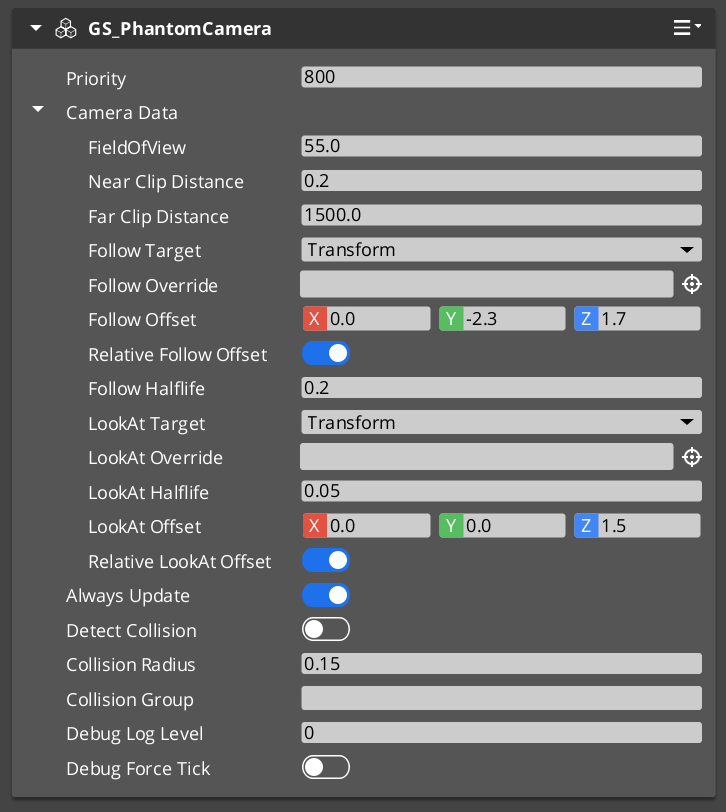
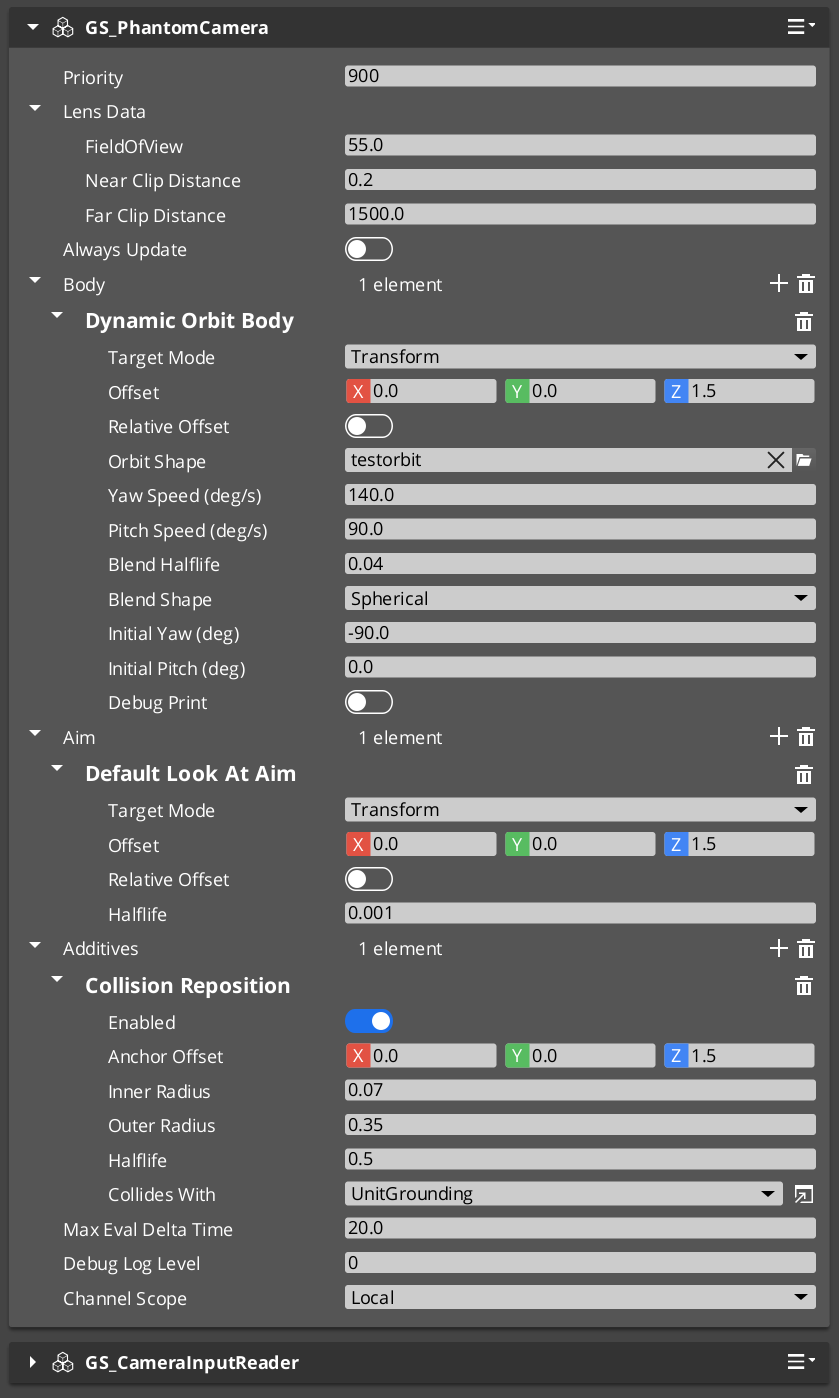
The Phantom Camera component in the Entity Inspector.
Contents
- How It Works
- Stage Pipeline
- Channel Scope
- Execution States
- Staged Poses
- Setup
- PhantomCamData Structure
- API Reference
- Camera Behavior Types
- Usage Examples
- Extending Phantom Cameras
- See Also
How It Works
Priority-Based Selection
Every phantom camera has a base priority. The camera with the highest effective priority (base plus any active influences) wins arbitration within its channel. You can control which camera wins through several strategies:
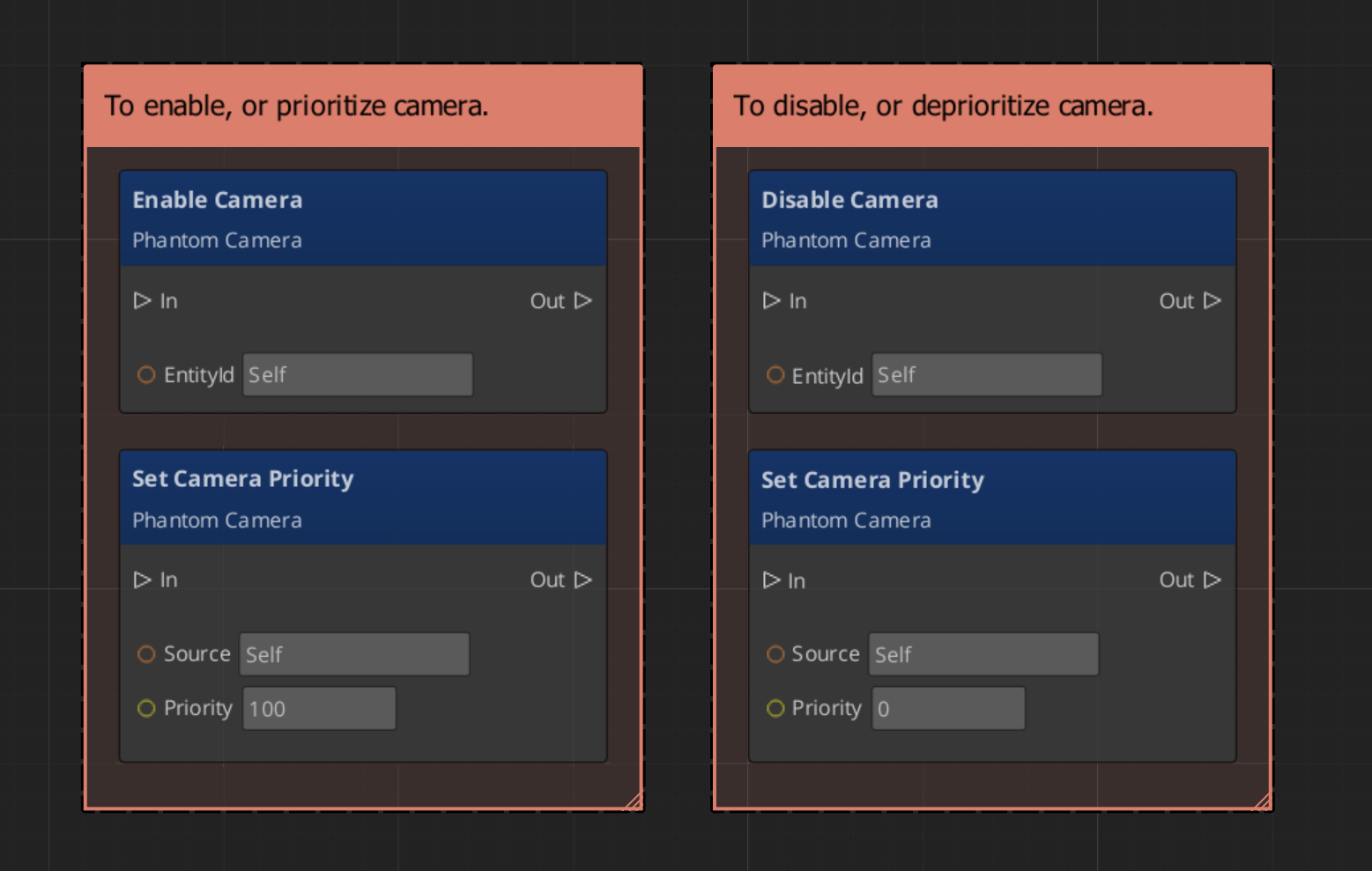
- Raise priority — Set the desired camera’s priority above all others via
SetCameraPriority. - Disable / Enable — Call
DisableCamerato drop the camera’s effective priority,EnableCamerato restore it. - Change priority directly — Call
ChangeCameraPriorityon the Cam Manager bus. - Influence — Add temporary priority modifiers through Influence Fields without touching base priorities.
Follow and Look-At
Follow and look-at behavior is no longer hardcoded on the component; it is provided by the Body and Aim stages slotted on the pipeline. Each tick the cam threads a CameraState accumulator through:
Body → Aim → Reposition additives → Noise additives → Finalize
- The Body stage writes
state.position— different variants implement spring-damped follow, orbital sweep, spline traversal, etc. - The Aim stage writes
state.rotation— including angle-clamped look, head-tracking look, etc. - Additive stages correct or perturb the pose without poisoning Body / Aim ideals.
See Stage Pipeline for the per-tick contract.
Camera Data
Each phantom camera stores its lens and target configuration in a PhantomCamData structure. This data is read by the Cam Core during blending and by stages during evaluation. The stage list lives separately on the component (m_bodySlot, m_aimSlot, m_additives).
Stage Pipeline
Each phantom camera is a container for stages. The component owns three slots:
| Slot | Type | Cardinality | Examples |
|---|---|---|---|
m_bodySlot | IBodyStage | One per cam (single-element vector by policy) | DefaultFollowBody, OrbitBody, DynamicOrbitBody, LeadingFollowBody, TrackBody. |
m_aimSlot | IAimStage | One per cam (single-element vector by policy) | DefaultAim, ClampedLookAim. Other gems (notably gs_performer) register additional variants. |
m_additives | IAdditiveStage | Zero or more, each self-declares Reposition or Noise phase | NoiseStage (Perlin), ImpulseStage (ADSR), TugAimListener, TugBodyListener, collision / occlusion reposition. |
Stages are reflected polymorphic types — derived from IBodyStage / IAimStage / IAdditiveStage, not AZ::Component. The editor type-picker enumerates all registered derivations from the SerializeContext class hierarchy, so other gems can extend the catalog cleanly.
Per-tick orchestration (run by the component each OnTick):
EvaluateCamTick — eligibility check (see Execution States)
   │ tickActive == true
   ▼
EvaluatePose
   ├─► Build CameraContext (target, deltaTime, lifecycle flags, snapThisFrame)
   ├─► IBodyStage::Evaluate    → writes state.position, state.bodyAnchor
   ├─► IAimStage::Evaluate     → writes state.rotation, state.lookAtPoint
   ├─► snapshot m_desiredPose
   ├─► For each Reposition additive → corrects state
   ├─► snapshot m_stablePose
   ├─► For each Noise additive → perturbs state
   ├─► snapshot m_finalPose
   ├─► Resolve cached pivot (state.lookAtPoint, else target world position)
   └─► Commit m_finalPose to TransformBus + apply lens to engine Camera component
See Stage Pipeline reference for the full per-stage contract, init / asset-fresh-load semantics, and variant catalogs.
Channel Scope
Each phantom camera authors a CamChannelScope that decides how it participates in the channel system:
enum class CamChannelScope : AZ::u8 {
    Local,         // Default. Registers to ancestor stamp's channel, or channel 0 if no stamp.
    AllChannels,   // Stamped: per-rig-instance natural duplicate. Unstamped: warns + falls back.
    TrueUnique,    // Single instance. Either bound to a specific channel or shared across all.
};
| Field | Visibility | Purpose |
|---|---|---|
m_channelScope | Always | The scope mode. |
m_boundChannelId | When m_channelScope == TrueUnique | Explicit channel binding for direct mode. |
m_allChannelsShare | When m_channelScope == TrueUnique AND m_showAdvanced | Shared mode toggle — appears in every active channel’s priority table. |
m_showAdvanced | When m_channelScope == TrueUnique | Reveals advanced TrueUnique fields. |
Author recipes:
- Cam inside a rig prefab — leave as
Local. Each spawned rig instance hosts its own copy via the stamp-walk path. - Per-player tailored broadcast cam in the level —
AllChannels(works naturally for in-rig cams; out-of-rig duplication is deferred). - Hero-perspective cam for a specific player —
TrueUnique+m_boundChannelId = N. - Shared cinematic collapse cam —
TrueUnique+ advanced +m_allChannelsShare = true. Paired with a Group Target, this triggersOnAllChannelsActivatedSharedCamwhen every channel selects the cam.
See Channels & Instancing for the resolution algorithm.
Execution States
A phantom camera carries three boolean states that gate whether it ticks each frame. The tick-eligibility predicate is:
tickActive = m_hasFocus || m_alwaysUpdate || m_blendingOut
When tickActive is false the cam is fully dormant — its stages don’t run, its body doesn’t integrate input, its damping doesn’t advance.
The three flags
| Flag | Origin | Meaning |
|---|---|---|
m_hasFocus | Runtime — set by SettingNewCam / SettingNewCamOnChannel notifications. | True while this cam is the channel’s currently-driven cam. |
m_alwaysUpdate | Authored on the component. | If true, the cam ticks every frame regardless of focus. Use for background-tracking cams that should be up-to-date the moment focus arrives, at the cost of constant CPU. |
m_blendingOut | Runtime — set by Cam Core via SetBlendingOut while this cam is the outgoing source of an in-flight blend. | Keeps a !alwaysUpdate outgoing cam ticking through the blend so its body can keep tracking the target — otherwise the blend’s “from” pose would freeze. |
snapThisFrame and m_snapNextEval
When a cam should bypass damping for a single tick — to commit its ideal pose directly without spring lag — the component sets m_snapNextEval = true. The next Evaluate consumes the flag, sets ctx.snapThisFrame = true, and resets m_snapNextEval.
m_snapNextEval is set on:
- Focus gain —
m_hasFocusflipped from false to true (gated on focus specifically; blend-out wake does NOT trigger snap, which would otherwise yank an outgoing cam back to its initial yaw). SetCameraTarget(validEntity)— new follow target.SetTargetFocusGroup(validEntity)— new group target.QueueSnapCamera()— explicit API call.- Mid-spawn channel binding — the Cam Manager pushes a synchronous
SnapCameraNowwhen a channel target is already present at registration time. See Cam Manager.
SnapCameraNow vs QueueSnapCamera
| Method | Timing |
|---|---|
QueueSnapCamera() | Sets m_snapNextEval = true. Honored on next Evaluate. Most code paths use this. |
SnapCameraNow() | Synchronous. Evaluates Body + Aim with dt = 0 and writes the snapped TM straight to the transform bus. Required when the Cam Core is about to read the cam’s TM on the same call stack (mid-spawn binding). Early-returns if neither follow target nor look-at target is set. |
Input integration sub-gate
Body stages that drive pose from input (notably DynamicOrbitBody) integrate input on the same predicate, mirrored into CameraContext:
integrateInput = ctx.hasFocus || ctx.alwaysUpdate || ctx.blendingOut
The body still polls the input reader every tick regardless of integrateInput — the poll drains Delta-mode buffers so they don’t accumulate during dormancy. The integration result is discarded when !integrateInput.
Staged Poses
The pipeline produces three pose snapshots per tick:
| Snapshot | Where it lands | Use it for… |
|---|---|---|
m_desiredPose | Post Body + Aim, pre-Reposition. “Clean” ideal — no collision correction, no shake. | Debug visualization of the cam’s ideal trajectory. |
m_stablePose | Post Reposition, pre-Noise. Collision-safe, shake-free. | Gameplay readback — Unit movement input driven by camera facing should use this. |
m_finalPose | Post Noise. What gets written to the transform bus. | Anything that needs the actual rendered pose (audio listener placement, screen-space UI). |
Three snapshots exist because consumers vary. A Unit that uses camera-forward to drive movement input should query GetStablePose — querying GetFinalPose would let the noise stage drag the character around.
The component also caches a pivot each tick (m_cachedPivot) resolved from the Aim stage’s state.lookAtPoint, falling back to the target’s world position. The Cam Core queries this via GetCameraPivot to drive orbital blend shapes.
Setup
- Create an entity and add GS_PhantomCameraComponent.
- Set the Priority value. Higher values take precedence within the channel.
- Configure FOV, near clip, and far clip on the lens fields.
- Assign a Cam Target entity (the follow target). Leave empty to inherit the channel target from the Cam Manager.
- From the Body type-picker, slot a body stage. Configure its target mode, offset, and damping halflife.
- From the Aim type-picker, slot an aim stage. Configure its target mode, offset, and damping halflife.
- Optionally add Additive stages — noise, impulse, tug listeners, collision reposition.
- Set the Channel Scope (Local is the default and almost always correct).
- Place the entity in your scene or inside a rig prefab. The component registers with the Cam Manager automatically on activation.
For a full walkthrough, see the PhantomCam Set Up Guide.
PhantomCamData Structure
The PhantomCamData structure holds the lens and priority configuration for a phantom camera. Stages are stored separately on the component.
| Field | Type | Description |
|---|---|---|
Priority | AZ::s32 | Base priority used in arbitration. |
FOV | float | Field of view in degrees. |
NearClip | float | Near clipping plane distance. |
FarClip | float | Far clipping plane distance. |
CamTarget | AZ::EntityId | The follow target. May be left empty to inherit the channel target. |
Follow / look-at offsets, damping halflives, and target modes now live on the stages, not on PhantomCamData.
API Reference
Request Bus: PhantomCameraRequestBus
Commands sent to a specific phantom camera. ById bus — addressed by entity ID, single handler per address.
Lifecycle
| Method | Parameters | Returns | Description |
|---|---|---|---|
EnableCamera | — | void | Restores the cam’s effective priority and registers it for evaluation. |
DisableCamera | — | void | Drops the cam’s effective priority to 0. |
IsCamEnabled | — | bool | Query. |
Priority and target
| Method | Parameters | Returns | Description |
|---|---|---|---|
SetCameraPriority | AZ::s32 newPriority | void | Sets base priority. Triggers Cam Manager re-evaluation. |
GetCameraPriority | — | AZ::s32 | Query. |
SetCameraTarget | AZ::EntityId targetEntity | void | Sets the follow target. Triggers a snap on next tick when the entity is valid. Clearing (invalid id) does NOT snap — preserves depossess pose-hold. |
SetTargetFocusGroup | AZ::EntityId targetFocusGroup | void | Sets the target to a Group Target entity. Body / aim stages with CamTargetMode::GroupTarget route through this. |
GetCameraData | — | const PhantomCamData* | Returns const pointer to the cam’s lens / priority / target data. Consumed by the Cam Core. |
Snap
| Method | Parameters | Returns | Description |
|---|---|---|---|
QueueSnapCamera | — | void | Sets m_snapNextEval = true. Honored on next Evaluate. |
SnapCameraNow | — | void | Synchronous snap. Evaluates Body + Aim with dt = 0 and writes the snapped TM. Early-returns if neither follow nor look-at target is set. |
Staged pose accessors
| Method | Parameters | Returns | Description |
|---|---|---|---|
GetDesiredPose | — | AZ::Transform | Post Body + Aim, pre-Reposition. |
GetStablePose | — | AZ::Transform | Post Reposition, pre-Noise. Recommended default for gameplay readback. |
GetFinalPose | — | AZ::Transform | Committed pose (post-Noise). |
GetCameraPivot | AZ::Vector3& outPivot, bool& outHasPivot | void | Returns the cam’s cached pivot. Used by Cam Core to drive non-Linear blend shapes. |
Impulse
| Method | Parameters | Returns | Description |
|---|---|---|---|
TriggerCameraImpulse | float strength | void | Fires every ImpulseNoise additive on this cam. strength multiplies each stage’s AmplitudeGain — typically pass distance-falloff values in 0..1. |
Inheritance forwarders
| Method | Parameters | Returns | Description |
|---|---|---|---|
TryGetPoseSnapshot | CamPoseSnapshot& out | bool | Forwards to the body stage’s virtual. The Cam Core invokes this on the outgoing cam during the inheritance handoff. Returns false if the body doesn’t implement the protocol. |
TryAdoptPoseSnapshot | const CamPoseSnapshot& in | bool | Forwards to the body stage’s virtual. The Cam Core invokes this on the incoming cam. |
Blend-out lifecycle
| Method | Parameters | Returns | Description |
|---|---|---|---|
SetBlendingOut | bool isBlendingOut | void | Cam Core sets this on the outgoing cam during a blend. While true, the cam ticks (and integrates input) even if !alwaysUpdate && !hasFocus. Cleared on blend completion. |
Camera Behavior Types
Retired components.
ClampedLook_PhantomCamComponent,StaticOrbit_PhantomCamComponent, andTrack_PhantomCamComponentno longer exist as separate components. Their behavior is now provided by stage variants on the baseGS_PhantomCameraComponent. Legacy URLs for these subpages redirect to the matching stage docs.
| Retired component | Replacement |
|---|---|
StaticOrbit_PhantomCamComponent | OrbitBody Body stage variant. See Stage Pipeline. |
ClampedLook_PhantomCamComponent | ClampedLookAim Aim stage variant. See Stage Pipeline. |
Track_PhantomCamComponent | TrackBody Body stage variant. See Stage Pipeline. |
AlwaysFaceCameraComponent
A billboard helper component. Keeps the attached entity always facing the active camera. This is not a phantom camera type itself but a utility for objects that should always face the viewer (UI elements in world space, sprite-based effects, etc.). Unchanged by the refactor.
Usage Examples
Switching Cameras by Priority
To make a specific phantom camera dominant, raise its priority above all others:
#include <GS_PhantomCam/Cameras/GS_PhantomCameraBus.h>

GS_PhantomCam::PhantomCameraRequestBus::Event(
    myCameraEntityId,
    &GS_PhantomCam::PhantomCameraRequests::SetCameraPriority,
    100);
Disabling the Current Camera
Disable the current dominant camera to let the next-highest priority camera take over:
GS_PhantomCam::PhantomCameraRequestBus::Event(
    currentCameraEntityId,
    &GS_PhantomCam::PhantomCameraRequests::DisableCamera);
Triggering a Camera Impulse
Fire all ImpulseNoise additives on the active cam at a strength scaled by distance:
const float strength = AZ::GetClamp(1.0f - distance / radius, 0.0f, 1.0f);
GS_PhantomCam::PhantomCameraRequestBus::Event(
    activeCameraEntityId,
    &GS_PhantomCam::PhantomCameraRequests::TriggerCameraImpulse,
    strength);
Script Canvas
Enabling and disabling a phantom camera:
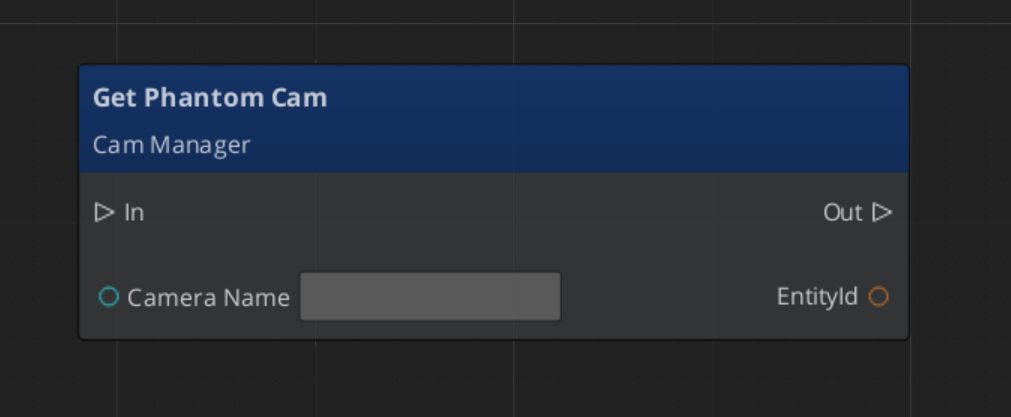
Getting a phantom camera’s data:
Extending Phantom Cameras
Most camera customization now happens by authoring a new stage variant rather than subclassing the component. Stages are reflected polymorphic types — derive from IBodyStage, IAimStage, or IAdditiveStage, register with AZ_RTTI + AZ_CLASS_ALLOCATOR, and reflect under the base interface’s class hierarchy. The editor type-picker discovers the new variant automatically.
Use the PhantomCamera ClassWizard template to generate a new camera component when you need component-level customization (rare) — see GS_PhantomCam Templates.
Header (.h)
#pragma once
#include <GS_PhantomCam/Cameras/GS_PhantomCameraBus.h>
#include <Source/Cameras/GS_PhantomCameraComponent.h>

namespace MyProject
{
    class MyCustomCam : public GS_PhantomCam::GS_PhantomCameraComponent
    {
    public:
        AZ_COMPONENT_DECL(MyCustomCam);

        static void Reflect(AZ::ReflectContext* context);
    };
}
Implementation (.cpp)
#include "MyCustomCam.h"
#include <AzCore/Serialization/SerializeContext.h>

namespace MyProject
{
    AZ_COMPONENT_IMPL(MyCustomCam, "MyCustomCam", "{YOUR-UUID-HERE}");

    void MyCustomCam::Reflect(AZ::ReflectContext* context)
    {
        if (auto serializeContext = azrtti_cast<AZ::SerializeContext*>(context))
        {
            serializeContext->Class<MyCustomCam, GS_PhantomCam::GS_PhantomCameraComponent>()
                ->Version(0);

            if (AZ::EditContext* editContext = serializeContext->GetEditContext())
            {
                editContext->Class<MyCustomCam>("My Custom Camera", "Custom phantom camera component")
                    ->ClassElement(AZ::Edit::ClassElements::EditorData, "")
                        ->Attribute(AZ::Edit::Attributes::Category, "MyProject")
                        ->Attribute(AZ::Edit::Attributes::AppearsInAddComponentMenu, AZ_CRC_CE("Game"));
            }
        }
    }
}
For stage-level extension (the more common case), see the Stage Pipeline reference.
See Also
For related PhantomCam components:
- Cam Manager
- Cam Core
- Stage Pipeline
- Channels & Instancing
- Blend Profiles
- Camera Influence Fields
- Group Targets
- State Inheritance
For conceptual overviews and usage guides:
Get GS_PhantomCam
GS_PhantomCam — Explore this gem on the product page and add it to your project.