Phantom Cameras
Categories:
Phantom Cameras are the virtual cameras that power the GS_PhantomCam system. Each phantom camera is an entity component that holds a complete camera state: field of view, clip planes, a follow target, a look-at target, position and rotation offsets, and a priority value. Phantom cameras do not render anything themselves — they represent candidate camera configurations that the Cam Core can blend toward when a phantom becomes dominant.
Any number of phantom cameras can exist in a scene simultaneously. They register with the Cam Manager on activation and are sorted by effective priority. The camera with the highest priority becomes the dominant camera. The Cam Core then blends the real camera to match the dominant phantom’s state using the active Blend Profile.
Specialized phantom camera types (companion components) extend the base behavior with distinct motion patterns: clamped rotation, static orbiting, spline tracking, and billboard facing.
For usage guides and setup examples, see The Basics: GS_PhantomCam.
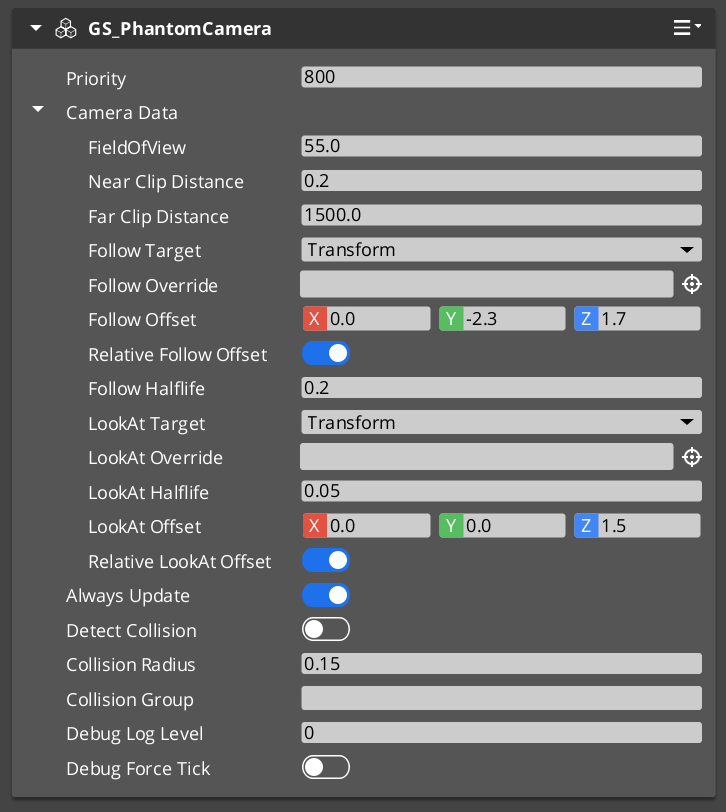
The Phantom Camera component in the Entity Inspector.
Contents
- How It Works
- Setup
- PhantomCamData Structure
- API Reference
- Camera Behavior Types
- Usage Examples
- Extending Phantom Cameras
- See Also
How It Works
Priority-Based Selection
Every phantom camera has a base priority (an integer). The camera with the highest effective priority (base plus any active influences) becomes the dominant camera. You can control which camera is active through several strategies:
- Raise priority — Set the desired camera’s priority above all others.
- Lower neighbors — Reduce competing cameras’ priorities below the desired camera.
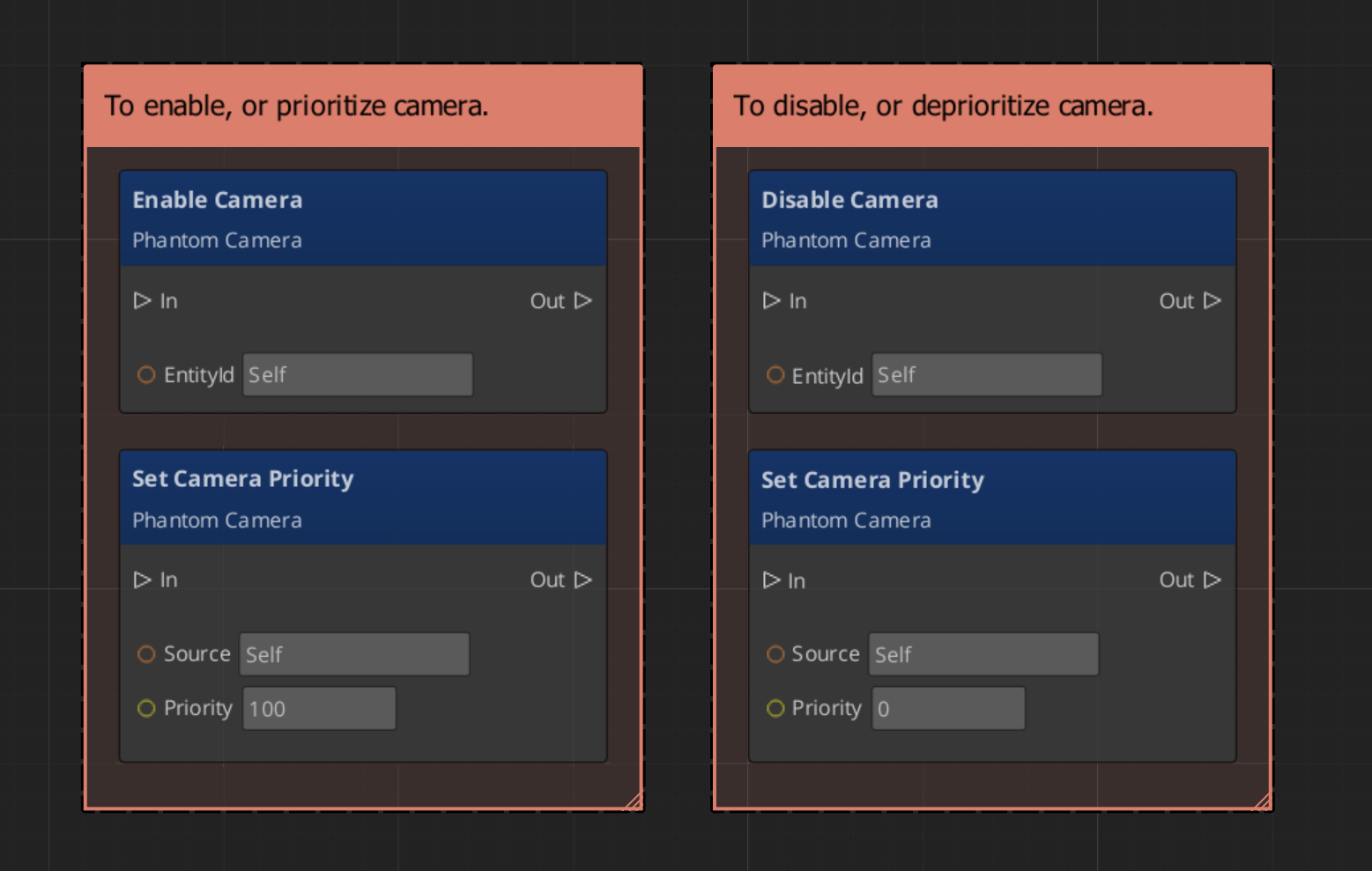
- Disable/Enable — Call
DisableCameraon the current dominant camera (drops it to priority 0) orEnableCameraon a previously disabled camera to restore its priority. - Change priority directly — Call
SetCameraPriorityor useChangeCameraPriorityon the Cam Manager bus.
Follow and Look-At
Phantom cameras support two independent tracking modes:
- Follow — The camera follows a target entity’s position, applying follow offsets and optional damping. Processing is split into transform-based follow (kinematic) and physics-based follow (respects colliders).
- Look-At — The camera rotates to face a target entity or focus group, applying look-at offsets and optional damping. Processing is split into transform-based and physics-based look-at.
Both modes run through overridable virtual methods, allowing custom camera types to inject their own follow and look-at logic.
Camera Data
Each phantom camera stores its configuration in a PhantomCamData structure. This data is read by the Cam Core during blending and when locked to the phantom camera.
Setup
- Create an entity and add GS_PhantomCameraComponent (or a specialized type like
StaticOrbitPhantomCamComponent). - Set the Priority value. Higher values take precedence.
- Assign a Follow Target entity for position tracking (optional).
- Assign a Look-At Target entity for rotation tracking (optional).
- Configure FOV, clip planes, and offsets as needed.
- Place the entity in your scene. It registers with the Cam Manager automatically on activation.
For a full walkthrough, see the PhantomCam Set Up Guide.
PhantomCamData Structure
The PhantomCamData structure holds the complete configuration for a phantom camera.
| Field | Type | Description |
|---|---|---|
FOV | float | Field of view in degrees. |
NearClip | float | Near clipping plane distance. |
FarClip | float | Far clipping plane distance. |
FollowTarget | AZ::EntityId | The entity this camera follows for position tracking. |
LookAtTarget | AZ::EntityId | The entity this camera faces for rotation tracking. |
FollowOffset | AZ::Vector3 | Position offset applied relative to the follow target. |
LookAtOffset | AZ::Vector3 | Position offset applied to the look-at target point. |
API Reference
Request Bus: PhantomCameraRequestBus
Commands sent to a specific phantom camera. ById bus — addressed by entity ID, single handler per address.
| Method | Parameters | Returns | Description |
|---|---|---|---|
EnableCamera | – | void | Enables the phantom camera, restoring its priority and registering it for evaluation. |
DisableCamera | – | void | Disables the phantom camera, dropping its effective priority to 0. |
SetCameraPriority | AZ::s32 newPriority | void | Sets the base priority of this phantom camera and triggers re-evaluation. |
GetCameraPriority | – | AZ::s32 | Returns the current base priority of this phantom camera. |
SetCameraTarget | AZ::EntityId targetEntity | void | Sets the follow target entity for this phantom camera. |
SetTargetFocusGroup | AZ::EntityId targetFocusGroup | void | Sets the focus group entity for multi-target look-at behavior. |
GetCameraData | – | const PhantomCamData* | Returns a pointer to the camera’s full configuration data. |
Virtual Methods
Override these when extending the Phantom Camera. These methods form the per-frame camera behavior pipeline.
| Method | Parameters | Returns | Description |
|---|---|---|---|
StartupCheck | — | void | Called on activation. Validates initial state and registers with the Cam Manager. |
EvaluateCamTick | — | void | Called each tick. Runs the follow and look-at processing pipeline for this camera. |
Follow pipeline:
| Method | Parameters | Returns | Description |
|---|---|---|---|
ProcessTransformFollow | AZ::Vector3& desiredPos, float deltaTime | void | Computes the desired follow position using transform-based (kinematic) movement. |
ProcessPhysicsFollow | float deltaTime | void | Computes follow position using physics-based movement (respects colliders). |
ProcessFollowOffset | AZ::Vector3& destFollowPos, AZ::Transform destWorldTMFollow | void | Applies the follow offset to the computed follow position. |
Look-At pipeline:
| Method | Parameters | Returns | Description |
|---|---|---|---|
ProcessTransformLookAt | AZ::Quaternion& desiredRot, AZ::Transform curWorldTM, float deltaTime | void | Computes the desired look-at rotation using transform-based interpolation. |
ProcessPhysicsLookAt | float deltaTime | void | Computes look-at rotation using physics-based constraints. |
ProcessLookAtOffset | AZ::Vector3& destLookPos, AZ::Transform curWorldTM, AZ::Transform destWorldTMLook | void | Applies the look-at offset to the computed look-at position. |
Camera Behavior Types
Specialized companion components extend the base phantom camera with distinct motion behaviors. Add these alongside GS_PhantomCameraComponent on the same entity.
ClampedLook_PhantomCamComponent
A phantom camera with angle-clamped look rotation. The camera tracks its look-at target but clamps the rotation within defined minimum and maximum angles. Useful for fixed-angle security cameras, limited-rotation turret views, or any situation where the camera should not rotate beyond defined bounds.
StaticOrbitPhantomCamComponent
A phantom camera that maintains a fixed orbital position around its target. The camera stays at a set distance and angle from the follow target without player input. Useful for fixed-perspective gameplay cameras, environmental showcase views, or pre-positioned cinematic angles.
See Static Orbit Cam for full details.
Track_PhantomCamComponent
A phantom camera that follows a spline or path. The camera moves along a predefined trajectory, optionally tracking a look-at target while moving. Useful for cinematic fly-throughs, guided tours, and scripted camera movements.
AlwaysFaceCameraComponent
A billboard helper component. Keeps the attached entity always facing the active camera. This is not a phantom camera type itself but a utility for objects that should always face the viewer (UI elements in world space, sprite-based effects, etc.).
Usage Examples
Switching Cameras by Priority
To make a specific phantom camera dominant, raise its priority above all others:
#include <GS_PhantomCam/GS_PhantomCamBus.h>

// Set camera to high priority to make it dominant
GS_PhantomCam::PhantomCameraRequestBus::Event(
    myCameraEntityId,
    &GS_PhantomCam::PhantomCameraRequestBus::Events::SetCameraPriority,
    100
);
Disabling the Current Camera
Disable the current dominant camera to let the next-highest priority camera take over:
GS_PhantomCam::PhantomCameraRequestBus::Event(
    currentCameraEntityId,
    &GS_PhantomCam::PhantomCameraRequestBus::Events::DisableCamera
);
Script Canvas
Enabling and disabling a phantom camera:
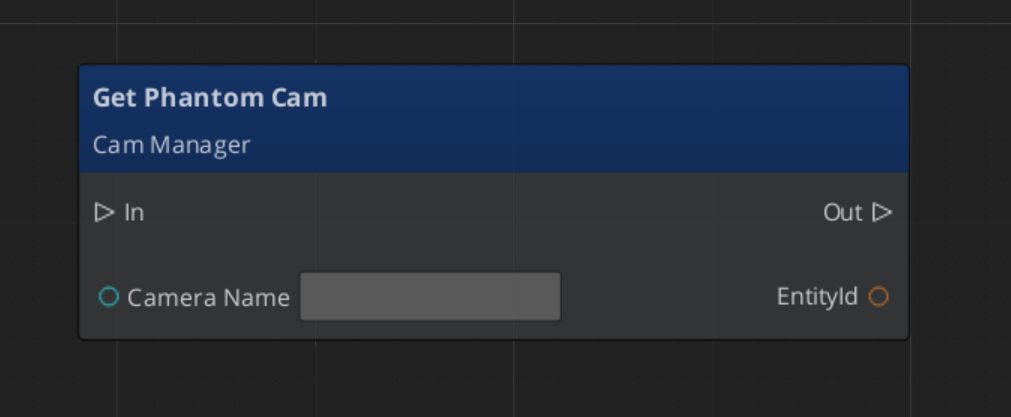
Getting a phantom camera’s data:
Extending Phantom Cameras
Use the PhantomCamera ClassWizard template to generate a new camera component with boilerplate already in place — see GS_PhantomCam Templates. cmake and module registration are fully automatic.
Create custom phantom camera types by extending GS_PhantomCameraComponent. Override the virtual methods to implement custom follow, look-at, or per-tick behavior.
Header (.h)
#pragma once
#include <GS_PhantomCam/GS_PhantomCamBus.h>
#include <Source/PhantomCamera/GS_PhantomCameraComponent.h>

namespace MyProject
{
    class MyCustomCam : public GS_PhantomCam::GS_PhantomCameraComponent
    {
    public:
        AZ_COMPONENT_DECL(MyCustomCam);

        static void Reflect(AZ::ReflectContext* context);

    protected:
        void EvaluateCamTick() override;
        void ProcessTransformFollow(AZ::Vector3& desiredPos, float deltaTime) override;
        void ProcessTransformLookAt(AZ::Quaternion& desiredRot, AZ::Transform curWorldTM, float deltaTime) override;
    };
}
Implementation (.cpp)
#include "MyCustomCam.h"
#include <AzCore/Serialization/SerializeContext.h>

namespace MyProject
{
    AZ_COMPONENT_IMPL(MyCustomCam, "MyCustomCam", "{YOUR-UUID-HERE}");

    void MyCustomCam::Reflect(AZ::ReflectContext* context)
    {
        if (auto serializeContext = azrtti_cast<AZ::SerializeContext*>(context))
        {
            serializeContext->Class<MyCustomCam, GS_PhantomCam::GS_PhantomCameraComponent>()
                ->Version(0);

            if (AZ::EditContext* editContext = serializeContext->GetEditContext())
            {
                editContext->Class<MyCustomCam>("My Custom Camera", "Custom phantom camera behavior")
                    ->ClassElement(AZ::Edit::ClassElements::EditorData, "")
                        ->Attribute(AZ::Edit::Attributes::Category, "MyProject")
                        ->Attribute(AZ::Edit::Attributes::AppearsInAddComponentMenu, AZ_CRC_CE("Game"));
            }
        }
    }

    void MyCustomCam::EvaluateCamTick()
    {
        // Call base to run standard follow/look-at pipeline
        GS_PhantomCameraComponent::EvaluateCamTick();

        // Add custom per-tick logic (screen shake, zoom pulses, etc.)
    }

    void MyCustomCam::ProcessTransformFollow(AZ::Vector3& desiredPos, float deltaTime)
    {
        // Call base for standard follow behavior
        GS_PhantomCameraComponent::ProcessTransformFollow(desiredPos, deltaTime);

        // Modify desiredPos for custom follow behavior
    }

    void MyCustomCam::ProcessTransformLookAt(
        AZ::Quaternion& desiredRot, AZ::Transform curWorldTM, float deltaTime)
    {
        // Call base for standard look-at behavior
        GS_PhantomCameraComponent::ProcessTransformLookAt(desiredRot, curWorldTM, deltaTime);

        // Modify desiredRot for custom look-at behavior
    }
}
See Also
For related PhantomCam components:
For conceptual overviews and usage guides:
Get GS_PhantomCam
GS_PhantomCam — Explore this gem on the product page and add it to your project.