Cam Manager
Categories:
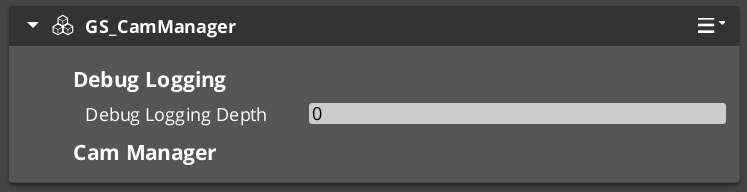
The Cam Manager is the singleton controller for the GS_PhantomCam camera system. It extends GS_ManagerComponent and manages the full lifecycle of virtual cameras: registering and unregistering phantom cameras, evaluating which camera has the highest effective priority, assigning the global camera target, and routing camera influence modifiers.
When a phantom camera activates, it registers itself with the Cam Manager. When priorities change — through direct calls, enable/disable toggling, or influence fields — the Cam Manager re-evaluates which phantom camera should be dominant and notifies the Cam Core to begin blending toward it.
For usage guides and setup examples, see The Basics: GS_PhantomCam.
Contents
How It Works
Camera Registration
Every Phantom Camera registers with the Cam Manager on activation via RegisterPhantomCam and unregisters on deactivation via UnRegisterPhantomCam. The Cam Manager maintains the authoritative list of all active phantom cameras in the scene.
Priority Evaluation
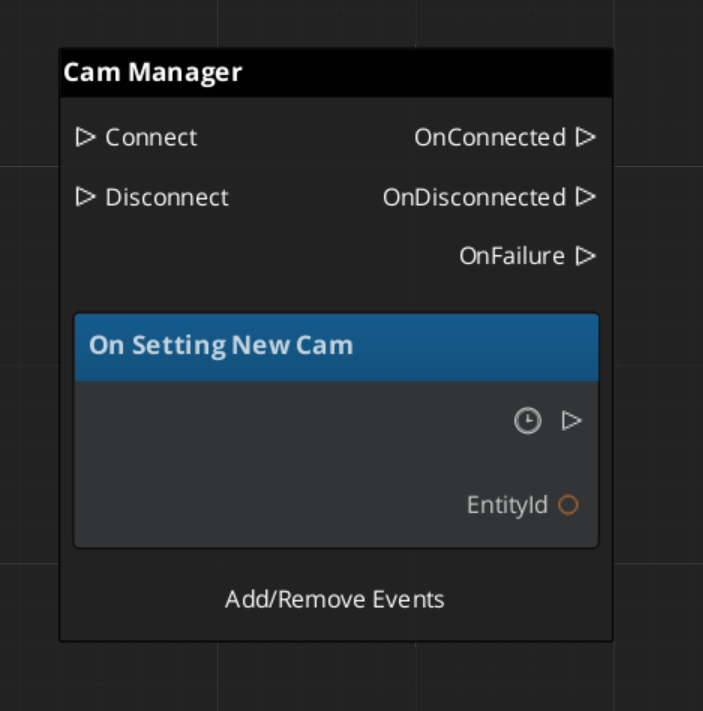
When any camera’s priority changes, the Cam Manager calls EvaluatePriority() to determine the new dominant camera. The camera with the highest effective priority (base priority plus any active influences) becomes the dominant camera. A change in dominance triggers the SettingNewCam notification, which the Cam Core uses to begin its blend transition.
Camera Influences
Camera influences are named priority modifiers that shift a camera’s effective priority up or down. They are added and removed through AddCameraInfluence and RemoveCameraInfluence, identified by camera name. This mechanism allows Camera Influence Fields and gameplay systems to affect camera selection without directly modifying base priority values.
Target Assignment
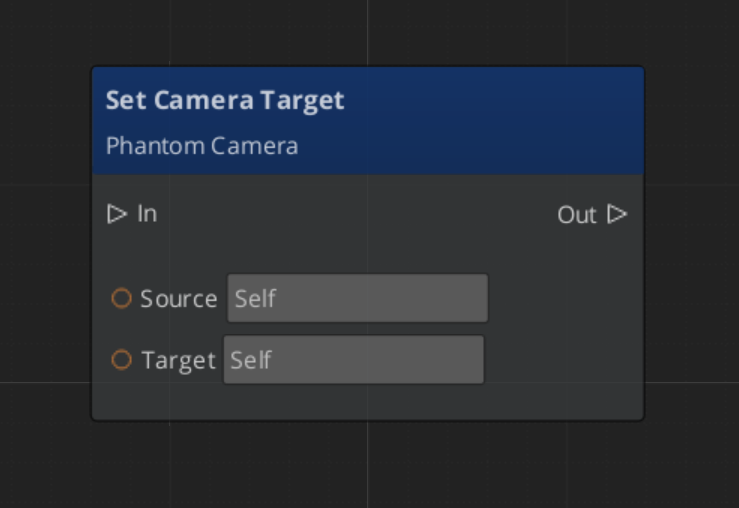
The Cam Manager holds the global camera target — the entity that follow and look-at cameras will track. Setting the target here propagates it to the active phantom camera system.
Setup
- Add GS_CamManagerComponent to your Game Manager entity (or a dedicated camera manager entity).
- Register the manager prefab in the Game Manager Startup Managers list.
- Add a Cam Core component to your main camera entity as a child of the Cam Manager entity.
- Place Phantom Cameras in your scene with appropriate priorities.
For a full walkthrough, see the PhantomCam Set Up Guide.
API Reference
Request Bus: CamManagerRequestBus
Commands sent to the Cam Manager. Global bus — Single address, single handler.
| Method | Parameters | Returns | Description |
|---|---|---|---|
RegisterPhantomCam | AZ::EntityId cam | void | Registers a phantom camera with the manager. Called automatically on phantom camera activation. |
UnRegisterPhantomCam | AZ::EntityId cam | void | Unregisters a phantom camera from the manager. Called automatically on phantom camera deactivation. |
ChangeCameraPriority | AZ::EntityId cam, AZ::u32 priority | void | Sets a new base priority for the specified camera and triggers priority re-evaluation. |
AddCameraInfluence | AZStd::string camName, float influence | void | Adds a priority influence modifier to the named camera. Positive values increase effective priority. |
RemoveCameraInfluence | AZStd::string camName, float influence | void | Removes a priority influence modifier from the named camera. |
SetTarget | AZ::EntityId targetEntity | void | Sets the global camera follow/look-at target entity. |
GetTarget | – | AZ::EntityId | Returns the current global camera target entity. |
Notification Bus: CamManagerNotificationBus
Events broadcast by the Cam Manager. Multiple handler bus — any number of components can subscribe.
| Event | Description |
|---|---|
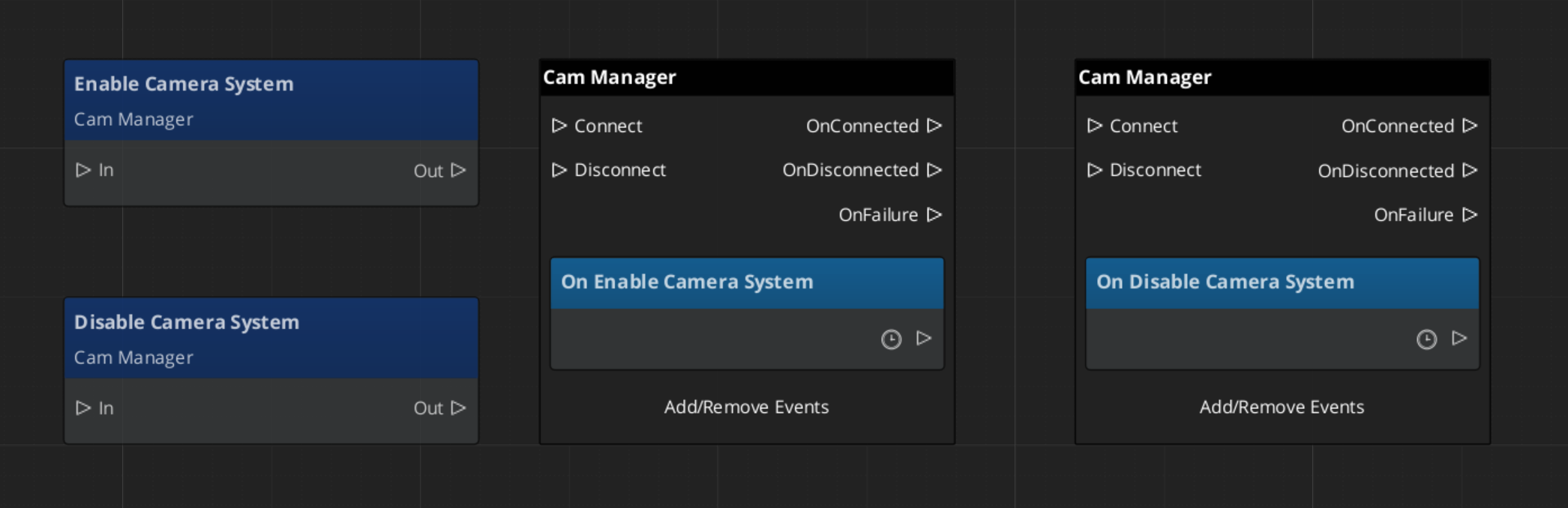
EnableCameraSystem | Fired when the camera system is fully initialized and active. |
DisableCameraSystem | Fired when the camera system is shutting down. |
SettingNewCam | Fired when a new phantom camera becomes dominant after priority evaluation. The Cam Core listens for this to begin blending. |
Virtual Methods
Override these when extending the Cam Manager. Always call the base implementation.
| Method | Parameters | Returns | Description |
|---|---|---|---|
EvaluatePriority() | — | void | Sorts all registered phantom cameras by effective priority and determines the dominant camera. Override to add custom priority logic (e.g. distance weighting, gameplay state filters). |
Extending the Cam Manager
Extend the Cam Manager to add custom priority logic, additional registration behavior, or project-specific camera selection rules. Extension is done in C++.
Header (.h)
#pragma once
#include <GS_PhantomCam/GS_PhantomCamBus.h>
#include <Source/CamManager/GS_CamManagerComponent.h>

namespace MyProject
{
    class MyCamManager : public GS_PhantomCam::GS_CamManagerComponent
    {
    public:
        AZ_COMPONENT_DECL(MyCamManager);

        static void Reflect(AZ::ReflectContext* context);

    protected:
        void EvaluatePriority() override;
    };
}
Implementation (.cpp)
#include "MyCamManager.h"
#include <AzCore/Serialization/SerializeContext.h>

namespace MyProject
{
    AZ_COMPONENT_IMPL(MyCamManager, "MyCamManager", "{YOUR-UUID-HERE}");

    void MyCamManager::Reflect(AZ::ReflectContext* context)
    {
        if (auto serializeContext = azrtti_cast<AZ::SerializeContext*>(context))
        {
            serializeContext->Class<MyCamManager, GS_PhantomCam::GS_CamManagerComponent>()
                ->Version(0);

            if (AZ::EditContext* editContext = serializeContext->GetEditContext())
            {
                editContext->Class<MyCamManager>("My Cam Manager", "Custom camera manager")
                    ->ClassElement(AZ::Edit::ClassElements::EditorData, "")
                        ->Attribute(AZ::Edit::Attributes::Category, "MyProject")
                        ->Attribute(AZ::Edit::Attributes::AppearsInAddComponentMenu, AZ_CRC_CE("Game"));
            }
        }
    }

    void MyCamManager::EvaluatePriority()
    {
        // Call base to run standard priority sorting
        GS_CamManagerComponent::EvaluatePriority();

        // Custom priority logic here — e.g. filter cameras by gameplay state,
        // apply distance-based weighting, or enforce camera lock rules
    }
}
Script Canvas Examples
Enabling and disabling the camera system:
Setting the global camera target:
Reacting to a new dominant camera:
See Also
For related PhantomCam components:
For foundational systems:
For conceptual overviews and usage guides:
Get GS_PhantomCam
GS_PhantomCam — Explore this gem on the product page and add it to your project.