Camera Influence Fields
Categories:
Camera Influence Fields modify the effective priority of Phantom Cameras without changing their base priority values. They call AddCameraInfluence(sourceEntity, targetEntity, camName, influence) and RemoveCameraInfluence(sourceEntity, targetEntity) on the Cam Manager bus. The Cam Manager routes the influence to the channel that owns the target entity. Multiple influences on the same camera stack additively within a channel.
There are two influence component types:
- GlobalCameraInfluenceComponent — Applies a priority influence globally for its entire active lifetime. Place this on the StageData entity so it activates and deactivates automatically with the stage.
- CameraInfluenceFieldComponent — Applies a priority influence only when an entity (typically a player unit) enters a defined spatial volume. Requires a PhysX Collider set as a trigger on the same entity. See Physics Trigger Volume Utility.
For usage guides and setup examples, see The Basics: GS_PhantomCam.
Contents
How It Works
Global Influence
The GlobalCameraInfluenceComponent applies a constant priority modifier to a named phantom camera. On Activate(), it calls AddCameraInfluence on the Cam Manager bus. On Deactivate(), it calls RemoveCameraInfluence.
Placement: Add this component to the StageData entity. Because StageData activates at stage load and deactivates at stage unload, the camera influence is automatically scoped to the stage that defines it — no manual enable/disable management needed.
Global influences have no specific target entity, so in multi-channel projects they currently route through the channel-0 fallback. For Tier 3 projects that need a “global” influence applied to every channel, the cleaner pattern is one Global influence per channel — or use the Tug Field model which doesn’t go through the influence bus.
Spatial Influence
The CameraInfluenceFieldComponent uses a PhysX Collider (trigger mode) to detect when an entity enters or exits a defined region. On entry, it adds the influence with the crossing entity as the routing target; on exit, it removes the influence. See Physics Trigger Volume Utility for collider setup.
This is useful for level design — switching to an overhead camera when the player enters a specific room, or boosting a scenic camera in a vista area.
Influence Stacking
Multiple influences can be active on the same camera within a channel simultaneously. The Cam Manager sums all active influences with the base priority to compute the effective priority used during EvaluatePriority. The sourceEntity parameter is the per-channel storage key, so multiple overlapping fields applied to the same channel do not collide.
Channel Routing
The bus signature carries two entity arguments:
AddCameraInfluence(
    AZ::EntityId sourceEntity,   // the field volume's entity (storage key)
    AZ::EntityId targetEntity,   // the entity that triggered the influence (routing key)
    AZStd::string camName,
    AZ::u32 influence);
The Cam Manager looks up the channel via GetChannelForTarget(targetEntity):
| Resolution result | Behavior |
|---|---|
| Target is bound to a channel | Influence is stored in that channel’s priority table. Only that channel’s arbitration sees the boost. |
| Target is not bound to any channel | Influence is silently dropped. |
This gives clean isolation between players in co-op (player 1 entering a field does not affect player 2’s cam priorities) and natural behavior for non-player triggers (an enemy walking into a player-cam field doesn’t influence anything).
Subtle limitation. If an entity enters a field BEFORE
SetTargetruns on its channel, the influence is dropped at trigger-enter time and not replayed when the target is later bound. Acceptable for typical “set target on player spawn” project patterns.
Cam Influence Data
The component authoring surface uses a CamInfluenceData structure to define the effect of one influence.
| Field | Type | Description |
|---|---|---|
CameraName | AZStd::string | Entity name of the phantom camera to influence. Must match exactly. |
Influence | AZ::u32 | Priority modifier applied to the named camera’s effective priority during arbitration. |
API Reference
The influence bus methods live on CamManagerRequestBus. Field components call the Cam Manager directly; the influence components do not expose their own request bus for AddCameraInfluence / RemoveCameraInfluence.
Request Bus: CamManagerRequestBus (influence methods)
| Method | Parameters | Returns | Description |
|---|---|---|---|
AddCameraInfluence | AZ::EntityId sourceEntity, AZ::EntityId targetEntity, AZStd::string camName, AZ::u32 influence | void | Adds a priority influence to the named camera in the channel that owns targetEntity. Silently dropped if the target isn’t channel-bound. |
RemoveCameraInfluence | AZ::EntityId sourceEntity, AZ::EntityId targetEntity | void | Removes the influence stored under (sourceEntity, targetEntity). |
Per-component inspection buses (GlobalCameraRequestBus and similar) expose component-local queries (GetGlobalCamera, etc.) for editor and runtime tooling but do not duplicate the influence-add API.
Note.
AddCameraInfluenceis not exposed to BehaviorContext / Script Canvas. Field components call it via C++ broadcast. Gameplay code that needs to drive influences from SC should author per-component surfaces or use the Tug Field system.
Component Reference
GlobalCameraInfluenceComponent
Applies a camera priority influence globally for its entire active lifetime.
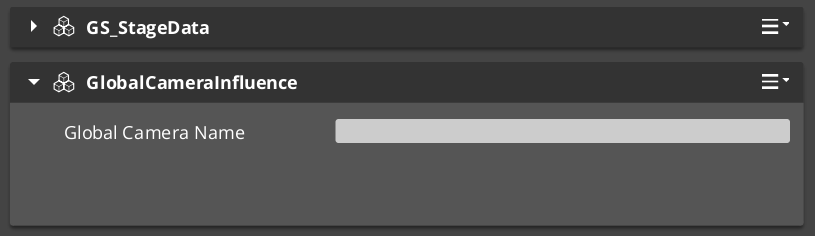
| Property | Type | Description |
|---|---|---|
CamInfluenceData | CamInfluenceData | The camera name and influence value to apply. |
Behavior: On Activate(), calls AddCameraInfluence(GetEntityId() /*source*/, AZ::EntityId() /*target*/, camName, influence). The invalid target id causes the influence to route through the channel-0 fallback in single-player projects.
On Deactivate(), calls RemoveCameraInfluence(GetEntityId(), AZ::EntityId()).
Placement: Add to the StageData entity to scope the influence to the stage lifecycle.
CameraInfluenceFieldComponent
Applies a camera priority influence when an entity enters a spatial trigger volume.
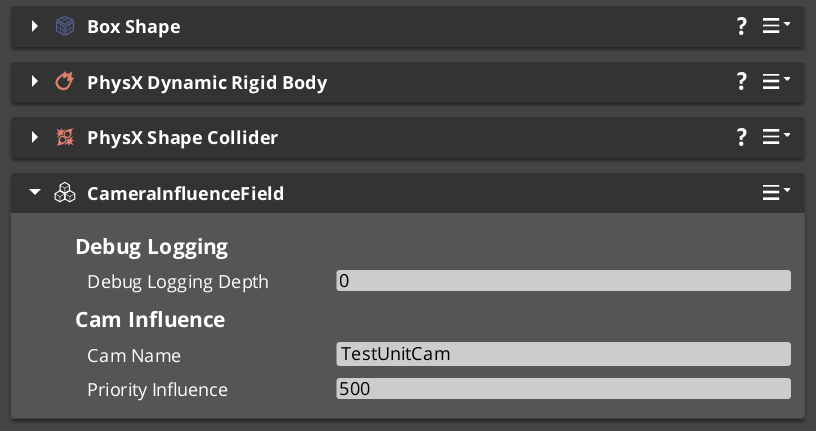
| Property | Type | Description |
|---|---|---|
CamInfluenceData | CamInfluenceData | The camera name and influence value to apply when triggered. |
Behavior: Requires a PhysX Collider (trigger) on the same entity. Inherits from GS_Core::PhysicsTriggerComponent for the trigger logic.
TriggerEnter(crossingEntity):
    CamManagerRequestBus::Broadcast(
        AddCameraInfluence,
        GetEntityId(),    // source — this field volume
        crossingEntity,   // target — what walked in (routing key)
        camName,
        influence);

TriggerExit(crossingEntity):
    CamManagerRequestBus::Broadcast(
        RemoveCameraInfluence,
        GetEntityId(),
        crossingEntity);
The crossingEntity is what makes this component channel-aware. In Tier 3 multi-channel projects, only the channel whose target matches the crossing entity sees the influence.
Setup:
- Add CameraInfluenceFieldComponent to an entity.
- Add a PhysX Collider (set as trigger) to the same entity. See Physics Trigger Volume Utility.
- Configure the PhysX collision filter so the collider detects the entities you want to trigger on (typically player units).
- Set the Camera Name to the target phantom camera’s entity name.
- Set the Influence value (positive to boost, negative to reduce priority).
Usage Examples
C++ — Adding an Influence Directly
#include <GS_PhantomCam/GS_CamManagerBus.h>

// Boost "CinematicCam" priority by 50 for player1 during a cutscene.
GS_PhantomCam::CamManagerRequestBus::Broadcast(
    &GS_PhantomCam::CamManagerRequests::AddCameraInfluence,
    AZ::EntityId(GetEntityId()),  // source — your gameplay system's entity
    AZ::EntityId(player1Entity),  // target — routes to player1's channel
    AZStd::string("CinematicCam"),
    AZ::u32(50));

// Remove the boost when the cutscene ends.
GS_PhantomCam::CamManagerRequestBus::Broadcast(
    &GS_PhantomCam::CamManagerRequests::RemoveCameraInfluence,
    AZ::EntityId(GetEntityId()),
    AZ::EntityId(player1Entity));
For a Tier 1 / single-player project, pass AZ::EntityId() for targetEntity to route through channel 0’s fallback.
See Also
For related PhantomCam components:
- Cam Manager
- Phantom Cameras
- Cam Core
- Tug Fields — alternative spatial reposition that doesn’t use the influence bus.
For related utilities:
For conceptual overviews and usage guides:
Get GS_PhantomCam
GS_PhantomCam — Explore this gem on the product page and add it to your project.