Blend Profiles
Categories:
Blend Profiles are data assets that control how the Cam Core transitions between Phantom Cameras. Each profile contains a list of blend entries. Each entry defines a From camera, a To camera, a blend duration, an easing curve, a blend shape, a pivot source, and an inherit-state flag. This allows every camera-to-camera transition in your project to have unique timing, feel, and geometry.
The GS_PhantomCamBlendProfile asset is authored in the Asset Editor as a .camblendprofile file. It is registered at startup by PhantomCamDataAssetsSystemComponent and assigned to the Cam Core component. When a camera transition occurs, the Cam Core queries the profile for the best matching blend entry.
For usage guides and setup examples, see The Basics: GS_PhantomCam.
Contents
- How It Works
- Blend Shape
- Pivot Source
- Inherit State
- Data Model
- API Reference
- Creating a Blend Profile
- See Also
How It Works
Blend Entries
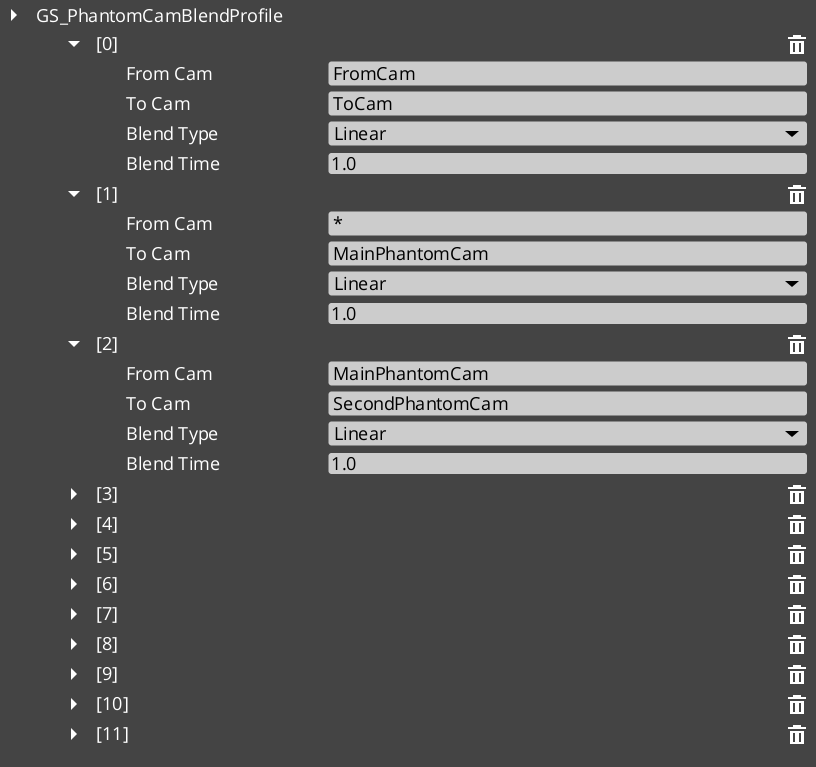
Each entry in a Blend Profile defines a single transition rule:
- From Camera — The name of the outgoing camera (the entity name of the phantom camera being left).
- To Camera — The name of the incoming camera (the entity name of the phantom camera being transitioned to).
- Blend Time — The duration of the transition in seconds.
- Blend Type — The interpolation curve applied during the blend. See Curves Utility for the full list.
- Blend Shape — Linear, Cylindrical, or Spherical. See Blend Shape.
- Pivot Source — Source, Destination, or Shared. See Pivot Source. Only consulted when blend shape is not Linear.
- Inherit State — Opt-in cam-to-cam pose handoff. See Inherit State.
Camera names correspond to the entity names of your phantom camera entities in the scene.
Best Target Blend
When the Cam Core needs to transition, it calls GetBestBlend(fromCam, toCam) on the assigned Blend Profile. The system evaluates blend entries in order of specificity:
- Exact match — An entry with both the From and To camera names matching exactly.
- Any-to-specific — An entry with From set to blank or “any” and To matching the incoming camera name.
- Specific-to-any — An entry with From matching the outgoing camera name and To set to blank or “any”.
- Default fallback — If no entry matches, the Cam Core uses its own default blend time, easing, and shape configured on the component.
This layered resolution allows you to define broad defaults (“any” to “any” at 1.0 seconds) while overriding specific transitions (“MenuCam” to “GameplayCam” at 2.5 seconds with ease-in-out and a spherical sweep).
The first match within a specificity tier wins (no further tie-breaking).
Blend Shape
The blend shape controls how the camera’s position interpolates between source and destination. Defaults to Linear so unconfigured / pre-v3 assets retain straight-lerp behavior.
| Shape | Behavior |
|---|---|
Linear | Straight world-space lerp. No orbital math. The default. |
Cylindrical | Arc around the resolved pivot on the yaw axis. Pitch and radius interpolate independently. Right for ground cams sharing a target. |
Spherical | Full 3D arc around the resolved pivot. Right when source and destination cams sit at different heights around a shared target. |
When the shape is not Linear, the Cam Core calls the Orbital Solver Utility — BlendPositionAroundPivot(from, to, pivot, alpha, shape, axis) — to compute each tick’s position.
Auto-fallback to Linear. When neither cam reports a pivot (e.g. environmental cams without follow / lookAt targets), the orbital solver isn’t called and the blend lerps straight regardless of the authored shape.
Rotation always slerps; the shape only affects position.
Pivot Source
The pivot is the world-space point that Cylindrical / Spherical shapes arc around. It is resolved at blend start from the cams’ pivots. The pivot source selects which cam’s pivot to use:
| Pivot Source | Behavior |
|---|---|
Source | Outgoing cam’s pivot. “Leave A elegantly” — the source cam’s framing reference defines the arc. |
Destination | Incoming cam’s pivot. “Arrive at B elegantly” — the destination’s framing reference defines the arc. |
Shared (default) | Midpoint of both pivots. Collapses identically when both cams target the same point. |
Pivots come from the cams’ bodies via GetCameraPivot. A cam that doesn’t publish a pivot disqualifies itself from being the pivot source; Cam Core falls back to whichever cam does publish one, or to Linear if neither does.
This field is ignored when Blend Shape is Linear.
Inherit State
Setting Inherit State opts the matched pair into the state inheritance protocol. When the Cam Core is about to start this blend, it:
- Calls
TryGetPoseSnapshoton the outgoing cam — the body publishes aCamPoseSnapshot. - Calls
TryAdoptPoseSnapshoton the incoming cam — the body consumes the snapshot, re-deriving its internal kinematic state to start from a continuation of the outgoing pose. - Bodies that don’t speak the protocol silently no-op and the blend proceeds without inheritance.
The blend then runs from the source cam’s pose to the destination cam’s already-inherited pose — reads as a small smooth drift rather than a swing.
Default is false so cinematic shots authored at specific poses land at those poses unless the author opts in.
Authoring gotcha. If the inherit flag is unchecked on a matched pair, the destination cam falls through to its snap-on-activation seed. For a
LeadingFollowBodythis looks like “cam orients behind player’s travel direction regardless of source facing.” ForDynamicOrbitBodyorOrbitBodythe cam swings to authored yaw / pitch and blends from there. Both symptoms point at the same root cause — verify the flag in the asset.
Data Model
GS_PhantomCamBlendProfile
The top-level asset class. Extends AZ::Data::AssetData. Registered through PhantomCamDataAssetsSystemComponent. Authored as .camblendprofile.
| Field | Type | Description |
|---|---|---|
BlendList | AZStd::vector<PhantomBlend> | The list of blend entries defining camera transitions. |
PhantomBlend
A single blend entry within the profile. Reflected at Version 4 with a version converter that defaults Blend Shape / Pivot Source to Linear / Shared (pre-v3 assets) and Inherit State to false (pre-v4 assets).
| Field | Type | Default | Description |
|---|---|---|---|
FromCamera | AZStd::string | "" | Entity name of the outgoing phantom camera. Blank or “any” matches all outgoing cameras. |
ToCamera | AZStd::string | "" | Entity name of the incoming phantom camera. Blank or “any” matches all incoming cameras. |
BlendTime | float | 1.0 | Duration of the blend transition in seconds. |
BlendType | GS_Core::CurveType | Linear | The easing curve. See Curves Utility for the full enum. |
BlendShape | GS_Core::Math::BlendShape | Linear | Path geometry — Linear / Cylindrical / Spherical. See Blend Shape. |
PivotSource | GS_Core::Math::PivotSource | Shared | Which cam’s pivot to use — Source / Destination / Shared. See Pivot Source. |
InheritState | bool | false | Opt-in cam-to-cam pose handoff. See Inherit State. |
API Reference
GS_PhantomCamBlendProfile Methods
| Method | Parameters | Returns | Description |
|---|---|---|---|
GetBestBlend | AZStd::string fromCam, AZStd::string toCam | const PhantomBlend* | Returns the best matching blend entry for the given camera pair, or nullptr if no match is found. Resolution follows the specificity hierarchy. |
Creating a Blend Profile
- Open the Asset Editor in O3DE.
- Select New and choose GS_PhantomCamBlendProfile from the asset type list.
- Add blend entries using the + button on the Blend List array.
- For each entry:
- Set the From Camera name (or leave blank for “any”).
- Set the To Camera name (or leave blank for “any”).
- Set the Blend Time in seconds.
- Choose a Blend Type (easing curve) from the dropdown.
- Choose a Blend Shape (Linear / Cylindrical / Spherical).
- Choose a Pivot Source (Source / Destination / Shared) — ignored when Blend Shape is Linear.
- Tick Inherit State if you want the incoming cam’s body to seed from the outgoing cam’s pose.
- Save the asset.
- Assign the asset to the Cam Core component’s Blend Profile inspector slot.
For a full walkthrough, see the PhantomCam Set Up Guide.
See Also
For related PhantomCam components:
For related utilities:
- Orbital Solver Utility — the math primitive used by Cylindrical / Spherical shapes.
- Curves Utility
For conceptual overviews and usage guides:
Get GS_PhantomCam
GS_PhantomCam — Explore this gem on the product page and add it to your project.