Cam Core
Categories:
The Cam Core is the runtime driver of the GS_PhantomCam system. It lives on the main camera entity and is responsible for a single job: making the real O3DE camera match the dominant Phantom Camera. Every frame, the Cam Core reads the target phantom camera’s position, rotation, and field of view, then applies those values to the actual camera entity — either instantly (when locked) or through a timed blend transition.
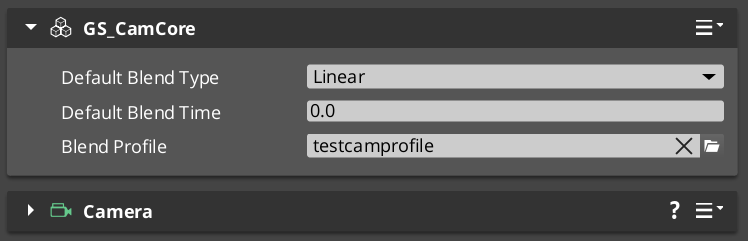
When the Cam Manager determines a new dominant phantom camera, it fires a notification that the Cam Core receives. The Cam Core then looks up the best matching blend in the active Blend Profile and begins interpolating toward the new phantom camera over the specified duration and easing curve (see Curves Utility). Once the blend completes, the main camera locks to the phantom camera as a child entity, matching its transforms exactly until the next transition.
For usage guides and setup examples, see The Basics: GS_PhantomCam.
Contents
How It Works
Blend Transitions
When a camera transition is triggered:
- The Cam Core receives the
SettingNewCamnotification from the Cam Manager. - It queries the assigned Blend Profile for the best matching blend between the outgoing and incoming camera (by name).
- The blend profile returns the duration and easing curve. If no specific blend is found, the Cam Core falls back to its default blend time and easing.
- Over the blend duration, the Cam Core interpolates position, rotation, and FOV from the outgoing state to the incoming phantom camera state.
- On blend completion, the Cam Core parents the main camera to the phantom camera entity, locking them together.
Blend Profile Resolution
The Cam Core holds a reference to a GS_PhantomCamBlendProfile asset. When a transition occurs, it calls GetBestBlend(fromCam, toCam) on the profile to find the most specific matching blend. The resolution order is:
- Exact match — From camera name to To camera name.
- Any-to-specific — “Any” to the To camera name.
- Specific-to-any — From camera name to “Any”.
- Default fallback — The Cam Core’s own default blend time and easing values.
See Blend Profiles for full details on the resolution hierarchy.
Camera Locking
Once a blend completes, the main camera becomes a child of the dominant phantom camera entity. All position, rotation, and property updates from the phantom camera are reflected immediately on the real camera. This lock persists until the next transition begins.
Setup
- Add GS_CamCoreComponent to your main camera entity. There should be only one Cam Core in the scene.
- Make the main camera entity a child of the Cam Manager entity to ensure it spawns and despawns with the camera system.
- Create a Blend Profile data asset in the Asset Editor and assign it to the Cam Core’s Blend Profile inspector slot.
- Configure the default blend time and easing on the Cam Core component for cases where no blend profile entry matches. See Curves Utility for available easing types.
API Reference
Request Bus: CamCoreRequestBus
Commands sent to the Cam Core. Global bus — Single address, single handler.
| Method | Parameters | Returns | Description |
|---|---|---|---|
SetPhantomCam | AZ::EntityId targetCam | void | Sets the phantom camera that the Cam Core should blend toward or lock to. Typically called by the Cam Manager after priority evaluation. |
GetCamCore | – | AZ::EntityId | Returns the entity ID of the Cam Core (the main camera entity). |
Notification Bus: CamCoreNotificationBus
Events broadcast by the Cam Core. Multiple handler bus — any number of components can subscribe.
| Event | Description |
|---|---|
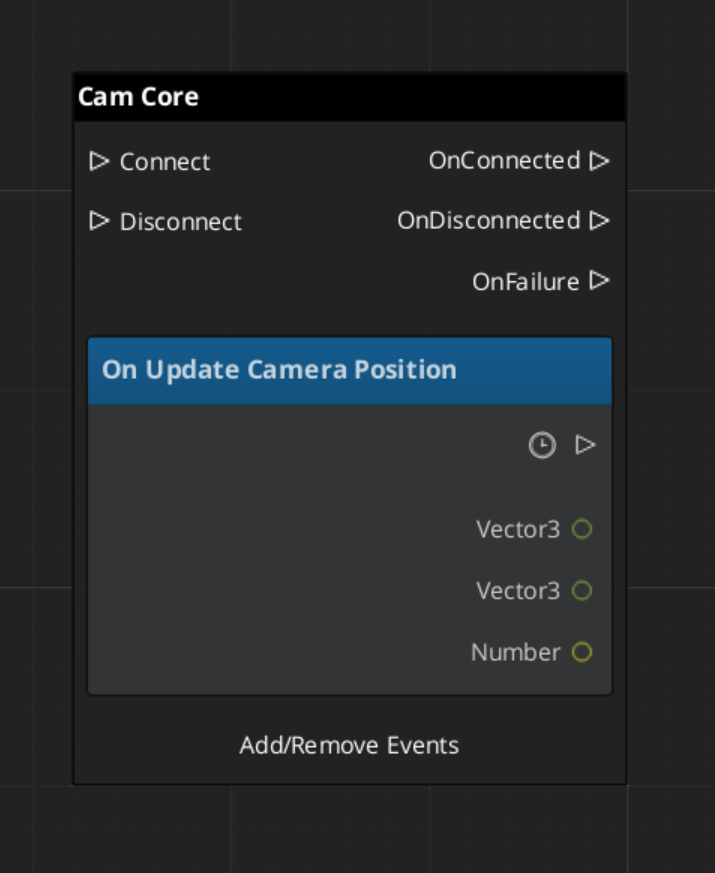
UpdateCameraPosition | Fired each frame during an active blend, after the Cam Core has updated the camera’s position, rotation, and FOV. Subscribe to this to react to camera movement in real time. |
Usage Examples
C++ – Querying the Main Camera Entity
#include <GS_PhantomCam/GS_PhantomCamBus.h>

AZ::EntityId mainCameraId;
GS_PhantomCam::CamCoreRequestBus::BroadcastResult(
    mainCameraId,
    &GS_PhantomCam::CamCoreRequestBus::Events::GetCamCore
);
C++ – Listening for Camera Updates
#include <GS_PhantomCam/GS_PhantomCamBus.h>

class MyCameraListener
    : public AZ::Component
    , protected GS_PhantomCam::CamCoreNotificationBus::Handler
{
protected:
    void Activate() override
    {
        GS_PhantomCam::CamCoreNotificationBus::Handler::BusConnect();
    }

    void Deactivate() override
    {
        GS_PhantomCam::CamCoreNotificationBus::Handler::BusDisconnect();
    }

    void UpdateCameraPosition() override
    {
        // React to camera position/rotation changes during blends
    }
};
Script Canvas
Reacting to camera position updates during blends:
Extending the Cam Core
The Cam Core can be extended in C++ to customize blend behavior, add post-processing logic, or integrate with external camera systems.
Header (.h)
#pragma once
#include <GS_PhantomCam/GS_PhantomCamBus.h>
#include <Source/CamCore/GS_CamCoreComponent.h>

namespace MyProject
{
    class MyCamCore : public GS_PhantomCam::GS_CamCoreComponent
    {
    public:
        AZ_COMPONENT_DECL(MyCamCore);

        static void Reflect(AZ::ReflectContext* context);
    };
}
Implementation (.cpp)
#include "MyCamCore.h"
#include <AzCore/Serialization/SerializeContext.h>

namespace MyProject
{
    AZ_COMPONENT_IMPL(MyCamCore, "MyCamCore", "{YOUR-UUID-HERE}");

    void MyCamCore::Reflect(AZ::ReflectContext* context)
    {
        if (auto serializeContext = azrtti_cast<AZ::SerializeContext*>(context))
        {
            serializeContext->Class<MyCamCore, GS_PhantomCam::GS_CamCoreComponent>()
                ->Version(0);

            if (AZ::EditContext* editContext = serializeContext->GetEditContext())
            {
                editContext->Class<MyCamCore>("My Cam Core", "Custom camera core driver")
                    ->ClassElement(AZ::Edit::ClassElements::EditorData, "")
                        ->Attribute(AZ::Edit::Attributes::Category, "MyProject")
                        ->Attribute(AZ::Edit::Attributes::AppearsInAddComponentMenu, AZ_CRC_CE("Game"));
            }
        }
    }
}
See Also
For related PhantomCam components:
For conceptual overviews and usage guides:
Get GS_PhantomCam
GS_PhantomCam — Explore this gem on the product page and add it to your project.