Blend Profiles
Categories:
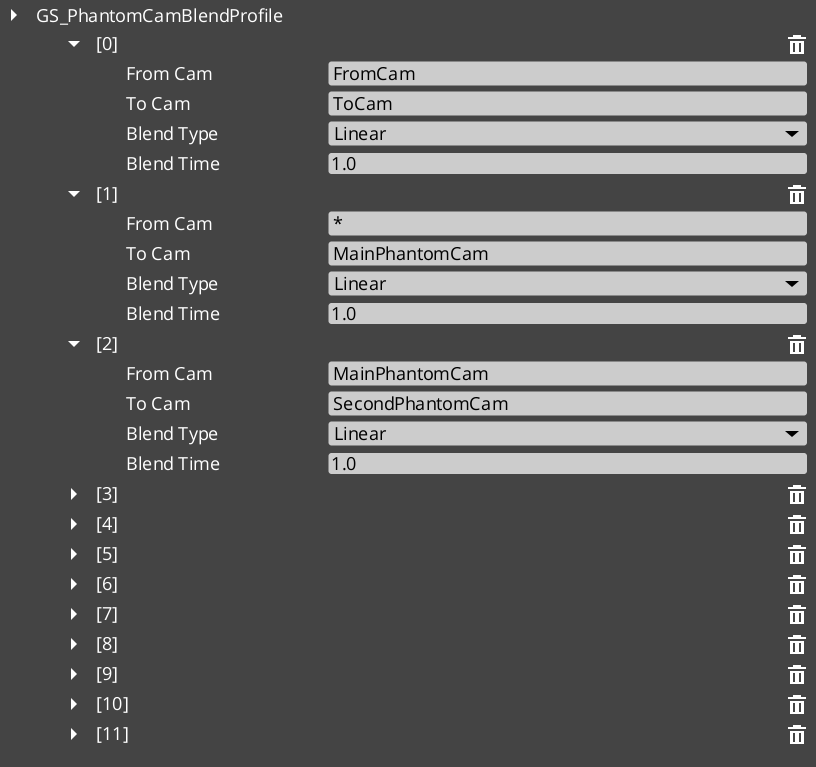
Blend Profiles are data assets that control how the Cam Core transitions between Phantom Cameras. Each profile contains a list of blend entries, where each entry defines a From camera, a To camera, a blend duration, and an easing curve (see Curves Utility). This allows every camera-to-camera transition in your project to have unique timing and feel.
The GS_PhantomCamBlendProfile asset is created in the Asset Editor and assigned to the Cam Core component. When a camera transition occurs, the Cam Core queries the profile for the best matching blend entry.
For usage guides and setup examples, see The Basics: GS_PhantomCam.
Contents
How It Works
Blend Entries
Each entry in a Blend Profile defines a single transition rule:
- From Camera — The name of the outgoing camera (the entity name of the phantom camera being left).
- To Camera — The name of the incoming camera (the entity name of the phantom camera being transitioned to).
- Blend Time — The duration of the transition in seconds.
- Easing Type — The interpolation curve applied during the blend. See Curves Utility for the full list of available easing types.
Camera names correspond to the entity names of your phantom camera entities in the scene.
Best Target Blend
When the Cam Core needs to transition, it calls GetBestBlend(fromCam, toCam) on the assigned Blend Profile. The system evaluates blend entries in order of specificity:
- Exact match — An entry with both the From and To camera names matching exactly.
- Any-to-specific — An entry with From set to blank or “any” and To matching the incoming camera name.
- Specific-to-any — An entry with From matching the outgoing camera name and To set to blank or “any”.
- Default fallback — If no entry matches, the Cam Core uses its own default blend time and easing values configured on the component.
This layered resolution allows you to define broad defaults (e.g. “any” to “any” at 1.0 seconds) while overriding specific transitions (e.g. “MenuCam” to “GameplayCam” at 2.5 seconds with ease-in-out).
Data Model
GS_PhantomCamBlendProfile
The top-level asset class. Extends AZ::Data::AssetData. Requires GS_AssetReflectionIncludes.h when reflecting — see Serialization Helpers.
| Field | Type | Description |
|---|---|---|
Blends | AZStd::vector<PhantomBlend> | The list of blend entries defining camera transitions. |
PhantomBlend
A single blend entry within the profile.
| Field | Type | Description |
|---|---|---|
FromCamera | AZStd::string | The entity name of the outgoing phantom camera. Blank or “any” matches all outgoing cameras. |
ToCamera | AZStd::string | The entity name of the incoming phantom camera. Blank or “any” matches all incoming cameras. |
BlendTime | float | Duration of the blend transition in seconds. |
EasingType | EasingCurve | The interpolation curve for the blend. See Curves Utility. |
API Reference
GS_PhantomCamBlendProfile Methods
| Method | Parameters | Returns | Description |
|---|---|---|---|
GetBestBlend | AZStd::string fromCam, AZStd::string toCam | const PhantomBlend* | Returns the best matching blend entry for the given camera pair, or nullptr if no match is found. Resolution follows the specificity hierarchy. |
Creating a Blend Profile
- Open the Asset Editor in O3DE.
- Select New and choose GS_BlendProfile from the asset type list.
- Add blend entries using the + button.
- For each entry:
- Set the From Camera name (or leave blank for “any”).
- Set the To Camera name (or leave blank for “any”).
- Set the Blend Time in seconds.
- Choose an Easing Type from the dropdown.
- Save the asset.
- Assign the asset to the Cam Core component’s Blend Profile inspector slot.
For a full walkthrough, see the PhantomCam Set Up Guide.
See Also
For related PhantomCam components:
For related resources:
For conceptual overviews and usage guides:
Get GS_PhantomCam
GS_PhantomCam — Explore this gem on the product page and add it to your project.