GS_PhantomCam
Categories:
Rather than moving a single camera directly, GS_PhantomCam lets you place lightweight virtual cameras — “phantoms” — throughout the scene. Each phantom holds a complete camera state and a priority value. The Cam Core component drives the real camera to match whichever phantom currently has the highest effective priority. Transitions are animated by Blend Profiles that specify duration, easing, blend shape, and optional state inheritance. Influence Fields modify camera selection spatially or globally without changing base priorities.
Each phantom is not a fixed-behavior camera. It hosts a composable Body → Aim → Reposition additives → Noise additives stage pipeline — so the same component drives follow cams, orbital cams, tracking dollies, third-person shoulder cams, and cinematic stingers depending on which stages are slotted. The framework also runs a channel system that scales from arcade single-cam through 4-player split-screen co-op with no changes to the per-cam authoring surface.
For usage guides and setup examples, see The Basics: GS_PhantomCam.
Contents
- Architecture
- Cam Manager
- Cam Core
- Phantom Cameras
- Stage Pipeline
- Channels & Instancing
- Blend Profiles
- Camera Influence Fields
- Group Targets
- Tug Fields
- Noise & Impulse
- Orbit Profiles
- State Inheritance
- Camera Input Reader
- Cross-Gem Contracts
- Installation
- See Also
Architecture
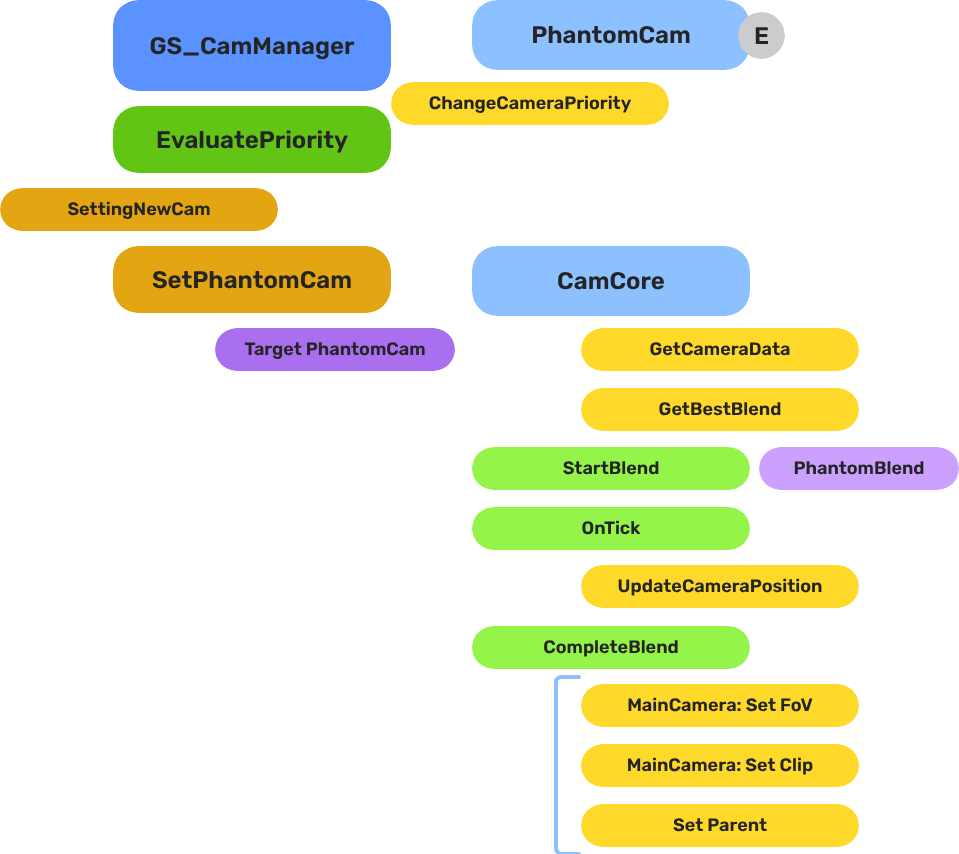
Breakdown
Each phantom camera publishes a pose every tick by running its stage pipeline. The Cam Manager arbitrates priority across all registered phantoms inside a channel and notifies the channel’s Cam Core when the winner changes. The Cam Core then blends from the outgoing pose to the new one, optionally inheriting pose state across the transition and applying mid-blend interrupt correction when a new winner appears before the current blend completes.
| Step | What it means |
|---|---|
| 1 — Per-tick pipeline | Each phantom threads a CameraState through Body → Aim → Reposition additives → Noise additives → Finalize. The committed transform is published to the entity. |
| 2 — Priority arbitration | The Cam Manager re-evaluates base + sum(influences) per channel. Channel 0 covers all legacy / single-player flows. |
| 3 — Dominance change | When a channel’s winner changes, the Cam Manager fires SettingNewCam (or SettingNewCamOnChannel when channel instancing is on). |
| 4 — Profile query | Cam Core calls GetBestBlend(fromCam, toCam) on the assigned Blend Profile. The matched entry returns blend time, easing curve, blend shape (Linear / Spherical / Cylindrical), an inherit-state flag, and a pivot source selector. |
| 5 — State inheritance | If inherit-state is set, the outgoing cam publishes a CamPoseSnapshot; the incoming cam’s Body adopts it through its own kinematic interpretation (orbit yaw/pitch, track param, lead-follow seed). |
| 6 — Interpolation | Cam Core blends position, rotation, and FOV over the entry’s blend time using the configured easing + shape. If a new blend interrupts this one, a correction window pulls the new start curve back from the rendered TM. |
E Indicates extensible classes and methods.
Patterns - Complete list of system patterns used in GS_Play.
Cam Manager
The Cam Manager is the singleton controller for the entire camera system. It extends GS_ManagerComponent and now owns six responsibilities:
- Registration — Every phantom camera and Cam Core self-registers on activate; the Cam Manager holds authoritative per-channel tables.
- Priority evaluation — When any camera’s priority changes,
EvaluatePriorityre-sorts each channel and determines its dominant camera. A dominance change firesSettingNewCam(instancing off) orSettingNewCamOnChannel(instancing on). - Influence routing — Priority influences from Influence Fields or gameplay code are routed to the channel of the affected target via
AddCameraInfluence(sourceEntity, targetEntity, camName, influence). Influences whose target isn’t bound to any channel are silently dropped. - Target system — Per-channel target bindings via
SetChannelTarget(channelId, target). Legacy single-argSetTargetforwards to channel 0. - Group target registry — Named Group Targets self-register on activate so stages can resolve them by name.
- Dispatch overrides & active main-view — Cross-channel cinematic dispatch (
DispatchCamToCamCore) and engine main-view selection (SetActiveChannel/SetActiveCamCore) wrap O3DE’sMakeActiveViewfor orchestrated multi-view flows.
| Component | Purpose |
|---|---|
| GS_CamManagerComponent | Singleton manager. Channel registries, priority arbitration, influence routing, group-target registry, dispatch, active-view selection, rig spawning. |
Cam Core
The Cam Core is the per-frame driver that makes the real O3DE camera match the dominant phantom for its channel. It lives on the main camera entity, which must be a child entity of the Cam Manager entity (or of a rig-prefab root in Tier 3) so it spawns and despawns with the camera system.
Every frame, when locked to a phantom, the Cam Core parents the main camera to that phantom entity and reads its position, rotation, and FOV directly. During a blend transition:
- The Cam Core receives
SettingNewCam(orSettingNewCamOnChannel) from the Cam Manager. - It queries the assigned Blend Profile for the best matching entry between the outgoing and incoming cameras.
- The matched entry returns duration, easing, blend shape, an inherit-state flag, and a pivot source. If no profile entry matches, the Cam Core falls back to its own default blend time, easing, and shape.
- If inherit-state is set, the outgoing cam’s Body publishes a
CamPoseSnapshotand the incoming cam’s Body adopts it before the blend executes. - Over the blend duration, position, rotation, and FOV are interpolated using the configured easing curve and shape (Linear / Spherical-around-pivot / Cylindrical-around-pivot).
- If a new blend starts mid-flight, a mid-blend correction window pulls the new start curve back from the rendered TM so the camera does not snap.
- On completion, the Cam Core parents the main camera to the new dominant phantom, locking them together until the next transition.
| Component | Purpose |
|---|---|
| GS_CamCoreComponent | Core camera driver. Blend execution (including interrupt correction), inheritance handoff site, drives the engine view, channel-aware via CamCoreRequestBus. |
Phantom Cameras
A Phantom Camera is a single entity component — GS_PhantomCameraComponent — that holds priority, lens, snap/focus state, target routing, and one stage pipeline slot authored by the user. It does not render anything. It registers with the Cam Manager on activation (auto-routing to the correct channel via its ChannelStampComponent ancestor) and publishes a per-tick pose from its Body + Aim + Additive stages.
Where previous versions of GS_PhantomCam shipped separate components per behavior (clamped-look, static-orbit, track, etc.), all of those behaviors are now stage variants layered on top of the single base component. Authors pick a Body stage, an Aim stage, and zero-or-more Additive stages from the editor’s type-picker.
| Component | Purpose |
|---|---|
| GS_PhantomCameraComponent | Base virtual camera. Carries the stage pipeline slot, priority, target routing, lens, snap/focus/blendingOut state. |
| AlwaysFaceCameraComponent | Billboard utility — keeps an entity facing the active camera. Not a camera type itself. |
Retired components.
StaticOrbit_PhantomCamComponent,ClampedLook_PhantomCamComponent, andTrack_PhantomCamComponentno longer exist as separate components. Their behavior is now provided by Body / Aim stage variants. Legacy URLs redirect to the matching stage docs.
Stage Pipeline
Every phantom camera runs the same fixed pipeline per tick:
Body → Aim → Reposition additives → Noise additives → Finalize
- Body writes
state.position. Examples: DefaultFollowBody, OrbitBody, DynamicOrbitBody, LeadingFollowBody, TrackBody. - Aim writes
state.rotation. Examples: DefaultAim, ClampedLookAim. (Other gems — notably gs_performer — register additional aim variants.) - Reposition additives correct the smoothed pose. Run BEFORE noise so noise can’t be undone. Examples: collision pushback, occlusion, tug listeners.
- Noise additives perturb the final pose. Examples: PerlinNoise (continuous handheld shake), ImpulseNoise (event-triggered ADSR burst).
- Finalize publishes the committed transform and lens.
Each stage owns its own damping. Stages are reflected polymorphic types — derived from IBodyStage / IAimStage / IAdditiveStage, not AZ::Component. The editor’s type-picker enumerates all registered derivations from the SerializeContext class hierarchy, so other gems can extend the catalog cleanly.
Channels & Instancing
A channel is one player viewpoint slot. Each channel owns its own rig (spawned from a prefab), its own Cam Core, its own target binding, its own priority table, and its own active influence set. Channel 0 is the implicit default for all single-player flows.
The system progressively discloses across three authoring tiers:
| Tier | Setup | Behavior |
|---|---|---|
| Tier 1 — Arcade | Drop CamCore + PhantomCams in the level. Call SetTarget(player). | Legacy fallback. Cam Manager synthesizes channel 0 around level-placed cams. |
| Tier 2 — Standard single-player | Set m_primaryRigPrefab on the Cam Manager. Call SetTarget(player). | Cam Manager spawns the rig at startup; the prefab’s CamCore + cams self-register to channel 0. |
| Tier 3 — Co-op / split-screen / cinematic | Toggle m_enableInstancedChannels = true. Fill m_channelConfigs. | Per-channel arbitration, channel-aware influence routing, cross-channel dispatch, active-main toggling. |
| Concept | Purpose |
|---|---|
| Channel system | Scope enum (Local / AllChannels / TrueUnique), ChannelStampComponent runtime plumbing, spawn lifecycle, cross-channel dispatch, active-view selection. |
Pending — multi-view rendering. Multi-view rendering ships with the AttImage render-target binding work. Until then, the engine renders one channel at a time even when multiple are arbitrating internally.
Blend Profiles
Blend Profiles are data assets (.camblendprofile) that define how the Cam Core transitions between phantom cameras. Each profile contains a list of blend entries. Each entry specifies a From camera, a To camera, a blend duration, an easing curve, a blend shape, an inherit-state flag, and a pivot source. This allows every camera-to-camera transition in your project to have unique timing, feel, and geometry.
Entry Resolution Order
- Exact match — From name and To name both match.
- Any-to-specific — From is blank/“any”, To matches the incoming camera.
- Specific-to-any — From matches the outgoing camera, To is blank/“any”.
- Default fallback — The Cam Core’s own default blend settings.
Blend Entry Fields
| Field | Description |
|---|---|
FromCamera | Outgoing phantom camera entity name. Blank/“any” matches all. |
ToCamera | Incoming phantom camera entity name. Blank/“any” matches all. |
BlendTime | Transition duration in seconds. |
EasingType | Interpolation curve applied during the blend. See Curves Utility. |
BlendShape | Linear, Spherical-around-pivot, or Cylindrical-around-pivot. Spherical sweeps the camera through a great-circle arc around a pivot; cylindrical does the same but only on the yaw axis. |
InheritState | When set, the outgoing cam publishes a CamPoseSnapshot and the incoming cam’s Body adopts it before the blend executes. See State Inheritance. |
PivotSource | Which point the shape uses as its pivot — target world position, body anchor, or look-at point. |
Camera names correspond to entity names of the phantom camera entities in the scene.
| Asset | Purpose |
|---|---|
| GS_PhantomCamBlendProfile | Blend settings asset. Per-pair transition duration, easing, shape, inherit-state, pivot source. |
Camera Influence Fields
Influence components modify the effective priority of phantom cameras without touching their base priority values. They work by calling AddCameraInfluence(sourceEntity, targetEntity, camName, influence) on the Cam Manager bus, identified by camera name. Multiple influences on the same camera stack additively.
The signature carries two entity arguments: the source (the field emitting the influence — used as the per-channel storage key so overlapping fields don’t collide) and the target (the entity that triggered the influence — used as the routing key to look up which channel the influence applies to). Influences whose target isn’t bound to any channel are silently dropped, which gives clean isolation between players in co-op.
GlobalCameraInfluenceComponent
Applies a constant priority modifier for its entire active lifetime. Useful for gameplay states that should always favor a particular camera — boosting a cutscene camera’s priority during a scripted sequence, for example.
Placement: Place
GlobalCameraInfluenceComponenton the StageData entity. It activates and deactivates automatically with the stage, keeping camera influence scoped to the level that defines it.
CameraInfluenceFieldComponent
Applies a priority modifier only when the camera subject enters a defined spatial volume. Requires a PhysX Collider (set as trigger) on the same entity to define the volume. On entry, the influence is added; on exit, it is removed. See Physics Trigger Volume Utility for setup details.
Useful for level design — switching to an overhead camera when the player enters a room, or boosting a scenic camera in a vista area.
| Component | Purpose |
|---|---|
| GlobalCameraInfluenceComponent | Global, constant priority modifier for a named camera. Place on the StageData entity. |
| CameraInfluenceFieldComponent | Spatial priority modifier. Activates when the camera subject enters the trigger volume. Requires a PhysX trigger collider. |
Group Targets
A Group Target is a target entity whose world transform is the weighted centroid of a subject set. Phantom Cameras point at it like any other target. The Cam Manager hosts a named registry so stages can resolve a group entity by string name.
| Component | Purpose |
|---|---|
| GroupTargetComponent | Weighted multi-subject focal entity. Centroid modes (weighted mean, bbox center, sphere center). Optional derived rotation. Physics-aware cadence. |
Tug Fields
Tug Fields are collider-driven spatial reposition sources. A volume in the world pulls the camera’s body position and/or aim rotation toward a configured destination while a proxy attached to the rig is in contact with the volume. The system is decoupled into three components — CameraTugVolumeComponent (the trigger volume), CameraTugSourceComponent (the falloff geometry and destination), and TugFieldProxyComponent (the cam-side receiver) — and is PhysX-paired through dedicated TugProxy / TugField collision layers so the engine itself filters contacts. No registry, no Cam Manager involvement.
Naming note. Tug-field
m_channelsare arbitrary string tags (“Cinematic”, “Combat”) that match volumes to listeners. They are not the same as instancingChannelIds, which are integer per-player slots — see Channels & Instancing.
| Components | Purpose |
|---|---|
| Tug Fields | Volume / source / proxy three-component model, tug listeners (TugAimListener, TugBodyListener), PhysX layer contract. |
Noise & Impulse
Noise stages perturb the final pose in the Noise phase of the pipeline, autonomous from Body / Aim. Two stages ship: PerlinNoise (continuous handheld / idle shake driven by a .camnoiseprofile asset) and ImpulseNoise (event-triggered ADSR burst). Multiple noise stages compose freely on one cam.
| Asset | Purpose |
|---|---|
| CameraNoiseProfile | .camnoiseprofile — layered Perlin noise definitions for the NoiseStage. Six per-axis layer lists (position xyz, rotation xyz). |
Orbit Profiles
CameraOrbitShape is a .camorbit asset that defines the shape of an orbital sweep — a power-bulge family that smoothly interpolates between a diamond (Roundness 0), a sphere (Roundness 0.5), and a cube (Roundness 1). Arc-length reparameterization keeps spatial speed constant as the camera traces the shape. Consumed by DynamicOrbitBody.
| Asset | Purpose |
|---|---|
| CameraOrbitShape | .camorbit — power-bulge orbit shape with arc-length reparameterization. |
State Inheritance
State inheritance lets the incoming cam in a transition start from a kinematic interpretation of the outgoing cam’s pose, rather than its own ideal. The protocol is universal: every Body stage may publish a CamPoseSnapshot (TryGetPoseSnapshot) and may adopt one (TryAdoptPoseSnapshot). Orbit back-derives yaw / pitch from the snapshot. Track projects to its spline. LeadingFollow seeds at the band-natural distance from the source’s facing.
Inheritance is opt-in per blend entry via the InheritState flag on the matched Blend Profile entry. The default is OFF; enable it only when the smoother handoff is worth the kinematic cost.
Camera Input Reader
The Camera Input Reader provides yaw / pitch input deltas to Body and Aim stages that drive their pose from player input (notably DynamicOrbitBody). It implements the OrbitInputProvider interface and integrates with PlayerControllerInputReader from gs_unit. It distinguishes sensitivity (raw input scale) from halflife (damping rate) and applies ResetPendingInput semantics so a stage that didn’t tick this frame doesn’t accumulate a stale input buffer.
| Component | Purpose |
|---|---|
| GS_CameraInputReaderComponent | Orbit input provider. Sensitivity and halflife controls. Per-cam pending input drain. |
Cross-Gem Contracts
The Cam Core exposes the camera as an observable service through the GS_Core Interfaces layer — the observable-service trio: learn a core exists (Emit), query it (Exchange), observe its updates (Emit):
| Contract | Kind | Used for |
|---|---|---|
CamCoreEmissionBus | Emit | UpdateCameraPosition (per-frame pose), OnCamCoreRegistered / OnCamCoreUnregistered (rig lifetime). Global broadcast. |
CamCoreExchangeBus | Exchange | GetCamCore — resolve the active Cam Core’s entity. |
The internal SetPhantomCam command stays an in-gem bus (Cam Manager → Cam Core), not a cross-gem contract. See the Contract Reference for details.
Installation
GS_PhantomCam requires only GS_Core.
- Enable GS_PhantomCam in Project Manager or
project.json. - Add GS_CamManagerComponent to a dedicated entity and register it in the Game Manager Startup Managers list. Save this entity as a prefab.
- Author a rig prefab containing GS_CamCoreComponent on a main O3DE camera entity plus the phantom cameras you want to ship with the rig. Assign this prefab to the Cam Manager’s
m_primaryRigPrefabfor Tier 2 (single-player) or tom_channelConfigs[i].m_rigPrefabfor Tier 3 (per-channel). For Tier 1 / legacy, hand-place the CamCore as a child of the Cam Manager entity instead. - Assign a Blend Profile asset to the Cam Core’s Blend Profile slot. Configure default blend time, easing, and shape on the component for fallback transitions.
- Place phantom camera entities (either in the rig prefab or in the level). Author their Body, Aim, and Additive stages from the type-picker.
- For spatial influence zones, add CameraInfluenceFieldComponent alongside a PhysX Collider (trigger) to define the volume.
- For global per-stage influence, add GlobalCameraInfluenceComponent to the StageData entity.
- For multi-player or split-screen, toggle
m_enableInstancedChannels = trueon the Cam Manager and populatem_channelConfigs. See Channels & Instancing.
For a full guided walkthrough, see the PhantomCam Set Up Guide.
See Also
For conceptual overviews and usage guides:
For related resources:
- GS_Core API
- Orbital Solver Utility — math primitive used by Spherical / Cylindrical blend shapes and LeadingFollowBody.
- Curves Utility
- Physics Trigger Volume Utility
- GS_Cinematics API
Get GS_PhantomCam
GS_PhantomCam — Explore this gem on the product page and add it to your project.