GS_PhantomCam
Categories:
Rather than moving a single camera directly, GS_PhantomCam lets you place lightweight virtual cameras — “phantoms” — throughout the scene. Each phantom holds a complete camera state and a priority value. The Cam Core component drives the real camera to match whichever phantom currently has the highest effective priority. Transitions are animated by Blend Profiles that specify duration and easing. Influence Fields modify camera selection spatially or globally without changing base priorities.
For usage guides and setup examples, see The Basics: GS_PhantomCam.
Contents
- Architecture
- Cam Manager
- Cam Core
- Phantom Cameras
- Blend Profiles
- Camera Influence Fields
- Installation
- See Also
Architecture
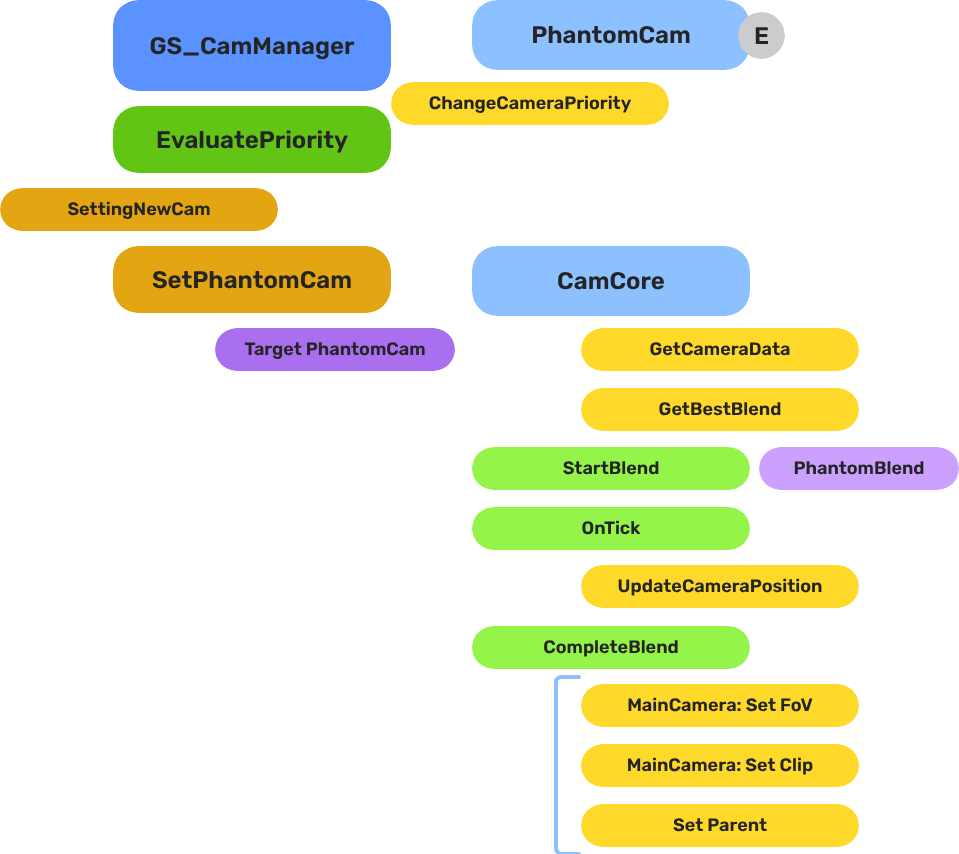
Breakdown
When the dominant Phantom Camera changes, the Cam Manager queries the Blend Profile to determine transition timing and easing:
| Step | What It Means |
|---|---|
| 1 — Priority change | A Phantom Camera gains highest priority or is activated. |
| 2 — Profile query | Cam Manager calls GetBestBlend(fromCam, toCam) on the assigned GS_PhantomCamBlendProfile asset. |
| 3 — Entry match | Entries are checked by specificity: exact match → any-to-specific → specific-to-any → default fallback. |
| 4 — Interpolation | Cam Core blends position, rotation, and FOV over the matched entry’s BlendTime using the configured EasingType. |
E Indicates extensible classes and methods.
Patterns - Complete list of system patterns used in GS_Play.
Cam Manager
The Cam Manager is the singleton controller for the entire camera system. It extends GS_ManagerComponent and owns three responsibilities:
- Registration — Every phantom camera calls
RegisterPhantomCamon activate andUnRegisterPhantomCamon deactivate. The Cam Manager holds the authoritative list. - Priority evaluation — When any camera’s priority changes,
EvaluatePriority()re-sorts the list and determines the dominant camera. A dominance change firesSettingNewCam, which the Cam Core listens for to begin blending. - Influence routing — Priority influences (from Influence Fields or gameplay code) are added and removed through
AddCameraInfluence/RemoveCameraInfluenceby camera name. The Cam Manager sums all active influences with each camera’s base priority during evaluation.
The global camera target (the entity that follow and look-at cameras track) is also held here, set via SetTarget.
| Component | Purpose |
|---|---|
| GS_CamManagerComponent | Singleton manager. Registration, priority evaluation, influence routing, and target assignment. |
Cam Core
The Cam Core is the per-frame driver that makes the real O3DE camera match the dominant phantom. It lives on the main camera entity, which must be a child entity of the Cam Manager entity inside the manager’s prefab so it spawns and despawns with the camera system.
Every frame, when locked to a phantom, the Cam Core parents the main camera to that phantom entity and reads its position, rotation, and FOV directly. During a blend transition:
- The Cam Core receives
SettingNewCamfrom the Cam Manager. - It queries the assigned Blend Profile for the best matching entry between the outgoing and incoming cameras.
- The blend profile returns a duration and an easing curve (see Curves Utility). If no profile entry matches, the Cam Core falls back to its own default blend time and easing configured directly on the component.
- Over the blend duration, position, rotation, and FOV are interpolated from the outgoing state to the incoming phantom’s state.
- On completion, the Cam Core parents the main camera to the new dominant phantom, locking them together until the next transition.
| Component | Purpose |
|---|---|
| GS_CamCoreComponent | Core camera driver. Applies phantom camera state to the real camera each tick. |
Phantom Cameras
Phantom cameras are entity components that hold a complete candidate camera state — FOV, near/far clip planes, follow target, look-at target, position offset, rotation offset, and base priority. They do not render anything. They register with the Cam Manager on activation and are evaluated by priority each time the dominant camera changes.
Priority Control
The camera with the highest effective priority (base + all active influences) becomes dominant. You can control which camera wins through:
- Raise priority — Set one camera’s priority above all others.
- Disable/Enable —
DisableCameradrops effective priority to 0;EnableCamerarestores it. - Direct change —
SetCameraPriorityorChangeCameraPriorityon the Cam Manager bus. - Influence — Add temporary priority boosts through Influence Fields without touching base priorities.
Follow and Look-At
Each phantom supports independent follow and look-at tracking, each with position offsets and optional damping. Both modes expose overridable virtual methods so custom camera types can inject their own logic. Processing is split into transform-based (kinematic) and physics-based paths per mode.
Specialized Camera Types
Companion components add distinct motion behaviors on top of the base phantom:
| Component | Behavior |
|---|---|
| GS_PhantomCameraComponent | Base virtual camera. Priority, targets, offsets, and blend settings. |
| ClampedLook_PhantomCamComponent | Clamped rotation look — limits the camera’s look angle within defined min/max bounds. |
| StaticOrbitPhantomCamComponent | Fixed orbital position around the follow target. |
| Track_PhantomCamComponent | Follows a spline or path while optionally tracking a look-at target. |
| AlwaysFaceCameraComponent | Billboard utility — keeps an entity facing the active camera. Not a camera type itself. |
Blend Profiles
Blend Profiles are data assets (.blendprofile) that define how the Cam Core transitions between phantom cameras. Each profile contains a list of blend entries, where each entry defines a From camera, a To camera, a blend duration, and an easing curve (see Curves Utility). This allows every camera-to-camera transition in your project to have unique timing and feel.
Entry Resolution Order
- Exact match — From name and To name both match.
- Any-to-specific — From is blank/“any”, To matches the incoming camera.
- Specific-to-any — From matches the outgoing camera, To is blank/“any”.
- Default fallback — The Cam Core’s own default blend time and easing (set on the component).
Blend Entry Fields
Each entry specifies:
| Field | Description |
|---|---|
FromCamera | Outgoing phantom camera entity name. Blank/“any” matches all. |
ToCamera | Incoming phantom camera entity name. Blank/“any” matches all. |
BlendTime | Transition duration in seconds. |
EasingType | Interpolation curve applied during the blend. See Curves Utility for the full list of available easing types. |
Camera names correspond to entity names of the phantom camera entities in the scene.
| Asset | Purpose |
|---|---|
| GS_PhantomCamBlendProfile | Blend settings asset — per-camera-pair transition duration and easing. |
Camera Influence Fields
Influence components modify the effective priority of phantom cameras without touching their base priority values. They work by calling AddCameraInfluence / RemoveCameraInfluence on the Cam Manager bus, identified by camera name. Multiple influences on the same camera stack additively.
GlobalCameraInfluenceComponent
Applies a constant priority modifier for its entire active lifetime. Useful for gameplay states that should always favor a particular camera — boosting a cutscene camera’s priority during a scripted sequence, for example.
Placement: Place
GlobalCameraInfluenceComponenton the StageData entity. It activates and deactivates automatically with the stage, keeping camera influence scoped to the level that defines it.
CameraInfluenceFieldComponent
Applies a priority modifier only when the camera subject enters a defined spatial volume. Requires a PhysX Collider (set as trigger) on the same entity to define the volume. On entry, the influence is added; on exit, it is removed. See Physics Trigger Volume Utility for setup details.
Useful for level design — switching to an overhead camera when the player enters a room, or boosting a scenic camera in a vista area.
| Component | Purpose |
|---|---|
| GlobalCameraInfluenceComponent | Global, constant priority modifier for a named camera. Place on the StageData entity. |
| CameraInfluenceFieldComponent | Spatial priority modifier. Activates when the camera subject enters the trigger volume. Requires a PhysX trigger collider. |
Installation
GS_PhantomCam requires only GS_Core.
- Enable GS_PhantomCam in Project Manager or
project.json. - Add GS_CamManagerComponent to a dedicated entity and register it in the Game Manager Startup Managers list. Save this entity as a prefab.
- Add GS_CamCoreComponent to the main O3DE camera entity. Make this camera entity a child of the Cam Manager entity, inside the Cam Manager’s prefab. This ensures the camera spawns and despawns cleanly with the camera system.
- Assign a Blend Profile asset to the Cam Core’s Blend Profile slot. Configure default blend time and easing on the component for fallback transitions.
- Place phantom camera entities in your level with GS_PhantomCameraComponent. Assign follow and look-at targets as needed.
- For spatial influence zones, add CameraInfluenceFieldComponent alongside a PhysX Collider (trigger) to define the volume.
- For global per-stage influence, add GlobalCameraInfluenceComponent to the StageData entity.
For a full guided walkthrough, see the PhantomCam Set Up Guide.
See Also
For conceptual overviews and usage guides:
For related resources:
Get GS_PhantomCam
GS_PhantomCam — Explore this gem on the product page and add it to your project.