Input Profiles
Categories:
Input Profiles are data assets that map key bindings to named events, organized into groups that can be enabled and disabled at runtime. They replace O3DE’s raw input binding files with a more flexible system that supports runtime rebinding, per-group toggling, and options menu customization.
For usage guides and setup examples, see The Basics: GS_Core.
Contents
How It Works
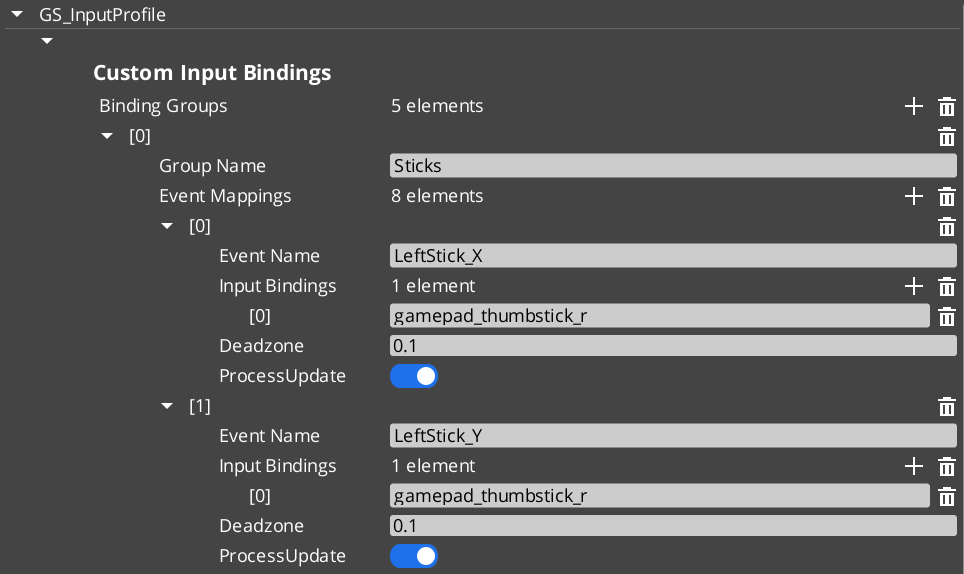
An Input Profile contains a list of InputBindingGroups. Each group contains EventInputMappings that define the relationship between a named event, its key bindings, and processing options.
Data Structure
GS_InputProfile
  └── InputBindingGroups[]
        ├── groupName: "Movement"
        └── eventMappings[]
              ├── EventInputMapping
              │     ├── eventName: "MoveForward"
              │     ├── inputBindings: ["keyboard_key_alphanumeric_W"]
              │     ├── deadzone: 0.0
              │     └── processUpdate: true
              └── EventInputMapping
                    ├── eventName: "Jump"
                    ├── inputBindings: ["keyboard_key_alphanumeric_Space"]
                    ├── deadzone: 0.0
                    └── processUpdate: false
EventInputMapping
| Field | Type | Description |
|---|---|---|
eventName | AZStd::string | The name used to fire this event in gameplay through Input Readers. This is the identifier your gameplay code listens for. |
inputBindings | AZStd::vector<AZStd::string> | One or more raw O3DE input binding names (e.g., keyboard_key_alphanumeric_W, mouse_button_left, gamepad_button_a). Multiple bindings allow the same event to fire from different input sources. |
deadzone | float | Dead zone threshold for analog inputs (joysticks, triggers). Values below this threshold are treated as zero. Set to 0.0 for digital inputs (keys, buttons). |
processUpdate | bool | When true, the event fires continuously while the input is held. When false, the event fires only on initial press and release. Use true for movement and camera input; false for discrete actions like jumping or interacting. |
TypeId: {61421EC2-7B99-4EF2-9C56-2A7F41ED3474}
Reflection:
GS_InputProfileextendsAZ::Data::AssetData. ItsReflect()function requiresGS_AssetReflectionIncludes.h— see Serialization Helpers.
InputBindingGroup
| Field | Type | Description |
|---|---|---|
groupName | AZStd::string | Name of the group (e.g., “Movement”, “Combat”, “UI”). Used by Input Readers to enable/disable groups at runtime. |
eventMappings | AZStd::vector<EventInputMapping> | The event mappings belonging to this group. |
TypeId: {37E880D1-9AB4-4E10-9C3C-020B5C32F75B}
Creating and Using an Input Profile
For initial startup instructions refer to the Core Set Up Guide.
- In the Asset Editor, open the New menu and select GS_InputProfile. This creates a blank Input Profile.
- Add Input Groups — Create groups that cluster related input events (e.g., “Movement”, “Combat”, “UI”). Groups can be toggled on/off at runtime by Input Readers.
- Add Event Mappings — Within each group, add EventInputMappings. Set the Event Name to the identifier your gameplay code will listen for.
- Set Bindings — Add the raw O3DE input bindings that should trigger each event. These are standard O3DE raw mapping names.
- Configure Deadzone — For gamepad joystick or trigger inputs, set an appropriate deadzone value (e.g.,
0.15). Leave at0.0for keyboard and mouse inputs. - Set Process Update — Enable for continuous input (movement, camera look). Disable for discrete actions (jump, interact, attack).
- Assign to Options Manager — Add the profile to the Options Manager’s Input Profile property.
API Reference
These methods are available on the GS_InputProfile data asset class for runtime binding queries and modifications.
| Method | Parameters | Returns | Description |
|---|---|---|---|
GetMappingFromBinding | const AZStd::string& binding, const AZStd::string& groupName = "" | const EventInputMapping* | Looks up the event mapping associated with a raw binding. Optionally restrict the search to a specific group. Returns nullptr if not found. |
GetGroupNameFromBinding | const AZStd::string& binding | const AZStd::string* | Returns the group name that contains the given binding. Returns nullptr if not found. |
HasBinding | const AZStd::string& binding | bool | Returns true if the binding exists anywhere in the profile. |
ReplaceEventInputBinding | const AZStd::string& eventName, const AZStd::string& newBinding | bool | Replaces the existing binding for the named event with a new one. For runtime rebinding in options menus. Returns true on success. |
AddEventInputBinding | const AZStd::string& eventName, const AZStd::string& newBinding | bool | Adds an additional binding to the named event. Returns true on success. |
RemoveEventBinding | const AZStd::string& eventName, const AZStd::string& bindingToRemove | bool | Removes a specific binding from the named event. Returns true on success. |
Usage Examples
Runtime Rebinding (Options Menu)
#include <GS_Core/GS_CoreBus.h>

// Get the active input profile
AZ::Data::Asset<GS_Core::GS_InputProfile> profile;
GS_Core::OptionsManagerRequestBus::BroadcastResult(
    profile,
    &GS_Core::OptionsManagerRequestBus::Events::GetActiveInputProfile
);

if (profile.IsReady())
{
    // Rebind the "Jump" event from Space to E
    profile.Get()->ReplaceEventInputBinding(
        "Jump",
        "keyboard_key_alphanumeric_E"
    );

    // Add an alternative binding (gamepad A button)
    profile.Get()->AddEventInputBinding(
        "Jump",
        "gamepad_button_a"
    );
}
Checking if a Binding Exists
if (profile.IsReady() && profile.Get()->HasBinding("keyboard_key_alphanumeric_W"))
{
    // This binding is mapped to an event in the profile
}
See Also
For component references:
For related resources:
Get GS_Core
GS_Core — Explore this gem on the product page and add it to your project.