Audio Event Graph
Categories:
GS_AudioPro - premium tier
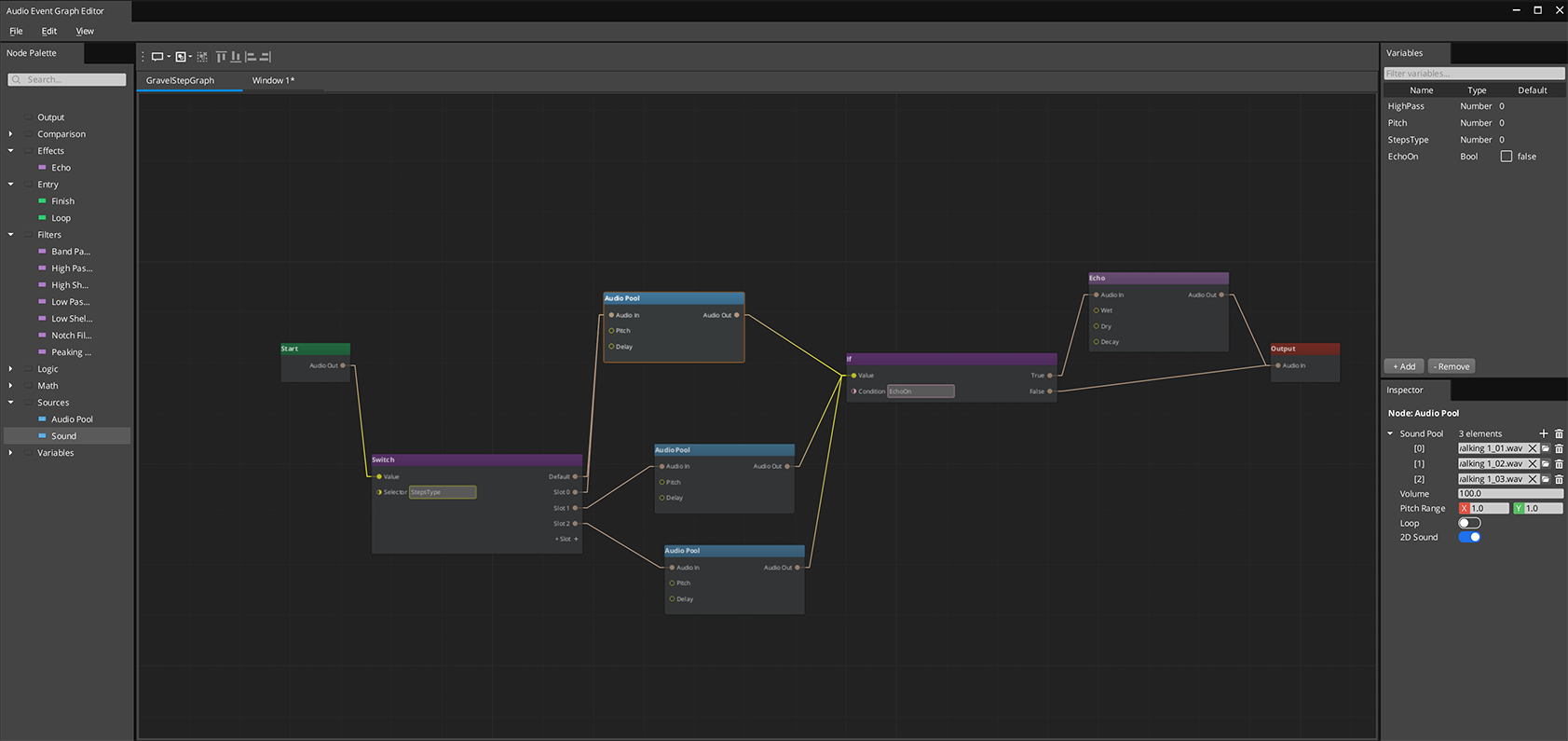
This feature ships in GS_AudioPro, the premium audio gem. It requires the free GS_Audio gem and extends it. See what lives where.The Audio Event Graph is an FMOD-style visual editor for authoring complex sound events. Each .audiograph file defines one sound event as a node graph — sources, filters, effects, and routing all connected visually. At runtime, the graph maps directly to a miniaudio processing pipeline.
The Audio Event Graph uses the gs_graphcanvas framework with a DataFlowGraph topology. Nodes evaluate in topological order with dirty-propagation — only nodes affected by a change are re-evaluated.
Contents
- Opening the Editor
- How It Works
- Node Catalog
- Phase Lifecycle
- Using Variables
- Extending with Custom Nodes
- Runtime API
- See Also
Opening the Editor
Open the Audio Event Graph editor from the O3DE Editor menu: GS Tools > Audio Event Graph Editor.
Each graph is a standalone .audiograph file — use File > New to create one, or File > Open to load an existing graph. Multiple graphs can be open simultaneously in separate tabs.
How It Works
Audio Event Graphs use a data-flow model. Connections carry AudioRoute values — handles that represent a point in the miniaudio processing chain. The signal flows left to right:
- Entry nodes gate which phase is active (Start, Loop, or Finish)
- Source nodes create sound instances and output an AudioRoute
- Filter and effect nodes process the audio and pass it along
- Routing nodes (If/Switch) direct the signal based on conditions or variables
- The Output node wires the final AudioRoute to a mixing bus
Variables can be set from gameplay code at any time, causing affected nodes to re-evaluate without restarting the entire graph.
Node Catalog
Entry Nodes (Phase Gates)
| Node | Purpose |
|---|---|
| Aud_StartNode | Active during the Start phase |
| Aud_LoopNode | Active during the Loop phase |
| Aud_FinishNode | Active during the Finish phase |
Entry nodes output a gate signal. Downstream nodes only produce audio when their entry gate is active.
Source Nodes
| Node | Purpose | Key Properties |
|---|---|---|
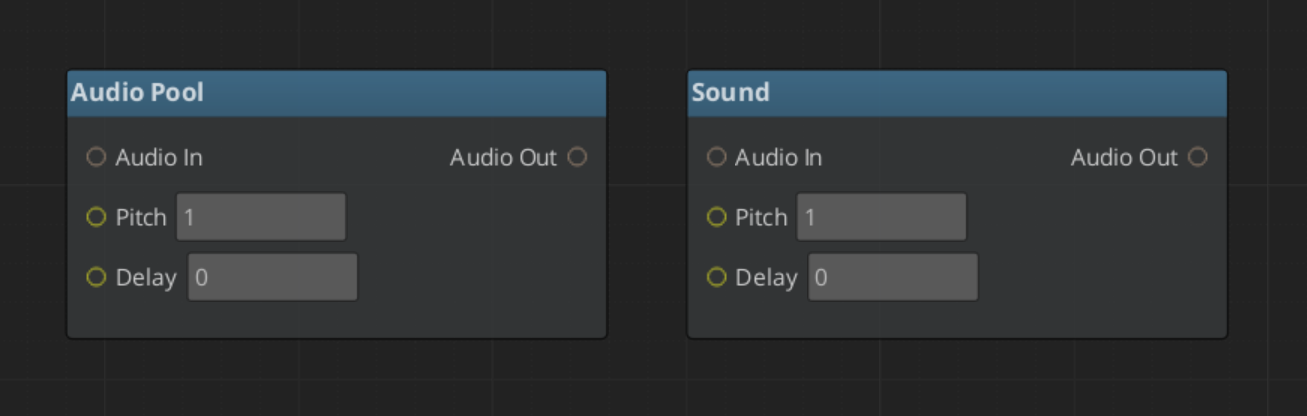
| Aud_SoundNode | Single audio asset playback | Volume, pitch, delay, looping, 3D spatialization |
| Aud_AudioPoolNode | Random selection from a pool of audio assets | Same as SoundNode, plus asset pool list |
| Aud_NoiseNode | Procedural noise generation | Noise colour, duration |
| Aud_SfxrNode | Procedural chiptone from a pool of SFXR profiles | Profile pool, picked at random per fire |
Filter Nodes
| Node | Filter Type |
|---|---|
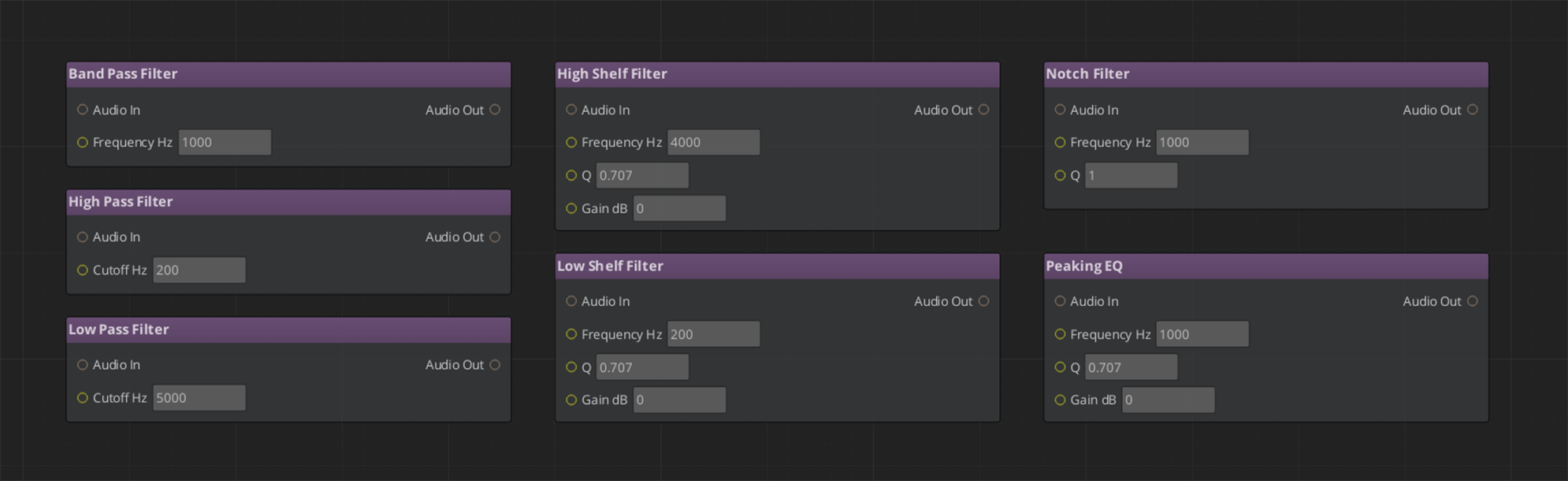
| Aud_LowPassFilterNode | Low-pass filter |
| Aud_HighPassFilterNode | High-pass filter |
| Aud_BandPassFilterNode | Band-pass filter |
| Aud_NotchFilterNode | Notch (band-reject) filter |
| Aud_PeakingEQNode | Peaking EQ |
| Aud_LowShelfFilterNode | Low shelf filter |
| Aud_HighShelfFilterNode | High shelf filter |
All filter nodes take an audio_in input and produce an audio_out output. Filter parameters (cutoff frequency, Q factor, gain) are configurable per-node or bindable to variables.
Time & Space Nodes
| Node | Purpose |
|---|---|
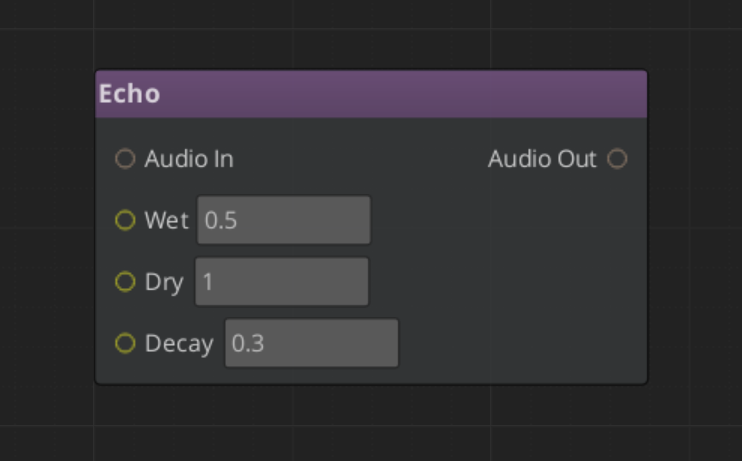
| Aud_EchoNode | Feedback delay — repeats that decay over time |
| Aud_ReverbNode | Simulated room ambience |
Character & Modulation Nodes
| Node | Purpose |
|---|---|
| Aud_WaveShaperNode | Non-linear distortion and saturation |
| Aud_LofiNode | Bit depth and sample rate reduction |
| Aud_RobotizeNode | Vocoder-style robotic character |
| Aud_FlangerNode | Sweeping comb filtering from a modulated short delay |
| Aud_ChorusNode | Thickening from multiple detuned delayed copies |
| Aud_RingModNode | Ring modulation — metallic, inharmonic tones |
| Aud_TremoloNode | Rhythmic amplitude modulation |
Utility Nodes
| Node | Purpose |
|---|---|
| Aud_PannerNode | Stereo placement |
| Aud_CompressorNode | Dynamic range compression |
| Aud_DCRemovalNode | Removes DC offset from a signal |
| Aud_AmplifyNode | Straight gain |
These are the same processors the base gem exposes as mix effects — one DSP, two authoring surfaces. Two mix effects have no node form: Binaural, because spatialization is automatic and per-source, and Pitch.
Structure Nodes
| Node | Purpose |
|---|---|
| Aud_MixNode | Sums several audio routes into one |
| Aud_SplitNode | Fans one audio route out to several destinations |
Routing Nodes
The built-in gs_graphcanvas IfNode and SwitchNode work with AudioRoute values. Use them for conditional audio paths based on game state variables (e.g., play different sounds based on surface type or weather).
Terminal Node
| Node | Purpose |
|---|---|
| Aud_OutputNode | Wires the final audio chain to the mixing bus |
Every graph needs exactly one Output node.
Adding your own node types
Graph nodes self-register through file-static registrars, which a unity build’s linker can drop if nothing references them — the graph then fails to deserialize with an unregistered class id. The framework pins them with an explicit link anchor in its system components. If you extend the node set, your nodes must be added to that anchor, and reflected in both the client and editor modules.Phase Lifecycle
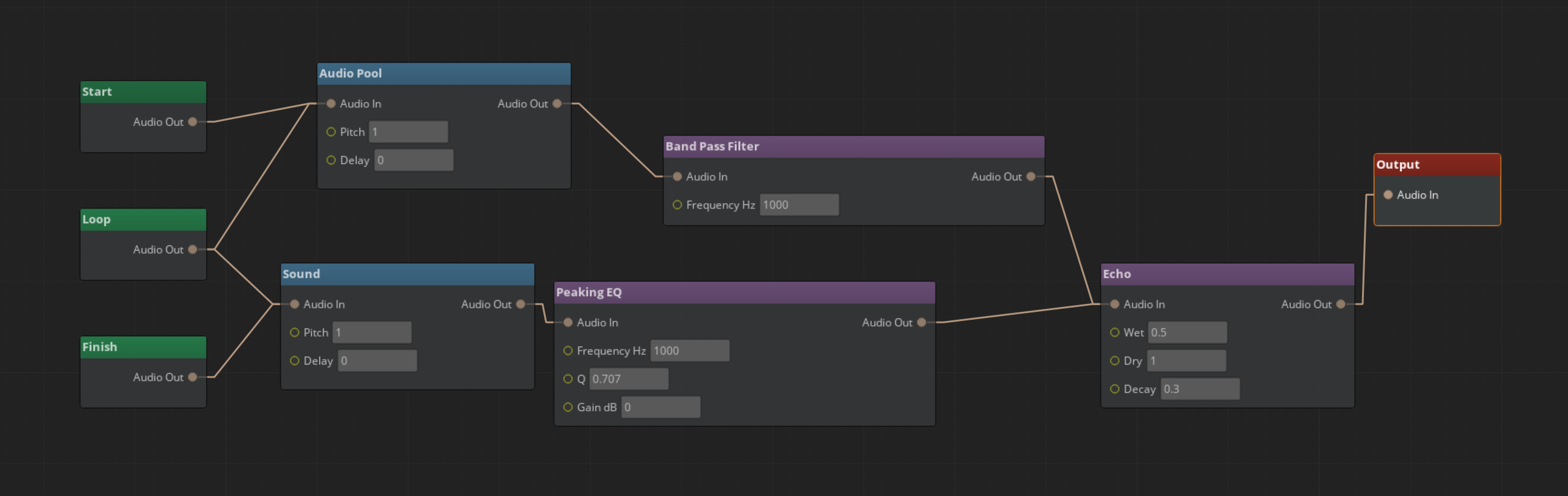
Audio Event Graphs support a three-phase lifecycle for structured sound playback:
- Start — Initial playback. The Aud_StartNode gate is active. One-shot intro sounds play here.
- Loop — Repeating section. The Aud_LoopNode gate is active. Ambient loops and sustained sounds live here.
- Finish — Outro/tail. The Aud_FinishNode gate is active. Fade-outs and release tails play here.
Phases transition automatically: Start plays once, then Loop repeats (if looping is enabled), then Finish plays when FinishAudioGraph() is called. Not all phases are required — a simple one-shot sound only needs a Start node.
Using Variables
Variables let gameplay code control sound behavior at runtime. Common uses:
- Filter parameters — Bind a filter’s cutoff frequency to a variable, then adjust it from code (e.g., underwater muffling)
- Routing conditions — Use a variable as the condition for an If/Switch node to select different sound paths
- Source selection — Gate different source nodes based on game state
Declare variables in the Variable Panel, then either bind them to input slots (right-click > Convert to Reference) or use Get/Set variable nodes.
At runtime, set variables via the Audio Manager API:
AudioManagerRequestBus::Broadcast(&AudioManagerRequests::SetAudioGraphVariable, instanceId, "underwater", 0.8f);
Setting a variable marks dependent nodes dirty and re-evaluates only the affected portion of the graph.
Extending with Custom Nodes
To add a custom audio node:
- Create a class inheriting from
BaseNodeandIDataFlowNode - Register it with
GS_AUTO_REGISTER_NODE_FOR(MyAudioNode, "audiograph") - Implement
Process(GraphExecutionContext& context) - Follow the empty any pattern for inactive outputs:
void MyAudioNode::Process(GraphExecutionContext& context)
{
    auto inputAny = context.GetInputValueAny(this, "audio_in");
    if (inputAny.empty())
    {
        context.SetOutputValueAny(this, "audio_out", AZStd::any{});  // CRITICAL: truly empty
        return;
    }
    // Process audio...
    context.SetOutputValue(this, "audio_out", outputRoute);
}
The empty any pattern ensures that inactive paths don’t mask valid audio from other connections in multi-input slots.
For full details on node creation, see gs_graphcanvas Nodes.
Playing a Graph
There are three ways to reach a graph. They form an escalation ladder — most projects should use the last one.
| Approach | Surface | Use when |
|---|---|---|
| Player component | AudioGraphPlayerComponent on an entity | Almost always. No handles to manage. |
| Library | PlayGraph(name) / AcquireGraph(name) | You want named access across a project. |
| Raw path | PlayAudioGraph(assetPath) | Low-level. You manage the path yourself. |
AudioGraphPlayerComponent
The recommended surface. Drop it on an entity, point it at a graph, and it handles the rest.
| Authored field | Meaning |
|---|---|
| Graph | The .audiograph to play. |
| Auto Play | Start on activation. |
| Spatialize | Track this entity’s own transform. |
| Looping | Run the Loop phase. |
It acquires lazily on the first Play or variable set, applies spatialization and looping, and holds its own handle — there is no acquire/release to write. Its per-entity bus offers Play, Finish, Stop, and SetVariable in float, int, bool and string forms.
With no Pro manager present it is inert and warns rather than failing.
Graph libraries
An AudioGraphLibrary (.agl) maps names to graphs, so gameplay code refers to "door_creak" rather than a path. Libraries are assigned to the Pro manager and can be added or removed at runtime.
Because .audiograph is a source-only file — no builder, no product asset — the library uses a custom picker that browses source files directly rather than the product catalog. This is the same approach ScriptCanvas uses for .scriptcanvas, and it is worth copying if you build an asset that references source files.
Current limitation: the picker stores an absolute source path.
Instance Lifecycle
This is the behaviour most likely to surprise you, so it is worth stating plainly.
There are two kinds of instance:
- Fire-and-forget — created by
PlayGraph/PlayAudioGraph, destroyed when it stops. - Owned — created by
AcquireGraph/AcquireAudioGraph, and kept until you explicitly release it.
For an owned instance, Stop, Finish, a fade-out or a natural end all quiesce it to idle rather than destroying it. Sounds stop, pooled resources return, entry gates deactivate and the phase resets — but the instance, its variables and its spatial and loop configuration are all retained. Only ReleaseAudioGraph or manager shutdown actually destroys it.
The reason: a play → loop → end → replay cycle should keep its variables across calls. What you hear is identical to destruction; the difference is that replaying does not mean reconfiguring.
GetGraph(name) returns the live instance for a name, acquiring on first call. Repeat calls return the same id, and because owned instances persist, a handle normally stays valid for the lifetime of whatever is holding it.
All instance ids are 64-bit unsigned integers, and 0 means failure.
Runtime API
Everything below is on AudioGraphRequestBus — a GS_AudioPro bus, not the Audio Manager’s.
Named access: AddGraphLibrary, RemoveGraphLibrary, PlayGraph(name), AcquireGraph(name), GetGraph(name)
Raw path: PlayAudioGraph(assetPath), AcquireAudioGraph(assetPath)
Transport: FireAudioGraph(id), StopAudioGraph(id), StopAllAudioGraphs(), FinishAudioGraph(id), StopAudioGraphFade(id, fadeTime), ReleaseAudioGraph(id)
Variables: SetAudioGraphVariable (float), SetAudioGraphVariableInt, SetAudioGraphVariableBool, SetAudioGraphVariableString — each taking (instanceId, name, value)
Spatialization: SetAudioGraphEntity(id, entity), SetAudioGraphPosition(id, position), ClearAudioGraphSpatialization(id)
State: SetAudioGraphLooping(id, bool), IsAudioGraphActive(id)
Per-entity playback goes through AudioGraphPlayerRequestBus instead, addressed by entity id.
See Also
- Audio Pro — the rest of the premium tier, and the full bus map
- gs_graphcanvas Framework — the underlying framework
- Mix Effects — the same processors, authored on components
- Audio Events — simple event-based playback, in the free gem
- SFXR Profiles — what the Sfxr node consumes