GS_Unit
The character and entity control system — unit registration, player and AI controllers, input processing, and modular movement.
GS_Unit is the complete character control system for GS_Play. It handles how entities are registered as controllable units, which controller possesses each unit, how raw player input is captured and converted into intent, and how that intent is translated into physical movement through a modular stack of movers, grounders, and influence fields.
For architecture details, component properties, and extending the system in C++, see the GS_Unit API.
Quick Navigation
| I want to… | Feature | API |
|---|
| Register units, track active controllers, or spawn units at runtime | Unit Manager | API |
| Possess and release units with player or AI controllers | Controllers | API |
| Capture raw input and convert it into structured movement intent | Input Data | API |
| Move characters with movers, grounders, and movement influence fields | Movement | API |
Installation
GS_Unit requires GS_Core. Add both gems to your project before using any Unit components.
For a full guided walkthrough, follow the Simple Project Setup guide.
Quick Installation Summary
- Enable the GS_Unit gem in your project configuration.
- Create a Unit Manager prefab and add it to the Game Manager’s Managers list.
- Configure physics collision layers for character movement.
- Place a Player Controller and Unit entity in your level.
Unit Manager
The Unit Manager is the singleton coordinator for everything unit-related. It handles registration of new units as they spawn, maintains an indexed list of all active units queryable by name or ID, and provides the spawn interface for runtime unit creation. It also participates in the standby system for clean level transitions.
Unit Manager
API
Controllers
Controllers are the possession layer — they determine which entity a given intelligence (player or AI) currently owns and drives. Player and AI controllers share the same possession interface, so swapping control mid-game or having both active simultaneously requires no special-casing.
Controllers
API
The Input Data feature set converts hardware signals into structured intent your movement code can consume. The PlayerControllerInputReader reads raw input events, InputData components store the current state, and Input Reactors compute movement vectors from keyboard or joystick input with deadzones and scaling.
Input Data
API
Units
Unit overview description, leads to movement.
Units
API
See Also
For the full API, component properties, and C++ extension guide:
For step-by-step project setup:
Get GS_Unit
GS_Unit — Explore this gem on the product page and add it to your project.
1 - Unit Manager
How to work with the GS_Unit manager — spawning units, registering player controllers, and coordinating standby across all controlled characters.
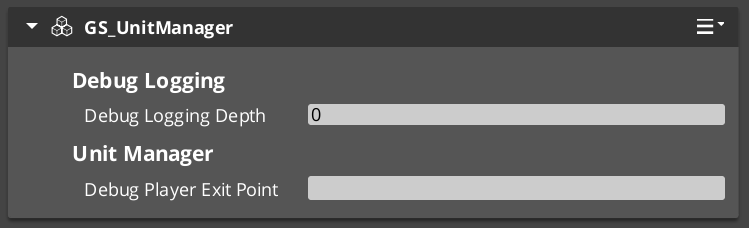
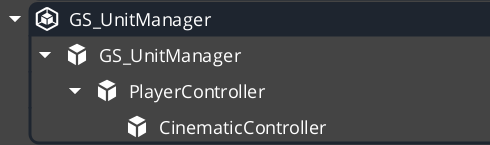
The Unit Manager is the global coordinator for all units in a GS_Play project. It maintains a registry of every active unit entity, provides the interface for spawning new units at runtime, tracks which player controllers are currently active, and participates in the GS_Core standby system so that all controlled characters pause cleanly during level transitions.
For architecture details, component properties, and extending the system in C++, see the Framework API reference.
Contents
What the Unit Manager Does
The Unit Manager runs as a singleton that all other unit systems report to. When a unit entity activates, it registers itself so the manager can track it by name and ID. When gameplay code needs a new unit spawned, it asks the manager — not the spawning system directly — so the manager can assign a unique name and fire the appropriate notification.
| Responsibility | Description |
|---|
| Unit registry | Every active unit registers and deregisters automatically. |
| Spawning | Issues RequestSpawnNewUnit and fires ReturnNewUnit when the entity is ready. |
| Player controller tracking | Stores which controllers are registered as player-driven so multi-actor setups stay consistent. |
| Standby coordination | Broadcasts EnterStandby and ExitStandby to pause and resume all units during transitions. |
| Unit validation | CheckIsUnit lets any system confirm whether an entity is a registered unit. |
Spawning Units
How Spawning Works
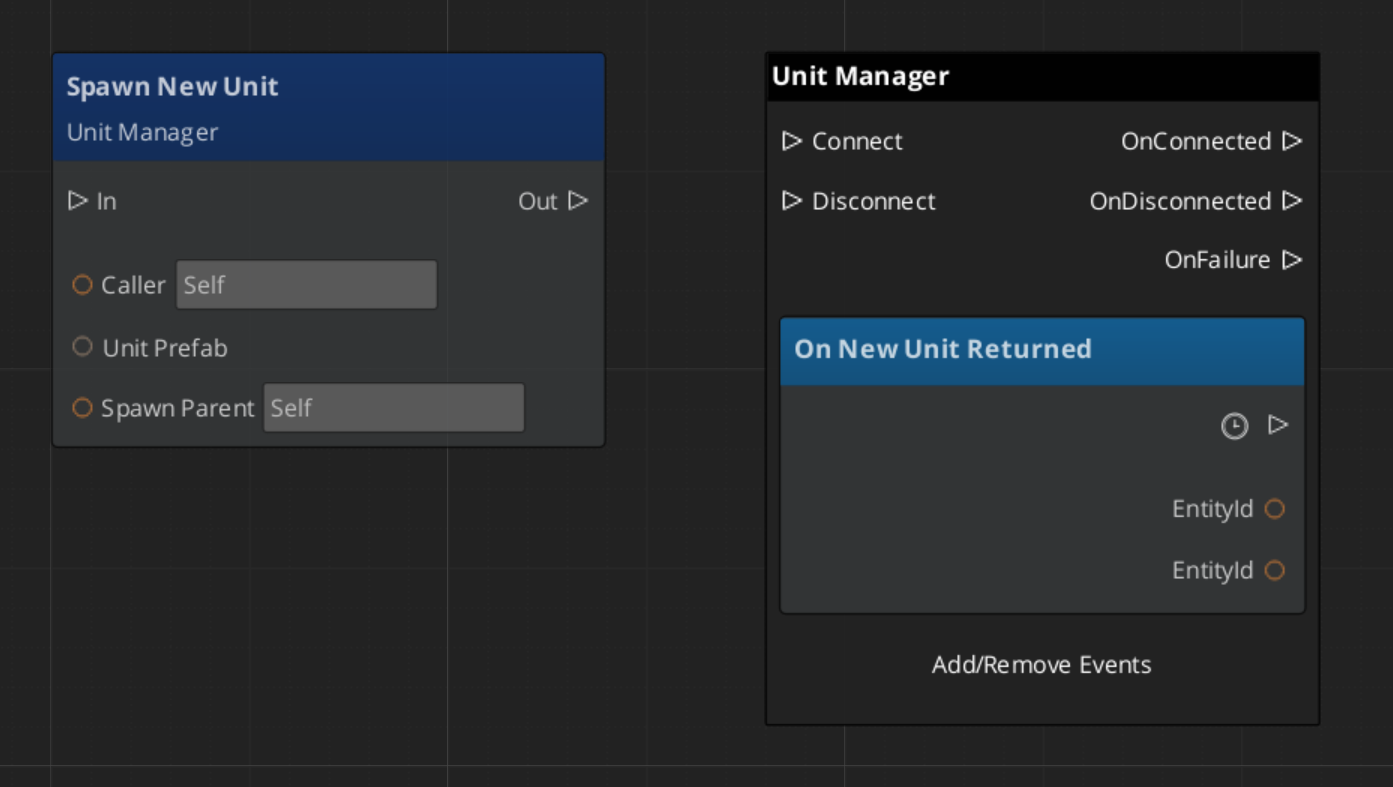
Spawning a unit is a two-step async operation. Your script calls RequestSpawnNewUnit, the manager creates the entity using the prefab spawner, and when the unit is fully initialized the manager fires ReturnNewUnit on UnitManagerNotificationBus with the new entity ID and its assigned unique name.
You should always listen for ReturnNewUnit rather than attempting to use the entity immediately after the request, because spawning can take one or more frames.
| Step | What Happens |
|---|
| 1 — Request | Call RequestSpawnNewUnit with the prefab reference and desired spawn transform. |
| 2 — Wait | The manager spawns the entity and runs its initialization. |
| 3 — Receive | ReturnNewUnit fires on UnitManagerNotificationBus with the entity ID and name. |
ScriptCanvas — Spawning a Unit
Registering Player Controllers
Player controllers must register themselves with the Unit Manager on activation so the game always knows which controllers are active. This is handled automatically by GS_PlayerControllerComponent, but if you are building a custom controller, call RegisterPlayerController in your activation logic.
[On Entity Activated (custom controller)]
    └─► [UnitManagerRequestBus → RegisterPlayerController(selfEntityId)]
This registration matters most for split-screen or multi-player setups where the manager needs to route input correctly across multiple simultaneous controllers.
Checking Unit Identity
Any system can confirm whether an arbitrary entity is a registered unit without holding a direct reference to the Unit Manager:
| ScriptCanvas Node | Returns | Notes |
|---|
CheckIsUnit(entityId) | bool | true if the entity is an active registered unit. |
ScriptCanvas
[UnitManagerRequestBus → CheckIsUnit(targetEntityId)]
    └─► bool
            ├─► true  — proceed with unit-specific logic
            └─► false — entity is not a unit, skip
Standby Mode
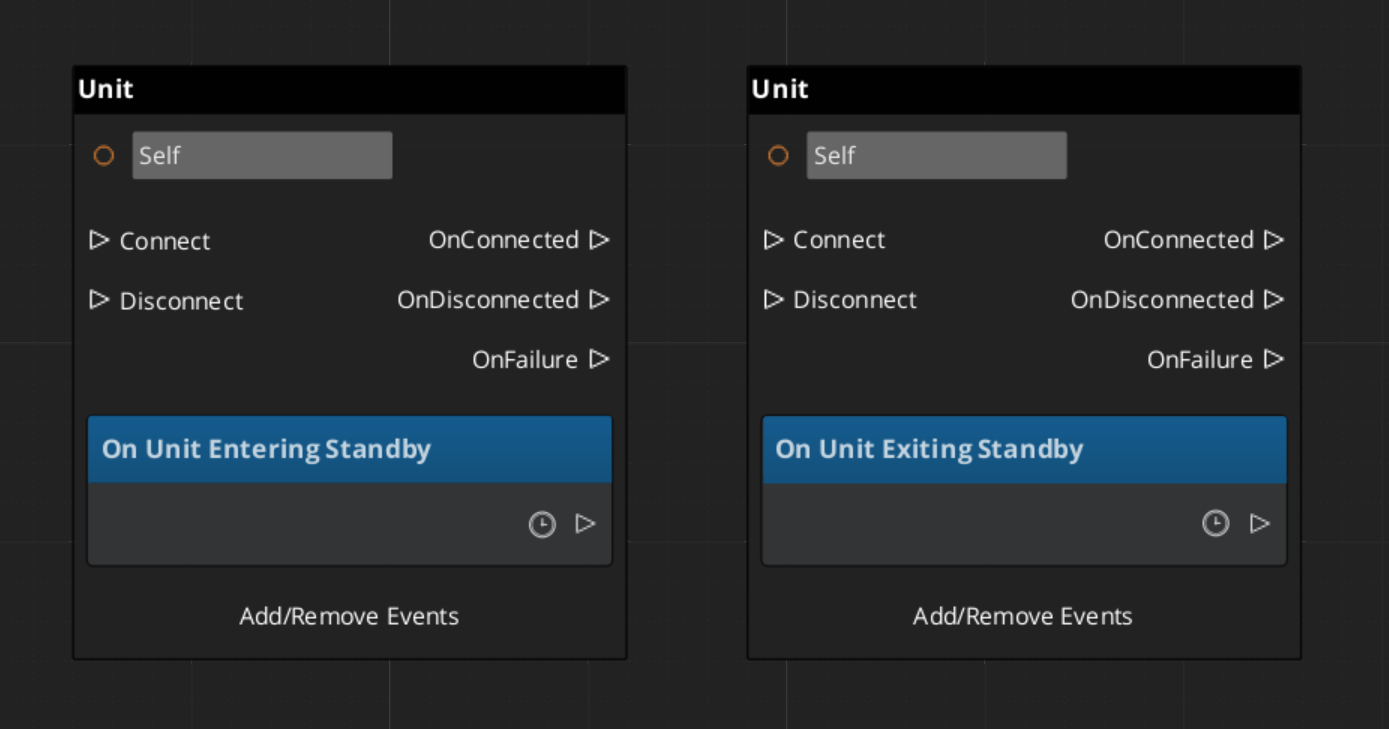
The Unit Manager participates in GS_Core’s global standby system. During level transitions or other blocking operations, the Game Manager signals standby and the Unit Manager relays that signal to all units. Units should pause movement, suspend input processing, and halt any tick-driven logic while in standby.
Listen on UnitManagerNotificationBus to coordinate your own logic with unit standby:
| Event | When It Fires | What to Do |
|---|
EnterStandby | Before a level transition or blocking operation begins. | Pause all movement, halt ticks, stop animations. |
ExitStandby | After the blocking operation completes. | Resume movement, re-enable ticks. |
ScriptCanvas
Quick Reference
| Need | Bus | Method / Event |
|---|
| Spawn a new unit | UnitManagerRequestBus | RequestSpawnNewUnit(prefab, transform) |
| Know when a unit is ready | UnitManagerNotificationBus | ReturnNewUnit(entityId, uniqueName) |
| Register a player controller | UnitManagerRequestBus | RegisterPlayerController(entityId) |
| Check if entity is a unit | UnitManagerRequestBus | CheckIsUnit(entityId) |
| Know when standby begins | UnitManagerNotificationBus | EnterStandby |
| Know when standby ends | UnitManagerNotificationBus | ExitStandby |
Glossary
| Term | Meaning |
|---|
| Unit Manager | The singleton manager that tracks all active units, handles spawning, and coordinates standby |
| Unit Registry | The internal list of every active unit entity, indexed by name and ID |
| Standby | A pause state broadcast to all units during level transitions or blocking operations |
For full definitions, see the Glossary.
See Also
For the full API, component properties, and C++ extension guide:
For related systems:
Get GS_Unit
GS_Unit — Explore this gem on the product page and add it to your project.
2 - Controllers
How to work with GS_Unit controllers — the possession model, player and AI controller setup, and switching control at runtime.
Controllers are the possession layer of GS_Unit. A controller is the intelligence — human input or AI logic — that owns and drives a unit at any given moment. Because both player and AI controllers share the same possession interface, your unit entities do not need to know what is controlling them, and swapping control at runtime requires no special-casing.
For architecture details, component properties, and extending the system in C++, see the Framework API reference.
Contents
The Possession Model
Breakdown
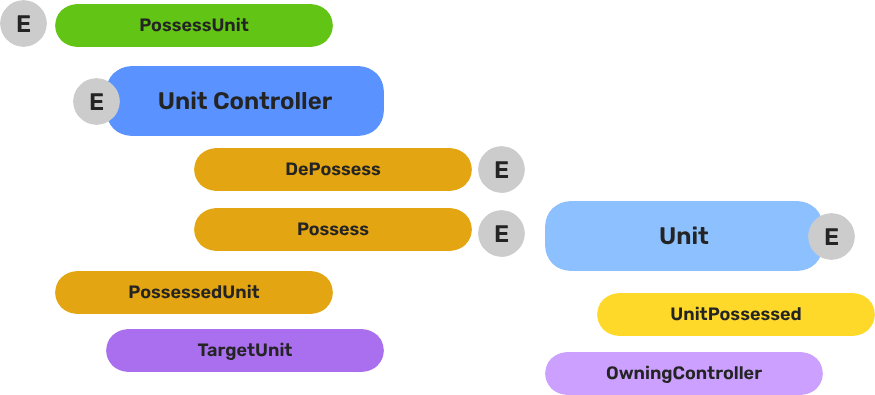
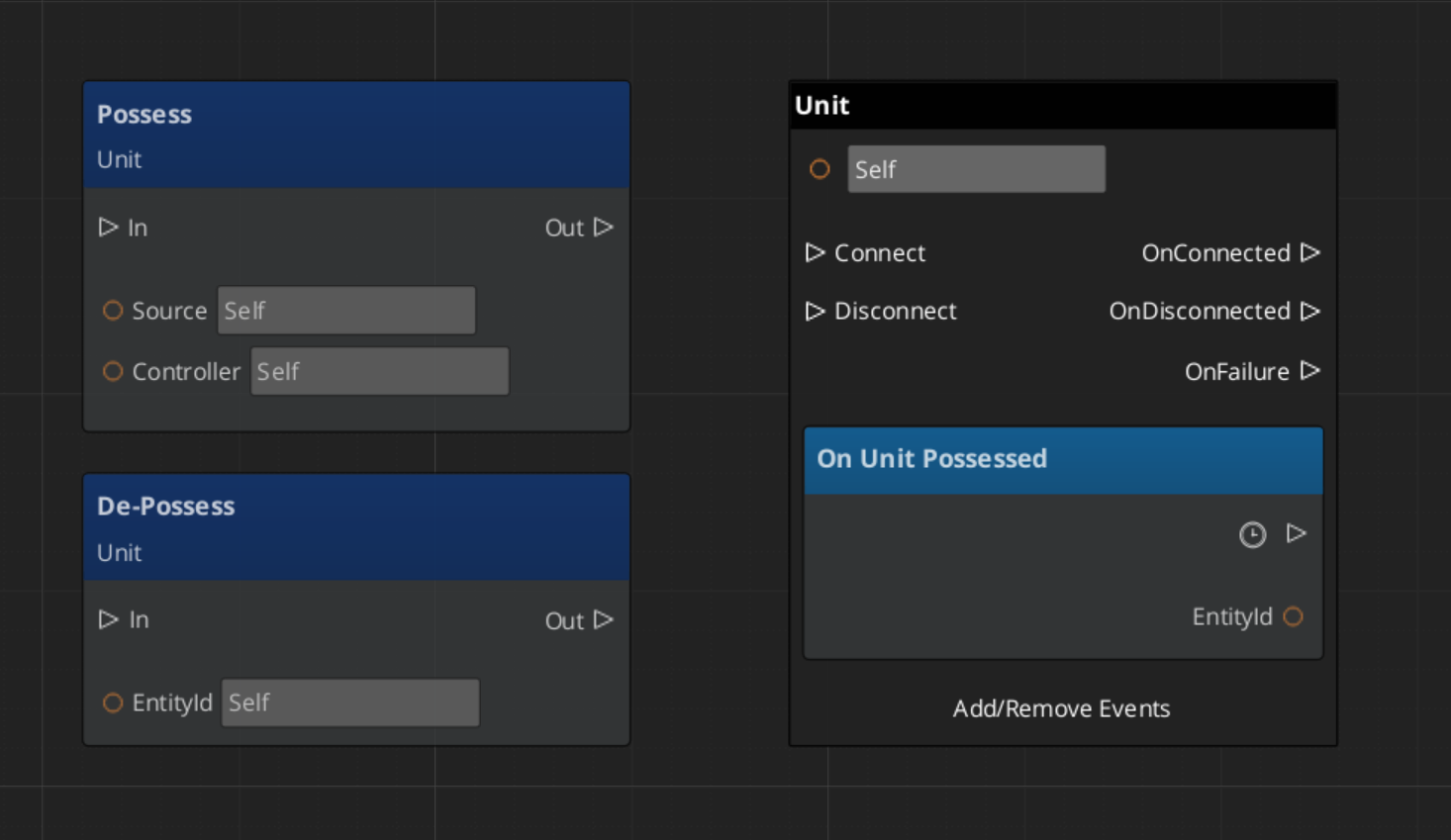
Every unit has exactly one controller at a time, or no controller at all. Possession is established by calling Possess on the unit and released by calling DePossess. The unit fires UnitPossessed on UnitNotificationBus whenever ownership changes so other systems can react.
| Concept | Description |
|---|
| Possession | A controller attaches to a unit. The unit accepts input and movement commands from that controller only. |
| DePossession | The controller releases the unit. The unit halts input processing and enters a neutral state. |
| UnitPossessed event | Fires on UnitNotificationBus (addressed by entity ID) whenever a unit’s controller changes. |
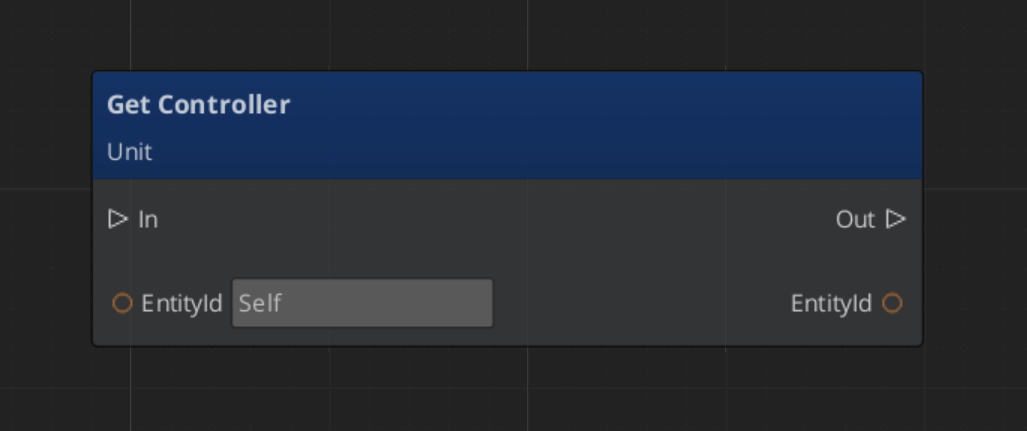
| GetController | Returns the entity ID of the current controller, or an invalid ID if none. |
| GetUniqueName | Returns the string name assigned by the Unit Manager when this unit was spawned. |
Controller Types
GS_Unit ships three controller components that cover the full range of typical game use:
| Component | Purpose |
|---|
GS_UnitControllerComponent | Base class establishing the possession contract. Extend this for custom controllers. |
GS_PlayerControllerComponent | Human-driven controller. Connects into the Input Data pipeline and routes player intent to the possessed unit. |
GS_AIControllerComponent | NPC controller. Provides the entry point for AI logic to issue movement commands through the same unit interface as player input. |
Both GS_PlayerControllerComponent and GS_AIControllerComponent extend the base controller, meaning any code that works with the base controller interface works transparently with either type.
Player Controller
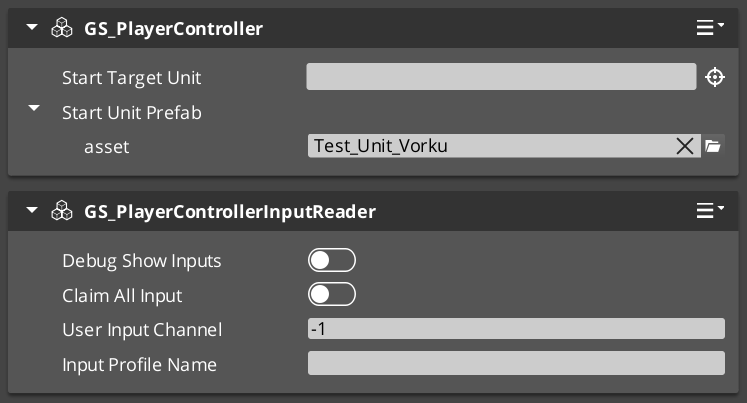
GS_PlayerControllerComponent registers itself with the Unit Manager on activation, making it visible to the game’s controller tracking system. It connects to the Input Data pipeline on the possessed unit so that raw input events are routed correctly as soon as possession is established.
Setup
- Add
GS_PlayerControllerComponent to a controller entity (not the unit entity itself). - Ensure
GS_InputDataComponent and GS_PlayerControllerInputReaderComponent are on the unit entity. - Call
Possess to attach the controller to the target unit.
ScriptCanvas — Possessing a Unit
AI Controller
GS_AIControllerComponent gives AI logic the same possession interface as the player controller. An AI behavior system possesses a unit, then issues movement commands through UnitRequestBus or directly drives the unit’s Input Data component to simulate input. The unit processes those commands through the same mover stack it would use for player input.
ScriptCanvas — Handing a Unit to AI
// Called from your behavior tree or AI activation event when the NPC starts acting
[AI behavior activates]
    └─► [UnitRequestBus(unitEntityId) → Possess(aiControllerEntityId)]

[UnitNotificationBus(unitEntityId) → UnitPossessed(aiControllerEntityId)]
    └─► [AI logic begins issuing movement / action commands]
Switching Controllers at Runtime
Because possession is a simple attach/detach operation on the unit, switching from player to AI control (or back) is two calls:
[Trigger: cutscene starts, character incapacitated, etc.]
    └─► [UnitRequestBus(unitEntityId) → DePossess]
            └─► [UnitRequestBus(unitEntityId) → Possess(aiControllerEntityId)]

[Trigger: cutscene ends, character recovers, etc.]
    └─► [UnitRequestBus(unitEntityId) → DePossess]
            └─► [UnitRequestBus(unitEntityId) → Possess(playerControllerEntityId)]
The DePossess call ensures the previous controller’s input pipeline is disconnected before the new controller attaches, preventing stale input state from leaking between ownership changes.
Querying Controller State
| ScriptCanvas Node | Returns | Notes |
|---|
GetController (on unit) | EntityId | Current controller entity. Invalid ID means no controller. |
GetUniqueName (on unit) | string | The name assigned to this unit at spawn time. |
ScriptCanvas
Standby and Controllers
When the Unit Manager broadcasts EnterStandby, both player and AI controllers should stop issuing commands. Player controllers automatically halt input reading. AI controllers must be suspended by whatever behavior system drives them. On ExitStandby, normal command flow resumes.
| Event | Controller Action |
|---|
UnitEnteringStandby | Halt input reads, suspend AI commands. |
UnitExitingStandby | Resume input reads, restart AI commands. |
Both events fire on UnitNotificationBus addressed by unit entity ID.
Quick Reference
| Need | Bus | Method / Event |
|---|
| Attach a controller to a unit | UnitRequestBus (by ID) | Possess(controllerEntityId) |
| Release a controller from a unit | UnitRequestBus (by ID) | DePossess |
| Know when possession changes | UnitNotificationBus (by ID) | UnitPossessed(controllerEntityId) |
| Get the current controller | UnitRequestBus (by ID) | GetController |
| Get a unit’s name | UnitRequestBus (by ID) | GetUniqueName |
| Know when unit enters standby | UnitNotificationBus (by ID) | UnitEnteringStandby |
| Know when unit exits standby | UnitNotificationBus (by ID) | UnitExitingStandby |
Glossary
| Term | Meaning |
|---|
| Possession | The act of a controller attaching to a unit and becoming its active intelligence |
| DePossession | Releasing a controller from a unit, halting its input processing |
| Player Controller | A human-driven controller that routes input from the Input Data pipeline to a unit |
| AI Controller | An NPC controller that issues movement commands through the same unit interface as player input |
For full definitions, see the Glossary.
See Also
For the full API, component properties, and C++ extension guide:
For related systems:
Get GS_Unit
GS_Unit — Explore this gem on the product page and add it to your project.
3 - Input Data
How to work with the GS_Unit input pipeline — reading player input, converting keyboard and joystick signals into movement vectors, and chaining input reactors.
The Input Data system is the pipeline that converts raw hardware signals into structured intent your movement code can consume. It sits between the active input profile and the mover stack, so controllers, movement components, and action systems all read from a single consistent source rather than polling hardware directly. Swapping input profiles at runtime — for remapping, controller switching, or accessibility options — requires no change to any downstream component.
For architecture details, component properties, and extending the system in C++, see the Framework API reference.
Contents
Pipeline Overview
Breakdown
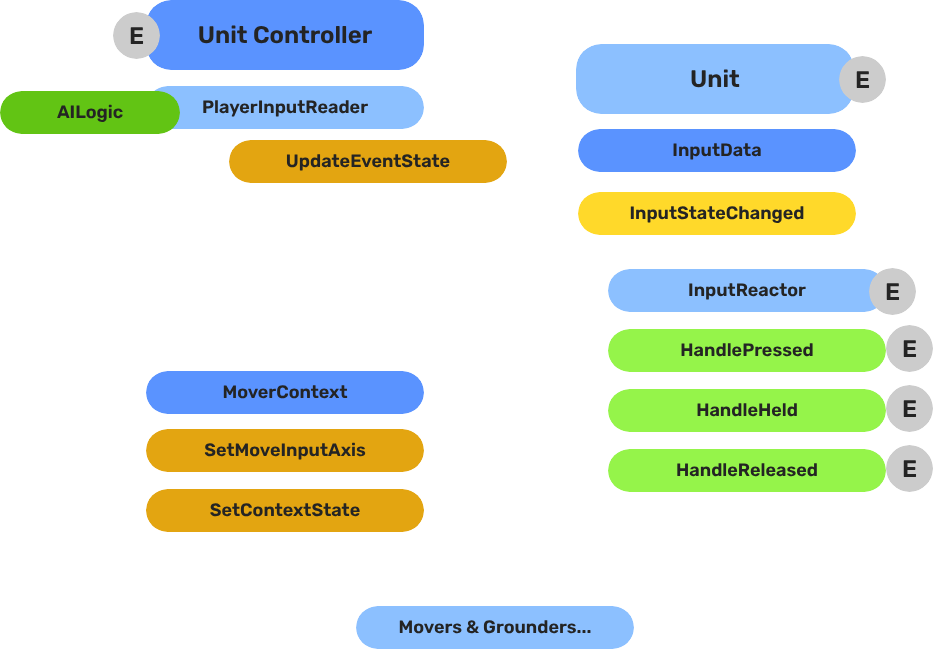
The input pipeline has three stages. Each stage is a separate component on the unit entity, and they run in order every frame:
| Stage | Component | What It Does |
|---|
| 1 — Read | GS_PlayerControllerInputReaderComponent | Reads raw input events from the active input profile and writes them into GS_InputDataComponent. |
| 2 — Store | GS_InputDataComponent | Holds the current frame’s input state — button presses, axis values — as structured data. |
| 3 — React | Reactor components | Read from GS_InputDataComponent and produce intent: movement vectors, action triggers, etc. |
All reactor components downstream of the store stage read from the same GS_InputDataComponent, so there is no duplicated hardware polling and no risk of two reactors seeing different input states for the same frame.
- The Basics: Controllers — Possession, input routing, and controller assignment.
- The Basics: Core Input — Input profiles, action mappings, and options setup.
- The Basics: Unit Input — Input readers, axis configuration, and ScriptCanvas usage.
- Framework API: Unit Controllers — Controller components, possession API, and C++ extension.
- Framework API: Input Reader — Profile binding, action event reading, and C++ extension.
- Framework API: Input Reactor — InputDataComponent schema, reactor base class, and C++ extension.
- Framework API: Mover Context — Context state, mode authority, and C++ extension.
GS_InputDataComponent is the shared state store. It does not read hardware — it only holds the values written by the Reader and consumed by Reactors.
Add it to any unit entity that needs to process input. A unit should have exactly one GS_InputDataComponent. All input reactors on the same entity read from it automatically.
GS_PlayerControllerInputReaderComponent connects the unit to the game’s active input profile. It receives input events from the profile and writes the resulting state into the unit’s GS_InputDataComponent each frame.
When the player controller possesses the unit, the reader activates. When the unit is depossessed or control is handed to an AI controller, the reader goes silent and the Input Data component retains its last-written state until overwritten.
Setup
Add GS_PlayerControllerInputReaderComponent to the unit entity alongside GS_InputDataComponent. No additional configuration is required — it picks up the active input profile automatically.
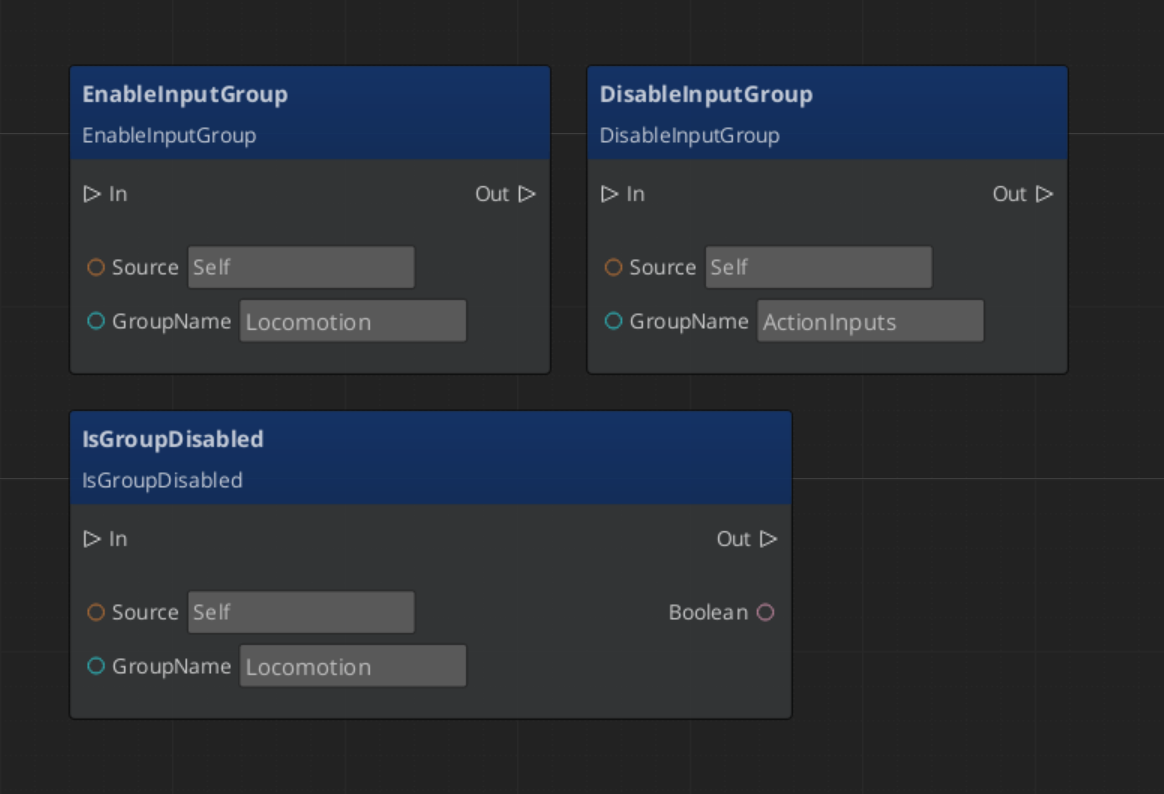
Reactors are the components that transform stored input state into useful intent values. Each reactor handles one concern:
| Component | Input Source | Output |
|---|
GS_InputReactorComponent | Base class — reads from GS_InputDataComponent. | Override to produce custom intent. |
GS_InputAxisReactorComponent | Axis values from GS_InputDataComponent. | Processed axis output (scaled, deadzoned). |
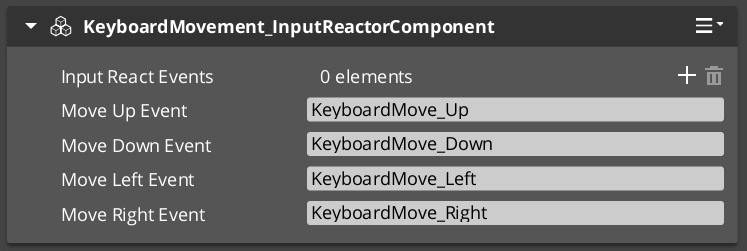
KeyboardMovement_InputReactorComponent | Keyboard directional buttons (WASD / arrow keys). | Normalized 3D movement vector. |
JoyAxisMovement_AxisReactorComponent | Joystick axis pair from GS_InputDataComponent. | Scaled, deadzoned 3D movement vector. |
Add as many reactors as your unit needs. A typical ground character has both KeyboardMovement_InputReactorComponent and JoyAxisMovement_AxisReactorComponent active so it responds to either keyboard or gamepad input without requiring separate prefabs.
Keyboard Movement Reactor
KeyboardMovement_InputReactorComponent reads the four directional button states from GS_InputDataComponent and produces a normalized movement vector. The vector direction is relative to the unit’s forward axis, so rotating the unit automatically adjusts the movement direction without any additional calculation.
The reactor writes the resulting vector into a movement data field that the active mover reads each frame.
ScriptCanvas — Reading the Movement Vector
You generally do not need to read the movement vector directly — the mover components consume it automatically. However, if you need to inspect or override it:
// Use only if you need to inspect or override the movement vector — movers consume it automatically
[On Tick]
    └─► [GS_InputDataComponent → GetMovementVector]
            └─► Vector3 — current frame's movement intent
Joystick Axis Reactor
JoyAxisMovement_AxisReactorComponent reads a pair of axis values (horizontal and vertical) from GS_InputDataComponent and applies deadzone filtering and magnitude scaling before writing the resulting vector. This prevents stick drift at rest and allows variable-speed movement when the stick is partially deflected.
| Setting | Effect |
|---|
| Deadzone | Axis values below this threshold are treated as zero. |
| Scale | Multiplier applied after deadzone removal. |
| Axis mapping | Which input profile axis pair to read (left stick, right stick, etc.). |
Adding Custom Reactors
To handle input not covered by the built-in reactors — jumping, sprinting, interaction, ability activation — extend GS_InputReactorComponent or GS_InputAxisReactorComponent in C++. Your reactor reads from GS_InputDataComponent the same way the built-in ones do, so it automatically benefits from any input profile that writes to those fields.
For the C++ extension guide, see the Framework API reference.
Quick Reference
| Need | Component | Notes |
|---|
| Store input state on a unit | GS_InputDataComponent | Required on every unit that processes input. |
| Read from active input profile | GS_PlayerControllerInputReaderComponent | Activates automatically when player controller possesses. |
| Keyboard → movement vector | KeyboardMovement_InputReactorComponent | Reads WASD / arrow keys from input data. |
| Joystick → movement vector | JoyAxisMovement_AxisReactorComponent | Reads axis pair, applies deadzone and scale. |
| Custom button or axis handler | Extend GS_InputReactorComponent (C++) | Reads from GS_InputDataComponent same as built-ins. |
| Inspect movement vector | GS_InputDataComponent → GetMovementVector | Vector3, current frame’s movement intent. |
Glossary
| Term | Meaning |
|---|
| Input Data Component | The shared state store that holds the current frame’s input values for a unit |
| Input Reader | The component that reads raw input events from the active input profile and writes them into the Input Data Component |
| Input Reactor | A component that reads from the Input Data Component and produces intent values (movement vectors, action triggers) |
| Movement Vector | A normalized 3D direction produced by input reactors and consumed by movers |
For full definitions, see the Glossary.
See Also
For the full API, component properties, and C++ extension guide:
For related systems:
Get GS_Unit
GS_Unit — Explore this gem on the product page and add it to your project.
4 - Units
What makes an entity a unit — the GS_UnitComponent, entity configuration, collision setup, possession, standby, and movement.
A “unit” in GS_Play is any entity that can be possessed by a controller and driven through gameplay. The GS_UnitComponent is the marker that transforms an ordinary entity into a unit — it provides the possession interface, unique naming, standby awareness, and automatic registration with the Unit Manager.
Units are the characters, vehicles, creatures, or any other controllable actors in your game. They do not contain decision-making logic themselves — that comes from the controller that possesses them. A unit provides the body: movement, collision, and visuals. The controller provides the brain: player input or AI logic.
For architecture details, component properties, and extending the system in C++, see the Framework API reference.

Contents
How Units Work
Registration
When a GS_UnitComponent activates, it registers itself with the Unit Manager. The manager tracks all active units and responds to CheckIsUnit queries. When the component deactivates, it unregisters automatically.
Possession
Units are possessed by controllers through the UnitRequestBus:
- A controller calls
Possess(controllerEntityId) on the unit. - The unit stores the controller reference and broadcasts
UnitPossessed on UnitNotificationBus. - The controller can now drive the unit’s subsystems (movement, actions, etc.).
- Calling
DePossess() clears the controller reference and releases the unit.
Standby
Units participate in the standby system for clean level transitions. When the Unit Manager signals standby, the unit broadcasts UnitEnteringStandby on its notification bus. Child components — movers, input reactors, and others — listen for this signal and pause their processing. UnitExitingStandby reverses the process.
Entity Configuration
A minimal unit entity requires:
- GS_UnitComponent — Registers the entity as a unit and provides the possession interface.
- Movement components — At least a mover and optionally a grounder for ground detection.
- PhysX collider — For physics interaction and ground detection raycasts.
A fully featured unit entity typically includes:
| Component | Role |
|---|
GS_UnitComponent | Marks the entity as a unit; handles possession and standby. |
GS_MoverContextComponent | Coordinates movers and grounders; holds the Movement Profile. |
A mover (e.g. GS_3DSlideMoverComponent) | Defines how the unit moves each frame. |
A grounder (e.g. GS_PhysicsRayGrounderComponent) | Detects surface contact and reports ground state. |
| PhysX Rigid Body + Collider | Physics presence in the world. |
| Mesh or Actor component | Visual representation. |
Entity Arrangement
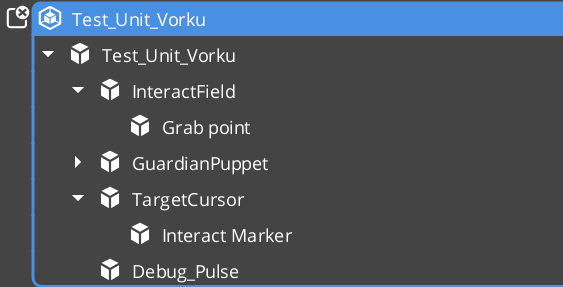
Entity arrangement
Collision Setup
Units require properly configured PhysX collision layers to interact with the environment and other units. If you have not set up collision layers yet, refer to the Simple Project Setup guide.
Typical collision layer assignments:
| Layer | Purpose |
|---|
| Unit layer | The unit’s own collider. Collides with environment geometry and other units. |
| Ground detection layer | Used by grounder raycasts. Collides with terrain and walkable surfaces only. |
Movement
The Movement feature set is a composable stack where each component handles one concern of character locomotion. Movers define core behavior (free, strafe, grid, slide), the MoverContext manages movement state and selects the active mover, Grounders report ground state, and Influence components apply external forces like wind or currents.
Movement
API
Quick Reference
| Need | Bus | Method |
|---|
| Assign a controller to this unit | UnitRequestBus (ById) | Possess(controllerEntityId) |
| Release the current controller | UnitRequestBus (ById) | DePossess() |
| Get the possessing controller | UnitRequestBus (ById) | GetController() |
| Get the unit’s unique name | UnitRequestBus (ById) | GetUniqueName() |
| Event | Bus | Fired When |
|---|
UnitPossessed | UnitNotificationBus | A controller takes possession of this unit. |
UnitEnteringStandby | UnitNotificationBus | The unit is entering standby (level transition). |
UnitExitingStandby | UnitNotificationBus | The unit is exiting standby and resuming. |
Glossary
| Term | Meaning |
|---|
| Unit | Any entity with a GS_UnitComponent — the controllable body in gameplay |
| Controller | The intelligence (player or AI) that possesses and drives a unit |
| Possession | The act of a controller claiming ownership of a unit via Possess() |
| Standby | A paused state units enter during level transitions, coordinated by the Unit Manager |
| Unique Name | An identifier generated at activation used to look up a unit by name |
For full definitions, see the Glossary.
See Also
For the full API, component properties, and C++ extension guide:
For related systems:
Get GS_Unit
GS_Unit — Explore this gem on the product page and add it to your project.
4.1 - Mover Context
Movement state coordinator for GS_Unit — manages movement modes, context states, input axis transformation, and movement profile priority.
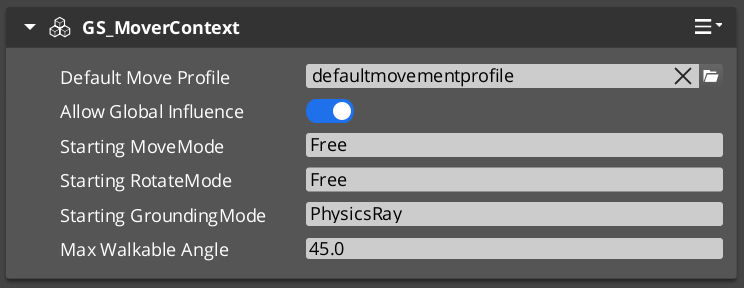
GS_MoverContextComponent is the coordinator that sits above the movers and owns the movement state for a unit. It does not move the character itself — it decides which mover runs, transforms input into the correct movement vector, and exposes state to every other system that needs to know what the character is doing.
Add exactly one GS_MoverContextComponent to any unit that uses movers.
For architecture details, component properties, and extending the system in C++, see the Framework API: Mover Context.
Contents
Movement Modes
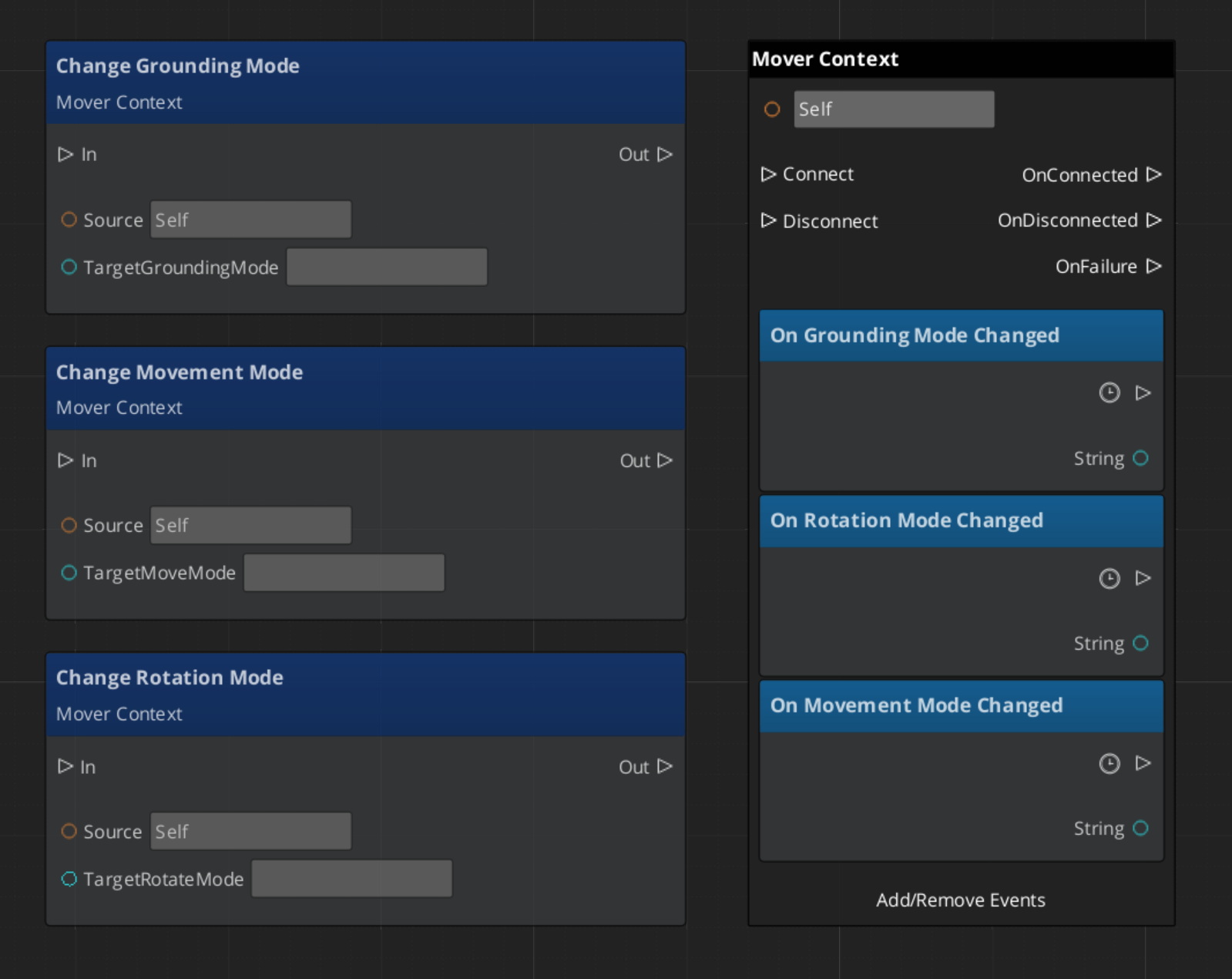
The Mover Context uses three independent mode tracks — movement, rotation, and grounding — each holding a named string. Only the mover or grounder whose assigned mode name matches the active mode on that track will run. All others stay dormant.
| Track | Controls | Example modes |
|---|
| Movement | Which mover applies velocity each frame | "Free", "Slide" |
| Rotation | Which component rotates the character | "Free", "Locked" |
| Grounding | Which grounder runs surface detection | "Free", "Disabled" |
The three tracks are independent — changing the movement mode does not reset rotation or grounding.
Reverting Modes
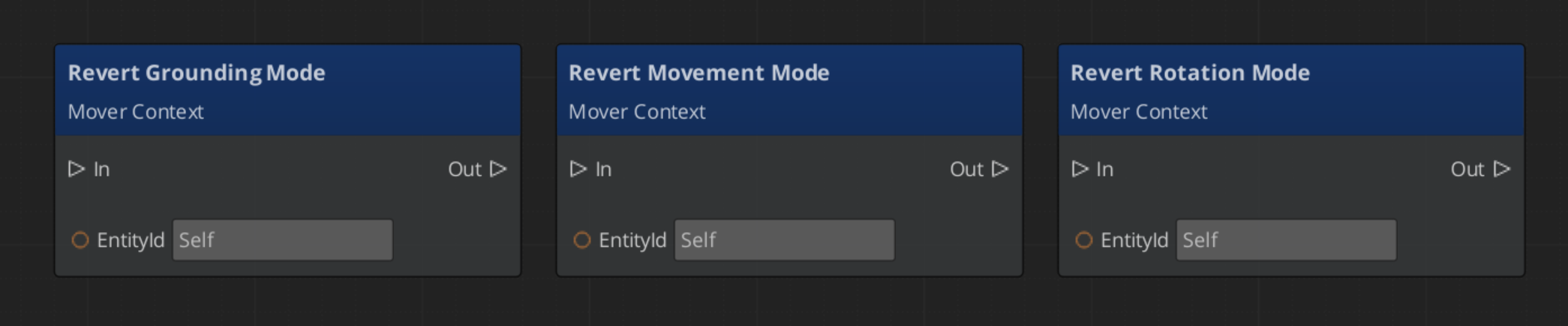
Every mode change stores the previous value. Calling RevertToLastMovementMode, RevertToLastRotationMode, or RevertToLastGroundingMode restores it. This is how the Slide mover hands control back to Free movement after a slope is cleared — without needing to know what mode was active before.
Context States
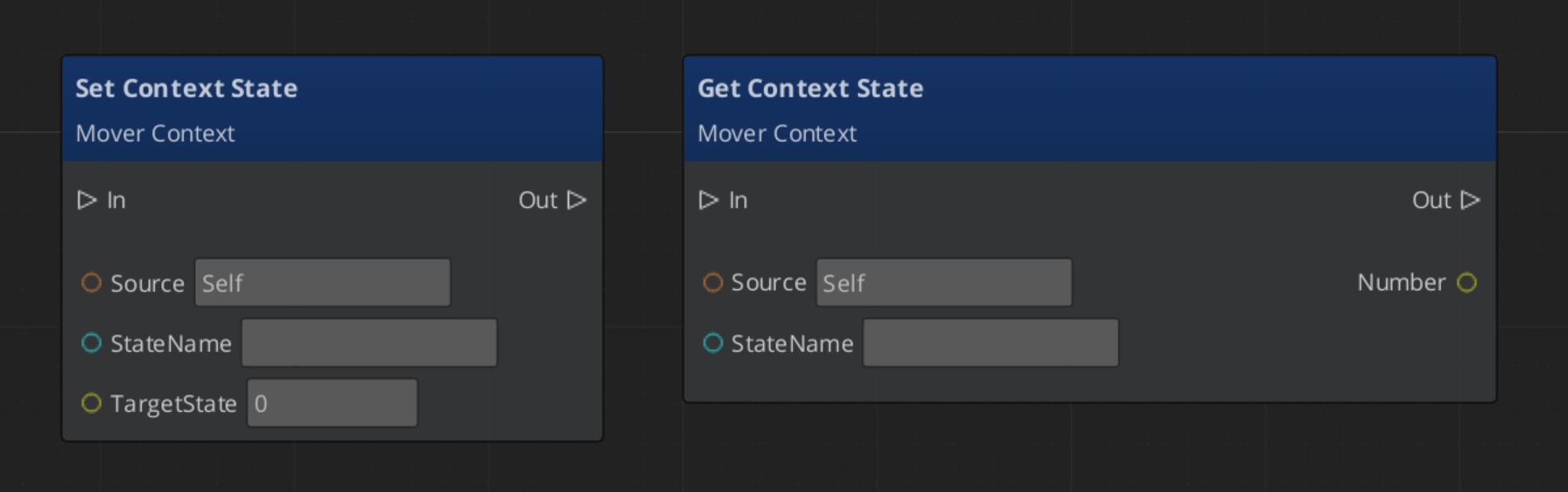
Context states are named key/value pairs stored on the Mover Context. Any component can write or read them via MoverContextRequestBus. They provide a lightweight shared blackboard for movement systems to coordinate without direct dependencies.
| Built-in State | Values | Meaning |
|---|
"grounding" | 0 — Falling | No surface contact. |
| 1 — Grounded | Stable surface contact. |
| 2 — Sliding | Surface too steep to stand. Slide mover will activate. |
"StopMovement" | 1 — Active | Halts all mover velocity processing for this frame. |
The grounder writes "grounding" each frame. The Slide mover writes it back to 0 or 1 when the slope clears. Your own companion components can write custom states in the same way.
The Mover Context processes raw input through two transformations before handing it to the active mover.
| Step | Method | What It Does |
|---|
| Raw input | SetMoveInputAxis | Written by the input reactor. Screen-space direction. |
| 1 — Camera-relative | ModifyInputAxis() | Rotates the axis to align with the active camera’s facing. |
| 2 — Ground-projected | GroundInputAxis() | Projects onto the contact surface to prevent skating above or below terrain. |
Movers read the ground-projected axis. Both intermediate values are available via bus if a component needs an earlier stage.
Movement Profile Priority
The Mover Context resolves which GS_UnitMovementProfile governs the unit’s locomotion parameters at runtime using a priority stack:
- Influence fields — Any
MovementInfluenceFieldComponent or GlobalMovementInfluenceComponent that has added a profile to the unit. Highest priority. Multiple influences are stacked additively. - Global profile — The scene-level default from
GlobalMovementRequestBus. Applied when no influence overrides are active. - Default profile — The profile assigned directly to the
GS_MoverContextComponent. Used as the final fallback.
To change a unit’s movement feel in a specific area, place a MovementInfluenceFieldComponent with a volume shape and assign an alternate profile to it. The unit’s own component property does not need to change.
Script Canvas Examples
Changing movement mode:
Reverting to the previous movement mode:
Setting a context state flag:
Quick Reference
| Need | Bus | Method |
|---|
| Change active movement mode | MoverContextRequestBus | ChangeMovementMode(modeName) |
| Restore previous movement mode | MoverContextRequestBus | RevertToLastMovementMode() |
| Read the ground-projected input | MoverContextRequestBus | GetGroundMoveInputAxis() |
| Write a context state | MoverContextRequestBus | SetMoverState(name, value) |
| Read a context state | MoverContextRequestBus | GetMoverState(name) |
| Push a movement profile override | MoverContextRequestBus | AddMovementProfile(influencer, profile) |
| Remove a profile override | MoverContextRequestBus | RemoveMovementProfile(influencer) |
| Listen for mode changes | MoverContextNotificationBus | MovementModeChanged, GroundingModeChanged |
| Listen for state changes | MoverContextNotificationBus | MoverStateChanged |
Glossary
| Term | Meaning |
|---|
| Mover Context | The coordinator component that owns movement state, selects the active mover, and transforms input each frame |
| Movement Mode | A named string on a mode track that determines which mover or grounder is active |
| Context State | A named key/value pair on the Mover Context used as a shared blackboard between movement components |
| Input Axis | The movement direction written by input reactors, transformed through camera-relative and ground-projected stages |
| Movement Profile | A data asset storing locomotion parameters (speed, acceleration, jump force) for a unit |
For full definitions, see the Glossary.
See Also
For the full API, component properties, and C++ extension guide:
For related systems:
Get GS_Unit
GS_Unit — Explore this gem on the product page and add it to your project.
4.2 - Movement
How to work with GS_Unit movement — mover types, mover context, grounders, movement profiles, and influence fields.
The Movement system is a composable stack of components that each handle one concern of character locomotion. Movers define the core behavior, grounders report surface contact, the Mover Context manages which mover is active and what movement state the character is in, influence fields apply external forces, and Movement Profiles store the parameters that govern all of it. You assemble what you need — most characters use two or three components — and replace individual pieces without touching anything else.
For architecture details, component properties, and extending the system in C++, see the Framework API reference.
Contents
How it Works
Breakdown
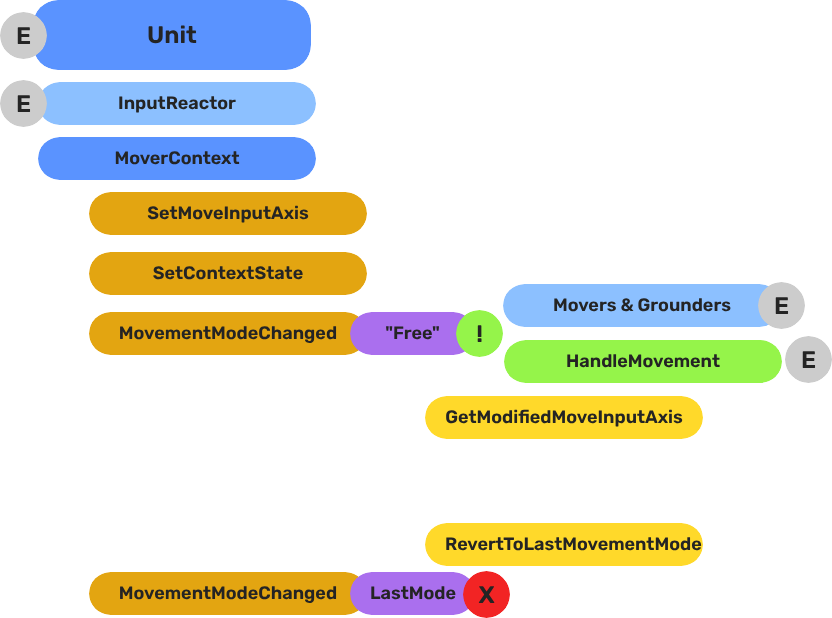
Movers and Grounders are multiple components on a Unit that are constantly changing activation based on the units state. When a mover is active, it freely processes the unit’s movement based on it’s functionality. At any moment, through internal or external forces, the Movement, Rotation, or Grounding state can change, which disables the old movers, and activates the new one to continue controlling the Unit.
Input
    ↓  InputDataNotificationBus::InputStateChanged
Input Reactor Components
    ↓  MoverContextRequestBus::SetMoveInputAxis
GS_MoverContextComponent
    ↓  ModifyInputAxis() → camera-relative
    ↓  GroundInputAxis() → ground-projected
    ↓  MoverContextNotificationBus::MovementModeChanged("Free")
GS_3DFreeMoverComponent  [active when mode == "Free"]
    ↓  AccelerationSpringDamper → rigidBody->SetLinearVelocity
GS_PhysicsRayGrounderComponent  [active when grounding mode == "Free"]
    ↓  MoverContextRequestBus::SetGroundNormal / SetContextState("grounding", ...)
    ↓  MoverContextRequestBus::ChangeMovementMode("Slide")  ← when slope too steep
GS_3DSlideMoverComponent  [active when mode == "Slide"]
The Slide mover activates when the Unit is walking on too steep an angle. It takes control over the unit, slides down the hill, then restores the previous movement behaviour.
- The Basics: Mover Context — Movement modes, grounding states, and configuration.
- The Basics: Movement — Mover types, grounder types, and ScriptCanvas usage.
- Framework API: Input Reactor — InputDataComponent schema, reactor base class, and C++ extension.
- Framework API: Mover Context — Context state, mode authority, and C++ extension.
- Framework API: Movers — Mover and grounder components, movement APIs, and C++ extension.
Mover Types
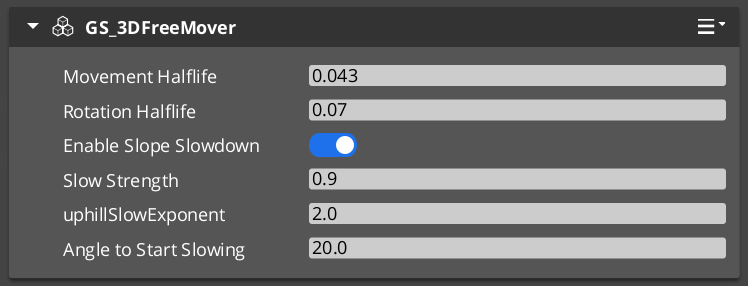
Each mover defines one locomotion behavior. A unit has one active mover at a time, selected by the Mover Context. All movers read from the unit’s movement vector (produced by the input pipeline) and translate it into entity movement each frame.
| Component | Best For | How It Moves |
|---|
GS_3DFreeMoverComponent | Flying, swimming, zero-gravity | Unconstrained motion in all three axes. No ground contact required. |
GS_3DSlideMoverComponent | Ground-bound characters on uneven terrain | Slides the character along the contact surface, maintaining ground contact smoothly. |
GS_PhysicsMoverComponent | Characters needing full collision response | Drives an O3DE physics rigid body. Forces and impulses apply normally. |
Choosing a Mover
- Use
GS_3DFreeMoverComponent for any character that needs to move through air or water without ground contact. - Use
GS_3DSlideMoverComponent for most ground-bound characters. It handles slopes and steps without requiring physics simulation. - Use
GS_PhysicsMoverComponent when the character must interact physically with the world — pushing objects, being knocked back by forces, or responding to physics joints.
Mover Context
GS_MoverContextComponent sits above the movers and coordinates everything: it selects which mover runs each frame, owns the movement mode tracks, transforms raw input into camera-relative and ground-projected vectors, and manages the movement profile priority stack.
Add exactly one to any unit that uses movers.
Mover Context →
Grounders
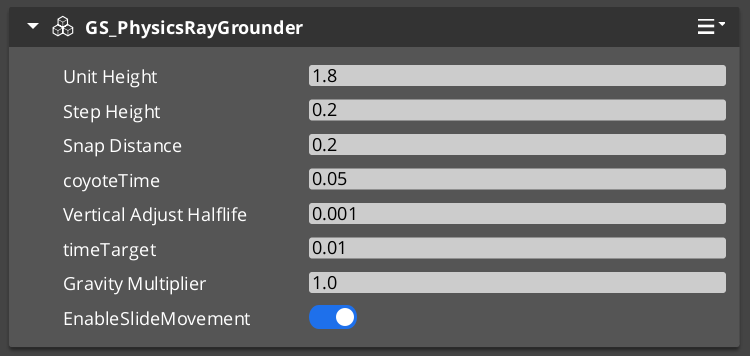
Grounders detect whether the character has contact with a surface and report that information to the Mover Context. Without a grounder, the Context cannot distinguish ground-bound from airborne states.
| Component | Method | Notes |
|---|
GS_GrounderComponent | Base class — extend for custom detection logic. | Not used directly. |
GS_PhysicsRayGrounderComponent | Fires a downward raycast each frame. | Suitable for most characters. Configurable ray length and collision layer. |
Add one grounder to a unit that uses GS_3DSlideMoverComponent or any mover that needs ground awareness. GS_3DFreeMoverComponent does not require a grounder because it never needs ground contact.
Movement Profiles
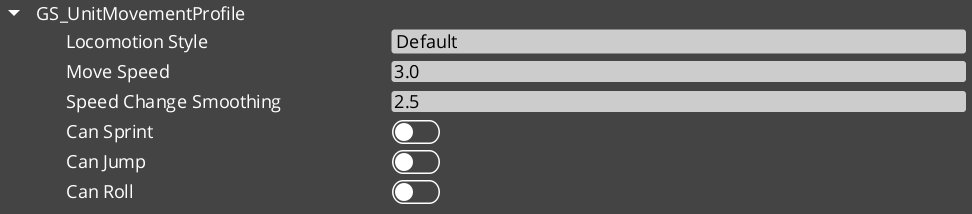
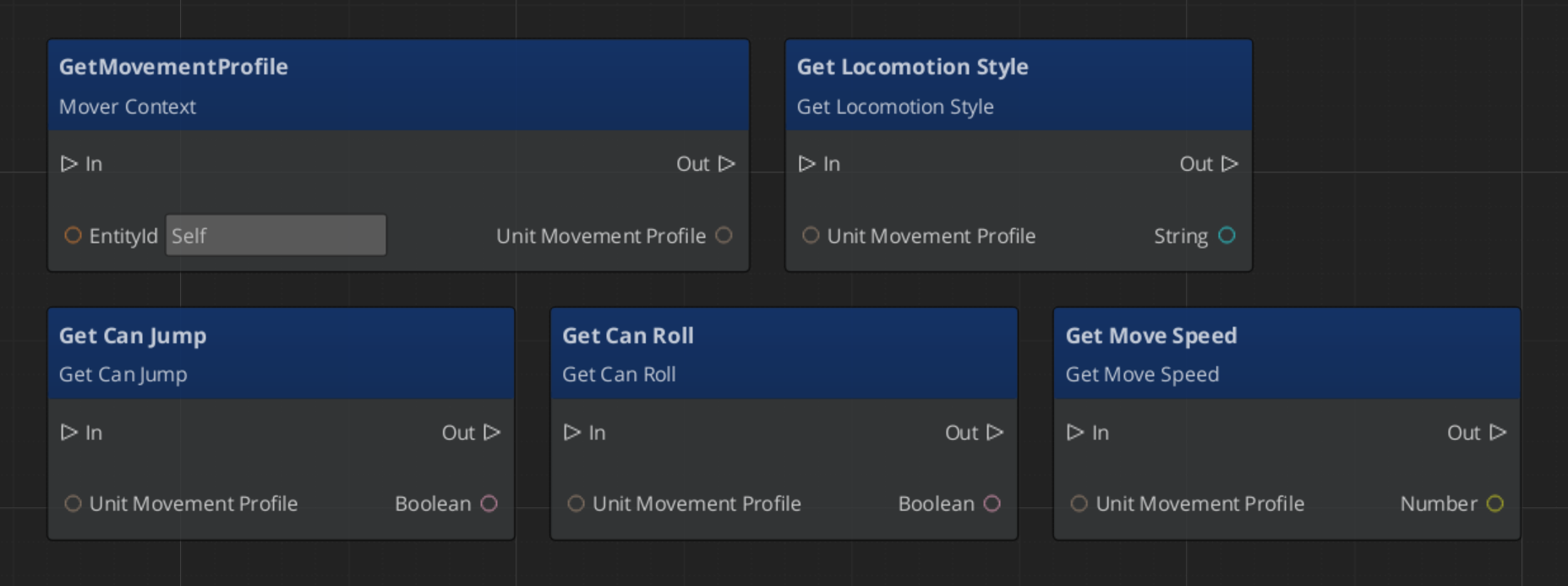
GS_UnitMovementProfile is a data asset that stores all locomotion parameters for a unit configuration: walk speed, run speed, acceleration, deceleration, air control, jump force, and any mover-specific values. The Mover Context component holds a reference to a profile asset, so multiple prefabs can share the same profile or each have their own without duplicating inline values.
Creating a Profile
- In the O3DE Asset Browser, right-click and select Create Asset → GS_UnitMovementProfile.
- Configure the parameters in the asset editor.
- Assign the asset to the Movement Profile slot on
GS_MoverContextComponent.
Changing a profile asset at runtime allows you to alter all locomotion parameters at once — for example, switching a character between normal and encumbered movement profiles without touching individual component properties.
Reading Movement Profile Data - ScriptCanvas
Influence Fields
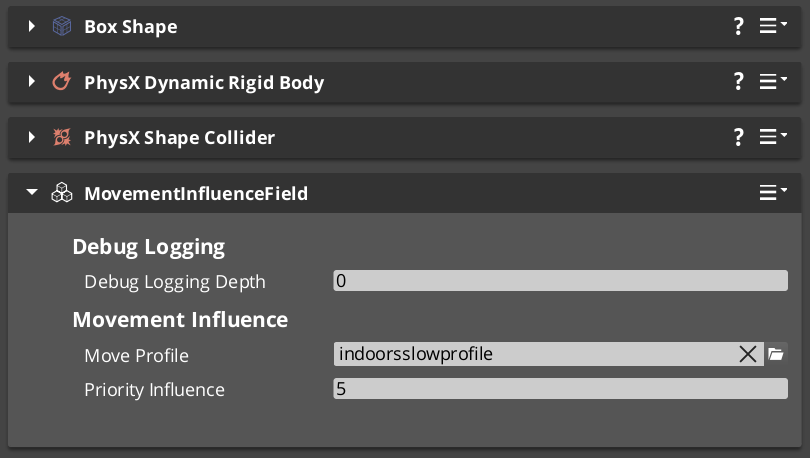
Influence components dynamically apply priority that change a units dominant movement profile. Priority values are additive — a unit accumulates priority values from all active sources and evaluate the final priority to determine the acting movement profile.
| Component | Scope | Typical Use |
|---|
GlobalMovementInfluenceComponent | All units globally | Standard movement for the region. |
MovementInfluenceFieldComponent | Units inside a spatial volume | Open fields, narrow channels, indoors and outdoors transitions. |
GlobalMovementInfluenceComponent is placed once in the level, usually on the Stage Data entity. MovementInfluenceFieldComponent uses a shape component to define its volume — place one wherever you need to change movement priority.
Assembly Guide
A typical ground-bound player character uses this component combination:
| Component | Role |
|---|
GS_InputDataComponent | Holds input state — movement vector written here each frame. |
GS_PlayerControllerInputReaderComponent | Reads input profile and fills GS_InputDataComponent. |
KeyboardMovement_InputReactorComponent | Converts keyboard input to movement vector. |
JoyAxisMovement_AxisReactorComponent | Converts joystick input to movement vector. |
GS_PhysicsRayGrounderComponent | Detects ground contact below the character. |
GS_MoverContextComponent | Coordinates grounders and movers, holds the Movement Profile. |
GS_3DSlideMoverComponent | Moves the character along the contact surface. |
A flying or swimming character replaces the grounder and slide mover with GS_3DFreeMoverComponent and removes the grounder entirely.
Quick Reference
| Need | Component | Notes |
|---|
| Free 3D movement (fly / swim) | GS_3DFreeMoverComponent | No ground contact required. |
| Surface-hugging ground movement | GS_3DSlideMoverComponent | Smooth contact on slopes and steps. |
| Physics-simulated movement | GS_PhysicsMoverComponent | Full rigid body collision response. |
| Coordinate movers and state | GS_MoverContextComponent | Required on any unit with movers. |
| Raycast ground detection | GS_PhysicsRayGrounderComponent | Used with slide and physics movers. |
| Shared locomotion parameters | GS_UnitMovementProfile (asset) | Referenced by GS_MoverContextComponent. |
| Global force on all units | GlobalMovementInfluenceComponent | Standard movement values. |
| Localized force in a volume | MovementInfluenceFieldComponent | Narrow paths, roughage, indoors to outdoors. |
Glossary
| Term | Meaning |
|---|
| Mover | A component that defines one locomotion behavior (free flight, surface sliding, physics-driven) |
| Mover Context | The coordinator that tracks movement state and selects the active mover each frame |
| Grounder | A component that detects surface contact and reports ground state to the Mover Context |
| Movement Profile | A data asset storing all locomotion parameters (speed, acceleration, jump force) for a unit |
| Influence Field | A component that applies additive priority to a units active movement profile |
For full definitions, see the Glossary.
See Also
For the full API, component properties, and C++ extension guide:
For related systems:
Get GS_Unit
GS_Unit — Explore this gem on the product page and add it to your project.