Tug Fields pull the camera’s pose toward a designated point while the player (or any “proxy” entity) is inside a defined PhysX trigger volume. Use them for environmental cinematography — a railing that pulls the cam’s gaze toward a vista, a doorway that draws the cam toward what’s beyond, a hazard that draws attention as the player passes.
The system is built from three decoupled components — a volume, a source, and a proxy — plus one or two listener stages on the cam. Each piece is small; the combination is flexible.
For step-by-step composition recipes (vista pull, doorway glance, decoupled source / destination), see the recipes collection.
Camera Tug Configurations (Recipes) API
For the per-field reference and the per-tick algorithm, see the Framework API reference.
The single biggest authoring trap: Tug Fields require a specific PhysX collision-layer configuration. If you set up volumes and listeners but nothing happens, check the PhysX layer setup first (PhysX Layer Setup).
Contents
The Three Components
| Component | Where it lives | What it does |
|---|---|---|
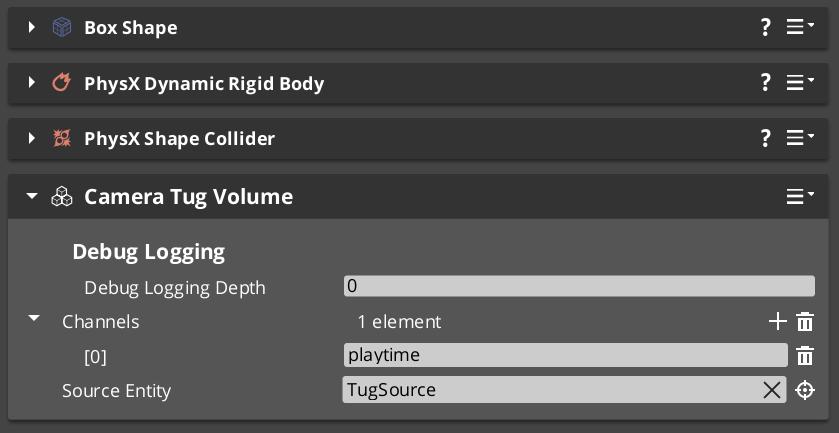
| CameraTugVolumeComponent | Level entity with a PhysX trigger collider on the TugField layer | Spatial gate. Fires per-proxy enter / exit broadcasts when something on the TugProxy layer overlaps. |
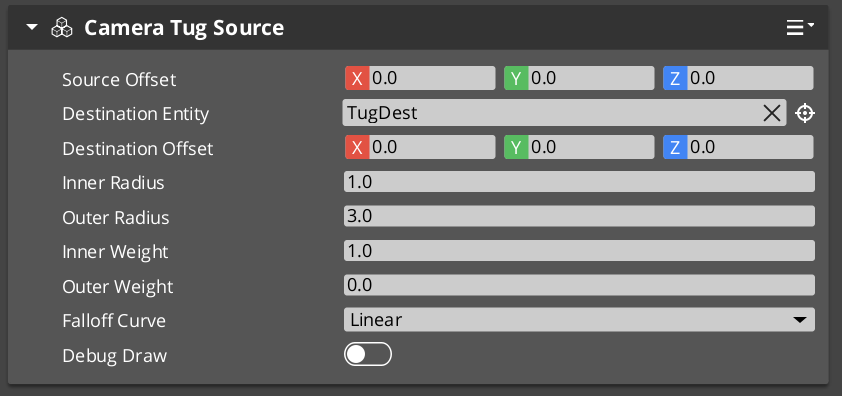
| CameraTugSourceComponent | Either the volume entity itself, OR a separate entity (for decoupled source / destination) | Configures the geometry — proximity center, falloff radii, falloff curve, destination point. |
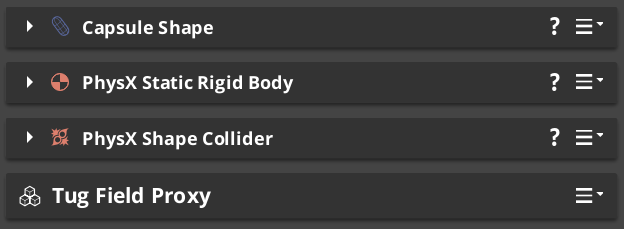
| TugFieldProxyComponent | On the player entity (or a child entity, or the cam entity) | Lightweight marker. The PhysX trigger collider on this entity is what overlaps tug volumes. |
Plus on the Phantom Camera
| Listener stage | What it does |
|---|---|
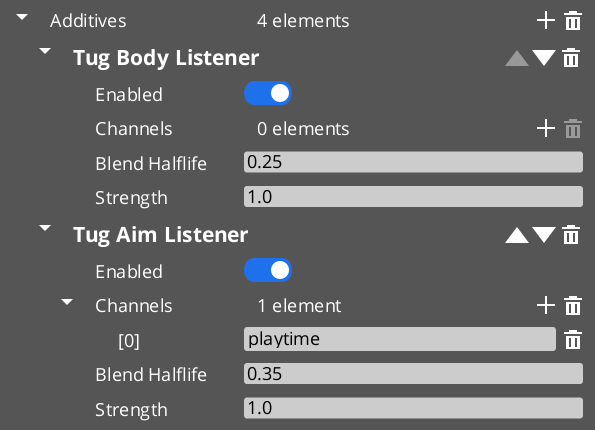
TugAimListener | Slerps the cam’s rotation toward the source’s destination point. |
TugBodyListener | Lerps the cam’s position toward the source’s destination point. |
A cam can run either listener, both, or neither.
PhysX Layer Setup
The system filters tug-volume contacts at the PhysX layer level — there is no central registry, and no runtime entity-tag check. If the layer setup is wrong, nothing fires.
One-time project setup
- Open PhysX Configuration → Collision Layers.
- Create two new layers:
TugProxyTugField
- Open Collision Groups. Create or edit a collision-group preset such that:
TugProxyoverlaps onlyTugField(and not Default, Player, Static, etc.).TugFieldoverlaps onlyTugProxy.
This pair-only configuration ensures tug volumes fire triggers only for registered proxies, with no accidental cross-talk from normal-world physics.
Verify the pairing. It’s easy to leave
TugProxyoverlapping Default or Player by accident. If your cam jitters whenever the player walks through doorframes, that’s almost certainly the symptom — tug volumes are firing on the player’s main collider instead of the proxy collider.
Channel Filtering
The volume’s Channels field is a list of arbitrary string tags (“Cinematic”, “Combat”, “Environment”). The listener’s Channels field is the same. The listener responds only to volumes whose channels intersect with its own.
Empty channels on the listener = match all volumes.
Use channels when you have multiple kinds of tug fields in the same world — environmental pulls vs scripted-cinematic pulls — and you want some cams to respond only to certain kinds.
Tug-field channels are NOT instancing channels. Tug-field channels are these string tags. Instancing channels (in Channels & Instancing) are integer per-player viewpoint slots. Despite the shared word, the two systems are unrelated.
Tuning the Pull Strength
A few knobs interact:
| Knob | On | Effect |
|---|---|---|
Strength | Listener | Overall multiplier. 0.5 = half the full influence. Default 1.0. |
Inner Weight / Outer Weight | Source | The proximity-to-influence falloff curve’s endpoints. Inner weight at the deadzone (full), outer weight at the boundary (typically 0). |
Falloff Curve | Source | Shapes the ramp between outer and inner. Linear is even; EaseInOutQuadratic engages gently and disengages gently. |
Blend Halflife | Listener | Smoothing on the influence’s engagement and disengagement. Higher = slower ramps. |
If the cam feels “jerky” entering or exiting the volume, raise Blend Halflife on the listener (try 0.5 or higher). If the cam pulls too aggressively at the deadzone, lower the listener’s Strength.
Pitfalls
Nothing fires
Almost always the PhysX layer setup. Verify:
TugProxyandTugFieldlayers both exist.- The collision-group preset has them paired (and only paired).
- The player’s proxy collider is on
TugProxy. - The volume’s trigger collider is on
TugField.
The cam yanks the moment the player enters the volume
Blend Halflife is too low (or zero). The listener’s dormant-to-engaged transition seeds at a zero-displacement point, but if the halflife is near zero the ramp is instant. Raise to 0.2–0.4.
The volume is “inert” — warning at startup
The source resolution failed. Either:
m_sourceEntitypoints at an entity that has noCameraTugSourceComponent. Fix the reference.m_sourceEntityis empty AND the volume’s own entity has noCameraTugSourceComponent. Add one or setm_sourceEntity.
Tug volume and instancing channel confusion
If you’re in a multi-channel project and a tug volume’s m_channels says "P1", this does NOT bind the volume to channel 1. The string is just a tag — name it "Player1ExclusivePull" or use proper Channel Scope on the cam if you want per-player exclusivity.
See Also
Recipes:
- Camera Tug Configurations — vista pull, doorway glance, decoupled source / destination.
Framework API:
- Tug Fields — Framework API — full per-field reference, per-tick algorithm, proxy rebind walk.
- Additive Stage Variants — Tug Listeners — listener stage detail.
Related basics pages:
- The Basics: Influence Fields — alternative priority-modifier-based spatial system (different mechanism).
- The Basics: Channels & Instancing — note the channel naming disambiguation.
Get GS_PhantomCam
GS_PhantomCam — Explore this gem on the product page and add it to your project.