Cam Core
How to work with GS_CamCoreComponent — the rendering bridge that reads the dominant Phantom Camera each frame and drives the real camera entity.
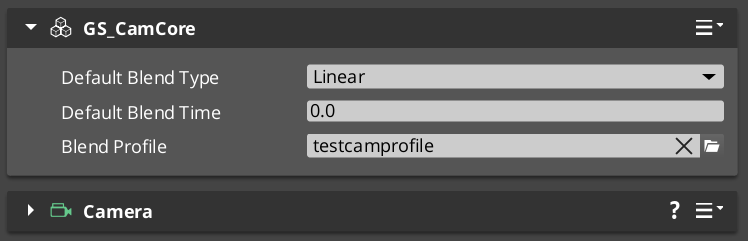
Cam Core is the rendering bridge between the Phantom Camera system and the actual O3DE camera entity. GS_CamCoreComponent runs on tick, reads the dominant Phantom Camera’s configuration each frame, and writes position, rotation, and field of view directly to the camera entity that the renderer uses. Phantom Cameras define intent — Cam Core executes it.
For architecture details, component properties, and extending the system in C++, see the Framework API reference.
Contents
What Cam Core Does Each Frame
On every tick, Cam Core follows this sequence:
| Step | What Happens |
|---|
| 1 — Query active camera | Reads the current dominant Phantom Camera from the Cam Manager. |
| 2 — Read PhantomCamData | Fetches the active camera’s position, rotation, FOV, and clip planes. |
| 3 — Apply blend | If a blend is in progress, interpolates between the outgoing and incoming camera values. |
| 4 — Write to real camera | Pushes the resolved transform and FOV to the real O3DE camera entity. |
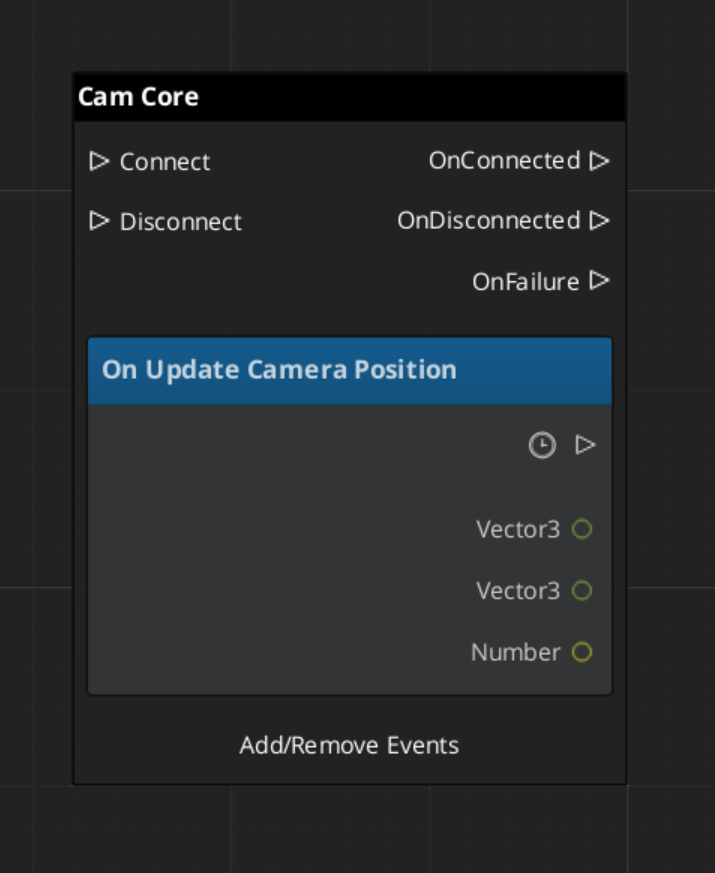
| 5 — Broadcast position | Fires UpdateCameraPosition on CamCoreNotificationBus so dependent systems receive the final camera location. |
Because Cam Core owns the final write to the camera entity, it is also the correct insertion point for last-mile adjustments such as screen shake offsets, post-processing overrides, or recoil displacement — applied after blend resolution but before the frame renders.
Responding to Camera Position Updates
CamCoreNotificationBus broadcasts UpdateCameraPosition every frame with the resolved camera transform. Connect to this bus in any system that needs per-frame camera location data.
| Use Case | Why UpdateCameraPosition |
|---|
| Audio listener positioning | Follow the camera without polling the camera entity. |
| LOD or culling controllers | Receive camera position reliably after blend is applied. |
| Shadow caster updates | React to camera movement each frame. |
| World-space UI anchoring | Know exactly where the camera landed after Cam Core processed its frame. |
ScriptCanvas
Cam Core Setup
Cam Core requires exactly one GS_CamCoreComponent in the level, and a separate entity with an O3DE Camera component that Cam Core is configured to drive. The Camera entity is what the renderer uses — Cam Core holds a reference to it and writes to it each frame.
| Entity | Required Components |
|---|
| Cam Core entity | GS_CamCoreComponent |
| Camera entity | O3DE CameraComponent (standard) |
Assign the Camera entity reference in the Cam Core component’s properties in the editor. Both entities should be present in every level that uses the PhantomCam system.
Querying Cam Core State
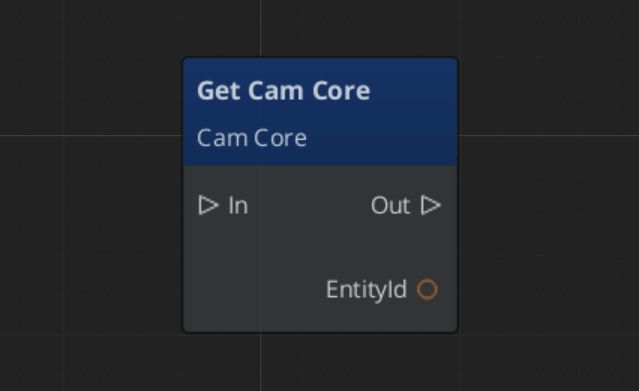
Use CamCoreRequestBus to read the current camera state or set the camera entity reference at runtime:
ScriptCanvas
Quick Reference
| Need | Bus | Method / Event |
|---|
| Know the camera position each frame | CamCoreNotificationBus | UpdateCameraPosition(transform) |
| Get the real camera entity ID | CamCoreRequestBus | GetCameraEntity |
| Get the current resolved FOV | CamCoreRequestBus | GetCurrentFOV |
| Know when the active camera changes | CamManagerNotificationBus | SettingNewCam(newCamEntityId) |
Glossary
| Term | Meaning |
|---|
| Cam Core | The rendering bridge that reads the dominant Phantom Camera each frame and writes to the real O3DE camera |
| Blend Resolution | The process of interpolating position, rotation, and FOV between outgoing and incoming cameras |
For full definitions, see the Glossary.
See Also
For the full API, component properties, and C++ extension guide:
For related systems:
Get GS_PhantomCam
GS_PhantomCam — Explore this gem on the product page and add it to your project.
1 - State Inheritance
One-checkbox author surface for cam-to-cam pose handoff during blends. When to enable it, what each body type does with it, and the common authoring gotcha.
State inheritance is an opt-in checkbox on each entry in a Blend Profile asset. When the box is ticked, the outgoing camera publishes a snapshot of its pose at the moment of transition, and the incoming camera’s Body stage adopts the snapshot through its own kinematic model. The blend then reads as a smooth drift instead of a swing.
When the box is unticked (the default), the incoming camera starts from its authored ideal — useful for cinematic shots where you want the camera to land at a specific framing regardless of where the outgoing camera was.
For the protocol mechanics, per-stage Get / Adopt implementations, and the matching m_inheritState field, see the Framework API reference.
Contents
When to Tick the Box
| Tick it when… | Don’t tick it when… |
|---|
| The two cams have similar framing intent (both follow the same target) and you want a seamless continuation. | The destination cam is a cinematic shot authored at a specific pose. |
| The destination cam would otherwise “snap to its starting yaw / pitch” in a jarring way. | The two cams have unrelated targets and the snap is the desired beat. |
| You’re blending between two orbital cams and want angular continuity. | The destination cam is the first cam in a stage and there’s no source to inherit from. |
The default is off so cinematic shots land at their authored poses unless you opt in.
What Each Body Does With It
Inheritance is body-only. The destination’s Aim stage runs fresh on the inherited body pose.
| Destination Body | Behavior with InheritState = true |
|---|
DefaultFollowBody | No special handling — falls through to the standard visual blend. |
OrbitBody (static orbit) | Does not adopt — the authored yaw / pitch define the static shot’s identity. (It can be the source for inheritance into another orbit cam, providing clean angular state.) |
DynamicOrbitBody | Adopts the source’s yaw / pitch directly when the source publishes angular state (e.g. another orbit body). Falls back to back-deriving yaw / pitch from world position when the source doesn’t. Preserves angular continuity across different orbit shape assets. |
LeadingFollowBody | Inherits the source’s facing at the body’s preferred standoff distance. The destination cam doesn’t lock to the source’s literal position (which could land off-band); instead it stands at band-natural distance in the direction the source was facing. |
TrackBody | Projects the source’s position onto the dolly spline. If the source sits farther than the body’s threshold (default 5 m) from the spline, the adoption is rejected and the cam falls back to a standard blend (no teleport-snap). |
The Common Gotcha
If the destination cam looks like it’s snapping to its initial-yaw seed instead of inheriting from the source, check the inherit flag on the matched blend entry. The symptom varies by body type:
| Body | Symptom of inherit-off |
|---|
LeadingFollowBody | “Cam orients behind player’s travel direction regardless of source facing.” |
DynamicOrbitBody / OrbitBody | Cam swings to authored yaw / pitch then blends from there. |
TrackBody | Dolly starts at its untouched starting spline parameter. |
All three indicate the same root cause: the blend entry exists in the asset, but InheritState is unticked on it. Fix it in the asset.
Author Steps
- Open the relevant
.camblendprofile asset in the Asset Editor. - Find or add the blend entry for the From / To pair.
- Tick the Inherit State checkbox on that entry.
- Save the asset.
That’s the entire author surface. Everything else — pose snapshotting, body-stage Get / Adopt selection, ANGULAR vs POSITION derivation, the path-rejection threshold — happens automatically per body type.
For per-pair authoring at scale, share one blend profile across cams that should behave the same way, and use multiple profiles for cams that need different inheritance defaults.
See Also
Framework API:
Related basics pages:
Get GS_PhantomCam
GS_PhantomCam — Explore this gem on the product page and add it to your project.
2 - Blend Profiles
How to author .camblendprofile assets to control camera transitions — duration, easing, blend shape, pivot source, and the inherit-state toggle.
Blend Profiles are .camblendprofile data assets that define how the Cam Core transitions from one Phantom Camera to another. Without a Blend Profile, transitions are instantaneous. A well-authored Blend Profile is often the single largest contributor to a camera system feeling polished rather than mechanical.
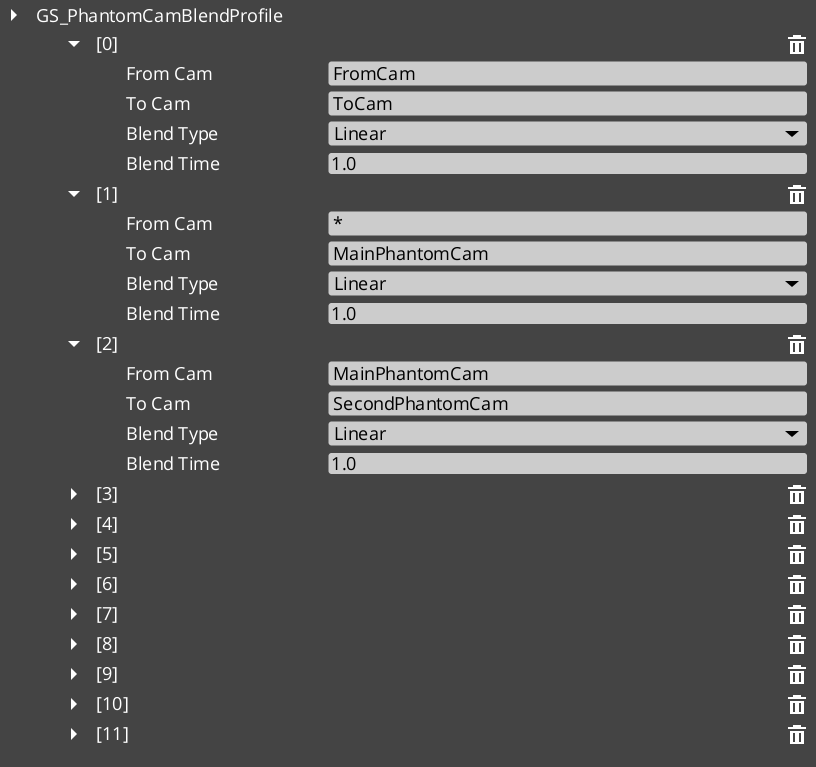
Each entry in a profile defines a single transition rule — a From / To pair plus the parameters that shape the blend: duration, easing curve, blend shape, pivot source, and whether the destination cam should inherit pose state from the source.
For asset structure details and version semantics, see the Framework API reference.
Contents
What a Blend Entry Contains
Each entry in a .camblendprofile defines a single transition rule:
| Field | Purpose |
|---|
| From Camera | Entity name of the outgoing cam. Blank / "any" matches all. |
| To Camera | Entity name of the incoming cam. Blank / "any" matches all. |
| Blend Time | Duration of the transition in seconds. |
| Blend Type | The easing curve. Same CurveType enum used elsewhere in the framework. |
| Blend Shape | Linear, Cylindrical, or Spherical. See Blend Shape. |
| Pivot Source | Source, Destination, or Shared. See Pivot Source. Ignored when Blend Shape is Linear. |
| Inherit State | Opt-in cam-to-cam pose handoff. See Inherit State. |
Camera names correspond to the entity names of your Phantom Camera entities in the scene.
Resolution Order
When a transition occurs, the Cam Core asks the profile for the best entry matching the outgoing → incoming pair. Resolution is by specificity:
| Tier | Match |
|---|
| 1 — Exact | Both From and To camera names match. |
| 2 — Any-to-specific | From is "any" or blank, To matches. |
| 3 — Specific-to-any | From matches, To is "any" or blank. |
| 4 — Default fallback | No entry matched; the Cam Core uses its own default Blend Time, Blend Type, and Blend Shape configured on the component. |
This layered resolution lets you author broad defaults (“any” to “any” at 1.0 seconds with Linear shape and Inherit unchecked) while overriding specific transitions (“MenuCam” → “GameplayCam” at 2.5 seconds with Spherical shape, Pivot Source = Destination, and Inherit on).
Blend Shape
How the cam’s position interpolates between source and destination. Rotation always slerps; the shape only affects position.
| Shape | When to use it |
|---|
Linear | Default. Straight-line lerp. The cheapest and most predictable. Right for most transitions. |
Cylindrical | The two cams sit at similar heights around a shared target, and you want the transition to feel like sweeping around the target. Pitch and radius interpolate independently; the yaw arcs around a pivot. |
Spherical | The two cams sit at different heights around a shared target, and you want a full 3D orbital arc. The cam traces a great-circle path around the pivot. |
Auto-fallback to Linear. When neither cam reports a pivot (e.g. environmental cams without follow / look-at targets), the blend lerps straight regardless of the authored shape. The pivot resolution gracefully drops back to Linear so you don’t accidentally break a transition by picking a shape that can’t be computed.
Pivot Source
When Blend Shape is Cylindrical or Spherical, the cam arcs around a pivot in world space. The Pivot Source selects which cam’s pivot to use:
| Pivot Source | Meaning |
|---|
Source | The outgoing cam’s pivot. “Leave A elegantly” — the source cam’s framing reference defines the arc. |
Destination | The incoming cam’s pivot. “Arrive at B elegantly” — the destination’s framing defines the arc. |
Shared (default) | Midpoint of both pivots. Collapses identically when both cams target the same point. |
This field is ignored when Blend Shape is Linear.
A cam that doesn’t publish a pivot (typically a body type that has no target — DefaultFollowBody without a follow target) disqualifies itself from being the pivot source. The Cam Core falls back to whichever cam does publish one, or to Linear if neither.
Inherit State
Setting Inherit State opts the matched pair into the cam-to-cam pose handoff protocol. When enabled, the destination cam’s Body stage seeds itself from the outgoing cam’s pose before the blend runs. The blend then reads as a smooth drift instead of a swing.
For when to use it, per-body behavior, and the common authoring gotcha, see the dedicated guide:
State Inheritance
API
Default is unchecked so cinematic shots authored at specific poses land at those poses unless you opt in.
Creating a Blend Profile Asset
- Open the Asset Editor in O3DE.
- Select New → GS_PhantomCamBlendProfile.
- Name the asset descriptively — e.g.
CombatBlend, CinematicSoftBlend, CharacterSelectBlend. - Add blend entries via the + button on the Blend List array.
- For each entry:
- Set From Camera name (or leave blank for “any”).
- Set To Camera name (or leave blank for “any”).
- Set Blend Time in seconds.
- Choose Blend Type (easing curve).
- Choose Blend Shape.
- Choose Pivot Source (only matters if Shape is not Linear).
- Tick Inherit State if you want a continuation-feel handoff.
- Save the asset.
- Assign it to a Cam Core component’s Blend Profile slot.
A starter SampleRigBlend.camblendprofile ships in gs_phantomcam/Assets/ for reference.
Quick Reference
| Need | How |
|---|
| Create a blend profile | Asset Editor → New → GS_PhantomCamBlendProfile |
| Assign a profile to the cam system | Set the Blend Profile slot on the Cam Core component |
| Make a transition instant | Leave the entry’s Blend Time at 0, or don’t add an entry at all (falls back to Cam Core defaults — set those to 0 too if you want all transitions instant). |
| Share one profile across many cams | Use the same asset reference across multiple Cam Core components (Tier 3 / multi-rig) |
| Edit blend timing project-wide | Edit the Blend Profile asset — all consumers update automatically. |
| Continuation-feel handoff between similar cams | Tick Inherit State on the matching entry |
| Orbital arc between two cams sharing a target | Set Blend Shape to Spherical and Pivot Source to Shared |
Glossary
| Term | Meaning |
|---|
| Blend Profile | A .camblendprofile data asset defining per-pair transition parameters. |
| Blend Entry | One row in a Blend Profile — a From / To pair and the parameters for that specific transition. |
| Blend Shape | The geometric shape of the cam’s position interpolation — Linear / Cylindrical / Spherical. |
| Pivot Source | Which cam’s pivot is used as the orbital center for non-Linear shapes. |
| Inherit State | The opt-in toggle that drives the cam-to-cam pose handoff protocol. |
For full definitions, see the Glossary.
See Also
Framework API:
Related basics pages:
Get GS_PhantomCam
GS_PhantomCam — Explore this gem on the product page and add it to your project.