GS_PhantomCam
Priority-based virtual camera management with blend profiles, multiple behavior types, and spatial influence fields.
GS_PhantomCam is the camera management system for GS_Play. It uses virtual cameras — Phantom Cameras — that compete for control through a priority system. Whichever holds the highest priority drives the real camera’s position, rotation, and FOV. Transitions are governed by Blend Profile assets, and Influence Fields let spatial zones adjust camera behavior dynamically.
For architecture details, component properties, and extending the system in C++, see the GS_PhantomCam API.
Quick Navigation
| I want to… | Feature | API |
|---|
| Manage the camera system lifecycle and know which camera is active | Cam Manager | API |
| Place virtual cameras with follow targets, look-at, and priority-based switching | Phantom Cameras | API |
| Control how the real camera reads from the active phantom camera each frame | Cam Core | API |
| Define smooth transitions between cameras with custom easing | Blend Profiles | API |
| Create spatial zones that modify camera priority dynamically | Influence Fields | API |
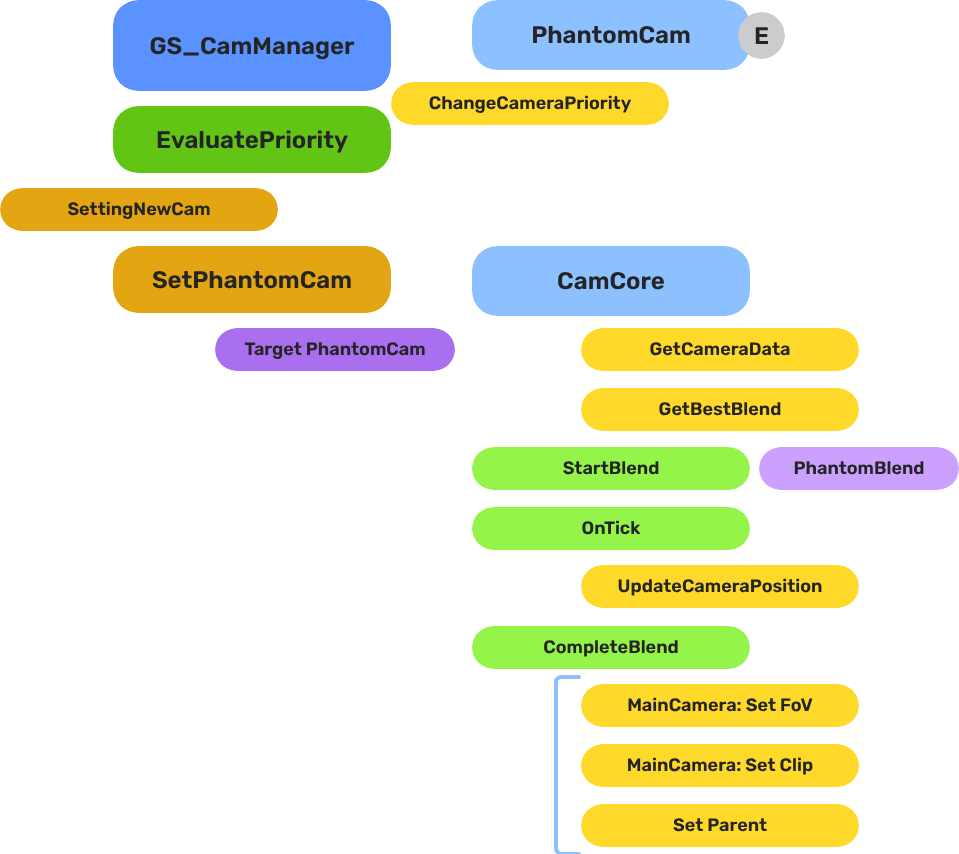
Architecture
Breakdown
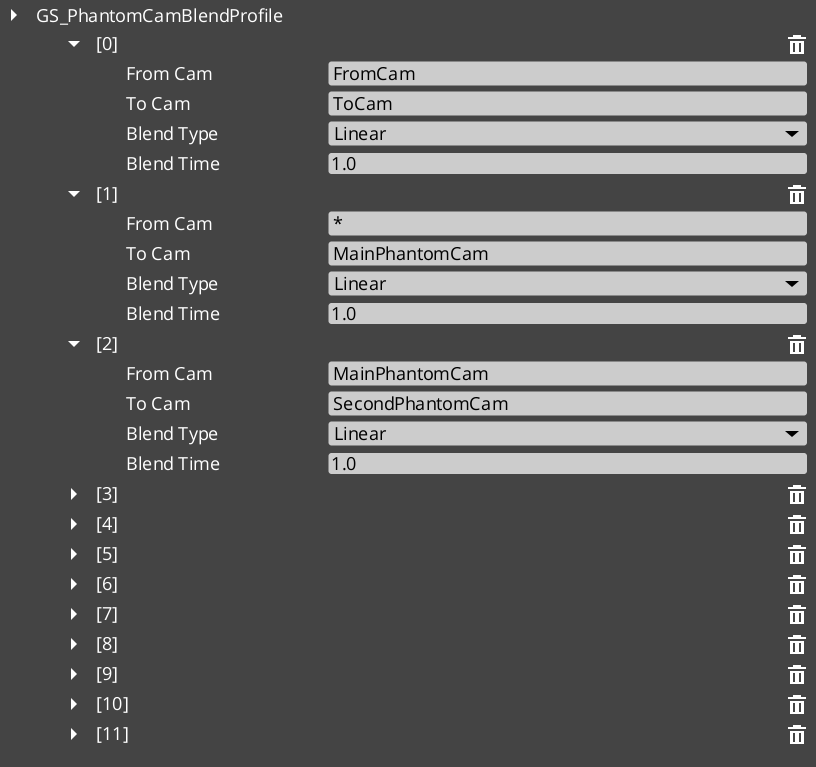
Blend Profiles are referenced from within a Phantom Camera’s blend settings. When the Cam Manager determines a transition is needed, it reads the outgoing camera’s blend settings to find the profile to use.
| Scenario | Which Profile Is Used |
|---|
| Camera A becomes inactive, Camera B was waiting | Camera A’s blend profile governs the outgoing transition. |
| Camera B is activated and is now highest priority | Camera B’s blend profile governs the incoming transition. |
| No blend profile is assigned | Transition is instantaneous — no interpolation. |
Because profiles are assets, the same profile can be shared across many Phantom Cameras. A single edit to the asset changes the feel of every camera that references it.
E Indicates extensible classes and methods.
Patterns - Complete list of system patterns used in GS_Play.
Installation
GS_PhantomCam requires GS_Core only. Add both gems to your project before placing PhantomCam components in a level.
For a full guided walkthrough, follow the Simple Project Setup guide.
Quick Installation Summary
- Enable the GS_PhantomCam gem in your project configuration.
- Create a Cam Manager prefab and add it to the Game Manager’s Managers list.
- Place a Cam Core entity with
GS_CamCoreComponent in every level. - Place Phantom Camera entities with desired behavior components.
- Create Blend Profile assets for camera transitions.
Cam Manager
The Cam Manager is the singleton camera system manager, integrated with GS_Core’s manager lifecycle. It handles startup and shutdown, responds to enable/disable events so the camera can be suspended during cinematics, and broadcasts whenever the dominant camera changes so downstream systems stay in sync.
Cam Manager
API
Phantom Cameras
Phantom Cameras are virtual camera definitions placed as components on ordinary entities. Each holds field of view, clip planes, optional follow and look-at targets, positional and rotational offsets, and a priority value. The highest-priority camera drives the real camera. Specialized behavior components extend the vocabulary: first-person, orbit, static orbit, clamped look, and spline track.
Phantom Cameras
API
Cam Core
Cam Core is the rendering bridge between the Phantom Camera system and the actual O3DE camera entity. It reads the current dominant camera’s data each frame and writes position, rotation, and FOV to the real camera. It also broadcasts per-frame camera position updates for shadow casters, audio listeners, and LOD controllers.
Cam Core
API
Blend Profiles
Blend Profiles are data assets that define how the camera transitions when control shifts between Phantom Cameras. Each profile specifies blend duration, position easing curve, and rotation easing curve — independently, so position can ease out while rotation snaps. Profiles are shared by name across cameras for visual consistency.
Blend Profiles
API
Influence Fields
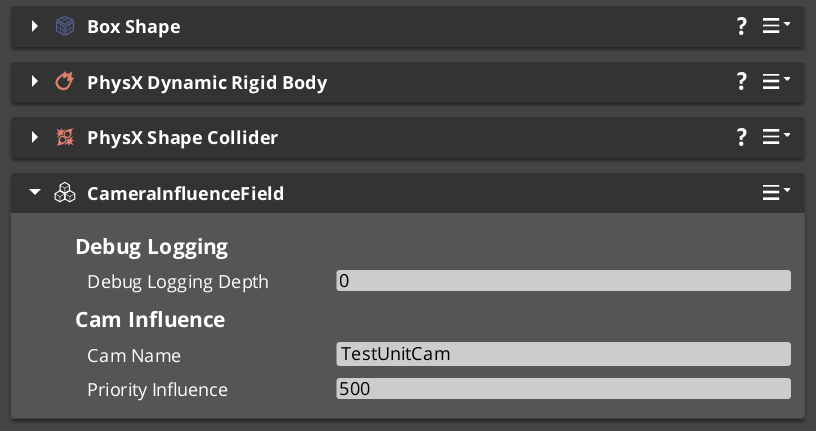
Influence Fields are spatial or global modifiers that dynamically shift camera priority. GlobalCameraInfluence applies to cam core unconditionally, while CameraInfluenceField defines a physics trigger volume that modifies the priority when the player is inside it. Multiple fields with the same camera target stack influence.
Influence Fields
API
See Also
For the full API, component properties, and C++ extension guide:
For step-by-step project setup:
Get GS_PhantomCam
GS_PhantomCam — Explore this gem on the product page and add it to your project.
1 - Cam Manager
How to work with the GS_PhantomCam manager — enabling and disabling the camera system, and responding to active camera changes.
The Cam Manager is the camera system’s singleton manager. It integrates with GS_Core’s standard manager lifecycle, handles the camera system’s startup and shutdown through the two-stage initialization sequence, and maintains awareness of which Phantom Camera is currently dominant. Any time the active camera changes, the Cam Manager broadcasts a notification so dependent systems can react without polling.
For architecture details, component properties, and extending the system in C++, see the Framework API reference.
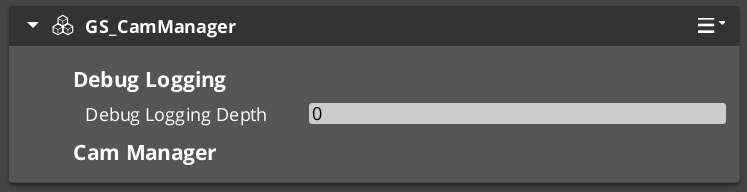
Contents
Manager Lifecycle
The Cam Manager is a GS_ManagerComponent and participates in the standard GS_Core startup sequence. It activates alongside all other managers during the two-stage initialization, making it safe to call camera system methods any time after OnStartupComplete.
| Stage | What Happens |
|---|
| Initialize | Cam Manager activates and registers with the camera pipeline. |
Startup (OnSetupManagers) | Manager is initialized. Safe to query camera state. |
Complete (OnStartupComplete) | All managers ready. Safe to enable or disable the camera system. |
Enabling and Disabling the Camera System
The camera system can be suspended and resumed independently of other gameplay systems. This is used during UI-only states, loading screens, or when a cinematic takes direct control of the camera.
| Notification | What It Does |
|---|
EnableCameraSystem | Activates the camera system. Phantom Cameras resume competing for priority. |
DisableCameraSystem | Suspends the camera system. The real camera stops receiving updates from Phantom Cameras. |
Both events are on CamManagerNotificationBus. Broadcast them to switch the camera system state from any script or component.
Tracking the Active Camera
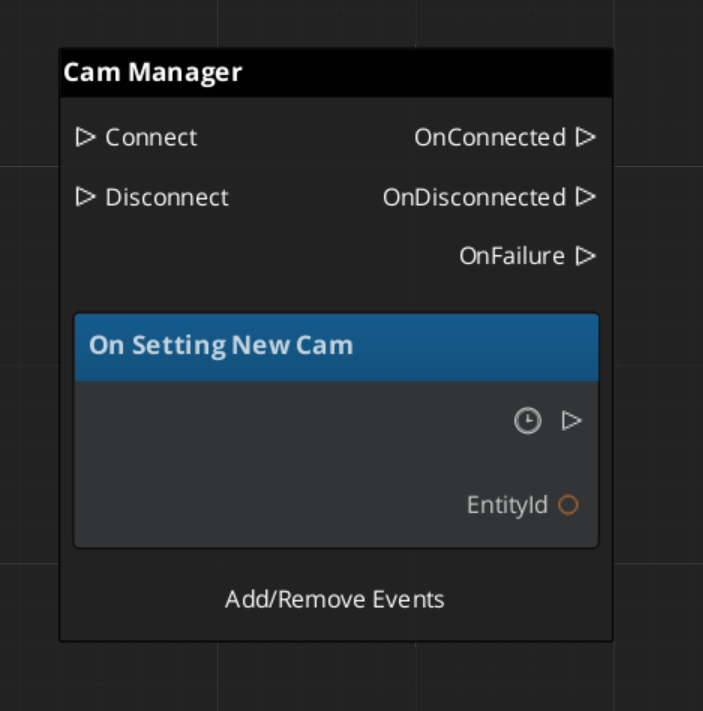
The Cam Manager broadcasts SettingNewCam on CamManagerNotificationBus whenever a different Phantom Camera becomes dominant. This fires any time a camera with higher priority activates, a dominant camera deactivates, or a blend resolves to a new target.
Use this event in any system that needs to know which camera is currently active — aiming reticles, world-space UI elements, minimaps, or audio listener positioning.
ScriptCanvas
Suspending the Camera System
ScriptCanvas
Broadcast DisableCameraSystem to suspend camera updates, for example when a cutscene takes direct camera control:
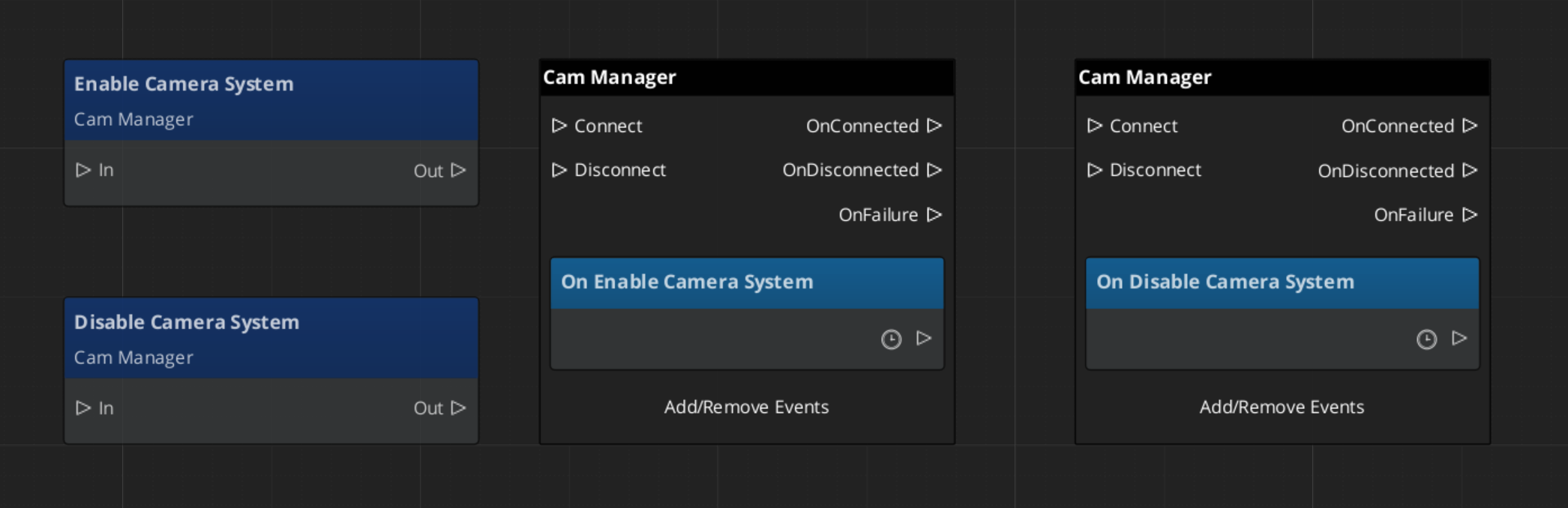
Because DisableCameraSystem and EnableCameraSystem are notifications rather than requests, they are fire-and-forget. Any script can broadcast them.
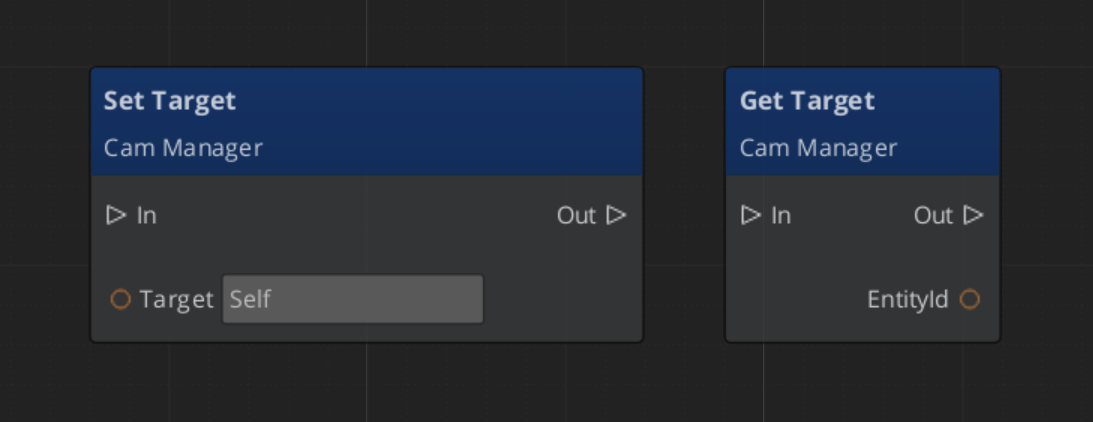
Changing the Camera Target
ScriptCanvas
The follow target, designated by the CamManager, can be set with Get/Set Target:
Cam Manager Entity Configuration
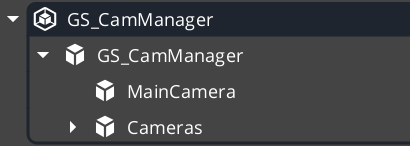
The Cam Manager MUST carry the MainCamera with it. This enables proper control of the camera and ensures there is a Cam Core no matter what stage you load into to start.
Additionally, you can add any phantom cameras that will persist between stage changes. This is usually the “rig” cameras that constantly track the player.
Using a PossessedUnit event on a player controller enables you to immediately set the Cam Manager target to your spawned player unit.
Quick Reference
| Need | Bus | Method / Event |
|---|
| Enable the camera system | CamManagerNotificationBus | EnableCameraSystem |
| Disable the camera system | CamManagerNotificationBus | DisableCameraSystem |
| Know when the active camera changes | CamManagerNotificationBus | SettingNewCam(newCamEntityId) |
| Access camera manager methods | CamManagerRequestBus | (see Framework API) |
Glossary
| Term | Meaning |
|---|
| Cam Manager | The singleton manager for the PhantomCam system that tracks active cameras and broadcasts changes |
| Dominant Camera | The Phantom Camera with the highest priority that currently drives the real camera |
For full definitions, see the Glossary.
See Also
For the full API, component properties, and C++ extension guide:
For related systems:
Get GS_PhantomCam
GS_PhantomCam — Explore this gem on the product page and add it to your project.
2 - Phantom Cameras
How to configure and use GS_PhantomCameraComponent — priority, targets, data fields, and the available camera behavior types.
Phantom Cameras are virtual camera definitions placed in the level as components on ordinary entities. They do not render anything. Instead, each Phantom Camera holds a configuration record that describes how the real camera should behave when that Phantom Camera is dominant. The Cam Manager determines dominance by comparing priority values — whichever active Phantom Camera holds the highest priority drives the real camera at any given moment.
For architecture details, component properties, and extending the system in C++, see the Framework API reference.
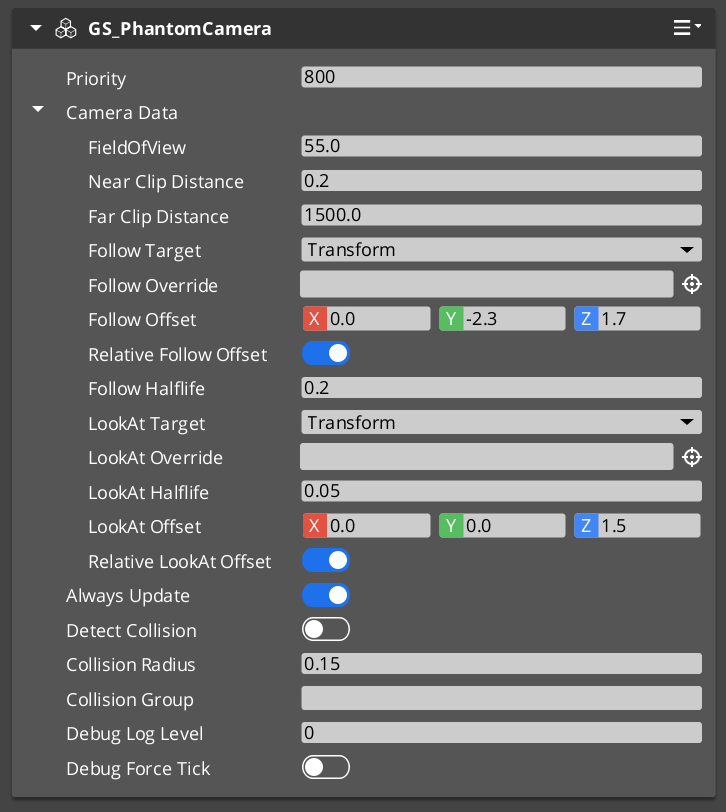
Contents
How Priority Works
Every GS_PhantomCameraComponent has a priority value. The Cam Manager continuously tracks all active Phantom Cameras and routes camera control to the one with the highest priority. When a Phantom Camera is disabled or deactivated, the next-highest priority camera takes over.
| Condition | Result |
|---|
| Camera A priority 10, Camera B priority 5 — both active | Camera A is dominant. |
| Camera A deactivates | Camera B becomes dominant immediately (or blends if a Blend Profile is set). |
| Camera A and Camera B both priority 10 | The most recently activated one is dominant. |
| No Phantom Cameras are active | The real camera holds its last known position. |
PhantomCamData Fields
Each Phantom Camera stores a PhantomCamData record that defines the full camera configuration for when that camera is dominant.
| Field | Type | Purpose |
|---|
FOV | float | Field of view in degrees. Applied to the real camera’s FOV when dominant. |
NearClip | float | Near clip plane distance. |
FarClip | float | Far clip plane distance. |
FollowTarget | EntityId | Entity the camera’s position tracks. Camera moves with this entity. |
LookAtTarget | EntityId | Entity the camera’s rotation aims at. Overrides authored rotation. |
PositionOffset | Vector3 | Positional offset applied relative to the follow target. |
RotationOffset | Quaternion | Rotational offset applied after look-at or authored rotation. |
FollowTarget and LookAtTarget are both optional. A Phantom Camera with neither set holds the position and rotation of its entity in the level.
Camera Behavior Types
Beyond the base GS_PhantomCameraComponent, several behavior components can be added to a Phantom Camera entity to specialize how it moves and aims:
| Component | What It Does |
|---|
ClampedLook_PhantomCamComponent | Adds yaw and pitch angle limits to look-at rotation. Prevents the camera from swinging past defined bounds. |
StaticOrbitPhantomCamComponent | Locks the camera to a fixed orbit radius around its target entity. The orbit position does not follow input — it is a fixed authored angle. |
Track_PhantomCamComponent | Moves the camera along a spline path. Useful for cinematic dolly shots or scripted flythrough sequences. |
AlwaysFaceCameraComponent | Makes the entity that holds this component always rotate to face the currently dominant Phantom Camera. Used for billboards and 2D sprites in 3D space. |
Each behavior component is additive — the base Phantom Camera still drives priority and targeting while the behavior component modifies position or rotation evaluation.
Activating and Deactivating Cameras
Phantom Cameras participate in priority competition only while their entity is active. Enable and disable the entity to add or remove a camera from competition. The transition between dominant cameras is governed by the Blend Profile referenced in the outgoing camera’s blend settings.
ScriptCanvas
To raise a camera’s priority and make it dominant:
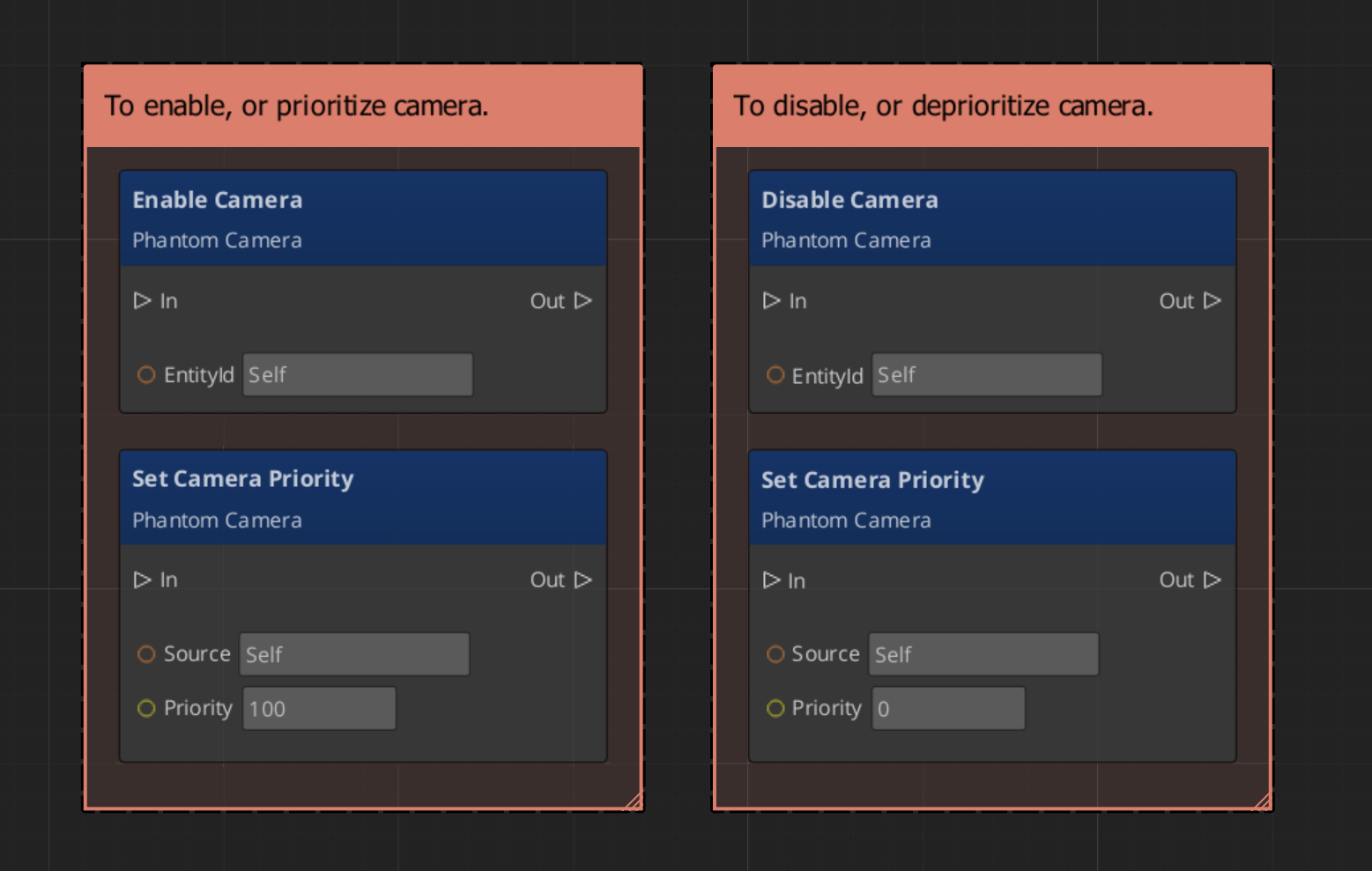
Because priority is numeric, you can also activate multiple cameras simultaneously and let priority values determine dominance without manually disabling others.
Requesting Camera Data
Use PhantomCameraRequestBus (addressed by the Phantom Camera entity’s ID) to read or write its configuration at runtime:
ScriptCanvas
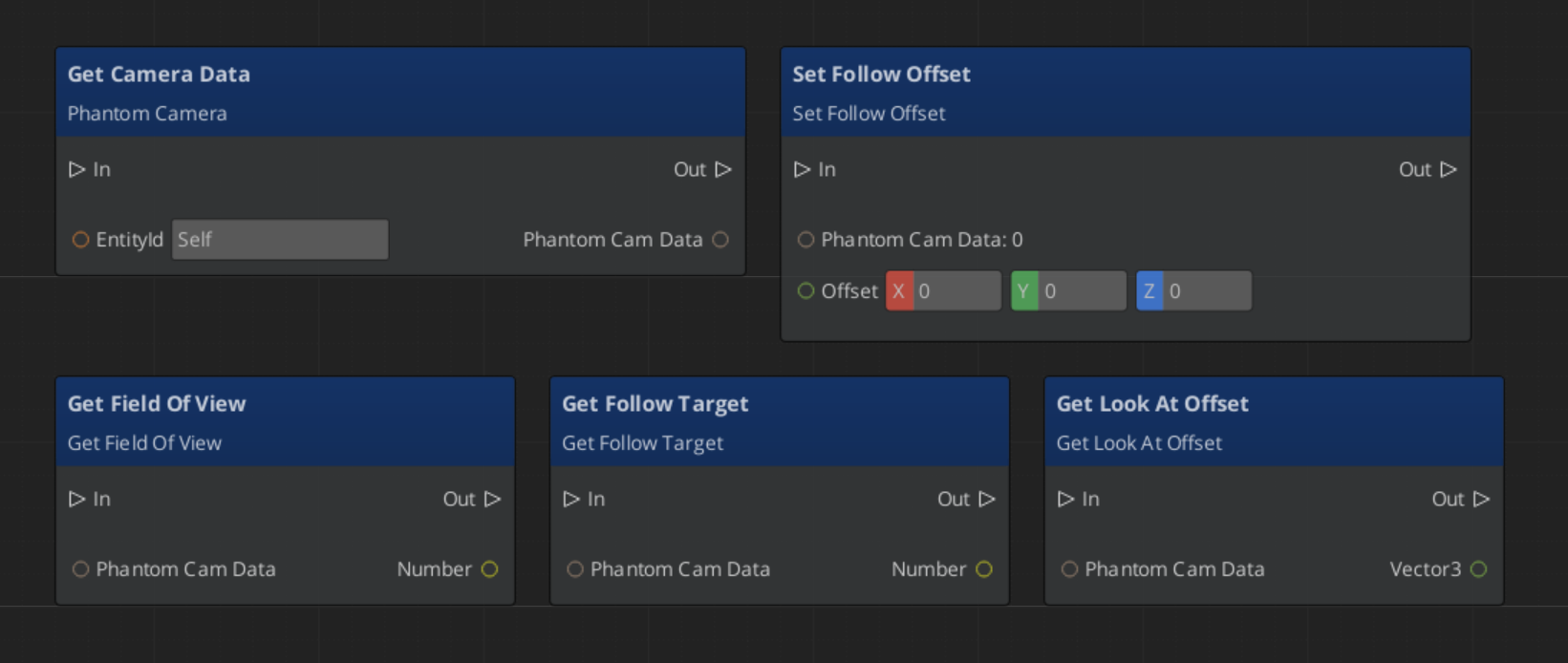
Quick Reference
| Need | Bus | Method / Event |
|---|
| Read a camera’s full configuration | PhantomCameraRequestBus(id) | GetPhantomCamData |
| Change a camera’s follow target | PhantomCameraRequestBus(id) | SetFollowTarget(entityId) |
| Change a camera’s look-at target | PhantomCameraRequestBus(id) | SetLookAtTarget(entityId) |
| Change a camera’s FOV | PhantomCameraRequestBus(id) | SetFOV(value) |
| Make a camera dominant | (entity activation) | Enable the Phantom Camera entity |
| Remove a camera from competition | (entity activation) | Disable the Phantom Camera entity |
| Know when the dominant camera changes | CamManagerNotificationBus | SettingNewCam(newCamEntityId) |
Glossary
| Term | Meaning |
|---|
| Phantom Camera | A virtual camera definition that describes how the real camera should behave when dominant |
| PhantomCamData | The configuration record holding FOV, clip planes, follow/look-at targets, and offsets |
| Priority | A numeric value that determines which Phantom Camera drives the real camera |
| Follow Target | An entity whose position the camera tracks |
| Look-At Target | An entity the camera’s rotation aims toward |
For full definitions, see the Glossary.
See Also
For the full API, component properties, and C++ extension guide:
For related systems:
Get GS_PhantomCam
GS_PhantomCam — Explore this gem on the product page and add it to your project.
3 - Cam Core
How to work with GS_CamCoreComponent — the rendering bridge that reads the dominant Phantom Camera each frame and drives the real camera entity.
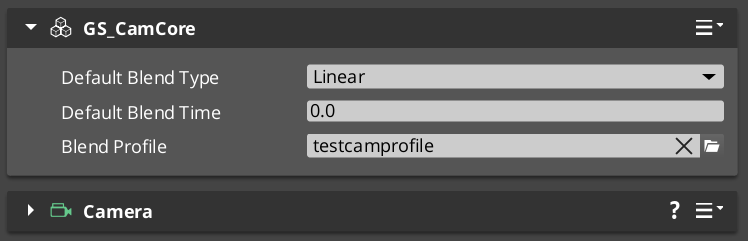
Cam Core is the rendering bridge between the Phantom Camera system and the actual O3DE camera entity. GS_CamCoreComponent runs on tick, reads the dominant Phantom Camera’s configuration each frame, and writes position, rotation, and field of view directly to the camera entity that the renderer uses. Phantom Cameras define intent — Cam Core executes it.
For architecture details, component properties, and extending the system in C++, see the Framework API reference.
Contents
What Cam Core Does Each Frame
On every tick, Cam Core follows this sequence:
| Step | What Happens |
|---|
| 1 — Query active camera | Reads the current dominant Phantom Camera from the Cam Manager. |
| 2 — Read PhantomCamData | Fetches the active camera’s position, rotation, FOV, and clip planes. |
| 3 — Apply blend | If a blend is in progress, interpolates between the outgoing and incoming camera values. |
| 4 — Write to real camera | Pushes the resolved transform and FOV to the real O3DE camera entity. |
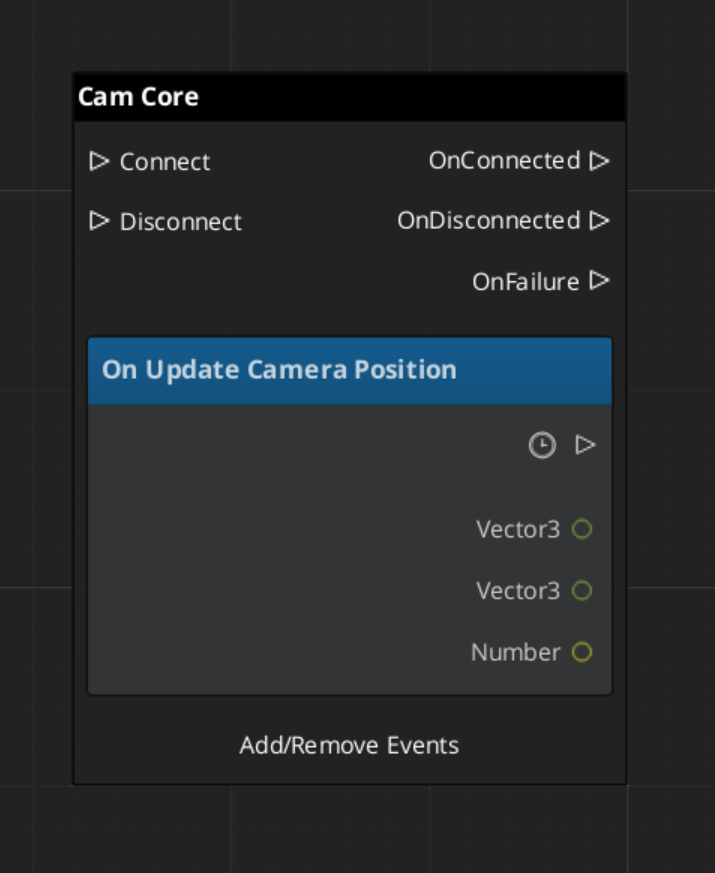
| 5 — Broadcast position | Fires UpdateCameraPosition on CamCoreNotificationBus so dependent systems receive the final camera location. |
Because Cam Core owns the final write to the camera entity, it is also the correct insertion point for last-mile adjustments such as screen shake offsets, post-processing overrides, or recoil displacement — applied after blend resolution but before the frame renders.
Responding to Camera Position Updates
CamCoreNotificationBus broadcasts UpdateCameraPosition every frame with the resolved camera transform. Connect to this bus in any system that needs per-frame camera location data.
| Use Case | Why UpdateCameraPosition |
|---|
| Audio listener positioning | Follow the camera without polling the camera entity. |
| LOD or culling controllers | Receive camera position reliably after blend is applied. |
| Shadow caster updates | React to camera movement each frame. |
| World-space UI anchoring | Know exactly where the camera landed after Cam Core processed its frame. |
ScriptCanvas
Cam Core Setup
Cam Core requires exactly one GS_CamCoreComponent in the level, and a separate entity with an O3DE Camera component that Cam Core is configured to drive. The Camera entity is what the renderer uses — Cam Core holds a reference to it and writes to it each frame.
| Entity | Required Components |
|---|
| Cam Core entity | GS_CamCoreComponent |
| Camera entity | O3DE CameraComponent (standard) |
Assign the Camera entity reference in the Cam Core component’s properties in the editor. Both entities should be present in every level that uses the PhantomCam system.
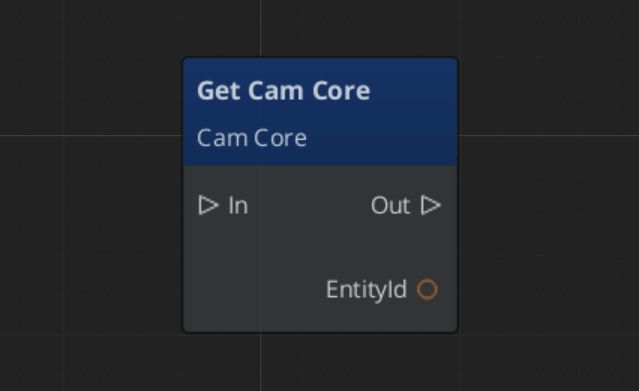
Querying Cam Core State
Use CamCoreRequestBus to read the current camera state or set the camera entity reference at runtime:
ScriptCanvas
Quick Reference
| Need | Bus | Method / Event |
|---|
| Know the camera position each frame | CamCoreNotificationBus | UpdateCameraPosition(transform) |
| Get the real camera entity ID | CamCoreRequestBus | GetCameraEntity |
| Get the current resolved FOV | CamCoreRequestBus | GetCurrentFOV |
| Know when the active camera changes | CamManagerNotificationBus | SettingNewCam(newCamEntityId) |
Glossary
| Term | Meaning |
|---|
| Cam Core | The rendering bridge that reads the dominant Phantom Camera each frame and writes to the real O3DE camera |
| Blend Resolution | The process of interpolating position, rotation, and FOV between outgoing and incoming cameras |
For full definitions, see the Glossary.
See Also
For the full API, component properties, and C++ extension guide:
For related systems:
Get GS_PhantomCam
GS_PhantomCam — Explore this gem on the product page and add it to your project.
4 - Blend Profiles
How to create and use GS_PhantomCamBlendProfile assets to control transition timing, easing, and interpolation between Phantom Cameras.
Blend Profiles are data assets that define how the camera transitions when control shifts from one Phantom Camera to another. Without a Blend Profile, transitions are instantaneous. A well-authored Blend Profile is often the single largest contributor to a camera system feeling polished rather than mechanical.
For architecture details, asset structure, and extending the system in C++, see the Framework API reference.
Contents
What a Blend Profile Contains
Each GS_PhantomCamBlendProfile asset defines the shape of a single camera transition:
| Field | Purpose |
|---|
| Duration | How long the blend takes, in seconds. |
| Position Easing | The easing curve applied to position interpolation. Controls how the camera accelerates and decelerates as it moves toward the new position. |
| Rotation Easing | The easing curve applied to rotation interpolation. Can be set independently from position easing. |
| FOV Easing | The easing curve applied to field-of-view interpolation. |
Position, rotation, and FOV each have independent easing settings. This makes it straightforward to compose transitions that feel distinct in each axis — for example, position eases out slowly while rotation snaps quickly, or FOV leads the transition while position lags.
How Blend Profiles Are Referenced
Creating a Blend Profile Asset
Blend Profile assets are created from the Asset Browser in the O3DE Editor:
- Right-click in the Asset Browser where you want to store the profile.
- Select Create Asset → GS_PhantomCamBlendProfile.
- Name the asset descriptively — for example,
CombatCameraBlend or CinematicSoftBlend. - Open the asset to edit duration and easing curves.
- Assign the asset to one or more Phantom Camera components in the level.
Easing Curve Reference
Easing curves control the acceleration profile of an interpolation. Common choices and their camera feel:
| Curve | Feel |
|---|
| Linear | Mechanical, even movement. Rarely used for cameras. |
| EaseIn | Starts slow, accelerates. Camera hesitates before committing. |
| EaseOut | Starts fast, decelerates. Camera arrives gently. |
| EaseInOut | Slow start and end, fast through the middle. Most natural for most transitions. |
| EaseOutBack | Slight overshoot before settling. Adds energy to arriving at a new view. |
ScriptCanvas — Triggering a Blend
Blends trigger automatically when the dominant Phantom Camera changes. To trigger a blend from script, simply change which camera is active or dominant:
[Custom Event → EnterCombat]
    └─► [EntityId → Set Active (combat camera entity)]
            └─► Cam Manager detects priority change
            └─► Blend Profile on combat camera governs the transition
            └─► Cam Core interpolates position, rotation, FOV over blend duration
There is no separate “start blend” call. The blend begins the moment the Cam Manager determines a new dominant camera and ends when Cam Core finishes interpolating.
Quick Reference
| Need | How |
|---|
| Create a blend profile | Asset Browser → Create Asset → GS_PhantomCamBlendProfile |
| Assign a profile to a camera | Set the Blend Profile reference in the Phantom Camera component properties |
| Make a transition instant | Leave the Blend Profile reference empty on the Phantom Camera |
| Share one profile across many cameras | Assign the same asset reference to multiple Phantom Camera components |
| Change blend timing without changing cameras | Edit the Blend Profile asset — all cameras referencing it update automatically |
Glossary
| Term | Meaning |
|---|
| Blend Profile | A data asset defining duration and per-axis easing curves for camera transitions |
| Position Easing | The easing curve controlling how the camera accelerates/decelerates in position |
| Rotation Easing | The easing curve controlling rotation interpolation independently from position |
For full definitions, see the Glossary.
See Also
For the full API, component properties, and C++ extension guide:
For related systems:
Get GS_PhantomCam
GS_PhantomCam — Explore this gem on the product page and add it to your project.
5 - Influence Fields
How to use GlobalCameraInfluenceComponent and CameraInfluenceFieldComponent to apply dynamic camera modifications globally or within spatial zones.
Influence Fields are modifiers that change camera priority dynamically beyond what any individual Phantom Camera’s base prioerity specifies. Two types are available: global components that apply unconditionally, and spatial field components that apply only when the player enters a defined volume.
For architecture details, component properties, and extending the system in C++, see the Framework API reference.
Contents
Types of Influence Fields
| Component | Scope | When It Applies |
|---|
GlobalCameraInfluenceComponent | Global | Always active. Applies priority effects to the system unconditionally. Usually placed on SceneData entity |
CameraInfluenceFieldComponent | Spatial | Active when the player is inside the associated physics trigger volume. |
Both types use CamInfluenceData records to describe what they modify. Multiple fields can be active at the same time — their effects are resolved by priority stacking.
Priority Stacking
When multiple influence fields are active at the same time, their priority changes add to the target camera’s priority. This enables growingly more granular spaces to regularly shift in, by adding a new influence field, and shift out, when you exit and are in a more general space.
Quick Reference
| Need | Component | How |
|---|
| Apply a camera prioerity always | GlobalCameraInfluenceComponent | Add to any entity, preferably the StageData entity |
| Apply a priority in a zone | CameraInfluenceFieldComponent | Add with a PhysX trigger collider; player entering activates it |
Glossary
| Term | Meaning |
|---|
| Influence Field | A modifier that adjusts camera behavior dynamically on top of the dominant Phantom Camera |
| Priority Stacking | The effect of taking the camera base priority, then additively applying influence field changes ontop to eventually determine the dominant phantom camera |
| Global Influence | An unconditional priority modifier that applies regardless of spatial position |
| Spatial Influence | A volume-based modifier that activates when the player enters its physics trigger |
For full definitions, see the Glossary.
See Also
For the full API, component properties, and C++ extension guide:
For related systems:
Get GS_PhantomCam
GS_PhantomCam — Explore this gem on the product page and add it to your project.