GS_Environment
World time and environmental systems for GS_Play — time-of-day progression, day/night cycle management, and data-driven sky configuration.
GS_Environment manages the living world — the passage of time, the shift between day and night, and the visual appearance of the sky. It provides a singleton time authority that other systems subscribe to for world tick events and phase-change notifications, decoupling every time-dependent system from managing its own clock. Sky presentation is data-driven through configuration assets.
For architecture details, component properties, and extending the system in C++, see the GS_Environment API.
GS_Environment is in Early Development. Full support planned soon: 2026.
Quick Navigation
| I want to… | Feature | API |
|---|
| Control world time, time passage speed, or respond to day/night changes | Time Manager | API |
| Define how the sky looks at different times of day with data assets | Sky Configuration | API |
Installation
GS_Environment requires GS_Core and the Atom renderer. Add both to your project.
For a full guided walkthrough, follow the Simple Project Setup guide.
Quick Installation Summary
- Enable the GS_Environment gem in your project configuration.
- Create a Time Manager prefab and add it to the Game Manager’s Managers list.
- Create SkyColourConfiguration assets for your sky appearance.
Time Manager
The Time Manager is the singleton authority for world time. It advances time each tick according to a configurable speed, exposes query and control methods, and broadcasts WorldTick and DayNightChanged events so any system can react to time progression without polling.
Time Manager
API
Sky Configuration
The Sky Configuration system defines how the sky looks at different times of day through data assets. SkyColourConfiguration assets hold colour values for dawn, midday, dusk, and night — swappable per-region, per-weather, or per-level without modifying entity hierarchies.
Sky Configuration
API
See Also
For the full API, component properties, and C++ extension guide:
For step-by-step project setup:
Get GS_Environment
GS_Environment — Explore this gem on the product page and add it to your project.
1 - Time Manager
How to work with the GS_Play Time Manager — world time, day/night cycles, and time passage control.
The Time Manager is the singleton controller for world time in your project. It drives the time-of-day value, controls how fast time passes, determines day/night state, and broadcasts timing events that other systems (lighting, AI schedules, environmental effects) can react to.
For component properties and API details, see the Framework API reference.
GS_Environment is in Early Development. Full support planned soon: 2026.
Contents
How It Works
The Time Manager maintains a continuous time-of-day value. Each frame, it advances the time based on the configured passage speed and broadcasts a WorldTick event. When the time crosses the day/night threshold, it broadcasts DayNightChanged.
You set the main camera reference so the Time Manager can position sky effects relative to the player’s view.
Controlling Time
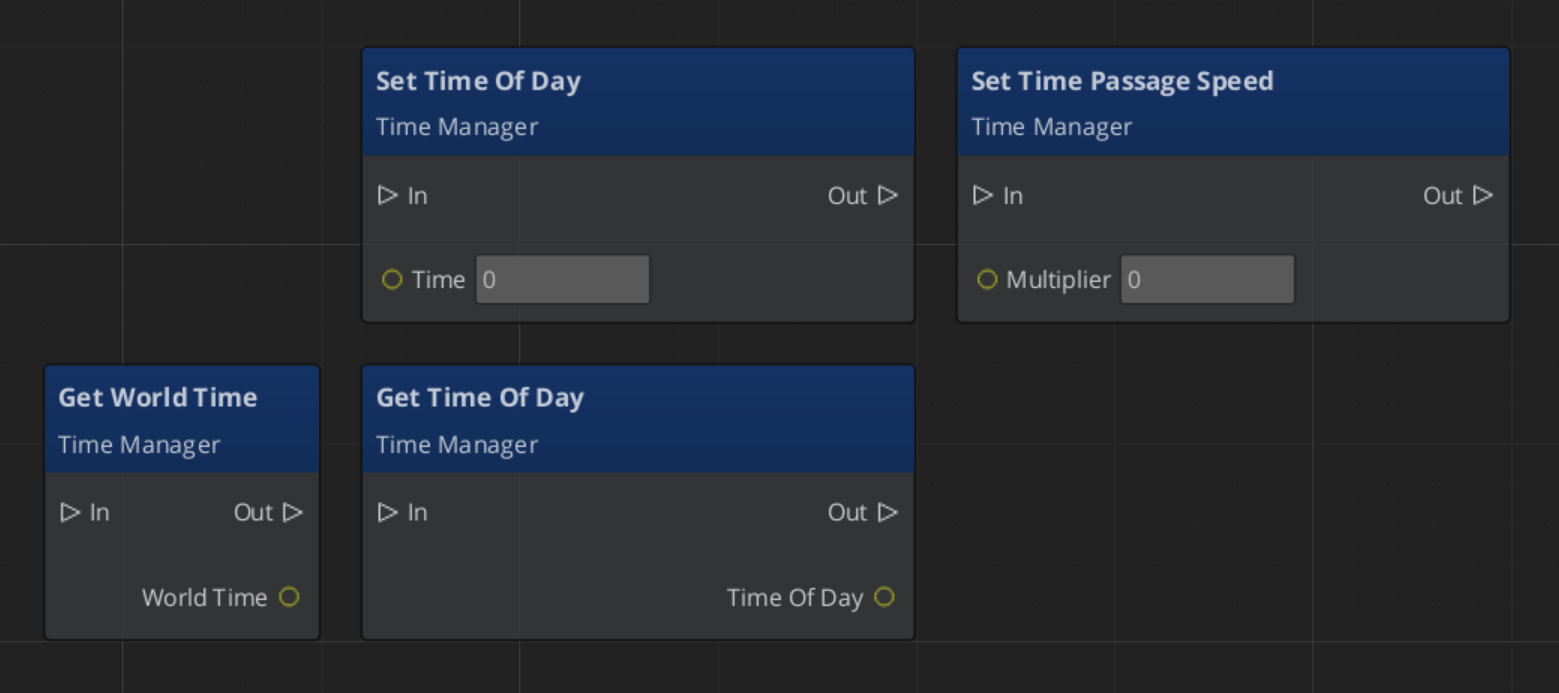
| ScriptCanvas Node | What It Does |
|---|
SetTimeOfDay(time) | Sets the current time of day directly. |
GetTimeOfDay | Returns the current time of day. |
SetTimePassageSpeed(speed) | Controls how fast time advances (multiplier). |
GetWorldTime | Returns the total elapsed world time. |
IsDay | Returns whether it is currently daytime. |
SetMainCam(entity) | Sets the camera entity for sky positioning. |
ScriptCanvas
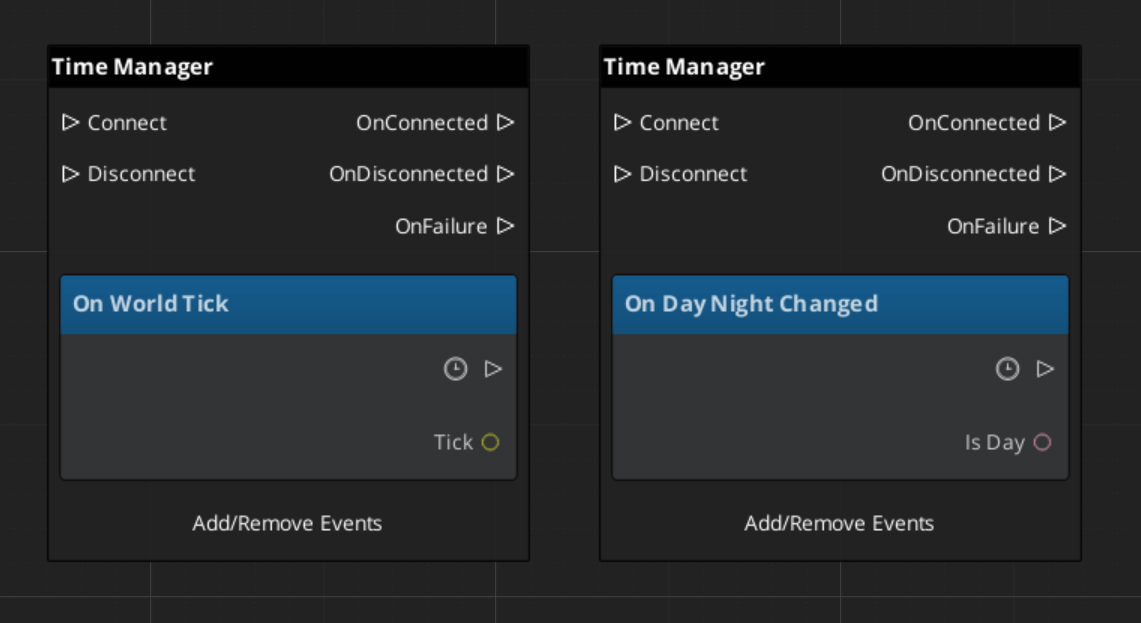
Responding to Time Events
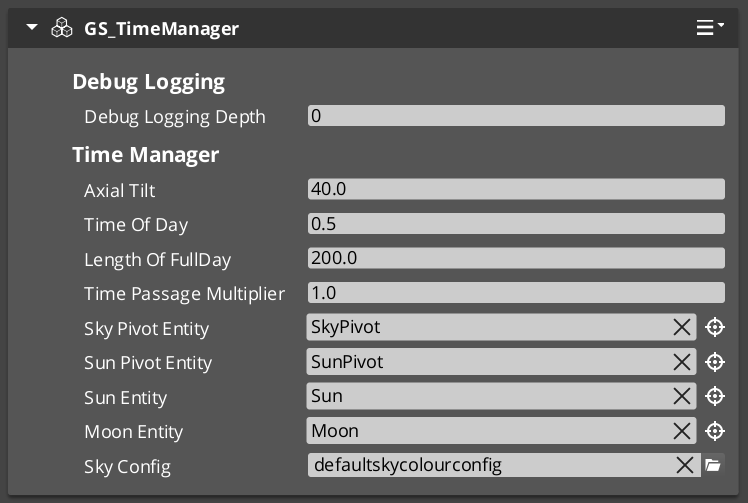
Time Manager Entity Configuration
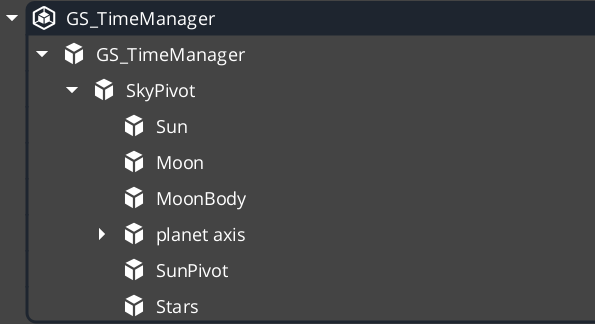
In order to drive many of the environment effects and weather systems, the Time Manager needs many entities and components available to it.
| Entity | What It Does |
|---|
| SkyPivot | This entity holds all the rest of the celestial entities. It’s pivot is the pivot of the planet. |
| Sun / Moon | Two directional lights, pointed in opposite directions. One is disabled at a time and has it’s colours and intensities handled by the Time Manager sky configuration profile. |
| Moon Body | A graphic, placed in the sky relative to the moon directional light. Purely Cosmetic. |
| Planet Axis | An entity that carries celestial bodies at an offset. They spin with the rest of the sky. Purely Cosmetic. |
| Stars | The stars component. If it’s inside the pivot, the stars follow the rotation of the sky. |
Stars component needs to be disabled in editor, if TimeManager is being used outside of runtime. Causes graphics crash.
Quick Reference
| Need | Bus | Method / Event |
|---|
| Set time of day | TimeManagerRequestBus | SetTimeOfDay(time) |
| Get current time | TimeManagerRequestBus | GetTimeOfDay |
| Check if daytime | TimeManagerRequestBus | IsDay |
| Change time speed | TimeManagerRequestBus | SetTimePassageSpeed(speed) |
| React to time ticks | TimeManagerNotificationBus | WorldTick |
| React to day/night change | TimeManagerNotificationBus | DayNightChanged |
Glossary
| Term | Meaning |
|---|
| World Time | The continuously advancing time-of-day value maintained by the Time Manager |
| Time Passage Speed | A multiplier controlling how fast world time advances each frame |
| Day/Night Phase | The current phase (day or night) determined by the time-of-day threshold |
For full definitions, see the Glossary.
See Also
For the full API, component properties, and C++ extension guide:
For related systems:
Get GS_Environment
GS_Environment — Explore this gem on the product page and add it to your project.
2 - Sky Configuration
How to work with GS_Play sky configuration — data-driven sky color settings for time-of-day transitions.
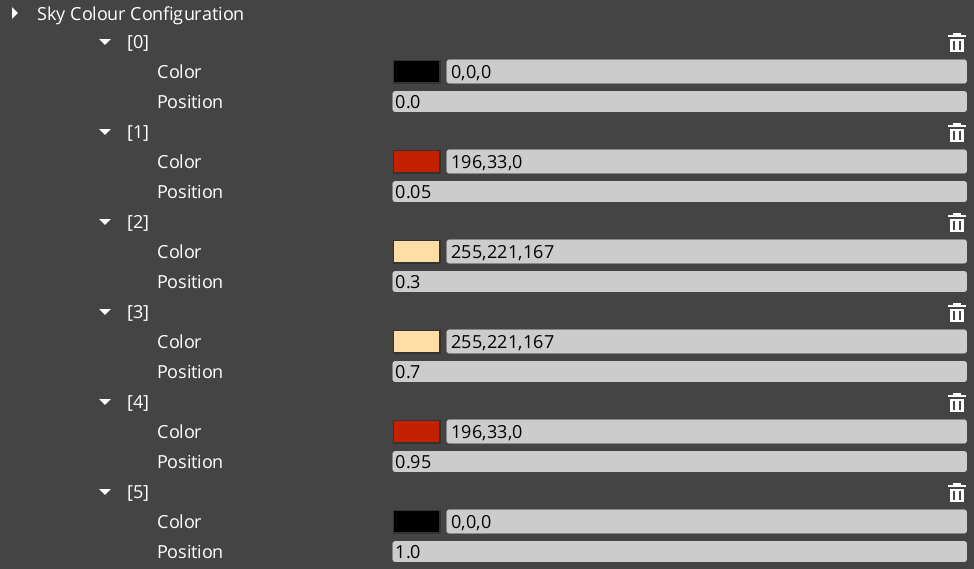
Sky Colour Configuration assets define the visual appearance of the sky at different times of day. These are data assets created in the O3DE Asset Editor that the Time Manager references to drive sky color transitions as time progresses.
For asset structure and property details, see the Framework API reference.
GS_Environment is in Early Development. Full support planned soon: 2026.
Contents
How It Works
A Sky Colour Configuration asset defines color values for key times of day (dawn, midday, dusk, night). The Time Manager samples the configuration based on the current time of day and interpolates between the defined colors to produce smooth transitions.
Different environments (desert, forest, underwater) can use different configuration assets. Swapping the active configuration changes the sky appearance without modifying entity hierarchies.
Glossary
| Term | Meaning |
|---|
| SkyColourConfiguration | A data asset defining sky color values for dawn, midday, dusk, and night |
For full definitions, see the Glossary.
See Also
For the full API, component properties, and C++ extension guide:
For related systems:
Get GS_Environment
GS_Environment — Explore this gem on the product page and add it to your project.