Options & Input
How to work with the GS_Play options system — player settings with profiles and presets, plus input profiles, groups and runtime binding management.
The Options system covers two things a project needs and rarely wants to write itself:
- Settings — the options a player changes: volume, graphics, resolution, accessibility. You declare them as data and the framework applies, saves and restores them.
- Input — group-based input binding that can be rebound and toggled at runtime without code changes.
For architecture details, component properties, and extension patterns, see the Framework API reference.
Contents
Options Manager
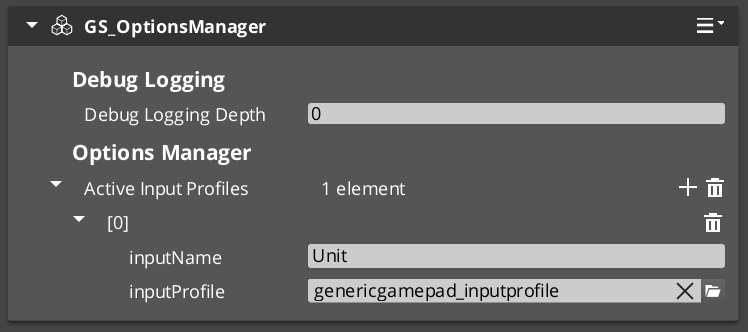
The Options Manager is the singleton that owns both halves of this system. It holds your option profiles and presets, and the active Input Profile. It responds to the Game Manager lifecycle automatically.
Assign three things to it: your option profiles, any presets, and your input profile.
Settings
Settings are the options a player changes — volume, graphics, resolution, accessibility. You declare them as data in an Options Profile asset, and the framework applies, saves and restores them.
Settings
API
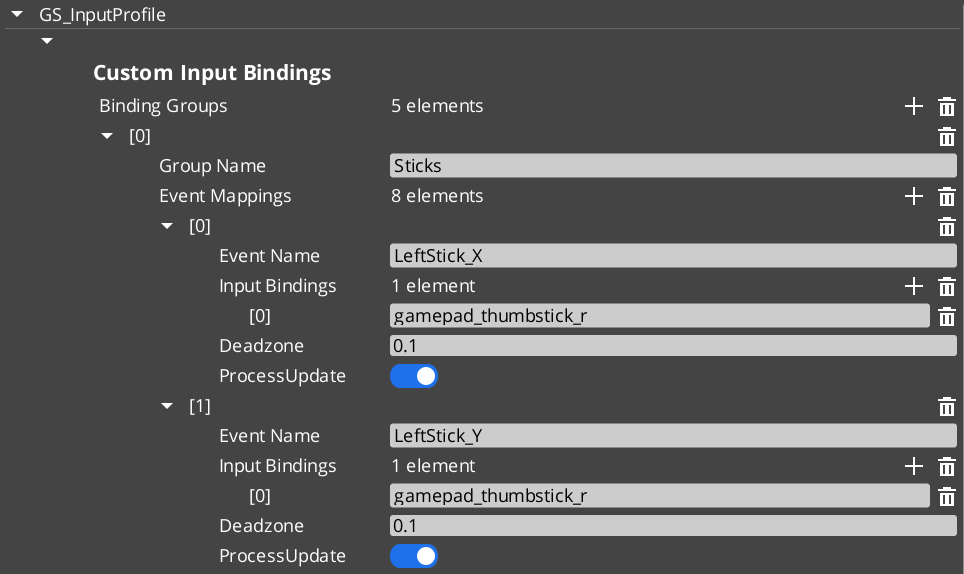
An Input Profile is a data asset created in the O3DE Asset Editor. It contains named input groups, each holding a set of event mappings. Each event mapping binds a gameplay event name to one or more raw input bindings (key presses, axis movements, button presses) with configurable deadzones.
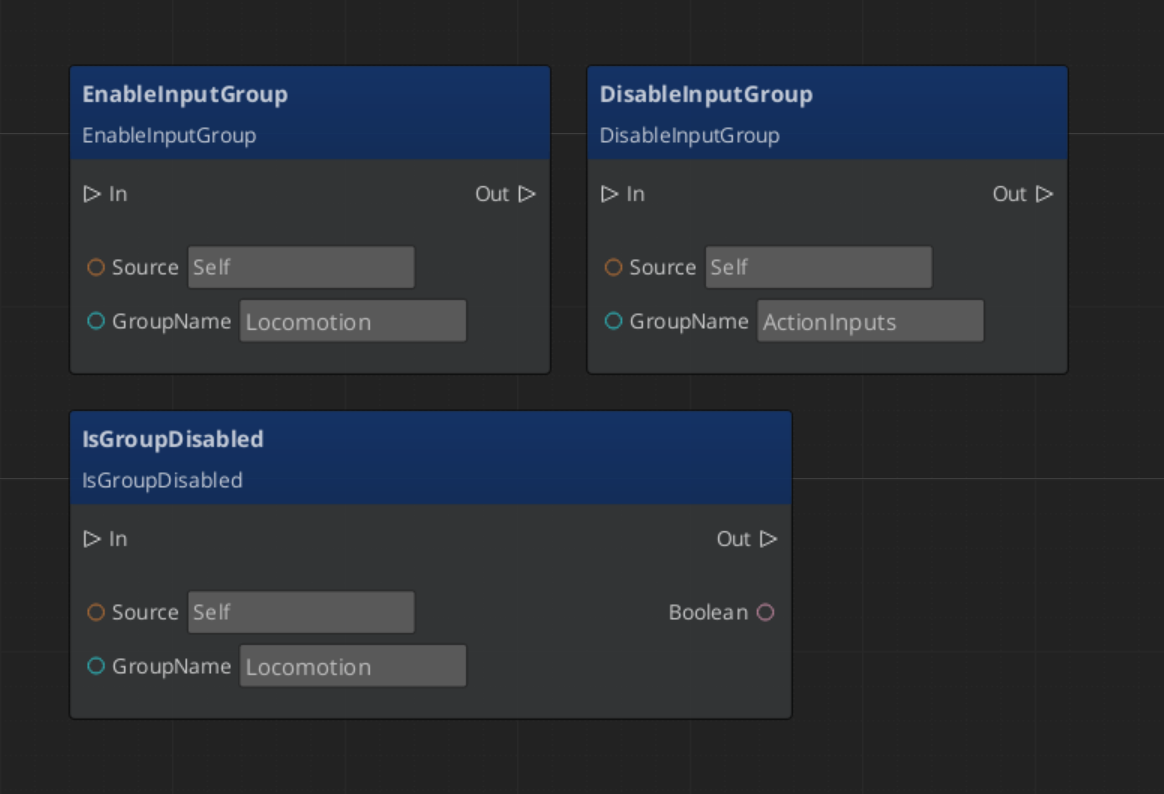
The key advantage over raw O3DE input bindings is the group system. Groups can be enabled and disabled independently at runtime — a pause menu can suppress gameplay input by disabling the “Gameplay” group, without tearing down and rebuilding bindings.
| Stage | What Happens |
|---|
| 1 — Raw Input | O3DE’s input system captures key/axis/button events. |
| 2 — Input Reader | The GS_InputReaderComponent on the entity matches raw input against the active Input Profile’s event mappings. |
| 3 — Event Mapping | Matched input fires a named gameplay event (e.g., “Jump”, “MoveForward”). |
| 4 — Consumer | Other components on the entity (controllers, reactors) handle the gameplay event. |
Input Readers filter by group — if a group is disabled, none of its event mappings fire.
Quick Reference
| Need | Bus | Method / Event |
|---|
| Disable an input group | InputReaderRequestBus | DisableInputGroup(groupName) |
| Enable an input group | InputReaderRequestBus | EnableInputGroup(groupName) |
| Check if group is disabled | InputReaderRequestBus | IsGroupDisabled(groupName) |
| Get the active profile | OptionsManagerRequestBus | GetActiveInputProfile |
Glossary
| Term | Meaning |
|---|
| Input Profile | A data asset containing named input groups with event mappings |
| Input Group | A named collection of event mappings that can be enabled or disabled at runtime |
| Event Mapping | A binding from a gameplay event name to one or more raw input sources |
| Input Reader | A component that matches raw input against the active Input Profile |
For full definitions, see the Glossary.
See Also
For the full API, component properties, and C++ extension guide:
Get GS_Core
GS_Core — Explore this gem on the product page and add it to your project.
1 - Settings
How to declare player settings as data, read and write them from your game, and offer quality presets.
Settings are the options a player changes — volume, graphics quality, resolution, accessibility choices. GS_Play lets you declare them as data and handles the rest: applying each one to the engine, saving them, and restoring them next launch.
You do not write loading code, saving code, or apply code. You author what the options are and what each one drives.
For architecture details and the full API, see the Framework API reference.
Contents
Declaring Settings
Settings are authored as data, not code. Create an Options Profile asset and add an option for each thing your game exposes.
Every option carries:
| Field | What it is |
|---|
| Key | The name your code and presets use, e.g. audio.master. |
| Display Name | What the player sees. |
| Category | Which page it belongs on — Graphics, Audio, Display, Gameplay, Accessibility, Controls. |
| Description | Tooltip text. |
| Apply target | What it actually does when changed. |
Pick the option kind for the widget you want — a toggle, a slider with min/max/step, a dropdown with labelled entries, or a colour picker.
The apply target is the part worth pausing on. It is what connects the option to the engine: a console variable, the window mode, the resolution, an audio channel’s volume — or nothing at all, if the value is just something your own game code reads.
You can assign more than one profile. They merge by key, so a project can layer its own options over a supplied set.
In a dropdown, the label is not the value
Each dropdown entry has a Label the player sees and a Value that gets stored and applied. When you write a preset, use the value.
Reading and Writing Settings
Setting a value applies it, saves it and notifies listeners in one call. You never have to apply or save separately.
| Need | Method |
|---|
| Read a value | GetOptionBool / GetOptionFloat / GetOptionInt / GetOptionString |
| Change a value | SetOptionBool / SetOptionFloat / SetOptionInt / SetOptionString |
| Restore one option | ResetToDefault |
| Restore everything | ResetAllToDefault |
| Get every option in a category | GetOptionsByCategory |
| React to any change | OnOptionChanged on the notification bus |
GetOptionsByCategory is how you build a settings screen without hard-coding it — ask for the Graphics options and build a row per key.
A tip worth taking: the ImGui debug menu renders your entire option catalog live, with the right widget for each option. Author an option, press play, and drive it before you build any UI for it.
Presets
A preset is a named set of values — Low, Medium, High. Create a preset asset, list the keys it sets and the values it sets them to, and assign it to the Options Manager.
Applying a preset overwrites those options, applies and saves in one action.
Presets have no state of their own. A preset counts as active only while every value it names still matches, so the moment a player nudges one slider, the active preset becomes Custom. That is the familiar behaviour, and it happens for free.
Quick Reference
| Need | Bus | Method / Event |
|---|
| Read a setting | OptionsManagerRequestBus | GetOptionFloat / Bool / Int / String |
| Change a setting | OptionsManagerRequestBus | SetOptionFloat / Bool / Int / String |
| Restore one setting | OptionsManagerRequestBus | ResetToDefault |
| Restore everything | OptionsManagerRequestBus | ResetAllToDefault |
| List a category’s options | OptionsManagerRequestBus | GetOptionsByCategory |
| Apply a preset | OptionsManagerRequestBus | ApplyPreset |
| Know which preset is active | OptionsManagerRequestBus | GetActivePresetName |
| React to a setting change | OptionsManagerNotificationBus | OnOptionChanged |
Glossary
| Term | Meaning |
|---|
| Options Profile | An asset declaring the settings a game exposes |
| Apply Target | What an option does to the engine when its value changes |
| Key | The stable name a setting is stored and referred to by |
| Preset | A named set of values, e.g. Low / Medium / High |
| Custom | The active preset name when values no longer match any preset |
See Also
For the full API:
For related systems:
Get GS_Core
GS_Core - Explore this gem on the product page and add it to your project.