GS_Core
The foundation gem for the GS_Play framework — game lifecycle, save system, stage management, input, actions, and utility libraries.
GS_Core is the required foundation for every GS_Play enabled project. All other GS gems depend on it to drive their complex behaviour, and utilize its systemic features. It provides the game startup sequence, persistence, level loading, input handling, a triggerable action system, and a shared utility library.
If you have not set up GS_Core yet, start with the Simple Project Setup guide before reading further.
For architecture details, component properties, and extending the system in C++, see the GS_Core API.
Quick Navigation
| I want to… | Feature | API |
|---|
| Start a new game, continue from a save, load a specific file, or return to the title screen | GS_Managers | API |
| Save and load game data, or track persistent flags and counters across sessions | GS_Save | API |
| Move between levels, or configure per-level spawn points and navigation settings | GS_StageManager | API |
| Give players volume, graphics and accessibility settings that save and restore | Settings | API |
| Read player input, disable input during menus, or swap control schemes at runtime | GS_Options | API |
| Run the level you are editing, or inspect and drive a running game | Debugging | API |
| Use easing curves, detect physics zones, smooth values, pick randomly, or work with splines | Utilities | API |
| Trigger a reusable behavior on an entity from a script, physics zone, or another action | Systems: GS_Actions | API |
| Animate a transform, color, or value smoothly over time | Systems: GS_Motion | API |
Installation
GS_Core is a required gem. It will be added to your project when you enable any other GS_Play gem.
For a complete guided setup, follow the Simple Project Setup guide or video tutorial.
Follow these steps in particular:
- Configure Project
- Prepare Managers
- Prepare Startup
Quick Installation Summary
Once the gem is registered to your project:
- Create a Game Manager prefab and place it in every level.
- Create prefabs of any managers you wish to utilize in your project
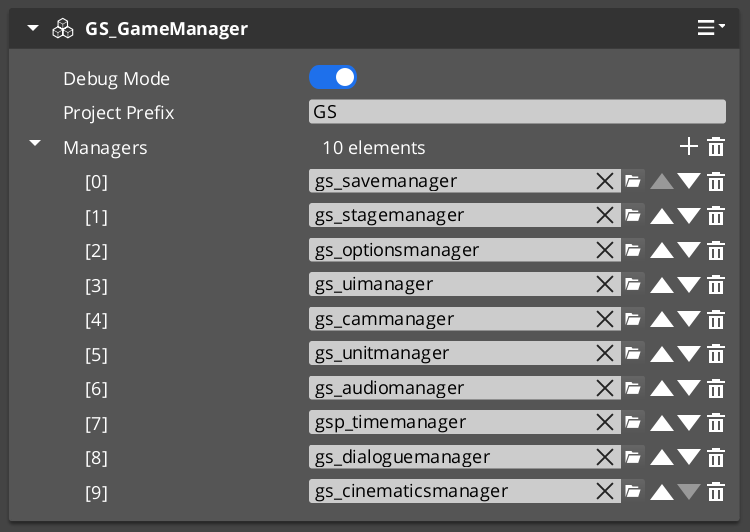
- Add all the manager prefabs to your GameManager Managers list.
- Implement a way to activate “Begin Game”
- Create a UI to fire New Game, or Load Game.
- Create a Script to fire New Game, or Load Game OnStartupComplete.
- Toggle “Debug Mode” on. This skips through the begin game process.
GS_Managers
Controls the game startup lifecycle — spawning and initializing all manager systems in a guaranteed order, then providing top-level game navigation: New Game, Continue, Load Game, Return to Title, and Quit. The starting point for any game-wide behavior.
GS_Managers
API
GS_Save
Handles all save and load operations, including entity state persistence across level loads and simple key-value record tracking for global flags and counters.
GS_Save
API
GS_StageManager
Manages level loading and navigation. Place named Exit Points in your levels to control where the player arrives, and use Stage Data components to configure per-level settings like NavMesh references and spawn configuration.
GS_StageManager
API
Settings
Declare the options your game exposes — volume, graphics quality, resolution, accessibility — as data, and the framework applies them, saves them and restores them next launch. Presets give you Low / Medium / High with no extra work.
Settings
API
GS_Options
Manages player input through swappable Input Profile assets and Input Reader components, with group-level enable/disable for suppressing input during menus, cutscenes, or transitions.
GS_Options
API
Debugging
Press play on the level you are editing and actually run that level, with Debug Mode. Then inspect and drive the running game from the in-game GS_Play menu — change any setting live, balance the audio mix, or switch cameras.
Debugging
API
Systems
Core framework systems used across multiple gems: the GS_Actions triggerable behavior system and the GS_Motion track-based animation engine.
Systems
API
Utilities
A collection of shared tools: easing curves (40+ types), spring dampers for smooth value following, weighted random selection, color and float gradients, spline helpers, and Physics Trigger Volume components.
Utilities
API
See Also
For the full API, component properties, and C++ extension guide:
For step-by-step project setup:
Get GS_Core
GS_Core — Explore this gem on the product page and add it to your project.
1 - Managers System
How to work with the GS_Play manager system — startup events, game navigation, and standby mode from scripts.
The Managers system is how GS_Play starts your game. The Game Manager spawns all other managers in a guaranteed order, coordinates their initialization stages, and then broadcasts events that signal when each stage is complete and when the game is fully ready to run.
This gives you the ability to ensure startup happens as expected, can create your own managers of any type, and can toggle full-game standby.
For architecture details, component properties, and extending the system in C++, see the GS_Managers API.
Contents
Startup Sequence
Breakdown
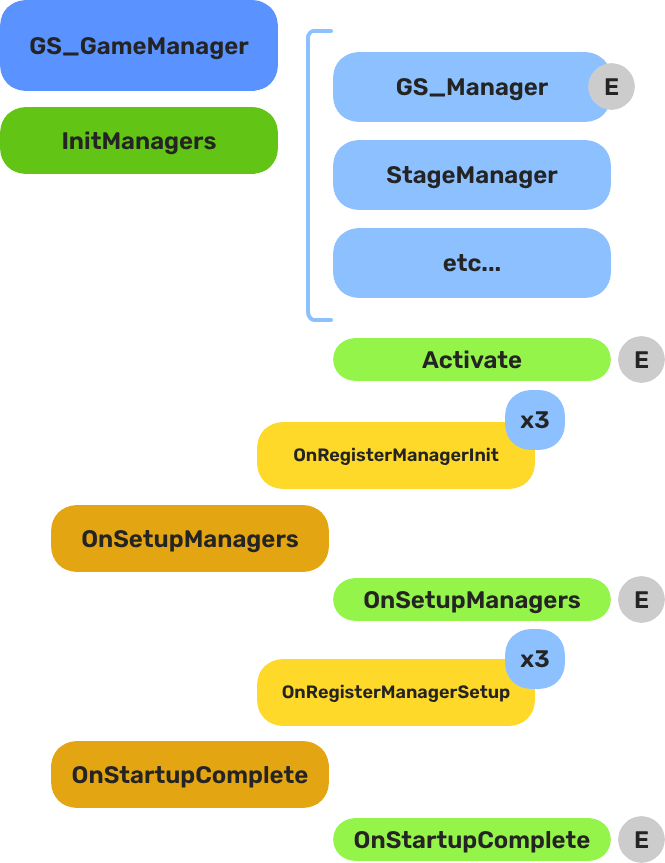
When the project starts, the Game Manager runs three stages before the game is considered ready:
| Stage | Broadcast Event | What It Means |
|---|
| 1 — Initialize | (internal) | Each manager is spawned. They activate, then report ready. |
| 2 — Setup | OnSetupManagers | Setup stage. Now safe to query other managers. |
| 3 — Complete | OnStartupComplete | Last stage. Everything is ready.
Do any last minute things. Now safe to begin gameplay. |
For most scripts, you only need OnStartupComplete. Wait for this event before doing anything that depends on managers to be completely setup.
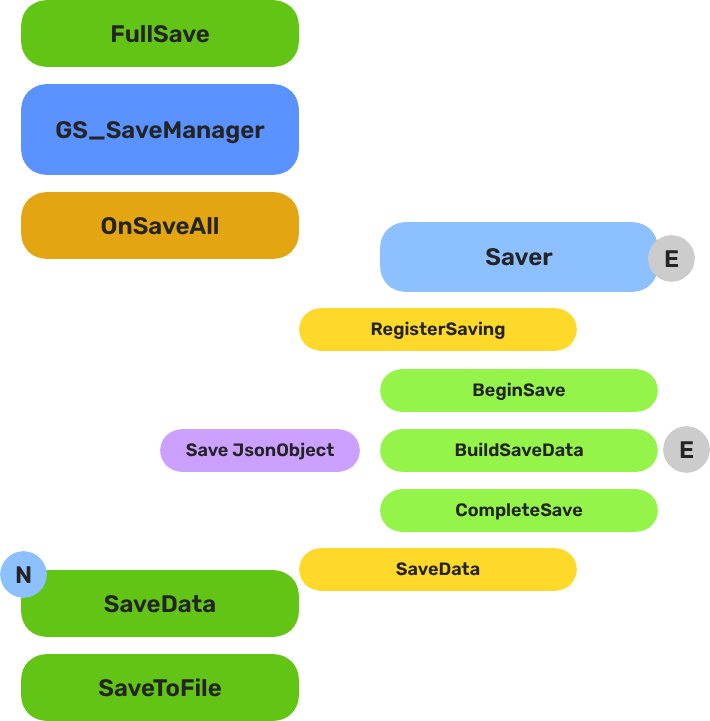
E Indicates extensible classes and methods.
Patterns - Complete list of system patterns used in GS_Play.
Headless Managers
There are two ways to run a manager, and the startup sequence above is only one of them.
Under a Game Manager, managers are spawned and coordinated as a stack. Headless is the alternative: tick the checkbox on a manager and it drives its own startup instead — no Game Manager anywhere in the project, no startup sequence to join.
- Add the manager component to an entity in your level.
- Tick Headless in the Entity Inspector.
- Press play. The manager sets itself up and reaches startup-complete on its own.
This is how you deploy a single GS feature into a project that is not built on GS_Play. A project that wants GS_Audio’s audio system and nothing else adds the Audio Manager, ticks Headless, and has working audio — no manager stack, no game-flow layer, no dependency on the Game Manager’s startup. The same applies to a project that already has its own lifecycle, title flow and save system: those stay where they are, and the GS manager simply runs.
It also covers adopting the framework in stages — take one manager headless now, and switch it onto a Game Manager later if the project grows into the full lifecycle.
A headless manager does not report to the Game Manager, so it stays out of the startup count entirely. You can run one alongside a Game Manager that is coordinating everything else without the two interfering.
Two things to know when you go headless. A headless manager starts as soon as it activates, so the guarantee that every manager is initialized before any manager reaches setup does not apply — if you run several headless managers that depend on each other, that sequencing is yours to arrange, and a Game Manager is usually the better answer. And OnBeginGame is never self-fired: reaching startup-complete says the manager is ready, while saying the game has begun stays your project’s call.
Responding to Startup
ScriptCanvas
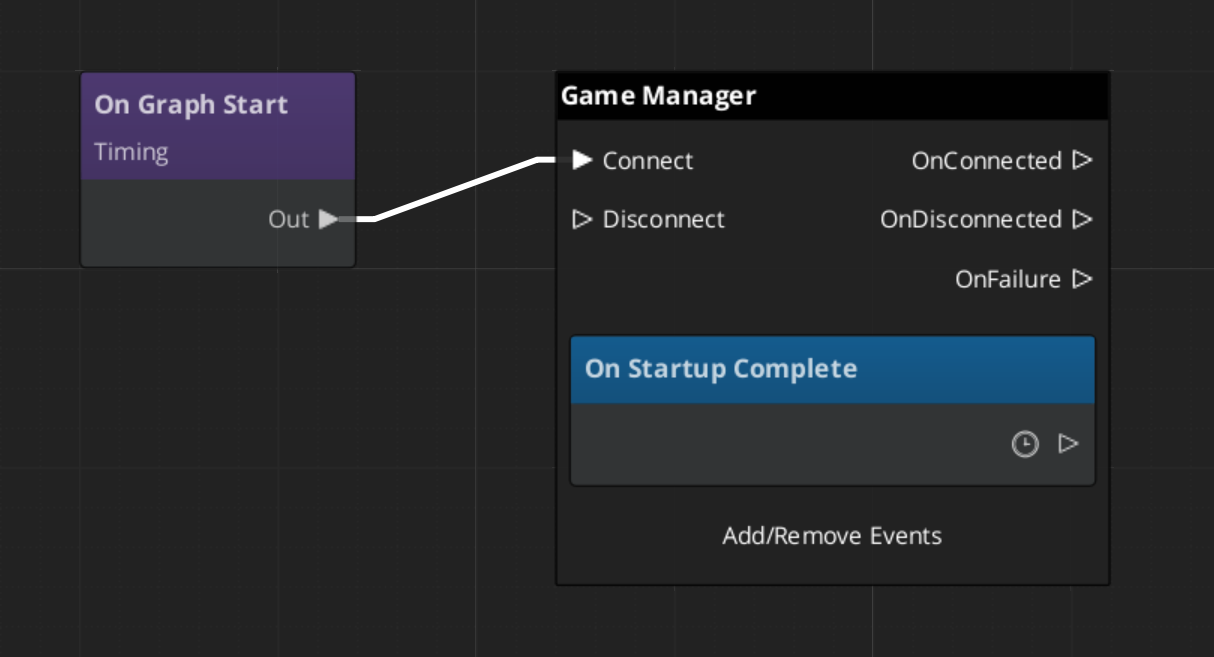
Connect to GameManagerNotificationBus and handle OnStartupComplete to know when the game is fully ready:
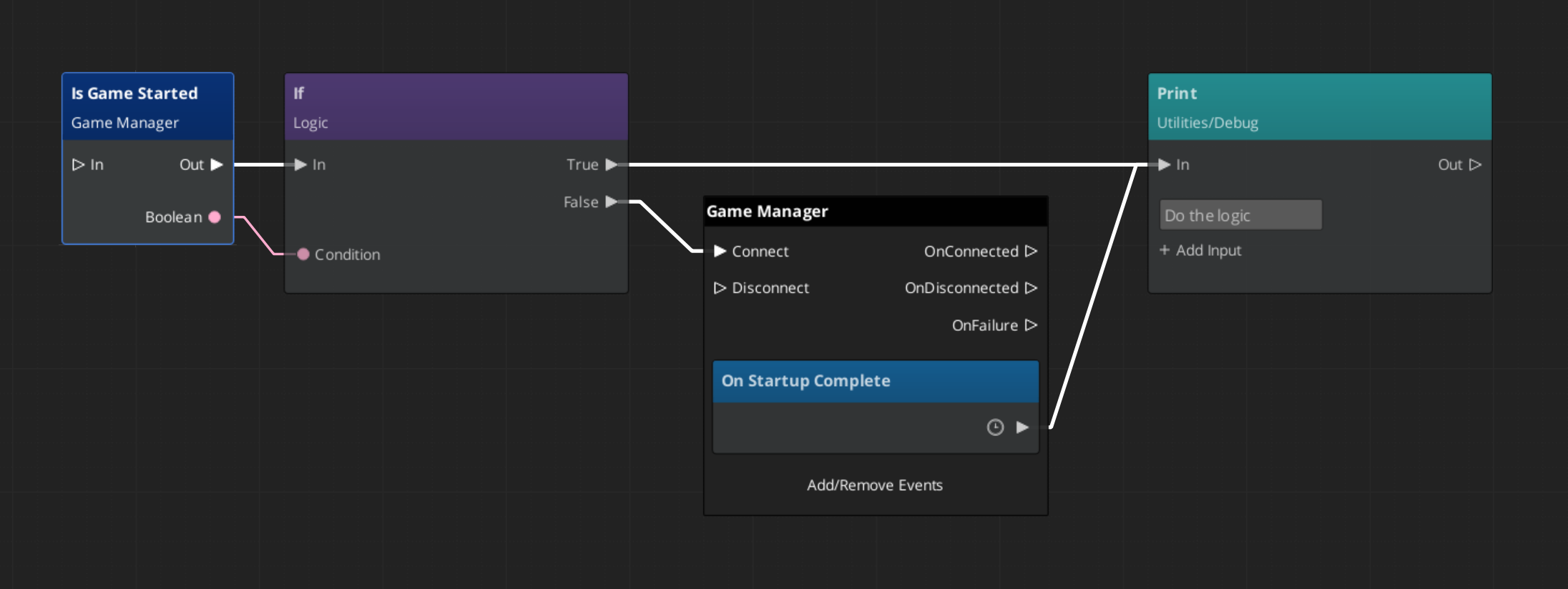
To check at any point whether the game has already finished starting, use the IsStarted request:
Game Navigation
The Game Manager owns the top-level game flow. Call these from title screens, pause menus, and end-game sequences. They coordinate the Save Manager and Stage Manager automatically.
| ScriptCanvas Node | What It Does |
|---|
TriggerNewGame | Starts a new game with the default save name. |
TriggerNewGameWithName(saveName) | Starts a new game and writes to a named save file. |
TriggerContinueGame | Loads the most recent save and continues from it. |
TriggerLoadGame(saveName) | Loads a specific save file by name. |
TriggerReturnToTitle | Returns to the title stage, tearing down the current session. |
TriggerSaveAndExitGame | Saves the current state and exits the application. |
TriggerExitGame | Exits the application without saving. |
Standby Mode
Standby is a global pause. The Game Manager enters standby automatically during level transitions and other blocking operations. It broadcasts OnEnterStandby to halt all gameplay systems, and OnExitStandby when the operation completes.
Listen to these in any script that drives continuous logic — timers, ticks, or animation sequences:
| Event | What to Do |
|---|
OnEnterStandby | Pause timers, halt ticks, stop animations. |
OnExitStandby | Resume timers, re-enable ticks. |
Both events are on GameManagerNotificationBus.
Debug Mode
When Debug Mode is enabled on the Game Manager component in the editor, the game starts in the current level instead of navigating to your title stage. This allows rapid iteration on any level without going through the full boot flow.
Debug Mode only changes startup navigation. All manager initialization and event broadcasting proceed normally.
Quick Reference
| Need | Bus | Method / Event |
|---|
| Know when startup is complete | GameManagerNotificationBus | OnStartupComplete |
| Know when the game itself begins | GameManagerNotificationBus | OnBeginGame |
| Deploy a manager with no Game Manager | (component property) | Headless checkbox |
| Check if game has started | GameManagerRequestBus | IsStarted |
| Start a new game | GameManagerRequestBus | NewGame / TriggerNewGame (SC) |
| Continue from last save | GameManagerRequestBus | ContinueGame / TriggerContinueGame (SC) |
| Load a specific save | GameManagerRequestBus | LoadGame / TriggerLoadGame (SC) |
| Return to title | GameManagerRequestBus | ReturnToTitle / TriggerReturnToTitle (SC) |
| Pause all systems | GameManagerRequestBus | EnterStandby |
| Resume all systems | GameManagerRequestBus | ExitStandby |
| Know when standby changes | GameManagerNotificationBus | OnEnterStandby / OnExitStandby |
Glossary
| Term | Meaning |
|---|
| Standby | Global pause broadcast to all managers and their subsystems |
| Startup Sequence | The three-stage lifecycle (Initialize → SetupManagers → StartupComplete) before gameplay is ready |
| Manager | A component that extends GS_ManagerComponent and registers with the Game Manager |
| Headless | A manager that drives its own startup, deployed with no Game Manager in the project |
| Debug Mode | Starts the game in the current editor level instead of navigating to the title stage |
For full definitions, see the Glossary.
See Also
For the full API, component properties, and C++ extension guide:
For step-by-step project setup:
Get GS_Core
GS_Core — Explore this gem on the product page and add it to your project.
2 - Save System
How to work with the GS_Play save system — saving game state, loading saves, and tracking progression with the Record Keeper.
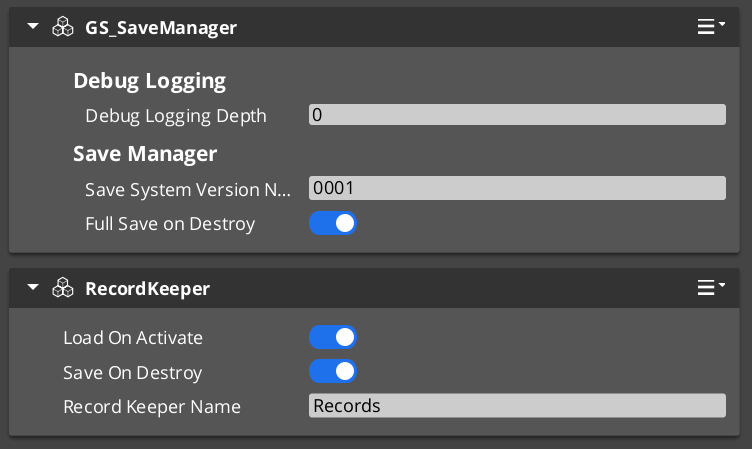
The Save system handles all persistence in a GS_Play project. The Save Manager coordinates file operations, Savers serialize per-entity state, and the Record Keeper tracks flat progression data. Together they give you a complete save/load pipeline that works out of the box and extends cleanly for custom data.
For architecture details, component properties, and extending the system in C++, see the Framework API reference.
Contents
How Saving Works
Breakdown
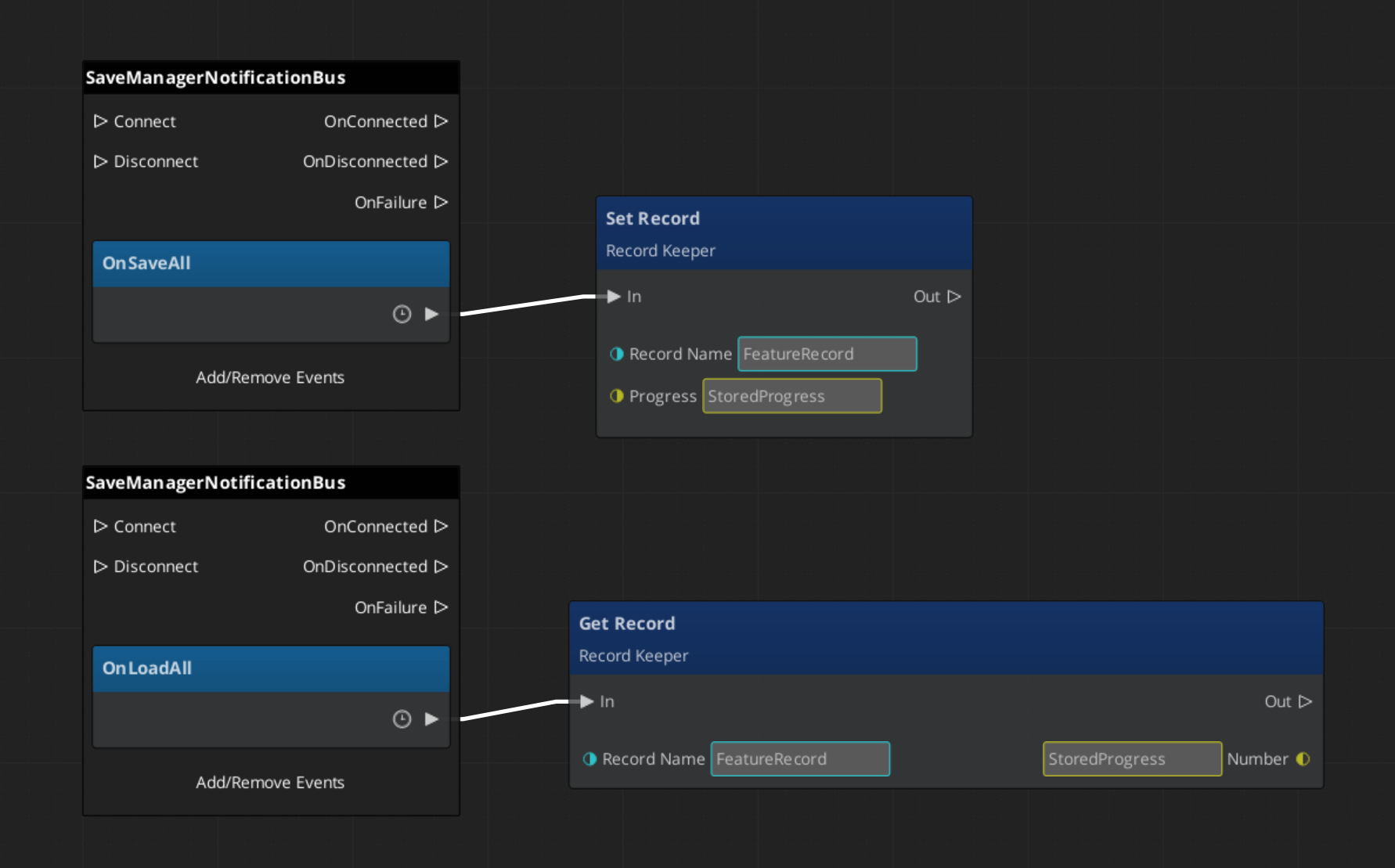
When a save is triggered, the Save Manager broadcasts OnSaveAll to every Saver component in the scene. Each Saver serializes its entity’s relevant state into the save file. When loading, the Save Manager broadcasts OnLoadAll, and each Saver restores its entity from the save data.
The Save Manager also maintains a list of all save files with metadata (timestamps, names), so you can present a save/load UI to the player.
| Operation | What Happens |
|---|
| New save | Creates a new save file, broadcasts OnSaveAll to all Savers. |
| Load save | Reads save file, broadcasts OnLoadAll to all Savers. |
| Save data | Writes current game state to the active save file. |
| Load data | Reads data from the active save file into memory. |
E Indicates extensible classes and methods.
Patterns - Complete list of system patterns used in GS_Play.
Responding to Save Events
ScriptCanvas
Connect to SaveManagerNotificationBus to know when save or load operations occur:
Triggering Saves and Loads
These methods are available on SaveManagerRequestBus:
| ScriptCanvas Node | What It Does |
|---|
NewGameSave | Creates a fresh save file for a new game. |
LoadGame(saveName) | Loads a specific save file by name. |
SaveData | Writes current state to the active save file. |
LoadData | Reads the active save file into memory. |
GetOrderedSaveList | Returns all save files sorted by most recent. |
ConvertEpochToReadable(epoch) | Converts a save file timestamp to a human-readable string. |
Record Keeper
The Record Keeper is a lightweight key-value store for tracking game-wide progression — quest flags, counters, unlock states, completion markers. It lives on the Save Manager prefab and is automatically persisted with the save system.
Unlike Savers (which are per-entity), the Record Keeper is a global singleton. Any script or component can read and write records by name.
| ScriptCanvas Node | What It Does |
|---|
HasRecord(name) | Returns whether a record with the given name exists. |
SetRecord(name, value) | Creates or updates a record. Value is a float. |
GetRecord(name) | Returns the current value of a record. |
DeleteRecord(name) | Removes a record. |
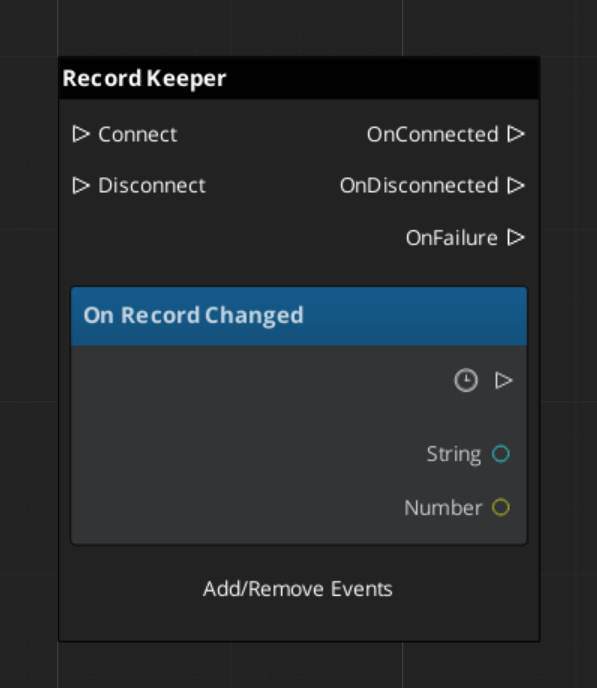
Responding to Record Changes
Listen on RecordKeeperNotificationBus for the RecordChanged event. This fires whenever any record is created, updated, or deleted — useful for UI that displays progression state.
Built-In Savers
Two Savers ship with GS_Core for the most common use cases:
| Saver | What It Saves |
|---|
| BasicEntitySaver | Entity transform (position, rotation, scale). |
| BasicPhysicsEntitySaver | Entity transform plus rigidbody velocity and angular velocity. |
Add these components to any entity that needs to persist its position across save/load cycles. They handle serialization and restoration automatically.
Quick Reference
| Need | Bus | Method / Event |
|---|
| Trigger a save | SaveManagerRequestBus | SaveData |
| Trigger a load | SaveManagerRequestBus | LoadGame(saveName) |
| Create a new save | SaveManagerRequestBus | NewGameSave |
| List all saves | SaveManagerRequestBus | GetOrderedSaveList |
| Know when saving | SaveManagerNotificationBus | OnSaveAll |
| Know when loading | SaveManagerNotificationBus | OnLoadAll |
| Check a progress flag | RecordKeeperRequestBus | HasRecord(name) / GetRecord(name) |
| Set a progress flag | RecordKeeperRequestBus | SetRecord(name, value) |
| Know when a record changes | RecordKeeperNotificationBus | RecordChanged |
Glossary
| Term | Meaning |
|---|
| Saver | A component that serializes one entity’s state into the save file |
| Record Keeper | A global key-value store for tracking progression flags and counters |
| Save File | A serialized snapshot of all Saver data plus Record Keeper state |
For full definitions, see the Glossary.
See Also
For the full API, component properties, and C++ extension guide:
For step-by-step project setup:
Get GS_Core
GS_Core — Explore this gem on the product page and add it to your project.
3 - Stage Management
How to work with the GS_Play stage management system — level loading, stage transitions, exit points, and stage data.
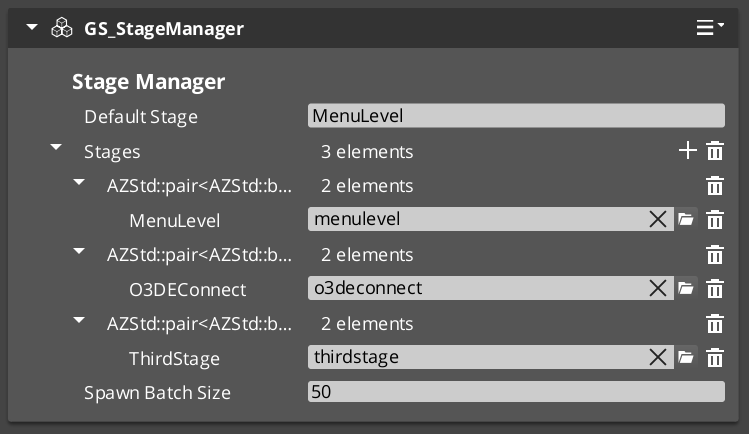
The Stage Manager handles all level-to-level navigation in a GS_Play project. It owns the master list of stages, processes transition requests, and coordinates with the Game Manager’s standby mode to ensure clean load/unload cycles. Stage Data components in each level control how that level initializes.
For architecture details, component properties, and extension patterns, see the Framework API reference.
Contents
How Stage Transitions Work
Breakdown
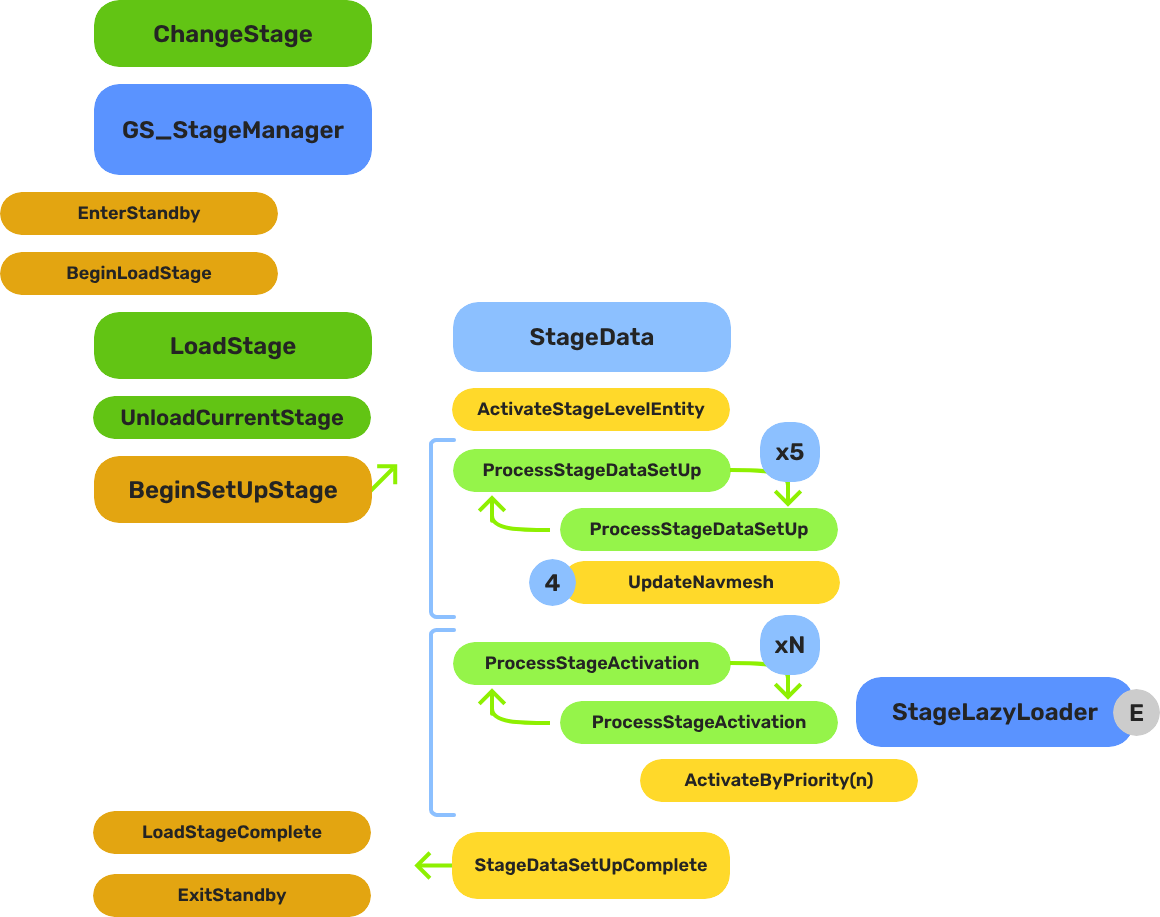
When you request a stage change, the system follows this sequence:
| Step | What Happens |
|---|
| 1 — Standby | The Game Manager enters standby, pausing all gameplay systems. |
| 2 — Unload | The current stage’s entities are torn down. |
| 3 — Spawn | The target stage’s prefab is instantiated. |
| 4 — Set Up | The Stage Data component in the new level runs its layered startup sequence. |
| 5 — Complete | The Stage Manager broadcasts LoadStageComplete. Standby exits. |
The Stage Data startup is layered — SetUpStage, ActivateByPriority, then Complete — so heavy levels can initialize incrementally without causing frame-time spikes.
E Indicates extensible classes and methods.
Patterns - Complete list of system patterns used in GS_Play.
Stage Data
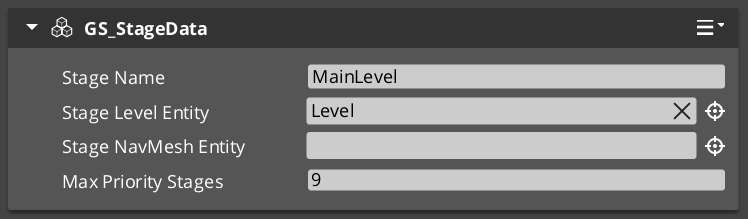
Each level should have a Stage Data component as its root entity. Using a start inactive child “Level” entity, the Stage Data system controls the initialization sequence for that new level. Stage Data holds level-specific configuration, and scripts.
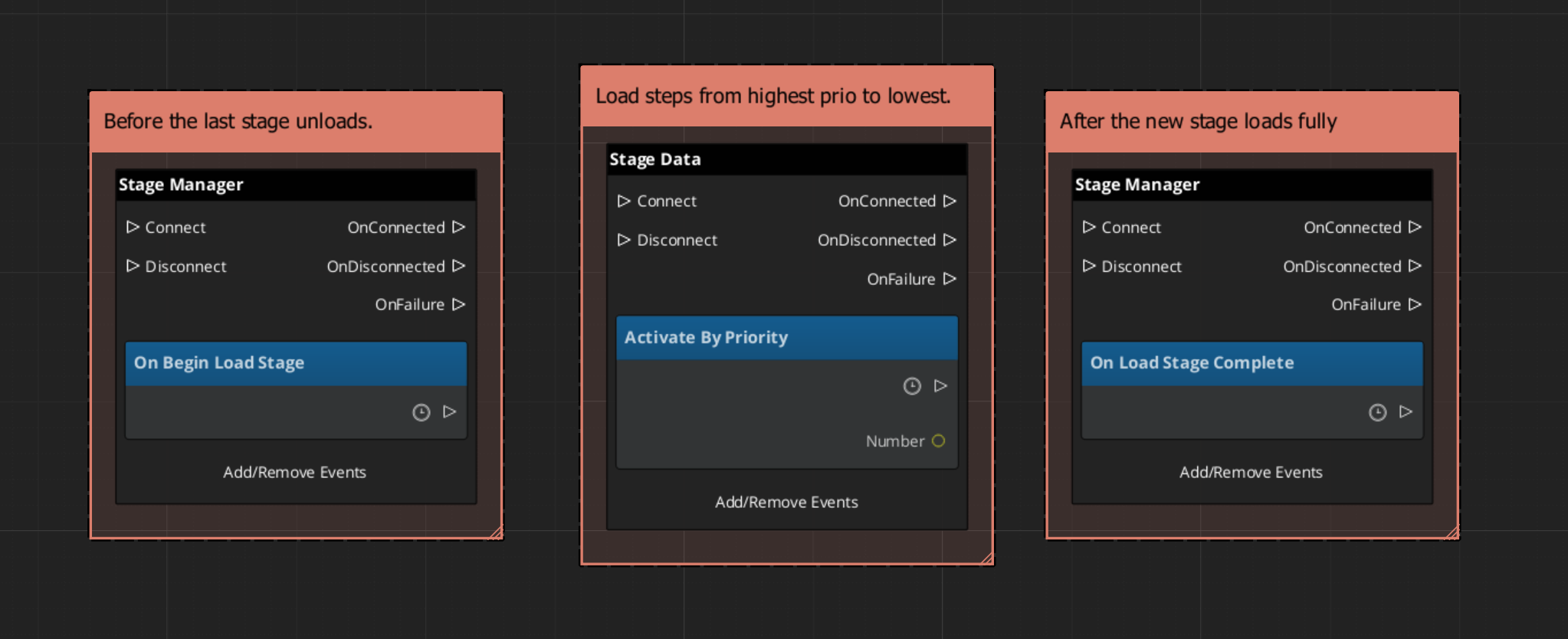
| Event | What It Means |
|---|
OnBeginSetUpStage | The level is starting its setup. Initialize per-level systems. |
ActivateByPriority | Activate heavy entities in priority order (lazy loading). |
OnLoadStageComplete | The level is fully loaded and ready. |
OnTearDownStage | The level is being unloaded. Clean up per-level state. |
Listen to these on StageDataNotificationBus in any script that needs to react to level lifecycle.
Triggering Stage Changes
ScriptCanvas
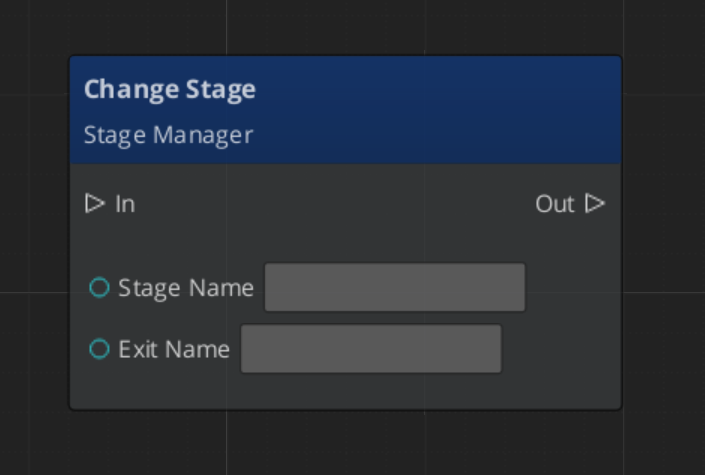
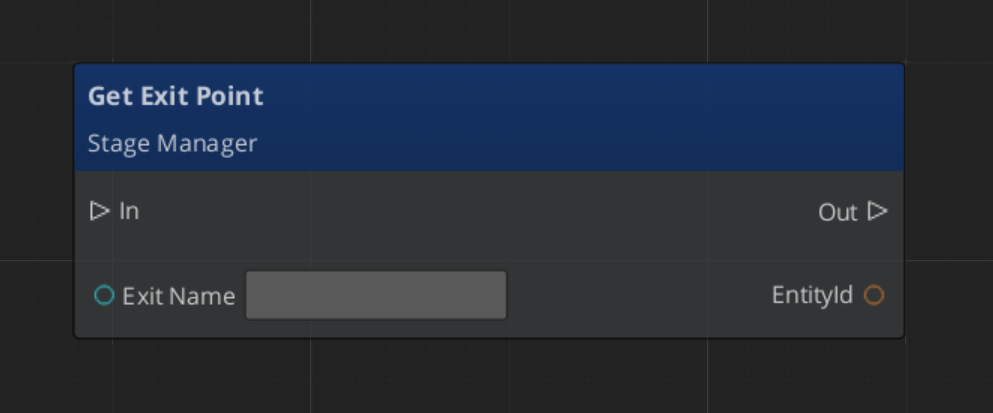
The exitPointName parameter is optional. If provided, the system will position the player at the named exit point in the target level.
Exit Points
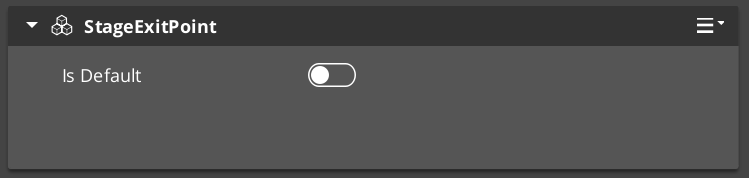
Exit Points are named position markers placed in a level. They define where entities spawn when arriving from another stage. A door in Level A can specify that when transitioning to Level B, the player should appear at Exit Point “DoorB_Entry”.
Exit Points are registered and unregistered with the Stage Manager automatically when they activate and deactivate.
| ScriptCanvas Node | What It Does |
|---|
ChangeStageRequest(stageName, exitPoint) | Transitions to a stage and positions at the named exit point. |
RegisterExitPoint(name, entity) | Manually registers an exit point (usually automatic). |
UnregisterExitPoint(name) | Manually unregisters an exit point. |
GetExitPoint(name) | Returns the entity ID of a registered exit point. |
Responding to Stage Events
ScriptCanvas
Entity Level Configuration
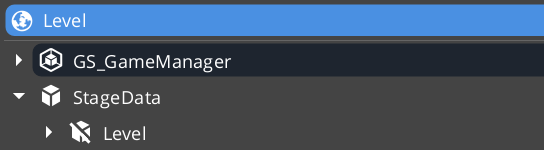
The Stage Data entity must live outside of the levels Game Manager prefab. It is left active.
Inside, it has a secondary level “wrapper” entity that you set to “Start Inactive” by default. This enables the Stage Data to control exactly when the level begins loading.
Quick Reference
| Need | Bus | Method / Event |
|---|
| Change to a different level | StageManagerRequestBus | ChangeStageRequest(stageName, exitPoint) |
| Load the default stage | StageManagerRequestBus | LoadDefaultStage |
| Know when a load starts | StageManagerNotificationBus | BeginLoadStage |
| Track loading progress | StageManagerNotificationBus | StageLoadProgress |
| Know when a load finishes | StageManagerNotificationBus | LoadStageComplete |
| React to level setup | StageDataNotificationBus | OnBeginSetUpStage |
| React to level teardown | StageDataNotificationBus | OnTearDownStage |
| Find an exit point | StageManagerRequestBus | GetExitPoint(name) |
Glossary
| Term | Meaning |
|---|
| Stage | A spawnable prefab representing a game level or screen |
| Exit Point | A named position marker in a level that defines where entities arrive from another stage |
| Stage Data | A per-level component that controls level initialization and holds level-specific settings |
| Default Stage | The first stage loaded on application start (typically the title screen) |
For full definitions, see the Glossary.
See Also
For the full API, component properties, and C++ extension guide:
For related systems:
Get GS_Core
GS_Core — Explore this gem on the product page and add it to your project.
4 - Options & Input
How to work with the GS_Play options system — player settings with profiles and presets, plus input profiles, groups and runtime binding management.
The Options system covers two things a project needs and rarely wants to write itself:
- Settings — the options a player changes: volume, graphics, resolution, accessibility. You declare them as data and the framework applies, saves and restores them.
- Input — group-based input binding that can be rebound and toggled at runtime without code changes.
For architecture details, component properties, and extension patterns, see the Framework API reference.
Contents
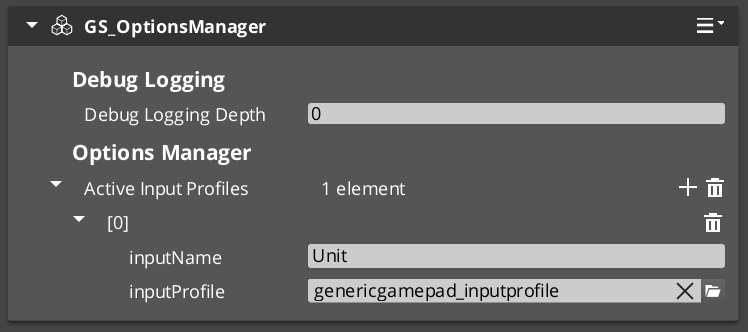
Options Manager
The Options Manager is the singleton that owns both halves of this system. It holds your option profiles and presets, and the active Input Profile. It responds to the Game Manager lifecycle automatically.
Assign three things to it: your option profiles, any presets, and your input profile.
Settings
Settings are the options a player changes — volume, graphics, resolution, accessibility. You declare them as data in an Options Profile asset, and the framework applies, saves and restores them.
Settings
API
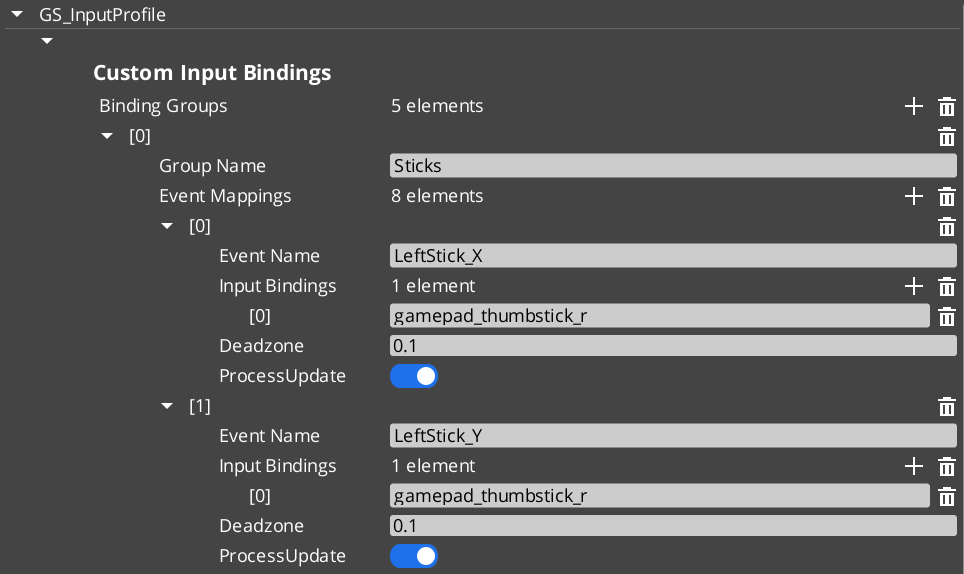
An Input Profile is a data asset created in the O3DE Asset Editor. It contains named input groups, each holding a set of event mappings. Each event mapping binds a gameplay event name to one or more raw input bindings (key presses, axis movements, button presses) with configurable deadzones.
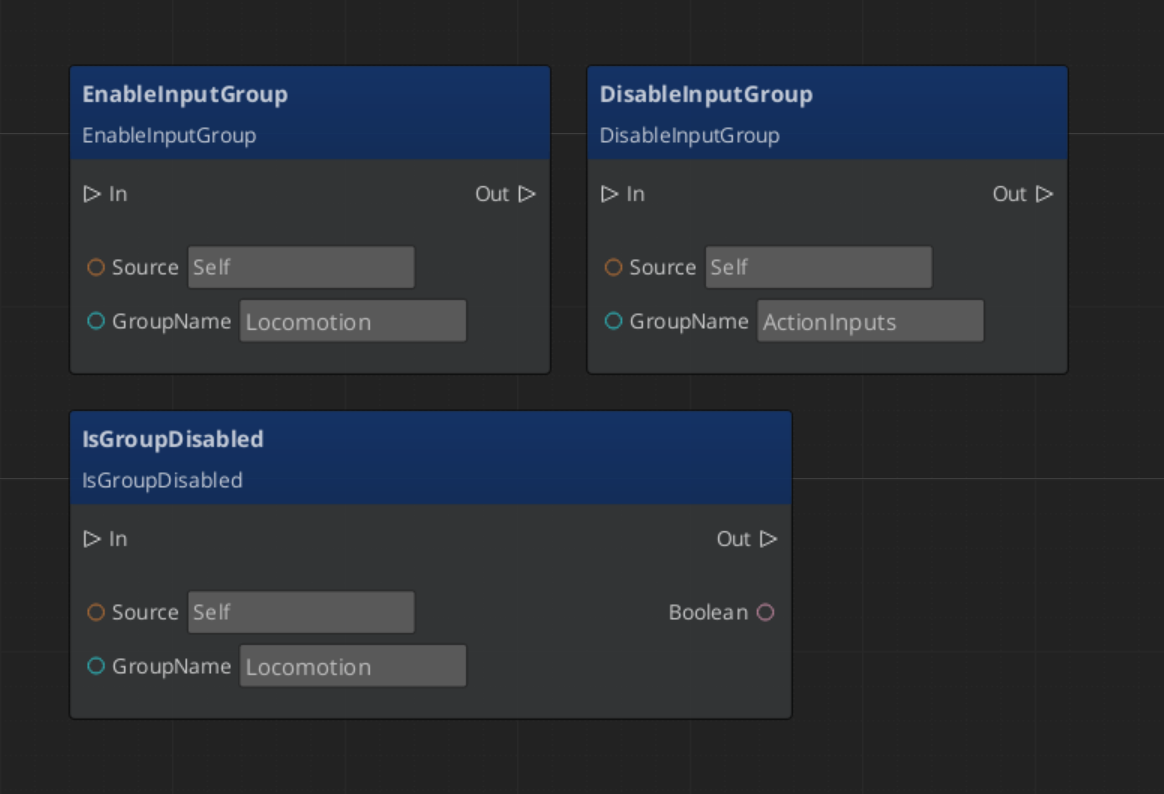
The key advantage over raw O3DE input bindings is the group system. Groups can be enabled and disabled independently at runtime — a pause menu can suppress gameplay input by disabling the “Gameplay” group, without tearing down and rebuilding bindings.
| Stage | What Happens |
|---|
| 1 — Raw Input | O3DE’s input system captures key/axis/button events. |
| 2 — Input Reader | The GS_InputReaderComponent on the entity matches raw input against the active Input Profile’s event mappings. |
| 3 — Event Mapping | Matched input fires a named gameplay event (e.g., “Jump”, “MoveForward”). |
| 4 — Consumer | Other components on the entity (controllers, reactors) handle the gameplay event. |
Input Readers filter by group — if a group is disabled, none of its event mappings fire.
Quick Reference
| Need | Bus | Method / Event |
|---|
| Disable an input group | InputReaderRequestBus | DisableInputGroup(groupName) |
| Enable an input group | InputReaderRequestBus | EnableInputGroup(groupName) |
| Check if group is disabled | InputReaderRequestBus | IsGroupDisabled(groupName) |
| Get the active profile | OptionsManagerRequestBus | GetActiveInputProfile |
Glossary
| Term | Meaning |
|---|
| Input Profile | A data asset containing named input groups with event mappings |
| Input Group | A named collection of event mappings that can be enabled or disabled at runtime |
| Event Mapping | A binding from a gameplay event name to one or more raw input sources |
| Input Reader | A component that matches raw input against the active Input Profile |
For full definitions, see the Glossary.
See Also
For the full API, component properties, and C++ extension guide:
Get GS_Core
GS_Core — Explore this gem on the product page and add it to your project.
4.1 - Settings
How to declare player settings as data, read and write them from your game, and offer quality presets.
Settings are the options a player changes — volume, graphics quality, resolution, accessibility choices. GS_Play lets you declare them as data and handles the rest: applying each one to the engine, saving them, and restoring them next launch.
You do not write loading code, saving code, or apply code. You author what the options are and what each one drives.
For architecture details and the full API, see the Framework API reference.
Contents
Declaring Settings
Settings are authored as data, not code. Create an Options Profile asset and add an option for each thing your game exposes.
Every option carries:
| Field | What it is |
|---|
| Key | The name your code and presets use, e.g. audio.master. |
| Display Name | What the player sees. |
| Category | Which page it belongs on — Graphics, Audio, Display, Gameplay, Accessibility, Controls. |
| Description | Tooltip text. |
| Apply target | What it actually does when changed. |
Pick the option kind for the widget you want — a toggle, a slider with min/max/step, a dropdown with labelled entries, or a colour picker.
The apply target is the part worth pausing on. It is what connects the option to the engine: a console variable, the window mode, the resolution, an audio channel’s volume — or nothing at all, if the value is just something your own game code reads.
You can assign more than one profile. They merge by key, so a project can layer its own options over a supplied set.
In a dropdown, the label is not the value
Each dropdown entry has a Label the player sees and a Value that gets stored and applied. When you write a preset, use the value.
Reading and Writing Settings
Setting a value applies it, saves it and notifies listeners in one call. You never have to apply or save separately.
| Need | Method |
|---|
| Read a value | GetOptionBool / GetOptionFloat / GetOptionInt / GetOptionString |
| Change a value | SetOptionBool / SetOptionFloat / SetOptionInt / SetOptionString |
| Restore one option | ResetToDefault |
| Restore everything | ResetAllToDefault |
| Get every option in a category | GetOptionsByCategory |
| React to any change | OnOptionChanged on the notification bus |
GetOptionsByCategory is how you build a settings screen without hard-coding it — ask for the Graphics options and build a row per key.
A tip worth taking: the ImGui debug menu renders your entire option catalog live, with the right widget for each option. Author an option, press play, and drive it before you build any UI for it.
Presets
A preset is a named set of values — Low, Medium, High. Create a preset asset, list the keys it sets and the values it sets them to, and assign it to the Options Manager.
Applying a preset overwrites those options, applies and saves in one action.
Presets have no state of their own. A preset counts as active only while every value it names still matches, so the moment a player nudges one slider, the active preset becomes Custom. That is the familiar behaviour, and it happens for free.
Quick Reference
| Need | Bus | Method / Event |
|---|
| Read a setting | OptionsManagerRequestBus | GetOptionFloat / Bool / Int / String |
| Change a setting | OptionsManagerRequestBus | SetOptionFloat / Bool / Int / String |
| Restore one setting | OptionsManagerRequestBus | ResetToDefault |
| Restore everything | OptionsManagerRequestBus | ResetAllToDefault |
| List a category’s options | OptionsManagerRequestBus | GetOptionsByCategory |
| Apply a preset | OptionsManagerRequestBus | ApplyPreset |
| Know which preset is active | OptionsManagerRequestBus | GetActivePresetName |
| React to a setting change | OptionsManagerNotificationBus | OnOptionChanged |
Glossary
| Term | Meaning |
|---|
| Options Profile | An asset declaring the settings a game exposes |
| Apply Target | What an option does to the engine when its value changes |
| Key | The stable name a setting is stored and referred to by |
| Preset | A named set of values, e.g. Low / Medium / High |
| Custom | The active preset name when values no longer match any preset |
See Also
For the full API:
For related systems:
Get GS_Core
GS_Core - Explore this gem on the product page and add it to your project.
5 - Systems
Core framework systems — the GS_Actions triggerable behavior system and the GS_Motion track-based animation engine.
GS_Core provides a growing number of standalone systems that are used across multiple gems. Currently, the GS_Motion track-based animation engine powers UIAnimation and Juice Feedback playback.
For architecture details, component properties, and C++ extension guides, see the Framework API: Systems.
Contents
GS_Motion
Provides tween-style Motion Track components for animating transforms, colors, and values over time. Multiple tracks on the same entity run in parallel; chains are configured by setting an On Complete motion name.
GS_Motion
API
See Also
For the full API, component properties, and C++ extension guides:
For related systems:
Get GS_Core
GS_Core — Explore this gem on the product page and add it to your project.
5.1 - Actions System
How to work with the GS_Play action system — triggerable, composable behaviors that fire from scripts, triggers, or code.
The Actions system provides a universal pattern for attaching discrete, reusable behaviors to entities and triggering them from any source — ScriptCanvas, World Triggers, UI buttons, or C++ code. Actions are data-driven components that fire on named channels, enabling composition without custom scripting.
For architecture details, component properties, and creating custom actions in C++, see the Framework API reference.
Contents
How Actions Work
An Action is a component you attach to an entity. Each Action has a channel name. When something calls DoAction(channelName) on that entity’s bus, every Action component whose channel matches the name will execute.
This decoupling is the core value — the system that fires DoAction does not need to know what kind of action is attached. You can change, add, or remove action components on an entity without modifying any calling code.
| Concept | What It Means |
|---|
| Channel | A named string. Actions on the same channel fire together. |
| Composition | Multiple actions on the same channel execute in parallel — stack components to compose behaviors. |
| Chaining | An action can fire a different channel on completion, enabling lightweight sequences. |
Triggering Actions
ScriptCanvas
[ActionRequestBus → DoAction(channelName)]
    └─► All Action components on this entity with matching channel execute
To know when an action completes:
[ActionNotificationBus → OnActionComplete]
    └─► Action has finished executing
Built-In Actions
GS_Core ships with these ready-to-use actions:
| Action | What It Does |
|---|
| PrintLog | Logs a configurable message to the console. Useful for debugging trigger chains. |
| ToggleMouseCursor | Shows or hides the system mouse cursor. |
Additional actions are available in other gems (e.g., World Trigger actions in GS_Interaction, dialogue effects in GS_Cinematics).
Common Patterns
World Trigger → Action
A World Trigger detects a collision or interaction event and fires DoAction on its entity. Action components on the same entity respond — one might play a sound, another might set a record, another might toggle an entity.
A UI button press fires DoAction with a channel name. Actions handle the response — navigate to a different UI page, start a new game, or toggle the pause menu.
Chaining Actions
Set an action’s “Chain Channel” property to fire a different channel when it completes:
Channel "OpenDoor" → [ToggleEntity action] → chains to "PlayDoorSound" → [AudioEvent action]
Quick Reference
| Need | Bus | Method / Event |
|---|
| Fire an action | ActionRequestBus | DoAction(channelName) |
| Know when an action completes | ActionNotificationBus | OnActionComplete |
Glossary
| Term | Meaning |
|---|
| Action | A component that executes a discrete behavior when triggered on a named channel |
| Channel | A named string identifier that groups actions — all actions on the same channel fire together |
| Chaining | Configuring an action to fire a different channel on completion, creating lightweight sequences |
For full definitions, see the Glossary.
See Also
For the full API, component properties, and C++ extension guide:
For related systems:
Get GS_Core
GS_Core — Explore this gem on the product page and add it to your project.
5.2 - Motion System
How to work with GS_Motion — the track-based animation and tween system that powers UI transitions, feedback effects, and custom animations.
GS_Motion is a track-based animation engine built into GS_Core. It drives timed property changes — position, rotation, scale, color, opacity — through authored data assets rather than hand-coded interpolation scripts. Domain gems extend GS_Motion with their own track types: GS_UI adds 8 LyShine-specific tracks for UI animation, and GS_Juice adds transform and material tracks for game feel feedback.
For architecture details, the domain extension pattern, and all track types, see the Framework API reference.
Contents
Key Concepts
| Concept | What It Is |
|---|
| Track | A single animated property — what changes, how long, and which easing curve. |
| Motion | A collection of tracks that play together. Tracks can start at different times within the motion. |
| Motion Asset | A data asset authored in the O3DE Asset Editor containing the tracks and their configuration. |
| Proxy | An optional entity redirect — lets a track target a child entity instead of the motion’s owner. |
| Composite | The runtime instance created from an asset. Each entity gets its own deep copy. |
How It Works
- Author a motion asset in the Asset Editor. Each domain has its own asset type (
.uiam for UI, .feedbackmotion for Juice). - Assign the asset to a component or embed it in a serialized field (e.g., a page’s show/hide transitions).
- Play the motion from ScriptCanvas or C++. The system initializes a runtime composite, resolves proxies, and ticks all tracks.
- Each track receives an eased progress value (0 → 1) every frame and applies its property change to the target entity.
- When all tracks complete, the motion fires its OnComplete callback.
Easing Curves
Every track can use any of the 40+ easing curves from the GS_Core curves library. Curves are configured per-track in the asset editor.
Available families: Linear, Quad, Cubic, Sine, Expo, Circ, Back, Elastic, Bounce — each with In, Out, and InOut variants.
Proxy Targeting
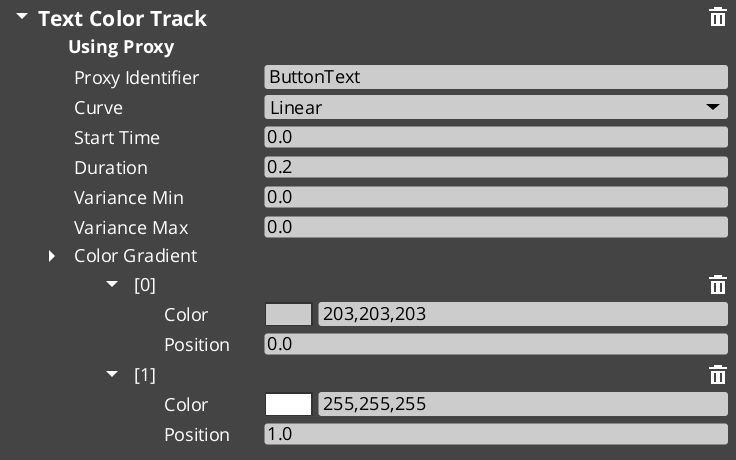
When a motion asset has tracks with identifiers (named labels), those tracks appear in the proxy list on the component. Proxies let you redirect a track to a different entity in the hierarchy — for example, a page show animation might animate the background separately from the content panel.
Each proxy entry maps a track label to a target entity. If no proxy is set, the track targets the motion’s owner entity.
Domain Extensions
GS_Motion is not used directly — it provides the base system that domain gems extend with concrete track types.
UI Animation (GS_UI)
Eight tracks for LyShine UI elements (position, scale, rotation, alpha, color, text). Asset extension: .uiam. Used for page transitions, button hover/select effects, and standalone UI animation.
UI Animation API
Feedback Motions (GS_Juice)
Two tracks for game feel effects — transform (position, scale, rotation) and material (opacity, emissive, color tint). Asset extension: .feedbackmotion. Used for screen shake, hit flash, and visual feedback.
Feedback Motions API
Quick Reference
| Need | Where |
|---|
| Animate UI elements | Use .uiam assets with UiAnimationMotionComponent or page transitions |
| Create feedback effects | Use .feedbackmotion assets with FeedbackEmitter component |
| Change easing curve | Edit the curve type on individual tracks in the asset editor |
| Redirect a track to another entity | Configure proxy entries on the component |
| Loop an animation | Enable loop on the motion asset |
Glossary
| Term | Meaning |
|---|
| Track | A single animated property within a motion — defines what changes, duration, and easing |
| Motion | A collection of tracks that play together as a single animation |
| Motion Asset | A data asset authored in the Asset Editor containing track configurations |
| Proxy | An entity redirect that lets a track target a child entity instead of the motion’s owner |
| Composite | The runtime instance created from a motion asset — each entity gets its own deep copy |
| Domain Extension | A gem-specific set of track types that extends GS_Motion for a particular use case |
For full definitions, see the Glossary.
See Also
For the full API, component properties, and C++ extension guide:
For related systems:
Get GS_Core
GS_Core — Explore this gem on the product page and add it to your project.
6 - Utilities
General-purpose components and math helpers — physics triggers, easing curves, spring dampers, gradients, splines, and more.
GS_Core includes a library of general-purpose components and math helpers available to every system in the framework. These utilities handle common game development tasks — physics overlap detection, value interpolation, animation curves, gradient sampling, and spatial math — so you can focus on gameplay logic rather than reimplementing fundamental patterns.
For full API details and code examples, see the Framework API reference.
Contents
Physics Trigger Volume
A reusable physics overlap detector. Handles trigger enter, stay, and exit events with filtering and callback support. Used internally by Pulsors, Targeting Fields, and World Triggers — and available for your own components.
Physics Trigger Volume API
Easing Curves
40+ easing functions organized into families. Every GS_Motion track, spring, and interpolation system in the framework can reference these curves by enum.
| Family | Variants |
|---|
| Linear | Linear |
| Quad | In, Out, InOut |
| Cubic | In, Out, InOut |
| Sine | In, Out, InOut |
| Expo | In, Out, InOut |
| Circ | In, Out, InOut |
| Back | In, Out, InOut |
| Elastic | In, Out, InOut |
| Bounce | In, Out, InOut |
Select a curve type via the CurveType enum in component properties, asset fields, or C++ code.
Curves API
Spring Dampers
15+ spring functions for physically-grounded value interpolation. Springs produce natural-feeling motion that reacts to velocity and acceleration, making them ideal for camera smoothing, UI follow, and any value that should “settle” rather than snap.
| Function | Use Case |
|---|
| Simple Spring | Basic spring with damping |
| Acceleration Spring | Spring with acceleration bias |
| Double Spring | Two-stage spring for overshoot effects |
| Timed Spring | Spring that reaches target in a fixed time |
| Velocity Spring | Spring driven by velocity |
| Quaternion Spring | Spring for rotation values |
Springs API
Gradients
Multi-stop gradient types for sampling values over a range. Used extensively by GS_Motion tracks and GS_Juice feedback tracks to define animation curves.
| Type | What It Samples |
|---|
| ColorGradient | RGBA color with positioned markers |
| FloatGradient | Single float value |
| Vector2Gradient | 2D vector |
Gradients are editable in the Inspector with visual marker placement.
Gradients API
Entity Helpers
Utility functions for finding entities in the scene by name.
| Function | What It Does |
|---|
GetEntityByName(name) | Returns the entity with the given name. |
GetEntityIdByName(name) | Returns the EntityId of the named entity. |
Entity Helper API
Weighted Random
Template-based weighted random selection. Given a collection of items with weights, returns a randomly selected item biased by weight. Useful for loot tables, dialogue variation, and procedural placement.
GS_Random API
Angle Helpers
Functions for angle and orientation math, plus 22 preset section configurations for direction classification.
| Function | What It Does |
|---|
YawFromDir(direction) | Extracts yaw angle from a direction vector. |
QuatFromYaw(yaw) | Creates a quaternion from a yaw angle. |
PickByAngle(angle, sections) | Maps an angle to a section index using a preset configuration. |
Section presets range from 2-section (left/right) to 16-section (compass-style), plus diagonal and cardinal configurations. Useful for animation direction selection and 2D-style facing.
Angle Helper API
Spline Helpers
Utility functions for working with O3DE spline components.
| Function | What It Does |
|---|
FindClosestWorldPoint(spline, point) | Returns the closest point on the spline in world space. |
FindClosestLocalPoint(spline, point) | Returns the closest point in local space. |
FindClosestFraction(spline, point) | Returns the 0–1 fraction along the spline. |
Spline Helper API
Serialization Helpers
Utility functions for common O3DE serialization patterns. Simplifies working with SerializeContext and EditContext in component reflection.
Serialization Helper API
Common Enums
Shared enumeration types used across the framework.
Common Enums API
Glossary
| Term | Meaning |
|---|
| Easing Curve | A function that maps linear progress (0→1) to a shaped output for smooth animation |
| Spring Damper | A physically-modeled interpolation function that settles naturally toward a target |
| Gradient | A multi-stop sampler that returns interpolated values (color, float, vector) over a 0→1 range |
| Physics Trigger Volume | A reusable overlap detector that fires enter, stay, and exit callbacks |
For full definitions, see the Glossary.
See Also
For the full API, component properties, and code examples:
For related systems:
Get GS_Core
GS_Core — Explore this gem on the product page and add it to your project.
7 - Debugging
How to run a level directly with Debug Mode, and how to inspect and drive a running game with the in-game GS_Play menu.
Two things make working on a GS_Play project faster: Debug Mode, which lets you press play on the level you are editing instead of booting the whole game, and the in-game GS_Play menu, which lets you see and change what the framework is doing while it runs.
For architecture details and the extension guide, see the Framework API reference.
Contents
Debug Mode
Tick Debug Mode on your Game Manager and pressing play runs this level, right now.
Without it, a project boots the way a shipped game does: it starts up, waits for the game to be begun, then loads the configured starting stage and navigates away from whatever you were editing.
With it, three things change:
| System | Normally | In Debug Mode |
|---|
| Game Manager | Waits for your title flow to begin the game | Begins the game as soon as startup completes |
| Stage Manager | Loads the project’s starting stage | Stays in the current level, if it has a Stage Data component |
| Unit Manager | Waits for the game flow to place the player | Places the player at the debug exit point |
The net effect is that you get a running, playable level without a title screen or a stage transition.
If your level still navigates away
The Stage Manager can only stay in the current level if that level has a Stage Data component. Without one there is nothing to adopt, so it loads the default starting stage as usual. That is the first thing to check when a level jumps somewhere else on play.Turn it off before you ship
Debug Mode is a property on the Game Manager, not a build setting. If it is ticked in the prefab you package, the shipped game will skip your title flow and begin play immediately.
Run the game with ImGui enabled and there is a GS_Play entry in the menu bar. Each gem contributes its own section.
| Menu | What you can do |
|---|
| Core ▸ Options | See every setting your project declares, grouped by category, and change any of them live. Apply, save, reset individually or all at once, and try presets. |
| Core ▸ Game Manager | Inspect the game manager, and exit the application. |
| PhantomCam ▸ Camera Management | Pick the active camera, force one to the front, and edit its lens live. |
| Audio ▸ Audio Mixer | Master volume plus a slider for every volume channel. |
The Options window is the fastest way to test a new setting. Author the option, press play, and drive it from the menu — before writing any menu UI of your own. Every edit goes through the same bus your UI will use, so if it works there it will work in your game.
The Audio Mixer is similarly useful for balancing: run the game, play the sounds, and move the channel sliders until the mix is right.
Making a Manager Talk
Every manager has a Logging Depth property. Set it above zero and that manager reports its lifecycle as it activates, sets up and shuts down.
This is per-manager on purpose. When you are diagnosing one system’s startup, turn it up on that manager rather than making the whole framework verbose.
Quick Reference
| Need | Where |
|---|
| Run the current level without booting the game | Debug Mode on the Game Manager |
| Change a setting live | GS_Play ▸ Core ▸ Options |
| Balance the audio mix | GS_Play ▸ Audio ▸ Audio Mixer |
| Switch or tune a camera live | GS_Play ▸ PhantomCam ▸ Camera Management |
| See one manager’s startup | Logging Depth on that manager |
| Check debug mode from script | GameManagerRequestBus ▸ In Debug |
Glossary
| Term | Meaning |
|---|
| Debug Mode | A Game Manager property that begins the game immediately and keeps you in the current level |
| Stage Data | The per-level component that lets the Stage Manager treat a level as a stage |
| Logging Depth | A per-manager verbosity setting for lifecycle logging |
See Also
For the full API and the extension guide:
For related systems:
Get GS_Core
GS_Core — Explore this gem on the product page and add it to your project.