Dialogue System
How to author and play back branching dialogue in GS_Play — the Dialogue Editor, node types, conditions, effects, performances, and the runtime sequencer.
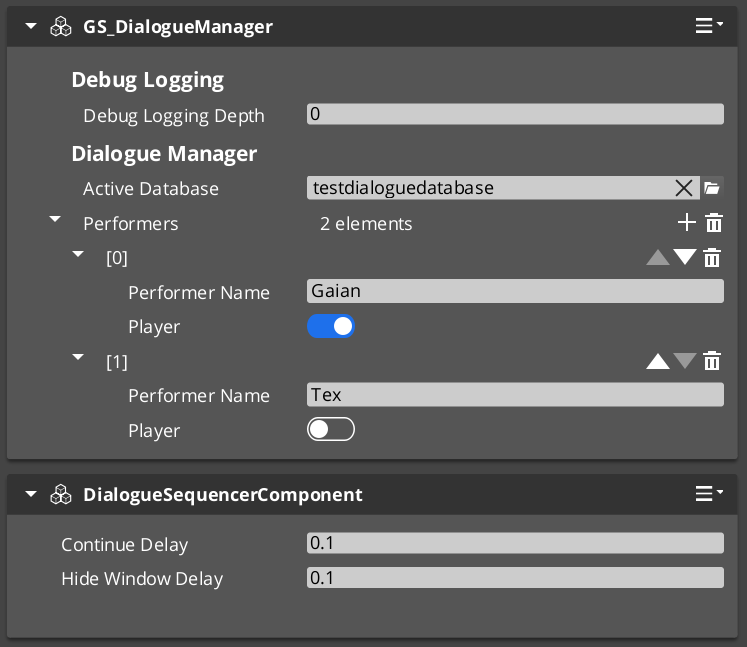
The Dialogue System is the authoring and runtime core of GS_Cinematics. Dialogue is authored visually in the Dialogue Editor — a node graph tool where sequences are built from Text, Selection, Effects, and Performance nodes inside a .dialoguedatabase container file. At runtime, GS_DialogueManagerComponent manages the active database and maps performer names to entities in the level, while DialogueSequencerComponent drives playback — walking the graph, evaluating conditions, executing effects, and emitting events that UI components consume.
For architecture details, component properties, and extending the system in C++, see the Framework API reference.
Contents
Dialogue Editor
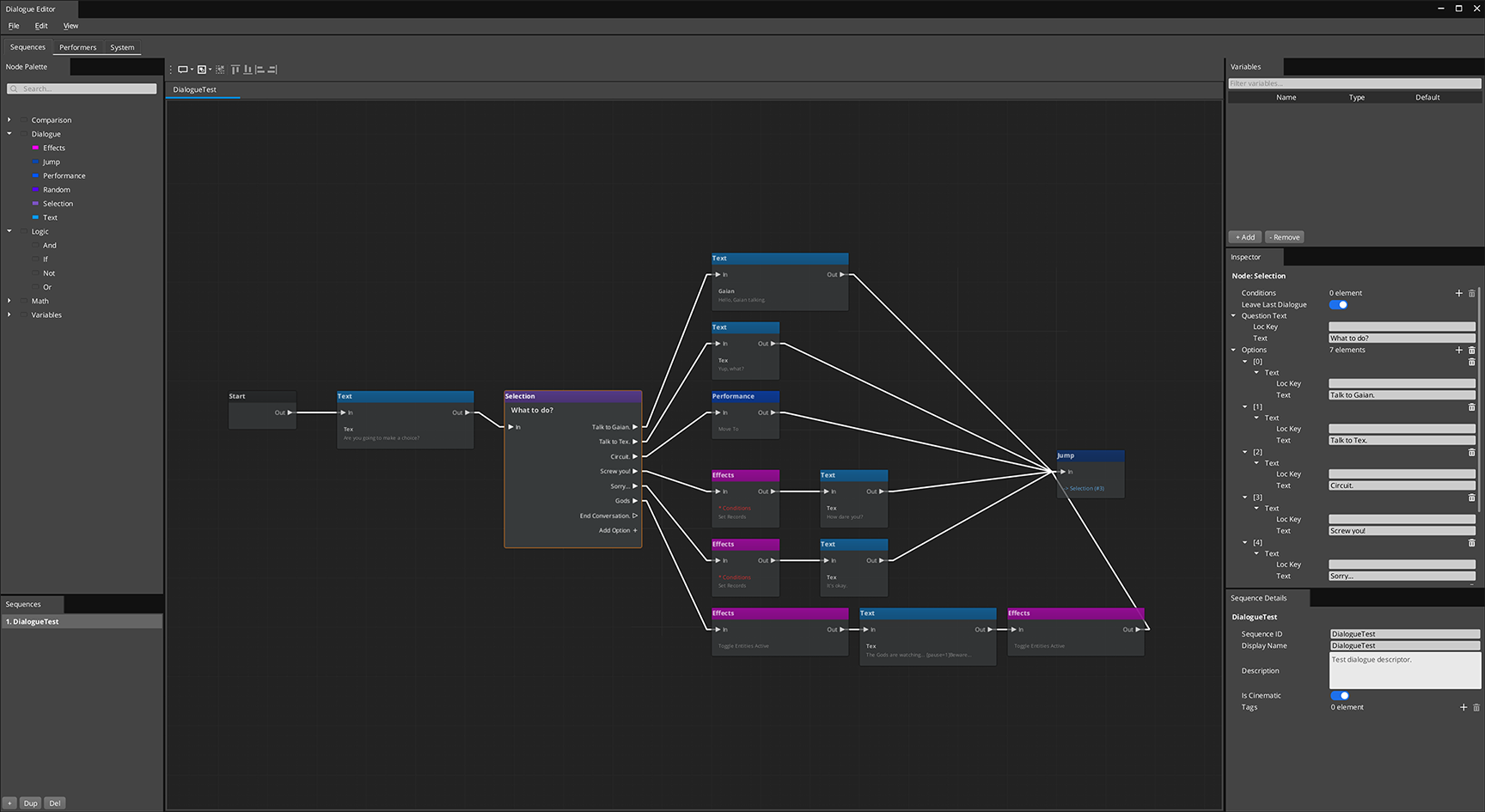
Dialogue is authored in the Dialogue Editor — a visual node graph tool opened from GS Tools > Dialogue Editor. Each .dialoguedatabase file is a container holding all actors and sequences for a dialogue database. Sequences are built as directed node graphs: connect Text, Selection, Random, Effects, and Performance nodes to define the conversation flow. The editor saves the entire container as one file — individual sequences are not separate assets.
Conditions, effects, and performance types from any gem are discovered automatically at startup and appear in the editor without modifying GS_Cinematics.
Database Model
A .dialoguedatabase file is a container managed entirely through the Dialogue Editor:
| Container Contents | Purpose |
|---|
| Actors / Performers | Character definitions with portrait and metadata. Defined on the Performers page. |
| Sequences | Each sequence is an independent graph, opened as a tab via the Sequence Sidebar. |
| System settings | Database-level defaults, on the System page. |
The editor saves and loads the entire container as one file. Individual sequences are not separate assets. Switch the active database at runtime via DialogueManagerRequestBus::ChangeDialogueDatabase.
Authoring a Sequence
- Open GS Tools > Dialogue Editor
- File > New → save as
.dialoguedatabase - Define performers on the Performers page
- On the Sequences page, click Add in the sidebar, name the sequence
- Build the graph: drag nodes from the palette, connect FlowOut → FlowIn
- Ctrl+S to save the database
Node Types
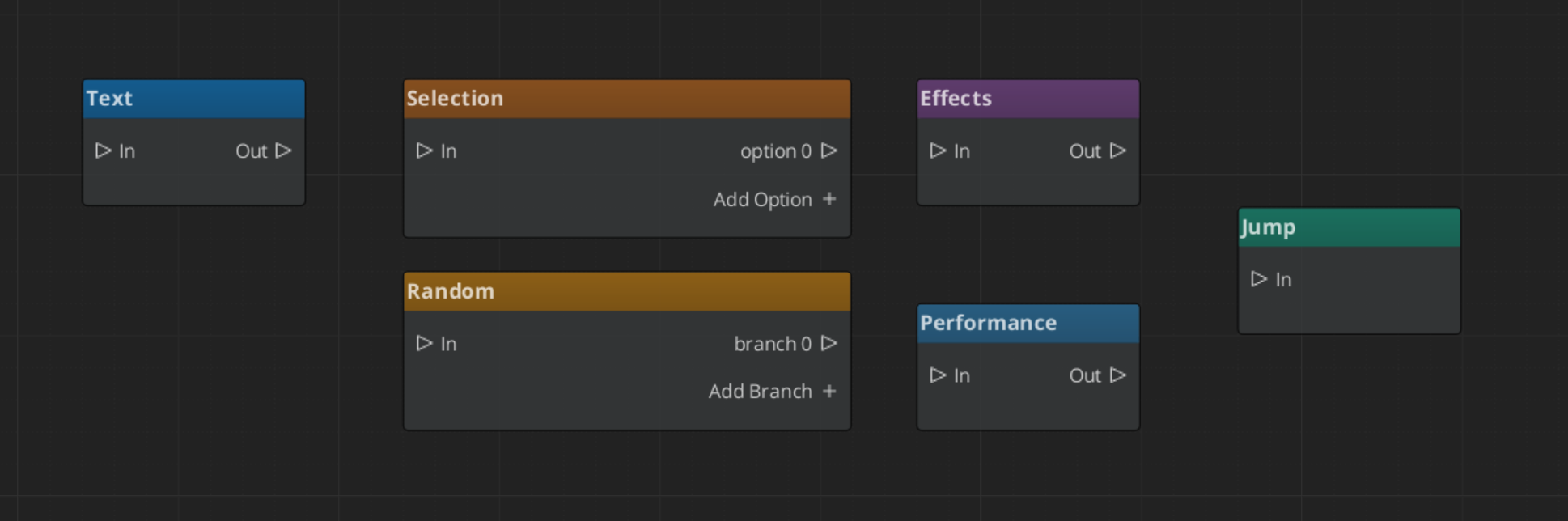
Each sequence is a directed graph of nodes connected by FlowOut → FlowIn slots.
| Node | What It Does |
|---|
| Start | Entry point. Auto-spawned, one per sequence. |
| Text | Displays a line of dialogue from a speaker. Supports localization. |
| Selection | Presents the player with choices. One FlowOut slot per option. |
| Random | Selects a random outgoing branch. Supports weighted randomization. |
| Effects | Executes one or more DialogueEffect objects. |
| Performance | Triggers a DialoguePerformance action, optionally waits for it to complete. |
| End | Terminates the sequence. |
Conditions
Conditions are polymorphic objects added to any node. The sequencer evaluates all conditions before entering a node — failed conditions cause the evaluator to skip it and try the next valid path.
| Condition Type | What It Evaluates |
|---|
Boolean_DialogueCondition | A base boolean comparison. |
Record_DialogueCondition | Checks a game record via the RecordKeeper system. |
Custom conditions from any gem are discovered automatically — subclass DialogueCondition, reflect it, and it appears in the inspector type picker.
Effects
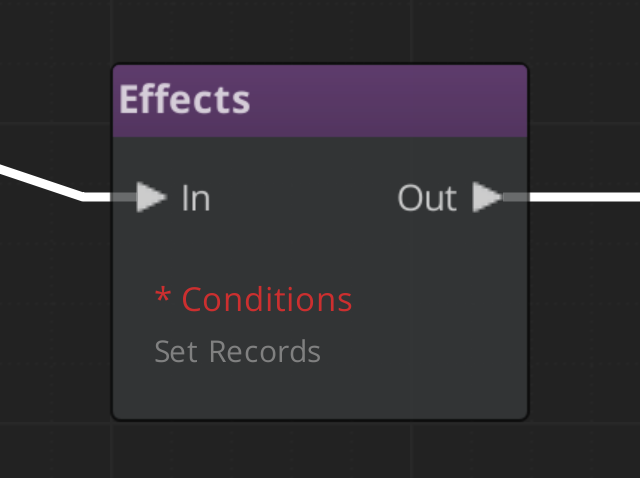
Effects are polymorphic objects executed when the sequencer reaches an Effects node.
| Effect Type | What It Does |
|---|
SetRecords_DialogueEffect | Sets one or more game records via the RecordKeeper system. |
ToggleEntitiesActive_DialogueEffect | Activates or deactivates entities in the level. |
Custom effects follow the same discovery pattern as conditions.
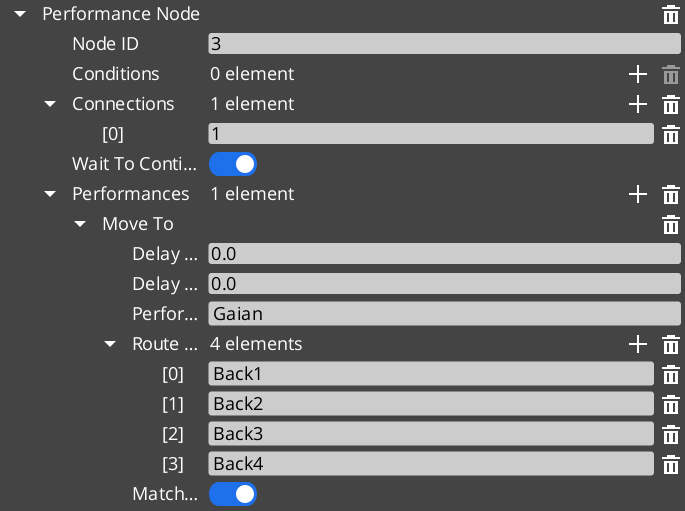
Performances are polymorphic actions executed at Performance nodes. The sequencer can optionally wait for completion before advancing.
| Performance Type | What It Does |
|---|
MoveTo_DialoguePerformance | Smoothly moves a performer to a named stage marker. |
PathTo_DialoguePerformance | Navigates a performer to a marker via NavMesh. |
RepositionPerformer_DialoguePerformance | Instantly teleports a performer to a marker (non-blocking). |
Custom performance types are discovered automatically.
Runtime Playback
GS_DialogueManagerComponent
The top-level manager for all dialogue. Holds the active database, maps performer names to level entities, and is the entry point for starting sequences.
| Bus | Method | What It Does |
|---|
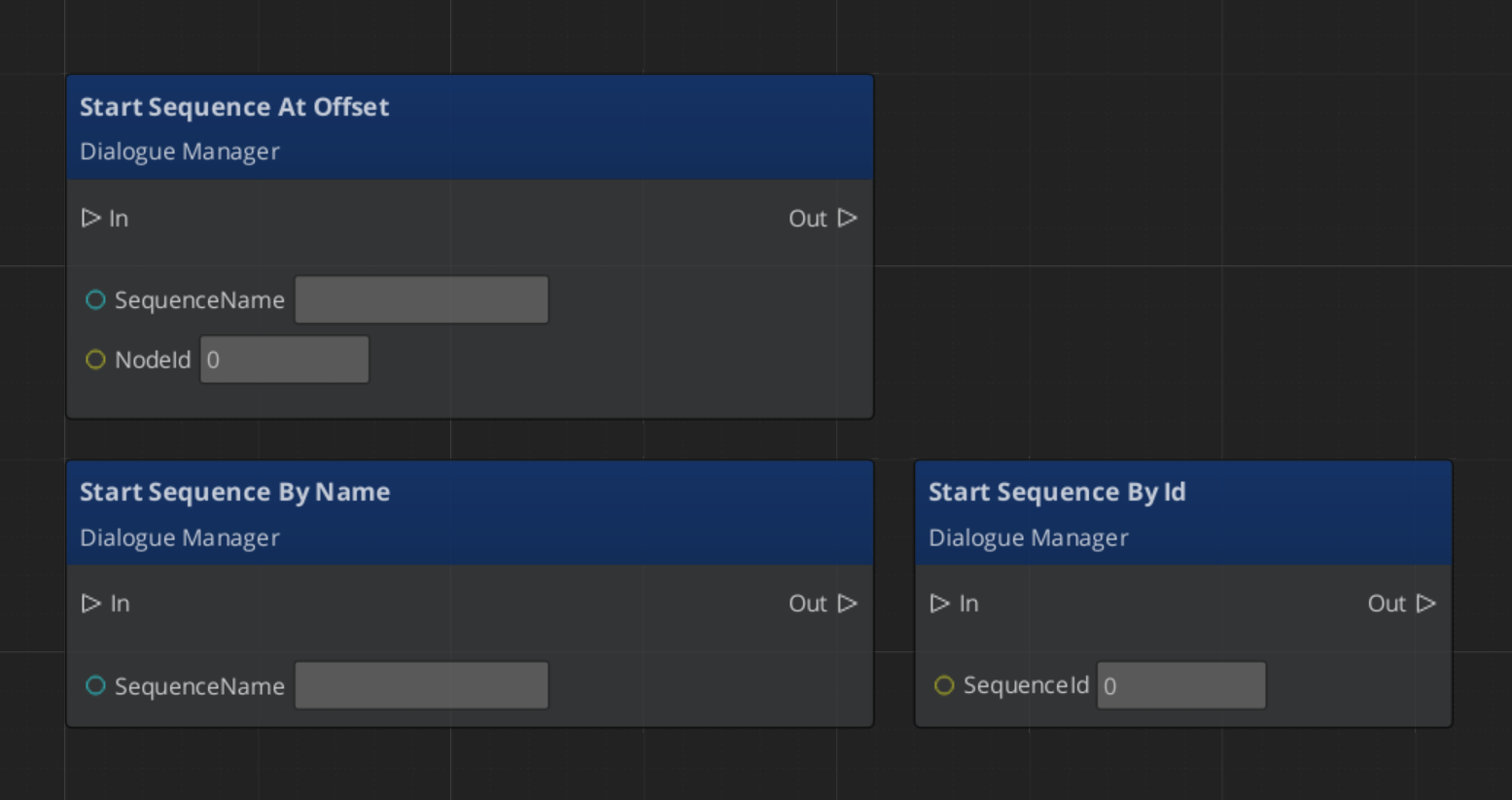
DialogueManagerRequestBus | StartDialogueSequenceByName | Starts a named sequence from the active database. |
DialogueManagerRequestBus | ChangeDialogueDatabase | Loads a different .dialoguedatabase asset. |
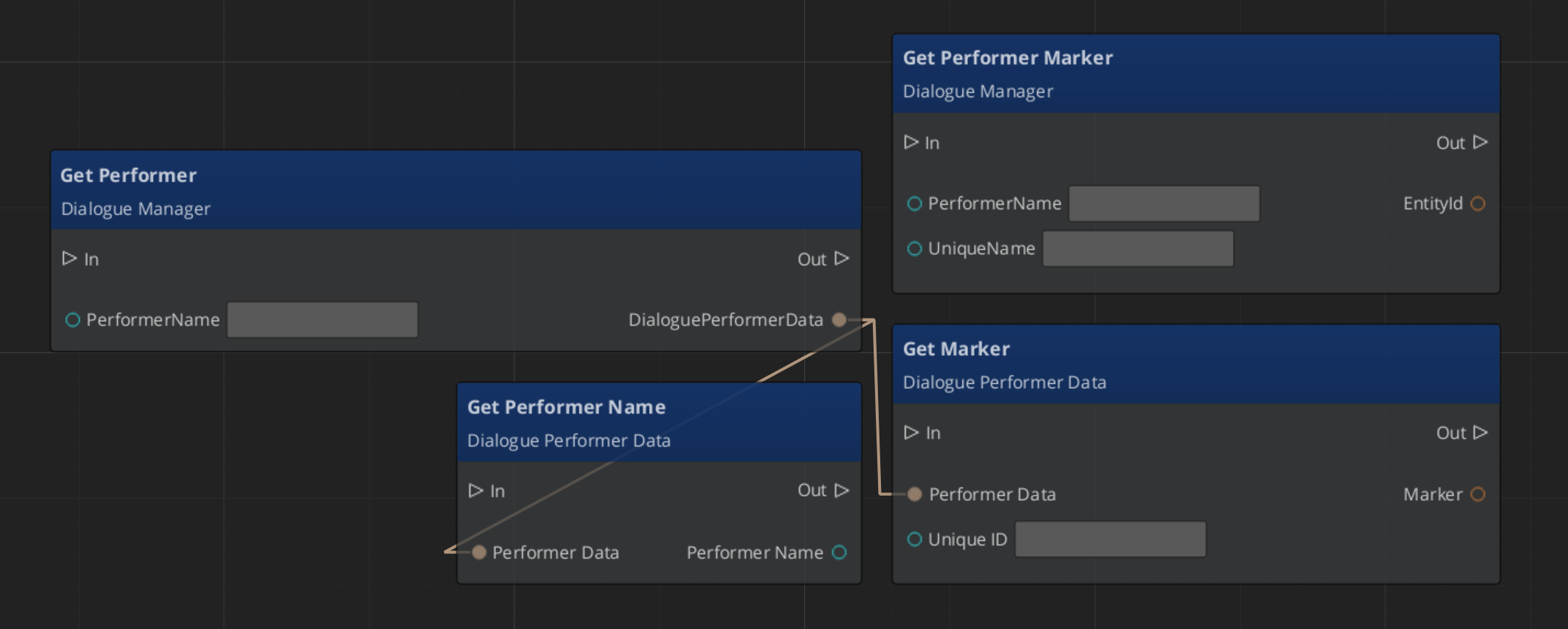
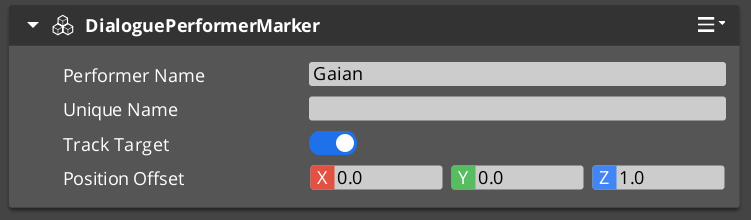
DialogueManagerRequestBus | RegisterPerformerMarker | Registers a performer entity by name for the current level. |
DialogueManagerRequestBus | GetPerformer | Returns the entity for a named performer. |
DialogueSequencerComponent
Drives sequence playback. Walks the graph, evaluates conditions, executes effects, triggers performances, and emits notifications for the UI layer.
| Bus | Method / Event | Purpose |
|---|
DialogueSequencerRequestBus | StartDialogueBySequence | Begins playback of a sequence object directly. |
DialogueSequencerNotificationBus | OnDialogueTextBegin | Fires when a Text node executes — carries speaker and text data. |
DialogueSequencerNotificationBus | OnDialogueSequenceComplete | Fires when the sequence reaches its End node. |
Localization
Text nodes store lines as LocalizedStringId references — a key plus default fallback text. At runtime Resolve() looks up the key in the active LocalizedStringTable and returns the localized string. If no table is loaded or the key is absent, the fallback text is used.
ScriptCanvas Usage
Starting a Dialogue Sequence
Quick Reference
| Need | Bus | Method / Event |
|---|
| Start a sequence by name | DialogueManagerRequestBus | StartDialogueSequenceByName |
| Load a different database | DialogueManagerRequestBus | ChangeDialogueDatabase |
| Register a performer | DialogueManagerRequestBus | RegisterPerformerMarker |
| Get a performer entity | DialogueManagerRequestBus | GetPerformer |
| Start a sequence directly | DialogueSequencerRequestBus | StartDialogueBySequence |
| React to a text line | DialogueSequencerNotificationBus | OnDialogueTextBegin |
| React to sequence end | DialogueSequencerNotificationBus | OnDialogueSequenceComplete |
Glossary
| Term | Meaning |
|---|
| Dialogue Editor | The visual gs_graphcanvas-based tool for authoring dialogue sequences |
| DialogueDatabase | A .dialoguedatabase container asset holding actors and sequences |
| DialogueSequence | A graph of nodes defining a single dialogue conversation |
| DialogueCondition | A polymorphic evaluator gating node entry |
| DialogueEffect | A polymorphic action executed at Effects nodes |
| DialoguePerformance | A polymorphic action that moves or repositions performers; optionally blocking |
| Performer | A named actor entity in the level mapped from the database via DialoguePerformerMarkerComponent |
For full definitions, see the Glossary.
See Also
Get GS_Cinematics
GS_Cinematics — Explore this gem on the product page and add it to your project.
1 - Dialogue UI
How to display dialogue text, player choices, and typewriter effects in GS_Play — screen-space and world-space UI components and the bridge that connects them to the sequencer.
The Dialogue UI layer is the display side of the GS_Cinematics system. It receives events from DialogueSequencerComponent through DialogueUIBridgeComponent and routes them to the correct UI implementation — screen-space for HUD-style dialogue or world-space for speech bubbles above actors. Player choices are handled by selection components, and the TypewriterComponent reveals text character-by-character. BabbleComponent optionally plays per-character audio babble to give speakers a voice.
For architecture details, component properties, and extending the system in C++, see the Framework API reference.
Contents
Component Overview
| Component | Space | Purpose |
|---|
DialogueUIComponent | Screen | Displays the current speaker line on the HUD. |
WorldDialogueUIComponent | World | Displays speech bubbles positioned above actors in 3D space. |
DialogueUISelectionComponent | Screen | Renders player choice options on the HUD. |
WorldDialogueUISelectionComponent | World | Renders player choice options in 3D world space. |
DialogueUIBridgeComponent | — | Routes sequencer events to UI and player input back to sequencer. |
TypewriterComponent | — | Reveals text one character at a time with configurable timing. |
BabbleComponent | — | Plays per-character audio babble for the active speaker. |
DialogueUIBridgeComponent
The Bridge component is the central connector between the sequencer and the UI. Place it on the same entity as DialogueSequencerComponent. It listens for OnDialogueTextBegin and OnDialogueSequenceComplete from the sequencer and forwards those events to whatever UI components are registered with it. It also receives player selection events from the selection UI and forwards them back to the sequencer.
This design keeps the sequencer and the display fully decoupled — swapping in a new UI implementation only requires registering it with the Bridge.
| Bus | Method | What It Does |
|---|
DialogueUIBridgeRequestBus | RunDialogue | Sends a text line to the registered dialogue UI. |
DialogueUIBridgeRequestBus | RunSelection | Sends selection options to the registered selection UI. |
DialogueUIBridgeRequestBus | RegisterDialogueUI | Registers a UI entity as the active dialogue display target. |
DialogueUIBridgeRequestBus | CloseDialogue | Tells the registered UI to close. |
DialogueUIBridgeNotificationBus | OnDialogueComplete | Fires when the dialogue UI reports it has finished displaying. |
DialogueUIBridgeNotificationBus | OnSelectionComplete | Fires when the player makes a selection. |
Dialogue Display Components
Screen-Space Text
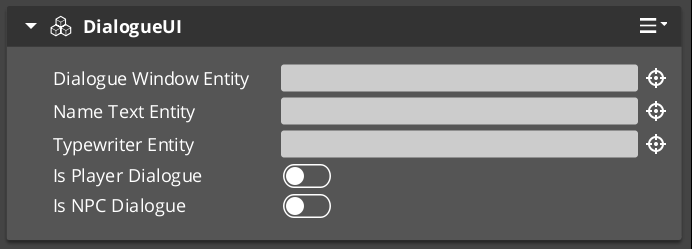
DialogueUIComponent handles HUD-style dialogue display. Add it to a UI canvas entity. It exposes the active TypewriterComponent so other systems can check typewriter state or force completion.
World-Space Speech Bubbles
WorldDialogueUIComponent extends DialogueUIComponent for world-space placement. It positions the dialogue panel above the speaking actor’s entity in 3D space. Use this for over-the-shoulder dialogue or conversations where the camera stays in the world rather than cutting to a UI overlay.
Selection Components
Screen-Space Choices
DialogueUISelectionComponent renders the player’s available choices as a list on the HUD. Each choice is backed by a DialogueSelectButtonComponent entity that is configured with option text and a selection index. When the player activates a button, it fires back through the Bridge to the sequencer.
World-Space Choices
WorldDialogueUISelectionComponent extends DialogueUISelectionComponent for world-space display. Choices appear positioned in 3D space rather than as a HUD overlay, useful for games with diegetic UI.
TypewriterComponent

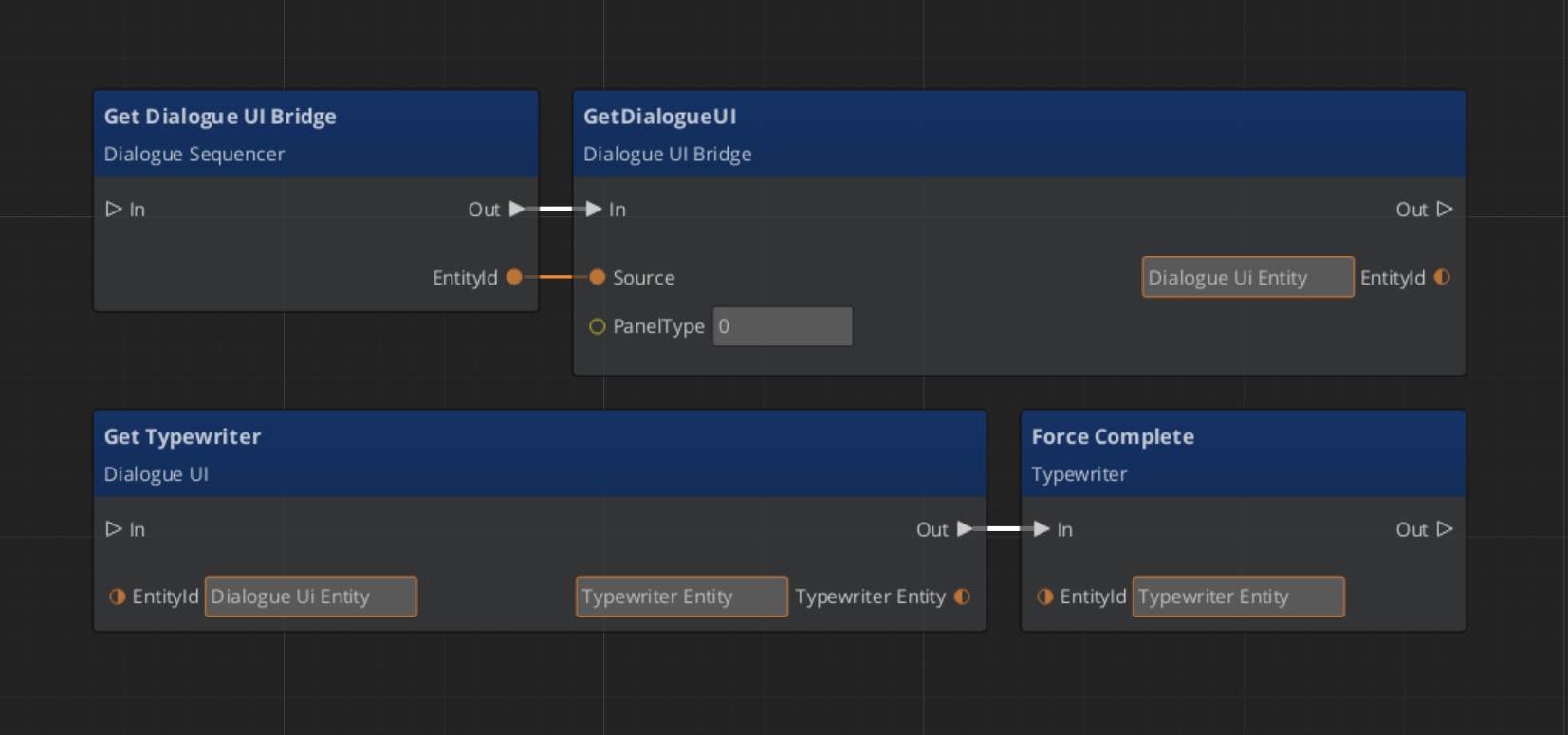
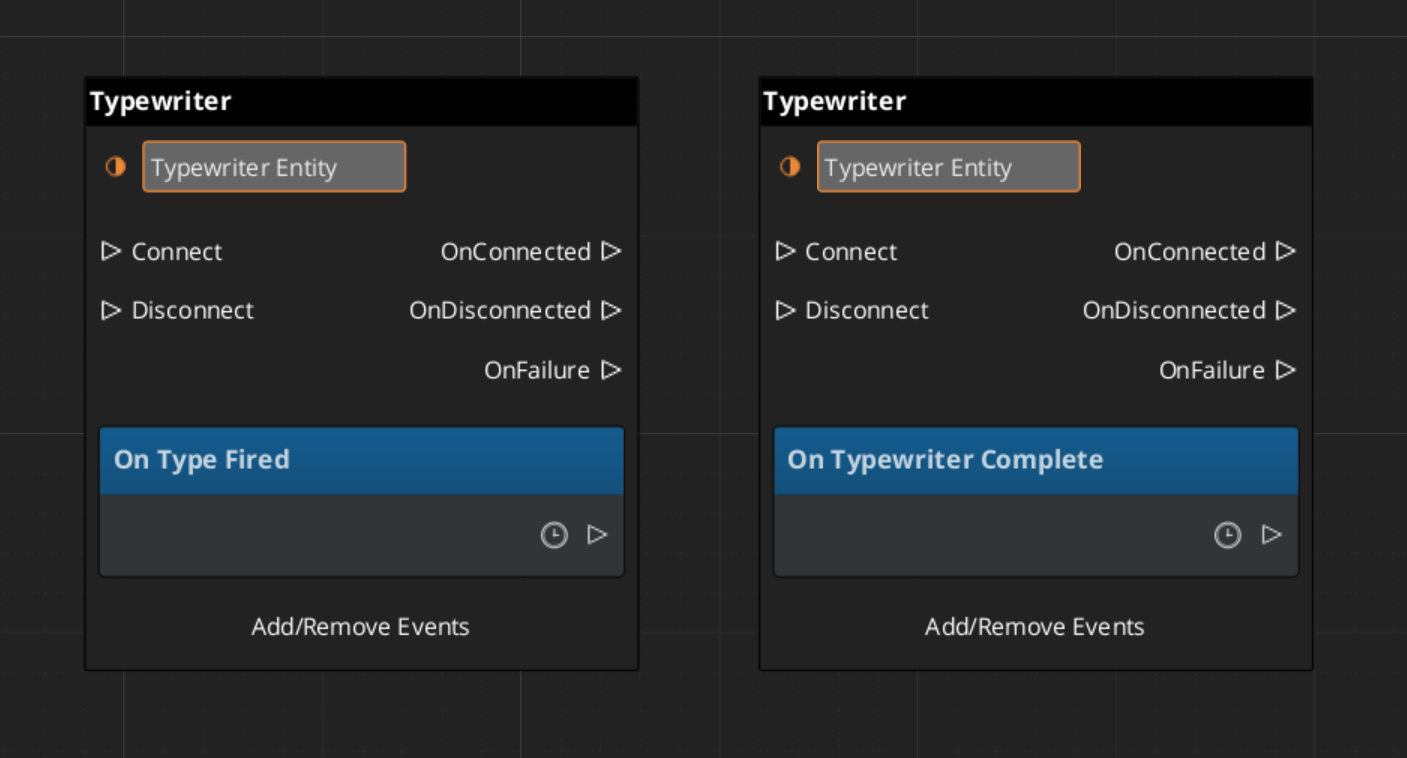
The TypewriterComponent reveals a string one character at a time. It fires OnTypeFired for each character revealed and OnTypewriterComplete when the full string is displayed. Use ForceComplete to instantly reveal the remaining text — typically wired to a player skip input — and ClearTypewriter to reset the display to empty.
| Bus | Method / Event | What It Does |
|---|
TypewriterRequestBus | StartTypewriter(text) | Begins revealing the given string character by character. |
TypewriterRequestBus | ForceComplete | Instantly reveals all remaining characters. |
TypewriterRequestBus | ClearTypewriter | Clears the display and resets state. |
TypewriterNotificationBus | OnTypeFired | Fires each time a character is revealed. |
TypewriterNotificationBus | OnTypewriterComplete | Fires when the full string has been revealed. |
BabbleComponent
BabbleComponent pairs with TypewriterComponent to play short audio sounds for each character revealed, giving the impression of a speaker’s voice. Each actor has a SpeakerBabbleEvents record that maps them to a specific babble sound profile. The component returns the correct BabbleToneEvent for the current speaker via GetBabbleEvent, which is called by the typewriter on each OnTypeFired.
| Bus | Method | What It Does |
|---|
BabbleRequestBus | GetBabbleEvent | Returns the babble audio event for the active speaker. |
ScriptCanvas Usage
Forcing Typewriter Completion on Skip Input
Wire a player input action to ForceComplete so pressing a button instantly reveals the current line:
Reacting to Typewriter Events
Quick Reference
| Need | Bus | Method / Event |
|---|
| Route sequencer events to UI | DialogueUIBridgeRequestBus | RunDialogue / RunSelection |
| Register a UI entity with the bridge | DialogueUIBridgeRequestBus | RegisterDialogueUI |
| Close the dialogue UI | DialogueUIBridgeRequestBus | CloseDialogue |
| React when dialogue UI finishes | DialogueUIBridgeNotificationBus | OnDialogueComplete |
| React when player makes a choice | DialogueUIBridgeNotificationBus | OnSelectionComplete |
| Start typewriter reveal | TypewriterRequestBus | StartTypewriter |
| Skip / instantly reveal text | TypewriterRequestBus | ForceComplete |
| Clear the typewriter display | TypewriterRequestBus | ClearTypewriter |
| React to each character reveal | TypewriterNotificationBus | OnTypeFired |
| React to full text revealed | TypewriterNotificationBus | OnTypewriterComplete |
| Get babble event for speaker | BabbleRequestBus | GetBabbleEvent |
Glossary
| Term | Meaning |
|---|
| DialogueUIBridge | The connector component that routes sequencer events to UI and player input back to the sequencer |
| Typewriter | A text reveal component that displays characters one at a time with configurable timing |
| Babble | Per-character audio playback that simulates a speaker’s voice during typewriter text reveal |
For full definitions, see the Glossary.
See Also
For the full API, component properties, and C++ extension guide:
For related systems:
Get GS_Cinematics
GS_Cinematics — Explore this gem on the product page and add it to your project.
2 - Performances
How to move and reposition actors during dialogue in GS_Play — the polymorphic performance system, built-in movement types, and async completion.
Performances are polymorphic actions that move or reposition actors during dialogue sequences. The sequencer triggers a performance when it reaches a PerformanceNodeData node and waits for OnPerformanceComplete before advancing. This async model lets multi-step actor choreography complete fully before dialogue continues. Three built-in performance types cover direct movement, navmesh navigation, and instant teleportation. Custom types can be created by extending the base class.
For architecture details, component properties, and extending the system in C++, see the Framework API reference.
Contents
When the sequencer encounters a PerformanceNodeData node, it:
- Resolves the named performer entity via
DialogueManagerRequestBus → GetPerformer. - Instantiates the performance object specified on the node.
- Calls
DoPerformance() — the public entry point. - Waits. The sequencer does not advance until the performance broadcasts
OnPerformanceComplete. - Resumes from the next node once completion is received.
The performance itself handles the movement logic, monitors completion, and signals back through its notification bus. This means a single PerformanceNodeData can represent any action that takes time — walking to a spot, running a path, playing an animation, triggering a VFX sequence — as long as it broadcasts completion when done.
| Performance Type | Movement Method | When to Use |
|---|
MoveTo_DialoguePerformance | Direct translation to marker(s) | Open areas, stylized movement, non-physical traversal. |
PathTo_DialoguePerformance | RecastNavigation pathfinding | Realistic navigation around obstacles and geometry. |
RepositionPerformer_DialoguePerformance | Instant teleport to marker | Off-screen repositioning between scenes, no visible movement needed. |
All three extend DialoguePerformance, the abstract base class. The base class provides DoPerformance(), ExecutePerformance(), and FinishPerformance() hooks, plus TickBus integration for per-frame movement updates.
MoveTo_DialoguePerformance
MoveTo_DialoguePerformance translates an actor toward one or more named stage markers using direct movement — no obstacle avoidance, no navmesh. It broadcasts movement requests over MoveTo_PerformanceNotificationBus. Listening systems (typically the performer’s movement component) receive those requests and execute the actual translation. When the actor reaches the final marker, the performance calls FinishPerformance() and broadcasts completion.
Use this for stylized games where physical path correctness is less important than snappy, predictable actor placement, or for any case where the path between actor and marker is guaranteed to be clear.
| Bus | Purpose |
|---|
MoveTo_PerformanceRequestBus | Query state of the performance. |
MoveTo_PerformanceNotificationBus | Receives move-to-marker requests from the performance. |
PathTo_DialoguePerformance
PathTo_DialoguePerformance navigates an actor to one or more named stage markers using the RecastNavigation navmesh. It requests a path from the navmesh, walks the actor along that path, and completes when the actor arrives at the final marker. Use this in games with detailed geometry where actors must walk around walls, furniture, and obstacles rather than moving in a straight line.
RecastNavigation must be enabled in the project and a navmesh must be baked in any level where PathTo performances are used.
| Bus | Purpose |
|---|
PathTo_PerformanceRequestBus | Query state of the performance. |
PathTo_PerformanceNotificationBus | Receives path-to-marker requests from the performance. |
RepositionPerformer_DialoguePerformance
RepositionPerformer_DialoguePerformance teleports an actor instantly to a named stage marker. It does not animate, translate, or navigate — it sets position directly. Useful for placing actors at the start of a new scene, recovering from a previous sequence that ended far from the required starting point, or repositioning actors that are off-camera and do not need visible movement.
| Bus | Purpose |
|---|
RepositionPerformer_PerformanceNotificationBus | Receives teleport requests from the performance. |
Async Completion
All performances signal completion asynchronously. The sequencer does not poll or time out — it simply waits for the performance to call FinishPerformance(), which broadcasts OnPerformanceComplete over the appropriate notification bus. This means:
- A performance can take any amount of time.
- A performance can be driven by external events — animation callbacks, physics arrival, etc.
- Multiple performances can run in parallel if the node graph is structured to fork, because each notifies independently.
When writing custom performance types, always call FinishPerformance() when the action is done. Forgetting to do so will stall the sequencer indefinitely.
Extending with Custom Performances
Custom performance types are discovered automatically through O3DE serialization at startup. Extend DialoguePerformance, reflect it, and your custom type appears in the node editor’s performance picker and can be placed on any PerformanceNodeData node.
See the Framework API reference for the full base class interface and extension guide.
ScriptCanvas Usage
Performances are authored in the dialogue node graph and executed automatically by the sequencer. Most projects do not need to drive performances from ScriptCanvas directly. The common scripting patterns involve the movement side — receiving move or path requests from a performance and executing them on the performer entity.
Receiving a MoveTo Request
[MoveTo_PerformanceNotificationBus → StartMoveToMarker(markerEntity)]
    └─► [Move performer toward markerEntity position]
    └─► [When arrived → MoveTo_PerformanceRequestBus → ReportArrival]
Receiving a Reposition Request
[RepositionPerformer_PerformanceNotificationBus → RepositionToMarker(markerEntity)]
    └─► [Set performer transform to markerEntity transform]
Quick Reference
| Need | Bus | Method / Event |
|---|
| Receive a MoveTo move request | MoveTo_PerformanceNotificationBus | StartMoveToMarker |
| Receive a PathTo navigation request | PathTo_PerformanceNotificationBus | StartPathToMarker |
| Receive a reposition teleport request | RepositionPerformer_PerformanceNotificationBus | RepositionToMarker |
| Query active MoveTo state | MoveTo_PerformanceRequestBus | (see Framework API) |
| Query active PathTo state | PathTo_PerformanceRequestBus | (see Framework API) |
Glossary
| Term | Meaning |
|---|
| Performance | A polymorphic action that moves or repositions an actor during a dialogue sequence |
| PerformanceNodeData | A dialogue graph node that triggers a performance and waits for completion |
| Async Completion | The pattern where the sequencer waits for OnPerformanceComplete before advancing |
For full definitions, see the Glossary.
See Also
For the full API, component properties, and C++ extension guide:
For related systems:
Get GS_Cinematics
GS_Cinematics — Explore this gem on the product page and add it to your project.