Audio Pro
GS_AudioPro — the premium audio gem. Visual sound authoring, adaptive music, generated speech and real acoustics, added on top of everything the free gem does.
GS_AudioPro is the premium audio gem. It sits on top of GS_Audio — everything in the free gem keeps working exactly as it did, and Pro adds four things of its own.
Pro is not better-sounding audio
The free gem already has all 22 effects and the same spatial audio. Pro gives you a visual way to author sounds, plus music, speech, and acoustics computed from your level geometry. If what you need is good-sounding positioned audio, the free gem does that.
Contents
Adding Pro to a Project
- Enable the GS_AudioPro gem alongside GS_Audio.
- Open your Audio Manager prefab and use the Pro Audio Manager component in place of the base one.
- Assign your graph libraries and score tracks on it, and save.
The Pro manager does everything the base one does — volume channels, event libraries, listener, project settings are all still there, with Pro’s geometry settings added alongside them.
You cannot run both managers at once. A project uses the base manager or the Pro one.
Where Each Feature Lives
Pro’s features each have their own bus, separate from the Audio Manager’s. Playing sounds, volume and mixing stay exactly where they are on AudioManagerRequestBus.
| Feature | Bus |
|---|
| Score arrangements | AudioScoreRequestBus |
| Audio event graphs | AudioGraphRequestBus |
| A graph playing on one entity | AudioGraphPlayerRequestBus |
| Voices | The Klatt voice buses |
Features
Audio Event Graph
Author a sound as a graph. Drop in sources, filters and effects, wire them together, and route the result — with a Start / Loop / Finish lifecycle and variables your game can drive while the sound is playing.
Audio Event Graph
Score Arrangement
Multi-layer music. One arrangement holds several layers with a shared tempo and time signature, and you bring them in and out as the game changes — add percussion for combat, drop it when it ends.
Score Arrangement
Klatt Voice
Speech generated from parameters rather than recordings. Give every character a distinct voice without a recording session, and use inline tags to change pitch or speed partway through a line.
Klatt Voice
Geometric Acoustics
Mark up your level with acoustic volumes and materials, and sounds start being genuinely blocked by what is between them and the player — with reverb that comes from the room they are standing in.
Geometric Acoustics
See Also
For the free gem this builds on:
For the full API:
Get GS_Audio
GS_Audio — Explore this gem on the product page and add it to your project.
1 - Audio Event Graph
How to author complex sound events visually using the Audio Event Graph editor — nodes, phase lifecycle, variables, and runtime control.
GS_AudioPro - premium tier
This feature ships in
GS_AudioPro, the premium audio gem. It requires the free
GS_Audio gem and extends it. See the
audio overview for the tier map.
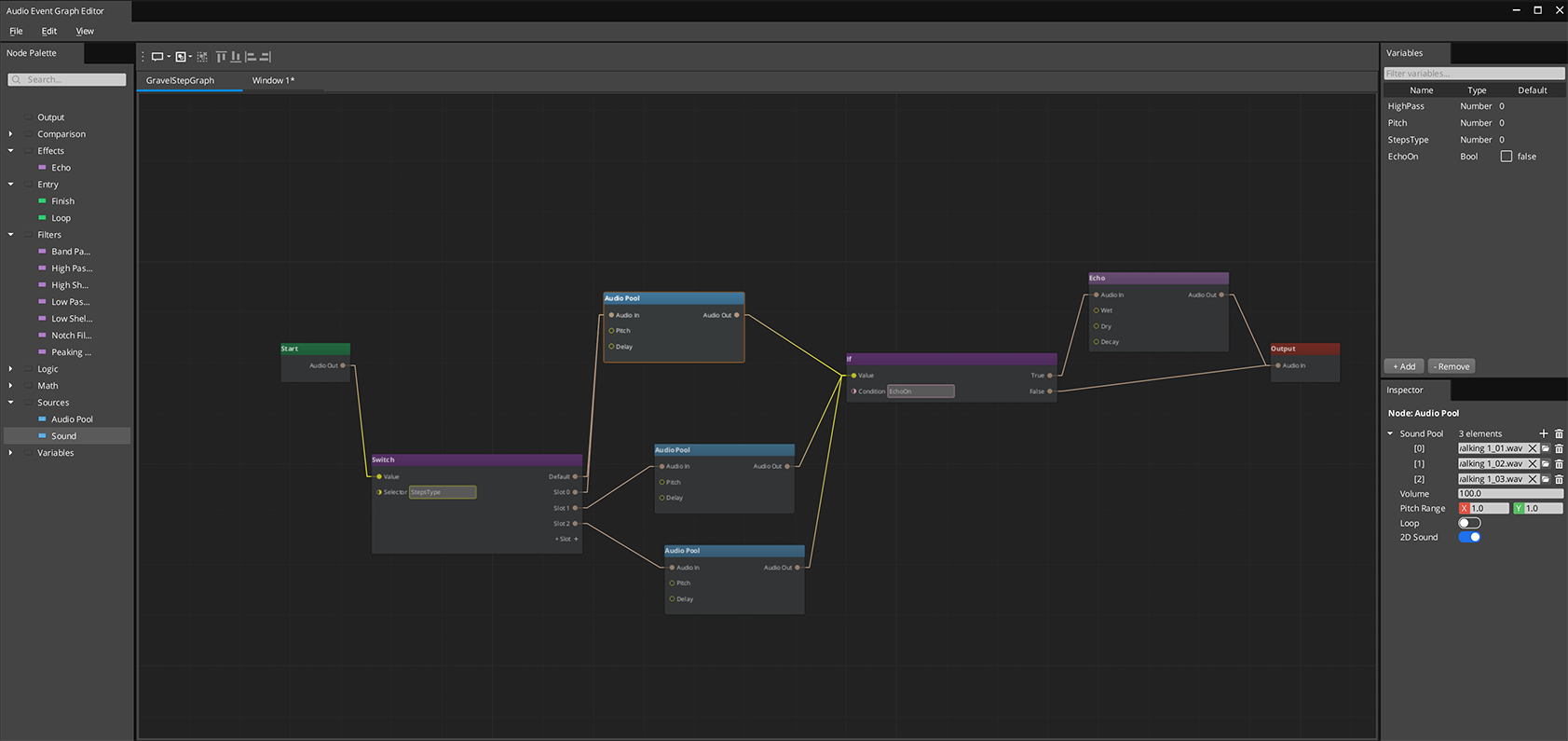
The Audio Event Graph is a visual node-based editor for authoring complex sound events. Instead of a single clip pool, you connect sources, filters, effects, and routing nodes into a graph that evaluates as a data-flow pipeline. Each .audiograph file is one sound event. At runtime, the graph maps directly to a live audio processing chain.
For component properties and C++ extension, see the Framework API reference.
Contents
How It Works
Nodes in an Audio Event Graph evaluate left to right in topological order. Connections carry AudioRoute values — handles to a point in the audio processing chain. The signal flows through:
- An Entry node gates which phase is active
- Source nodes create and output audio
- Filter and effect nodes process the signal
- Routing nodes (If/Switch) direct the signal based on variables
- The Output node wires everything to a mixing bus
Only nodes affected by a change re-evaluate — the rest are skipped. This makes variable-driven sound modification cheap even for complex graphs.
Phase Lifecycle
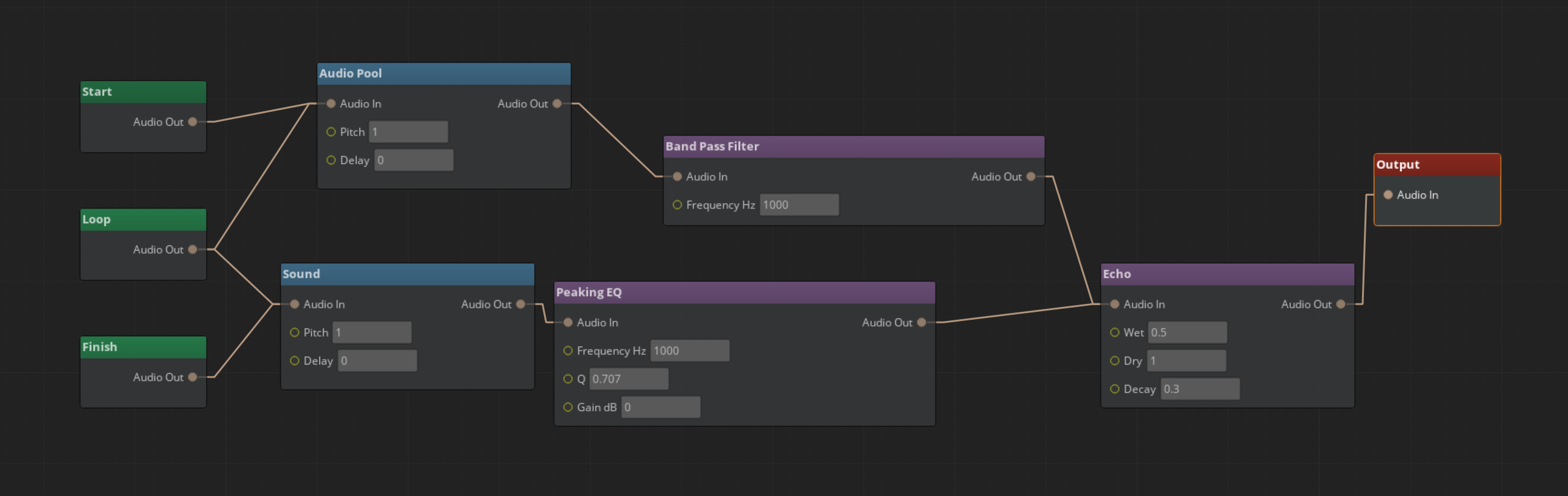
Every Audio Event Graph supports up to three phases:
| Phase | Entry Node | Use For |
|---|
| Start | Aud_StartNode | One-shot intro sounds, attack transient |
| Loop | Aud_LoopNode | Sustained loops, ambient audio |
| Finish | Aud_FinishNode | Fade-outs, release tails |
Phases transition automatically: Start fires once, Loop repeats while looping is enabled, Finish plays when FinishAudioGraph() is called. Not all phases are required — a simple one-shot only needs Start.
Entry nodes share routing freely. A source wired to both Start and Loop phases produces sound in both.
Nodes
Source Nodes
| Node | What It Does |
|---|
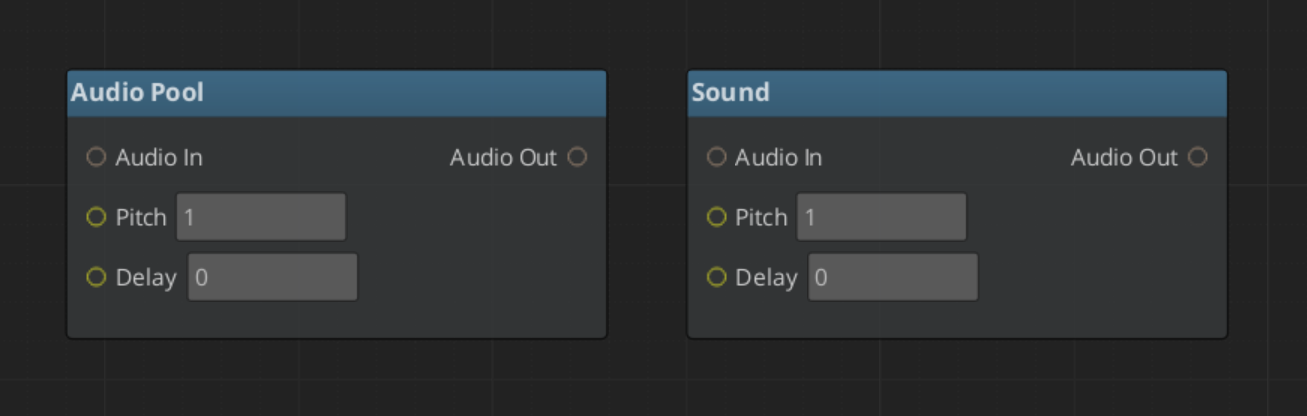
| Aud_SoundNode | Single audio asset playback |
| Aud_AudioPoolNode | Random clip selection from a pool |
Both support volume, pitch, delay, looping, and 3D spatialization.
Filter Nodes
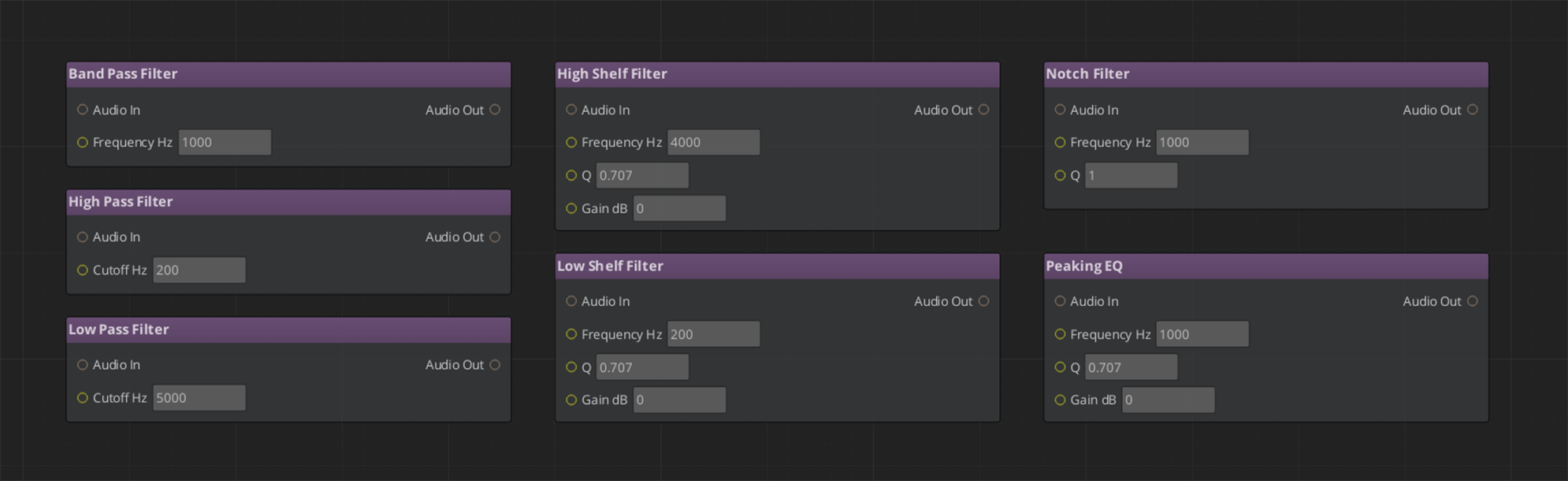
LowPass, HighPass, BandPass, Notch, PeakingEQ, LowShelf, HighShelf — all take audio_in and output audio_out. Parameters (cutoff, Q, gain) can be set per-node or bound to graph variables.
Effect Nodes
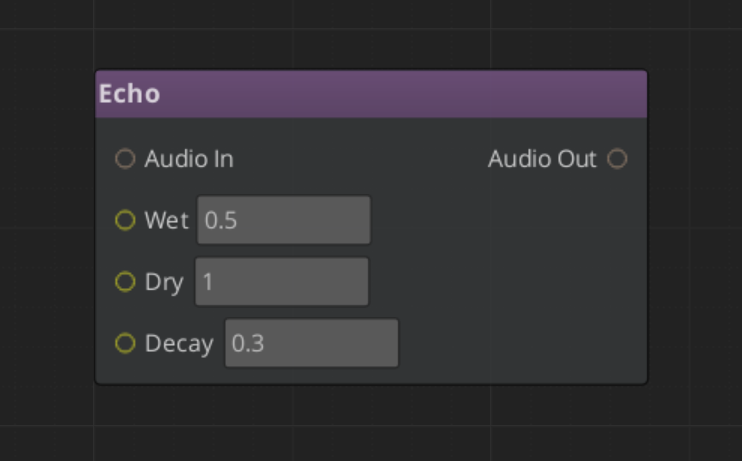
| Node | What It Does |
|---|
| Aud_EchoNode | Echo / reverb tail |
| Aud_DelayNode | Delay effect |
Routing Nodes
IfNode and SwitchNode route AudioRoute values based on conditions or a selector variable. Use these for conditional audio paths — different sounds based on surface type, weather, or character state.
Output Node
Aud_OutputNode wires the final signal to a named mixing bus. Every graph needs exactly one Output node.
Using Variables
Declare variables in the Variable Panel. Bind them to filter parameter slots (right-click > Convert to Reference) or use If/Switch nodes to route based on them.
At runtime, setting a variable re-evaluates only the nodes that depend on it — the rest of the graph is untouched.
Common patterns:
| Variable | Type | Use |
|---|
underwater | Float | Bind to LowPass cutoff — muffles audio when > 0 |
surfaceType | Int | Drive a SwitchNode to select different footstep sources |
intensity | Float | Blend between effect parameters for emotional scoring |
Variables are set from gameplay code via the Audio Manager:
SetAudioGraphVariable(instanceId, "underwater", 0.8)
SetAudioGraphVariableBool(instanceId, "isSprinting", true)
Playing at Runtime
All Audio Event Graph playback goes through the Audio Manager.
Fire-and-Forget
For one-shot sounds with no runtime modification needed:
PlayAudioGraph("Assets/Audio/Explosion.audiograph")
Manual Control
For sounds that loop, need variable updates, or need explicit stopping:
AcquireAudioGraph(assetPath) — get an instance IDSetAudioGraphLooping(id, true) — if it loopsSetAudioGraphEntity(id, entityId) — for 3D trackingFireAudioGraph(id) — start playbackSetAudioGraphVariable(id, name, value) — update variables any timeStopAudioGraph(id) or FinishAudioGraph(id) — stop cleanlyReleaseAudioGraph(id) — return the instance to the pool
Quick Reference
| Task | How |
|---|
| Create a new graph | File > New in the Audio Event Graph Editor |
| Add a phase entry node | Drag Start / Loop / Finish node from the palette |
| Add a source | Drag Aud_SoundNode or Aud_AudioPoolNode |
| Chain a filter | Connect source audio_out → filter audio_in |
| Wire to output | Connect final node’s audio_out → Aud_OutputNode audio_in |
| Bind a variable to a slot | Right-click the slot > Convert to Reference |
| Play fire-and-forget | AudioManagerRequestBus::PlayAudioGraph(path) |
| Play with control | AcquireAudioGraph → FireAudioGraph → ReleaseAudioGraph |
| Update a variable | SetAudioGraphVariable(id, name, value) |
Glossary
| Term | Meaning |
|---|
| Audio Event Graph | A .audiograph file defining a sound event as a data-flow node graph |
| AudioRoute | The value type flowing between nodes — a handle to a point in the miniaudio processing chain |
| Phase | One of three lifecycle stages (Start / Loop / Finish) gated by entry nodes |
| Graph Instance | An independent runtime copy of a graph, pooled and managed by the Audio Manager |
| Dirty Propagation | The evaluation model — only nodes downstream of a changed variable re-run |
For full definitions, see the Glossary.
See Also
Get GS_Audio
GS_Audio — Explore this gem on the product page and add it to your project.
2 - Geometric Acoustics
How to make sounds get blocked by walls and pick up the reverb of the room they are in — acoustic volumes, materials, occlusion and reflections.
GS_AudioPro - premium tier
This feature ships in
GS_AudioPro, the premium audio gem. It requires the free
GS_Audio gem and extends it. See the
audio overview for the tier map.
The free gem places sounds by direction and distance — a sound behind a wall is quieter because it is further away, not because the wall is there.
Geometric acoustics makes the wall matter. Mark up your level and sounds get occluded by what is between them and the player, and pick up reverb from the room the player is actually standing in.
For settings and behaviour detail, see the Framework API reference.
Contents
Setting It Up
Geometric acoustics is off until you turn it on.
- Select your Pro Audio Manager.
- Tick Geometry Enabled.
- Leave Occlusion and Reflections on unless you specifically want one without the other.
Nothing happens yet — the simulation has no geometry to work with until you mark some up.
Marking Up a Level
You do not hand the system your level meshes. You mark up the parts that matter acoustically — walls, floors, doorways, the big surfaces that shape a room.
Two components do it:
| Component | Use it when |
|---|
| Audio Shape Geometry | You already have a Shape component on the entity. Quads become planes, Boxes become boxes. Usually the easier option. |
| Audio Geometry | You want to author a box volume directly. |
A practical starting point: block out the room a player will spend the most time in, tag its walls and floor, and listen. You will hear the difference immediately, and you can decide from there how much of the rest of the level is worth marking up.
Choosing Materials
Every piece of geometry carries a material preset. Fifteen ship, in three useful groups:
| Group | Presets | What they do |
|---|
| Hard | Generic, Brick, Concrete, Ceramic, Glass, Plaster, Wood, Metal, Rock | Bounce sound. Bright, long reverb — stone corridors, tiled bathrooms. |
| Absorptive | Gravel, Carpet | Soak sound up. Short, dull reverb — carpeted rooms, soft ground. |
| Soft barriers | Curtain, Blanket, Door, Drape | Let sound through, muffled. |
The soft-barrier group is worth knowing about. A curtain across a doorway does not silence what is behind it, it dulls it — the effect people usually fake with a low-pass filter. Here you get it by picking the right material.
If none of the presets fit, Custom exposes all seven coefficients directly.
Tuning Occlusion
Two modes:
- Raycast — one ray. A sound is occluded or it is not. Cheap.
- Volumetric — samples a sphere around the source, so sound leaks partially around edges. Costs more.
If occlusion sounds like a switch flicking as the player walks past a doorframe, use Volumetric. That partial-occlusion behaviour at edges is exactly what it exists for. Occlusion Radius controls how wide the sampled sphere is.
Tuning Reverb
Reverb comes from the geometry around the player, and updates as they move.
Two behaviours that are deliberate, so you do not go hunting for a bug:
- It eases between rooms. Walking through a doorway blends the reverb rather than snapping it. Reflection Smooth Time controls how long that takes — set it to
0 if you want an instant change. - It does not get quieter as you walk away from a sound. The room sounds like the same room wherever you stand in it, while the dry sound still falls off with distance. That is correct, and it is what makes a large space feel large.
Pick one source of reverb
Do not also run the Reverb effect or an influence zone where geometric reflections apply. Both fill the same role, and running both puts two rooms on the same sound.
What It Does Not Do
- Reverb cannot tell your room from the one next door. It is computed around the player, so a sound sealed in an adjacent room still feeds the same reverb.
- An occluded sound still feeds the reverb. Occlusion muffles the direct sound; it does not stop the source exciting the room.
- It only knows about geometry you marked up. Render meshes and physics colliders are not consulted.
- There is no baking. Everything is computed at runtime.
See Also
For settings and behaviour detail:
For related systems:
Get GS_Audio
GS_Audio — Explore this gem on the product page and add it to your project.
3 - Score Arrangement
How to work with GS_Play score arrangements — multi-layer dynamic music with configurable time signatures and layer control.
GS_AudioPro - premium tier
This feature ships in
GS_AudioPro, the premium audio gem. It requires the free
GS_Audio gem and extends it. See the
audio overview for the tier map.
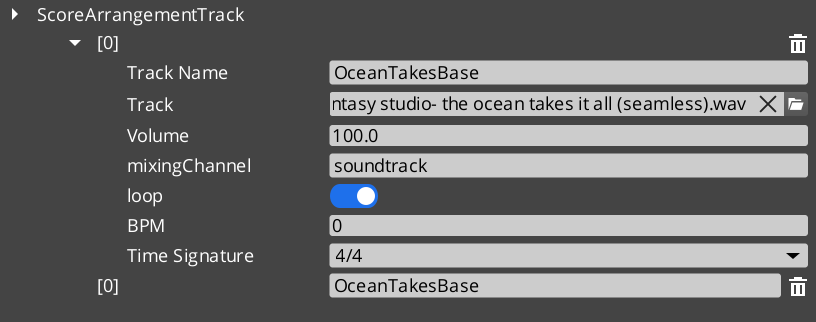
Score Arrangement Tracks are multi-layer music assets for dynamic, adaptive game music. Each arrangement defines a time signature, tempo, fade behavior, and a set of independently controllable Score Layers. This enables music that responds to gameplay — adding percussion during combat, muting melody during dialogue, or transitioning between intensity levels.
For asset structure and playback API, see the Framework API reference.
Contents
How It Works
A Score Arrangement Track is a data asset containing:
| Field | What It Controls |
|---|
| Time Signature | Musical timing (4/4, 3/4, 6/8, etc.). |
| BPM | Tempo in beats per minute. |
| Fade Control | How layers fade in and out. |
| Score Layers | Individual audio tracks that play simultaneously. |
Each Score Layer is an independent audio stream within the arrangement. Layers can be enabled or disabled at runtime, creating dynamic music that evolves based on game state.
Supported Time Signatures
4/4, 4/2, 12/8, 2/2, 2/4, 6/8, 3/4, 3/2, 9/8
Glossary
| Term | Meaning |
|---|
| Score Arrangement Track | A multi-layer music data asset with time signature, tempo, and controllable layers |
| Score Layer | An individual audio stream within an arrangement that can be enabled or disabled at runtime |
| BPM | Beats per minute — the tempo of the arrangement |
For full definitions, see the Glossary.
See Also
For the full API, component properties, and C++ extension guide:
For related systems:
Get GS_Audio
GS_Audio — Explore this gem on the product page and add it to your project.
4 - Klatt Voice Synthesis
How to work with GS_Play Klatt voice synthesis — text-to-speech with 3D spatial audio, voice profiles, and inline parameter control.
GS_AudioPro - premium tier
This feature ships in
GS_AudioPro, the premium audio gem. It requires the free
GS_Audio gem and extends it. See the
audio overview for the tier map.
GS_Play includes a built-in text-to-speech system based on Klatt formant synthesis. The KlattVoiceComponent converts text to speech in real time with configurable voice parameters. Voices are positioned in 3D space and attenuate with distance, making synthesized speech feel like it comes from the character speaking.
For component properties, voice parameter details, and the phoneme mapping system, see the Framework API reference.
Contents
How It Works
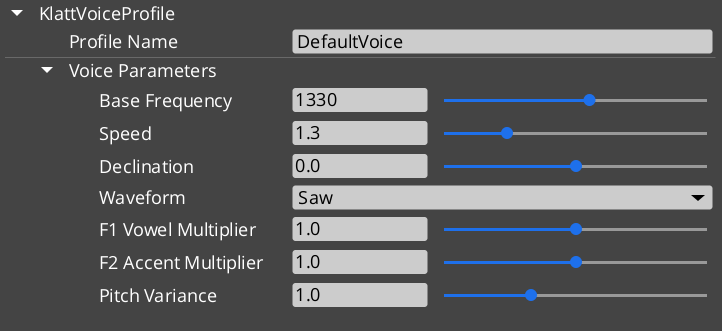
- Configure a voice using a KlattVoiceProfile — set frequency, speed, waveform, formants, and pitch variance.
- Assign a KlattPhonemeMap — maps text characters to ARPABET phonemes for pronunciation.
- Speak text from ScriptCanvas or C++ — the system converts text to phonemes and synthesizes audio in real time.
- Position in 3D — the voice component uses KlattSpatialConfig for 3D audio positioning relative to the entity.
Voice Configuration
| Parameter | What It Controls |
|---|
| Frequency | Base voice pitch. |
| Speed | Speech rate. |
| Waveform | Voice quality — Saw, Triangle, Sin, Square, Pulse, Noise, Warble. |
| Formants | Vocal tract resonance characteristics. |
| Pitch Variance | Random pitch variation for natural-sounding speech. |
| Declination | Pitch drop over the course of a sentence. |
KTT (Klatt Text Tags) allow inline parameter changes within speech text for expressive delivery:
"Hello <speed=0.5>world</speed>, how are <pitch=1.2>you</pitch>?"
The KlattCommandParser processes these tags during speech synthesis, enabling mid-sentence changes to speed, pitch, and other voice parameters.
For the complete tag reference — all attributes, value ranges, and reset behavior — see the Framework API: KTT Voice Tags.
Phoneme Maps
Two base phoneme maps are available:
| Map | Description |
|---|
| SoLoud_Default | Simple default mapping. |
| CMU_Full | Full CMU pronunciation dictionary mapping. |
Custom phoneme overrides allow project-specific word pronunciations (character names, fantasy terms) without modifying the base map.
3D Spatial Audio
The KlattSpatialConfig controls how synthesized speech is positioned in 3D:
- Voices attenuate with distance from the listener.
- The KlattVoiceSystemComponent tracks the listener position and updates all active voices.
- Multiple characters can speak simultaneously with correct spatial positioning.
Quick Reference
| Need | Bus | Method |
|---|
| Control a voice | KlattVoiceRequestBus | Voice synthesis methods (entity-addressed) |
| System-level voice control | KlattVoiceSystemRequestBus | Listener tracking, engine management |
Glossary
| Term | Meaning |
|---|
| Klatt Synthesis | A formant-based speech synthesis method that generates voice from frequency parameters |
| KTT Tags | Inline text tags that modify voice parameters mid-sentence during synthesis |
| Phoneme Map | A mapping from text characters to ARPABET phonemes for pronunciation |
| KlattSpatialConfig | Configuration for 3D audio positioning and distance attenuation of synthesized speech |
For full definitions, see the Glossary.
See Also
For the full API, component properties, and C++ extension guide:
For related systems:
Get GS_Audio
GS_Audio — Explore this gem on the product page and add it to your project.