GS_Audio
Sound for GS_Play — audio events, mixing and effects, spatial audio, and the premium Audio Pro tier with visual graph authoring, music scoring and voice synthesis.
GS_Audio is the audio system for GS_Play. It plays sounds, mixes them, and places them in the world — and it comes in two gems.
| Gem | Tier | What you get |
|---|
| GS_Audio | Free | The audio engine, audio events with pooling and spatial playback, mixing channels, the full effect palette, and HRTF spatial audio with distance falloff. |
| GS_AudioPro | Premium | Everything above, plus the visual Audio Event Graph, procedural music scoring, Klatt voice synthesis, and geometry-driven occlusion and reverb. |
The dividing line is how you author, not how good the audio is. The free gem carries the complete effect palette and the same spatial audio Pro uses. Pro adds a visual canvas to build sounds on, plus music, speech and real acoustics.
Each feature below is tagged Base or Pro so you can tell which gem it needs.
For architecture details, component properties, and extension patterns, see the GS_Audio API.
Start Here
If you are new to the audio system, read the Audio Signal Model first. It is short, and it explains how a sound travels from its source to your speakers — which stages exist, what order they run in, and what the words source, spatialization and volume channel mean here.
Two things from it save the most time:
- Spatialization is a property of the sound, not an effect you add. Position a source and it is spatialized. There is no spatializer to drop into a chain.
- Reverb and real geometric reflections are alternatives, not layers. Use one or the other, never both, or the sound double-reverbs.
Quick Navigation
| I want to… | Tier | Feature | API |
|---|
| Manage the audio engine, set the listener, or control master volume | Base | Audio Manager | API |
| Play sounds by name, with variation, distance falloff and concurrency limits | Base | Audio Events | API |
| Make procedural sound effects with no audio files | Base | SFXR Profiles | API |
| Configure mixing channels with filters, EQ, and environmental effects | Base | Mixing & Effects | API |
| Position sounds in the world and set where the player hears from | Base | Spatial Audio | API |
| Author sound events visually with filters, effects, routing and phases | Pro | Audio Event Graph | API |
| Layer music tracks dynamically based on gameplay state | Pro | Score Arrangement | API |
| Generate speech with configurable voice parameters and 3D audio | Pro | Klatt Voice | API |
| Have walls actually block sound, and get reverb from the real room | Pro | Geometric Acoustics | API |
Installation
GS_Audio requires GS_Core and the MiniAudio gem. Add all three to your project’s gem dependencies.
Quick Installation Summary
- Enable the GS_Audio gem in your project configuration.
- Create an Audio Manager prefab and add it to the Game Manager’s Managers list.
No Game Manager in your project? Add the Audio Manager to your level and tick Headless on it. It will start itself, and you get the audio system with no dependency on the GS_Play startup sequence — useful when audio is the only GS feature you want.
Adding the premium tier
Enable GS_AudioPro alongside GS_Audio and use the Pro Audio Manager component on your manager prefab instead of the base one. Everything else is authored on that component exactly as before.
Audio Manager
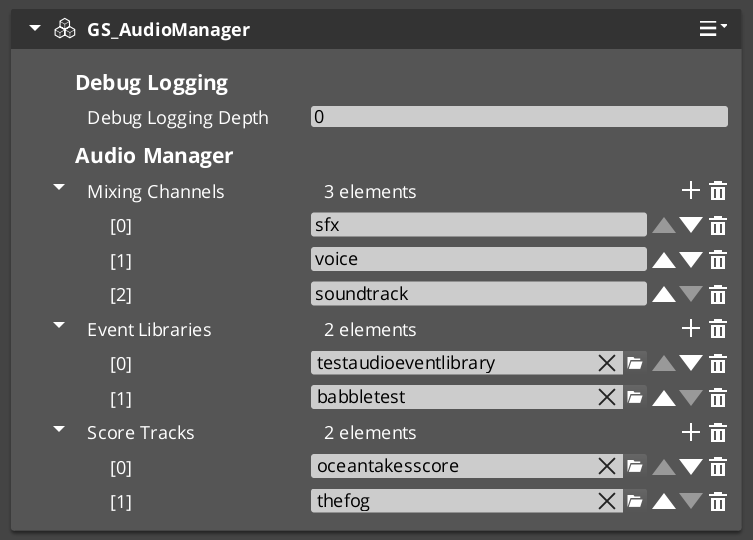
Base. The Audio Manager is the singleton controller for the whole audio system. It initializes the engine, owns the mixing channels, loads your audio event libraries, and carries the listener.
The listener is worth knowing about early: there is no separate listener component. The manager holds it and you point it at an entity. You can also split it — proximity following your character while facing follows your camera — which is the recommended setup for third-person games.
Audio Manager
API
Audio Events
Base. A named sound your game can fire. Author events in a library asset, assign the library to the Audio Manager, then play sounds by name from script, C++ or a trigger.
Variation, distance falloff, concurrency caps and entity tracking are all configured on the event — the call site is always just a name. Events can play recorded clips, procedural noise, or chiptones, and clip pools mean a footstep never repeats identically.
Audio Events
API
SFXR Profiles
Base. Sound effects made entirely of numbers — coins, lasers, jumps, blips — with no recording and no audio files. Design one in the browser, paste it into an asset, and pool a few mutations so the sound varies.
27 profiles ship with the gem, so a new project has working effects immediately.
SFXR Profiles
API
Mixing & Effects
Base. Named mixing channels, each with its own volume and an optional chain of effects — filters, EQ, shelving, delay, reverb, and character effects like chorus, flanger and bit-crushing.
Environmental influence lets a world volume push effects onto a channel while the listener is inside it: walk into a cave, everything gains reverb; walk out and it lifts. Influences stack by priority and are keyed to the entity that applied them.
Mixing & Effects
API
Spatial Audio
Base. Positioned sounds are placed in the world automatically — direction, distance falloff, and HRTF processing so a sound feels like it comes from somewhere. There is nothing to add to a sound to make it happen.
The one thing you configure is the listener. In third person you split it: distance measured from your character, direction from your camera.
Spatial Audio
API
Audio Pro
Pro. The four features below all ship in GS_AudioPro. Start at the Audio Pro overview for what the premium tier adds, how it attaches to the free gem, and where each feature’s bus lives.
Audio Pro Overview
API
Audio Event Graph
Pro. A visual node editor for authoring complex sound events. Build a sound as a graph — sources, filters, effects and conditional routing, connected on a canvas — with a Start / Loop / Finish phase lifecycle and runtime variables that let gameplay reshape the sound while it plays.
This is the premium tier’s headline authoring feature. The free tier reaches the same processors through named effect chains on components.
Audio Event Graph
API
Score Arrangement
Pro. Multi-layer music assets. An arrangement defines time signature, tempo and fade behaviour, and holds layers that can be brought in and out independently — so the music adds a drum line as combat starts and drops it when it ends.
Score Arrangement
API
Klatt Voice Synthesis
Pro. Text-to-speech built on Klatt formant synthesis. It generates voice from parameters rather than playing recordings, so a project can give hundreds of characters distinct voices with no audio assets and no recording sessions. Supports 3D spatial audio and inline tags that change pitch, speed or waveform partway through a line.
Klatt Voice
API
See Also
For the full API, component properties, and C++ extension guide:
For step-by-step project setup:
Get GS_Audio
GS_Audio — Explore this gem on the product page and add it to your project.
1 - Audio Manager
How to set up the GS_Play Audio Manager — engine startup, volume channels, event libraries, the listener, and running it without a Game Manager.
Base — ships in GS_Audio.
The Audio Manager is the one component the audio system needs. It starts the engine, holds your volume channels, loads your event libraries, and carries the listener that every positioned sound is measured against.
It is a GS manager, so it plugs into the Game Manager’s startup like the rest — or runs on its own if your project does not have one.
For component properties and the full API, see the Framework API reference.
Contents
Setting It Up
- Create an entity and add the GS_AudioManagerComponent.
- Configure your volume channels — a named list such as Music, SFX, Voice, Ambience.
- Assign your event libraries.
- Turn the entity into a prefab, set the wrapper entity to Editor Only, and save.
- Add the prefab to the Game Manager’s Startup Managers list.
This is the same prefab pattern every GS manager uses — see The Basics: GS_Managers if you have not set one up before.
Using Audio Without a Game Manager
If audio is the only GS feature your project uses, you do not need the manager stack at all.
Add the Audio Manager to your level, tick Headless on it, and press play. It starts itself, and everything on these pages works exactly as documented. No Game Manager, no startup sequence, no other managers.
This is the intended path for dropping GS_Audio into a project that is not otherwise built on GS_Play.
What It Manages
| Responsibility | What it does |
|---|
| Engine lifecycle | Starts and shuts down the audio engine. |
| Volume channels | Holds the named channel list and their levels. |
| Event libraries | Loads your .aev libraries so events can be fired by name. |
| The listener | Carries the point the player hears from. |
| Spatial audio setup | Project-wide spatialization mode and distance defaults. |
Music, graphs and voices are Audio Pro
Score arrangements, the Audio Event Graph and Klatt voice synthesis are
GS_AudioPro features, and each has its own bus. Calls like
PlayScore and
PlayAudioGraph are not on the Audio Manager’s bus — see the
Audio Pro overview for the bus map.
Setting the Listener
There is no listener component. The manager holds the listener and you point it at an entity.
For first person, point it at your camera or player and you are finished. For third person, split it — distance measured from your character, direction from your camera. See Spatial Audio for why that combination is the one you want.
If you never set a listener, the manager uses its own entity and warns. Audio will work, but it will be positioned from wherever your manager prefab happens to be.
Quick Reference
| Need | Bus | Method |
|---|
| Set master volume | AudioManagerRequestBus | ChangeMasterVolume |
| Set a channel’s volume | AudioManagerRequestBus | ChangeChannelVolume |
| List channels | AudioManagerRequestBus | GetMixingChannelNames |
| Set the listener | AudioManagerRequestBus | SetListener |
| Split the listener | AudioManagerRequestBus | SetListenerSpatialTarget / SetListenerOrientationTarget |
| Load an event library | AudioManagerRequestBus | AddAudioLibrary |
Glossary
| Term | Meaning |
|---|
| Volume Channel | A named group of sound types with its own level |
| Event Library | A .aev asset holding named audio events |
| Listener | The point in the world the player hears from |
| Headless | A manager that starts itself, with no Game Manager in the project |
See Also
For the full API:
For related systems:
Get GS_Audio
GS_Audio — Explore this gem on the product page and add it to your project.
2 - Audio Events
How to author and fire audio events — event libraries, clip pools, procedural noise and chiptones, distance falloff, and concurrency.
Base — ships in GS_Audio.
An audio event is a named sound your game can fire. You author events in an event library asset, assign the library to the Audio Manager, and then play sounds by name from anywhere — script, C++ or a trigger volume.
Everything that makes a sound behave well in a game — variation, distance falloff, a cap on how many can play at once, following a moving object — is configured on the event, not at the call site. Firing one is always just a name.
For component properties and the extension guide, see the Framework API reference.
Contents
Creating an Event Library
- In the Asset Browser, create a new Audio Event Library (
.aev) asset. - Add an event to it and pick a type from the dropdown.
- Give it an Event Name — this is what you fire by.
- Set its Mixing Channel so it routes to the right volume channel.
- Assign the library to your Audio Manager’s library list.
Libraries can also be added and removed while the game is running, which is how you would stream in a level’s sound set.
Choosing an Event Type
| Type | Use it for | What you author |
|---|
| Pool | Recorded sound — footsteps, impacts, voices, music stingers | A pool of sound files. One is picked at random each time. |
| Noise | Wind, static, hiss, rumble | A noise colour (White, Pink, Brownish, Blueish) and a duration. |
| Sfxr | Retro and UI sound — coins, lasers, jumps, blips | A pool of SFXR profiles. The profile’s envelope sets the length. |
Noise and Sfxr events need no audio files at all. They generate their sound at runtime, which makes them useful early in a project when the audio pass has not happened yet.
Making Sounds Vary
Both Pool and Sfxr events hold a pool, and pick from it at random on every fire.
This is the single highest-value thing to know about the event system. A footstep event with one clip sounds mechanical after three steps. The same event with five recorded variants sounds like walking — and the code firing it does not change at all.
For Sfxr events the pool is even cheaper to fill: generate a sound at sfxr.me, press mutate a few times, and import each result as a profile. Five mutated explosions in one pool means the explosion never repeats identically.
A pool of one is perfectly valid. It is just a sound that does not vary.
Distance and Concurrency
| Setting | What it controls |
|---|
| Distance Min / Max | Full volume within min, fading out to silence at max. Set min above zero. |
| Is 2D | Ignores position entirely — pure stereo. Use for UI and music. |
| Concurrent Event Limit | The most voices this event can have playing at once. Stops one emitter flooding the mix. |
| Event Repeat Hold | A short window after firing where the event will not re-fire. Stops a rapid trigger machine-gunning the sound. |
| Loop | Repeat until stopped. |
The last two matter more than they look. A collision sound fired from a physics callback can trigger dozens of times in a few frames; the concurrency limit and repeat hold are what keep that from turning into noise, without any logic on your side.
Firing Events
Three calls on AudioManagerRequestBus, all resolving the event by name:
| Need | Method |
|---|
| A sound with no position — UI, music, narration | PlayEvent2D |
| A sound at a fixed point in the world | PlayEventAtLocation |
| A sound that follows a moving object | PlayEventOnEntity |
PlayEventOnEntity keeps tracking the entity as it moves, so it is the right choice for anything attached to a character, vehicle or projectile.
Quick Reference
| Need | Bus | Method |
|---|
| Play a non-positional sound | AudioManagerRequestBus | PlayEvent2D |
| Play at a world position | AudioManagerRequestBus | PlayEventAtLocation |
| Play attached to an entity | AudioManagerRequestBus | PlayEventOnEntity |
| Load an event library at runtime | AudioManagerRequestBus | AddAudioLibrary |
| Unload an event library | AudioManagerRequestBus | RemoveAudioLibrary |
Glossary
| Term | Meaning |
|---|
| Audio Event | A named sound the game fires, with its own pooling, distance and concurrency settings |
| Event Library | A .aev asset holding a set of events |
| Pool | A set of sources on one event, picked from at random per fire |
| Concurrency Limit | The maximum number of voices one event may have playing at once |
See Also
For the full API and the extension guide:
For related systems:
Get GS_Audio
GS_Audio — Explore this gem on the product page and add it to your project.
3 - SFXR Profiles
How to make procedural sound effects — design a sound in the browser, paste it into a profile asset, and pool profiles for variation.
Base — ships in GS_Audio.
SFXR profiles are sound effects made entirely of numbers. No recording, no audio files, no disk space worth mentioning — a coin pickup, a laser shot or a jump blip described as a parameter set.
They are the fastest way to get real sound into a project, and 27 of them ship with the gem, so a new project has working effects before it has any audio of its own.
For the parameter reference, see the Framework API reference.
Contents
Making a Sound
The intended workflow runs through the browser, because that is where the instant preview is.
- Open sfxr.me.
- Pick a generator — Pickup, Laser, Explosion, Powerup, Hurt, Jump, Blip — and press it until you like what you hear. Or press Mutate on a sound you already like.
- Press Serialize and copy the JSON it gives you.
- In O3DE, create a new SFXR Profile (
.sfxrprofile) asset. - Open its Import from sfxr.me group and paste the JSON into the field.
- The parameters populate. Save.
You can also edit the 24 parameters by hand on the asset afterwards — the import is a starting point, not a lock.
If the inspector looks unchanged after pasting
Reselect the asset. The values import correctly; the property panel sometimes needs a nudge to repaint.
Using Profiles
A profile is played through an Sfxr audio event:
- Add an event to your event library and set its type to Sfxr.
- Add one or more profiles to the event’s profile list.
- Fire the event by name like any other sound.
Audio Pro users can also drop an Sfxr node into an Audio Event Graph and feed it profiles the same way.
Building a Variation Pool
An Sfxr event holds a list of profiles and picks one at random every time it fires.
This is where the browser workflow pays off. Make an explosion you like, press Mutate four times, and import all five results. Drop them into one event and your explosion never sounds the same twice — with no logic anywhere in your game.
An event with one profile is fine, and an event with an empty list is simply silent.
What Ships With the Gem
27 profiles in the gem’s Assets/SFXR Profiles/ folder:
- 7 classic presets — Coin, Laser, Explosion, Powerup, Hurt, Jump, Blip.
- 20 named custom profiles.
Use them directly, or open one and mutate it into something of your own.
Glossary
| Term | Meaning |
|---|
| SFXR Profile | A .sfxrprofile asset describing one procedural sound as parameters |
| Serialize | The sfxr.me button that exports a sound as pasteable JSON |
| Mutate | The sfxr.me button that randomly varies an existing sound |
See Also
For the parameter reference:
For related systems:
Get GS_Audio
GS_Audio — Explore this gem on the product page and add it to your project.
4 - Mixing & Effects
How to work with GS_Play audio mixing — volume channels, named effect chains, all 22 effects, and environmental influence zones.
Base — ships in GS_Audio.
Mixing has two jobs, and they are worth keeping separate in your head.
Volume channels group sounds by what kind of sound they are — voice, music, environment, combat — so a player can turn one down without touching the others. This is what your options menu drives.
Effect chains process the signal — filters, EQ, delay, reverb, and character effects like chorus and bit-crushing. You build a chain on a component, name it, and point sounds at that name.
All 22 effects are available in the free gem. Audio Pro authors the same processors on a visual canvas instead.
For component properties and the full effect reference, see the Framework API reference.
Contents
Volume Channels
Channels are configured on the Audio Manager as a named list. Each audio event names the channel it routes to.
Set them up the way your options menu will present them — a Voice channel, a Music channel, an SFX channel — and wiring the sliders becomes trivial, because the options system can drive channel levels directly.
Channels are independent of position. A footstep, a spell and a line of dialogue are all spatialized the same way, and all three route to different channels.
Building an Effect Chain
- Add a Mix Effect component to an entity.
- Give it a Name — this is what sounds and other chains will target.
- Add effects to its list. They run top to bottom.
- Set its Output Target — another chain’s name, or a volume channel.
Then point sounds at it by setting an event’s Mixing Channel to your chain’s name. Channels and chains share one namespace, so a sound does not care which kind of thing it is aimed at.
Three things that make this easier than it sounds:
- Order does not matter. If a chain points at something that does not exist yet, the connection waits and completes when it appears. You never have to think about activation order.
- You can add chains at runtime. Sounds already playing through that channel pick up the new routing.
- One entity can hold several chains. Give each its own name and point one at another to compose them.
You can put a chain on the emitting entity to colour just that object’s sound, or use shared global chains for project-wide treatments. Both work, and most projects use both.
The Effects
| Family | Effects |
|---|
| Filters | Low Pass, High Pass, Band Pass, Notch, Peaking EQ, Low Shelf, High Shelf |
| Time & space | Echo, Reverb, Binaural |
| Character | Wave Shaper, Lofi, Robotize, Flanger, Chorus, Ring Mod, Tremolo, Pitch |
| Utility | Panner, Compressor, DC Removal, Amplify |
Binaural is not how you position a sound
The Binaural effect places a
2D sound at a
fixed direction. It is not how you make a 3D sound come from somewhere — that happens automatically for any positioned sound. See
Spatial Audio.
Do not stack Reverb with Audio Pro's reflections
The Reverb effect fakes a room. Audio Pro’s geometric reflections derive a real one from your level. Using both puts two rooms on the same sound.
Environmental Influence Zones
A world entity can push effects onto channels while the player is inside it — walk into a cave and everything gains reverb, walk out and it lifts.
Zones stack by priority, so overlapping zones resolve predictably rather than by whichever fired last, and each zone’s contribution is tracked against the entity that applied it so removing it is unambiguous.
Quick Reference
| Need | Bus | Method |
|---|
| Set a channel’s level | AudioManagerRequestBus | ChangeChannelVolume |
| Set master volume | AudioManagerRequestBus | ChangeMasterVolume |
| List the configured channels | AudioManagerRequestBus | GetMixingChannelNames |
| Mute a channel | GS_MixingRequestBus | MuteBus |
| Change an effect’s parameter live | AudioManagerRequestBus | SetMixEffectParamOn |
| Re-point a chain’s output | AudioManagerRequestBus | RerouteMixEffect |
| Apply an environmental zone | AudioManagerRequestBus | ApplyAudioEffectInfluence |
Glossary
| Term | Meaning |
|---|
| Volume Channel | A named group of sound types with its own level, feeding Master |
| Mix Effect Chain | An ordered set of effects on a component, registered under a name |
| Output Target | Where a chain’s last effect feeds — another chain, or a channel |
| Influence Zone | A world entity that imposes effects on channels while it applies |
See Also
For the full API and the effect reference:
For related systems:
Get GS_Audio
GS_Audio — Explore this gem on the product page and add it to your project.
5 - Spatial Audio
How sounds get placed in the world — setting the listener, splitting it for third-person, distance falloff, and what the free tier does and does not do.
Base — ships in GS_Audio.
Spatial audio is handled for you. Fire a sound at a position or on an entity and it is placed in the world: direction, distance falloff, and HRTF binaural processing so it sounds like it is coming from somewhere rather than from inside your head.
There is nothing to add to a sound to make this happen, and nothing to add to a chain. The only thing you configure is the listener — where the player is hearing from.
For settings and behaviour detail, see the Framework API reference.
Contents
Setting the Listener
There is no listener component to add. The Audio Manager carries the listener, and you point it at an entity.
For a first-person game, that is the whole setup — point it at the camera or the player and you are done.
If you set nothing, the manager falls back to its own entity and warns you. That fallback exists so the system is never silently broken, but it is not where you want your listener.
Third-Person: Splitting the Listener
In third person the camera and the character are in different places, and “where is the player hearing from” has two different right answers.
- How close a sound is should be measured from the character. Proximity is about your body.
- Which direction a sound is in should be measured from the camera. Left and right are about where you are looking.
So set them separately:
| Set this | To this |
|---|
| Spatial target | Your character |
| Orientation target | Your camera |
This is the recommended third-person setup, and the difference is immediately audible — sounds sit where you expect instead of drifting with the camera boom.
For first person, use the single-target call and let both follow one entity.
Distance Falloff
Each audio event sets its own Distance Min / Max:
- Inside min, the sound plays at full volume.
- Between min and max, it fades.
- At max it is genuinely silent — not faintly audible forever.
That last point is deliberate. Physically accurate falloff never quite reaches zero, which leaves distant sounds quietly cluttering the mix. Max distance here means what it says.
Reverb behaves slightly differently: it stays constant until three quarters of the way out, then eases off. A room sounds like the same room wherever you stand in it, while the dry sound still gets quieter as you walk away.
What This Does Not Do
Worth knowing before you evaluate the result:
- Nothing is blocked by geometry. A sound behind a wall is quieter because it is further away, not because the wall is there. Occlusion needs Audio Pro.
- Up, down, in front and behind are subtle. Left and right are clear and reliable. Elevation and front/back are inherently weak cues with a generic HRTF — that is the technique, not a bug.
Quick Reference
| Need | Bus | Method |
|---|
| Set the listener (first person) | AudioManagerRequestBus | SetListener |
| Set where distance is measured from | AudioManagerRequestBus | SetListenerSpatialTarget |
| Set where direction is measured from | AudioManagerRequestBus | SetListenerOrientationTarget |
| Play a sound that follows an object | AudioManagerRequestBus | PlayEventOnEntity |
Glossary
| Term | Meaning |
|---|
| Listener | The point in the world the player hears from |
| Spatial target | The entity distance is measured from |
| Orientation target | The entity direction is measured from |
| HRTF | Head-related transfer function — the filtering that makes a sound seem to come from a direction |
See Also
For settings and behaviour detail:
For related systems:
Get GS_Audio
GS_Audio — Explore this gem on the product page and add it to your project.
6 - Audio Pro
GS_AudioPro — the premium audio gem. Visual sound authoring, adaptive music, generated speech and real acoustics, added on top of everything the free gem does.
GS_AudioPro is the premium audio gem. It sits on top of GS_Audio — everything in the free gem keeps working exactly as it did, and Pro adds four things of its own.
Pro is not better-sounding audio
The free gem already has all 22 effects and the same spatial audio. Pro gives you a visual way to author sounds, plus music, speech, and acoustics computed from your level geometry. If what you need is good-sounding positioned audio, the free gem does that.
Contents
Adding Pro to a Project
- Enable the GS_AudioPro gem alongside GS_Audio.
- Open your Audio Manager prefab and use the Pro Audio Manager component in place of the base one.
- Assign your graph libraries and score tracks on it, and save.
The Pro manager does everything the base one does — volume channels, event libraries, listener, project settings are all still there, with Pro’s geometry settings added alongside them.
You cannot run both managers at once. A project uses the base manager or the Pro one.
Where Each Feature Lives
Pro’s features each have their own bus, separate from the Audio Manager’s. Playing sounds, volume and mixing stay exactly where they are on AudioManagerRequestBus.
| Feature | Bus |
|---|
| Score arrangements | AudioScoreRequestBus |
| Audio event graphs | AudioGraphRequestBus |
| A graph playing on one entity | AudioGraphPlayerRequestBus |
| Voices | The Klatt voice buses |
Features
Audio Event Graph
Author a sound as a graph. Drop in sources, filters and effects, wire them together, and route the result — with a Start / Loop / Finish lifecycle and variables your game can drive while the sound is playing.
Audio Event Graph
Score Arrangement
Multi-layer music. One arrangement holds several layers with a shared tempo and time signature, and you bring them in and out as the game changes — add percussion for combat, drop it when it ends.
Score Arrangement
Klatt Voice
Speech generated from parameters rather than recordings. Give every character a distinct voice without a recording session, and use inline tags to change pitch or speed partway through a line.
Klatt Voice
Geometric Acoustics
Mark up your level with acoustic volumes and materials, and sounds start being genuinely blocked by what is between them and the player — with reverb that comes from the room they are standing in.
Geometric Acoustics
See Also
For the free gem this builds on:
For the full API:
Get GS_Audio
GS_Audio — Explore this gem on the product page and add it to your project.
6.1 - Audio Event Graph
How to author complex sound events visually using the Audio Event Graph editor — nodes, phase lifecycle, variables, and runtime control.
GS_AudioPro - premium tier
This feature ships in
GS_AudioPro, the premium audio gem. It requires the free
GS_Audio gem and extends it. See the
audio overview for the tier map.
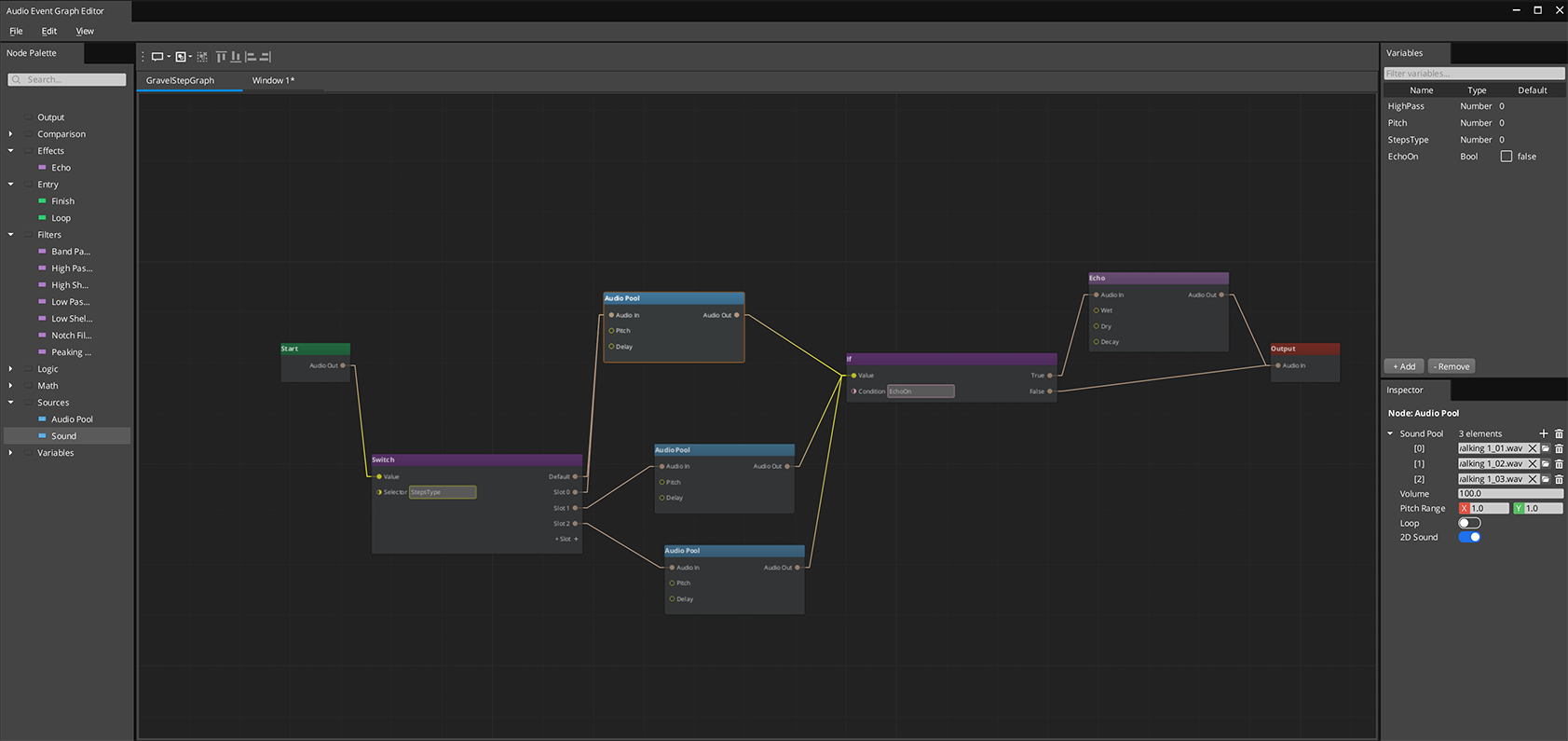
The Audio Event Graph is a visual node-based editor for authoring complex sound events. Instead of a single clip pool, you connect sources, filters, effects, and routing nodes into a graph that evaluates as a data-flow pipeline. Each .audiograph file is one sound event. At runtime, the graph maps directly to a live audio processing chain.
For component properties and C++ extension, see the Framework API reference.
Contents
How It Works
Nodes in an Audio Event Graph evaluate left to right in topological order. Connections carry AudioRoute values — handles to a point in the audio processing chain. The signal flows through:
- An Entry node gates which phase is active
- Source nodes create and output audio
- Filter and effect nodes process the signal
- Routing nodes (If/Switch) direct the signal based on variables
- The Output node wires everything to a mixing bus
Only nodes affected by a change re-evaluate — the rest are skipped. This makes variable-driven sound modification cheap even for complex graphs.
Phase Lifecycle
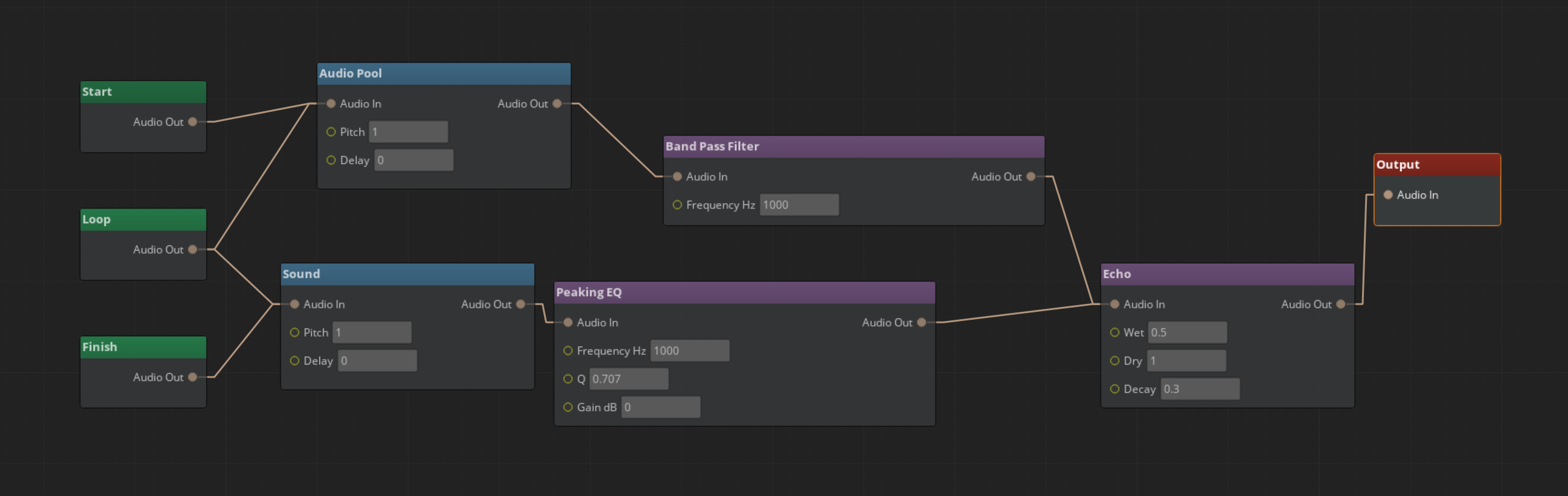
Every Audio Event Graph supports up to three phases:
| Phase | Entry Node | Use For |
|---|
| Start | Aud_StartNode | One-shot intro sounds, attack transient |
| Loop | Aud_LoopNode | Sustained loops, ambient audio |
| Finish | Aud_FinishNode | Fade-outs, release tails |
Phases transition automatically: Start fires once, Loop repeats while looping is enabled, Finish plays when FinishAudioGraph() is called. Not all phases are required — a simple one-shot only needs Start.
Entry nodes share routing freely. A source wired to both Start and Loop phases produces sound in both.
Nodes
Source Nodes
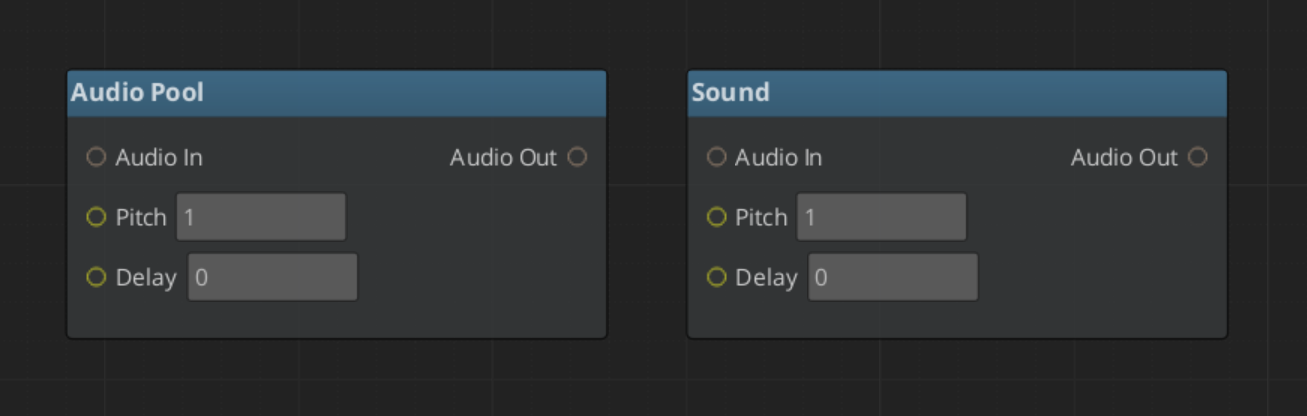
| Node | What It Does |
|---|
| Aud_SoundNode | Single audio asset playback |
| Aud_AudioPoolNode | Random clip selection from a pool |
Both support volume, pitch, delay, looping, and 3D spatialization.
Filter Nodes
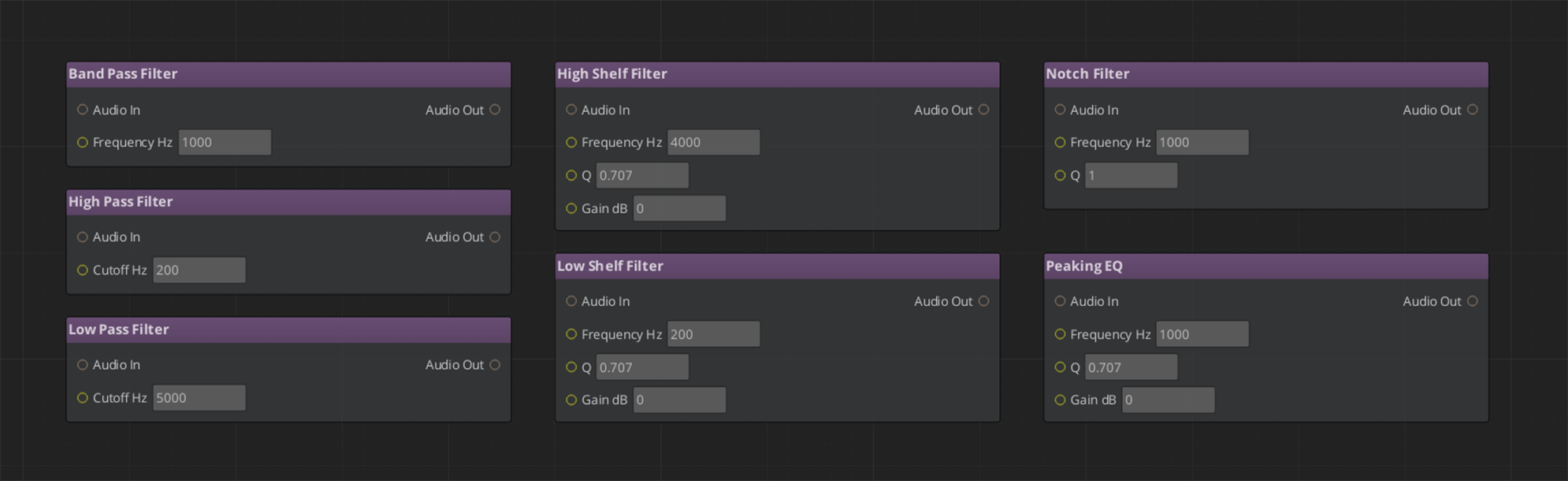
LowPass, HighPass, BandPass, Notch, PeakingEQ, LowShelf, HighShelf — all take audio_in and output audio_out. Parameters (cutoff, Q, gain) can be set per-node or bound to graph variables.
Effect Nodes
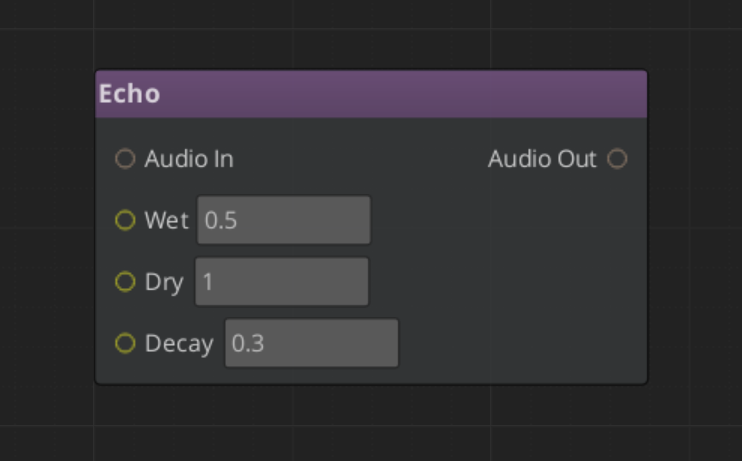
| Node | What It Does |
|---|
| Aud_EchoNode | Echo / reverb tail |
| Aud_DelayNode | Delay effect |
Routing Nodes
IfNode and SwitchNode route AudioRoute values based on conditions or a selector variable. Use these for conditional audio paths — different sounds based on surface type, weather, or character state.
Output Node
Aud_OutputNode wires the final signal to a named mixing bus. Every graph needs exactly one Output node.
Using Variables
Declare variables in the Variable Panel. Bind them to filter parameter slots (right-click > Convert to Reference) or use If/Switch nodes to route based on them.
At runtime, setting a variable re-evaluates only the nodes that depend on it — the rest of the graph is untouched.
Common patterns:
| Variable | Type | Use |
|---|
underwater | Float | Bind to LowPass cutoff — muffles audio when > 0 |
surfaceType | Int | Drive a SwitchNode to select different footstep sources |
intensity | Float | Blend between effect parameters for emotional scoring |
Variables are set from gameplay code via the Audio Manager:
SetAudioGraphVariable(instanceId, "underwater", 0.8)
SetAudioGraphVariableBool(instanceId, "isSprinting", true)
Playing at Runtime
All Audio Event Graph playback goes through the Audio Manager.
Fire-and-Forget
For one-shot sounds with no runtime modification needed:
PlayAudioGraph("Assets/Audio/Explosion.audiograph")
Manual Control
For sounds that loop, need variable updates, or need explicit stopping:
AcquireAudioGraph(assetPath) — get an instance IDSetAudioGraphLooping(id, true) — if it loopsSetAudioGraphEntity(id, entityId) — for 3D trackingFireAudioGraph(id) — start playbackSetAudioGraphVariable(id, name, value) — update variables any timeStopAudioGraph(id) or FinishAudioGraph(id) — stop cleanlyReleaseAudioGraph(id) — return the instance to the pool
Quick Reference
| Task | How |
|---|
| Create a new graph | File > New in the Audio Event Graph Editor |
| Add a phase entry node | Drag Start / Loop / Finish node from the palette |
| Add a source | Drag Aud_SoundNode or Aud_AudioPoolNode |
| Chain a filter | Connect source audio_out → filter audio_in |
| Wire to output | Connect final node’s audio_out → Aud_OutputNode audio_in |
| Bind a variable to a slot | Right-click the slot > Convert to Reference |
| Play fire-and-forget | AudioManagerRequestBus::PlayAudioGraph(path) |
| Play with control | AcquireAudioGraph → FireAudioGraph → ReleaseAudioGraph |
| Update a variable | SetAudioGraphVariable(id, name, value) |
Glossary
| Term | Meaning |
|---|
| Audio Event Graph | A .audiograph file defining a sound event as a data-flow node graph |
| AudioRoute | The value type flowing between nodes — a handle to a point in the miniaudio processing chain |
| Phase | One of three lifecycle stages (Start / Loop / Finish) gated by entry nodes |
| Graph Instance | An independent runtime copy of a graph, pooled and managed by the Audio Manager |
| Dirty Propagation | The evaluation model — only nodes downstream of a changed variable re-run |
For full definitions, see the Glossary.
See Also
Get GS_Audio
GS_Audio — Explore this gem on the product page and add it to your project.
6.2 - Geometric Acoustics
How to make sounds get blocked by walls and pick up the reverb of the room they are in — acoustic volumes, materials, occlusion and reflections.
GS_AudioPro - premium tier
This feature ships in
GS_AudioPro, the premium audio gem. It requires the free
GS_Audio gem and extends it. See the
audio overview for the tier map.
The free gem places sounds by direction and distance — a sound behind a wall is quieter because it is further away, not because the wall is there.
Geometric acoustics makes the wall matter. Mark up your level and sounds get occluded by what is between them and the player, and pick up reverb from the room the player is actually standing in.
For settings and behaviour detail, see the Framework API reference.
Contents
Setting It Up
Geometric acoustics is off until you turn it on.
- Select your Pro Audio Manager.
- Tick Geometry Enabled.
- Leave Occlusion and Reflections on unless you specifically want one without the other.
Nothing happens yet — the simulation has no geometry to work with until you mark some up.
Marking Up a Level
You do not hand the system your level meshes. You mark up the parts that matter acoustically — walls, floors, doorways, the big surfaces that shape a room.
Two components do it:
| Component | Use it when |
|---|
| Audio Shape Geometry | You already have a Shape component on the entity. Quads become planes, Boxes become boxes. Usually the easier option. |
| Audio Geometry | You want to author a box volume directly. |
A practical starting point: block out the room a player will spend the most time in, tag its walls and floor, and listen. You will hear the difference immediately, and you can decide from there how much of the rest of the level is worth marking up.
Choosing Materials
Every piece of geometry carries a material preset. Fifteen ship, in three useful groups:
| Group | Presets | What they do |
|---|
| Hard | Generic, Brick, Concrete, Ceramic, Glass, Plaster, Wood, Metal, Rock | Bounce sound. Bright, long reverb — stone corridors, tiled bathrooms. |
| Absorptive | Gravel, Carpet | Soak sound up. Short, dull reverb — carpeted rooms, soft ground. |
| Soft barriers | Curtain, Blanket, Door, Drape | Let sound through, muffled. |
The soft-barrier group is worth knowing about. A curtain across a doorway does not silence what is behind it, it dulls it — the effect people usually fake with a low-pass filter. Here you get it by picking the right material.
If none of the presets fit, Custom exposes all seven coefficients directly.
Tuning Occlusion
Two modes:
- Raycast — one ray. A sound is occluded or it is not. Cheap.
- Volumetric — samples a sphere around the source, so sound leaks partially around edges. Costs more.
If occlusion sounds like a switch flicking as the player walks past a doorframe, use Volumetric. That partial-occlusion behaviour at edges is exactly what it exists for. Occlusion Radius controls how wide the sampled sphere is.
Tuning Reverb
Reverb comes from the geometry around the player, and updates as they move.
Two behaviours that are deliberate, so you do not go hunting for a bug:
- It eases between rooms. Walking through a doorway blends the reverb rather than snapping it. Reflection Smooth Time controls how long that takes — set it to
0 if you want an instant change. - It does not get quieter as you walk away from a sound. The room sounds like the same room wherever you stand in it, while the dry sound still falls off with distance. That is correct, and it is what makes a large space feel large.
Pick one source of reverb
Do not also run the Reverb effect or an influence zone where geometric reflections apply. Both fill the same role, and running both puts two rooms on the same sound.
What It Does Not Do
- Reverb cannot tell your room from the one next door. It is computed around the player, so a sound sealed in an adjacent room still feeds the same reverb.
- An occluded sound still feeds the reverb. Occlusion muffles the direct sound; it does not stop the source exciting the room.
- It only knows about geometry you marked up. Render meshes and physics colliders are not consulted.
- There is no baking. Everything is computed at runtime.
See Also
For settings and behaviour detail:
For related systems:
Get GS_Audio
GS_Audio — Explore this gem on the product page and add it to your project.
6.3 - Score Arrangement
How to work with GS_Play score arrangements — multi-layer dynamic music with configurable time signatures and layer control.
GS_AudioPro - premium tier
This feature ships in
GS_AudioPro, the premium audio gem. It requires the free
GS_Audio gem and extends it. See the
audio overview for the tier map.
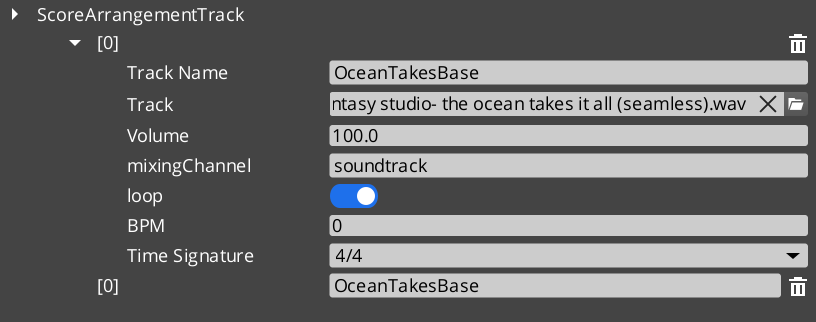
Score Arrangement Tracks are multi-layer music assets for dynamic, adaptive game music. Each arrangement defines a time signature, tempo, fade behavior, and a set of independently controllable Score Layers. This enables music that responds to gameplay — adding percussion during combat, muting melody during dialogue, or transitioning between intensity levels.
For asset structure and playback API, see the Framework API reference.
Contents
How It Works
A Score Arrangement Track is a data asset containing:
| Field | What It Controls |
|---|
| Time Signature | Musical timing (4/4, 3/4, 6/8, etc.). |
| BPM | Tempo in beats per minute. |
| Fade Control | How layers fade in and out. |
| Score Layers | Individual audio tracks that play simultaneously. |
Each Score Layer is an independent audio stream within the arrangement. Layers can be enabled or disabled at runtime, creating dynamic music that evolves based on game state.
Supported Time Signatures
4/4, 4/2, 12/8, 2/2, 2/4, 6/8, 3/4, 3/2, 9/8
Glossary
| Term | Meaning |
|---|
| Score Arrangement Track | A multi-layer music data asset with time signature, tempo, and controllable layers |
| Score Layer | An individual audio stream within an arrangement that can be enabled or disabled at runtime |
| BPM | Beats per minute — the tempo of the arrangement |
For full definitions, see the Glossary.
See Also
For the full API, component properties, and C++ extension guide:
For related systems:
Get GS_Audio
GS_Audio — Explore this gem on the product page and add it to your project.
6.4 - Klatt Voice Synthesis
How to work with GS_Play Klatt voice synthesis — text-to-speech with 3D spatial audio, voice profiles, and inline parameter control.
GS_AudioPro - premium tier
This feature ships in
GS_AudioPro, the premium audio gem. It requires the free
GS_Audio gem and extends it. See the
audio overview for the tier map.
GS_Play includes a built-in text-to-speech system based on Klatt formant synthesis. The KlattVoiceComponent converts text to speech in real time with configurable voice parameters. Voices are positioned in 3D space and attenuate with distance, making synthesized speech feel like it comes from the character speaking.
For component properties, voice parameter details, and the phoneme mapping system, see the Framework API reference.
Contents
How It Works
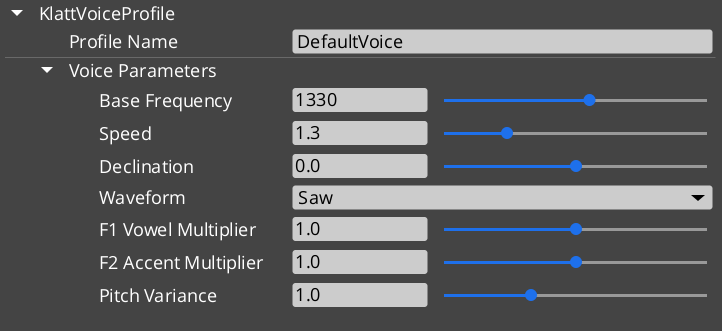
- Configure a voice using a KlattVoiceProfile — set frequency, speed, waveform, formants, and pitch variance.
- Assign a KlattPhonemeMap — maps text characters to ARPABET phonemes for pronunciation.
- Speak text from ScriptCanvas or C++ — the system converts text to phonemes and synthesizes audio in real time.
- Position in 3D — the voice component uses KlattSpatialConfig for 3D audio positioning relative to the entity.
Voice Configuration
| Parameter | What It Controls |
|---|
| Frequency | Base voice pitch. |
| Speed | Speech rate. |
| Waveform | Voice quality — Saw, Triangle, Sin, Square, Pulse, Noise, Warble. |
| Formants | Vocal tract resonance characteristics. |
| Pitch Variance | Random pitch variation for natural-sounding speech. |
| Declination | Pitch drop over the course of a sentence. |
KTT (Klatt Text Tags) allow inline parameter changes within speech text for expressive delivery:
"Hello <speed=0.5>world</speed>, how are <pitch=1.2>you</pitch>?"
The KlattCommandParser processes these tags during speech synthesis, enabling mid-sentence changes to speed, pitch, and other voice parameters.
For the complete tag reference — all attributes, value ranges, and reset behavior — see the Framework API: KTT Voice Tags.
Phoneme Maps
Two base phoneme maps are available:
| Map | Description |
|---|
| SoLoud_Default | Simple default mapping. |
| CMU_Full | Full CMU pronunciation dictionary mapping. |
Custom phoneme overrides allow project-specific word pronunciations (character names, fantasy terms) without modifying the base map.
3D Spatial Audio
The KlattSpatialConfig controls how synthesized speech is positioned in 3D:
- Voices attenuate with distance from the listener.
- The KlattVoiceSystemComponent tracks the listener position and updates all active voices.
- Multiple characters can speak simultaneously with correct spatial positioning.
Quick Reference
| Need | Bus | Method |
|---|
| Control a voice | KlattVoiceRequestBus | Voice synthesis methods (entity-addressed) |
| System-level voice control | KlattVoiceSystemRequestBus | Listener tracking, engine management |
Glossary
| Term | Meaning |
|---|
| Klatt Synthesis | A formant-based speech synthesis method that generates voice from frequency parameters |
| KTT Tags | Inline text tags that modify voice parameters mid-sentence during synthesis |
| Phoneme Map | A mapping from text characters to ARPABET phonemes for pronunciation |
| KlattSpatialConfig | Configuration for 3D audio positioning and distance attenuation of synthesized speech |
For full definitions, see the Glossary.
See Also
For the full API, component properties, and C++ extension guide:
For related systems:
Get GS_Audio
GS_Audio — Explore this gem on the product page and add it to your project.