This is the multi-page printable view of this section. Click here to print.

Return to the regular view of this page.

GS_Audio

Audio management, event-based sound, music scoring, mixing, and Klatt voice synthesis for the GS_Play framework.

GS_Audio is the audio management gem for GS_Play. It provides event-based sound playback, a multi-layer music scoring system, mixing buses with effects chains, and a built-in Klatt formant voice synthesizer with 3D spatial audio. All audio features integrate with the GS_Play manager lifecycle and respond to standby mode automatically.

For architecture details, component properties, and extension patterns, see the GS_Audio API.


Quick Navigation

I want to…FeatureAPI
Manage the audio engine, load event libraries, or control master volumeAudio ManagerAPI
Play sounds with pooling, 3D spatialization, and concurrency controlAudio EventsAPI
Configure mixing buses with filters, EQ, and environmental influence effectsMixing & EffectsAPI
Layer music tracks dynamically based on gameplay stateScore ArrangementAPI
Generate text-to-speech with configurable voice parameters and 3D spatial audioKlatt VoiceAPI

Installation

GS_Audio requires GS_Core and the MiniAudio gem. Add both to your project’s gem dependencies.

For a complete guided setup, follow the Simple Project Setup guide.


Quick Installation Summary

  1. Enable the GS_Audio gem in your project configuration.
  2. Create an Audio Manager prefab and add it to the Game Manager’s Managers list.
  3. Create Audio Event Library assets for your sound effects.
  4. Place GS_AudioEventComponent on entities that need to play sounds.

Audio Manager

The Audio Manager is the singleton controller for the entire audio system. It initializes the audio engine, manages mixing buses, loads audio event libraries, and coordinates score playback. Like all GS_Play managers, it extends the Manager base class and plugs into the Game Manager’s startup sequence automatically.

Audio Manager API


Audio Events

Audio Events are the primary way to play sounds. Each event defines a pool of audio clips with selection rules (random or sequential), 2D or 3D playback mode, concurrent instance limiting, and repeat-hold behavior. Events are grouped into Audio Event Library assets that the Audio Manager loads at startup.

Audio Events API


Mixing & Effects

The mixing system provides named audio buses with configurable effects chains. Each bus can have filters applied — low pass, high pass, band pass, notch, peaking EQ, shelving, delay, and reverb. Audio Bus Influence Effects allow environmental zones to dynamically modify bus effects based on the listener’s position.

Mixing & Effects API


Score Arrangement

Score Arrangement Tracks are multi-layer music assets. Each arrangement defines a time signature, BPM, fade behavior, and a set of Score Layers — individual audio tracks that can be enabled or disabled independently. This allows dynamic music that adds or removes instrument layers based on gameplay state.

Score Arrangement API


Klatt Voice Synthesis

GS_Play includes a built-in text-to-speech system based on Klatt formant synthesis. The Klatt Voice component converts text to speech in real time with configurable voice parameters — frequency, speed, waveform, formants, and pitch variance. The system supports 3D spatial audio and inline KTT tags for expressive delivery.

Klatt Voice API


See Also

For the full API, component properties, and C++ extension guide:

For step-by-step project setup:


Get GS_Audio

GS_Audio — Explore this gem on the product page and add it to your project.
1 - Audio Manager

How to work with the GS_Play Audio Manager — engine initialization, bus routing, and master control.

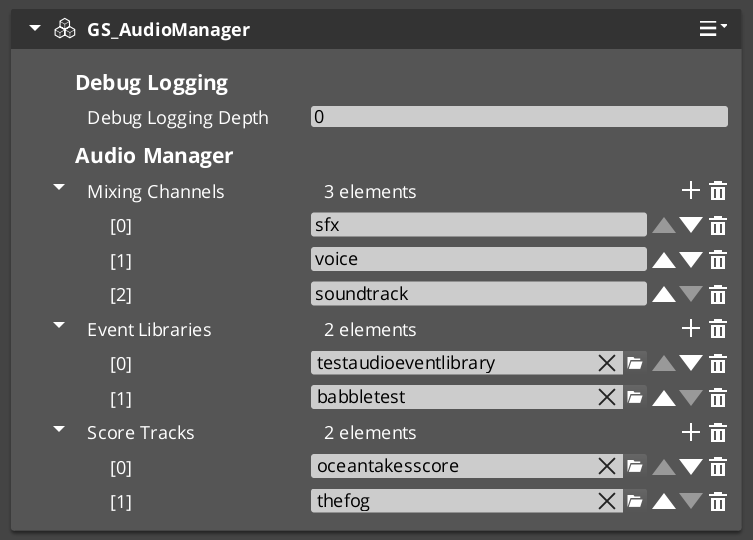
The Audio Manager is the singleton controller for the entire audio system. It initializes the MiniAudio engine, manages mixing buses, loads audio event libraries, and coordinates score track playback. Like all GS_Play managers, it extends the Manager base class and responds to the Game Manager lifecycle automatically.

For component properties and API details, see the Framework API reference.

Audio Manager component in the O3DE Inspector


Contents


What It Manages

ResponsibilityWhat It Does
Engine lifecycleInitializes and shuts down the MiniAudio audio engine.
Mixing busesCreates and routes named audio buses with effects chains.
Event librariesLoads Audio Event Library assets at startup.
Score playbackManages Score Arrangement Track assets for dynamic music.
Master volumeControls global volume levels per bus.

Quick Reference

NeedBusMethod
Audio management requestsAudioManagerRequestBusPlayAudioEvent, StopAudioEvent, SetMixerVolume

Glossary

TermMeaning
Audio Event LibraryA data asset containing named audio event definitions loaded at startup
Mixing BusA named audio channel with an effects chain for routing and processing sounds
Score ArrangementA multi-layer music asset managed by the Audio Manager for dynamic playback

For full definitions, see the Glossary.


See Also

For the full API, component properties, and C++ extension guide:

For related systems:


Get GS_Audio

GS_Audio — Explore this gem on the product page and add it to your project.
2 - Audio Events

How to work with GS_Play audio events — data-driven sound playback with pooling, spatialization, and concurrency control.

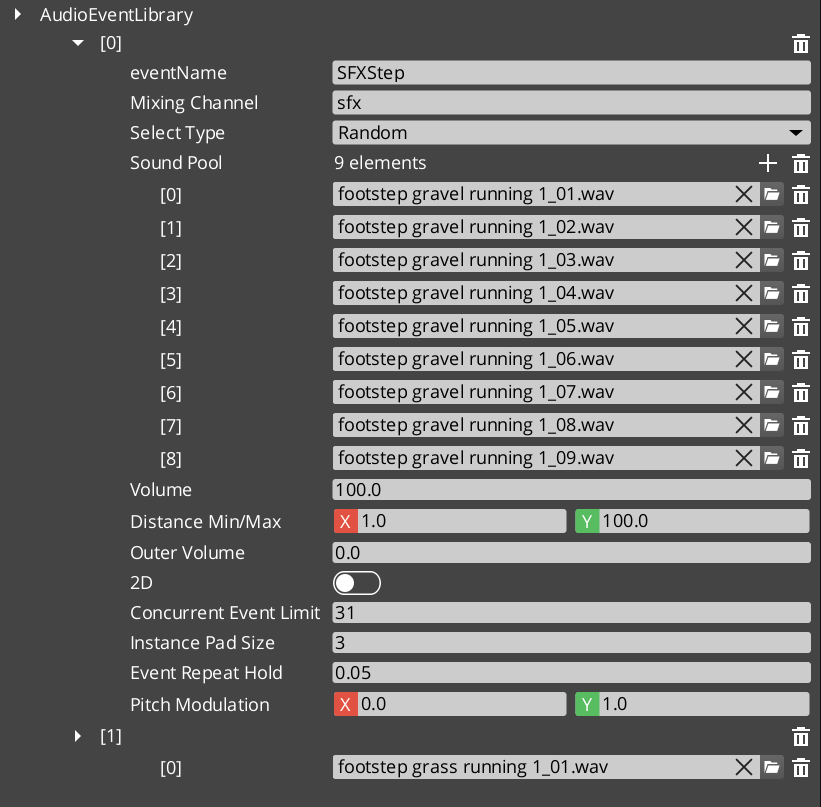
Audio Events are the primary way to play sounds in GS_Play. Each event defines a pool of audio clips with selection rules, playback mode (2D or 3D), concurrent instance limiting, and repeat-hold behavior. Events are grouped into Audio Event Library assets that the Audio Manager loads at startup.

For asset structure and component properties, see the Framework API reference.

Audio Event Library asset in the O3DE Asset Editor


Contents


How It Works

  1. Create an Audio Event Library asset in the O3DE Asset Editor.
  2. Define audio events — each with a name, clip pool, and playback settings.
  3. Load the library by assigning it to the Audio Manager.
  4. Play events by name from ScriptCanvas or C++.

Event Configuration

SettingWhat It Controls
Pool SelectionRandom — picks a random clip from the pool. Increment — plays clips sequentially.
2D / 3D2D plays without spatialization. 3D positions the sound in the world.
Concurrent LimitMaximum instances of this event that can play simultaneously.
Repeat HoldMinimum time between repeated plays of the same event.

GS_AudioEventComponent

Place a GS_AudioEventComponent on any entity that needs to play sounds. The component references events by name from loaded libraries and handles 3D positioning automatically based on the entity’s transform.


Quick Reference

NeedBusMethod
Play a sound eventAudioManagerRequestBusPlayAudioEvent(eventName)
Stop a sound eventAudioManagerRequestBusStopAudioEvent(eventName)

Glossary

TermMeaning
Audio EventA named, data-driven sound definition with clip pool, playback mode, and concurrency settings
Audio Event LibraryA data asset grouping multiple audio events for batch loading
Pool SelectionThe strategy for choosing clips — Random or Increment
Concurrent LimitMaximum simultaneous instances of the same event

For full definitions, see the Glossary.


See Also

For the full API, component properties, and C++ extension guide:

For related systems:


Get GS_Audio

GS_Audio — Explore this gem on the product page and add it to your project.
3 - Mixing & Effects

How to work with GS_Play audio mixing — named buses, effects chains, and environmental audio influence.

The mixing system provides named audio buses with configurable effects chains. Each bus can have multiple audio filters applied for real-time audio processing. Audio Bus Influence Effects allow environmental zones to dynamically modify bus parameters based on the listener’s position.

For component properties and filter types, see the Framework API reference.


Contents


Available Filters

FilterWhat It Does
Low PassRemoves high frequencies. Simulates muffling (underwater, behind walls).
High PassRemoves low frequencies. Simulates thin/tinny audio (radio, phone).
Band PassPasses a frequency band. Isolates specific ranges.
NotchRemoves a narrow frequency band.
Peaking EQBoosts or cuts a frequency band.
Low ShelfBoosts or cuts frequencies below a threshold.
High ShelfBoosts or cuts frequencies above a threshold.
DelayAdds echo/delay effect.
ReverbAdds room/space reverb.

Environmental Audio Influence

Audio Bus Influence Effects allow spatial zones to modify bus effects dynamically. When the listener enters an influence zone (like a cave or tunnel), the zone’s effects are applied to the specified bus with priority-based stacking. Multiple overlapping zones resolve by priority.


Quick Reference

NeedBusMethod
Control mixer settingsGS_MixingRequestBusMixer control methods
Set master volumeAudioManagerRequestBusSetMixerVolume

Glossary

TermMeaning
Mixing BusA named audio channel that routes sound through an effects chain
Audio FilterA real-time audio processing effect applied to a mixing bus
Audio Bus Influence EffectA spatial zone that modifies bus effects based on listener position

For full definitions, see the Glossary.


See Also

For the full API, component properties, and C++ extension guide:

For related systems:


Get GS_Audio

GS_Audio — Explore this gem on the product page and add it to your project.
4 - Score Arrangement

How to work with GS_Play score arrangements — multi-layer dynamic music with configurable time signatures and layer control.

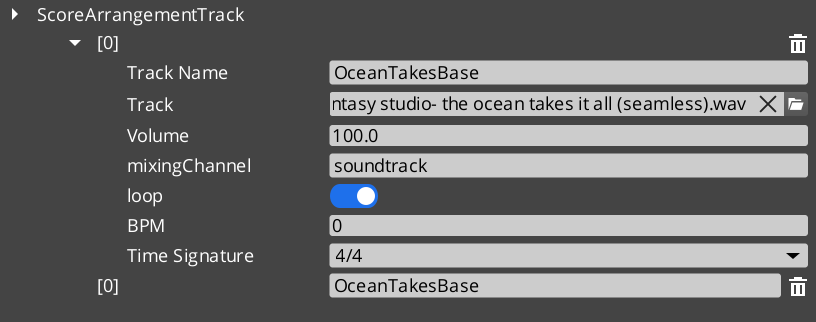
Score Arrangement Tracks are multi-layer music assets for dynamic, adaptive game music. Each arrangement defines a time signature, tempo, fade behavior, and a set of independently controllable Score Layers. This enables music that responds to gameplay — adding percussion during combat, muting melody during dialogue, or transitioning between intensity levels.

For asset structure and playback API, see the Framework API reference.

Score Arrangement asset in the O3DE Asset Editor


Contents


How It Works

A Score Arrangement Track is a data asset containing:

FieldWhat It Controls
Time SignatureMusical timing (4/4, 3/4, 6/8, etc.).
BPMTempo in beats per minute.
Fade ControlHow layers fade in and out.
Score LayersIndividual audio tracks that play simultaneously.

Each Score Layer is an independent audio stream within the arrangement. Layers can be enabled or disabled at runtime, creating dynamic music that evolves based on game state.


Supported Time Signatures

4/4, 4/2, 12/8, 2/2, 2/4, 6/8, 3/4, 3/2, 9/8


Glossary

TermMeaning
Score Arrangement TrackA multi-layer music data asset with time signature, tempo, and controllable layers
Score LayerAn individual audio stream within an arrangement that can be enabled or disabled at runtime
BPMBeats per minute — the tempo of the arrangement

For full definitions, see the Glossary.


See Also

For the full API, component properties, and C++ extension guide:

For related systems:


Get GS_Audio

GS_Audio — Explore this gem on the product page and add it to your project.

5 - Klatt Voice Synthesis

How to work with GS_Play Klatt voice synthesis — text-to-speech with 3D spatial audio, voice profiles, and inline parameter control.

GS_Play includes a built-in text-to-speech system based on Klatt formant synthesis. The KlattVoiceComponent converts text to speech in real time with configurable voice parameters. Voices are positioned in 3D space and attenuate with distance, making synthesized speech feel like it comes from the character speaking.

For component properties, voice parameter details, and the phoneme mapping system, see the Framework API reference.

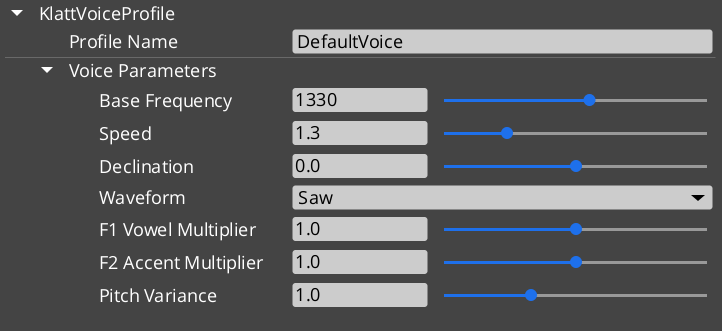
Klatt Voice Profile asset in the O3DE Asset Editor


Contents


How It Works

  1. Configure a voice using a KlattVoiceProfile — set frequency, speed, waveform, formants, and pitch variance.
  2. Assign a KlattPhonemeMap — maps text characters to ARPABET phonemes for pronunciation.
  3. Speak text from ScriptCanvas or C++ — the system converts text to phonemes and synthesizes audio in real time.
  4. Position in 3D — the voice component uses KlattSpatialConfig for 3D audio positioning relative to the entity.

Voice Configuration

ParameterWhat It Controls
FrequencyBase voice pitch.
SpeedSpeech rate.
WaveformVoice quality — Saw, Triangle, Sin, Square, Pulse, Noise, Warble.
FormantsVocal tract resonance characteristics.
Pitch VarianceRandom pitch variation for natural-sounding speech.
DeclinationPitch drop over the course of a sentence.

KTT Tags

KTT (Klatt Text Tags) allow inline parameter changes within speech text for expressive delivery:

"Hello <speed=0.5>world</speed>, how are <pitch=1.2>you</pitch>?"

The KlattCommandParser processes these tags during speech synthesis, enabling mid-sentence changes to speed, pitch, and other voice parameters.

For the complete tag reference — all attributes, value ranges, and reset behavior — see the Framework API: KTT Voice Tags.


Phoneme Maps

Two base phoneme maps are available:

MapDescription
SoLoud_DefaultSimple default mapping.
CMU_FullFull CMU pronunciation dictionary mapping.

Custom phoneme overrides allow project-specific word pronunciations (character names, fantasy terms) without modifying the base map.


3D Spatial Audio

The KlattSpatialConfig controls how synthesized speech is positioned in 3D:

  • Voices attenuate with distance from the listener.
  • The KlattVoiceSystemComponent tracks the listener position and updates all active voices.
  • Multiple characters can speak simultaneously with correct spatial positioning.

Quick Reference

NeedBusMethod
Control a voiceKlattVoiceRequestBusVoice synthesis methods (entity-addressed)
System-level voice controlKlattVoiceSystemRequestBusListener tracking, engine management

Glossary

TermMeaning
Klatt SynthesisA formant-based speech synthesis method that generates voice from frequency parameters
KTT TagsInline text tags that modify voice parameters mid-sentence during synthesis
Phoneme MapA mapping from text characters to ARPABET phonemes for pronunciation
KlattSpatialConfigConfiguration for 3D audio positioning and distance attenuation of synthesized speech

For full definitions, see the Glossary.


See Also

For the full API, component properties, and C++ extension guide:

For related systems:


Get GS_Audio

GS_Audio — Explore this gem on the product page and add it to your project.