A Phantom Camera’s behavior is the composition of one Body stage, one Aim stage, and zero-or-more Additive stages. The same GS_PhantomCameraComponent becomes a follow cam, an orbital cam, a tracking dolly, or a third-person shoulder cam depending on what is slotted from the editor’s type-picker.
Each recipe below names a Body pick, an Aim pick, and any Additive picks, plus the key field values that produce the target behavior. For the concept, the per-tick pipeline, and per-stage field references, see The Basics: Phantom Cameras and the Stage Pipeline API.
Contents
- Recipe: Third-Person Shoulder Cam
- Recipe: Orbital Player Cam
- Recipe: Static Orbit Showcase Cam
- Recipe: First-Person Clamped Look
- Recipe: Tracking Dolly
- Recipe: Group-Framing Cam
- See Also
Recipe: Third-Person Shoulder Cam
A camera that follows the player at standoff distance, holds position when the player is moving inside an authored band, and slides smoothly around to re-frame when the player travels in a new direction. The canonical leading-look feel.
| Slot | Pick | Key fields |
|---|---|---|
| Body | LeadingFollowBody | Offset = (0, 0, 1.6) (cam Z height), InnerRadius = 2.0, OuterRadius = 5.0, BlendShape = Cylindrical |
| Aim | DefaultLookAtAim | Offset = (0, 0, 1.5) (look point at chest height), Halflife = 0.1 |
| Additives (Reposition) | CollisionReposition | InnerRadius = 0.15, OuterRadius = 0.45, Halflife = 0.15, configure Collides With to match the player’s collision layer |
Why this combination:
LeadingFollowBodyholds position inside its band — abrupt 180° turns by the player don’t swing the cam.DefaultLookAtAimsmoothly tracks the player’s chest.CollisionRepositionsphere-casts from the player to the cam and pushes the cam inside walls or geometry, gliding back out via the soft buffer when the player walks away.
Optional: Add
PerlinNoisewith aNormal_Mild.camnoiseprofileprofile for a touch of handheld feel. See Camera Noise Configurations.
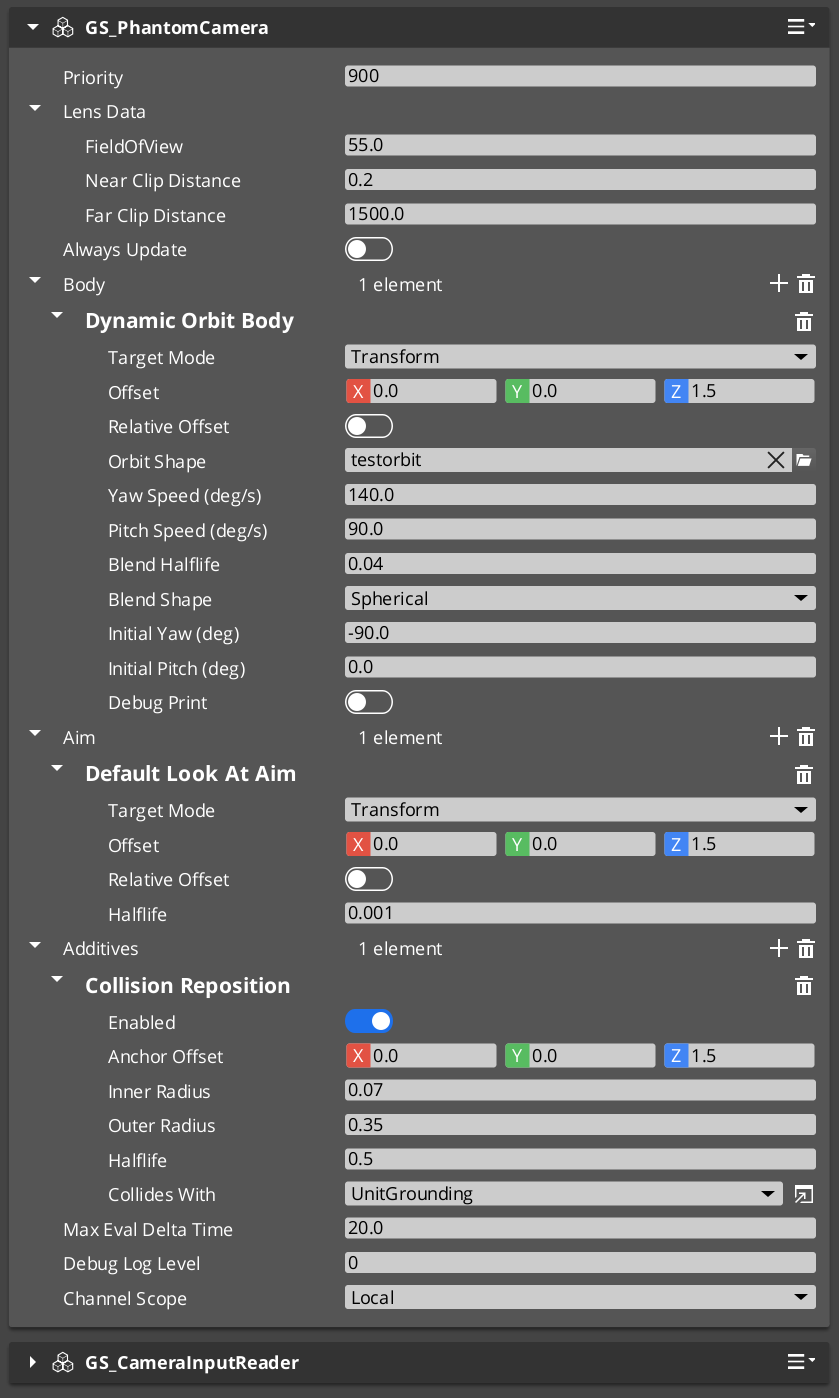
Recipe: Orbital Player Cam
A camera that orbits around the player driven by player input (right-stick or mouse). The current go-to for third-person action games.
| Slot | Pick | Key fields |
|---|---|---|
| Body | DynamicOrbitBody | Assign an .camorbit asset to OrbitShape, BlendHalflife = 0.10, InitialYawDeg = 180 (start behind player), InitialPitchDeg = 0 |
| Aim | DefaultLookAtAim | Halflife = 0.1 |
| Additives (Reposition) | CollisionReposition | As above |
Required companion: Add a GS_CameraInputReaderComponent to the same entity. It implements the OrbitInputProvider interface that DynamicOrbitBody polls each tick. Configure sensitivity (raw input scale) and halflife (input damping) on the reader.
Why this combination:
DynamicOrbitBodyholds target yaw and pitch angles internally; input integration nudges them each tick, and the orbital solver damps the cam’s position toward whatever the angles imply on the orbit surface.- The
.camorbitshape asset defines the surface (sphere, oblate spheroid, rounded box) — different shapes give different “feel” for the orbit motion.
Recipe: Static Orbit Showcase Cam
A camera locked to a fixed orbital pose around its target — no input, no movement. Useful for menu / inventory / character-detail screens. Replacement for the retired StaticOrbit_PhantomCamComponent.
| Slot | Pick | Key fields |
|---|---|---|
| Body | OrbitBody | OrbitRadius = 5.0, OrbitYawDeg = 45, OrbitPitchDeg = 20 |
| Aim | DefaultLookAtAim | Halflife = 0.1 |
No additives needed for the basic case.
Static via DynamicOrbitBody. You can also get a static orbit using
DynamicOrbitBodyby simply not adding aGS_CameraInputReaderComponent— without an input provider, target angles never change and the solver damps once, then holds. Use the dedicatedOrbitBodywhen you want the explicit “this is a fixed shot” identity (and the inheritance Get-only behavior that comes with it).
Recipe: First-Person Clamped Look
A first-person camera whose look-at rotation is clamped within authored pitch and yaw bounds. Replacement for the retired ClampedLook_PhantomCamComponent.
| Slot | Pick | Key fields |
|---|---|---|
| Body | DefaultFollowBody | Offset = (0, 0, 1.7) (eye height), OffsetIsRelative = true, Halflife = 0.05 |
| Aim | ClampedLookAim | MinRelClamp = (-45, 0, -90), MaxRelClamp = (45, 0, 90), LocalSpace = true, Halflife = 0.05 |
ClampedLookAim captures a starting forward on first evaluation, and the envelope clamps relative to that origin. Setting LocalSpace = true keeps the clamp axes aligned with the cam’s starting orientation rather than world axes.
Recipe: Tracking Dolly
A camera that slides along a spline path while tracking a target. The “dolly track” cinematic shot. Replacement for the retired Track_PhantomCamComponent.
Authoring steps:
- Add a
SplineComponentto a separate entity. Author the spline shape in the editor (linear, bezier, etc.). - On your Phantom Camera entity:
| Slot | Pick | Key fields |
|---|---|---|
| Body | TrackBody | Assign the spline entity to SplineTrack. Author StartData (offset, halflife, FoV) and EndData (offset, halflife, FoV). |
| Aim | DefaultLookAtAim | Halflife configured to match the dolly feel. |
TrackBody projects the target onto the spline at each tick and interpolates between StartData and EndData by spline parameter. If EndData.FieldOfView > 0, the cam’s FoV animates along the dolly too — useful for “zoom in as the cam reaches the climax point.”
Recipe: Group-Framing Cam
A camera that frames multiple subjects (e.g. all party members, all combatants in an encounter) using a Group Target.
Authoring steps:
- Create a Group Target entity. Add
GroupTargetComponent, give it a name (e.g."PartyCentroid"), set its centroid mode (WeightedMeanis the common choice), and add subjects with their weights. See Group Target Configurations for full subject-management patterns. - On your Phantom Camera entity:
| Slot | Pick | Key fields |
|---|---|---|
| Body | LeadingFollowBody or DynamicOrbitBody | Set TargetMode = GroupTarget, set GroupTargetName = "PartyCentroid". |
| Aim | DefaultLookAtAim | Same target-mode pattern — set TargetMode = GroupTarget, GroupTargetName = "PartyCentroid". |
The group target’s transform IS the weighted centroid of its subjects, so the cam tracks “where the group is” rather than any single member.
See Also
Related recipe collections:
- Camera Noise Configurations — adding shake to any of the above.
- Group Target Configurations — building the centroid target for the group-framing recipe.
- Camera Tug Configurations — adding magnetic spatial pulls to any of the above.
Basics this builds on:
- The Basics: Phantom Cameras — base component fields and lifecycle.
- The Basics: Blend Profiles — how transitions between cams are authored.
Framework API: