GS_PhantomCam can be configured at three different tiers depending on what your project needs. Most projects use Tier 1 (single-cam) or Tier 2 (single-player rig). Co-op, split-screen, and per-player-cinematic projects use Tier 3 (multi-channel). The per-cam authoring surface is identical across tiers — what changes is the Cam Manager configuration and how many rigs the system spawns.
For the concept of channels, the choose-a-tier table, and pitfalls, see The Basics: Channels & Instancing. For the full bus surface and internal state, see Channels & Instancing (Framework API).
Multi-view rendering is pending. Until the AttachmentImage work lands, the engine renders one channel’s view at a time even when multiple channels are arbitrating internally. The Cam Manager’s active main-view API selects which channel reaches the framebuffer. Arbitration / dispatch / target binding all work today — only the simultaneous-rendering piece is gated.
Contents
- Recipe: Tier 1 — Single Cam
- Recipe: Tier 2 — Single-Player Rig (Legacy)
- Recipe: Tier 3 — Multi-Channel Co-op
- Common Tier 3 Patterns
- Lobby Flow
- See Also
Recipe: Tier 1 — Single Cam
The Cam Manager spawns one rig prefab on startup, and every Phantom Camera inside it registers to channel 0.
Steps
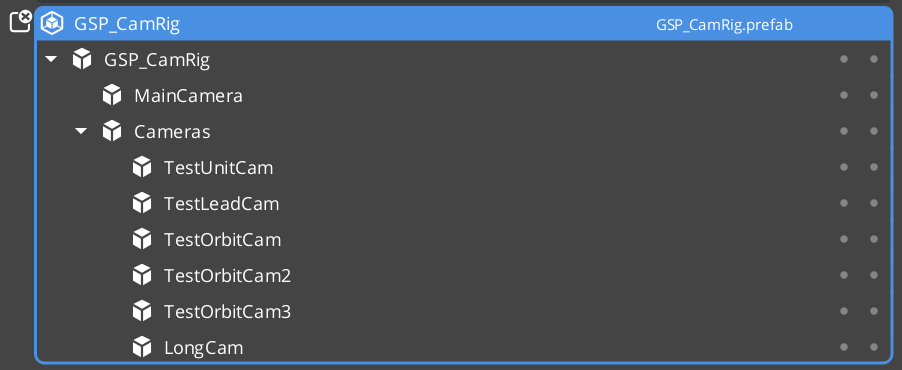
Author a rig prefab. Create a prefab containing:
- A root entity (anything — it can be empty, or a logical “Camera Rig” entity).
- A child entity carrying
GS_CamCoreComponentplus the engine’s standardCameraComponent. This is the main camera. - Zero or more child entities carrying
GS_PhantomCameraComponentwith their authored Body / Aim stages.
On the Cam Manager component:
- Set Primary Rig Prefab to your rig prefab.
- Leave Enable Instanced Channels OFF (default).
Bind a target when the player spawns:
CamManagerRequestBus::Broadcast(SetTarget, playerEntity);The Cam Manager spawns the rig at startup. The rig’s Cam Core and Phantom Cameras self-register to channel 0. The
SettingNewCamlegacy notification fires when the dominant cam changes.
That’s it. No further per-cam setup required.
Recipe: Tier 2 — Single-Player Rig (Legacy)
Same single-player behavior, but the Cam Core lives in the level rather than in a spawned prefab. Use this when you have an existing project that hand-places the Cam Core and you don’t want to refactor.
Steps
- Hand-place the Cam Core entity in your level (as a child of the Cam Manager prefab, or any persistent entity).
- On the Cam Manager:
- Leave Primary Rig Prefab empty.
- Leave Enable Instanced Channels OFF.
- Bind a target as in Tier 1.
The level-placed Cam Core and Phantom Cameras self-register to channel 0 via the legacy bus path (no ChannelStampComponent ancestor, so the stamp walk misses and the legacy registration falls through).
Recipe: Tier 3 — Multi-Channel Co-op
The Cam Manager spawns one rig per active channel. Each channel arbitrates independently. Per-player target binding routes through SetChannelTarget.
Steps
Author your rig prefab as in Tier 1. The same prefab can be reused across all channels (symmetric setup) or you can author multiple prefabs for asymmetric setups (e.g. P1 third-person, P2 top-down).
On the Cam Manager:
Toggle Enable Instanced Channels ON. The channel-aware fields appear in the inspector.
Set Primary Rig Prefab to your default rig (used as universal fallback — channels with no per-channel override inherit this).
Populate Channel Configs with one entry per supported player slot:
Field Set to Channel Name "P1","P2", etc. (display label only — not a lookup key).Channel Policy PerChannelInstance(default — the rig spawns once per channel).Rig Override Prefab Leave empty for symmetric (every channel uses the primary). Set to a per-channel prefab for asymmetric. Enabled By Default truefor slots that should spawn on startup.Optionally set Active Channel Count to cap how many channels actually spawn at startup (the lobby may override this — see Lobby Flow).
Per-player target binding — when each player spawns:
CamManagerRequestBus::Broadcast(SetChannelTarget, channelId, playerEntity);The Cam Manager pushes the target to every cam in that channel and triggers a synchronous snap so the cam jumps to its evaluated pose before the Cam Core latches.
The Cam Manager spawns each enabled channel’s rig at startup. Each rig’s Cam Core registers to its channel; each Phantom Camera walks its ancestors to find the auto-attached
ChannelStampComponentand registers to the same channel.
Common Tier 3 Patterns
Per-player cam (in-rig)
Drop a Phantom Camera inside the rig prefab with m_channelScope = Local (default). When the rig spawns for channel N, the cam’s auto-stamp-walk finds the rig’s ChannelStampComponent and registers to channel N. Each spawned rig instance carries its own copy — players don’t see each other’s cams.
Same logical cam name across channels
Keep entity names like "third_person_rig_cam" inside the rig prefab. The name is scoped within the channel — channel 0 and channel 1 each have their own "third_person_rig_cam" and they don’t collide. Authors never type _i1 / _i2 suffixes.
Shared cinematic cam — collapse-to-one-view
Author a Phantom Camera outside any rig prefab (in the level, or in a “shared cinematic” prefab that is not the channel rig). Set:
- Channel Scope →
TrueUnique. - Show Advanced → on.
- All Channels Share → on.
The cam appears in every active channel’s priority table. When players converge (e.g. a Group Target tracks all players and the shared cam targets the group), the shared cam may win arbitration in every channel simultaneously. At that edge, the Cam Manager broadcasts OnAllChannelsActivatedSharedCam(sharedCam) — UI can detect this and switch from split-screen layout to single-view. See the Collapse to Single View recipe for the group-target side.
Hero-perspective cam for a specific player
A cam that should only ever apply to one specific channel:
- Channel Scope →
TrueUnique. - Bound Channel Id → the channel number (e.g. 0 for P1).
- Leave All Channels Share off.
The cam is registered directly to that channel via RegisterPhantomCamDirect — bypasses the stamp-walk path entirely.
Cross-channel cinematic dispatch
Force a specific cam to render on a specific Cam Core, regardless of arbitration:
CamManagerRequestBus::Broadcast(DispatchCamToCamCore, cinematicCamEntity, p1CamCore);
// ... cinematic plays ...
CamManagerRequestBus::Broadcast(ReleaseCamCoreDispatch, p1CamCore);
Channel arbitration still runs internally during dispatch — SettingNewCamOnChannel continues firing with the arbitrated winner. Only the Cam Core route is overridden, so HUD or AI behavior that listens for arbitration changes still sees the “natural” winner.
Lobby Flow
The typical lobby pattern for variable player counts:
Author
m_channelConfigsto hold N entries (the max supported player count for your project — e.g. 4).Pre-startup (before the Cam Manager’s
OnStartupCompletefires), the lobby calls:CamManagerRequestBus::Broadcast(SetActiveChannelCount, actualPlayerCount);On startup, only
actualPlayerCountchannels spawn. The remaining configured channels stay dormant.Mid-session join / drop uses
EnableChannel(channelId)/DisableChannel(channelId)to spawn or despawn channels as players come and go.
SetActiveChannelCountmust run pre-startup. Mid-session calls warn and are ignored — useEnableChannel/DisableChannelinstead.
See Also
Related recipe collections:
- PhantomCam Configurations — composing the cams that live inside the rig prefab.
- Group Target Configurations — the collapse-to-single-view recipe pairs with the Tier 3 setup here.
- Influence Field Configurations — channel-routed priority shifts inside the multi-channel setup.
Basics this builds on:
- The Basics: Channels & Instancing — concept, choose-a-tier table, pitfalls.
- The Basics: Cam Manager — manager lifecycle.
Framework API:
- Channels & Instancing — full bus surface, internal state, spawn pipeline.
- Cam Manager — owning component.