Configure Project
Configure Project to run GS_Play.
Install Gems
Add Project Dependencies
cmakelists: package build targets
<ProjectGemName>.Private.Object STATIC
BUILD_DEPENDENCIES
    PUBLIC
        Gem:GS_Play_Core.API
        Gem:GS_<your desired module>.API
Setup Project Environment
Environment Setup
Need Help?
Check out the Project Setup Video Tutorial (Links to video_tutorial tag for setup video)
1 - Setting Up the Physics Environment
Setting up your Physics Environment
These are the necessary details to create your project and have it run reliably with all GS_Play featuresets.
Physics

Image showing the standard PhysX Configuration necessary to support all GS_Play features.
Collision Layers
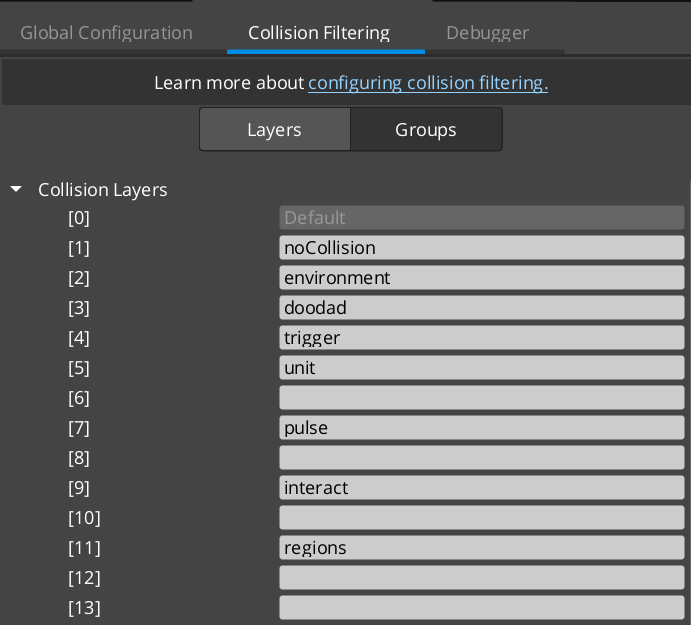
Image showing the standard PhysX Collision Layers necessary to support all GS_Play features.
NoCollision Layer
Environment Layer
Doodad Layer
Trigger Layer
Unit Layer
Pulse Layer
Interact Layer
Regions Layer
Collision Groups
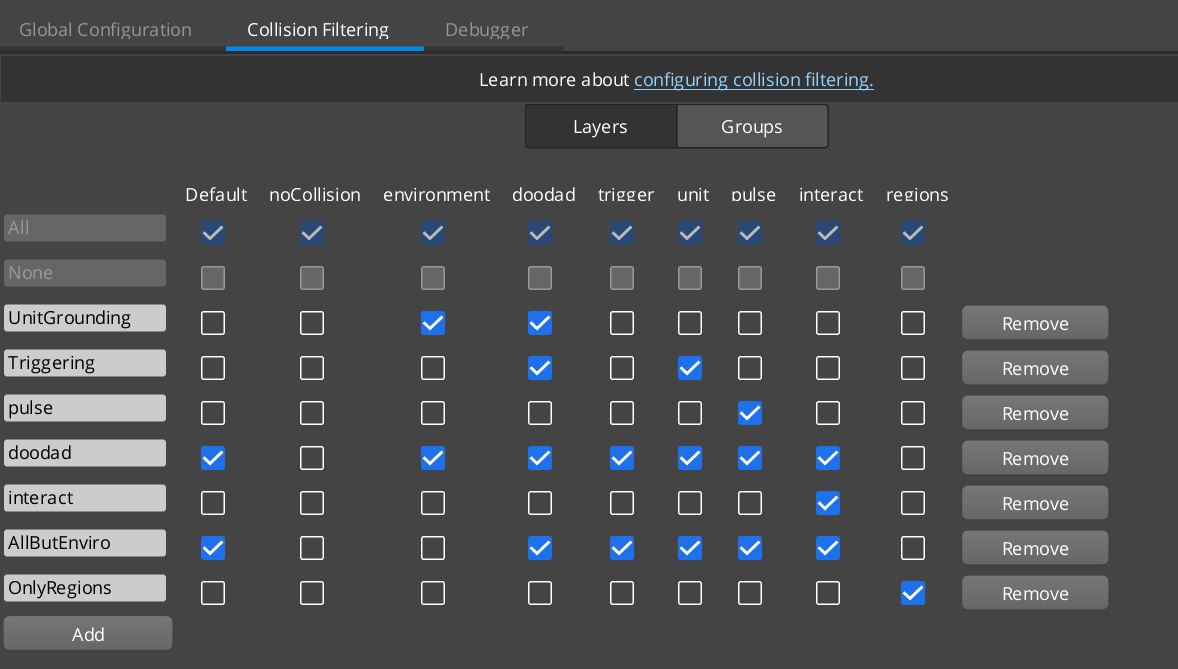
Image showing the standard PhysX Collision Groups necessary to support all GS_Play features.
UnitGrounding Group
Triggering Group
Pulse Group
Doodad Group
Interact Group
AllButEnviro Group
OnlyRegions Group
Set Ground Collision Layer
In order to properly introduce a GS_Unit to the default scene you need to create an object with the “Environment” collision layer to stand on.
The easist way to start is to change the collision layer of the default “Ground” entity in the level.