GS_Unit
Character and entity control — unit lifecycle, player and AI controllers, input processing, movement, and grounding.
GS_Unit is the gem that gives entities agency. It provides a unit lifecycle system for spawning and possessing controllable entities, a controller layer that separates player and AI concerns, an input pipeline that converts raw device input into movement vectors, a family of mover components covering free 3D, surface-sliding, and physics-driven movement, and grounding components for stable surface contact. The gem depends only on GS_Core and introduces one data asset, GS_UnitMovementProfile, for authoring movement parameters outside of code.
For usage guides and setup examples, see The Basics: GS_Unit.
Contents
Unit Manager
The lifecycle system for spawnable, possessable units. The Unit Manager is a singleton that handles unit spawn requests and tracks the active player controller. Individual Unit components identify an entity as a game unit and manage possession state.
| Component | Purpose |
|---|
| GS_UnitManagerComponent | Singleton manager. Handles unit spawn requests and player controller registration. |
| GS_UnitComponent | Marks an entity as a unit. Manages possession, controller access, and standby state. |
Unit Manager API
Controllers
The controller layer separates how a unit is driven from what the unit is. A base controller handles possession handshake. The player controller adds input-driven behavior. The AI controller provides a hook for script or code-driven NPC logic.
Unit Controllers API
The input pipeline converts raw device events into a normalised input state that movement and interaction systems can read. Input Reactor components handle discrete button events. Axis Reactor components handle analogue axes. Concrete implementations cover keyboard WASD and joystick movement.
Input Data API
Movement
The mover stack translates input vectors and influences into entity motion. The Mover Context component tracks current movement state. Concrete movers cover three locomotion modes. Grounder components maintain stable surface contact and feed grounded state back to the mover. Influence components apply persistent or volume-scoped forces on top of any mover.
Movement API
Installation
GS_Unit requires only GS_Core. It is one of the lightest gems in the framework to add.
- Enable GS_Unit in Project Manager or
project.json. - Add GS_UnitManagerComponent to the Game Manager entity and register it in the Startup Managers list.
- Build your unit prefab: add GS_UnitComponent, the appropriate Controller, GS_InputDataComponent, and a Mover for the locomotion type you need.
- Add GS_PlayerControllerInputReaderComponent and the relevant input reactor components to the player unit prefab.
- Refer to the Unit Set Up Guide for a full walkthrough.
See Also
For conceptual overviews and usage guides:
For related resources:
Get GS_Unit
GS_Unit — Explore this gem on the product page and add it to your project.
1 - Unit Manager
The central manager for unit lifecycle — spawning, registration, standby coordination, and unit tracking across the game session.
The Unit Manager is the GS_Unit gem’s central lifecycle controller. It extends GS_ManagerComponent and coordinates all unit-related operations: spawning new units from prefabs, registering player controllers, tracking which entities qualify as units, and propagating standby signals to the unit subsystem.
Like all GS_Play managers, the Unit Manager is spawned by the Game Manager during the startup sequence and participates in the two-stage initialization pattern. It connects to the GameManagerNotificationBus for lifecycle events and standby coordination.
For usage guides and setup examples, see The Basics: GS_Unit.
Contents
How It Works
Unit Spawning
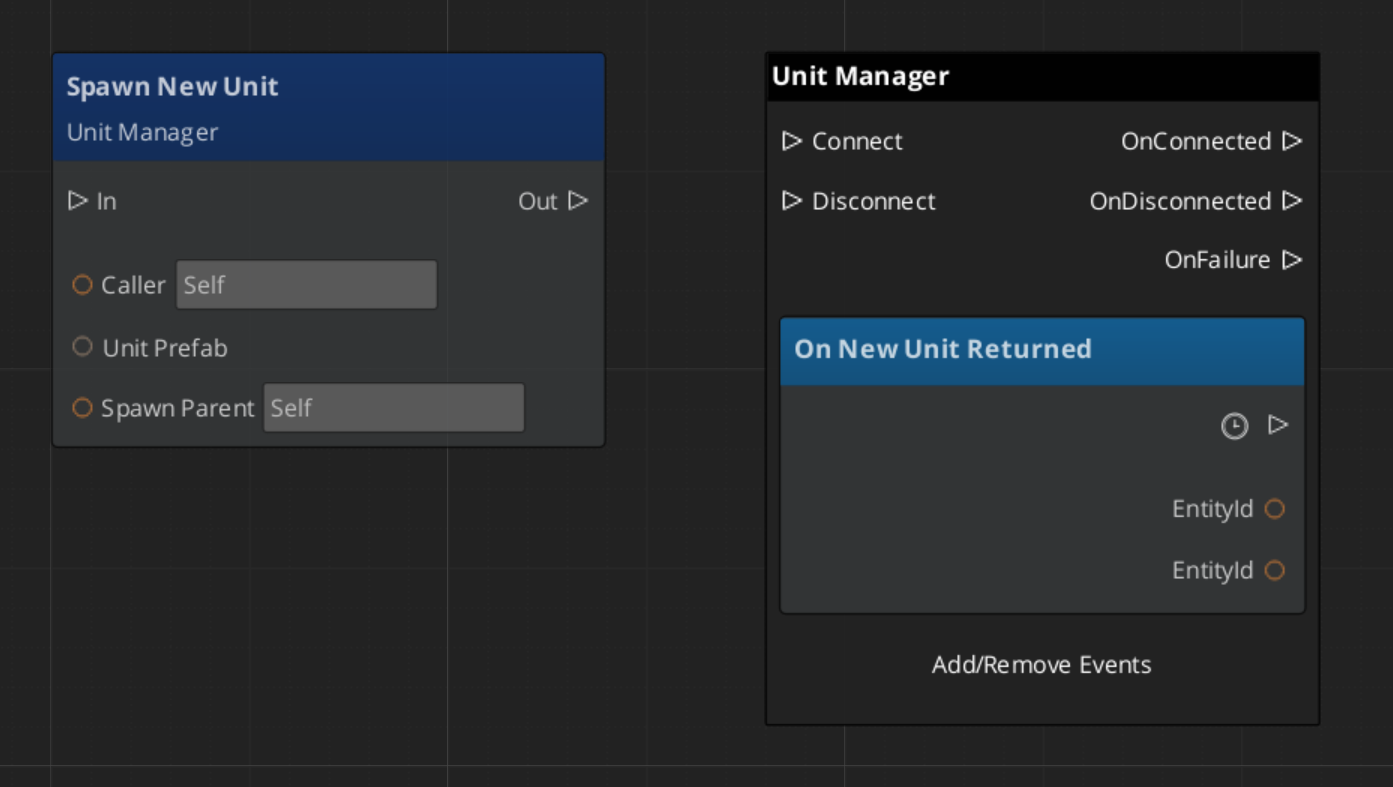
When a system requests a new unit via RequestSpawnNewUnit, the Unit Manager instantiates the provided unit prefab under the specified parent entity. Once the unit entity activates and its GS_UnitComponent registers, the manager broadcasts ReturnNewUnit back to the caller with the new unit’s entity ID.
Player Controller Registration
Player controllers register themselves with the Unit Manager via RegisterPlayerController. This allows the manager to track which controllers are active and route unit possession accordingly.
Unit Validation
Any system can call CheckIsUnit with an entity ID to verify whether that entity is a registered unit. This is useful for targeting systems, interaction checks, and other gameplay logic that needs to distinguish units from ordinary entities.
Standby Propagation
When the Game Manager enters or exits standby, the Unit Manager receives the signal and broadcasts EnterStandby / ExitStandby on the UnitManagerNotificationBus. All unit subsystems (controllers, movers, input readers) should listen for these notifications and pause or resume accordingly.
API Reference
GS_UnitManagerComponent
Extends GS_Core::GS_ManagerComponent. Handles unit spawning, controller registration, and standby propagation.
Data Fields
| Field | Type | Description |
|---|
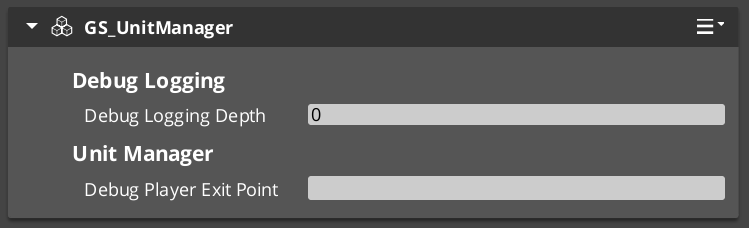
debugExitPoint | AZ::EntityId | Entity used as the spawn/exit point when PlaceUnitAtExit is called. Configured in the Inspector. |
m_unitSpawnTickets | AZStd::vector<AzFramework::EntitySpawnTicket> | Spawn tickets for all active unit spawn operations. Keeps spawns alive until the unit entity registers. |
playerList | AZStd::vector<AZ::EntityId> | Registered player controller entity IDs. Populated via RegisterPlayerController. |
Request Bus: UnitManagerRequestBus
Commands sent to the Unit Manager. Global bus — multiple handlers.
| Method | Parameters | Returns | Description |
|---|
RequestSpawnNewUnit | AZ::EntityId callingEntityId, SpawnableScriptAssetRef unitPrefab, AZ::EntityId spawnParentEntityId | void | Requests the manager to spawn a new unit from the given prefab under the specified parent entity. The caller receives the result via ReturnNewUnit. |
RegisterPlayerController | AZ::EntityId controllerId | void | Registers a player controller entity with the manager for tracking and routing. |
CheckIsUnit | AZ::EntityId unitId | bool | Returns whether the given entity ID is a registered unit. |
Notification Bus: UnitManagerNotificationBus
Events broadcast by the Unit Manager. Multiple handler bus — any number of components can subscribe.
| Event | Parameters | Description |
|---|
HandleStartup | — | Fired during the manager startup sequence. Override in subclasses to hook into the two-stage initialization before OnStartupComplete. |
ReturnNewUnit | AZ::EntityId caller, AZ::EntityId newUnit | Fired when a requested unit has been spawned and registered. The caller ID matches the original requester. |
EnterStandby | — | Fired when the unit subsystem enters standby. Pause unit-related logic. |
ExitStandby | — | Fired when the unit subsystem exits standby. Resume unit-related logic. |
GS_UnitComponent
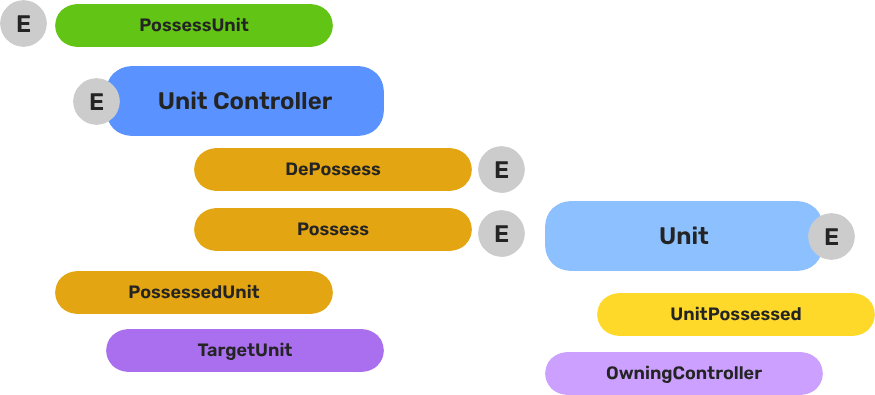
The GS_UnitComponent is the component that makes an entity a “unit.” It handles possession by controllers, tracks its owning controller, and provides identity via a unique name. For full unit entity setup details, see the Units page.
Request Bus: UnitRequestBus
Commands sent to a specific unit. ById bus — addressed by entity ID, multiple handlers.
| Method | Parameters | Returns | Description |
|---|
Possess | AZ::EntityId possessingController | void | Assigns a controller to this unit. The unit stores the controller reference and notifies listeners. |
DePossess | — | void | Removes the current controller from this unit. |
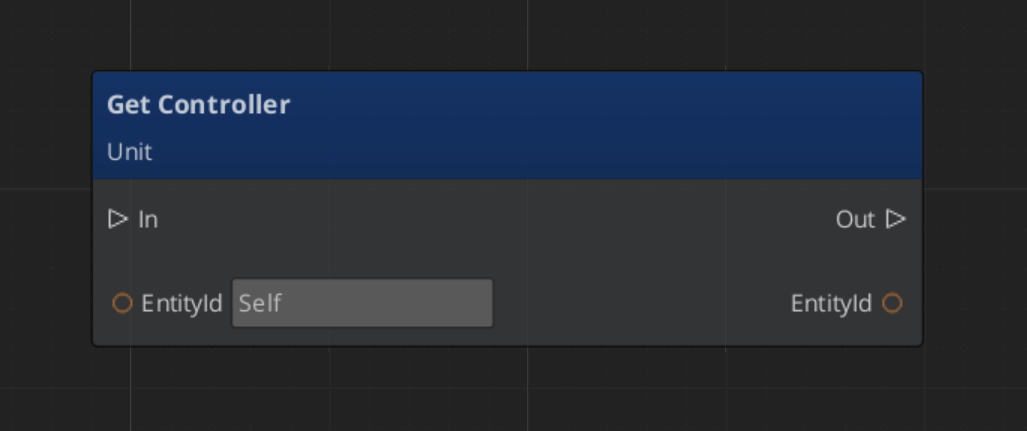
GetController | — | AZ::EntityId | Returns the entity ID of the currently possessing controller. |
GetUniqueName | — | AZStd::string | Returns the unique name assigned to this unit. |
Notification Bus: UnitNotificationBus
Events broadcast by a unit. ById bus — addressed by the unit’s entity ID.
| Event | Parameters | Description |
|---|
UnitPossessed | AZ::EntityId controller | Fired when a controller possesses this unit. |
UnitEnteringStandby | — | Fired when this unit enters standby. |
UnitExitingStandby | — | Fired when this unit exits standby. |
Usage Examples
C++ – Spawning a Unit
#include <GS_Unit/GS_UnitBus.h>

// Request a new unit spawn
GS_Unit::UnitManagerRequestBus::Broadcast(
    &GS_Unit::UnitManagerRequestBus::Events::RequestSpawnNewUnit,
    GetEntityId(),       // caller
    myUnitPrefab,        // SpawnableScriptAssetRef
    spawnParentEntity    // parent entity
);
C++ – Listening for Unit Spawn Results
#include <GS_Unit/GS_UnitBus.h>

class MySpawner
    : public AZ::Component
    , protected GS_Unit::UnitManagerNotificationBus::Handler
{
protected:
    void Activate() override
    {
        GS_Unit::UnitManagerNotificationBus::Handler::BusConnect();
    }

    void Deactivate() override
    {
        GS_Unit::UnitManagerNotificationBus::Handler::BusDisconnect();
    }

    void ReturnNewUnit(AZ::EntityId caller, AZ::EntityId newUnit) override
    {
        if (caller == GetEntityId())
        {
            // This is the unit we requested — possess it, configure it, etc.
        }
    }
};
Script Canvas
Spawning a unit and receiving the result:
Getting the controller on a unit:
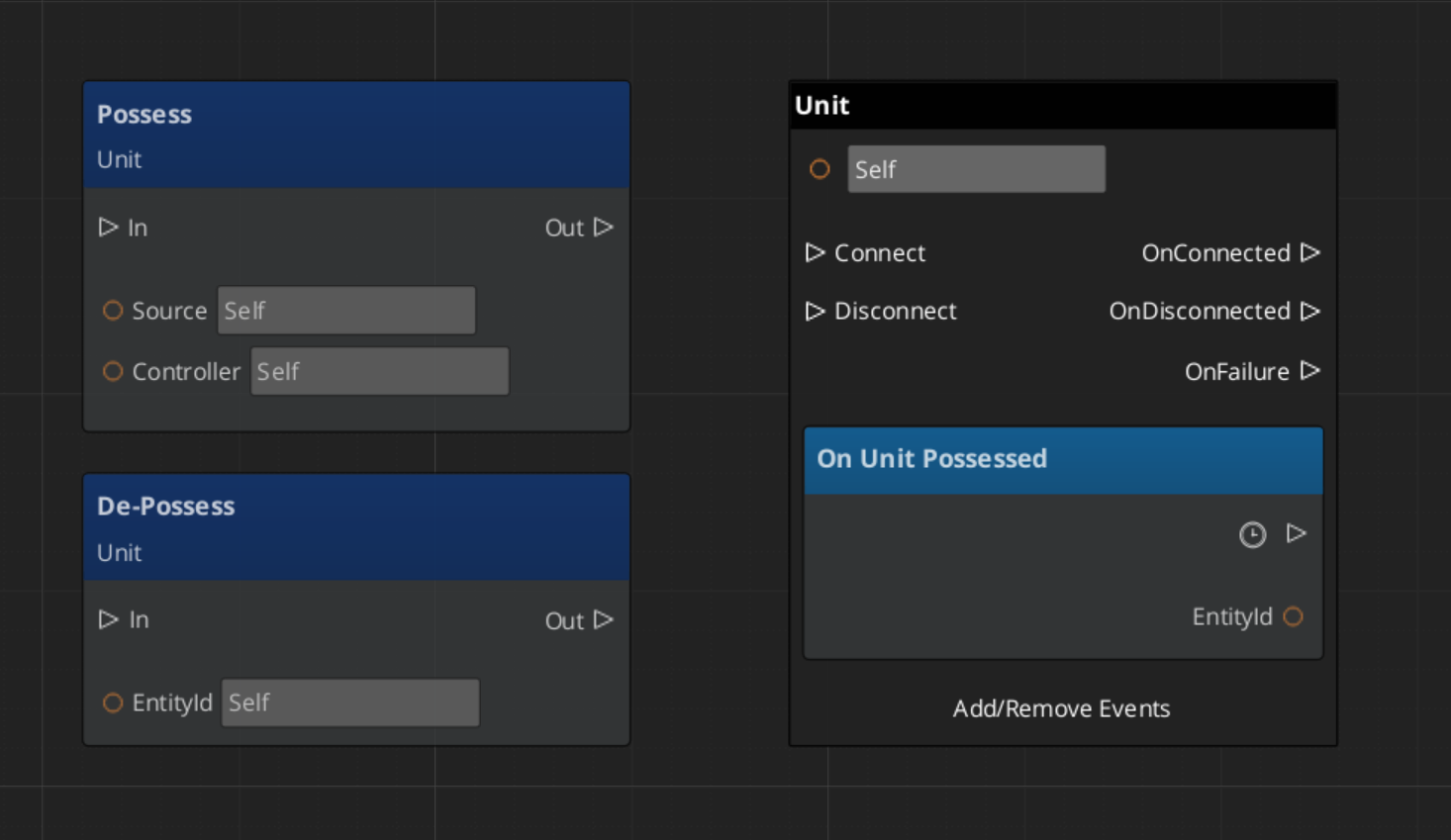
Possessing and de-possessing a unit:
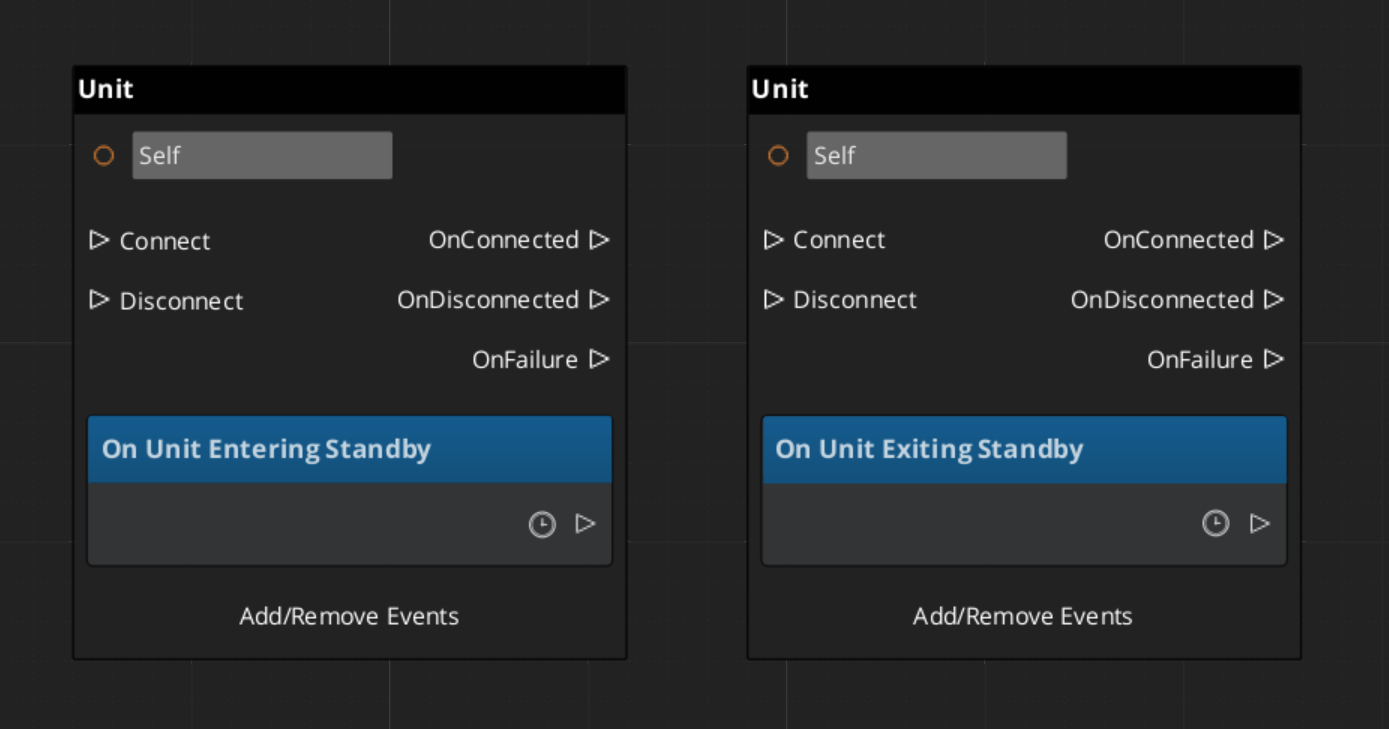
Reacting to unit standby events:
Extension Guide
Extend the Unit Manager to add custom spawn logic, additional tracking, or project-specific unit lifecycle behavior. The Unit Manager extends GS_ManagerComponent, so follow the standard Manager extension pattern.
#pragma once
#include <GS_Unit/GS_UnitBus.h>
#include <Source/Managers/GS_UnitManagerComponent.h>

namespace MyProject
{
    class MyUnitManager : public GS_Unit::GS_UnitManagerComponent
    {
    public:
        AZ_COMPONENT_DECL(MyUnitManager);

        static void Reflect(AZ::ReflectContext* context);

    protected:
        // Override manager lifecycle hooks
        void OnStartupComplete() override;
        void OnEnterStandby() override;
        void OnExitStandby() override;
    };
}
Implementation (.cpp)
#include "MyUnitManager.h"
#include <AzCore/Serialization/SerializeContext.h>

namespace MyProject
{
    AZ_COMPONENT_IMPL(MyUnitManager, "MyUnitManager", "{YOUR-UUID-HERE}");

    void MyUnitManager::Reflect(AZ::ReflectContext* context)
    {
        if (auto serializeContext = azrtti_cast<AZ::SerializeContext*>(context))
        {
            serializeContext->Class<MyUnitManager, GS_Unit::GS_UnitManagerComponent>()
                ->Version(0);

            if (AZ::EditContext* editContext = serializeContext->GetEditContext())
            {
                editContext->Class<MyUnitManager>("My Unit Manager", "Custom unit manager")
                    ->ClassElement(AZ::Edit::ClassElements::EditorData, "")
                        ->Attribute(AZ::Edit::Attributes::Category, "MyProject")
                        ->Attribute(AZ::Edit::Attributes::AppearsInAddComponentMenu, AZ_CRC_CE("Game"));
            }
        }
    }

    void MyUnitManager::OnStartupComplete()
    {
        GS_UnitManagerComponent::OnStartupComplete();
        // Custom post-startup logic
    }

    void MyUnitManager::OnEnterStandby()
    {
        GS_UnitManagerComponent::OnEnterStandby();
        // Custom standby logic
    }

    void MyUnitManager::OnExitStandby()
    {
        GS_UnitManagerComponent::OnExitStandby();
        // Custom resume logic
    }
}
See Also
For component references:
For related resources:
Get GS_Unit
GS_Unit — Explore this gem on the product page and add it to your project.
2 - Unit Controllers
The controller-unit possession model — base controller, player controller, and AI controller components for driving unit behavior.
Unit Controllers are the decision-making layer in the GS_Unit architecture. A controller “possesses” a unit entity, giving it authority over that unit’s actions. This possession model cleanly separates the what (the unit with its movement, abilities, and stats) from the who (the controller providing intent — player input or AI logic).
The system provides three controller components:
- GS_UnitControllerComponent – The base controller with possession logic, placement helpers, and the virtual interface for extension.
- GS_PlayerControllerComponent – A player-specific controller that integrates with the Input Data subsystem to translate player input into unit commands.
- GS_AIControllerComponent – An AI controller for NPC units, providing hooks for behavior trees or custom AI logic.
For usage guides and setup examples, see The Basics: GS_Unit.
Contents
How It Works
Possession Model
Breakdown
Every unit has exactly one controller at a time, or no controller at all. Possession is established by calling Possess on the unit and released by calling DePossess. The unit fires UnitPossessed on UnitNotificationBus whenever ownership changes so other systems can react.
| Concept | Description |
|---|
| Possession | A controller attaches to a unit. The unit accepts input and movement commands from that controller only. |
| DePossession | The controller releases the unit. The unit halts input processing and enters a neutral state. |
| UnitPossessed event | Fires on UnitNotificationBus (addressed by entity ID) whenever a unit’s controller changes. |
| GetController | Returns the entity ID of the current controller, or an invalid ID if none. |
| GetUniqueName | Returns the string name assigned by the Unit Manager when this unit was spawned. |
Unit Placement
Controllers provide helper methods for positioning their possessed unit:
PlaceUnitAtExit – Places the unit at the level’s designated exit point.PlaceUnitAtEntity – Places the unit at a specific entity’s world position.
Unique Names
Both controllers and units maintain a unique name string. The base controller provides a virtual SetUniqueName() method that subclasses override to generate names from their specific context (e.g., player slot number, AI template name).
Component Reference
GS_UnitControllerComponent (Base)
The base controller class. All controller types inherit from this. It handles possession, placement, unique name generation, and the notification plumbing. Extend this class to create custom controller types.
GS_PlayerControllerComponent
Extends AZ::Component. The player controller adds input handling on top of the base controller pattern. It registers itself with the Unit Manager via RegisterPlayerController and integrates with the Input Data subsystem to feed player input into the possessed unit’s movement and action systems.
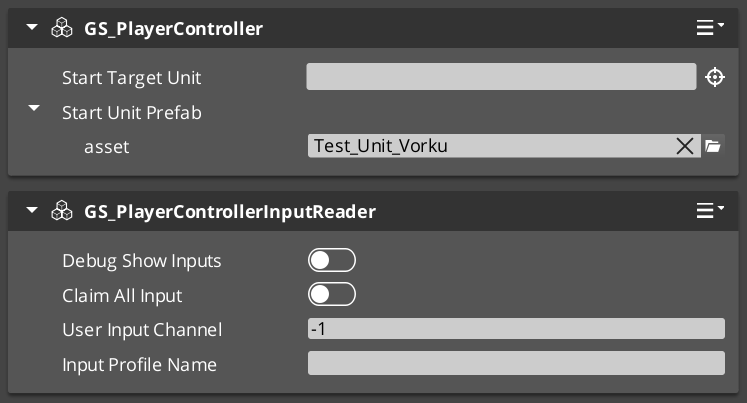
Typical entity setup for a player controller:
GS_PlayerControllerComponentGS_InputDataComponent – Holds the current input stateGS_PlayerControllerInputReaderComponent – Reads raw input into InputData- One or more
InputReactorComponents – Translate input data into movement vectors or action triggers
GS_AIControllerComponent
Extends AZ::Component. The AI controller provides the same possession interface as the player controller but is driven by AI logic rather than player input. It does not connect to the input subsystem. Instead, it exposes hooks for behavior trees, scripted sequences, or custom AI decision-making to issue commands to the possessed unit.
API Reference
Request Bus: UnitControllerRequestBus
Commands sent to a specific controller. ById bus — addressed by the controller’s entity ID.
| Method | Parameters | Returns | Description |
|---|
PossessUnit | AZ::EntityId targetUnit | void | Possesses the target unit. Broadcasts PossessedTargetUnit notification. |
DePossessUnit | — | void | Releases the currently possessed unit. |
PlaceUnitAtExit | — | void | Moves the possessed unit to the level’s exit point. |
PlaceUnitAtEntity | AZ::EntityId targetEntity | void | Moves the possessed unit to the world position of the target entity. |
GetUnit | — | AZ::EntityId | Returns the entity ID of the currently possessed unit. |
GetUniqueName | — | AZStd::string | Returns the unique name of this controller. |
Notification Bus: UnitControllerNotificationBus
Events broadcast by a controller. ById bus — addressed by the controller’s entity ID. Subscribe to receive updates about controller state changes.
| Event | Parameters | Description |
|---|
PossessedTargetUnit | AZ::EntityId unitId | Fired when this controller possesses a unit. GS_PlayerControllerInputReaderComponent listens to this to begin routing input to the new unit. |
Virtual Methods
Override these when extending the base controller. Always call the base implementation.
| Method | Parameters | Returns | Description |
|---|
PostActivateProcessing() | — | void | Called after the controller’s Activate() completes. Override to add custom initialization that depends on the controller being fully active. |
SetUniqueName() | — | void | Called during initialization to set the controller’s unique name. Override to generate names from your project’s naming scheme. |
Usage Examples
C++ – Possessing a Unit
#include <GS_Unit/GS_UnitBus.h>

// From a controller, possess a unit
GS_Unit::UnitControllerRequestBus::Event(
    GetEntityId(),
    &GS_Unit::UnitControllerRequestBus::Events::PossessUnit,
    targetUnitEntityId
);
C++ – Querying a Controller’s Unit
#include <GS_Unit/GS_UnitBus.h>

AZ::EntityId possessedUnit;
GS_Unit::UnitControllerRequestBus::EventResult(
    possessedUnit,
    controllerEntityId,
    &GS_Unit::UnitControllerRequestBus::Events::GetUnit
);
Script Canvas
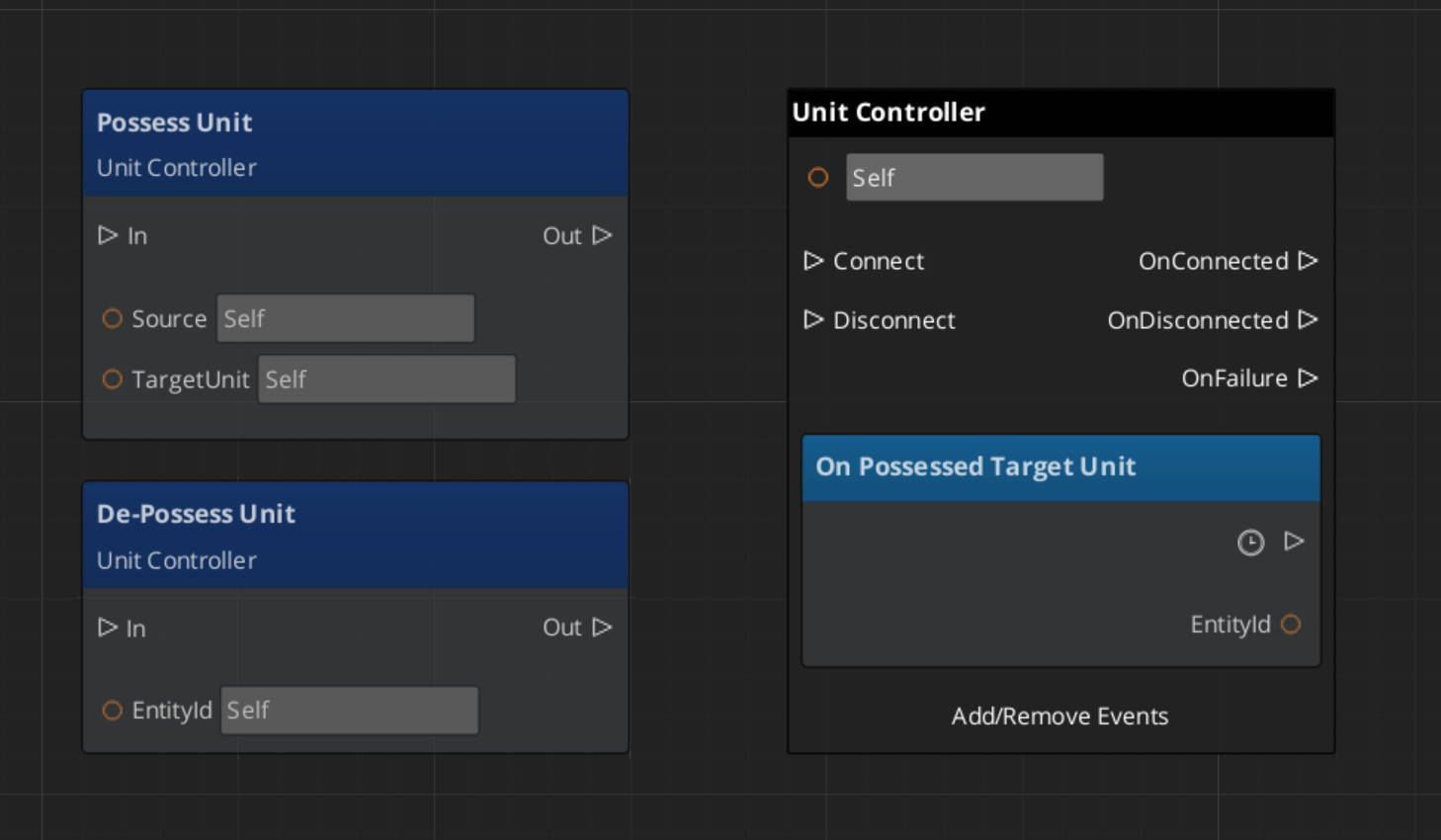
Possessing and de-possessing a unit from a controller:
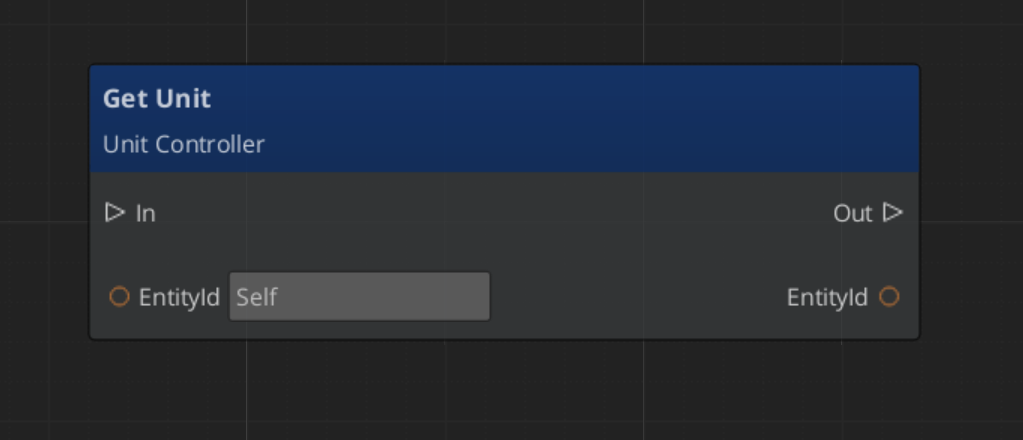
Getting the unit possessed by a controller:
Extension Guide
Use the UnitController ClassWizard template to generate a new controller with boilerplate already in place — see GS_Unit Templates.
Create custom controllers by extending GS_UnitControllerComponent. This is the standard approach for game-specific controller logic such as party management, vehicle control, or specialized AI behaviors.
#pragma once
#include <GS_Unit/GS_UnitBus.h>
#include <Source/Controllers/GS_UnitControllerComponent.h>

namespace MyProject
{
    class MyCustomController : public GS_Unit::GS_UnitControllerComponent
    {
    public:
        AZ_COMPONENT_DECL(MyCustomController);

        static void Reflect(AZ::ReflectContext* context);

    protected:
        void PostActivateProcessing() override;
        void SetUniqueName() override;
    };
}
Implementation (.cpp)
#include "MyCustomController.h"
#include <AzCore/Serialization/SerializeContext.h>

namespace MyProject
{
    AZ_COMPONENT_IMPL(MyCustomController, "MyCustomController", "{YOUR-UUID-HERE}");

    void MyCustomController::Reflect(AZ::ReflectContext* context)
    {
        if (auto serializeContext = azrtti_cast<AZ::SerializeContext*>(context))
        {
            serializeContext->Class<MyCustomController, GS_Unit::GS_UnitControllerComponent>()
                ->Version(0);

            if (AZ::EditContext* editContext = serializeContext->GetEditContext())
            {
                editContext->Class<MyCustomController>(
                    "My Custom Controller", "Project-specific controller logic")
                    ->ClassElement(AZ::Edit::ClassElements::EditorData, "")
                        ->Attribute(AZ::Edit::Attributes::Category, "MyProject")
                        ->Attribute(AZ::Edit::Attributes::AppearsInAddComponentMenu, AZ_CRC_CE("Game"));
            }
        }
    }

    void MyCustomController::PostActivateProcessing()
    {
        GS_UnitControllerComponent::PostActivateProcessing();
        // Custom post-activation logic — connect to AI systems, load profiles, etc.
    }

    void MyCustomController::SetUniqueName()
    {
        // Generate a unique name from your project's naming scheme
        uniqueName = AZStd::string::format("CustomController_%d", m_controllerIndex);
    }
}
See Also
For component references:
- Unit Manager – Spawning and lifecycle management
- Units – Unit entity setup and the GS_UnitComponent
- Input Data – Input state and reaction components used by player controllers
- Movement – Movement components driven by controller input
Get GS_Unit
GS_Unit — Explore this gem on the product page and add it to your project.
3 - Input Data
The decoupled input pipeline — reading hardware events on the controller, storing state on the unit, and reacting to state changes through reactor components.
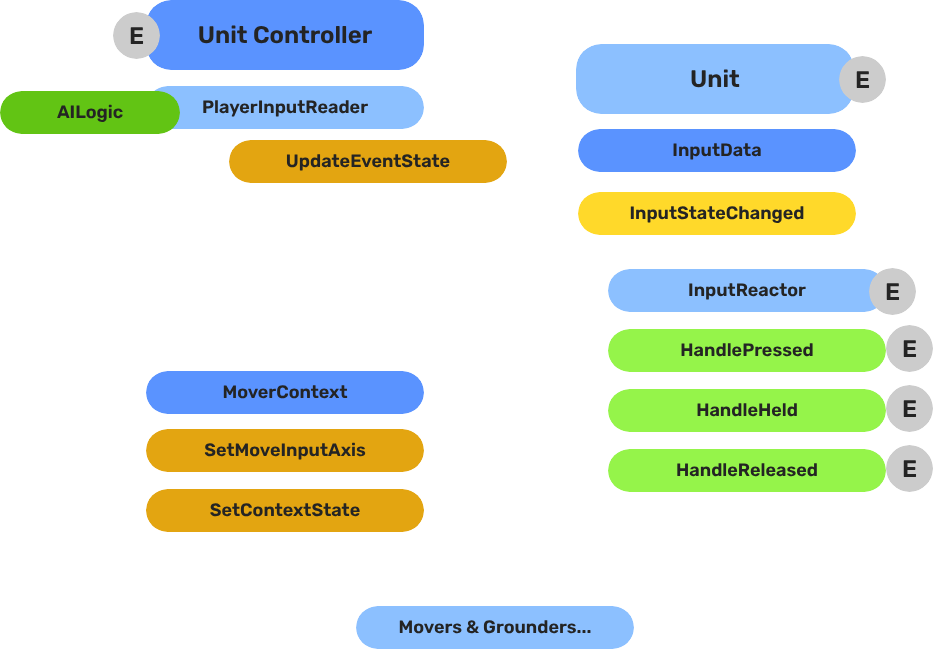
The Input Data subsystem bridges the controller entity (where hardware input is read) and the unit entity (where input is acted on). The controller reads raw device events and routes named event values into the unit’s GS_InputDataComponent. Reactor components on the unit then convert that stored state into movement vectors or game actions.
This separation keeps units ignorant of input bindings — any controller can possess any unit without the unit needing to change.
For usage guides and setup examples, see The Basics: GS_Unit.
Contents
How It Works
Breakdown
The input pipeline has three stages. Each stage is a separate component on the unit entity, and they run in order every frame:
| Stage | Component | What It Does |
|---|
| 1 — Read | GS_PlayerControllerInputReaderComponent | Reads raw input events from the active input profile and writes them into GS_InputDataComponent. |
| 2 — Store | GS_InputDataComponent | Holds the current frame’s input state — button presses, axis values — as structured data. |
| 3 — React | Reactor components | Read from GS_InputDataComponent and produce intent: movement vectors, action triggers, etc. |
All reactor components downstream of the store stage read from the same GS_InputDataComponent, so there is no duplicated hardware polling and no risk of two reactors seeing different input states for the same frame.
- The Basics: Controllers — Possession, input routing, and controller assignment.
- The Basics: Core Input — Input profiles, action mappings, and options setup.
- The Basics: Unit Input — Input readers, axis configuration, and ScriptCanvas usage.
- Framework API: Unit Controllers — Controller components, possession API, and C++ extension.
- Framework API: Input Reader — Profile binding, action event reading, and C++ extension.
- Framework API: Input Reactor — InputDataComponent schema, reactor base class, and C++ extension.
- Framework API: Mover Context — Context state, mode authority, and C++ extension.
Component Reference
Stores the current input state for a unit as a name-value map. Receives input from the controller via InputDataRequestBus. Broadcasts state changes to reactor components via InputDataNotificationBus.
Data: AZStd::unordered_map<AZStd::string, float> inputEventStates
Also listens to UnitNotificationBus::UnitPossessed to store the owning controller reference.
Listens to InputDataNotificationBus. Tracks a set of event names (inputReactEvents). Fires the correct virtual based on zero-crossing:
| Virtual | Trigger |
|---|
HandlePressed(stateName) | Value changed 0 → non-zero |
HandleHeld(stateName) | Value remains non-zero |
HandleReleased(stateName) | Value changed non-zero → 0 |
Variant for analogue axis input. Fires HandleAxisChanged(stateName, value) whenever the value changes, without pressed/held/released semantics.
KeyboardMovement_InputReactorComponent
Converts four discrete key events into a 2D movement axis. Maps moveUp/moveDown/moveLeft/moveRight event names to +1/-1 contributions on X and Y, then calls MoverContextRequestBus::SetMoveInputAxis("x"/"y", value).
| Field | Description |
|---|
moveUpEvent | Event name for the forward/up key |
moveDownEvent | Event name for the back/down key |
moveLeftEvent | Event name for the left key |
moveRightEvent | Event name for the right key |
JoyAxisMovement_AxisReactorComponent
Directly maps two joystick axis event names to the mover context X and Y axes via SetMoveInputAxis.
| Field | Description |
|---|
xAxisName | Input event name for the horizontal axis |
yAxisName | Input event name for the vertical axis |
Extends GS_Core::GS_InputReaderComponent. Sits on the controller entity. Routes input to the possessed unit on HandleFireInput. Updates its possessedUnit reference when PossessedTargetUnit fires. See Player Input Reader for full details.
API Reference
Commands sent to a specific unit’s input data component. ById bus — addressed by unit entity ID.
| Method | Parameters | Returns | Description |
|---|
UpdateEventState | AZStd::string stateName, float value | void | Writes the value for the named event and broadcasts InputStateChanged. |
ClearInputState | — | void | Zeros all stored values and broadcasts ClearInput. |
GetEventState | AZStd::string stateName | float | Returns the current float value for the named event. |
Events broadcast to reactor components on the unit. ById bus — addressed by unit entity ID.
| Event | Parameters | Description |
|---|
InputStateChanged | AZStd::string stateName, float value | Fired when any input event value changes. Reactor components compare against their tracked events and respond. |
ClearInput | — | Fired when all input states are cleared. |
See Also
For detailed component pages:
For related components:
Get GS_Unit
GS_Unit — Explore this gem on the product page and add it to your project.
3.1 - Input Reactor
Base and concrete reactor components — convert unit input state into pressed/held/released events or axis changes for movement and actions.
Input reactor components sit on the unit entity and listen to InputDataNotificationBus. They are the unit-side response layer that turns stored input state into game actions — movement vectors, ability triggers, UI navigation, etc.
For usage guides and setup examples, see The Basics: GS_Unit.

Contents
How It Works
Each reactor declares which event names it cares about (inputReactEvents). When InputDataNotificationBus::InputStateChanged fires, the reactor compares the incoming stateName against its list. If it matches, it compares the new value against the previously stored value and calls the correct virtual method:
- 0 → non-zero →
HandlePressed - non-zero → non-zero →
HandleHeld - non-zero → 0 →
HandleReleased - any change →
HandleAxisChanged (axis variant only)
Reactors store lastInputValues per event name to track zero-crossings between frames.
Base Classes
GS_InputReactorComponent
Base class for discrete button/key input. Extend this to react to named input events with press, hold, and release semantics.
Virtual methods to override:
| Method | Parameters | Description |
|---|
HandlePressed | AZStd::string stateName | Called when the event value crosses from 0 to non-zero. |
HandleHeld | AZStd::string stateName | Called each frame while the event value remains non-zero. |
HandleReleased | AZStd::string stateName | Called when the event value crosses from non-zero to 0. |
Fields:
| Field | Description |
|---|
inputReactEvents | List of event name strings this reactor listens for |
lastInputValues | Map of {eventName → float} tracking previous values for zero-crossing detection |
GS_InputAxisReactorComponent
Base class for analogue axis input. Extend this for joystick, trigger, or any continuous value that should not use pressed/held/released semantics.
Virtual methods to override:
| Method | Parameters | Description |
|---|
HandleAxisChanged | AZStd::string stateName, float value | Called whenever the axis value changes. |
Concrete Reactors
KeyboardMovement_InputReactorComponent
Converts four discrete directional key events into a 2D movement axis. Maps moveUp/moveDown/moveLeft/moveRight to +1/-1 contributions on the X and Y axes. On any key press or release, recomputes the combined axis and calls MoverContextRequestBus::SetMoveInputAxis("x"/"y", value) on the unit.
| Field | Description |
|---|
moveUpEvent | Event name for the forward/up key |
moveDownEvent | Event name for the back/down key |
moveLeftEvent | Event name for the left key |
moveRightEvent | Event name for the right key |
Internal accumulation fields:
| Field | Description |
|---|
xAxisPositive / xAxisNegative | Accumulated +X and -X contributions |
yAxisPositive / yAxisNegative | Accumulated +Y and -Y contributions |
JoyAxisMovement_AxisReactorComponent
Directly maps two joystick axis event names to the Mover Context X and Y movement axes. Calls MoverContextRequestBus::SetMoveInputAxis("x"/"y", value) directly from HandleAxisChanged.
| Field | Description |
|---|
xAxisName | Input event name for the horizontal axis |
yAxisName | Input event name for the vertical axis |
API Reference
Reactors themselves do not expose a request bus. They consume InputDataNotificationBus and produce calls to MoverContextRequestBus or other action buses.
InputDataNotificationBus (consumed)
| Event | Description |
|---|
InputStateChanged(stateName, value) | Triggers zero-crossing comparison and calls HandlePressed/HandleHeld/HandleReleased/HandleAxisChanged. |
ClearInput() | Resets all lastInputValues to zero, triggering releases for any held inputs. |
MoverContextRequestBus (produced by movement reactors)
| Call | Description |
|---|
SetMoveInputAxis("x", value) | Sets the horizontal axis input (−1 to 1) on the unit’s MoverContext. |
SetMoveInputAxis("y", value) | Sets the vertical axis input (−1 to 1) on the unit’s MoverContext. |
Extension Guide
Use the InputReactor ClassWizard template to generate a new input reactor with boilerplate already in place — see GS_Unit Templates.
Create custom reactor components by extending GS_InputReactorComponent or GS_InputAxisReactorComponent.
#pragma once
#include <GS_Unit/InputData/GS_InputReactorComponent.h>

namespace MyProject
{
    class AbilityInputReactor : public GS_Unit::GS_InputReactorComponent
    {
    public:
        AZ_COMPONENT_DECL(AbilityInputReactor);
        static void Reflect(AZ::ReflectContext* context);

    protected:
        void HandlePressed(const AZStd::string& stateName) override;
        void HandleReleased(const AZStd::string& stateName) override;
    };
}
In Reflect(), add the event names you want to listen to:
// In your component's activation or reflection, populate inputReactEvents:
inputReactEvents.push_back("ability_primary");
inputReactEvents.push_back("ability_secondary");
See Also
Get GS_Unit
GS_Unit — Explore this gem on the product page and add it to your project.
3.2 - Player Input Reader
Controller-side component that reads hardware input events and routes them to the possessed unit’s input data component.
GS_PlayerControllerInputReaderComponent is the bridge between the O3DE input system and the GS_Unit input pipeline. It sits on the controller entity alongside GS_PlayerControllerComponent and is responsible for reading raw hardware events and routing them to whichever unit is currently possessed.
For usage guides and setup examples, see The Basics: GS_Unit.

Contents
How It Works
Inheritance Chain
GS_PlayerControllerInputReaderComponent extends GS_Core::GS_InputReaderComponent, which listens to AzFramework::InputChannelNotificationBus. When a hardware input fires, the base class matches the event against the configured GS_InputProfile and calls HandleFireInput(eventName, value).
HandleFireInput(eventName, value) checks whether a unit is currently possessed. If so, it routes the event to the unit:
GS_Unit::InputDataRequestBus::Event(
    possessedUnit,
    &GS_Unit::InputDataRequestBus::Events::UpdateEventState,
    eventName, value
);
If no unit is possessed, the input is silently dropped.
Tracking the Possessed Unit
The component listens to UnitControllerNotificationBus::PossessedTargetUnit on its own controller entity. When the controller possesses a new unit, this callback fires and the component updates its local possessedUnit reference. All future input calls then route to the new unit automatically.
Setup
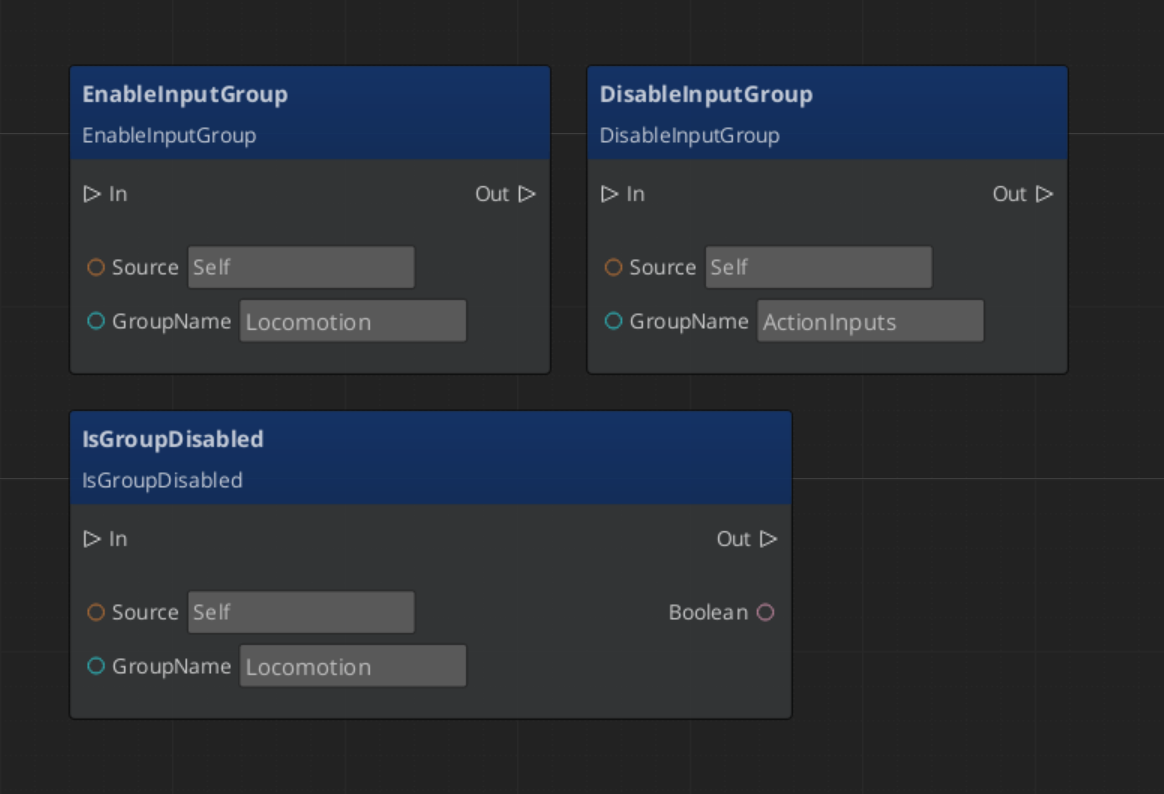
Add GS_PlayerControllerInputReaderComponent to the controller entity alongside:
GS_PlayerControllerComponent — the controller that manages possession- A
GS_InputProfile asset assigned to the input reader’s inspector slot — defines which input events to listen for and their names
The input reader does not need to be configured per-unit. Changing possession automatically redirects all future input.
API Reference
GS_PlayerControllerInputReaderComponent does not expose a public request bus. It consumes two buses and produces one:
Consumed
| Bus | Event | Description |
|---|
AzFramework::InputChannelNotificationBus | OnInputChannelEvent | Receives raw hardware input from O3DE. Matched against the GS_InputProfile. |
UnitControllerNotificationBus | PossessedTargetUnit(unitId) | Updates the local possessedUnit reference when the controller possesses a new unit. |
Produced
| Bus | Method | Description |
|---|
InputDataRequestBus | UpdateEventState(eventName, value) | Routes matched input events to the possessed unit’s GS_InputDataComponent. |
Virtual Methods
| Method | Parameters | Description |
|---|
HandleFireInput | AZStd::string eventName, float value | Called by the base class when a matched input event fires. Routes to the possessed unit if valid. |
See Also
Get GS_Unit
GS_Unit — Explore this gem on the product page and add it to your project.
4 - Units
What makes an entity a unit — the GS_UnitComponent, entity configuration, collision setup, and links to movement subsystems.
A “unit” in GS_Play is any entity that can be possessed by a controller and driven through gameplay. The GS_UnitComponent is the marker that transforms an ordinary entity into a unit. It provides the possession interface, unique naming, standby awareness, and registration with the Unit Manager.
Units are the characters, vehicles, creatures, or any other controllable actors in your game. They do not contain decision-making logic themselves — that comes from the controller that possesses them. A unit provides the body: movement, collision, visuals, and stats. The controller provides the brain: player input or AI logic.
For usage guides and setup examples, see The Basics: GS_Unit.

Contents
How It Works
Registration
When a GS_UnitComponent activates, it registers itself with the Unit Manager. This allows the manager to track all active units and respond to CheckIsUnit queries. When the component deactivates, it unregisters.
Possession
Units are possessed by controllers through the UnitRequestBus:
- A controller calls
Possess(controllerEntityId) on the unit. - The unit stores the controller reference and broadcasts
UnitPossessed on UnitNotificationBus. - The controller can now issue commands to the unit’s subsystems (movement, actions, etc.).
- Calling
DePossess() clears the controller reference.
Standby
Units receive standby signals from the Unit Manager. When entering standby, the unit broadcasts UnitEnteringStandby on its notification bus. Child components (movers, input reactors, etc.) listen for this and pause their processing. UnitExitingStandby reverses the process.
GS_UnitComponent Reference
Request Bus: UnitRequestBus
Commands sent to a specific unit. ById bus — addressed by the unit’s entity ID, multiple handlers.
| Method | Parameters | Returns | Description |
|---|
Possess | AZ::EntityId possessingController | void | Assigns a controller to this unit. |
DePossess | — | void | Removes the current controller from this unit. |
GetController | — | AZ::EntityId | Returns the entity ID of the currently possessing controller. |
GetUniqueName | — | AZStd::string | Returns the unique name assigned to this unit. |
Notification Bus: UnitNotificationBus
Events broadcast by a unit. ById bus — addressed by the unit’s entity ID.
| Event | Parameters | Description |
|---|
UnitPossessed | AZ::EntityId controller | Fired when a controller possesses this unit. |
UnitEnteringStandby | — | Fired when this unit enters standby. |
UnitExitingStandby | — | Fired when this unit exits standby. |
Virtual Methods
| Method | Parameters | Returns | Description |
|---|
SetUniqueName() | — | void | Called during initialization to generate the unit’s unique name. Override in subclasses to use project-specific naming. |
Setup
Unit Entity Configuration
A minimal unit entity requires:
- GS_UnitComponent – Registers the entity as a unit and provides the possession interface.
- Movement components – At least a mover and optionally a grounder for ground detection.
- PhysX collider – For physics interaction and ground detection.
A fully featured unit entity typically includes:
GS_UnitComponentGS_MoverContextComponent – Aggregates movement input from movers- A mover component (e.g.,
GS_3DFreeMoverComponent, GS_3DSlideMoverComponent, or GS_PhysicsMoverComponent) - A grounder component (e.g.,
GS_PhysicsRayGrounderComponent) for surface detection - PhysX Rigid Body and Collider components
- Mesh or Actor component for visuals
Unit Collider Configuration

Collision layers used for a unit collider, as seen in the Entity Inspector.
Units require properly configured PhysX collision layers to interact with the environment and other units. If you have not set up your PhysX Collision Layers or Groups yet, refer to the Setting Up Your Project Environment guide.
Typical collision layer assignments:
- Unit layer – The unit’s own collider. Collides with environment and other units.
- Ground detection layer – Used by grounder raycasts. Collides with terrain and walkable surfaces only.
See Also
For component references:
Get GS_Unit
GS_Unit — Explore this gem on the product page and add it to your project.
4.1 - Movement
The complete movement subsystem — movers, grounders, movement influence, and the movement profile asset for configuring unit locomotion.
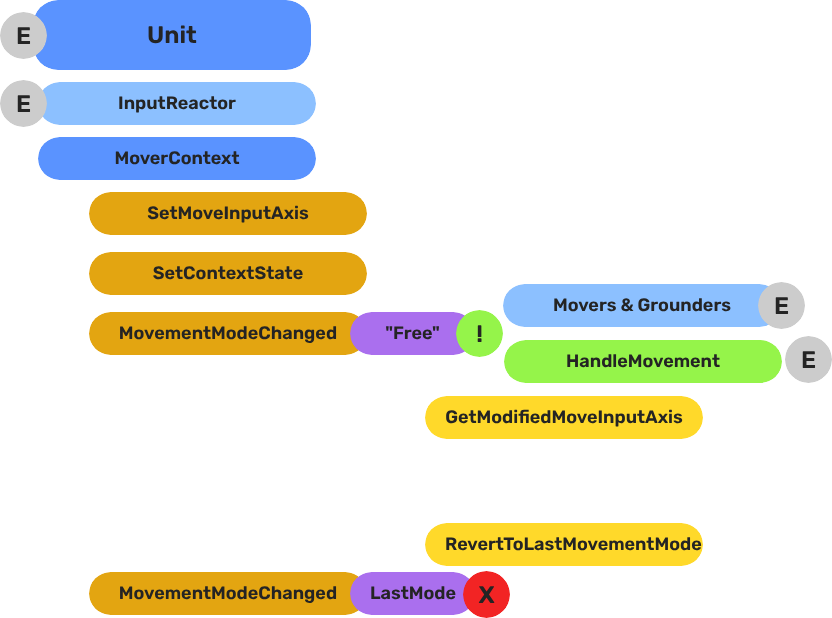
The Movement subsystem handles all unit locomotion. It is mode-driven: a single named mode is active at a time, and only the mover and grounder whose mode name matches will run each tick. This makes locomotion fully composable without any mover combining logic.
The subsystem has four layers:
- Mover Context — Central hub. Transforms raw input into camera-relative and ground-projected vectors, owns mode switching, context states, and profile management.
- Movers — Translate MoverContext input into physics forces on the rigid body. One mover is active at a time per mode.
- Grounders — Detect ground contact, slope, and surface normal. Write results to the MoverContext and trigger mode switches.
- Movement Influence — Spatial zones and global fallbacks that supply the active
GS_UnitMovementProfile.
For usage guides and setup examples, see The Basics: GS_Unit.
Contents
Architecture
Breakdown
Movers and Grounders are multiple components on a Unit that are constantly changing activation based on the units state. When a mover is active, it freely processes the unit’s movement based on it’s functionality. At any moment, through internal or external forces, the Movement, Rotation, or Grounding state can change, which disables the old movers, and activates the new one to continue controlling the Unit.
Input
    ↓  InputDataNotificationBus::InputStateChanged
Input Reactor Components
    ↓  MoverContextRequestBus::SetMoveInputAxis
GS_MoverContextComponent
    ↓  ModifyInputAxis() → camera-relative
    ↓  GroundInputAxis() → ground-projected
    ↓  MoverContextNotificationBus::MovementModeChanged("Free")
GS_3DFreeMoverComponent  [active when mode == "Free"]
    ↓  AccelerationSpringDamper → rigidBody->SetLinearVelocity
GS_PhysicsRayGrounderComponent  [active when grounding mode == "Free"]
    ↓  MoverContextRequestBus::SetGroundNormal / SetContextState("grounding", ...)
    ↓  MoverContextRequestBus::ChangeMovementMode("Slide")  ← when slope too steep
GS_3DSlideMoverComponent  [active when mode == "Slide"]
The Slide mover activates when the Unit is walking on too steep an angle. It takes control over the unit, slides down the hill, then restores the previous movement behaviour.
- The Basics: Mover Context — Movement modes, grounding states, and configuration.
- The Basics: Movement — Mover types, grounder types, and ScriptCanvas usage.
- Framework API: Input Reactor — InputDataComponent schema, reactor base class, and C++ extension.
- Framework API: Mover Context — Context state, mode authority, and C++ extension.
- Framework API: Movers — Mover and grounder components, movement APIs, and C++ extension.
Movement Profile
GS_UnitMovementProfile is an asset that holds locomotion parameters. Movers read from the active profile via activeProfile pointer, which the MoverContext updates whenever the profile changes.
| Field | Type | Description |
|---|
LocomotionStyle | enum | Movement style archetype (affects animation matching). |
moveSpeed | float | Target movement speed (m/s). |
speedChangeSmoothing | float | Lerp factor for speed transitions between profiles. |
canSprint | bool | Whether this profile allows sprinting. |
canJump | bool | Whether this profile allows jumping. |
canRoll | bool | Whether this profile allows rolling. |
Create movement profiles as data assets in the Asset Editor. Assign a default profile to the GS_MoverContextComponent in the Inspector. Spatial influence zones can override the active profile at runtime.
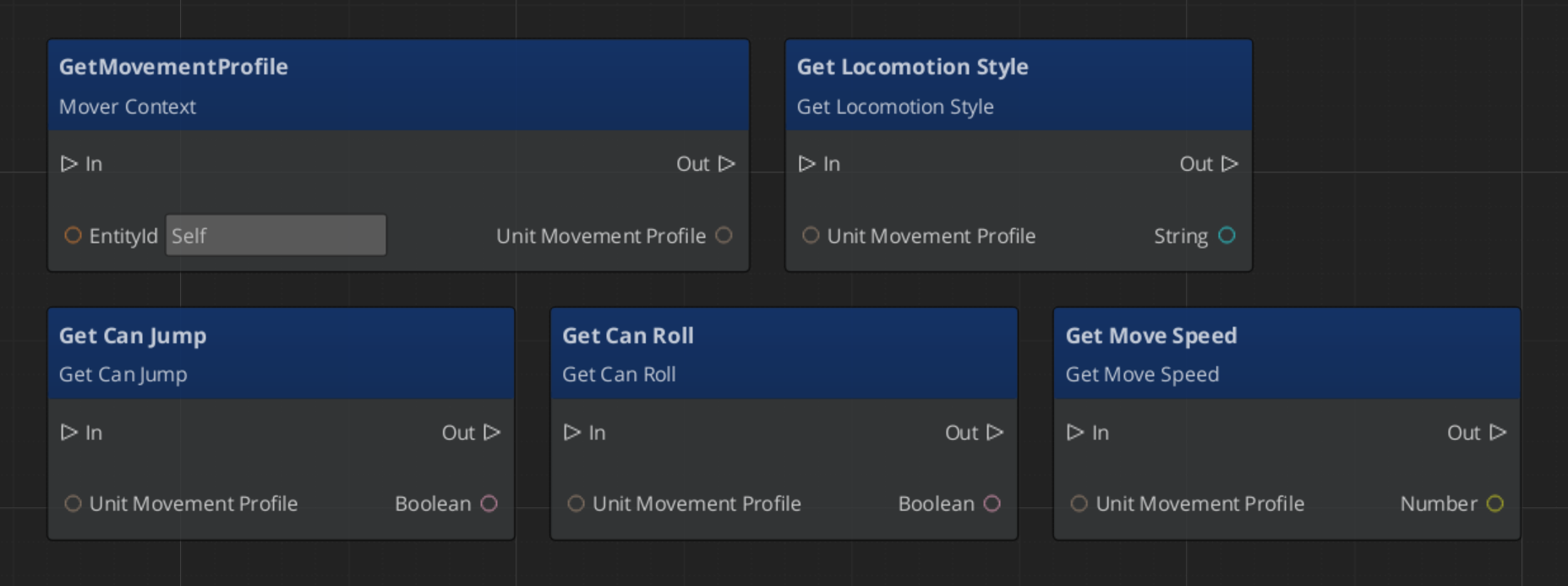
Reading Movement Profile Data - ScriptCanvas
Movement Influence
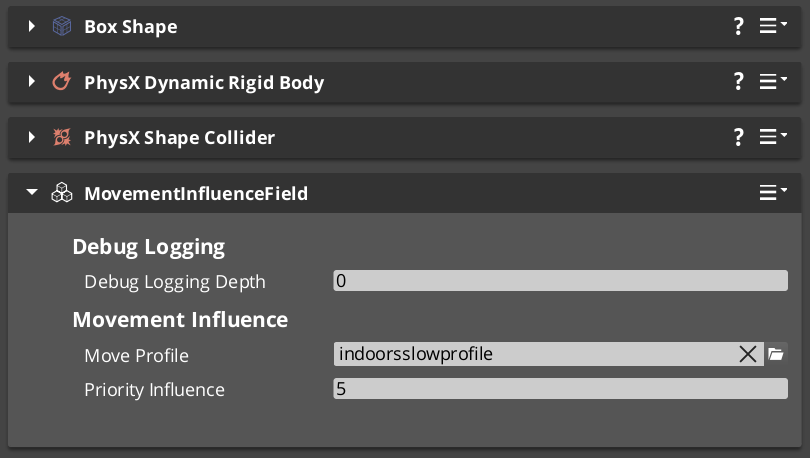
The MoverContext selects the active profile by priority:
- Influence list —
MovementInfluenceFieldComponent adds its profile when the unit enters its trigger volume. Multiple fields stack by priority. - Global fallback — if the influence list is empty and
allowGlobalInfluence is true, falls back to GlobalMovementRequestBus::GetGlobalMovementProfile. - Default profile — the
defaultMoveProfile assigned directly on the GS_MoverContextComponent.
MovementInfluenceFieldComponent
Inherits PhysicsTriggerComponent. On TriggerEnter, calls MoverContextRequestBus::AddMovementProfile(entityId, profile*) on the entering unit. On TriggerExit, calls RemoveMovementProfile(entityId).
Request Bus: MovementInfluenceRequestBus
ById bus — addressed by the influence field’s entity ID.
| Method | Parameters | Returns | Description |
|---|
GetPriority | — | int | Returns this field’s priority. Higher values take precedence when multiple fields overlap. |
GlobalMovementRequestBus
Broadcast bus — single global instance.
| Method | Parameters | Returns | Description |
|---|
GetGlobalMovementProfile | — | GS_UnitMovementProfile* | Returns the global fallback movement profile. Used by the MoverContext when no influence fields are active. |
Sub-Sections
- Mover Context — Input transformation, mode switching, context states, profile management
- Movers — Mover base class and concrete movers (
GS_3DFreeMoverComponent, GS_3DSlideMoverComponent) - Grounders — Grounder base class and concrete grounders (
GS_PhysicsRayGrounderComponent)
See Also
- Units — Unit entity setup and
GS_UnitComponent - Unit Controllers — Controllers that manage possession and drive input routing
- Input Data — The input pipeline that feeds movement reactors
- Stage Data — Handler for current stage functionality and global effects
- Springs Utility — Spring-damper functions used by movers and grounders
- Physics Trigger Volume — Physics overlap that triggers functionality.
Get GS_Unit
GS_Unit — Explore this gem on the product page and add it to your project.
4.1.1 - Mover Context
The central movement hub — transforms raw input into camera-relative and ground-projected vectors, manages mode switching, context states, and movement profiles.
GS_MoverContextComponent is the central state store for all movement on a unit. It sits between the input layer and the mover/grounder layer, holds all shared movement data, owns the mode-switching logic, and manages the active movement profile.
Movers and Grounders never communicate directly — they all read from and write to the MoverContext.
For usage guides and setup examples, see The Basics: GS_Unit.
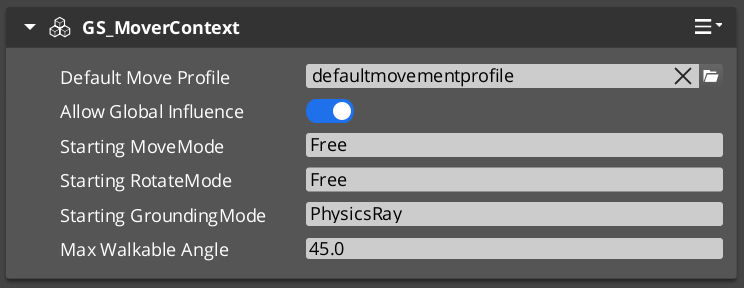
Contents
Raw input from reactor components arrives as a Vector2 (rawMoveInput). The MoverContext applies two sequential transformations each time input changes.
For a player unit (detected by “Player” tag): fetches the active camera’s world transform, flattens its forward and right vectors to the XY plane, then computes:
modifiedMoveInput = camForward * rawInput.Y + camRight * rawInput.X
For AI units (or when inputOverride = true): uses world cardinal axes (Y=forward, X=right).
Projects modifiedMoveInput onto the ground plane using the current groundNormal:
groundedMoveInput = modifiedMoveInput - groundNormal * dot(modifiedMoveInput, groundNormal)
Direction is then normalized and the original magnitude is restored. Movers use groundedMoveInput so movement always follows the surface contour, even on slopes.
Both steps run automatically whenever SetMoveInputAxis is called and again whenever SetGroundNormal is called (ground changed under a moving unit).
Mode Switching
The MoverContext maintains three independent mode strings, each with a current and last value:
| Mode Type | Current | Last |
|---|
| Movement mode | currentMoveMode | lastMoveMode |
| Rotation mode | currentRotateMode | lastRotateMode |
| Grounding mode | currentGroundingMode | lastGroundingMode |
ChangeMovementMode("Free") updates the string and broadcasts MoverContextNotificationBus::MovementModeChanged("Free"). Each Mover and Grounder component checks whether its own named mode matches the broadcast and activates or deactivates itself accordingly.
RevertToLastMovementMode() swaps current and last — enabling one-step undo (e.g., return from “Slide” to whatever was active before).
Context States
A generic key-value store for runtime state flags used by movers and grounders:
AZStd::unordered_map<AZStd::string, AZ::u32> contextStates
SetContextState(name, value) writes and broadcasts MoverContextNotificationBus::ContextStateChanged.
Known state keys:
| Key | Set by | Values | Meaning |
|---|
"grounding" | PhysicsRayGrounder | 0 = Falling, 1 = Grounded, 2 = Sliding | Ground contact state |
"StopMovement" | Various | 1 = stop | Signals the Free Mover to zero velocity |
Movement Profile Management
The MoverContext selects the active GS_UnitMovementProfile* by priority:
- Influence list —
AddMovementProfile(influencer, profile*) is called by MovementInfluenceFieldComponent when the unit enters a trigger volume. Multiple fields stack additively by priority via MovementInfluenceRequestBus::GetPriority. - Global fallback — if
influenceList is empty and allowGlobalInfluence is true, checks GlobalMovementRequestBus::GetGlobalMovementProfile. - Default profile — the asset-configured
defaultMoveProfile on the component.
When the profile changes, MoverContextNotificationBus::MovementProfileChanged(profile*) is broadcast. Movers update their cached activeProfile pointer.
Standby behavior:
UnitEnteringStandby → clears the influence list, broadcasts empty mode names (disables all movers/grounders)UnitExitingStandby → re-evaluates profile priority, re-broadcasts current mode names to re-enable the correct movers
Editor-Exposed Fields
| Field | Description |
|---|
defaultMoveProfile | Asset reference to the fallback GS_UnitMovementProfile |
allowGlobalInfluence | Whether to accept the global movement profile as a fallback |
startingMoveMode | Mode name to broadcast on activate (one-frame delayed to allow all components to start first) |
startingRotateMode | Rotation mode name to start with |
startingGroundingMode | Grounding mode name to start with |
maxWalkDegrees | Slope angle (degrees) above which movement is no longer considered grounded |
API Reference
Request Bus: MoverContextRequestBus
Commands sent to a specific unit’s MoverContext. ById bus — addressed by unit entity ID.
Input Axis:
| Method | Parameters | Returns | Description |
|---|
SetMoveInputAxis | AZStd::string axisName, float axisValue | void | Sets the raw input on “x” or “y”. Triggers ModifyInputAxis() and GroundInputAxis(). Clamps total magnitude to 1.0. |
GetMoveInputAxis | — | AZ::Vector2* | Returns pointer to rawMoveInput. |
GetModifiedMoveInputAxis | — | AZ::Vector3* | Returns pointer to camera-relative modifiedMoveInput. |
GetGroundMoveInputAxis | — | AZ::Vector3* | Returns pointer to ground-projected groundedMoveInput. |
Ground State:
| Method | Parameters | Returns | Description |
|---|
SetGroundNormal | AZ::Vector3 newNormal | void | Updates the ground normal and re-projects modifiedMoveInput. |
GetGroundNormal | — | AZ::Vector3* | Returns pointer to current ground normal. |
GetSlopeDirection | — | AZ::Vector3* | Returns pointer to the current slope direction vector. |
GetSlopeAngle | — | float* | Returns pointer to the current slope angle (dot product with up). |
GetMaxWalkAngle | — | float* | Returns pointer to the cosine of maxWalkDegrees. |
Context States:
| Method | Parameters | Returns | Description |
|---|
SetContextState | AZStd::string stateName, AZ::u32 stateValue | void | Writes a state value and broadcasts ContextStateChanged. |
GetContextState | AZStd::string stateName | AZ::u32 | Returns the current value for the named state. |
Mode Switching:
| Method | Parameters | Returns | Description |
|---|
ChangeMovementMode | AZStd::string targetMoveMode | void | Sets current move mode and broadcasts MovementModeChanged. |
RevertToLastMovementMode | — | void | Swaps current and last move mode. |
ChangeRotationMode | AZStd::string targetRotateMode | void | Sets current rotation mode and broadcasts RotationModeChanged. |
RevertToLastRotationMode | — | void | Swaps current and last rotation mode. |
ChangeGroundingMode | AZStd::string targetGroundingMode | void | Sets current grounding mode and broadcasts GroundingModeChanged. |
RevertToLastGroundingMode | — | void | Swaps current and last grounding mode. |
Profile Management:
| Method | Parameters | Returns | Description |
|---|
AddMovementProfile | AZ::EntityId influencer, GS_UnitMovementProfile* profile | void | Adds an influence-field profile to the priority list and re-evaluates. |
RemoveMovementProfile | AZ::EntityId influencer | void | Removes an influence-field profile and re-evaluates. |
Notification Bus: MoverContextNotificationBus
Events broadcast by the MoverContext. ById bus — addressed by unit entity ID. Movers and Grounders subscribe to this.
| Event | Parameters | Description |
|---|
MovementModeChanged | AZStd::string modeName | Fired when the movement mode changes. Movers activate or deactivate based on their m_moveModeName. |
RotationModeChanged | AZStd::string modeName | Fired when the rotation mode changes. |
GroundingModeChanged | AZStd::string modeName | Fired when the grounding mode changes. Grounders activate or deactivate based on their m_groundModeName. |
ContextStateChanged | AZStd::string stateName, AZ::u32 value | Fired when a context state value changes. |
MovementProfileChanged | GS_UnitMovementProfile* profile | Fired when the active movement profile is replaced. Movers update their activeProfile pointer. |
Virtual Methods
Override these when extending the MoverContext.
| Method | Description |
|---|
ModifyInputAxis() | Transforms rawMoveInput into modifiedMoveInput (camera-relative). Override for custom camera or axis mapping. |
GroundInputAxis() | Projects modifiedMoveInput onto the ground plane into groundedMoveInput. Override for custom surface projection. |
Script Canvas Examples
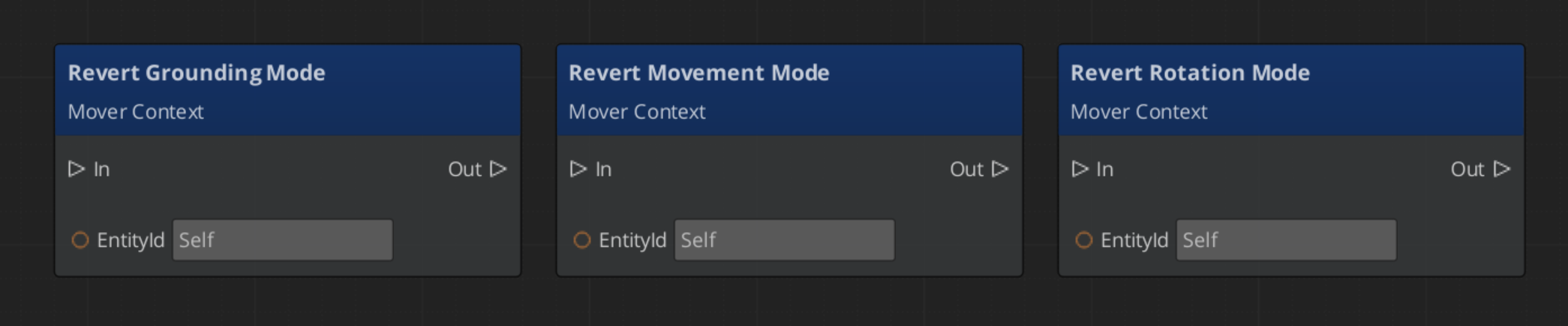
Changing movement mode:
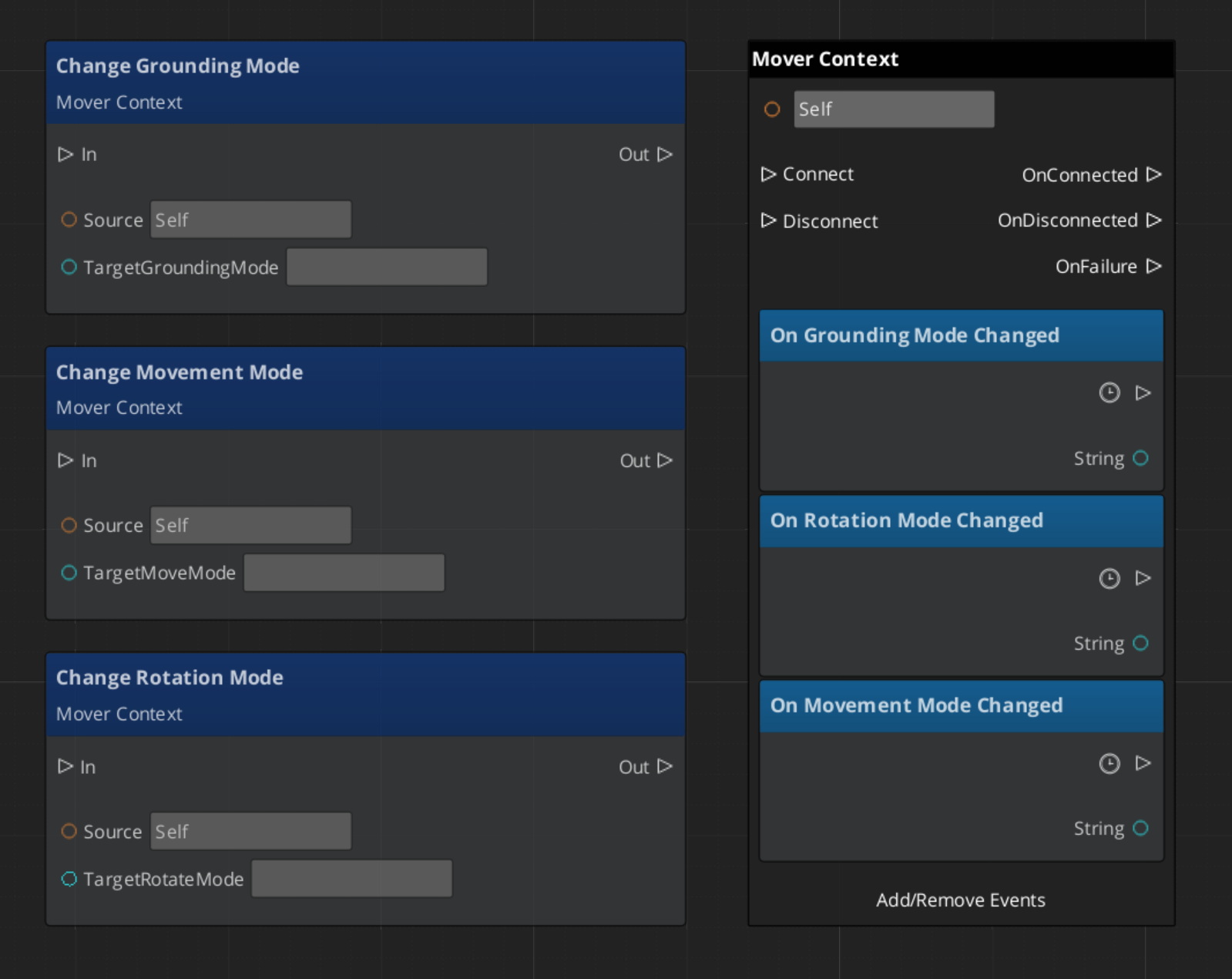
Reverting to the previous movement mode:
Setting a context state flag:
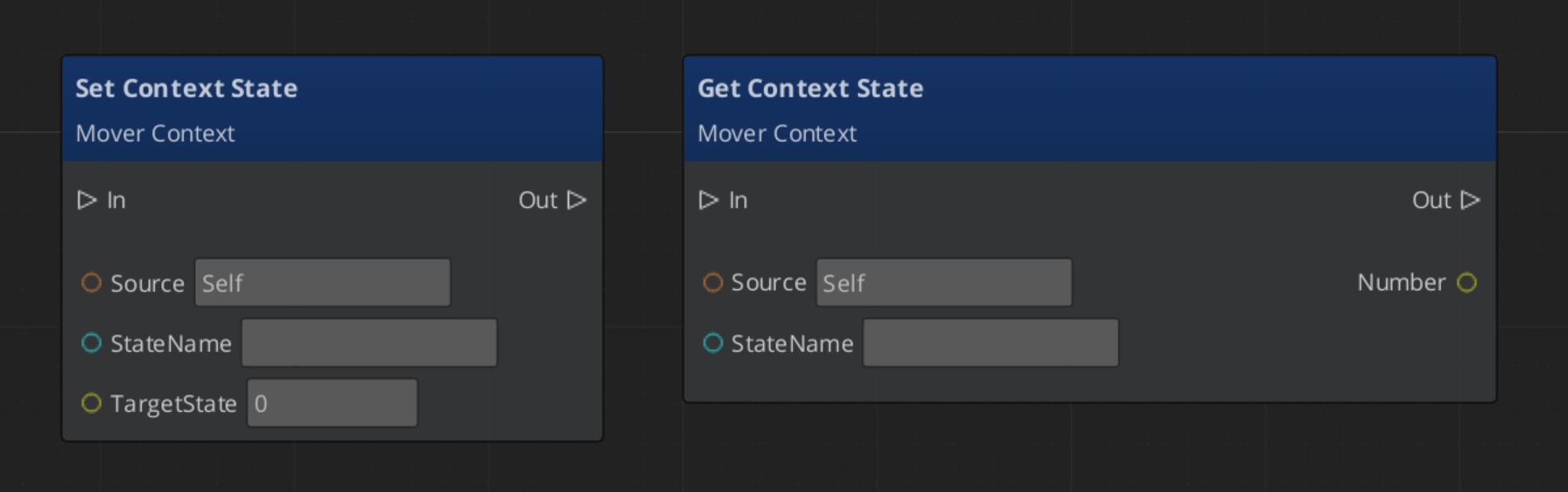
See Also
- Movers — Mover components that read from the MoverContext
- Grounders — Grounder components that write ground state to the MoverContext
- Movement — Movement system overview
- Input Data — The input pipeline that feeds
SetMoveInputAxis
Get GS_Unit
GS_Unit — Explore this gem on the product page and add it to your project.
4.1.2 - Movers
Mover base class and concrete mover components — translate MoverContext input into physics-based unit motion via named mode activation.
Movers translate the processed movement input from the MoverContext into physics forces on the unit’s rigid body. Each mover activates for a specific named mode — when the MoverContext broadcasts MovementModeChanged("Free"), only the mover whose m_moveModeName matches "Free" activates. All others deactivate. This makes the locomotion system fully mode-driven and composable.
For usage guides and setup examples, see The Basics: GS_Unit.

Contents
Class Hierarchy
GS_MoverComponent (base — mode-aware activation, tick management)
  └── GS_PhysicsMoverComponent (adds RigidBody cache + validity check)
        ├── GS_3DFreeMoverComponent    (mode: "Free")
        └── GS_3DSlideMoverComponent   (mode: "Slide")
GS_MoverComponent (Base)
Tick: AzPhysics::SystemEvents::OnPostSimulateEvent (after the physics step). Optional debugForceTick uses AZ::TickBus for debugging without physics.
Mode-Aware Activation
Listens to MoverContextNotificationBus::MovementModeChanged and RotationModeChanged. Compares the broadcast mode name against its own m_moveModeName and m_rotateModeName. Calls ToggleMovement(true/false) and ToggleRotation(true/false) accordingly. The physics post-simulate handler is only registered when the mover is active, saving ticks when inactive.
Per-Tick Processing
Each tick:
CheckCanOperate() — validates that the required pointers and state are validHandleMovement() — calculates and applies movement (no-op in base)HandleRotation() — calculates and applies rotation (no-op in base)
Key Fields
| Field | Description |
|---|
m_moveModeName | Mode string this mover activates for (set in Activate()) |
m_rotateModeName | Mode string this mover’s rotation activates for |
movementActive / rotationActive | Whether movement/rotation processing is currently running |
delta | Cached frame delta time |
activeProfile | Pointer to current GS_UnitMovementProfile (updated via MovementProfileChanged) |
debugForceTick | If true, uses game tick instead of post-simulate (for debugging without physics) |
GS_PhysicsMoverComponent
Extends GS_MoverComponent. On activate, fetches AzPhysics::RigidBody* from the entity. CheckCanOperate() verifies the rigid body pointer is valid before allowing tick processing.
Concrete Movers
| Component | Mode Name | Description |
|---|
| GS_3DFreeMoverComponent | "Free" | Standard 3D locomotion — camera-relative, spring-damped velocity and rotation |
| GS_3DSlideMoverComponent | "Slide" | Slope-sliding locomotion — activated by the grounder when slope exceeds maxWalkAngle |
API Reference
Movers consume two buses and produce one:
Consumed
| Bus | Event | Description |
|---|
MoverContextNotificationBus | MovementModeChanged(modeName) | Activates or deactivates movement processing based on mode name match. |
MoverContextNotificationBus | RotationModeChanged(modeName) | Activates or deactivates rotation processing based on mode name match. |
MoverContextNotificationBus | ContextStateChanged(stateName, value) | Allows movers to react to state flags (e.g. "StopMovement"). |
MoverContextNotificationBus | MovementProfileChanged(profile*) | Updates the cached activeProfile pointer. |
Virtual Methods
Override these when extending any mover:
| Method | Parameters | Returns | Description |
|---|
ToggleMovement | bool on | void | Called when the movement mode activates or deactivates. |
ToggleRotation | bool on | void | Called when the rotation mode activates or deactivates. |
HandleMovement | — | void | Called each tick when movement is active. Override to implement movement logic. |
HandleRotation | — | void | Called each tick when rotation is active. Override to implement rotation logic. |
CheckCanOperate | — | bool | Returns true if the mover has everything it needs to run this tick. |
Extension Guide
Use the Mover ClassWizard template to generate a new mover with boilerplate already in place — see GS_Unit Templates. The template offers two base class options: Physics Mover (default) for rigid-body locomotion, and Base Mover for transform-only movement.
Extend GS_PhysicsMoverComponent to create a custom physics-driven mover.
#pragma once
#include <Source/Unit/Mover/GS_PhysicsMoverComponent.h>

namespace MyProject
{
    class MyCustomMover : public GS_Unit::GS_PhysicsMoverComponent
    {
    public:
        AZ_COMPONENT_DECL(MyCustomMover);
        static void Reflect(AZ::ReflectContext* context);

    protected:
        void Activate() override;

        void HandleMovement() override;
        void HandleRotation() override;

    private:
        // Mode name must be set in Activate():
        // m_moveModeName = "MyMode";
        // m_rotateModeName = "MyMode";
    };
}
In HandleMovement(), read from the MoverContext and write to the rigid body:
void MyCustomMover::HandleMovement()
{
    AZ::Vector3* groundedInput = nullptr;
    GS_Unit::MoverContextRequestBus::EventResult(
        groundedInput, GetEntityId(),
        &GS_Unit::MoverContextRequestBus::Events::GetGroundMoveInputAxis
    );

    if (!groundedInput || groundedInput->IsZero()) return;

    AZ::Vector3 targetVelocity = *groundedInput * activeProfile->moveSpeed;
    m_rigidBody->SetLinearVelocity(targetVelocity);
}
See Also
Get GS_Unit
GS_Unit — Explore this gem on the product page and add it to your project.
4.1.2.1 - 3D Free Mover
Standard 3D locomotion — camera-relative movement and rotation driven by spring-damped physics, with optional slope slowdown.
GS_3DFreeMoverComponent is the standard mover for walking characters. It reads the ground-projected input vector from the MoverContext, applies optional slope attenuation, computes a destination velocity, and drives the rigid body via AccelerationSpringDamper. Rotation is handled separately using QuaternionSpringDamper to face the last non-zero movement direction.
Mode names: "Free" (both movement and rotation)
For usage guides and setup examples, see The Basics: GS_Unit.

Contents
How It Works
HandleMovement()
Called each post-physics tick while movement mode is "Free":
- Reads
groundedMoveInput pointer from MoverContextRequestBus::GetGroundMoveInputAxis. - If
EnableSlopeSlowdown is true, attenuates the input vector on steep slopes (see Slope Slowdown). - Multiplies the attenuated direction by
CalculateSpeed() to get destinationVelocity. - Fetches
rigidBody->GetLinearVelocity() as the current velocity. - Calls
GS_Core::Springs::AccelerationSpringDamper(position, velocity, cachedAcceleration, destinationVelocity, moveHalflife, delta). - Applies the result:
rigidBody->SetLinearVelocity(velocity).
The cachedAcceleration is a member field that persists between frames to produce smooth acceleration response even on sudden direction changes.
HandleRotation()
- Reads
groundedMoveInput from the MoverContext. - Updates
lastDirection only when groundedMoveInput is non-zero — so the unit keeps facing the last direction when stopped. - Computes target yaw from
lastDirection using atan2f. - Calls
GS_Core::Springs::QuaternionSpringDamper(currentRotation, cachedAngularVelocity, targetRotation, rotateHalflife, delta). - Applies
cachedAngularVelocity.Z to rigidBody->SetAngularVelocity().
StopMovement State
When ContextStateChanged("StopMovement", 1) fires, the mover zeros both velocity and cached acceleration, then clears the state back to 0. This allows other systems (e.g. landing from a jump, ability wind-up) to cleanly halt the unit.
Slope Slowdown
When EnableSlopeSlowdown is true, the mover reduces movement speed as the slope angle increases toward maxWalkAngle. The attenuation curve uses an exponent applied to the dot product of the movement direction against the uphill slope direction:
attenuation = 1.0 - uphillSlowStrength * pow(dot(moveDir, slopeDir), uphillSlowExponent)
              × remap(slopeAngle, startSlowAngle, maxWalkAngle, 0, 1)
The slowdown begins at startSlowAngle degrees and reaches maximum reduction at maxWalkAngle. At or beyond maxWalkAngle, the grounder will switch the unit to "Slide" mode regardless.
Speed Calculation
CalculateSpeed() lerps curSpeed toward activeProfile->moveSpeed each frame:
curSpeed = AZ::Lerp(curSpeed, activeProfile->moveSpeed, expf(-speedChangeSmoothing * delta));
speedChangeSmoothing is read from activeProfile. This produces a smooth speed transition when the movement profile changes (e.g. entering a slow zone).
Editor-Exposed Settings
| Field | Default | Description |
|---|
moveHalflife | 0.1 | Spring halflife for movement velocity. Smaller = snappier acceleration. |
rotateHalflife | 0.2 | Spring halflife for rotation. Smaller = faster turn response. |
EnableSlopeSlowdown | true | Whether steep slopes reduce movement speed. |
uphillSlowStrength | 0.5 | Maximum speed reduction factor at the max walkable angle (0 = no reduction, 1 = full stop). |
uphillSlowExponent | 2.5 | Curve shape of the slowdown ramp. Higher = slower onset, steeper drop near max. |
startSlowAngle | 30° | Slope angle at which slowdown begins. |
Extension Guide
Extend GS_3DFreeMoverComponent to override movement or rotation behavior while keeping the base spring physics.
#pragma once
#include <Source/Unit/Mover/GS_3DFreeMoverComponent.h>

namespace MyProject
{
    class MyFreeMove : public GS_Unit::GS_3DFreeMoverComponent
    {
    public:
        AZ_COMPONENT_DECL(MyFreeMove);
        static void Reflect(AZ::ReflectContext* context);

    protected:
        void HandleMovement() override;
    };
}
void MyFreeMove::HandleMovement()
{
    // Call base for standard spring movement
    GS_3DFreeMoverComponent::HandleMovement();

    // Add custom post-processing (e.g. strafe penalty, footstep IK correction)
}
See Also
Get GS_Unit
GS_Unit — Explore this gem on the product page and add it to your project.
4.1.2.2 - Slide Mover
Slope-sliding locomotion — automatically activated when slope exceeds maxWalkAngle, drives the unit down the slope via spring-damped physics with optional input resistance and automatic recovery.
GS_3DSlideMoverComponent handles slope-sliding locomotion. It activates automatically when the grounder detects a slope angle exceeding maxWalkAngle, and deactivates when the slope eases or the unit slows enough to recover.
Mode names: "Slide" (both movement and rotation)
For usage guides and setup examples, see The Basics: GS_Unit.
Contents
How It Works
HandleMovement()
Called each post-physics tick while movement mode is "Slide":
- Reads
slopeDir from MoverContextRequestBus::GetSlopeDirection. - Computes
destinationVelocity = slopeDir * baseSlideSpeed. - If
EnableInputSlideResistance is true, reads groundedMoveInput and applies an opposing influence:destinationVelocity += groundedMoveInput * InputResistanceInfluence
- Fetches
rigidBody->GetLinearVelocity() as the current velocity. - Calls
GS_Core::Springs::AccelerationSpringDamper(position, velocity, cachedAcceleration, destinationVelocity, moveHalflife, delta). - Applies the result:
rigidBody->SetLinearVelocity(velocity). - Calls
FinishSliding() to check whether the slide should end.
HandleRotation()
- Reads
slopeDir from the MoverContext. - Computes target yaw from slope direction using
atan2f — unit faces down the slope. - Calls
GS_Core::Springs::QuaternionSpringDamper(currentRotation, cachedAngularVelocity, targetRotation, rotateHalflife, delta). - Applies
cachedAngularVelocity.Z to rigidBody->SetAngularVelocity().
Finish Sliding
FinishSliding() is called every movement tick. It returns true and triggers recovery when both conditions are met:
- The current slope angle is below
minSlideAngle - The unit’s current speed is below
minSpeedToStop
On recovery:
MoverContextRequestBus::ChangeMovementMode(recoveryMoveMode);
MoverContextRequestBus::ChangeRotationMode(recoveryRotateMode);
Both modes default to "Free", returning the unit to standard locomotion.
Editor-Exposed Settings
| Field | Default | Description |
|---|
moveHalflife | 0.1 | Spring halflife for slide velocity. |
rotateHalflife | 0.15 | Spring halflife for rotation toward slope direction. |
baseSlideSpeed | 8.0 | Target speed along the slope direction (m/s). |
EnableInputSlideResistance | true | Whether player input can partially resist or redirect the slide. |
InputResistanceInfluence | 2.0 | Scalar applied to groundedMoveInput when computing resistance. Higher = more player control. |
minSlideAngle | 20° | Slope angle below which the unit may recover (if also slow enough). |
minSpeedToStop | 1.5 | Speed threshold below which the unit may recover (if also on shallow slope). |
recoveryMoveMode | "Free" | Movement mode to switch to on recovery. |
recoveryRotateMode | "Free" | Rotation mode to switch to on recovery. |
Extension Guide
Extend GS_3DSlideMoverComponent to override slide behavior while keeping the base spring physics and recovery logic.
#pragma once
#include <Source/Unit/Mover/GS_3DSlideMoverComponent.h>

namespace MyProject
{
    class MySlide : public GS_Unit::GS_3DSlideMoverComponent
    {
    public:
        AZ_COMPONENT_DECL(MySlide);
        static void Reflect(AZ::ReflectContext* context);

    protected:
        void HandleMovement() override;
    };
}
void MySlide::HandleMovement()
{
    // Call base for standard slope physics
    GS_3DSlideMoverComponent::HandleMovement();

    // Add custom post-processing (e.g. audio trigger, particle effect on slide)
}
See Also
Get GS_Unit
GS_Unit — Explore this gem on the product page and add it to your project.
4.1.2.3 - 3D Strafe Mover
Aim-relative strafing movement for first-person and third-person units. Not yet implemented.
The 3D Strafe Mover provides aim-relative movement where the unit strafes relative to its facing direction. This is the standard movement model for first-person and third-person shooters where the camera or aim direction determines the movement frame.
This component is not yet implemented. This page will be updated with full API reference and usage documentation when the component is available.
For usage guides and setup examples, see The Basics: GS_Unit.
See Also
Get GS_Unit
GS_Unit — Explore this gem on the product page and add it to your project.
4.1.2.4 - Side Scroller Mover
2D side-scrolling movement constrained to a horizontal plane. Not yet implemented.
The Side Scroller Mover provides two-dimensional movement constrained to a horizontal plane with vertical jump support. This is the standard movement model for side-scrolling platformers, beat-em-ups, and other 2D gameplay projected in a 3D environment.
This component is not yet implemented. This page will be updated with full API reference and usage documentation when the component is available.
For usage guides and setup examples, see The Basics: GS_Unit.
See Also
- Movement – Movement subsystem overview
- Movers – All available mover components
Get GS_Unit
GS_Unit — Explore this gem on the product page and add it to your project.
4.1.2.5 - Grid Step Mover
Tile-based grid movement for turn-based or grid-locked unit locomotion. Not yet implemented.
The Grid Step Mover provides discrete, tile-based movement for units that move in fixed steps along a grid. This is the standard movement model for turn-based RPGs, tactics games, puzzle games, and any project that uses grid-locked locomotion.
This component is not yet implemented. This page will be updated with full API reference and usage documentation when the component is available.
For usage guides and setup examples, see The Basics: GS_Unit.
See Also
- Movement – Movement subsystem overview
- Movers – All available mover components
Get GS_Unit
GS_Unit — Explore this gem on the product page and add it to your project.
4.1.3 - Grounders
Grounder base class and concrete grounder components — detect ground contact, compute ground normals and slope data, and drive mode switching on the MoverContext.
Grounders run each physics tick to determine whether the unit is in contact with the ground, what the slope looks like, and whether the surface is walkable. They write their findings to the MoverContext and switch movement modes when the ground state changes.
For usage guides and setup examples, see The Basics: GS_Unit.

Contents
Class Hierarchy
GS_GrounderComponent (base — mode-aware activation, tick management)
  └── GS_PhysicsRayGrounderComponent  (grounding mode: "Free")
GS_GrounderComponent (Base)
Tick: AzPhysics::SystemEvents::OnPostSimulateEvent (after the physics step).
Mode-Aware Activation
Listens to MoverContextNotificationBus::GroundingModeChanged. Compares the broadcast mode name against its own m_groundModeName. Calls ToggleGrounder(true/false) accordingly. The physics post-simulate handler is only registered when the grounder is active.
Per-Tick Processing
Each tick:
CheckCanOperate() — validates required pointers and stateHandleGrounding() — performs ground detection and updates MoverContext (no-op in base)
Key Fields
| Field | Description |
|---|
m_groundModeName | Grounding mode string this grounder activates for |
delta | Cached frame delta time |
Concrete Grounders
API Reference
Virtual Methods
Override these when extending any grounder:
| Method | Parameters | Returns | Description |
|---|
ToggleGrounder | bool on | void | Called when the grounding mode activates or deactivates. |
HandleGrounding | — | void | Called each tick when the grounder is active. Override to implement ground detection logic. |
GroundingStateChange | AZ::u32 newState | void | Called when ground contact state changes. Override to react to grounding transitions. |
CheckCanOperate | — | bool | Returns true if the grounder has everything it needs to run this tick. |
Consumed Buses
| Bus | Event | Description |
|---|
MoverContextNotificationBus | GroundingModeChanged(modeName) | Activates or deactivates this grounder based on mode name match. |
Produced Calls
| Bus | Method | Description |
|---|
MoverContextRequestBus | SetGroundNormal(normal) | Updates the ground normal used by the MoverContext for input projection. |
MoverContextRequestBus | SetContextState("grounding", value) | Sets grounding state: 0 = Falling, 1 = Grounded, 2 = Sliding. |
MoverContextRequestBus | ChangeMovementMode(modeName) | Switches to "Slide" when slope exceeds maxWalkAngle, or back to "Free" on recovery. |
Extension Guide
Use the Grounder ClassWizard template to generate a new grounder with boilerplate already in place — see GS_Unit Templates. The template offers two base class options: Physics Ray Grounder (default, includes raycast, coyote time, and gravity) or Base Grounder for fully custom detection.
Extend GS_GrounderComponent to implement custom ground detection.
#pragma once
#include <Source/Unit/Grounder/GS_GrounderComponent.h>

namespace MyProject
{
    class MyGrounder : public GS_Unit::GS_GrounderComponent
    {
    public:
        AZ_COMPONENT_DECL(MyGrounder);
        static void Reflect(AZ::ReflectContext* context);

    protected:
        void Activate() override;

        void HandleGrounding() override;
        void GroundingStateChange(AZ::u32 newState) override;

    private:
        // Set in Activate():
        // m_groundModeName = "Free";
    };
}
In HandleGrounding(), run your detection and write results to the MoverContext:
void MyGrounder::HandleGrounding()
{
    AZ::Vector3 groundNormal = AZ::Vector3::CreateAxisZ();
    bool isGrounded = false;

    // ... custom detection logic ...

    GS_Unit::MoverContextRequestBus::Event(
        GetEntityId(),
        &GS_Unit::MoverContextRequestBus::Events::SetGroundNormal,
        groundNormal
    );

    AZ::u32 state = isGrounded ? 1 : 0;
    GS_Unit::MoverContextRequestBus::Event(
        GetEntityId(),
        &GS_Unit::MoverContextRequestBus::Events::SetContextState,
        "grounding", state
    );
}
See Also
Get GS_Unit
GS_Unit — Explore this gem on the product page and add it to your project.
4.1.3.1 - 3D Free Grounder
Raycast-based grounder for standard 3D locomotion — detects ground contact with coyote time, applies manual gravity when airborne, switches to Slide mode on steep slopes.
GS_PhysicsRayGrounderComponent is the standard grounder for walking characters. Each physics tick it casts a ray downward from the unit’s capsule base, evaluates the slope, applies gravity when airborne, and updates the MoverContext with ground normal and grounding state.
Grounding mode name: "Free"
For usage guides and setup examples, see The Basics: GS_Unit.

Contents
How It Works
Each post-physics tick, the grounder runs two operations in order:
GroundCheck() — determines contact, slope, and normalGroundingMove() — applies gravity or snap force based on contact result
Ground Check
GroundCheck() casts a sphere (matching the capsule base radius) downward from the unit’s feet:
- If the ray hits geometry within
groundCheckDistance:- Computes slope angle from the hit normal vs. world up.
- Updates
MoverContextRequestBus::SetGroundNormal(hitNormal). - If slope angle ≤
maxWalkAngle (from the MoverContext): reports Grounded. - If slope angle >
maxWalkAngle: reports Sliding. - Resets coyote timer.
- If no hit:
- Increments
coyoteTimer. - If
coyoteTimer < coyoteTime: still reports Grounded (coyote grace period). - If
coyoteTimer ≥ coyoteTime: reports Falling.
Grounding Move
GroundingMove() applies vertical forces based on the current state:
Grounded: Applies a downward TimedSpringDamper to keep the unit snapped to the surface without bouncing.
Falling: Applies manual gravity — adds gravityScale * AZ::Physics::DefaultGravity to the rigid body’s linear velocity each frame:
AZ::Vector3 velocity = rigidBody->GetLinearVelocity();
velocity.SetZ(velocity.GetZ() + gravity * delta);
rigidBody->SetLinearVelocity(velocity);
Sliding: Does not override vertical velocity — the Free Mover’s AccelerationSpringDamper handles the slide direction entirely.
Grounding State Changes
GroundingStateChange(newState) is called whenever the ground state changes:
| State | Value | Trigger | Action |
|---|
| Falling | 0 | Lost ground contact beyond coyote time | SetContextState("grounding", 0) |
| Grounded | 1 | Ray hit within walkable angle | SetContextState("grounding", 1) |
| Sliding | 2 | Ray hit but slope > maxWalkAngle | SetContextState("grounding", 2), ChangeMovementMode("Slide") |
When returning to Grounded from Sliding, the grounder calls ChangeMovementMode("Free") to restore locomotion.
Editor-Exposed Settings
| Field | Default | Description |
|---|
groundCheckDistance | 0.15 | Raycast distance below the capsule base to detect ground. |
capsuleRadius | 0.3 | Radius of the sphere used for the downward cast (should match capsule). |
coyoteTime | 0.12 | Seconds of grace period before reporting Falling after losing ground contact. |
gravityScale | 1.0 | Multiplier on AZ::Physics::DefaultGravity applied when airborne. |
snapHalflife | 0.05 | Spring halflife for the ground-snap TimedSpringDamper. Smaller = tighter snap. |
Extension Guide
Extend GS_PhysicsRayGrounderComponent to add custom ground detection or state reactions.
#pragma once
#include <Source/Unit/Grounder/GS_PhysicsRayGrounderComponent.h>

namespace MyProject
{
    class MyGrounder : public GS_Unit::GS_PhysicsRayGrounderComponent
    {
    public:
        AZ_COMPONENT_DECL(MyGrounder);
        static void Reflect(AZ::ReflectContext* context);

    protected:
        void GroundingStateChange(AZ::u32 newState) override;
    };
}
void MyGrounder::GroundingStateChange(AZ::u32 newState)
{
    // Call base to handle mode switching
    GS_PhysicsRayGrounderComponent::GroundingStateChange(newState);

    if (newState == 0)
    {
        // Unit became airborne — trigger jump animation, etc.
    }
}
See Also
Get GS_Unit
GS_Unit — Explore this gem on the product page and add it to your project.
5 - Templates
ClassWizard templates for GS_Unit — unit controllers, input reactors, mover components, and grounder components.
All GS_Unit extension types are generated through the ClassWizard CLI. The wizard handles UUID generation, cmake file-list registration, and module descriptor injection automatically.
For usage guides and setup examples, see The Basics: GS_Unit.
python ClassWizard.py \
    --template <TemplateName> \
    --gem <GemPath> \
    --name <SymbolName> \
    [--input-var key=value ...]
Contents
Unit Controller
Template: UnitController
Creates a Controller component that lives on the Controller Entity (the player or AI controller, not the Unit Entity itself). Manages which Unit is currently possessed, and coordinates possession/unpossession events to sibling controller-side components.
Generated files:
Source/${Name}ControllerComponent.h/.cpp
CLI:
python ClassWizard.py --template UnitController --gem <GemPath> --name <Name>
Post-generation: Implement OnPossess(unitEntityId) and OnUnpossess() to route activation to the correct input readers and other controller components. The controller entity is persistent; the unit entity is swappable.
See also: Unit Controllers — full extension guide with header and implementation examples.
Template: InputReactor
Sits on the Unit Entity. Subscribes to named input events from InputDataNotificationBus (broadcast by an InputReaderComponent on the Controller side) and translates them into MoverContextRequestBus calls.
Generated files:
Source/${Name}InputReactorComponent.h/.cpp
CLI:
python ClassWizard.py --template InputReactor --gem <GemPath> --name <Name>
Post-generation:
- Register event name strings in
inputReactEvents in Activate(). - Implement each
OnInputEvent(name, value) handler to call the appropriate MoverContextRequestBus method. - Multiple reactors can coexist on a Unit, each handling different input channels.
See also: Input Reactor — full extension guide with examples.
Mover Component
Template: Mover
Creates a Mover component that drives an entity’s movement each tick. Activates when GS_MoverContextComponent switches to the matching mode name, then calls HandleMovement() and HandleRotation() while active.
Two base classes available via --input-var:
| Option | Base Class | Movement Drive | Physics Required |
|---|
| Physics Mover (default) | GS_PhysicsMoverComponent | rigidBody linear/angular velocity, post-simulate tick | Yes — PhysicsRigidBodyService |
| Base Mover | GS_MoverComponent | TransformBus world translation, AZ::TickBus | No |
Generated files (Physics Mover):
Source/${Name}PhysicsMoverComponent.h/.cpp
Generated files (Base Mover):
Source/${Name}MoverComponent.h/.cpp
CLI:
# Physics Mover (default):
python ClassWizard.py --template Mover --gem <GemPath> --name <Name> \
    --input-var mover_base="Physics Mover"

# Base Mover:
python ClassWizard.py --template Mover --gem <GemPath> --name <Name> \
    --input-var mover_base="Base Mover"
Post-generation:
- Set
m_moveModeName and m_rotateModeName strings in Activate() to match the mode names configured in your MoverContext. - Implement
HandleMovement() and HandleRotation(). The Physics Mover template comes pre-filled with spring-damper stubs using AccelerationSpringDamper and QuaternionSpringDamper. - In
CheckCanOperate(), lazy-fetch any additional context pointers your mover needs. - One Mover per movement mode. All Mover components on a Unit Entity coexist — the MoverContext activates only the matching one at a time.
See also: Movers — full mover architecture and extension guide with code examples.
Grounder Component
Template: Grounder
Creates a Grounder component that determines ground state (Falling / Grounded / Sliding) each tick and reports it back to GS_MoverContextComponent. Active when the MoverContext switches to the matching grounding mode name.
Two base classes available via --input-var:
| Option | Base Class | Detection | Extras |
|---|
| Physics Ray Grounder (default) | GS_PhysicsRayGrounderComponent | Downward raycast from base class | Coyote time, spring position correction, gravity application |
| Base Grounder | GS_GrounderComponent | Bring your own detection | Tick only |
Generated files (Physics Ray Grounder):
Source/${Name}PhysicsRayGrounderComponent.h/.cpp
Generated files (Base Grounder):
Source/${Name}GrounderComponent.h/.cpp
CLI:
# Physics Ray Grounder (default):
python ClassWizard.py --template Grounder --gem <GemPath> --name <Name> \
    --input-var grounder_base="Physics Ray Grounder"

# Base Grounder:
python ClassWizard.py --template Grounder --gem <GemPath> --name <Name> \
    --input-var grounder_base="Base Grounder"
Post-generation:
- Set
m_groundModeName in Activate(). - For Physics Ray Grounder: The base class handles the raycast, spring correction, and gravity. Override
HandleGrounding() and GroundingStateChange() only to add custom reactions — call the base first. - For Base Grounder: Implement
HandleGrounding() with your detection method. Call GroundingStateChange(0/1/2) when state changes (0 = Falling, 1 = Grounded, 2 = Sliding), and SetGroundNormal() on the MoverContext when on a surface. - Typically one grounder per unit type. Swap the grounder via mode name for units that switch between ground-based and other locomotion.
See also: Grounders — full grounder architecture and extension guide with code examples.
See Also
For the full API, component properties, and C++ extension guide:
For all ClassWizard templates across GS_Play gems:
Get GS_Unit
GS_Unit — Explore this gem on the product page and add it to your project.
6 - 3rd Party Implementations
For usage guides and setup examples, see The Basics: GS_Unit.
Get GS_Unit
GS_Unit — Explore this gem on the product page and add it to your project.