Cam Core
The runtime camera driver — applies phantom camera state to the real camera with blend interpolation, mid-blend interrupt correction, state inheritance handoff, and orbital blend shapes.
The Cam Core is the runtime driver of the GS_PhantomCam system. It lives on a camera entity (the main O3DE camera entity for single-player, or a per-channel Cam Core entity for multi-channel projects) and is responsible for one job: making the engine’s camera match the dominant Phantom Camera for its channel. Every frame, the Cam Core reads the target phantom camera’s position, rotation, and field of view, then applies those values to the actual camera entity — either instantly (when locked) or through a timed blend transition.
When the Cam Manager determines a new dominant phantom camera for the Cam Core’s channel, it fires a per-channel notification and routes the new cam to the Cam Core via SetPhantomCam. The Cam Core then looks up the best matching blend in the active Blend Profile, optionally inherits state from the outgoing cam, and begins interpolating toward the new phantom camera over the specified duration, easing curve, and blend shape. If a new transition starts before the current blend completes, a small correction window pulls the new blend back from the rendered TM so the cam does not snap. Once a blend completes, the main camera locks to the phantom camera as a child entity, matching its transforms exactly until the next transition.
For usage guides and setup examples, see The Basics: GS_PhantomCam.
Contents
How It Works
Blend Transitions
When a camera transition is triggered:
- The Cam Core receives
SetPhantomCam(targetCam) from the Cam Manager, routed to its own entity address. - It queries the assigned Blend Profile for the best matching blend entry between the outgoing and incoming cameras (by entity name).
- The matched entry returns duration, easing curve, blend shape (Linear / Spherical / Cylindrical), an inherit-state flag, and a pivot source. If no entry matches, the Cam Core falls back to its own defaults.
- If the entry’s inherit-state is set, the state inheritance handoff runs before the blend starts so the destination cam’s body adopts a kinematic interpretation of the outgoing cam’s pose.
- The outgoing cam’s
m_blendingOut flag is set so it continues ticking through the transition (keeps the source pose live if the target is moving). - Over the blend duration, the Cam Core interpolates position (using the chosen shape), rotation (slerp), and lens (FOV / near / far) from the outgoing state to the incoming state.
- If a new blend interrupts this one, the interrupt correction window pulls the new start curve back so the cam doesn’t snap.
- On completion, the Cam Core parents the main camera to the new dominant phantom, locking them together until the next transition.
Blend Profile Resolution
The Cam Core holds a reference to a GS_PhantomCamBlendProfile asset. When a transition occurs, it calls GetBestBlend(fromCam, toCam) on the profile to find the most specific matching entry. Resolution order:
- Exact match — From camera name to To camera name.
- Any-to-specific — “Any” to the To camera name.
- Specific-to-any — From camera name to “Any”.
- Default fallback — The Cam Core’s own default blend time, easing, and shape.
See Blend Profiles for full details.
Camera Locking
Once a blend completes, the main camera becomes a child of the dominant phantom camera entity. All position, rotation, and property updates from the phantom camera are reflected immediately on the real camera. This lock persists until the next transition begins.
Blend Shape and Pivot
Each blend entry specifies a shape that controls how position interpolates:
| Shape | Behavior |
|---|
Linear | Straight-line lerp from source to destination. The default and the cheapest. No pivot used. |
Cylindrical | Sweeps through a yaw arc around a pivot, preserving the heading change as a rotation rather than a translation. Pitch and radius interpolate independently. |
Spherical | Sweeps through a great-circle arc around a pivot. Both yaw and pitch animate around the pivot, producing an orbital flight path between source and destination. |
The pivot point is resolved by the entry’s pivot source:
| Pivot source | Resolution |
|---|
Shared | Midpoint of both cams’ published pivots. Falls back gracefully if either is missing. |
Source | Outgoing cam’s pivot. Falls back to the incoming cam, then to Linear if neither publishes. |
Destination | Incoming cam’s pivot. Falls back to the outgoing cam, then to Linear. |
Cams publish their pivot as the pivotPos field on CamPoseSnapshot (see State Inheritance). Stages that don’t publish a pivot disqualify themselves from being the pivot source.
The math is implemented by the Orbital Solver Utility in GS_Core — BlendPositionAroundPivot(from, to, pivot, alpha, shape, axis).
State Inheritance Handoff
When a blend entry has m_inheritState = true, the Cam Core runs a handoff between the outgoing and incoming cams before starting the blend:
- Pull a
CamPoseSnapshot from the outgoing cam via PhantomCameraRequests::TryGetPoseSnapshot. - If the snapshot is valid, push it to the incoming cam via
PhantomCameraRequests::TryAdoptPoseSnapshot.
The Get / Adopt calls forward to the cam’s Body stage. Bodies that don’t implement the protocol return false; the handoff is a silent no-op and the blend proceeds normally.
The handoff runs before StartBlend, so by the time the blend captures source and destination poses, the destination cam’s body has already adopted the seed pose. This makes inherited blends feel like a continuation of the outgoing cam’s motion rather than a clean start.
See State Inheritance for the full protocol and per-stage adoption semantics.
Interrupt Correction
When a blend A → B is in flight and a new blend A’ → C kicks off, snapping the cam’s source TM produces a perceptible velocity jolt — the cam visibly changes direction at the interrupt moment. The Cam Core’s mid-blend correction window prevents this.
Mechanism
- Capture the cam’s currently-rendered TM at the interrupt moment →
m_interruptSnapshotTM. - Compute
T_natural = 1 - oldBlendFactor — the curve point on the new blend at which the cam’s velocity matches its current motion. - Compute
T_start = max(0, T_natural − m_interruptCorrection) — pull the new blend back by the correction window. - Seed the new blend at curve point
T_start. - Over the window
[T_start, T_natural], the rendered pose is a Y-blend between the snapshot and the new blend’s natural pose, with the Y factor sweeping 0 → 1. - After
T_natural, the Y-blend yields fully to the new blend; pure new-blend interpolation continues with live source / destination TMs.
The cam starts in the snapshot pose at the interrupt, ramps gracefully into the new trajectory across the correction window, and proceeds normally.
Window width
m_interruptCorrection is authored on the Cam Core, default 0.03 (3% of the new blend’s curve). Larger windows feel smoother but produce more visible lag in the handoff territory; smaller windows feel snappier but reintroduce the velocity jolt. Setting it to 0 degenerates to legacy hard-anchor behavior.
Channel Addressing
The Cam Core self-registers with the Cam Manager on activate. It walks transform ancestors looking for a ChannelStampComponent to determine its channel:
- Stamp found — Registers via
RegisterCamCoreToChannel(camCore, stampEntity, channelId, token). Listens at its own entity address on CamCoreRequestBus so the Cam Manager can route per-channel SetPhantomCam calls. - No stamp — Registers via the legacy
RegisterCamCore. Routes through channel 0 in single-player projects.
If the Cam Core’s parent rig is re-stamped (rare; typically during stage transitions or hot-reload), the ChannelStampNotificationBus::OnStamped handler un-registers from the old channel and re-registers to the new one. The Cam Manager’s token validation rejects mismatched stamp tokens to prevent stale messages from overwriting fresh bindings.
One Cam Core per channel. Multi-channel projects (Tier 3) spawn one per active channel; single-player projects use a single Cam Core at channel 0.
Setup
- Add GS_CamCoreComponent to a camera entity. For Tier 1 / Tier 2 (single-player), this is the main O3DE camera entity, parented under the Cam Manager entity. For Tier 3 (multi-channel), include one Cam Core per rig inside the rig prefab.
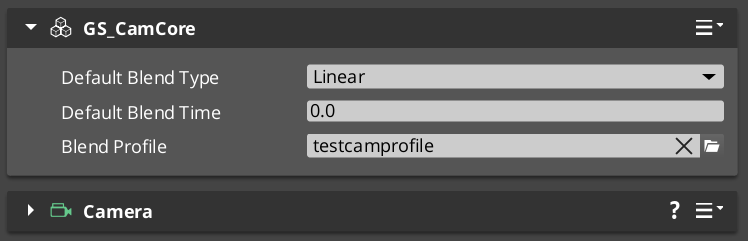
- Create a Blend Profile data asset in the Asset Editor and assign it to the Cam Core’s Blend Profile slot.
- Configure default blend time, easing, and blend shape on the Cam Core for cases where no profile entry matches. See Curves Utility for available easing types.
- Optionally adjust Interrupt Correction (default
0.03) if your project has unusually short or long blends.
API Reference
Request Bus: CamCoreRequestBus
Internal command bus, Cam Manager → Cam Core. Per-entity — each Cam Core listens at its own entity id so the Cam Manager can route per-channel events; Broadcast hits every connected Cam Core (stage-transition global clear). This is not a cross-gem contract and is not script-reflected — external systems observe the camera through the two GS_Core contracts below.
| Method | Parameters | Returns | Description |
|---|
SetPhantomCam | AZ::EntityId targetCam | void | Sets the phantom camera that the Cam Core should blend toward or lock to. Called by the Cam Manager when arbitration produces a new winner. Triggers the inheritance handoff and blend start. EntityId() clears it. |
Cross-Gem Contract: CamCoreExchangeBus
The query half of the camera’s observable-service trio, housed in GS_Core. Addressed by the Cam Core’s EntityId; single provider.
| Method | Parameters | Returns | Description |
|---|
GetCamCore | — | AZ::EntityId | Resolves the Cam Core’s entity (late-joiner / poll for the current core). Was CamCoreRequestBus::GetCamCore before the interfaces migration. |
Cross-Gem Contract: CamCoreEmissionBus
The emit half of the trio, housed in GS_Core. Global broadcast, multiple handlers — any number of components can subscribe without depending on GS_PhantomCam. Was CamCoreNotificationBus before the interfaces migration; the ScriptCanvas-facing name is preserved by GS_PhantomCam’s binder, so existing graphs keep resolving.
| Event | Parameters | Description |
|---|
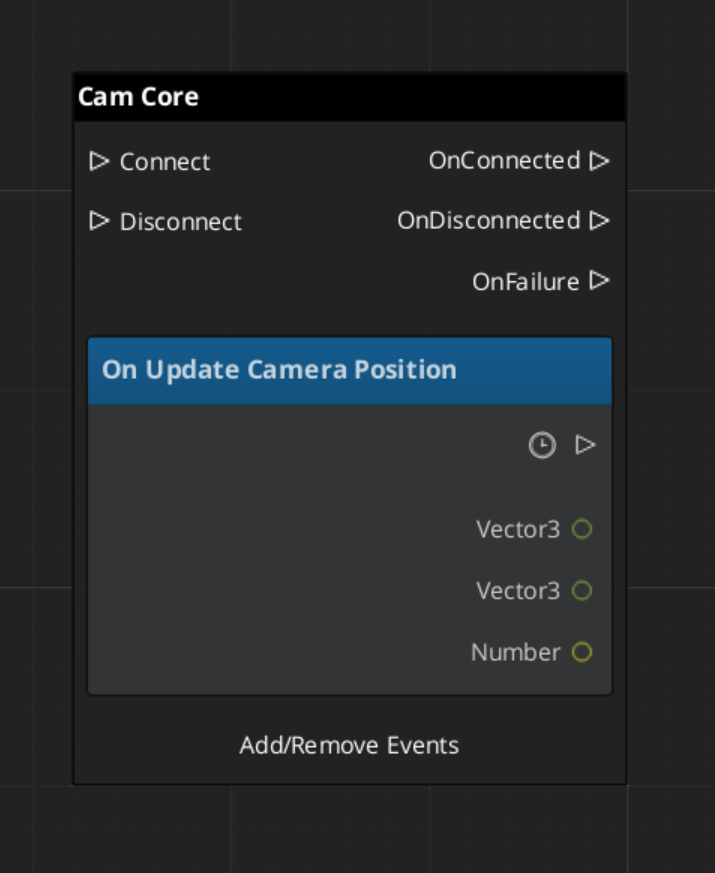
UpdateCameraPosition | camPos, camFacing, deltaTime | Fired each tick with the committed camera position, forward vector, and frame delta. Subscribe to react to camera movement in real time (audio, UI, gameplay readback). |
OnCamCoreRegistered | AZ::EntityId camCore | A Cam Core came online (rig lifetime). Pair with GetCamCore to resolve it, then observe its updates. |
OnCamCoreUnregistered | AZ::EntityId camCore | A Cam Core went away. |
Inspector Fields
| Field | Default | Purpose |
|---|
defaultBlendType | CurveType::Linear | Easing curve used when no Blend Profile entry matches. |
defaultBlendTime | 1.0 | Fallback blend duration in seconds. |
defaultBlendShape | BlendShape::Linear | Fallback blend shape when no profile entry matches. |
activeBlendProfileAsset | — | The active .camblendprofile asset. |
m_interruptCorrection | 0.03 | Width of the mid-blend interrupt correction window as a fraction of the new blend’s curve. See Interrupt Correction. |
Usage Examples
C++ — Querying the Main Camera Entity
#include <GS_Core/Interfaces/Camera/CamCoreExchangeBus.h>

AZ::EntityId mainCameraId;
GS_Core::CamCoreExchangeBus::BroadcastResult(
    mainCameraId,
    &GS_Core::CamCoreExchange::GetCamCore);
For a multi-channel project, query the Cam Manager for a specific channel’s Cam Core instead:
#include <GS_PhantomCam/GS_CamManagerBus.h>

AZ::EntityId p1CamCore;
GS_PhantomCam::CamManagerRequestBus::BroadcastResult(
    p1CamCore,
    &GS_PhantomCam::CamManagerRequests::GetChannelCamCore,
    GS_PhantomCam::ChannelId(0));
C++ — Listening for Camera Updates
#include <GS_Core/Interfaces/Camera/CamCoreEmissionBus.h>

class MyCameraListener
    : public AZ::Component
    , protected GS_Core::CamCoreEmissionBus::Handler
{
protected:
    void Activate() override
    {
        GS_Core::CamCoreEmissionBus::Handler::BusConnect();
    }

    void Deactivate() override
    {
        GS_Core::CamCoreEmissionBus::Handler::BusDisconnect();
    }

    void UpdateCameraPosition(
        const AZ::Vector3& camPos,
        const AZ::Vector3& camFacing,
        float deltaTime) override
    {
        // React to per-tick camera position / facing changes.
    }
};
Script Canvas
Reacting to camera position updates:
Extending the Cam Core
The Cam Core can be extended in C++ to customize blend behavior, add post-processing logic, or integrate with external camera systems.
#pragma once
#include <GS_PhantomCam/Core/GS_CamCoreBus.h>
#include <Source/Core/GS_CamCoreComponent.h>

namespace MyProject
{
    class MyCamCore : public GS_PhantomCam::GS_CamCoreComponent
    {
    public:
        AZ_COMPONENT_DECL(MyCamCore);

        static void Reflect(AZ::ReflectContext* context);
    };
}
Implementation (.cpp)
#include "MyCamCore.h"
#include <AzCore/Serialization/SerializeContext.h>

namespace MyProject
{
    AZ_COMPONENT_IMPL(MyCamCore, "MyCamCore", "{YOUR-UUID-HERE}");

    void MyCamCore::Reflect(AZ::ReflectContext* context)
    {
        if (auto serializeContext = azrtti_cast<AZ::SerializeContext*>(context))
        {
            serializeContext->Class<MyCamCore, GS_PhantomCam::GS_CamCoreComponent>()
                ->Version(0);

            if (AZ::EditContext* editContext = serializeContext->GetEditContext())
            {
                editContext->Class<MyCamCore>("My Cam Core", "Custom camera core driver")
                    ->ClassElement(AZ::Edit::ClassElements::EditorData, "")
                        ->Attribute(AZ::Edit::Attributes::Category, "MyProject")
                        ->Attribute(AZ::Edit::Attributes::AppearsInAddComponentMenu, AZ_CRC_CE("Game"));
            }
        }
    }
}
See Also
For related PhantomCam components:
For utilities used by the blend math:
For conceptual overviews and usage guides:
Get GS_PhantomCam
GS_PhantomCam — Explore this gem on the product page and add it to your project.
1 - Blend Profiles
Data assets defining camera transition behavior — blend duration, easing curves, blend shape, pivot source, and state inheritance per camera pair.
Blend Profiles are data assets that control how the Cam Core transitions between Phantom Cameras. Each profile contains a list of blend entries. Each entry defines a From camera, a To camera, a blend duration, an easing curve, a blend shape, a pivot source, and an inherit-state flag. This allows every camera-to-camera transition in your project to have unique timing, feel, and geometry.
The GS_PhantomCamBlendProfile asset is authored in the Asset Editor as a .camblendprofile file. It is registered at startup by PhantomCamDataAssetsSystemComponent and assigned to the Cam Core component. When a camera transition occurs, the Cam Core queries the profile for the best matching blend entry.
For usage guides and setup examples, see The Basics: GS_PhantomCam.
Contents
How It Works
Blend Entries
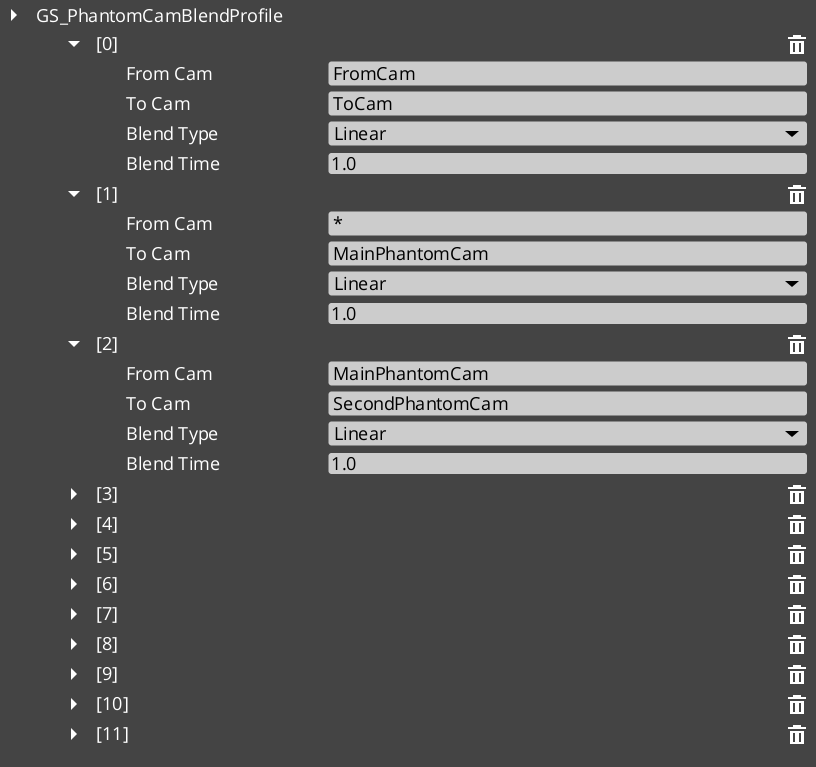
Each entry in a Blend Profile defines a single transition rule:
- From Camera — The name of the outgoing camera (the entity name of the phantom camera being left).
- To Camera — The name of the incoming camera (the entity name of the phantom camera being transitioned to).
- Blend Time — The duration of the transition in seconds.
- Blend Type — The interpolation curve applied during the blend. See Curves Utility for the full list.
- Blend Shape — Linear, Cylindrical, or Spherical. See Blend Shape.
- Pivot Source — Source, Destination, or Shared. See Pivot Source. Only consulted when blend shape is not Linear.
- Inherit State — Opt-in cam-to-cam pose handoff. See Inherit State.
Camera names correspond to the entity names of your phantom camera entities in the scene.
Best Target Blend
When the Cam Core needs to transition, it calls GetBestBlend(fromCam, toCam) on the assigned Blend Profile. The system evaluates blend entries in order of specificity:
- Exact match — An entry with both the From and To camera names matching exactly.
- Any-to-specific — An entry with From set to blank or “any” and To matching the incoming camera name.
- Specific-to-any — An entry with From matching the outgoing camera name and To set to blank or “any”.
- Default fallback — If no entry matches, the Cam Core uses its own default blend time, easing, and shape configured on the component.
This layered resolution allows you to define broad defaults (“any” to “any” at 1.0 seconds) while overriding specific transitions (“MenuCam” to “GameplayCam” at 2.5 seconds with ease-in-out and a spherical sweep).
The first match within a specificity tier wins (no further tie-breaking).
Blend Shape
The blend shape controls how the camera’s position interpolates between source and destination. Defaults to Linear so unconfigured / pre-v3 assets retain straight-lerp behavior.
| Shape | Behavior |
|---|
Linear | Straight world-space lerp. No orbital math. The default. |
Cylindrical | Arc around the resolved pivot on the yaw axis. Pitch and radius interpolate independently. Right for ground cams sharing a target. |
Spherical | Full 3D arc around the resolved pivot. Right when source and destination cams sit at different heights around a shared target. |
When the shape is not Linear, the Cam Core calls the Orbital Solver Utility — BlendPositionAroundPivot(from, to, pivot, alpha, shape, axis) — to compute each tick’s position.
Auto-fallback to Linear. When neither cam reports a pivot (e.g. environmental cams without follow / lookAt targets), the orbital solver isn’t called and the blend lerps straight regardless of the authored shape.
Rotation always slerps; the shape only affects position.
Pivot Source
The pivot is the world-space point that Cylindrical / Spherical shapes arc around. It is resolved at blend start from the cams’ pivots. The pivot source selects which cam’s pivot to use:
| Pivot Source | Behavior |
|---|
Source | Outgoing cam’s pivot. “Leave A elegantly” — the source cam’s framing reference defines the arc. |
Destination | Incoming cam’s pivot. “Arrive at B elegantly” — the destination’s framing reference defines the arc. |
Shared (default) | Midpoint of both pivots. Collapses identically when both cams target the same point. |
Pivots come from the cams’ bodies via GetCameraPivot. A cam that doesn’t publish a pivot disqualifies itself from being the pivot source; Cam Core falls back to whichever cam does publish one, or to Linear if neither does.
This field is ignored when Blend Shape is Linear.
Inherit State
Setting Inherit State opts the matched pair into the state inheritance protocol. When the Cam Core is about to start this blend, it:
- Calls
TryGetPoseSnapshot on the outgoing cam — the body publishes a CamPoseSnapshot. - Calls
TryAdoptPoseSnapshot on the incoming cam — the body consumes the snapshot, re-deriving its internal kinematic state to start from a continuation of the outgoing pose. - Bodies that don’t speak the protocol silently no-op and the blend proceeds without inheritance.
The blend then runs from the source cam’s pose to the destination cam’s already-inherited pose — reads as a small smooth drift rather than a swing.
Default is false so cinematic shots authored at specific poses land at those poses unless the author opts in.
Authoring gotcha. If the inherit flag is unchecked on a matched pair, the destination cam falls through to its snap-on-activation seed. For a LeadingFollowBody this looks like “cam orients behind player’s travel direction regardless of source facing.” For DynamicOrbitBody or OrbitBody the cam swings to authored yaw / pitch and blends from there. Both symptoms point at the same root cause — verify the flag in the asset.
Data Model
GS_PhantomCamBlendProfile
The top-level asset class. Extends AZ::Data::AssetData. Registered through PhantomCamDataAssetsSystemComponent. Authored as .camblendprofile.
| Field | Type | Description |
|---|
BlendList | AZStd::vector<PhantomBlend> | The list of blend entries defining camera transitions. |
PhantomBlend
A single blend entry within the profile. Reflected at Version 4 with a version converter that defaults Blend Shape / Pivot Source to Linear / Shared (pre-v3 assets) and Inherit State to false (pre-v4 assets).
| Field | Type | Default | Description |
|---|
FromCamera | AZStd::string | "" | Entity name of the outgoing phantom camera. Blank or “any” matches all outgoing cameras. |
ToCamera | AZStd::string | "" | Entity name of the incoming phantom camera. Blank or “any” matches all incoming cameras. |
BlendTime | float | 1.0 | Duration of the blend transition in seconds. |
BlendType | GS_Core::CurveType | Linear | The easing curve. See Curves Utility for the full enum. |
BlendShape | GS_Core::Math::BlendShape | Linear | Path geometry — Linear / Cylindrical / Spherical. See Blend Shape. |
PivotSource | GS_Core::Math::PivotSource | Shared | Which cam’s pivot to use — Source / Destination / Shared. See Pivot Source. |
InheritState | bool | false | Opt-in cam-to-cam pose handoff. See Inherit State. |
API Reference
GS_PhantomCamBlendProfile Methods
| Method | Parameters | Returns | Description |
|---|
GetBestBlend | AZStd::string fromCam, AZStd::string toCam | const PhantomBlend* | Returns the best matching blend entry for the given camera pair, or nullptr if no match is found. Resolution follows the specificity hierarchy. |
Creating a Blend Profile
- Open the Asset Editor in O3DE.
- Select New and choose GS_PhantomCamBlendProfile from the asset type list.
- Add blend entries using the + button on the Blend List array.
- For each entry:
- Set the From Camera name (or leave blank for “any”).
- Set the To Camera name (or leave blank for “any”).
- Set the Blend Time in seconds.
- Choose a Blend Type (easing curve) from the dropdown.
- Choose a Blend Shape (Linear / Cylindrical / Spherical).
- Choose a Pivot Source (Source / Destination / Shared) — ignored when Blend Shape is Linear.
- Tick Inherit State if you want the incoming cam’s body to seed from the outgoing cam’s pose.
- Save the asset.
- Assign the asset to the Cam Core component’s Blend Profile inspector slot.
For a full walkthrough, see the PhantomCam Set Up Guide.
See Also
For related PhantomCam components:
For related utilities:
For conceptual overviews and usage guides:
Get GS_PhantomCam
GS_PhantomCam — Explore this gem on the product page and add it to your project.
2 - State Inheritance
PhantomCam cam-to-cam pose handoff protocol — CamPoseSnapshot universal trait, m_inheritState blend toggle, per-body-stage Get/Adopt implementations, ANGULAR vs POSITION mode, consumedAdoption gate.
State inheritance is a universal pose-handoff protocol: when the Cam Core transitions cam A → cam B, the matched Blend Profile entry may opt into inheritance via the InheritState flag. The outgoing cam publishes a CamPoseSnapshot; the incoming cam consumes it through its own kinematic model. The blend then reads as a small smooth drift instead of a swing.
Inheritance is body-only by design. Aim and additive stages don’t participate — the destination cam’s aim runs fresh on the inherited body pose.
Contents
The CamPoseSnapshot Trait
Universal pose-handoff struct. Runtime only — not serialized.
struct CamPoseSnapshot
{
    // Universal — every cam can produce this from its committed transform.
    AZ::Vector3  worldPos = Vector3::Zero();
    AZ::Vector3  worldFwd = Vector3::AxisY();

    // Source cam's resolved pivot in world space at the time of Get.
    // Orbit-style adopters use this to back-derive angular state in the
    // SOURCE cam's frame — preserves orientation even when the incoming
    // cam resolves a different pivot.
    AZ::Vector3  pivotPos      = Vector3::Zero();
    bool         pivotPosValid = false;

    AZ::EntityId pivotEntity;

    // Orbit-specific authored angular state. Populated by orbit-style Get
    // implementations; consumed by orbit-style Adopters directly, bypassing
    // back-derivation. Preserves A's exact yaw / pitch on B across different
    // orbit shapes — angular continuity wins over spatial back-fit.
    float        yawRad             = 0.0f;
    float        pitchRad           = 0.0f;
    bool         angularStateValid  = false;

    // Producer signal — set by TryGetPoseSnapshot when the snapshot is usable.
    bool         valid = false;

    static void Reflect(AZ::ReflectContext* context);
};
A snapshot may carry partial information. worldPos + worldFwd are always populated when valid is true. pivotPos is populated by bodies that publish a pivot (orbit-style, lead-follow). angularStateValid is set only by orbit-style bodies that publish authored yaw / pitch directly.
Opting In — The Blend Profile Toggle
Authored per-pair on PhantomBlend entries inside a .camblendprofile:
struct PhantomBlend {
    // ... other fields ...
    bool m_inheritState = false;
};
Default false so cinematic shots authored at specific poses land at those poses unless the author opts in. See Blend Profiles — Inherit State for the authoring surface.
The IBodyStage Virtuals
class IBodyStage {
public:
    // ... other interface ...

    // Default returns false — stage doesn't speak the protocol.
    virtual bool TryGetPoseSnapshot(CamPoseSnapshot& out)        const { return false; }
    virtual bool TryAdoptPoseSnapshot(const CamPoseSnapshot& in)       { return false; }
};
A body stage may implement only one side of the protocol. Static-shot bodies (OrbitBody) implement Get but leave Adopt at default false — their authored angles define their identity. Other body stages typically implement both.
Forwarders on the Phantom Camera
The component forwards both calls to the body slot:
bool GS_PhantomCameraComponent::TryGetPoseSnapshot(CamPoseSnapshot& out) const {
    if (IBodyStage* body = GetBody()) {
        return body->TryGetPoseSnapshot(out);
    }
    return false;
}

bool GS_PhantomCameraComponent::TryAdoptPoseSnapshot(const CamPoseSnapshot& in) {
    if (IBodyStage* body = GetBody()) {
        return body->TryAdoptPoseSnapshot(in);
    }
    return false;
}
Exposed on PhantomCameraRequestBus so the Cam Core can address cams uniformly.
Cam Core Handoff Site
Inside SetPhantomCam, after lastCam / currentCam are determined and before StartBlend:
const bool wantInherit = (bestBlend && bestBlend->m_inheritState
                          && lastCam.IsValid() && currentCam.IsValid());

if (wantInherit)
{
    CamPoseSnapshot snap;
    bool gotPose = false;
    PhantomCameraRequestBus::EventResult(gotPose, lastCam,
        &PhantomCameraRequests::TryGetPoseSnapshot, snap);

    if (gotPose && snap.valid)
    {
        bool adopted = false;
        PhantomCameraRequestBus::EventResult(adopted, currentCam,
            &PhantomCameraRequests::TryAdoptPoseSnapshot, snap);
        (void)adopted;
    }
}

// ... then StartBlend.
The handoff runs before StartBlend, so by the time the blend captures source and destination poses, the destination cam’s body has already adopted the seed pose. The blend then interpolates from the source’s literal position to the destination’s already-inherited pose.
Bodies that don’t speak the protocol (or that reject the inbound pose) return false; the handoff is silent and the blend proceeds normally.
Per-Variant Implementations
DefaultFollowBody
| Side | Behavior |
|---|
Get | Not implemented (default false). |
Adopt | Not implemented (default false). |
Inheritance into a Default Follow falls through to the Blend Profile’s visual bridge.
OrbitBody (Get-only)
| Side | Behavior |
|---|
Get | Publishes the cleanest snapshot in the framework. worldPos = m_idealPosition, worldFwd toward cached pivot, pivotPos = m_lastPivot (post-offset target, pre-orbit), AND direct authored yawRad / pitchRad + angularStateValid = true. Orbit-style adopters receive ANGULAR-mode handoff with no back-derivation. |
Adopt | Disabled (default false). The authored yaw / pitch define the static shot’s identity; accepting inbound pose would defeat author intent. |
DynamicOrbitBody (full Get + Adopt)
Get:
out.worldPos          = m_idealPosition;
out.worldFwd          = (m_lastResolvedPivot - m_idealPosition).GetNormalizedSafe();
out.pivotPos          = m_lastResolvedPivot;
out.pivotPosValid     = true;
out.pivotEntity       = m_lastResolvedPivotEntity;
out.yawRad            = m_targetYaw;
out.pitchRad          = m_targetPitch;
out.angularStateValid = true;
out.valid             = true;
return true;
Requires a committed pose AND a cached pivot. First-tick adopters that haven’t ticked yet return false.
Adopt stashes the snapshot. The actual derivation happens in the next Evaluate where pivot resolution has run:
if (m_hasPendingAdoption && m_orbitShape.Get())
{
    if (m_pendingAdoption.angularStateValid)
    {
        // ANGULAR mode (preferred). Inherit raw yaw / pitch directly.
        m_targetYaw   = WrapYawToPi(
            ShortestYawTarget(m_targetYaw, m_pendingAdoption.yawRad));
        m_targetPitch = AZ::GetClamp(m_pendingAdoption.pitchRad,
                                     CameraOrbitShape::kPitchAtLow,
                                     CameraOrbitShape::kPitchAtHigh);
    }
    else
    {
        // POSITION mode (fallback). Back-derive yaw from worldPos.
        const AZ::Vector3 referencePivot = m_pendingAdoption.pivotPosValid
            ? m_pendingAdoption.pivotPos
            : pivot;
        const AZ::Vector3 off = m_pendingAdoption.worldPos - referencePivot;

        const float yawObserved    = std::atan2(off.GetY(), off.GetX());
        const float radiusObserved = std::sqrt(off.GetX()*off.GetX() + off.GetY()*off.GetY());
        const float heightObserved = off.GetZ();

        m_targetYaw   = WrapYawToPi(ShortestYawTarget(m_targetYaw, yawObserved));
        m_targetPitch = FindPitchOnShape(*m_orbitShape.Get(), radiusObserved, heightObserved);
    }

    m_idealPosition       = m_pendingAdoption.worldPos;   // seed at adopted pose
    m_hasIdeal            = true;
    consumedAdoption      = true;
    m_hasPendingAdoption  = false;
}
The ANGULAR path is preferred — it preserves authored angular state across different orbit shape assets, which the position back-derivation cannot. The POSITION path is the safety net for source bodies that don’t publish angular state.
LeadingFollowBody (facing-seeded standoff)
Get returns m_idealPosition, world-forward toward cached target, pivotPos = m_lastTargetPoint. No angular state — lead-follow has no degree of freedom other than position-in-band.
Adopt stashes the snapshot. The consume block in Evaluate reads source worldFwd, flattens to the XY plane, and seeds the cam at band-natural standoff distance:
AZ::Vector3 inboundFwd = m_pendingAdoption.worldFwd;
inboundFwd.SetZ(0.0f);
inboundFwd = inboundFwd.GetNormalizedSafe();
if (inboundFwd.GetLengthSq() < epsilon)
    inboundFwd = GetHorizontalForward(stageTargetTM);   // fallback

const float seedDist = AZ::Lerp(m_innerRadius, m_outerRadius, 0.6f);
m_idealPosition = targetPoint - inboundFwd * seedDist;

m_hasIdeal           = true;
m_idleTimer          = 0.0f;
m_hasLastTarget      = true;
consumedAdoption     = true;
m_hasPendingAdoption = false;
Why facing-seeded, not position-seeded? Lead-follow is heading-agnostic. Seeding with the source’s literal worldPos would lock the cam at an off-band angle, defeating the body’s authored intent. The cam inherits the source’s facing at this body’s preferred standoff. Z naturally lands at targetPoint.Z (inboundFwd is XY-flattened) — a from-below source produces a band-natural pose, not stuck-below framing.
TrackBody (path-projection with threshold)
Get returns m_idealPosition plus world-forward toward cached target. No angular state, no pivot — the path is the kinematic reference, not a point.
Adopt stashes. The consume block projects the source’s position onto the spline and rejects when the source sits too far from the path:
EnsureSplineResolved();
if (!m_spline) { m_hasPendingAdoption = false; return; }

AZ::Vector3 nearestWorld;
const float dist = m_spline->FindClosestWorldPoint(
    m_pendingAdoption.worldPos, nearestWorld, /*outT*/);

if (dist > m_adoptionPathThreshold)
{
    // Source sits too far from path — reject, fall back to plain blend.
    m_hasPendingAdoption = false;
    return;
}

m_idealPosition  = m_pendingAdoption.worldPos;
m_springVelocity = AZ::Vector3::CreateZero();
m_hasIdeal       = true;
consumedAdoption = true;
m_hasPendingAdoption = false;
m_adoptionPathThreshold is authored on the TrackBody (default 5.0 m). Prevents teleport-snap when the source cam sits well off the dolly’s path.
The consumedAdoption Gate
Problem: With ctx.snapThisFrame = true on activation, every body’s damping clause snap-clobbers m_idealPosition = desiredPos, discarding the adoption seed. Symptom: cam jerks to its natural ideal then blends from there.
Fix: The snap-on-activation block in every body is gated on !consumedAdoption:
if ((ctx.snapThisFrame || !m_hasIdeal) && !consumedAdoption)
{
    // Snap-seed path. Skipped when adoption already placed m_idealPosition.
}
Adoption-tick uses standard damping from the adopted seed, not snap-seed. When inheritance fires, the seed pose is preserved through the activation tick.
Authoring Gotcha — Matched but Not Inheriting
If m_inheritState is unchecked on a matched blend pair, the destination cam falls through to its snap-on-activation seed instead of consuming the source’s pose. Symptoms vary by body type but all point to the same root cause:
| Body | Symptom |
|---|
LeadingFollowBody | “Cam orients behind player’s travel direction regardless of source facing.” The snap block uses GetHorizontalForward(stageTargetTM) = target’s BasisY. |
DynamicOrbitBody / OrbitBody | Cam swings to authored yaw / pitch then blends from there. |
TrackBody | Dolly starts at its untouched starting spline parameter. |
The fix is data-side: check the Inherit State flag on the matched blend entry inside the .camblendprofile asset.
If diagnostic prints are added during debugging, the smoking gun looks like:
Handoff: from=OrbitCam to=LeadCam inherit=0 (matched=1)
matched = 1, inherit = 0 means the blend pair IS in the asset, but m_inheritState is unchecked on it.
Adoption Coverage Matrix
| Body Variant | Get | Adopt | Source publishes |
|---|
DefaultFollowBody | — | — | — |
OrbitBody (static) | ✓ | — (Get-only) | worldPos, worldFwd, pivotPos, full angular |
DynamicOrbitBody | ✓ | ✓ (ANGULAR / POSITION) | worldPos, worldFwd, pivotPos, full angular |
LeadingFollowBody | ✓ | ✓ (facing-seeded standoff) | worldPos, worldFwd, pivotPos (= target), no angular |
TrackBody | ✓ | ✓ (path-project + threshold) | worldPos, worldFwd, no angular, no pivot |
See Also
Related PhantomCam pages:
Basics-side authoring guide:
Get GS_PhantomCam
GS_PhantomCam — Explore this gem on the product page and add it to your project.
3 - Interrupt Blending
Mid-blend interrupt correction window — m_interruptCorrection, T_start / T_natural derivation, snapshot Y-blend. Prevents velocity discontinuities when a new blend starts before the current one finishes.
When a blend A → B is in flight and a new blend A’ → C kicks off, snapping the cam’s source pose produces a perceptible velocity jolt — the cam visibly changes direction at the interrupt moment. The Cam Core’s mid-blend correction window prevents this by seeding the new blend at a velocity-matched curve point and Y-blending between the snapshot pose and the new blend’s natural pose across a small window.
This replaces the legacy BlendFromCore hard-anchor approach, which produced a velocity-zero discontinuity at every interrupt.
Contents
The Problem
Consider a blend A → B running at 50% progress. A new winner C is arbitrated; the system needs a new blend A’ → C. Two naive approaches both fail:
| Approach | Behavior | Failure |
|---|
| Snap to mid-blend pose, start new blend from there | Source pose = currently-rendered TM | The new blend’s start velocity is whatever its curve dictates at t=0 (often zero) — does not match the cam’s current motion vector. Visible direction change at interrupt. |
| Hard-anchor the snapshot as the new blend’s source for the entire duration | Source TM frozen at interrupt | The cam’s velocity drops to zero at t=0 of the new blend — instant velocity discontinuity. |
The legacy BlendFromCore flag implemented the second approach. The new correction window replaces it.
The Mechanism
The Cam Core introduces a small correction window at the start of the new blend during which the rendered TM is a Y-blend between the snapshot pose and the new blend’s natural pose. After the window, pure new blend with live source / destination TMs.
Step by step
- Capture the cam’s currently-rendered TM at the interrupt moment →
m_interruptSnapshotTM. - Compute
oldBlendFactor = oldCurTime / oldTargetTime (how far through the OLD blend we were). - Compute
T_natural = 1 − oldBlendFactor — the curve point on the new blend at which the cam’s velocity matches its current motion. - Compute
T_start = max(0, T_natural − m_interruptCorrection) — pull the new blend back by the configurable window width. - Seed
curBlendTime = T_start * blendTime so the new blend starts at curve-point T_start. - Over the window
[T_start, T_natural], the rendered pose is a Y-blend between m_interruptSnapshotTM and the new blend’s natural pose at the current curve point. The Y-factor sweeps 0 → 1 across the window. - After
T_natural, the Y-blend yields fully to the new blend; pure new-blend interpolation continues with live source / destination TMs.
Net effect: the rendered cam starts in the snapshot pose at the interrupt, ramps gracefully into the new blend’s natural trajectory across the correction window, and proceeds normally.
Window Width
m_interruptCorrection is authored on the Cam Core, default 0.03 (3% of the new blend’s curve duration). The tradeoff:
| Setting | Behavior |
|---|
| Larger window (e.g. 0.08) | Smoother handoff, but the cam is “stuck” in snapshot territory for longer — can feel like lag. |
| Smaller window (e.g. 0.01) | Quicker handoff, less smoothness. |
| 0 | Degenerates to legacy hard-anchor behavior with the perceptible jolt. |
3% is a balance that’s invisibly smooth for typical blend durations (~1s → 30ms correction window).
Edge Cases
Old blend nearly complete
If oldBlendFactor is close to 1 (the old blend was almost done), T_natural ≈ 0 and T_start ≈ −m_interruptCorrection. The window may compress to nothing — T_start clamps at 0:
T_start = max(0.0, T_natural - m_interruptCorrection);
When clamped, the new blend effectively starts from its natural beginning. The cam may still have a small handoff jolt because the correction can’t pull back further.
Old blend just started
If oldBlendFactor is close to 0 (old blend barely started), T_natural ≈ 1 and T_start ≈ 1 − m_interruptCorrection. Most of the new blend happens in pure new mode after a brief correction window. The snapshot influence is short-lived.
Non-blending interrupt (cold start of new blend)
If IsBlending == false when StartBlend is called, no interrupt — set m_inCorrectionWindow = false and run the new blend normally.
Cam Core State
class GS_CamCoreComponent {
    // ...
    float          m_interruptCorrection = 0.03f;     // authored

    bool           m_inCorrectionWindow   = false;
    float          m_correctionStart      = 0.0f;     // blendFactor where window begins
    float          m_correctionEnd        = 0.0f;     // blendFactor where window ends (= T_natural)
    AZ::Transform  m_interruptSnapshotTM  = AZ::Transform::CreateIdentity();
};
StartBlend Detection
void GS_CamCoreComponent::StartBlend(
    float blendTime,
    GS_Core::CurveType blendType,
    GS_Core::Math::BlendShape blendShape,
    GS_Core::Math::PivotSource pivotSource)
{
    if (IsBlending)
    {
        // Mid-blend interrupt.
        const float oldBlendFactor = curBlendTime / targetBlendTime;
        const float T_natural      = 1.0f - oldBlendFactor;
        const float T_start        = AZ::GetMax(0.0f, T_natural - m_interruptCorrection);

        // Snapshot current rendered TM.
        AZ::TransformBus::EventResult(m_interruptSnapshotTM, m_entityId,
            &AZ::TransformInterface::GetWorldTM);

        m_inCorrectionWindow = true;
        m_correctionStart    = T_start;
        m_correctionEnd      = T_natural;

        // Seed new blend's curve position so velocity matches.
        curBlendTime = T_start * blendTime;
    }
    else
    {
        // Cold start.
        m_inCorrectionWindow = false;
        curBlendTime = 0.0f;
    }

    // Capture source / dest poses, blend params.
    prevTransform      = ... ;          // cam's current world TM at this moment
    targetBlendTime    = blendTime;
    currentBlendType   = blendType;
    currentBlendShape  = blendShape;
    currentPivotSource = pivotSource;
    IsBlending         = true;
}
OnTick Application
void GS_CamCoreComponent::OnTick(float deltaTime, AZ::ScriptTimePoint)
{
    if (!IsBlending)
    {
        // Locked phase — read currentCam's TM, write it directly.
        return;
    }

    curBlendTime += deltaTime;
    const float blendFactor = AZ::GetMin(1.0f, curBlendTime / targetBlendTime);
    const float easedFactor = ApplyCurve(blendFactor, currentBlendType);

    // Compute the "natural" blended pose for this curve point.
    AZ::Vector3 blendedPos;
    if (currentBlendShape == BlendShape::Linear)
    {
        blendedPos = AZ::Vector3::Lerp(
            prevTransform.GetTranslation(),
            currentTM.GetTranslation(),
            easedFactor);
    }
    else
    {
        AZ::Vector3 pivot = ResolvePivot(currentPivotSource, lastCam, currentCam);
        blendedPos = GS_Core::Math::BlendPositionAroundPivot(
            prevTransform.GetTranslation(),
            currentTM.GetTranslation(),
            pivot, easedFactor, currentBlendShape, AZ::Vector3::CreateAxisZ());
    }
    AZ::Quaternion blendedRot = prevTransform.GetRotation().Slerp(
        currentTM.GetRotation(), easedFactor);

    AZ::Vector3    appliedPos;
    AZ::Quaternion appliedRot;

    if (m_inCorrectionWindow && blendFactor < m_correctionEnd)
    {
        // Y-blend the snapshot with the natural pose.
        float yFactor = (blendFactor - m_correctionStart) / m_interruptCorrection;
        yFactor = AZ::GetClamp(yFactor, 0.0f, 1.0f);

        appliedPos = AZ::Vector3::Lerp(
            m_interruptSnapshotTM.GetTranslation(), blendedPos, yFactor);
        appliedRot = m_interruptSnapshotTM.GetRotation().Slerp(blendedRot, yFactor);
    }
    else
    {
        // Past the correction window — pure new blend.
        appliedPos = blendedPos;
        appliedRot = blendedRot;
    }

    // Write final TM. Apply lens interpolation similarly.
    AZ::TransformBus::Event(m_entityId,
        &AZ::TransformInterface::SetWorldTranslation, appliedPos);
    AZ::TransformBus::Event(m_entityId,
        &AZ::TransformInterface::SetWorldRotationQuaternion, appliedRot);

    if (blendFactor >= 1.0f)
    {
        CompleteBlend();
    }
}
Inspector Field
| Field | Default | Purpose |
|---|
m_interruptCorrection | 0.03 | Fraction of the new blend’s curve over which the cam’s snapshot pose at interrupt blends to the new blend’s natural pose. Smaller = snappier interrupts but more visible jolts. 0 = legacy hard-anchor. |
What This Replaces
Pre-correction, the system used a BlendFromCore flag on the Cam Core. When set, the blend’s source pose was hard-anchored to the cam’s currently-rendered TM at the interrupt moment, for the entire duration of the new blend. The new blend’s velocity at t = 0 was therefore zero — an instant velocity discontinuity at the interrupt point.
The correction-window approach replaces this entirely. BlendFromCore is retained as a field on the Cam Core for back-compat but is not used in the new flow.
See Also
Related PhantomCam pages:
Get GS_PhantomCam
GS_PhantomCam — Explore this gem on the product page and add it to your project.