GS_PhantomCam
Priority-based virtual camera management — phantom cameras, blend profiles, and spatial camera influence fields.
Rather than moving a single camera directly, GS_PhantomCam lets you place lightweight virtual cameras — “phantoms” — throughout the scene. Each phantom holds a complete camera state and a priority value. The Cam Core component drives the real camera to match whichever phantom currently has the highest effective priority. Transitions are animated by Blend Profiles that specify duration and easing. Influence Fields modify camera selection spatially or globally without changing base priorities.
For usage guides and setup examples, see The Basics: GS_PhantomCam.
Contents
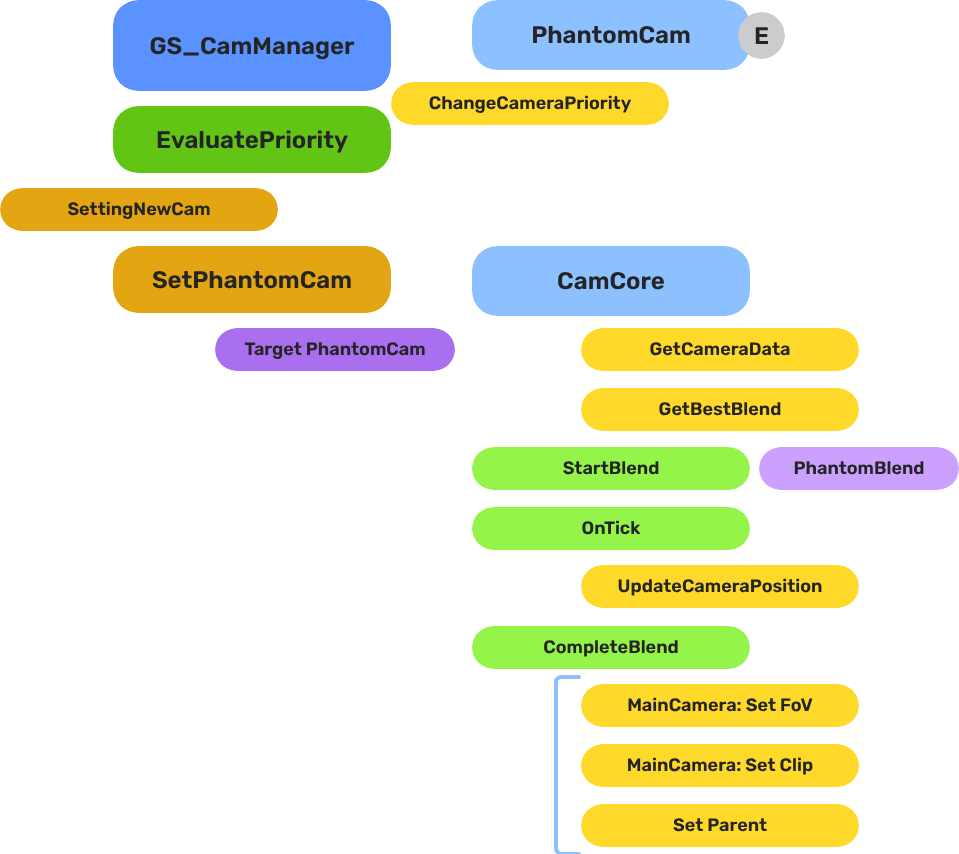
Architecture
Breakdown
When the dominant Phantom Camera changes, the Cam Manager queries the Blend Profile to determine transition timing and easing:
| Step | What It Means |
|---|
| 1 — Priority change | A Phantom Camera gains highest priority or is activated. |
| 2 — Profile query | Cam Manager calls GetBestBlend(fromCam, toCam) on the assigned GS_PhantomCamBlendProfile asset. |
| 3 — Entry match | Entries are checked by specificity: exact match → any-to-specific → specific-to-any → default fallback. |
| 4 — Interpolation | Cam Core blends position, rotation, and FOV over the matched entry’s BlendTime using the configured EasingType. |
E Indicates extensible classes and methods.
Patterns - Complete list of system patterns used in GS_Play.
Cam Manager
The Cam Manager is the singleton controller for the entire camera system. It extends GS_ManagerComponent and owns three responsibilities:
- Registration — Every phantom camera calls
RegisterPhantomCam on activate and UnRegisterPhantomCam on deactivate. The Cam Manager holds the authoritative list. - Priority evaluation — When any camera’s priority changes,
EvaluatePriority() re-sorts the list and determines the dominant camera. A dominance change fires SettingNewCam, which the Cam Core listens for to begin blending. - Influence routing — Priority influences (from Influence Fields or gameplay code) are added and removed through
AddCameraInfluence / RemoveCameraInfluence by camera name. The Cam Manager sums all active influences with each camera’s base priority during evaluation.
The global camera target (the entity that follow and look-at cameras track) is also held here, set via SetTarget.
| Component | Purpose |
|---|
| GS_CamManagerComponent | Singleton manager. Registration, priority evaluation, influence routing, and target assignment. |
Cam Manager API
Cam Core
The Cam Core is the per-frame driver that makes the real O3DE camera match the dominant phantom. It lives on the main camera entity, which must be a child entity of the Cam Manager entity inside the manager’s prefab so it spawns and despawns with the camera system.
Every frame, when locked to a phantom, the Cam Core parents the main camera to that phantom entity and reads its position, rotation, and FOV directly. During a blend transition:
- The Cam Core receives
SettingNewCam from the Cam Manager. - It queries the assigned Blend Profile for the best matching entry between the outgoing and incoming cameras.
- The blend profile returns a duration and an easing curve (see Curves Utility). If no profile entry matches, the Cam Core falls back to its own default blend time and easing configured directly on the component.
- Over the blend duration, position, rotation, and FOV are interpolated from the outgoing state to the incoming phantom’s state.
- On completion, the Cam Core parents the main camera to the new dominant phantom, locking them together until the next transition.
| Component | Purpose |
|---|
| GS_CamCoreComponent | Core camera driver. Applies phantom camera state to the real camera each tick. |
Cam Core API
Phantom Cameras
Phantom cameras are entity components that hold a complete candidate camera state — FOV, near/far clip planes, follow target, look-at target, position offset, rotation offset, and base priority. They do not render anything. They register with the Cam Manager on activation and are evaluated by priority each time the dominant camera changes.
Priority Control
The camera with the highest effective priority (base + all active influences) becomes dominant. You can control which camera wins through:
- Raise priority — Set one camera’s priority above all others.
- Disable/Enable —
DisableCamera drops effective priority to 0; EnableCamera restores it. - Direct change —
SetCameraPriority or ChangeCameraPriority on the Cam Manager bus. - Influence — Add temporary priority boosts through Influence Fields without touching base priorities.
Follow and Look-At
Each phantom supports independent follow and look-at tracking, each with position offsets and optional damping. Both modes expose overridable virtual methods so custom camera types can inject their own logic. Processing is split into transform-based (kinematic) and physics-based paths per mode.
Specialized Camera Types
Companion components add distinct motion behaviors on top of the base phantom:
Phantom Cameras API
Blend Profiles
Blend Profiles are data assets (.blendprofile) that define how the Cam Core transitions between phantom cameras. Each profile contains a list of blend entries, where each entry defines a From camera, a To camera, a blend duration, and an easing curve (see Curves Utility). This allows every camera-to-camera transition in your project to have unique timing and feel.
Entry Resolution Order
- Exact match — From name and To name both match.
- Any-to-specific — From is blank/“any”, To matches the incoming camera.
- Specific-to-any — From matches the outgoing camera, To is blank/“any”.
- Default fallback — The Cam Core’s own default blend time and easing (set on the component).
Blend Entry Fields
Each entry specifies:
| Field | Description |
|---|
FromCamera | Outgoing phantom camera entity name. Blank/“any” matches all. |
ToCamera | Incoming phantom camera entity name. Blank/“any” matches all. |
BlendTime | Transition duration in seconds. |
EasingType | Interpolation curve applied during the blend. See Curves Utility for the full list of available easing types. |
Camera names correspond to entity names of the phantom camera entities in the scene.
Blend Profiles API
Camera Influence Fields
Influence components modify the effective priority of phantom cameras without touching their base priority values. They work by calling AddCameraInfluence / RemoveCameraInfluence on the Cam Manager bus, identified by camera name. Multiple influences on the same camera stack additively.
GlobalCameraInfluenceComponent
Applies a constant priority modifier for its entire active lifetime. Useful for gameplay states that should always favor a particular camera — boosting a cutscene camera’s priority during a scripted sequence, for example.
Placement: Place GlobalCameraInfluenceComponent on the StageData entity. It activates and deactivates automatically with the stage, keeping camera influence scoped to the level that defines it.
CameraInfluenceFieldComponent
Applies a priority modifier only when the camera subject enters a defined spatial volume. Requires a PhysX Collider (set as trigger) on the same entity to define the volume. On entry, the influence is added; on exit, it is removed. See Physics Trigger Volume Utility for setup details.
Useful for level design — switching to an overhead camera when the player enters a room, or boosting a scenic camera in a vista area.
Camera Influence Fields API
Installation
GS_PhantomCam requires only GS_Core.
- Enable GS_PhantomCam in Project Manager or
project.json. - Add GS_CamManagerComponent to a dedicated entity and register it in the Game Manager Startup Managers list. Save this entity as a prefab.
- Add GS_CamCoreComponent to the main O3DE camera entity. Make this camera entity a child of the Cam Manager entity, inside the Cam Manager’s prefab. This ensures the camera spawns and despawns cleanly with the camera system.
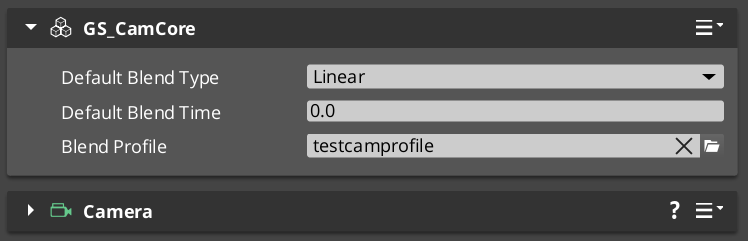
- Assign a Blend Profile asset to the Cam Core’s Blend Profile slot. Configure default blend time and easing on the component for fallback transitions.
- Place phantom camera entities in your level with GS_PhantomCameraComponent. Assign follow and look-at targets as needed.
- For spatial influence zones, add CameraInfluenceFieldComponent alongside a PhysX Collider (trigger) to define the volume.
- For global per-stage influence, add GlobalCameraInfluenceComponent to the StageData entity.
For a full guided walkthrough, see the PhantomCam Set Up Guide.
See Also
For conceptual overviews and usage guides:
For related resources:
Get GS_PhantomCam
GS_PhantomCam — Explore this gem on the product page and add it to your project.
1 - Cam Manager
Camera system lifecycle controller — registration, priority evaluation, target assignment, and influence management for all phantom cameras.
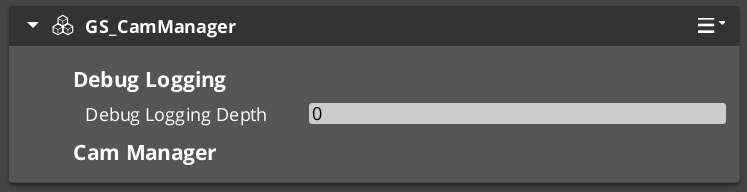
The Cam Manager is the singleton controller for the GS_PhantomCam camera system. It extends GS_ManagerComponent and manages the full lifecycle of virtual cameras: registering and unregistering phantom cameras, evaluating which camera has the highest effective priority, assigning the global camera target, and routing camera influence modifiers.
When a phantom camera activates, it registers itself with the Cam Manager. When priorities change — through direct calls, enable/disable toggling, or influence fields — the Cam Manager re-evaluates which phantom camera should be dominant and notifies the Cam Core to begin blending toward it.
For usage guides and setup examples, see The Basics: GS_PhantomCam.
Contents
How It Works
Camera Registration
Every Phantom Camera registers with the Cam Manager on activation via RegisterPhantomCam and unregisters on deactivation via UnRegisterPhantomCam. The Cam Manager maintains the authoritative list of all active phantom cameras in the scene.
Priority Evaluation
When any camera’s priority changes, the Cam Manager calls EvaluatePriority() to determine the new dominant camera. The camera with the highest effective priority (base priority plus any active influences) becomes the dominant camera. A change in dominance triggers the SettingNewCam notification, which the Cam Core uses to begin its blend transition.
Camera Influences
Camera influences are named priority modifiers that shift a camera’s effective priority up or down. They are added and removed through AddCameraInfluence and RemoveCameraInfluence, identified by camera name. This mechanism allows Camera Influence Fields and gameplay systems to affect camera selection without directly modifying base priority values.
Target Assignment
The Cam Manager holds the global camera target — the entity that follow and look-at cameras will track. Setting the target here propagates it to the active phantom camera system.
Setup
- Add GS_CamManagerComponent to your Game Manager entity (or a dedicated camera manager entity).
- Register the manager prefab in the Game Manager Startup Managers list.
- Add a Cam Core component to your main camera entity as a child of the Cam Manager entity.
- Place Phantom Cameras in your scene with appropriate priorities.
For a full walkthrough, see the PhantomCam Set Up Guide.
API Reference
Request Bus: CamManagerRequestBus
Commands sent to the Cam Manager. Global bus — Single address, single handler.
| Method | Parameters | Returns | Description |
|---|
RegisterPhantomCam | AZ::EntityId cam | void | Registers a phantom camera with the manager. Called automatically on phantom camera activation. |
UnRegisterPhantomCam | AZ::EntityId cam | void | Unregisters a phantom camera from the manager. Called automatically on phantom camera deactivation. |
ChangeCameraPriority | AZ::EntityId cam, AZ::u32 priority | void | Sets a new base priority for the specified camera and triggers priority re-evaluation. |
AddCameraInfluence | AZStd::string camName, float influence | void | Adds a priority influence modifier to the named camera. Positive values increase effective priority. |
RemoveCameraInfluence | AZStd::string camName, float influence | void | Removes a priority influence modifier from the named camera. |
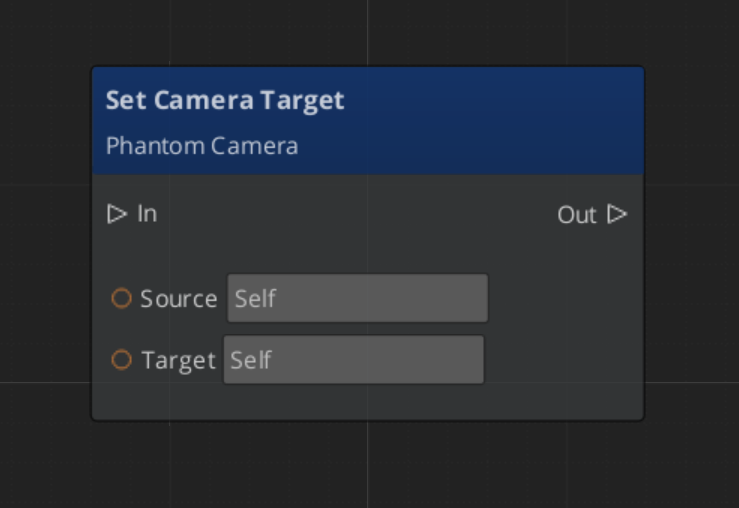
SetTarget | AZ::EntityId targetEntity | void | Sets the global camera follow/look-at target entity. |
GetTarget | – | AZ::EntityId | Returns the current global camera target entity. |
Notification Bus: CamManagerNotificationBus
Events broadcast by the Cam Manager. Multiple handler bus — any number of components can subscribe.
| Event | Description |
|---|
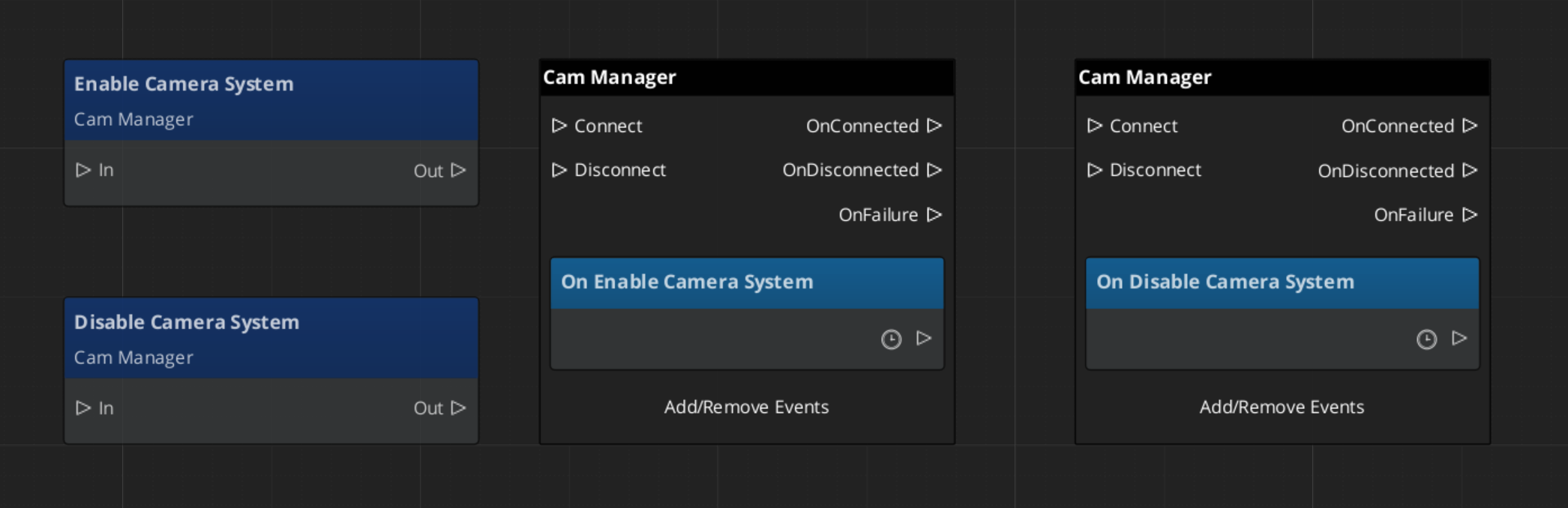
EnableCameraSystem | Fired when the camera system is fully initialized and active. |
DisableCameraSystem | Fired when the camera system is shutting down. |
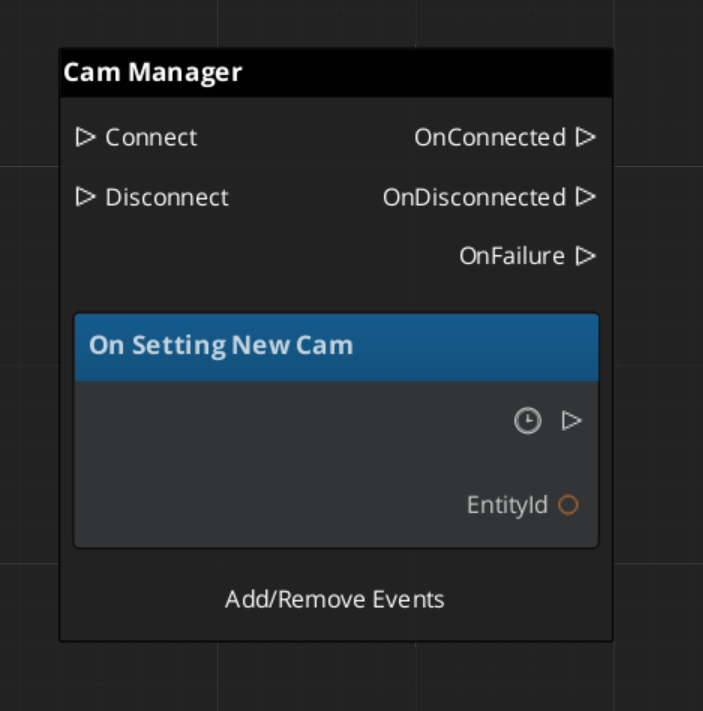
SettingNewCam | Fired when a new phantom camera becomes dominant after priority evaluation. The Cam Core listens for this to begin blending. |
Virtual Methods
Override these when extending the Cam Manager. Always call the base implementation.
| Method | Parameters | Returns | Description |
|---|
EvaluatePriority() | — | void | Sorts all registered phantom cameras by effective priority and determines the dominant camera. Override to add custom priority logic (e.g. distance weighting, gameplay state filters). |
Extending the Cam Manager
Extend the Cam Manager to add custom priority logic, additional registration behavior, or project-specific camera selection rules. Extension is done in C++.
#pragma once
#include <GS_PhantomCam/GS_PhantomCamBus.h>
#include <Source/CamManager/GS_CamManagerComponent.h>

namespace MyProject
{
    class MyCamManager : public GS_PhantomCam::GS_CamManagerComponent
    {
    public:
        AZ_COMPONENT_DECL(MyCamManager);

        static void Reflect(AZ::ReflectContext* context);

    protected:
        void EvaluatePriority() override;
    };
}
Implementation (.cpp)
#include "MyCamManager.h"
#include <AzCore/Serialization/SerializeContext.h>

namespace MyProject
{
    AZ_COMPONENT_IMPL(MyCamManager, "MyCamManager", "{YOUR-UUID-HERE}");

    void MyCamManager::Reflect(AZ::ReflectContext* context)
    {
        if (auto serializeContext = azrtti_cast<AZ::SerializeContext*>(context))
        {
            serializeContext->Class<MyCamManager, GS_PhantomCam::GS_CamManagerComponent>()
                ->Version(0);

            if (AZ::EditContext* editContext = serializeContext->GetEditContext())
            {
                editContext->Class<MyCamManager>("My Cam Manager", "Custom camera manager")
                    ->ClassElement(AZ::Edit::ClassElements::EditorData, "")
                        ->Attribute(AZ::Edit::Attributes::Category, "MyProject")
                        ->Attribute(AZ::Edit::Attributes::AppearsInAddComponentMenu, AZ_CRC_CE("Game"));
            }
        }
    }

    void MyCamManager::EvaluatePriority()
    {
        // Call base to run standard priority sorting
        GS_CamManagerComponent::EvaluatePriority();

        // Custom priority logic here — e.g. filter cameras by gameplay state,
        // apply distance-based weighting, or enforce camera lock rules
    }
}
Script Canvas Examples
Enabling and disabling the camera system:
Setting the global camera target:
Reacting to a new dominant camera:
See Also
For related PhantomCam components:
For foundational systems:
For conceptual overviews and usage guides:
Get GS_PhantomCam
GS_PhantomCam — Explore this gem on the product page and add it to your project.
2 - Cam Core
The runtime camera driver — applies phantom camera position, rotation, and FOV to the real camera with blend interpolation.
The Cam Core is the runtime driver of the GS_PhantomCam system. It lives on the main camera entity and is responsible for a single job: making the real O3DE camera match the dominant Phantom Camera. Every frame, the Cam Core reads the target phantom camera’s position, rotation, and field of view, then applies those values to the actual camera entity — either instantly (when locked) or through a timed blend transition.
When the Cam Manager determines a new dominant phantom camera, it fires a notification that the Cam Core receives. The Cam Core then looks up the best matching blend in the active Blend Profile and begins interpolating toward the new phantom camera over the specified duration and easing curve (see Curves Utility). Once the blend completes, the main camera locks to the phantom camera as a child entity, matching its transforms exactly until the next transition.
For usage guides and setup examples, see The Basics: GS_PhantomCam.
Contents
How It Works
Blend Transitions
When a camera transition is triggered:
- The Cam Core receives the
SettingNewCam notification from the Cam Manager. - It queries the assigned Blend Profile for the best matching blend between the outgoing and incoming camera (by name).
- The blend profile returns the duration and easing curve. If no specific blend is found, the Cam Core falls back to its default blend time and easing.
- Over the blend duration, the Cam Core interpolates position, rotation, and FOV from the outgoing state to the incoming phantom camera state.
- On blend completion, the Cam Core parents the main camera to the phantom camera entity, locking them together.
Blend Profile Resolution
The Cam Core holds a reference to a GS_PhantomCamBlendProfile asset. When a transition occurs, it calls GetBestBlend(fromCam, toCam) on the profile to find the most specific matching blend. The resolution order is:
- Exact match — From camera name to To camera name.
- Any-to-specific — “Any” to the To camera name.
- Specific-to-any — From camera name to “Any”.
- Default fallback — The Cam Core’s own default blend time and easing values.
See Blend Profiles for full details on the resolution hierarchy.
Camera Locking
Once a blend completes, the main camera becomes a child of the dominant phantom camera entity. All position, rotation, and property updates from the phantom camera are reflected immediately on the real camera. This lock persists until the next transition begins.
Setup
- Add GS_CamCoreComponent to your main camera entity. There should be only one Cam Core in the scene.
- Make the main camera entity a child of the Cam Manager entity to ensure it spawns and despawns with the camera system.
- Create a Blend Profile data asset in the Asset Editor and assign it to the Cam Core’s Blend Profile inspector slot.
- Configure the default blend time and easing on the Cam Core component for cases where no blend profile entry matches. See Curves Utility for available easing types.
API Reference
Request Bus: CamCoreRequestBus
Commands sent to the Cam Core. Global bus — Single address, single handler.
| Method | Parameters | Returns | Description |
|---|
SetPhantomCam | AZ::EntityId targetCam | void | Sets the phantom camera that the Cam Core should blend toward or lock to. Typically called by the Cam Manager after priority evaluation. |
GetCamCore | – | AZ::EntityId | Returns the entity ID of the Cam Core (the main camera entity). |
Notification Bus: CamCoreNotificationBus
Events broadcast by the Cam Core. Multiple handler bus — any number of components can subscribe.
| Event | Description |
|---|
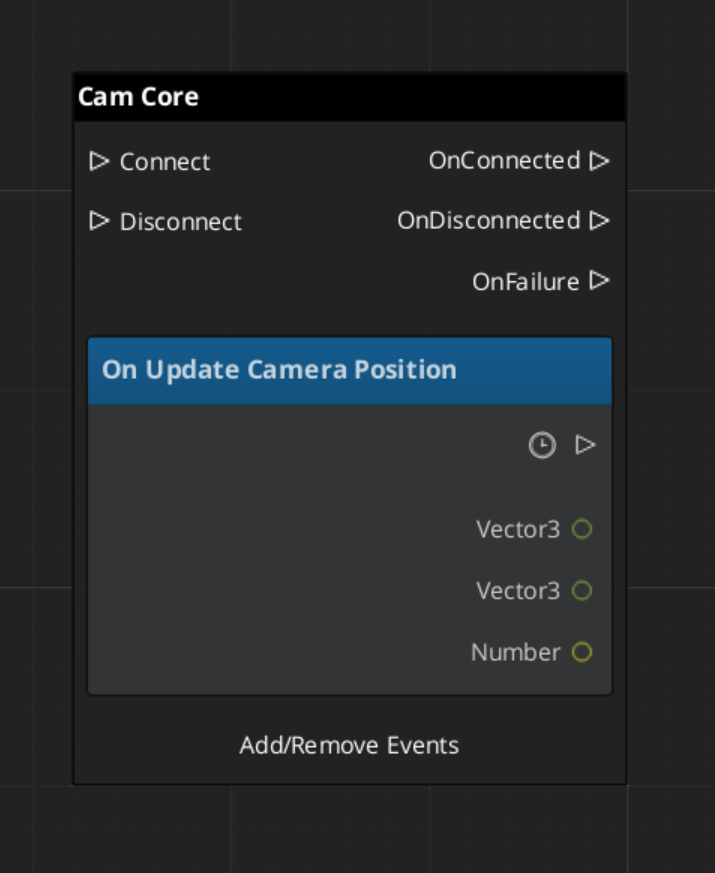
UpdateCameraPosition | Fired each frame during an active blend, after the Cam Core has updated the camera’s position, rotation, and FOV. Subscribe to this to react to camera movement in real time. |
Usage Examples
C++ – Querying the Main Camera Entity
#include <GS_PhantomCam/GS_PhantomCamBus.h>

AZ::EntityId mainCameraId;
GS_PhantomCam::CamCoreRequestBus::BroadcastResult(
    mainCameraId,
    &GS_PhantomCam::CamCoreRequestBus::Events::GetCamCore
);
C++ – Listening for Camera Updates
#include <GS_PhantomCam/GS_PhantomCamBus.h>

class MyCameraListener
    : public AZ::Component
    , protected GS_PhantomCam::CamCoreNotificationBus::Handler
{
protected:
    void Activate() override
    {
        GS_PhantomCam::CamCoreNotificationBus::Handler::BusConnect();
    }

    void Deactivate() override
    {
        GS_PhantomCam::CamCoreNotificationBus::Handler::BusDisconnect();
    }

    void UpdateCameraPosition() override
    {
        // React to camera position/rotation changes during blends
    }
};
Script Canvas
Reacting to camera position updates during blends:
Extending the Cam Core
The Cam Core can be extended in C++ to customize blend behavior, add post-processing logic, or integrate with external camera systems.
#pragma once
#include <GS_PhantomCam/GS_PhantomCamBus.h>
#include <Source/CamCore/GS_CamCoreComponent.h>

namespace MyProject
{
    class MyCamCore : public GS_PhantomCam::GS_CamCoreComponent
    {
    public:
        AZ_COMPONENT_DECL(MyCamCore);

        static void Reflect(AZ::ReflectContext* context);
    };
}
Implementation (.cpp)
#include "MyCamCore.h"
#include <AzCore/Serialization/SerializeContext.h>

namespace MyProject
{
    AZ_COMPONENT_IMPL(MyCamCore, "MyCamCore", "{YOUR-UUID-HERE}");

    void MyCamCore::Reflect(AZ::ReflectContext* context)
    {
        if (auto serializeContext = azrtti_cast<AZ::SerializeContext*>(context))
        {
            serializeContext->Class<MyCamCore, GS_PhantomCam::GS_CamCoreComponent>()
                ->Version(0);

            if (AZ::EditContext* editContext = serializeContext->GetEditContext())
            {
                editContext->Class<MyCamCore>("My Cam Core", "Custom camera core driver")
                    ->ClassElement(AZ::Edit::ClassElements::EditorData, "")
                        ->Attribute(AZ::Edit::Attributes::Category, "MyProject")
                        ->Attribute(AZ::Edit::Attributes::AppearsInAddComponentMenu, AZ_CRC_CE("Game"));
            }
        }
    }
}
See Also
For related PhantomCam components:
For conceptual overviews and usage guides:
Get GS_PhantomCam
GS_PhantomCam — Explore this gem on the product page and add it to your project.
3 - Phantom Cameras
Virtual camera components with priority-based selection, follow/look-at targets, offsets, and specialized camera behavior types.
Phantom Cameras are the virtual cameras that power the GS_PhantomCam system. Each phantom camera is an entity component that holds a complete camera state: field of view, clip planes, a follow target, a look-at target, position and rotation offsets, and a priority value. Phantom cameras do not render anything themselves — they represent candidate camera configurations that the Cam Core can blend toward when a phantom becomes dominant.
Any number of phantom cameras can exist in a scene simultaneously. They register with the Cam Manager on activation and are sorted by effective priority. The camera with the highest priority becomes the dominant camera. The Cam Core then blends the real camera to match the dominant phantom’s state using the active Blend Profile.
Specialized phantom camera types (companion components) extend the base behavior with distinct motion patterns: clamped rotation, static orbiting, spline tracking, and billboard facing.
For usage guides and setup examples, see The Basics: GS_PhantomCam.
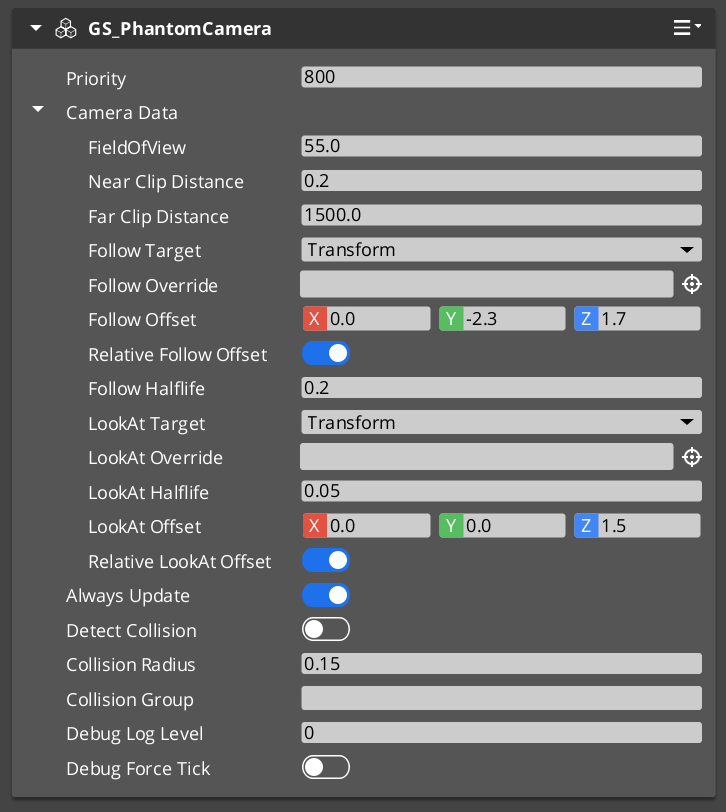
The Phantom Camera component in the Entity Inspector.
Contents
How It Works
Priority-Based Selection
Every phantom camera has a base priority (an integer). The camera with the highest effective priority (base plus any active influences) becomes the dominant camera. You can control which camera is active through several strategies:
- Raise priority — Set the desired camera’s priority above all others.
- Lower neighbors — Reduce competing cameras’ priorities below the desired camera.
- Disable/Enable — Call
DisableCamera on the current dominant camera (drops it to priority 0) or EnableCamera on a previously disabled camera to restore its priority. - Change priority directly — Call
SetCameraPriority or use ChangeCameraPriority on the Cam Manager bus.
Follow and Look-At
Phantom cameras support two independent tracking modes:
- Follow — The camera follows a target entity’s position, applying follow offsets and optional damping. Processing is split into transform-based follow (kinematic) and physics-based follow (respects colliders).
- Look-At — The camera rotates to face a target entity or focus group, applying look-at offsets and optional damping. Processing is split into transform-based and physics-based look-at.
Both modes run through overridable virtual methods, allowing custom camera types to inject their own follow and look-at logic.
Camera Data
Each phantom camera stores its configuration in a PhantomCamData structure. This data is read by the Cam Core during blending and when locked to the phantom camera.
Setup
- Create an entity and add GS_PhantomCameraComponent (or a specialized type like
StaticOrbitPhantomCamComponent). - Set the Priority value. Higher values take precedence.
- Assign a Follow Target entity for position tracking (optional).
- Assign a Look-At Target entity for rotation tracking (optional).
- Configure FOV, clip planes, and offsets as needed.
- Place the entity in your scene. It registers with the Cam Manager automatically on activation.
For a full walkthrough, see the PhantomCam Set Up Guide.
PhantomCamData Structure
The PhantomCamData structure holds the complete configuration for a phantom camera.
| Field | Type | Description |
|---|
FOV | float | Field of view in degrees. |
NearClip | float | Near clipping plane distance. |
FarClip | float | Far clipping plane distance. |
FollowTarget | AZ::EntityId | The entity this camera follows for position tracking. |
LookAtTarget | AZ::EntityId | The entity this camera faces for rotation tracking. |
FollowOffset | AZ::Vector3 | Position offset applied relative to the follow target. |
LookAtOffset | AZ::Vector3 | Position offset applied to the look-at target point. |
API Reference
Request Bus: PhantomCameraRequestBus
Commands sent to a specific phantom camera. ById bus — addressed by entity ID, single handler per address.
| Method | Parameters | Returns | Description |
|---|
EnableCamera | – | void | Enables the phantom camera, restoring its priority and registering it for evaluation. |
DisableCamera | – | void | Disables the phantom camera, dropping its effective priority to 0. |
SetCameraPriority | AZ::s32 newPriority | void | Sets the base priority of this phantom camera and triggers re-evaluation. |
GetCameraPriority | – | AZ::s32 | Returns the current base priority of this phantom camera. |
SetCameraTarget | AZ::EntityId targetEntity | void | Sets the follow target entity for this phantom camera. |
SetTargetFocusGroup | AZ::EntityId targetFocusGroup | void | Sets the focus group entity for multi-target look-at behavior. |
GetCameraData | – | const PhantomCamData* | Returns a pointer to the camera’s full configuration data. |
Virtual Methods
Override these when extending the Phantom Camera. These methods form the per-frame camera behavior pipeline.
| Method | Parameters | Returns | Description |
|---|
StartupCheck | — | void | Called on activation. Validates initial state and registers with the Cam Manager. |
EvaluateCamTick | — | void | Called each tick. Runs the follow and look-at processing pipeline for this camera. |
Follow pipeline:
| Method | Parameters | Returns | Description |
|---|
ProcessTransformFollow | AZ::Vector3& desiredPos, float deltaTime | void | Computes the desired follow position using transform-based (kinematic) movement. |
ProcessPhysicsFollow | float deltaTime | void | Computes follow position using physics-based movement (respects colliders). |
ProcessFollowOffset | AZ::Vector3& destFollowPos, AZ::Transform destWorldTMFollow | void | Applies the follow offset to the computed follow position. |
Look-At pipeline:
| Method | Parameters | Returns | Description |
|---|
ProcessTransformLookAt | AZ::Quaternion& desiredRot, AZ::Transform curWorldTM, float deltaTime | void | Computes the desired look-at rotation using transform-based interpolation. |
ProcessPhysicsLookAt | float deltaTime | void | Computes look-at rotation using physics-based constraints. |
ProcessLookAtOffset | AZ::Vector3& destLookPos, AZ::Transform curWorldTM, AZ::Transform destWorldTMLook | void | Applies the look-at offset to the computed look-at position. |
Camera Behavior Types
Specialized companion components extend the base phantom camera with distinct motion behaviors. Add these alongside GS_PhantomCameraComponent on the same entity.
ClampedLook_PhantomCamComponent
A phantom camera with angle-clamped look rotation. The camera tracks its look-at target but clamps the rotation within defined minimum and maximum angles. Useful for fixed-angle security cameras, limited-rotation turret views, or any situation where the camera should not rotate beyond defined bounds.
StaticOrbitPhantomCamComponent
A phantom camera that maintains a fixed orbital position around its target. The camera stays at a set distance and angle from the follow target without player input. Useful for fixed-perspective gameplay cameras, environmental showcase views, or pre-positioned cinematic angles.
See Static Orbit Cam for full details.
Track_PhantomCamComponent
A phantom camera that follows a spline or path. The camera moves along a predefined trajectory, optionally tracking a look-at target while moving. Useful for cinematic fly-throughs, guided tours, and scripted camera movements.
AlwaysFaceCameraComponent
A billboard helper component. Keeps the attached entity always facing the active camera. This is not a phantom camera type itself but a utility for objects that should always face the viewer (UI elements in world space, sprite-based effects, etc.).
Usage Examples
Switching Cameras by Priority
To make a specific phantom camera dominant, raise its priority above all others:
#include <GS_PhantomCam/GS_PhantomCamBus.h>

// Set camera to high priority to make it dominant
GS_PhantomCam::PhantomCameraRequestBus::Event(
    myCameraEntityId,
    &GS_PhantomCam::PhantomCameraRequestBus::Events::SetCameraPriority,
    100
);
Disabling the Current Camera
Disable the current dominant camera to let the next-highest priority camera take over:
GS_PhantomCam::PhantomCameraRequestBus::Event(
    currentCameraEntityId,
    &GS_PhantomCam::PhantomCameraRequestBus::Events::DisableCamera
);
Script Canvas
Enabling and disabling a phantom camera:
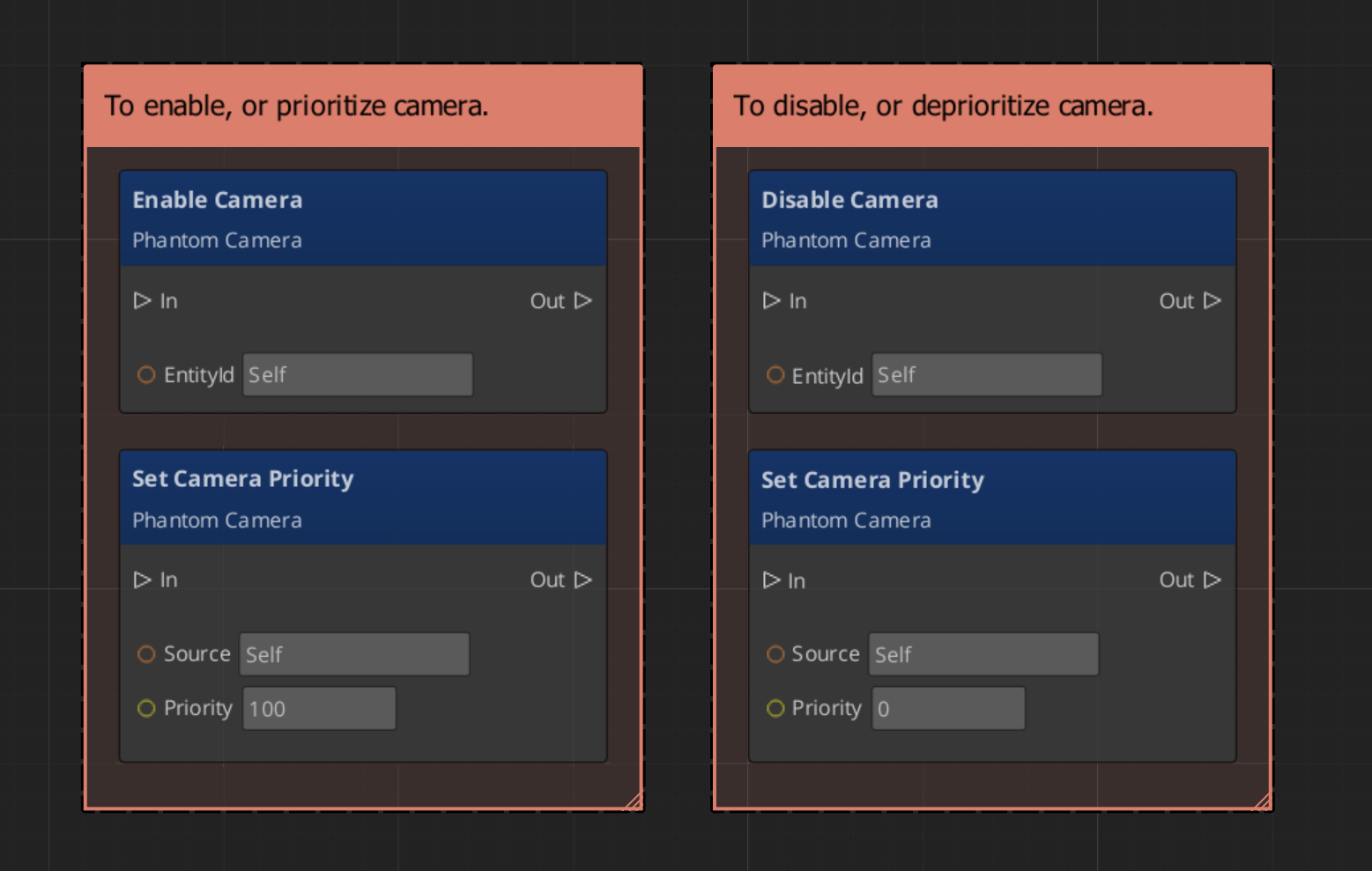
Getting a phantom camera’s data:
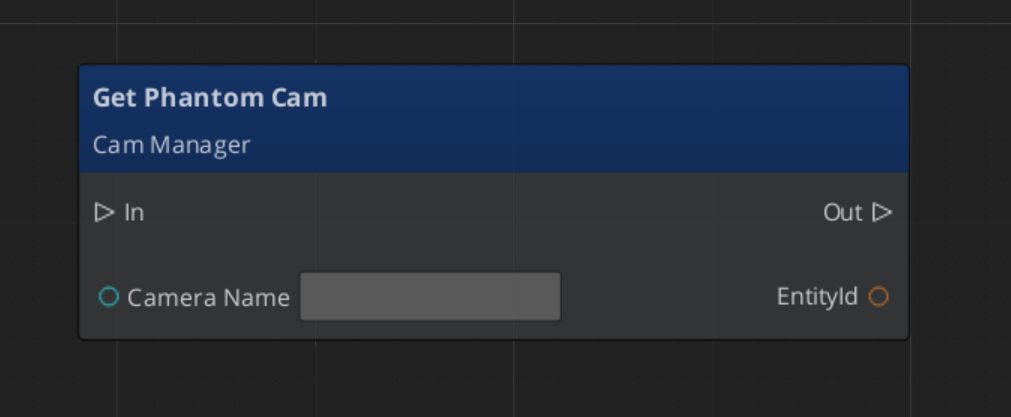
Extending Phantom Cameras
Use the PhantomCamera ClassWizard template to generate a new camera component with boilerplate already in place — see GS_PhantomCam Templates. cmake and module registration are fully automatic.
Create custom phantom camera types by extending GS_PhantomCameraComponent. Override the virtual methods to implement custom follow, look-at, or per-tick behavior.
#pragma once
#include <GS_PhantomCam/GS_PhantomCamBus.h>
#include <Source/PhantomCamera/GS_PhantomCameraComponent.h>

namespace MyProject
{
    class MyCustomCam : public GS_PhantomCam::GS_PhantomCameraComponent
    {
    public:
        AZ_COMPONENT_DECL(MyCustomCam);

        static void Reflect(AZ::ReflectContext* context);

    protected:
        void EvaluateCamTick() override;
        void ProcessTransformFollow(AZ::Vector3& desiredPos, float deltaTime) override;
        void ProcessTransformLookAt(AZ::Quaternion& desiredRot, AZ::Transform curWorldTM, float deltaTime) override;
    };
}
Implementation (.cpp)
#include "MyCustomCam.h"
#include <AzCore/Serialization/SerializeContext.h>

namespace MyProject
{
    AZ_COMPONENT_IMPL(MyCustomCam, "MyCustomCam", "{YOUR-UUID-HERE}");

    void MyCustomCam::Reflect(AZ::ReflectContext* context)
    {
        if (auto serializeContext = azrtti_cast<AZ::SerializeContext*>(context))
        {
            serializeContext->Class<MyCustomCam, GS_PhantomCam::GS_PhantomCameraComponent>()
                ->Version(0);

            if (AZ::EditContext* editContext = serializeContext->GetEditContext())
            {
                editContext->Class<MyCustomCam>("My Custom Camera", "Custom phantom camera behavior")
                    ->ClassElement(AZ::Edit::ClassElements::EditorData, "")
                        ->Attribute(AZ::Edit::Attributes::Category, "MyProject")
                        ->Attribute(AZ::Edit::Attributes::AppearsInAddComponentMenu, AZ_CRC_CE("Game"));
            }
        }
    }

    void MyCustomCam::EvaluateCamTick()
    {
        // Call base to run standard follow/look-at pipeline
        GS_PhantomCameraComponent::EvaluateCamTick();

        // Add custom per-tick logic (screen shake, zoom pulses, etc.)
    }

    void MyCustomCam::ProcessTransformFollow(AZ::Vector3& desiredPos, float deltaTime)
    {
        // Call base for standard follow behavior
        GS_PhantomCameraComponent::ProcessTransformFollow(desiredPos, deltaTime);

        // Modify desiredPos for custom follow behavior
    }

    void MyCustomCam::ProcessTransformLookAt(
        AZ::Quaternion& desiredRot, AZ::Transform curWorldTM, float deltaTime)
    {
        // Call base for standard look-at behavior
        GS_PhantomCameraComponent::ProcessTransformLookAt(desiredRot, curWorldTM, deltaTime);

        // Modify desiredRot for custom look-at behavior
    }
}
See Also
For related PhantomCam components:
For conceptual overviews and usage guides:
Get GS_PhantomCam
GS_PhantomCam — Explore this gem on the product page and add it to your project.
3.1 - Orbit Cam
A player-controlled orbit phantom camera type — planned for a future release.
The Orbit Cam is a planned phantom camera type that will provide player-controlled orbital camera behavior: the camera orbits around a follow target based on player input, with configurable distance, pitch limits, and rotation speed.
This camera type is not yet available. When implemented, it will appear as a companion component alongside GS_PhantomCameraComponent on the camera entity.
For usage guides and setup examples, see The Basics: GS_PhantomCam.
See Also
Get GS_PhantomCam
GS_PhantomCam — Explore this gem on the product page and add it to your project.
3.2 - Static Orbit Cam
A phantom camera that maintains a fixed orbital position around its target — no player input, fixed distance and angle.
The Static Orbit Cam is a specialized Phantom Camera type that maintains a fixed orbital position around its follow target. Unlike an input-driven orbit camera, the Static Orbit Cam holds a constant distance, pitch, and yaw relative to the target — the player does not control the orbit angle. The camera automatically rotates to keep the target centered while maintaining its fixed offset.
This camera type is useful for fixed-perspective gameplay (top-down, isometric, side-scrolling), environmental showcase views, and pre-positioned cinematic angles where the camera should orbit a subject without player control.
For usage guides and setup examples, see The Basics: GS_PhantomCam.
How It Works
The StaticOrbitPhantomCamComponent extends GS_PhantomCameraComponent and overrides the follow pipeline to maintain a fixed orbital offset. Each tick:
- The component reads the follow target’s world position.
- It applies the configured orbit distance, pitch, and yaw to compute the camera’s world position relative to the target.
- The camera rotates to face the target.
- Standard Phantom Camera look-at processing applies on top if a separate look-at target is configured.
Because the orbit parameters are fixed, the camera smoothly tracks the target’s movement while preserving the same viewing angle at all times.
Setup
- Create an entity and add GS_PhantomCameraComponent.
- Add StaticOrbitPhantomCamComponent to the same entity.
- Set the Follow Target to the entity the camera should orbit around.
- Configure the orbit Distance, Pitch, and Yaw on the Static Orbit component.
- Set the Priority on the Phantom Camera component.
- The camera registers with the Cam Manager automatically on activation.
Inspector Properties
| Property | Type | Description |
|---|
OrbitDistance | float | The fixed distance from the camera to the follow target. |
OrbitPitch | float | The vertical angle of the orbit in degrees. 0 is level; positive values look down. |
OrbitYaw | float | The horizontal angle of the orbit in degrees. 0 faces the target’s forward direction. |
See Also
Get GS_PhantomCam
GS_PhantomCam — Explore this gem on the product page and add it to your project.
3.3 - First Person Cam
A first-person phantom camera type — planned for a future release.
The First Person Cam is a planned phantom camera type that will provide first-person camera behavior: the camera is positioned at the follow target’s head position and rotates based on player input, with configurable pitch and yaw limits.
This camera type is not yet available. When implemented, it will appear as a companion component alongside GS_PhantomCameraComponent on the camera entity.
For usage guides and setup examples, see The Basics: GS_PhantomCam.
See Also
Get GS_PhantomCam
GS_PhantomCam — Explore this gem on the product page and add it to your project.
4 - Blend Profiles
Data assets defining camera transition behavior — blend duration, easing curves, and per-camera-pair transition overrides.
Blend Profiles are data assets that control how the Cam Core transitions between Phantom Cameras. Each profile contains a list of blend entries, where each entry defines a From camera, a To camera, a blend duration, and an easing curve (see Curves Utility). This allows every camera-to-camera transition in your project to have unique timing and feel.
The GS_PhantomCamBlendProfile asset is created in the Asset Editor and assigned to the Cam Core component. When a camera transition occurs, the Cam Core queries the profile for the best matching blend entry.
For usage guides and setup examples, see The Basics: GS_PhantomCam.
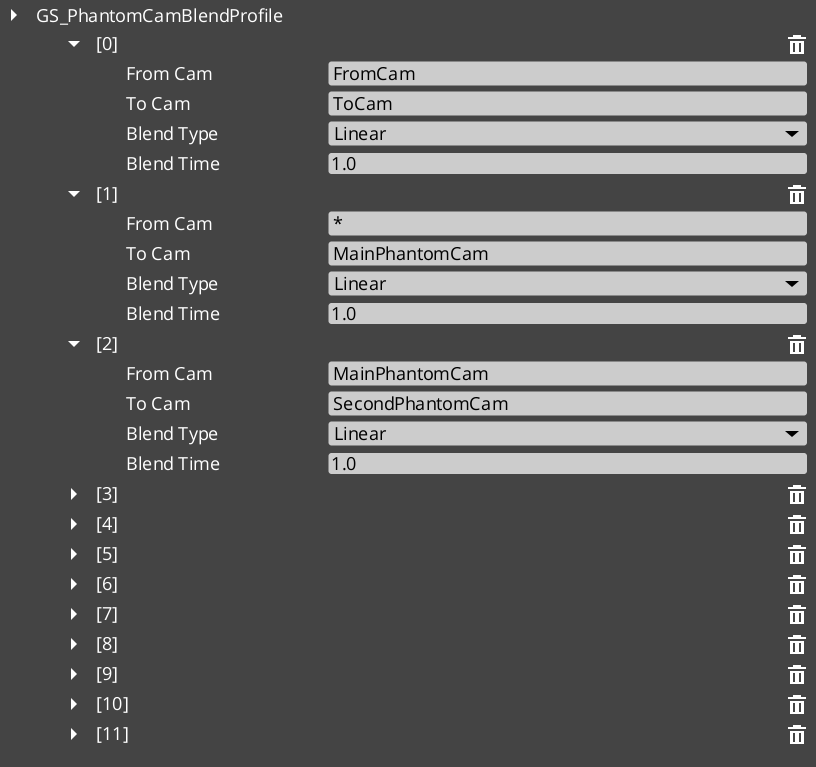
Contents
How It Works
Blend Entries
Each entry in a Blend Profile defines a single transition rule:
- From Camera — The name of the outgoing camera (the entity name of the phantom camera being left).
- To Camera — The name of the incoming camera (the entity name of the phantom camera being transitioned to).
- Blend Time — The duration of the transition in seconds.
- Easing Type — The interpolation curve applied during the blend. See Curves Utility for the full list of available easing types.
Camera names correspond to the entity names of your phantom camera entities in the scene.
Best Target Blend
When the Cam Core needs to transition, it calls GetBestBlend(fromCam, toCam) on the assigned Blend Profile. The system evaluates blend entries in order of specificity:
- Exact match — An entry with both the From and To camera names matching exactly.
- Any-to-specific — An entry with From set to blank or “any” and To matching the incoming camera name.
- Specific-to-any — An entry with From matching the outgoing camera name and To set to blank or “any”.
- Default fallback — If no entry matches, the Cam Core uses its own default blend time and easing values configured on the component.
This layered resolution allows you to define broad defaults (e.g. “any” to “any” at 1.0 seconds) while overriding specific transitions (e.g. “MenuCam” to “GameplayCam” at 2.5 seconds with ease-in-out).
Data Model
GS_PhantomCamBlendProfile
The top-level asset class. Extends AZ::Data::AssetData. Requires GS_AssetReflectionIncludes.h when reflecting — see Serialization Helpers.
| Field | Type | Description |
|---|
Blends | AZStd::vector<PhantomBlend> | The list of blend entries defining camera transitions. |
PhantomBlend
A single blend entry within the profile.
| Field | Type | Description |
|---|
FromCamera | AZStd::string | The entity name of the outgoing phantom camera. Blank or “any” matches all outgoing cameras. |
ToCamera | AZStd::string | The entity name of the incoming phantom camera. Blank or “any” matches all incoming cameras. |
BlendTime | float | Duration of the blend transition in seconds. |
EasingType | EasingCurve | The interpolation curve for the blend. See Curves Utility. |
API Reference
GS_PhantomCamBlendProfile Methods
| Method | Parameters | Returns | Description |
|---|
GetBestBlend | AZStd::string fromCam, AZStd::string toCam | const PhantomBlend* | Returns the best matching blend entry for the given camera pair, or nullptr if no match is found. Resolution follows the specificity hierarchy. |
Creating a Blend Profile
- Open the Asset Editor in O3DE.
- Select New and choose GS_BlendProfile from the asset type list.
- Add blend entries using the + button.
- For each entry:
- Set the From Camera name (or leave blank for “any”).
- Set the To Camera name (or leave blank for “any”).
- Set the Blend Time in seconds.
- Choose an Easing Type from the dropdown.
- Save the asset.
- Assign the asset to the Cam Core component’s Blend Profile inspector slot.
For a full walkthrough, see the PhantomCam Set Up Guide.
See Also
For related PhantomCam components:
For related resources:
For conceptual overviews and usage guides:
Get GS_PhantomCam
GS_PhantomCam — Explore this gem on the product page and add it to your project.
5 - Camera Influence Fields
Global and spatial camera influence components — priority modifiers that affect phantom camera selection without changing base priorities.
Camera Influence Fields modify the effective priority of Phantom Cameras without changing their base priority values. They call AddCameraInfluence / RemoveCameraInfluence on the Cam Manager bus, identified by camera name. Multiple influences on the same camera stack additively.
There are two influence component types:
- GlobalCameraInfluenceComponent — Applies a priority influence globally for its entire active lifetime. Place this on the StageData entity so it activates and deactivates automatically with the stage.
- CameraInfluenceFieldComponent — Applies a priority influence only when the player enters a defined spatial volume. Requires a PhysX Collider set as a trigger on the same entity. See Physics Trigger Volume Utility.
For usage guides and setup examples, see The Basics: GS_PhantomCam.
Contents
How It Works
Global Influence
The GlobalCameraInfluenceComponent applies a constant priority modifier to a named phantom camera. On Activate(), it calls AddCameraInfluence on the Cam Manager bus. On Deactivate(), it calls RemoveCameraInfluence.
Placement: Add this component to the StageData entity. Because StageData activates at stage load and deactivates at stage unload, the camera influence is automatically scoped to the stage that defines it — no manual enable/disable management needed.
Spatial Influence
The CameraInfluenceFieldComponent uses a PhysX Collider (trigger mode) to detect when the player enters or exits a defined region. On entry, it adds the influence; on exit, it removes it. See Physics Trigger Volume Utility for collider setup.
This is useful for level design — switching to an overhead camera when the player enters a specific room, or boosting a scenic camera in a vista area.
Influence Stacking
Multiple influences can be active on the same camera simultaneously. The Cam Manager sums all active influences with the base priority to compute the effective priority used during EvaluatePriority().
CamInfluenceData Structure
Both component types use the CamInfluenceData structure to define their effect.
| Field | Type | Description |
|---|
CameraName | AZStd::string | Entity name of the phantom camera to influence. Must match exactly. |
Influence | float | Priority modifier. Positive values increase effective priority; negative values decrease it. |
API Reference
Request Bus: GlobalCameraInfluenceRequestBus
Commands for the global camera influence system. Single address, single handler.
| Method | Parameters | Returns | Description |
|---|
AddCameraInfluence | AZStd::string camName, float influence | void | Adds a priority influence to the named camera. Delegates to the Cam Manager. |
RemoveCameraInfluence | AZStd::string camName, float influence | void | Removes a priority influence from the named camera. Delegates to the Cam Manager. |
Component Reference
GlobalCameraInfluenceComponent
Applies a camera priority influence globally for its entire active lifetime.
| Property | Type | Description |
|---|
CamInfluenceData | CamInfluenceData | The camera name and influence value to apply. |
Behavior: On Activate(), adds the influence. On Deactivate(), removes it. Constant while active.
Placement: Add to the StageData entity to scope the influence to the stage lifecycle.
CameraInfluenceFieldComponent
Applies a camera priority influence when the player enters a spatial trigger volume.
| Property | Type | Description |
|---|
CamInfluenceData | CamInfluenceData | The camera name and influence value to apply when triggered. |
Behavior: Requires a PhysX Collider (trigger) on the same entity. Entry adds the influence; exit removes it.
Setup:
- Add CameraInfluenceFieldComponent to an entity.
- Add a PhysX Collider (set as trigger) to the same entity. See Physics Trigger Volume Utility.
- Set the Camera Name to the target phantom camera’s entity name.
- Set the Influence value (positive to boost, negative to reduce priority).
Usage Examples
C++ – Adding a Global Influence
#include <GS_PhantomCam/GS_PhantomCamBus.h>

// Boost "CinematicCam" priority by 50 during a cutscene
GS_PhantomCam::CamManagerRequestBus::Broadcast(
    &GS_PhantomCam::CamManagerRequestBus::Events::AddCameraInfluence,
    AZStd::string("CinematicCam"),
    50.0f
);

// Remove the boost when the cutscene ends
GS_PhantomCam::CamManagerRequestBus::Broadcast(
    &GS_PhantomCam::CamManagerRequestBus::Events::RemoveCameraInfluence,
    AZStd::string("CinematicCam"),
    50.0f
);
See Also
For related PhantomCam components:
For related utilities:
For conceptual overviews and usage guides:
Get GS_PhantomCam
GS_PhantomCam — Explore this gem on the product page and add it to your project.
6 - Templates
ClassWizard templates for GS_PhantomCam — custom phantom camera behaviour components.
All GS_PhantomCam extension types are generated through the ClassWizard CLI. The wizard handles UUID generation, cmake file-list registration, and module descriptor injection automatically.
For usage guides and setup examples, see The Basics: GS_PhantomCam.
python ClassWizard.py \
    --template <TemplateName> \
    --gem <GemPath> \
    --name <SymbolName> \
    [--input-var key=value ...]
Contents
Phantom Camera Component
Template: PhantomCamera
Creates a custom camera behaviour component, a child of GS_PhantomCameraComponent. Multiple camera components can coexist on a Camera Entity; the GS_CamManagerComponent activates them by priority. Override the follow, look-at, and tick virtuals to define custom camera positioning and aiming logic.
Generated files:
Source/${Name}PhantomCamComponent.h/.cpp
CLI:
python ClassWizard.py --template PhantomCamera --gem <GemPath> --name <Name>
Post-generation: None — cmake and module registration are fully automatic. Override the following virtual methods:
| Method | Purpose |
|---|
ProcessPhysicsFollow() | Drive camera position each physics tick using VelocitySpringDamper |
ProcessPhysicsLookAt() | Drive camera rotation using QuaternionSpringDamper |
EvaluateCamTick(dt) | Per-frame camera logic (blend weights, FOV, offsets) |
ProcessTransformFollow() | Position follow when physics is not available |
ProcessTransformLookAt() | Rotation follow when physics is not available |
Extensibility: One component per camera mode (e.g. ThirdPerson, Aim, Dialogue, Cinematic). Components declare incompatibility with GS_PhantomCameraComponentService so only one camera behaviour is active at a time on an entity. Swap active cameras by toggling component activation, or let the CamManager handle priority.
See also: Phantom Cameras — full extension guide with complete header and implementation examples.
See Also
For the full API, component properties, and C++ extension guide:
For all ClassWizard templates across GS_Play gems:
Get GS_PhantomCam
GS_PhantomCam — Explore this gem on the product page and add it to your project.
7 - 3rd Party Implementations
For usage guides and setup examples, see The Basics: GS_PhantomCam.
Get GS_PhantomCam
GS_PhantomCam — Explore this gem on the product page and add it to your project.