GS_Environment
Time of day progression, day/night cycle management, and sky colour configuration for GS_Play projects.
GS_Environment is the time and world atmosphere gem for GS_Play. It drives a configurable time-of-day clock, broadcasts day/night transition events, exposes per-tick world time notifications for dependent systems, and provides a sky colour configuration asset for Atom renderer integration. The gem depends on GS_Core.
For usage guides and setup examples, see The Basics: GS_Environment.
GS_Environment is in Early Development. Full support planned soon: 2026.
Contents
Time Manager
The Time Manager singleton owns the world clock. It advances time at a configurable speed, determines whether the current time of day is day or night, and registers the active main camera for sky calculations. Listeners subscribe via TimeManagerNotificationBus to react to time changes or the day/night boundary crossing.
| Component / Asset | Purpose |
|---|
| GS_TimeManagerComponent | GS_Play manager. Owns the world clock. Controls time passage speed and exposes day/night state queries. |
| SkyColourConfiguration | Asset class for sky colour settings used by Atom renderer integration. |
Time Manager API
Environment System
The system component manages gem-level initialization and global environment state. It runs on AZ::TickBus to advance the world clock each frame and coordinates environment requests across the level.
| Component | Purpose |
|---|
| GS_EnvironmentSystemComponent | Runtime system component. Advances the world clock on tick. Handles GS_EnvironmentRequestBus queries. |
Environment System API
Dependencies
Installation
- Enable GS_Environment and GS_Core in your O3DE project’s gem list.
- Add GS_TimeManagerComponent to your Game Manager prefab and include it in the Startup Managers list.
- Configure the day window (start and end time values) on the Time Manager component.
- Set time passage speed to
0 if you want a static time of day, or to a positive value for a live clock. - Call
SetMainCam via TimeManagerRequestBus once your active camera entity is known (typically from a stage startup sequence). - Subscribe to
TimeManagerNotificationBus::WorldTick or DayNightChanged on any entities that respond to time changes.
See Also
For conceptual overviews and usage guides:
For related resources:
Get GS_Environment
GS_Environment — Explore this gem on the product page and add it to your project.
1 - Time Manager
World clock management, time-of-day control, day/night cycle detection, and per-tick time notifications.
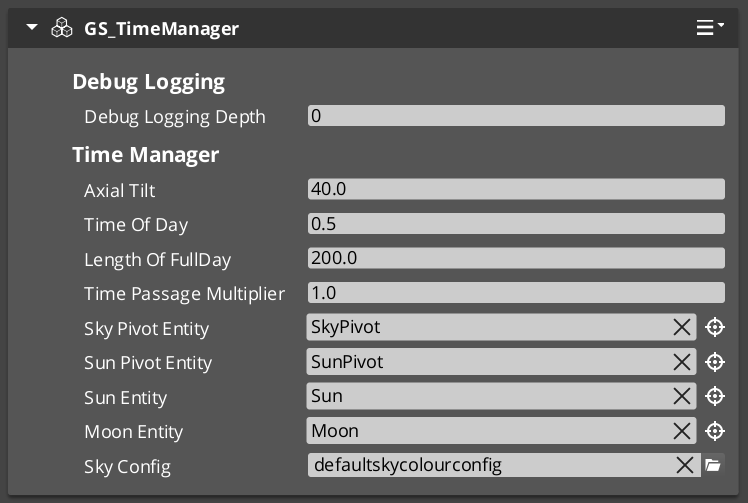
The Time Manager is the singleton world clock for every GS_Play project. It extends GS_ManagerComponent and participates in the standard two-stage initialization managed by the Game Manager. On activation it begins advancing a time-of-day value each frame, determines whether the current time falls within the configured day window, and registers the active main camera for sky positioning calculations.
Listeners subscribe to TimeManagerNotificationBus to react to per-frame ticks or the day/night boundary crossing.
For usage guides and setup examples, see The Basics: Time Manager.
GS_Environment is in Early Development. Full support planned soon: 2026.
Contents
How It Works
Time Progression
Each frame the Time Manager advances the current time-of-day value by deltaTime × timePassageSpeed. A speed of 0 freezes the clock at the configured initial time; positive values run the clock forward in real time.
Day/Night State
The Time Manager compares the current time against a configured day window (start and end values). When the time crosses either threshold it fires DayNightChanged once. IsDay() returns the cached state and is safe to call every tick.
Sky Integration
Call SetMainCam with the active camera entity after stage startup. The Time Manager uses this reference to pass sky positioning data to the SkyColourConfiguration asset used by the Atom renderer.
Inspector Properties
| Property | Type | Description |
|---|
| Day Start | float | Normalized time value (0.0–1.0) at which day begins. |
| Day End | float | Normalized time value (0.0–1.0) at which night begins. |
| Initial Time | float | Starting time-of-day value when the component activates. |
| Time Passage Speed | float | Multiplier controlling how fast time advances each frame. Set to 0 for a static clock. |
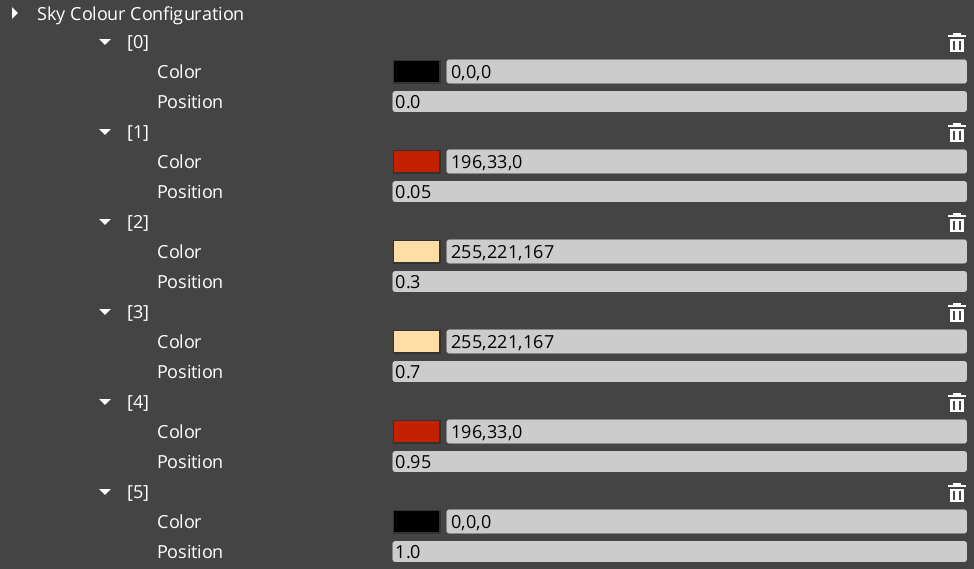
| Sky Colour Config | AZ::Data::Asset<SkyColourConfiguration> | Sky colour configuration asset used by the Atom renderer integration. |
API Reference
GS_TimeManagerComponent
| Field | Value |
|---|
| Extends | GS_Core::GS_ManagerComponent |
| Header | GS_Environment/GS_TimeManagerBus.h |
Request Bus: TimeManagerRequestBus
Commands sent to the Time Manager. Singleton bus – Single address, single handler.
| Method | Parameters | Returns | Description |
|---|
SetTimeOfDay | float time | void | Sets the current time of day (0.0–1.0 normalized range). |
GetTimeOfDay | – | float | Returns the current time of day value. |
GetWorldTime | – | float | Returns the total elapsed world time since startup. |
SetTimePassageSpeed | float speed | void | Sets the multiplier controlling how fast time advances each frame. |
IsDay | – | bool | Returns whether the current time falls within the configured day window. |
SetMainCam | AZ::EntityId entityId | void | Registers the active main camera entity for sky positioning calculations. |
Notification Bus: TimeManagerNotificationBus
Events broadcast by the Time Manager. Multiple handler bus – any number of components can subscribe.
| Event | Parameters | Description |
|---|
WorldTick | float deltaTime | Fired every frame while the Time Manager is active. Use for time-dependent per-frame updates. |
DayNightChanged | bool isDay | Fired once when the time-of-day crosses the day/night boundary in either direction. |
SkyColourConfiguration
Asset class for sky colour settings. Referenced by GS_TimeManagerComponent and consumed by the Atom renderer integration to drive sun, moon, and ambient colour values across the day/night cycle.
See Also
For conceptual overviews and usage guides:
For component references:
Get GS_Environment
GS_Environment — Explore this gem on the product page and add it to your project.
2 - Environment System
Runtime system component that drives the world clock tick and handles GS_EnvironmentRequestBus queries.
The Environment System Component is the gem-level runtime system for GS_Environment. It extends AZ::Component and implements AZ::TickBus::Handler to advance the world clock each frame. It handles GS_EnvironmentRequestBus queries and coordinates global environment state across the level.
This component activates automatically as part of the GS_Environment gem – it does not need to be added manually to any entity.
For usage guides and setup examples, see The Basics: GS_Environment.
GS_Environment is in Early Development. Full support planned soon: 2026.
Contents
How It Works
Tick Integration
The Environment System Component connects to AZ::TickBus on activation. Each tick it drives the Time Manager’s clock advancement and ensures all environment-dependent systems receive their frame update in the correct order.
Environment Requests
GS_EnvironmentRequestBus provides a global access point for querying environment state. The system component is the sole handler; any gem or component can broadcast requests to read current environment conditions.
API Reference
GS_EnvironmentSystemComponent
| Field | Value |
|---|
| TypeId | {57B91AE7-B0EC-467E-A359-150B5FB993F9} |
| Extends | AZ::Component, AZ::TickBus::Handler |
| Header | GS_Environment/GS_EnvironmentBus.h |
Request Bus: GS_EnvironmentRequestBus
Commands sent to the Environment System. Singleton bus – Single address, single handler.
| Field | Value |
|---|
| Interface TypeId | {39599FDC-B6DC-4143-A474-9B525599C919} |
| Method | Parameters | Returns | Description |
|---|
| (base interface) | – | – | Extended by project-level environment systems as needed. |
See Also
For conceptual overviews and usage guides:
For component references:
- Time Manager – World clock, day/night cycle, and per-tick notifications
Get GS_Environment
GS_Environment — Explore this gem on the product page and add it to your project.
3 - 3rd Party Implementations
For usage guides and setup examples, see The Basics: GS_Environment.
Get GS_Environment
GS_Environment — Explore this gem on the product page and add it to your project.