GS_Options
The configuration system — player settings with profiles, presets and apply targets, plus input profiles, readers and reactors.
GS_Options is where a project’s configuration lives. It covers two related things:
- Settings — the player-facing options a game exposes: graphics, audio, display, accessibility. Declared as data, applied to the engine, persisted between sessions.
- Input — how input reaches gameplay: binding profiles, the readers that consume them, and the reactors that turn input into behaviour.
Both are owned by the Options Manager, which is why they share a home.
For usage guides and setup examples, see The Basics: GS_Core.
Contents
Settings
A project declares its options in profile assets. Each option carries a widget kind — toggle, slider, dropdown, colour — and an apply target describing what it does to the engine. The manager merges the profiles into a live value map, applies values, persists them, and restores them next launch.
The part worth knowing early: settings reach the engine by two paths. Anything expressible as a console command is written out and executed at boot, before the window is created, so the game opens at the right resolution rather than switching to it. Everything else applies at runtime.
| Page | Covers |
|---|
| Settings | Profiles, the four option types, apply targets, presets, persistence and the launch path. |
| Display & Window Modes | What the window targets do, and the platform limits. |
Settings API
Display & Window
Input binding is data. An Input Profile defines groups, event mappings and key bindings, replacing raw engine binding files with something that can be rebound at runtime and toggled per group. Input Readers consume the active profile and fire gameplay events; Input Reactors turn those events into behaviour.
| Page | Covers |
|---|
| Input Options | Readers, profiles and the input pipeline. |
| Input Profiles | The profile asset — groups, events and bindings. |
| Input Reactors | Turning named input events into gameplay, and writing your own reaction types. |
Input Options API
Components
| Component | Purpose | Documentation |
|---|
| GS_OptionsManagerComponent | Singleton manager. Merges option profiles, applies and persists values, and holds the active Input Profile. | Options Manager |
| GS_InputProfile | Data asset defining input groups, event mappings and key bindings. | Input Profiles |
| GS_InputReaderComponent | Reads input through the active profile and fires gameplay events. | Input Options |
Quick Start
- Create an Options Manager prefab with the GS_OptionsManagerComponent.
- Create an option profile asset and add the options your game exposes, giving each one an apply target.
- Create a GS_InputProfile asset with your input groups and event mappings.
- Assign both to the Options Manager.
- Add the Options Manager
.spawnable to the Game Manager’s Startup Managers list. - Attach Input Readers to entities that process input.
The fastest way to check an option works end to end is the ImGui debug menu — it renders the whole catalog live and writes through the same bus your menus will use.
See Also
For conceptual overviews and usage guides:
For component references:
For related resources:
Get GS_Core
GS_Core — Explore this gem on the product page and add it to your project.
1 - Options Manager
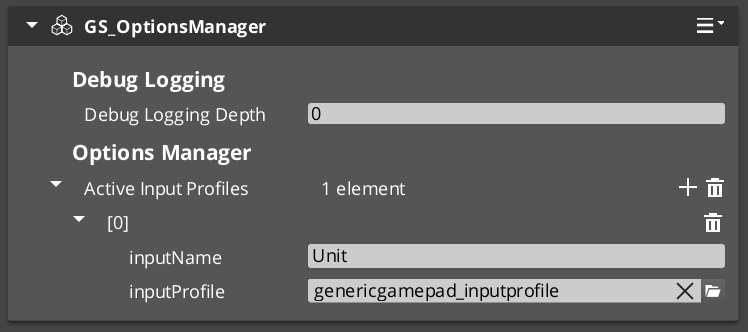
The singleton options controller — merges option profiles into a live value map, applies values through their targets, persists them, and serves the active input profile.
The Options Manager is the runtime of the GS_Options system. It loads the project’s option profiles and presets, merges them into a live value map, pushes values through their apply targets, persists them, and notifies anything listening when a value changes.
It also holds the active Input Profile and serves it to Input Readers.
As a Manager, it is spawned by the Game Manager and participates in the standard startup sequence.
For usage guides and setup examples, see The Basics: GS_Core.
Contents
Setup
- Create an entity. Attach the GS_OptionsManagerComponent.
- Assign your option profiles and any presets.
- Assign your Input Profile.
- Turn the entity into a prefab. Enter prefab edit mode, set the wrapper entity to Editor Only, and save.
- Delete the Options Manager entity from the level.
- In the Game Manager prefab, add the Options Manager
.spawnable to the Startup Managers list.
Inspector Properties
| Property | Type | Description |
|---|
| Option Profiles | assets | The option catalogs to merge. Multiple profiles stack and merge by key. |
| Option Presets | assets | Preset value sets, surfaced by GetPresetNames and ApplyPreset. |
| Input Profile | asset | The active input binding profile, served to Input Readers. |
Plus Headless and Logging Depth, inherited from the manager base.
Lifecycle
| Stage | What happens |
|---|
| Activate | Begins loading the profile and preset assets. |
| OnSetupManagers | Waits for those loads, builds the option map, seeds defaults, then overlays persisted values. |
| OnStartupComplete | Schedules ApplyAll — see below. |
| OnShutdownManagers | Saves options. |
Why apply is deferred
Applying everything at OnStartupComplete is too early. Managers finish starting up before the render pipeline and window are ready, so display and render-scale settings applied at that moment silently do not take effect.
The manager therefore applies after a short tick delay rather than immediately. Any apply target that touches the renderer or the window inherits this constraint — if you write one, it will be applied on that same delayed pass, not during startup.
This is also why the launch-time path exists: the settings that most need to be right before the window exists are handled by console commands at boot, and the deferred apply covers everything else.
API Reference
Request Bus: OptionsManagerRequestBus
Singleton bus — call via Broadcast.
Generic value access
| Method | Parameters | Returns | Description |
|---|
SetOption | key, OptionValue | void | Applies, persists and notifies. The single write path. |
GetOption | key | OptionValue | Current value. |
HasOption | key | bool | Whether the key exists in the merged catalog. |
ResetToDefault | key | void | Restores the option’s authored default. |
ResetAllToDefault | — | void | Restores every option. |
Typed convenience
Script-friendly — no OptionValue object required.
| Method | Parameters | Returns |
|---|
SetOptionBool | key, bool | void |
SetOptionFloat | key, double | void |
SetOptionInt | key, s64 | void |
SetOptionString | key, string | void |
GetOptionBool | key | bool |
GetOptionFloat | key | double |
GetOptionInt | key | s64 |
GetOptionString | key | string |
Catalog
| Method | Parameters | Returns | Description |
|---|
GetAllOptionKeys | — | vector<string> | Every key in the merged catalog. |
GetOptionsByCategory | category | vector<string> | Keys in one category — how a menu builds its pages. |
GetOptionDefinition | key | OptionType* | The option’s definition. Non-owning, C++ only. |
Lifecycle and presets
| Method | Parameters | Returns | Description |
|---|
ApplyAll | — | void | Pushes every current value through its apply target. |
SaveOptions | — | void | Flushes current values to the user registry. |
GetPresetNames | — | vector<string> | Loaded preset names. |
ApplyPreset | presetName | void | Overwrites matching options, then applies and persists. |
GetActivePresetName | — | string | The preset whose values all match, otherwise "Custom". |
| Method | Parameters | Returns | Description |
|---|
GetActiveInputProfile | inputName | input profile asset | The active profile, requested by Input Readers on activation. |
Notification Bus: OptionsManagerNotificationBus
| Event | Parameters | Description |
|---|
OnOptionChanged | key, OptionValue | Fired on every value change. Script-bindable, so UI and gameplay can react without polling. |
Usage Examples
C++ — reading a setting
#include <GS_Core/GS_Options/GS_OptionsManagerBus.h>

float masterVolume = 1.0f;
GS_Core::OptionsManagerRequestBus::BroadcastResult(
    masterVolume,
    &GS_Core::OptionsManagerRequests::GetOptionFloat,
    "audio.master"
);
AZStd::vector<AZStd::string> keys;
GS_Core::OptionsManagerRequestBus::BroadcastResult(
    keys,
    &GS_Core::OptionsManagerRequests::GetOptionsByCategory,
    "Graphics"
);

// GetOptionDefinition gives you the display name, description and widget
// hint for each key, so a menu can build itself from the catalog.
Writing a value goes through SetOption or its typed forms, which apply, persist and notify in one call — a menu never has to apply or save separately.
See Also
For related systems:
For conceptual overviews and usage guides:
Get GS_Core
GS_Core — Explore this gem on the product page and add it to your project.
2 - GS_InputOptions
The input subsystem — Input Profiles for grouped event-to-binding mappings and Input Readers for processing input in gameplay.
Input Options is the input subsystem within the Options system. It provides two core pieces:
- Input Profiles — Data assets that map input bindings to named events, organized into toggleable groups. These replace O3DE’s raw input binding files with a more flexible system that supports runtime rebinding and per-group enable/disable toggling.
- Input Readers — Components that read input through the active profile and fire gameplay events. They can be extended for specialized input handling (player controllers, UI navigation, etc.).
For usage guides and setup examples, see The Basics: GS_Core.
Contents
Architecture
GS_OptionsManagerComponent
  │
  └── Active GS_InputProfile (data asset)
        │
        ├── InputBindingGroup: "Movement"
        │     ├── EventInputMapping: "MoveForward" → [keyboard_key_alphanumeric_W]
        │     ├── EventInputMapping: "MoveBack"    → [keyboard_key_alphanumeric_S]
        │     └── EventInputMapping: "Sprint"      → [keyboard_key_modifier_shift_l]
        │
        ├── InputBindingGroup: "Combat"
        │     ├── EventInputMapping: "Attack"   → [mouse_button_left]
        │     └── EventInputMapping: "Block"    → [mouse_button_right]
        │
        └── InputBindingGroup: "UI"
              ├── EventInputMapping: "Confirm"  → [keyboard_key_alphanumeric_E]
              └── EventInputMapping: "Cancel"   → [keyboard_key_navigation_escape]

GS_InputReaderComponent (on player entity, UI entity, etc.)
  │
  ├── Queries OptionsManager for active profile
  ├── Listens for raw O3DE input events
  ├── Matches bindings → fires named events
  └── EnableInputGroup / DisableInputGroup for runtime control
Data assets that map key bindings to named events, organized into toggleable groups. They replace O3DE’s raw input binding files with a more flexible system that supports runtime rebinding and per-group enable/disable toggling.
| Asset / Type | Purpose |
|---|
| GS_InputProfile | Data asset defining input groups, event mappings, and key bindings. |
| InputBindingGroup | Named group of event mappings — can be toggled at runtime. |
| EventInputMapping | Maps a named event to one or more raw O3DE input bindings. |
Input Profiles API
Components that read input through the active profile and fire named gameplay events. Supports runtime group toggling to enable or disable input categories on the fly, and a claim flag to absorb matched events from other readers.
| Component | Purpose |
|---|
| GS_InputReaderComponent | Per-entity input processor. Queries the active profile, matches raw input, and fires named gameplay events. |
Input Reader API
Setup
- Create a GS_InputProfile data asset in the Asset Editor.
- Add input groups and event mappings to the profile.
- Assign the profile to the Options Manager.
- Attach a GS_InputReaderComponent to any entity that needs to process input.
- The Input Reader automatically queries the Options Manager for the active profile on activation.
Readers resolve raw input into named events. Reactors decide what those events do. A reactor component carries a profile asset listing authored reaction types, and dispatches each event to whichever reactors subscribed to it — with the phase (pressed, held, released, analog) already classified.
Input Reactors API
See Also
For component references:
For related resources:
Get GS_Core
GS_Core — Explore this gem on the product page and add it to your project.
2.1 - Input Profiles
Data assets for input binding configuration — map key bindings to named events, organized into toggleable groups for advanced runtime input control.
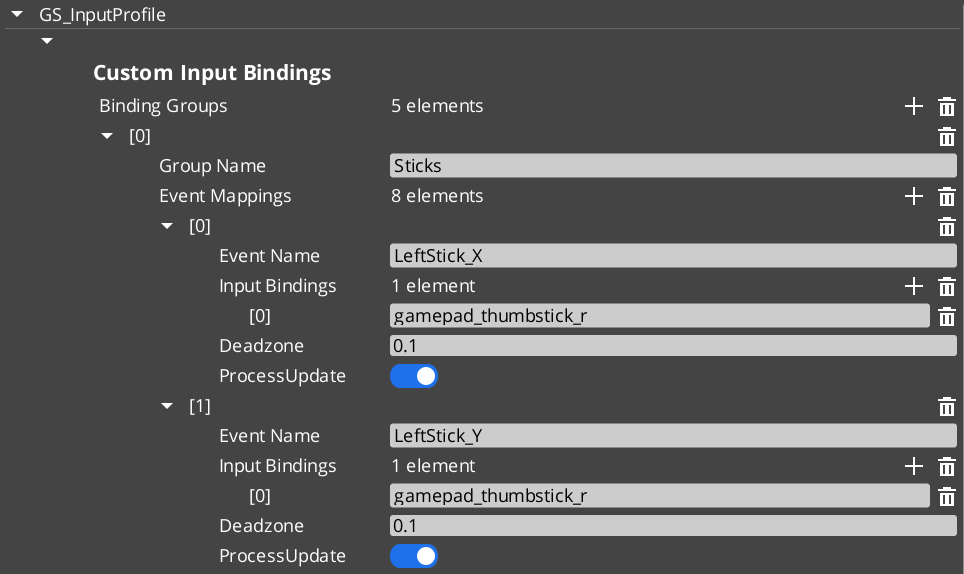
Input Profiles are data assets that map key bindings to named events, organized into groups that can be enabled and disabled at runtime. They replace O3DE’s raw input binding files with a more flexible system that supports runtime rebinding, per-group toggling, and options menu customization.
For usage guides and setup examples, see The Basics: GS_Core.
Contents
How It Works
An Input Profile contains a list of InputBindingGroups. Each group contains EventInputMappings that define the relationship between a named event, its key bindings, and processing options.
Data Structure
GS_InputProfile
  └── InputBindingGroups[]
        ├── groupName: "Movement"
        └── eventMappings[]
              ├── EventInputMapping
              │     ├── eventName: "MoveForward"
              │     ├── inputBindings: ["keyboard_key_alphanumeric_W"]
              │     ├── deadzone: 0.0
              │     └── processUpdate: true
              └── EventInputMapping
                    ├── eventName: "Jump"
                    ├── inputBindings: ["keyboard_key_alphanumeric_Space"]
                    ├── deadzone: 0.0
                    └── processUpdate: false
| Field | Type | Description |
|---|
eventName | AZStd::string | The name used to fire this event in gameplay through Input Readers. This is the identifier your gameplay code listens for. |
inputBindings | AZStd::vector<AZStd::string> | One or more raw O3DE input binding names (e.g., keyboard_key_alphanumeric_W, mouse_button_left, gamepad_button_a). Multiple bindings allow the same event to fire from different input sources. |
deadzone | float | Dead zone threshold for analog inputs (joysticks, triggers). Values below this threshold are treated as zero. Set to 0.0 for digital inputs (keys, buttons). |
processUpdate | bool | When true, the event fires continuously while the input is held. When false, the event fires only on initial press and release. Use true for movement and camera input; false for discrete actions like jumping or interacting. |
TypeId: {61421EC2-7B99-4EF2-9C56-2A7F41ED3474}
Reflection: GS_InputProfile extends AZ::Data::AssetData. Its Reflect() function requires GS_AssetReflectionIncludes.h — see Serialization Helpers.
| Field | Type | Description |
|---|
groupName | AZStd::string | Name of the group (e.g., “Movement”, “Combat”, “UI”). Used by Input Readers to enable/disable groups at runtime. |
eventMappings | AZStd::vector<EventInputMapping> | The event mappings belonging to this group. |
TypeId: {37E880D1-9AB4-4E10-9C3C-020B5C32F75B}
For initial startup instructions refer to the Core Set Up Guide.
- In the Asset Editor, open the New menu and select GS_InputProfile. This creates a blank Input Profile.
- Add Input Groups — Create groups that cluster related input events (e.g., “Movement”, “Combat”, “UI”). Groups can be toggled on/off at runtime by Input Readers.
- Add Event Mappings — Within each group, add EventInputMappings. Set the Event Name to the identifier your gameplay code will listen for.
- Set Bindings — Add the raw O3DE input bindings that should trigger each event. These are standard O3DE raw mapping names.
- Configure Deadzone — For gamepad joystick or trigger inputs, set an appropriate deadzone value (e.g.,
0.15). Leave at 0.0 for keyboard and mouse inputs. - Set Process Update — Enable for continuous input (movement, camera look). Disable for discrete actions (jump, interact, attack).
- Assign to Options Manager — Add the profile to the Options Manager’s Input Profile property.
API Reference
These methods are available on the GS_InputProfile data asset class for runtime binding queries and modifications.
| Method | Parameters | Returns | Description |
|---|
GetMappingFromBinding | const AZStd::string& binding, const AZStd::string& groupName = "" | const EventInputMapping* | Looks up the event mapping associated with a raw binding. Optionally restrict the search to a specific group. Returns nullptr if not found. |
GetGroupNameFromBinding | const AZStd::string& binding | const AZStd::string* | Returns the group name that contains the given binding. Returns nullptr if not found. |
HasBinding | const AZStd::string& binding | bool | Returns true if the binding exists anywhere in the profile. |
ReplaceEventInputBinding | const AZStd::string& eventName, const AZStd::string& newBinding | bool | Replaces the existing binding for the named event with a new one. For runtime rebinding in options menus. Returns true on success. |
AddEventInputBinding | const AZStd::string& eventName, const AZStd::string& newBinding | bool | Adds an additional binding to the named event. Returns true on success. |
RemoveEventBinding | const AZStd::string& eventName, const AZStd::string& bindingToRemove | bool | Removes a specific binding from the named event. Returns true on success. |
Usage Examples
Runtime Rebinding (Options Menu)
#include <GS_Core/GS_CoreBus.h>

// Get the active input profile
AZ::Data::Asset<GS_Core::GS_InputProfile> profile;
GS_Core::OptionsManagerRequestBus::BroadcastResult(
    profile,
    &GS_Core::OptionsManagerRequestBus::Events::GetActiveInputProfile
);

if (profile.IsReady())
{
    // Rebind the "Jump" event from Space to E
    profile.Get()->ReplaceEventInputBinding(
        "Jump",
        "keyboard_key_alphanumeric_E"
    );

    // Add an alternative binding (gamepad A button)
    profile.Get()->AddEventInputBinding(
        "Jump",
        "gamepad_button_a"
    );
}
Checking if a Binding Exists
if (profile.IsReady() && profile.Get()->HasBinding("keyboard_key_alphanumeric_W"))
{
    // This binding is mapped to an event in the profile
}
See Also
For component references:
For related resources:
Get GS_Core
GS_Core — Explore this gem on the product page and add it to your project.
2.2 - Input Reader
Component that reads input through the active profile and fires named gameplay events, with runtime group toggling and input claiming.
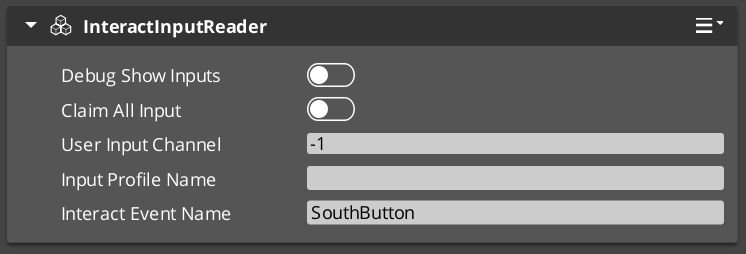
The Input Reader component sits on any entity that needs to process input. It queries the Options Manager for the active Input Profile, then listens for raw O3DE input events and matches them against the profile’s bindings to fire named gameplay events.
For usage guides and setup examples, see The Basics: GS_Core.
Contents
How It Works
On activation the Input Reader queries the Options Manager for the active Input Profile and subscribes to raw O3DE input events. Each frame it matches incoming raw input against the profile bindings. When a match is found it fires the associated named event into the gameplay event system. Input groups can be enabled or disabled at runtime to control which events are active at any moment.
Key Features
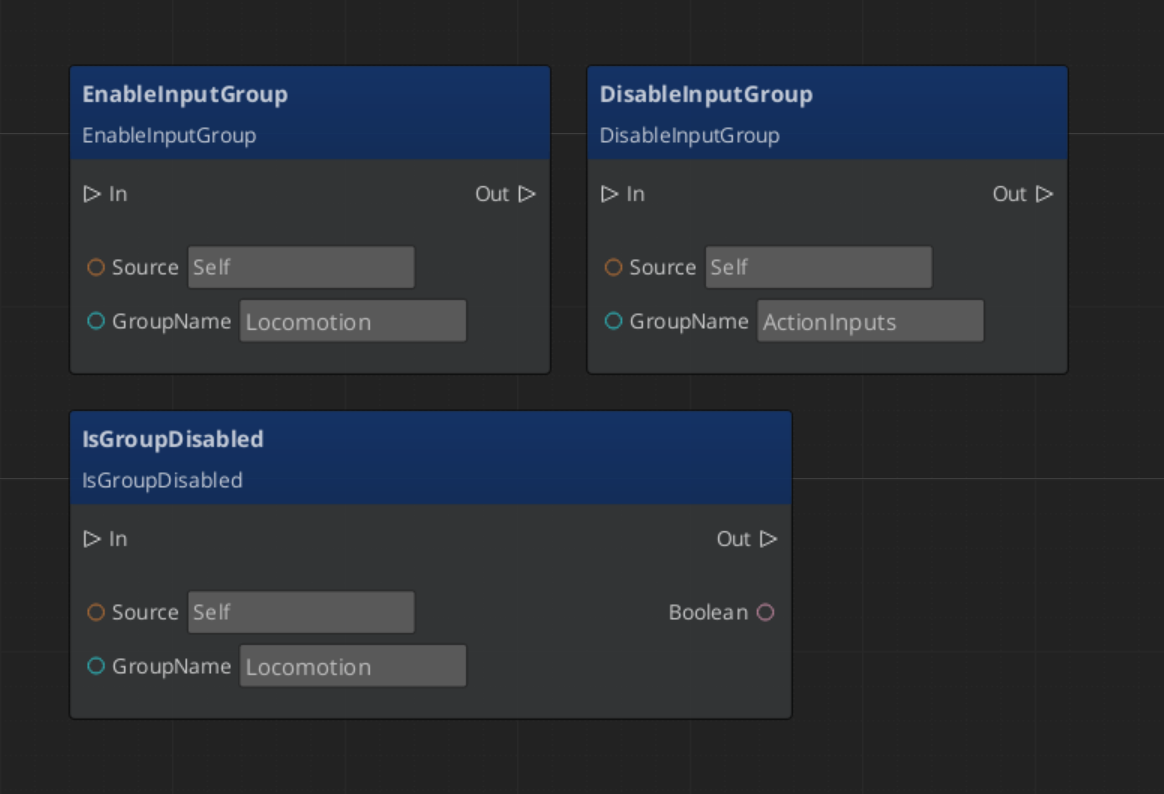
- Group toggling — Enable or disable entire input groups at runtime. For example, disable “Combat” inputs during a dialogue sequence, or disable “Movement” inputs during a cutscene.
- Claim input — The
ClaimAllInput flag causes the reader to absorb matched input events, preventing them from reaching other readers. Useful for layered input (e.g., UI absorbs input before gameplay). - Extensible — Extend the Input Reader for specialized input handling. GS_Play uses this internally for player controller input and UI navigation input.
API Reference
GS_InputReaderComponent
| Field | Value |
|---|
| Header | GS_Core/GS_CoreBus.h |
Request Bus: InputReaderRequestBus
Entity-addressed bus – call via Event(entityId, ...).
| Method | Parameters | Returns | Description |
|---|
EnableInputGroup | const AZStd::string& groupName | void | Enables a named input group for this reader. Events in this group will fire on matched input. |
DisableInputGroup | const AZStd::string& groupName | void | Disables a named input group. Events in this group will be ignored until re-enabled. |
IsGroupDisabled | const AZStd::string& groupName | bool | Returns true if the named group is currently disabled. |
Usage Examples
Toggling Input Groups
#include <GS_Core/GS_CoreBus.h>

// Disable combat inputs during dialogue
GS_Core::InputReaderRequestBus::Event(
    playerEntityId,
    &GS_Core::InputReaderRequestBus::Events::DisableInputGroup,
    AZStd::string("Combat")
);

// Re-enable when dialogue ends
GS_Core::InputReaderRequestBus::Event(
    playerEntityId,
    &GS_Core::InputReaderRequestBus::Events::EnableInputGroup,
    AZStd::string("Combat")
);
Script Canvas
See Also
For component references:
For related resources:
Get GS_Core
GS_Core — Explore this gem on the product page and add it to your project.
2.3 - Input Reactors
The reactor mechanism — a component driven by a reactor profile asset that dispatches named input events to authored reaction types, with a notification bus for scripts.
An Input Reactor turns a named input event into gameplay. Input Readers resolve raw device input into named events like "Jump" or "MoveForward"; reactors decide what those events do.
GS_Core owns the mechanism and the extension base. The reactions themselves are authored data, and the concrete reaction types are supplied by whichever gem owns that gameplay domain — GS_Unit ships movement and jump reactors, and your own gem can ship its own.
For usage guides and setup examples, see The Basics: GS_Core.
Contents
How It Fits Together
raw device input
      │
      ▼
Input Reader          resolves bindings through the active input profile
      │                   fires a named event, e.g. "Jump"
      ▼
Input Reactor         classifies the event's phase and dispatches it
      │                   to every reactor subscribed to that name
      ▼
reactor types         do the gameplay thing
The split matters: the reader knows about devices and bindings, the reactor knows about gameplay, and neither knows about the other’s concerns. Rebinding a key changes nothing about the reaction, and changing a reaction changes nothing about the binding.
Reactor Profiles
InputReactorProfileAsset
A reactor profile is an asset holding AZStd::vector<InputReactorType*> — the set of reactions an entity has.
This is the framework’s polymorphic array shape: the serializer supplies an Add dropdown listing every reactor type reflected anywhere in the project, so a profile can mix reactors from GS_Unit, from another gem, and from your own game.
Because the reaction set is an asset, different entity kinds share or diverge by swapping profiles rather than by rebuilding component stacks.
The Component
GS_InputReactorComponent goes on the entity that should react. It carries one Reactor Profile.
At activation it clones the profile’s reactors so each component owns its own instances, then builds an event-name-to-reactor dispatch map from what each reactor declares it listens to. Cloning is what lets a reactor hold per-entity runtime state — two characters using the same profile do not share it.
It also tracks the current value of every event it has seen, which is what lets it classify phases and answer state queries.
Event Phases
The component classifies each fed event before handing it on, so a reactor is told what kind of input this is rather than having to work it out from value changes.
| Phase | Meaning |
|---|
| Pressed | The value went from zero to non-zero on this feed. |
| Held | A repeat feed while the value stays non-zero. |
| Released | The value went from non-zero back to zero. |
| Analog | A continuous update, carrying the raw value. |
Discrete inputs — buttons and keys — produce Pressed, Held and Released. Axis inputs produce Analog with the value.
This is why a jump reactor can be three lines: set the state on Pressed, clear it on Released, and ignore everything else.
API Reference
Request Bus: InputReactorRequestBus
Entity-addressed, single handler. This is how an Input Reader feeds a resolved event to a target entity.
| Method | Parameters | Returns | Description |
|---|
FeedInputEvent | eventName, value | void | Feed a resolved event. The component classifies its phase and dispatches. |
ClearInput | — | void | Clear all tracked event state — used when input should stop mattering, such as entering a menu. |
GetEventState | eventName | float | The current value of a named event. |
Notification Bus: InputReactorNotificationBus
Entity-addressed, multiple handlers. Emitted in parallel with internal reactor dispatch, so ScriptCanvas graphs and other components can react to the same events without being reactor types.
| Event | Parameters | Description |
|---|
OnInputEvent | eventName, value, phase | An input event fired on this entity. Phase is 0 Pressed, 1 Held, 2 Released, 3 Analog. |
OnInputCleared | — | Input state was cleared. |
This bus is the answer to “I just want a graph to run when the player presses a key” — you do not need to write a reactor type for one-off behaviour.
Writing a Reactor Type
Derive InputReactorType and implement two methods:
| Method | Required | Purpose |
|---|
GetSubscribedEvents | Yes | The event names this reactor listens to. The component builds its dispatch map from these. |
OnInputEvent | Yes | Called with the owning entity, the event name, its value and its phase. |
OnActivate | No | Connect to downstream systems for this owner. |
OnDeactivate | No | Disconnect. |
Reflect it against the base and it appears in the reactor profile’s Add dropdown. There is no registry to add it to and no discovery step.
Two design habits worth adopting from the shipped reactors:
- Author event names as fields. The shipped reactors expose their event names as editable strings rather than hard-coding them, so one reactor type serves projects with different naming conventions.
- Keep per-owner state on the reactor. Because each component clones its reactors, instance state is safe — the keyboard movement reactor uses this to handle a player releasing one direction key while still holding the opposite one.
See Also
For related systems:
For conceptual overviews and usage guides:
Get GS_Core
GS_Core — Explore this gem on the product page and add it to your project.
3 - Settings
The GS_Options settings framework — option profiles, the four option types, apply targets, presets, persistence, and the launch-time apply path.
The settings framework is how a project declares its player-facing options — graphics, audio, display, accessibility, controls — and gets them applied, persisted and restored without writing that plumbing itself.
The model in one line: a profile asset declares options; each option carries a widget type and an apply target; the manager merges profiles into a live value map, persists it, and pushes values through their apply targets.
.optionsprofile ──┐
.optionsprofile ──┼──▶ Options Manager ──▶ apply target  (console var / window / audio / gamma / flag)
.optionspreset  ──┘          │
                             ├──▶ SettingsRegistry
                             └──▶ user registry file
For usage guides and setup examples, see The Basics: GS_Core.
Contents
Option Profiles
OptionsProfileAsset
A .optionsprofile holds the option catalog — AZStd::vector<OptionType*>, authored in the Asset Editor.
This is the framework’s polymorphic array shape: the serializer supplies an Add dropdown listing every registered option subtype, and the container owns what it holds.
Profiles are assigned to the Options Manager, and multiple profiles stack and merge by key. That is what lets a project layer its own profile over a framework-supplied one without editing the original — same key, later profile wins.
Option Types
OptionType is the abstract base. Every option, whatever its kind, carries the same identity:
| Field | Purpose |
|---|
| Key | The stable persistence key, e.g. audio.master. This is what code and presets refer to. |
| Display Name | The UI label. |
| Category | Groups the option in menus — Graphics, Audio, Display, Gameplay, Accessibility, Controls. |
| Description | Explanatory text for tooltips. |
| Apply | The apply target — what this option actually does when its value changes. |
Four concrete types ship:
| Type | Widget | Authored fields |
|---|
| BoolOption | Toggle | Default |
| SliderOption | Slider | Min, Max, Step (0 for continuous), Default |
| EnumOption | Dropdown | A list of entries, each with a Label and a Value |
| ColorOption | Colour picker | Default |
For an EnumOption, the label is not the value
Each entry carries a Label shown in the dropdown and a Value that is stored and handed to the apply target. They are separate strings, and the stored thing is always the value. This is what trips people up when writing presets — a preset entry must carry the value, not the label, and not the index.
OptionValue
A tagged union carrying one of five kinds: Bool, Float, Int, String, Color. Construct with MakeBool, MakeFloat, MakeInt, MakeString, MakeColor; read with AsBool, AsFloat, AsInt, AsString, AsColor.
It is reflected to the behaviour context, so scripts can construct and read values directly.
In ScriptCanvas, print the accessor
An OptionValue is userdata in ScriptCanvas. Printing the object itself is not useful — call AsString() or AsBool() and print that.Most script work does not need OptionValue at all. The typed convenience methods take and return plain bools, floats, ints and strings.
Apply Targets
An apply target is what an option does to the engine. OptionApplyTarget is an abstract base with one job — Apply(value) — plus an optional second: contributing console commands to the launch-time path.
Keeping this separate from the option type is the design’s load-bearing decision. An option’s widget and an option’s effect vary independently: a slider might drive a console variable, an audio channel or nothing at all. Composing the two means neither axis has to enumerate the other.
Shipped in GS_Core
| Target | What it does |
|---|
| DataFlagApply | Nothing. The value is stored and read by game code — for options your own systems consume. |
| ConsoleVarApply | Runs a console command with the value. Bools emit 1 / 0. Carries the variable name. |
| WindowModeApply | Sets the window mode. Carries the width and height used when returning to windowed. |
| WindowResolutionApply | Sets resolution from a WxH string, or native. |
| WindowFullscreenApply | Direct fullscreen toggle. |
| WindowVsyncApply | Sets the sync interval. |
An Atom-dependent gamma target ships in the gem’s private module layer rather than its public API — see why.
Shipped in GS_Audio
| Target | What it does |
|---|
| AudioMasterApply | Drives master volume. |
| AudioChannelApply | Drives one named volume channel. Carries the channel name. |
These are the reference example for the extension pattern: a gem defines apply targets for its own systems, and they appear in the profile’s dropdown automatically.
Presets
OptionPresetAsset
A .optionspreset is values only — a preset name plus a list of { key, value } entries. It does not redefine widgets or apply targets, because those already live on the option.
Applying a preset overwrites every matching option, then applies and persists in one action.
How “Custom” works
A preset is considered active only if every one of its entries matches the current value. Otherwise the active preset name is "Custom".
There is no extra state behind this — no “dirty” flag, no explicit mode. Editing any value while a preset is selected simply means the preset no longer matches, so the name resolves to Custom. That gives the familiar Low / Medium / High / Custom behaviour for free.
Persistence and Launch
There are two paths by which a setting reaches the engine, and knowing which is which explains the whole design.
The runtime path
SetOption applies, persists and notifies in one call. It is the single write path — the debug UI, your menus and your scripts all go through it, so there is no way to change a value without its apply target running and its notification firing.
Values live in the SettingsRegistry under a per-key path, and are flushed to a user registry file on SaveOptions and at shutdown — not on every set, so dragging a slider does not thrash the disk.
The launch path
Applying everything at runtime means the game opens at defaults and then visibly switches — a flash of the wrong resolution before yours takes effect.
To avoid that, saving also writes a second registry file containing console commands. The engine merges the user registry and executes those commands during application init — before system components and renderer bootstrap. So render scale, anti-aliasing, vsync and the window’s width, height and fullscreen state are already correct when the window is created.
An apply target contributes to this path by implementing AppendStartupConsoleCommands, and one option may emit several commands.
| Path | Carries | When |
|---|
| Launch | Anything expressible as a console command | Before the window exists |
| Runtime | Live changes, and everything non-cvar — window mode, audio, data flags | On SetOption / ApplyAll |
Two things to know: the boot-time user registry merge is profile-build behaviour, and on a genuinely first launch no command file exists yet, so the first boot uses engine defaults and the manager’s deferred apply corrects them.
API Reference
Everything is on OptionsManagerRequestBus — see the Options Manager for the full table. In brief:
- Generic:
SetOption, GetOption, HasOption, ResetToDefault, ResetAllToDefault - Typed convenience:
SetOptionBool / Float / Int / String and their getters - Catalog:
GetAllOptionKeys, GetOptionsByCategory, GetOptionDefinition (C++ only, non-owning) - Lifecycle:
ApplyAll, SaveOptions - Presets:
GetPresetNames, ApplyPreset, GetActivePresetName - Notification:
OnOptionChanged(key, value), script-bindable
Adding Your Own Setting Kind
Apply targets are the cross-gem extension point. Derive OptionApplyTarget, implement Apply, reflect it — and it appears in the apply-target dropdown on every .optionsprofile in the project, with no registration step. If your setting should also survive into the launch path, implement AppendStartupConsoleCommands as well.
GS_Audio’s targets are the reference implementation.
Keep renderer dependencies out of the shared API
The options reflection chain compiles into GS_Core’s public API, which many gems depend on — including headless server builds. An Atom-dependent apply target placed there leaks the renderer into all of them.
That is why the gamma target lives in the gem’s private module layer, with its header outside the public include tree so it cannot leak, reflected from the gem’s system component. Apply-target reflection is idempotent, so reflection order does not matter.
Follow the same rule for your own targets: if a target needs a heavy dependency, keep it in your gem’s private layer.
See Also
For related systems:
For conceptual overviews and usage guides:
Get GS_Core
GS_Core — Explore this gem on the product page and add it to your project.
3.1 - Display & Window Modes
The window modes GS_Options drives, how resolution relates to render resolution, and the platform limits worth stating plainly.
Display settings are ordinary options — they are only separated here because what they do to the window is worth describing precisely.
For usage guides and setup examples, see The Basics: GS_Core.
Contents
Window Modes
Four canonical PC window modes:
| Mode | Behaviour |
|---|
| Windowed | A framed window at the chosen resolution. |
| Borderless | A frameless window at the chosen resolution. |
| Fullscreen Windowed | Frameless, filling the monitor at its native size. |
| Fullscreen | Currently identical to Fullscreen Windowed. |
Fullscreen is a frameless monitor fill, not an exclusive display mode
This is worth stating plainly because users comparing against other engines will notice. GS does not take exclusive control of the display or change the desktop’s display mode. “Fullscreen” gives you a frameless window covering the monitor.
Two alternatives were implemented and removed: changing the actual system display mode froze the machine for many seconds and reshuffled every other window on the desktop, and true exclusive fullscreen was incompatible with the engine’s swapchain configuration and crashed the GPU reliably. The frameless fill is the mode that behaves.
The window-mode apply target carries the width and height to restore when returning to windowed mode, so switching out of fullscreen does not leave the window at monitor size.
Resolution and Render Resolution
Resolution is authored as a WxH string, or native.
For the two fill modes, the chosen resolution drives the internal render resolution and the result is upscaled to the monitor. “Fullscreen at 1024x768” renders at 1024x768 and scales up to fill your display — it does not switch your monitor to 1024x768.
In practice this is what you want from a resolution setting today: it is a performance control, and it behaves identically on every monitor without touching the desktop.
The four-mode behaviour is Windows-only, implemented against the platform’s window API because the engine’s portable interface exposes only a binary fullscreen toggle.
Other platforms fall back to that binary toggle, which on Linux desktops is borderless fullscreen. Fuller support belongs in the engine’s window layer rather than here.
Multi-monitor: display changes act on the monitor the window is currently on.
See Also
For related systems:
- Settings — profiles, apply targets and the launch path
- Options Manager — including why display settings apply on a delay
For conceptual overviews and usage guides:
Get GS_Core
GS_Core — Explore this gem on the product page and add it to your project.