GS_Options
The configuration system — input profiles, input readers, and runtime settings management for gameplay and accessibility.
The Options system is the central pillar for handling background systemic configuration. At its simplest, it lets you set up user-facing options like volume, graphics settings, subtitles, and other standard configurable settings. Beyond that, it manages development-side functionality — language settings, current input device type, and other runtime-aware systems — providing that data to hook components throughout the game.
Currently, the Options system’s primary feature is the Input Profile system, which replaces O3DE’s raw input binding files with a more flexible, group-based approach that supports runtime rebinding and per-group enable/disable toggling.
For usage guides and setup examples, see The Basics: GS_Core.
Contents
Components
| Component | Purpose | Documentation |
|---|
| GS_OptionsManagerComponent | Singleton manager. Holds the active Input Profile and provides it to Input Readers. | Options Manager |
| GS_InputProfile | Data asset defining input groups, event mappings, and key bindings. Created in the Asset Editor. | Input Profiles |
| GS_InputReaderComponent | Reads input through the active profile and fires gameplay events. Can be extended for specialized input handling. | Input Options |
Quick Start
- Create an Options Manager prefab with the GS_OptionsManagerComponent.
- Create a GS_InputProfile data asset in the Asset Editor.
- Add input groups and event mappings to the profile.
- Assign the Input Profile to the Options Manager.
- Add the Options Manager
.spawnable to the Game Manager’s Startup Managers list. - Attach GS_InputReaderComponents to entities that need to process input.
See Also
For conceptual overviews and usage guides:
For component references:
For related resources:
Get GS_Core
GS_Core — Explore this gem on the product page and add it to your project.
1 - Options Manager
The singleton options controller — holds the active Input Profile and provides runtime configuration data to game systems.
For usage guides and setup examples, see The Basics: GS_Core.

Image showing the Options Manager component, as seen in the Entity Inspector.
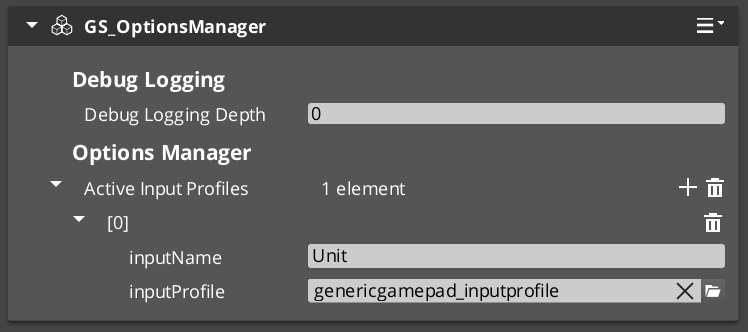
The Options Manager is the central anchor of the Options system. It holds the active Input Profile data asset and provides it to Input Readers and other game systems that need runtime configuration data.
As a Manager, it is spawned by the Game Manager and participates in the standard two-stage initialization lifecycle.
Contents
How It Works
- The Options Manager initializes during the Game Manager’s startup sequence.
- It loads the configured Input Profile data asset.
- Input Readers across the game query the Options Manager for the active profile via
OptionsManagerRequestBus. - The Options Manager responds to standby events — pausing and resuming input processing when the game enters or exits standby mode.
Setup

Image showing the Manager wrapper entity set as Editor-Only inside Prefab Edit Mode.
- Create an entity. Attach the GS_OptionsManagerComponent to it.
- Assign your Input Profile data asset.
- Turn the entity into a prefab.
- Enter prefab edit mode. Set the wrapper entity (parent) to Editor Only. Save.
- Delete the Options Manager entity from the level.
- In the Game Manager prefab, add the Options Manager
.spawnable to the Startup Managers list.
Inspector Properties
| Property | Type | Default | Description |
|---|
| Input Profile | AZ::Data::Asset<GS_InputProfile> | None | The active Input Profile data asset. Input Readers across the game will use this profile for event-to-binding mappings. |
API Reference
Request Bus: OptionsManagerRequestBus
Singleton bus — call via Broadcast.
| Method | Parameters | Returns | Description |
|---|
GetActiveInputProfile | — | AZ::Data::Asset<GS_InputProfile> | Returns the currently active Input Profile data asset. Called by Input Readers on activation. |
Lifecycle Events (from GameManagerNotificationBus)
| Event | Description |
|---|
OnStartupComplete | The Options Manager is fully ready. Input Readers can now query for the active profile. |
OnEnterStandby | Pause input processing. |
OnExitStandby | Resume input processing. |
Usage Examples
#include <GS_Core/GS_CoreBus.h>

AZ::Data::Asset<GS_Core::GS_InputProfile> profile;
GS_Core::OptionsManagerRequestBus::BroadcastResult(
    profile,
    &GS_Core::OptionsManagerRequestBus::Events::GetActiveInputProfile
);

if (profile.IsReady())
{
    // Use the profile to look up bindings, check group states, etc.
}
Extending the Options Manager
Extend the Options Manager when you need additional runtime settings (graphics quality, audio levels, accessibility), custom options persistence, or platform-specific configuration.
#pragma once
#include <Source/OptionsSystem/GS_OptionsManagerComponent.h>

namespace MyProject
{
    class MyOptionsManagerComponent
        : public GS_Core::GS_OptionsManagerComponent
    {
    public:
        AZ_COMPONENT_DECL(MyOptionsManagerComponent);

        static void Reflect(AZ::ReflectContext* context);

    protected:
        void OnStartupComplete() override;

    private:
        float m_masterVolume = 1.0f;
        int m_graphicsQuality = 2; // 0=Low, 1=Med, 2=High
    };
}
Implementation (.cpp)
#include "MyOptionsManagerComponent.h"
#include <AzCore/Serialization/SerializeContext.h>

namespace MyProject
{
    AZ_COMPONENT_IMPL(MyOptionsManagerComponent, "MyOptionsManagerComponent", "{YOUR-UUID-HERE}",
        GS_Core::GS_OptionsManagerComponent);

    void MyOptionsManagerComponent::Reflect(AZ::ReflectContext* context)
    {
        if (auto serializeContext = azrtti_cast<AZ::SerializeContext*>(context))
        {
            serializeContext->Class<MyOptionsManagerComponent, GS_Core::GS_OptionsManagerComponent>()
                ->Version(0)
                ->Field("MasterVolume", &MyOptionsManagerComponent::m_masterVolume)
                ->Field("GraphicsQuality", &MyOptionsManagerComponent::m_graphicsQuality);

            if (AZ::EditContext* editContext = serializeContext->GetEditContext())
            {
                editContext->Class<MyOptionsManagerComponent>(
                    "My Options Manager", "Extended options with audio and graphics settings")
                    ->ClassElement(AZ::Edit::ClassElements::EditorData, "")
                        ->Attribute(AZ::Edit::Attributes::Category, "MyProject")
                        ->Attribute(AZ::Edit::Attributes::AppearsInAddComponentMenu, AZ_CRC_CE("Game"))
                    ->DataElement(AZ::Edit::UIHandlers::Slider,
                        &MyOptionsManagerComponent::m_masterVolume, "Master Volume", "Global audio volume")
                        ->Attribute(AZ::Edit::Attributes::Min, 0.0f)
                        ->Attribute(AZ::Edit::Attributes::Max, 1.0f)
                    ->DataElement(AZ::Edit::UIHandlers::ComboBox,
                        &MyOptionsManagerComponent::m_graphicsQuality, "Graphics Quality", "Rendering quality preset");
            }
        }
    }

    void MyOptionsManagerComponent::OnStartupComplete()
    {
        // Apply saved options on startup
        // ... load from save system and apply settings ...

        GS_OptionsManagerComponent::OnStartupComplete();
    }
}
Module Registration
m_descriptors.insert(m_descriptors.end(), {
    MyProject::MyOptionsManagerComponent::CreateDescriptor(),
});
See Also
For component references:
Get GS_Core
GS_Core — Explore this gem on the product page and add it to your project.
2 - GS_InputOptions
The input subsystem — Input Profiles for grouped event-to-binding mappings and Input Readers for processing input in gameplay.
Input Options is the input subsystem within the Options system. It provides two core pieces:
- Input Profiles — Data assets that map input bindings to named events, organized into toggleable groups. These replace O3DE’s raw input binding files with a more flexible system that supports runtime rebinding and per-group enable/disable toggling.
- Input Readers — Components that read input through the active profile and fire gameplay events. They can be extended for specialized input handling (player controllers, UI navigation, etc.).
For usage guides and setup examples, see The Basics: GS_Core.
Contents
Architecture
GS_OptionsManagerComponent
  │
  └── Active GS_InputProfile (data asset)
        │
        ├── InputBindingGroup: "Movement"
        │     ├── EventInputMapping: "MoveForward" → [keyboard_key_alphanumeric_W]
        │     ├── EventInputMapping: "MoveBack"    → [keyboard_key_alphanumeric_S]
        │     └── EventInputMapping: "Sprint"      → [keyboard_key_modifier_shift_l]
        │
        ├── InputBindingGroup: "Combat"
        │     ├── EventInputMapping: "Attack"   → [mouse_button_left]
        │     └── EventInputMapping: "Block"    → [mouse_button_right]
        │
        └── InputBindingGroup: "UI"
              ├── EventInputMapping: "Confirm"  → [keyboard_key_alphanumeric_E]
              └── EventInputMapping: "Cancel"   → [keyboard_key_navigation_escape]

GS_InputReaderComponent (on player entity, UI entity, etc.)
  │
  ├── Queries OptionsManager for active profile
  ├── Listens for raw O3DE input events
  ├── Matches bindings → fires named events
  └── EnableInputGroup / DisableInputGroup for runtime control
Data assets that map key bindings to named events, organized into toggleable groups. They replace O3DE’s raw input binding files with a more flexible system that supports runtime rebinding and per-group enable/disable toggling.
| Asset / Type | Purpose |
|---|
| GS_InputProfile | Data asset defining input groups, event mappings, and key bindings. |
| InputBindingGroup | Named group of event mappings — can be toggled at runtime. |
| EventInputMapping | Maps a named event to one or more raw O3DE input bindings. |
Input Profiles API
Components that read input through the active profile and fire named gameplay events. Supports runtime group toggling to enable or disable input categories on the fly, and a claim flag to absorb matched events from other readers.
| Component | Purpose |
|---|
| GS_InputReaderComponent | Per-entity input processor. Queries the active profile, matches raw input, and fires named gameplay events. |
Input Reader API
Setup
- Create a GS_InputProfile data asset in the Asset Editor.
- Add input groups and event mappings to the profile.
- Assign the profile to the Options Manager.
- Attach a GS_InputReaderComponent to any entity that needs to process input.
- The Input Reader automatically queries the Options Manager for the active profile on activation.
See Also
For component references:
For related resources:
Get GS_Core
GS_Core — Explore this gem on the product page and add it to your project.
2.1 - Input Profiles
Data assets for input binding configuration — map key bindings to named events, organized into toggleable groups for advanced runtime input control.
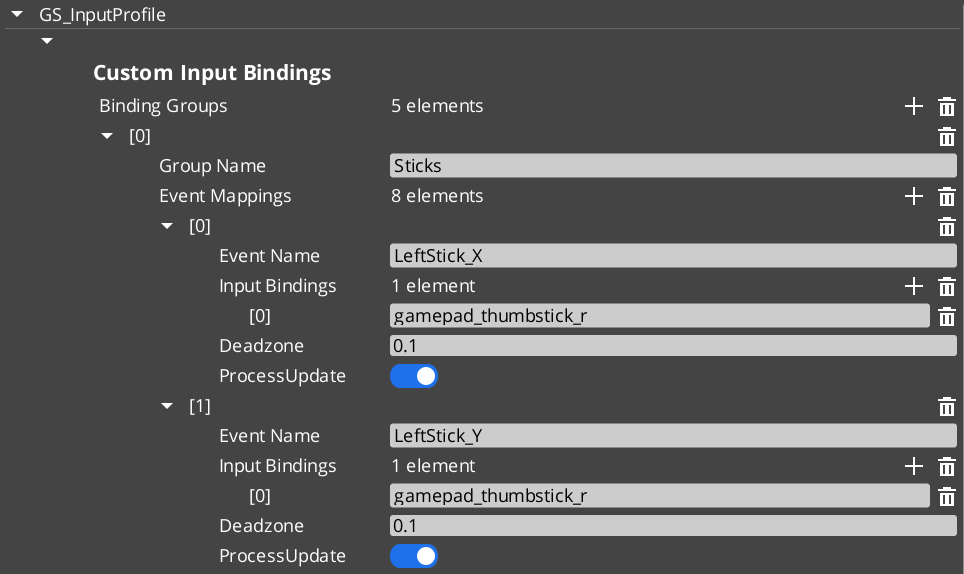
Input Profiles are data assets that map key bindings to named events, organized into groups that can be enabled and disabled at runtime. They replace O3DE’s raw input binding files with a more flexible system that supports runtime rebinding, per-group toggling, and options menu customization.
For usage guides and setup examples, see The Basics: GS_Core.
Contents
How It Works
An Input Profile contains a list of InputBindingGroups. Each group contains EventInputMappings that define the relationship between a named event, its key bindings, and processing options.
Data Structure
GS_InputProfile
  └── InputBindingGroups[]
        ├── groupName: "Movement"
        └── eventMappings[]
              ├── EventInputMapping
              │     ├── eventName: "MoveForward"
              │     ├── inputBindings: ["keyboard_key_alphanumeric_W"]
              │     ├── deadzone: 0.0
              │     └── processUpdate: true
              └── EventInputMapping
                    ├── eventName: "Jump"
                    ├── inputBindings: ["keyboard_key_alphanumeric_Space"]
                    ├── deadzone: 0.0
                    └── processUpdate: false
| Field | Type | Description |
|---|
eventName | AZStd::string | The name used to fire this event in gameplay through Input Readers. This is the identifier your gameplay code listens for. |
inputBindings | AZStd::vector<AZStd::string> | One or more raw O3DE input binding names (e.g., keyboard_key_alphanumeric_W, mouse_button_left, gamepad_button_a). Multiple bindings allow the same event to fire from different input sources. |
deadzone | float | Dead zone threshold for analog inputs (joysticks, triggers). Values below this threshold are treated as zero. Set to 0.0 for digital inputs (keys, buttons). |
processUpdate | bool | When true, the event fires continuously while the input is held. When false, the event fires only on initial press and release. Use true for movement and camera input; false for discrete actions like jumping or interacting. |
TypeId: {61421EC2-7B99-4EF2-9C56-2A7F41ED3474}
Reflection: GS_InputProfile extends AZ::Data::AssetData. Its Reflect() function requires GS_AssetReflectionIncludes.h — see Serialization Helpers.
| Field | Type | Description |
|---|
groupName | AZStd::string | Name of the group (e.g., “Movement”, “Combat”, “UI”). Used by Input Readers to enable/disable groups at runtime. |
eventMappings | AZStd::vector<EventInputMapping> | The event mappings belonging to this group. |
TypeId: {37E880D1-9AB4-4E10-9C3C-020B5C32F75B}
For initial startup instructions refer to the Core Set Up Guide.
- In the Asset Editor, open the New menu and select GS_InputProfile. This creates a blank Input Profile.
- Add Input Groups — Create groups that cluster related input events (e.g., “Movement”, “Combat”, “UI”). Groups can be toggled on/off at runtime by Input Readers.
- Add Event Mappings — Within each group, add EventInputMappings. Set the Event Name to the identifier your gameplay code will listen for.
- Set Bindings — Add the raw O3DE input bindings that should trigger each event. These are standard O3DE raw mapping names.
- Configure Deadzone — For gamepad joystick or trigger inputs, set an appropriate deadzone value (e.g.,
0.15). Leave at 0.0 for keyboard and mouse inputs. - Set Process Update — Enable for continuous input (movement, camera look). Disable for discrete actions (jump, interact, attack).
- Assign to Options Manager — Add the profile to the Options Manager’s Input Profile property.
API Reference
These methods are available on the GS_InputProfile data asset class for runtime binding queries and modifications.
| Method | Parameters | Returns | Description |
|---|
GetMappingFromBinding | const AZStd::string& binding, const AZStd::string& groupName = "" | const EventInputMapping* | Looks up the event mapping associated with a raw binding. Optionally restrict the search to a specific group. Returns nullptr if not found. |
GetGroupNameFromBinding | const AZStd::string& binding | const AZStd::string* | Returns the group name that contains the given binding. Returns nullptr if not found. |
HasBinding | const AZStd::string& binding | bool | Returns true if the binding exists anywhere in the profile. |
ReplaceEventInputBinding | const AZStd::string& eventName, const AZStd::string& newBinding | bool | Replaces the existing binding for the named event with a new one. For runtime rebinding in options menus. Returns true on success. |
AddEventInputBinding | const AZStd::string& eventName, const AZStd::string& newBinding | bool | Adds an additional binding to the named event. Returns true on success. |
RemoveEventBinding | const AZStd::string& eventName, const AZStd::string& bindingToRemove | bool | Removes a specific binding from the named event. Returns true on success. |
Usage Examples
Runtime Rebinding (Options Menu)
#include <GS_Core/GS_CoreBus.h>

// Get the active input profile
AZ::Data::Asset<GS_Core::GS_InputProfile> profile;
GS_Core::OptionsManagerRequestBus::BroadcastResult(
    profile,
    &GS_Core::OptionsManagerRequestBus::Events::GetActiveInputProfile
);

if (profile.IsReady())
{
    // Rebind the "Jump" event from Space to E
    profile.Get()->ReplaceEventInputBinding(
        "Jump",
        "keyboard_key_alphanumeric_E"
    );

    // Add an alternative binding (gamepad A button)
    profile.Get()->AddEventInputBinding(
        "Jump",
        "gamepad_button_a"
    );
}
Checking if a Binding Exists
if (profile.IsReady() && profile.Get()->HasBinding("keyboard_key_alphanumeric_W"))
{
    // This binding is mapped to an event in the profile
}
See Also
For component references:
For related resources:
Get GS_Core
GS_Core — Explore this gem on the product page and add it to your project.
2.2 - Input Reader
Component that reads input through the active profile and fires named gameplay events, with runtime group toggling and input claiming.
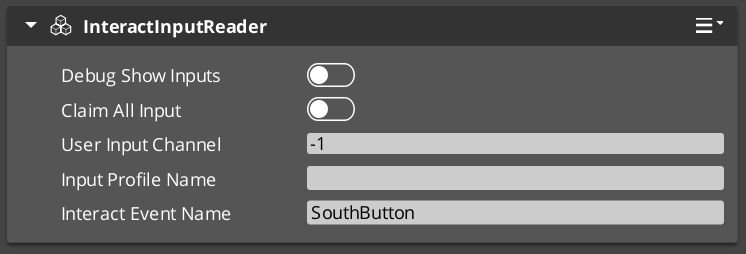
The Input Reader component sits on any entity that needs to process input. It queries the Options Manager for the active Input Profile, then listens for raw O3DE input events and matches them against the profile’s bindings to fire named gameplay events.
For usage guides and setup examples, see The Basics: GS_Core.
Contents
How It Works
On activation the Input Reader queries the Options Manager for the active Input Profile and subscribes to raw O3DE input events. Each frame it matches incoming raw input against the profile bindings. When a match is found it fires the associated named event into the gameplay event system. Input groups can be enabled or disabled at runtime to control which events are active at any moment.
Key Features
- Group toggling — Enable or disable entire input groups at runtime. For example, disable “Combat” inputs during a dialogue sequence, or disable “Movement” inputs during a cutscene.
- Claim input — The
ClaimAllInput flag causes the reader to absorb matched input events, preventing them from reaching other readers. Useful for layered input (e.g., UI absorbs input before gameplay). - Extensible — Extend the Input Reader for specialized input handling. GS_Play uses this internally for player controller input and UI navigation input.
API Reference
GS_InputReaderComponent
| Field | Value |
|---|
| Header | GS_Core/GS_CoreBus.h |
Request Bus: InputReaderRequestBus
Entity-addressed bus – call via Event(entityId, ...).
| Method | Parameters | Returns | Description |
|---|
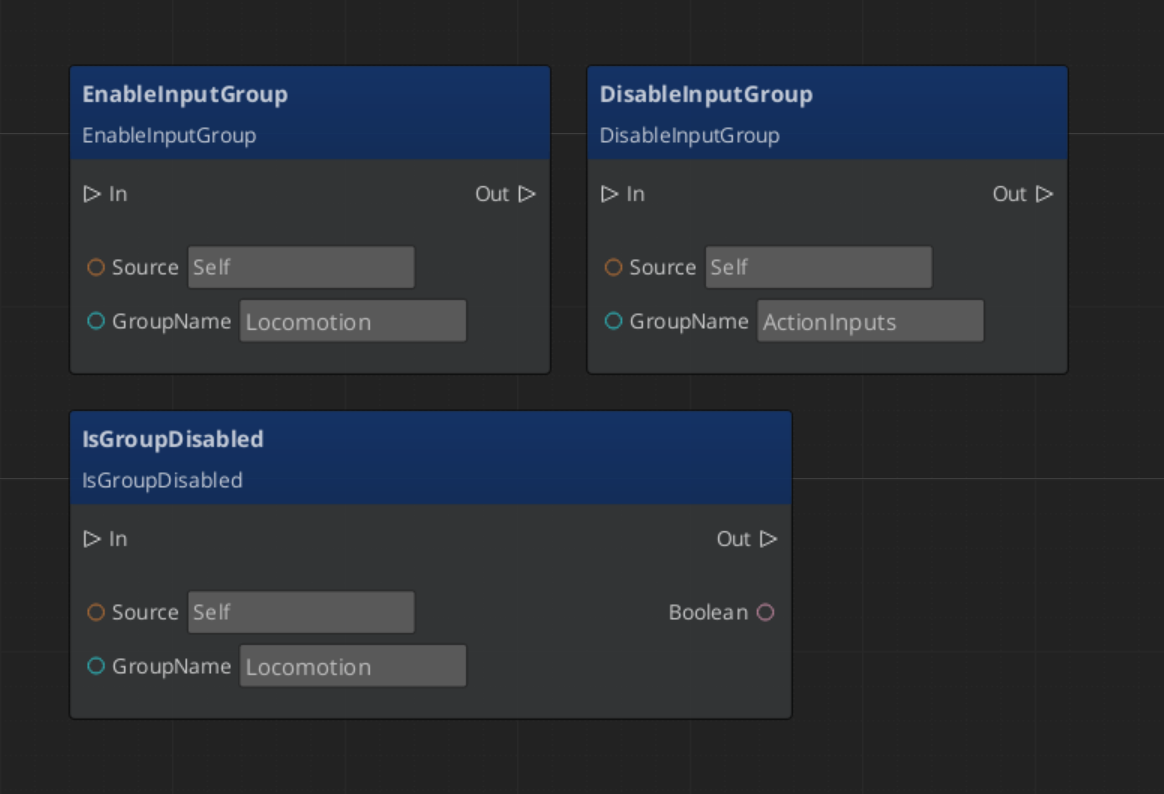
EnableInputGroup | const AZStd::string& groupName | void | Enables a named input group for this reader. Events in this group will fire on matched input. |
DisableInputGroup | const AZStd::string& groupName | void | Disables a named input group. Events in this group will be ignored until re-enabled. |
IsGroupDisabled | const AZStd::string& groupName | bool | Returns true if the named group is currently disabled. |
Usage Examples
Toggling Input Groups
#include <GS_Core/GS_CoreBus.h>

// Disable combat inputs during dialogue
GS_Core::InputReaderRequestBus::Event(
    playerEntityId,
    &GS_Core::InputReaderRequestBus::Events::DisableInputGroup,
    AZStd::string("Combat")
);

// Re-enable when dialogue ends
GS_Core::InputReaderRequestBus::Event(
    playerEntityId,
    &GS_Core::InputReaderRequestBus::Events::EnableInputGroup,
    AZStd::string("Combat")
);
Script Canvas
See Also
For component references:
For related resources:
Get GS_Core
GS_Core — Explore this gem on the product page and add it to your project.