The Dialogue Editor is a visual graph editor for authoring branching dialogue sequences. It uses the gs_graphcanvas framework with a FlowGraph topology — nodes execute sequentially following FlowIn/FlowOut connections.
The key architectural feature is the container model: multiple dialogue sequences live inside a single .dialoguedatabase file, managed through a sequence sidebar.
For usage guides and setup examples, see The Basics: GS_Cinematics.
Contents
- Opening the Editor
- Editor Layout
- Database Model
- Working with Sequences
- Performers
- Nodes
- Conditions
- Extending
- Variables
- See Also
Opening the Editor
Open the Dialogue Editor from the O3DE Editor menu: Tools > Dialogue Editor, or select the Speech Bubble Icon  in the Editor Tool Bar.
Use File > New to create a new .dialoguedatabase file, or File > Open to load an existing one. The editor saves and loads the entire database as a single file — individual sequences are not separate files.
Editor Layout
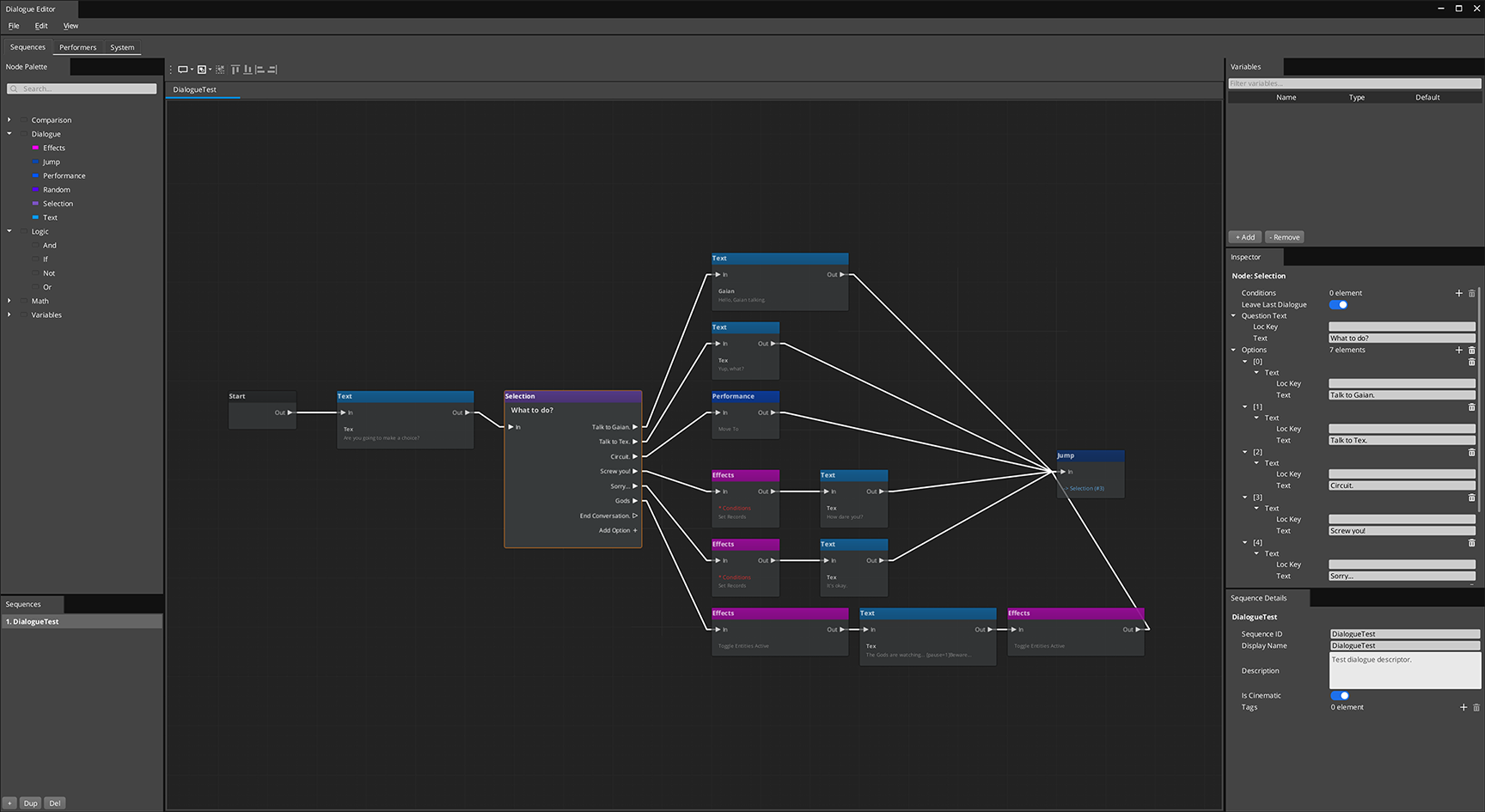
The Dialogue Editor has three pages, selectable via the tab bar at the top:
Sequences Page (Graph Editor)
The main workspace. The graph canvas occupies the center, with docks for:
- Sequence Sidebar — Lists all sequences in the database. Add, remove, rename, or duplicate sequences.
- Node Palette — Drag-drop available node types onto the canvas.
- Inspector — Properties for the selected node.
- Variable Panel — Declare and manage graph variables.
Performers Page
Define actors and characters for the dialogue system. Each performer has a name, voice configuration, portrait, and other display properties. Performers are referenced by name in Text nodes.
System Page
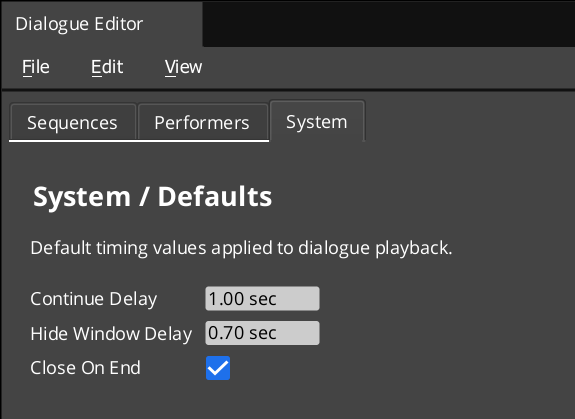
Database-level settings and configuration.
Database Model
A .dialoguedatabase file is a container holding:
- Actors — Character definitions (name, voice, portrait)
- Default settings — Database-wide defaults
- Sequences — Each sequence is an independent dialogue graph
Opening a sequence from the sidebar opens it as a graph tab. Multiple sequences can be open simultaneously. Saving writes all open sequences back to the database file.
Working with Sequences
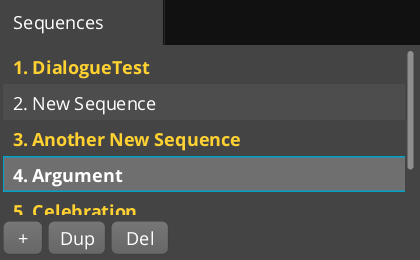
Use the Sequence Sidebar to manage sequences:
- Add — Create a new blank sequence with a Start node
- Remove — Delete a sequence from the database
- Rename — Double-click to rename
- Duplicate — Copy an existing sequence as a starting point
Click a sequence name to open it in a graph tab. Each tab tracks its own dirty state — the asterisk * appears when a sequence has unsaved changes.
Performers
The Performers page defines the cast of characters available in the dialogue. Each performer has properties used by the dialogue UI at runtime (name display, portrait image, voice settings). Text nodes reference performers by name to identify the speaker.
Nodes
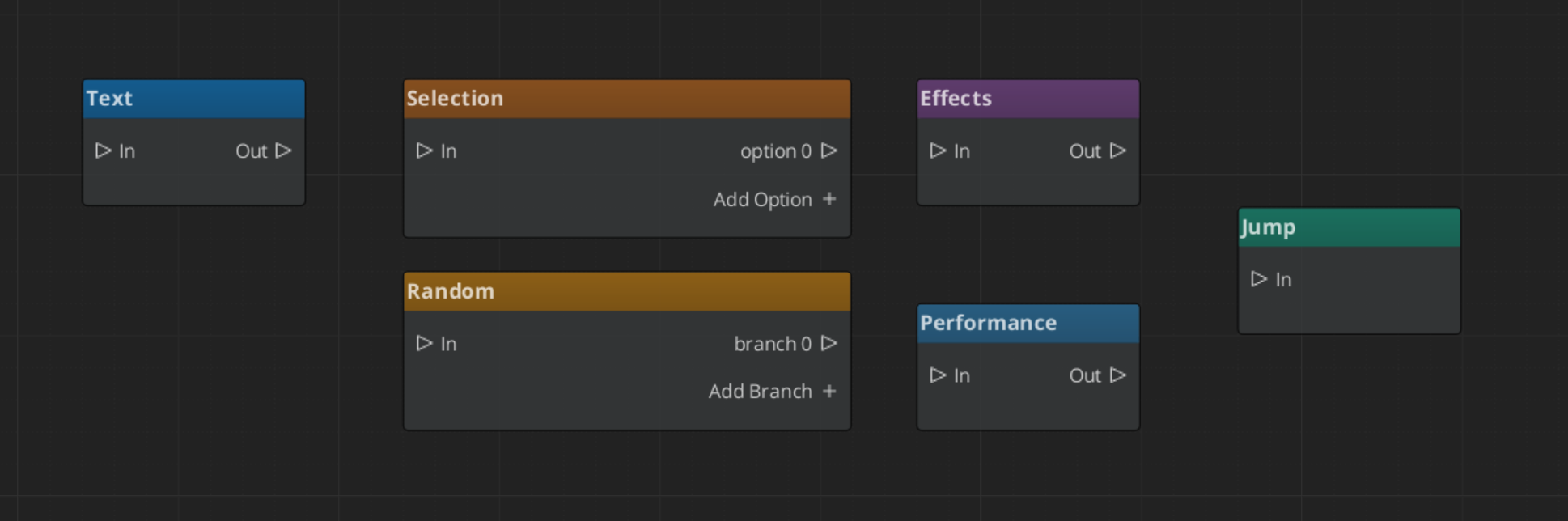
All dialogue nodes use FlowIn/FlowOut slots for sequential execution. The evaluator steps through nodes one at a time, waiting when a node needs player input or time to display.
| Node | Purpose | Key Properties |
|---|---|---|
| Start | Entry point for the sequence | Auto-spawned, one per sequence, cannot be deleted |
| Text | Display dialogue from a speaker | Speaker (LocalizedStringId), text (LocalizedStringId), close-on-end |
| Selection | Present player with choices | Question text, dynamic output slots (one per choice option) |
| Random | Random branch selection | Optional weighted randomization |
| Effects | Trigger game effects during dialogue | Polymorphic list of DialogueEffect objects |
| Performance | Character actions (move, animate) | Polymorphic list of DialoguePerformance objects, wait-to-continue flag |
| End | Terminate the sequence | No properties |
Text Node
The most common node. Set the Speaker to a performer name and the Text to the dialogue line. Uses LocalizedStringId for both fields — a localization key plus fallback text. The node footer previews the text content.
Selection Node
Presents the player with choices. Each SelectionOption creates a dynamic FlowOut slot. Add or remove options in the inspector. The evaluator waits for the player to pick an option, then follows the corresponding output.
Effects and Performance Nodes
Both use polymorphic lists — the inspector shows a type picker dropdown to add new entries. This is the primary extension point (see Extending below).
Conditions
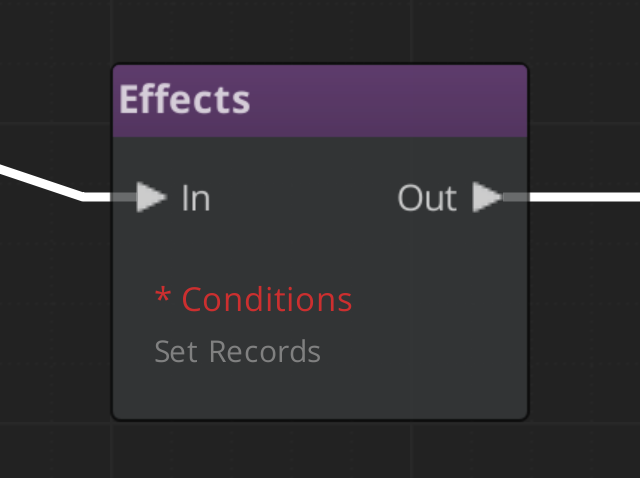
Any dialogue node can have conditions that gate whether the node is entered. Conditions are evaluated before the node executes — if conditions fail, the evaluator skips to the next option.
Conditions use the same polymorphic extension pattern as effects. Built-in conditions:
| Condition | Description |
|---|---|
Boolean_DialogueCondition | Checks a boolean variable |
Record_DialogueCondition | Checks a record/flag state |
Conditions are not limited to player choice branches — they can gate any node in the sequence for conditional dialogue flow.
Extending
The Dialogue Editor uses O3DE’s polymorphic type discovery. Adding new conditions, effects, or performances requires only:
- Create a subclass of
DialogueCondition,DialogueEffect, orDialoguePerformance - Add
AZ_RTTIand implementReflect()with SerializeContext and EditContext - Add
#includeand::Reflect(context)call toDialogueSequencerComponent::Reflect()
The inspector’s type picker dropdown automatically discovers all registered subtypes via SerializeContext::EnumerateDerived(). No registry code or manual wiring needed.
Custom Nodes
To add entirely new node types to the dialogue palette:
- Inherit from
Dlg_BaseNode(which extendsBaseNode+IExecutableNode) - Register with
GS_AUTO_REGISTER_NODE_FOR(MyDialogueNode, "dialogue") - Implement
Execute()returningFlowResult::Continue,Wait, orStop
Variables
The Dialogue Editor supports graph variables. Common uses:
- Dialogue flags — Track conversation state (has the player seen this line before?)
- Counters — Count visits or choices
- Condition inputs — Variable values drive condition checks on nodes
Variables can be read and set by Effects nodes or from external game systems.
See Also
- gs_graphcanvas Framework — The underlying framework
- Dialogue Manager — Runtime dialogue management component
- Dialogue Sequencer — Runtime graph executor
- Dialogue UI — UI display components
- Dialogue Data Structure — Data model reference
Get GS_Cinematics
GS_Cinematics — Explore this gem on the product page and add it to your project.