GS_Cinematics
Dialogue graphs, cinematic staging, UI display, localization, and extensible condition/effect/performance systems for authored narrative experiences.
GS_Cinematics is the narrative and staging gem for GS_Play. It provides a node-based dialogue graph system backed by .dialoguedb assets, extensible polymorphic conditions, effects, and performances, world-space and screen-space dialogue UI with typewriter effects, audio babble, cinematic stage marker management, and a full localization pipeline. The gem depends on GS_Core, LyShine, and RecastNavigation.
For usage guides and setup examples, see The Basics: GS_Cinematics.
Contents
Cinematics Manager
The top-level cinematic lifecycle controller. The Cinematics Manager is a GS_Play manager that enters and exits cinematic mode for the current level. Stage Marker components are placed in the scene as named anchor points that performances and sequences can reference at runtime.
| Component | Purpose |
|---|
| GS_CinematicsManagerComponent | Begins and ends cinematic mode. Registers and retrieves stage markers. Broadcasts EnterCinematic / ExitCinematic notifications. |
| CinematicStageMarkerComponent | Named world-space anchor placed in the level. Retrieved by the manager and referenced by sequences and performances. |
Dialogue System API
Dialogue System
The core playback engine. The Dialogue Manager owns the active .dialoguedb asset and performer registry. The Dialogue Sequencer executes sequences node-by-node, issuing performances, conditions, and effects as it traverses the graph. The system is fully extensible — custom conditions, effects, and performances are discovered automatically through O3DE serialization at startup.
| Component / Asset | Purpose |
|---|
| GS_DialogueManagerComponent | GS_Play manager. Loads and swaps dialogue databases. Registers performer markers by name. |
| DialogueSequencerComponent | Executes a DialogueSequence node graph. Manages runtime tokens and signals sequence completion. |
| DialogueDatabase (.dialoguedb) | Persistent asset. Contains actor definitions, sequences, and all node data. |
| Node Types | TextNodeData, SelectionNodeData, RandomNodeData, EffectsNodeData, PerformanceNodeData. |
| Conditions | Polymorphic DialogueCondition hierarchy. Built-in: Boolean_DialogueCondition, Record_DialogueCondition. |
| Effects | Polymorphic DialogueEffect hierarchy. Built-in: SetRecords_DialogueEffect, ToggleEntitiesActive_DialogueEffect. |
| LocalizedStringId | Reference to a localizable string with a key and default fallback text. Resolved at runtime. |
| LocalizedStringTable | Runtime string lookup table loaded alongside the active database. |
Dialogue System API
Dialogue UI
Screen-space and world-space presentation layer. The UI Bridge routes active dialogue to whichever UI component is registered — swapping from screen-space to world-space at runtime requires no sequencer changes. The Typewriter and Babble components provide character-by-character text reveal and procedural audio babble respectively.
Dialogue UI API
Polymorphic, async performance types executed from PerformanceNodeData within a sequence. Each performance drives a performer entity in the world and signals completion back to the sequencer. External gems register additional performance types automatically by extending the base class.
Dialogue System API
Installation
GS_Cinematics requires GS_Core, LyShine, and RecastNavigation to be enabled in your project first.
- Enable GS_Cinematics, GS_Core, LyShine, and RecastNavigation in your O3DE project’s gem list.
- Add a GS_CinematicsManagerComponent to your Game Manager prefab and register it in the Startup Managers list.
- Create a
.dialoguedb asset using the Dialogue Editor and assign it to the Dialogue Manager component. - Place CinematicStageMarkerComponent entities in your level and register them by name.
- Add a DialogueSequencerComponent to the entity that will drive dialogue playback.
- Add a DialogueUIBridgeComponent and connect it to your chosen
DialogueUIComponent variant.
See Also
For conceptual overviews and usage guides:
For sub-system references:
For related resources:
Get GS_Cinematics
GS_Cinematics — Explore this gem on the product page and add it to your project.
1 - Cinematics Manager
Full API reference for GS_CinematicsManagerComponent — cinematic lifecycle control, stage marker registration, and the CinematicStageMarkerComponent.
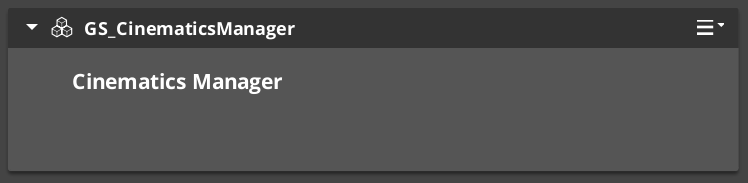
GS_CinematicsManagerComponent is the top-level cinematic lifecycle controller for GS_Cinematics. It extends GS_Core::GS_ManagerComponent and participates in the standard Game Manager startup sequence.
For usage guides and setup examples, see The Basics: Cinematics Manager.
Contents
GS_CinematicsManagerComponent
Singleton GS_Play manager that controls cinematic mode for the current level. Registered with the Game Manager startup sequence via GS_Core::GS_ManagerComponent.
| Property | Value |
|---|
| Extends | GS_Core::GS_ManagerComponent |
| Bus | CinematicsManagerRequestBus (Single address, single handler) |
| Notifications | CinematicsManagerNotificationBus |
Request Bus: CinematicsManagerRequestBus
Singleton bus — Single address, single handler.
| Method | Parameters | Returns | Description |
|---|
BeginCinematic | – | void | Enters cinematic mode for the current level. Broadcasts EnterCinematic to all listeners. |
EndCinematic | – | void | Exits cinematic mode. Broadcasts ExitCinematic to all listeners. |
RegisterStageMarker | const AZStd::string& name, AZ::EntityId entity | void | Registers a CinematicStageMarkerComponent entity under the given name. |
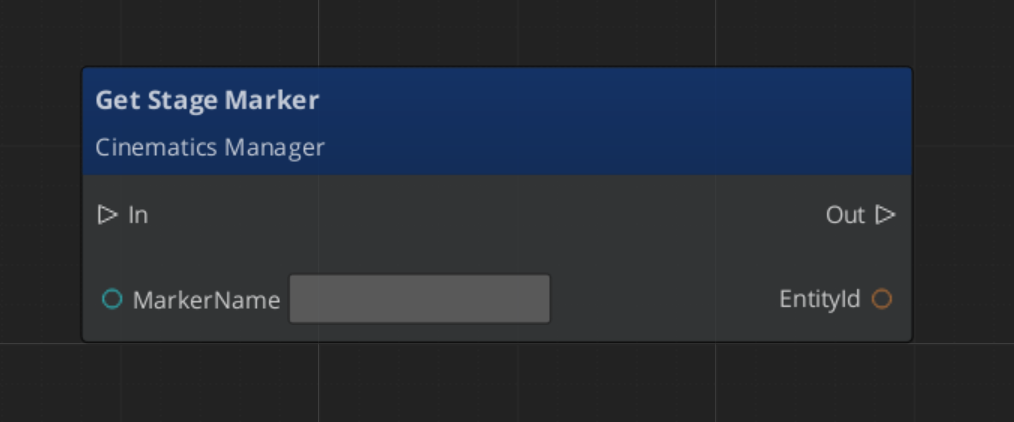
GetStageMarker | const AZStd::string& name | AZ::EntityId | Returns the entity registered under the given stage marker name. |
Notification Bus: CinematicsManagerNotificationBus
Multiple handler bus — any number of components can subscribe.
| Event | Description |
|---|
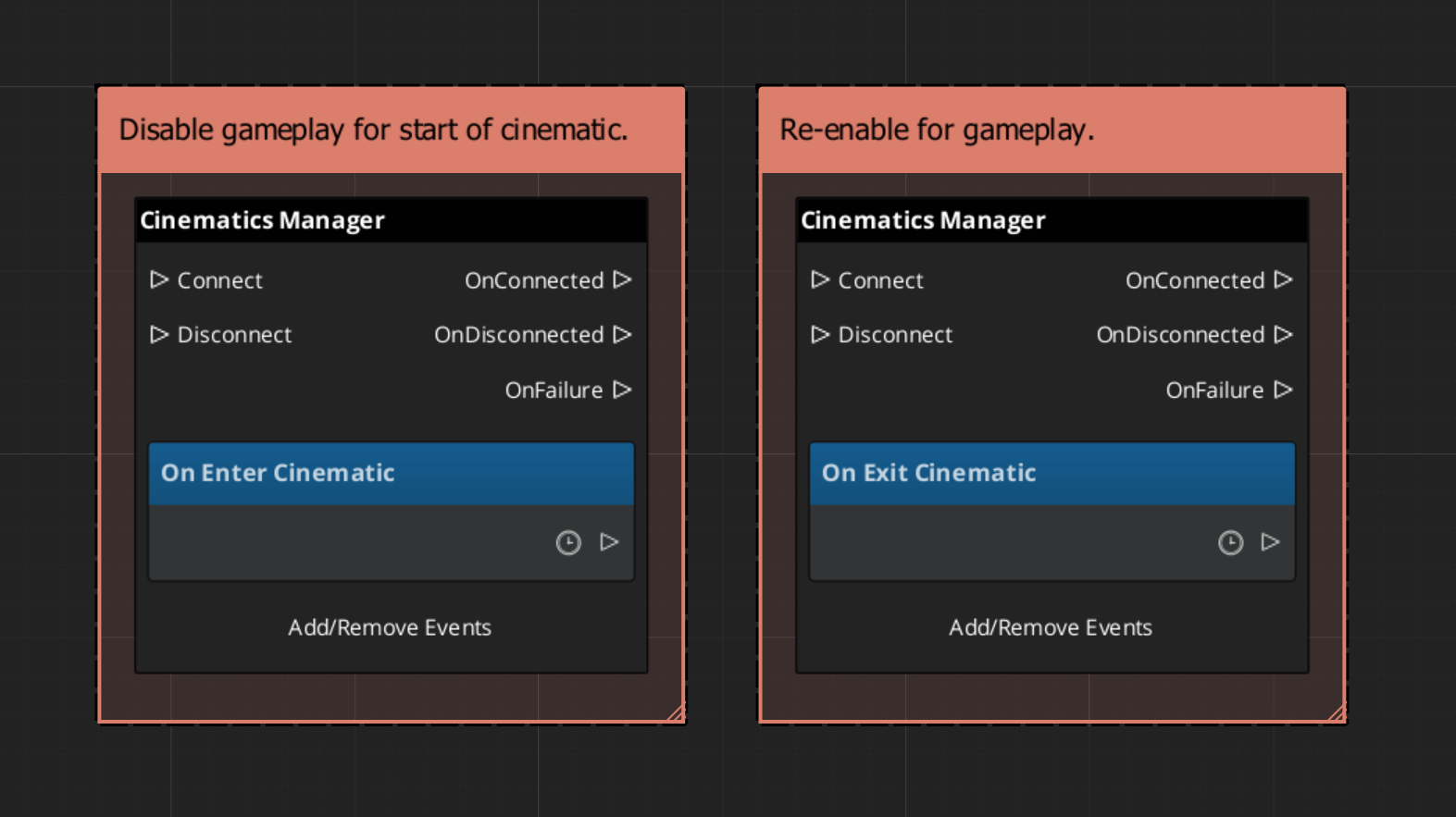
EnterCinematic | Fired when cinematic mode begins. Listeners should suppress gameplay systems. |
ExitCinematic | Fired when cinematic mode ends. Listeners should resume gameplay systems. |
CinematicStageMarkerComponent
A simple world-space anchor component placed on entities in the level. Stage markers are registered by name with the Cinematics Manager during activation. Performances and sequences reference markers by name to position performers in the world.
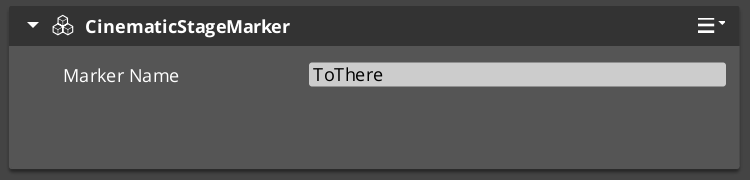
Attach a CinematicStageMarkerComponent to any entity, give it a unique name, and it self-registers with the CinematicsManagerRequestBus on Activate().
Script Canvas Examples
Entering and exiting cinematic mode:
Getting a stage marker entity by name:
See Also
For usage guides:
For related references:
Get GS_Cinematics
GS_Cinematics — Explore this gem on the product page and add it to your project.
2 - Dialogue System
Architecture overview of the GS_Cinematics dialogue system — the Dialogue Editor, sequencing, UI display, actors, and extensible conditions, effects, and performances.
The Dialogue System is the runtime engine inside GS_Cinematics that drives all authored narrative experiences. Dialogue is authored visually in the Dialogue Editor — a graph-based tool built on gs_graphcanvas — and executed at runtime by a node-graph sequencer. World-space and screen-space UI display, and an extensible set of polymorphic conditions, effects, and performances connect dialogue to gameplay.
Every piece communicates through EBus interfaces, so any layer can be replaced or extended without modifying the gem itself.
The system is managed by the GS_DialogueManagerComponent, which participates in the standard Game Manager startup sequence.
For usage guides and setup examples, see The Basics: GS_Cinematics.
Contents
Dialogue Editor
The in-engine visual graph editor for authoring dialogue databases, sequences, and node graphs. Built on gs_graphcanvas with a FlowGraph topology.
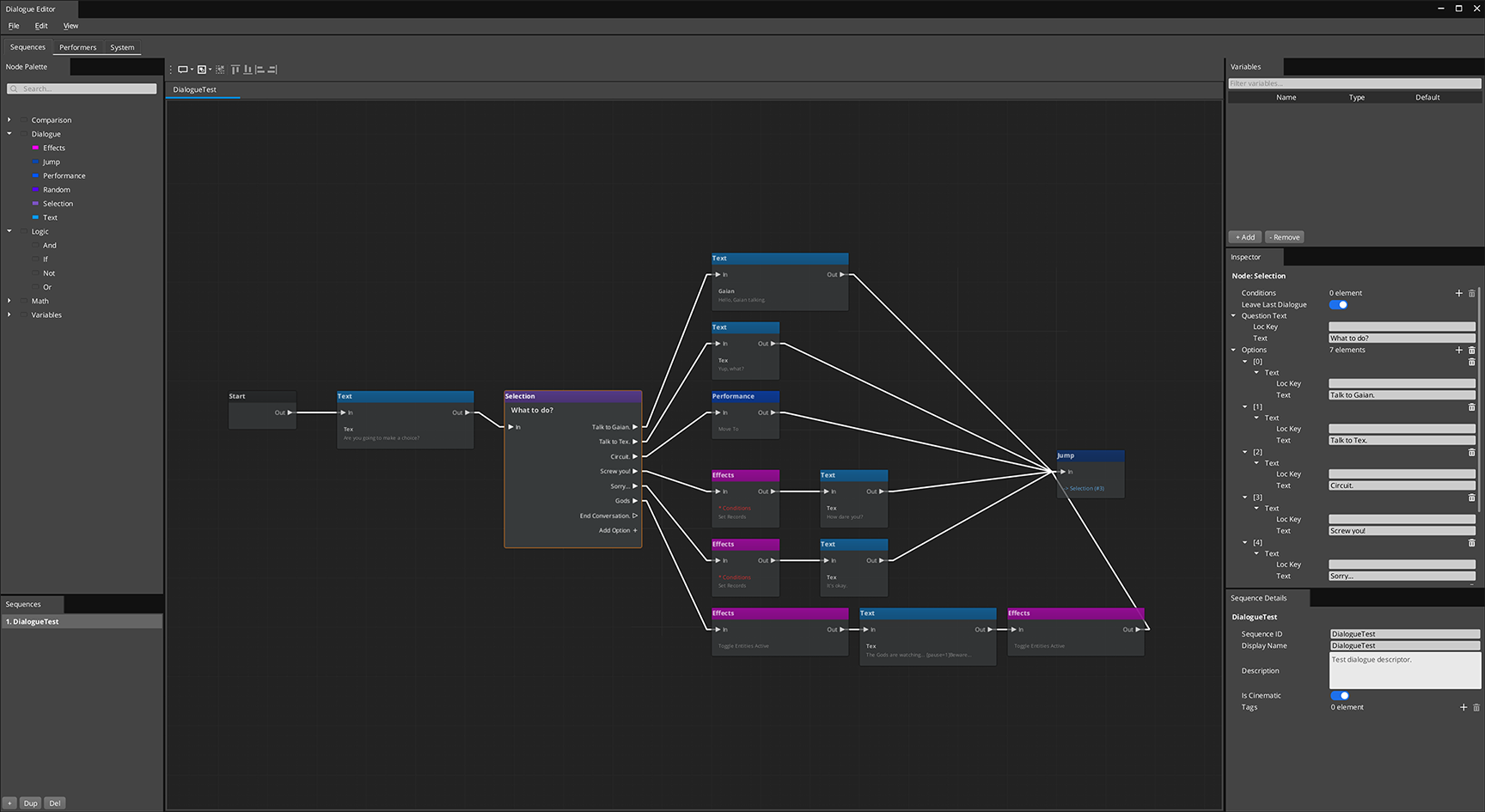
The editor manages a .dialoguedatabase container file holding all sequences for a dialogue set, along with performer definitions and database-level settings. Each sequence is an independent graph opened as a tab.
Dialogue Editor
Dialogue Manager
GS_DialogueManagerComponent owns the active dialogue database and performer registry. Extends GS_Core::GS_ManagerComponent.
Dialogue Manager API
Dialogue Sequencer
DialogueSequencerComponent traverses a node graph at runtime. The DialogueUIBridgeComponent routes dialogue and selection events to whichever UI is registered.
Dialogue Sequencer API
Effects
Polymorphic DialogueEffect types executed synchronously from Effects nodes. Built-in: SetRecords_DialogueEffect, ToggleEntitiesActive_DialogueEffect. Fully extensible.
Effects API
Polymorphic DialoguePerformance types executed asynchronously from Performance nodes. Built-in: MoveTo, PathTo, RepositionPerformer. Fully extensible.
Performances API
Dialogue UI
Screen-space and world-space dialogue display, selection menus, the typewriter text-reveal system, and the babble audio system.
Dialogue UI API
Actors
DialoguePerformerMarkerComponent places named performer anchors in the world, plus the ActorDefinition data model.
Dialogue Actors API
See Also
For conceptual overviews and usage guides:
For related references:
Get GS_Cinematics
GS_Cinematics — Explore this gem on the product page and add it to your project.
2.1 - Dialogue Manager
Full API reference for GS_DialogueManagerComponent — dialogue database management, performer marker registration, and the DialoguePerformerMarkerComponent.
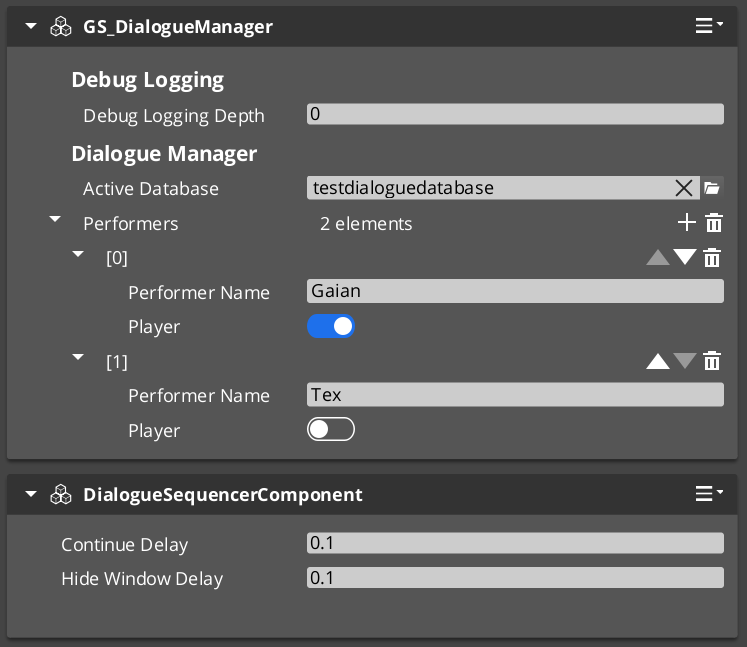
GS_DialogueManagerComponent owns the active dialogue database and performer registry. It extends GS_Core::GS_ManagerComponent and participates in the standard Game Manager startup sequence.
For usage guides and setup examples, see The Basics: GS_Cinematics.
Contents
GS_DialogueManagerComponent
Singleton GS_Play manager that owns the active .dialoguedb asset and the performer registry. Registered with the Game Manager startup sequence via GS_Core::GS_ManagerComponent.
| Property | Value |
|---|
| Extends | GS_Core::GS_ManagerComponent |
| Bus | DialogueManagerRequestBus (Single address, single handler) |
| Notifications | DialogueManagerNotificationBus (inherited from ManagerBaseOutgoingEvents) |
Request Bus: DialogueManagerRequestBus
Singleton bus — Single address, single handler.
| Method | Parameters | Returns | Description |
|---|
StartDialogueSequenceByName | const AZStd::string& sequenceName | void | Looks up a sequence by name in the active database and starts playback through the sequencer. |
ChangeDialogueDatabase | AZ::Data::Asset<DialogueDatabase> database | void | Swaps the active .dialoguedb asset at runtime. |
RegisterPerformerMarker | const AZStd::string& name, AZ::EntityId entity | void | Registers a DialoguePerformerMarkerComponent entity under the given performer name. |
GetPerformer | const AZStd::string& name | AZ::EntityId | Returns the entity registered under the given performer name. |
Notification Bus: DialogueManagerNotificationBus
Dialogue Manager notifications are inherited from ManagerBaseOutgoingEvents. See Manager for the full notification interface.
A world-space anchor component placed on NPC entities in the level. Performer markers register by name with the Dialogue Manager during activation. The dialogue system resolves actor names from the database to these world-space entities.
| Method | Parameters | Returns | Description |
|---|
GetPerformerName | – | AZStd::string | Returns the registered name for this performer. |
GetPosEntity | – | AZ::EntityId | Returns the entity used as the position reference for this performer. |
GetPosPoint | – | AZ::Vector3 | Returns the world-space position of the performer anchor. |
ShouldTrackTarget | – | bool | Returns whether this performer should track a target entity. |
Script Canvas Examples
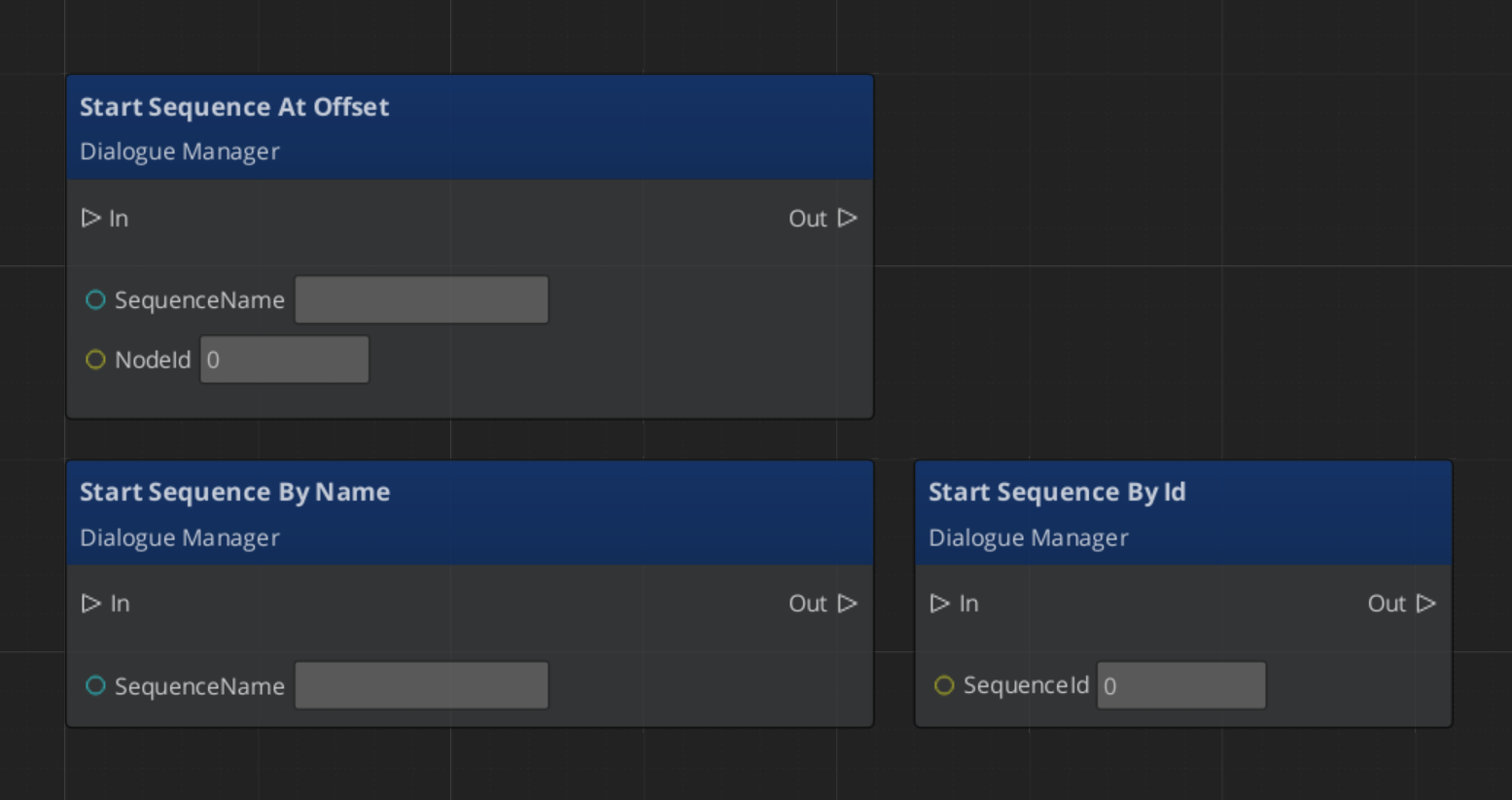
Starting a dialogue sequence by name:
See Also
For usage guides:
For component references:
For related resources:
Get GS_Cinematics
GS_Cinematics — Explore this gem on the product page and add it to your project.
2.2 - Dialogue Editor
Visual graph editor for authoring branching dialogue sequences — database model, node catalog, and extensibility.
The Dialogue Editor is a visual graph editor for authoring branching dialogue sequences. It uses the gs_graphcanvas framework with a FlowGraph topology — nodes execute sequentially following FlowIn/FlowOut connections.
The key architectural feature is the container model: multiple dialogue sequences live inside a single .dialoguedatabase file, managed through a sequence sidebar.
For usage guides and setup examples, see The Basics: GS_Cinematics.
Contents
Opening the Editor
Open the Dialogue Editor from the O3DE Editor menu: Tools > Dialogue Editor, or select the Speech Bubble Icon  in the Editor Tool Bar.
Use File > New to create a new .dialoguedatabase file, or File > Open to load an existing one. The editor saves and loads the entire database as a single file — individual sequences are not separate files.
Editor Layout
The Dialogue Editor has three pages, selectable via the tab bar at the top:
Sequences Page (Graph Editor)
The main workspace. The graph canvas occupies the center, with docks for:
- Sequence Sidebar — Lists all sequences in the database. Add, remove, rename, or duplicate sequences.
- Node Palette — Drag-drop available node types onto the canvas.
- Inspector — Properties for the selected node.
- Variable Panel — Declare and manage graph variables.
Performers Page
Define actors and characters for the dialogue system. Each performer has a name, voice configuration, portrait, and other display properties. Performers are referenced by name in Text nodes.
System Page
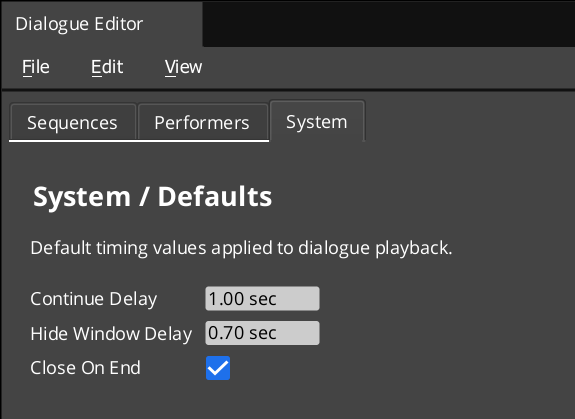
Database-level settings and configuration.
Database Model
A .dialoguedatabase file is a container holding:
- Actors — Character definitions (name, voice, portrait)
- Default settings — Database-wide defaults
- Sequences — Each sequence is an independent dialogue graph
Opening a sequence from the sidebar opens it as a graph tab. Multiple sequences can be open simultaneously. Saving writes all open sequences back to the database file.
Working with Sequences
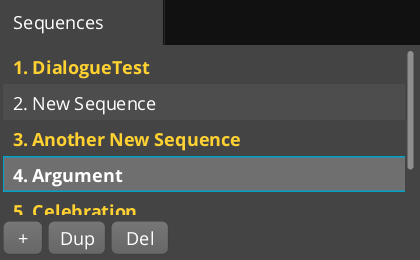
Use the Sequence Sidebar to manage sequences:
- Add — Create a new blank sequence with a Start node
- Remove — Delete a sequence from the database
- Rename — Double-click to rename
- Duplicate — Copy an existing sequence as a starting point
Click a sequence name to open it in a graph tab. Each tab tracks its own dirty state — the asterisk * appears when a sequence has unsaved changes.
The Performers page defines the cast of characters available in the dialogue. Each performer has properties used by the dialogue UI at runtime (name display, portrait image, voice settings). Text nodes reference performers by name to identify the speaker.
Nodes
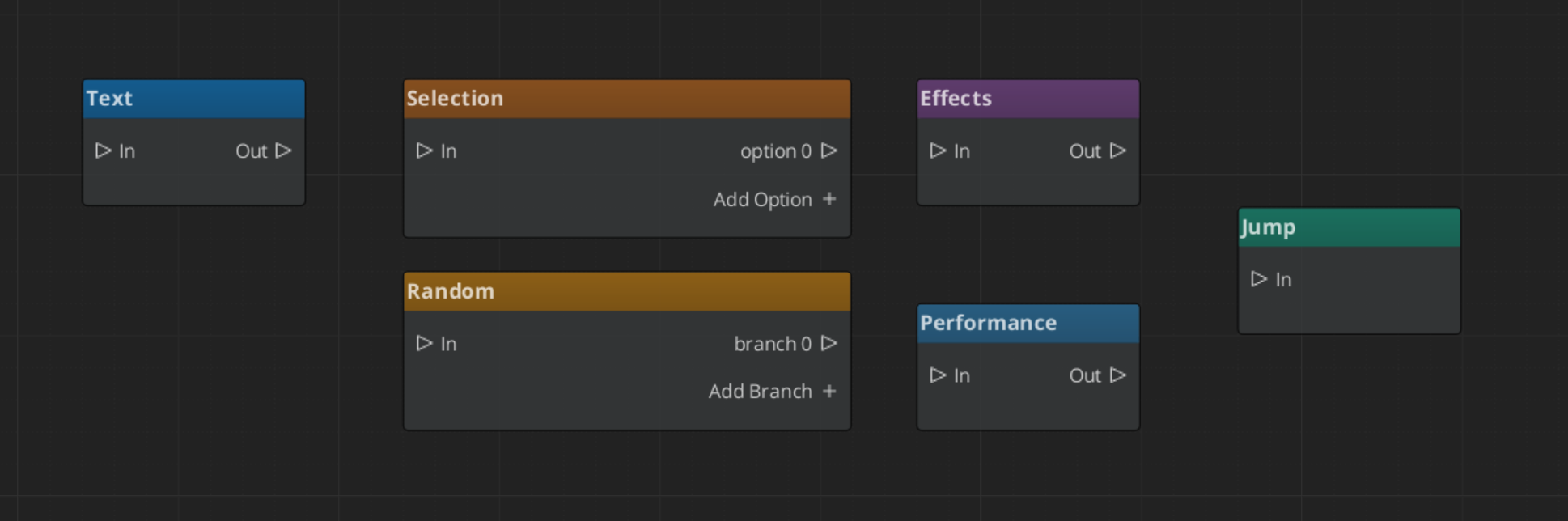
All dialogue nodes use FlowIn/FlowOut slots for sequential execution. The evaluator steps through nodes one at a time, waiting when a node needs player input or time to display.
| Node | Purpose | Key Properties |
|---|
| Start | Entry point for the sequence | Auto-spawned, one per sequence, cannot be deleted |
| Text | Display dialogue from a speaker | Speaker (LocalizedStringId), text (LocalizedStringId), close-on-end |
| Selection | Present player with choices | Question text, dynamic output slots (one per choice option) |
| Random | Random branch selection | Optional weighted randomization |
| Effects | Trigger game effects during dialogue | Polymorphic list of DialogueEffect objects |
| Performance | Character actions (move, animate) | Polymorphic list of DialoguePerformance objects, wait-to-continue flag |
| End | Terminate the sequence | No properties |
Text Node
The most common node. Set the Speaker to a performer name and the Text to the dialogue line. Uses LocalizedStringId for both fields — a localization key plus fallback text. The node footer previews the text content.
Selection Node
Presents the player with choices. Each SelectionOption creates a dynamic FlowOut slot. Add or remove options in the inspector. The evaluator waits for the player to pick an option, then follows the corresponding output.
Both use polymorphic lists — the inspector shows a type picker dropdown to add new entries. This is the primary extension point (see Extending below).
Conditions
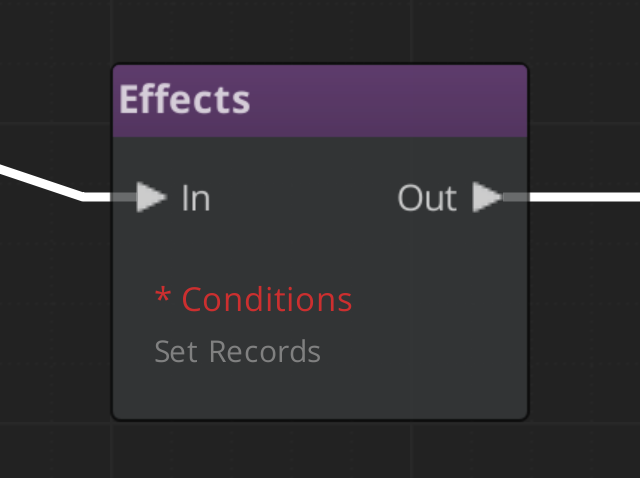
Any dialogue node can have conditions that gate whether the node is entered. Conditions are evaluated before the node executes — if conditions fail, the evaluator skips to the next option.
Conditions use the same polymorphic extension pattern as effects. Built-in conditions:
| Condition | Description |
|---|
Boolean_DialogueCondition | Checks a boolean variable |
Record_DialogueCondition | Checks a record/flag state |
Conditions are not limited to player choice branches — they can gate any node in the sequence for conditional dialogue flow.
Extending
The Dialogue Editor uses O3DE’s polymorphic type discovery. Adding new conditions, effects, or performances requires only:
- Create a subclass of
DialogueCondition, DialogueEffect, or DialoguePerformance - Add
AZ_RTTI and implement Reflect() with SerializeContext and EditContext - Add
#include and ::Reflect(context) call to DialogueSequencerComponent::Reflect()
The inspector’s type picker dropdown automatically discovers all registered subtypes via SerializeContext::EnumerateDerived(). No registry code or manual wiring needed.
Custom Nodes
To add entirely new node types to the dialogue palette:
- Inherit from
Dlg_BaseNode (which extends BaseNode + IExecutableNode) - Register with
GS_AUTO_REGISTER_NODE_FOR(MyDialogueNode, "dialogue") - Implement
Execute() returning FlowResult::Continue, Wait, or Stop
Variables
The Dialogue Editor supports graph variables. Common uses:
- Dialogue flags — Track conversation state (has the player seen this line before?)
- Counters — Count visits or choices
- Condition inputs — Variable values drive condition checks on nodes
Variables can be read and set by Effects nodes or from external game systems.
See Also
Get GS_Cinematics
GS_Cinematics — Explore this gem on the product page and add it to your project.
2.3 - Dialogue Sequencer
Full API reference for the DialogueSequencerComponent and DialogueUIBridgeComponent — runtime dialogue graph traversal, node processing, and UI routing.
The Dialogue Sequencer is the runtime engine that executes dialogue sequences node-by-node. It receives a DialogueSequence from the Dialogue Manager, traverses the node graph, evaluates conditions, fires effects and performances, and routes text and selection events to the UI layer through the DialogueUIBridgeComponent.
The two components on this page work together:
| Component | Role |
|---|
| DialogueSequencerComponent | Traverses the node graph. Processes each DialogueNodeData in order, manages runtime tokens, and signals sequence completion. |
| DialogueUIBridgeComponent | Decouples the sequencer from presentation. Routes dialogue text and selection events to whichever DialogueUIComponent or DialogueUISelectionComponent is currently registered. |
For usage guides and setup examples, see The Basics: GS_Cinematics.
Contents
DialogueSequencerComponent
The sequencer is the core playback controller. When a sequence starts, the sequencer reads the startNodeId, resolves the first node, and begins processing. Each node type has its own processing logic:
- TextNodeData – Sends text, speaker, and portrait data to the UI bridge for display.
- SelectionNodeData – Sends options to the UI bridge. Waits for a player selection before continuing.
- RandomNodeData – Picks a random outgoing connection (pure random or weighted) and continues.
- EffectsNodeData – Executes all attached
DialogueEffect instances, then continues. - PerformanceNodeData – Starts a
DialoguePerformance. Waits for the performance to signal completion before continuing.
At each node, outgoing connections are evaluated. Conditions on connections are tested in priority order; the first connection whose conditions all pass is followed. When no outgoing connections remain, the sequence ends.
Request Bus: DialogueSequencerRequestBus
Singleton bus – Single address, single handler.
| Method | Parameters | Returns | Description |
|---|
StartDialogueBySequence | const DialogueSequence& sequence | void | Begins playback of the given sequence from its startNodeId. |
OnPerformanceComplete | – | void | Called by a running DialoguePerformance when it finishes. The sequencer advances to the next node. |
Notification Bus: DialogueSequencerNotificationBus
Multiple handler bus – any number of components can subscribe.
| Event | Parameters | Description |
|---|
OnDialogueTextBegin | const DialogueTextPayload& payload | Fired when the sequencer begins processing a text node. Contains speaker name, text, portrait, and display settings. |
OnDialogueSequenceComplete | – | Fired when the sequencer reaches the end of a sequence (no further outgoing connections). |
Runtime Token Management
The sequencer maintains a set of runtime tokens that track state within a single sequence execution. Tokens are used internally to prevent infinite loops, track visited nodes, and manage branching state. They are cleared when a sequence completes or is interrupted.
DialogueUIBridgeComponent
The UI Bridge sits between the sequencer and the presentation layer. It holds a reference to the currently registered DialogueUIComponent and DialogueUISelectionComponent. When the sequencer needs to display text or a selection menu, it calls the bridge, which forwards the request to the active UI. This allows you to swap between screen-space, world-space, or custom UI implementations at runtime without changing the sequencer or the dialogue data.
Request Bus: DialogueUIBridgeRequestBus
Singleton bus.
| Method | Parameters | Returns | Description |
|---|
RunDialogue | const DialogueTextPayload& payload | void | Forwards a dialogue text event to the registered DialogueUIComponent. |
RunSelection | const DialogueSelectionPayload& payload | void | Forwards a selection event to the registered DialogueUISelectionComponent. |
RegisterDialogueUI | AZ::EntityId uiEntity | void | Registers the entity whose DialogueUIComponent and/or DialogueUISelectionComponent will receive events. |
CloseDialogue | – | void | Tells the registered UI to close and clean up. |
Notification Bus: DialogueUIBridgeNotificationBus
Multiple handler bus.
| Event | Parameters | Description |
|---|
OnDialogueComplete | – | Fired when the registered UI finishes displaying a dialogue line (after typewriter completes or the player advances). The sequencer listens for this to advance to the next node. |
OnSelectionComplete | int selectedIndex | Fired when the player selects an option. The sequencer uses the index to follow the corresponding connection. |
Execution Flow
A typical dialogue playback follows this path:
- Start –
DialogueManagerRequestBus::StartDialogueSequenceByName("MySequence") looks up the sequence in the active database and calls DialogueSequencerRequestBus::StartDialogueBySequence(sequence). - Node Processing – The sequencer reads the start node and begins processing. For each node:
- Text – The sequencer calls
DialogueUIBridgeRequestBus::RunDialogue(payload). The bridge forwards to the registered UI. The UI displays text (via TypewriterComponent), then fires OnDialogueComplete. The sequencer advances. - Selection – The sequencer calls
DialogueUIBridgeRequestBus::RunSelection(payload). The bridge forwards to the selection UI. The player picks an option, the UI fires OnSelectionComplete(index). The sequencer follows the indexed connection. - Effects – The sequencer executes each
DialogueEffect on the node, then advances immediately. - Performance – The sequencer starts the
DialoguePerformance. When the performance calls OnPerformanceComplete, the sequencer advances. - Random – The sequencer picks a connection and advances immediately.
- End – When no outgoing connections remain, the sequencer fires
OnDialogueSequenceComplete and calls DialogueUIBridgeRequestBus::CloseDialogue().
C++ Usage
Starting a Sequence
#include <GS_Cinematics/GS_CinematicsBus.h>

// Start by name through the Dialogue Manager
GS_Cinematics::DialogueManagerRequestBus::Broadcast(
    &GS_Cinematics::DialogueManagerRequestBus::Events::StartDialogueSequenceByName,
    AZStd::string("PerryConfrontation")
);
Listening for Sequence Completion
#include <GS_Cinematics/GS_CinematicsBus.h>

class MyListener
    : public AZ::Component
    , protected GS_Cinematics::DialogueSequencerNotificationBus::Handler
{
protected:
    void Activate() override
    {
        GS_Cinematics::DialogueSequencerNotificationBus::Handler::BusConnect();
    }

    void Deactivate() override
    {
        GS_Cinematics::DialogueSequencerNotificationBus::Handler::BusDisconnect();
    }

    void OnDialogueSequenceComplete() override
    {
        // Sequence finished — resume gameplay, unlock camera, etc.
    }
};
See Also
For conceptual overviews and usage guides:
For component references:
For related resources:
Get GS_Cinematics
GS_Cinematics — Explore this gem on the product page and add it to your project.
2.4 - Dialogue UI
Full API reference for all dialogue UI components — screen-space and world-space dialogue display, selection menus, typewriter text reveal, and babble audio.
The Dialogue UI layer handles all player-facing presentation of dialogue content. It is completely decoupled from the sequencer through the DialogueUIBridgeComponent – the sequencer never talks to a UI component directly. This page documents the seven components that make up the built-in UI system.
For usage guides and setup examples, see The Basics: GS_Cinematics.
Contents
DialogueUIComponent
The standard screen-space dialogue display. Receives dialogue payloads from the UI Bridge and renders speaker name, portrait, and text lines using LyShine UI canvases.
Request Bus: DialogueUIRequestBus
| Method | Parameters | Returns | Description |
|---|
DoDialogue | const DialogueTextPayload& payload | void | Processes a full dialogue payload: sets speaker name, portrait, and begins text display through the typewriter. |
ShowDialogue | – | void | Makes the dialogue UI canvas visible. |
HideDialogue | – | void | Hides the dialogue UI canvas without destroying it. |
CloseUI | – | void | Fully closes and cleans up the dialogue UI. |
GetTypewriter | – | AZ::EntityId | Returns the entity that holds the TypewriterComponent used by this UI. |
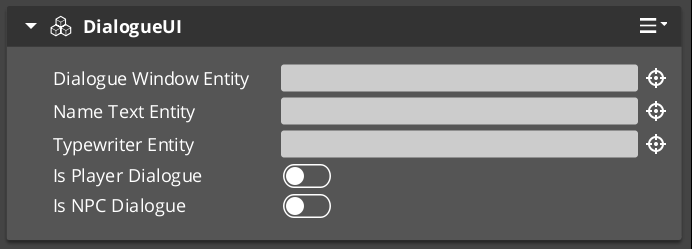
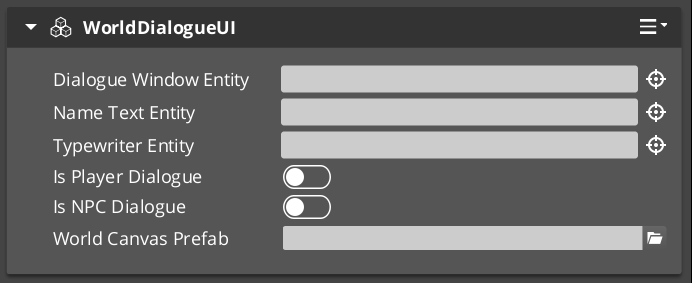
WorldDialogueUIComponent
Extends DialogueUIComponent for world-space rendering. Displays speech bubbles attached to performer entities in 3D space. Shares the same DialogueUIRequestBus interface as the base class. The world-space variant tracks the performer entity’s position and orients the UI element toward the camera.
Use WorldDialogueUIComponent when you want dialogue to appear as in-world speech bubbles rather than as a screen overlay.
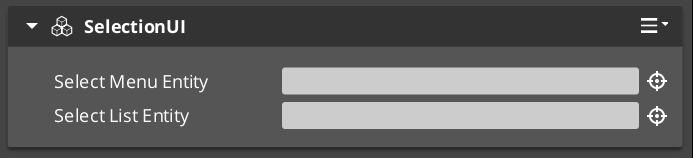
DialogueUISelectionComponent
Screen-space player choice display. Builds a list of selectable options from a DialogueSelectionPayload, spawns DialogueSelectButtonComponent instances for each valid option, and waits for the player to pick one.
Request Bus: DialogueUISelectionRequestBus
| Method | Parameters | Returns | Description |
|---|
DoSelection | const DialogueSelectionPayload& payload | void | Builds and displays the selection menu from the provided options. |
OnSelection | int selectedIndex | void | Called when a button is pressed. Processes the selection and notifies the bridge. |
ShowSelection | – | void | Makes the selection UI canvas visible. |
ClearSelection | – | void | Removes all spawned option buttons and resets the selection state. |
CloseUI | – | void | Fully closes and cleans up the selection UI. |
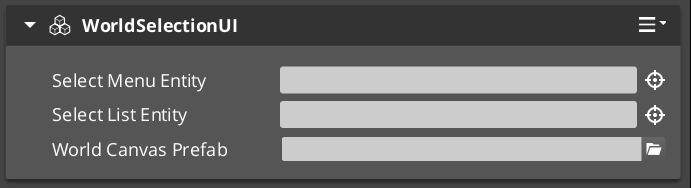
WorldDialogueUISelectionComponent
Extends DialogueUISelectionComponent for world-space rendering. Displays selection options as in-world UI elements attached to performer entities. Shares the same DialogueUISelectionRequestBus interface as the base class.
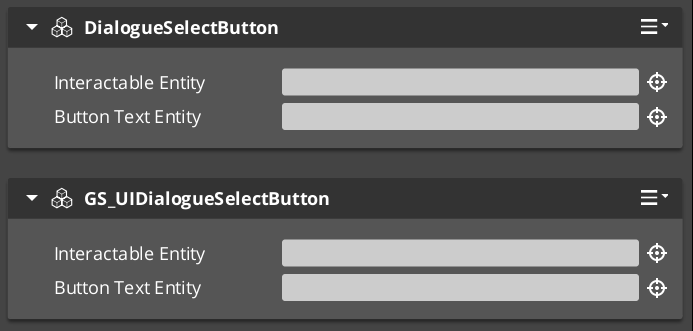
An individual button within a selection menu. One instance is spawned per valid option. The button displays option text and forwards press events to the parent selection component.
| Method | Parameters | Returns | Description |
|---|
SetupOption | const SelectionOption& option, int index | void | Configures the button with display text and its index in the selection list. |
GetInteractableEntity | – | AZ::EntityId | Returns the LyShine interactable entity used for input detection. |
TypewriterComponent
Character-by-character text reveal system. The typewriter receives a full text string and reveals it one character at a time at a configurable speed. It fires events on each character reveal and when the full text has been displayed. The typewriter is used internally by DialogueUIComponent but can also be used independently for any text reveal effect.
For detailed usage and standalone setup, see the Typewriter sub-page.
Request Bus: TypewriterRequestBus
| Method | Parameters | Returns | Description |
|---|
StartTypewriter | const AZStd::string& text, float speed | void | Begins revealing the given text at the specified characters-per-second speed. |
ForceComplete | – | void | Immediately reveals all remaining text. Fires OnTypewriterComplete. |
ClearTypewriter | – | void | Clears all displayed text and resets the typewriter state. |
Notification Bus: TypewriterNotificationBus
Multiple handler bus.
| Event | Parameters | Description |
|---|
OnTypeFired | char character | Fired each time a character is revealed. Used by the BabbleComponent to synchronize audio. |
OnTypewriterComplete | – | Fired when all characters have been revealed, either naturally or via ForceComplete. |
BabbleComponent
Procedural audio babble that plays in sync with the typewriter. Each character reveal from OnTypeFired can trigger a short audio event, creating a character-by-character speech sound. Different speakers can have different babble tones.
Request Bus: BabbleRequestBus
| Method | Parameters | Returns | Description |
|---|
GetBabbleEvent | const AZStd::string& speakerName | BabbleToneEvent | Returns the babble audio event associated with the given speaker. |
Data Types
| Type | Description |
|---|
| BabbleToneEvent | A single audio event reference (FMOD or Wwise event) that represents one character’s babble sound. |
| SpeakerBabbleEvents | A mapping of speaker names to BabbleToneEvent instances. Stored on the BabbleComponent and queried at runtime. |
Setup Guide
Screen-Space Dialogue
- Create a UI canvas entity with your dialogue layout (speaker name text, portrait image, dialogue text area).
- Attach a DialogueUIComponent to the entity.
- Attach a TypewriterComponent to the text entity (or the same entity).
- Optionally attach a BabbleComponent and configure speaker babble events.
- Attach a DialogueUISelectionComponent to a separate entity (or the same canvas) for player choices.
- Register the UI entity with
DialogueUIBridgeRequestBus::RegisterDialogueUI(uiEntityId).
World-Space Dialogue
- Follow the same steps as screen-space, but use WorldDialogueUIComponent and WorldDialogueUISelectionComponent instead.
- The world-space components will track the performer entity’s position automatically.
- Register the UI entity with the bridge the same way.
Swapping between screen-space and world-space at runtime requires only changing which UI entity is registered with the bridge. No sequencer or dialogue data changes are needed.
See Also
For conceptual overviews and usage guides:
For component references:
For related resources:
Get GS_Cinematics
GS_Cinematics — Explore this gem on the product page and add it to your project.
2.4.1 - Typewriter
Full API reference for the TypewriterComponent — character-by-character text reveal with configurable speed, force-complete, and notification events.
The TypewriterComponent provides character-by-character text reveal for dialogue display. It receives a string and a speed value, then reveals one character at a time on tick. It fires a notification on every character reveal and again when the full text is complete. The component is used internally by the DialogueUIComponent but can also be attached to any text entity independently for non-dialogue text effects.
For usage guides and setup examples, see The Basics: GS_Cinematics.

Contents
Request Bus: TypewriterRequestBus
Entity-addressed bus.
| Method | Parameters | Returns | Description |
|---|
StartTypewriter | const AZStd::string& text, float speed | void | Begins revealing the given text. speed is in characters per second. The component connects to TickBus and reveals characters on each tick. |
ForceComplete | – | void | Immediately reveals all remaining text. Fires OnTypewriterComplete. Useful when the player presses a button to skip the reveal. |
ClearTypewriter | – | void | Clears all displayed text and resets the internal state. Disconnects from TickBus. |
Notification Bus: TypewriterNotificationBus
Multiple handler bus – any number of listeners can connect.
| Event | Parameters | Description |
|---|
OnTypeFired | char character | Fired each time a single character is revealed. The BabbleComponent listens to this event to trigger per-character audio. Custom effects (particles, screen shake, emphasis) can also listen here. |
OnTypewriterComplete | – | Fired when all characters have been revealed, either through normal tick-based reveal or through ForceComplete. The dialogue UI listens for this to know when the line is fully displayed. |
How It Works
- A caller (typically
DialogueUIComponent) calls StartTypewriter(text, speed). - The component runs
ParseFormattedText on the input string, stripping inline [command] tags and building an internal command schedule — pauses, speed changes, and style runs are all resolved before the first tick. - The component stores the parsed text, resets its character index to zero, and connects to
TickBus. - On each tick, the component calculates how many characters should be visible based on elapsed time and the current speed. For each newly revealed character it fires
OnTypeFired(character). Scheduled commands (pauses, speed changes, style tags) execute when their character position is reached. - The component updates the associated LyShine text element — style tags (
[color], [b], etc.) are output as LyShine <font> / <b> / <i> markup inside the visible string. - When the last character is revealed, the component fires
OnTypewriterComplete and disconnects from TickBus. - If
ForceComplete is called mid-reveal, all remaining characters are revealed at once, OnTypewriterComplete fires, and the tick handler disconnects.
Text Command Reference
Inline commands are embedded directly in dialogue text strings and parsed by ParseFormattedText before reveal begins. Commands do not appear in the displayed text.
Format: [command=value] to open, [/command] to close where applicable.
[pause=X]
Pause the reveal for X seconds before continuing. If no value is given, defaults to 1.0 second. No closing tag.
[speed=X] / [/speed]
Change the typing speed to X characters per second from this point forward. [/speed] resets to the component’s configured default speed. Setting speed=0 causes all following text to appear instantly until the next speed tag.
Normal text [speed=5]fast text[/speed] normal again.
[color=VALUE] / [/color]
Change text colour. VALUE is any valid LyShine <font color> value — hex (#FF0000) or a named colour. Outputs <font color="VALUE">…</font> to the text element. Styles are tracked on a stack so nested formatting closes correctly.
Regular [color=#FF4444]danger text[/color] back to normal.
[size=VALUE] / [/size]
Change font size. VALUE is a numeric point size (e.g. 32). Outputs <font size="VALUE">…</font> to the text element.
Normal [size=48]big text[/size] normal.
[bold] or [b] / [/bold] or [/b]
Apply bold formatting. Both bold and b are valid keywords. Outputs <b>…</b>.
This is [b]bold[/b] text.
[italic] or [i] / [/italic] or [/i]
Apply italic formatting. Both italic and i are valid keywords. Outputs <i>…</i>.
This is [i]italic[/i] text.
[n] or [new]
Insert a newline character. No closing tag. Both n and new are valid.
First line[n]Second line.
Standalone Usage
The typewriter is not limited to dialogue. You can attach it to any entity with a LyShine text element for effects like:
- Tutorial text that types out instructions
- Item descriptions that reveal on hover
- Narrative text during loading screens
- Any text that benefits from a gradual reveal
Setup
- Create an entity with a LyShine text component.
- Attach a TypewriterComponent to the same entity.
- Call
TypewriterRequestBus::Event(entityId, &TypewriterRequestBus::Events::StartTypewriter, text, speed) from C++ or ScriptCanvas. - Optionally listen to
TypewriterNotificationBus for per-character or completion events.
C++ Usage
#include <GS_Cinematics/GS_CinematicsBus.h>

// Start typewriter on a specific entity
AZ::EntityId textEntity = /* your text entity */;
GS_Cinematics::TypewriterRequestBus::Event(
    textEntity,
    &GS_Cinematics::TypewriterRequestBus::Events::StartTypewriter,
    AZStd::string("Hello, traveler. Welcome to the village."),
    12.0f  // 12 characters per second
);

// Force-complete if the player presses a button
GS_Cinematics::TypewriterRequestBus::Event(
    textEntity,
    &GS_Cinematics::TypewriterRequestBus::Events::ForceComplete
);
Script Canvas
Typewriter requests and notification events:
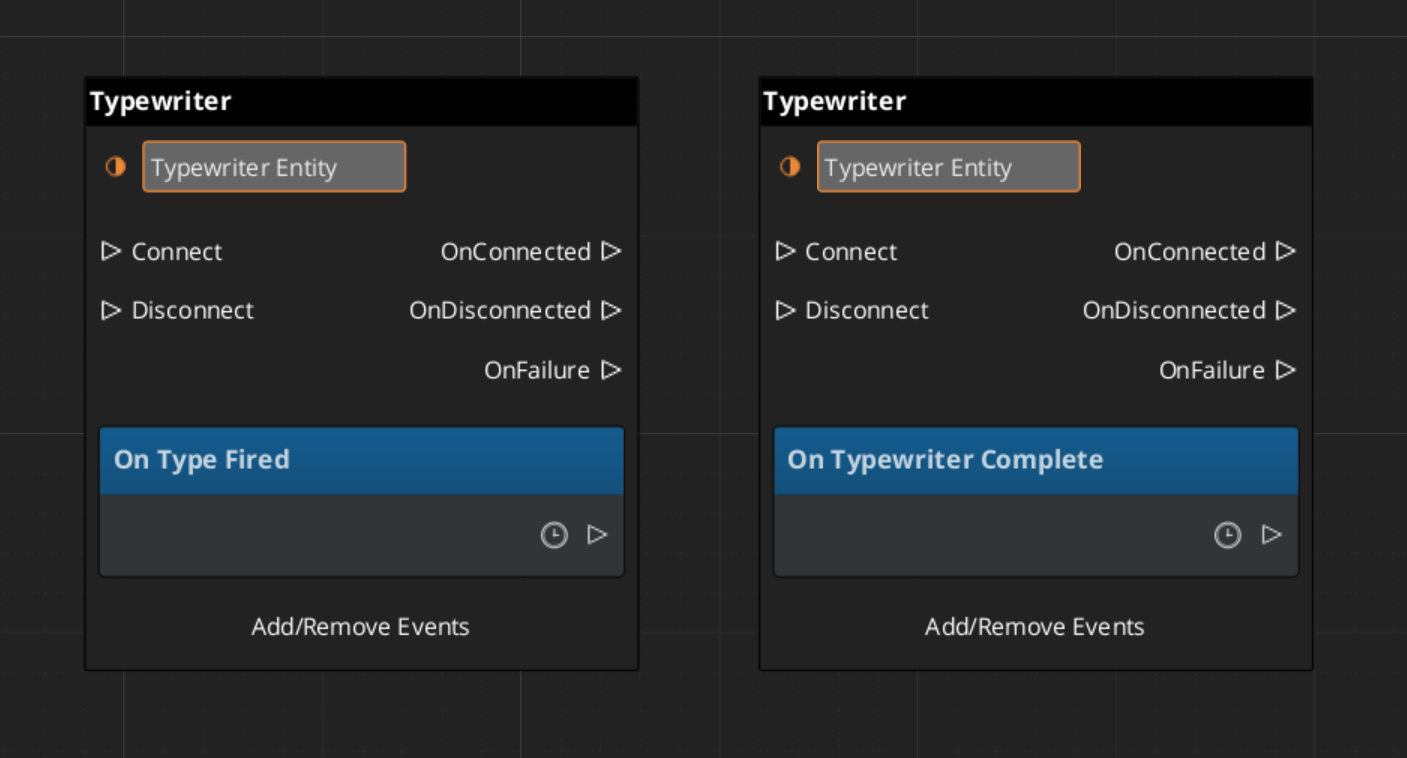
See Also
For conceptual overviews and usage guides:
For component references:
Get GS_Cinematics
GS_Cinematics — Explore this gem on the product page and add it to your project.
2.5 - Dialogue Actors
Full API reference for DialoguePerformerMarkerComponent, ActorDefinition data model, and the performer registration and lookup system.
Dialogue Actors connect authored character data in the .dialoguedb asset to world-space entities in the level. The system has two halves:
- ActorDefinition – The data side. Defined in the DialogueDatabase, it holds the actor’s name, portrait, and metadata.
- DialoguePerformerMarkerComponent – The world side. Attached to an entity in the level, it registers a named performer with the Dialogue Manager so the sequencer can find it at runtime.
When a dialogue sequence references an actor by name, the sequencer looks up the matching performer entity through DialogueManagerRequestBus::GetPerformer(name). This links the authored text, portraits, and performance instructions to a specific entity in the world.
For usage guides and setup examples, see The Basics: GS_Cinematics.
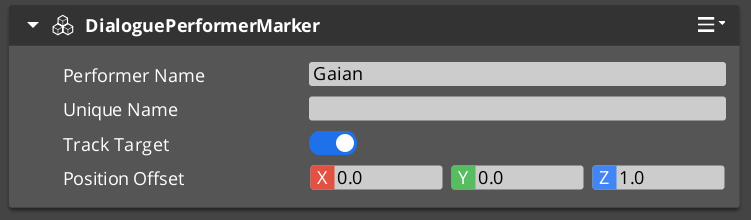
A component placed on any entity that represents a dialogue performer in the level. On Activate(), the marker registers itself with the Dialogue Manager by name. Multiple performers with the same name can exist in different levels, but only one should be active at a time within a single level.
Entity-addressed bus – each marker entity responds on its own address.
| Method | Parameters | Returns | Description |
|---|
GetPerformerName | – | AZStd::string | Returns the performer’s registered name. This name must match the actor name in the dialogue database. |
GetPosEntity | – | AZ::EntityId | Returns the entity to use as the performer’s position source. Typically the marker entity itself, but can point to a child entity for offset control. |
GetPosPoint | – | AZ::Vector3 | Returns the performer’s current world-space position. |
ShouldTrackTarget | – | bool | Returns whether the performer entity should continuously track and face its dialogue target during a sequence. |
ActorDefinition Data Model
The ActorDefinition is the authored data for a single character, stored inside the DialogueDatabase.
| Property | Type | Description |
|---|
| TypeId | {1A2B3C4D-5E6F-7A8B-9C0D-1E2F3A4B5C6D} | |
| Actor Name | AZStd::string | Internal lookup name. Must match the performer marker name in the level. |
| Display Name | AZStd::string | The name shown to the player in dialogue UI. Can differ from the internal name. |
| Portrait | Asset reference | Default portrait image. Overridden per-node in TextNodeData when needed. |
| Emotion Categories | AZStd::vector | Groupings of emotional states (e.g. happy, angry, sad). Used to organize profile images and poses. |
| Profile Image Sets | AZStd::vector | Sets of portrait images keyed by emotion or attitude. The sequencer can switch profiles during dialogue. |
| Pose Sets | AZStd::vector | Sets of body poses and idle animations keyed by attitude. Referenced by performance nodes. |
Registration Flow
- A
DialoguePerformerMarkerComponent activates on an entity in the level. - During
Activate(), the component calls DialogueManagerRequestBus::RegisterPerformerMarker(name, entityId). - The Dialogue Manager stores the mapping from name to entity ID.
- When the component deactivates, it unregisters itself.
Lookup Flow
- The sequencer processes a node that references an actor name (e.g. a
TextNodeData with speaker “perry” or a PerformanceNodeData targeting “perry”). - The sequencer calls
DialogueManagerRequestBus::GetPerformer("perry"). - The Dialogue Manager returns the registered entity ID.
- The sequencer (or performance) can now query the performer’s position, facing, and tracking state through
PerformerMarkerRequestBus.
The actorTargetId field on node data allows a sequence to target a specific instance of a performer when multiple entities share the same actor name. This supports scenarios like having the same NPC appear in multiple locations across different levels while keeping the same actor definition in the database.
Setup
- In your
.dialoguedb asset, define an actor with a unique name (e.g. “perry”) using the Dialogue Editor. - In your level, create an entity and attach a DialoguePerformerMarkerComponent.
- Set the marker’s performer name to match the actor name in the database (e.g. “perry”).
- Position the entity where the performer should appear in the world.
- Optionally, add child entities for position offsets or attach visual representation (mesh, animation) to the same entity.
The marker entity will self-register with the Dialogue Manager on activation. The sequencer can now find this performer when processing sequences that reference the matching actor name.
Script Canvas Examples
Getting a performer’s name and world position:
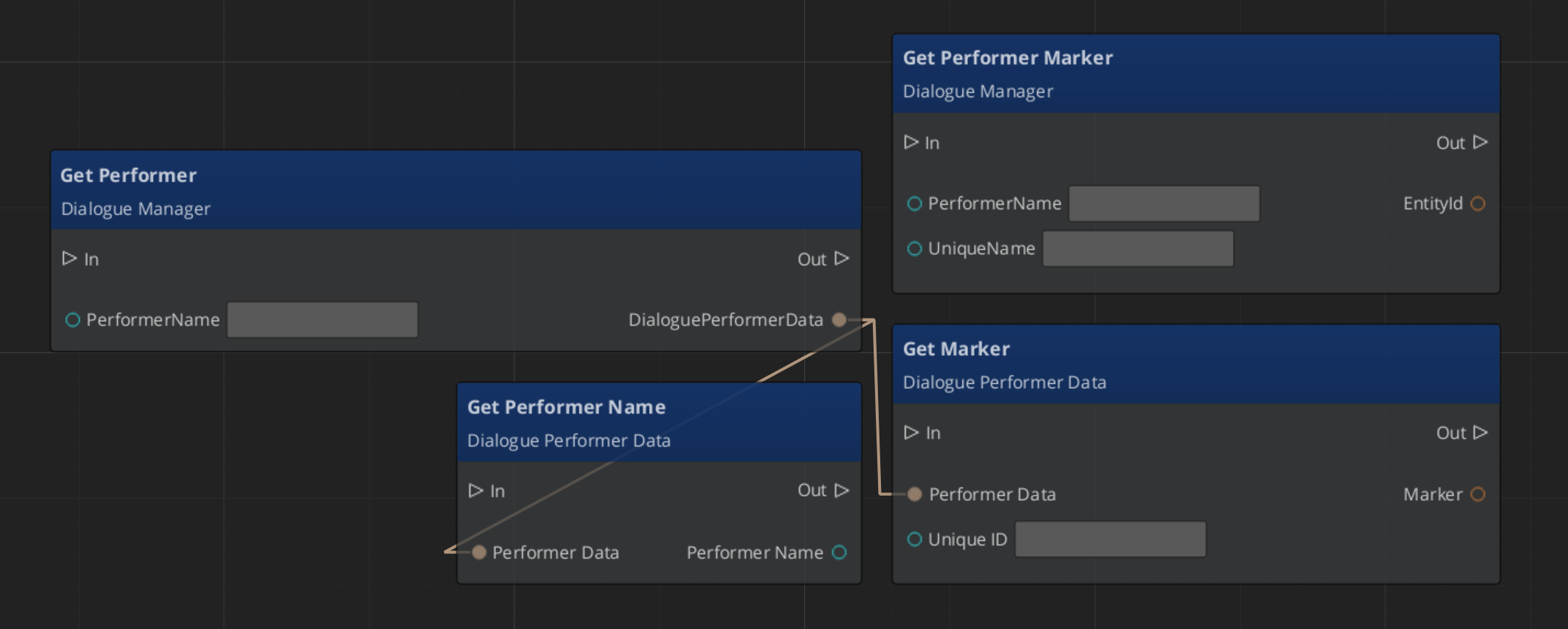
See Also
Get GS_Cinematics
GS_Cinematics — Explore this gem on the product page and add it to your project.
2.6 - Effects
Full API reference for the DialogueEffect base class and built-in effect types — SetRecords and ToggleEntitiesActive.
Effects are synchronous actions executed from EffectsNodeData nodes within a dialogue sequence. When the Dialogue Sequencer encounters an Effects node, it calls DoEffect() on each DialogueEffect in the node’s list in order, then immediately advances to the next node.
All effects are polymorphic — extending the base class automatically populates the effects list in the dialogue editor at startup.
For usage guides and setup examples, see The Basics: GS_Cinematics.
Contents
DialogueEffect (Abstract Base)
The base class for all dialogue effects. Effects execute synchronously and can be reversed for rollback scenarios.
| Property | Type | Description |
|---|
| TypeId | {71E2E05E-A7A3-4EB3-8954-2F75B26D5E3A} | |
Virtual Methods
| Method | Description |
|---|
DoEffect() | Executes the effect. Called by the sequencer when the EffectsNodeData is processed. |
ReverseEffect() | Undoes the effect. Used for rollback or undo scenarios. |
Lifecycle
- The sequencer encounters an
EffectsNodeData node. - The sequencer calls
DoEffect() on each effect in the node’s list in order. - All effects complete synchronously within the same frame.
- The sequencer immediately advances to the next node.
SetRecords_DialogueEffect
Sets one or more game records in the GS_Save RecordKeeper system. Commonly used to flag quest progress, NPC disposition, or world state changes triggered by dialogue.
| Property | Type | Description |
|---|
| TypeId | {FFCACF63-0625-4EE5-A74B-86C809B7BF80} | |
| Records | AZStd::vector<RecordEntry> | List of record name/value pairs to set on execution. |
ToggleEntitiesActive_DialogueEffect
Activates or deactivates a list of entities in the level. Used to show or hide objects, enable or disable triggers, or change world state during dialogue.
| Property | Type | Description |
|---|
| TypeId | {F97E1B87-EE7A-4D26-814C-D2F9FA810B28} | |
| Entities | AZStd::vector<AZ::EntityId> | The entities to activate or deactivate. |
| Active | bool | Target active state: true to activate, false to deactivate. |
Complete Effect Type Reference
| Type | TypeId | Description |
|---|
DialogueEffect | {71E2E05E-A7A3-4EB3-8954-2F75B26D5E3A} | Abstract base |
SetRecords_DialogueEffect | {FFCACF63-0625-4EE5-A74B-86C809B7BF80} | Sets game records |
ToggleEntitiesActive_DialogueEffect | {F97E1B87-EE7A-4D26-814C-D2F9FA810B28} | Activates/deactivates entities |
Creating a Custom Effect
To add a custom effect type from an external gem:
1. Define the class
#pragma once
#include <GS_Cinematics/Dialogue/Effects/DialogueEffect.h>

namespace MyGem
{
    class PlaySound_DialogueEffect : public GS_Cinematics::DialogueEffect
    {
    public:
        AZ_RTTI(PlaySound_DialogueEffect, "{YOUR-UUID-HERE}", GS_Cinematics::DialogueEffect);
        AZ_CLASS_ALLOCATOR(PlaySound_DialogueEffect, AZ::SystemAllocator);

        static void Reflect(AZ::ReflectContext* context);

        void DoEffect() override;
        void ReverseEffect() override;

    private:
        AZStd::string m_soundEvent;
    };
}
2. Implement and reflect
#include "PlaySound_DialogueEffect.h"
#include <AzCore/Serialization/SerializeContext.h>

namespace MyGem
{
    void PlaySound_DialogueEffect::Reflect(AZ::ReflectContext* context)
    {
        if (auto sc = azrtti_cast<AZ::SerializeContext*>(context))
        {
            sc->Class<PlaySound_DialogueEffect, GS_Cinematics::DialogueEffect>()
                ->Version(1)
                ->Field("SoundEvent", &PlaySound_DialogueEffect::m_soundEvent);

            if (auto ec = sc->GetEditContext())
            {
                ec->Class<PlaySound_DialogueEffect>("Play Sound", "Fires a sound event during dialogue.")
                    ->ClassElement(AZ::Edit::ClassElements::EditorData, "")
                        ->Attribute(AZ::Edit::Attributes::Category, "MyGem/Effects")
                    ->DataElement(AZ::Edit::UIHandlers::Default, &PlaySound_DialogueEffect::m_soundEvent, "Sound Event", "");
            }
        }
    }

    void PlaySound_DialogueEffect::DoEffect()
    {
        // Fire the sound event
    }

    void PlaySound_DialogueEffect::ReverseEffect()
    {
        // Stop the sound if needed
    }
}
Custom effects are discovered automatically at startup through O3DE serialization — no manual registration step is required.
See Also
For conceptual overviews and usage guides:
For component references:
For related resources:
Get GS_Cinematics
GS_Cinematics — Explore this gem on the product page and add it to your project.
2.7 - Performances
Full API reference for the DialoguePerformance base class and built-in performance types — MoveTo, PathTo, and RepositionPerformer.
Performances are asynchronous actions executed from PerformanceNodeData nodes within a dialogue sequence. When the Dialogue Sequencer encounters a performance node, it instantiates the appropriate DialoguePerformance subclass, starts it, and waits for it to signal completion before advancing to the next node.
All performances are polymorphic by extending the class they automatically populate the performances list when adding performances to a node.
For usage guides and setup examples, see The Basics: GS_Cinematics.
Contents
The base class for all dialogue performances. Extends AZ::TickBus::Handler so that performances can drive time-based behavior across multiple frames.
| Property | Type | Description |
|---|
| TypeId | {BCCF5C52-42C3-49D4-8202-958120EA8743} | |
| Tick Handler | AZ::TickBus::Handler | Performances connect to TickBus during execution for frame-by-frame updates. |
Virtual Methods
| Method | Description |
|---|
DoPerformance() | Entry point called by the sequencer. Sets up the performance and calls ExecutePerformance(). |
ExecutePerformance() | Core execution logic. Override this in subclasses to implement the actual behavior (movement, animation, etc.). |
FinishPerformance() | Called when the performance is complete. Disconnects from TickBus and signals the sequencer via DialogueSequencerRequestBus::OnPerformanceComplete(). |
- The sequencer encounters a
PerformanceNodeData and instantiates the corresponding DialoguePerformance subclass. - The sequencer calls
DoPerformance(). DoPerformance() connects to TickBus and calls ExecutePerformance().- The performance runs across multiple ticks until its completion condition is met.
- The performance calls
FinishPerformance(), which disconnects from TickBus and notifies the sequencer. - The sequencer advances to the next node.
Moves a performer entity to a named stage marker position over time using direct interpolation (no navmesh). Suitable for short-distance movements within a scene where pathfinding is unnecessary.
| Property | Type | Description |
|---|
| TypeId | {6033A69D-F46F-40DF-A4A0-A64C4E28D6D5} | |
| Target | Stage marker name | The destination position, resolved through CinematicsManagerRequestBus::GetStageMarker(). |
| Speed / Duration | float | Controls how quickly the performer reaches the target. |
Request Bus: MoveTo_PerformanceRequestBus
| Method | Parameters | Returns | Description |
|---|
StartMoveTo | AZ::EntityId performer, AZ::Vector3 target, float speed | void | Begins moving the performer entity toward the target position. |
Notification Bus: MoveTo_PerformanceNotificationBus
| Event | Description |
|---|
OnMoveToComplete | Fired when the performer reaches the target position. The performance calls FinishPerformance() in response. |
Navigates a performer entity to a named stage marker along a RecastNavigation navmesh path. Suitable for longer-distance movements where the performer must navigate around obstacles. Requires RecastNavigation to be enabled in the project.
| Property | Type | Description |
|---|
| TypeId | {C0DF4B0E-924D-4C38-BD26-5A286161D95C} | |
| Target | Stage marker name | The destination position, resolved through CinematicsManagerRequestBus::GetStageMarker(). |
| Navigation | RecastNavigation | Uses the navmesh to compute a valid path from the performer’s current position to the target. |
Request Bus: PathTo_PerformanceRequestBus
| Method | Parameters | Returns | Description |
|---|
StartPathTo | AZ::EntityId performer, AZ::Vector3 target | void | Computes a navmesh path and begins navigating the performer toward the target. |
Notification Bus: PathTo_PerformanceNotificationBus
| Event | Description |
|---|
OnPathToComplete | Fired when the performer reaches the end of the computed path. The performance calls FinishPerformance() in response. |
Instantly teleports a performer entity to a named stage marker position. No interpolation, no pathfinding – the entity is moved in a single frame. Useful for off-screen repositioning between scenes or for snapping a performer to a mark before a sequence begins.
| Property | Type | Description |
|---|
| TypeId | {DE1E0930-F0A4-4F60-A741-4FB530610AEE} | |
| Target | Stage marker name | The destination position, resolved through CinematicsManagerRequestBus::GetStageMarker(). |
Notification Bus: RepositionPerformer_PerformanceNotificationBus
| Event | Description |
|---|
OnRepositionComplete | Fired immediately after the performer is teleported. The performance calls FinishPerformance() in the same frame. |
| Type | TypeId | Movement | Navigation |
|---|
DialoguePerformance | {BCCF5C52-42C3-49D4-8202-958120EA8743} | Abstract base | – |
MoveTo_DialoguePerformance | {6033A69D-F46F-40DF-A4A0-A64C4E28D6D5} | Interpolated | None |
PathTo_DialoguePerformance | {C0DF4B0E-924D-4C38-BD26-5A286161D95C} | Navmesh path | RecastNavigation |
RepositionPerformer_DialoguePerformance | {DE1E0930-F0A4-4F60-A741-4FB530610AEE} | Instant teleport | None |
To add a custom performance type from an external gem:
1. Define the class
#pragma once
#include <GS_Cinematics/Dialogue/Performances/DialoguePerformance.h>

namespace MyGem
{
    class PlayAnimation_DialoguePerformance : public GS_Cinematics::DialoguePerformance
    {
    public:
        AZ_RTTI(PlayAnimation_DialoguePerformance, "{YOUR-UUID-HERE}", GS_Cinematics::DialoguePerformance);
        AZ_CLASS_ALLOCATOR(PlayAnimation_DialoguePerformance, AZ::SystemAllocator);

        static void Reflect(AZ::ReflectContext* context);

    protected:
        void ExecutePerformance() override;
        void OnTick(float deltaTime, AZ::ScriptTimePoint time) override;

    private:
        AZStd::string m_animationName;
        bool m_animationComplete = false;
    };
}
2. Implement and register
void PlayAnimation_DialoguePerformance::ExecutePerformance()
{
    // Start the animation on the performer entity
    // Listen for animation completion
}

void PlayAnimation_DialoguePerformance::OnTick(float deltaTime, AZ::ScriptTimePoint time)
{
    if (m_animationComplete)
    {
        FinishPerformance();
    }
}
See Also
For conceptual overviews and usage guides:
For component references:
For related resources:
Get GS_Cinematics
GS_Cinematics — Explore this gem on the product page and add it to your project.
3 - Timeline Expansion
For usage guides and setup examples, see The Basics: GS_Cinematics.
Get GS_Cinematics
GS_Cinematics — Explore this gem on the product page and add it to your project.
4 - Templates
ClassWizard templates for GS_Cinematics — dialogue conditions, effects, and performance objects for the dialogue sequencer.
All GS_Cinematics extension types are generated through the ClassWizard CLI. The wizard handles UUID generation and cmake file-list registration automatically.
For usage guides and setup examples, see The Basics: GS_Cinematics.
python ClassWizard.py \
    --template <TemplateName> \
    --gem <GemPath> \
    --name <SymbolName> \
    [--input-var key=value ...]
Contents
Dialogue Condition
Template: DialogueCondition
Creates a condition object that gates a dialogue node connection at runtime. Assigned to a node’s conditions list in the DialogueDatabase asset. EvaluateCondition() is called before the connected node is offered to the player — return true to allow it, false to hide it.
Two types available via --input-var:
| Option | Description |
|---|
| Basic Condition (default) | Free-form stub — implement EvaluateCondition() however the design requires |
| Boolean Condition | Pre-wired to read a save record key and compare it with GS_Core::BooleanConditions |
Generated files (Basic):
Source/${Name}_DialogueCondition.h/.cpp
Generated files (Boolean):
Source/${Name}_BooleanDialogueCondition.h/.cpp
CLI:
# Basic Condition:
python ClassWizard.py --template DialogueCondition --gem <GemPath> --name <Name> \
    --input-var condition_type="Basic Condition"

# Boolean Condition:
python ClassWizard.py --template DialogueCondition --gem <GemPath> --name <Name> \
    --input-var condition_type="Boolean Condition"
Post-generation — manual registration required:
In DialogueSequencerComponent.cpp, add:
#include <path/to/${Name}_DialogueCondition.h>
// inside Reflect(context):
${Name}_DialogueCondition::Reflect(context);
Extensibility: Fully polymorphic. The conditions list on each DialogueNodeData holds DialogueCondition* raw pointers — O3DE’s property editor type picker discovers all registered subtypes via EnumerateDerived. Add as many condition types as needed; they appear in the picker automatically once reflected.
See also: Dialogue Data Structure — full extension walkthrough with header and implementation examples.
Dialogue Effect
Template: DialogueEffect
Creates an effect object that fires world events when the sequencer reaches an Effects node. If the node’s temporary flag is set, ReverseEffect() is called at sequence end to undo the change. Used for enabling/disabling lights, playing sounds, showing UI, or changing world state during dialogue.
Generated files:
Source/${Name}_DialogueEffect.h/.cpp
CLI:
python ClassWizard.py --template DialogueEffect --gem <GemPath> --name <Name>
Post-generation — manual registration required:
In DialogueSequencerComponent.cpp, add:
#include <path/to/${Name}_DialogueEffect.h>
// inside Reflect(context):
${Name}_DialogueEffect::Reflect(context);
Key overrides:
| Method | When called |
|---|
DoEffect() | When the Effects node is reached in the sequence |
ReverseEffect() | At sequence end, only if the node’s temporary flag is true |
Extensibility: Same polymorphic pattern as DialogueCondition. The effects list holds DialogueEffect* pointers. All reflected subtypes appear in the editor type picker automatically.
See also: Dialogue Data Structure — full extension walkthrough.
Template: DialoguePerformance
Creates a performance object that drives world-space NPC actions from a Performance node in the dialogue sequence. The sequencer waits at the node until all performances signal completion (unless waitToContinue is false). Used for NPC movement, animation, repositioning, or any async world action that must complete before the dialogue continues.
Generated files:
Source/${Name}_DialoguePerformance.h/.cpp
CLI:
python ClassWizard.py --template DialoguePerformance --gem <GemPath> --name <Name>
Post-generation — manual registration required:
In DialogueSequencerComponent.cpp, add:
#include <path/to/${Name}_DialoguePerformance.h>
// inside Reflect(context):
${Name}_DialoguePerformance::Reflect(context);
Lifecycle:
| Method | Role |
|---|
ExecutePerformance() | Entry point — start the world action here |
FinishPerformance() | Call when the action is done (may be async); clean up state, then call base |
PerformanceComplete() | Called by base after FinishPerformance() — signals the sequencer to advance |
Inherited fields: delayStartTime (seconds before ExecutePerformance is called), delayEndTime (seconds before PerformanceComplete fires after finish).
For instant actions, call FinishPerformance() at the end of ExecutePerformance(). For async actions, store a callback or subscribe to a bus and call FinishPerformance() from the completion handler.
Extensibility: Same polymorphic pattern as the other dialogue types. The performances list on a Performance node holds DialoguePerformance* pointers. All reflected subtypes appear in the editor picker automatically.
See also: Dialogue Data Structure — full extension walkthrough.
See Also
For the full API, component properties, and C++ extension guide:
For all ClassWizard templates across GS_Play gems:
Get GS_Cinematics
GS_Cinematics — Explore this gem on the product page and add it to your project.
5 - 3rd Party Implementations
For usage guides and setup examples, see The Basics: GS_Cinematics.
Get GS_Cinematics
GS_Cinematics — Explore this gem on the product page and add it to your project.