Audio Pro
GS_AudioPro — the premium audio gem. Visual graph authoring, procedural scoring, Klatt voice synthesis and geometric acoustics, layered onto everything the free gem already does.
GS_AudioPro is the premium audio gem. It requires GS_Audio and extends it — every base feature keeps working exactly as documented, and Pro adds four capabilities of its own.
The split is authoring and acoustics, not audio quality
Pro does not unlock a better signal path. The free gem already carries all 22 DSP effects and the same HRTF spatialization. What Pro adds is a visual canvas to author with, music and speech generation, and acoustics computed from your level’s geometry.
Contents
How Pro Attaches to the Base Gem
GS_ProAudioManagerComponent subclasses the base Audio Manager, which in turn subclasses GS_ManagerComponent. It declares itself incompatible with the base manager, so the two cannot coexist on one entity — a project runs one or the other.
Pro never reaches into the base gem’s internals. It fetches primitives across the accessor seam — the engine, the node graph, the output endpoint, volume channels, the shared Steam Audio context — and attaches its own nodes to them.
Two accessors run the other way, and they are the whole enrichment mechanism:
- Pro registers its spatial simulator, and the base gem’s per-voice spatializer starts consuming occlusion values from it.
- Pro exposes a reverb send, and base voices tap into it to feed geometry-driven reverb.
Both are null in a base-only install. The interface they are typed against is declared in the base gem and implemented in Pro — base defines the socket, Pro supplies the plug, and nothing breaks when the plug is absent.
Configuration follows the same shape. The base project settings stay where they are; Pro adds its geometry settings additively on the Pro manager. The base gem never reflects Pro’s knobs.
Enabling Audio Pro
- Enable the GS_AudioPro gem alongside GS_Audio.
- Put the Pro Audio Manager component on your manager prefab in place of the base one.
- Assign your graph libraries and score tracks on that component.
Everything the base manager configures — volume channels, event libraries, project settings — is authored on the Pro component too, since it inherits them. Pro’s geometry settings appear alongside them.
A project runs one manager or the other; the two cannot coexist on an entity.
Bus Map
| Bus | Gem | Carries |
|---|
AudioManagerRequestBus | Base | Listener, event libraries, PlayEvent*, volume, mixing, mix effect routing |
AudioGraphRequestBus | Pro | Everything to do with .audiograph documents |
AudioGraphPlayerRequestBus | Pro | Per-entity graph playback, addressed by entity |
AudioScoreRequestBus | Pro | Everything to do with score arrangements |
KlattVoiceSystemRequestBus / KlattVoiceRequestBus | Pro | Voice synthesis, system-wide and per-entity |
In ScriptCanvas, Pro’s nodes sit under the GS_Play/GS_AudioPro category, with each bus grouped under its own feature name. Base nodes remain under GS_Play/GS_Audio.
Features
Audio Event Graph
Build a sound as a node graph — sources, filters, effects and conditional routing on a canvas, with a Start / Loop / Finish phase lifecycle and runtime variables that reshape the sound while it plays. The same DSP processors the base gem exposes as mix effects appear here as nodes.
Audio Event Graph
Score Arrangement
Multi-layer music assets. An arrangement defines time signature, tempo and fade behaviour and holds layers that can be brought in and out independently, so the score follows game state instead of looping past it.
Score Arrangement
Klatt Voice Synthesis
Formant text-to-speech with 3D spatial audio. It generates voice from parameters rather than playing recordings, so a project can give hundreds of characters distinct voices with no audio assets and no recording sessions.
Klatt Voice
Geometric Acoustics
Sound occluded by the geometry between it and the listener, and reverb derived from the room the listener is actually standing in — driven by authored acoustic volumes and O3DE shapes with material presets.
Geometric Acoustics
See Also
For the base gem this builds on:
For conceptual overviews and usage guides:
Get GS_Audio
GS_Audio — Explore this gem on the product page and add it to your project.
1 - Audio Event Graph
Visual graph editor for authoring complex sound events with filters, effects, routing, and phase lifecycle.
GS_AudioPro - premium tier
This feature ships in
GS_AudioPro, the premium audio gem. It requires the free
GS_Audio gem and extends it. See
what lives where.
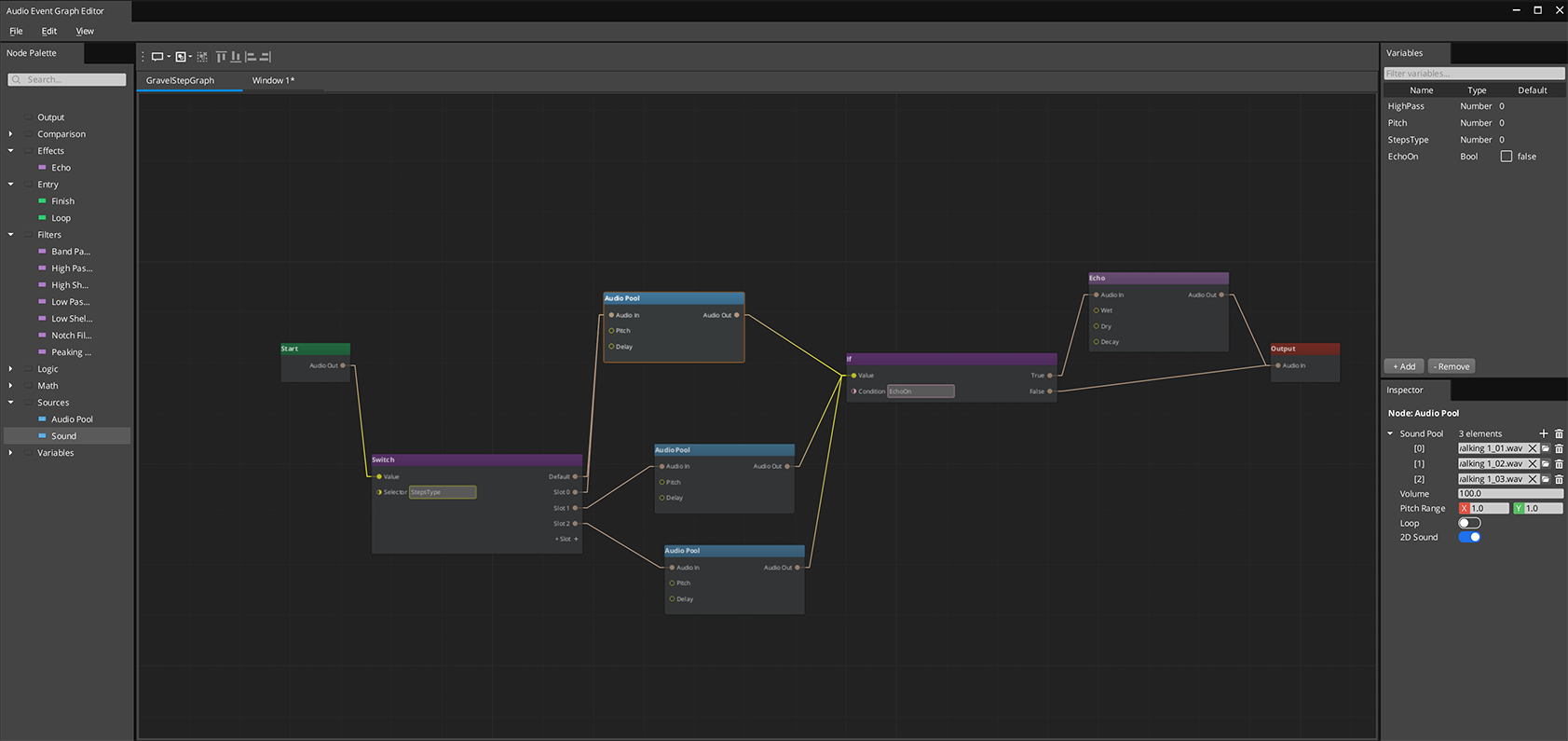
The Audio Event Graph is an FMOD-style visual editor for authoring complex sound events. Each .audiograph file defines one sound event as a node graph — sources, filters, effects, and routing all connected visually. At runtime, the graph maps directly to a miniaudio processing pipeline.
The Audio Event Graph uses the gs_graphcanvas framework with a DataFlowGraph topology. Nodes evaluate in topological order with dirty-propagation — only nodes affected by a change are re-evaluated.
Contents
Opening the Editor
Open the Audio Event Graph editor from the O3DE Editor menu: GS Tools > Audio Event Graph Editor.
Each graph is a standalone .audiograph file — use File > New to create one, or File > Open to load an existing graph. Multiple graphs can be open simultaneously in separate tabs.
How It Works
Audio Event Graphs use a data-flow model. Connections carry AudioRoute values — handles that represent a point in the miniaudio processing chain. The signal flows left to right:
- Entry nodes gate which phase is active (Start, Loop, or Finish)
- Source nodes create sound instances and output an AudioRoute
- Filter and effect nodes process the audio and pass it along
- Routing nodes (If/Switch) direct the signal based on conditions or variables
- The Output node wires the final AudioRoute to a mixing bus
Variables can be set from gameplay code at any time, causing affected nodes to re-evaluate without restarting the entire graph.
Node Catalog
Entry Nodes (Phase Gates)
| Node | Purpose |
|---|
| Aud_StartNode | Active during the Start phase |
| Aud_LoopNode | Active during the Loop phase |
| Aud_FinishNode | Active during the Finish phase |
Entry nodes output a gate signal. Downstream nodes only produce audio when their entry gate is active.
Source Nodes
| Node | Purpose | Key Properties |
|---|
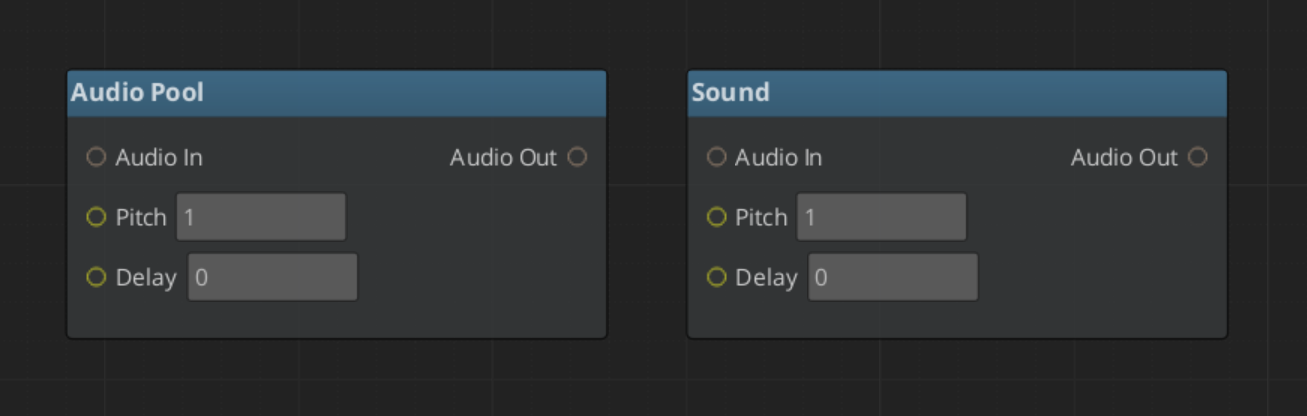
| Aud_SoundNode | Single audio asset playback | Volume, pitch, delay, looping, 3D spatialization |
| Aud_AudioPoolNode | Random selection from a pool of audio assets | Same as SoundNode, plus asset pool list |
| Aud_NoiseNode | Procedural noise generation | Noise colour, duration |
| Aud_SfxrNode | Procedural chiptone from a pool of SFXR profiles | Profile pool, picked at random per fire |
Filter Nodes
| Node | Filter Type |
|---|
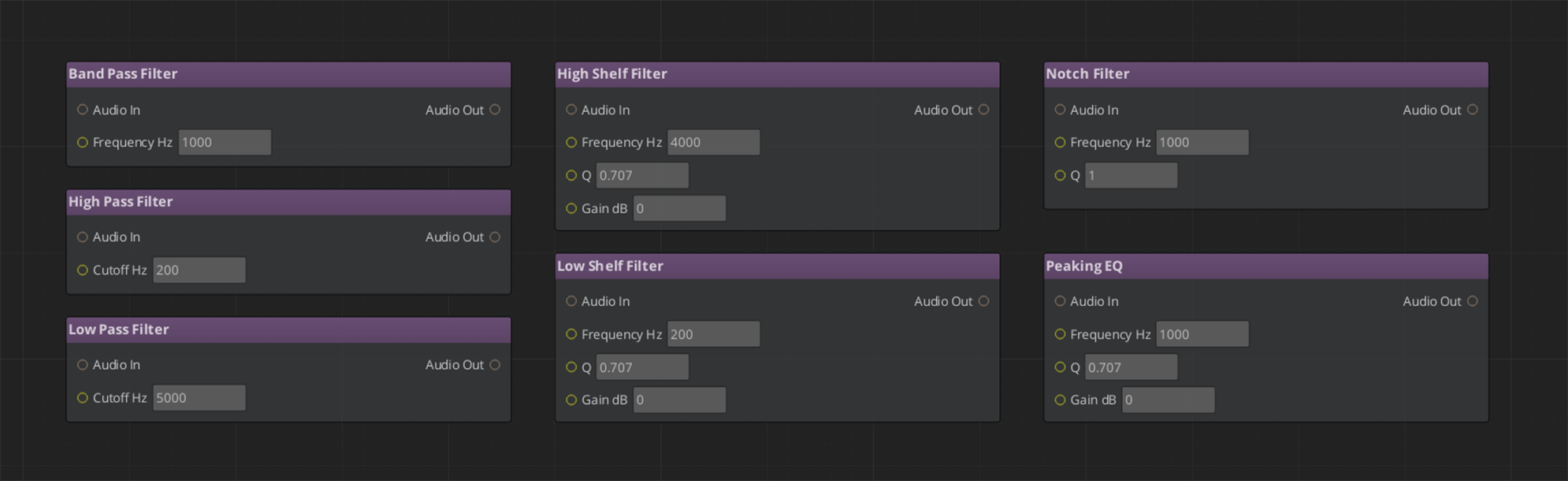
| Aud_LowPassFilterNode | Low-pass filter |
| Aud_HighPassFilterNode | High-pass filter |
| Aud_BandPassFilterNode | Band-pass filter |
| Aud_NotchFilterNode | Notch (band-reject) filter |
| Aud_PeakingEQNode | Peaking EQ |
| Aud_LowShelfFilterNode | Low shelf filter |
| Aud_HighShelfFilterNode | High shelf filter |
All filter nodes take an audio_in input and produce an audio_out output. Filter parameters (cutoff frequency, Q factor, gain) are configurable per-node or bindable to variables.
Time & Space Nodes
| Node | Purpose |
|---|
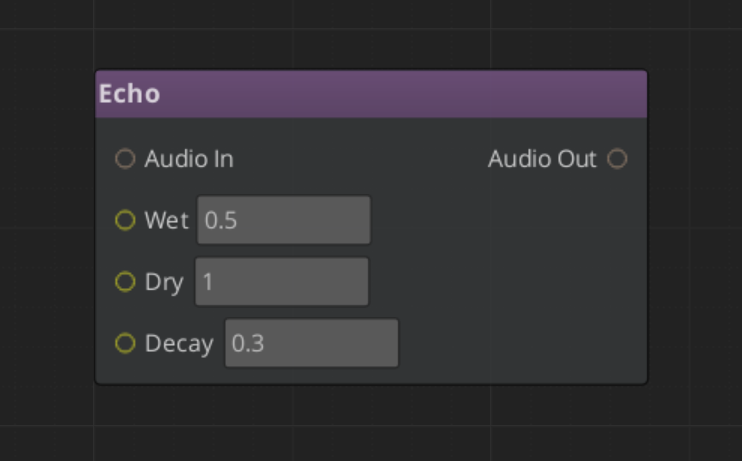
| Aud_EchoNode | Feedback delay — repeats that decay over time |
| Aud_ReverbNode | Simulated room ambience |
Character & Modulation Nodes
| Node | Purpose |
|---|
| Aud_WaveShaperNode | Non-linear distortion and saturation |
| Aud_LofiNode | Bit depth and sample rate reduction |
| Aud_RobotizeNode | Vocoder-style robotic character |
| Aud_FlangerNode | Sweeping comb filtering from a modulated short delay |
| Aud_ChorusNode | Thickening from multiple detuned delayed copies |
| Aud_RingModNode | Ring modulation — metallic, inharmonic tones |
| Aud_TremoloNode | Rhythmic amplitude modulation |
Utility Nodes
| Node | Purpose |
|---|
| Aud_PannerNode | Stereo placement |
| Aud_CompressorNode | Dynamic range compression |
| Aud_DCRemovalNode | Removes DC offset from a signal |
| Aud_AmplifyNode | Straight gain |
These are the same processors the base gem exposes as mix effects — one DSP, two authoring surfaces. Two mix effects have no node form: Binaural, because spatialization is automatic and per-source, and Pitch.
Structure Nodes
| Node | Purpose |
|---|
| Aud_MixNode | Sums several audio routes into one |
| Aud_SplitNode | Fans one audio route out to several destinations |
Routing Nodes
The built-in gs_graphcanvas IfNode and SwitchNode work with AudioRoute values. Use them for conditional audio paths based on game state variables (e.g., play different sounds based on surface type or weather).
Terminal Node
| Node | Purpose |
|---|
| Aud_OutputNode | Wires the final audio chain to the mixing bus |
Every graph needs exactly one Output node.
Adding your own node types
Graph nodes self-register through file-static registrars, which a unity build’s linker can drop if nothing references them — the graph then fails to deserialize with an unregistered class id. The framework pins them with an explicit link anchor in its system components. If you extend the node set, your nodes must be added to that anchor, and reflected in both the client and editor modules.
Phase Lifecycle
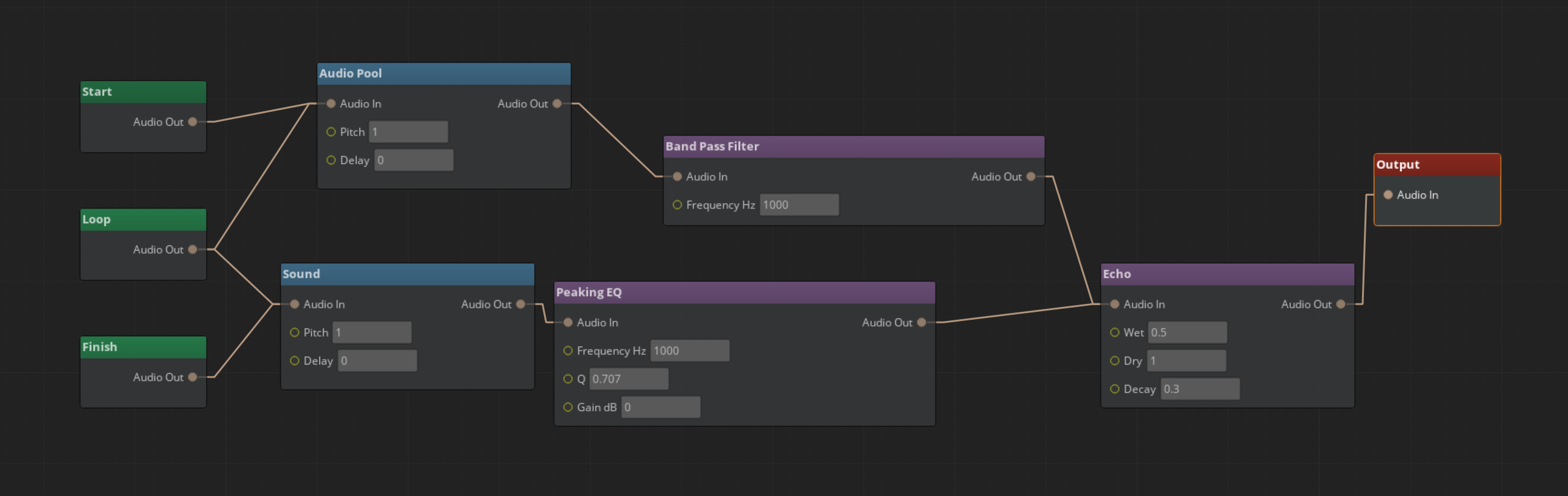
Audio Event Graphs support a three-phase lifecycle for structured sound playback:
- Start — Initial playback. The Aud_StartNode gate is active. One-shot intro sounds play here.
- Loop — Repeating section. The Aud_LoopNode gate is active. Ambient loops and sustained sounds live here.
- Finish — Outro/tail. The Aud_FinishNode gate is active. Fade-outs and release tails play here.
Phases transition automatically: Start plays once, then Loop repeats (if looping is enabled), then Finish plays when FinishAudioGraph() is called. Not all phases are required — a simple one-shot sound only needs a Start node.
Notice that the Entry nodes share routing. The system determines the final sound stemming from the specific entry with no limits to crossover.
Using Variables
Variables let gameplay code control sound behavior at runtime. Common uses:
- Filter parameters — Bind a filter’s cutoff frequency to a variable, then adjust it from code (e.g., underwater muffling)
- Routing conditions — Use a variable as the condition for an If/Switch node to select different sound paths
- Source selection — Gate different source nodes based on game state
Declare variables in the Variable Panel, then either bind them to input slots (right-click > Convert to Reference) or use Get/Set variable nodes.
At runtime, set variables via the Audio Manager API:
AudioManagerRequestBus::Broadcast(&AudioManagerRequests::SetAudioGraphVariable, instanceId, "underwater", 0.8f);
Setting a variable marks dependent nodes dirty and re-evaluates only the affected portion of the graph.
Extending with Custom Nodes
To add a custom audio node:
- Create a class inheriting from
BaseNode and IDataFlowNode - Register it with
GS_AUTO_REGISTER_NODE_FOR(MyAudioNode, "audiograph") - Implement
Process(GraphExecutionContext& context) - Follow the empty any pattern for inactive outputs:
void MyAudioNode::Process(GraphExecutionContext& context)
{
    auto inputAny = context.GetInputValueAny(this, "audio_in");
    if (inputAny.empty())
    {
        context.SetOutputValueAny(this, "audio_out", AZStd::any{});  // CRITICAL: truly empty
        return;
    }
    // Process audio...
    context.SetOutputValue(this, "audio_out", outputRoute);
}
The empty any pattern ensures that inactive paths don’t mask valid audio from other connections in multi-input slots.
For full details on node creation, see gs_graphcanvas Nodes.
Playing a Graph
There are three ways to reach a graph. They form an escalation ladder — most projects should use the last one.
| Approach | Surface | Use when |
|---|
| Player component | AudioGraphPlayerComponent on an entity | Almost always. No handles to manage. |
| Library | PlayGraph(name) / AcquireGraph(name) | You want named access across a project. |
| Raw path | PlayAudioGraph(assetPath) | Low-level. You manage the path yourself. |
AudioGraphPlayerComponent
The recommended surface. Drop it on an entity, point it at a graph, and it handles the rest.
| Authored field | Meaning |
|---|
| Graph | The .audiograph to play. |
| Auto Play | Start on activation. |
| Spatialize | Track this entity’s own transform. |
| Looping | Run the Loop phase. |
It acquires lazily on the first Play or variable set, applies spatialization and looping, and holds its own handle — there is no acquire/release to write. Its per-entity bus offers Play, Finish, Stop, and SetVariable in float, int, bool and string forms.
With no Pro manager present it is inert and warns rather than failing.
Graph libraries
An AudioGraphLibrary (.agl) maps names to graphs, so gameplay code refers to "door_creak" rather than a path. Libraries are assigned to the Pro manager and can be added or removed at runtime.
Because .audiograph is a source-only file — no builder, no product asset — the library uses a custom picker that browses source files directly rather than the product catalog. This is the same approach ScriptCanvas uses for .scriptcanvas, and it is worth copying if you build an asset that references source files.
Current limitation: the picker stores an absolute source path.
Instance Lifecycle
This is the behaviour most likely to surprise you, so it is worth stating plainly.
There are two kinds of instance:
- Fire-and-forget — created by
PlayGraph / PlayAudioGraph, destroyed when it stops. - Owned — created by
AcquireGraph / AcquireAudioGraph, and kept until you explicitly release it.
For an owned instance, Stop, Finish, a fade-out or a natural end all quiesce it to idle rather than destroying it. Sounds stop, pooled resources return, entry gates deactivate and the phase resets — but the instance, its variables and its spatial and loop configuration are all retained. Only ReleaseAudioGraph or manager shutdown actually destroys it.
The reason: a play → loop → end → replay cycle should keep its variables across calls. What you hear is identical to destruction; the difference is that replaying does not mean reconfiguring.
GetGraph(name) returns the live instance for a name, acquiring on first call. Repeat calls return the same id, and because owned instances persist, a handle normally stays valid for the lifetime of whatever is holding it.
All instance ids are 64-bit unsigned integers, and 0 means failure.
Runtime API
Everything below is on AudioGraphRequestBus — a GS_AudioPro bus, not the Audio Manager’s.
Named access: AddGraphLibrary, RemoveGraphLibrary, PlayGraph(name), AcquireGraph(name), GetGraph(name)
Raw path: PlayAudioGraph(assetPath), AcquireAudioGraph(assetPath)
Transport: FireAudioGraph(id), StopAudioGraph(id), StopAllAudioGraphs(), FinishAudioGraph(id), StopAudioGraphFade(id, fadeTime), ReleaseAudioGraph(id)
Variables: SetAudioGraphVariable (float), SetAudioGraphVariableInt, SetAudioGraphVariableBool, SetAudioGraphVariableString — each taking (instanceId, name, value)
Spatialization: SetAudioGraphEntity(id, entity), SetAudioGraphPosition(id, position), ClearAudioGraphSpatialization(id)
State: SetAudioGraphLooping(id, bool), IsAudioGraphActive(id)
Per-entity playback goes through AudioGraphPlayerRequestBus instead, addressed by entity id.
See Also
2 - Score Arrangement
Multi-layer musical score system for dynamic music – tempo, time signatures, fade control, and layer selection.
GS_AudioPro - premium tier
This feature ships in
GS_AudioPro, the premium audio gem. It requires the free
GS_Audio gem and extends it. See
what lives where.
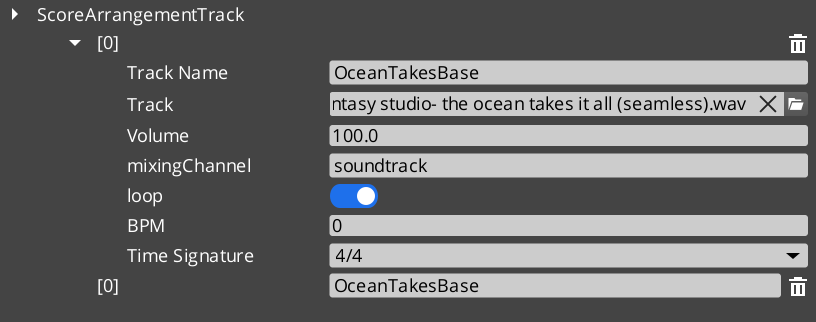
The Score Arrangement system provides multi-layer dynamic music for GS_Play projects. A ScoreArrangementTrack asset defines a musical score with configurable tempo, time signature, fade behavior, and multiple layers that can be enabled or disabled at runtime. This allows game music to adapt to gameplay state – adding or removing instrumental layers, changing intensity, or crossfading between sections.
Score tracks are assigned to the Pro Audio Manager and controlled through AudioScoreRequestBus. They are not on the base audio manager’s bus.
For usage guides and setup examples, see The Basics: GS_Audio.
Contents
Data Model
ScoreArrangementTrack
A multi-layer musical score asset. Each track defines the musical structure and contains one or more layers that play simultaneously.
| Field | Value |
|---|
| TypeId | {DBB48082-1834-4DFF-BAD2-6EA8D83F1AD0} |
| Extends | AZ::Data::AssetData |
| Reflection | Requires GS_AssetReflectionIncludes.h — see Serialization Helpers |
| Field | Type | Description |
|---|
| Track Name | AZStd::string | Identifier for this score track. |
| Time Signature | TimeSignatures | The time signature for this score (e.g. 4/4, 3/4, 6/8). |
| BPM | float | Tempo in beats per minute. |
| Fade In Time | float | Duration in seconds for the score to fade in when playback begins. |
| Fade Out Time | float | Duration in seconds for the score to fade out when playback stops. |
| Loop | bool | Whether the score loops back to the beginning when it reaches the end. |
| Layers | AZStd::vector<ScoreLayer> | The musical layers that compose this score. |
| Active Layers | AZStd::vector<int> | Indices of layers that are active (audible) at the start of playback. |
ScoreLayer
A single musical layer within a score arrangement. Each layer represents one track of audio (e.g. drums, bass, melody) that can be independently enabled or disabled.
| Field | Value |
|---|
| TypeId | {C8B2669A-FAEA-4910-9218-6FE50D2E588E} |
| Field | Type | Description |
|---|
| Layer Name | AZStd::string | Identifier for this layer within the score. |
| Audio Asset | AZ::Data::Asset<AudioClipAsset> | The audio clip for this layer. |
| Volume | float | Base volume level for this layer (0.0 to 1.0). |
| Fade Time | float | Duration in seconds for this layer to fade in or out when toggled. |
TimeSignatures (Enum)
Supported musical time signatures for score arrangement tracks.
| Field | Value |
|---|
| TypeId | {6D6B5657-746C-4FCA-A0AC-671C0F064570} |
| Value | Beats per Measure | Beat Unit | Description |
|---|
FourFour | 4 | Quarter note | 4/4 – Common time. The most widely used time signature. |
FourTwo | 4 | Half note | 4/2 – Four half-note beats per measure. |
TwelveEight | 12 | Eighth note | 12/8 – Compound quadruple meter. Four groups of three eighth notes. |
TwoTwo | 2 | Half note | 2/2 – Cut time (alla breve). Two half-note beats per measure. |
TwoFour | 2 | Quarter note | 2/4 – Two quarter-note beats per measure. March time. |
SixEight | 6 | Eighth note | 6/8 – Compound duple meter. Two groups of three eighth notes. |
ThreeFour | 3 | Quarter note | 3/4 – Waltz time. Three quarter-note beats per measure. |
ThreeTwo | 3 | Half note | 3/2 – Three half-note beats per measure. |
NineEight | 9 | Eighth note | 9/8 – Compound triple meter. Three groups of three eighth notes. |
API Reference
Request Bus: AudioScoreRequestBus
Singleton bus – single address, single handler. Implemented by the Pro Audio Manager.
| Method | Parameters | Description |
|---|
AddScoreArrangementTrack | AZ::Data::Asset<ScoreArrangementTrack> | Register a score track. |
RemoveScoreArrangementTrack | const AZStd::string& scoreName | Unregister a score track. |
PlayScore | scoreName, fadeTime = 0 | Start a score with its authored active layers. |
PlayScoreAndTracks | scoreName, vector<trackName>, fadeTime = 0 | Start a score with a specific layer set. |
PlayTrack | trackName, fadeTime = 0 | Bring one layer in. |
StopTrack | trackName, fadeTime = 0 | Take one layer out. |
StopScore | fadeTime = 0 | Stop the whole score. |
The adaptive-music loop is PlayScore once, then PlayTrack and StopTrack as game state changes. Layers stay in time with each other because they share the arrangement’s tempo and time signature – bringing a percussion layer in mid-bar does not knock it out of sync.
See Also
For conceptual overviews and usage guides:
For component references:
Get GS_Audio
GS_Audio — Explore this gem on the product page and add it to your project.
3 - Geometric Acoustics
Occlusion and reflections derived from world geometry — acoustic volumes and shapes, 15 material presets, listener-centric reverb, and an honest account of what is and is not simulated.
GS_AudioPro - premium tier
This feature ships in
GS_AudioPro, the premium audio gem. It requires the free
GS_Audio gem and extends it. See
what lives where.
The base gem places sounds by direction and distance. Geometric acoustics adds the room: sound muffled by the geometry between it and the listener, and reverb derived from the space the listener is actually standing in rather than an effect an author dialled in.
Geometry is authored, not inferred. You mark up the acoustically significant parts of a level with volumes and shapes carrying material presets — you do not hand the simulation your render meshes.
Contents
Turning It On
Geometric acoustics is off by default. It is enabled on the Pro manager’s settings, which are additive to the base project settings.
| Setting | Default | Meaning |
|---|
| Geometry Enabled | false | Master switch for the whole system. |
| Occlusion Enabled | true | Muffle sounds behind geometry. |
| Occlusion Type | — | Raycast or Volumetric. |
| Occlusion Radius | 1.0 | Source sphere radius for volumetric occlusion, in metres. |
| Max Occlusion Samples | 16 | Rays used when sampling an occlusion volume. |
| Reflections Enabled | true | Derive reverb from geometry. |
| Reflection Mode | Listener | See reflections. |
| Reflection Wet | 1.0 | How much reverb is added to the dry signal. |
| Reflection Smooth Time | 0.75 | Seconds to ease toward a new room. 0 snaps. |
| Reflection Order | 1 | Recursion depth, 0–4. |
| Simulation Update Rate | 30.0 Hz | How often the simulator recomputes. |
Authoring Geometry
Two components mark up a level. Both carry a material preset, plus a custom material for the Custom case.
| Component | What it contributes |
|---|
| Audio Geometry | An authored box volume. |
| Audio Shape Geometry | Reads an existing O3DE Shape component. A Quad becomes a single-layer plane, a Box becomes a box, and anything else falls back to its bounding box. |
The Shape variant is usually the faster path — a wall you have already blocked out with a Shape becomes acoustically real by adding one component.
Registration goes through a request bus that takes raw vertices rather than entities. That is deliberate: it is what will let streaming systems fold geometry in and out of the simulation without the acoustics layer knowing anything about entity lifetimes.
Acoustic Materials
Fifteen presets, plus Custom.
| Group | Presets | Character |
|---|
| Hard / reflective | Generic, Brick, Concrete, Ceramic, Glass, Plaster, Wood, Metal, Rock | Bounce sound. Long, bright reverb. |
| Absorptive | Gravel, Carpet | Soak sound up. Short, dull reverb. |
| Soft barriers | Curtain, Blanket, Door, Drape | Transmit meaningfully — they muffle rather than silence. |
| Custom | — | Dial all seven coefficients by hand: absorption low/mid/high, scattering, and transmission low/mid/high. |
The soft-barrier group is the interesting one for designers. A curtain over a doorway does not block the sound behind it, it dulls it — which is the effect people usually reach for a low-pass filter to fake.
Occlusion
Each voice is simulated against the geometry between it and the listener, and muffled accordingly.
| Mode | Behaviour | Cost |
|---|
| Raycast | A single ray. A source is occluded or it is not. | Cheap. |
| Volumetric | Samples a sphere of the configured radius. | Higher, scaling with sample count. |
Volumetric is what gives partial occlusion at edges — a sound leaking around a doorframe rather than switching off as it passes behind the jamb. If occlusion feels binary and abrupt, this is the setting to change.
Occlusion ducks the direct signal.
Reflections
Reverb is derived from the geometry around the listener — one shared room, recomputed as the listener moves through the level. Reflection Mode has a PerSource value reserved for future work; it currently falls back to Listener.
Two behaviours are worth understanding because they are deliberate design choices, not side effects:
Reverb eases between rooms. Crossing a geometry boundary blends the reverb toward the new room over the Reflection Smooth Time rather than snapping. Set it to 0 if you want an instant change.
Reverb does not fade with distance. Each voice taps its raw source into a wet-only reverb, so the room stays constant across its whole volume while only the dry signal falls off with distance. This is what makes a large room sound like the same room from either end of it. The reverb send does taper at the far edge of a sound’s range — flat until three quarters of max distance, then eased to zero — so an event’s distance settings still bound how far it feeds the room.
Do not stack manual reverb on top of this
The
Reverb mix effect and influence-driven reverb
fake a room. Geometric reflections derive a real one. They occupy the same layer of the
signal chain, and using both puts two rooms on one sound.
How It Stays Safe
Worth knowing if you are budgeting for this system.
Reflections use a parametric reverb model — a handful of decay-time floats — rather than convolution. No impulse response ever crosses to the audio thread, and there is no ambisonic decode in the path.
The reflection simulation runs on a worker thread at up to 15 Hz, committing its results under a mutex. Occlusion and direct-path values are lock-free single-writer floats. Everything else stays on the main thread.
The practical consequence: enabling geometric acoustics adds a bounded, predictable cost rather than a per-sound one that scales alarmingly.
What This Does Not Do
State these to yourself before evaluating the result — each is a deliberate v1 boundary, not a defect.
- Reverb cannot tell your room from the one next door. It is listener-centric, so a source sealed in an adjacent room still contributes to the same shared reverb. Distinguishing them is what per-source reflections would do, and that is not built.
- An occluded source still feeds the room. Occlusion ducks the direct signal only. Within max distance, a muffled source still excites the reverb.
- Geometry is what you author. Render meshes and PhysX colliders are not consulted — v1 is authored volumes and O3DE Shapes.
- No offline baking. There are no precomputed reverb probes.
- Reverb is the tail, not early reflections. The parametric model gives you the decay, not discrete early reflections.
- CPU only. There is no GPU acceleration path.
See Also
For related systems:
For conceptual overviews and usage guides:
Get GS_Audio
GS_Audio — Explore this gem on the product page and add it to your project.
4 - Klatt Voice Synthesis
Custom text-to-speech via Klatt formant synthesis with 3D spatial audio, phoneme mapping, and voice profiling.
GS_AudioPro - premium tier
This feature ships in
GS_AudioPro, the premium audio gem. It requires the free
GS_Audio gem and extends it. See
what lives where.
The Klatt Voice Synthesis system provides custom text-to-speech using Klatt formant synthesis with full 3D spatial audio. Speech is generated by SoLoud and relayed into the miniaudio graph through a custom node, so it travels the same signal chain as every other sound – see the Audio Signal Model.
All types on this page are in the GS_AudioPro namespace.
The system has two layers:
- KlattVoiceSystemComponent – A singleton that manages the shared SoLoud engine instance and tracks the 3D audio listener position.
- KlattVoiceComponent – A per-entity component that generates speech, queues segments, applies voice profiles, and emits spatialized audio from the entity’s position.
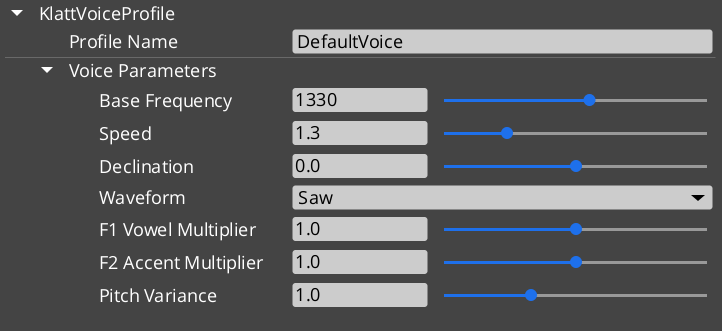
Voice characteristics are defined through KlattVoiceProfile assets containing frequency, speed, waveform, formant, and phoneme mapping configuration. Phoneme maps convert input text to ARPABET phonemes for the Klatt synthesizer, with support for custom pronunciation overrides.
For usage guides and setup examples, see The Basics: GS_Audio.
Contents
Components
KlattVoiceSystemComponent
Singleton component that manages the shared SoLoud engine and 3D listener tracking.
| Field | Value |
|---|
| TypeId | {F4A5D6E7-8B9C-4D5E-A1F2-3B4C5D6E7F8A} |
| Extends | AZ::Component, AZ::TickBus::Handler |
| Bus | KlattVoiceSystemRequestBus (Single/Single) |
KlattVoiceComponent
Per-entity voice component with spatial audio, phoneme mapping, and segment queue.
| Field | Value |
|---|
| TypeId | {4A8B9C7D-6E5F-4D3C-2B1A-0F9E8D7C6B5A} |
| Extends | AZ::Component, AZ::TickBus::Handler |
| Request Bus | KlattVoiceRequestBus (Single/ById, entity-addressed) |
| Notification Bus | KlattVoiceNotificationBus (Multiple/Multiple) |
API Reference
Request Bus: KlattVoiceSystemRequestBus
System-level voice management. Singleton bus – Single address, single handler.
| Method | Parameters | Returns | Description |
|---|
GetSoLoudEngine | – | SoLoud::Soloud* | Returns a pointer to the shared SoLoud engine instance. |
SetListenerPosition | const AZ::Vector3& position | void | Updates the 3D audio listener position for spatial voice playback. |
SetListenerOrientation | const AZ::Vector3& forward, const AZ::Vector3& up | void | Updates the 3D audio listener orientation. |
GetListenerPosition | – | AZ::Vector3 | Returns the current listener position. |
IsEngineReady | – | bool | Returns whether the SoLoud engine has been initialized and is ready. |
Request Bus: KlattVoiceRequestBus
Per-entity voice synthesis controls. Entity-addressed bus – Single handler per entity ID.
| Method | Parameters | Returns | Description |
|---|
Speak | const AZStd::string& text | void | Converts text to speech and plays it. Uses the component’s configured voice profile. |
SpeakWithParams | const AZStd::string& text, const KlattVoiceParams& params | void | Converts text to speech using the specified voice parameters instead of the profile defaults. |
StopSpeaking | – | void | Immediately stops any speech in progress and clears the segment queue. |
IsSpeaking | – | bool | Returns whether this entity’s voice is currently producing speech. |
QueueSegment | const AZStd::string& text | void | Adds a speech segment to the queue. Queued segments play in order after the current segment finishes. |
ClearQueue | – | void | Clears all queued speech segments without stopping current playback. |
SetVoiceProfile | const AZ::Data::Asset<KlattVoiceProfile>& profile | void | Changes the voice profile used by this component. |
GetVoiceProfile | – | AZ::Data::Asset<KlattVoiceProfile> | Returns the currently assigned voice profile asset. |
SetSpatialConfig | const KlattSpatialConfig& config | void | Updates the 3D spatial audio configuration for this voice. |
GetSpatialConfig | – | KlattSpatialConfig | Returns the current spatial audio configuration. |
SetVolume | float volume | void | Sets the output volume for this voice (0.0 to 1.0). |
GetVolume | – | float | Returns the current output volume. |
Notification Bus: KlattVoiceNotificationBus
Events broadcast by voice components. Multiple handler bus – any number of components can subscribe.
| Event | Parameters | Description |
|---|
OnSpeechStarted | const AZ::EntityId& entityId | Fired when an entity begins speaking. |
OnSpeechFinished | const AZ::EntityId& entityId | Fired when an entity finishes speaking (including all queued segments). |
OnSegmentStarted | const AZ::EntityId& entityId, int segmentIndex | Fired when a new speech segment begins playing. |
OnSegmentFinished | const AZ::EntityId& entityId, int segmentIndex | Fired when a speech segment finishes playing. |
Data Types
KlattVoiceParams
Core voice synthesis parameters controlling the Klatt formant synthesizer output.
| Field | Value |
|---|
| TypeId | {8A9C7F3B-4E2D-4C1A-9B5E-6D8F9A2C1B4E} |
| Field | Type | Description |
|---|
| Base Frequency | float | Fundamental frequency (F0) in Hz. Controls the base pitch of the voice. |
| Speed | float | Speech rate multiplier. 1.0 is normal speed. |
| Declination | float | Pitch declination rate. Controls how pitch drops over the course of an utterance. |
| Waveform | KlattWaveform | Glottal waveform type used by the synthesizer. |
| Formant Shift | float | Shifts all formant frequencies up or down. Positive values raise pitch character, negative values lower it. |
| Pitch Variance | float | Amount of random pitch variation applied during speech for natural-sounding intonation. |
KlattVoiceProfile
A voice profile asset combining synthesis parameters with a phoneme mapping.
| Field | Value |
|---|
| TypeId | {2CEB777E-DAA7-40B1-BFF4-0F772ADE86CF} |
| Reflection | Requires GS_AssetReflectionIncludes.h — see Serialization Helpers |
| Field | Type | Description |
|---|
| Voice Params | KlattVoiceParams | The synthesis parameters for this voice profile. |
| Phoneme Map | AZ::Data::Asset<KlattPhonemeMap> | The phoneme mapping asset used for text-to-phoneme conversion. |
KlattVoicePreset
A preset configuration for quick voice setup.
| Field | Value |
|---|
| TypeId | {2B8D9E4F-7C6A-4D3B-8E9F-1A2B3C4D5E6F} |
| Field | Type | Description |
|---|
| Preset Name | AZStd::string | Display name for this preset. |
| Profile | KlattVoiceProfile | The voice profile configuration stored in this preset. |
KlattSpatialConfig
3D spatial audio configuration for voice positioning.
| Field | Value |
|---|
| TypeId | {7C9F8E2D-3A4B-5F6C-1E0D-9A8B7C6D5E4F} |
| Field | Type | Description |
|---|
| Enable 3D | bool | Whether this voice uses 3D spatialization. When false, audio plays as 2D. |
| Min Distance | float | Distance at which attenuation begins. Below this distance the voice plays at full volume. |
| Max Distance | float | Distance at which the voice reaches minimum volume. |
| Attenuation Model | int | The distance attenuation curve type (linear, inverse, exponential). |
| Doppler Factor | float | Intensity of the Doppler effect applied to this voice. 0.0 disables Doppler. |
KlattPhonemeMap
Phoneme mapping asset for text-to-ARPABET conversion with custom overrides.
| Field | Value |
|---|
| TypeId | {F3E9D7C1-2A4B-5E8F-9C3D-6A1B4E7F2D5C} |
| Reflection | Requires GS_AssetReflectionIncludes.h — see Serialization Helpers |
| Field | Type | Description |
|---|
| Base Map | BasePhonemeMap | The base phoneme dictionary to use as the foundation for conversion. |
| Overrides | AZStd::vector<PhonemeOverride> | Custom pronunciation overrides for specific words or patterns. |
PhonemeOverride
A custom pronunciation rule that overrides the base phoneme map for a specific word or pattern.
| Field | Value |
|---|
| TypeId | {A2B5C8D1-4E7F-3A9C-6B2D-1F5E8A3C7D9B} |
| Field | Type | Description |
|---|
| Word | AZStd::string | The word or pattern to match. |
| Phonemes | AZStd::string | The ARPABET phoneme sequence to use for this word. |
Enumerations
Glottal waveform types available for the Klatt synthesizer.
| Field | Value |
|---|
| TypeId | {8ED1DABE-3347-44A5-B43A-C171D36AE780} |
| Value | Description |
|---|
Saw | Sawtooth waveform. Bright, buzzy character. |
Triangle | Triangle waveform. Softer than sawtooth, slightly hollow. |
Sin | Sine waveform. Pure tone, smooth and clean. |
Square | Square waveform. Hollow, reed-like character. |
Pulse | Pulse waveform. Variable duty cycle for varied timbres. |
Noise | Noise waveform. Breathy, whisper-like quality. |
Warble | Warble waveform. Modulated tone with vibrato-like character. |
BasePhonemeMap
Available base phoneme dictionaries for text-to-ARPABET conversion.
| Field | Value |
|---|
| TypeId | {D8F2A3C5-1B4E-7A9F-6D2C-5E8A1B3F4C7D} |
| Value | Description |
|---|
SoLoud_Default | The default letter-to-phoneme mapping built into SoLoud. Covers standard English pronunciation. |
CMU_Full | The full CMU Pronouncing Dictionary — over 130,000 entries. Not yet functional. |
CMU_Full is not working yet
Dictionary-backed conversion is not operational. Selecting CMU_Full does not currently give you CMU pronunciations — voice falls through to SoLoud’s built-in letter-to-phoneme conversion either way.
This matters for authoring: if a word is mispronounced, the fix today is a phoneme override on your phoneme map, not a change of base dictionary.
KTT (Klatt Text Tags) are inline commands embedded in strings passed to KlattVoiceComponent::SpeakText. They are parsed by KlattCommandParser::Parse and stripped from the spoken text before synthesis begins — they are never heard.
Format: <ktt attr1=value1 attr2=value2>
Multiple attributes can be combined in a single tag. Attribute names are case-insensitive. String values may optionally be wrapped in quotes. An empty value (e.g. speed=) resets that parameter to the voice profile default.
speed=X
Override the speech speed multiplier from this point forward.
| |
|---|
| Range | 0.1 – 5.0 |
| Default reset | speed= (restores profile default) |
| 1.0 | Normal speed |
Normal speech <ktt speed=2.0> fast bit <ktt speed=> back to default.
decl=X / declination=X
Pitch declination — how much pitch falls over the course of the utterance. Both decl and declination are accepted.
| |
|---|
| Range | 0.0 – 1.0 |
| 0.0 | Steady pitch (no fall) |
| 0.8 | Strong downward drift |
Rising <ktt decl=0.0> steady <ktt decl=0.8> falling voice.
Change the glottal waveform used by the synthesizer, setting the overall character of the voice.
| Value | Character |
|---|
saw | Default, neutral voice |
triangle | Softer, smoother |
sin / sine | Pure tone, robotic |
square | Harsh, mechanical |
pulse | Raspy, textured |
noise | Whispered, breathy |
warble | Wobbly, character voice |
<ktt waveform="noise"> whispered section <ktt waveform="saw"> normal voice.
vowel=X
First formant (F1) frequency multiplier. Shifts the quality of synthesised vowel sounds.
| |
|---|
| 1.0 | Normal |
| > 1.0 | More open vowel quality |
| < 1.0 | More closed vowel quality |
<ktt vowel=1.4> different vowel colour here.
accent=X
Second formant (F2) frequency multiplier. Shifts accent or dialect colouration.
| |
|---|
| 1.0 | Normal |
| < 1.0 | Shifted accent colouring |
<ktt accent=0.8> shifted accent here.
pitch=X
F0 pitch variance amount. Controls how much pitch varies during synthesis.
| |
|---|
| 1.0 | Normal variance |
| > 1.0 | More expressive intonation |
| < 1.0 | Flatter, more monotone |
<ktt pitch=2.0> very expressive speech <ktt pitch=0.1> flat monotone.
pause=X
Insert a pause of X seconds at this position in the voice playback. Value is required — there is no default.
Hello.<ktt pause=0.8> How are you?
Combined Example
Dialogue string using typewriter text commands and KTT voice tags together:
[b]Warning:[/b] [color=#FF0000]do not[/color] proceed.[pause=1]
<ktt waveform="square" pitch=1.8>This is a mechanical override.<ktt pause=0.5><ktt waveform="saw" pitch=1.0>
[speed=3]Resuming normal protocol.[/speed]
See Also
For conceptual overviews and usage guides:
For component references:
- Audio Manager – Manager lifecycle that the voice system participates in
Get GS_Audio
GS_Audio — Explore this gem on the product page and add it to your project.