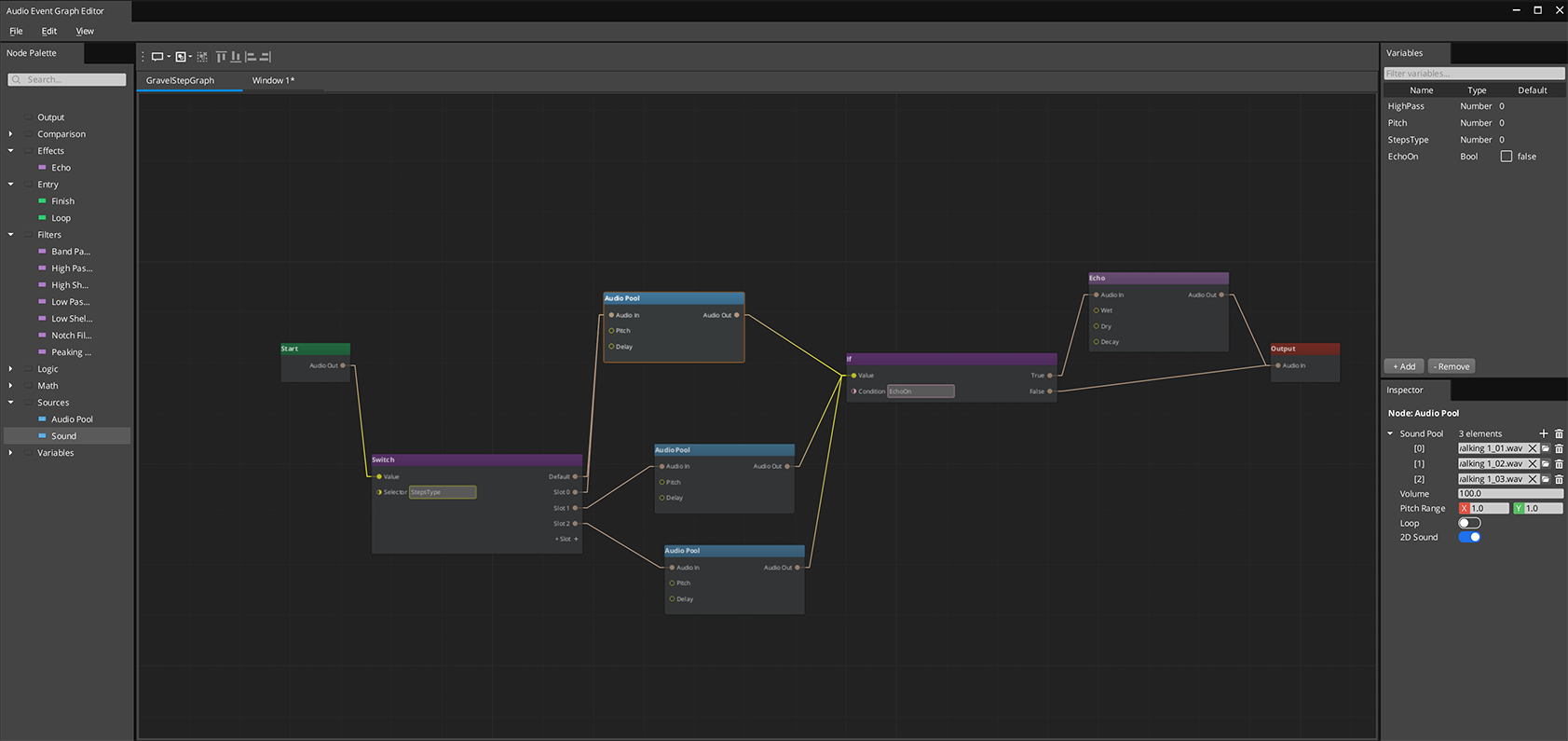
The Audio Event Graph is an FMOD-style visual editor for authoring complex sound events. Each .audiograph file defines one sound event as a node graph — sources, filters, effects, and routing all connected visually. At runtime, the graph maps directly to a miniaudio processing pipeline.
The Audio Event Graph uses the gs_graphcanvas framework with a DataFlowGraph topology. Nodes evaluate in topological order with dirty-propagation — only nodes affected by a change are re-evaluated.
Contents
- Opening the Editor
- How It Works
- Node Catalog
- Phase Lifecycle
- Using Variables
- Extending with Custom Nodes
- Runtime API
- See Also
Opening the Editor
Open the Audio Event Graph editor from the O3DE Editor menu: GS Tools > Audio Event Graph Editor.
Each graph is a standalone .audiograph file — use File > New to create one, or File > Open to load an existing graph. Multiple graphs can be open simultaneously in separate tabs.
How It Works
Audio Event Graphs use a data-flow model. Connections carry AudioRoute values — handles that represent a point in the miniaudio processing chain. The signal flows left to right:
- Entry nodes gate which phase is active (Start, Loop, or Finish)
- Source nodes create sound instances and output an AudioRoute
- Filter and effect nodes process the audio and pass it along
- Routing nodes (If/Switch) direct the signal based on conditions or variables
- The Output node wires the final AudioRoute to a mixing bus
Variables can be set from gameplay code at any time, causing affected nodes to re-evaluate without restarting the entire graph.
Node Catalog
Entry Nodes (Phase Gates)
| Node | Purpose |
|---|---|
| Aud_StartNode | Active during the Start phase |
| Aud_LoopNode | Active during the Loop phase |
| Aud_FinishNode | Active during the Finish phase |
Entry nodes output a gate signal. Downstream nodes only produce audio when their entry gate is active.
Source Nodes
| Node | Purpose | Key Properties |
|---|---|---|
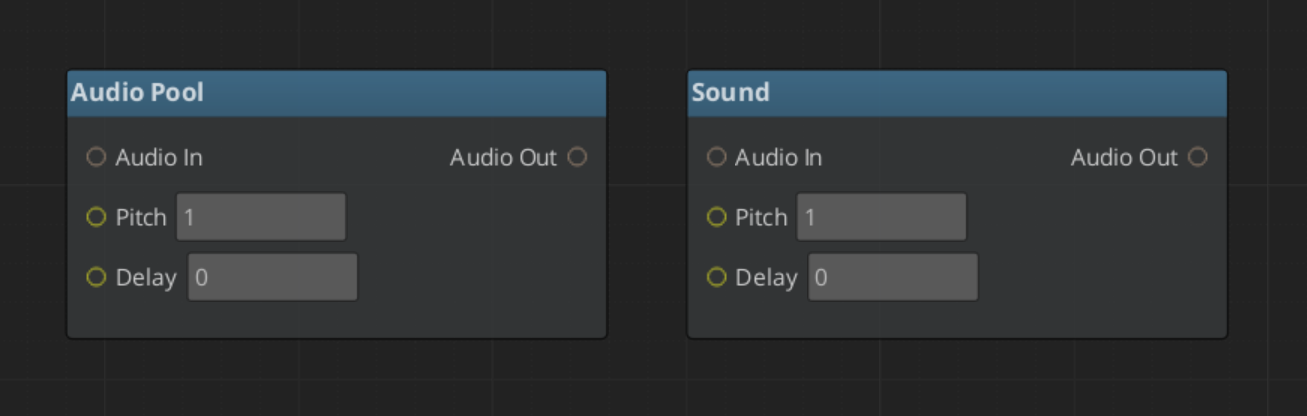
| Aud_SoundNode | Single audio asset playback | Volume, pitch, delay, looping, 3D spatialization |
| Aud_AudioPoolNode | Random selection from a pool of audio assets | Same as SoundNode, plus asset pool list |
Filter Nodes
| Node | Filter Type |
|---|---|
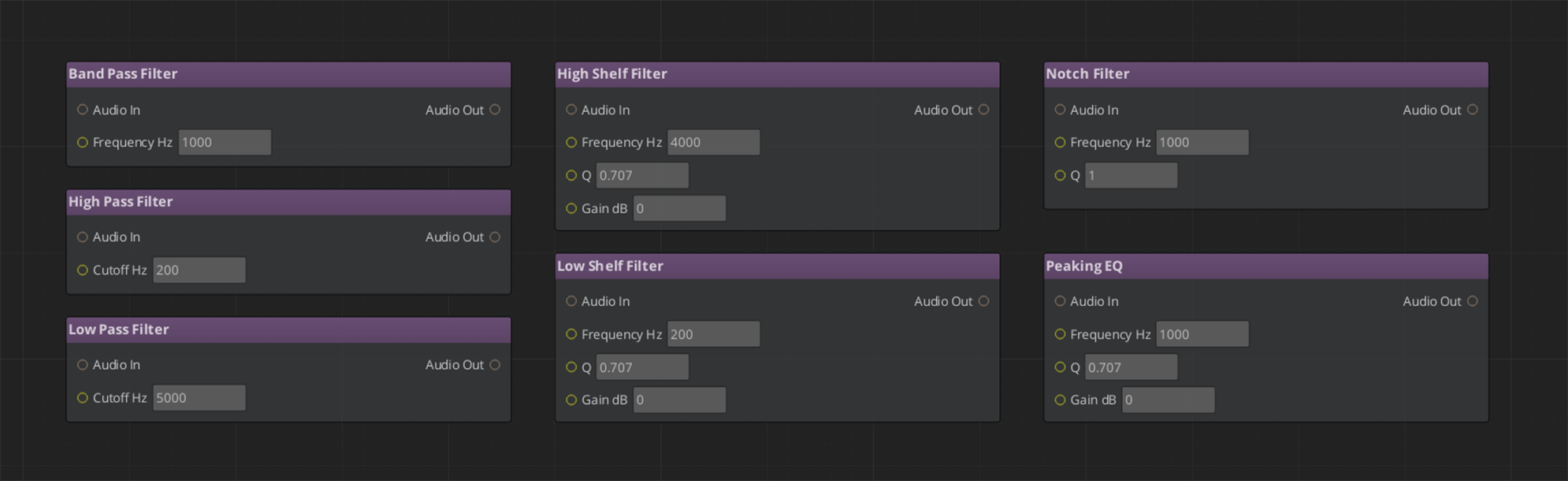
| LowPass | Low-pass filter |
| HighPass | High-pass filter |
| BandPass | Band-pass filter |
| Notch | Notch (band-reject) filter |
| PeakingEQ | Peaking EQ |
| LowShelf | Low shelf filter |
| HighShelf | High shelf filter |
All filter nodes take an audio_in input and produce an audio_out output. Filter parameters (cutoff frequency, Q factor, gain) are configurable per-node or bindable to variables.
Effect Nodes
| Node | Purpose |
|---|---|
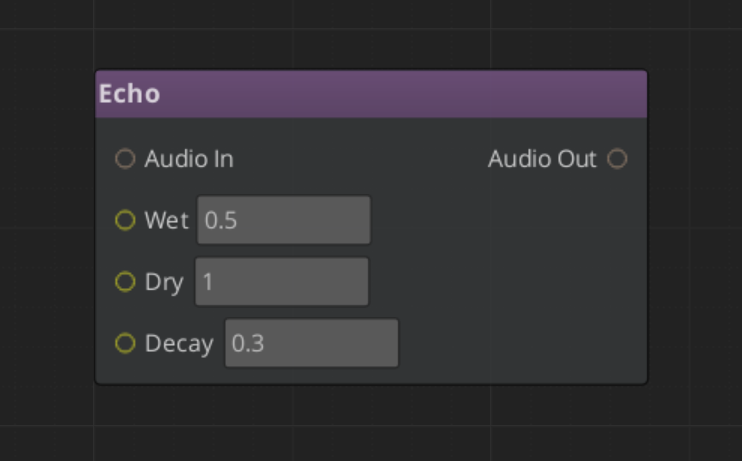
| Aud_EchoNode | Echo / reverb effect |
Routing Nodes
The built-in gs_graphcanvas IfNode and SwitchNode work with AudioRoute values. Use them for conditional audio paths based on game state variables (e.g., play different sounds based on surface type or weather).
Terminal Node
| Node | Purpose |
|---|---|
| Aud_OutputNode | Wires the final audio chain to the mixing bus |
Every graph needs exactly one Output node.
Phase Lifecycle
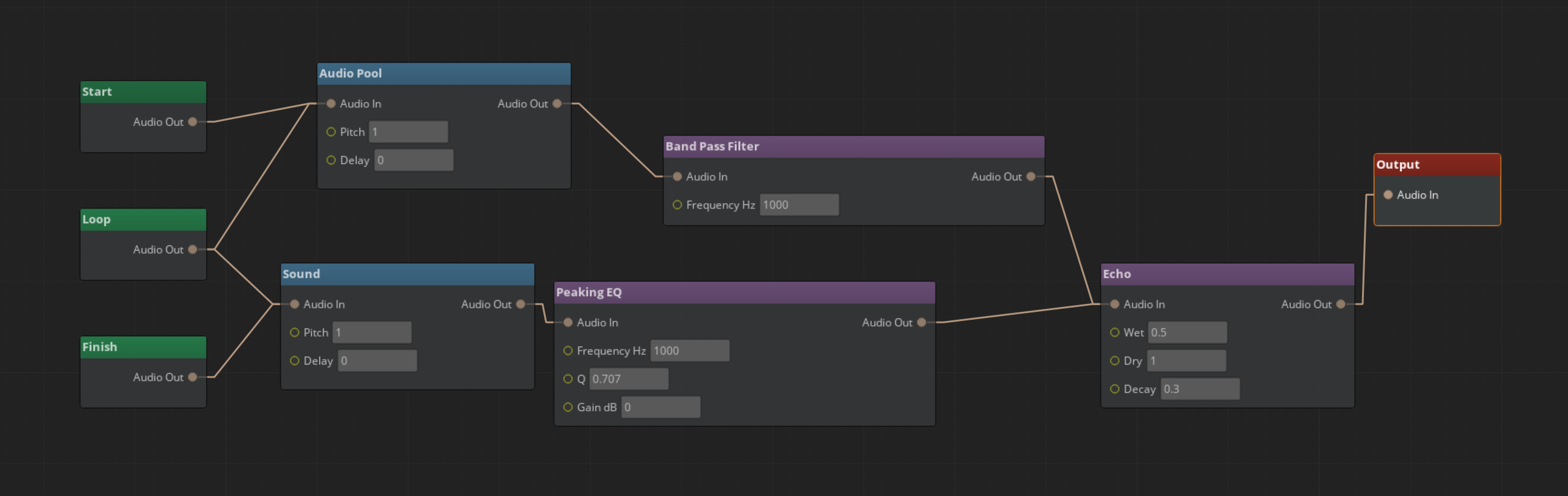
Audio Event Graphs support a three-phase lifecycle for structured sound playback:
- Start — Initial playback. The Aud_StartNode gate is active. One-shot intro sounds play here.
- Loop — Repeating section. The Aud_LoopNode gate is active. Ambient loops and sustained sounds live here.
- Finish — Outro/tail. The Aud_FinishNode gate is active. Fade-outs and release tails play here.
Phases transition automatically: Start plays once, then Loop repeats (if looping is enabled), then Finish plays when FinishAudioGraph() is called. Not all phases are required — a simple one-shot sound only needs a Start node.
Using Variables
Variables let gameplay code control sound behavior at runtime. Common uses:
- Filter parameters — Bind a filter’s cutoff frequency to a variable, then adjust it from code (e.g., underwater muffling)
- Routing conditions — Use a variable as the condition for an If/Switch node to select different sound paths
- Source selection — Gate different source nodes based on game state
Declare variables in the Variable Panel, then either bind them to input slots (right-click > Convert to Reference) or use Get/Set variable nodes.
At runtime, set variables via the Audio Manager API:
AudioManagerRequestBus::Broadcast(&AudioManagerRequests::SetAudioGraphVariable, instanceId, "underwater", 0.8f);
Setting a variable marks dependent nodes dirty and re-evaluates only the affected portion of the graph.
Extending with Custom Nodes
To add a custom audio node:
- Create a class inheriting from
BaseNodeandIDataFlowNode - Register it with
GS_AUTO_REGISTER_NODE_FOR(MyAudioNode, "audiograph") - Implement
Process(GraphExecutionContext& context) - Follow the empty any pattern for inactive outputs:
void MyAudioNode::Process(GraphExecutionContext& context)
{
    auto inputAny = context.GetInputValueAny(this, "audio_in");
    if (inputAny.empty())
    {
        context.SetOutputValueAny(this, "audio_out", AZStd::any{});  // CRITICAL: truly empty
        return;
    }
    // Process audio...
    context.SetOutputValue(this, "audio_out", outputRoute);
}
The empty any pattern ensures that inactive paths don’t mask valid audio from other connections in multi-input slots.
For full details on node creation, see gs_graphcanvas Nodes.
Runtime API
Audio Event Graphs are played through the Audio Manager component. Key methods:
| Method | Description |
|---|---|
PlayAudioGraph(path) | Fire-and-forget playback (auto-cleanup) |
AcquireAudioGraph(path) | Get a handle for manual control |
FireAudioGraph(id) | Start/restart playback |
StopAudioGraph(id) | Stop playback |
FinishAudioGraph(id) | Transition to the Finish phase |
SetAudioGraphVariable(id, name, value) | Set a graph variable at runtime |
SetAudioGraphLooping(id, looping) | Enable/disable loop phase |
SetAudioGraphEntity(id, entityId) | Track entity position for 3D spatialization |
SetAudioGraphPosition(id, pos) | Fixed world position for 3D |
StopAudioGraphFade(id, fadeTime) | Fade out and stop |
See the Audio Manager documentation for the full API reference.
See Also
- gs_graphcanvas Framework — The underlying framework
- Audio Manager — Runtime audio management and playback API
- Audio Events — Simple event-based sound playback (non-graph)
- Mixing & Effects — Mixing buses and effects chains