Framework API
Component references, EBus interfaces, and extension guides for the full GS_Play framework.
This section contains the full technical reference for every GS_Play gem — component properties, EBus request and notification interfaces, extension patterns, internal architecture, and code examples.
If you are looking for a scripting-level introduction or editor setup guides, see The Basics section first.
How This Section Is Organized
Each gem section follows a layered structure:
Gem overview page — Technical summary of the gem’s architecture, a table of feature sets with component listings, and installation notes.
Feature set pages — One page per sub-system (e.g., GS_Save, GS_StageManager). Each covers:
- Architectural overview and core design pattern.
- Component and class index with purpose descriptions.
- Extension and customization guidance.
- Links to The Basics for editor-level usage.
Class and component pages — One page per major class or component. Each covers:
- Inspector properties and configuration.
- EBus request and notification interfaces with method signatures.
- Virtual methods for subclassing.
- Code examples for common use cases.
Pages in this section assume familiarity with O3DE concepts (components, EBuses, SerializeContext). If you need a gentler introduction, start with the corresponding page in The Basics — every Framework API page links back to its Basics counterpart.
Sections
1 - GS_Core
The foundation gem for the GS_Play framework — game lifecycle, save system, stage management, input, actions, motion animation system, and utility libraries.
GS_Core is the required foundation for every GS_Play project. All other GS gems depend on it. It provides game lifecycle management (startup, shutdown, standby), persistence (save/load), level loading, input handling, triggerable actions, and a shared utility library.
For usage guides and setup examples, see The Basics: GS_Core.
Contents
GS_Managers
The lifecycle and startup management system. The Game Manager is a singleton placed in every level — it spawns all registered manager prefabs, coordinates their two-stage initialization, and provides global game navigation and standby mode.
All built-in GS_Play managers (Save, Stage, Options, UI, Unit, Camera, Audio) and any custom managers you create extend the Manager base class and plug into this system automatically.
| Component | Purpose |
|---|
| Game Manager | Top-level lifecycle controller. Spawns managers, handles navigation, standby, and debug mode. |
| Manager (Base) | Base class for all managers. Handles two-stage initialization automatically. |
GS_Managers API
GS_Save
The persistence system. The Save Manager orchestrates save and load operations across the project. Savers are per-entity components that serialize component state. The Record Keeper stores flat key-value progression records independently of the Saver system.
| Component | Purpose |
|---|
| Save Manager | Coordinates all save and load operations. |
| Savers | Per-entity components that serialize transform and physics state. |
| Record Keeper | Key-value progression store (flags, counters, unlock states). |
GS_Save API
GS_StageManager
The level loading and navigation system. The Stage Manager owns the ordered stage list for the project and handles all level transitions. Stage Data components are placed in each level as anchors and spin-up controllers for that level’s systems.
| Component | Purpose |
|---|
| Stage Manager | Manages stage list and handles transition requests. |
| Stage Data | Per-level anchor, spawn point, and activation controller. |
GS_StageManager API
GS_Options
Options and input profile management. The Options Manager persists player preferences. Input Profiles are data assets that hold input bindings, swappable at runtime.
GS_Options API
Systems
Core framework systems used across multiple gems: the GS_Motion track-based animation engine and the GS_Actions triggerable behavior system.
| System | Purpose |
|---|
| GS_Motion | Track-based animation and tween engine — abstract base classes extended by domain gems. |
| GS_Actions | Triggerable, composable, data-driven behaviors attachable to any entity. |
Systems API
Utilities
A general-purpose library of components and math helpers.
| Area | Contents |
|---|
| Physics | Physics Trigger Volume |
| Easing Curves | 40+ curve types (Linear, Quad, Cubic, Sine, Expo, Circ, Back, Elastic, Bounce) |
| Spring Dampers | 15+ spring functions including Simple, Acceleration, Double, Timed, Quaternion |
| Gradients | Color, float, and Vector2 gradients |
| Entity Helpers | Entity lookup by name |
| Random | Weighted random selection |
| Splines | Closest point, fraction, and local/world conversion |
| Angle Helpers | Yaw, quaternion from direction, section-by-angle mapping |
Utilities API
Installation
GS_Core is required by all GS_Play projects. Add it to your project before any other GS gem.
- Follow the Simple Project Setup guide for full walkthrough.
- Configure collision layers and physics per the Setup Environment guide.
- Create a Game Manager prefab and place it in every level.
- Add the managers you need to the Game Manager’s Startup Managers list.
See Also
For conceptual overviews and usage guides:
For related resources:
Get GS_Core
GS_Core — Explore this gem on the product page and add it to your project.
1.1 - GS_Managers
The game lifecycle management system — startup sequencing, systemic navigation, and the extensible manager pattern.
The Managers system is the backbone of every GS_Play project. It provides a controlled startup sequence that initializes game systems in the correct order, global access to those systems via EBus, and systemic navigation (New Game, Load Game, Quit) from a single point of control.
Every GS_Play gem that has a manager component (Save, Stage, UI, Unit, Camera, Audio, etc.) plugs into this system automatically.
For usage guides and setup examples, see The Basics: GS_Core.
Contents
Architecture
Breakdown
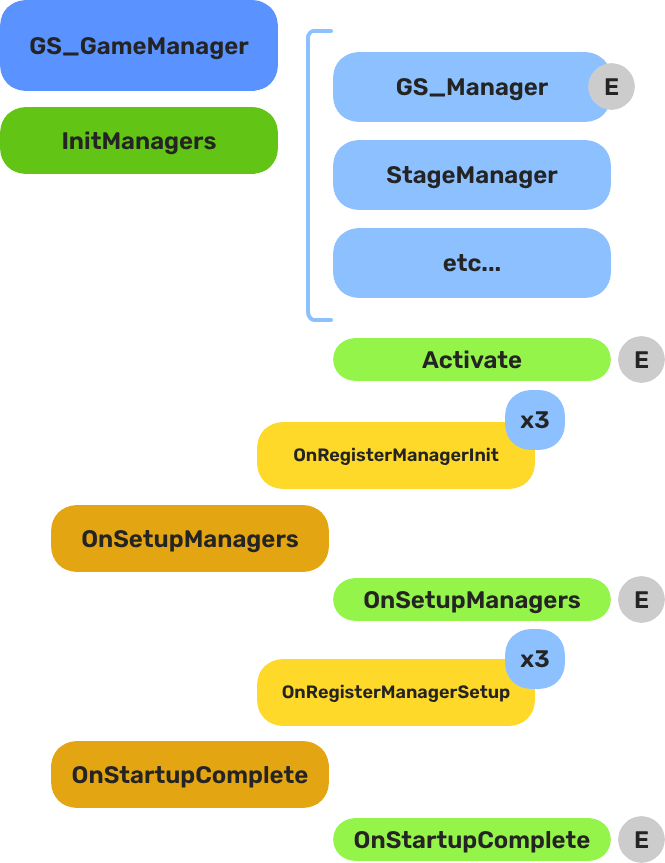
When the project starts, the Game Manager runs three stages before the game is considered ready:
| Stage | Broadcast Event | What It Means |
|---|
| 1 — Initialize | (internal) | Each manager is spawned. They activate, then report ready. |
| 2 — Setup | OnSetupManagers | Setup stage. Now safe to query other managers. |
| 3 — Complete | OnStartupComplete | Last stage. Everything is ready.
Do any last minute things. Now safe to begin gameplay. |
For most scripts, you only need OnStartupComplete. Wait for this event before doing anything that depends on managers to be completely setup.
E Indicates extensible classes and methods.
Patterns - Complete list of system patterns used in GS_Play.
Components
| Component | Purpose | Reference |
|---|
| GS_GameManagerComponent | Top-level lifecycle controller. Spawns managers, handles New Game / Load / Quit / Standby. | Game Manager |
| GS_ManagerComponent | Base class for all game system managers. Handles the two-stage init pattern automatically. | Manager |
Quick Start
For step-by-step setup, see Game Manager — Setup and Manager — Setup.
For creating custom managers, see Manager — Extending the Manager Class.
See Also
For conceptual overviews and usage guides:
For component references:
For related resources:
Get GS_Core
GS_Core — Explore this gem on the product page and add it to your project.
1.1.1 - Game Manager
The top-level game lifecycle controller — startup sequencing, systemic navigation, standby mode, and debug support.
The Game Manager is the root component of every GS_Play project. It controls the game lifecycle from startup through shutdown: spawning and initializing all Manager components in the correct order, providing systemic navigation (New Game, Load Game, Return to Title, Quit), and coordinating standby mode for pausing gameplay during level transitions or other blocking operations.
Every level in your project should contain the same Game Manager prefab. In debug mode it stays in the current level on start; in release mode it navigates to your title stage.
For usage guides and setup examples, see The Basics: GS_Core.
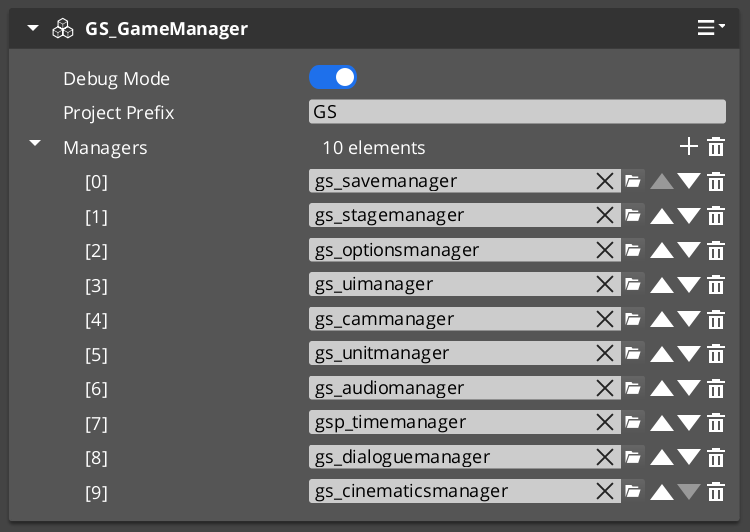
The Game Manager component in the Entity Inspector, with added manager prefabs in the Startup Managers list.
Contents
Design Intent
Extend the Game Manager when you need project-wide changes to startup ordering, custom post-startup logic (analytics sessions, online service initialization), or additional global lifecycle events. For most projects, the built-in component is sufficient as-is. Do not move gameplay logic here — the Game Manager orchestrates systems, it does not run game rules.
Dependencies & Interactions
| Coordinates with | Role |
|---|
| GS_SaveManager | Owns all save/load file operations triggered by NewGame, ContinueGame, LoadGame, SaveAndExitGame |
| GS_StageManager | Owns level navigation during NewGame, LoadGame, and ReturnToTitle |
| GS_ManagerComponent | Base class all spawned managers extend |
| All other GS gem managers | Any manager in the Startup Managers list registers automatically |
Setup
Game Manager Entity

The Game Manager wrapper entity set as Editor-Only inside Prefab Edit Mode.
- Create an entity and attach the GS_GameManagerComponent (or your extended version).
- Turn the entity into a prefab.
- Enter prefab edit mode. Set the wrapper entity (the parent of your Game Manager entity) to Editor Only. Save the prefab.
- Create Manager prefabs for the systems you need (Save, Stage, Options, or custom managers).
- Add each Manager
.spawnable to the Game Manager’s Startup Managers list in the Entity Inspector. - Push your overrides into the prefab to propagate across all levels.
Place your Game Manager prefab at the top of every level in the Entity Outliner.
The premade manager prefabs for each GS_Play gem are located in that gem’s Assets/Prefabs directory.
Core Concepts
Startup Sequence
When the project starts, the Game Manager executes a three-stage startup:
- Spawn Managers — The Game Manager instantiates every prefab in its Startup Managers list. Each manager component runs its
Activate() and reports back via OnRegisterManagerInit(). - Startup Managers — Once all managers report initialized, the Game Manager broadcasts
OnSetupManagers(). Managers now connect to each other and report back via OnRegisterManagerStartup(). - Startup Complete — Once all managers report started up, the Game Manager broadcasts
OnStartupComplete(). The game is fully initialized and ready to run.
At each stage, the Game Manager counts reports and only proceeds when every spawned manager has reported. This guarantees safe cross-referencing between managers in Stage 2.
Systemic Navigation
The Game Manager provides the high-level game flow methods that drive your project:
- NewGame / NewGame(saveName) — Starts a new game, optionally with a named save file.
- ContinueGame — Loads the most recent save and continues.
- LoadGame(saveName) — Loads a specific save file.
- ReturnToTitle — Returns to the title stage, tearing down the current game session.
- SaveAndExitGame / ExitGame — Saves and/or exits the application.
These methods coordinate with the Save Manager and Stage Manager automatically.
Standby Mode
Standby is a global pause mechanism. When the Game Manager enters standby, it broadcasts OnEnterStandby() to all managers, which propagate the signal to their subsystems. This halts timers, physics, gameplay ticks, and other simulation while a blocking operation (like a stage change) completes. Calling ExitStandby reverses the process.
Debug Mode
When Debug Mode is enabled in the Inspector, the Game Manager skips navigating to the title stage and remains in the current level. This allows rapid iteration — you can start the game from any level without going through the full title-to-gameplay flow. If save data and unit management are enabled, it loads default save data but overrides position data with the current level’s default spawn point.
Inspector Properties
| Property | Type | Description |
|---|
| Project Prefix | String | Sets the project prefix for generated files (e.g. save files). Example: "GS" produces GS_SaveGame.json. |
| Startup Managers | List of Manager Prefabs | The manager prefab spawnables to instantiate on game start. Order does not matter — the two-stage init handles dependencies. (C++: AZStd::vector<SpawnableAssetRef>) |
| Debug Mode | Bool | When enabled, the Game Manager stays in the current level instead of navigating to the title stage. |
API Reference
Request Bus: GameManagerRequestBus
Commands sent to the Game Manager. Singleton bus — single address, single handler.
| Method | Parameters | Returns | Description |
|---|
IsInDebug | — | bool | Returns whether debug mode is active. |
IsStarted | — | bool | Returns whether the startup sequence has completed. |
GetProjectPrefix | — | AZStd::string | Returns the configured project prefix string. |
EnterStandby | — | void | Broadcasts standby to all managers, pausing gameplay. |
ExitStandby | — | void | Broadcasts standby exit, resuming gameplay. |
NewGame | — | void | Starts a new game with the default save name. |
NewGame | const AZStd::string& saveName | void | Starts a new game with a specified save file name. |
ContinueGame | — | void | Loads the most recent save file and continues. |
LoadGame | const AZStd::string& saveName | void | Loads a specific save file by name. |
ReturnToTitle | — | void | Returns to the title stage, tearing down the current session. |
SaveAndExitGame | — | void | Saves the current game state and exits the application. |
ExitGame | — | void | Exits the application without saving. |
Notification Bus: GameManagerNotificationBus
Events broadcast by the Game Manager. Multiple handler bus — any number of components can subscribe.
| Event | Parameters | Returns | Description |
|---|
OnSetupManagers | — | — | Fired when all managers have reported initialized. Managers should now connect to each other. |
OnStartupComplete | — | — | Fired when the full startup sequence is complete. Safe to begin gameplay. |
OnShutdownManagers | — | — | Fired when the game is shutting down. Managers should clean up. |
OnBeginGame | — | — | Fired when a new game or loaded game begins. |
OnEnterStandby | — | — | Fired when entering standby mode. Pause your systems. |
OnExitStandby | — | — | Fired when exiting standby mode. Resume your systems. |
ScriptCanvas Nodes
These methods and events are available as ScriptCanvas nodes.
Request Nodes
| Node | Description |
|---|
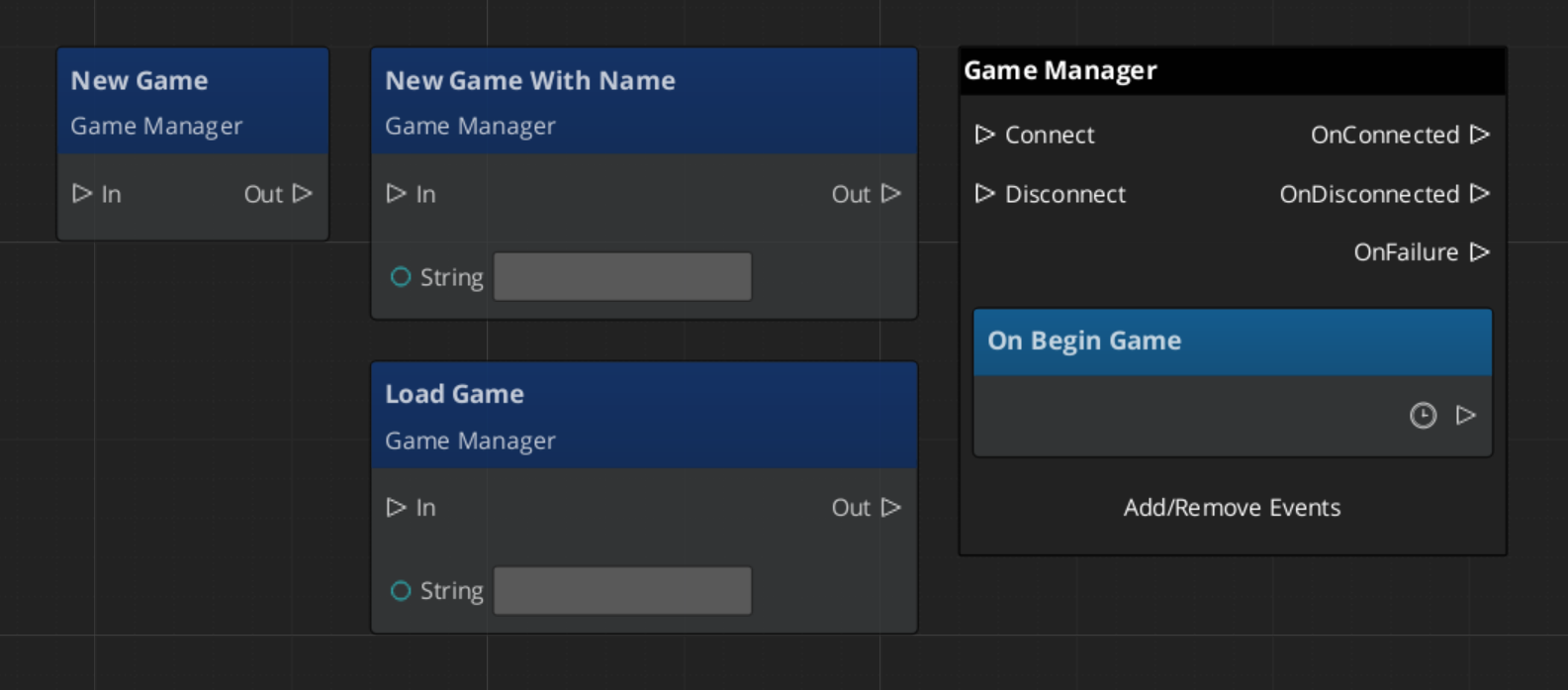
TriggerNewGame | Starts a new game with the default save name. |
TriggerNewGameWithName(saveName) | Starts a new game with a named save file. |
TriggerContinueGame | Continues from the most recent save. |
TriggerLoadGame(saveName) | Loads a specific save file by name. |
TriggerReturnToTitle | Returns to the title stage. |
TriggerSaveAndExitGame | Saves and exits. |
TriggerExitGame | Exits without saving. |
Notification Nodes
Listen for these events on GameManagerNotificationBus.
| Node | When It Fires |
|---|
OnStartupComplete | The game is fully initialized and ready to run. |
OnBeginGame | A new or loaded game session begins. |
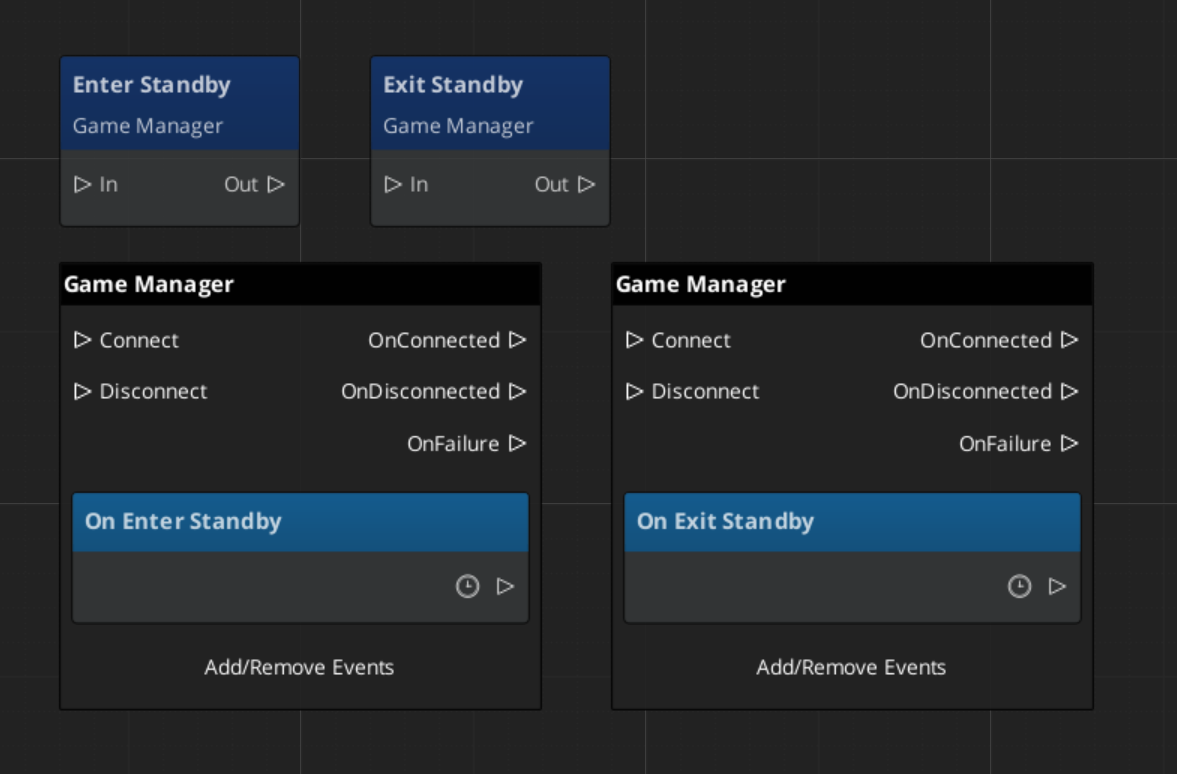
OnEnterStandby | The game has entered standby (paused). |
OnExitStandby | The game has exited standby (resumed). |
Virtual Methods
Override these when extending the Game Manager. Always call the base implementation.
| Method | Parameters | Returns | Description |
|---|
InitializeManagers() | — | void | Spawns the Startup Managers list. Override to add custom spawn logic. |
ProcessFallbackSpawn() | — | void | Handles fallback when a manager fails to spawn. |
StartupManagers() | — | void | Broadcasts OnSetupManagers. Override to inject logic between init and startup stages. |
CompleteStartup() | — | void | Broadcasts OnStartupComplete. Override to add post-startup logic. |
BeginGame() | — | void | Called when transitioning into active gameplay. |
SC ↔ C++ Quick Reference
| Action | ScriptCanvas Node | C++ Method | Notes |
|---|
| Start a new game | TriggerNewGame | NewGame() | Default save name |
| Start with named save | TriggerNewGameWithName(name) | NewGame(saveName) | Named save file |
| Continue from last save | TriggerContinueGame | ContinueGame() | Loads most recent save |
| Load specific save | TriggerLoadGame(name) | LoadGame(saveName) | Load by file name |
| Return to title | TriggerReturnToTitle | ReturnToTitle() | Tears down current session |
| Save and exit | TriggerSaveAndExitGame | SaveAndExitGame() | — |
| Exit without saving | TriggerExitGame | ExitGame() | — |
| Check if started | — | IsStarted() | Returns bool |
Usage Examples
ScriptCanvas: Title Screen Workflow
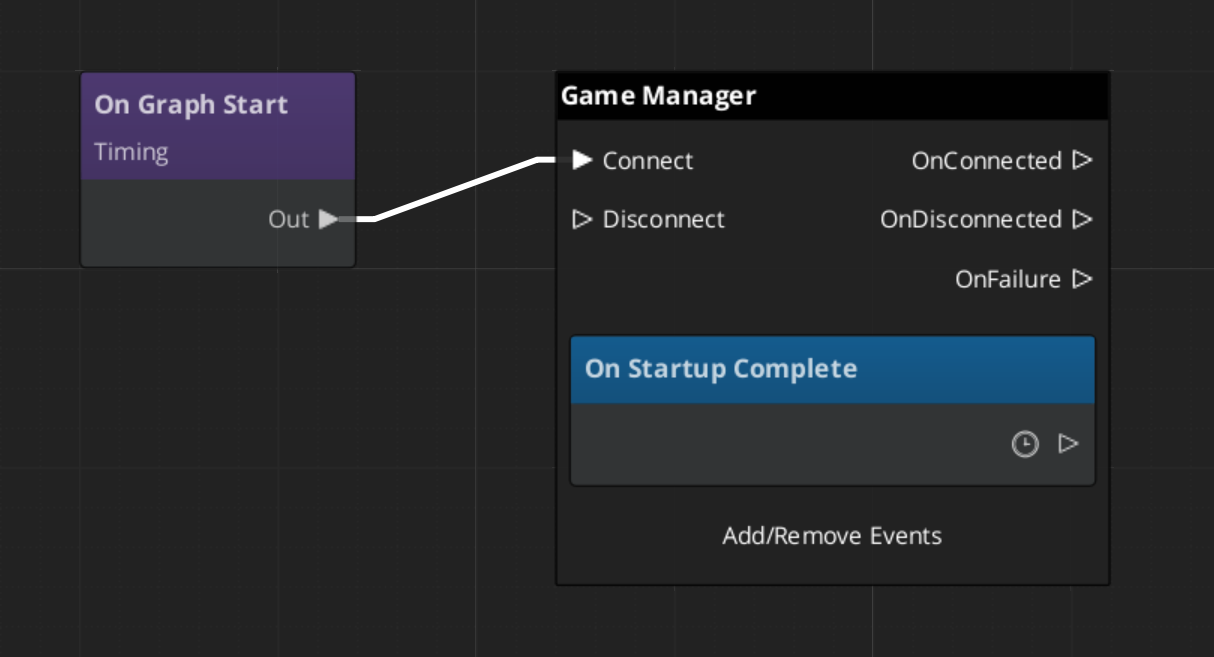
Calling new or load game proceedes to start the gameplay and systems. Begin Game event fires to start all systems across the game.
Debug Mode automatically begins the game.
ScriptCanvas: Standby Logic
C++: Reacting to Events
A gameplay component that listens to the full startup and standby lifecycle:
#include <GS_Core/GS_CoreBus.h>

class MyGameplayComponent
    : public AZ::Component
    , protected GS_Core::GameManagerNotificationBus::Handler
{
protected:
    void Activate() override
    {
        GS_Core::GameManagerNotificationBus::Handler::BusConnect();
    }

    void Deactivate() override
    {
        GS_Core::GameManagerNotificationBus::Handler::BusDisconnect();
    }

    void OnStartupComplete() override
    {
        // Safe to access all managers and begin gameplay logic
    }

    void OnEnterStandby() override
    {
        // Pause your gameplay systems
    }

    void OnExitStandby() override
    {
        // Resume your gameplay systems
    }
};
C++: Custom Manager Integration
A manager that receives the startup handshake from the Game Manager. Add this class’s prefab to the Game Manager’s Startup Managers list:
#include <GS_Core/GS_CoreBus.h>
#include <Source/Managers/GS_ManagerComponent.h>

class MySystemManager
    : public GS_Core::GS_ManagerComponent
    , protected GS_Core::GameManagerNotificationBus::Handler
{
public:
    AZ_COMPONENT_DECL(MySystemManager);
    static void Reflect(AZ::ReflectContext* context);

protected:
    void Activate() override
    {
        GS_Core::GS_ManagerComponent::Activate();                        // Required: registers with Game Manager
        GS_Core::GameManagerNotificationBus::Handler::BusConnect();
    }

    void Deactivate() override
    {
        GS_Core::GameManagerNotificationBus::Handler::BusDisconnect();
        GS_Core::GS_ManagerComponent::Deactivate();                      // Required: deregisters from Game Manager
    }

    // Called during Stage 2 — safe to reference other managers here
    void OnSetupManagers() override
    {
        // Connect to other managers, set up cross-system references
    }

    // Called when the full startup sequence completes — safe to begin gameplay
    void OnStartupComplete() override
    {
        // Initialize systems that depend on all managers being ready
    }

    void OnEnterStandby() override { /* pause your systems */ }
    void OnExitStandby()  override { /* resume your systems */ }
};
Extending the Game Manager
Extend the Game Manager to add custom startup logic, additional lifecycle events, or project-specific behavior. Extension is done in C++.
#pragma once
#include <GS_Core/GS_CoreBus.h>
#include <Source/Managers/GS_GameManagerComponent.h>

namespace MyProject
{
    class MyGameManager : public GS_Core::GS_GameManagerComponent
    {
    public:
        AZ_COMPONENT_DECL(MyGameManager);

        static void Reflect(AZ::ReflectContext* context);

    protected:
        void InitializeManagers() override;
        void StartupManagers() override;
        void CompleteStartup() override;
        void BeginGame() override;
    };
}
Implementation (.cpp)
#include "MyGameManager.h"
#include <AzCore/Serialization/SerializeContext.h>

namespace MyProject
{
    AZ_COMPONENT_IMPL(MyGameManager, "MyGameManager", "{YOUR-UUID-HERE}");

    void MyGameManager::Reflect(AZ::ReflectContext* context)
    {
        if (auto serializeContext = azrtti_cast<AZ::SerializeContext*>(context))
        {
            serializeContext->Class<MyGameManager, GS_Core::GS_GameManagerComponent>()
                ->Version(0);

            if (AZ::EditContext* editContext = serializeContext->GetEditContext())
            {
                editContext->Class<MyGameManager>("My Game Manager", "Custom game manager for MyProject")
                    ->ClassElement(AZ::Edit::ClassElements::EditorData, "")
                        ->Attribute(AZ::Edit::Attributes::Category, "MyProject")
                        ->Attribute(AZ::Edit::Attributes::AppearsInAddComponentMenu, AZ_CRC_CE("Game"));
            }
        }
    }

    void MyGameManager::InitializeManagers()
    {
        // Call base to spawn the standard manager list
        GS_GameManagerComponent::InitializeManagers();
        // Custom initialization logic here
    }

    void MyGameManager::StartupManagers()
    {
        // Call base to handle standard startup
        GS_GameManagerComponent::StartupManagers();
    }

    void MyGameManager::CompleteStartup()
    {
        // Call base to broadcast OnStartupComplete
        GS_GameManagerComponent::CompleteStartup();
        // Post-startup logic here (e.g. connect to analytics, initialize online services)
    }

    void MyGameManager::BeginGame()
    {
        GS_GameManagerComponent::BeginGame();
        // Custom game start logic
    }
}
See Also
For scripting patterns and SC-first usage:
For related components:
Get GS_Core
GS_Core — Explore this gem on the product page and add it to your project.
1.1.2 - Manager
The base class for all game system managers — automatic two-stage initialization and lifecycle integration with the Game Manager.
For usage guides and setup examples, see The Basics: GS_Core.

A Manager prefab with the wrapper entity set as Editor-Only inside Prefab Edit Mode.
GS_GameManager
  └── (spawns) GS_ManagerComponent ◄ you are here — and all other managers extend this
The GS_ManagerComponent is the base class that all game system managers inherit from. It handles the two-stage initialization pattern with the Game Manager automatically, so you can focus on your system’s logic without worrying about startup ordering.
Every built-in GS_Play manager (Save, Stage, Options, UI, Unit, Camera, Audio, Performer) extends this class. When you need a custom game system manager, you extend it too.
Contents
How It Works
When the Game Manager spawns its list of manager prefabs, each Manager component goes through this lifecycle:
Activate — The component initializes itself (connects to buses, sets up internal state). When done, broadcasts OnRegisterManagerInit() to tell the Game Manager it is ready.
OnStartupManagers — Called by the Game Manager after all managers have reported initialized. Connect to other managers and set up cross-references here. When done, broadcasts OnRegisterManagerStartup().
OnStartupComplete — The Game Manager broadcasts this after all managers report started up. The game is fully ready.
OnEnterStandby / OnExitStandby — Called when the Game Manager enters or exits standby mode. Pause and resume your subsystem here.
OnShutdownManagers — Called when the game is shutting down. Clean up resources and disconnect buses.
The base class handles steps 1–2 automatically. Override them to add your logic, then call the base implementation to complete the handshake.
Setup
The Manager wrapper entity set as Editor-Only inside Prefab Edit Mode.
- Create an entity. Attach your Manager component (built-in or custom) to it.
- Configure any properties needed in the Entity Inspector.
- Turn the entity into a prefab.
- Enter prefab edit mode. Set the wrapper entity (parent of your Manager entity) to Editor Only. Save.
- Delete the Manager entity from the level (it will be spawned by the Game Manager at runtime).
- In the Game Manager prefab, add your Manager
.spawnable to the Startup Managers list.
The premade manager prefabs for each GS_Play gem are located in that gem’s Assets/Prefabs directory.
Inspector Properties
The base GS_ManagerComponent exposes no inspector properties of its own. Properties are defined by each inheriting manager component (e.g., the Save Manager exposes a Save System Version Number, the Stage Manager exposes a Stages list).
API Reference
Lifecycle Events: GameManagerNotificationBus
The Manager base class automatically subscribes to these events from the Game Manager:
| Event | When It Fires | What You Do |
|---|
OnStartupManagers | All managers are initialized | Connect to other managers, set up cross-references, then call base to report. |
OnStartupComplete | All managers are started up | Begin runtime operation. |
OnEnterStandby | Game is entering standby | Pause your subsystem (stop ticks, halt processing). |
OnExitStandby | Game is exiting standby | Resume your subsystem. |
OnShutdownManagers | Game is shutting down | Clean up resources, disconnect buses. |
Registration Methods
Called internally by the Manager base class to report back to the Game Manager. Do not call these manually — call the base class method instead.
| Method | Description |
|---|
OnRegisterManagerInit() | Called at the end of Activate(). Reports to the Game Manager that this manager has initialized. |
OnRegisterManagerStartup() | Called at the end of OnStartupManagers(). Reports to the Game Manager that this manager has started up. |
Usage Examples
C++ — Checking if the Game Manager Is Ready
#include <GS_Core/GS_CoreBus.h>

bool isStarted = false;
GS_Core::GameManagerRequestBus::BroadcastResult(
    isStarted,
    &GS_Core::GameManagerRequestBus::Events::IsStarted
);

if (isStarted)
{
    // Safe to access all managers
}
Extending the Manager Class
Create a custom manager whenever you need a singleton game system that initializes with the rest of the framework. Extension is done in C++.
#pragma once
#include <Source/Managers/GS_ManagerComponent.h>

// Define your EBus interface for other systems to call your manager
class MyManagerRequests
{
public:
    AZ_RTTI(MyManagerRequests, "{YOUR-UUID-HERE}");
    virtual ~MyManagerRequests() = default;

    virtual int GetSomeValue() = 0;
    virtual void DoSomething() = 0;
};

class MyManagerBusTraits : public AZ::EBusTraits
{
public:
    static constexpr AZ::EBusHandlerPolicy HandlerPolicy = AZ::EBusHandlerPolicy::Single;
    static constexpr AZ::EBusAddressPolicy AddressPolicy = AZ::EBusAddressPolicy::Single;
};

using MyManagerRequestBus = AZ::EBus<MyManagerRequests, MyManagerBusTraits>;

namespace MyProject
{
    class MyManagerComponent
        : public GS_Core::GS_ManagerComponent
        , protected MyManagerRequestBus::Handler
    {
    public:
        AZ_COMPONENT_DECL(MyManagerComponent);

        static void Reflect(AZ::ReflectContext* context);

    protected:
        // Manager lifecycle
        void Activate() override;
        void Deactivate() override;
        void OnStartupManagers() override;
        void OnEnterStandby() override;
        void OnExitStandby() override;

        // Your bus implementation
        int GetSomeValue() override;
        void DoSomething() override;

    private:
        int m_someValue = 0;
    };
}
Implementation (.cpp)
#include "MyManagerComponent.h"
#include <AzCore/Serialization/SerializeContext.h>

namespace MyProject
{
    AZ_COMPONENT_IMPL(MyManagerComponent, "MyManagerComponent", "{YOUR-UUID-HERE}");

    void MyManagerComponent::Reflect(AZ::ReflectContext* context)
    {
        if (auto serializeContext = azrtti_cast<AZ::SerializeContext*>(context))
        {
            serializeContext->Class<MyManagerComponent, GS_Core::GS_ManagerComponent>()
                ->Version(0)
                ->Field("SomeValue", &MyManagerComponent::m_someValue);

            if (AZ::EditContext* editContext = serializeContext->GetEditContext())
            {
                editContext->Class<MyManagerComponent>("My Manager", "A custom game system manager")
                    ->ClassElement(AZ::Edit::ClassElements::EditorData, "")
                        ->Attribute(AZ::Edit::Attributes::Category, "MyProject")
                        ->Attribute(AZ::Edit::Attributes::AppearsInAddComponentMenu, AZ_CRC_CE("Game"))
                    ->DataElement(AZ::Edit::UIHandlers::Default,
                        &MyManagerComponent::m_someValue, "Some Value", "Description of this property");
            }
        }
    }

    void MyManagerComponent::Activate()
    {
        MyManagerRequestBus::Handler::BusConnect();

        // IMPORTANT: Call base Activate last — it reports OnRegisterManagerInit()
        GS_ManagerComponent::Activate();
    }

    void MyManagerComponent::Deactivate()
    {
        MyManagerRequestBus::Handler::BusDisconnect();
        GS_ManagerComponent::Deactivate();
    }

    void MyManagerComponent::OnStartupManagers()
    {
        // Access other managers here — they are all initialized by now

        // IMPORTANT: Call base last — it reports OnRegisterManagerStartup()
        GS_ManagerComponent::OnStartupManagers();
    }

    void MyManagerComponent::OnEnterStandby()
    {
        // Pause your subsystem
    }

    void MyManagerComponent::OnExitStandby()
    {
        // Resume your subsystem
    }

    int MyManagerComponent::GetSomeValue()
    {
        return m_someValue;
    }

    void MyManagerComponent::DoSomething()
    {
        // Your game system logic
    }
}
Module Registration
m_descriptors.insert(m_descriptors.end(), {
    MyProject::MyManagerComponent::CreateDescriptor(),
});
Then create a prefab for your manager and add it to the Game Manager’s Startup Managers list.
See Also
For conceptual overviews and usage guides:
For component references:
For related resources:
Get GS_Core
GS_Core — Explore this gem on the product page and add it to your project.
1.2 - GS_Save
The persistence system — save files, load data, and track progression with managers, savers, and record keepers.
The Save system is the universal means of storing, loading, and handling game data. It provides a centralized Save Manager for file operations, entity-level Saver components for automatic data capture, and a Record Keeper for lightweight progression tracking — all backed by JSON-formatted save files that work across PC, console, and mobile platforms.
Every component that needs to persist data plugs into this system through one of two patterns: extend the Saver base class for complex per-entity data, or use the Record Keeper for simple key-value records.
For usage guides and setup examples, see The Basics: GS_Core.
Contents
Architecture
Breakdown
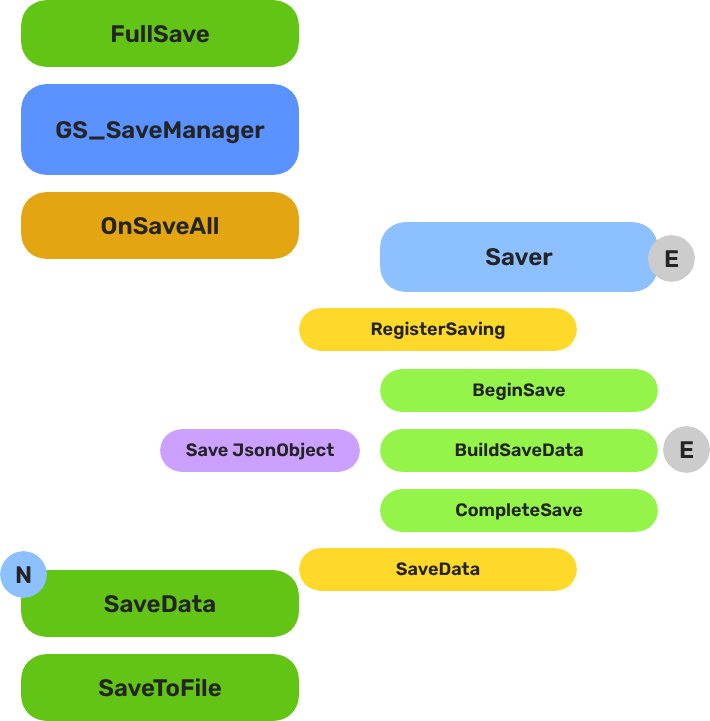
When a save or load is triggered, the Save Manager broadcasts to every Saver in the scene. Each Saver independently handles its own entity’s state. The Record Keeper persists flat progression data alongside the save file.
| Part | Broadcast Event | What It Means |
|---|
| Save Manager | OnSaveAll | Broadcasts to all Savers on save. Each serializes its entity state. |
| Save Manager | OnLoadAll | Broadcasts to all Savers on load. Each restores its entity state. |
| Record Keeper | RecordChanged | Fires when any progression flag is created, updated, or deleted. |
Savers are per-entity components — extend GS_SaverComponent to persist any custom data. The Record Keeper is a global singleton that lives on the Save Manager prefab.
E Indicates extensible classes and methods.
Patterns - Complete list of system patterns used in GS_Play.
Components
| Component | Purpose | Documentation |
|---|
| GS_SaveManagerComponent | Central save/load controller. Manages save files, triggers global save/load events, provides data access to all savers. | Save Manager |
| GS_SaverComponent | Base class for entity-level save handlers. Override BuildSaveData() and ProcessLoad() to persist any component data. | Savers |
| RecordKeeperComponent | Lightweight key-value store for progression tracking (string name → integer value). Extends GS_SaverComponent. | Record Keeper |
| BasicEntitySaverComponent | Pre-built saver that persists an entity’s Transform (position, rotation). | List of Savers |
| BasicPhysicsEntitySaverComponent | Pre-built saver that persists an entity’s Transform and Rigidbody state (velocity). | List of Savers |
Quick Start
- Create a Save Manager prefab with the GS_SaveManagerComponent.
- Optionally add a Record Keeper to the same prefab for progression tracking.
- Add the Save Manager
.spawnable to the Game Manager’s Startup Managers list. - Attach Saver components to any entities that need to persist data.
- Call
NewGame / LoadGame through the Game Manager — the Save Manager handles the rest.
See Also
For conceptual overviews and usage guides:
For component references:
For related resources:
Get GS_Core
GS_Core — Explore this gem on the product page and add it to your project.
1.2.1 - Save Manager
The central save/load controller — manages save files, triggers global persistence events, and provides data access for all savers.
The Save Manager is the central controller of the save system. It manages save file creation, triggers global save/load events that all Saver components respond to, and provides data access methods for storing and retrieving serialized game state.
Save files use JSON formatting for easy human interpretation, and the system uses the O3DE SaveData gem to write to the target platform’s default user data directory — PC, console, or mobile with no additional configuration.
For usage guides and setup examples, see The Basics: GS_Core.
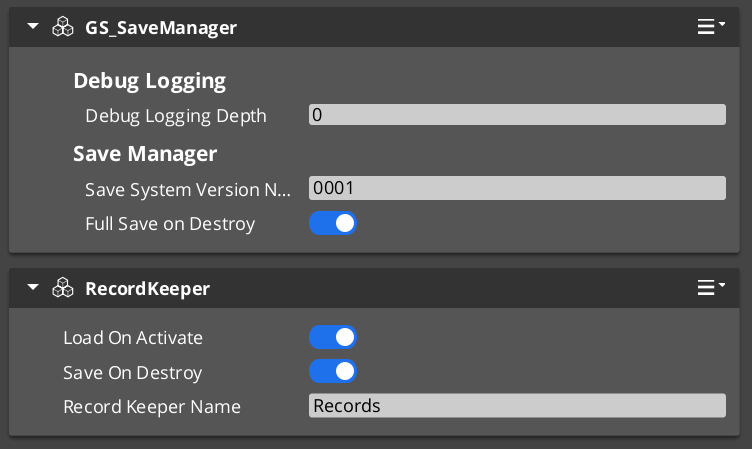
Contents
How It Works
Save File Structure
The Save Manager maintains a CoreSaveData file that acts as an index of all save files for the project. This file is identified by the combination of the Game Manager’s Project Prefix and the Save Manager’s Save System Version Number. Changing either value starts a fresh save data pass.
Each individual save file stores the full game state as a JSON document, including timestamped metadata for ordering.
Initialization
On startup, the Save Manager checks for existing save data using the Project Prefix + Version combination. It sets its internal IsContinuing flag to indicate whether previous save data is available to load. Other systems can query this to determine whether to show “Continue” or “Load Game” options.
New Game Flow
When the Game Manager calls NewGame:
- The Save Manager creates a new save file — either
defaultSaveData (no name given) or a custom name via NewGame(saveName). - The CoreSaveData index is updated with the new file entry.
Save Flow
- Game systems call
SaveData(uniqueName, data) on the SaveManagerRequestBus to store their data into the live save document. - When a full save is triggered (via method call,
OnSaveAll broadcast, or save-on-exit logic), the Save Manager serializes the complete document to disk.
Load Flow
- The Save Manager reads the target save file from disk into memory.
- It broadcasts
OnLoadAll via the SaveManagerNotificationBus. - Each Saver component responds by calling
LoadData(uniqueName, outData) to retrieve its portion of the save data.
Setup

Image showing the Manager wrapper entity set as Editor-Only inside Prefab Edit Mode.
- Create an entity. Attach the GS_SaveManagerComponent to it.
- Set the Save System Version Number (increment this when your save format changes to avoid loading incompatible data).
- Optionally add a RecordKeeperComponent to the same entity for progression tracking.
- Turn the entity into a prefab.
- Enter prefab edit mode. Set the wrapper entity (parent) to Editor Only. Save.
- Delete the Save Manager entity from the level.
- In the Game Manager prefab, add the Save Manager
.spawnable to the Startup Managers list.
Inspector Properties
| Property | Type | Default | Description |
|---|
| Save System Version Number | int | 0 | Version stamp for save file compatibility. Increment when your save data format changes — the system will treat saves from a different version as a fresh start. |
| Full Save On Destroy | bool | true | When enabled, the Save Manager performs a full save when the component is destroyed (e.g., on level exit or game shutdown). |
API Reference
Request Bus: SaveManagerRequestBus
The primary interface for all save/load operations. Singleton bus — call via Broadcast.
| Method | Parameters | Returns | Description |
|---|
NewGameSave | const AZStd::string& uniqueName | void | Creates a new save file with the given name. Pass empty string for default name. |
LoadGame | const AZStd::string& uniqueName | void | Loads the specified save file into memory and triggers data restoration. |
SaveData | const AZStd::string& uniqueName, const rapidjson::Value& data | void | Stores a named data block into the live save document. Called by Saver components during save operations. |
LoadData | const AZStd::string& uniqueName, rapidjson::Value& outData | bool | Retrieves a named data block from the loaded save document. Returns true if the data was found. |
GetOrderedSaveList | — | AZStd::vector<AZStd::pair<AZStd::string, AZ::u64>> | Returns all save files ordered by timestamp (newest first). Each entry is a name + epoch timestamp pair. |
ConvertEpochToReadable | AZ::u64 epochSeconds | AZStd::string | Converts an epoch timestamp to a human-readable date string. |
GetEpochTimeNow | — | AZ::u64 | Returns the current time as an epoch timestamp. |
GetAllocator | — | rapidjson::Document::AllocatorType* | Returns the JSON allocator for constructing save data values. |
HasData | const AZStd::string& uniqueName | bool | Checks whether the specified data block exists in the current save. |
IsContinuing | — | bool | Returns true if previous save data was found on startup. |
RegisterSaving | — | void | Registers that a save operation is in progress (used internally by the save counting system). |
Notification Bus: SaveManagerNotificationBus
Broadcast to all Saver components. Connect to this bus to participate in global save/load events.
| Event | Parameters | Description |
|---|
OnSaveAll | — | Broadcast when a full save is triggered. All savers should gather and submit their data. |
OnLoadAll | — | Broadcast when a save file has been loaded into memory. All savers should retrieve and restore their data. |
Local / Virtual Methods
These methods are available when extending the Save Manager. Override them to customize save file handling.
| Method | Description |
|---|
SaveToFile(fileName, docFile) | Serializes a JSON document to disk using the O3DE SaveData gem. |
LoadFromFile(fileName, docFile) | Deserializes a save file from disk into a JSON document. |
FullSave() | Triggers a complete save of all game data to disk. |
UpdateCoreData(saveName) | Updates the CoreSaveData index with the current save file entry. |
FileExists(dataBufferName, localUserId) | Static utility — checks if a save file exists on disk. |
GetSaveFilePath(dataBufferName, localUserId) | Static utility — returns the platform-appropriate file path for a save file. |
Usage Examples
Saving Data from a Component
#include <GS_Core/GS_CoreBus.h>

// Store your component's data into the live save document
rapidjson::Document::AllocatorType* allocator = nullptr;
GS_Core::SaveManagerRequestBus::BroadcastResult(
    allocator,
    &GS_Core::SaveManagerRequestBus::Events::GetAllocator
);

if (allocator)
{
    rapidjson::Value myData(rapidjson::kObjectType);
    myData.AddMember("health", m_health, *allocator);
    myData.AddMember("level", m_level, *allocator);

    GS_Core::SaveManagerRequestBus::Broadcast(
        &GS_Core::SaveManagerRequestBus::Events::SaveData,
        "MyComponent_PlayerStats",
        myData
    );
}
Loading Data into a Component
#include <GS_Core/GS_CoreBus.h>

rapidjson::Value outData;
bool found = false;
GS_Core::SaveManagerRequestBus::BroadcastResult(
    found,
    &GS_Core::SaveManagerRequestBus::Events::LoadData,
    "MyComponent_PlayerStats",
    outData
);

if (found)
{
    if (outData.HasMember("health")) m_health = outData["health"].GetInt();
    if (outData.HasMember("level"))  m_level = outData["level"].GetInt();
}
Checking if a Save Exists
#include <GS_Core/GS_CoreBus.h>

bool hasSave = false;
GS_Core::SaveManagerRequestBus::BroadcastResult(
    hasSave,
    &GS_Core::SaveManagerRequestBus::Events::IsContinuing
);

if (hasSave)
{
    // Show "Continue" / "Load Game" in the main menu
}
Getting the Save File List
#include <GS_Core/GS_CoreBus.h>

AZStd::vector<AZStd::pair<AZStd::string, AZ::u64>> saves;
GS_Core::SaveManagerRequestBus::BroadcastResult(
    saves,
    &GS_Core::SaveManagerRequestBus::Events::GetOrderedSaveList
);

for (const auto& [name, epoch] : saves)
{
    AZStd::string readable;
    GS_Core::SaveManagerRequestBus::BroadcastResult(
        readable,
        &GS_Core::SaveManagerRequestBus::Events::ConvertEpochToReadable,
        epoch
    );
    AZ_TracePrintf("Save", "Save: %s — %s", name.c_str(), readable.c_str());
}
Extending the Save Manager
Extend the Save Manager when you need custom save file formats, encryption, cloud save integration, or platform-specific serialization.
#pragma once
#include <Source/SaveSystem/GS_SaveManagerComponent.h>

namespace MyProject
{
    class MySaveManagerComponent
        : public GS_Core::GS_SaveManagerComponent
    {
    public:
        AZ_COMPONENT_DECL(MySaveManagerComponent);

        static void Reflect(AZ::ReflectContext* context);

    protected:
        // Override save/load to add custom behavior (e.g., encryption, compression)
        void SaveToFile(AZStd::string fileName, rapidjson::Document& docFile) override;
        void LoadFromFile(AZStd::string fileName, rapidjson::Document& docFile) override;

        // Override to customize the full save sequence
        void FullSave() override;
    };
}
Implementation (.cpp)
#include "MySaveManagerComponent.h"
#include <AzCore/Serialization/SerializeContext.h>

namespace MyProject
{
    AZ_COMPONENT_IMPL(MySaveManagerComponent, "MySaveManagerComponent", "{YOUR-UUID-HERE}",
        GS_Core::GS_SaveManagerComponent);

    void MySaveManagerComponent::Reflect(AZ::ReflectContext* context)
    {
        if (auto serializeContext = azrtti_cast<AZ::SerializeContext*>(context))
        {
            serializeContext->Class<MySaveManagerComponent, GS_Core::GS_SaveManagerComponent>()
                ->Version(0);

            if (AZ::EditContext* editContext = serializeContext->GetEditContext())
            {
                editContext->Class<MySaveManagerComponent>(
                    "My Save Manager", "Custom save manager with encryption support")
                    ->ClassElement(AZ::Edit::ClassElements::EditorData, "")
                        ->Attribute(AZ::Edit::Attributes::Category, "MyProject")
                        ->Attribute(AZ::Edit::Attributes::AppearsInAddComponentMenu, AZ_CRC_CE("Game"));
            }
        }
    }

    void MySaveManagerComponent::SaveToFile(AZStd::string fileName, rapidjson::Document& docFile)
    {
        // Example: encrypt the JSON before writing
        // ... your encryption logic ...

        // Call base to perform the actual file write
        GS_SaveManagerComponent::SaveToFile(fileName, docFile);
    }

    void MySaveManagerComponent::LoadFromFile(AZStd::string fileName, rapidjson::Document& docFile)
    {
        // Call base to perform the actual file read
        GS_SaveManagerComponent::LoadFromFile(fileName, docFile);

        // Example: decrypt the JSON after reading
        // ... your decryption logic ...
    }

    void MySaveManagerComponent::FullSave()
    {
        // Example: add a timestamp or checksum before saving
        // ... your custom logic ...

        GS_SaveManagerComponent::FullSave();
    }
}
Module Registration
m_descriptors.insert(m_descriptors.end(), {
    MyProject::MySaveManagerComponent::CreateDescriptor(),
});
Then create a prefab for your custom Save Manager and add it to the Game Manager’s Startup Managers list (replacing the default Save Manager).
See Also
For component references:
For related resources:
Get GS_Core
GS_Core — Explore this gem on the product page and add it to your project.
1.2.2 - Savers
The base class for entity-level save handlers — override BuildSaveData() and ProcessLoad() to persist any component data automatically.
For usage guides and setup examples, see The Basics: GS_Core.

Image showing the Basic Physics Saver component, an example of a Saver-inherited class, as seen in the Entity Inspector.
The GS_SaverComponent is the base class for all entity-level save handlers. By extending it, you can create companion components that save and load data alongside your entities, or inherit directly into gameplay components for built-in persistence (as done by GS_Inventory).
Savers automatically participate in the global save/load cycle — when the Save Manager broadcasts OnSaveAll or OnLoadAll, every active Saver component responds by gathering or restoring its data.
Contents
How It Works
Save Cycle
When a save event fires (global OnSaveAll, local trigger, or saveOnDestroy):
- BeginSave() — Primes the save data container.
- BuildSaveData() — Your override. Gather your component’s data and write it into
localData using the Save Manager’s JSON allocator. - CompleteSave() — Submits the data to the Save Manager via
SaveData(uniqueName, localData).
Load Cycle
When a load event fires (global OnLoadAll or loadOnActivate):
- LoadLocalData() — Retrieves this Saver’s data block from the Save Manager via
LoadData(uniqueName, outData). - ProcessLoad() — Your override. Read the retrieved data and restore your component’s state.
Automatic Identity
Each Saver generates a unique save key from the entity name and GetSubComponentName(). This ensures multiple Savers on different entities (or multiple Saver types on the same entity) don’t collide.
Setup
- Attach a Saver component (built-in or custom) to any entity that needs to persist data.
- Configure the Saver properties:
- Load On Activate — restore data automatically when the entity spawns.
- Save On Destroy — save data automatically when the entity is destroyed.
- Ensure the Save Manager is set up and running (it handles the file I/O).
Inspector Properties
| Property | Type | Default | Description |
|---|
| Load On Activate | bool | true | Automatically loads and restores this Saver’s data when the component activates. Useful for entities that spawn mid-game and need to resume their saved state. |
| Save On Destroy | bool | true | Automatically saves this Saver’s data when the component is destroyed. Ensures data is captured even if a global save hasn’t been triggered. |
API Reference
Global Event Handlers
These are called automatically when the Save Manager broadcasts global save/load events. Override to customize behavior.
| Method | Description |
|---|
OnSaveAll() | Called when the Save Manager broadcasts a global save. Default implementation calls the full save cycle (BeginSave → BuildSaveData → CompleteSave). |
OnLoadAll() | Called when the Save Manager broadcasts a global load. Default implementation calls the full load cycle (LoadLocalData → ProcessLoad). |
Save Methods
Override these to control how your component’s data is saved.
| Method | Description |
|---|
BeginSave() | Prepares the save data container. Called before BuildSaveData(). |
BuildSaveData() | Your primary override. Write your component’s data into localData using the JSON allocator. |
CompleteSave() | Submits localData to the Save Manager. Called after BuildSaveData(). |
Load Methods
Override these to control how your component’s data is restored.
| Method | Description |
|---|
LoadLocalData() | Retrieves this Saver’s data block from the Save Manager into localData. |
ProcessLoad() | Your primary override. Read localData and restore your component’s state. |
Utility Methods
| Method | Returns | Description |
|---|
SetUniqueName() | void | Generates the unique save key from the entity name and sub-component name. Override for custom key generation. |
GetSubComponentName() | AZStd::string | Returns "Saver" by default. Override to distinguish multiple Saver types on the same entity. |
Components
Pre-built Saver components included in GS_Core:
| Component | Saves | Documentation |
|---|
| BasicEntitySaverComponent | Entity Transform (position, rotation) | List of Savers |
| BasicPhysicsEntitySaverComponent | Entity Transform + Rigidbody (position, rotation, linear velocity, angular velocity) | List of Savers |
| RecordKeeperComponent | Key-value records (string → integer) | Record Keeper |
Usage Examples
Responding to Global Save/Load Events
If your component doesn’t extend GS_SaverComponent but still needs to react to save/load events, connect to the SaveManagerNotificationBus:
#include <GS_Core/GS_CoreBus.h>

class MyComponent
    : public AZ::Component
    , protected GS_Core::SaveManagerNotificationBus::Handler
{
protected:
    void Activate() override
    {
        GS_Core::SaveManagerNotificationBus::Handler::BusConnect();
    }

    void Deactivate() override
    {
        GS_Core::SaveManagerNotificationBus::Handler::BusDisconnect();
    }

    void OnSaveAll() override
    {
        // Gather and submit data to the Save Manager
    }

    void OnLoadAll() override
    {
        // Retrieve and restore data from the Save Manager
    }
};
Extending the Saver Class
Use the SaverComponent ClassWizard template to generate a new saver with boilerplate already in place — see GS_Core Templates.
Create a custom Saver whenever you need to persist component-specific data that the built-in savers don’t cover.
#pragma once
#include <Source/SaveSystem/GS_SaverComponent.h>

namespace MyProject
{
    class MyEntitySaverComponent
        : public GS_Core::GS_SaverComponent
    {
    public:
        AZ_COMPONENT_DECL(MyEntitySaverComponent);

        static void Reflect(AZ::ReflectContext* context);

    protected:
        // Saver overrides
        void BuildSaveData() override;
        void ProcessLoad() override;
        AZStd::string GetSubComponentName() const override { return "MyEntitySaver"; }
    };
}
Implementation (.cpp)
#include "MyEntitySaverComponent.h"
#include <AzCore/Serialization/SerializeContext.h>
#include <GS_Core/GS_CoreBus.h>

namespace MyProject
{
    AZ_COMPONENT_IMPL(MyEntitySaverComponent, "MyEntitySaverComponent", "{YOUR-UUID-HERE}",
        GS_Core::GS_SaverComponent);

    void MyEntitySaverComponent::Reflect(AZ::ReflectContext* context)
    {
        if (auto serializeContext = azrtti_cast<AZ::SerializeContext*>(context))
        {
            serializeContext->Class<MyEntitySaverComponent, GS_Core::GS_SaverComponent>()
                ->Version(0);

            if (AZ::EditContext* editContext = serializeContext->GetEditContext())
            {
                editContext->Class<MyEntitySaverComponent>(
                    "My Entity Saver", "Saves custom entity data")
                    ->ClassElement(AZ::Edit::ClassElements::EditorData, "")
                        ->Attribute(AZ::Edit::Attributes::Category, "MyProject")
                        ->Attribute(AZ::Edit::Attributes::AppearsInAddComponentMenu, AZ_CRC_CE("Game"));
            }
        }
    }

    void MyEntitySaverComponent::BuildSaveData()
    {
        // Get the JSON allocator from the Save Manager
        rapidjson::Document::AllocatorType* allocator = nullptr;
        GS_Core::SaveManagerRequestBus::BroadcastResult(
            allocator,
            &GS_Core::SaveManagerRequestBus::Events::GetAllocator
        );

        if (!allocator) return;

        // Write your data into localData (inherited member)
        localData.SetObject();
        localData.AddMember("myValue", 42, *allocator);
        localData.AddMember("myFlag", true, *allocator);

        // Example: save a string
        rapidjson::Value nameVal;
        nameVal.SetString("hello", *allocator);
        localData.AddMember("myString", nameVal, *allocator);
    }

    void MyEntitySaverComponent::ProcessLoad()
    {
        // Read your data from localData (populated by LoadLocalData)
        if (localData.HasMember("myValue"))
        {
            int myValue = localData["myValue"].GetInt();
            // ... restore state ...
        }

        if (localData.HasMember("myFlag"))
        {
            bool myFlag = localData["myFlag"].GetBool();
            // ... restore state ...
        }
    }
}
Module Registration
m_descriptors.insert(m_descriptors.end(), {
    MyProject::MyEntitySaverComponent::CreateDescriptor(),
});
Attach your custom Saver to any entity that needs persistence. The save/load cycle handles the rest automatically.
See Also
For component references:
For related resources:
Get GS_Core
GS_Core — Explore this gem on the product page and add it to your project.
1.2.2.1 - List of Savers
Pre-built saver components included in GS_Core — ready-to-use entity persistence without writing code.
For usage guides and setup examples, see The Basics: GS_Core.
Contents
GS_Core includes pre-built Saver components that handle common persistence scenarios out of the box. Attach one to any entity that needs to remember its state between save/load cycles — no custom code required.
All built-in Savers inherit from GS_SaverComponent and participate in the global save/load cycle automatically.
Basic Entity Saver
A companion component that saves and loads an entity’s Transform data: position and rotation.
When to Use
Use the Basic Entity Saver for any entity that can be moved or rotated during gameplay and needs to retain its position across saves — collectibles, furniture, doors, NPCs with fixed patrol points, etc.
Inspector Properties
| Property | Type | Default | Description |
|---|
| Load On Activate | bool | true | Inherited from GS_SaverComponent. Automatically restores the saved Transform on activation. |
| Save On Destroy | bool | true | Inherited from GS_SaverComponent. Automatically saves the current Transform on destruction. |
What It Saves
| Data | Type | Description |
|---|
| Position | AZ::Vector3 | World-space position of the entity. |
| Rotation | AZ::Quaternion | World-space rotation of the entity. |
Setup
- Attach the BasicEntitySaverComponent to any entity that needs Transform persistence.
- Ensure the Save Manager is running.
- That’s it — the component saves and loads automatically.
Basic Physics Entity Saver
Image showing the Basic Physics Saver component, as seen in the Entity Inspector.
A companion component that saves and loads an entity’s Transform and Rigidbody physics state.
When to Use
Use the Basic Physics Entity Saver for physics-driven entities that need to retain both their position and their motion state across saves — throwable objects, rolling boulders, physics puzzles, ragdolls, etc.
Inspector Properties
| Property | Type | Default | Description |
|---|
| Load On Activate | bool | true | Inherited from GS_SaverComponent. Automatically restores saved state on activation. |
| Save On Destroy | bool | true | Inherited from GS_SaverComponent. Automatically saves current state on destruction. |
What It Saves
| Data | Type | Description |
|---|
| Position | AZ::Vector3 | World-space position of the entity. |
| Rotation | AZ::Quaternion | World-space rotation of the entity. |
| Linear Velocity | AZ::Vector3 | Current linear velocity of the rigidbody. |
| Angular Velocity | AZ::Vector3 | Current angular velocity of the rigidbody. |
Transform data (position, rotation) loads reliably. Rigidbody velocity restoration may not behave as expected in all physics scenarios.
Setup
- Attach the BasicPhysicsEntitySaverComponent to any entity with a Rigidbody component.
- Ensure the Save Manager is running.
- The component saves and loads automatically.
Creating Your Own Saver
Need to persist data that the built-in Savers don’t cover? See the Extending the Saver Class guide for a complete walkthrough with header, implementation, and module registration.
See Also
For component references:
Get GS_Core
GS_Core — Explore this gem on the product page and add it to your project.
1.2.3 - Record Keeper
Lightweight key-value progression tracking — store and retrieve named integer records without writing a custom saver.
For usage guides and setup examples, see The Basics: GS_Core.

Image showing the Record Keeper component with its unique variables and inherited Saver properties, as seen in the Entity Inspector.
The Record Keeper is a companion component that provides a simple key-value store for tracking progression, switch states, quest stages, or any other data that doesn’t require a complex Saver implementation. Each record is a SaveRecord — a name/value pair of recordName (string) and recordProgress (integer).
Because it extends GS_SaverComponent, the Record Keeper saves and loads automatically with the rest of the save system. No custom serialization code needed.
Contents
How It Works
- The Record Keeper lives on your Save Manager prefab entity (recommended) or any entity with save system access.
- Game systems call
SetRecord, GetRecord, HasRecord, and DeleteRecord via the RecordKeeperRequestBus. - On each call to
SetRecord, the Record Keeper broadcasts RecordChanged on the RecordKeeperNotificationBus so listeners can react. - When a global save event fires (
OnSaveAll), the Record Keeper serializes all its records into the save file automatically. - On load, it deserializes its records and makes them available immediately.
SaveRecord Data Structure
struct SaveRecord
{
    AZStd::string recordName;    // Unique key (e.g., "quest_village_rescue", "switch_bridge_01")
    AZ::s32       recordProgress; // Integer value (progression stage, state, count, etc.)
};
TypeId: {F6F4F258-819A-468A-B015-CAF51D8289BF}
Setup
- Open your Save Manager prefab in prefab edit mode.
- Add the RecordKeeperComponent to the Save Manager entity.
- Set the Record Keeper Name — this drives unique save/load identification and allows multiple Record Keepers if needed.
- Enable the Saver booleans as needed:
- Load On Activate — automatically loads records when the component activates (recommended: on).
- Save On Destroy — automatically saves records when the component is destroyed (recommended: on).
Inspector Properties
| Property | Type | Default | Description |
|---|
| Record Keeper Name | AZStd::string | "" | Unique identifier for this Record Keeper. Drives the save/load key. Required if using multiple Record Keepers. |
| Load On Activate | bool | true | Inherited from GS_SaverComponent. Automatically loads records from save data on activation. |
| Save On Destroy | bool | true | Inherited from GS_SaverComponent. Automatically saves records to the save system on destruction. |
API Reference
Request Bus: RecordKeeperRequestBus
The primary interface for reading and writing records.
| Method | Parameters | Returns | Description |
|---|
HasRecord | const AZStd::string& recordName | bool | Returns true if a record with the given name exists. |
SetRecord | const AZStd::string& recordName, AZ::s32 recordProgress | void | Creates or updates a record. Broadcasts RecordChanged on success. |
GetRecord | const AZStd::string& recordName | AZ::s32 | Returns the value of the named record. Returns 0 if the record does not exist. |
DeleteRecord | const AZStd::string& recordName | void | Removes the named record from the store. |
Notification Bus: RecordKeeperNotificationBus
Connect to this bus to react when records change.
| Event | Parameters | Description |
|---|
RecordChanged | const AZStd::string& recordName, AZ::s32 recordValue | Broadcast whenever SetRecord is called. Use this to update UI, trigger gameplay events, or log progression. |
Usage Examples
Setting a Progression Record
#include <GS_Core/GS_CoreBus.h>

// Mark quest stage 2 as complete
GS_Core::RecordKeeperRequestBus::Broadcast(
    &GS_Core::RecordKeeperRequestBus::Events::SetRecord,
    "quest_village_rescue",
    2
);
Reading a Record
#include <GS_Core/GS_CoreBus.h>

AZ::s32 questStage = 0;
GS_Core::RecordKeeperRequestBus::BroadcastResult(
    questStage,
    &GS_Core::RecordKeeperRequestBus::Events::GetRecord,
    "quest_village_rescue"
);

if (questStage >= 2)
{
    // The player has completed stage 2 — unlock the bridge
}
Checking if a Record Exists
#include <GS_Core/GS_CoreBus.h>

bool exists = false;
GS_Core::RecordKeeperRequestBus::BroadcastResult(
    exists,
    &GS_Core::RecordKeeperRequestBus::Events::HasRecord,
    "switch_bridge_01"
);

if (!exists)
{
    // First time encountering this switch — initialize it
    GS_Core::RecordKeeperRequestBus::Broadcast(
        &GS_Core::RecordKeeperRequestBus::Events::SetRecord,
        "switch_bridge_01",
        0
    );
}
Listening for Record Changes
#include <GS_Core/GS_CoreBus.h>

// In your component header:
class MyQuestTrackerComponent
    : public AZ::Component
    , protected GS_Core::RecordKeeperNotificationBus::Handler
{
protected:
    void Activate() override
    {
        GS_Core::RecordKeeperNotificationBus::Handler::BusConnect();
    }

    void Deactivate() override
    {
        GS_Core::RecordKeeperNotificationBus::Handler::BusDisconnect();
    }

    // RecordKeeperNotificationBus
    void RecordChanged(const AZStd::string& recordName, AZ::s32 recordValue) override
    {
        if (recordName == "quest_village_rescue" && recordValue >= 3)
        {
            // Quest complete — trigger reward
        }
    }
};
Extending the Record Keeper
For complex data needs beyond simple key-value records, create custom Saver components.
See Also
For component references:
Get GS_Core
GS_Core — Explore this gem on the product page and add it to your project.
1.3 - GS_StageManager
The level navigation system — handles loading, unloading, and staged startup of game levels with exit point traversal.
The Stage Manager system handles the process of changing levels, loading and unloading their assets, and starting up levels in the correct sequence. It supports incremental loading so that complex levels with generative components can spin up reliably without massive frame-time spikes.
Each level contains a Stage Data component that acts as the level’s anchor — connecting the Stage Manager to level-specific references, startup sequences, and navigation data. Exit Points mark spawn positions for player placement when transitioning between stages.
For usage guides and setup examples, see The Basics: GS_Core.
Contents
Architecture
Breakdown
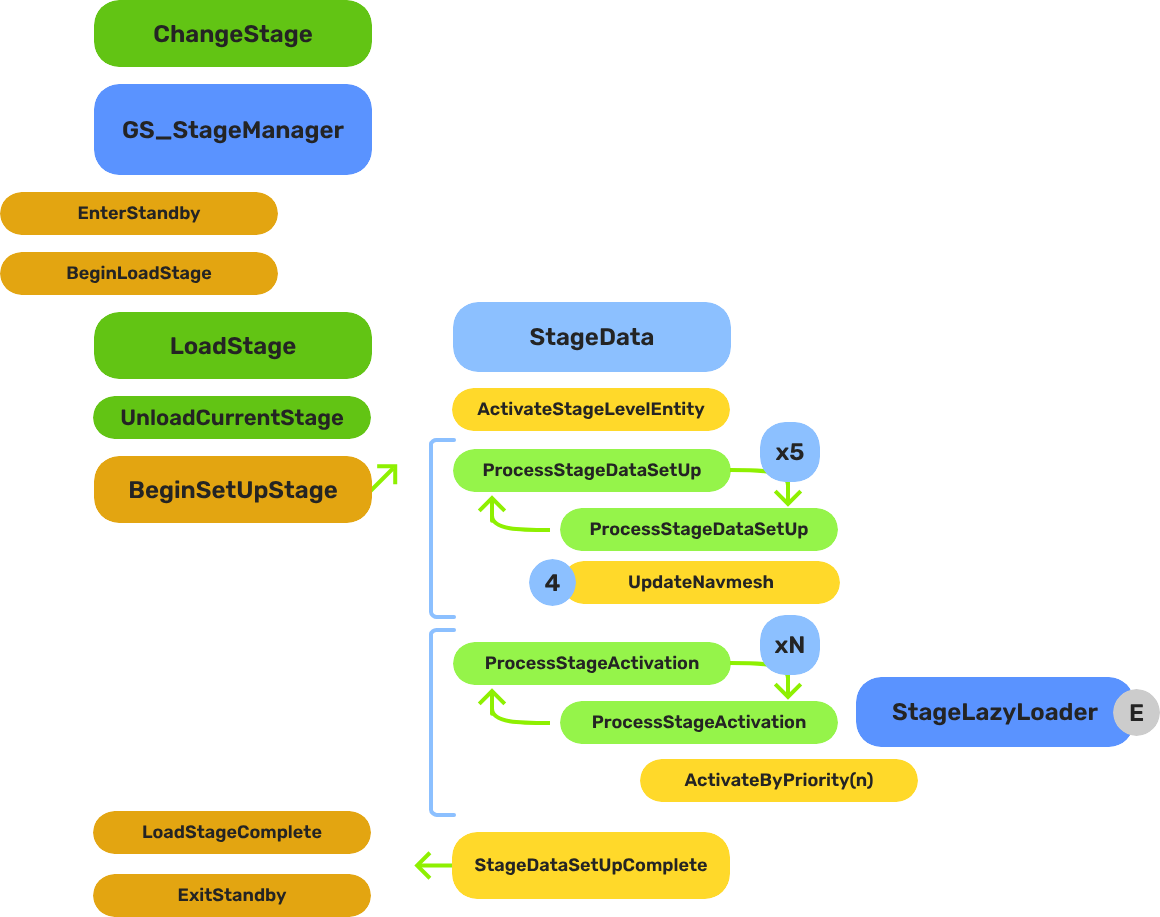
When a stage change is requested, the system follows a five-step sequence before gameplay resumes in the new level:
| Step | Broadcast Event | What It Means |
|---|
| 1 — Standby | OnEnterStandby | Game Manager enters standby, halting all gameplay systems. |
| 2 — Unload | (internal) | The current stage’s entities are torn down. |
| 3 — Spawn | (internal) | The target stage prefab is instantiated. |
| 4 — Set Up | OnBeginSetUpStage | Stage Data runs its layered startup: SetUpStage → ActivateByPriority → Complete. |
| 5 — Complete | LoadStageComplete | Stage Manager broadcasts completion. Standby exits. Gameplay resumes. |
The Stage Data startup is layered so heavy levels can initialize incrementally without causing frame-time spikes.
E Indicates extensible classes and methods.
Patterns - Complete list of system patterns used in GS_Play.
Components
| Component | Purpose | Documentation |
|---|
| GS_StageManagerComponent | Singleton level controller. Manages the Stages list, handles change requests, coordinates loading/unloading. | Stage Manager |
| GS_StageDataComponent | Per-level anchor. Holds stage name, NavMesh reference, and runs the level’s startup sequence. | Stage Data |
| StageExitPointComponent | Marks spawn/exit positions within a level. Registered by name for cross-stage entity placement. | Stage Manager: Exit Points |
| StageLazyLoaderComponent | Priority-based entity activation during level load. Spreads heavy initialization across frames. | Stage Data: Priority Loading |
Quick Start
- Create a Stage Manager prefab with the GS_StageManagerComponent.
- Add stage entries to the Stages list (name + spawnable prefab for each level).
- Set the Default Stage to your starting level.
- Add the Stage Manager
.spawnable to the Game Manager’s Startup Managers list. - In each level prefab, add a Stage Data component as the level’s anchor.
- Optionally place Exit Points in each level for spawn positioning.
See Also
For conceptual overviews and usage guides:
For component references:
For related resources:
Get GS_Core
GS_Core — Explore this gem on the product page and add it to your project.
1.3.1 - Stage Manager
The singleton level controller — manages a list of stages, handles level loading/unloading, and coordinates staged startup with the Stage Data component.
The Stage Manager is the singleton that handles all the logistics of loading and unloading game levels. It maintains a list of stages (name-to-spawnable mappings) and processes change requests by unloading the current stage and spawning the target. Once loaded, it connects to the level’s Stage Data component to run the staged startup sequence.
The system operates as a “one in, one out” format — loading one level automatically unloads the previous one.
For usage guides and setup examples, see The Basics: GS_Core.
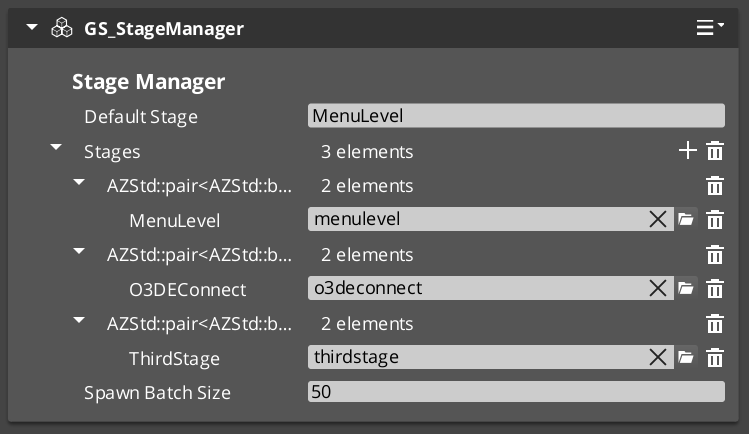
Contents
How It Works
Startup
At game startup, the Stage Manager checks the Game Manager’s Debug Mode flag:
- Debug Mode OFF — The Stage Manager loads the Default Stage automatically. This is the normal game flow.
- Debug Mode ON — The Stage Manager stays connected to whatever level is already loaded in the editor. This lets developers iterate within a stage without waiting for a full level load cycle.
Change Stage Flow
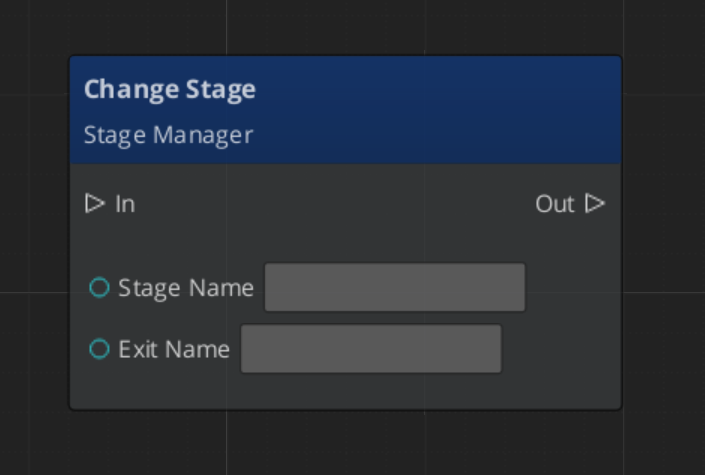
When ChangeStageRequest(stageName, exitName) is called:
- Unload — The current stage is destroyed (if one is loaded).
- Spawn — The Stage Manager looks up
stageName in the Stages list and spawns the matching prefab. - Connect — The Stage Manager queries the newly spawned level for its Stage Data component.
- Startup — The Stage Data component runs the level’s staged activation sequence (priority layers, NavMesh generation, etc.).
- Notify — The Stage Manager broadcasts
LoadStageComplete when the level is fully ready.
Exit Points
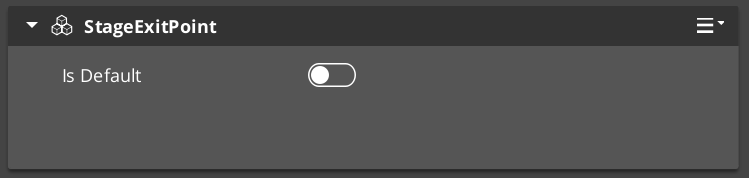
Exit Points are simple components placed within a level that mark positions for entity placement after a stage loads. They support cross-stage traversal — when changing stages, you specify an exit point name, and entities can be repositioned to that point.
- Exit Points register themselves with the Stage Manager by name via
RegisterExitPoint. - One Exit Point can be flagged as Default — it serves as the fallback if no specific exit point is requested.
- Call
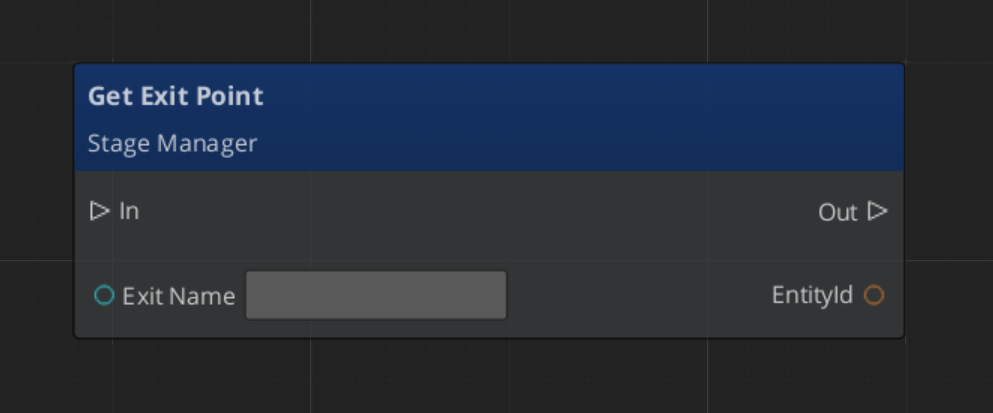
GetExitPoint(exitName) to retrieve the entity at a named position.
Setup
Image showing the Manager wrapper entity set as Editor-Only inside Prefab Edit Mode.
- Create an entity. Attach the GS_StageManagerComponent to it.
- Configure the Stages list — add an entry for each level (stage name + spawnable prefab reference).
- Set the Default Stage to your starting level. This name must also exist in the Stages list.
- Turn the entity into a prefab.
- Enter prefab edit mode. Set the wrapper entity (parent) to Editor Only. Save.
- Delete the Stage Manager entity from the level.
- In the Game Manager prefab, add the Stage Manager
.spawnable to the Startup Managers list.
Inspector Properties
| Property | Type | Default | Description |
|---|
| Stages | AZStd::vector<StageEntry> | [] | List of stage entries. Each entry maps a stage name to a spawnable prefab asset. |
| Default Stage | AZStd::string | "" | The stage to load automatically on game startup (when not in Debug Mode). Must match a name in the Stages list. |
API Reference
Request Bus: StageManagerRequestBus
The primary interface for level navigation. Singleton bus — call via Broadcast.
| Method | Parameters | Returns | Description |
|---|
ChangeStageRequest | AZStd::string stageName, AZStd::string exitName | void | Unloads the current stage and loads the named stage. The exitName specifies which Exit Point to use for entity placement. Pass empty string for default. |
LoadDefaultStage | — | void | Loads the Default Stage. Typically called internally during game startup. |
RegisterExitPoint | AZStd::string exitName, AZ::EntityId exitEntity | void | Registers a named exit point entity. Called by StageExitPointComponents on activation. |
UnregisterExitPoint | AZStd::string exitName | void | Removes a named exit point. Called by StageExitPointComponents on deactivation. |
GetExitPoint | AZStd::string exitName = "" | AZ::EntityId | Returns the entity ID of the named exit point. Pass empty string to get the default exit point. |
Notification Bus: StageManagerNotificationBus
Connect to this bus to react to level loading events.
| Event | Parameters | Description |
|---|
BeginLoadStage | — | Broadcast when a stage change has started. Use this to show loading screens, disable input, etc. |
LoadStageComplete | — | Broadcast when the new stage is fully loaded and its startup sequence is complete. Safe to begin gameplay. |
StageLoadProgress | float progress | Broadcast during the loading process with a 0.0–1.0 progress value. Use for loading bar UI. |
Local / Virtual Methods
These methods are available when extending the Stage Manager.
| Method | Description |
|---|
ChangeStage(stageName, exitName) | Internal stage change logic. Override to add custom behavior around stage transitions. |
LoadStage() | Spawns the target stage prefab. Override for custom spawning logic. |
ContinueLoadStage() | Called after the stage prefab has spawned. Queries for Stage Data and starts the level’s activation sequence. |
UpdateStageData() | Connects to the Stage Data component in the loaded level. |
GetStageByName(stageName) | Returns the spawnable asset reference for a named stage from the Stages list. |
Usage Examples
Changing Stages
#include <GS_Core/GS_CoreBus.h>

// Load "ForestVillage" and place the player at the "main_entrance" exit point
GS_Core::StageManagerRequestBus::Broadcast(
    &GS_Core::StageManagerRequestBus::Events::ChangeStageRequest,
    AZStd::string("ForestVillage"),
    AZStd::string("main_entrance")
);
Getting an Exit Point Entity
#include <GS_Core/GS_CoreBus.h>

AZ::EntityId exitEntity;
GS_Core::StageManagerRequestBus::BroadcastResult(
    exitEntity,
    &GS_Core::StageManagerRequestBus::Events::GetExitPoint,
    AZStd::string("cave_exit")
);

if (exitEntity.IsValid())
{
    // Reposition the player entity to the exit point's transform
}
Listening for Stage Load Events
#include <GS_Core/GS_CoreBus.h>

class MyLoadScreenComponent
    : public AZ::Component
    , protected GS_Core::StageManagerNotificationBus::Handler
{
protected:
    void Activate() override
    {
        GS_Core::StageManagerNotificationBus::Handler::BusConnect();
    }

    void Deactivate() override
    {
        GS_Core::StageManagerNotificationBus::Handler::BusDisconnect();
    }

    void BeginLoadStage() override
    {
        // Show loading screen, disable player input
    }

    void LoadStageComplete() override
    {
        // Hide loading screen, enable player input
    }

    void StageLoadProgress(float progress) override
    {
        // Update loading bar: progress is 0.0 to 1.0
    }
};
Script Canvas
Changing stages:
Getting an exit point:
Extending the Stage Manager
Extend the Stage Manager when you need custom stage transition logic, procedural level generation, or multi-stage loading.
#pragma once
#include <Source/StageManager/GS_StageManagerComponent.h>

namespace MyProject
{
    class MyStageManagerComponent
        : public GS_Core::GS_StageManagerComponent
    {
    public:
        AZ_COMPONENT_DECL(MyStageManagerComponent);

        static void Reflect(AZ::ReflectContext* context);

    protected:
        // Override stage change behavior
        void ChangeStage(AZStd::string stageName, AZStd::string exitName) override;
        void ContinueLoadStage() override;
    };
}
Implementation (.cpp)
#include "MyStageManagerComponent.h"
#include <AzCore/Serialization/SerializeContext.h>

namespace MyProject
{
    AZ_COMPONENT_IMPL(MyStageManagerComponent, "MyStageManagerComponent", "{YOUR-UUID-HERE}",
        GS_Core::GS_StageManagerComponent);

    void MyStageManagerComponent::Reflect(AZ::ReflectContext* context)
    {
        if (auto serializeContext = azrtti_cast<AZ::SerializeContext*>(context))
        {
            serializeContext->Class<MyStageManagerComponent, GS_Core::GS_StageManagerComponent>()
                ->Version(0);

            if (AZ::EditContext* editContext = serializeContext->GetEditContext())
            {
                editContext->Class<MyStageManagerComponent>(
                    "My Stage Manager", "Custom stage manager with transition effects")
                    ->ClassElement(AZ::Edit::ClassElements::EditorData, "")
                        ->Attribute(AZ::Edit::Attributes::Category, "MyProject")
                        ->Attribute(AZ::Edit::Attributes::AppearsInAddComponentMenu, AZ_CRC_CE("Game"));
            }
        }
    }

    void MyStageManagerComponent::ChangeStage(AZStd::string stageName, AZStd::string exitName)
    {
        // Example: trigger a fade-out transition before changing stages
        // ... your transition logic ...

        // Call base to perform the actual stage change
        GS_StageManagerComponent::ChangeStage(stageName, exitName);
    }

    void MyStageManagerComponent::ContinueLoadStage()
    {
        // Call base to connect to Stage Data and start level activation
        GS_StageManagerComponent::ContinueLoadStage();

        // Example: trigger a fade-in transition after loading
        // ... your transition logic ...
    }
}
Module Registration
m_descriptors.insert(m_descriptors.end(), {
    MyProject::MyStageManagerComponent::CreateDescriptor(),
});
Then create a prefab for your custom Stage Manager and add it to the Game Manager’s Startup Managers list (replacing the default).
See Also
For component references:
For related resources:
Get GS_Core
GS_Core — Explore this gem on the product page and add it to your project.
1.3.2 - Stage Data
The per-level anchor component — holds stage configuration, NavMesh references, and runs the level’s staged activation sequence.
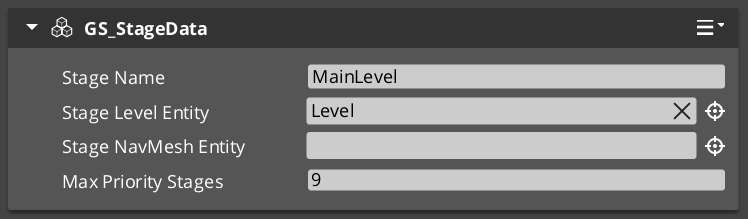
The Stage Data component is the anchor that connects the Stage Manager to a loaded level. It holds level-specific configuration — stage name, NavMesh reference, priority layers — and runs the staged activation sequence that brings the level online incrementally rather than all at once.
Every level that loads through the Stage Manager should have exactly one Stage Data component at the root of its prefab hierarchy.
For usage guides and setup examples, see The Basics: GS_Core.
Contents
How It Works
Connection
When the Stage Manager spawns a stage prefab, it queries the level for the Stage Data component via StageDataRequestBus. The Stage Data returns its reference, and the Stage Manager hands off the startup process.
Staged Activation
Rather than activating every entity in the level at once (which would cause a massive frame spike), the Stage Data component supports priority-based activation:
- SetUpStage() — Initial stage configuration. Sets up references, connects internal systems.
- ActivateByPriority — Entities tagged with priority layers activate in sequence, spreading heavy initialization across multiple frames. This allows NavMesh generation, procedural content, and complex entity hierarchies to spin up without blocking the main thread.
- LoadStageComplete — The Stage Manager broadcasts this once all priority layers have finished and the level is fully ready.
NavMesh Integration
The Stage Data component holds a reference to the level’s Recast NavMesh entity. This allows the Stage Manager to trigger NavMesh generation at the appropriate point during the startup sequence — after the level geometry is loaded but before AI systems begin pathfinding.
Setup
- In your level prefab, create an entity at the root level.
- Attach the GS_StageDataComponent to it.
- Set the Stage Name to match the name used in the Stage Manager’s Stages list.
- Assign the NavMesh entity reference if your level uses Recast Navigation.
- Configure priority layers for incremental entity activation if needed.
Inspector Properties
| Property | Type | Default | Description |
|---|
| Stage Name | AZStd::string | "" | The name of this stage. Must match the corresponding entry in the Stage Manager’s Stages list. |
| NavMesh | AZ::EntityId | Invalid | Reference to the entity with the Recast Navigation component. Used to trigger NavMesh generation during staged startup. |
API Reference
Request Bus: StageDataRequestBus
Used by the Stage Manager to connect to and control the level’s startup.
| Method | Parameters | Returns | Description |
|---|
GetStageData | — | StageData* | Returns a reference to this Stage Data component. Used by the Stage Manager during initial connection. |
BeginSetUpStage | — | void | Starts the stage’s setup sequence. Called by the Stage Manager after connecting. |
GetStageName | — | AZStd::string | Returns the configured stage name. |
GetStageNavMesh | — | AZ::EntityId | Returns the NavMesh entity reference for this stage. |
Notification Bus: StageDataNotificationBus
Connect to this bus for level-specific lifecycle events.
| Event | Parameters | Description |
|---|
OnLoadStageComplete | — | Broadcast when this stage’s activation sequence has finished. |
OnBeginSetUpStage | — | Broadcast when the stage setup begins. |
OnTearDownStage | — | Broadcast when the stage is being unloaded. Use for level-specific cleanup. |
ActivateByPriority | int priority | Broadcast for each priority layer during staged activation. Entities at this priority level should activate. |
Local / Virtual Methods
These methods are available when extending the Stage Data component.
| Method | Returns | Description |
|---|
SetUpStage() | bool | Runs the stage’s initial setup. Override to add custom startup logic. Returns true when setup is complete. |
BeginLoadStage() | void | Called when the stage begins loading. Override for custom load-start behavior. |
LoadStageComplete() | void | Called when loading is complete. Override for custom post-load behavior. |
Usage Examples
Listening for Stage Events in a Level Component
#include <GS_Core/GS_CoreBus.h>

class MyLevelController
    : public AZ::Component
    , protected GS_Core::StageDataNotificationBus::Handler
{
protected:
    void Activate() override
    {
        GS_Core::StageDataNotificationBus::Handler::BusConnect();
    }

    void Deactivate() override
    {
        GS_Core::StageDataNotificationBus::Handler::BusDisconnect();
    }

    void OnBeginSetUpStage() override
    {
        // Level setup is starting — initialize level-specific systems
    }

    void OnLoadStageComplete() override
    {
        // Level is fully ready — spawn enemies, start ambient audio, etc.
    }

    void OnTearDownStage() override
    {
        // Level is being unloaded — clean up level-specific resources
    }
};
Priority-Based Activation
#include <GS_Core/GS_CoreBus.h>

class MyPriorityActivator
    : public AZ::Component
    , protected GS_Core::StageDataNotificationBus::Handler
{
    int m_myPriority = 2; // Activate during priority layer 2

protected:
    void Activate() override
    {
        GS_Core::StageDataNotificationBus::Handler::BusConnect();
    }

    void Deactivate() override
    {
        GS_Core::StageDataNotificationBus::Handler::BusDisconnect();
    }

    void ActivateByPriority(int priority) override
    {
        if (priority == m_myPriority)
        {
            // This is our turn — initialize heavy resources
            // (procedural generation, AI setup, physics volumes, etc.)
        }
    }
};
Script Canvas
Getting stage name and NavMesh reference:
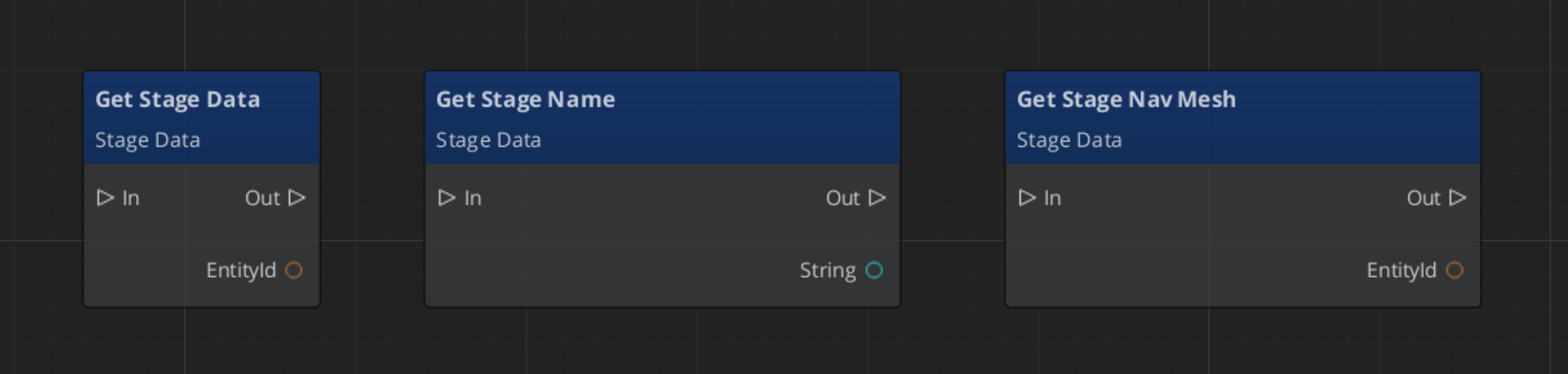
Extending the Stage Data Component
Extend Stage Data when you need custom level startup sequences, procedural generation hooks, or level-specific configuration.
#pragma once
#include <Source/StageManager/GS_StageDataComponent.h>

namespace MyProject
{
    class MyStageDataComponent
        : public GS_Core::GS_StageDataComponent
    {
    public:
        AZ_COMPONENT_DECL(MyStageDataComponent);

        static void Reflect(AZ::ReflectContext* context);

    protected:
        // Override to add custom stage setup
        bool SetUpStage() override;
        void LoadStageComplete() override;

    private:
        bool m_enableProceduralContent = false;
    };
}
Implementation (.cpp)
#include "MyStageDataComponent.h"
#include <AzCore/Serialization/SerializeContext.h>

namespace MyProject
{
    AZ_COMPONENT_IMPL(MyStageDataComponent, "MyStageDataComponent", "{YOUR-UUID-HERE}",
        GS_Core::GS_StageDataComponent);

    void MyStageDataComponent::Reflect(AZ::ReflectContext* context)
    {
        if (auto serializeContext = azrtti_cast<AZ::SerializeContext*>(context))
        {
            serializeContext->Class<MyStageDataComponent, GS_Core::GS_StageDataComponent>()
                ->Version(0)
                ->Field("EnableProceduralContent", &MyStageDataComponent::m_enableProceduralContent);

            if (AZ::EditContext* editContext = serializeContext->GetEditContext())
            {
                editContext->Class<MyStageDataComponent>(
                    "My Stage Data", "Custom stage data with procedural generation support")
                    ->ClassElement(AZ::Edit::ClassElements::EditorData, "")
                        ->Attribute(AZ::Edit::Attributes::Category, "MyProject")
                        ->Attribute(AZ::Edit::Attributes::AppearsInAddComponentMenu, AZ_CRC_CE("Game"))
                    ->DataElement(AZ::Edit::UIHandlers::Default,
                        &MyStageDataComponent::m_enableProceduralContent,
                        "Enable Procedural Content",
                        "Generate procedural content during stage setup");
            }
        }
    }

    bool MyStageDataComponent::SetUpStage()
    {
        if (m_enableProceduralContent)
        {
            // Run procedural generation for this level
            // ... your generation logic ...
        }

        // Call base to continue the standard setup sequence
        return GS_StageDataComponent::SetUpStage();
    }

    void MyStageDataComponent::LoadStageComplete()
    {
        // Custom post-load behavior
        // ... your logic ...

        GS_StageDataComponent::LoadStageComplete();
    }
}
Module Registration
m_descriptors.insert(m_descriptors.end(), {
    MyProject::MyStageDataComponent::CreateDescriptor(),
});
Use your custom Stage Data component in level prefabs instead of the default GS_StageDataComponent.
See Also
For component references:
For related resources:
Get GS_Core
GS_Core — Explore this gem on the product page and add it to your project.
1.4 - GS_Options
The configuration system — input profiles, input readers, and runtime settings management for gameplay and accessibility.
The Options system is the central pillar for handling background systemic configuration. At its simplest, it lets you set up user-facing options like volume, graphics settings, subtitles, and other standard configurable settings. Beyond that, it manages development-side functionality — language settings, current input device type, and other runtime-aware systems — providing that data to hook components throughout the game.
Currently, the Options system’s primary feature is the Input Profile system, which replaces O3DE’s raw input binding files with a more flexible, group-based approach that supports runtime rebinding and per-group enable/disable toggling.
For usage guides and setup examples, see The Basics: GS_Core.
Contents
Components
| Component | Purpose | Documentation |
|---|
| GS_OptionsManagerComponent | Singleton manager. Holds the active Input Profile and provides it to Input Readers. | Options Manager |
| GS_InputProfile | Data asset defining input groups, event mappings, and key bindings. Created in the Asset Editor. | Input Profiles |
| GS_InputReaderComponent | Reads input through the active profile and fires gameplay events. Can be extended for specialized input handling. | Input Options |
Quick Start
- Create an Options Manager prefab with the GS_OptionsManagerComponent.
- Create a GS_InputProfile data asset in the Asset Editor.
- Add input groups and event mappings to the profile.
- Assign the Input Profile to the Options Manager.
- Add the Options Manager
.spawnable to the Game Manager’s Startup Managers list. - Attach GS_InputReaderComponents to entities that need to process input.
See Also
For conceptual overviews and usage guides:
For component references:
For related resources:
Get GS_Core
GS_Core — Explore this gem on the product page and add it to your project.
1.4.1 - Options Manager
The singleton options controller — holds the active Input Profile and provides runtime configuration data to game systems.
For usage guides and setup examples, see The Basics: GS_Core.

Image showing the Options Manager component, as seen in the Entity Inspector.
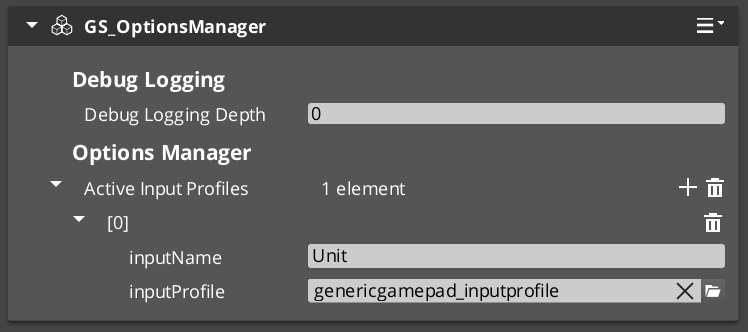
The Options Manager is the central anchor of the Options system. It holds the active Input Profile data asset and provides it to Input Readers and other game systems that need runtime configuration data.
As a Manager, it is spawned by the Game Manager and participates in the standard two-stage initialization lifecycle.
Contents
How It Works
- The Options Manager initializes during the Game Manager’s startup sequence.
- It loads the configured Input Profile data asset.
- Input Readers across the game query the Options Manager for the active profile via
OptionsManagerRequestBus. - The Options Manager responds to standby events — pausing and resuming input processing when the game enters or exits standby mode.
Setup
Image showing the Manager wrapper entity set as Editor-Only inside Prefab Edit Mode.
- Create an entity. Attach the GS_OptionsManagerComponent to it.
- Assign your Input Profile data asset.
- Turn the entity into a prefab.
- Enter prefab edit mode. Set the wrapper entity (parent) to Editor Only. Save.
- Delete the Options Manager entity from the level.
- In the Game Manager prefab, add the Options Manager
.spawnable to the Startup Managers list.
Inspector Properties
| Property | Type | Default | Description |
|---|
| Input Profile | AZ::Data::Asset<GS_InputProfile> | None | The active Input Profile data asset. Input Readers across the game will use this profile for event-to-binding mappings. |
API Reference
Request Bus: OptionsManagerRequestBus
Singleton bus — call via Broadcast.
| Method | Parameters | Returns | Description |
|---|
GetActiveInputProfile | — | AZ::Data::Asset<GS_InputProfile> | Returns the currently active Input Profile data asset. Called by Input Readers on activation. |
Lifecycle Events (from GameManagerNotificationBus)
| Event | Description |
|---|
OnStartupComplete | The Options Manager is fully ready. Input Readers can now query for the active profile. |
OnEnterStandby | Pause input processing. |
OnExitStandby | Resume input processing. |
Usage Examples
#include <GS_Core/GS_CoreBus.h>

AZ::Data::Asset<GS_Core::GS_InputProfile> profile;
GS_Core::OptionsManagerRequestBus::BroadcastResult(
    profile,
    &GS_Core::OptionsManagerRequestBus::Events::GetActiveInputProfile
);

if (profile.IsReady())
{
    // Use the profile to look up bindings, check group states, etc.
}
Extending the Options Manager
Extend the Options Manager when you need additional runtime settings (graphics quality, audio levels, accessibility), custom options persistence, or platform-specific configuration.
#pragma once
#include <Source/OptionsSystem/GS_OptionsManagerComponent.h>

namespace MyProject
{
    class MyOptionsManagerComponent
        : public GS_Core::GS_OptionsManagerComponent
    {
    public:
        AZ_COMPONENT_DECL(MyOptionsManagerComponent);

        static void Reflect(AZ::ReflectContext* context);

    protected:
        void OnStartupComplete() override;

    private:
        float m_masterVolume = 1.0f;
        int m_graphicsQuality = 2; // 0=Low, 1=Med, 2=High
    };
}
Implementation (.cpp)
#include "MyOptionsManagerComponent.h"
#include <AzCore/Serialization/SerializeContext.h>

namespace MyProject
{
    AZ_COMPONENT_IMPL(MyOptionsManagerComponent, "MyOptionsManagerComponent", "{YOUR-UUID-HERE}",
        GS_Core::GS_OptionsManagerComponent);

    void MyOptionsManagerComponent::Reflect(AZ::ReflectContext* context)
    {
        if (auto serializeContext = azrtti_cast<AZ::SerializeContext*>(context))
        {
            serializeContext->Class<MyOptionsManagerComponent, GS_Core::GS_OptionsManagerComponent>()
                ->Version(0)
                ->Field("MasterVolume", &MyOptionsManagerComponent::m_masterVolume)
                ->Field("GraphicsQuality", &MyOptionsManagerComponent::m_graphicsQuality);

            if (AZ::EditContext* editContext = serializeContext->GetEditContext())
            {
                editContext->Class<MyOptionsManagerComponent>(
                    "My Options Manager", "Extended options with audio and graphics settings")
                    ->ClassElement(AZ::Edit::ClassElements::EditorData, "")
                        ->Attribute(AZ::Edit::Attributes::Category, "MyProject")
                        ->Attribute(AZ::Edit::Attributes::AppearsInAddComponentMenu, AZ_CRC_CE("Game"))
                    ->DataElement(AZ::Edit::UIHandlers::Slider,
                        &MyOptionsManagerComponent::m_masterVolume, "Master Volume", "Global audio volume")
                        ->Attribute(AZ::Edit::Attributes::Min, 0.0f)
                        ->Attribute(AZ::Edit::Attributes::Max, 1.0f)
                    ->DataElement(AZ::Edit::UIHandlers::ComboBox,
                        &MyOptionsManagerComponent::m_graphicsQuality, "Graphics Quality", "Rendering quality preset");
            }
        }
    }

    void MyOptionsManagerComponent::OnStartupComplete()
    {
        // Apply saved options on startup
        // ... load from save system and apply settings ...

        GS_OptionsManagerComponent::OnStartupComplete();
    }
}
Module Registration
m_descriptors.insert(m_descriptors.end(), {
    MyProject::MyOptionsManagerComponent::CreateDescriptor(),
});
See Also
For component references:
Get GS_Core
GS_Core — Explore this gem on the product page and add it to your project.
1.4.2 - GS_InputOptions
The input subsystem — Input Profiles for grouped event-to-binding mappings and Input Readers for processing input in gameplay.
Input Options is the input subsystem within the Options system. It provides two core pieces:
- Input Profiles — Data assets that map input bindings to named events, organized into toggleable groups. These replace O3DE’s raw input binding files with a more flexible system that supports runtime rebinding and per-group enable/disable toggling.
- Input Readers — Components that read input through the active profile and fire gameplay events. They can be extended for specialized input handling (player controllers, UI navigation, etc.).
For usage guides and setup examples, see The Basics: GS_Core.
Contents
Architecture
GS_OptionsManagerComponent
  │
  └── Active GS_InputProfile (data asset)
        │
        ├── InputBindingGroup: "Movement"
        │     ├── EventInputMapping: "MoveForward" → [keyboard_key_alphanumeric_W]
        │     ├── EventInputMapping: "MoveBack"    → [keyboard_key_alphanumeric_S]
        │     └── EventInputMapping: "Sprint"      → [keyboard_key_modifier_shift_l]
        │
        ├── InputBindingGroup: "Combat"
        │     ├── EventInputMapping: "Attack"   → [mouse_button_left]
        │     └── EventInputMapping: "Block"    → [mouse_button_right]
        │
        └── InputBindingGroup: "UI"
              ├── EventInputMapping: "Confirm"  → [keyboard_key_alphanumeric_E]
              └── EventInputMapping: "Cancel"   → [keyboard_key_navigation_escape]

GS_InputReaderComponent (on player entity, UI entity, etc.)
  │
  ├── Queries OptionsManager for active profile
  ├── Listens for raw O3DE input events
  ├── Matches bindings → fires named events
  └── EnableInputGroup / DisableInputGroup for runtime control
Data assets that map key bindings to named events, organized into toggleable groups. They replace O3DE’s raw input binding files with a more flexible system that supports runtime rebinding and per-group enable/disable toggling.
| Asset / Type | Purpose |
|---|
| GS_InputProfile | Data asset defining input groups, event mappings, and key bindings. |
| InputBindingGroup | Named group of event mappings — can be toggled at runtime. |
| EventInputMapping | Maps a named event to one or more raw O3DE input bindings. |
Input Profiles API
Components that read input through the active profile and fire named gameplay events. Supports runtime group toggling to enable or disable input categories on the fly, and a claim flag to absorb matched events from other readers.
| Component | Purpose |
|---|
| GS_InputReaderComponent | Per-entity input processor. Queries the active profile, matches raw input, and fires named gameplay events. |
Input Reader API
Setup
- Create a GS_InputProfile data asset in the Asset Editor.
- Add input groups and event mappings to the profile.
- Assign the profile to the Options Manager.
- Attach a GS_InputReaderComponent to any entity that needs to process input.
- The Input Reader automatically queries the Options Manager for the active profile on activation.
See Also
For component references:
For related resources:
Get GS_Core
GS_Core — Explore this gem on the product page and add it to your project.
1.4.2.1 - Input Profiles
Data assets for input binding configuration — map key bindings to named events, organized into toggleable groups for advanced runtime input control.
Input Profiles are data assets that map key bindings to named events, organized into groups that can be enabled and disabled at runtime. They replace O3DE’s raw input binding files with a more flexible system that supports runtime rebinding, per-group toggling, and options menu customization.
For usage guides and setup examples, see The Basics: GS_Core.
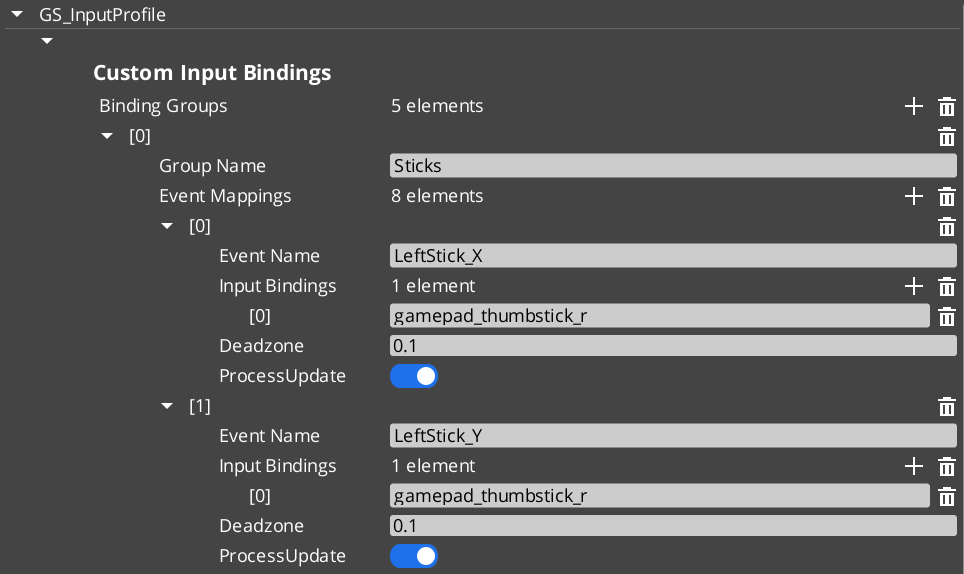
Contents
How It Works
An Input Profile contains a list of InputBindingGroups. Each group contains EventInputMappings that define the relationship between a named event, its key bindings, and processing options.
Data Structure
GS_InputProfile
  └── InputBindingGroups[]
        ├── groupName: "Movement"
        └── eventMappings[]
              ├── EventInputMapping
              │     ├── eventName: "MoveForward"
              │     ├── inputBindings: ["keyboard_key_alphanumeric_W"]
              │     ├── deadzone: 0.0
              │     └── processUpdate: true
              └── EventInputMapping
                    ├── eventName: "Jump"
                    ├── inputBindings: ["keyboard_key_alphanumeric_Space"]
                    ├── deadzone: 0.0
                    └── processUpdate: false
| Field | Type | Description |
|---|
eventName | AZStd::string | The name used to fire this event in gameplay through Input Readers. This is the identifier your gameplay code listens for. |
inputBindings | AZStd::vector<AZStd::string> | One or more raw O3DE input binding names (e.g., keyboard_key_alphanumeric_W, mouse_button_left, gamepad_button_a). Multiple bindings allow the same event to fire from different input sources. |
deadzone | float | Dead zone threshold for analog inputs (joysticks, triggers). Values below this threshold are treated as zero. Set to 0.0 for digital inputs (keys, buttons). |
processUpdate | bool | When true, the event fires continuously while the input is held. When false, the event fires only on initial press and release. Use true for movement and camera input; false for discrete actions like jumping or interacting. |
TypeId: {61421EC2-7B99-4EF2-9C56-2A7F41ED3474}
Reflection: GS_InputProfile extends AZ::Data::AssetData. Its Reflect() function requires GS_AssetReflectionIncludes.h — see Serialization Helpers.
| Field | Type | Description |
|---|
groupName | AZStd::string | Name of the group (e.g., “Movement”, “Combat”, “UI”). Used by Input Readers to enable/disable groups at runtime. |
eventMappings | AZStd::vector<EventInputMapping> | The event mappings belonging to this group. |
TypeId: {37E880D1-9AB4-4E10-9C3C-020B5C32F75B}
For initial startup instructions refer to the Core Set Up Guide.
- In the Asset Editor, open the New menu and select GS_InputProfile. This creates a blank Input Profile.
- Add Input Groups — Create groups that cluster related input events (e.g., “Movement”, “Combat”, “UI”). Groups can be toggled on/off at runtime by Input Readers.
- Add Event Mappings — Within each group, add EventInputMappings. Set the Event Name to the identifier your gameplay code will listen for.
- Set Bindings — Add the raw O3DE input bindings that should trigger each event. These are standard O3DE raw mapping names.
- Configure Deadzone — For gamepad joystick or trigger inputs, set an appropriate deadzone value (e.g.,
0.15). Leave at 0.0 for keyboard and mouse inputs. - Set Process Update — Enable for continuous input (movement, camera look). Disable for discrete actions (jump, interact, attack).
- Assign to Options Manager — Add the profile to the Options Manager’s Input Profile property.
API Reference
These methods are available on the GS_InputProfile data asset class for runtime binding queries and modifications.
| Method | Parameters | Returns | Description |
|---|
GetMappingFromBinding | const AZStd::string& binding, const AZStd::string& groupName = "" | const EventInputMapping* | Looks up the event mapping associated with a raw binding. Optionally restrict the search to a specific group. Returns nullptr if not found. |
GetGroupNameFromBinding | const AZStd::string& binding | const AZStd::string* | Returns the group name that contains the given binding. Returns nullptr if not found. |
HasBinding | const AZStd::string& binding | bool | Returns true if the binding exists anywhere in the profile. |
ReplaceEventInputBinding | const AZStd::string& eventName, const AZStd::string& newBinding | bool | Replaces the existing binding for the named event with a new one. For runtime rebinding in options menus. Returns true on success. |
AddEventInputBinding | const AZStd::string& eventName, const AZStd::string& newBinding | bool | Adds an additional binding to the named event. Returns true on success. |
RemoveEventBinding | const AZStd::string& eventName, const AZStd::string& bindingToRemove | bool | Removes a specific binding from the named event. Returns true on success. |
Usage Examples
Runtime Rebinding (Options Menu)
#include <GS_Core/GS_CoreBus.h>

// Get the active input profile
AZ::Data::Asset<GS_Core::GS_InputProfile> profile;
GS_Core::OptionsManagerRequestBus::BroadcastResult(
    profile,
    &GS_Core::OptionsManagerRequestBus::Events::GetActiveInputProfile
);

if (profile.IsReady())
{
    // Rebind the "Jump" event from Space to E
    profile.Get()->ReplaceEventInputBinding(
        "Jump",
        "keyboard_key_alphanumeric_E"
    );

    // Add an alternative binding (gamepad A button)
    profile.Get()->AddEventInputBinding(
        "Jump",
        "gamepad_button_a"
    );
}
Checking if a Binding Exists
if (profile.IsReady() && profile.Get()->HasBinding("keyboard_key_alphanumeric_W"))
{
    // This binding is mapped to an event in the profile
}
See Also
For component references:
For related resources:
Get GS_Core
GS_Core — Explore this gem on the product page and add it to your project.
1.4.2.2 - Input Reader
Component that reads input through the active profile and fires named gameplay events, with runtime group toggling and input claiming.
The Input Reader component sits on any entity that needs to process input. It queries the Options Manager for the active Input Profile, then listens for raw O3DE input events and matches them against the profile’s bindings to fire named gameplay events.
For usage guides and setup examples, see The Basics: GS_Core.
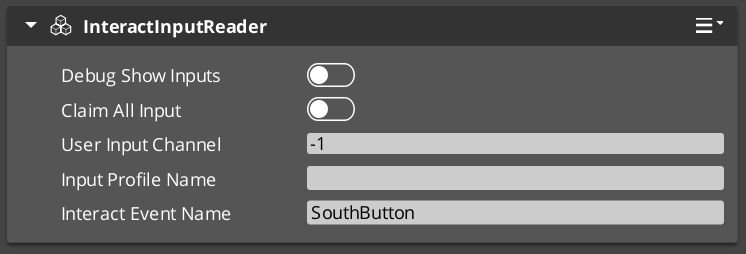
Contents
How It Works
On activation the Input Reader queries the Options Manager for the active Input Profile and subscribes to raw O3DE input events. Each frame it matches incoming raw input against the profile bindings. When a match is found it fires the associated named event into the gameplay event system. Input groups can be enabled or disabled at runtime to control which events are active at any moment.
Key Features
- Group toggling — Enable or disable entire input groups at runtime. For example, disable “Combat” inputs during a dialogue sequence, or disable “Movement” inputs during a cutscene.
- Claim input — The
ClaimAllInput flag causes the reader to absorb matched input events, preventing them from reaching other readers. Useful for layered input (e.g., UI absorbs input before gameplay). - Extensible — Extend the Input Reader for specialized input handling. GS_Play uses this internally for player controller input and UI navigation input.
API Reference
GS_InputReaderComponent
| Field | Value |
|---|
| Header | GS_Core/GS_CoreBus.h |
Request Bus: InputReaderRequestBus
Entity-addressed bus – call via Event(entityId, ...).
| Method | Parameters | Returns | Description |
|---|
EnableInputGroup | const AZStd::string& groupName | void | Enables a named input group for this reader. Events in this group will fire on matched input. |
DisableInputGroup | const AZStd::string& groupName | void | Disables a named input group. Events in this group will be ignored until re-enabled. |
IsGroupDisabled | const AZStd::string& groupName | bool | Returns true if the named group is currently disabled. |
Usage Examples
Toggling Input Groups
#include <GS_Core/GS_CoreBus.h>

// Disable combat inputs during dialogue
GS_Core::InputReaderRequestBus::Event(
    playerEntityId,
    &GS_Core::InputReaderRequestBus::Events::DisableInputGroup,
    AZStd::string("Combat")
);

// Re-enable when dialogue ends
GS_Core::InputReaderRequestBus::Event(
    playerEntityId,
    &GS_Core::InputReaderRequestBus::Events::EnableInputGroup,
    AZStd::string("Combat")
);
Script Canvas
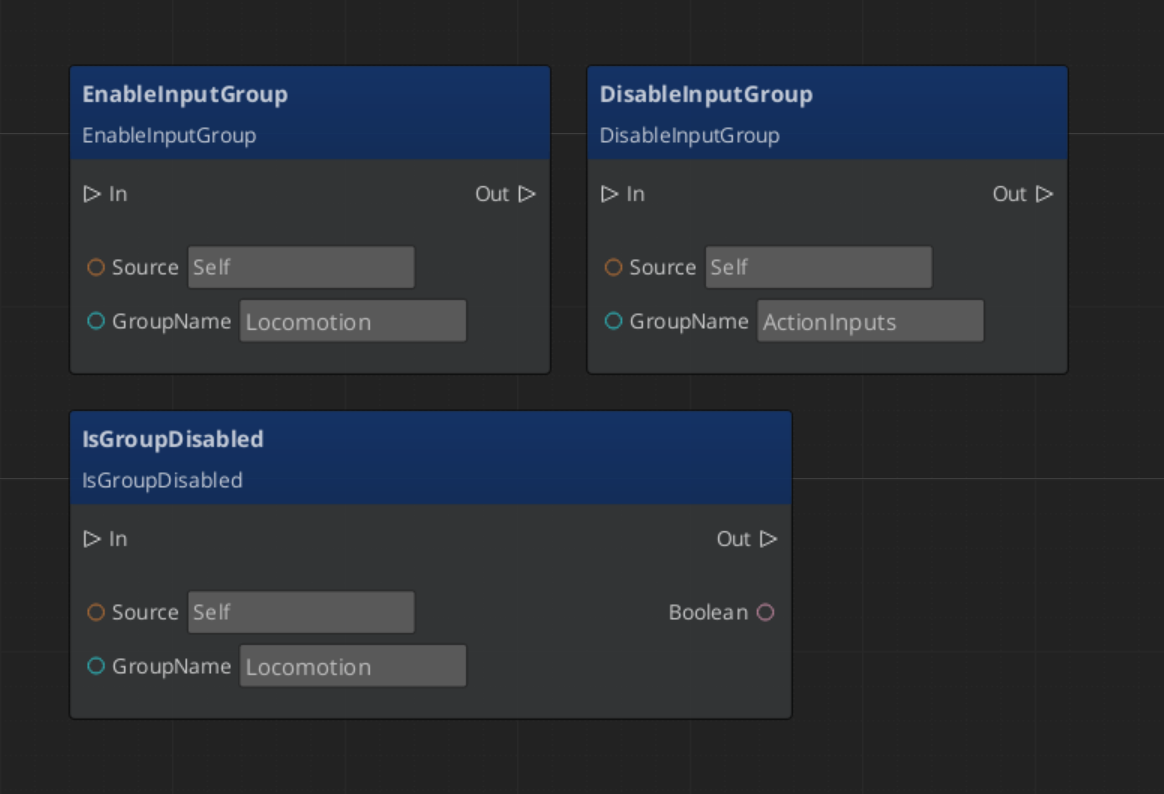
See Also
For component references:
For related resources:
Get GS_Core
GS_Core — Explore this gem on the product page and add it to your project.
1.5 - Systems
Core framework systems — the GS_Motion track-based animation engine and the GS_Actions triggerable behavior system.
For usage guides and setup examples, see The Basics: GS_Core.
Contents
GS_Motion
The track-based animation and tween engine. GS_Motion defines abstract base classes for tracks, assets, composites, and proxies. Domain gems (GS_UI, GS_Juice) extend it with concrete track types and custom asset formats. The system handles playback timing, per-track easing, proxy-based entity targeting, and deep-copy runtime instancing.
GS_Motion
API
See Also
For conceptual overviews and usage guides:
For related resources:
Get GS_Core
GS_Core — Explore this gem on the product page and add it to your project.
1.5.1 - GS_Motion
Track-based animation and tween system — abstract base classes for motions, tracks, composites, assets, and proxies with a domain extension pattern.
GS_Motion is the framework’s central track-based animation system. It defines abstract base classes that domain gems extend with concrete track types — GS_UI extends it with 8 UI animation tracks (.uiam assets), and GS_Juice extends it with 2 feedback tracks (.feedbackmotion assets). The system handles playback timing, per-track easing, proxy-based entity targeting, and deep-copy runtime instancing from data assets.
For usage guides and setup examples, see The Basics: GS_Core.
Contents
Architecture
GS_MotionTrack (abstract base)
    ├── UiMotionTrack (GS_UI domain base)
    │       ├── UiPositionTrack
    │       ├── UiScaleTrack
    │       ├── UiRotationTrack
    │       ├── UiElementAlphaTrack
    │       ├── UiImageAlphaTrack
    │       ├── UiImageColorTrack
    │       ├── UiTextColorTrack
    │       └── UiTextSizeTrack
    └── FeedbackMotionTrack (GS_Juice domain base)
            ├── FeedbackTransformTrack
            └── FeedbackMaterialTrack

GS_MotionAsset (abstract base)
    ├── UiAnimationMotionAsset (.uiam)
    └── FeedbackMotionAsset (.feedbackmotion)

GS_MotionComposite (runtime instance)
    └── Created by asset's CreateRuntimeComposite()
Core Classes
| Class | Description | Page |
|---|
| GS_MotionTrack | Abstract base for all animation tracks — fields, lifecycle, virtual methods, extension guide. | MotionTrack |
| GS_Motion | Playback engine — ticks tracks, computes per-track progress windows, applies easing, manages lifecycle. | Motion Engine |
| GS_MotionComposite | Runtime deep-copy instance with proxy entity overrides — created from GS_MotionAsset. | MotionComposite |
| GS_MotionAsset | Abstract base for motion data assets — holds track definitions and creates runtime composites. | MotionAsset |
| GS_MotionProxy | Serialized struct for track-to-entity redirection — allows designers to target named tracks at different entities. | MotionProxy |
Domain Extensions
GS_Motion is designed to be extended by domain gems. Each domain creates its own track hierarchy, asset type, and file extension.
| Domain | Gem | Base Track | Concrete Tracks | Asset Extension |
|---|
| UI Animation | GS_UI | UiMotionTrack | Position, Scale, Rotation, ElementAlpha, ImageAlpha, ImageColor, TextColor, TextSize (8) | .uiam |
| Feedback | GS_Juice | FeedbackMotionTrack | FeedbackTransformTrack, FeedbackMaterialTrack (2) | .feedbackmotion |
Extension Pattern
To create a new motion domain:
- Create a domain base track —
class MyTrack : public GS_Core::GS_MotionTrack - Create concrete tracks extending the domain base — each overrides
Update(float easedProgress) and GetTypeName() - Create a domain asset —
class MyAsset : public GS_Core::GS_MotionAsset with vector<MyTrack*> m_tracks - Create an instance wrapper struct (not a component) — holds
Asset<MyAsset> + vector<GS_MotionProxy>, manages Initialize / Unload / Play / Stop - Embed the wrapper — components embed the instance wrapper struct as a serialized field
Critical: All track vectors must use raw pointers: vector<MyTrack*>. Never use unique_ptr — O3DE SerializeContext requires raw pointers for polymorphic enumeration in the asset editor.
See Also
For conceptual overviews and usage guides:
For class references:
For domain extensions:
Get GS_Core
GS_Core — Explore this gem on the product page and add it to your project.
1.5.1.1 - GS_MotionTrack
Abstract base class for all animation tracks — fields, lifecycle, and virtual methods for domain extension.
GS_MotionTrack is the abstract base class for all animation tracks in the GS_Motion system. Each track animates one aspect of an entity over a time window within a motion. Domain gems extend this with concrete track types — GS_UI provides 8 LyShine tracks, GS_Juice provides 2 feedback tracks.
For usage guides and setup examples, see The Basics: GS_Core.
Fields
| Field | Type | Description |
|---|
| m_id | AZ::Uuid | Unique track identifier (auto-generated). |
| m_identifier | AZStd::string | Proxy label — if set, the track appears in the proxy list for entity override targeting. |
| curveType | CurveType | Easing curve applied to track progress (from the Curves utility library). |
| startTime | float | Time offset before the track begins playing (seconds). |
| duration | float | Track playback duration (seconds). |
| startVarianceMin | float | Minimum random variance added to start time. |
| startVarianceMax | float | Maximum random variance added to start time. |
Lifecycle
Each track goes through a fixed lifecycle managed by the parent GS_Motion:
| Phase | Method | Description |
|---|
| Initialize | Init(AZ::EntityId owner) | Stores the owner entity. Called once when the motion is initialized. |
| Start | Start() | Called when the track’s time window begins. |
| Update | Update(float easedProgress) | Called each frame with eased progress (0 → 1). Override this in concrete tracks. |
| End | End() | Called when the track’s time window completes. |
| Unload | Unload() | Cleanup. Called when the motion is unloaded. |
Virtual Methods
These methods must be overridden in concrete track implementations:
| Method | Returns | Description |
|---|
Update(float easedProgress) | void | Apply the animation at the given eased progress value (0 → 1). |
GetTypeName() | AZStd::string | Return the track’s display name for proxy labels in the editor. |
Extension Guide
To create a new domain of animation tracks:
- Create a domain base track:
class MyTrack : public GS_Core::GS_MotionTrack — this serves as the common base for all tracks in your domain. - Create concrete tracks extending the domain base — each overrides
Update(float easedProgress) to animate a specific property. - Reflect the track class using O3DE’s
SerializeContext and EditContext. The system discovers the new type automatically.
Critical: Track vectors must use raw pointers (vector<MyTrack*>). Never use unique_ptr — O3DE SerializeContext requires raw pointers for polymorphic enumeration in the asset editor.
See Also
Get GS_Core
GS_Core — Explore this gem on the product page and add it to your project.
1.5.1.2 - GS_Motion
The playback engine — ticks through tracks, computes per-track progress windows, and manages motion lifecycle.
GS_Motion is the playback engine that drives animation tracks. It ticks through all tracks each frame, computes per-track progress windows based on start time and duration, applies easing curves, and calls Update(easedProgress) on each active track. It handles motion lifecycle from initialization through completion.
For usage guides and setup examples, see The Basics: GS_Core.
API Reference
| Method | Parameters | Returns | Description |
|---|
Play | — | void | Begin playback from the start. |
PlayWithCallback | AZStd::function<void()> cb | void | Play and invoke callback on completion. |
Stop | — | void | Stop playback immediately. |
Initialize | AZ::EntityId owner | void | Initialize all tracks with the owner entity. |
Unload | — | void | Unload all tracks and clean up. |
Fields
| Field | Type | Description |
|---|
| motionName | AZStd::string | Display name for the motion. |
| tracks | vector<GS_MotionTrack*> | The tracks in this motion. |
| loop | bool | Whether playback loops. |
| onComplete | function<void()> | Completion callback (set via PlayWithCallback). |
How It Works
Each frame during playback:
- The motion calculates the global elapsed time.
- For each track, it computes the track-local progress based on
startTime and duration. - If the track is within its active window, the progress is eased using the track’s
curveType. Update(easedProgress) is called on the track with the eased value (0 → 1).- When all tracks complete,
OnMotionComplete() is called.
Virtual Methods
| Method | Description |
|---|
OnMotionComplete | Called when playback finishes. Override in subclasses for custom teardown. |
See Also
Get GS_Core
GS_Core — Explore this gem on the product page and add it to your project.
1.5.1.3 - GS_MotionComposite
Runtime deep-copy motion instance with proxy entity overrides — created from GS_MotionAsset for per-entity playback.
GS_MotionComposite is the runtime instance of a motion, created from a GS_MotionAsset. It deep-copies all tracks so each entity gets independent playback state, and applies proxy overrides to redirect specific tracks to different entities in the hierarchy.
For usage guides and setup examples, see The Basics: GS_Core.
GS_MotionComposite extends GS_Motion. When an asset’s CreateRuntimeComposite() is called, all tracks are SC-cloned (serialization-context cloned) into a new composite instance. This ensures each entity playing the same motion has its own independent track state — no shared mutation.
API Reference
| Method | Parameters | Returns | Description |
|---|
ApplyProxies | AZ::EntityId owner, vector<GS_MotionProxy> proxies | void | Matches proxy trackIds to tracks and overrides the target entity for each matched track. |
How It Works
- Creation:
GS_MotionAsset::CreateRuntimeComposite() deep-copies all asset tracks into a new composite. - Proxy Application:
ApplyProxies() walks the proxy list, matching each proxy’s m_trackId to a track’s m_id. Matched tracks redirect their owner entity to the proxy’s m_proxyEntity. - Playback: The composite plays exactly like a regular GS_Motion — it ticks tracks, applies easing, and calls
Update(). - Cleanup: On
Unload(), the composite cleans up all deep-copied tracks.
See Also
Get GS_Core
GS_Core — Explore this gem on the product page and add it to your project.
1.5.1.4 - GS_MotionAsset
Abstract base for motion data assets — holds track definitions and creates runtime composites.
GS_MotionAsset is the abstract base class for motion data assets. Domain gems extend this with their own asset type and file extension — GS_UI creates UiAnimationMotionAsset (.uiam), GS_Juice creates FeedbackMotionAsset (.feedbackmotion). Assets are created and edited in the O3DE Asset Editor.
Extends AZ::Data::AssetData. All subclasses require GS_AssetReflectionIncludes.h in their header — see Serialization Helpers.
For usage guides and setup examples, see The Basics: GS_Core.
API Reference
| Method | Returns | Description |
|---|
GetTrackInfos | vector<GS_TrackInfo> | Returns track UUID + label pairs for proxy list synchronization in the editor. |
CreateRuntimeComposite | GS_MotionComposite* | Factory — deep-copies all asset tracks into a new runtime GS_MotionComposite instance. |
GS_TrackInfo
Lightweight struct used for proxy synchronization between asset tracks and instance proxy lists.
| Field | Type | Description |
|---|
| id | AZ::Uuid | Track identifier (matches the track’s m_id). |
| label | AZStd::string | Track display name (from GetTypeName()). |
Domain Extensions
| Domain | Gem | Asset Class | Extension | Tracks |
|---|
| UI Animation | GS_UI | UiAnimationMotionAsset | .uiam | 8 LyShine-specific tracks |
| Feedback | GS_Juice | FeedbackMotionAsset | .feedbackmotion | 2 feedback tracks |
Extension Guide
To create a new domain asset type:
- Create
class MyAsset : public GS_Core::GS_MotionAsset with vector<MyDomainTrack*> m_tracks. Include GS_AssetReflectionIncludes.h in your asset’s header — see Serialization Helpers. - Implement
GetTrackInfos() — iterate tracks and return UUID + label pairs. - Implement
CreateRuntimeComposite() — deep-copy tracks into a new GS_MotionComposite. - Register the asset type in your gem’s
DataAssetsSystemComponent. - Add a
.setreg entry for the asset processor to recognize your file extension.
Critical: Track vectors must use raw pointers (vector<MyTrack*>). O3DE SerializeContext requires raw pointers for polymorphic enumeration.
See Also
Get GS_Core
GS_Core — Explore this gem on the product page and add it to your project.
1.5.1.5 - GS_MotionProxy
Serialized struct for track-to-entity redirection — allows designers to target named tracks at different entities.
GS_MotionProxy is a serialized struct that allows designers to redirect a named track to a different entity in the hierarchy. This enables a single motion asset to animate multiple entities — for example, a UI animation that moves one element while fading another.
For usage guides and setup examples, see The Basics: GS_Core.
Fields
| Field | Type | Description |
|---|
| m_trackId | AZ::Uuid | References the track’s m_id. Matched during ApplyProxies(). |
| m_label | AZStd::string | Read-only display label (synced from track info at edit time via GetTrackInfos()). |
| m_proxyEntity | AZ::EntityId | The entity this track should target instead of the motion’s owner entity. |
How It Works
- Edit time: The proxy list syncs from the asset’s track info. Each track with an
m_identifier (non-empty label) appears as a proxy slot in the inspector. - Designer assignment: The designer drags an entity reference into the proxy’s
m_proxyEntity field. - Runtime: When
GS_MotionComposite::ApplyProxies() runs, it matches each proxy’s m_trackId to a track’s m_id and overrides that track’s target entity. - Playback: The track now animates the proxy entity instead of the motion’s owner.
Usage
Proxies are embedded in instance wrapper structs (e.g., UiAnimationMotion, FeedbackMotion) alongside the asset reference. Components serialize the proxy list, and the wrapper handles synchronization with the asset.
Only tracks with a non-empty m_identifier appear in the proxy list. Tracks without an identifier always animate the owner entity.
See Also
Get GS_Core
GS_Core — Explore this gem on the product page and add it to your project.
1.5.2 - GS_Actions
A utility system for triggerable single-purpose actions — fire discrete behaviors from any system without recoding logic for each component.
The Actions system provides a simple, universal pattern for triggering discrete behaviors. Instead of recoding common functionality (toggle cursor, play sound, print log) into every component that needs it, you attach Action components to an entity and fire them by channel name.
Actions support chaining — when one action completes, it can fire another action on a different channel, enabling lightweight sequences without custom code.
For usage guides and setup examples, see The Basics: GS_Core.
Architecture
Entity with Actions
  │
  ├── ToggleMouseCursor_GSAction (channel: "enter_menu")
  ├── PlaySound_GSAction           (channel: "enter_menu")
  └── PrintLog_GSAction            (channel: "debug")

Any system calls:
  ActionRequestBus::Event(entityId, DoAction, "enter_menu")
    → Both ToggleMouseCursor and PlaySound fire (matching channel)
    → PrintLog does NOT fire (different channel)
Components
| Component | Purpose | Documentation |
|---|
| GS_ActionComponent | Base class for all actions. Handles channel matching, completion broadcasting, and action chaining. | Action |
| ToggleMouseCursor_GSActionComponent | Toggles the mouse cursor on or off. | Core Actions |
| PrintLog_GSActionComponent | Prints a message to the console log. | Core Actions |
Quick Start
- Attach one or more Action components to an entity.
- Set the Channel on each action to control when it fires.
- From any system, call
DoAction(channelName) on the entity’s ActionRequestBus to trigger matching actions. - Optionally enable Broadcast On Complete and set an On Complete Channel Chain for action sequencing.
See Also
Get GS_Core
GS_Core — Explore this gem on the product page and add it to your project.
1.5.2.1 - Action
The base class for triggerable actions — channel-based firing, completion broadcasting, and action chaining for lightweight behavior sequencing.
GS_ActionComponent is the base class for all triggerable actions. Actions are single-purpose behaviors that fire when their channel matches an incoming DoAction call. They support completion broadcasting and optional chaining to sequence multiple actions together.
Every GS_Play action (Toggle Mouse Cursor, Print Log, and actions from other gems) extends this class. When you need a custom action, you extend it too.
For usage guides and setup examples, see The Basics: GS_Core.
Contents
How It Works
Firing an Action
- A system calls
DoAction(targetChannel) on an entity’s ActionRequestBus. - Every Action component on that entity evaluates whether its channel matches the
targetChannel. - Matching actions call
ProcessAction() to execute their behavior. - When done,
CompleteAction() handles completion:- If Broadcast On Complete is enabled, it fires
OnActionComplete on the ActionNotificationBus. - If On Complete Channel Chain is set, it fires a new
DoAction with that channel name, triggering the next action in the chain.
Chaining Actions
By setting the On Complete Channel Chain to a different channel name, an action can trigger the next step in a sequence when it completes. This enables lightweight behavior chains without custom sequencing code.
Action A (channel: "step1", onCompleteChain: "step2")
  → fires → Action B (channel: "step2", onCompleteChain: "step3")
    → fires → Action C (channel: "step3")
Important: Every custom action must call CompleteAction() when its work is done. If you forget, the action will never complete and chains will break.
Inspector Properties
| Property | Type | Default | Description |
|---|
| Channel | AZStd::string | "" | The channel this action responds to. Only DoAction calls with a matching channel will trigger this action. |
| Broadcast On Complete | bool | false | When enabled, broadcasts OnActionComplete on the ActionNotificationBus when this action finishes. |
| On Complete Channel Chain | AZStd::string | "" | When non-empty, fires a new DoAction with this channel name after completing. Enables action chaining. |
API Reference
Request Bus: ActionRequestBus
Entity-addressed bus — call via Event(entityId, ...).
| Method | Parameters | Returns | Description |
|---|
DoAction | AZStd::string targetChannel | void | Triggers all actions on the target entity whose channel matches targetChannel. |
Notification Bus: ActionNotificationBus
Entity-addressed bus — connect via BusConnect(entityId).
| Event | Parameters | Description |
|---|
OnActionComplete | — | Broadcast when an action with Broadcast On Complete enabled finishes its work. |
Local / Virtual Methods
Override these when creating custom actions.
| Method | Description |
|---|
DoAction(targetChannel) | Evaluates whether this action should fire. Default compares channel to targetChannel. Override for custom evaluation logic. |
ProcessAction() | Your primary override. Executes the action’s behavior. Called when channel evaluation passes. |
CompleteAction() | Handles completion. Default checks broadcastOnComplete, fires OnActionComplete, then checks onCompleteChannelChain for chaining. Override to add custom completion logic, but always call base or handle chaining manually. |
Usage Examples
Firing Actions on an Entity
#include <GS_Core/GS_CoreBus.h>

// Fire all actions on this entity that match the "open_door" channel
GS_Core::ActionRequestBus::Event(
    targetEntityId,
    &GS_Core::ActionRequestBus::Events::DoAction,
    AZStd::string("open_door")
);
Listening for Action Completion
#include <GS_Core/GS_CoreBus.h>

class MyActionListener
    : public AZ::Component
    , protected GS_Core::ActionNotificationBus::Handler
{
protected:
    void Activate() override
    {
        // Listen for action completions on a specific entity
        GS_Core::ActionNotificationBus::Handler::BusConnect(m_targetEntityId);
    }

    void Deactivate() override
    {
        GS_Core::ActionNotificationBus::Handler::BusDisconnect();
    }

    void OnActionComplete() override
    {
        // An action on the target entity has completed
        // React accordingly (advance dialogue, open next door, etc.)
    }

private:
    AZ::EntityId m_targetEntityId;
};
Extending the Action Class
Create a custom action whenever you need a reusable, triggerable behavior that can be attached to any entity.
#pragma once
#include <Source/ActionSystem/GS_ActionComponent.h>

namespace MyProject
{
    class PlayEffect_GSActionComponent
        : public GS_Core::GS_ActionComponent
    {
    public:
        AZ_COMPONENT_DECL(PlayEffect_GSActionComponent);

        static void Reflect(AZ::ReflectContext* context);

    protected:
        // Action overrides
        void ProcessAction() override;
        void CompleteAction() override;

    private:
        AZStd::string m_effectName;
        float m_duration = 1.0f;
    };
}
Implementation (.cpp)
#include "PlayEffect_GSActionComponent.h"
#include <AzCore/Serialization/SerializeContext.h>

namespace MyProject
{
    AZ_COMPONENT_IMPL(PlayEffect_GSActionComponent, "PlayEffect_GSActionComponent", "{YOUR-UUID-HERE}",
        GS_Core::GS_ActionComponent);

    void PlayEffect_GSActionComponent::Reflect(AZ::ReflectContext* context)
    {
        if (auto serializeContext = azrtti_cast<AZ::SerializeContext*>(context))
        {
            serializeContext->Class<PlayEffect_GSActionComponent, GS_Core::GS_ActionComponent>()
                ->Version(0)
                ->Field("EffectName", &PlayEffect_GSActionComponent::m_effectName)
                ->Field("Duration", &PlayEffect_GSActionComponent::m_duration);

            if (AZ::EditContext* editContext = serializeContext->GetEditContext())
            {
                // Pattern: Incoming Channel → Feature Properties → Outgoing Channel
                editContext->Class<PlayEffect_GSActionComponent>(
                    "Play Effect Action", "Triggers a named particle effect")
                    ->ClassElement(AZ::Edit::ClassElements::EditorData, "")
                        ->Attribute(AZ::Edit::Attributes::Category, "MyProject/Actions")
                        ->Attribute(AZ::Edit::Attributes::AppearsInAddComponentMenu, AZ_CRC_CE("Game"))
                    ->DataElement(AZ::Edit::UIHandlers::Default,
                        &PlayEffect_GSActionComponent::m_effectName, "Effect Name",
                        "Name of the particle effect to trigger")
                    ->DataElement(AZ::Edit::UIHandlers::Default,
                        &PlayEffect_GSActionComponent::m_duration, "Duration",
                        "How long the effect plays (seconds)");
            }
        }
    }

    void PlayEffect_GSActionComponent::ProcessAction()
    {
        // Your action logic — trigger the particle effect
        AZ_TracePrintf("Action", "Playing effect: %s for %.1f seconds",
            m_effectName.c_str(), m_duration);

        // ... spawn particle effect, start timer, etc. ...

        // IMPORTANT: Call CompleteAction when done
        // If the action is instant, call it here.
        // If it takes time (animation, timer), call it when the effect finishes.
        CompleteAction();
    }

    void PlayEffect_GSActionComponent::CompleteAction()
    {
        // Custom completion logic (if any)
        // ...

        // IMPORTANT: Call base to handle broadcast and chaining
        GS_ActionComponent::CompleteAction();
    }
}
Module Registration
m_descriptors.insert(m_descriptors.end(), {
    MyProject::PlayEffect_GSActionComponent::CreateDescriptor(),
});
Reflection Pattern
When reflecting custom action properties in the Edit Context, follow this organization pattern so all actions have a consistent inspector layout:
- Incoming Channel — The
channel property (inherited, reflected by base class) - Feature Properties — Your action-specific properties (effect name, duration, etc.)
- Outgoing Channel — The
broadcastOnComplete and onCompleteChannelChain properties (inherited, reflected by base class)
See Also
For component references:
For related resources:
Get GS_Core
GS_Core — Explore this gem on the product page and add it to your project.
1.5.2.1.1 - Core Actions
Pre-built actions included in GS_Core — ready-to-use triggerable behaviors for common game functionality.
GS_Core includes pre-built Action components for common behaviors. Attach them to any entity, set a channel, and fire them from any system without writing code.
All built-in actions inherit from GS_ActionComponent and follow the same channel-matching, completion, and chaining patterns.
For usage guides and setup examples, see The Basics: GS_Core.
Toggle Mouse Cursor
Toggles the operating system mouse cursor on or off.
When to Use
Use this action when transitioning between gameplay (cursor hidden) and menus (cursor visible). Common triggers include opening an inventory, entering a pause menu, or starting a dialogue sequence.
Inspector Properties
| Property | Type | Default | Description |
|---|
| Channel | AZStd::string | "" | Inherited. The channel this action responds to. |
| Broadcast On Complete | bool | false | Inherited. Broadcasts OnActionComplete when the toggle finishes. |
| On Complete Channel Chain | AZStd::string | "" | Inherited. Fires a follow-up DoAction on completion for chaining. |
Usage Example
#include <GS_Core/GS_CoreBus.h>

// Toggle the cursor when opening the pause menu
GS_Core::ActionRequestBus::Event(
    uiEntityId,
    &GS_Core::ActionRequestBus::Events::DoAction,
    AZStd::string("toggle_cursor")
);
Print Log
Prints a configurable message to the console log. Useful for debugging action chains, verifying event flow, or logging gameplay milestones.
When to Use
Use this action during development to verify that action channels fire correctly, test chaining sequences, or log gameplay events without writing custom components.
Inspector Properties
| Property | Type | Default | Description |
|---|
| Channel | AZStd::string | "" | Inherited. The channel this action responds to. |
| Message | AZStd::string | "" | The message to print to the console log. |
| Broadcast On Complete | bool | false | Inherited. Broadcasts OnActionComplete when the print finishes. |
| On Complete Channel Chain | AZStd::string | "" | Inherited. Fires a follow-up DoAction on completion for chaining. |
Usage Example
#include <GS_Core/GS_CoreBus.h>

// Trigger a debug log message
GS_Core::ActionRequestBus::Event(
    debugEntityId,
    &GS_Core::ActionRequestBus::Events::DoAction,
    AZStd::string("debug")
);
// Console output: whatever message was configured on the PrintLog action
Creating Your Own Action
Need custom behavior? See the Extending the Action Class guide for a complete walkthrough with header, implementation, Reflect pattern, and module registration.
See Also
Get GS_Core
GS_Core — Explore this gem on the product page and add it to your project.
1.6 - Utilities
A collection of utility libraries — easing curves, spring dampers, physics trigger volumes, gradients, and entity helpers.
GS_Core includes a rich set of utility libraries for common game development patterns. These are header-only (or lightweight) utilities that any component or system can use without additional setup.
For usage guides and setup examples, see The Basics: GS_Core.
Contents
Physics Trigger Volume
PhysicsTriggeringVolume is a non-component base class that manages the full lifecycle of a physics trigger or collision volume — entity tracking, enter/exit/hold callbacks, and collision contact events. Inherit from it to create interactive volumes without boilerplate physics code. PhysicsTriggerComponent is the concrete O3DE component that wraps this base and adds game-lifecycle awareness (standby handling).
Physics Trigger Volume API
Easing Curves
The Curves namespace provides 40+ easing functions and a CurveType enum for data-driven curve selection. All functions take a normalized t (0 → 1) input. The dispatch function EvaluateCurve(CurveType, t) routes to the correct function at runtime. Curve families: Linear, Quadratic, Cubic, Quartic, Quintic, Sine, Exponential, Circular, Back, Elastic, and Bounce.
Easing Curves API
Spring Dampers
The Springs namespace provides 6 spring-damper types for physics-based animation and smoothing — each available in float, Vector2, and Vector3 overloads (plus a Quaternion variant). All springs use a halflife parameter (seconds to reach 50% of goal) rather than raw stiffness/damping constants.
Spring Dampers API
Gradients
Multi-stop gradient types (FloatGradient, Vector2Gradient, ColorGradient) for sampling values over a normalized [0,1] range. Used throughout the motion system and feedback effects for curve-based value animation. ColorGradient exposes independent EvaluateColor(t) and EvaluateAlpha(t) channels.
Gradients API
Entity Utilities
The EntityUtility namespace provides helper functions for entity lookup by name — returning either an AZ::Entity* or AZ::EntityId.
Entity Utilities API
Weighted Random
RandomUtils::GetRandomWeighted<T> selects a key from an AZStd::unordered_map<T, float> with probability proportional to each entry’s float weight. Requires a caller-provided AZ::SimpleLcgRandom instance.
Weighted Random API
Angle Helpers
The Orientation namespace maps angles to discrete sector indices for directional gameplay — facing directions, animation sectors, compass queries. Includes the SectionConfig enum (x4 through x24 presets), RotationDirection, hysteresis support, and yaw/quaternion helpers.
Angle Helpers API
Spline Utilities
The SplineUtility namespace provides helper functions for O3DE spline queries — closest world point, closest local point, and normalized fraction along a spline — taking an entity ID and world/local position.
Spline Utilities API
Serialization Helpers
Three helpers that reduce reflection boilerplate: GS_ReflectionIncludes.h (single-include for all reflection headers), and GS_AssetReflectionIncludes.h (extends with asset serialization).
Serialization Helpers API
Common Enums
Shared enum types used across the framework: CurveType (maps to all easing functions for serialized curve selection) and BooleanConditions (condition evaluation for dialogue and record-keeping systems).
Common Enums API
See Also
For conceptual overviews and usage guides:
For related resources:
Get GS_Core
GS_Core — Explore this gem on the product page and add it to your project.
1.6.1 - Common Enums
Shared enumeration types used across the GS_Play framework — CurveType for easing curve selection and BooleanConditions for condition evaluation.
Common Enums provides shared enumeration types registered with O3DE’s SerializeContext. They can be used in component properties, asset fields, and ScriptCanvas nodes across any gem in the framework. The two primary enums are CurveType (curve selection for motion and gradient systems) and BooleanConditions (condition evaluation for dialogue and record-keeping systems).
Reflect functions: GS_Core::ReflectCommonEnums(context), GS_Core::ReflectCurveType(context)
For usage guides and setup examples, see The Basics: GS_Core.
Contents
BooleanConditions
Used by condition-evaluation logic in the dialogue and record-keeping systems to compare numeric or string values.
Used by: DialogueCondition, Record_DialogueCondition, RecordKeeperComponent
| Value | Description |
|---|
Equals | Exact equality check |
NotEquals | Inequality check |
GreaterThan | Strict greater-than |
GreaterOrEquals | Greater-than or equal |
LessThan | Strict less-than |
LessOrEquals | Less-than or equal |
CurveType
Maps to all easing curve functions in the Curves utility. Used by GS_Motion tracks, blend profiles, gradient markers, and any system that needs designer-selectable easing.
Used by: GS_MotionTrack, UiMotionTrack, FeedbackMotionTrack, gradient markers, GS_PhantomCamBlendProfile
| Family | Values |
|---|
| Linear | Linear |
| Quadratic | EaseInQuadratic, EaseOutQuadratic, EaseInOutQuadratic |
| Cubic | EaseInCubic, EaseOutCubic, EaseInOutCubic |
| Quartic | EaseInQuartic, EaseOutQuartic, EaseInOutQuartic |
| Quintic | EaseInQuintic, EaseOutQuintic, EaseInOutQuintic |
| Sine | EaseInSine, EaseOutSine, EaseInOutSine |
| Exponential | EaseInExpo, EaseOutExpo, EaseInOutExpo |
| Circular | EaseInCirc, EaseOutCirc, EaseInOutCirc |
| Back | EaseInBack, EaseOutBack, EaseInOutBack |
| Elastic | EaseInElastic, EaseOutElastic, EaseInOutElastic |
| Bounce | EaseInBounce, EaseOutBounce, EaseInOutBounce |
Evaluating a CurveType in C++
#include <GS_Core/Utility/Math/CurvesUtility.h>

// Dispatch to the correct curve function via enum
float result = GS_Core::Curves::EvaluateCurve(GS_Core::CurveType::EaseInOutCubic, t);
Using Enums in Components
Use EnumAttribute on a DataElement with UIHandlers::ComboBox to expose enum selection as an Inspector dropdown.
#include <GS_Core/Utility/Math/CurvesUtility.h>
#include <GS_Core/Utility/CommonEnums.h>

// In your component's Reflect() method:
editContext->Class<MyComponent>("My Component", "Description")
    ->DataElement(AZ::Edit::UIHandlers::ComboBox,
        &MyComponent::m_curveType, "Curve Type",
        "The easing curve applied to this animation.")
        ->EnumAttribute(GS_Core::CurveType::Linear,             "Linear")
        ->EnumAttribute(GS_Core::CurveType::EaseInQuadratic,    "Ease In Quadratic")
        ->EnumAttribute(GS_Core::CurveType::EaseOutQuadratic,   "Ease Out Quadratic")
        ->EnumAttribute(GS_Core::CurveType::EaseInOutQuadratic, "Ease InOut Quadratic")
        ->EnumAttribute(GS_Core::CurveType::EaseInCubic,        "Ease In Cubic")
        ->EnumAttribute(GS_Core::CurveType::EaseOutCubic,       "Ease Out Cubic")
        ->EnumAttribute(GS_Core::CurveType::EaseInOutCubic,     "Ease InOut Cubic")
        // ... continue for all desired variants
    ;
This creates an Inspector dropdown where designers select a curve by name without touching code.
See Also
For related resources:
Get GS_Core
GS_Core — Explore this gem on the product page and add it to your project.
1.6.2 - Serialization Helpers
Three reflection helpers — single-include headers for common and asset serialization, and a generic asset handler template for custom asset types.
Three helpers that eliminate serialization boilerplate: a single-include header for common reflection, an extension for asset fields, and a ready-made O3DE asset handler template for any custom AssetData subclass.
For usage guides and setup examples, see The Basics: GS_Core.
Contents
GS_ReflectionIncludes.h
A single-include header that brings in all O3DE reflection headers needed for any class with an inline Reflect() method.
Includes:
AzCore/RTTI/RTTI.hAzCore/Memory/SystemAllocator.hAzCore/Serialization/SerializeContext.hAzCore/Serialization/EditContext.hAzCore/std/string/string.h
Use this in any header declaring a reflected struct, class, or enum. Does not handle AZ::Data::Asset<T> fields.
#include <GS_Core/Utility/Reflection/GS_ReflectionIncludes.h>

namespace MyProject
{
    struct MyData
    {
        AZ_TYPE_INFO(MyData, "{YOUR-UUID-HERE}");
        static void Reflect(AZ::ReflectContext* context);

        float m_value = 0.0f;
    };
}
GS_AssetReflectionIncludes.h
Extends GS_ReflectionIncludes.h with asset serialization headers.
Adds:
AzCore/Asset/AssetCommon.hAzCore/Asset/AssetSerializer.h
Use this in any header declaring a class with AZ::Data::Asset<T> fields. Ensures SerializeGenericTypeInfo<Asset<T>> is visible and prevents silent failures in Unity builds.
#include <GS_Core/Utility/Reflection/GS_AssetReflectionIncludes.h>

namespace MyProject
{
    struct MyComponent : public AZ::Component
    {
        AZ_COMPONENT_DECL(MyComponent);
        static void Reflect(AZ::ReflectContext* context);

        AZ::Data::Asset<MyAssetType> m_asset;
    };
}
See Also
For related resources:
Get GS_Core
GS_Core — Explore this gem on the product page and add it to your project.
1.6.3 - Curves
40+ easing curve functions for smooth animation and interpolation — organized by family with a CurveType enum for data-driven selection.
The Curves namespace (GS_Core::Curves) provides 40+ easing functions for smooth animation and interpolation. All functions take a normalized t value in [0,1] and return a remapped [0,1] value. The dispatch function EvaluateCurve routes to the correct function by CurveType enum value, making curve selection fully data-driven from the Inspector or asset editor.
Used by every GS_Motion track, all gradient evaluate calls, and the blend profile system.
For usage guides and setup examples, see The Basics: GS_Core.
Contents
Curve Families
| Family | Functions | Character |
|---|
| Linear | Linear | Constant speed |
| Quadratic | EaseInQuadratic, EaseOutQuadratic, EaseInOutQuadratic | Gentle acceleration |
| Cubic | EaseInCubic, EaseOutCubic, EaseInOutCubic | Moderate acceleration |
| Quartic | EaseInQuartic, EaseOutQuartic, EaseInOutQuartic | Strong acceleration |
| Quintic | EaseInQuintic, EaseOutQuintic, EaseInOutQuintic | Very strong acceleration |
| Sine | EaseInSine, EaseOutSine, EaseInOutSine | Gentle, natural feel |
| Exponential | EaseInExpo, EaseOutExpo, EaseInOutExpo | Dramatic speed change |
| Circular | EaseInCirc, EaseOutCirc, EaseInOutCirc | Quarter-circle shape |
| Back | EaseInBack, EaseOutBack, EaseInOutBack | Overshoot and return |
| Elastic | EaseInElastic, EaseOutElastic, EaseInOutElastic | Spring-like oscillation |
| Bounce | EaseInBounce, EaseOutBounce, EaseInOutBounce | Bouncing ball effect |
Variant naming: EaseIn = slow start, EaseOut = slow end, EaseInOut = slow start and end.
API Reference
Dispatch Function
float EvaluateCurve(CurveType curveType, float t);
Dispatches to the correct curve function based on the CurveType enum value. This is the primary call site for all motion and gradient systems. t must be in [0,1].
Individual Functions
One free function per CurveType value, all sharing the signature float <Name>(float t). Examples:
| Function | Description |
|---|
GS_Core::Curves::Linear(t) | Linear — no easing |
GS_Core::Curves::EaseInQuadratic(t) | Quadratic ease-in |
GS_Core::Curves::EaseOutBounce(t) | Bounce ease-out |
GS_Core::Curves::EaseInOutBack(t) | Back ease-in-out (overshoot both ends) |
All functions follow the same naming pattern as the CurveType enum values.
Usage Examples
Dispatch via enum (data-driven)
#include <GS_Core/Utility/Math/CurvesUtility.h>

// Evaluate at normalized progress t (0 → 1)
float eased = GS_Core::Curves::EvaluateCurve(GS_Core::CurveType::EaseInOutCubic, t);

// Interpolate between two values
float result = start + (end - start) * GS_Core::Curves::EvaluateCurve(curveType, t);
Direct function call
// Call the function directly for a known curve
float eased = GS_Core::Curves::EaseOutBack(t);
See Also
For related resources:
Get GS_Core
GS_Core — Explore this gem on the product page and add it to your project.
1.6.4 - Springs
Spring-damper functions for physically-grounded value interpolation — smooth following, overshoot, and settling for floats, vectors, and quaternions.
The Springs namespace (GS_Core::Springs) provides six spring-damper types for physics-based animation and smoothing. Springs produce natural-feeling motion that reacts to velocity — ideal for camera follow, UI motion, and any value that should settle rather than snap.
All springs use a halflife parameter: the number of seconds to cover 50% of the remaining distance to the goal. This is more intuitive than raw stiffness/damping constants. Each spring type is available in float, AZ::Vector2, and AZ::Vector3 overloads where applicable.
Used by: gs_phantomcam (camera smoothing), gs_unit (character movement), gs_juice (feedback motions)
For usage guides and setup examples, see The Basics: GS_Core.
Contents
Spring Types
| Type | Character | Best For |
|---|
SimpleSpringDamperExact | Fast start, ease-out arrival | Simple follow, snap behaviors |
AccelerationSpringDamper | Tracks target velocity, smoother on input changes | Character movement, camera motion |
DoubleSpringDamper | S-curve — slow start AND slow arrival | UI transitions, polished cuts |
TimedSpringDamper | Reaches target by a specified time | Choreographed, loosely timed movements |
VelocitySpringDamper | Predictive — leads the target’s direction | Camera following a moving target |
QuaternionSpringDamper | Rotational spring (angular velocity) | Smooth orientation changes |
SimpleSpringDamperExact
A critically-damped spring that moves toward a target position. Fast start, ease-out arrival. Computed exactly (no approximation). The most common spring for follow and snap behaviors.
| Parameter | Type | Description |
|---|
position | T (in/out) | Current position, updated in-place each frame |
velocity | T (in/out) | Current velocity — must be cached between frames |
targetPosition | T | Goal position to move toward |
halflife | float | Seconds to cover 50% of remaining distance |
deltaTime | float | Frame delta time |
AccelerationSpringDamper
Tracks a target velocity rather than a position. Adds an acceleration memory term for smoother response to sudden direction changes (e.g. thumbstick flicks). Suited for character movement and camera motion where input can change abruptly.
| Parameter | Type | Description |
|---|
position | T (in/out) | Accumulated position |
velocity | T (in/out) | Current velocity — must be cached between frames |
acceleration | T (in/out) | Acceleration memory — must be cached between frames |
targetVelocity | T | The desired velocity to spring toward |
halflife | float | Settling time |
deltaTime | float | Frame delta time |
DoubleSpringDamper
Two springs chained together, producing an S-curve (ease-in AND ease-out). Slower to start and slower to arrive than the simple spring. Gives a more polished feel for UI transitions or cinematic camera cuts.
| Parameter | Type | Description |
|---|
position | T (in/out) | Current position |
velocity | T (in/out) | Current velocity — must be cached between frames |
previousPosition | T (in/out) | Internal state — must be cached between frames |
previousVelocity | T (in/out) | Internal state — must be cached between frames |
targetPosition | T | Goal position |
halflife | float | Settling time |
deltaTime | float | Frame delta time |
TimedSpringDamper
Attempts to reach the target by a specific time. Adjusts halflife internally so the spring arrives near the target time rather than asymptotically. Useful for choreographed movements with loose time targets.
| Parameter | Type | Description |
|---|
position | T (in/out) | Current position |
velocity | T (in/out) | Current velocity — must be cached between frames |
previousTarget | T (in/out) | Last known target — must be cached between frames |
targetPosition | T | Destination |
targetTime | float | Time (in seconds) at which the spring should arrive |
halflife | float | Base settling time |
deltaTime | float | Frame delta time |
VelocitySpringDamper
Tracks a moving target by incorporating the target’s own velocity for predictive lead. The follower anticipates the direction of movement, reducing lag on fast-moving targets. Suited for camera following a character at speed.
| Parameter | Type | Description |
|---|
position | T (in/out) | Follower position |
velocity | T (in/out) | Follower velocity — must be cached between frames |
previousPosition | T (in/out) | Internal state — must be cached between frames |
targetPosition | T | Current target position |
targetVelocity | T | Target’s velocity (used for predictive lead) |
halflife | float | Settling time |
deltaTime | float | Frame delta time |
QuaternionSpringDamper
Rotation spring that operates on angular velocity. Includes a flip option to reverse the rotation direction.
Note: The rotation output jumps to the goal each frame. Extract angularVelocity and integrate externally if you need a continuously smooth rotation output.
| Parameter | Type | Description |
|---|
rotation | AZ::Quaternion (in/out) | Quaternion moved toward targetRotation |
angularVelocity | AZ::Vector3 (in/out) | Angular velocity — must be cached between frames |
targetRotation | AZ::Quaternion | Goal orientation |
halflife | float | Settling time |
deltaTime | float | Frame delta time |
flip | bool | Reverses rotation direction (default: false) |
Usage Example
#include <GS_Core/Utility/Math/SpringsUtility.h>

// Member fields — must persist between frames
AZ::Vector3 m_followVelocity = AZ::Vector3::CreateZero();

// In your tick function:
AZ::Vector3 currentPos = GetEntityTranslation();
AZ::Vector3 targetPos  = GetTargetTranslation();

GS_Core::Springs::SimpleSpringDamperExact(
    currentPos,       // in/out: current position (updated in place)
    m_followVelocity, // in/out: velocity (cached between frames)
    targetPos,        // target position
    0.1f,             // halflife: 0.1 seconds to cover half the distance
    deltaTime
);

SetEntityTranslation(currentPos);
See Also
For related resources:
Get GS_Core
GS_Core — Explore this gem on the product page and add it to your project.
1.6.5 - Gradients
Multi-stop gradient types for sampling color, float, and vector values over a normalized range — used by motion tracks and feedback effects.
The Gradients utility provides three parallel gradient types for interpolating values over a normalized [0,1] range using a sorted list of marker points. All types are fully reflected (SerializeContext + EditContext) and editable in the Inspector with visual marker placement. Gradients are lazily sorted before evaluation.
Used by: FeedbackMaterialTrack (color/float animation), UiImageColorTrack, procedural visual effects, any system needing editable color or value ramps.
For usage guides and setup examples, see The Basics: GS_Core.
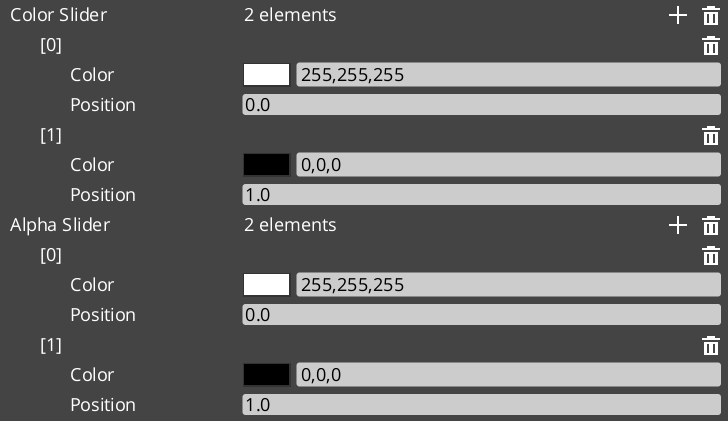
Contents
Gradient Types
| Type | Value Type | Description |
|---|
FloatGradient | float | Single float value ramp |
Vector2Gradient | AZ::Vector2 | 2D vector ramp |
ColorGradient | AZ::Color | RGBA color ramp with separate color and alpha channels |
Marker Structs
Each gradient type has a corresponding marker struct that defines a single stop on the gradient.
FloatGradientMarker
| Field | Type | Description |
|---|
markerValue | float | The float value at this stop |
markerPosition | float | Position in [0, 1] along the gradient |
Vector2GradientMarker
| Field | Type | Description |
|---|
markerValue | AZ::Vector2 | The 2D vector value at this stop |
markerPosition | float | Position in [0, 1] along the gradient |
ColorGradientMarker
| Field | Type | Description |
|---|
markerColor | AZ::Color | The color (RGB + A) at this stop |
markerPosition | float | Position in [0, 1] along the gradient |
Gradient Classes
All three gradient types share the same structure and interface:
| Field / Method | Description |
|---|
slider | AZStd::vector<Marker> — the sorted list of gradient stops (field name for Float/Vector2) |
sorted | Internal dirty flag; gradient is lazily sorted before Evaluate is called |
SortGradient() | Sorts markers by position. Called automatically before evaluation when markers change. |
Evaluate(float t) | Returns the interpolated value at normalized position t in [0, 1] |
ColorGradient
ColorGradient maintains two separate marker lists for independent RGB and alpha control:
| Field | Description |
|---|
colorSlider | AZStd::vector<ColorGradientMarker> — RGB stops |
alphaSlider | AZStd::vector<ColorGradientMarker> — alpha stops |
ColorGradient Channels
ColorGradient exposes three evaluate methods for flexible sampling:
| Method | Returns | Description |
|---|
Evaluate(float t) | AZ::Color | Full RGBA color — samples both colorSlider and alphaSlider |
EvaluateColor(float t) | AZ::Color | RGB only — alpha is always 1.0 |
EvaluateAlpha(float t) | float | Alpha channel only |
Usage Example
#include <GS_Core/Utility/Gradients/FloatGradientUtility.h>
#include <GS_Core/Utility/Gradients/ColorGradientUtility.h>

// Sample a float gradient at normalized progress (0 → 1)
float value = myFloatGradient.Evaluate(normalizedProgress);

// Sample full RGBA color
AZ::Color color = myColorGradient.Evaluate(normalizedProgress);

// Sample RGB and alpha independently
AZ::Color rgb   = myColorGradient.EvaluateColor(normalizedProgress);
float alpha     = myColorGradient.EvaluateAlpha(normalizedProgress);
See Also
For related resources:
Get GS_Core
GS_Core — Explore this gem on the product page and add it to your project.
1.6.6 - Entity Helpers
Utility functions for finding entities in the scene by name — runtime entity lookup without maintaining manual references.
The EntityUtility namespace provides helper functions for finding entities in the active scene by name. Useful for runtime entity lookup without maintaining manual entity references.
For usage guides and setup examples, see The Basics: GS_Core.
API Reference
| Function | Returns | Description |
|---|
GetEntityByName(name) | AZ::Entity* | Finds an active entity with the given name. Returns nullptr if not found. |
GetEntityIdByName(name) | AZ::EntityId | Finds an active entity’s ID by name. Returns an invalid EntityId if not found. |
Usage Example
#include <GS_Core/Utilities/EntityUtility.h>

// Find an entity by name
AZ::EntityId playerId = GS_Core::EntityUtility::GetEntityIdByName("Player");
if (playerId.IsValid())
{
    // Use the entity
}
See Also
For related resources:
Get GS_Core
GS_Core — Explore this gem on the product page and add it to your project.
1.6.7 - Angle Helpers
Angle and orientation math — sector mapping, yaw extraction, quaternion conversion, and hysteresis for directional classification.
The Orientation namespace (GS_Core::Orientation) provides angle-to-sector mapping for directional gameplay — animation direction selection, facing classification, and compass-style sector queries. It splits a full circle into N equal angular sectors and determines which sector a given angle falls into, with hysteresis to prevent rapid sector-switching at boundaries.
Used by: Paper-facing systems (gs_performer), directional input reactors (gs_unit), targeting systems (gs_interaction)
For usage guides and setup examples, see The Basics: GS_Core.
Contents
SectionConfig Enum
A reflected, editor-friendly enum selecting common sector counts and alignment modes. Two alignment modes exist per count:
- cardinal / sideAligned — sector boundaries fall on the cardinal directions; sectors straddle diagonals
- quarters / forwardAligned — sector boundaries fall on diagonals; sectors straddle cardinals
| Family | Values |
|---|
| x4 | x4_cardinal, x4_quarters |
| x6 | x6_sideAligned, x6_forwardAligned |
| x8 | x8_cardinal, x8_quarters |
| x10 | x10_sideAligned, x10_forwardAligned |
| x12 | x12_sideAligned, x12_forwardAligned |
| x14 | x14_sideAligned, x14_forwardAligned |
| x16 | x16_sideAligned, x16_forwardAligned |
| x18 | x18_sideAligned, x18_forwardAligned |
| x20 | x20_sideAligned, x20_forwardAligned |
| x22 | x22_sideAligned, x22_forwardAligned |
| x24 | x24_sideAligned, x24_forwardAligned |
Register with GS_Core::Orientation::ReflectOrientationEnums(context) to expose these in the Inspector.
RotationDirection Enum
Controls the winding convention used when computing sector angles.
| Value | Numeric | Description |
|---|
CCW | 1 | Counter-clockwise winding |
CW | -1 | Clockwise winding |
Pick Struct
Returned by all PickByAngle overloads. Contains full sector geometry for the selected sector.
| Field | Type | Description |
|---|
index | int | Which sector was selected [0, N) |
count | int | Total number of sectors |
angle | float | The input angle as provided |
width | float | Angular width of each sector (2π / N) |
center | float | Center angle of the selected sector |
start | float | Start angle of the selected sector |
end | float | End angle of the selected sector |
Use GS_Core::Orientation::Changed(pick, prevIndex) to detect when the sector index changes between frames.
API Reference
Sector Mapping
| Function | Description |
|---|
PickByAngle(angle, count, halfAligned, prevIndex, hysteresisDeg, startAngle, dir) | Primary overload — full parameter control |
PickByAngle(angle, SectionConfig, prevIndex, hysteresisDeg, startAngle, dir) | Convenience overload using SectionConfig enum |
PickByAngle(angle, count, offsetRad, prevIndex, hysteresisDeg, startAngle, dir) | Low-level overload with explicit alignment offset |
ConfigToParams(cfg) | Maps a SectionConfig value to its (count, halfAligned) pair |
Changed(pick, prevIndex) | Returns true if the sector index changed from prevIndex |
Angle Math
| Function | Description |
|---|
WrapToTwoPi(x) | Wraps any angle to [0, 2π) |
WrapToPi(x) | Wraps any angle to (-π, π] |
AlignmentOffsetRad(N, halfAligned) | Returns the alignment shift in radians for a given count and mode |
Yaw and Quaternion
| Function | Description |
|---|
YawFromDir(dir, rotDir) | Flat yaw from a direction vector (Z-up world) |
YawFromDir(dir, upAxis, forwardHint, rotDir) | General yaw with custom up and forward axes |
FlatSignedYaw_ToCam(camFwd, rootFwd, up, dir) | Signed yaw from camera-forward to entity-forward, projected flat |
QuatFromYaw(yawRad, upAxis) | Builds a rotation quaternion from a yaw angle and up axis |
Reflection
| Function | Description |
|---|
ReflectOrientationEnums(context) | Registers SectionConfig and RotationDirection with SerializeContext |
Usage Example
#include <GS_Core/Utility/Math/SectionByAngle.h>

// Member field — track previous sector to enable hysteresis
int m_prevSectorIndex = -1;

// In your tick / update function:
AZ::Vector3 moveDir = GetMovementDirection();

// Get the yaw from the movement direction (Z-up world)
float yaw = GS_Core::Orientation::YawFromDir(moveDir, GS_Core::Orientation::RotationDirection::CCW);

// Map to an 8-way sector with 5-degree hysteresis
GS_Core::Orientation::Pick pick = GS_Core::Orientation::PickByAngle(
    yaw,
    GS_Core::Orientation::SectionConfig::x8_cardinal,
    m_prevSectorIndex,  // previous index for hysteresis
    5.0f                // hysteresis in degrees
);

if (GS_Core::Orientation::Changed(pick, m_prevSectorIndex))
{
    m_prevSectorIndex = pick.index;
    // React to direction change: play animation, update facing, etc.
}
See Also
For related resources:
Get GS_Core
GS_Core — Explore this gem on the product page and add it to your project.
1.6.8 - Spline Helpers
Utility functions for O3DE spline queries — closest point, fraction, and local/world space conversion by entity ID.
The SplineUtility namespace (GS_Core::SplineUtility) provides free functions for querying the closest point on an O3DE spline component attached to an entity. All functions take an entity ID and a position in world or local space.
Used by: PathTo_DialoguePerformance (gs_cinematics), any system that guides an entity along a spline path.
For usage guides and setup examples, see The Basics: GS_Core.
Contents
API Reference
| Function | Parameters | Description |
|---|
FindClosestWorldPoint | AZ::EntityId entityId, AZ::Vector3 worldPos | Returns the closest world-space point on the spline attached to entityId |
FindClosestLocalPoint | AZ::EntityId entityId, AZ::Vector3 localPos | Returns the closest point in local spline space |
FindClosestFraction | AZ::EntityId entityId, AZ::Vector3 worldPos | Returns the normalized [0, 1] fraction along the spline of the closest point to worldPos |
Usage Example
#include <GS_Core/Utility/SplineUtility.h>

// Find how far along a path the player is (0 = start, 1 = end)
AZ::Vector3 playerPos = GetPlayerWorldPosition();
float fraction = GS_Core::SplineUtility::FindClosestFraction(splineEntityId, playerPos);

// Get the actual closest world position on the path
AZ::Vector3 closestPoint = GS_Core::SplineUtility::FindClosestWorldPoint(splineEntityId, playerPos);
See Also
For related resources:
Get GS_Core
GS_Core — Explore this gem on the product page and add it to your project.
1.6.9 - Physics Trigger Volume
Base class and component for physics trigger and collision handling — inherit to create interactive volumes with enter, exit, and hold callbacks.
The physics trigger system is two classes: PhysicsTriggeringVolume (the non-component base class with all trigger logic) and PhysicsTriggerComponent (the concrete O3DE component that wraps it with game-lifecycle awareness). Inherit from either to create interactive volumes — damage zones, pickup areas, dialogue triggers, environmental hazards — without writing boilerplate physics code.
The base class handles entity tracking (one enter/exit per entity), supports both trigger overlaps and collision contacts, and provides optional hold/persist callbacks for continuous processing.
For usage guides and setup examples, see The Basics: GS_Core.
Contents
PhysicsTriggeringVolume
File: Physics/PhysicsTriggeringVolume.h
Namespace: GS_Core
Base classes: Physics::RigidBodyNotificationBus::Handler, DebugLoggingHelper
A non-component base class that manages the full lifecycle of a physics trigger or collision volume. Add it alongside your own AZ::Component via multiple inheritance.
Configuration Fields
| Field | Type | Default | Description |
|---|
EnableCollisionAsTrigger | bool | false | Treat collision begin/persist/end events as trigger-style callbacks |
EnableTriggerHoldUpdate | bool | false | Enable per-physics-tick TriggerHold callback while entities are inside |
Lifecycle Methods
| Method | Description |
|---|
ConnectTriggering(AZ::EntityId entityId) | Subscribes to physics events on the given entity. Call from your component’s Activate(). |
DisconnectTriggering() | Unsubscribes and clears all handlers. Call from your component’s Deactivate(). |
OnPhysicsEnabled(AZ::EntityId entityId) | Called when the physics body becomes active. Internally calls InitPhysicsTriggerHandler. |
OnPhysicsDisabled(AZ::EntityId entityId) | Called when the physics body is destroyed. Internally calls DisconnectTriggering. |
Virtual Callbacks
Override these in your subclass to react to trigger and collision events.
| Method | Parameters | Returns | Description |
|---|
TriggerEnter | AZ::EntityId entity | bool | Called when an entity enters the volume. Return false to reject the entity. |
TriggerHold | float fixedDeltaTime | void | Called each physics tick while entities are inside. Requires EnableTriggerHoldUpdate = true. |
CollisionHold | AZ::EntityId entity | void | Called per-entity each physics tick for collision events. Requires EnableCollisionAsTrigger = true. |
TriggerExit | AZ::EntityId entity | bool | Called when an entity exits the volume. Return false to reject. |
Internal State
| Field | Description |
|---|
m_entities | AZStd::unordered_set<AZ::EntityId> — entities currently inside the volume |
m_triggerEntity | The entity whose physics body is being monitored |
PhysicsTriggerComponent
File: Physics/PhysicsTriggerComponent.h
Namespace: GS_Core
Base classes: PhysicsTriggeringVolume, GameManagerNotificationBus::Handler
A concrete O3DE component that wraps PhysicsTriggeringVolume and adds game-lifecycle awareness. Automatically disables the trigger during game standby and re-enables it on exit.
Used by: WorldTriggerComponent (gs_interaction), ColliderTriggerSensorComponent — these subclass PhysicsTriggerComponent to implement game-specific trigger behaviors.
Data Fields
| Field | Type | Default | Description |
|---|
isActive | bool | false | Whether the trigger is currently armed |
triggerEntity | AZ::EntityId | invalid | The entity providing the physics body to monitor |
Virtual Methods
Override these to implement game-specific trigger behavior.
| Method | Description |
|---|
ActivatePhysicsTrigger(AZ::EntityId entity) | Called when triggered. Subclasses perform the response here. |
DeactivatePhysicsTrigger() | Called on exit. Subclasses clean up here. |
Standby Handling
| Method | Description |
|---|
OnEnterStandby() | Disables the trigger when the game enters standby |
OnExitStandby() | Re-enables the trigger when the game exits standby |
Extending Physics Trigger Volume
Use the PhysicsTriggerComponent ClassWizard template to generate a new trigger component with boilerplate already in place — see GS_Core Templates.
Inherit directly from PhysicsTriggeringVolume alongside AZ::Component for a lightweight custom trigger. Use PhysicsTriggerComponent as your base if you need the built-in standby handling.
Use public virtual inheritance with PhysicsTriggeringVolume to avoid issues with multiple inheritance chains that include AZ::Component.
#pragma once
#include <AzCore/Component/Component.h>
#include <GS_Core/Utility/Physics/PhysicsTriggeringVolume.h>

namespace MyProject
{
    class DamageZoneComponent
        : public AZ::Component
        , public virtual GS_Core::PhysicsTriggeringVolume
    {
    public:
        AZ_COMPONENT_DECL(DamageZoneComponent);

        static void Reflect(AZ::ReflectContext* context);

    protected:
        void Activate() override;
        void Deactivate() override;

        // Trigger overrides
        bool TriggerEnter(AZ::EntityId entity) override;
        void TriggerHold(float fixedDeltaTime) override;
        bool TriggerExit(AZ::EntityId entity) override;

    private:
        float m_damagePerSecond = 10.0f;
    };
}
Implementation (.cpp)
#include "DamageZoneComponent.h"
#include <AzCore/Serialization/SerializeContext.h>

namespace MyProject
{
    AZ_COMPONENT_IMPL(DamageZoneComponent, "DamageZoneComponent", "{YOUR-UUID-HERE}");

    void DamageZoneComponent::Reflect(AZ::ReflectContext* context)
    {
        if (auto sc = azrtti_cast<AZ::SerializeContext*>(context))
        {
            sc->Class<DamageZoneComponent, AZ::Component, GS_Core::PhysicsTriggeringVolume>()
                ->Version(0)
                ->Field("DamagePerSecond", &DamageZoneComponent::m_damagePerSecond);

            if (AZ::EditContext* ec = sc->GetEditContext())
            {
                ec->Class<DamageZoneComponent>("Damage Zone", "Deals damage inside the trigger volume")
                    ->ClassElement(AZ::Edit::ClassElements::EditorData, "")
                        ->Attribute(AZ::Edit::Attributes::Category, "MyProject")
                        ->Attribute(AZ::Edit::Attributes::AppearsInAddComponentMenu, AZ_CRC_CE("Game"))
                    ->DataElement(AZ::Edit::UIHandlers::Default,
                        &DamageZoneComponent::m_damagePerSecond,
                        "Damage Per Second", "Damage dealt per second while inside");
            }
        }
    }

    void DamageZoneComponent::Activate()
    {
        EnableTriggerHoldUpdate = true;  // Enable hold callbacks for continuous damage
        GS_Core::PhysicsTriggeringVolume::ConnectTriggering(GetEntityId());
    }

    void DamageZoneComponent::Deactivate()
    {
        GS_Core::PhysicsTriggeringVolume::DisconnectTriggering();
    }

    bool DamageZoneComponent::TriggerEnter(AZ::EntityId entity)
    {
        AZ_TracePrintf("DamageZone", "Entity entered damage zone");
        return true; // Accept the entity
    }

    void DamageZoneComponent::TriggerHold(float fixedDeltaTime)
    {
        // Apply damage to all entities currently inside
        for (const AZ::EntityId& entity : m_entities)
        {
            // Apply m_damagePerSecond * fixedDeltaTime damage to entity...
        }
    }

    bool DamageZoneComponent::TriggerExit(AZ::EntityId entity)
    {
        AZ_TracePrintf("DamageZone", "Entity exited damage zone");
        return true;
    }
}
Setup
- Create an entity with a PhysX Collider component set as a trigger.
- Add your custom trigger component (e.g.,
DamageZoneComponent). - Configure the collider shape and component properties.
- Entities with PhysX rigid bodies that enter the collider will trigger your callbacks.
See Also
For conceptual overviews and usage guides:
For related resources:
Get GS_Core
GS_Core — Explore this gem on the product page and add it to your project.
1.6.10 - Weighted Random
Weighted random selection — pick a key from a weighted map with probability proportional to each entry’s float weight.
RandomUtils (GS_Core::RandomUtils) provides a single templated static method for weighted random selection from a map. The caller provides their own AZ::SimpleLcgRandom instance for deterministic control over the random sequence.
Used by: RandomNodeData (dialogue random node), KlattVoiceComponent (phoneme selection), any system needing weighted random draws.
For usage guides and setup examples, see The Basics: GS_Core.
Contents
API Reference
template<typename T>
static T GetRandomWeighted(
    AZ::SimpleLcgRandom* rand,
    const AZStd::unordered_map<T, float>& weightedTable
);
Selects one key from weightedTable with probability proportional to its float weight value. Higher weights mean higher probability of selection.
| Parameter | Description |
|---|
rand | Caller-owned AZ::SimpleLcgRandom instance. The caller controls seeding and lifetime. |
weightedTable | Map of candidates to weights. Keys are the items to select from; values are their relative weights. |
Returns: The selected key of type T.
Edge cases:
- Falls back to the last entry on floating-point precision edge cases.
- Asserts if
weightedTable is empty.
Usage Example
#include <GS_Core/Utility/Random/RandomUtils.h>
#include <AzCore/Math/Random.h>

// Member field — keep the random instance alive across calls
AZ::SimpleLcgRandom m_random;

// Build a weighted table: key = item, value = relative weight
AZStd::unordered_map<AZStd::string, float> lootTable;
lootTable["Common Sword"]    = 50.0f;
lootTable["Rare Shield"]     = 30.0f;
lootTable["Epic Helmet"]     = 15.0f;
lootTable["Legendary Ring"]  =  5.0f;

// Select an item — "Common Sword" is 10x more likely than "Legendary Ring"
AZStd::string selected = GS_Core::RandomUtils::GetRandomWeighted(&m_random, lootTable);
See Also
For related resources:
Get GS_Core
GS_Core — Explore this gem on the product page and add it to your project.
1.7 - Templates
ClassWizard templates for GS_Core — manager components, save system savers, input readers, and physics trigger volumes.
All GS_Core extension types are generated through the ClassWizard CLI. The wizard handles UUID generation, cmake file-list registration, and module descriptor injection automatically. Never create these files from scratch.
For usage guides and setup examples, see The Basics: GS_Core.
python ClassWizard.py \
    --template <TemplateName> \
    --gem <GemPath> \
    --name <SymbolName> \
    [--input-var key=value ...]
<GemPath> is the full path to your gem root. <SymbolName> becomes ${Name} — the prefix on all generated filenames and class names.
Contents
Manager Component
Template: GS_ManagerComponent
Creates a standard game component with an optional EBus interface header. This is the baseline component pattern for all GS_Play manager-style objects — systems that own state and expose it to other components via a request bus.
Generated files:
Source/${Name}ManagerComponent.h/.cppInclude/${GemName}/${Name}Bus.h (optional — the EBus interface)
CLI:
python ClassWizard.py --template GS_ManagerComponent --gem <GemPath> --name <Name>

# Skip the EBus header if no bus is needed:
python ClassWizard.py --template GS_ManagerComponent --gem <GemPath> --name <Name> \
    --input-var skip_interface=true
Input vars:
| Var | Type | Default | Description |
|---|
skip_interface | toggle | false | Omit the ${Name}Bus.h EBus interface header |
Post-generation: None — cmake registration and module descriptor are fully automatic.
See also: GS_Managers — the built-in manager system this component integrates with.
Saver Component
Template: SaverComponent
Creates a component that participates in the save system. Handles serializing and restoring a specific block of game state when the save system broadcasts its save/load events.
Generated files:
Source/${Name}SaverComponent.h/.cpp
CLI:
python ClassWizard.py --template SaverComponent --gem <GemPath> --name <Name>
Post-generation: Implement BuildSaveData() and ProcessLoad() bodies with save record reads/writes via GS_Core::SaveSystemRequestBus. Set GetSubComponentName() to a unique string so save keys do not collide with other savers.
See also: GS_Save / Savers — full extension guide with header and implementation examples.
Template: GS_InputReaderComponent
Sits on the Controller Entity. Reads raw hardware input events (keyboard, gamepad) and translates them into named input data events broadcast via InputDataNotificationBus. Downstream InputReactor components on the Unit Entity subscribe to those named events.
Generated files:
Source/${Name}InputReaderComponent.h/.cpp
CLI:
python ClassWizard.py --template GS_InputReaderComponent --gem <GemPath> --name <Name>
Post-generation: Bind specific hardware input channels in Activate() and implement event handlers that call InputDataNotificationBus::Broadcast(...). Pair with a corresponding InputReactor on the Unit side.
See also: GS_Unit / Input Data — the full input pipeline overview.
Physics Trigger Component
Template: PhysicsTriggerComponent
Creates a component that wraps a PhysX trigger volume. Responds to TriggerEnter / TriggerExit events to fire game logic when entities enter or leave a physics shape.
Generated files:
Source/${Name}PhysicsTriggerComponent.h/.cpp
CLI:
python ClassWizard.py --template PhysicsTriggerComponent --gem <GemPath> --name <Name>
Post-generation: Implement TriggerEnter / TriggerExit / TriggerHold bodies. Requires a PhysX Shape component on the same entity with Trigger mode enabled. Stack multiple trigger components on one entity for compound logic.
See also: Physics Trigger Volume — full extension guide with header and implementation examples.
See Also
For the full API, component properties, and C++ extension guide:
For all ClassWizard templates across GS_Play gems:
Get GS_Core
GS_Core — Explore this gem on the product page and add it to your project.
1.8 - 3rd Party Implementations
For usage guides and setup examples, see The Basics: GS_Core.
Get GS_Core
GS_Core — Explore this gem on the product page and add it to your project.
2 - GS_AI
Foundation scaffold for AI controller integration in GS_Play projects. Provides the system component and extension point for custom AI controller gems.
GS_AI is the AI foundation gem for GS_Play. It installs the system-level scaffold that custom AI controller gems and in-project AI logic hook into. The gem itself ships a single system component — it does not provide ready-made AI behaviours. Instead it defines the integration pattern: your AI controllers extend the provided base classes and register against the system component at activation. The gem depends on GS_Core.
For usage guides and setup examples, see The Basics: GS_AI.
Contents
AI System
The AI system component is the runtime anchor for the gem. It initializes the AI subsystem, manages the controller registry, and provides the bus interface that AI controllers and external systems use to query active agents. All custom AI controllers in a project register through this component.
| Component | Purpose |
|---|
| GS_AISystemComponent | Runtime system component. Initializes the AI subsystem and hosts the controller registry. Extension point for custom AI controller gems and in-project AI logic. |
Extension pattern:
Custom AI controllers are O3DE components that extend the GS_AI base controller interface and activate/deactivate against GS_AISystemComponent. No gem source modification is required — new controllers self-register on Activate() via the system bus and deregister on Deactivate().
AI System API
Installation
GS_AI requires GS_Core and is a prerequisite for any project that uses custom AI controller gems.
- Enable GS_AI and GS_Core in your O3DE project’s gem list.
- The GS_AISystemComponent activates automatically as a system component — no manual placement in the level is required.
- Implement your AI controller as an O3DE component that connects to
GS_AIRequestBus on Activate() and disconnects on Deactivate(). - Add your custom AI controller component to agent entities in the level.
See Also
For conceptual overviews and usage guides:
For related resources:
Get GS_AI
GS_AI — Explore this gem on the product page and add it to your project.
2.1 - 3rd Party Implementations
For usage guides and setup examples, see The Basics: GS_AI.
Get GS_AI
GS_AI — Explore this gem on the product page and add it to your project.
3 - GS_Audio
Audio management, event-based sound playback, multi-layer music scoring, mixing buses with effects, and Klatt formant voice synthesis with 3D spatial audio.
GS_Audio provides a complete audio solution for GS_Play projects. It includes an event-based sound playback system, multi-layer music scoring, named mixing buses with configurable effects chains, and a built-in Klatt formant voice synthesizer with 3D spatial audio. All features integrate with the GS_Play manager lifecycle and respond to standby mode automatically.
For usage guides and setup examples, see The Basics: GS_Audio.
Contents
Audio Management
The Audio Manager singleton initializes the MiniAudio engine, manages mixing buses, loads audio event libraries, and coordinates score track playback. It extends GS_ManagerComponent and participates in the standard two-stage initialization.
| Component | Purpose |
|---|
| Audio Manager | Master audio controller – engine lifecycle, bus routing, event library loading, score management. |
Audio Manager API
Audio Events
Event-based sound playback. Events define clip pools with selection rules, spatialization mode, concurrent limits, and repeat-hold behavior. Events are grouped into library assets.
Audio Events API
Mixing & Effects
Named audio buses with configurable effects chains and environmental influence. Includes 9 built-in audio filter types.
Mixing & Effects API
Score Arrangement
Multi-layer music scoring with configurable time signatures, tempo, and layer control.
Score Arrangement API
Klatt Voice Synthesis
Built-in text-to-speech using Klatt formant synthesis with 3D spatial audio.
Klatt Voice API
Dependencies
- GS_Core (required)
- MiniAudio (third-party audio library)
- SoLoud (embedded, for voice synthesis)
Installation
- Enable the GS_Audio gem in your project configuration.
- Ensure GS_Core and MiniAudio are also enabled.
- Create an Audio Manager prefab and add it to the Game Manager’s Startup Managers list.
- Create Audio Event Library assets for your sound effects.
- Add
GS_AudioEventComponent to entities that need to play sounds.
See Also
For conceptual overviews and usage guides:
For related resources:
Get GS_Audio
GS_Audio — Explore this gem on the product page and add it to your project.
3.1 - Audio Manager
Master audio controller – engine initialization, mixing bus routing, event library loading, and score playback coordination.
The Audio Manager is the master audio controller for every GS_Play project. It extends GS_ManagerComponent and participates in the standard two-stage initialization managed by the Game Manager. On startup it initializes the MiniAudio engine, creates the named mixing bus graph, loads audio event libraries, and coordinates score track playback.
Like all GS_Play managers, the Audio Manager responds to standby mode automatically – muting or pausing audio output when the game enters a blocking operation such as a stage change.
For usage guides and setup examples, see The Basics: GS_Audio.
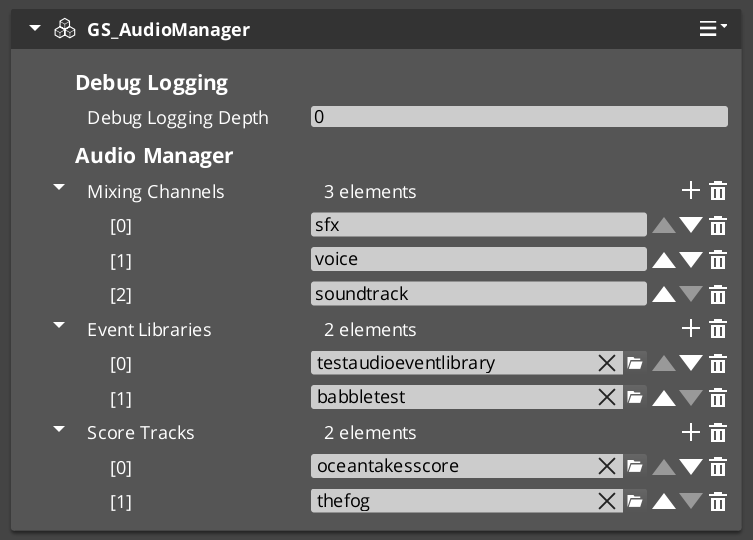
Contents
How It Works
Engine Lifecycle
When the Audio Manager activates, it initializes a MiniAudio engine instance and builds the mixing bus graph from its configured bus list. During Stage 2 startup it loads all referenced Audio Event Library assets so that events can be triggered immediately once startup completes.
Mixing Bus Routing
All audio output flows through named mixing buses. Each bus is a GS_MixingBus node in the MiniAudio graph with its own volume level and optional effects chain. The Audio Manager owns the top-level routing and exposes volume control per bus through the request bus.
Score Playback
The Audio Manager coordinates playback of ScoreArrangementTrack assets – multi-layer musical scores with configurable tempo, time signature, and layer selection. Score tracks are loaded and managed through the request bus.
Inspector Properties
| Property | Type | Description |
|---|
| Mixing Buses | AZStd::vector<BusEffectsPair> | Named mixing buses with optional effects chains. Each entry maps a bus name to an effects configuration. |
| Startup Libraries | AZStd::vector<AZ::Data::Asset<AudioEventLibrary>> | Audio event library assets to load during startup. Events in these libraries are available immediately after initialization. |
| Default Master Volume | float | Initial master volume level (0.0 to 1.0). |
API Reference
GS_AudioManagerComponent
| Field | Value |
|---|
| TypeId | {F28721FD-B9FD-4C04-8CD1-6344BD8A3B78} |
| Extends | GS_Core::GS_ManagerComponent |
| Header | GS_Audio/GS_AudioManagerBus.h |
Request Bus: AudioManagerRequestBus
Commands sent to the Audio Manager. Singleton bus – Single address, single handler.
| Method | Parameters | Returns | Description |
|---|
PlayAudioEvent | const AZStd::string& eventName | void | Plays the named audio event from the loaded event libraries. |
PlayAudioEvent | const AZStd::string& eventName, const AZ::EntityId& entityId | void | Plays the named audio event positioned at the specified entity for 3D spatialization. |
StopAudioEvent | const AZStd::string& eventName | void | Stops playback of the named audio event. |
StopAllAudioEvents | – | void | Stops all currently playing audio events. |
SetMixerVolume | const AZStd::string& busName, float volume | void | Sets the volume of a named mixing bus (0.0 to 1.0). |
GetMixerVolume | const AZStd::string& busName | float | Returns the current volume of a named mixing bus. |
SetMasterVolume | float volume | void | Sets the master output volume (0.0 to 1.0). |
GetMasterVolume | – | float | Returns the current master output volume. |
LoadEventLibrary | const AZ::Data::Asset<AudioEventLibrary>& library | void | Loads an audio event library at runtime, making its events available for playback. |
UnloadEventLibrary | const AZ::Data::Asset<AudioEventLibrary>& library | void | Unloads a previously loaded audio event library. |
PlayScoreTrack | const AZ::Data::Asset<ScoreArrangementTrack>& track | void | Begins playback of a score arrangement track. |
StopScoreTrack | – | void | Stops the currently playing score arrangement track. |
Notification Bus: AudioManagerNotificationBus
Events broadcast by the Audio Manager. Multiple handler bus – any number of components can subscribe.
| Event | Parameters | Description |
|---|
OnAudioEventStarted | const AZStd::string& eventName | Fired when an audio event begins playback. |
OnAudioEventStopped | const AZStd::string& eventName | Fired when an audio event stops playback. |
OnScoreTrackStarted | – | Fired when a score arrangement track begins playback. |
OnScoreTrackStopped | – | Fired when a score arrangement track stops playback. |
OnMixerVolumeChanged | const AZStd::string& busName, float volume | Fired when a mixing bus volume changes. |
See Also
For conceptual overviews and usage guides:
For component references:
For related resources:
Get GS_Audio
GS_Audio — Explore this gem on the product page and add it to your project.
3.2 - Audio Events
Event-based sound playback – audio event definitions, clip pool selection, spatialization, and event library assets.
Audio Events are the primary mechanism for playing sounds in GS_Play. A GS_AudioEvent defines a single sound event with a pool of audio clips, selection rules (random or sequential), 2D/3D spatialization mode, concurrent playback limits, and repeat-hold behavior. Events are grouped into AudioEventLibrary assets that the Audio Manager loads at startup or on demand.
When an event is triggered, the system selects a clip from the pool according to the configured selection type, checks concurrent limits, and routes the output through the appropriate mixing bus.
For usage guides and setup examples, see The Basics: GS_Audio.
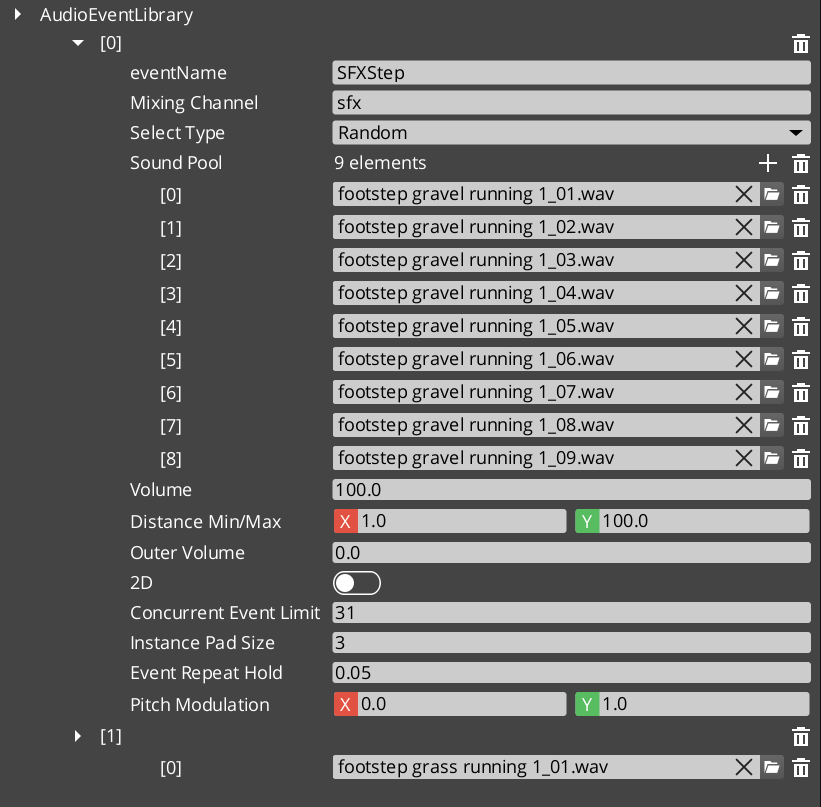
Contents
Data Model
GS_AudioEvent
A single audio event definition containing all playback configuration.
| Field | Value |
|---|
| TypeId | {2A6E337B-2B9A-4CB2-8760-BF3A12C50CA0} |
| Field | Type | Description |
|---|
| Event Name | AZStd::string | Unique identifier for this event within its library. Used by PlayAudioEvent calls. |
| Audio Clips | AZStd::vector<AudioClipAsset> | Pool of audio clip assets available for this event. |
| Pool Selection Type | PoolSelectionType | How clips are chosen from the pool: Random or Increment (sequential). |
| Is 3D | bool | When true, audio is spatialized in 3D space relative to the emitting entity. When false, audio plays as 2D (non-positional). |
| Max Concurrent | int | Maximum number of simultaneous instances of this event. Additional triggers are ignored until a slot opens. 0 means unlimited. |
| Repeat Hold Time | float | Minimum time in seconds before this event can be retriggered. Prevents rapid-fire repetition of the same sound. |
| Mixing Bus | AZStd::string | Name of the mixing bus to route this event’s output through. |
| Volume | float | Base volume level for this event (0.0 to 1.0). |
| Pitch Variance | float | Random pitch variation range applied each time the event plays. 0.0 means no variation. |
AudioEventLibrary
An asset containing a collection of GS_AudioEvent definitions. Libraries are loaded by the Audio Manager at startup or at runtime via LoadEventLibrary.
| Field | Value |
|---|
| TypeId | {04218A1E-4399-4A7F-9649-ED468B5EF76B} |
| Extends | AZ::Data::AssetData |
| Reflection | Requires GS_AssetReflectionIncludes.h — see Serialization Helpers |
| Field | Type | Description |
|---|
| Events | AZStd::vector<GS_AudioEvent> | The collection of audio events defined in this library. |
PoolSelectionType (Enum)
Determines how audio clips are selected from an event’s clip pool.
| Field | Value |
|---|
| TypeId | {AF10C5C8-E54E-41DA-917A-6DF12CA89CE3} |
| Value | Description |
|---|
Random | A random clip is chosen from the pool each time the event plays. |
Increment | Clips are played sequentially, advancing to the next clip in the pool on each trigger. Wraps around at the end. |
GS_AudioEventComponent
Per-entity component that provides audio event playback with optional 3D positioning. Attach this component to any entity that needs to emit sounds.
| Field | Type | Description |
|---|
| Audio Events | AZStd::vector<AZStd::string> | List of event names this component can play. Events must exist in a loaded library. |
| Auto Play | bool | When true, the first event in the list plays automatically on activation. |
See Also
For conceptual overviews and usage guides:
For component references:
For related resources:
Get GS_Audio
GS_Audio — Explore this gem on the product page and add it to your project.
3.3 - Mixing & Effects
Named audio mixing buses with configurable effects chains, environmental influence, and 9 built-in audio filter types.
GS_Audio provides a named mixing bus system built on custom MiniAudio nodes. Each GS_MixingBus is a node in the audio graph with its own volume level and an optional chain of audio filters. Buses are configured in the Audio Manager Inspector and can be controlled at runtime through the mixing request bus.
The effects system includes 9 built-in filter types covering frequency shaping, equalization, delay, and reverb. Environmental influence effects allow game world volumes (rooms, weather zones) to push effects onto buses with priority-based stacking.
For usage guides and setup examples, see The Basics: GS_Audio.
GS_Audio is in Early Development. Full support planned soon: 2026.
Contents
GS_MixingBus
Custom MiniAudio node for mixing and effects processing.
| Field | Value |
|---|
| TypeId | {26E5BA8D-33E0-42E4-BBC0-6A3B2C46F52E} |
API Reference
Request Bus: GS_MixingRequestBus
Mixer control commands. Singleton bus – Single address, single handler.
| Method | Parameters | Returns | Description |
|---|
SetBusVolume | const AZStd::string& busName, float volume | void | Sets the volume of a named mixing bus (0.0 to 1.0). |
GetBusVolume | const AZStd::string& busName | float | Returns the current volume of a named mixing bus. |
MuteBus | const AZStd::string& busName, bool mute | void | Mutes or unmutes a named mixing bus. |
IsBusMuted | const AZStd::string& busName | bool | Returns whether a named mixing bus is currently muted. |
ApplyBusEffects | const AZStd::string& busName, const AudioBusEffects& effects | void | Applies an effects chain to a named mixing bus, replacing any existing effects. |
ClearBusEffects | const AZStd::string& busName | void | Removes all effects from a named mixing bus. |
PushInfluenceEffects | const AZStd::string& busName, const AudioBusInfluenceEffects& effects | void | Pushes environmental influence effects onto a bus with priority stacking. |
PopInfluenceEffects | const AZStd::string& busName, int priority | void | Removes influence effects at the specified priority level from a bus. |
Audio Filters
All 9 built-in filter types. Each filter is configured as part of an effects chain applied to a mixing bus.
| Filter | Type | Description |
|---|
| GS_LowPassFilter | Frequency cutoff | Attenuates frequencies above the cutoff point. Used for muffling, distance simulation, and underwater effects. |
| GS_HighPassFilter | Frequency cutoff | Attenuates frequencies below the cutoff point. Used for thinning audio, radio/telephone effects. |
| GS_BandPassFilter | Band isolation | Passes only frequencies within a specified band, attenuating everything outside. Combines low-pass and high-pass behavior. |
| GS_NotchFilter | Band removal | Attenuates frequencies within a narrow band while passing everything outside. The inverse of band-pass. |
| GS_PeakingEQFilter | Band boost/cut | Boosts or cuts frequencies around a center frequency with configurable bandwidth. Used for tonal shaping. |
| GS_LowShelfFilter | Low frequency shelf | Boosts or cuts all frequencies below a threshold by a fixed amount. Used for bass adjustment. |
| GS_HighShelfFilter | High frequency shelf | Boosts or cuts all frequencies above a threshold by a fixed amount. Used for treble adjustment. |
| GS_DelayFilter | Echo/delay | Produces delayed repetitions of the input signal. Configurable delay time and feedback amount. |
| GS_ReverbFilter | Room reverb | Simulates room acoustics by adding dense reflections. Configurable room size and damping. |
Data Structures
BusEffectsPair
Maps a bus name to an effects chain configuration. Used in the Audio Manager’s Inspector to define per-bus effects at design time.
| Field | Value |
|---|
| TypeId | {AD9E26C9-C172-42BF-B38C-BB06FC704E36} |
| Field | Type | Description |
|---|
| Bus Name | AZStd::string | The name of the mixing bus this effects chain applies to. |
| Effects | AudioBusEffects | The effects chain configuration for this bus. |
AudioBusEffects
A collection of audio filter configurations that form an effects chain on a mixing bus.
| Field | Value |
|---|
| TypeId | {15EC6932-1F88-4EC0-9683-6D80AE982820} |
| Field | Type | Description |
|---|
| Filters | AZStd::vector<AudioFilter> | Ordered list of audio filters applied in sequence. |
AudioBusInfluenceEffects
Environmental effects with priority-based stacking. Game world volumes (rooms, weather zones, underwater areas) push influence effects onto mixing buses. Higher priority influences override lower ones.
| Field | Value |
|---|
| TypeId | {75D039EC-7EE2-4988-A2ED-86689449B575} |
| Field | Type | Description |
|---|
| Priority | int | Stacking priority. Higher values override lower values when multiple influences target the same bus. |
| Effects | AudioBusEffects | The effects chain to apply as an environmental influence. |
See Also
For conceptual overviews and usage guides:
For component references:
For related resources:
- Audio Events – Events route their output through mixing buses
Get GS_Audio
GS_Audio — Explore this gem on the product page and add it to your project.
3.4 - Score Arrangement
Multi-layer musical score system for dynamic music – tempo, time signatures, fade control, and layer selection.
The Score Arrangement system provides multi-layer dynamic music for GS_Play projects. A ScoreArrangementTrack asset defines a musical score with configurable tempo, time signature, fade behavior, and multiple layers that can be enabled or disabled at runtime. This allows game music to adapt to gameplay state – adding or removing instrumental layers, changing intensity, or crossfading between sections.
Score tracks are loaded and controlled through the Audio Manager request bus.
For usage guides and setup examples, see The Basics: GS_Audio.
GS_Audio is in Early Development. Full support planned soon: 2026.
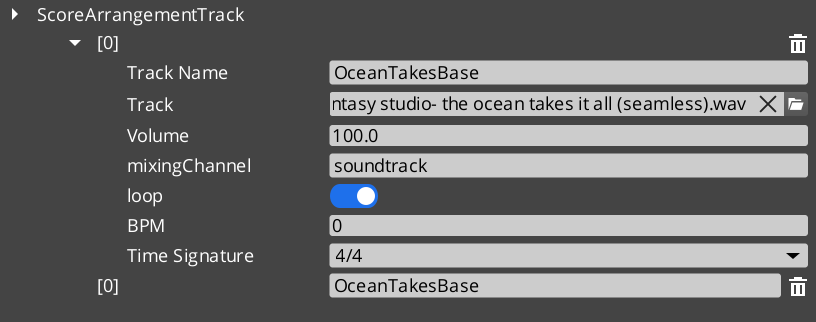
Contents
Data Model
ScoreArrangementTrack
A multi-layer musical score asset. Each track defines the musical structure and contains one or more layers that play simultaneously.
| Field | Value |
|---|
| TypeId | {DBB48082-1834-4DFF-BAD2-6EA8D83F1AD0} |
| Extends | AZ::Data::AssetData |
| Reflection | Requires GS_AssetReflectionIncludes.h — see Serialization Helpers |
| Field | Type | Description |
|---|
| Track Name | AZStd::string | Identifier for this score track. |
| Time Signature | TimeSignatures | The time signature for this score (e.g. 4/4, 3/4, 6/8). |
| BPM | float | Tempo in beats per minute. |
| Fade In Time | float | Duration in seconds for the score to fade in when playback begins. |
| Fade Out Time | float | Duration in seconds for the score to fade out when playback stops. |
| Loop | bool | Whether the score loops back to the beginning when it reaches the end. |
| Layers | AZStd::vector<ScoreLayer> | The musical layers that compose this score. |
| Active Layers | AZStd::vector<int> | Indices of layers that are active (audible) at the start of playback. |
ScoreLayer
A single musical layer within a score arrangement. Each layer represents one track of audio (e.g. drums, bass, melody) that can be independently enabled or disabled.
| Field | Value |
|---|
| TypeId | {C8B2669A-FAEA-4910-9218-6FE50D2E588E} |
| Field | Type | Description |
|---|
| Layer Name | AZStd::string | Identifier for this layer within the score. |
| Audio Asset | AZ::Data::Asset<AudioClipAsset> | The audio clip for this layer. |
| Volume | float | Base volume level for this layer (0.0 to 1.0). |
| Fade Time | float | Duration in seconds for this layer to fade in or out when toggled. |
TimeSignatures (Enum)
Supported musical time signatures for score arrangement tracks.
| Field | Value |
|---|
| TypeId | {6D6B5657-746C-4FCA-A0AC-671C0F064570} |
| Value | Beats per Measure | Beat Unit | Description |
|---|
FourFour | 4 | Quarter note | 4/4 – Common time. The most widely used time signature. |
FourTwo | 4 | Half note | 4/2 – Four half-note beats per measure. |
TwelveEight | 12 | Eighth note | 12/8 – Compound quadruple meter. Four groups of three eighth notes. |
TwoTwo | 2 | Half note | 2/2 – Cut time (alla breve). Two half-note beats per measure. |
TwoFour | 2 | Quarter note | 2/4 – Two quarter-note beats per measure. March time. |
SixEight | 6 | Eighth note | 6/8 – Compound duple meter. Two groups of three eighth notes. |
ThreeFour | 3 | Quarter note | 3/4 – Waltz time. Three quarter-note beats per measure. |
ThreeTwo | 3 | Half note | 3/2 – Three half-note beats per measure. |
NineEight | 9 | Eighth note | 9/8 – Compound triple meter. Three groups of three eighth notes. |
See Also
For conceptual overviews and usage guides:
For component references:
Get GS_Audio
GS_Audio — Explore this gem on the product page and add it to your project.
3.5 - Klatt Voice Synthesis
Custom text-to-speech via Klatt formant synthesis with 3D spatial audio, phoneme mapping, and voice profiling.
The Klatt Voice Synthesis system provides custom text-to-speech for GS_Play projects using Klatt formant synthesis with full 3D spatial audio. It uses SoLoud internally for speech generation and MiniAudio for spatial positioning.
The system has two layers:
- KlattVoiceSystemComponent – A singleton that manages the shared SoLoud engine instance and tracks the 3D audio listener position.
- KlattVoiceComponent – A per-entity component that generates speech, queues segments, applies voice profiles, and emits spatialized audio from the entity’s position.
Voice characteristics are defined through KlattVoiceProfile assets containing frequency, speed, waveform, formant, and phoneme mapping configuration. Phoneme maps convert input text to ARPABET phonemes for the Klatt synthesizer, with support for custom pronunciation overrides.
For usage guides and setup examples, see The Basics: GS_Audio.
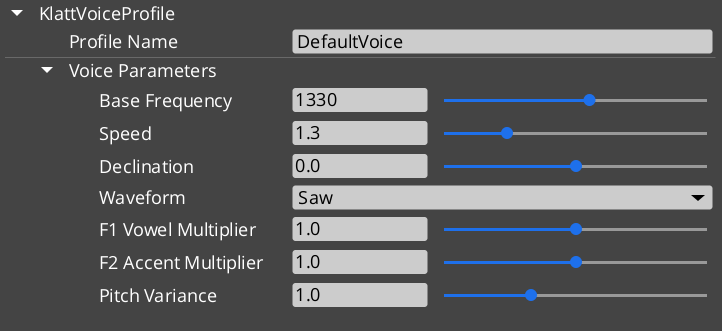
Contents
Components
KlattVoiceSystemComponent
Singleton component that manages the shared SoLoud engine and 3D listener tracking.
| Field | Value |
|---|
| TypeId | {F4A5D6E7-8B9C-4D5E-A1F2-3B4C5D6E7F8A} |
| Extends | AZ::Component, AZ::TickBus::Handler |
| Bus | KlattVoiceSystemRequestBus (Single/Single) |
KlattVoiceComponent
Per-entity voice component with spatial audio, phoneme mapping, and segment queue.
| Field | Value |
|---|
| TypeId | {4A8B9C7D-6E5F-4D3C-2B1A-0F9E8D7C6B5A} |
| Extends | AZ::Component, AZ::TickBus::Handler |
| Request Bus | KlattVoiceRequestBus (Single/ById, entity-addressed) |
| Notification Bus | KlattVoiceNotificationBus (Multiple/Multiple) |
API Reference
Request Bus: KlattVoiceSystemRequestBus
System-level voice management. Singleton bus – Single address, single handler.
| Method | Parameters | Returns | Description |
|---|
GetSoLoudEngine | – | SoLoud::Soloud* | Returns a pointer to the shared SoLoud engine instance. |
SetListenerPosition | const AZ::Vector3& position | void | Updates the 3D audio listener position for spatial voice playback. |
SetListenerOrientation | const AZ::Vector3& forward, const AZ::Vector3& up | void | Updates the 3D audio listener orientation. |
GetListenerPosition | – | AZ::Vector3 | Returns the current listener position. |
IsEngineReady | – | bool | Returns whether the SoLoud engine has been initialized and is ready. |
Request Bus: KlattVoiceRequestBus
Per-entity voice synthesis controls. Entity-addressed bus – Single handler per entity ID.
| Method | Parameters | Returns | Description |
|---|
Speak | const AZStd::string& text | void | Converts text to speech and plays it. Uses the component’s configured voice profile. |
SpeakWithParams | const AZStd::string& text, const KlattVoiceParams& params | void | Converts text to speech using the specified voice parameters instead of the profile defaults. |
StopSpeaking | – | void | Immediately stops any speech in progress and clears the segment queue. |
IsSpeaking | – | bool | Returns whether this entity’s voice is currently producing speech. |
QueueSegment | const AZStd::string& text | void | Adds a speech segment to the queue. Queued segments play in order after the current segment finishes. |
ClearQueue | – | void | Clears all queued speech segments without stopping current playback. |
SetVoiceProfile | const AZ::Data::Asset<KlattVoiceProfile>& profile | void | Changes the voice profile used by this component. |
GetVoiceProfile | – | AZ::Data::Asset<KlattVoiceProfile> | Returns the currently assigned voice profile asset. |
SetSpatialConfig | const KlattSpatialConfig& config | void | Updates the 3D spatial audio configuration for this voice. |
GetSpatialConfig | – | KlattSpatialConfig | Returns the current spatial audio configuration. |
SetVolume | float volume | void | Sets the output volume for this voice (0.0 to 1.0). |
GetVolume | – | float | Returns the current output volume. |
Notification Bus: KlattVoiceNotificationBus
Events broadcast by voice components. Multiple handler bus – any number of components can subscribe.
| Event | Parameters | Description |
|---|
OnSpeechStarted | const AZ::EntityId& entityId | Fired when an entity begins speaking. |
OnSpeechFinished | const AZ::EntityId& entityId | Fired when an entity finishes speaking (including all queued segments). |
OnSegmentStarted | const AZ::EntityId& entityId, int segmentIndex | Fired when a new speech segment begins playing. |
OnSegmentFinished | const AZ::EntityId& entityId, int segmentIndex | Fired when a speech segment finishes playing. |
Data Types
KlattVoiceParams
Core voice synthesis parameters controlling the Klatt formant synthesizer output.
| Field | Value |
|---|
| TypeId | {8A9C7F3B-4E2D-4C1A-9B5E-6D8F9A2C1B4E} |
| Field | Type | Description |
|---|
| Base Frequency | float | Fundamental frequency (F0) in Hz. Controls the base pitch of the voice. |
| Speed | float | Speech rate multiplier. 1.0 is normal speed. |
| Declination | float | Pitch declination rate. Controls how pitch drops over the course of an utterance. |
| Waveform | KlattWaveform | Glottal waveform type used by the synthesizer. |
| Formant Shift | float | Shifts all formant frequencies up or down. Positive values raise pitch character, negative values lower it. |
| Pitch Variance | float | Amount of random pitch variation applied during speech for natural-sounding intonation. |
KlattVoiceProfile
A voice profile asset combining synthesis parameters with a phoneme mapping.
| Field | Value |
|---|
| TypeId | {2CEB777E-DAA7-40B1-BFF4-0F772ADE86CF} |
| Reflection | Requires GS_AssetReflectionIncludes.h — see Serialization Helpers |
| Field | Type | Description |
|---|
| Voice Params | KlattVoiceParams | The synthesis parameters for this voice profile. |
| Phoneme Map | AZ::Data::Asset<KlattPhonemeMap> | The phoneme mapping asset used for text-to-phoneme conversion. |
KlattVoicePreset
A preset configuration for quick voice setup.
| Field | Value |
|---|
| TypeId | {2B8D9E4F-7C6A-4D3B-8E9F-1A2B3C4D5E6F} |
| Field | Type | Description |
|---|
| Preset Name | AZStd::string | Display name for this preset. |
| Profile | KlattVoiceProfile | The voice profile configuration stored in this preset. |
KlattSpatialConfig
3D spatial audio configuration for voice positioning.
| Field | Value |
|---|
| TypeId | {7C9F8E2D-3A4B-5F6C-1E0D-9A8B7C6D5E4F} |
| Field | Type | Description |
|---|
| Enable 3D | bool | Whether this voice uses 3D spatialization. When false, audio plays as 2D. |
| Min Distance | float | Distance at which attenuation begins. Below this distance the voice plays at full volume. |
| Max Distance | float | Distance at which the voice reaches minimum volume. |
| Attenuation Model | int | The distance attenuation curve type (linear, inverse, exponential). |
| Doppler Factor | float | Intensity of the Doppler effect applied to this voice. 0.0 disables Doppler. |
KlattPhonemeMap
Phoneme mapping asset for text-to-ARPABET conversion with custom overrides.
| Field | Value |
|---|
| TypeId | {F3E9D7C1-2A4B-5E8F-9C3D-6A1B4E7F2D5C} |
| Reflection | Requires GS_AssetReflectionIncludes.h — see Serialization Helpers |
| Field | Type | Description |
|---|
| Base Map | BasePhonemeMap | The base phoneme dictionary to use as the foundation for conversion. |
| Overrides | AZStd::vector<PhonemeOverride> | Custom pronunciation overrides for specific words or patterns. |
PhonemeOverride
A custom pronunciation rule that overrides the base phoneme map for a specific word or pattern.
| Field | Value |
|---|
| TypeId | {A2B5C8D1-4E7F-3A9C-6B2D-1F5E8A3C7D9B} |
| Field | Type | Description |
|---|
| Word | AZStd::string | The word or pattern to match. |
| Phonemes | AZStd::string | The ARPABET phoneme sequence to use for this word. |
Enumerations
Glottal waveform types available for the Klatt synthesizer.
| Field | Value |
|---|
| TypeId | {8ED1DABE-3347-44A5-B43A-C171D36AE780} |
| Value | Description |
|---|
Saw | Sawtooth waveform. Bright, buzzy character. |
Triangle | Triangle waveform. Softer than sawtooth, slightly hollow. |
Sin | Sine waveform. Pure tone, smooth and clean. |
Square | Square waveform. Hollow, reed-like character. |
Pulse | Pulse waveform. Variable duty cycle for varied timbres. |
Noise | Noise waveform. Breathy, whisper-like quality. |
Warble | Warble waveform. Modulated tone with vibrato-like character. |
BasePhonemeMap
Available base phoneme dictionaries for text-to-ARPABET conversion.
| Field | Value |
|---|
| TypeId | {D8F2A3C5-1B4E-7A9F-6D2C-5E8A1B3F4C7D} |
| Value | Description |
|---|
SoLoud_Default | The default phoneme mapping built into SoLoud. Covers standard English pronunciation. |
CMU_Full | The full CMU Pronouncing Dictionary. Comprehensive English phoneme coverage with over 130,000 entries. |
KTT (Klatt Text Tags) are inline commands embedded in strings passed to KlattVoiceComponent::SpeakText. They are parsed by KlattCommandParser::Parse and stripped from the spoken text before synthesis begins — they are never heard.
Format: <ktt attr1=value1 attr2=value2>
Multiple attributes can be combined in a single tag. Attribute names are case-insensitive. String values may optionally be wrapped in quotes. An empty value (e.g. speed=) resets that parameter to the voice profile default.
speed=X
Override the speech speed multiplier from this point forward.
| |
|---|
| Range | 0.1 – 5.0 |
| Default reset | speed= (restores profile default) |
| 1.0 | Normal speed |
Normal speech <ktt speed=2.0> fast bit <ktt speed=> back to default.
decl=X / declination=X
Pitch declination — how much pitch falls over the course of the utterance. Both decl and declination are accepted.
| |
|---|
| Range | 0.0 – 1.0 |
| 0.0 | Steady pitch (no fall) |
| 0.8 | Strong downward drift |
Rising <ktt decl=0.0> steady <ktt decl=0.8> falling voice.
Change the glottal waveform used by the synthesizer, setting the overall character of the voice.
| Value | Character |
|---|
saw | Default, neutral voice |
triangle | Softer, smoother |
sin / sine | Pure tone, robotic |
square | Harsh, mechanical |
pulse | Raspy, textured |
noise | Whispered, breathy |
warble | Wobbly, character voice |
<ktt waveform="noise"> whispered section <ktt waveform="saw"> normal voice.
vowel=X
First formant (F1) frequency multiplier. Shifts the quality of synthesised vowel sounds.
| |
|---|
| 1.0 | Normal |
| > 1.0 | More open vowel quality |
| < 1.0 | More closed vowel quality |
<ktt vowel=1.4> different vowel colour here.
accent=X
Second formant (F2) frequency multiplier. Shifts accent or dialect colouration.
| |
|---|
| 1.0 | Normal |
| < 1.0 | Shifted accent colouring |
<ktt accent=0.8> shifted accent here.
pitch=X
F0 pitch variance amount. Controls how much pitch varies during synthesis.
| |
|---|
| 1.0 | Normal variance |
| > 1.0 | More expressive intonation |
| < 1.0 | Flatter, more monotone |
<ktt pitch=2.0> very expressive speech <ktt pitch=0.1> flat monotone.
pause=X
Insert a pause of X seconds at this position in the voice playback. Value is required — there is no default.
Hello.<ktt pause=0.8> How are you?
Combined Example
Dialogue string using typewriter text commands and KTT voice tags together:
[b]Warning:[/b] [color=#FF0000]do not[/color] proceed.[pause=1]
<ktt waveform="square" pitch=1.8>This is a mechanical override.<ktt pause=0.5><ktt waveform="saw" pitch=1.0>
[speed=3]Resuming normal protocol.[/speed]
See Also
For conceptual overviews and usage guides:
For component references:
- Audio Manager – Manager lifecycle that the voice system participates in
Get GS_Audio
GS_Audio — Explore this gem on the product page and add it to your project.
3.6 - Third Party Implementations
Integration guides for third-party audio systems with GS_Audio.
This section will contain integration guides for connecting third-party audio middleware and tools with the GS_Audio system.
For usage guides and setup examples, see The Basics: GS_Audio.
Get GS_Audio
GS_Audio — Explore this gem on the product page and add it to your project.
4 - GS_Cinematics
Dialogue graphs, cinematic staging, UI display, localization, and extensible condition/effect/performance systems for authored narrative experiences.
GS_Cinematics is the narrative and staging gem for GS_Play. It provides a node-based dialogue graph system backed by .dialoguedb assets, extensible polymorphic conditions, effects, and performances, world-space and screen-space dialogue UI with typewriter effects, audio babble, cinematic stage marker management, and a full localization pipeline. The gem depends on GS_Core, LyShine, and RecastNavigation.
For usage guides and setup examples, see The Basics: GS_Cinematics.
Contents
Cinematics Manager
The top-level cinematic lifecycle controller. The Cinematics Manager is a GS_Play manager that enters and exits cinematic mode for the current level. Stage Marker components are placed in the scene as named anchor points that performances and sequences can reference at runtime.
| Component | Purpose |
|---|
| GS_CinematicsManagerComponent | Begins and ends cinematic mode. Registers and retrieves stage markers. Broadcasts EnterCinematic / ExitCinematic notifications. |
| CinematicStageMarkerComponent | Named world-space anchor placed in the level. Retrieved by the manager and referenced by sequences and performances. |
Dialogue System API
Dialogue System
The core playback engine. The Dialogue Manager owns the active .dialoguedb asset and performer registry. The Dialogue Sequencer executes sequences node-by-node, issuing performances, conditions, and effects as it traverses the graph. The system is fully extensible — custom conditions, effects, and performances are discovered automatically through O3DE serialization at startup.
| Component / Asset | Purpose |
|---|
| GS_DialogueManagerComponent | GS_Play manager. Loads and swaps dialogue databases. Registers performer markers by name. |
| DialogueSequencerComponent | Executes a DialogueSequence node graph. Manages runtime tokens and signals sequence completion. |
| DialogueDatabase (.dialoguedb) | Persistent asset. Contains actor definitions, sequences, and all node data. |
| Node Types | TextNodeData, SelectionNodeData, RandomNodeData, EffectsNodeData, PerformanceNodeData. |
| Conditions | Polymorphic DialogueCondition hierarchy. Built-in: Boolean_DialogueCondition, Record_DialogueCondition. |
| Effects | Polymorphic DialogueEffect hierarchy. Built-in: SetRecords_DialogueEffect, ToggleEntitiesActive_DialogueEffect. |
| LocalizedStringId | Reference to a localizable string with a key and default fallback text. Resolved at runtime. |
| LocalizedStringTable | Runtime string lookup table loaded alongside the active database. |
Dialogue System API
Dialogue UI
Screen-space and world-space presentation layer. The UI Bridge routes active dialogue to whichever UI component is registered — swapping from screen-space to world-space at runtime requires no sequencer changes. The Typewriter and Babble components provide character-by-character text reveal and procedural audio babble respectively.
Dialogue UI API
Polymorphic, async performance types executed from PerformanceNodeData within a sequence. Each performance drives a performer entity in the world and signals completion back to the sequencer. External gems register additional performance types automatically by extending the base class.
Dialogue System API
Installation
GS_Cinematics requires GS_Core, LyShine, and RecastNavigation to be enabled in your project first.
- Enable GS_Cinematics, GS_Core, LyShine, and RecastNavigation in your O3DE project’s gem list.
- Add a GS_CinematicsManagerComponent to your Game Manager prefab and register it in the Startup Managers list.
- Create a
.dialoguedb asset using the Dialogue Editor and assign it to the Dialogue Manager component. - Place CinematicStageMarkerComponent entities in your level and register them by name.
- Add a DialogueSequencerComponent to the entity that will drive dialogue playback.
- Add a DialogueUIBridgeComponent and connect it to your chosen
DialogueUIComponent variant.
See Also
For conceptual overviews and usage guides:
For sub-system references:
For related resources:
Get GS_Cinematics
GS_Cinematics — Explore this gem on the product page and add it to your project.
4.1 - Cinematics Manager
Full API reference for GS_CinematicsManagerComponent — cinematic lifecycle control, stage marker registration, and the CinematicStageMarkerComponent.
GS_CinematicsManagerComponent is the top-level cinematic lifecycle controller for GS_Cinematics. It extends GS_Core::GS_ManagerComponent and participates in the standard Game Manager startup sequence.
For usage guides and setup examples, see The Basics: Cinematics Manager.
Contents
GS_CinematicsManagerComponent
Singleton GS_Play manager that controls cinematic mode for the current level. Registered with the Game Manager startup sequence via GS_Core::GS_ManagerComponent.
| Property | Value |
|---|
| Extends | GS_Core::GS_ManagerComponent |
| Bus | CinematicsManagerRequestBus (Single address, single handler) |
| Notifications | CinematicsManagerNotificationBus |
Request Bus: CinematicsManagerRequestBus
Singleton bus — Single address, single handler.
| Method | Parameters | Returns | Description |
|---|
BeginCinematic | – | void | Enters cinematic mode for the current level. Broadcasts EnterCinematic to all listeners. |
EndCinematic | – | void | Exits cinematic mode. Broadcasts ExitCinematic to all listeners. |
RegisterStageMarker | const AZStd::string& name, AZ::EntityId entity | void | Registers a CinematicStageMarkerComponent entity under the given name. |
GetStageMarker | const AZStd::string& name | AZ::EntityId | Returns the entity registered under the given stage marker name. |
Notification Bus: CinematicsManagerNotificationBus
Multiple handler bus — any number of components can subscribe.
| Event | Description |
|---|
EnterCinematic | Fired when cinematic mode begins. Listeners should suppress gameplay systems. |
ExitCinematic | Fired when cinematic mode ends. Listeners should resume gameplay systems. |
CinematicStageMarkerComponent
A simple world-space anchor component placed on entities in the level. Stage markers are registered by name with the Cinematics Manager during activation. Performances and sequences reference markers by name to position performers in the world.
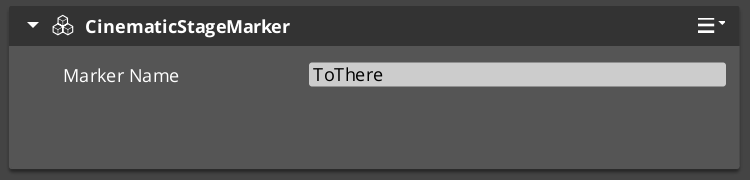
Attach a CinematicStageMarkerComponent to any entity, give it a unique name, and it self-registers with the CinematicsManagerRequestBus on Activate().
Script Canvas Examples
Entering and exiting cinematic mode:
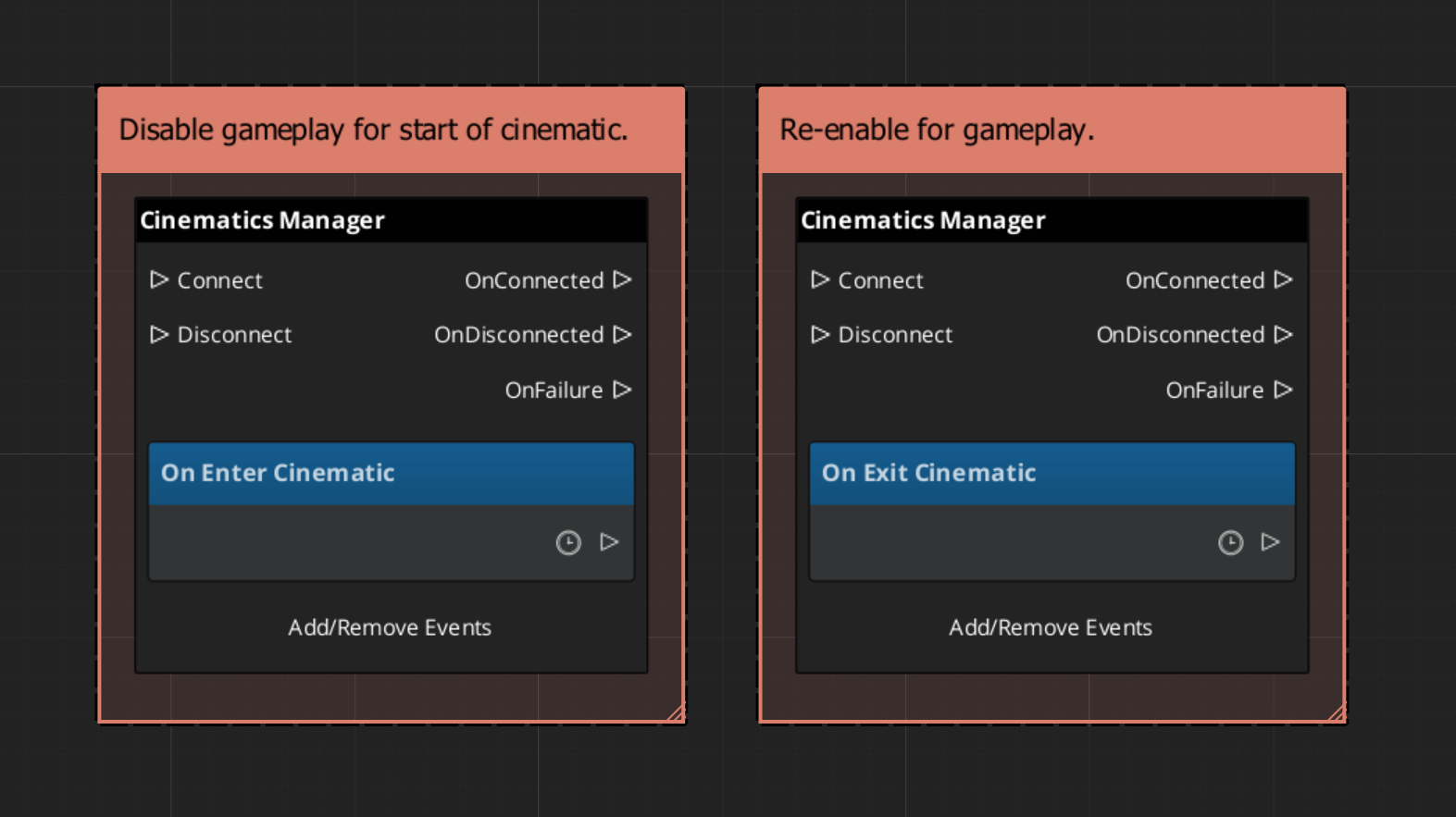
Getting a stage marker entity by name:
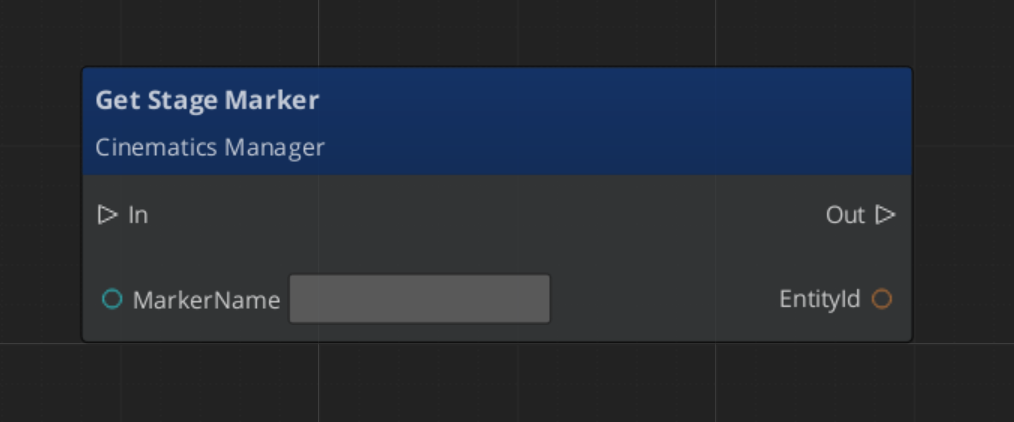
See Also
For usage guides:
For related references:
Get GS_Cinematics
GS_Cinematics — Explore this gem on the product page and add it to your project.
4.2 - Dialogue System
Architecture overview of the GS_Cinematics dialogue system — sequencing, data structures, UI display, actors, and extensible conditions, effects, and performances.
The Dialogue System is the runtime engine inside GS_Cinematics that drives all authored narrative experiences. It connects a persistent .dialoguedb asset to a node-graph sequencer, world-space and screen-space UI display, and an extensible set of polymorphic conditions, effects, and performances. Every piece is a standalone component communicating through EBus interfaces, so you can replace or extend any layer without modifying the gem itself.
The system is managed by the GS_DialogueManagerComponent, which participates in the standard Game Manager startup sequence.
For usage guides and setup examples, see The Basics: GS_Cinematics.
Contents
Architecture
Breakdown
A dialogue sequence is authored in the node editor, stored in a .dialoguedb asset, and driven at runtime by the Dialogue Manager and Sequencer:
| Layer | What It Means |
|---|
| DialogueDatabase | Stores named actors and sequences. Loaded at runtime by the Dialogue Manager. |
| DialogueSequence | A directed node graph. The Sequencer walks from startNodeId through Text, Selection, Effects, and Performance nodes. |
| Conditions | Polymorphic evaluators on branches. Failed conditions skip that branch automatically. |
| Effects | Polymorphic actions at EffectsNodeData nodes — set records, toggle entities. |
| Performers | Named actor anchors in the level. Resolved from database actor names via DialoguePerformerMarkerComponent. |
Conditions, effects, and performances are discovered automatically at startup — custom types from any gem appear in the editor without modifying GS_Cinematics.
E Indicates extensible classes and methods.
Patterns - Complete list of system patterns used in GS_Play.
Dialogue Manager
GS_DialogueManagerComponent owns the active dialogue database and performer registry. Extends GS_Core::GS_ManagerComponent.
Dialogue Manager API
Dialogue Sequencer
DialogueSequencerComponent traverses a node graph at runtime. The DialogueUIBridgeComponent routes dialogue and selection events to whichever UI is registered.
Dialogue Sequencer API
Data Structure
The .dialoguedb asset format, DialogueSequence, ActorDefinition, all node types, the polymorphic condition hierarchy, and localization types.
Data Structure API
Effects
Polymorphic DialogueEffect types executed synchronously from EffectsNodeData nodes. Built-in: SetRecords_DialogueEffect, ToggleEntitiesActive_DialogueEffect. Fully extensible.
Effects API
Polymorphic DialoguePerformance types executed asynchronously from PerformanceNodeData nodes. Built-in: MoveTo, PathTo, RepositionPerformer. Fully extensible.
Performances API
Dialogue UI
Screen-space and world-space dialogue display, selection menus, the typewriter text-reveal system, and the babble audio system.
Dialogue UI API
Actors
DialoguePerformerMarkerComponent places named performer anchors in the world, plus the ActorDefinition data model.
Dialogue Actors API
Editor
The in-engine GUI for authoring dialogue databases, sequences, and node graphs.
Dialogue Editor
See Also
For conceptual overviews and usage guides:
For related references:
Get GS_Cinematics
GS_Cinematics — Explore this gem on the product page and add it to your project.
4.2.1 - Dialogue Manager
Full API reference for GS_DialogueManagerComponent — dialogue database management, performer marker registration, and the DialoguePerformerMarkerComponent.
GS_DialogueManagerComponent owns the active dialogue database and performer registry. It extends GS_Core::GS_ManagerComponent and participates in the standard Game Manager startup sequence.
For usage guides and setup examples, see The Basics: GS_Cinematics.
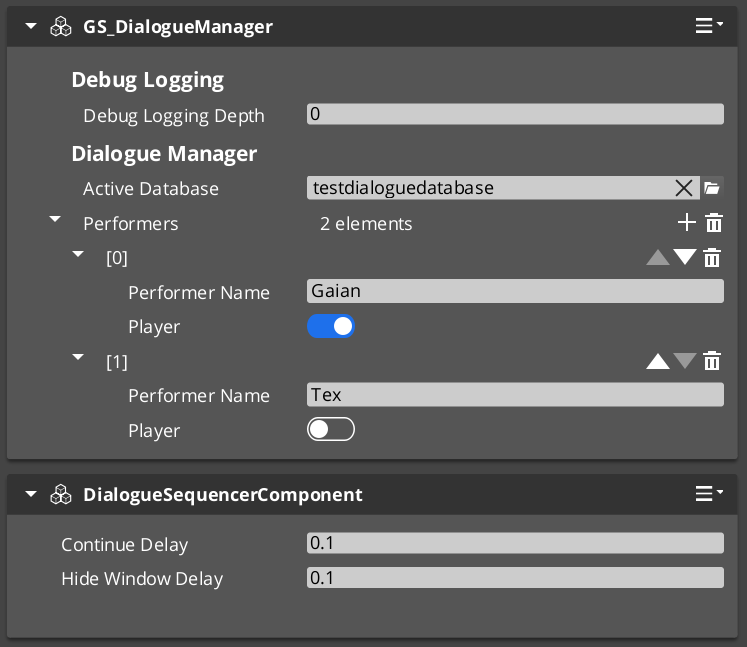
Contents
GS_DialogueManagerComponent
Singleton GS_Play manager that owns the active .dialoguedb asset and the performer registry. Registered with the Game Manager startup sequence via GS_Core::GS_ManagerComponent.
| Property | Value |
|---|
| Extends | GS_Core::GS_ManagerComponent |
| Bus | DialogueManagerRequestBus (Single address, single handler) |
| Notifications | DialogueManagerNotificationBus (inherited from ManagerBaseOutgoingEvents) |
Request Bus: DialogueManagerRequestBus
Singleton bus — Single address, single handler.
| Method | Parameters | Returns | Description |
|---|
StartDialogueSequenceByName | const AZStd::string& sequenceName | void | Looks up a sequence by name in the active database and starts playback through the sequencer. |
ChangeDialogueDatabase | AZ::Data::Asset<DialogueDatabase> database | void | Swaps the active .dialoguedb asset at runtime. |
RegisterPerformerMarker | const AZStd::string& name, AZ::EntityId entity | void | Registers a DialoguePerformerMarkerComponent entity under the given performer name. |
GetPerformer | const AZStd::string& name | AZ::EntityId | Returns the entity registered under the given performer name. |
Notification Bus: DialogueManagerNotificationBus
Dialogue Manager notifications are inherited from ManagerBaseOutgoingEvents. See Manager for the full notification interface.
A world-space anchor component placed on NPC entities in the level. Performer markers register by name with the Dialogue Manager during activation. The dialogue system resolves actor names from the database to these world-space entities.
| Method | Parameters | Returns | Description |
|---|
GetPerformerName | – | AZStd::string | Returns the registered name for this performer. |
GetPosEntity | – | AZ::EntityId | Returns the entity used as the position reference for this performer. |
GetPosPoint | – | AZ::Vector3 | Returns the world-space position of the performer anchor. |
ShouldTrackTarget | – | bool | Returns whether this performer should track a target entity. |
Script Canvas Examples
Starting a dialogue sequence by name:
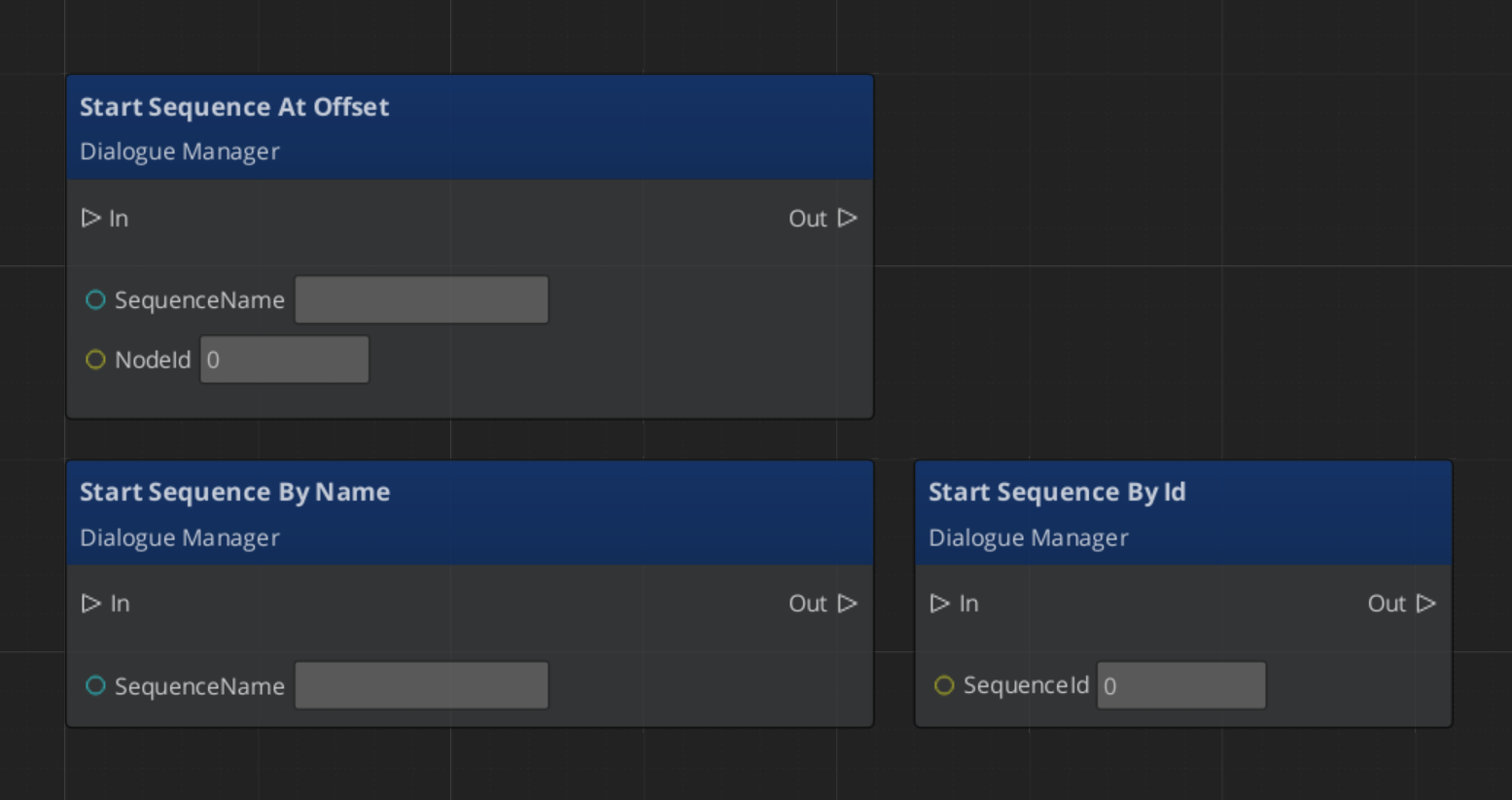
See Also
For usage guides:
For component references:
For related resources:
Get GS_Cinematics
GS_Cinematics — Explore this gem on the product page and add it to your project.
4.2.2 - Dialogue Data Structure
Full reference for the DialogueDatabase asset, dialogue sequences, node types, conditions, effects, localization types, and the extension guide for custom polymorphic types.
All dialogue content lives in a .dialoguedb asset file. This page documents the complete data model: the database container, sequences, actor definitions, every node type, the polymorphic condition and effect hierarchies, and the localization pipeline. It also provides an extension guide for registering custom conditions and effects from external gems.
For usage guides and setup examples, see The Basics: GS_Cinematics.
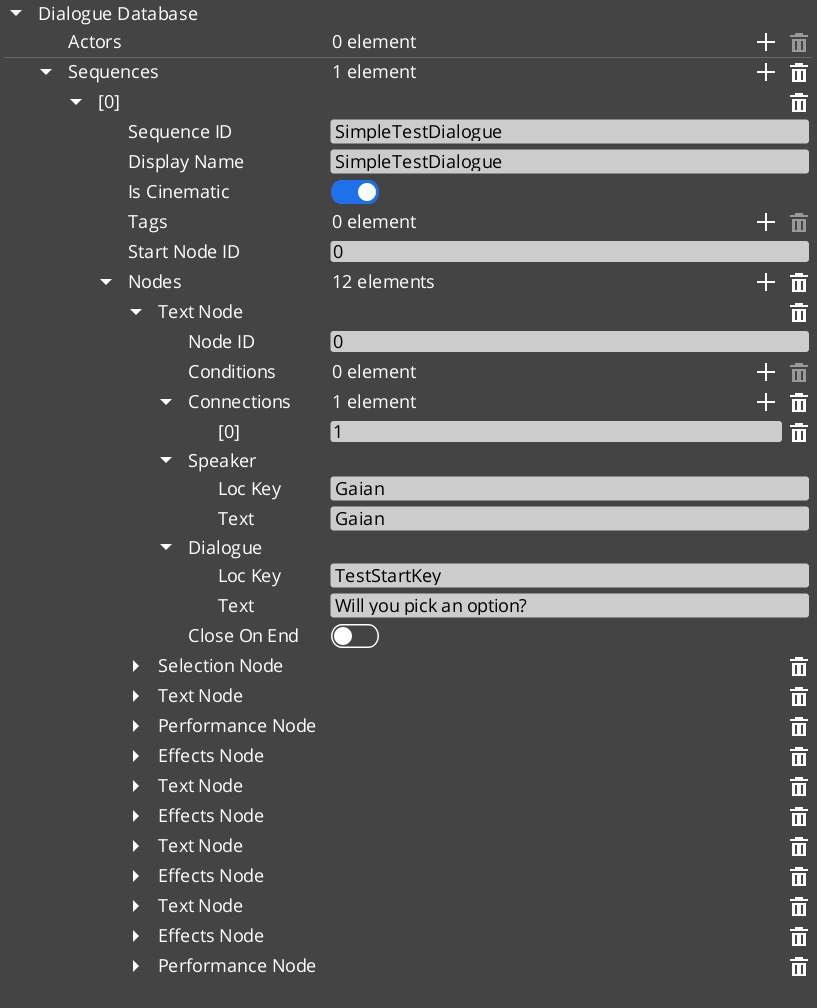
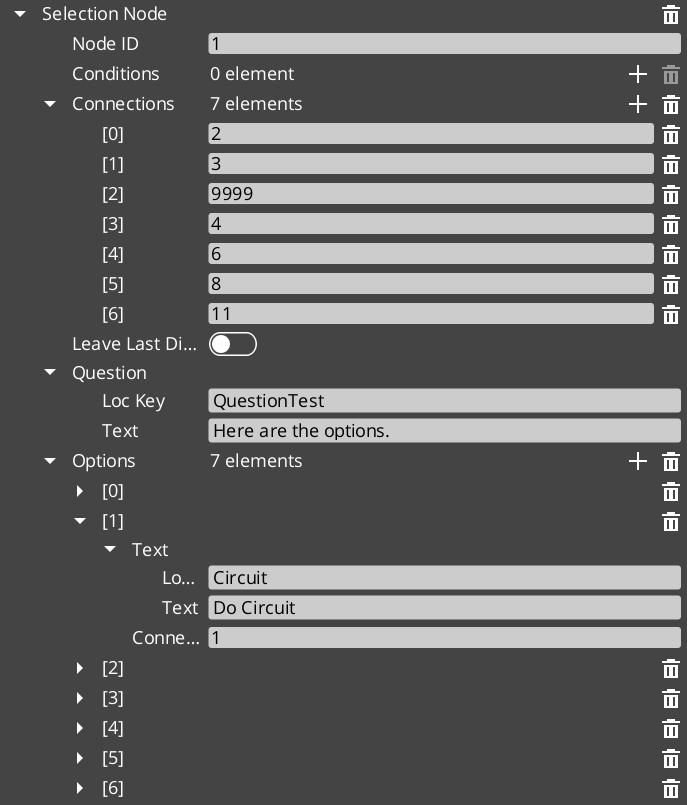
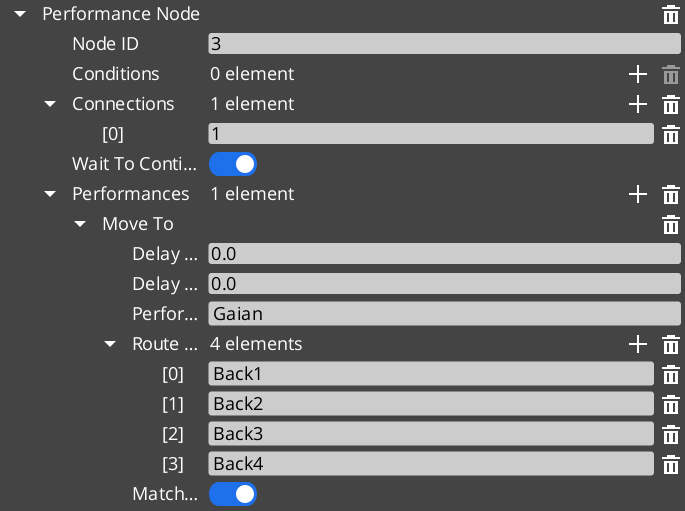
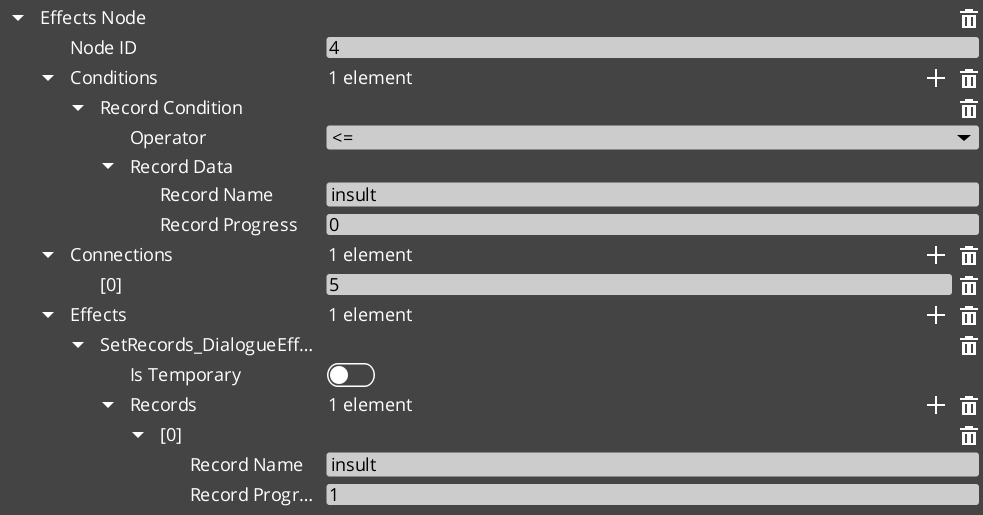
Contents
DialogueDatabase
The top-level asset that contains all data for a set of dialogue encounters.
| Property | Type | Description |
|---|
| Asset Extension | .dialoguedb | Custom O3DE asset type. |
| TypeId | {4C5D6E7F-8A9B-0C1D-2E3F-4A5B6C7D8E9F} | Registered asset type identifier. |
| Actors | AZStd::unordered_map<AZStd::string, ActorDefinition> | Named actor definitions. Keyed by actor name. |
| Sequences | AZStd::unordered_map<AZStd::string, DialogueSequence> | Named dialogue sequences. Keyed by sequence name. |
| Metadata | Various | Database-level settings (default delays, typewriter speed, UI profiles). |
The Dialogue Manager loads one database at a time. You can swap databases at runtime via DialogueManagerRequestBus::ChangeDialogueDatabase.
DialogueSequence
A single dialogue encounter within the database. Contains a linear or branching graph of nodes.
| Property | Type | Description |
|---|
| TypeId | {2B3C4D5E-6F7A-8B9C-0D1E-2F3A4B5C6D7E} | |
| metadata | Various | Sequence name, description, and editor settings. |
| nodes | AZStd::vector<DialogueNodeData*> | Polymorphic vector of node data. Ownership is held by the sequence. |
| startNodeId | AZStd::string | The ID of the first node the sequencer processes when this sequence begins. |
ActorDefinition
Defines a named character that appears in dialogue.
| Property | Type | Description |
|---|
| TypeId | {1A2B3C4D-5E6F-7A8B-9C0D-1E2F3A4B5C6D} | |
| Actor Name | AZStd::string | Internal name used for lookups and performer matching. |
| Portrait | Asset reference | Default portrait image for this actor. |
| Metadata | Various | Display name, emotion categories, pose sets, profile image sets. |
The actor name in the database is matched against the performer name registered by a DialoguePerformerMarkerComponent in the level. This links authored data to a world-space entity.
Node Types
All nodes inherit from the abstract DialogueNodeData base class. The sequencer uses the concrete type to determine processing behavior.
DialogueNodeData (Abstract Base)
| Property | Type | Description |
|---|
| TypeId | {D1E2F3A4-B5C6-7D8E-9F0A-1B2C3D4E5F6A} | |
| nodeId | AZStd::string | Unique identifier within the sequence. |
| connections | AZStd::vector<NodeConnection> | Outgoing connections, each with a target node ID, optional conditions, and optional weight. |
Concrete Node Types
| Type | TypeId | Description |
|---|
| TextNodeData | {A2B3C4D5-E6F7-8901-2345-6789ABCDEF01} | Displays dialogue text. Contains speaker name, localized text, portrait override, close-text flag, and continue settings (display-and-delay, wait-for-input, after-seconds). |
| SelectionNodeData | {C4D5E6F7-A890-1234-5678-9ABCDEF01234} | Presents player choices. Contains a vector of SelectionOption objects. Each option has its own text, conditions, and outgoing connections. |
| RandomNodeData | {D5E6F7A8-B901-2345-6789-ABCDEF012345} | Picks a random outgoing connection. Supports pure random and weighted modes. Does not pause for input. |
| EffectsNodeData | {E6F7A8B9-C012-3456-789A-BCDEF0123456} | Executes a list of DialogueEffect instances. Processing continues immediately after all effects fire. |
| PerformanceNodeData | {F7A8B9C0-D123-4567-89AB-CDEF01234567} | Starts a DialoguePerformance on a named performer. The sequencer waits for the performance to complete before advancing. |
SelectionOption
A single choice within a SelectionNodeData.
| Property | Type | Description |
|---|
| TypeId | {B3C4D5E6-F7A8-9012-3456-789ABCDEF012} | |
| text | LocalizedStringId | The display text for this option. |
| conditions | AZStd::vector<DialogueCondition*> | Conditions that must pass for this option to appear. |
| connections | AZStd::vector<NodeConnection> | Outgoing connections followed when this option is selected. |
Conditions
Conditions are polymorphic evaluators attached to node connections and selection options. They are registered automatically by extending the base class.
DialogueCondition (Abstract Base)
| Property | Type | Description |
|---|
| TypeId | {E44DAD9C-F42B-458B-A44E-1F15971B8F4C} | |
| Method | EvaluateCondition() | Returns bool. Called by the sequencer to determine whether a connection or option is valid. |
Built-in Conditions
| Type | TypeId | Description |
|---|
| Boolean_DialogueCondition | {34040E77-A58F-48CD-AC36-B3FE0017AA1F} | Base boolean comparison. Evaluates a simple true/false state. |
| Record_DialogueCondition | {E9C5C06D-B2C7-42EF-98D0-2290DE23635D} | Checks game records via the GS_Save RecordKeeper system. Supports greater-than, less-than, equal, and not-equal operators against integer record values. |
Effects
Effects are polymorphic actions triggered by EffectsNodeData nodes. Each effect can also be reversed. They are registered automatically by extending the base class.
DialogueEffect (Abstract Base)
| Property | Type | Description |
|---|
| TypeId | {71E2E05E-A7A3-4EB3-8954-2F75B26D5E3A} | |
| Methods | DoEffect(), ReverseEffect() | DoEffect() executes the effect. ReverseEffect() undoes it (used for rollback or undo scenarios). |
Built-in Effects
| Type | TypeId | Description |
|---|
| SetRecords_DialogueEffect | {FFCACF63-0625-4EE5-A74B-86C809B7BF80} | Sets one or more game records in the GS_Save RecordKeeper system. Commonly used to flag quest progress, NPC disposition, or world state changes. |
| ToggleEntitiesActive_DialogueEffect | {F97E1B87-EE7A-4D26-814C-D2F9FA810B28} | Activates or deactivates entities in the level. Used to show/hide objects, enable/disable triggers, or change the world during dialogue. |
Localization
All player-visible text in the dialogue system passes through the localization layer.
LocalizedStringId
A reference to a localizable string.
| Property | Type | Description |
|---|
| TypeId | {7D8E9F0A-1B2C-3D4E-5F6A-7B8C9D0E1F2A} | |
| key | AZStd::string | Lookup key into the active LocalizedStringTable. |
| defaultText | AZStd::string | Fallback text returned when no localized entry exists for the key. |
| Resolve() | – returns AZStd::string | Resolves the string: looks up key in the active table, falls back to defaultText. |
LocalizedStringTable
Runtime lookup table loaded alongside the active dialogue database.
| Property | Type | Description |
|---|
| TypeId | {3D4E5F6A-7B8C-9D0E-1F2A-3B4C5D6E7F8A} | |
| Entries | AZStd::unordered_map<AZStd::string, AZStd::string> | Key-value pairs mapping string keys to localized text. |
Complete Type Reference
| Type | TypeId | Category |
|---|
DialogueDatabase | {4C5D6E7F-8A9B-0C1D-2E3F-4A5B6C7D8E9F} | Asset |
DialogueSequence | {2B3C4D5E-6F7A-8B9C-0D1E-2F3A4B5C6D7E} | Data |
ActorDefinition | {1A2B3C4D-5E6F-7A8B-9C0D-1E2F3A4B5C6D} | Data |
DialogueNodeData | {D1E2F3A4-B5C6-7D8E-9F0A-1B2C3D4E5F6A} | Node (Abstract) |
TextNodeData | {A2B3C4D5-E6F7-8901-2345-6789ABCDEF01} | Node |
SelectionNodeData | {C4D5E6F7-A890-1234-5678-9ABCDEF01234} | Node |
RandomNodeData | {D5E6F7A8-B901-2345-6789-ABCDEF012345} | Node |
EffectsNodeData | {E6F7A8B9-C012-3456-789A-BCDEF0123456} | Node |
PerformanceNodeData | {F7A8B9C0-D123-4567-89AB-CDEF01234567} | Node |
SelectionOption | {B3C4D5E6-F7A8-9012-3456-789ABCDEF012} | Data |
DialogueCondition | {E44DAD9C-F42B-458B-A44E-1F15971B8F4C} | Condition (Abstract) |
Boolean_DialogueCondition | {34040E77-A58F-48CD-AC36-B3FE0017AA1F} | Condition |
Record_DialogueCondition | {E9C5C06D-B2C7-42EF-98D0-2290DE23635D} | Condition |
DialogueEffect | {71E2E05E-A7A3-4EB3-8954-2F75B26D5E3A} | Effect (Abstract) |
SetRecords_DialogueEffect | {FFCACF63-0625-4EE5-A74B-86C809B7BF80} | Effect |
ToggleEntitiesActive_DialogueEffect | {F97E1B87-EE7A-4D26-814C-D2F9FA810B28} | Effect |
DialoguePerformance | {BCCF5C52-42C3-49D4-8202-958120EA8743} | Performance (Abstract) |
MoveTo_DialoguePerformance | {6033A69D-F46F-40DF-A4A0-A64C4E28D6D5} | Performance |
PathTo_DialoguePerformance | {C0DF4B0E-924D-4C38-BD26-5A286161D95C} | Performance |
RepositionPerformer_DialoguePerformance | {DE1E0930-F0A4-4F60-A741-4FB530610AEE} | Performance |
LocalizedStringId | {7D8E9F0A-1B2C-3D4E-5F6A-7B8C9D0E1F2A} | Localization |
LocalizedStringTable | {3D4E5F6A-7B8C-9D0E-1F2A-3B4C5D6E7F8A} | Localization |
Extension Guide
Use the ClassWizard templates to generate new dialogue extension classes — see GS_Cinematics Templates:
DialogueCondition — generates a condition stub (Basic or Boolean variant). Requires a Reflect(context) call in DialogueSequencerComponent.cpp.DialogueEffect — generates an effect stub with DoEffect() / ReverseEffect(). Same manual registration step.DialoguePerformance — generates a performance stub with the full ExecutePerformance() / FinishPerformance() lifecycle. Same manual registration step.
All three types are polymorphic and discovered automatically.
External gems can add custom conditions, effects, and performances without modifying GS_Cinematics. The process is the same for all three categories.
Adding a Custom Condition
1. Define the class
#pragma once
#include <GS_Cinematics/Dialogue/Conditions/DialogueCondition.h>

namespace MyGem
{
    class HasItem_DialogueCondition : public GS_Cinematics::DialogueCondition
    {
    public:
        AZ_RTTI(HasItem_DialogueCondition, "{YOUR-UUID-HERE}", GS_Cinematics::DialogueCondition);
        AZ_CLASS_ALLOCATOR(HasItem_DialogueCondition, AZ::SystemAllocator);

        static void Reflect(AZ::ReflectContext* context);

        bool EvaluateCondition() override;

    private:
        AZStd::string m_itemName;
    };
}
2. Implement and reflect
#include "HasItem_DialogueCondition.h"
#include <AzCore/Serialization/SerializeContext.h>

namespace MyGem
{
    void HasItem_DialogueCondition::Reflect(AZ::ReflectContext* context)
    {
        if (auto sc = azrtti_cast<AZ::SerializeContext*>(context))
        {
            sc->Class<HasItem_DialogueCondition, GS_Cinematics::DialogueCondition>()
                ->Version(1)
                ->Field("ItemName", &HasItem_DialogueCondition::m_itemName);

            if (auto ec = sc->GetEditContext())
            {
                ec->Class<HasItem_DialogueCondition>("Has Item", "Checks if the player has a specific item.")
                    ->ClassElement(AZ::Edit::ClassElements::EditorData, "")
                        ->Attribute(AZ::Edit::Attributes::Category, "MyGem/Conditions")
                    ->DataElement(AZ::Edit::UIHandlers::Default, &HasItem_DialogueCondition::m_itemName, "Item Name", "");
            }
        }
    }

    bool HasItem_DialogueCondition::EvaluateCondition()
    {
        // Query your inventory system
        bool hasItem = false;
        // MyGem::InventoryRequestBus::BroadcastResult(hasItem, ...);
        return hasItem;
    }
}
The same pattern applies to custom effects (inherit DialogueEffect, implement DoEffect() / ReverseEffect()) and custom performances (inherit DialoguePerformance, implement DoPerformance() / ExecutePerformance() / FinishPerformance()).
See Also
For conceptual overviews and usage guides:
For component references:
For related resources:
Get GS_Cinematics
GS_Cinematics — Explore this gem on the product page and add it to your project.
4.2.3 - Editor
Information on the in engine GUI.
For usage guides and setup examples, see The Basics: GS_Cinematics.


Performer Targeting
Sequences
Localization
Nodes
Start / End
End
Restart
New Sequence
Specific Node
Dialogue
Text
Animated/Stylized Text
Performance
Posing
Pathing
Portrait
Trigger Timeline
Sound
2D
3D
Actions + Set Record
Conditions
How to use conditions to determine path.
Not always related to player choice.
Timeline Integration
Start Sequence
Continue Dialogue
UI
Editor GUI

Adding icon to editor is a complex problem, outlined by Nick. 
Sequence Window

The Inspector Window can have any number of sub-tabs. Which might be valuable for adding unique settings, or multiple Conditions, for example. Basically component-ize different node types.
System Window
Actors Window
Ingame UI
Get GS_Cinematics
GS_Cinematics — Explore this gem on the product page and add it to your project.
4.2.4 - Dialogue Sequencer
Full API reference for the DialogueSequencerComponent and DialogueUIBridgeComponent — runtime dialogue graph traversal, node processing, and UI routing.
The Dialogue Sequencer is the runtime engine that executes dialogue sequences node-by-node. It receives a DialogueSequence from the Dialogue Manager, traverses the node graph, evaluates conditions, fires effects and performances, and routes text and selection events to the UI layer through the DialogueUIBridgeComponent.
The two components on this page work together:
| Component | Role |
|---|
| DialogueSequencerComponent | Traverses the node graph. Processes each DialogueNodeData in order, manages runtime tokens, and signals sequence completion. |
| DialogueUIBridgeComponent | Decouples the sequencer from presentation. Routes dialogue text and selection events to whichever DialogueUIComponent or DialogueUISelectionComponent is currently registered. |
For usage guides and setup examples, see The Basics: GS_Cinematics.
Contents
DialogueSequencerComponent
The sequencer is the core playback controller. When a sequence starts, the sequencer reads the startNodeId, resolves the first node, and begins processing. Each node type has its own processing logic:
- TextNodeData – Sends text, speaker, and portrait data to the UI bridge for display.
- SelectionNodeData – Sends options to the UI bridge. Waits for a player selection before continuing.
- RandomNodeData – Picks a random outgoing connection (pure random or weighted) and continues.
- EffectsNodeData – Executes all attached
DialogueEffect instances, then continues. - PerformanceNodeData – Starts a
DialoguePerformance. Waits for the performance to signal completion before continuing.
At each node, outgoing connections are evaluated. Conditions on connections are tested in priority order; the first connection whose conditions all pass is followed. When no outgoing connections remain, the sequence ends.
Request Bus: DialogueSequencerRequestBus
Singleton bus – Single address, single handler.
| Method | Parameters | Returns | Description |
|---|
StartDialogueBySequence | const DialogueSequence& sequence | void | Begins playback of the given sequence from its startNodeId. |
OnPerformanceComplete | – | void | Called by a running DialoguePerformance when it finishes. The sequencer advances to the next node. |
Notification Bus: DialogueSequencerNotificationBus
Multiple handler bus – any number of components can subscribe.
| Event | Parameters | Description |
|---|
OnDialogueTextBegin | const DialogueTextPayload& payload | Fired when the sequencer begins processing a text node. Contains speaker name, text, portrait, and display settings. |
OnDialogueSequenceComplete | – | Fired when the sequencer reaches the end of a sequence (no further outgoing connections). |
Runtime Token Management
The sequencer maintains a set of runtime tokens that track state within a single sequence execution. Tokens are used internally to prevent infinite loops, track visited nodes, and manage branching state. They are cleared when a sequence completes or is interrupted.
DialogueUIBridgeComponent
The UI Bridge sits between the sequencer and the presentation layer. It holds a reference to the currently registered DialogueUIComponent and DialogueUISelectionComponent. When the sequencer needs to display text or a selection menu, it calls the bridge, which forwards the request to the active UI. This allows you to swap between screen-space, world-space, or custom UI implementations at runtime without changing the sequencer or the dialogue data.
Request Bus: DialogueUIBridgeRequestBus
Singleton bus.
| Method | Parameters | Returns | Description |
|---|
RunDialogue | const DialogueTextPayload& payload | void | Forwards a dialogue text event to the registered DialogueUIComponent. |
RunSelection | const DialogueSelectionPayload& payload | void | Forwards a selection event to the registered DialogueUISelectionComponent. |
RegisterDialogueUI | AZ::EntityId uiEntity | void | Registers the entity whose DialogueUIComponent and/or DialogueUISelectionComponent will receive events. |
CloseDialogue | – | void | Tells the registered UI to close and clean up. |
Notification Bus: DialogueUIBridgeNotificationBus
Multiple handler bus.
| Event | Parameters | Description |
|---|
OnDialogueComplete | – | Fired when the registered UI finishes displaying a dialogue line (after typewriter completes or the player advances). The sequencer listens for this to advance to the next node. |
OnSelectionComplete | int selectedIndex | Fired when the player selects an option. The sequencer uses the index to follow the corresponding connection. |
Execution Flow
A typical dialogue playback follows this path:
- Start –
DialogueManagerRequestBus::StartDialogueSequenceByName("MySequence") looks up the sequence in the active database and calls DialogueSequencerRequestBus::StartDialogueBySequence(sequence). - Node Processing – The sequencer reads the start node and begins processing. For each node:
- Text – The sequencer calls
DialogueUIBridgeRequestBus::RunDialogue(payload). The bridge forwards to the registered UI. The UI displays text (via TypewriterComponent), then fires OnDialogueComplete. The sequencer advances. - Selection – The sequencer calls
DialogueUIBridgeRequestBus::RunSelection(payload). The bridge forwards to the selection UI. The player picks an option, the UI fires OnSelectionComplete(index). The sequencer follows the indexed connection. - Effects – The sequencer executes each
DialogueEffect on the node, then advances immediately. - Performance – The sequencer starts the
DialoguePerformance. When the performance calls OnPerformanceComplete, the sequencer advances. - Random – The sequencer picks a connection and advances immediately.
- End – When no outgoing connections remain, the sequencer fires
OnDialogueSequenceComplete and calls DialogueUIBridgeRequestBus::CloseDialogue().
C++ Usage
Starting a Sequence
#include <GS_Cinematics/GS_CinematicsBus.h>

// Start by name through the Dialogue Manager
GS_Cinematics::DialogueManagerRequestBus::Broadcast(
    &GS_Cinematics::DialogueManagerRequestBus::Events::StartDialogueSequenceByName,
    AZStd::string("PerryConfrontation")
);
Listening for Sequence Completion
#include <GS_Cinematics/GS_CinematicsBus.h>

class MyListener
    : public AZ::Component
    , protected GS_Cinematics::DialogueSequencerNotificationBus::Handler
{
protected:
    void Activate() override
    {
        GS_Cinematics::DialogueSequencerNotificationBus::Handler::BusConnect();
    }

    void Deactivate() override
    {
        GS_Cinematics::DialogueSequencerNotificationBus::Handler::BusDisconnect();
    }

    void OnDialogueSequenceComplete() override
    {
        // Sequence finished — resume gameplay, unlock camera, etc.
    }
};
See Also
For conceptual overviews and usage guides:
For component references:
For related resources:
Get GS_Cinematics
GS_Cinematics — Explore this gem on the product page and add it to your project.
4.2.5 - Dialogue UI
Full API reference for all dialogue UI components — screen-space and world-space dialogue display, selection menus, typewriter text reveal, and babble audio.
The Dialogue UI layer handles all player-facing presentation of dialogue content. It is completely decoupled from the sequencer through the DialogueUIBridgeComponent – the sequencer never talks to a UI component directly. This page documents the seven components that make up the built-in UI system.
For usage guides and setup examples, see The Basics: GS_Cinematics.
Contents
DialogueUIComponent
The standard screen-space dialogue display. Receives dialogue payloads from the UI Bridge and renders speaker name, portrait, and text lines using LyShine UI canvases.
Request Bus: DialogueUIRequestBus
| Method | Parameters | Returns | Description |
|---|
DoDialogue | const DialogueTextPayload& payload | void | Processes a full dialogue payload: sets speaker name, portrait, and begins text display through the typewriter. |
ShowDialogue | – | void | Makes the dialogue UI canvas visible. |
HideDialogue | – | void | Hides the dialogue UI canvas without destroying it. |
CloseUI | – | void | Fully closes and cleans up the dialogue UI. |
GetTypewriter | – | AZ::EntityId | Returns the entity that holds the TypewriterComponent used by this UI. |
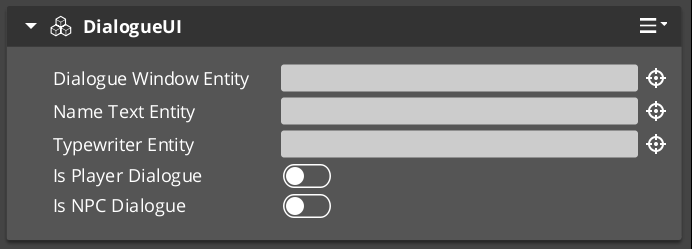
WorldDialogueUIComponent
Extends DialogueUIComponent for world-space rendering. Displays speech bubbles attached to performer entities in 3D space. Shares the same DialogueUIRequestBus interface as the base class. The world-space variant tracks the performer entity’s position and orients the UI element toward the camera.
Use WorldDialogueUIComponent when you want dialogue to appear as in-world speech bubbles rather than as a screen overlay.
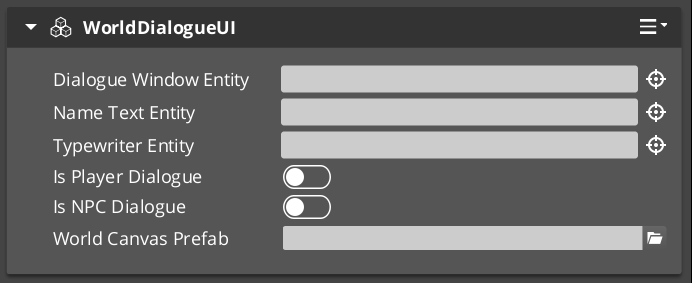
DialogueUISelectionComponent
Screen-space player choice display. Builds a list of selectable options from a DialogueSelectionPayload, spawns DialogueSelectButtonComponent instances for each valid option, and waits for the player to pick one.
Request Bus: DialogueUISelectionRequestBus
| Method | Parameters | Returns | Description |
|---|
DoSelection | const DialogueSelectionPayload& payload | void | Builds and displays the selection menu from the provided options. |
OnSelection | int selectedIndex | void | Called when a button is pressed. Processes the selection and notifies the bridge. |
ShowSelection | – | void | Makes the selection UI canvas visible. |
ClearSelection | – | void | Removes all spawned option buttons and resets the selection state. |
CloseUI | – | void | Fully closes and cleans up the selection UI. |
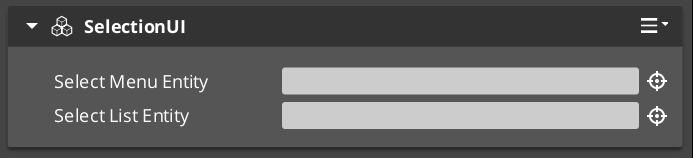
WorldDialogueUISelectionComponent
Extends DialogueUISelectionComponent for world-space rendering. Displays selection options as in-world UI elements attached to performer entities. Shares the same DialogueUISelectionRequestBus interface as the base class.
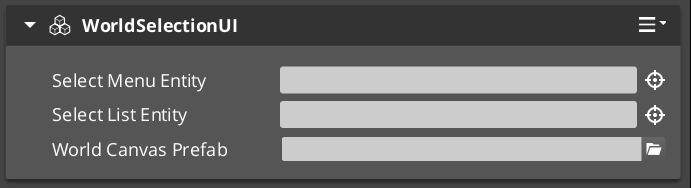
An individual button within a selection menu. One instance is spawned per valid option. The button displays option text and forwards press events to the parent selection component.
| Method | Parameters | Returns | Description |
|---|
SetupOption | const SelectionOption& option, int index | void | Configures the button with display text and its index in the selection list. |
GetInteractableEntity | – | AZ::EntityId | Returns the LyShine interactable entity used for input detection. |
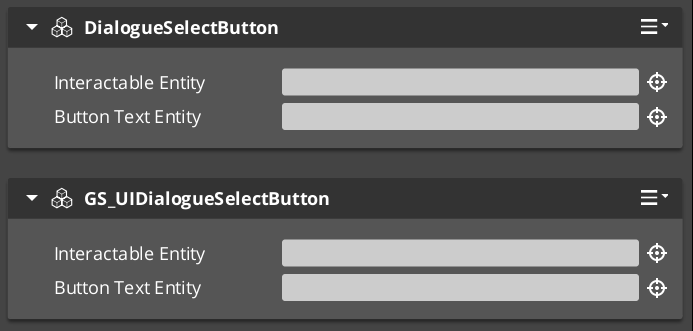
TypewriterComponent
Character-by-character text reveal system. The typewriter receives a full text string and reveals it one character at a time at a configurable speed. It fires events on each character reveal and when the full text has been displayed. The typewriter is used internally by DialogueUIComponent but can also be used independently for any text reveal effect.
For detailed usage and standalone setup, see the Typewriter sub-page.
Request Bus: TypewriterRequestBus
| Method | Parameters | Returns | Description |
|---|
StartTypewriter | const AZStd::string& text, float speed | void | Begins revealing the given text at the specified characters-per-second speed. |
ForceComplete | – | void | Immediately reveals all remaining text. Fires OnTypewriterComplete. |
ClearTypewriter | – | void | Clears all displayed text and resets the typewriter state. |
Notification Bus: TypewriterNotificationBus
Multiple handler bus.
| Event | Parameters | Description |
|---|
OnTypeFired | char character | Fired each time a character is revealed. Used by the BabbleComponent to synchronize audio. |
OnTypewriterComplete | – | Fired when all characters have been revealed, either naturally or via ForceComplete. |
BabbleComponent
Procedural audio babble that plays in sync with the typewriter. Each character reveal from OnTypeFired can trigger a short audio event, creating a character-by-character speech sound. Different speakers can have different babble tones.
Request Bus: BabbleRequestBus
| Method | Parameters | Returns | Description |
|---|
GetBabbleEvent | const AZStd::string& speakerName | BabbleToneEvent | Returns the babble audio event associated with the given speaker. |
Data Types
| Type | Description |
|---|
| BabbleToneEvent | A single audio event reference (FMOD or Wwise event) that represents one character’s babble sound. |
| SpeakerBabbleEvents | A mapping of speaker names to BabbleToneEvent instances. Stored on the BabbleComponent and queried at runtime. |
Setup Guide
Screen-Space Dialogue
- Create a UI canvas entity with your dialogue layout (speaker name text, portrait image, dialogue text area).
- Attach a DialogueUIComponent to the entity.
- Attach a TypewriterComponent to the text entity (or the same entity).
- Optionally attach a BabbleComponent and configure speaker babble events.
- Attach a DialogueUISelectionComponent to a separate entity (or the same canvas) for player choices.
- Register the UI entity with
DialogueUIBridgeRequestBus::RegisterDialogueUI(uiEntityId).
World-Space Dialogue
- Follow the same steps as screen-space, but use WorldDialogueUIComponent and WorldDialogueUISelectionComponent instead.
- The world-space components will track the performer entity’s position automatically.
- Register the UI entity with the bridge the same way.
Swapping between screen-space and world-space at runtime requires only changing which UI entity is registered with the bridge. No sequencer or dialogue data changes are needed.
See Also
For conceptual overviews and usage guides:
For component references:
For related resources:
Get GS_Cinematics
GS_Cinematics — Explore this gem on the product page and add it to your project.
4.2.5.1 - Typewriter
Full API reference for the TypewriterComponent — character-by-character text reveal with configurable speed, force-complete, and notification events.
The TypewriterComponent provides character-by-character text reveal for dialogue display. It receives a string and a speed value, then reveals one character at a time on tick. It fires a notification on every character reveal and again when the full text is complete. The component is used internally by the DialogueUIComponent but can also be attached to any text entity independently for non-dialogue text effects.
For usage guides and setup examples, see The Basics: GS_Cinematics.

Contents
Request Bus: TypewriterRequestBus
Entity-addressed bus.
| Method | Parameters | Returns | Description |
|---|
StartTypewriter | const AZStd::string& text, float speed | void | Begins revealing the given text. speed is in characters per second. The component connects to TickBus and reveals characters on each tick. |
ForceComplete | – | void | Immediately reveals all remaining text. Fires OnTypewriterComplete. Useful when the player presses a button to skip the reveal. |
ClearTypewriter | – | void | Clears all displayed text and resets the internal state. Disconnects from TickBus. |
Notification Bus: TypewriterNotificationBus
Multiple handler bus – any number of listeners can connect.
| Event | Parameters | Description |
|---|
OnTypeFired | char character | Fired each time a single character is revealed. The BabbleComponent listens to this event to trigger per-character audio. Custom effects (particles, screen shake, emphasis) can also listen here. |
OnTypewriterComplete | – | Fired when all characters have been revealed, either through normal tick-based reveal or through ForceComplete. The dialogue UI listens for this to know when the line is fully displayed. |
How It Works
- A caller (typically
DialogueUIComponent) calls StartTypewriter(text, speed). - The component runs
ParseFormattedText on the input string, stripping inline [command] tags and building an internal command schedule — pauses, speed changes, and style runs are all resolved before the first tick. - The component stores the parsed text, resets its character index to zero, and connects to
TickBus. - On each tick, the component calculates how many characters should be visible based on elapsed time and the current speed. For each newly revealed character it fires
OnTypeFired(character). Scheduled commands (pauses, speed changes, style tags) execute when their character position is reached. - The component updates the associated LyShine text element — style tags (
[color], [b], etc.) are output as LyShine <font> / <b> / <i> markup inside the visible string. - When the last character is revealed, the component fires
OnTypewriterComplete and disconnects from TickBus. - If
ForceComplete is called mid-reveal, all remaining characters are revealed at once, OnTypewriterComplete fires, and the tick handler disconnects.
Text Command Reference
Inline commands are embedded directly in dialogue text strings and parsed by ParseFormattedText before reveal begins. Commands do not appear in the displayed text.
Format: [command=value] to open, [/command] to close where applicable.
[pause=X]
Pause the reveal for X seconds before continuing. If no value is given, defaults to 1.0 second. No closing tag.
[speed=X] / [/speed]
Change the typing speed to X characters per second from this point forward. [/speed] resets to the component’s configured default speed. Setting speed=0 causes all following text to appear instantly until the next speed tag.
Normal text [speed=5]fast text[/speed] normal again.
[color=VALUE] / [/color]
Change text colour. VALUE is any valid LyShine <font color> value — hex (#FF0000) or a named colour. Outputs <font color="VALUE">…</font> to the text element. Styles are tracked on a stack so nested formatting closes correctly.
Regular [color=#FF4444]danger text[/color] back to normal.
[size=VALUE] / [/size]
Change font size. VALUE is a numeric point size (e.g. 32). Outputs <font size="VALUE">…</font> to the text element.
Normal [size=48]big text[/size] normal.
[bold] or [b] / [/bold] or [/b]
Apply bold formatting. Both bold and b are valid keywords. Outputs <b>…</b>.
This is [b]bold[/b] text.
[italic] or [i] / [/italic] or [/i]
Apply italic formatting. Both italic and i are valid keywords. Outputs <i>…</i>.
This is [i]italic[/i] text.
[n] or [new]
Insert a newline character. No closing tag. Both n and new are valid.
First line[n]Second line.
Standalone Usage
The typewriter is not limited to dialogue. You can attach it to any entity with a LyShine text element for effects like:
- Tutorial text that types out instructions
- Item descriptions that reveal on hover
- Narrative text during loading screens
- Any text that benefits from a gradual reveal
Setup
- Create an entity with a LyShine text component.
- Attach a TypewriterComponent to the same entity.
- Call
TypewriterRequestBus::Event(entityId, &TypewriterRequestBus::Events::StartTypewriter, text, speed) from C++ or ScriptCanvas. - Optionally listen to
TypewriterNotificationBus for per-character or completion events.
C++ Usage
#include <GS_Cinematics/GS_CinematicsBus.h>

// Start typewriter on a specific entity
AZ::EntityId textEntity = /* your text entity */;
GS_Cinematics::TypewriterRequestBus::Event(
    textEntity,
    &GS_Cinematics::TypewriterRequestBus::Events::StartTypewriter,
    AZStd::string("Hello, traveler. Welcome to the village."),
    12.0f  // 12 characters per second
);

// Force-complete if the player presses a button
GS_Cinematics::TypewriterRequestBus::Event(
    textEntity,
    &GS_Cinematics::TypewriterRequestBus::Events::ForceComplete
);
Script Canvas
Typewriter requests and notification events:
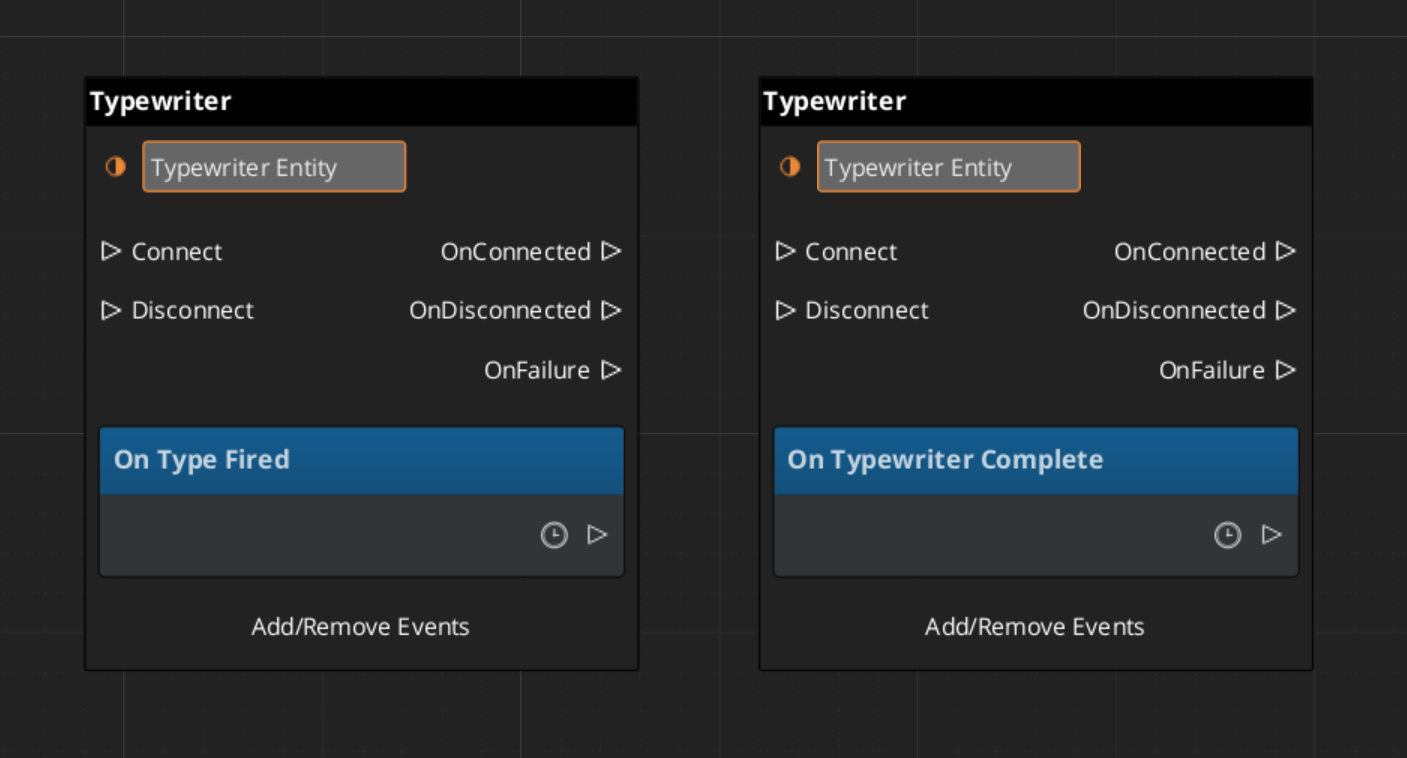
See Also
For conceptual overviews and usage guides:
For component references:
Get GS_Cinematics
GS_Cinematics — Explore this gem on the product page and add it to your project.
4.2.6 - Dialogue Actors
Full API reference for DialoguePerformerMarkerComponent, ActorDefinition data model, and the performer registration and lookup system.
Dialogue Actors connect authored character data in the .dialoguedb asset to world-space entities in the level. The system has two halves:
- ActorDefinition – The data side. Defined in the DialogueDatabase, it holds the actor’s name, portrait, and metadata.
- DialoguePerformerMarkerComponent – The world side. Attached to an entity in the level, it registers a named performer with the Dialogue Manager so the sequencer can find it at runtime.
When a dialogue sequence references an actor by name, the sequencer looks up the matching performer entity through DialogueManagerRequestBus::GetPerformer(name). This links the authored text, portraits, and performance instructions to a specific entity in the world.
For usage guides and setup examples, see The Basics: GS_Cinematics.
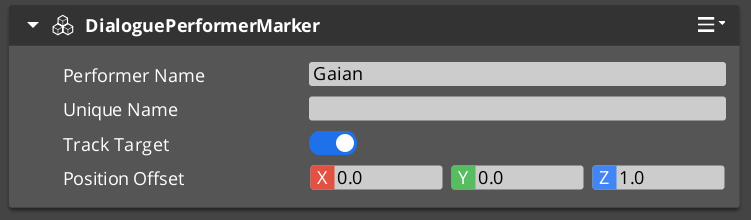
A component placed on any entity that represents a dialogue performer in the level. On Activate(), the marker registers itself with the Dialogue Manager by name. Multiple performers with the same name can exist in different levels, but only one should be active at a time within a single level.
Entity-addressed bus – each marker entity responds on its own address.
| Method | Parameters | Returns | Description |
|---|
GetPerformerName | – | AZStd::string | Returns the performer’s registered name. This name must match the actor name in the dialogue database. |
GetPosEntity | – | AZ::EntityId | Returns the entity to use as the performer’s position source. Typically the marker entity itself, but can point to a child entity for offset control. |
GetPosPoint | – | AZ::Vector3 | Returns the performer’s current world-space position. |
ShouldTrackTarget | – | bool | Returns whether the performer entity should continuously track and face its dialogue target during a sequence. |
ActorDefinition Data Model
The ActorDefinition is the authored data for a single character, stored inside the DialogueDatabase.
| Property | Type | Description |
|---|
| TypeId | {1A2B3C4D-5E6F-7A8B-9C0D-1E2F3A4B5C6D} | |
| Actor Name | AZStd::string | Internal lookup name. Must match the performer marker name in the level. |
| Display Name | AZStd::string | The name shown to the player in dialogue UI. Can differ from the internal name. |
| Portrait | Asset reference | Default portrait image. Overridden per-node in TextNodeData when needed. |
| Emotion Categories | AZStd::vector | Groupings of emotional states (e.g. happy, angry, sad). Used to organize profile images and poses. |
| Profile Image Sets | AZStd::vector | Sets of portrait images keyed by emotion or attitude. The sequencer can switch profiles during dialogue. |
| Pose Sets | AZStd::vector | Sets of body poses and idle animations keyed by attitude. Referenced by performance nodes. |
Registration Flow
- A
DialoguePerformerMarkerComponent activates on an entity in the level. - During
Activate(), the component calls DialogueManagerRequestBus::RegisterPerformerMarker(name, entityId). - The Dialogue Manager stores the mapping from name to entity ID.
- When the component deactivates, it unregisters itself.
Lookup Flow
- The sequencer processes a node that references an actor name (e.g. a
TextNodeData with speaker “perry” or a PerformanceNodeData targeting “perry”). - The sequencer calls
DialogueManagerRequestBus::GetPerformer("perry"). - The Dialogue Manager returns the registered entity ID.
- The sequencer (or performance) can now query the performer’s position, facing, and tracking state through
PerformerMarkerRequestBus.
The actorTargetId field on node data allows a sequence to target a specific instance of a performer when multiple entities share the same actor name. This supports scenarios like having the same NPC appear in multiple locations across different levels while keeping the same actor definition in the database.
Setup
- In your
.dialoguedb asset, define an actor with a unique name (e.g. “perry”) using the Dialogue Editor. - In your level, create an entity and attach a DialoguePerformerMarkerComponent.
- Set the marker’s performer name to match the actor name in the database (e.g. “perry”).
- Position the entity where the performer should appear in the world.
- Optionally, add child entities for position offsets or attach visual representation (mesh, animation) to the same entity.
The marker entity will self-register with the Dialogue Manager on activation. The sequencer can now find this performer when processing sequences that reference the matching actor name.
Script Canvas Examples
Getting a performer’s name and world position:
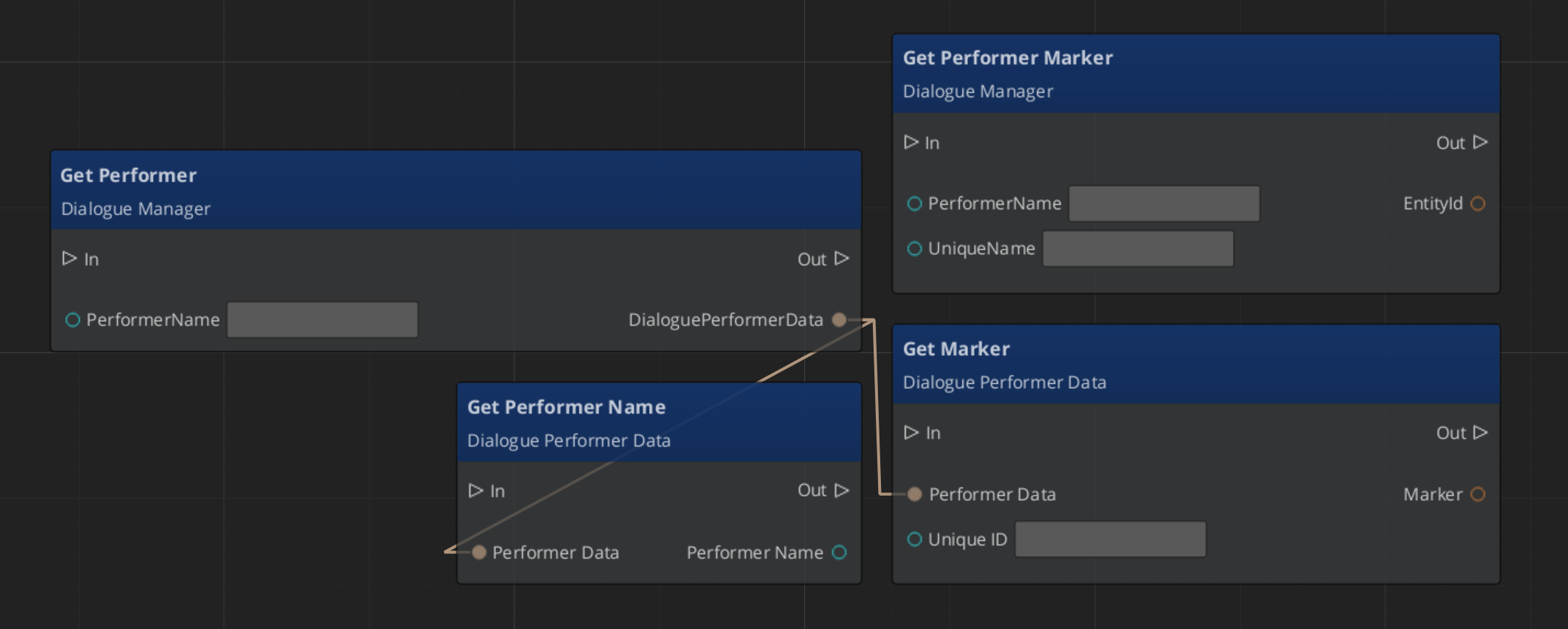
See Also
Get GS_Cinematics
GS_Cinematics — Explore this gem on the product page and add it to your project.
4.2.7 - Effects
Full API reference for the DialogueEffect base class and built-in effect types — SetRecords and ToggleEntitiesActive.
Effects are synchronous actions executed from EffectsNodeData nodes within a dialogue sequence. When the Dialogue Sequencer encounters an Effects node, it calls DoEffect() on each DialogueEffect in the node’s list in order, then immediately advances to the next node.
All effects are polymorphic — extending the base class automatically populates the effects list in the dialogue editor at startup.
For usage guides and setup examples, see The Basics: GS_Cinematics.
Contents
DialogueEffect (Abstract Base)
The base class for all dialogue effects. Effects execute synchronously and can be reversed for rollback scenarios.
| Property | Type | Description |
|---|
| TypeId | {71E2E05E-A7A3-4EB3-8954-2F75B26D5E3A} | |
Virtual Methods
| Method | Description |
|---|
DoEffect() | Executes the effect. Called by the sequencer when the EffectsNodeData is processed. |
ReverseEffect() | Undoes the effect. Used for rollback or undo scenarios. |
Lifecycle
- The sequencer encounters an
EffectsNodeData node. - The sequencer calls
DoEffect() on each effect in the node’s list in order. - All effects complete synchronously within the same frame.
- The sequencer immediately advances to the next node.
SetRecords_DialogueEffect
Sets one or more game records in the GS_Save RecordKeeper system. Commonly used to flag quest progress, NPC disposition, or world state changes triggered by dialogue.
| Property | Type | Description |
|---|
| TypeId | {FFCACF63-0625-4EE5-A74B-86C809B7BF80} | |
| Records | AZStd::vector<RecordEntry> | List of record name/value pairs to set on execution. |
ToggleEntitiesActive_DialogueEffect
Activates or deactivates a list of entities in the level. Used to show or hide objects, enable or disable triggers, or change world state during dialogue.
| Property | Type | Description |
|---|
| TypeId | {F97E1B87-EE7A-4D26-814C-D2F9FA810B28} | |
| Entities | AZStd::vector<AZ::EntityId> | The entities to activate or deactivate. |
| Active | bool | Target active state: true to activate, false to deactivate. |
Complete Effect Type Reference
| Type | TypeId | Description |
|---|
DialogueEffect | {71E2E05E-A7A3-4EB3-8954-2F75B26D5E3A} | Abstract base |
SetRecords_DialogueEffect | {FFCACF63-0625-4EE5-A74B-86C809B7BF80} | Sets game records |
ToggleEntitiesActive_DialogueEffect | {F97E1B87-EE7A-4D26-814C-D2F9FA810B28} | Activates/deactivates entities |
Creating a Custom Effect
To add a custom effect type from an external gem:
1. Define the class
#pragma once
#include <GS_Cinematics/Dialogue/Effects/DialogueEffect.h>

namespace MyGem
{
    class PlaySound_DialogueEffect : public GS_Cinematics::DialogueEffect
    {
    public:
        AZ_RTTI(PlaySound_DialogueEffect, "{YOUR-UUID-HERE}", GS_Cinematics::DialogueEffect);
        AZ_CLASS_ALLOCATOR(PlaySound_DialogueEffect, AZ::SystemAllocator);

        static void Reflect(AZ::ReflectContext* context);

        void DoEffect() override;
        void ReverseEffect() override;

    private:
        AZStd::string m_soundEvent;
    };
}
2. Implement and reflect
#include "PlaySound_DialogueEffect.h"
#include <AzCore/Serialization/SerializeContext.h>

namespace MyGem
{
    void PlaySound_DialogueEffect::Reflect(AZ::ReflectContext* context)
    {
        if (auto sc = azrtti_cast<AZ::SerializeContext*>(context))
        {
            sc->Class<PlaySound_DialogueEffect, GS_Cinematics::DialogueEffect>()
                ->Version(1)
                ->Field("SoundEvent", &PlaySound_DialogueEffect::m_soundEvent);

            if (auto ec = sc->GetEditContext())
            {
                ec->Class<PlaySound_DialogueEffect>("Play Sound", "Fires a sound event during dialogue.")
                    ->ClassElement(AZ::Edit::ClassElements::EditorData, "")
                        ->Attribute(AZ::Edit::Attributes::Category, "MyGem/Effects")
                    ->DataElement(AZ::Edit::UIHandlers::Default, &PlaySound_DialogueEffect::m_soundEvent, "Sound Event", "");
            }
        }
    }

    void PlaySound_DialogueEffect::DoEffect()
    {
        // Fire the sound event
    }

    void PlaySound_DialogueEffect::ReverseEffect()
    {
        // Stop the sound if needed
    }
}
Custom effects are discovered automatically at startup through O3DE serialization — no manual registration step is required.
See Also
For conceptual overviews and usage guides:
For component references:
For related resources:
Get GS_Cinematics
GS_Cinematics — Explore this gem on the product page and add it to your project.
4.2.8 - Performances
Full API reference for the DialoguePerformance base class and built-in performance types — MoveTo, PathTo, and RepositionPerformer.
Performances are asynchronous actions executed from PerformanceNodeData nodes within a dialogue sequence. When the Dialogue Sequencer encounters a performance node, it instantiates the appropriate DialoguePerformance subclass, starts it, and waits for it to signal completion before advancing to the next node.
All performances are polymorphic by extending the class they automatically populate the performances list when adding performances to a node.
For usage guides and setup examples, see The Basics: GS_Cinematics.
Contents
The base class for all dialogue performances. Extends AZ::TickBus::Handler so that performances can drive time-based behavior across multiple frames.
| Property | Type | Description |
|---|
| TypeId | {BCCF5C52-42C3-49D4-8202-958120EA8743} | |
| Tick Handler | AZ::TickBus::Handler | Performances connect to TickBus during execution for frame-by-frame updates. |
Virtual Methods
| Method | Description |
|---|
DoPerformance() | Entry point called by the sequencer. Sets up the performance and calls ExecutePerformance(). |
ExecutePerformance() | Core execution logic. Override this in subclasses to implement the actual behavior (movement, animation, etc.). |
FinishPerformance() | Called when the performance is complete. Disconnects from TickBus and signals the sequencer via DialogueSequencerRequestBus::OnPerformanceComplete(). |
- The sequencer encounters a
PerformanceNodeData and instantiates the corresponding DialoguePerformance subclass. - The sequencer calls
DoPerformance(). DoPerformance() connects to TickBus and calls ExecutePerformance().- The performance runs across multiple ticks until its completion condition is met.
- The performance calls
FinishPerformance(), which disconnects from TickBus and notifies the sequencer. - The sequencer advances to the next node.
Moves a performer entity to a named stage marker position over time using direct interpolation (no navmesh). Suitable for short-distance movements within a scene where pathfinding is unnecessary.
| Property | Type | Description |
|---|
| TypeId | {6033A69D-F46F-40DF-A4A0-A64C4E28D6D5} | |
| Target | Stage marker name | The destination position, resolved through CinematicsManagerRequestBus::GetStageMarker(). |
| Speed / Duration | float | Controls how quickly the performer reaches the target. |
Request Bus: MoveTo_PerformanceRequestBus
| Method | Parameters | Returns | Description |
|---|
StartMoveTo | AZ::EntityId performer, AZ::Vector3 target, float speed | void | Begins moving the performer entity toward the target position. |
Notification Bus: MoveTo_PerformanceNotificationBus
| Event | Description |
|---|
OnMoveToComplete | Fired when the performer reaches the target position. The performance calls FinishPerformance() in response. |
Navigates a performer entity to a named stage marker along a RecastNavigation navmesh path. Suitable for longer-distance movements where the performer must navigate around obstacles. Requires RecastNavigation to be enabled in the project.
| Property | Type | Description |
|---|
| TypeId | {C0DF4B0E-924D-4C38-BD26-5A286161D95C} | |
| Target | Stage marker name | The destination position, resolved through CinematicsManagerRequestBus::GetStageMarker(). |
| Navigation | RecastNavigation | Uses the navmesh to compute a valid path from the performer’s current position to the target. |
Request Bus: PathTo_PerformanceRequestBus
| Method | Parameters | Returns | Description |
|---|
StartPathTo | AZ::EntityId performer, AZ::Vector3 target | void | Computes a navmesh path and begins navigating the performer toward the target. |
Notification Bus: PathTo_PerformanceNotificationBus
| Event | Description |
|---|
OnPathToComplete | Fired when the performer reaches the end of the computed path. The performance calls FinishPerformance() in response. |
Instantly teleports a performer entity to a named stage marker position. No interpolation, no pathfinding – the entity is moved in a single frame. Useful for off-screen repositioning between scenes or for snapping a performer to a mark before a sequence begins.
| Property | Type | Description |
|---|
| TypeId | {DE1E0930-F0A4-4F60-A741-4FB530610AEE} | |
| Target | Stage marker name | The destination position, resolved through CinematicsManagerRequestBus::GetStageMarker(). |
Notification Bus: RepositionPerformer_PerformanceNotificationBus
| Event | Description |
|---|
OnRepositionComplete | Fired immediately after the performer is teleported. The performance calls FinishPerformance() in the same frame. |
| Type | TypeId | Movement | Navigation |
|---|
DialoguePerformance | {BCCF5C52-42C3-49D4-8202-958120EA8743} | Abstract base | – |
MoveTo_DialoguePerformance | {6033A69D-F46F-40DF-A4A0-A64C4E28D6D5} | Interpolated | None |
PathTo_DialoguePerformance | {C0DF4B0E-924D-4C38-BD26-5A286161D95C} | Navmesh path | RecastNavigation |
RepositionPerformer_DialoguePerformance | {DE1E0930-F0A4-4F60-A741-4FB530610AEE} | Instant teleport | None |
To add a custom performance type from an external gem:
1. Define the class
#pragma once
#include <GS_Cinematics/Dialogue/Performances/DialoguePerformance.h>

namespace MyGem
{
    class PlayAnimation_DialoguePerformance : public GS_Cinematics::DialoguePerformance
    {
    public:
        AZ_RTTI(PlayAnimation_DialoguePerformance, "{YOUR-UUID-HERE}", GS_Cinematics::DialoguePerformance);
        AZ_CLASS_ALLOCATOR(PlayAnimation_DialoguePerformance, AZ::SystemAllocator);

        static void Reflect(AZ::ReflectContext* context);

    protected:
        void ExecutePerformance() override;
        void OnTick(float deltaTime, AZ::ScriptTimePoint time) override;

    private:
        AZStd::string m_animationName;
        bool m_animationComplete = false;
    };
}
2. Implement and register
void PlayAnimation_DialoguePerformance::ExecutePerformance()
{
    // Start the animation on the performer entity
    // Listen for animation completion
}

void PlayAnimation_DialoguePerformance::OnTick(float deltaTime, AZ::ScriptTimePoint time)
{
    if (m_animationComplete)
    {
        FinishPerformance();
    }
}
See Also
For conceptual overviews and usage guides:
For component references:
For related resources:
Get GS_Cinematics
GS_Cinematics — Explore this gem on the product page and add it to your project.
4.3 - Timeline Expansion
For usage guides and setup examples, see The Basics: GS_Cinematics.
Get GS_Cinematics
GS_Cinematics — Explore this gem on the product page and add it to your project.
4.4 - Templates
ClassWizard templates for GS_Cinematics — dialogue conditions, effects, and performance objects for the dialogue sequencer.
All GS_Cinematics extension types are generated through the ClassWizard CLI. The wizard handles UUID generation and cmake file-list registration automatically.
For usage guides and setup examples, see The Basics: GS_Cinematics.
python ClassWizard.py \
    --template <TemplateName> \
    --gem <GemPath> \
    --name <SymbolName> \
    [--input-var key=value ...]
Contents
Dialogue Condition
Template: DialogueCondition
Creates a condition object that gates a dialogue node connection at runtime. Assigned to a node’s conditions list in the DialogueDatabase asset. EvaluateCondition() is called before the connected node is offered to the player — return true to allow it, false to hide it.
Two types available via --input-var:
| Option | Description |
|---|
| Basic Condition (default) | Free-form stub — implement EvaluateCondition() however the design requires |
| Boolean Condition | Pre-wired to read a save record key and compare it with GS_Core::BooleanConditions |
Generated files (Basic):
Source/${Name}_DialogueCondition.h/.cpp
Generated files (Boolean):
Source/${Name}_BooleanDialogueCondition.h/.cpp
CLI:
# Basic Condition:
python ClassWizard.py --template DialogueCondition --gem <GemPath> --name <Name> \
    --input-var condition_type="Basic Condition"

# Boolean Condition:
python ClassWizard.py --template DialogueCondition --gem <GemPath> --name <Name> \
    --input-var condition_type="Boolean Condition"
Post-generation — manual registration required:
In DialogueSequencerComponent.cpp, add:
#include <path/to/${Name}_DialogueCondition.h>
// inside Reflect(context):
${Name}_DialogueCondition::Reflect(context);
Extensibility: Fully polymorphic. The conditions list on each DialogueNodeData holds DialogueCondition* raw pointers — O3DE’s property editor type picker discovers all registered subtypes via EnumerateDerived. Add as many condition types as needed; they appear in the picker automatically once reflected.
See also: Dialogue Data Structure — full extension walkthrough with header and implementation examples.
Dialogue Effect
Template: DialogueEffect
Creates an effect object that fires world events when the sequencer reaches an Effects node. If the node’s temporary flag is set, ReverseEffect() is called at sequence end to undo the change. Used for enabling/disabling lights, playing sounds, showing UI, or changing world state during dialogue.
Generated files:
Source/${Name}_DialogueEffect.h/.cpp
CLI:
python ClassWizard.py --template DialogueEffect --gem <GemPath> --name <Name>
Post-generation — manual registration required:
In DialogueSequencerComponent.cpp, add:
#include <path/to/${Name}_DialogueEffect.h>
// inside Reflect(context):
${Name}_DialogueEffect::Reflect(context);
Key overrides:
| Method | When called |
|---|
DoEffect() | When the Effects node is reached in the sequence |
ReverseEffect() | At sequence end, only if the node’s temporary flag is true |
Extensibility: Same polymorphic pattern as DialogueCondition. The effects list holds DialogueEffect* pointers. All reflected subtypes appear in the editor type picker automatically.
See also: Dialogue Data Structure — full extension walkthrough.
Template: DialoguePerformance
Creates a performance object that drives world-space NPC actions from a Performance node in the dialogue sequence. The sequencer waits at the node until all performances signal completion (unless waitToContinue is false). Used for NPC movement, animation, repositioning, or any async world action that must complete before the dialogue continues.
Generated files:
Source/${Name}_DialoguePerformance.h/.cpp
CLI:
python ClassWizard.py --template DialoguePerformance --gem <GemPath> --name <Name>
Post-generation — manual registration required:
In DialogueSequencerComponent.cpp, add:
#include <path/to/${Name}_DialoguePerformance.h>
// inside Reflect(context):
${Name}_DialoguePerformance::Reflect(context);
Lifecycle:
| Method | Role |
|---|
ExecutePerformance() | Entry point — start the world action here |
FinishPerformance() | Call when the action is done (may be async); clean up state, then call base |
PerformanceComplete() | Called by base after FinishPerformance() — signals the sequencer to advance |
Inherited fields: delayStartTime (seconds before ExecutePerformance is called), delayEndTime (seconds before PerformanceComplete fires after finish).
For instant actions, call FinishPerformance() at the end of ExecutePerformance(). For async actions, store a callback or subscribe to a bus and call FinishPerformance() from the completion handler.
Extensibility: Same polymorphic pattern as the other dialogue types. The performances list on a Performance node holds DialoguePerformance* pointers. All reflected subtypes appear in the editor picker automatically.
See also: Dialogue Data Structure — full extension walkthrough.
See Also
For the full API, component properties, and C++ extension guide:
For all ClassWizard templates across GS_Play gems:
Get GS_Cinematics
GS_Cinematics — Explore this gem on the product page and add it to your project.
4.5 - 3rd Party Implementations
For usage guides and setup examples, see The Basics: GS_Cinematics.
Get GS_Cinematics
GS_Cinematics — Explore this gem on the product page and add it to your project.
5 - GS_Environment
Time of day progression, day/night cycle management, and sky colour configuration for GS_Play projects.
GS_Environment is the time and world atmosphere gem for GS_Play. It drives a configurable time-of-day clock, broadcasts day/night transition events, exposes per-tick world time notifications for dependent systems, and provides a sky colour configuration asset for Atom renderer integration. The gem depends on GS_Core.
For usage guides and setup examples, see The Basics: GS_Environment.
GS_Environment is in Early Development. Full support planned soon: 2026.
Contents
Time Manager
The Time Manager singleton owns the world clock. It advances time at a configurable speed, determines whether the current time of day is day or night, and registers the active main camera for sky calculations. Listeners subscribe via TimeManagerNotificationBus to react to time changes or the day/night boundary crossing.
| Component / Asset | Purpose |
|---|
| GS_TimeManagerComponent | GS_Play manager. Owns the world clock. Controls time passage speed and exposes day/night state queries. |
| SkyColourConfiguration | Asset class for sky colour settings used by Atom renderer integration. |
Time Manager API
Environment System
The system component manages gem-level initialization and global environment state. It runs on AZ::TickBus to advance the world clock each frame and coordinates environment requests across the level.
| Component | Purpose |
|---|
| GS_EnvironmentSystemComponent | Runtime system component. Advances the world clock on tick. Handles GS_EnvironmentRequestBus queries. |
Environment System API
Dependencies
Installation
- Enable GS_Environment and GS_Core in your O3DE project’s gem list.
- Add GS_TimeManagerComponent to your Game Manager prefab and include it in the Startup Managers list.
- Configure the day window (start and end time values) on the Time Manager component.
- Set time passage speed to
0 if you want a static time of day, or to a positive value for a live clock. - Call
SetMainCam via TimeManagerRequestBus once your active camera entity is known (typically from a stage startup sequence). - Subscribe to
TimeManagerNotificationBus::WorldTick or DayNightChanged on any entities that respond to time changes.
See Also
For conceptual overviews and usage guides:
For related resources:
Get GS_Environment
GS_Environment — Explore this gem on the product page and add it to your project.
5.1 - Time Manager
World clock management, time-of-day control, day/night cycle detection, and per-tick time notifications.
The Time Manager is the singleton world clock for every GS_Play project. It extends GS_ManagerComponent and participates in the standard two-stage initialization managed by the Game Manager. On activation it begins advancing a time-of-day value each frame, determines whether the current time falls within the configured day window, and registers the active main camera for sky positioning calculations.
Listeners subscribe to TimeManagerNotificationBus to react to per-frame ticks or the day/night boundary crossing.
For usage guides and setup examples, see The Basics: Time Manager.
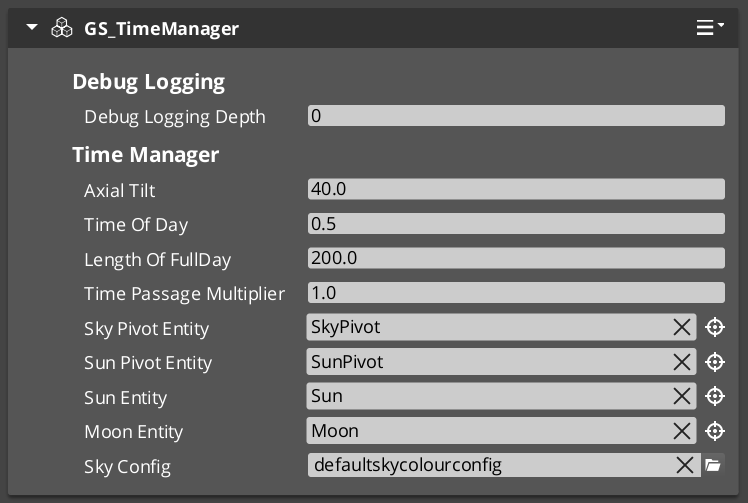
GS_Environment is in Early Development. Full support planned soon: 2026.
Contents
How It Works
Time Progression
Each frame the Time Manager advances the current time-of-day value by deltaTime × timePassageSpeed. A speed of 0 freezes the clock at the configured initial time; positive values run the clock forward in real time.
Day/Night State
The Time Manager compares the current time against a configured day window (start and end values). When the time crosses either threshold it fires DayNightChanged once. IsDay() returns the cached state and is safe to call every tick.
Sky Integration
Call SetMainCam with the active camera entity after stage startup. The Time Manager uses this reference to pass sky positioning data to the SkyColourConfiguration asset used by the Atom renderer.
Inspector Properties
| Property | Type | Description |
|---|
| Day Start | float | Normalized time value (0.0–1.0) at which day begins. |
| Day End | float | Normalized time value (0.0–1.0) at which night begins. |
| Initial Time | float | Starting time-of-day value when the component activates. |
| Time Passage Speed | float | Multiplier controlling how fast time advances each frame. Set to 0 for a static clock. |
| Sky Colour Config | AZ::Data::Asset<SkyColourConfiguration> | Sky colour configuration asset used by the Atom renderer integration. |
API Reference
GS_TimeManagerComponent
| Field | Value |
|---|
| Extends | GS_Core::GS_ManagerComponent |
| Header | GS_Environment/GS_TimeManagerBus.h |
Request Bus: TimeManagerRequestBus
Commands sent to the Time Manager. Singleton bus – Single address, single handler.
| Method | Parameters | Returns | Description |
|---|
SetTimeOfDay | float time | void | Sets the current time of day (0.0–1.0 normalized range). |
GetTimeOfDay | – | float | Returns the current time of day value. |
GetWorldTime | – | float | Returns the total elapsed world time since startup. |
SetTimePassageSpeed | float speed | void | Sets the multiplier controlling how fast time advances each frame. |
IsDay | – | bool | Returns whether the current time falls within the configured day window. |
SetMainCam | AZ::EntityId entityId | void | Registers the active main camera entity for sky positioning calculations. |
Notification Bus: TimeManagerNotificationBus
Events broadcast by the Time Manager. Multiple handler bus – any number of components can subscribe.
| Event | Parameters | Description |
|---|
WorldTick | float deltaTime | Fired every frame while the Time Manager is active. Use for time-dependent per-frame updates. |
DayNightChanged | bool isDay | Fired once when the time-of-day crosses the day/night boundary in either direction. |
SkyColourConfiguration
Asset class for sky colour settings. Referenced by GS_TimeManagerComponent and consumed by the Atom renderer integration to drive sun, moon, and ambient colour values across the day/night cycle.
See Also
For conceptual overviews and usage guides:
For component references:
Get GS_Environment
GS_Environment — Explore this gem on the product page and add it to your project.
5.2 - Environment System
Runtime system component that drives the world clock tick and handles GS_EnvironmentRequestBus queries.
The Environment System Component is the gem-level runtime system for GS_Environment. It extends AZ::Component and implements AZ::TickBus::Handler to advance the world clock each frame. It handles GS_EnvironmentRequestBus queries and coordinates global environment state across the level.
This component activates automatically as part of the GS_Environment gem – it does not need to be added manually to any entity.
For usage guides and setup examples, see The Basics: GS_Environment.
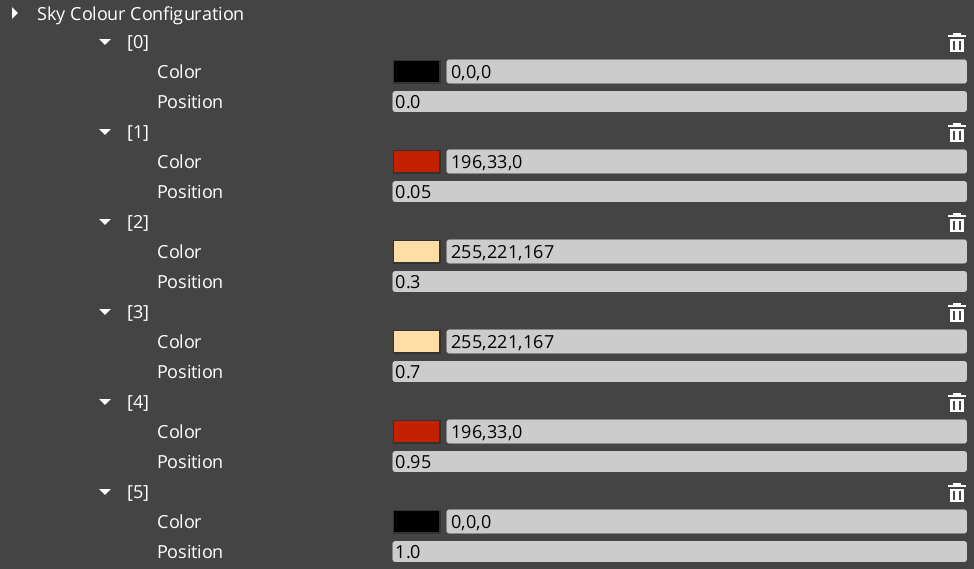
GS_Environment is in Early Development. Full support planned soon: 2026.
Contents
How It Works
Tick Integration
The Environment System Component connects to AZ::TickBus on activation. Each tick it drives the Time Manager’s clock advancement and ensures all environment-dependent systems receive their frame update in the correct order.
Environment Requests
GS_EnvironmentRequestBus provides a global access point for querying environment state. The system component is the sole handler; any gem or component can broadcast requests to read current environment conditions.
API Reference
GS_EnvironmentSystemComponent
| Field | Value |
|---|
| TypeId | {57B91AE7-B0EC-467E-A359-150B5FB993F9} |
| Extends | AZ::Component, AZ::TickBus::Handler |
| Header | GS_Environment/GS_EnvironmentBus.h |
Request Bus: GS_EnvironmentRequestBus
Commands sent to the Environment System. Singleton bus – Single address, single handler.
| Field | Value |
|---|
| Interface TypeId | {39599FDC-B6DC-4143-A474-9B525599C919} |
| Method | Parameters | Returns | Description |
|---|
| (base interface) | – | – | Extended by project-level environment systems as needed. |
See Also
For conceptual overviews and usage guides:
For component references:
- Time Manager – World clock, day/night cycle, and per-tick notifications
Get GS_Environment
GS_Environment — Explore this gem on the product page and add it to your project.
5.3 - 3rd Party Implementations
For usage guides and setup examples, see The Basics: GS_Environment.
Get GS_Environment
GS_Environment — Explore this gem on the product page and add it to your project.
6 - GS_Interaction
Entity interaction systems — physics-based pulse events, targeting and cursor management, and extensible world trigger actions.
GS_Interaction is the gem that connects entities to each other and to the player. It provides three distinct systems: a physics-based pulse emitter/reactor pair for broadcasting typed events through trigger volumes, a targeting subsystem that tracks and selects interact candidates relative to a cursor, and a world trigger framework that composes trigger conditions with discrete world-state actions. All three systems are designed to be extended — custom pulse types, reactor types, trigger actions, and world trigger behaviors can be registered without modifying the gem.
For usage guides and setup examples, see The Basics: GS_Interaction.
Contents
Pulsors
A physics-based event broadcast system. A PulsorComponent emits a typed pulse event when its physics trigger volume fires. PulseReactorComponents on nearby entities receive the pulse and execute their registered reactor logic. Pulse and reactor types are extensible, so any gem can contribute new pulse/reactor pairs.
Pulsors API
Targeting
A targeting and cursor management system. The Targeting Handler selects the best available interact target from registered candidates detected through proximity trigger volumes. The cursor components manage visual cursor representation on a LyShine canvas. An input reader component bridges raw player input into interaction events.
Targeting API
World Triggers
A composable trigger-action framework for world-state changes. Trigger Sensor components define the condition that fires the trigger (player interact, physics collision, save record state). World Trigger components define the effect (log a message, set a record, toggle entity activation, change stage). Any number of trigger actions can drive any number of world triggers on the same entity.
World Triggers API
Installation
GS_Interaction requires GS_Core, LmbrCentral, LyShine, and CommonFeaturesAtom to be active in your project.
- Enable GS_Interaction in Project Manager or
project.json. - Add a GS_TargetingHandlerComponent to the player entity and configure its proximity trigger.
- Add GS_CursorComponent and GS_CursorCanvasComponent to the cursor entity and link them together.
- Place TriggerSensorComponent and WorldTriggerComponent variants on any entity that should react to the world.
- Refer to the Interaction Set Up Guide for a full walkthrough.
See Also
For conceptual overviews and usage guides:
For related resources:
Get GS_Interaction
GS_Interaction — Explore this gem on the product page and add it to your project.
6.1 - Pulsors
Physics-based pulse emitter and reactor system — extensible typed interactions via polymorphic PulseType and ReactorType classes.
The Pulsor system is a physics-driven interaction layer. A PulsorComponent emits typed pulses when its physics trigger fires. PulseReactorComponents on other entities receive and process those pulses based on their type. The system is fully extensible — new pulse and reactor types are discovered automatically through O3DE serialization, so new interaction types can be added from any gem without modifying GS_Interaction.
For usage guides and setup examples, see The Basics: GS_Interaction.
Contents
Architecture
Breakdown
When an entity enters a Pulsor’s trigger volume, the Pulsor emits its configured pulse type to all Reactors on the entering entity:
| Step | What It Means |
|---|
| 1 — Collider overlap | Physics detects an entity entering the Pulsor’s trigger volume. |
| 2 — Pulse emit | PulsorComponent reads its configured PulseType and prepares the event. |
| 3 — Reactor query | Each PulseReactorComponent on the entering entity is checked with IsReactor(). |
| 4 — Reaction | Reactors returning true have ReceivePulses() called and execute their response. |
Pulse types are polymorphic — new types are discovered automatically at startup via EnumerateDerived. Any gem can define custom interaction semantics without modifying GS_Interaction.
E Indicates extensible classes and methods.
Patterns - Complete list of system patterns used in GS_Play.
Components
PulsorComponent
Emits typed pulses when its physics trigger fires. Extends AZ::Component and PhysicsTriggeringVolume.
| Property | Type | Description |
|---|
| Pulse Types | vector<PulseType*> | The pulse types this pulsor emits on trigger. |
The pulsor fires all configured pulse types simultaneously when an entity enters its trigger volume.
PulseReactorComponent
Receives and processes typed pulses from pulsors.
Bus: PulseReactorRequestBus (ById, Multiple)
| Method | Parameters | Returns | Description |
|---|
ReceivePulses | — | void | Process incoming pulse events. |
IsReactor | — | bool | Returns whether this component is an active reactor. |
Pulse Types
Pulse types define what kind of interaction a pulsor emits. All types extend the abstract PulseType base class.
| Type | TypeId | Description |
|---|
| PulseType (base) | {8A1B2C3D-4E5F-6A7B-8C9D-0E1F2A3B4C5D} | Abstract base class for all pulse types. |
| Debug_Pulse | {123D83FD-027C-4DA4-B44B-3E0520420E44} | Test and debug pulse for development. |
| Destruct_Pulse | {98EC44DA-C838-4A44-A37A-FA1A502A506B} | Destruction pulse — triggers destructible reactions. |
Pulse Types API
Reactor Types
Reactor types define how an entity responds to incoming pulses. All types extend the abstract ReactorType base class.
| Type | TypeId | Description |
|---|
| ReactorType (base) | {9B2C3D4E-5F6A-7B8C-9D0E-1F2A3B4C5D6E} | Abstract base class for all reactor types. |
| Debug_Reactor | {38CC0EA0-0975-497A-B2E5-299F5B4222F7} | Test and debug reactor for development. |
| Destructable_Reactor | {47C9B959-2A9F-4E06-8187-E32DDA3449EC} | Handles destruction responses to Destruct_Pulse. |
Reactor Types API
Extension Guide
Use the ClassWizard templates to generate new pulse and reactor classes with boilerplate already in place — see GS_Interaction Templates:
PulsorPulse — generates a new PulseType subclass with a named channel and payload stub. Supply type_display_name and type_category input vars to control how it appears in the editor dropdown.PulsorReactor — generates a new ReactorType subclass. Supply the required pulse_channel var — the channel string is baked into the header at generation time.
To create a custom pulse or reactor type manually:
- Create a class extending
PulseType (or ReactorType) with a unique RTTI TypeId. - Reflect the class using O3DE’s
SerializeContext and EditContext. The system discovers the new type automatically.
Channels are string-matched at runtime — keep the channel string consistent between the Pulse and the Reactor that receives it.
See Also
For related resources:
Get GS_Interaction
GS_Interaction — Explore this gem on the product page and add it to your project.
6.1.1 - Pulse Types
Built-in pulse types for the Pulsor interaction system.
Pulse types define what kind of interaction a PulsorComponent emits. Each pulse type is a data class extending the abstract PulseType base. The PulsorComponent holds an array of pulse types and emits all of them simultaneously when its physics trigger fires.
For usage guides and setup examples, see The Basics: GS_Interaction.
Component
PulsorComponent
Emits configured pulse types when its physics trigger fires. Extends AZ::Component and PhysicsTriggeringVolume.
| Field | Type | Description |
|---|
pulseTypes | vector<PulseType*> | Pulse types emitted to all PulseReactorComponent instances on any entering entity. |
All pulse types in the array fire simultaneously on a single trigger event. Configure multiple pulse types to target reactors on different channels in one emission.
Base Class
PulseType
Abstract base class for all pulse types. Not a component — discovered automatically at startup via EnumerateDerived and reflected into the editor dropdown.
| Field / Virtual | Type | Description |
|---|
TypeId | {8A1B2C3D-4E5F-6A7B-8C9D-0E1F2A3B4C5D} | RTTI identifier. Each subclass must define its own unique TypeId. |
GetChannel() | AZStd::string | Returns the channel string this pulse is sent on. Matched against reactor channel strings at runtime. |
Subclass PulseType to define custom pulse data (damage values, force vectors, status effect references) and a unique channel name.
Built-in Types
Debug_Pulse
Test and debug pulse for verifying pulsor setups during development.
| Field | TypeId |
|---|
| TypeId | {123D83FD-027C-4DA4-B44B-3E0520420E44} |
Use Debug_Reactor on the receiving entity to verify the pulse is arriving correctly.
Destruct_Pulse
Destruction pulse — triggers destructible reactions on receiving entities.
| Field | TypeId |
|---|
| TypeId | {98EC44DA-C838-4A44-A37A-FA1A502A506B} |
Pair with Destructable_Reactor on entities that should respond to destruction events.
Creating Custom Pulse Types
Use the ClassWizard PulsorPulse template to scaffold a new PulseType subclass with boilerplate already in place — see GS_Interaction Templates. Supply type_display_name and type_category input vars to control how the type appears in the editor dropdown.
To create a custom pulse type manually:
- Create a class extending
PulseType with a unique RTTI TypeId. - Override
GetChannel() to return a unique channel name string. - Add any data fields your pulse carries (damage values, force vectors, status effect references).
- Reflect the class using O3DE’s
SerializeContext and EditContext. The system discovers the type automatically via EnumerateDerived — no registration step required. - Configure
PulsorComponent instances to emit your custom pulse type.
Keep the channel string consistent between your pulse type and the reactor types that should receive it.
See Also
Get GS_Interaction
GS_Interaction — Explore this gem on the product page and add it to your project.
6.1.2 - Reactor Types
Built-in reactor types for the Pulsor interaction system.
Reactor types define how a PulseReactorComponent responds to incoming pulses. Each reactor type is a data class extending the abstract ReactorType base. The PulseReactorComponent holds an array of reactor types and processes all of them when a matching pulse arrives.
For usage guides and setup examples, see The Basics: GS_Interaction.
Component
PulseReactorComponent
Owns and processes reactor types when pulses arrive from PulsorComponent instances. Extends AZ::Component.
Bus: PulseReactorRequestBus (ById, Multiple)
| Field | Type | Description |
|---|
reactorTypes | vector<ReactorType*> | Reactor types evaluated and executed when a pulse is received. |
| Method | Returns | Description |
|---|
IsReactor | bool | Returns true if this component has active reactor types. The PulsorComponent checks this before calling ReceivePulses. |
ReceivePulses | void | Processes incoming pulse events. Iterates all reactor types and calls React() on types whose channel matches the incoming pulse. |
The PulsorComponent queries IsReactor() first — only components that return true have ReceivePulses() called. This allows entities with no reactor types to be skipped without iterating all types.
Base Class
ReactorType
Abstract base class for all reactor types. Not a component — discovered automatically at startup via EnumerateDerived and reflected into the editor dropdown.
| Field / Virtual | Type | Description |
|---|
TypeId | {9B2C3D4E-5F6A-7B8C-9D0E-1F2A3B4C5D6E} | RTTI identifier. Each subclass must define its own unique TypeId. |
GetChannel() | AZStd::string | Returns the channel string this reactor listens on. Matched against incoming pulse channel strings at runtime. |
React(pulse, sourceEntity) | void | Override to implement the reaction behavior when a matching pulse is received. |
Subclass ReactorType to define custom reaction behavior for a specific channel. The channel string must match the emitting PulseType’s channel exactly.
Built-in Types
Debug_Reactor
Test and debug reactor for verifying reactor setups during development. Logs a message when it receives a Debug_Pulse.
| Field | TypeId |
|---|
| TypeId | {38CC0EA0-0975-497A-B2E5-299F5B4222F7} |
Destructable_Reactor
Handles destruction responses — processes Destruct_Pulse events on the receiving entity.
| Field | TypeId |
|---|
| TypeId | {47C9B959-2A9F-4E06-8187-E32DDA3449EC} |
Add this to any entity that should respond to destruction pulses — props, breakables, or enemy characters.
Creating Custom Reactor Types
Use the ClassWizard PulsorReactor template to scaffold a new ReactorType subclass with boilerplate already in place — see GS_Interaction Templates. Supply the pulse_channel input var — the channel string is baked into the generated header at generation time.
To create a custom reactor type manually:
- Create a class extending
ReactorType with a unique RTTI TypeId. - Override
GetChannel() to return the channel name this reactor listens on. - Override
React(pulse, sourceEntity) to implement the reaction logic. - Reflect the class using O3DE’s
SerializeContext and EditContext. The system discovers the type automatically via EnumerateDerived — no registration step required. - Add the custom reactor type to
PulseReactorComponent instances on entities that should respond.
The channel string in GetChannel() must exactly match the GetChannel() return value of the PulseType you want to receive.
See Also
Get GS_Interaction
GS_Interaction — Explore this gem on the product page and add it to your project.
6.2 - Targeting
Target detection, selection, and cursor management — scanning, filtering, and selecting entities based on proximity and sensory fields.
The targeting system provides spatial awareness and entity selection for units and other entities. A TargetingHandler component serves as the central processor — it receives target registrations from sensory fields, maintains categorized target lists, and selects the best interact target based on proximity and type filtering. The system supports a cursor overlay for visual feedback and an input reader for triggering interactions.
For usage guides and setup examples, see The Basics: GS_Interaction.
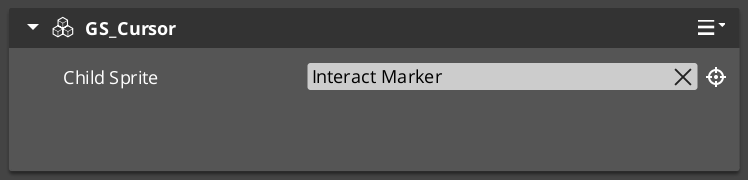
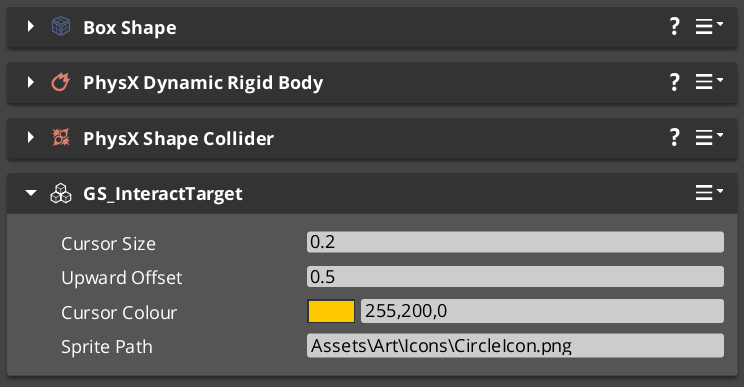
Contents
Components
EBus Summary
Request Buses
| Bus | Address | Handler | Key Methods |
|---|
| GS_TargetingHandlerRequestBus | ById | Multiple | RegisterTarget, UnregisterTarget, RegisterInteractionRangeTarget, UnregisterInteractionRangeTarget, GetInteractTarget |
| GS_TargetRequestBus | ById | Multiple | GetTargetSize, GetTargetOffset, GetTargetColour, GetTargetSprite |
| GS_CursorRequestBus | Single | Multiple | RegisterCursorCanvas, HideCursor, SetCursorOffset, SetCursorVisuals, SetCursorPosition |
| GS_CursorCanvasRequestBus | ById | Multiple | HideSprite, SetCursorSprite |
Notification Buses
| Bus | Address | Handler | Key Events |
|---|
| GS_TargetingHandlerNotificationBus | ById | Multiple | OnUpdateInteractTarget, OnEnterStandby, OnExitStandby |
See Also
For component references:
For related resources:
Get GS_Interaction
GS_Interaction — Explore this gem on the product page and add it to your project.
6.2.1 - Targeting Handler
Central targeting processor — receives target registrations from sensory fields, selects best interact target, and manages cursor feedback.
The GS_TargetingHandlerComponent is the central processor for the targeting system. It receives target registrations from sensory fields, maintains categorized lists of detected targets, and selects the best interact target based on proximity and type. It also manages cursor feedback and interaction range tracking.
For usage guides and setup examples, see The Basics: GS_Interaction.
The Targeting Handler sits on the same entity as the unit it serves (typically the player or an AI character). Sensory fields register and unregister targets as they enter and exit detection volumes. The handler evaluates all registered targets each tick to determine the closest interactable, which becomes the active interact target.
Contents
How It Works
Target Selection
Each tick, the handler runs ProcessClosestInteractable to evaluate all registered targets. It filters by type, checks interaction range, and selects the closest valid target. The result is broadcast via OnUpdateInteractTarget.
Interaction Range
A separate interaction range field provides a close-proximity subset of targets. Targets within this range are prioritized for interact selection. The range is driven by a dedicated GS_TargetingInteractionFieldComponent trigger volume.
Cursor Tracking
The handler updates the cursor position to follow the active interact target. Cursor visuals change based on target type (interact, item, unit, etc.).
API Reference
GS_TargetingHandlerRequestBus
Bus policy: ById, Multiple
| Method | Parameters | Returns | Description |
|---|
RegisterTarget | AZ::EntityId entity | bool | Registers a target entity detected by a sensory field. |
UnregisterTarget | AZ::EntityId entity | bool | Removes a target entity from the detection list. |
RegisterInteractionRangeTarget | AZ::EntityId entity | bool | Registers a target within the close interaction range. |
UnregisterInteractionRangeTarget | AZ::EntityId entity | bool | Removes a target from the interaction range list. |
GetInteractTarget | — | AZ::EntityId | Returns the current best interact target. |
GS_TargetingHandlerNotificationBus
Bus policy: ById, Multiple
| Event | Parameters | Description |
|---|
OnUpdateInteractTarget | AZ::EntityId target | Fired when the active interact target changes. |
OnEnterStandby | — | Fired when the system enters standby mode. |
OnExitStandby | — | Fired when the system exits standby mode. |
Virtual Methods
| Method | Parameters | Returns | Description |
|---|
CheckForTick | — | void | Called each tick to evaluate whether target processing should run. |
ProcessClosestInteractable | — | void | Determines the closest interactable target and sets it as the active interact target. |
GS_CursorComponent
Manages cursor display and positioning for targeting feedback.
GS_CursorRequestBus
Bus policy: Single, Multiple
| Method | Parameters | Returns | Description |
|---|
RegisterCursorCanvas | AZ::EntityId canvas | void | Registers the UI canvas for cursor rendering. |
HideCursor | bool hide | void | Shows or hides the cursor. |
SetCursorOffset | AZ::Vector2 offset | void | Sets the screen-space offset for cursor positioning. |
SetCursorVisuals | visual data | void | Configures cursor appearance. |
SetCursorPosition | AZ::Vector2 pos | void | Sets the cursor screen position directly. |
GS_CursorCanvasComponent
UI canvas layer that renders the cursor sprite.
GS_CursorCanvasRequestBus
Bus policy: ById, Multiple
| Method | Parameters | Returns | Description |
|---|
HideSprite | bool hide | void | Shows or hides the cursor sprite element. |
SetCursorSprite | sprite data | void | Sets the cursor sprite image. |
Extension Guide
The Targeting Handler is designed for extension via companion components. Add custom targeting logic by creating components that listen to GS_TargetingHandlerNotificationBus on the same entity. Override ProcessClosestInteractable for custom target selection algorithms.
Script Canvas Examples
Getting the current interact target:
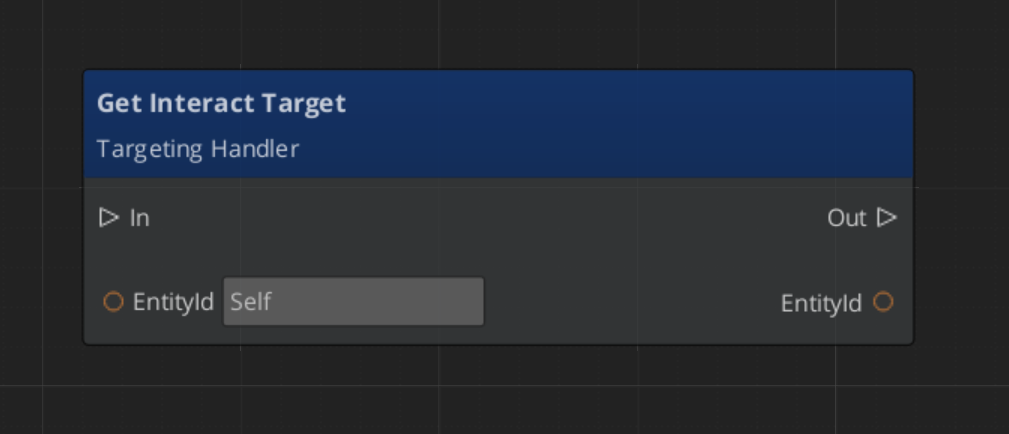
Reacting to interact target changes:
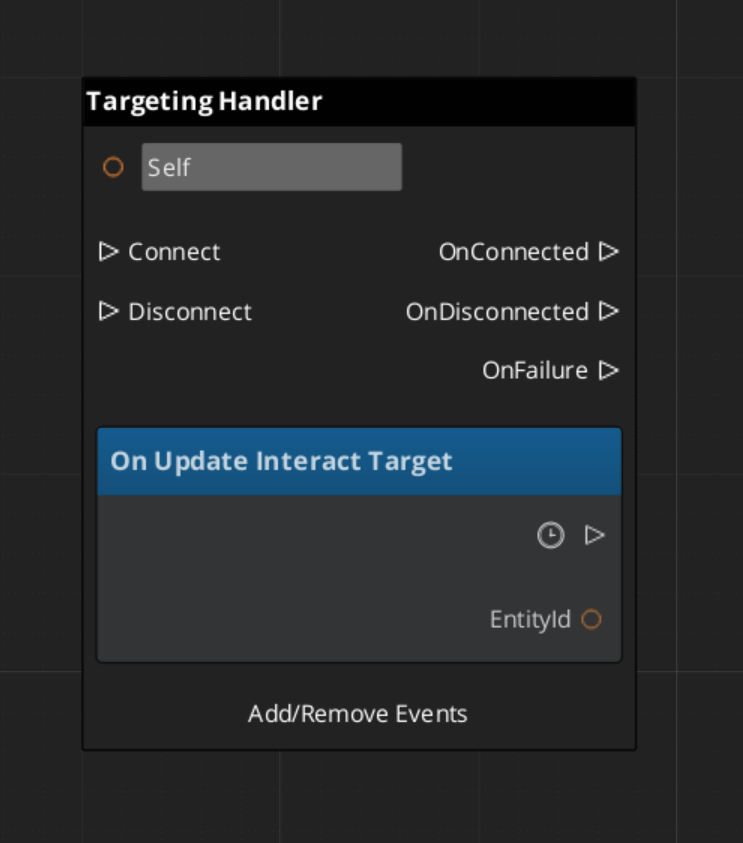
See Also
For conceptual overviews and usage guides:
For component references:
Get GS_Interaction
GS_Interaction — Explore this gem on the product page and add it to your project.
6.2.2 - Senses & Targeting Fields
Physics-based detection volumes for the targeting system — interaction fields and sensory detection.
Targeting fields are physics-based detection volumes that feed target registrations into the Targeting Handler. The GS_TargetingInteractionFieldComponent provides proximity detection for interact-range targets. Fields use their own collision layers and should be placed on child entities rather than the main unit capsule.
For usage guides and setup examples, see The Basics: GS_Interaction.
GS_TargetingInteractionFieldComponent
A physics trigger volume that detects targets entering and exiting the interaction range. Extends AZ::Component and PhysicsTriggeringVolume. Registers detected entities with the parent Targeting Handler.
API
| Method | Parameters | Returns | Description |
|---|
TriggerEnter | AZ::EntityId entity | bool | Called when an entity enters the field. Registers the entity as an interaction-range target. |
TriggerExit | AZ::EntityId entity | bool | Called when an entity exits the field. Unregisters the entity from the interaction-range list. |
Setup
- Create a child entity under the unit entity that owns the Targeting Handler.
- Add a PhysX collider configured as a trigger shape.
- Add the GS_TargetingInteractionFieldComponent.
- Set the collider to use a dedicated interaction collision layer — do not share the unit’s physics layer.
- Point the field to the parent Targeting Handler entity.
Extension Guide
Custom sensory fields can be created by extending the base field pattern:
- Create a component that extends
AZ::Component and PhysicsTriggeringVolume. - On trigger enter/exit, call
RegisterTarget / UnregisterTarget on the Targeting Handler via GS_TargetingHandlerRequestBus. - Add custom filtering logic (line of sight, tag filtering, team affiliation) in your trigger callbacks.
See Also
Get GS_Interaction
GS_Interaction — Explore this gem on the product page and add it to your project.
6.2.3 - Targets
Target component types — base target markers and specialized interact targets that make entities detectable by the targeting system.
Target components mark entities as detectable by the targeting system. The base GS_TargetComponent provides core target data (size, offset, visual properties). Specialized variants like GS_InteractTargetComponent add interaction-specific behavior.
For usage guides and setup examples, see The Basics: GS_Interaction.
GS_TargetComponent
Base target component. Makes an entity visible to the targeting system with configurable visual properties for cursor feedback.
GS_TargetRequestBus
Bus policy: ById, Multiple
| Method | Parameters | Returns | Description |
|---|
GetTargetSize | — | float | Returns the target’s visual size for cursor scaling. |
GetTargetOffset | — | AZ::Vector3 | Returns the world-space offset for cursor positioning above the target. |
GetTargetColour | — | AZ::Color | Returns the target’s highlight colour. |
GetTargetSprite | — | sprite ref | Returns the target’s cursor sprite override, if any. |
GS_InteractTargetComponent
Extends GS_TargetComponent with interact-specific properties. Entities with this component can be selected as interact targets by the Targeting Handler and triggered via the Interact Input system.
Cross-Gem Target Types
Additional target types are conditionally compiled when GS_Interaction is available alongside other gems:
| Type | Source Gem | Condition | Description |
|---|
| ItemTarget | GS_Item | #IF GS_INTERACTION | Makes item entities targetable for pickup and inspection. |
| UnitTarget | GS_Unit | #IF GS_INTERACTION | Makes unit entities targetable for interaction and AI awareness. |
Extension Guide
Create custom target types by extending GS_TargetComponent:
- Create a new component class extending
GS_TargetComponent. - Override the target data methods (
GetTargetSize, GetTargetOffset, etc.) to return your custom values. - Add any additional data fields specific to your target type.
- The targeting system will automatically detect and categorize your custom targets when they enter sensory fields.
See Also
Get GS_Interaction
GS_Interaction — Explore this gem on the product page and add it to your project.
6.2.4 - Interact Input Reader
For usage guides and setup examples, see The Basics: GS_Interaction.

Image showing the InteractInputReader component, as seen in the Entity Inspector.
Extends Input Reader.
This component is a standalone input detector utility to enable Interact Input firing outside of the GS_Unit Gem.
It intakes the Event Name for your chosen interaction input, as defined in your Input Profile and ignores all other input.
Functionality
Interact Input Reader needs to be put in the same entity as the Targeting Handler.
After firing the correct Input Event, the Interact Input Reader requests the current InteractTarget from the Targeting Handler. It then sends a DoInteractAction event, with a reference to its EntityId as caller, to the InteractTriggerSensor component that should be present on the Interact Target.
The World Trigger and Trigger Sensor system takes care of the rest.
Assure that the component is placed on the same Entity as the Targeting Handler.

Image showing the Interact Input Reader Component alongside the Targeting Handler Component.
Fill the Interact Event Name with the Event Name for your chosen interaction input, as defined in your Input Profile.
So long as the Input Profile that’s set in your GS_OptionsManager has that event set. The rest should work as is.
API
// OptionsManagerNotificationBus
void HandleStartup() override;

// Local Methods (Parent Input Reader Component Class)
void HandleFireInput(AZStd::string eventName, float value) override;
Get GS_Interaction
GS_Interaction — Explore this gem on the product page and add it to your project.
6.3 - World Triggers
Trigger sensor and world trigger system — event-driven world state changes via composable polymorphic type objects on two container components.
The World Trigger system pairs a TriggerSensorComponent (condition side) with a WorldTriggerComponent (response side) to create event-driven world state changes. Each component owns an array of polymorphic type objects — sensor types define what conditions to evaluate, trigger types define what happens when the condition passes. Any combination of types can be composed on a single entity without scripting.
For usage guides and setup examples, see The Basics: GS_Interaction.
Contents
Architecture
Breakdown
World Triggers split conditions from responses using a polymorphic type/component pattern. The two container components sit on the entity; logic lives in the type objects they own.
| Part | What It Does |
|---|
| TriggerSensorComponent | Owns arrays of TriggerSensorType objects (andConditions, orConditions). Evaluates all conditions and fires WorldTriggerRequestBus::Trigger on success. Automatically activates a PhysicsTriggerComponent if any sensor type requires it. |
| WorldTriggerComponent | Owns an array of WorldTriggerType objects (triggerTypes). On Trigger(), calls Execute() on every type. On Reset(), calls OnReset(). On Activate(), calls OnComponentActivate() for startup initialization. |
No scripting is required for standard patterns. Compose sensor types and trigger types in the editor to cover the majority of interactive world objects.
E Indicates extensible classes and methods.
Patterns - Complete list of system patterns used in GS_Play.
Trigger Sensors
The sensory side. TriggerSensorComponent holds arrays of TriggerSensorType objects that define evaluation logic — collisions, interactions, record conditions. Supports AND conditions (all must pass) and OR conditions (any must pass).
Trigger Sensors API
World Triggers
The response side. WorldTriggerComponent holds an array of WorldTriggerType objects that execute when triggered — toggling entities, setting records, changing stages, logging messages.
World Triggers API
Extension Guide
Use the ClassWizard templates to generate new sensor and trigger type classes — see GS_Interaction Templates:
TriggerSensorType — generates a new TriggerSensorType subclass with EvaluateAction(), EvaluateResetAction(), and lifecycle stubs.WorldTriggerType — generates a new WorldTriggerType subclass with Execute(), OnReset(), and OnComponentActivate() stubs.
Custom Sensor Types
- Create a class extending
TriggerSensorType. - Override
EvaluateAction() to define your condition logic. - Override
EvaluateResetAction() if your type supports reset evaluation. - Override
Activate(entityId) / Deactivate() for lifecycle setup. - If your type needs a physics trigger volume, return
true from NeedsPhysicsTrigger(). - For event-driven types, listen on a bus and call
TriggerSensorRequestBus::DoAction() or DoResetAction() when the event fires. - Reflect the class manually in
GS_InteractionSystemComponent::Reflect().
Custom Trigger Types
- Create a class extending
WorldTriggerType. - Override
Execute(entityId) — implement the world state change here. - Override
OnReset(entityId) to reverse or re-arm the effect. - Override
OnComponentActivate(entityId) for any initial state that must be set at startup. - Reflect the class manually in
GS_InteractionSystemComponent::Reflect().
See Also
For component references:
For related resources:
Get GS_Interaction
GS_Interaction — Explore this gem on the product page and add it to your project.
6.3.1 - Trigger Sensors
Trigger sensor component and sensor types — condition evaluation objects for physics, interact, and record-based world trigger activation.
TriggerSensorComponent is the condition container of the World Trigger system. It owns arrays of TriggerSensorType objects that define evaluation logic — collisions, interactions, record checks. When conditions pass, it fires WorldTriggerRequestBus::Trigger on the same entity.
For usage guides and setup examples, see The Basics: GS_Interaction.
Container Component
TriggerSensorComponent
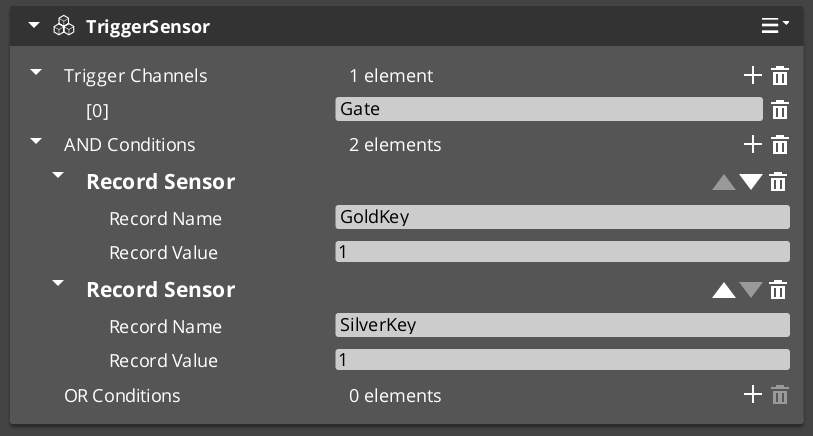
Owns and evaluates all sensor type objects. Not subclassed — extended by adding TriggerSensorType objects to its arrays.
Bus: TriggerSensorRequestBus (ById, Single)
| Field | Type | Description |
|---|
andConditions | vector<TriggerSensorType*> | All types must pass for the trigger to fire. |
orConditions | vector<TriggerSensorType*> | Any type passing is sufficient to fire. |
| Method | Returns | Description |
|---|
DoAction | void | Evaluates all conditions. On pass, fires WorldTriggerRequestBus::Trigger and TriggerSensorNotificationBus::OnTriggered. |
DoResetAction | void | Evaluates reset conditions and fires reset if they pass. |
On Activate, automatically activates a PhysicsTriggerComponent on the entity if any sensor type returns true from NeedsPhysicsTrigger().
Base Type Class
TriggerSensorType
Abstract base for all sensor evaluation logic. Not a component — reflected manually in GS_InteractionSystemComponent::Reflect(). Subclass this to add new condition types.
| Virtual | Returns | Description |
|---|
Activate(entityId) | void | Called when the owning component activates. Connect to buses here. |
Deactivate() | void | Called when the owning component deactivates. Disconnect from buses here. |
EvaluateAction() | bool | Returns true if the condition is currently satisfied. |
EvaluateResetAction() | bool | Returns true if the reset condition is satisfied. Returns true by default. |
NeedsPhysicsTrigger() | bool | Return true to signal that a PhysicsTriggerComponent should be activated. Returns false by default. |
OnTriggerEnter(entity) | void | Called by the physics trigger when an entity enters the volume. |
OnTriggerExit(entity) | void | Called by the physics trigger when an entity exits the volume. |
Stores m_ownerEntityId for calling back to TriggerSensorRequestBus::DoAction() or DoResetAction() from event-driven types.
Built-in Sensor Types
SensorType_Collider
Physics overlap sensor. Returns NeedsPhysicsTrigger() = true, causing the owning component to activate a PhysicsTriggerComponent.
OnTriggerEnter stores the entering entity.OnTriggerExit clears the stored entity.EvaluateAction() returns true while a valid entity is present.EvaluateResetAction() returns true when no entity is present.
SensorType_Record
Fires when a named save record changes to a configured value. Extends RecordKeeperNotificationBus — connects on Activate and fires DoAction automatically when the matching record changes.
EvaluateAction() calls GetRecord and compares against recordValue.
→ Record Sensor Type Reference
| Field | Description |
|---|
recordName | Name of the record to watch. |
recordValue | Value the record must reach to fire. |
SensorType_Interact
Fires when any unit interacts with this entity via the targeting system. Extends InteractTriggerSensorRequestBus.
- On interact: stores
lastCaller and calls DoAction. EvaluateAction() returns true while lastCaller is a valid entity.
SensorType_PlayerInteract
Player-only variant of SensorType_Interact. Extends SensorType_Interact and adds a tag check — lastCaller must have the "Player" tag for the condition to pass.
Extension Guide
To create a custom sensor type:
- Create a class extending
TriggerSensorType. - Override
EvaluateAction() to define when your condition is satisfied. - Override
Activate(entityId) / Deactivate() to connect and disconnect from any buses. - For event-driven evaluation, listen on a bus and call
TriggerSensorRequestBus::DoAction(m_ownerEntityId) when the event fires — the component will run the full evaluation pipeline. - Return
true from NeedsPhysicsTrigger() if your type needs a physics volume. - Reflect the class in
GS_InteractionSystemComponent::Reflect() — types are not components and are not registered via CreateDescriptor().
See Also
Get GS_Interaction
GS_Interaction — Explore this gem on the product page and add it to your project.
6.3.1.1 - SensorType_Record
Record-based sensor type — fires when a named RecordKeeper entry reaches a configured value.
For usage guides and setup examples, see The Basics: GS_Interaction.
Overview
SensorType_Record is a TriggerSensorType that fires when a named save record is changed to a configured value. Add it to the andConditions or orConditions array on a TriggerSensorComponent.
Inherits from RecordKeeperNotificationBus — connects automatically on Activate and listens for record changes without polling. When a matching record change arrives, it calls TriggerSensorRequestBus::DoAction on the owning component, which runs the full condition evaluation pipeline.
Fields
| Field | Type | Description |
|---|
recordName | string | Name of the record to watch in the RecordKeeper. |
recordValue | int | Value the record must reach for the condition to pass. |
Evaluation
EvaluateAction() calls RecordKeeperRequestBus::GetRecord(recordName) and compares the result to recordValue. Returns true if they match.
The type self-triggers on record change events — you do not need to poll or script a check manually.
Setup
- Add a
TriggerSensorComponent to your entity. - Add a
SensorType_Record entry to the andConditions or orConditions array. - Set
recordName to the record you want to watch. - Set
recordValue to the value that should fire the trigger. - Add a
WorldTriggerComponent with the desired WorldTriggerType objects to the same entity.
API
From TriggerSensorType:
//! Returns true if the watched record currently matches recordValue.
virtual bool EvaluateAction();

//! Connects to RecordKeeperNotificationBus on component activate.
virtual void Activate(AZ::EntityId entityId);

//! Disconnects from RecordKeeperNotificationBus on component deactivate.
virtual void Deactivate();
From RecordKeeperNotificationBus:
//! Called when any record changes. Fires DoAction if recordName and recordValue match.
virtual void RecordChanged(const AZStd::string& name, int value);
Get GS_Interaction
GS_Interaction — Explore this gem on the product page and add it to your project.
6.3.2 - World Triggers
World trigger component and trigger types — response execution objects that change world state when a trigger sensor fires.
WorldTriggerComponent is the response container of the World Trigger system. It owns an array of WorldTriggerType objects that execute when triggered — toggling entities, setting records, changing stages, logging messages.
For usage guides and setup examples, see The Basics: GS_Interaction.
Container Component
WorldTriggerComponent
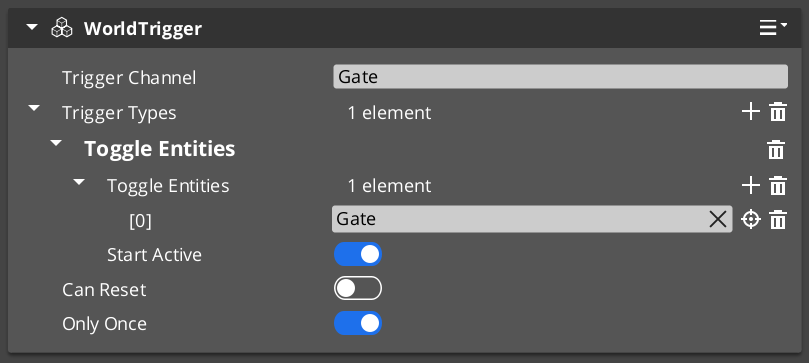
Owns and drives all trigger type objects. Not subclassed — extended by adding WorldTriggerType objects to triggerTypes.
Bus: WorldTriggerRequestBus (ById)
| Field | Type | Description |
|---|
triggerTypes | vector<WorldTriggerType*> | All types are executed on each trigger or reset event. |
| Method | Description |
|---|
Trigger() | Calls Execute(entityId) on every type in triggerTypes. |
Reset() | Calls OnReset(entityId) on every type in triggerTypes. |
On Activate(), calls OnComponentActivate(entityId) on every type — use this for initial state seeding (e.g. entity visibility setup before any trigger fires).
Base Type Class
WorldTriggerType
Abstract base for all trigger response logic. Not a component — reflected manually in GS_InteractionSystemComponent::Reflect(). Subclass this to add new response types.
| Virtual | Parameters | Description |
|---|
OnComponentActivate(entityId) | AZ::EntityId | Called at component activation for startup initialization. |
Execute(entityId) | AZ::EntityId | Called on Trigger(). Implement the world state change here. |
OnReset(entityId) | AZ::EntityId | Called on Reset(). Reverse or re-arm the effect here. |
Built-in Trigger Types
| Type Class | Response |
|---|
| TriggerType_PrintLog | Prints logMessage to the development log on Execute. |
| TriggerType_SetRecord | Sets recordName to recordProgress via the RecordKeeper on Execute. |
| TriggerType_ToggleEntities | Toggles toggleEntities[] active/inactive. OnComponentActivate seeds initial state from startActive. Execute and OnReset invert the state each call. |
| TriggerType_ChangeStage | Queues StageManagerRequestBus::ChangeStageRequest(targetStageName, targetExitPoint) on the next tick via Execute. |
Extension Guide
To create a custom trigger type:
- Create a class extending
WorldTriggerType. - Override
Execute(entityId) — implement your world state change here. - Override
OnReset(entityId) for reversible or re-armable effects. - Override
OnComponentActivate(entityId) if your type needs to set up initial state at startup (e.g. TriggerType_ToggleEntities uses this to seed entity visibility). - Reflect the class in
GS_InteractionSystemComponent::Reflect() — types are not components and are not registered via CreateDescriptor().
See Also
Get GS_Interaction
GS_Interaction — Explore this gem on the product page and add it to your project.
6.4 - Templates
ClassWizard templates for GS_Interaction — Pulsor pulses, reactors, world triggers, and trigger sensors.
All GS_Interaction extension types are generated through the ClassWizard CLI. The wizard handles UUID generation, cmake file-list registration, and reflection automatically.
For usage guides and setup examples, see The Basics: GS_Interaction.
python ClassWizard.py \
    --template <TemplateName> \
    --gem <GemPath> \
    --name <SymbolName> \
    [--input-var key=value ...]
Contents
Pulsor Pulse
Template: PulsorPulse
Creates a Pulse — the sender side of the Pulsor system. A Pulse fires on a named channel and carries a typed payload. Any PulsorReactor on the same entity listening to the same channel will receive it.
Generated files:
Source/${Name}_Pulse.h/.cpp
CLI:
python ClassWizard.py --template PulsorPulse --gem <GemPath> --name <Name> \
    --input-var type_display_name="My Pulse" \
    --input-var type_category="Input"
Input vars:
| Var | Type | Default | Description |
|---|
type_display_name | text | ${Name} | Label shown in the Pulse type dropdown in the editor |
type_category | text | (empty) | Grouping category in the dropdown (e.g. Input, Physics, Timer) |
Post-generation: Implement Fire() with the data payload your channel requires. Match the channel string to the Reactor that will receive it. Each Pulse/Reactor pair is one interaction channel — channels are string-matched.
See also: Pulsors — full pulsor architecture, built-in pulse types, and extension guide.
Pulsor Reactor
Template: PulsorReactor
Creates a Reactor — the receiver side of the Pulsor system. Listens on a specific named channel and executes a response when a matching Pulse fires on the same entity.
Generated files:
Source/${Name}_Reactor.h/.cpp
CLI:
python ClassWizard.py --template PulsorReactor --gem <GemPath> --name <Name> \
    --input-var pulse_channel=MyChannel \
    --input-var type_display_name="My Reactor" \
    --input-var type_category="Input"
Input vars:
| Var | Type | Required | Description |
|---|
pulse_channel | text | yes | The channel name this reactor subscribes to — must match the Pulse’s channel |
type_display_name | text | no | Label shown in the Reactor type dropdown |
type_category | text | no | Grouping category in the dropdown |
Important: pulse_channel is required. The channel string is baked into the header at generation time. If you need to change it later, edit the m_channel field directly in the generated header.
Post-generation: Implement OnPulse(...) with the response logic. Multiple Reactor instances of different types can coexist on one entity, each listening to a different channel.
See also: Pulsors — full pulsor architecture, built-in reactor types, and extension guide.
World Trigger
Template: WorldTrigger
Creates a WorldTrigger component — a logical trigger in the world that fires a named event when activated. Used to start dialogue sequences, cutscenes, or other scripted events from gameplay code or Script Canvas.
Generated files:
Source/${Name}_WorldTrigger.h/.cpp
CLI:
python ClassWizard.py --template WorldTrigger --gem <GemPath> --name <Name>
Post-generation: Wire the trigger activation to whatever condition suits the design (physics overlap, input event, distance check, etc.). Override Trigger() — call the parent first to check channels and conditions. Override Reset() for reversible triggers.
See also: World Triggers — full world trigger architecture and extension guide.
Trigger Sensor
Template: TriggerSensor
Creates a TriggerSensor — the listening side of a trigger pair. Registers to receive named trigger events from a WorldTrigger and executes a response action.
Generated files:
Source/${Name}_TriggerSensor.h/.cpp
CLI:
python ClassWizard.py --template TriggerSensor --gem <GemPath> --name <Name>
Post-generation: Subscribe to the matching trigger event name in Activate(). Override EvaluateAction() to define your trigger condition. Override DoAction() — call the parent first, then add custom behavior if it succeeds. Stack sensors to react to the same trigger in different ways.
See also: Trigger Sensors — full trigger sensor reference.
See Also
For the full API, component properties, and C++ extension guide:
For all ClassWizard templates across GS_Play gems:
Get GS_Interaction
GS_Interaction — Explore this gem on the product page and add it to your project.
6.5 - 3rd Party Implementations
For usage guides and setup examples, see The Basics: GS_Interaction.
Get GS_Interaction
GS_Interaction — Explore this gem on the product page and add it to your project.
7 - GS_Juice
Game feel and feedback motion system — GS_Motion extension with transform and material tracks for visual feedback effects.
GS_Juice provides motion-based visual feedback effects for game feel. It extends the GS_Motion system with feedback-specific track types — transform animation (position, scale, rotation) and material property animation (opacity, emissive, color). Effects are authored as .feedbackmotion data assets and played by FeedbackEmitter components on entities.
For usage guides and setup examples, see The Basics: GS_Juice.
Contents
Feedback System
The feedback system follows the standard GS_Motion domain extension pattern. FeedbackMotionTrack is the domain base class, with two concrete track types. FeedbackMotionAsset holds the track definitions. FeedbackMotion is the instance wrapper struct that manages the runtime lifecycle. FeedbackEmitter is the component that plays effects.
| Component / Type | Purpose |
|---|
| FeedbackEmitter | Component — plays a feedback motion on its entity or a target entity. |
| FeedbackMotion | Instance wrapper struct — asset reference, proxies, runtime composite. |
| FeedbackMotionAsset | Data asset (.feedbackmotion) — holds vector<FeedbackMotionTrack*>. |
| FeedbackMotionTrack | Domain base track — extends GS_Core::GS_MotionTrack. |
| FeedbackTransformTrack | Concrete track — position (Vector2Gradient), scale (FloatGradient), rotation (FloatGradient). |
| FeedbackMaterialTrack | Concrete track — opacity (FloatGradient), emissive (FloatGradient), color (ColorGradient). |
Feedback API
PostProcessing (Planned)
Planned for post-processing feedback effects (screen distortion, color grading, vignette). Not yet implemented.
System Components
| Component | Purpose |
|---|
| GS_JuiceSystemComponent | Runtime system component for GS_Juice. |
Dependencies
- GS_Core (required — provides GS_Motion base system)
Installation
- Enable the GS_Juice gem in your project configuration.
- Ensure GS_Core is also enabled.
- Create
.feedbackmotion assets in the O3DE Asset Editor. - Add
FeedbackEmitter components to entities that need feedback effects.
See Also
For conceptual overviews and usage guides:
For sub-system references:
For related resources:
Get GS_Juice
GS_Juice — Explore this gem on the product page and add it to your project.
7.1 - Feedback System
Feedback motion tracks, FeedbackEmitter component, and FeedbackMotionAsset reference.
The Feedback System provides the concrete implementation of GS_Juice’s game feel effects. It includes the FeedbackEmitter component for playback, FeedbackMotionAsset for data storage, and two concrete track types for transform and material animation.
For usage guides and setup examples, see The Basics: GS_Juice.
Contents
FeedbackEmitter
The FeedbackEmitter component plays a Feedback Motion on its entity or on a specified target entity.
Inspector Properties
| Property | Type | Description |
|---|
| FeedbackMotion | FeedbackMotion | The motion instance — holds the asset reference, proxy list, and runtime composite. |
| playOnActivate | bool | When true, the motion plays automatically when the entity activates. |
API Reference
| Method | Parameters | Returns | Description |
|---|
Play | — | void | Plays the feedback motion on the owning entity. |
PlayOnTarget | AZ::EntityId target | void | Plays the feedback motion on a different entity. |
Stop | — | void | Stops the currently playing motion. |
FeedbackMotionAsset
The data asset that defines a feedback effect. Created and edited in the O3DE Asset Editor with the .feedbackmotion extension. Extends GS_Core::GS_MotionAsset → AZ::Data::AssetData. Requires GS_AssetReflectionIncludes.h when reflecting — see Serialization Helpers.
Properties
| Property | Type | Description |
|---|
| m_tracks | vector<FeedbackMotionTrack*> | The tracks in this motion. |
| motionName | AZStd::string | Display name for the motion. |
| loop | bool | Whether the motion loops. |
Methods
| Method | Returns | Description |
|---|
GetTrackInfos | vector<GS_TrackInfo> | Returns track UUID + label pairs for proxy sync. |
CreateRuntimeComposite | GS_MotionComposite* | Creates a deep-copy runtime instance of all tracks. |
To understand how to author Feedback Motions, refer to Feedback: Authoring Feedback Motions
Animates entity transform properties. All fields use gradient types for full curve control.
| Field | Type | What It Animates |
|---|
| Position | Vector2Gradient | XY offset from origin (additive). |
| Scale | FloatGradient | Uniform scale factor over time. |
| Rotation | FloatGradient | Rotation angle over time. |
The track captures the entity’s origin transform on Init() and applies offsets relative to it. Effects are additive — multiple transform tracks on the same entity stack correctly.
FeedbackMaterialTrack
Animates entity material properties via the render component.
| Field | Type | What It Animates |
|---|
| Opacity | FloatGradient | Material opacity. |
| Emissive | FloatGradient | Emissive intensity. |
| Color | ColorGradient | Color tint. |
Adding Custom Tracks
Use the FeedbackMotionTrack ClassWizard template to generate a new world-space track — see GS_Juice Templates. The only manual step after generation is adding a Reflect(context) call in {$Gem}DataAssetSystemComponent.cpp. Once reflected, the new track type is discovered automatically and appears in the asset editor type picker.
Override Init(ownerEntityId) to cache entity context, and Update(easedProgress) to drive the target property via its bus.
void ${Custom}Track::Init(AZ::EntityId ownerEntity)
{
    // Always call the base first — it sets m_owner.
    GS_Juice::FeedbackMotionTrack::Init(ownerEntity);

    // Cache the entity's origin value so the track can apply additive offsets.
    // Example:
    //   AZ::TransformBus::EventResult(m_originPosition, ownerEntity, &AZ::TransformInterface::GetWorldTranslation);
    //   AZ::TransformBus::EventResult(m_originRotation, ownerEntity, &AZ::TransformInterface::GetWorldRotationQuaternion);
}

void ${Custom}Track::Update(float easedProgress)
{
    // Evaluate the gradient at the current eased progress and apply to the entity.
    // easedProgress is in [0, 1] and already passed through the track's CurveType.
    // Example:
    //   const AZ::Vector3 offset = valueGradient.Evaluate(easedProgress);
    //   AZ::TransformBus::Event(m_owner, &AZ::TransformInterface::SetWorldTranslation, m_originPosition + offset);
}
See Also
For conceptual overviews and usage guides:
For component references:
For related resources:
Get GS_Juice
GS_Juice — Explore this gem on the product page and add it to your project.
7.2 - Third Party Implementations
Integration guides for third-party feedback systems with GS_Juice.
This section will contain integration guides for connecting third-party game feel and feedback tools with the GS_Juice system.
For usage guides and setup examples, see The Basics: GS_Juice.
Get GS_Juice
GS_Juice — Explore this gem on the product page and add it to your project.
7.3 - Templates
ClassWizard templates for GS_Juice — custom feedback motion tracks for world-space game-feel effects.
All GS_Juice extension types are generated through the ClassWizard CLI. The wizard handles UUID generation and cmake file-list registration automatically.
For usage guides and setup examples, see The Basics: GS_Juice.
python ClassWizard.py \
    --template <TemplateName> \
    --gem <GemPath> \
    --name <SymbolName> \
    [--input-var key=value ...]
Contents
Feedback Motion Track
Template: FeedbackMotionTrack
Creates a custom animation track for GS_Juice feedback sequences. A FeedbackMotionTrack child animates a world-space entity property (transform, material, audio, particle, etc.) via O3DE buses over a normalised [0,1] eased progress value. Tracks are referenced from GS_FeedbackSequence data assets.
Generated files:
Include/${GemName}/GS_Feedback/MotionTracks/${Name}Track.hSource/GS_Feedback/MotionTracks/${Name}Track.cpp
CLI:
python ClassWizard.py --template FeedbackMotionTrack --gem <GemPath> --name <Name>
Post-generation — manual registration required:
In GS_JuiceDataAssetSystemComponent.cpp, add:
#include <path/to/${Name}Track.h>
// inside Reflect(context):
${Name}Track::Reflect(context);
Extensibility: Same polymorphic pattern as UiMotionTrack — any number of track types, discovered automatically via EnumerateDerived. World-space tracks differ from UI tracks in that they act on entity buses (TransformBus, material buses, etc.) rather than LyShine element interfaces. Init(ownerEntityId) caches the entity context; Update(easedProgress) drives the property.
See also: Feedback — the full feedback system architecture, built-in track types, and domain extension pattern.
See Also
For the full API, component properties, and C++ extension guide:
For all ClassWizard templates across GS_Play gems:
Get GS_Juice
GS_Juice — Explore this gem on the product page and add it to your project.
8 - GS_Item
Data-driven inventory containers and equipment slot management for collectible, usable, and equippable items in GS_Play projects.
GS_Item provides the inventory and equipment systems for GS_Play. It gives entities inventory containers that hold stacks of item data, and an equipment system that maps items to named slots on a character entity. Items are defined as data assets, making the full catalog editable without code changes. GS_Item is under active development — the API surface is evolving and additional item behaviours will be added in future releases.
For usage guides and setup examples, see The Basics: GS_Item.
Contents
Inventory
The inventory system manages ordered collections of item stacks on an entity. Stacks track item type, quantity, and metadata. The inventory component exposes add, remove, query, and transfer operations and broadcasts notifications when contents change.
| Area | Contents |
|---|
| Inventory Component | Per-entity container that holds item stacks and manages quantity limits. |
| Item Data Assets | Data-driven item definitions: display name, icon, stack limit, categories, and custom properties. |
| Stack Operations | Add, remove, transfer, split, and query by item type or category. |
| Notifications | Change events broadcast when items are added, removed, or quantities updated. |
Inventory API
Equipment
The equipment system maps item assets to named slots on a character or entity. Equipping an item occupies its designated slot and can trigger stat modifications via GS_RPStats integration. Unequipping returns the item to inventory or discards it based on configured policy.
| Area | Contents |
|---|
| Equipment Component | Per-entity slot manager. Maps slot names to currently equipped item assets. |
| Slot Definitions | Named slot configuration (e.g. weapon_main, armour_chest, accessory_1) defined per entity type. |
| Equip / Unequip Flow | Validates slot compatibility, optionally modifies stats via GS_RPStats, and notifies listeners. |
| Notifications | Change events broadcast when slots are filled, cleared, or swapped. |
Equipment API
Installation
GS_Item is a standalone gem. GS_RPStats integration is optional but recommended for stat-modifying equipment.
- Enable GS_Item and GS_Core in your O3DE project’s gem list.
- Create item data assets in your project’s asset directory and populate them in the Editor.
- Add the inventory component to any entity (player, chest, NPC) that should hold items.
- Add the equipment component to character entities that support equippable slots.
- Configure slot names on the equipment component to match your game’s equipment schema.
- Optionally enable GS_RPStats to wire equipment stat modifiers into the character stat pipeline.
Note: GS_Item is under active development. Check the changelog for the latest additions before starting integration work.
See Also
For conceptual overviews and usage guides:
For sub-system references:
For related resources:
Get GS_Item
GS_Item — Explore this gem on the product page and add it to your project.
8.1 - 3rd Party Implementations
For usage guides and setup examples, see The Basics: GS_Item.
Get GS_Item
GS_Item — Explore this gem on the product page and add it to your project.
8.2 - Equipment
For usage guides and setup examples, see The Basics: GS_Item.
Get GS_Item
GS_Item — Explore this gem on the product page and add it to your project.
8.3 - Inventory
For usage guides and setup examples, see The Basics: GS_Item.
Get GS_Item
GS_Item — Explore this gem on the product page and add it to your project.
9 - GS_Performer
Modular character rendering via skin slots, paper billboard performers, velocity-driven locomotion, head tracking, and audio babble integration.
GS_Performer is the character rendering and presentation gem for GS_Play. It provides a slot-based skinning system for composing modular character appearances at runtime, a paper (billboard) performer system for 2.5D and top-down projects, velocity-driven locomotion parameter hooks, head tracking, and audio babble. The gem depends on GS_Core and integrates optionally with EMotionFX and GS_Unit.
For usage guides and setup examples, see The Basics: GS_Performer.
GS_Performer is in Early Development. Full support planned soon: 2026.
Contents
Manager
The Performer Manager is a GS_Play manager that owns the global performer registry and coordinates skin slot configuration across the level.
| Component | Purpose |
|---|
| GS_PerformerManagerComponent | GS_Play manager. Global performer registry. Coordinates skin slot profiles and performer lookups. |
Performer API
Skin Slots
A slot-based system for composing character appearance from swappable actor meshes and material sets. Each slot holds an actor asset and material list. The handler component manages the full set of slots for a character and applies PerformerSkinSlotsConfigProfile presets.
| Component / Asset | Purpose |
|---|
| PerformerSkinSlotComponent | Individual skin slot. Holds one actor mesh and its material overrides. Addressed by slot ID. |
| SkinSlotHandlerComponent | Manages the full collection of skin slots for a character entity. Applies profile presets. |
| SkinSlotData | Data structure holding actor asset and material asset list for a single slot. |
| PerformerSkinSlotsConfigProfile | Asset class defining a named preset of skin slot assignments. Loaded and applied at runtime. |
Skin Slot API
Billboard-based character rendering for 2.5D and top-down games. The facing handler keeps sprite quads oriented toward the camera or a configurable facing target. A camera-aware variant (in GS_Complete) extends this with PhantomCam integration.
Paper Performer API
Locomotion
Velocity-driven animation parameter hooks. The locomotion component samples entity velocity each tick and pushes values into the animation graph, driving blend trees without manual parameter management.
Performer API
Head Tracking
Procedural head look-at targeting for performer entities. Drives bone orientation toward a world-space target using configurable angle limits and spring damping.
Head Tracking API
Babble
Audio babble synchronized to dialogue typewriter output. The Babble component generates procedural vocalisation tones keyed to speaker identity and tone configuration, complementing the Typewriter system in GS_Cinematics.
Babble API
Installation
GS_Performer requires GS_Core. EMotionFX and GS_Unit are optional integrations.
- Enable GS_Performer and GS_Core in your O3DE project’s gem list.
- Add GS_PerformerManagerComponent to your Game Manager prefab and include it in the Startup Managers list.
- For skin slots, add SkinSlotHandlerComponent to the character root entity, then add one PerformerSkinSlotComponent per modular slot.
- For paper performers, add PaperFacingHandlerComponent to sprite entities that should billboard toward the camera.
- For locomotion, add VelocityLocomotionHookComponent to entities with an EMotionFX actor and configure the parameter name bindings.
See Also
For conceptual overviews and usage guides:
For sub-system references:
For related resources:
Get GS_Performer
GS_Performer — Explore this gem on the product page and add it to your project.
9.1 - Performer Manager & Skin Slots
Performer manager lifecycle, skin slot system for modular character appearance, and config profile assets.
The Performer Manager and Skin Slot system provide modular character appearance management at runtime. The manager handles global performer registration and lookup. Skin slots define individual mesh/material combinations that can be swapped independently, enabling runtime costume and equipment changes.
For usage guides and setup examples, see The Basics: GS_Performer.
GS_Performer is in Early Development. Full support planned soon: 2026.
Contents
GS_PerformerManagerComponent
Singleton manager extending GS_ManagerComponent. Handles global performer registration, coordinates skin slot configuration across the level, and provides performer lookup.
Bus: PerformerManagerRequestBus (Single, Single)
Skin Slot System
PerformerSkinSlotComponent
Individual skin slot component. Each slot holds one actor mesh asset and its material overrides. Addressed by slot ID.
Bus: PerformerSkinSlotRequestBus (ById, Single)
| Property | Type | Description |
|---|
| Slot Name | AZStd::string | Identifier for this skin slot. |
| Skin Data | SkinSlotData | Actor asset and material list for this slot. |
SkinSlotHandlerComponent
Manages the complete collection of skin slots for a character entity. Applies PerformerSkinSlotsConfigProfile presets to swap entire outfits at once.
Bus: SkinSlotHandlerRequestBus (ById, Single)
Data Types
| Type | Description |
|---|
| SkinSlotData | Actor asset reference + material asset list for a single slot. |
| SkinSlotNameDataPair | Slot name string + SkinSlotData pair for serialization. |
| PerformerSkinSlotsConfigProfile | Asset class defining a named preset of skin slot assignments. Loaded and applied at runtime for outfit/costume changes. |
VelocityLocomotionHookComponent
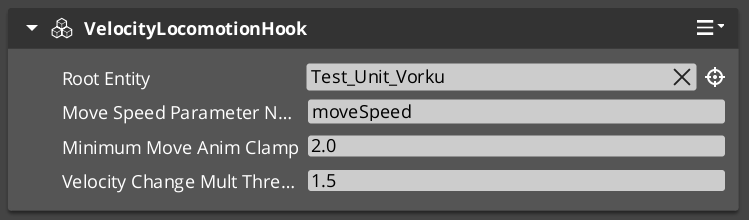
Reads entity velocity each tick and writes locomotion parameters (speed, direction) to the EMotionFX animation graph. Drives blend trees automatically without manual parameter management.
| Property | Type | Description |
|---|
| Speed Parameter | AZStd::string | The EMotionFX parameter name to write speed values into. |
| Direction Parameter | AZStd::string | The EMotionFX parameter name to write direction values into. |
PrefabAnimAssetsReloaderComponent
Hot-reloads prefab animation assets during development without requiring a full level restart.
Setup
- Add GS_PerformerManagerComponent to the Game Manager prefab and include it in the Startup Managers list.
- Add SkinSlotHandlerComponent to the character root entity.
- Add one PerformerSkinSlotComponent per modular slot (head, body, arms, legs, etc.) to child entities.
- Create PerformerSkinSlotsConfigProfile assets in the Asset Editor for each outfit configuration.
- For locomotion, add VelocityLocomotionHookComponent to entities with an EMotionFX actor.
Extension Guide
The Skin Slot system uses the companion component pattern. Custom slot behavior (equipment integration, visual effects on swap) should be added as companion components that listen to SkinSlotHandler bus events on the same entity.
See Also
For related component references:
For conceptual overviews and usage guides:
Get GS_Performer
GS_Performer — Explore this gem on the product page and add it to your project.
9.2 - Performers
Billboard and 3D character entity types — PaperFacingHandlerComponent for 2.5D rendering and the Avatar pipeline for rigged EMotionFX characters.
The Performers sub-system defines the character entity types in GS_Performer. Each type encapsulates a complete rendering strategy — from the lightweight billboard paper performer to the full 3D avatar pipeline integrating EMotionFX, skin slots, and locomotion.
The performer type determines the fundamental visual structure of the character entity. Performer Features then layer onto it, independent of type.
For usage guides and setup examples, see The Basics: Performers.
GS_Performer is in Early Development. Full support planned soon: 2026.
Contents
Core Pattern
Each performer type is a self-contained entity configuration. The Paper Performer requires only sprite geometry and a facing handler component. The Avatar Performer drives an EMotionFX actor and composes with skin slots and the locomotion hook. Both types participate in Performer Manager registration and support the full Performer Features set.
Billboard-based character rendering for 2.5D and top-down games. The facing handler orients the sprite quad toward the active camera or a configurable target each tick. The base component allows custom facing strategies through extension.
| Component | Purpose | Reference |
|---|
| PaperFacingHandlerBaseComponent | Abstract base for billboard facing logic. Extend to implement custom facing strategies. | Paper Performer |
| PaperFacingHandlerComponent | Concrete implementation. Orients the entity quad toward the active camera each tick. | Paper Performer |
Paper Performer API
The full 3D character pipeline. Drives a rigged EMotionFX actor with support for skin slot equipment, velocity locomotion parameter binding, and animation asset hot-reloading during development.
| Component | Purpose | Reference |
|---|
| VelocityLocomotionHookComponent | Reads entity velocity each tick and writes speed and direction blend parameters to the EMotionFX animation graph. | Avatar Performer |
| PrefabAnimAssetsReloaderComponent | Hot-reloads prefab animation assets without a level restart. Development utility. | Avatar Performer |
Avatar Performer API
Extension Guide
Custom paper facing strategies are supported by extending PaperFacingHandlerBaseComponent. Override the tick method to compute any desired facing rotation and apply it to the entity transform each frame. See Paper Performer API for the full extension walkthrough.
See Also
For conceptual overviews and usage guides:
For related component references:
Get GS_Performer
GS_Performer — Explore this gem on the product page and add it to your project.
9.2.1 - Avatar Performer
How to work with GS_Play avatar performers.
Avatar Performer Under Construction
Get GS_Performer
GS_Performer — Explore this gem on the product page and add it to your project.
9.2.2 - Paper Performer
Billboard-based character rendering — paper facing handlers that orient sprite quads toward the camera.
The Paper Performer system provides billboard-based character rendering for 2.5D and top-down games. Facing handler components keep sprite quads oriented toward the camera or a configurable facing target each tick.
For usage guides and setup examples, see The Basics: GS_Performer.
GS_Performer is in Early Development. Full support planned soon: 2026.
Contents
PaperFacingHandlerBaseComponent
Abstract base component for billboard facing logic. Extend this to implement custom facing strategies (face camera, face movement direction, face target entity).
PaperFacingHandlerComponent
Concrete paper-facing implementation. Orients the entity’s quad toward the active camera each tick. Suitable for standard 2.5D billboard characters.
| Property | Type | Description |
|---|
| Face Mode | enum | How the billboard faces: toward camera, along movement direction, or toward a target. |
Camera-Aware Variant
A camera-aware paper facing handler is provided by GS_Complete as a cross-gem component (PhantomCam + Performer):
| Component | Gems | Description |
|---|
| CamCorePaperFacingHandlerComponent | Performer + PhantomCam | Uses CamCore notifications to adjust paper performer facing direction relative to the active phantom camera. |
See Utility: Angles Helper for details.
Extension Guide
Create custom facing strategies by extending PaperFacingHandlerBaseComponent:
- Create a class extending
PaperFacingHandlerBaseComponent. - Override the tick/update method to compute your desired facing rotation.
- Apply the rotation to the entity transform each frame.
See Also
For related component references:
For conceptual overviews and usage guides:
For related resources:
Get GS_Performer
GS_Performer — Explore this gem on the product page and add it to your project.
9.3 - Performer Features
Universal capabilities for any performer entity — procedural head tracking, typewriter-synchronized babble, and mesh swapping.
Performer Features are components that apply to any performer entity, independent of performer type. They represent capabilities that layer onto the character rather than define it — procedural bone targeting via head tracking, typewriter-synchronized vocalization via babble, and runtime mesh swapping.
The performer type (Paper or Avatar) defines the character’s rendering pipeline. Performer Features extend what that character can do within it.
For usage guides and setup examples, see The Basics: Performer Features.
GS_Performer is in Early Development. Full support planned soon: 2026.
Contents
Head Tracking
Procedural look-at targeting for performer bones. Drives bone orientation toward a world-space target each tick using configurable angle limits and spring damping, enabling characters to naturally track targets, speakers, or points of interest.
| Component | Purpose | Reference |
|---|
| Head Tracking Component | Reads a target position each tick and computes bone rotation within clamped horizontal and vertical limits, smoothed by spring damping. | Head Tracking |
Head Tracking API
Babble
Procedural vocalization tones synchronized to Typewriter text output. Fires audio tone events on each character reveal, keyed to speaker identity, creating the characteristic character-voice effect.
| Component | Purpose | Reference |
|---|
| BabbleComponent | Generates babble tones on OnTypeFired events. Returns BabbleToneEvent for audio playback. Speaker mapped via SpeakerBabbleEvents. | Babble |
Babble API
Mesh Swap
Runtime mesh and material swapping for performer entities. Provides lightweight visual variation without the full slot-based equipment system.
Mesh Swap API
See Also
For conceptual overviews and usage guides:
For related component references:
Get GS_Performer
GS_Performer — Explore this gem on the product page and add it to your project.
9.3.1 - Locomotion
Velocity-driven animation hooks and prefab animation asset reloading for performer entities.
The Locomotion system bridges entity movement to animation. The VelocityLocomotionHookComponent samples entity velocity each tick and pushes values into the EMotionFX animation graph, driving blend trees without manual parameter management. The PrefabAnimAssetsReloaderComponent supports hot-reloading animation assets during development.
For usage guides and setup examples, see The Basics: GS_Performer.
GS_Performer is in Early Development. Full support planned soon: 2026.
Contents
VelocityLocomotionHookComponent
Reads the entity’s current velocity each tick and writes locomotion parameters (speed, direction) to the EMotionFX animation graph. This drives blend trees automatically — characters walk, run, and idle based on their actual movement speed.
| Property | Type | Description |
|---|
| Speed Parameter | AZStd::string | The EMotionFX parameter name to write speed values into. |
| Direction Parameter | AZStd::string | The EMotionFX parameter name to write direction values into. |
PrefabAnimAssetsReloaderComponent
Hot-reloads prefab animation assets during development without requiring a full level restart. Monitors animation asset files for changes and reapplies them to the entity’s EMotionFX actor.
Setup
- Add VelocityLocomotionHookComponent to an entity with an EMotionFX actor and a movement system (GS_Unit mover or physics rigidbody).
- Configure the speed and direction parameter names to match your EMotionFX blend tree parameters.
- Add PrefabAnimAssetsReloaderComponent during development for faster animation iteration.
See Also
For related component references:
For conceptual overviews and usage guides:
Get GS_Performer
GS_Performer — Explore this gem on the product page and add it to your project.
9.3.2 - Head Tracking
Procedural head look-at targeting — drives bone orientation toward a world-space target with configurable angle limits and damping.
The Head Tracking system provides procedural head look-at targeting for performer entities. It drives bone orientation toward a world-space target using configurable angle limits and spring damping, enabling characters to naturally track targets, speakers, or points of interest.
For usage guides and setup examples, see The Basics: GS_Performer.
GS_Performer is in Early Development. Full support planned soon: 2026.
Contents
How It Works
The head tracking component reads the target position each tick and computes the desired bone rotation to face it. The rotation is clamped to configurable angle limits (horizontal and vertical) and smoothed via spring damping to avoid snapping.
Setup
- Add the head tracking component to an entity with an EMotionFX actor.
- Configure the target bone (typically the head or neck bone).
- Set angle limits for horizontal and vertical rotation.
- Configure spring damping parameters for smooth tracking.
- Set the look-at target via code or companion component.
See Also
For related component references:
For conceptual overviews and usage guides:
Get GS_Performer
GS_Performer — Explore this gem on the product page and add it to your project.
9.3.3 - Babble
Audio babble synchronized to dialogue typewriter output — procedural vocalization tones keyed to speaker identity.
The Babble system generates procedural vocalization tones synchronized to the dialogue Typewriter output. Each speaker can have unique babble tone events that fire with each character reveal, creating the characteristic “character voice” effect used in games like Animal Crossing or Undertale.
For usage guides and setup examples, see The Basics: GS_Performer.
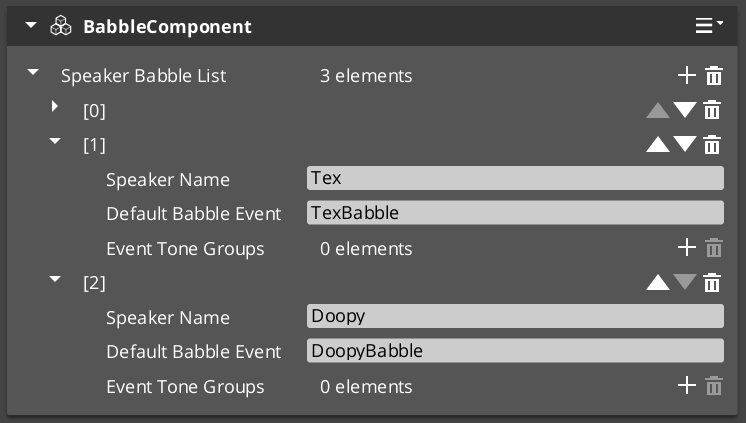
GS_Performer is in Early Development. Full support planned soon: 2026.
Contents
BabbleComponent
Bus: BabbleRequestBus (ById)
| Method | Parameters | Returns | Description |
|---|
GetBabbleEvent | — | BabbleToneEvent | Returns the current babble tone event for audio playback. |
Data Types
| Type | Description |
|---|
| BabbleToneEvent | Audio event configuration for a single babble tone. |
| SpeakerBabbleEvents | Collection of babble events mapped to a specific speaker/actor. |
How It Works
- The TypewriterComponent (GS_Cinematics) reveals text character by character.
- On each
OnTypeFired notification, the BabbleComponent triggers its configured babble tone. - The tone varies based on the speaker’s
SpeakerBabbleEvents configuration. - The result is a procedural “voice” that matches the text reveal rhythm.
See Also
For related component references:
For conceptual overviews and usage guides:
Get GS_Performer
GS_Performer — Explore this gem on the product page and add it to your project.
9.4 - 3rd Party Implementations
For usage guides and setup examples, see The Basics: GS_Performer.
Get GS_Performer
GS_Performer — Explore this gem on the product page and add it to your project.
10 - GS_PhantomCam
Priority-based virtual camera management — phantom cameras, blend profiles, and spatial camera influence fields.
Rather than moving a single camera directly, GS_PhantomCam lets you place lightweight virtual cameras — “phantoms” — throughout the scene. Each phantom holds a complete camera state and a priority value. The Cam Core component drives the real camera to match whichever phantom currently has the highest effective priority. Transitions are animated by Blend Profiles that specify duration and easing. Influence Fields modify camera selection spatially or globally without changing base priorities.
For usage guides and setup examples, see The Basics: GS_PhantomCam.
Contents
Architecture
Breakdown
When the dominant Phantom Camera changes, the Cam Manager queries the Blend Profile to determine transition timing and easing:
| Step | What It Means |
|---|
| 1 — Priority change | A Phantom Camera gains highest priority or is activated. |
| 2 — Profile query | Cam Manager calls GetBestBlend(fromCam, toCam) on the assigned GS_PhantomCamBlendProfile asset. |
| 3 — Entry match | Entries are checked by specificity: exact match → any-to-specific → specific-to-any → default fallback. |
| 4 — Interpolation | Cam Core blends position, rotation, and FOV over the matched entry’s BlendTime using the configured EasingType. |
E Indicates extensible classes and methods.
Patterns - Complete list of system patterns used in GS_Play.
Cam Manager
The Cam Manager is the singleton controller for the entire camera system. It extends GS_ManagerComponent and owns three responsibilities:
- Registration — Every phantom camera calls
RegisterPhantomCam on activate and UnRegisterPhantomCam on deactivate. The Cam Manager holds the authoritative list. - Priority evaluation — When any camera’s priority changes,
EvaluatePriority() re-sorts the list and determines the dominant camera. A dominance change fires SettingNewCam, which the Cam Core listens for to begin blending. - Influence routing — Priority influences (from Influence Fields or gameplay code) are added and removed through
AddCameraInfluence / RemoveCameraInfluence by camera name. The Cam Manager sums all active influences with each camera’s base priority during evaluation.
The global camera target (the entity that follow and look-at cameras track) is also held here, set via SetTarget.
| Component | Purpose |
|---|
| GS_CamManagerComponent | Singleton manager. Registration, priority evaluation, influence routing, and target assignment. |
Cam Manager API
Cam Core
The Cam Core is the per-frame driver that makes the real O3DE camera match the dominant phantom. It lives on the main camera entity, which must be a child entity of the Cam Manager entity inside the manager’s prefab so it spawns and despawns with the camera system.
Every frame, when locked to a phantom, the Cam Core parents the main camera to that phantom entity and reads its position, rotation, and FOV directly. During a blend transition:
- The Cam Core receives
SettingNewCam from the Cam Manager. - It queries the assigned Blend Profile for the best matching entry between the outgoing and incoming cameras.
- The blend profile returns a duration and an easing curve (see Curves Utility). If no profile entry matches, the Cam Core falls back to its own default blend time and easing configured directly on the component.
- Over the blend duration, position, rotation, and FOV are interpolated from the outgoing state to the incoming phantom’s state.
- On completion, the Cam Core parents the main camera to the new dominant phantom, locking them together until the next transition.
| Component | Purpose |
|---|
| GS_CamCoreComponent | Core camera driver. Applies phantom camera state to the real camera each tick. |
Cam Core API
Phantom Cameras
Phantom cameras are entity components that hold a complete candidate camera state — FOV, near/far clip planes, follow target, look-at target, position offset, rotation offset, and base priority. They do not render anything. They register with the Cam Manager on activation and are evaluated by priority each time the dominant camera changes.
Priority Control
The camera with the highest effective priority (base + all active influences) becomes dominant. You can control which camera wins through:
- Raise priority — Set one camera’s priority above all others.
- Disable/Enable —
DisableCamera drops effective priority to 0; EnableCamera restores it. - Direct change —
SetCameraPriority or ChangeCameraPriority on the Cam Manager bus. - Influence — Add temporary priority boosts through Influence Fields without touching base priorities.
Follow and Look-At
Each phantom supports independent follow and look-at tracking, each with position offsets and optional damping. Both modes expose overridable virtual methods so custom camera types can inject their own logic. Processing is split into transform-based (kinematic) and physics-based paths per mode.
Specialized Camera Types
Companion components add distinct motion behaviors on top of the base phantom:
Phantom Cameras API
Blend Profiles
Blend Profiles are data assets (.blendprofile) that define how the Cam Core transitions between phantom cameras. Each profile contains a list of blend entries, where each entry defines a From camera, a To camera, a blend duration, and an easing curve (see Curves Utility). This allows every camera-to-camera transition in your project to have unique timing and feel.
Entry Resolution Order
- Exact match — From name and To name both match.
- Any-to-specific — From is blank/“any”, To matches the incoming camera.
- Specific-to-any — From matches the outgoing camera, To is blank/“any”.
- Default fallback — The Cam Core’s own default blend time and easing (set on the component).
Blend Entry Fields
Each entry specifies:
| Field | Description |
|---|
FromCamera | Outgoing phantom camera entity name. Blank/“any” matches all. |
ToCamera | Incoming phantom camera entity name. Blank/“any” matches all. |
BlendTime | Transition duration in seconds. |
EasingType | Interpolation curve applied during the blend. See Curves Utility for the full list of available easing types. |
Camera names correspond to entity names of the phantom camera entities in the scene.
Blend Profiles API
Camera Influence Fields
Influence components modify the effective priority of phantom cameras without touching their base priority values. They work by calling AddCameraInfluence / RemoveCameraInfluence on the Cam Manager bus, identified by camera name. Multiple influences on the same camera stack additively.
GlobalCameraInfluenceComponent
Applies a constant priority modifier for its entire active lifetime. Useful for gameplay states that should always favor a particular camera — boosting a cutscene camera’s priority during a scripted sequence, for example.
Placement: Place GlobalCameraInfluenceComponent on the StageData entity. It activates and deactivates automatically with the stage, keeping camera influence scoped to the level that defines it.
CameraInfluenceFieldComponent
Applies a priority modifier only when the camera subject enters a defined spatial volume. Requires a PhysX Collider (set as trigger) on the same entity to define the volume. On entry, the influence is added; on exit, it is removed. See Physics Trigger Volume Utility for setup details.
Useful for level design — switching to an overhead camera when the player enters a room, or boosting a scenic camera in a vista area.
Camera Influence Fields API
Installation
GS_PhantomCam requires only GS_Core.
- Enable GS_PhantomCam in Project Manager or
project.json. - Add GS_CamManagerComponent to a dedicated entity and register it in the Game Manager Startup Managers list. Save this entity as a prefab.
- Add GS_CamCoreComponent to the main O3DE camera entity. Make this camera entity a child of the Cam Manager entity, inside the Cam Manager’s prefab. This ensures the camera spawns and despawns cleanly with the camera system.
- Assign a Blend Profile asset to the Cam Core’s Blend Profile slot. Configure default blend time and easing on the component for fallback transitions.
- Place phantom camera entities in your level with GS_PhantomCameraComponent. Assign follow and look-at targets as needed.
- For spatial influence zones, add CameraInfluenceFieldComponent alongside a PhysX Collider (trigger) to define the volume.
- For global per-stage influence, add GlobalCameraInfluenceComponent to the StageData entity.
For a full guided walkthrough, see the PhantomCam Set Up Guide.
See Also
For conceptual overviews and usage guides:
For related resources:
Get GS_PhantomCam
GS_PhantomCam — Explore this gem on the product page and add it to your project.
10.1 - Cam Manager
Camera system lifecycle controller — registration, priority evaluation, target assignment, and influence management for all phantom cameras.
The Cam Manager is the singleton controller for the GS_PhantomCam camera system. It extends GS_ManagerComponent and manages the full lifecycle of virtual cameras: registering and unregistering phantom cameras, evaluating which camera has the highest effective priority, assigning the global camera target, and routing camera influence modifiers.
When a phantom camera activates, it registers itself with the Cam Manager. When priorities change — through direct calls, enable/disable toggling, or influence fields — the Cam Manager re-evaluates which phantom camera should be dominant and notifies the Cam Core to begin blending toward it.
For usage guides and setup examples, see The Basics: GS_PhantomCam.
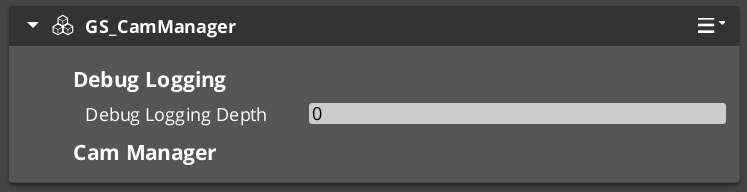
Contents
How It Works
Camera Registration
Every Phantom Camera registers with the Cam Manager on activation via RegisterPhantomCam and unregisters on deactivation via UnRegisterPhantomCam. The Cam Manager maintains the authoritative list of all active phantom cameras in the scene.
Priority Evaluation
When any camera’s priority changes, the Cam Manager calls EvaluatePriority() to determine the new dominant camera. The camera with the highest effective priority (base priority plus any active influences) becomes the dominant camera. A change in dominance triggers the SettingNewCam notification, which the Cam Core uses to begin its blend transition.
Camera Influences
Camera influences are named priority modifiers that shift a camera’s effective priority up or down. They are added and removed through AddCameraInfluence and RemoveCameraInfluence, identified by camera name. This mechanism allows Camera Influence Fields and gameplay systems to affect camera selection without directly modifying base priority values.
Target Assignment
The Cam Manager holds the global camera target — the entity that follow and look-at cameras will track. Setting the target here propagates it to the active phantom camera system.
Setup
- Add GS_CamManagerComponent to your Game Manager entity (or a dedicated camera manager entity).
- Register the manager prefab in the Game Manager Startup Managers list.
- Add a Cam Core component to your main camera entity as a child of the Cam Manager entity.
- Place Phantom Cameras in your scene with appropriate priorities.
For a full walkthrough, see the PhantomCam Set Up Guide.
API Reference
Request Bus: CamManagerRequestBus
Commands sent to the Cam Manager. Global bus — Single address, single handler.
| Method | Parameters | Returns | Description |
|---|
RegisterPhantomCam | AZ::EntityId cam | void | Registers a phantom camera with the manager. Called automatically on phantom camera activation. |
UnRegisterPhantomCam | AZ::EntityId cam | void | Unregisters a phantom camera from the manager. Called automatically on phantom camera deactivation. |
ChangeCameraPriority | AZ::EntityId cam, AZ::u32 priority | void | Sets a new base priority for the specified camera and triggers priority re-evaluation. |
AddCameraInfluence | AZStd::string camName, float influence | void | Adds a priority influence modifier to the named camera. Positive values increase effective priority. |
RemoveCameraInfluence | AZStd::string camName, float influence | void | Removes a priority influence modifier from the named camera. |
SetTarget | AZ::EntityId targetEntity | void | Sets the global camera follow/look-at target entity. |
GetTarget | – | AZ::EntityId | Returns the current global camera target entity. |
Notification Bus: CamManagerNotificationBus
Events broadcast by the Cam Manager. Multiple handler bus — any number of components can subscribe.
| Event | Description |
|---|
EnableCameraSystem | Fired when the camera system is fully initialized and active. |
DisableCameraSystem | Fired when the camera system is shutting down. |
SettingNewCam | Fired when a new phantom camera becomes dominant after priority evaluation. The Cam Core listens for this to begin blending. |
Virtual Methods
Override these when extending the Cam Manager. Always call the base implementation.
| Method | Parameters | Returns | Description |
|---|
EvaluatePriority() | — | void | Sorts all registered phantom cameras by effective priority and determines the dominant camera. Override to add custom priority logic (e.g. distance weighting, gameplay state filters). |
Extending the Cam Manager
Extend the Cam Manager to add custom priority logic, additional registration behavior, or project-specific camera selection rules. Extension is done in C++.
#pragma once
#include <GS_PhantomCam/GS_PhantomCamBus.h>
#include <Source/CamManager/GS_CamManagerComponent.h>

namespace MyProject
{
    class MyCamManager : public GS_PhantomCam::GS_CamManagerComponent
    {
    public:
        AZ_COMPONENT_DECL(MyCamManager);

        static void Reflect(AZ::ReflectContext* context);

    protected:
        void EvaluatePriority() override;
    };
}
Implementation (.cpp)
#include "MyCamManager.h"
#include <AzCore/Serialization/SerializeContext.h>

namespace MyProject
{
    AZ_COMPONENT_IMPL(MyCamManager, "MyCamManager", "{YOUR-UUID-HERE}");

    void MyCamManager::Reflect(AZ::ReflectContext* context)
    {
        if (auto serializeContext = azrtti_cast<AZ::SerializeContext*>(context))
        {
            serializeContext->Class<MyCamManager, GS_PhantomCam::GS_CamManagerComponent>()
                ->Version(0);

            if (AZ::EditContext* editContext = serializeContext->GetEditContext())
            {
                editContext->Class<MyCamManager>("My Cam Manager", "Custom camera manager")
                    ->ClassElement(AZ::Edit::ClassElements::EditorData, "")
                        ->Attribute(AZ::Edit::Attributes::Category, "MyProject")
                        ->Attribute(AZ::Edit::Attributes::AppearsInAddComponentMenu, AZ_CRC_CE("Game"));
            }
        }
    }

    void MyCamManager::EvaluatePriority()
    {
        // Call base to run standard priority sorting
        GS_CamManagerComponent::EvaluatePriority();

        // Custom priority logic here — e.g. filter cameras by gameplay state,
        // apply distance-based weighting, or enforce camera lock rules
    }
}
Script Canvas Examples
Enabling and disabling the camera system:
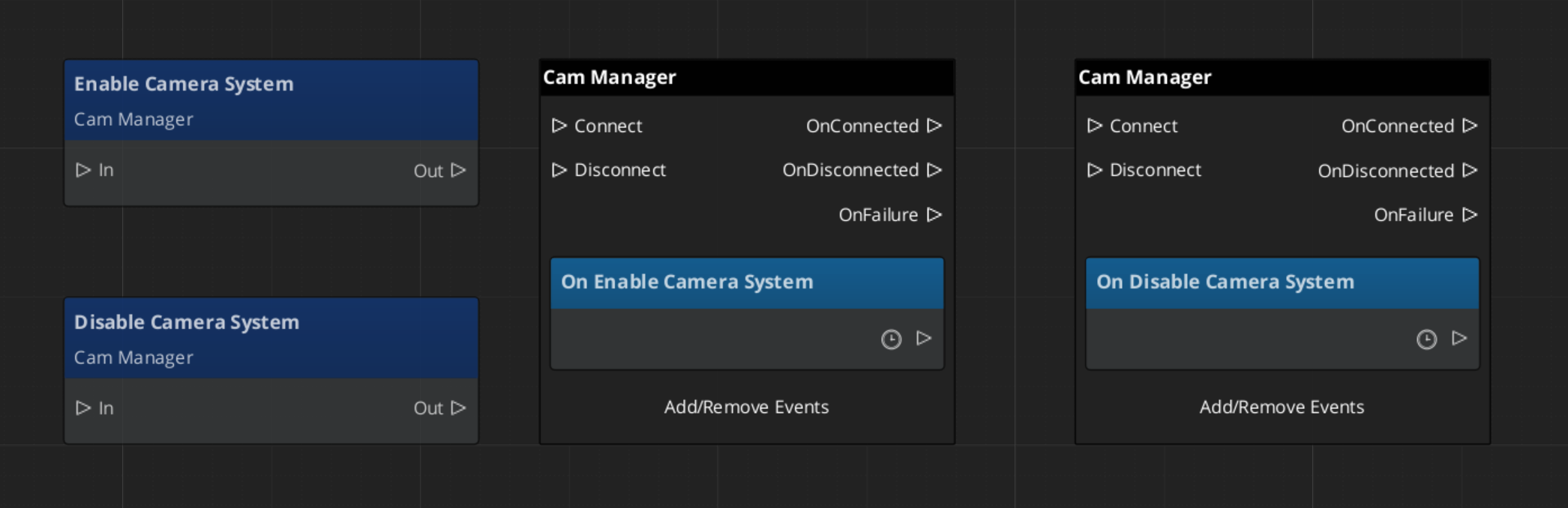
Setting the global camera target:
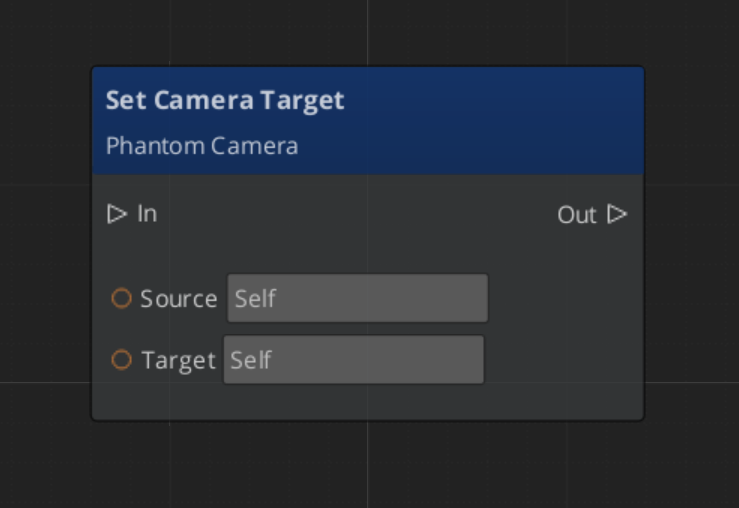
Reacting to a new dominant camera:
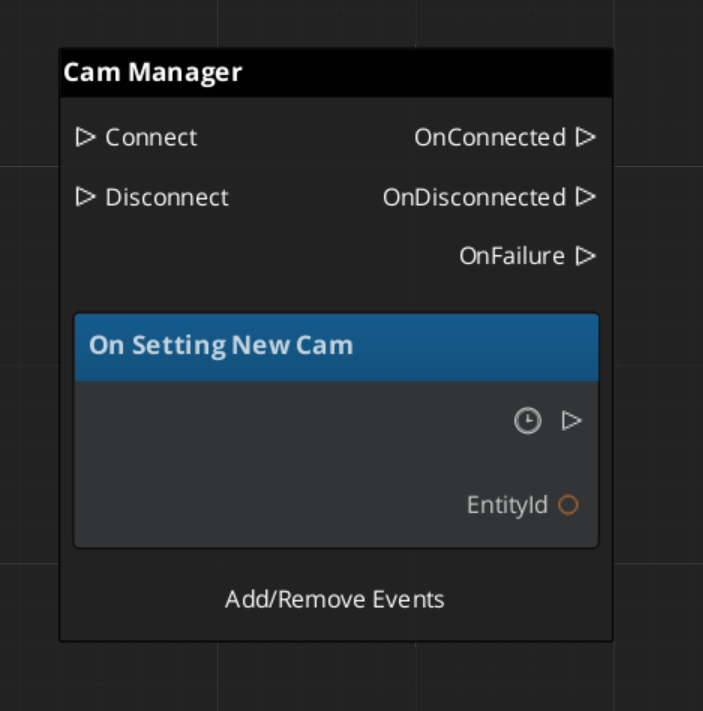
See Also
For related PhantomCam components:
For foundational systems:
For conceptual overviews and usage guides:
Get GS_PhantomCam
GS_PhantomCam — Explore this gem on the product page and add it to your project.
10.2 - Cam Core
The runtime camera driver — applies phantom camera position, rotation, and FOV to the real camera with blend interpolation.
The Cam Core is the runtime driver of the GS_PhantomCam system. It lives on the main camera entity and is responsible for a single job: making the real O3DE camera match the dominant Phantom Camera. Every frame, the Cam Core reads the target phantom camera’s position, rotation, and field of view, then applies those values to the actual camera entity — either instantly (when locked) or through a timed blend transition.
When the Cam Manager determines a new dominant phantom camera, it fires a notification that the Cam Core receives. The Cam Core then looks up the best matching blend in the active Blend Profile and begins interpolating toward the new phantom camera over the specified duration and easing curve (see Curves Utility). Once the blend completes, the main camera locks to the phantom camera as a child entity, matching its transforms exactly until the next transition.
For usage guides and setup examples, see The Basics: GS_PhantomCam.
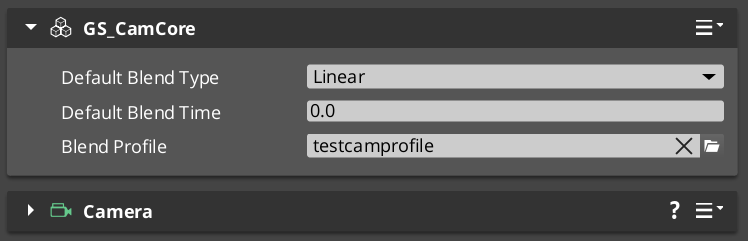
Contents
How It Works
Blend Transitions
When a camera transition is triggered:
- The Cam Core receives the
SettingNewCam notification from the Cam Manager. - It queries the assigned Blend Profile for the best matching blend between the outgoing and incoming camera (by name).
- The blend profile returns the duration and easing curve. If no specific blend is found, the Cam Core falls back to its default blend time and easing.
- Over the blend duration, the Cam Core interpolates position, rotation, and FOV from the outgoing state to the incoming phantom camera state.
- On blend completion, the Cam Core parents the main camera to the phantom camera entity, locking them together.
Blend Profile Resolution
The Cam Core holds a reference to a GS_PhantomCamBlendProfile asset. When a transition occurs, it calls GetBestBlend(fromCam, toCam) on the profile to find the most specific matching blend. The resolution order is:
- Exact match — From camera name to To camera name.
- Any-to-specific — “Any” to the To camera name.
- Specific-to-any — From camera name to “Any”.
- Default fallback — The Cam Core’s own default blend time and easing values.
See Blend Profiles for full details on the resolution hierarchy.
Camera Locking
Once a blend completes, the main camera becomes a child of the dominant phantom camera entity. All position, rotation, and property updates from the phantom camera are reflected immediately on the real camera. This lock persists until the next transition begins.
Setup
- Add GS_CamCoreComponent to your main camera entity. There should be only one Cam Core in the scene.
- Make the main camera entity a child of the Cam Manager entity to ensure it spawns and despawns with the camera system.
- Create a Blend Profile data asset in the Asset Editor and assign it to the Cam Core’s Blend Profile inspector slot.
- Configure the default blend time and easing on the Cam Core component for cases where no blend profile entry matches. See Curves Utility for available easing types.
API Reference
Request Bus: CamCoreRequestBus
Commands sent to the Cam Core. Global bus — Single address, single handler.
| Method | Parameters | Returns | Description |
|---|
SetPhantomCam | AZ::EntityId targetCam | void | Sets the phantom camera that the Cam Core should blend toward or lock to. Typically called by the Cam Manager after priority evaluation. |
GetCamCore | – | AZ::EntityId | Returns the entity ID of the Cam Core (the main camera entity). |
Notification Bus: CamCoreNotificationBus
Events broadcast by the Cam Core. Multiple handler bus — any number of components can subscribe.
| Event | Description |
|---|
UpdateCameraPosition | Fired each frame during an active blend, after the Cam Core has updated the camera’s position, rotation, and FOV. Subscribe to this to react to camera movement in real time. |
Usage Examples
C++ – Querying the Main Camera Entity
#include <GS_PhantomCam/GS_PhantomCamBus.h>

AZ::EntityId mainCameraId;
GS_PhantomCam::CamCoreRequestBus::BroadcastResult(
    mainCameraId,
    &GS_PhantomCam::CamCoreRequestBus::Events::GetCamCore
);
C++ – Listening for Camera Updates
#include <GS_PhantomCam/GS_PhantomCamBus.h>

class MyCameraListener
    : public AZ::Component
    , protected GS_PhantomCam::CamCoreNotificationBus::Handler
{
protected:
    void Activate() override
    {
        GS_PhantomCam::CamCoreNotificationBus::Handler::BusConnect();
    }

    void Deactivate() override
    {
        GS_PhantomCam::CamCoreNotificationBus::Handler::BusDisconnect();
    }

    void UpdateCameraPosition() override
    {
        // React to camera position/rotation changes during blends
    }
};
Script Canvas
Reacting to camera position updates during blends:
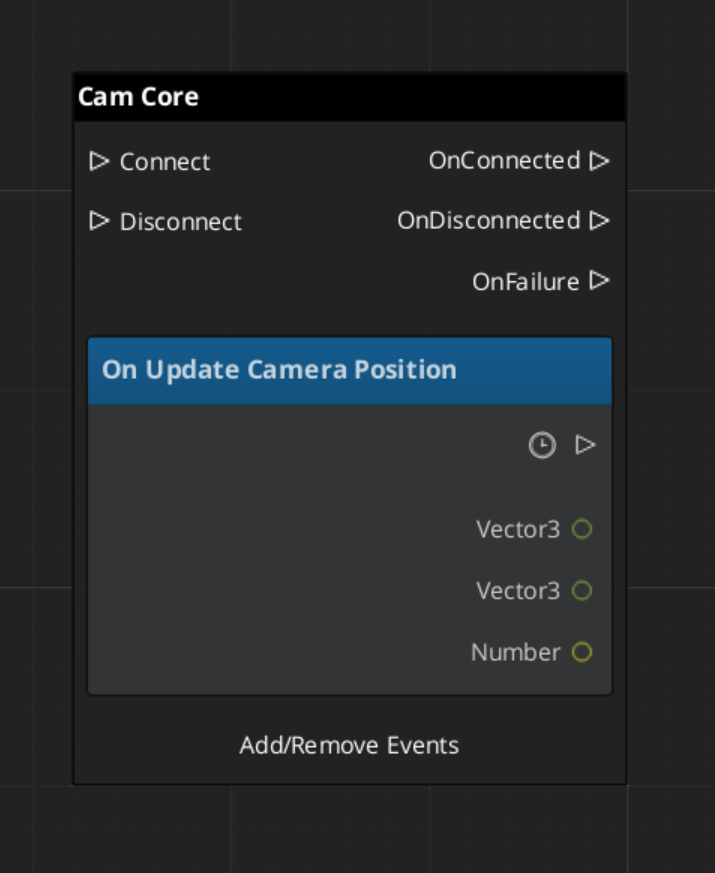
Extending the Cam Core
The Cam Core can be extended in C++ to customize blend behavior, add post-processing logic, or integrate with external camera systems.
#pragma once
#include <GS_PhantomCam/GS_PhantomCamBus.h>
#include <Source/CamCore/GS_CamCoreComponent.h>

namespace MyProject
{
    class MyCamCore : public GS_PhantomCam::GS_CamCoreComponent
    {
    public:
        AZ_COMPONENT_DECL(MyCamCore);

        static void Reflect(AZ::ReflectContext* context);
    };
}
Implementation (.cpp)
#include "MyCamCore.h"
#include <AzCore/Serialization/SerializeContext.h>

namespace MyProject
{
    AZ_COMPONENT_IMPL(MyCamCore, "MyCamCore", "{YOUR-UUID-HERE}");

    void MyCamCore::Reflect(AZ::ReflectContext* context)
    {
        if (auto serializeContext = azrtti_cast<AZ::SerializeContext*>(context))
        {
            serializeContext->Class<MyCamCore, GS_PhantomCam::GS_CamCoreComponent>()
                ->Version(0);

            if (AZ::EditContext* editContext = serializeContext->GetEditContext())
            {
                editContext->Class<MyCamCore>("My Cam Core", "Custom camera core driver")
                    ->ClassElement(AZ::Edit::ClassElements::EditorData, "")
                        ->Attribute(AZ::Edit::Attributes::Category, "MyProject")
                        ->Attribute(AZ::Edit::Attributes::AppearsInAddComponentMenu, AZ_CRC_CE("Game"));
            }
        }
    }
}
See Also
For related PhantomCam components:
For conceptual overviews and usage guides:
Get GS_PhantomCam
GS_PhantomCam — Explore this gem on the product page and add it to your project.
10.3 - Phantom Cameras
Virtual camera components with priority-based selection, follow/look-at targets, offsets, and specialized camera behavior types.
Phantom Cameras are the virtual cameras that power the GS_PhantomCam system. Each phantom camera is an entity component that holds a complete camera state: field of view, clip planes, a follow target, a look-at target, position and rotation offsets, and a priority value. Phantom cameras do not render anything themselves — they represent candidate camera configurations that the Cam Core can blend toward when a phantom becomes dominant.
Any number of phantom cameras can exist in a scene simultaneously. They register with the Cam Manager on activation and are sorted by effective priority. The camera with the highest priority becomes the dominant camera. The Cam Core then blends the real camera to match the dominant phantom’s state using the active Blend Profile.
Specialized phantom camera types (companion components) extend the base behavior with distinct motion patterns: clamped rotation, static orbiting, spline tracking, and billboard facing.
For usage guides and setup examples, see The Basics: GS_PhantomCam.
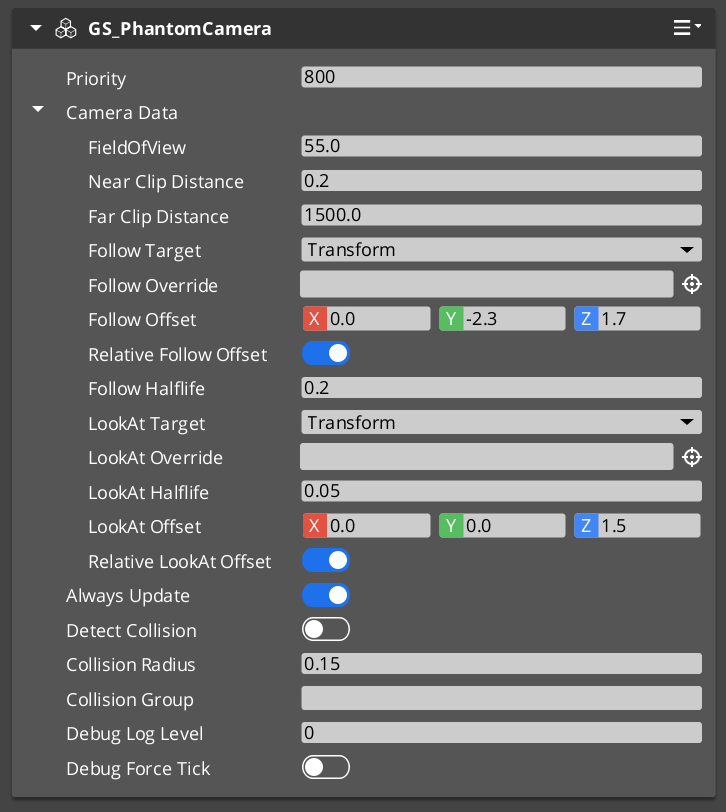
The Phantom Camera component in the Entity Inspector.
Contents
How It Works
Priority-Based Selection
Every phantom camera has a base priority (an integer). The camera with the highest effective priority (base plus any active influences) becomes the dominant camera. You can control which camera is active through several strategies:
- Raise priority — Set the desired camera’s priority above all others.
- Lower neighbors — Reduce competing cameras’ priorities below the desired camera.
- Disable/Enable — Call
DisableCamera on the current dominant camera (drops it to priority 0) or EnableCamera on a previously disabled camera to restore its priority. - Change priority directly — Call
SetCameraPriority or use ChangeCameraPriority on the Cam Manager bus.
Follow and Look-At
Phantom cameras support two independent tracking modes:
- Follow — The camera follows a target entity’s position, applying follow offsets and optional damping. Processing is split into transform-based follow (kinematic) and physics-based follow (respects colliders).
- Look-At — The camera rotates to face a target entity or focus group, applying look-at offsets and optional damping. Processing is split into transform-based and physics-based look-at.
Both modes run through overridable virtual methods, allowing custom camera types to inject their own follow and look-at logic.
Camera Data
Each phantom camera stores its configuration in a PhantomCamData structure. This data is read by the Cam Core during blending and when locked to the phantom camera.
Setup
- Create an entity and add GS_PhantomCameraComponent (or a specialized type like
StaticOrbitPhantomCamComponent). - Set the Priority value. Higher values take precedence.
- Assign a Follow Target entity for position tracking (optional).
- Assign a Look-At Target entity for rotation tracking (optional).
- Configure FOV, clip planes, and offsets as needed.
- Place the entity in your scene. It registers with the Cam Manager automatically on activation.
For a full walkthrough, see the PhantomCam Set Up Guide.
PhantomCamData Structure
The PhantomCamData structure holds the complete configuration for a phantom camera.
| Field | Type | Description |
|---|
FOV | float | Field of view in degrees. |
NearClip | float | Near clipping plane distance. |
FarClip | float | Far clipping plane distance. |
FollowTarget | AZ::EntityId | The entity this camera follows for position tracking. |
LookAtTarget | AZ::EntityId | The entity this camera faces for rotation tracking. |
FollowOffset | AZ::Vector3 | Position offset applied relative to the follow target. |
LookAtOffset | AZ::Vector3 | Position offset applied to the look-at target point. |
API Reference
Request Bus: PhantomCameraRequestBus
Commands sent to a specific phantom camera. ById bus — addressed by entity ID, single handler per address.
| Method | Parameters | Returns | Description |
|---|
EnableCamera | – | void | Enables the phantom camera, restoring its priority and registering it for evaluation. |
DisableCamera | – | void | Disables the phantom camera, dropping its effective priority to 0. |
SetCameraPriority | AZ::s32 newPriority | void | Sets the base priority of this phantom camera and triggers re-evaluation. |
GetCameraPriority | – | AZ::s32 | Returns the current base priority of this phantom camera. |
SetCameraTarget | AZ::EntityId targetEntity | void | Sets the follow target entity for this phantom camera. |
SetTargetFocusGroup | AZ::EntityId targetFocusGroup | void | Sets the focus group entity for multi-target look-at behavior. |
GetCameraData | – | const PhantomCamData* | Returns a pointer to the camera’s full configuration data. |
Virtual Methods
Override these when extending the Phantom Camera. These methods form the per-frame camera behavior pipeline.
| Method | Parameters | Returns | Description |
|---|
StartupCheck | — | void | Called on activation. Validates initial state and registers with the Cam Manager. |
EvaluateCamTick | — | void | Called each tick. Runs the follow and look-at processing pipeline for this camera. |
Follow pipeline:
| Method | Parameters | Returns | Description |
|---|
ProcessTransformFollow | AZ::Vector3& desiredPos, float deltaTime | void | Computes the desired follow position using transform-based (kinematic) movement. |
ProcessPhysicsFollow | float deltaTime | void | Computes follow position using physics-based movement (respects colliders). |
ProcessFollowOffset | AZ::Vector3& destFollowPos, AZ::Transform destWorldTMFollow | void | Applies the follow offset to the computed follow position. |
Look-At pipeline:
| Method | Parameters | Returns | Description |
|---|
ProcessTransformLookAt | AZ::Quaternion& desiredRot, AZ::Transform curWorldTM, float deltaTime | void | Computes the desired look-at rotation using transform-based interpolation. |
ProcessPhysicsLookAt | float deltaTime | void | Computes look-at rotation using physics-based constraints. |
ProcessLookAtOffset | AZ::Vector3& destLookPos, AZ::Transform curWorldTM, AZ::Transform destWorldTMLook | void | Applies the look-at offset to the computed look-at position. |
Camera Behavior Types
Specialized companion components extend the base phantom camera with distinct motion behaviors. Add these alongside GS_PhantomCameraComponent on the same entity.
ClampedLook_PhantomCamComponent
A phantom camera with angle-clamped look rotation. The camera tracks its look-at target but clamps the rotation within defined minimum and maximum angles. Useful for fixed-angle security cameras, limited-rotation turret views, or any situation where the camera should not rotate beyond defined bounds.
StaticOrbitPhantomCamComponent
A phantom camera that maintains a fixed orbital position around its target. The camera stays at a set distance and angle from the follow target without player input. Useful for fixed-perspective gameplay cameras, environmental showcase views, or pre-positioned cinematic angles.
See Static Orbit Cam for full details.
Track_PhantomCamComponent
A phantom camera that follows a spline or path. The camera moves along a predefined trajectory, optionally tracking a look-at target while moving. Useful for cinematic fly-throughs, guided tours, and scripted camera movements.
AlwaysFaceCameraComponent
A billboard helper component. Keeps the attached entity always facing the active camera. This is not a phantom camera type itself but a utility for objects that should always face the viewer (UI elements in world space, sprite-based effects, etc.).
Usage Examples
Switching Cameras by Priority
To make a specific phantom camera dominant, raise its priority above all others:
#include <GS_PhantomCam/GS_PhantomCamBus.h>

// Set camera to high priority to make it dominant
GS_PhantomCam::PhantomCameraRequestBus::Event(
    myCameraEntityId,
    &GS_PhantomCam::PhantomCameraRequestBus::Events::SetCameraPriority,
    100
);
Disabling the Current Camera
Disable the current dominant camera to let the next-highest priority camera take over:
GS_PhantomCam::PhantomCameraRequestBus::Event(
    currentCameraEntityId,
    &GS_PhantomCam::PhantomCameraRequestBus::Events::DisableCamera
);
Script Canvas
Enabling and disabling a phantom camera:
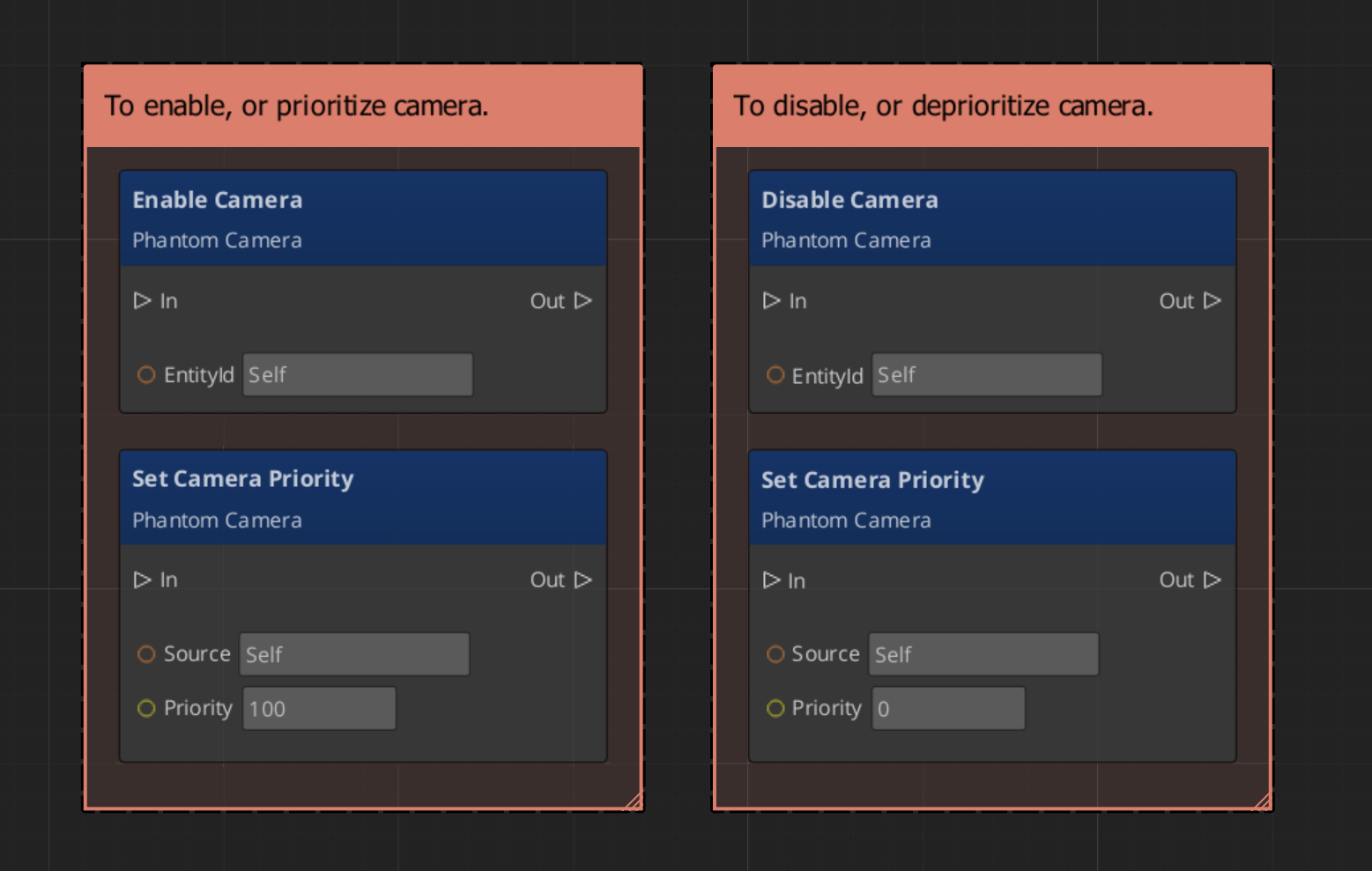
Getting a phantom camera’s data:
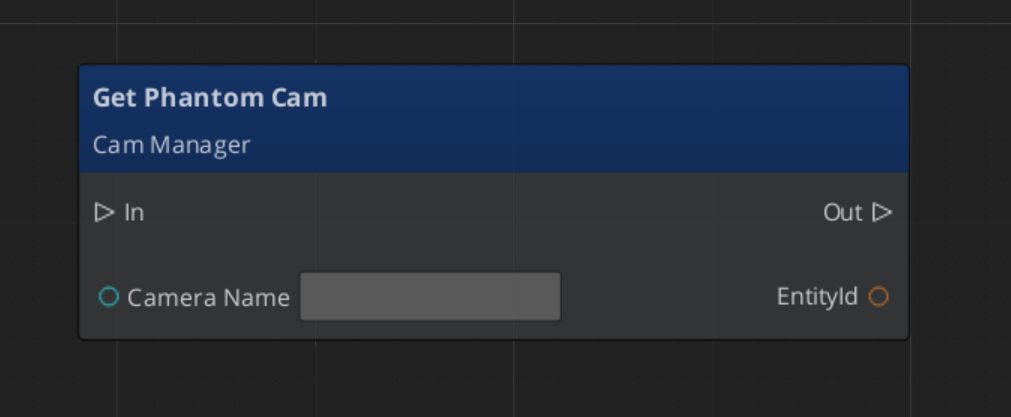
Extending Phantom Cameras
Use the PhantomCamera ClassWizard template to generate a new camera component with boilerplate already in place — see GS_PhantomCam Templates. cmake and module registration are fully automatic.
Create custom phantom camera types by extending GS_PhantomCameraComponent. Override the virtual methods to implement custom follow, look-at, or per-tick behavior.
#pragma once
#include <GS_PhantomCam/GS_PhantomCamBus.h>
#include <Source/PhantomCamera/GS_PhantomCameraComponent.h>

namespace MyProject
{
    class MyCustomCam : public GS_PhantomCam::GS_PhantomCameraComponent
    {
    public:
        AZ_COMPONENT_DECL(MyCustomCam);

        static void Reflect(AZ::ReflectContext* context);

    protected:
        void EvaluateCamTick() override;
        void ProcessTransformFollow(AZ::Vector3& desiredPos, float deltaTime) override;
        void ProcessTransformLookAt(AZ::Quaternion& desiredRot, AZ::Transform curWorldTM, float deltaTime) override;
    };
}
Implementation (.cpp)
#include "MyCustomCam.h"
#include <AzCore/Serialization/SerializeContext.h>

namespace MyProject
{
    AZ_COMPONENT_IMPL(MyCustomCam, "MyCustomCam", "{YOUR-UUID-HERE}");

    void MyCustomCam::Reflect(AZ::ReflectContext* context)
    {
        if (auto serializeContext = azrtti_cast<AZ::SerializeContext*>(context))
        {
            serializeContext->Class<MyCustomCam, GS_PhantomCam::GS_PhantomCameraComponent>()
                ->Version(0);

            if (AZ::EditContext* editContext = serializeContext->GetEditContext())
            {
                editContext->Class<MyCustomCam>("My Custom Camera", "Custom phantom camera behavior")
                    ->ClassElement(AZ::Edit::ClassElements::EditorData, "")
                        ->Attribute(AZ::Edit::Attributes::Category, "MyProject")
                        ->Attribute(AZ::Edit::Attributes::AppearsInAddComponentMenu, AZ_CRC_CE("Game"));
            }
        }
    }

    void MyCustomCam::EvaluateCamTick()
    {
        // Call base to run standard follow/look-at pipeline
        GS_PhantomCameraComponent::EvaluateCamTick();

        // Add custom per-tick logic (screen shake, zoom pulses, etc.)
    }

    void MyCustomCam::ProcessTransformFollow(AZ::Vector3& desiredPos, float deltaTime)
    {
        // Call base for standard follow behavior
        GS_PhantomCameraComponent::ProcessTransformFollow(desiredPos, deltaTime);

        // Modify desiredPos for custom follow behavior
    }

    void MyCustomCam::ProcessTransformLookAt(
        AZ::Quaternion& desiredRot, AZ::Transform curWorldTM, float deltaTime)
    {
        // Call base for standard look-at behavior
        GS_PhantomCameraComponent::ProcessTransformLookAt(desiredRot, curWorldTM, deltaTime);

        // Modify desiredRot for custom look-at behavior
    }
}
See Also
For related PhantomCam components:
For conceptual overviews and usage guides:
Get GS_PhantomCam
GS_PhantomCam — Explore this gem on the product page and add it to your project.
10.3.1 - Orbit Cam
A player-controlled orbit phantom camera type — planned for a future release.
The Orbit Cam is a planned phantom camera type that will provide player-controlled orbital camera behavior: the camera orbits around a follow target based on player input, with configurable distance, pitch limits, and rotation speed.
This camera type is not yet available. When implemented, it will appear as a companion component alongside GS_PhantomCameraComponent on the camera entity.
For usage guides and setup examples, see The Basics: GS_PhantomCam.
See Also
Get GS_PhantomCam
GS_PhantomCam — Explore this gem on the product page and add it to your project.
10.3.2 - Static Orbit Cam
A phantom camera that maintains a fixed orbital position around its target — no player input, fixed distance and angle.
The Static Orbit Cam is a specialized Phantom Camera type that maintains a fixed orbital position around its follow target. Unlike an input-driven orbit camera, the Static Orbit Cam holds a constant distance, pitch, and yaw relative to the target — the player does not control the orbit angle. The camera automatically rotates to keep the target centered while maintaining its fixed offset.
This camera type is useful for fixed-perspective gameplay (top-down, isometric, side-scrolling), environmental showcase views, and pre-positioned cinematic angles where the camera should orbit a subject without player control.
For usage guides and setup examples, see The Basics: GS_PhantomCam.
How It Works
The StaticOrbitPhantomCamComponent extends GS_PhantomCameraComponent and overrides the follow pipeline to maintain a fixed orbital offset. Each tick:
- The component reads the follow target’s world position.
- It applies the configured orbit distance, pitch, and yaw to compute the camera’s world position relative to the target.
- The camera rotates to face the target.
- Standard Phantom Camera look-at processing applies on top if a separate look-at target is configured.
Because the orbit parameters are fixed, the camera smoothly tracks the target’s movement while preserving the same viewing angle at all times.
Setup
- Create an entity and add GS_PhantomCameraComponent.
- Add StaticOrbitPhantomCamComponent to the same entity.
- Set the Follow Target to the entity the camera should orbit around.
- Configure the orbit Distance, Pitch, and Yaw on the Static Orbit component.
- Set the Priority on the Phantom Camera component.
- The camera registers with the Cam Manager automatically on activation.
Inspector Properties
| Property | Type | Description |
|---|
OrbitDistance | float | The fixed distance from the camera to the follow target. |
OrbitPitch | float | The vertical angle of the orbit in degrees. 0 is level; positive values look down. |
OrbitYaw | float | The horizontal angle of the orbit in degrees. 0 faces the target’s forward direction. |
See Also
Get GS_PhantomCam
GS_PhantomCam — Explore this gem on the product page and add it to your project.
10.3.3 - First Person Cam
A first-person phantom camera type — planned for a future release.
The First Person Cam is a planned phantom camera type that will provide first-person camera behavior: the camera is positioned at the follow target’s head position and rotates based on player input, with configurable pitch and yaw limits.
This camera type is not yet available. When implemented, it will appear as a companion component alongside GS_PhantomCameraComponent on the camera entity.
For usage guides and setup examples, see The Basics: GS_PhantomCam.
See Also
Get GS_PhantomCam
GS_PhantomCam — Explore this gem on the product page and add it to your project.
10.4 - Blend Profiles
Data assets defining camera transition behavior — blend duration, easing curves, and per-camera-pair transition overrides.
Blend Profiles are data assets that control how the Cam Core transitions between Phantom Cameras. Each profile contains a list of blend entries, where each entry defines a From camera, a To camera, a blend duration, and an easing curve (see Curves Utility). This allows every camera-to-camera transition in your project to have unique timing and feel.
The GS_PhantomCamBlendProfile asset is created in the Asset Editor and assigned to the Cam Core component. When a camera transition occurs, the Cam Core queries the profile for the best matching blend entry.
For usage guides and setup examples, see The Basics: GS_PhantomCam.
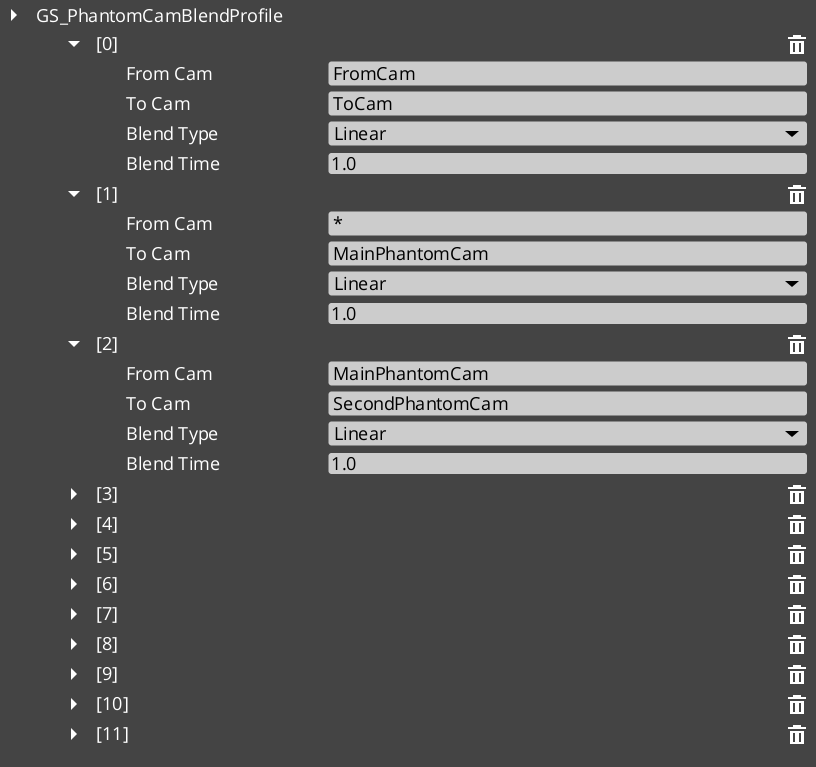
Contents
How It Works
Blend Entries
Each entry in a Blend Profile defines a single transition rule:
- From Camera — The name of the outgoing camera (the entity name of the phantom camera being left).
- To Camera — The name of the incoming camera (the entity name of the phantom camera being transitioned to).
- Blend Time — The duration of the transition in seconds.
- Easing Type — The interpolation curve applied during the blend. See Curves Utility for the full list of available easing types.
Camera names correspond to the entity names of your phantom camera entities in the scene.
Best Target Blend
When the Cam Core needs to transition, it calls GetBestBlend(fromCam, toCam) on the assigned Blend Profile. The system evaluates blend entries in order of specificity:
- Exact match — An entry with both the From and To camera names matching exactly.
- Any-to-specific — An entry with From set to blank or “any” and To matching the incoming camera name.
- Specific-to-any — An entry with From matching the outgoing camera name and To set to blank or “any”.
- Default fallback — If no entry matches, the Cam Core uses its own default blend time and easing values configured on the component.
This layered resolution allows you to define broad defaults (e.g. “any” to “any” at 1.0 seconds) while overriding specific transitions (e.g. “MenuCam” to “GameplayCam” at 2.5 seconds with ease-in-out).
Data Model
GS_PhantomCamBlendProfile
The top-level asset class. Extends AZ::Data::AssetData. Requires GS_AssetReflectionIncludes.h when reflecting — see Serialization Helpers.
| Field | Type | Description |
|---|
Blends | AZStd::vector<PhantomBlend> | The list of blend entries defining camera transitions. |
PhantomBlend
A single blend entry within the profile.
| Field | Type | Description |
|---|
FromCamera | AZStd::string | The entity name of the outgoing phantom camera. Blank or “any” matches all outgoing cameras. |
ToCamera | AZStd::string | The entity name of the incoming phantom camera. Blank or “any” matches all incoming cameras. |
BlendTime | float | Duration of the blend transition in seconds. |
EasingType | EasingCurve | The interpolation curve for the blend. See Curves Utility. |
API Reference
GS_PhantomCamBlendProfile Methods
| Method | Parameters | Returns | Description |
|---|
GetBestBlend | AZStd::string fromCam, AZStd::string toCam | const PhantomBlend* | Returns the best matching blend entry for the given camera pair, or nullptr if no match is found. Resolution follows the specificity hierarchy. |
Creating a Blend Profile
- Open the Asset Editor in O3DE.
- Select New and choose GS_BlendProfile from the asset type list.
- Add blend entries using the + button.
- For each entry:
- Set the From Camera name (or leave blank for “any”).
- Set the To Camera name (or leave blank for “any”).
- Set the Blend Time in seconds.
- Choose an Easing Type from the dropdown.
- Save the asset.
- Assign the asset to the Cam Core component’s Blend Profile inspector slot.
For a full walkthrough, see the PhantomCam Set Up Guide.
See Also
For related PhantomCam components:
For related resources:
For conceptual overviews and usage guides:
Get GS_PhantomCam
GS_PhantomCam — Explore this gem on the product page and add it to your project.
10.5 - Camera Influence Fields
Global and spatial camera influence components — priority modifiers that affect phantom camera selection without changing base priorities.
Camera Influence Fields modify the effective priority of Phantom Cameras without changing their base priority values. They call AddCameraInfluence / RemoveCameraInfluence on the Cam Manager bus, identified by camera name. Multiple influences on the same camera stack additively.
There are two influence component types:
- GlobalCameraInfluenceComponent — Applies a priority influence globally for its entire active lifetime. Place this on the StageData entity so it activates and deactivates automatically with the stage.
- CameraInfluenceFieldComponent — Applies a priority influence only when the player enters a defined spatial volume. Requires a PhysX Collider set as a trigger on the same entity. See Physics Trigger Volume Utility.
For usage guides and setup examples, see The Basics: GS_PhantomCam.
Contents
How It Works
Global Influence
The GlobalCameraInfluenceComponent applies a constant priority modifier to a named phantom camera. On Activate(), it calls AddCameraInfluence on the Cam Manager bus. On Deactivate(), it calls RemoveCameraInfluence.
Placement: Add this component to the StageData entity. Because StageData activates at stage load and deactivates at stage unload, the camera influence is automatically scoped to the stage that defines it — no manual enable/disable management needed.
Spatial Influence
The CameraInfluenceFieldComponent uses a PhysX Collider (trigger mode) to detect when the player enters or exits a defined region. On entry, it adds the influence; on exit, it removes it. See Physics Trigger Volume Utility for collider setup.
This is useful for level design — switching to an overhead camera when the player enters a specific room, or boosting a scenic camera in a vista area.
Influence Stacking
Multiple influences can be active on the same camera simultaneously. The Cam Manager sums all active influences with the base priority to compute the effective priority used during EvaluatePriority().
CamInfluenceData Structure
Both component types use the CamInfluenceData structure to define their effect.
| Field | Type | Description |
|---|
CameraName | AZStd::string | Entity name of the phantom camera to influence. Must match exactly. |
Influence | float | Priority modifier. Positive values increase effective priority; negative values decrease it. |
API Reference
Request Bus: GlobalCameraInfluenceRequestBus
Commands for the global camera influence system. Single address, single handler.
| Method | Parameters | Returns | Description |
|---|
AddCameraInfluence | AZStd::string camName, float influence | void | Adds a priority influence to the named camera. Delegates to the Cam Manager. |
RemoveCameraInfluence | AZStd::string camName, float influence | void | Removes a priority influence from the named camera. Delegates to the Cam Manager. |
Component Reference
GlobalCameraInfluenceComponent
Applies a camera priority influence globally for its entire active lifetime.
| Property | Type | Description |
|---|
CamInfluenceData | CamInfluenceData | The camera name and influence value to apply. |
Behavior: On Activate(), adds the influence. On Deactivate(), removes it. Constant while active.
Placement: Add to the StageData entity to scope the influence to the stage lifecycle.
CameraInfluenceFieldComponent
Applies a camera priority influence when the player enters a spatial trigger volume.
| Property | Type | Description |
|---|
CamInfluenceData | CamInfluenceData | The camera name and influence value to apply when triggered. |
Behavior: Requires a PhysX Collider (trigger) on the same entity. Entry adds the influence; exit removes it.
Setup:
- Add CameraInfluenceFieldComponent to an entity.
- Add a PhysX Collider (set as trigger) to the same entity. See Physics Trigger Volume Utility.
- Set the Camera Name to the target phantom camera’s entity name.
- Set the Influence value (positive to boost, negative to reduce priority).
Usage Examples
C++ – Adding a Global Influence
#include <GS_PhantomCam/GS_PhantomCamBus.h>

// Boost "CinematicCam" priority by 50 during a cutscene
GS_PhantomCam::CamManagerRequestBus::Broadcast(
    &GS_PhantomCam::CamManagerRequestBus::Events::AddCameraInfluence,
    AZStd::string("CinematicCam"),
    50.0f
);

// Remove the boost when the cutscene ends
GS_PhantomCam::CamManagerRequestBus::Broadcast(
    &GS_PhantomCam::CamManagerRequestBus::Events::RemoveCameraInfluence,
    AZStd::string("CinematicCam"),
    50.0f
);
See Also
For related PhantomCam components:
For related utilities:
For conceptual overviews and usage guides:
Get GS_PhantomCam
GS_PhantomCam — Explore this gem on the product page and add it to your project.
10.6 - Templates
ClassWizard templates for GS_PhantomCam — custom phantom camera behaviour components.
All GS_PhantomCam extension types are generated through the ClassWizard CLI. The wizard handles UUID generation, cmake file-list registration, and module descriptor injection automatically.
For usage guides and setup examples, see The Basics: GS_PhantomCam.
python ClassWizard.py \
    --template <TemplateName> \
    --gem <GemPath> \
    --name <SymbolName> \
    [--input-var key=value ...]
Contents
Phantom Camera Component
Template: PhantomCamera
Creates a custom camera behaviour component, a child of GS_PhantomCameraComponent. Multiple camera components can coexist on a Camera Entity; the GS_CamManagerComponent activates them by priority. Override the follow, look-at, and tick virtuals to define custom camera positioning and aiming logic.
Generated files:
Source/${Name}PhantomCamComponent.h/.cpp
CLI:
python ClassWizard.py --template PhantomCamera --gem <GemPath> --name <Name>
Post-generation: None — cmake and module registration are fully automatic. Override the following virtual methods:
| Method | Purpose |
|---|
ProcessPhysicsFollow() | Drive camera position each physics tick using VelocitySpringDamper |
ProcessPhysicsLookAt() | Drive camera rotation using QuaternionSpringDamper |
EvaluateCamTick(dt) | Per-frame camera logic (blend weights, FOV, offsets) |
ProcessTransformFollow() | Position follow when physics is not available |
ProcessTransformLookAt() | Rotation follow when physics is not available |
Extensibility: One component per camera mode (e.g. ThirdPerson, Aim, Dialogue, Cinematic). Components declare incompatibility with GS_PhantomCameraComponentService so only one camera behaviour is active at a time on an entity. Swap active cameras by toggling component activation, or let the CamManager handle priority.
See also: Phantom Cameras — full extension guide with complete header and implementation examples.
See Also
For the full API, component properties, and C++ extension guide:
For all ClassWizard templates across GS_Play gems:
Get GS_PhantomCam
GS_PhantomCam — Explore this gem on the product page and add it to your project.
10.7 - 3rd Party Implementations
For usage guides and setup examples, see The Basics: GS_PhantomCam.
Get GS_PhantomCam
GS_PhantomCam — Explore this gem on the product page and add it to your project.
11 - GS_Stats
RPG stat definitions, stat containers, and a polymorphic status effect system for character and entity attribute management.
GS_Stats provides the attribute and status effect layer for GS_Play projects. It gives entities a stat container that holds named, typed values (health, stamina, speed, and any custom stat you define), and a status effect system that applies timed or conditional modifications to those stats. GS_Stats is under active development — the API surface is evolving and some features listed here may expand in future releases.
For usage guides and setup examples, see The Basics: GS_Stats.
Contents
Status Effects
The status effect system applies timed or trigger-driven modifications to entity stats. Effects are polymorphic data assets that define what stat they target, how they modify it, and when they expire. Multiple effects stack on the same entity and resolve in a defined order.
| Area | Contents |
|---|
| Effect Assets | Data-driven effect definitions with target stat, modification type, magnitude, and duration. |
| Effect Container | Runtime component that holds the active effect stack for an entity and processes tick-based expiry. |
| Modification Types | Additive, multiplicative, and override modification strategies. |
| Conditions | Conditional triggers for applying or removing effects based on stat thresholds or game records. |
Status Effects API
Installation
GS_Stats is a standalone gem with no external GS gem dependencies beyond GS_Core.
- Enable GS_Stats and GS_Core in your O3DE project’s gem list.
- Add the stat container component to any entity that requires tracked attributes.
- Define stat definitions in your project’s stat registry (data asset).
- Add status effect asset files to your project and reference them from abilities, items, or world triggers.
Note: GS_Stats is under active development. Check the changelog for the latest additions before starting integration work.
See Also
For conceptual overviews and usage guides:
For sub-system references:
For related resources:
Get GS_Stats
GS_Stats — Explore this gem on the product page and add it to your project.
11.1 - 3rd Party Implementations
For usage guides and setup examples, see The Basics: GS_Stats.
Get GS_Stats
GS_Stats — Explore this gem on the product page and add it to your project.
11.2 - Status Effect
The core gem for the GS_Play framework.
For usage guides and setup examples, see The Basics: GS_Stats.
Get GS_Stats
GS_Stats — Explore this gem on the product page and add it to your project.
12 - GS_Complete
Cross-gem integration layer — reference components that combine multiple GS_Play gems for camera-aware performers, cinematic controllers, and dialogue UI selection.
GS_Complete is the cross-gem integration layer. It depends on every other GS gem and provides reference components that combine functionality from two or more gems — camera-aware paper facing, cinematic-driven unit controllers, dialogue camera effects, and dialogue UI selection buttons. GS_Complete exists as a pattern reference: it proves that gem combination works cleanly via companion components and bus events, without modifying any gem’s source code.
Contents
Cinematics + PhantomCam
Dialogue effects that control camera behavior during conversations. These extend DialogueEffect and are discovered automatically through O3DE serialization, demonstrating how external gems add new dialogue effects without modifying GS_Cinematics.
| Component | Purpose |
|---|
| SetCamPriority_DialogueEffectComponent | Dialogue effect that changes a phantom camera’s priority during a dialogue sequence. |
| TogglePhantomCam_DialogueEffectComponent | Dialogue effect that enables or disables a phantom camera during a dialogue sequence. |
Cinematics + UI
Connects LyShine button interactions to the dialogue selection system, enabling player choice UI in dialogue sequences.
| Component | Purpose |
|---|
| GS_UIDialogueSelectButtonComponent | Button component for dialogue choice selection — bridges LyShine button events to dialogue selection bus events. |
Camera-aware extensions for the Performer system, enabling 2.5D paper characters to face the active camera correctly.
| Component | Purpose |
|---|
| CamCorePaperFacingHandlerComponent | Camera-aware paper facing for 2.5D performers — uses CamCore notifications to adjust paper performer facing direction relative to the active camera. |
Unit + Cinematics
Unit controller extensions driven by the cinematic system rather than player input.
| Component | Purpose |
|---|
| CinematicControllerComponent | Unit controller driven by cinematic sequences — extends GS_UnitControllerComponent to be driven by cinematic playback. |
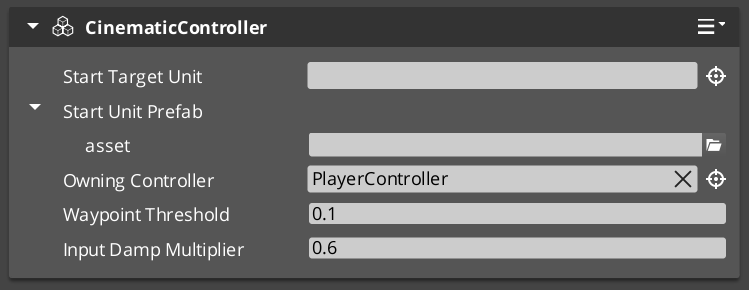
Architecture
GS_Complete follows the companion component pattern — each cross-gem component lives on the same entity as the components it integrates, communicating via their existing EBus interfaces. No gem source code is modified.
GS_Complete (integration layer)
    ├── Cinematics × PhantomCam
    │       ├── SetCamPriority_DialogueEffectComponent
    │       └── TogglePhantomCam_DialogueEffectComponent
    ├── Cinematics × UI
    │       └── GS_UIDialogueSelectButtonComponent
    ├── Performer × PhantomCam
    │       └── CamCorePaperFacingHandlerComponent
    └── Unit × Cinematics
            └── CinematicControllerComponent
System Components
| Component | Purpose |
|---|
| GS_CompleteSystemComponent | Runtime system component for GS_Complete. |
Dependencies
- All GS gems (required — GS_Core, GS_Audio, GS_Cinematics, GS_Environment, GS_Interaction, GS_Juice, GS_Performer, GS_PhantomCam, GS_UI, GS_Unit, GS_AI, GS_Platform)
- LyShine (required — for dialogue UI selection)
- RecastNavigation (required — via GS_Cinematics)
Installation
- Enable the GS_Complete gem in your project configuration.
- Ensure all other GS gems are also enabled — GS_Complete depends on the full suite.
- Add cross-gem components to entities alongside the gem components they integrate.
See Also
For conceptual overviews and usage guides:
For related API references:
12.1 - Third Party Implementations
Integration guides for third-party cross-gem components with GS_Complete.
This section will contain integration guides for connecting third-party cross-gem components with the GS_Complete integration layer.
13 - GS_UI
The complete UI framework — single-tier page navigation, motion-based animations, enhanced buttons, input interception, load screens, and pause menus.
GS_UI is the gem that builds the game’s interface layer on top of O3DE’s LyShine system. It replaces the old multi-tier Hub/Window/Page hierarchy with a clean single-tier model: the UI Manager owns canvases, and each canvas root is a Page that can parent any depth of nested child Pages. Navigation is fully recursive — any page can push, pop, or swap focus within its subtree. Animations are authored as .uiam data assets using eight LyShine-specific motion tracks (position, scale, rotation, alpha, color, text). Buttons, input interception, load screens, and pause menus round out the feature set.
For usage guides and setup examples, see The Basics: GS_UI.
Contents
UI Manager
The singleton that owns all loaded canvases. The UI Manager loads and unloads canvases by name, maintains a global focus stack across canvases, and drives the startup focus sequence deterministically.
| Component | Purpose |
|---|
| GS_UIManagerComponent | Singleton manager. Loads canvases, maintains global focus stack, drives startup focus. |
UI Manager API
Page Navigation
The core navigation system. A single GS_UIPageComponent replaces the old Hub, Window, and Page roles. When m_isRoot is true, the page registers itself with the UI Manager as a root canvas entry point. Pages can parent other pages to form any navigation depth. Focus is managed through push/pop stacks at each level.
| Component | Purpose |
|---|
| GS_UIPageComponent | Core navigation component. Handles root canvas registration, child page management, focus push/pop, and show/hide transitions. |
Pages API
UI Interaction
The button and input interception layer. GS_ButtonComponent plays motion-based animations on hover and select. GS_UIInputInterceptorComponent captures input events while a canvas is focused, preventing them from reaching gameplay systems.
UI Interaction API
UI Animation
A GS_Motion extension with eight LyShine-specific animation tracks. Animations are authored as .uiam assets in the editor and referenced by page transition fields or played directly by the standalone motion component.
UI Animation API
Standalone UI components for game-event-driven scenarios outside the page navigation model — load screens during transitions, pause menus overlaying gameplay.
Widgets API
Installation
GS_UI requires GS_Core, LyShine, and LmbrCentral.
- Enable GS_UI in Project Manager or
project.json. - Add GS_UIManagerComponent to the Game Manager entity and register it in the Startup Managers list.
- Create a LyShine canvas and add GS_UIPageComponent (with
m_isRoot = true) to the root element. - Set
m_uiName on the root page to match the name you will use when calling LoadGSUI. - Nest child pages under the root by adding GS_UIPageComponent to child entities and connecting them through
m_defaultChildPage. - Refer to the UI Set Up Guide for a full walkthrough.
See Also
For conceptual overviews and usage guides:
For related resources:
Get GS_UI
GS_UI — Explore this gem on the product page and add it to your project.
13.1 - UI Manager
The singleton manager that owns all loaded UI canvases, maintains a global focus stack, and drives the startup focus sequence.
For usage guides and setup examples, see The Basics: GS_UI.
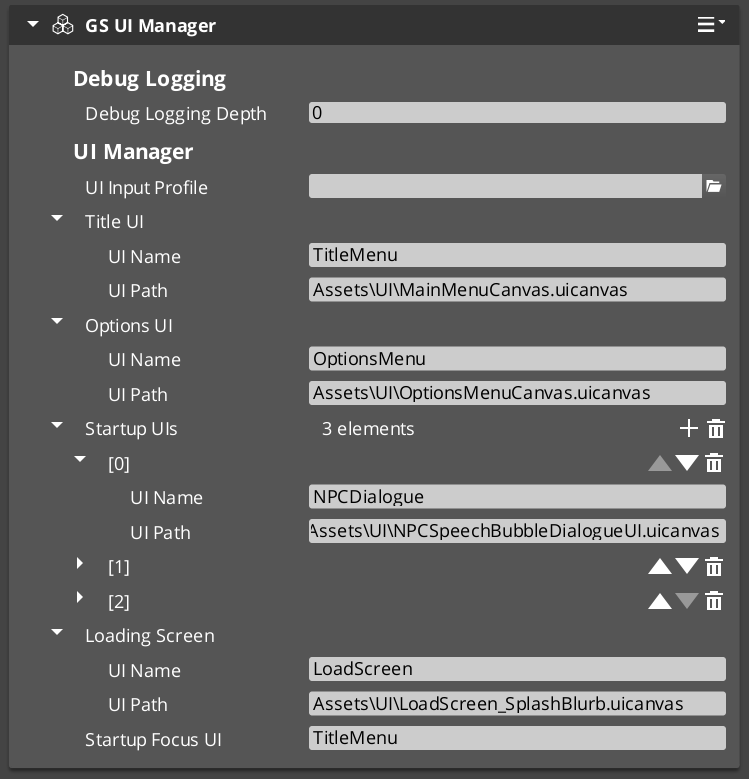
The UI Manager is the singleton that controls the lifecycle of every UI canvas in your project. It loads and unloads LyShine canvases by name, maintains a global focus stack that tracks which canvas is currently active, and drives the startup focus sequence so that the correct UI appears automatically when the game finishes initializing.
GS_UIManagerComponent extends GS_ManagerComponent, which means it participates in the Game Manager’s staged startup. It is spawned by the Game Manager alongside other managers and receives OnStartupComplete to begin loading canvases and focusing the startup UI.
Contents
How It Works
Canvas Lifecycle
Each UI canvas is identified by a unique name string. You call LoadGSUI(name, path) to load a canvas from a .uicanvas asset path and associate it with the given name. The manager stores this in its m_activeUIs map. When you no longer need the canvas, call UnloadGSUI(name) to destroy it and remove it from the map.
Once a canvas is loaded, its root page component (a GS_UIPageComponent with m_isRoot = true) calls RegisterRootPage(name, entity) to register itself as the entry point for that canvas. The manager returns true if registration succeeds, false if the name is already registered or does not match a loaded canvas.
Global Focus Stack
The UI Manager maintains m_globalFocusStack, which tracks the order of focused canvases. When you call FocusUI(name), the named canvas is pushed onto the focus stack and becomes the active UI. NavLastUI() pops the current canvas and returns focus to the previous one. This allows layered UI flows such as opening a settings menu on top of a pause menu and navigating back through them in order.
ToggleUI(name, on) shows or hides a canvas by name. When toggling on, it calls FocusUI internally; when toggling off, it removes the canvas from the focus stack.
GetFocusedUI() returns the name of the currently focused canvas (the top of the stack).
Startup Sequence
The UI Manager’s startup follows this deterministic sequence:
- OnStartupComplete — The Game Manager broadcasts startup complete. The UI Manager loads all configured canvases via
LoadGSUI. - Root Page Registration — Each canvas’s root page component calls
RegisterRootPage(name, entity) during its own activation. - Startup Focus — The UI Manager checks each registered root page name against
m_startupFocusUI. When it finds a match, it calls FocusUI(name) to focus that canvas as the initial UI.
This sequence ensures that canvases are loaded before pages register, and the correct startup UI receives focus without race conditions.
Data Types
UICanvasWindowPair
A pairing of a loaded LyShine canvas entity with its associated root page entity. Used internally by the UI Manager to track loaded canvases.
UINamePathPair
A pairing of a UI name string with a .uicanvas asset path. Used to configure which canvases the UI Manager loads on startup.
Inspector Properties
| Property | Type | Description |
|---|
| Startup Focus UI | AZStd::string | The name of the UI canvas to focus automatically after startup completes. Must match a registered root page name. |
| UI Name Path Pairs | AZStd::vector<UINamePathPair> | The list of canvas name/path pairs to load on startup. Each entry maps a unique name to a .uicanvas asset path. |
API Reference
Request Bus: UIManagerRequestBus
Commands sent to the UI Manager. Singleton bus — Single address, single handler.
| Method | Parameters | Returns | Description |
|---|
LoadGSUI | const AZStd::string& name, const AZStd::string& path | void | Loads a LyShine canvas from the given asset path and registers it under the given name. |
UnloadGSUI | const AZStd::string& name | void | Destroys the canvas registered under the given name and removes it from the active UI map. |
RegisterRootPage | const AZStd::string& name, AZ::EntityId entity | bool | Registers a root page entity for the named canvas. Returns true on success, false if the name is unrecognized or already registered. |
UnregisterRootPage | const AZStd::string& name | void | Removes the root page registration for the named canvas. |
FocusUI | const AZStd::string& name | void | Pushes the named canvas onto the global focus stack and activates it. |
NavLastUI | — | void | Pops the current canvas from the global focus stack and returns focus to the previous canvas. |
ToggleUI | const AZStd::string& name, bool on | void | Shows or hides the named canvas. Toggling on focuses it; toggling off removes it from the focus stack. |
GetFocusedUI | — | AZStd::string | Returns the name of the currently focused UI canvas (top of the global focus stack). |
GetUICanvasEntity | const AZStd::string& name | AZ::EntityId | Returns the LyShine canvas entity for the named UI. |
GetUIRootPageEntity | const AZStd::string& name | AZ::EntityId | Returns the root page entity registered for the named UI. |
Usage Examples
C++ – Loading and Focusing a UI Canvas
#include <GS_UI/GS_UIBus.h>

// Load a canvas
GS_UI::UIManagerRequestBus::Broadcast(
    &GS_UI::UIManagerRequestBus::Events::LoadGSUI,
    AZStd::string("TitleScreen"),
    AZStd::string("ui/titlescreen.uicanvas")
);

// Focus it
GS_UI::UIManagerRequestBus::Broadcast(
    &GS_UI::UIManagerRequestBus::Events::FocusUI,
    AZStd::string("TitleScreen")
);
C++ – Navigating Back
// Return to the previous UI in the focus stack
GS_UI::UIManagerRequestBus::Broadcast(
    &GS_UI::UIManagerRequestBus::Events::NavLastUI
);
C++ – Toggling a UI Canvas
// Show the pause menu
GS_UI::UIManagerRequestBus::Broadcast(
    &GS_UI::UIManagerRequestBus::Events::ToggleUI,
    AZStd::string("PauseMenu"),
    true
);
See Also
For conceptual overviews and usage guides:
For component references:
Get GS_UI
GS_UI — Explore this gem on the product page and add it to your project.
13.2 - Page Navigation
The core single-tier navigation component – root canvas registration, nested child page management, focus push/pop stacks, and show/hide transitions.
For usage guides and setup examples, see The Basics: GS_UI.

The GS_UIPageComponent in the UI Editor, configured as a root page with a default child page assigned.
GS_UIPageComponent is the core navigation component of the GS_UI system. It replaces the legacy multi-tier Hub/Window/Page hierarchy with a single, unified component that handles all levels of UI navigation. A single GS_UIPageComponent can serve as a root canvas entry point, a mid-level container, or a leaf page – its role is determined entirely by configuration.
When m_isRoot is set to true, the page registers itself with the UI Manager as the root entry point for its canvas. Non-root pages are nested as children of other pages and managed through their parent’s child page system. This creates a single-tier model where any depth of navigation is achieved through recursive nesting of the same component.
Focus management uses push/pop stacks at each level. When a child page is focused, it is pushed onto its parent’s focus stack. Navigating back pops the stack and restores the previous child. The NavigationReturnPolicy enum controls whether returning to a page restores the last focused child or always resets to the default.
Required Companion Components
Root pages depend on two O3DE components placed on the same entity:
| Component | Purpose |
|---|
| FaderComponent | Drives alpha-based fade transitions during show/hide animations. Required for UiAnimationMotion tracks that animate element alpha. |
| HierarchicalInteractionToggleComponent | Enables or disables the entire interactable subtree when the page shows or hides. Prevents input from reaching hidden page elements. |
These are standard LyShine/LmbrCentral components — add them alongside GS_UIPageComponent on every root page entity.
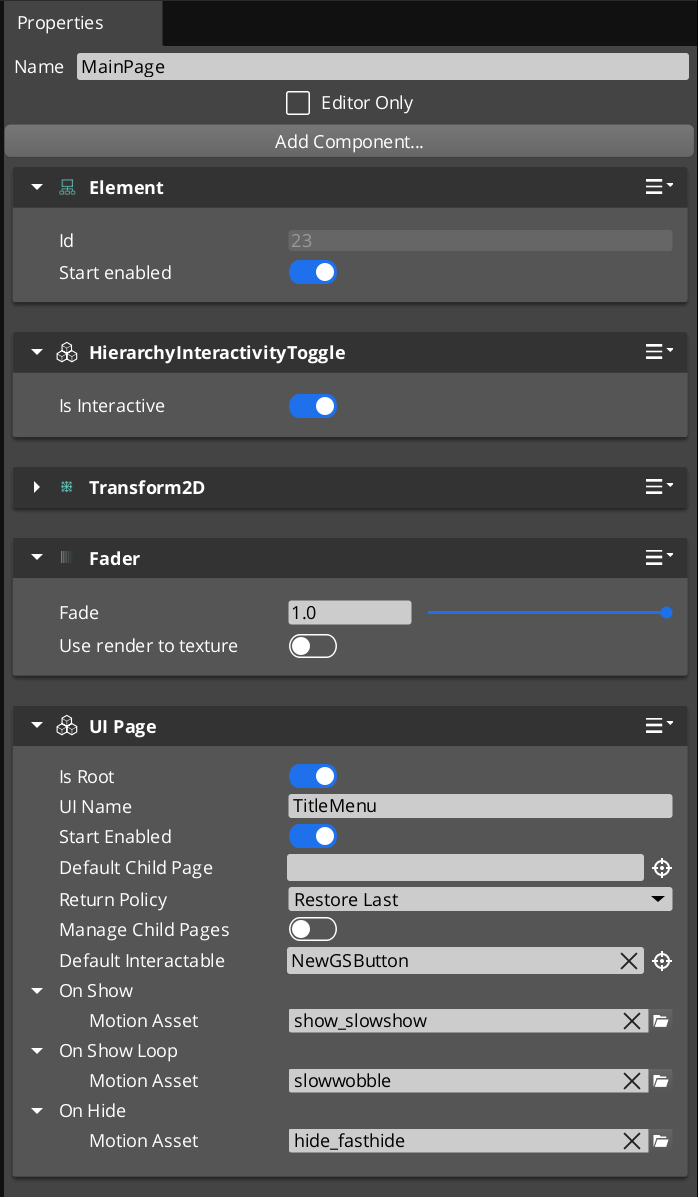
Contents
How It Works
Root Pages
A root page (m_isRoot = true) is the entry point for a UI canvas. During activation, it calls RegisterRootPage(m_uiName, entityId) on the UIManagerRequestBus to register itself. The m_uiName field must match the name used when the canvas was loaded via LoadGSUI.
When m_startEnabled is true, the root page shows itself immediately upon registration. Otherwise, it remains hidden until the UI Manager calls FocusUI for its canvas name.
Child Page Management
When m_manageChildPages is true, the page acts as a container for child pages. Child pages register themselves with their parent during activation via RegisterChildPage(entity). The parent tracks all registered children and manages which one is currently visible and focused.
Each page maintains its own focus stack. When a child is focused, it is pushed onto the parent’s stack via PushFocus. PopFocus restores the previous child. The m_returnPolicy field controls behavior when navigating back to this page:
- RestoreLast – Restores the last child that was focused before navigating away.
- AlwaysDefault – Always resets to
m_defaultChildPage, ignoring the focus history.
NavigateTo Algorithm
NavigateTo(forced) navigates the UI to show the calling page, regardless of where focus currently sits in the page tree. The algorithm works by building a path from the calling page up to the root, then cascading focus changes downward:
- Build path – Walk up from the calling page to the root, collecting each ancestor into a path array.
- Find divergence point – Starting from the highest ancestor, find the first level where the parent’s currently focused child does not match the path node. This is the “push point.”
- Change pages – From the push point downward, call
ChangePage at each level to switch the visible child to the path node. - Push focus – At the push point, call
PushFocus to record the new child on the parent’s focus stack. - Cascade – Continue down the path to the target page, focusing each level.
This algorithm ensures that navigating to a deeply nested page correctly updates every intermediate level.
NavigateBack Algorithm
NavigateBack() walks up from the calling page to find the first ancestor with a non-empty focus stack, then pops it:
- Walk up – Starting from the calling page, check each ancestor’s focus stack.
- Pop focus – At the first ancestor with a non-empty stack, call
PopFocus to restore the previous child. - Fallback to UI Manager – If no ancestor has a non-empty stack (the user has navigated all the way back to the root), call
NavLastUI() on the UIManagerRequestBus to return to the previous canvas in the global focus stack.
Show/Hide Transitions
Each page can have three UiAnimationMotion assets assigned:
- m_onShow – Played when the page becomes visible.
- m_onShowLoop – Played in a loop after the show animation completes.
- m_onHide – Played when the page is hidden.
These motion assets drive LyShine property animations (position, scale, rotation, alpha, color) to create smooth transitions between pages.
Data Types
NavigationReturnPolicy
Controls how a page restores child focus when navigated back to.
| Value | Description |
|---|
RestoreLast | Restores the last focused child page from the focus stack. |
AlwaysDefault | Always resets to m_defaultChildPage, clearing focus history. |
FocusEntry
A single entry in a page’s focus stack.
| Field | Type | Description |
|---|
focusedChild | AZ::EntityId | The entity ID of the child page that was focused. |
Inspector Properties
| Property | Type | Description |
|---|
| Is Root | bool | When true, this page registers itself with the UI Manager as a root canvas entry point. |
| UI Name | AZStd::string | (Root only) The name this root page registers under. Must match the name used in LoadGSUI. |
| Start Enabled | bool | (Root only) When true, the root page shows itself immediately upon registration. |
| Page Name | AZStd::string | A human-readable name for this page, used for identification and debugging. |
| Default Child Page | AZ::EntityId | The child page entity to show by default when this page is focused. |
| Return Policy | NavigationReturnPolicy | Controls whether returning to this page restores the last child or always resets to the default. |
| Manage Child Pages | bool | When true, this page acts as a container that manages nested child pages. |
| Default Interactable | AZ::EntityId | The LyShine interactable element to focus by default when this page is shown (e.g. the first button). |
| On Show | UiAnimationMotion | Animation played when this page becomes visible. |
| On Show Loop | UiAnimationMotion | Looping animation played after the show animation completes. |
| On Hide | UiAnimationMotion | Animation played when this page is hidden. |
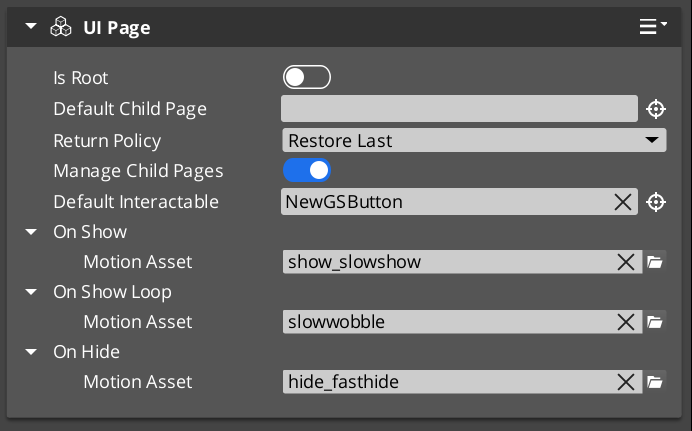
API Reference
Request Bus: UIPageRequestBus
Commands sent to a specific page by entity ID. Addressed bus – addressed by EntityId.
User-Facing Methods
These methods are intended to be called from gameplay code, ScriptCanvas, or other UI components to drive navigation.
| Method | Parameters | Returns | Description |
|---|
NavigateTo | bool forced | void | Navigates the entire page tree to show this page. Builds a path to root and cascades focus changes downward. When forced is true, bypasses transition guards. |
NavigateBack | — | void | Walks up from this page to find the first ancestor with focus history and pops it. Falls back to NavLastUI if no ancestor has history. |
ChangePage | AZ::EntityId target, bool takeFocus, bool forced | void | Switches this page’s visible child to the target entity. When takeFocus is true, the target also receives interactable focus. |
ToggleShow | bool on | void | Shows or hides this page. Plays the appropriate show/hide animation. |
ChangeUI | const AZStd::string& targetUI, bool takeFocus, bool hideThis | void | Switches to a different UI canvas by name. Optionally hides this page and gives focus to the target canvas. |
FocusChildPageByName | const AZStd::string& name, bool forced | void | Finds a child page by its m_pageName and focuses it. |
Internal Methods
These methods are used internally by the navigation system. They can be called from C++ when building custom navigation behavior, but are not typically called from ScriptCanvas.
| Method | Parameters | Returns | Description |
|---|
FocusPage | bool forced | void | Activates this page, shows it, and focuses its default interactable. Called as part of the NavigateTo cascade. |
PushFocus | AZ::EntityId child, bool forced | void | Pushes a child page onto this page’s focus stack and focuses it. |
PopFocus | — | void | Pops the top entry from this page’s focus stack and restores the previous child. Respects m_returnPolicy. |
ClearFocusHistory | — | void | Clears this page’s entire focus stack. |
RegisterChildPage | AZ::EntityId entity | void | Registers a child page entity with this parent. Called by child pages during their activation. |
NotifyInteractableFocused | AZ::EntityId entity | void | Notifies this page that a LyShine interactable has received focus. Used for tracking the current interactable selection. |
GetResolvedInteractable | — | AZ::EntityId | Returns the currently resolved default interactable for this page, accounting for child page focus state. |
Usage Examples
C++ – Navigating to a Specific Page
#include <GS_UI/GS_UIBus.h>

// Navigate to a specific page entity, forcing the transition
GS_UI::UIPageRequestBus::Event(
    settingsPageEntityId,
    &GS_UI::UIPageRequestBus::Events::NavigateTo,
    true  // forced
);
C++ – Navigating Back
// Navigate back from the current page
GS_UI::UIPageRequestBus::Event(
    currentPageEntityId,
    &GS_UI::UIPageRequestBus::Events::NavigateBack
);
C++ – Switching Between UI Canvases
// From the title screen, switch to the gameplay HUD
GS_UI::UIPageRequestBus::Event(
    titlePageEntityId,
    &GS_UI::UIPageRequestBus::Events::ChangeUI,
    AZStd::string("GameplayHUD"),
    true,  // takeFocus
    true   // hideThis
);
Companion Component Pattern
GS_UIPageComponent handles navigation structure, but it does not contain game-specific logic. The intended pattern is to place a companion component on the same entity as the page component. The companion component listens for page show/hide events and drives game-specific behavior (populating lists, starting timers, sending analytics events).
This separation keeps the navigation system generic and reusable while allowing each page to have unique behavior through its companion.
See Also
For component references:
- UI Manager – The singleton that owns canvases and drives the global focus stack
- UI Animation – Motion assets used for page show/hide transitions
For conceptual overviews and usage guides:
Get GS_UI
GS_UI — Explore this gem on the product page and add it to your project.
13.3 - UI Animation
GS_Motion extension with eight LyShine-specific animation tracks, data-driven .uiam assets, and a standalone playback component.
UI Animation is a domain extension of the GS_Motion system, purpose-built for animating LyShine UI elements. It provides eight concrete track types that target LyShine component properties (position, scale, rotation, alpha, color, text), a data asset format (.uiam) for authoring animations, and a standalone component for playing them on any entity.
The architecture follows the GS_Motion domain extension pattern: UiMotionTrack extends GS_MotionTrack as the domain base, each concrete track type targets a specific LyShine property, and UiAnimationMotionAsset extends GS_MotionAsset to bundle tracks into a single asset file.
For usage guides and setup examples, see The Basics: GS_UI.
Contents
Domain Extension Pattern
To add a custom track type, use the UiMotionTrack ClassWizard template — see GS_UI Templates. The template generates the header and source, and the only manual step is adding a Reflect(context) call in UIDataAssetsSystemComponent.cpp. Once reflected, the new track type appears automatically in the asset editor type picker via EnumerateDerived.
GS_Motion is designed to be extended per domain. GS_UI provides the UI domain extension:
| GS_Motion Base | GS_UI Extension |
|---|
GS_MotionTrack | UiMotionTrack – Domain base for all UI tracks |
GS_MotionAsset | UiAnimationMotionAsset – Asset container for UI tracks |
GS_MotionComposite | Used internally by UiAnimationMotion for multi-track playback |
GS_MotionProxy | Used internally by UiAnimationMotion for asset instance binding |
See GS_Motion for the full base system reference.
Track Types
UiMotionTrack
The domain base class that all UI-specific tracks extend. Inherits from GS_Core::GS_MotionTrack and provides LyShine entity targeting common to all UI tracks.
Concrete Tracks
Each track type animates a specific LyShine component property. All tracks are authored inside a .uiam asset.
| Track Type | Target Component | Property Animated | Value Type |
|---|
UiPositionTrack | UiTransform2dComponent | Position offset | AZ::Vector2 |
UiScaleTrack | UiTransform2dComponent | Scale | AZ::Vector2 |
UiRotationTrack | UiTransform2dComponent | Rotation | float |
UiElementAlphaTrack | UiElementComponent | Element-level alpha | float |
UiImageAlphaTrack | UiImageComponent | Image alpha | float |
UiImageColorTrack | UiImageComponent | Color tint | AZ::Color |
UiTextColorTrack | UiTextComponent | Text color | AZ::Color |
UiTextSizeTrack | UiTextComponent | Font size | float |
UiAnimationMotionAsset
The data asset that holds a complete UI animation. Extends GS_Core::GS_MotionAsset → AZ::Data::AssetData. Requires GS_AssetReflectionIncludes.h when reflecting — see Serialization Helpers.
| Property | Type | Description |
|---|
| Extension | — | .uiam |
| Motion Name | AZStd::string | A human-readable name for this animation. |
| Loop | bool | Whether this animation loops continuously after completing. |
| Tracks | AZStd::vector<UiMotionTrack*> | The list of animation tracks that make up this motion. Each track targets a specific LyShine property on a specific entity. |
To understand how to author Feedback Motions, refer to UI Animation: Authoring UIAnimation Motions
UiAnimationMotion
A serializable wrapper struct that bridges a .uiam asset to runtime playback. This is not a component – it is a data struct used as a field type in other components (such as GS_UIPageComponent’s m_onShow, m_onHide, and GS_ButtonComponent’s hover/select fields).
| Field | Type | Description |
|---|
| Asset | AZ::Data::Asset<UiAnimationMotionAsset> | Reference to the .uiam asset to play. |
| Motion Proxies | AZStd::vector<GS_MotionProxy> | Instance-specific bindings that map track targets to actual entities at runtime. |
| Motion Composite | AZStd::unique_ptr<GS_MotionComposite> | The runtime composite that coordinates multi-track playback. Created automatically from the asset data. |
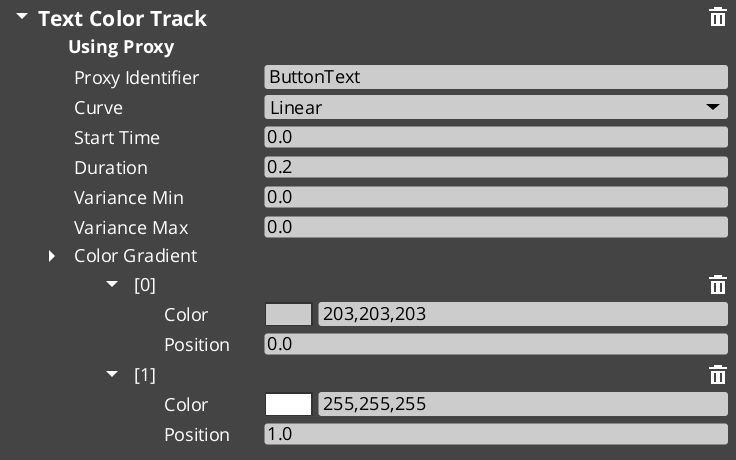
UiAnimationMotionComponent
A standalone component that plays a UiAnimationMotion on any entity. Use this when you need to trigger a UI animation outside of the page navigation or button systems – for example, an ambient animation on a background element, or a custom transition triggered from ScriptCanvas.
The component exposes the UiAnimationMotion struct in the Inspector, allowing you to assign a .uiam asset and configure it directly on any entity.
Adding Custom Tracks
Use the UIMotionTrack ClassWizard template to generate a new world-space track — see GS_UI Templates. The only manual step after generation is adding a Reflect(context) call in your {$Gem}DataAssetSystemComponent.cpp. Once reflected, the new track type is discovered automatically and appears in the asset editor type picker.
Override Init(ownerEntityId) to cache entity context, and Update(easedProgress) to drive the target property via its bus.
void ${Custom}Track::Init(AZ::EntityId ownerEntity)
{
    // Always call the base first — it sets m_owner.
    GS_UI::UiMotionTrack::Init(ownerEntity);

    // Cache the element's origin value so the track can apply additive offsets.
    // Example:
    //   UiTransformBus::EventResult(m_originPosition, ownerEntity, &UiTransformBus::Events::GetLocalPosition);
}

void ${Custom}Track::Update(float easedProgress)
{
    // Evaluate the gradient at the current eased progress and apply to the element.
    // easedProgress is in [0, 1] and already passed through the track's CurveType.
    // Example:
    //   const AZ::Vector2 offset = valueGradient.Evaluate(easedProgress);
    //   UiTransformBus::Event(m_owner, &UiTransformBus::Events::SetLocalPosition, m_originPosition + offset);
}
Usage Examples
Typical Animation Setup
A page fade-in animation might use two tracks in a single .uiam asset:
- A
UiElementAlphaTrack that fades from 0 to 1 over 0.3 seconds. - A
UiPositionTrack that slides the element 20 pixels upward over the same duration.
Assign this asset to a page’s On Show field and the page will automatically play the animation whenever it becomes visible.
A button scale-bounce on hover:
- A
UiScaleTrack that scales from 1.0 to 1.1 and back to 1.0 over 0.15 seconds.
Assign this to the button’s Hover Motion field. Assign the reverse (scale from current back to 1.0) to Unhover Motion.
See Also
For component references:
- Page Navigation – Pages use UiAnimationMotion for show/hide transitions
- Buttons – Buttons use UiAnimationMotion for hover/select animations
For conceptual overviews and usage guides:
For related resources:
- GS_Motion – The base motion system that UI Animation extends
Get GS_UI
GS_UI — Explore this gem on the product page and add it to your project.
13.4 - UI Interaction
Button animations and input interception — motion-driven hover/select states and input channel management for focused UI canvases.
UI Interaction covers the two systems that handle player input at the UI layer: the enhanced button component that plays motion-based animations on hover and select, and the input interceptor that captures and routes input events while a canvas is focused.
For usage guides and setup examples, see The Basics: GS_UI.
Contents
An enhanced button component that extends LyShine interactable behavior with motion-driven hover and select state animations. Attach alongside a UiButtonComponent and assign .uiam assets for hover, unhover, and select states.
| Component | Purpose |
|---|
| GS_ButtonComponent | Enhanced button. Plays UiAnimationMotion assets on hover, unhover, and select events. |
Button API
An input interceptor component that captures and redirects input events for UI-specific handling, preventing input from propagating to gameplay systems while a UI canvas is focused.
| Component / Type | Purpose |
|---|
| GS_UIInputInterceptorComponent | Intercepts configured input events and re-broadcasts them on UIInputNotificationBus. |
| GS_UIInputProfile | Data asset defining which input channels to intercept and how to route them. |
UI Input API
See Also
For component references:
- Page Navigation – Pages use the same UiAnimationMotion system for show/hide transitions
- UI Animation – The motion asset system used by buttons and pages
- UI Manager – Controls which canvas is focused, activating the input interceptor
For conceptual overviews and usage guides:
Get GS_UI
GS_UI — Explore this gem on the product page and add it to your project.
13.4.1 - Buttons
Enhanced button component with motion-driven hover and select animations, built on top of LyShine interactable notifications.
GS_ButtonComponent is an enhanced button that extends O3DE’s LyShine interactable system with UiAnimationMotion support. Instead of relying on LyShine’s built-in state sprites or color transitions, GS_ButtonComponent plays data-driven motion assets for hover, unhover, and select states, giving you full control over animated button feedback using the same animation system that drives page transitions.
The component attaches to any entity that already has a LyShine interactable (e.g. UiButtonComponent). It listens for LyShine interactable notifications and triggers the appropriate motion asset when the interactable state changes.
For usage guides and setup examples, see The Basics: GS_UI.
Contents
How It Works
LyShine Integration
GS_ButtonComponent connects to O3DE’s UiInteractableNotificationBus on the same entity. When LyShine fires hover, unhover, or press events, the component intercepts them and plays the corresponding UiAnimationMotion asset. This means you author your button animations as .uiam assets in the same workflow as page transitions and other UI animations.
The component does not replace LyShine’s interactable – it works alongside it. The LyShine UiButtonComponent still handles click detection, navigation, and accessibility. GS_ButtonComponent adds the visual animation layer on top.
Motion States
Each button can have up to three motion assets assigned:
- Hover Motion – Played when the interactable receives hover focus (mouse enter or gamepad navigation highlight).
- Unhover Motion – Played when the interactable loses hover focus.
- Select Motion – Played when the interactable is pressed/selected.
Each of these is a UiAnimationMotion struct that references a .uiam asset. The motion can animate any combination of the eight UI track types (position, scale, rotation, alpha, color, text size) to create rich button feedback.
Inspector Properties
| Property | Type | Description |
|---|
| Hover Motion | UiAnimationMotion | The animation played when this button receives hover focus. |
| Unhover Motion | UiAnimationMotion | The animation played when this button loses hover focus. |
| Select Motion | UiAnimationMotion | The animation played when this button is pressed. |
Usage
Setup
- Add a LyShine
UiButtonComponent (or other interactable) to your entity. - Add
GS_ButtonComponent to the same entity. - Author
.uiam assets for the hover, unhover, and select states using the UiAnimationMotion system. - Assign the
.uiam assets to the corresponding fields in the Inspector.
The button will now play the assigned animations automatically when the user interacts with it. No ScriptCanvas or C++ code is required for the animation behavior.
See Also
For component references:
- UI Animation – The motion asset system that drives button animations
- Page Navigation – Pages use the same UiAnimationMotion system for show/hide transitions
- UI Input – Input interception used alongside buttons in interactive canvases
For conceptual overviews and usage guides:
Get GS_UI
GS_UI — Explore this gem on the product page and add it to your project.
13.4.2 - UI Input
Input interception for UI canvases – captures and redirects input events to prevent gameplay propagation while a UI is focused.
GS_UIInputInterceptorComponent intercepts input events when a UI canvas is active, preventing them from propagating to gameplay systems. This solves the common problem of button presses or navigation inputs leaking through to the game world while a menu is open.
The component uses a GS_UIInputProfile to define which input events to intercept and how to route them. When the associated UI canvas is focused, the interceptor captures configured input events and broadcasts them on the UIInputNotificationBus instead of allowing them to reach gameplay input handlers.
For usage guides and setup examples, see The Basics: GS_UI.
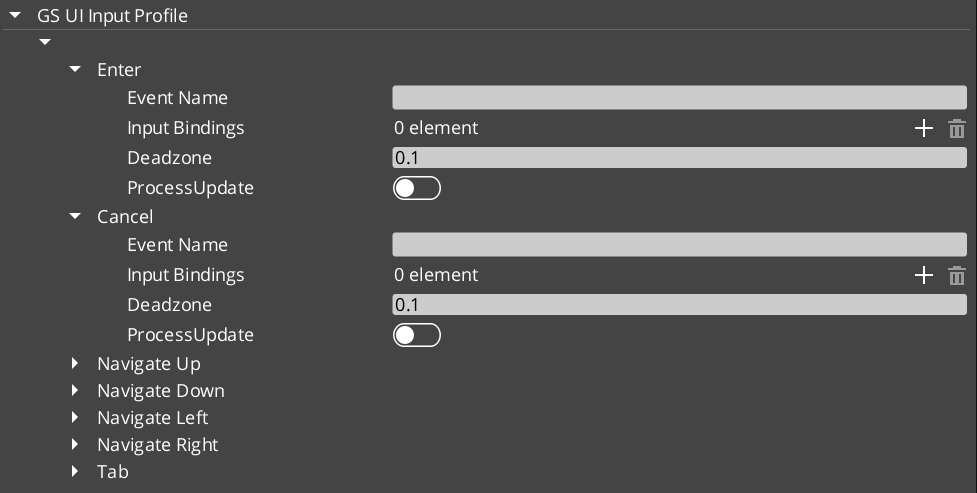
Contents
How It Works
When a UI canvas receives focus through the UI Manager, the input interceptor activates. It listens for input events that match its configured GS_UIInputProfile and consumes them before they reach the gameplay input system. The intercepted events are then re-broadcast on the UIInputNotificationBus so that UI-specific logic can respond to them.
When the canvas loses focus, the interceptor deactivates and input flows normally to gameplay systems.
The input profile defines which input channels to intercept and how to map them for UI use. This allows different UI canvases to intercept different sets of inputs – a pause menu might intercept all gameplay inputs, while a HUD overlay might only intercept specific menu navigation inputs.
API Reference
Notification Bus: UIInputNotificationBus
Events broadcast when the interceptor captures input. Multiple handler bus – any number of components can subscribe to receive intercepted input notifications.
Components that need to respond to UI-specific input (such as custom navigation logic or input-driven UI animations) connect to this bus to receive intercepted events while a canvas is focused.
Inspector Properties
| Property | Type | Description |
|---|
| Input Profile | GS_UIInputProfile | Defines which input events to intercept and how to route them for UI handling. |
Usage
Setup
- Add
GS_UIInputInterceptorComponent to the same entity as your root GS_UIPageComponent. - Configure the
GS_UIInputProfile to specify which input channels should be intercepted when this canvas is focused. - Any component that needs to respond to intercepted input connects to
UIInputNotificationBus.
See Also
For component references:
- UI Manager – Controls which canvas is focused and therefore which interceptor is active
- Page Navigation – The page system that drives canvas focus changes
- Button – Button animations used alongside input interception
For conceptual overviews and usage guides:
Get GS_UI
GS_UI — Explore this gem on the product page and add it to your project.
13.5 - Widgets
Standalone UI widget components — load screens, pause menus, and other self-contained UI elements that operate outside the page navigation model.
Widgets are standalone UI components that handle specific UI scenarios outside the page navigation hierarchy. Unlike pages, which are navigated to and from, widgets activate and deactivate in response to game events — a load screen appears during a stage transition, a pause menu overlays gameplay when the player pauses.
For usage guides and setup examples, see The Basics: GS_UI.
Contents
Load Screen
GS_LoadScreenComponent manages loading screen display during stage transitions. It listens for stage load lifecycle events and shows or hides a designated LyShine canvas accordingly.
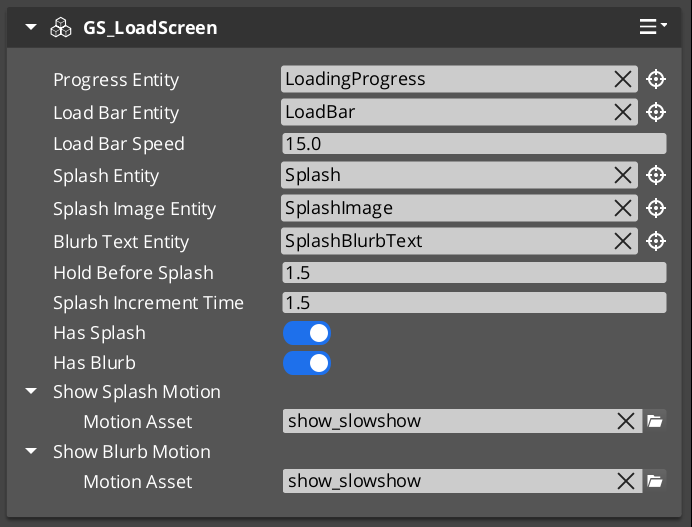
| Component | Purpose |
|---|
| GS_LoadScreenComponent | Displays a loading canvas during stage transitions. Hides automatically when loading is complete. |
PauseMenuComponent manages the pause overlay. It responds to pause input, activates the pause canvas, and suppresses gameplay systems while the menu is open.
| Component | Purpose |
|---|
| PauseMenuComponent | Toggles pause state and the pause menu canvas overlay. |
See Also
For component references:
- UI Manager – Loads and manages the canvases that widgets display on
- Page Navigation – The navigation system for menus within widget canvases
For conceptual overviews and usage guides:
Get GS_UI
GS_UI — Explore this gem on the product page and add it to your project.
13.6 - Templates
ClassWizard templates for GS_UI — custom UI animation motion tracks.
All GS_UI extension types are generated through the ClassWizard CLI. The wizard handles UUID generation and cmake file-list registration automatically.
For usage guides and setup examples, see The Basics: GS_UI.
python ClassWizard.py \
    --template <TemplateName> \
    --gem <GemPath> \
    --name <SymbolName> \
    [--input-var key=value ...]
Contents
Ui Motion Track
Template: UiMotionTrack
Creates a custom animation track for the GS_UI motion system. A UiMotionTrack child animates one LyShine UI element property (position, scale, alpha, color, rotation, etc.) over a normalised [0,1] eased progress value. Tracks are added to UiMotionAnimations assets in the editor and played by UIMotionAnimationComponent.
Generated files:
Include/${GemName}/UIMotions/MotionTracks/${Name}Track.hSource/UIMotions/MotionTracks/${Name}Track.cpp
CLI:
python ClassWizard.py --template UiMotionTrack --gem <GemPath> --name <Name>
Post-generation — manual registration required:
In UIDataAssetsSystemComponent.cpp, add:
#include <path/to/${Name}Track.h>
// inside Reflect(context):
${Name}Track::Reflect(context);
Extensibility: One track class per animatable property. Any number of track types can be registered. Instances are stored as polymorphic pointers in UiMotionAnimation assets — the property editor’s type picker discovers them automatically via O3DE’s serialization reflection (EnumerateDerived).
See also: UI Animation — the full track architecture, domain extension pattern, and built-in track type reference.
See Also
For the full API, component properties, and C++ extension guide:
For all ClassWizard templates across GS_Play gems:
Get GS_UI
GS_UI — Explore this gem on the product page and add it to your project.
13.7 - 3rd Party Implementations
For usage guides and setup examples, see The Basics: GS_UI.
Get GS_UI
GS_UI — Explore this gem on the product page and add it to your project.
14 - GS_Unit
Character and entity control — unit lifecycle, player and AI controllers, input processing, movement, and grounding.
GS_Unit is the gem that gives entities agency. It provides a unit lifecycle system for spawning and possessing controllable entities, a controller layer that separates player and AI concerns, an input pipeline that converts raw device input into movement vectors, a family of mover components covering free 3D, surface-sliding, and physics-driven movement, and grounding components for stable surface contact. The gem depends only on GS_Core and introduces one data asset, GS_UnitMovementProfile, for authoring movement parameters outside of code.
For usage guides and setup examples, see The Basics: GS_Unit.
Contents
Unit Manager
The lifecycle system for spawnable, possessable units. The Unit Manager is a singleton that handles unit spawn requests and tracks the active player controller. Individual Unit components identify an entity as a game unit and manage possession state.
| Component | Purpose |
|---|
| GS_UnitManagerComponent | Singleton manager. Handles unit spawn requests and player controller registration. |
| GS_UnitComponent | Marks an entity as a unit. Manages possession, controller access, and standby state. |
Unit Manager API
Controllers
The controller layer separates how a unit is driven from what the unit is. A base controller handles possession handshake. The player controller adds input-driven behavior. The AI controller provides a hook for script or code-driven NPC logic.
Unit Controllers API
The input pipeline converts raw device events into a normalised input state that movement and interaction systems can read. Input Reactor components handle discrete button events. Axis Reactor components handle analogue axes. Concrete implementations cover keyboard WASD and joystick movement.
Input Data API
Movement
The mover stack translates input vectors and influences into entity motion. The Mover Context component tracks current movement state. Concrete movers cover three locomotion modes. Grounder components maintain stable surface contact and feed grounded state back to the mover. Influence components apply persistent or volume-scoped forces on top of any mover.
Movement API
Installation
GS_Unit requires only GS_Core. It is one of the lightest gems in the framework to add.
- Enable GS_Unit in Project Manager or
project.json. - Add GS_UnitManagerComponent to the Game Manager entity and register it in the Startup Managers list.
- Build your unit prefab: add GS_UnitComponent, the appropriate Controller, GS_InputDataComponent, and a Mover for the locomotion type you need.
- Add GS_PlayerControllerInputReaderComponent and the relevant input reactor components to the player unit prefab.
- Refer to the Unit Set Up Guide for a full walkthrough.
See Also
For conceptual overviews and usage guides:
For related resources:
Get GS_Unit
GS_Unit — Explore this gem on the product page and add it to your project.
14.1 - Unit Manager
The central manager for unit lifecycle — spawning, registration, standby coordination, and unit tracking across the game session.
The Unit Manager is the GS_Unit gem’s central lifecycle controller. It extends GS_ManagerComponent and coordinates all unit-related operations: spawning new units from prefabs, registering player controllers, tracking which entities qualify as units, and propagating standby signals to the unit subsystem.
Like all GS_Play managers, the Unit Manager is spawned by the Game Manager during the startup sequence and participates in the two-stage initialization pattern. It connects to the GameManagerNotificationBus for lifecycle events and standby coordination.
For usage guides and setup examples, see The Basics: GS_Unit.
Contents
How It Works
Unit Spawning
When a system requests a new unit via RequestSpawnNewUnit, the Unit Manager instantiates the provided unit prefab under the specified parent entity. Once the unit entity activates and its GS_UnitComponent registers, the manager broadcasts ReturnNewUnit back to the caller with the new unit’s entity ID.
Player Controller Registration
Player controllers register themselves with the Unit Manager via RegisterPlayerController. This allows the manager to track which controllers are active and route unit possession accordingly.
Unit Validation
Any system can call CheckIsUnit with an entity ID to verify whether that entity is a registered unit. This is useful for targeting systems, interaction checks, and other gameplay logic that needs to distinguish units from ordinary entities.
Standby Propagation
When the Game Manager enters or exits standby, the Unit Manager receives the signal and broadcasts EnterStandby / ExitStandby on the UnitManagerNotificationBus. All unit subsystems (controllers, movers, input readers) should listen for these notifications and pause or resume accordingly.
API Reference
GS_UnitManagerComponent
Extends GS_Core::GS_ManagerComponent. Handles unit spawning, controller registration, and standby propagation.
Data Fields
| Field | Type | Description |
|---|
debugExitPoint | AZ::EntityId | Entity used as the spawn/exit point when PlaceUnitAtExit is called. Configured in the Inspector. |
m_unitSpawnTickets | AZStd::vector<AzFramework::EntitySpawnTicket> | Spawn tickets for all active unit spawn operations. Keeps spawns alive until the unit entity registers. |
playerList | AZStd::vector<AZ::EntityId> | Registered player controller entity IDs. Populated via RegisterPlayerController. |
Request Bus: UnitManagerRequestBus
Commands sent to the Unit Manager. Global bus — multiple handlers.
| Method | Parameters | Returns | Description |
|---|
RequestSpawnNewUnit | AZ::EntityId callingEntityId, SpawnableScriptAssetRef unitPrefab, AZ::EntityId spawnParentEntityId | void | Requests the manager to spawn a new unit from the given prefab under the specified parent entity. The caller receives the result via ReturnNewUnit. |
RegisterPlayerController | AZ::EntityId controllerId | void | Registers a player controller entity with the manager for tracking and routing. |
CheckIsUnit | AZ::EntityId unitId | bool | Returns whether the given entity ID is a registered unit. |
Notification Bus: UnitManagerNotificationBus
Events broadcast by the Unit Manager. Multiple handler bus — any number of components can subscribe.
| Event | Parameters | Description |
|---|
HandleStartup | — | Fired during the manager startup sequence. Override in subclasses to hook into the two-stage initialization before OnStartupComplete. |
ReturnNewUnit | AZ::EntityId caller, AZ::EntityId newUnit | Fired when a requested unit has been spawned and registered. The caller ID matches the original requester. |
EnterStandby | — | Fired when the unit subsystem enters standby. Pause unit-related logic. |
ExitStandby | — | Fired when the unit subsystem exits standby. Resume unit-related logic. |
GS_UnitComponent
The GS_UnitComponent is the component that makes an entity a “unit.” It handles possession by controllers, tracks its owning controller, and provides identity via a unique name. For full unit entity setup details, see the Units page.
Request Bus: UnitRequestBus
Commands sent to a specific unit. ById bus — addressed by entity ID, multiple handlers.
| Method | Parameters | Returns | Description |
|---|
Possess | AZ::EntityId possessingController | void | Assigns a controller to this unit. The unit stores the controller reference and notifies listeners. |
DePossess | — | void | Removes the current controller from this unit. |
GetController | — | AZ::EntityId | Returns the entity ID of the currently possessing controller. |
GetUniqueName | — | AZStd::string | Returns the unique name assigned to this unit. |
Notification Bus: UnitNotificationBus
Events broadcast by a unit. ById bus — addressed by the unit’s entity ID.
| Event | Parameters | Description |
|---|
UnitPossessed | AZ::EntityId controller | Fired when a controller possesses this unit. |
UnitEnteringStandby | — | Fired when this unit enters standby. |
UnitExitingStandby | — | Fired when this unit exits standby. |
Usage Examples
C++ – Spawning a Unit
#include <GS_Unit/GS_UnitBus.h>

// Request a new unit spawn
GS_Unit::UnitManagerRequestBus::Broadcast(
    &GS_Unit::UnitManagerRequestBus::Events::RequestSpawnNewUnit,
    GetEntityId(),       // caller
    myUnitPrefab,        // SpawnableScriptAssetRef
    spawnParentEntity    // parent entity
);
C++ – Listening for Unit Spawn Results
#include <GS_Unit/GS_UnitBus.h>

class MySpawner
    : public AZ::Component
    , protected GS_Unit::UnitManagerNotificationBus::Handler
{
protected:
    void Activate() override
    {
        GS_Unit::UnitManagerNotificationBus::Handler::BusConnect();
    }

    void Deactivate() override
    {
        GS_Unit::UnitManagerNotificationBus::Handler::BusDisconnect();
    }

    void ReturnNewUnit(AZ::EntityId caller, AZ::EntityId newUnit) override
    {
        if (caller == GetEntityId())
        {
            // This is the unit we requested — possess it, configure it, etc.
        }
    }
};
Script Canvas
Spawning a unit and receiving the result:
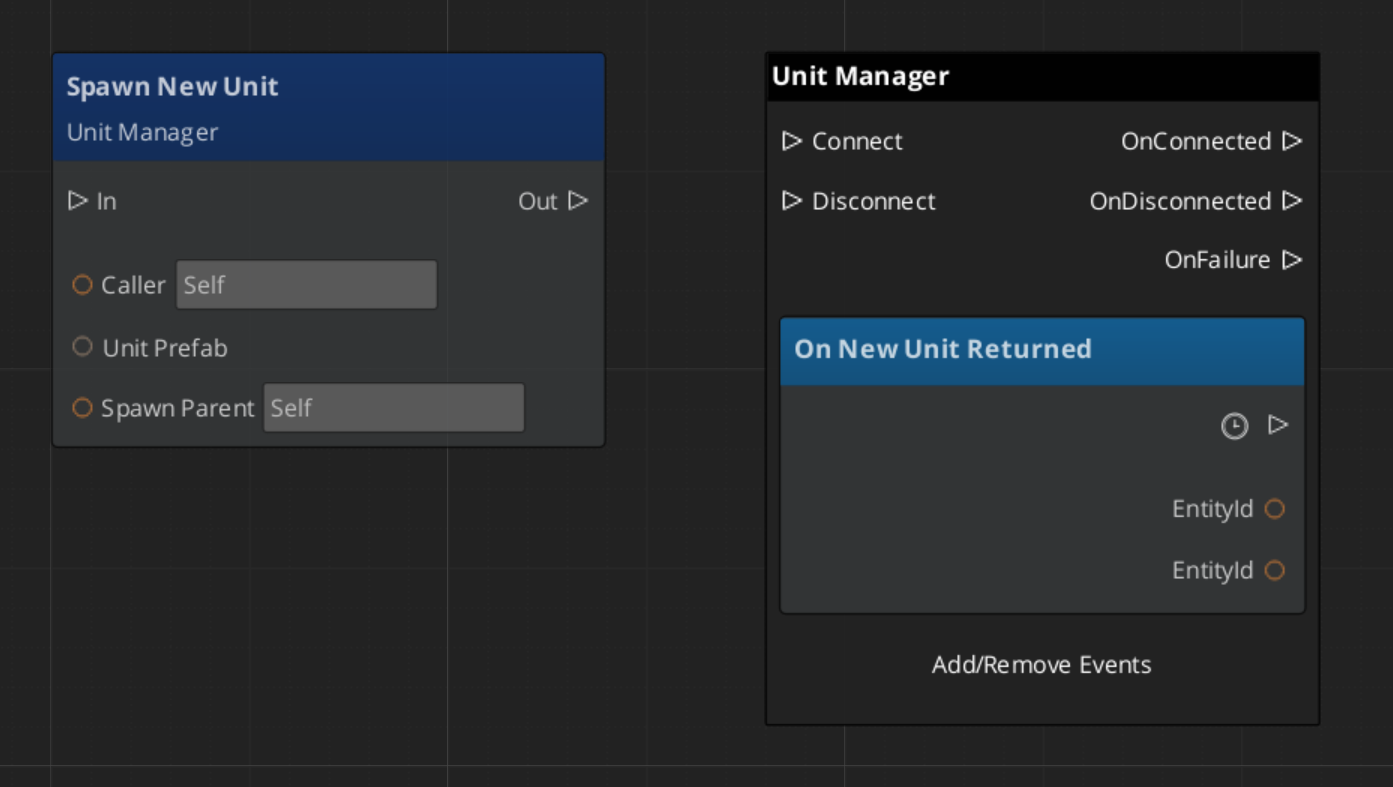
Getting the controller on a unit:
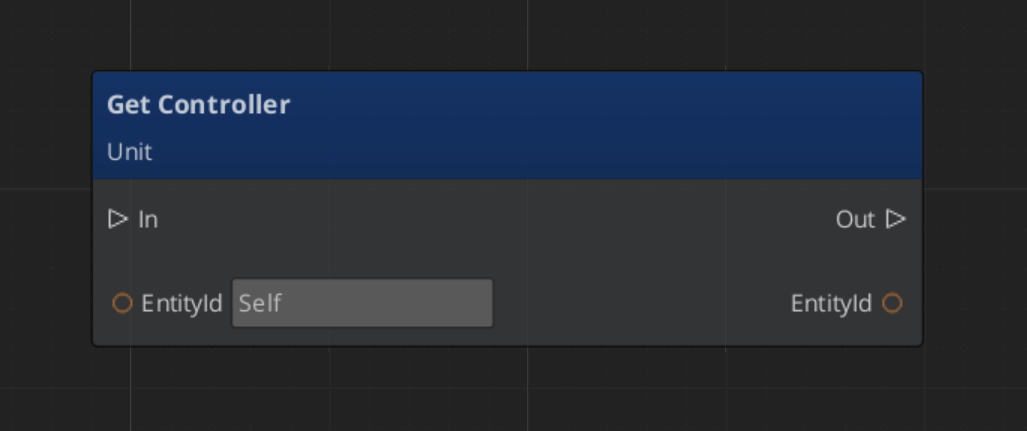
Possessing and de-possessing a unit:
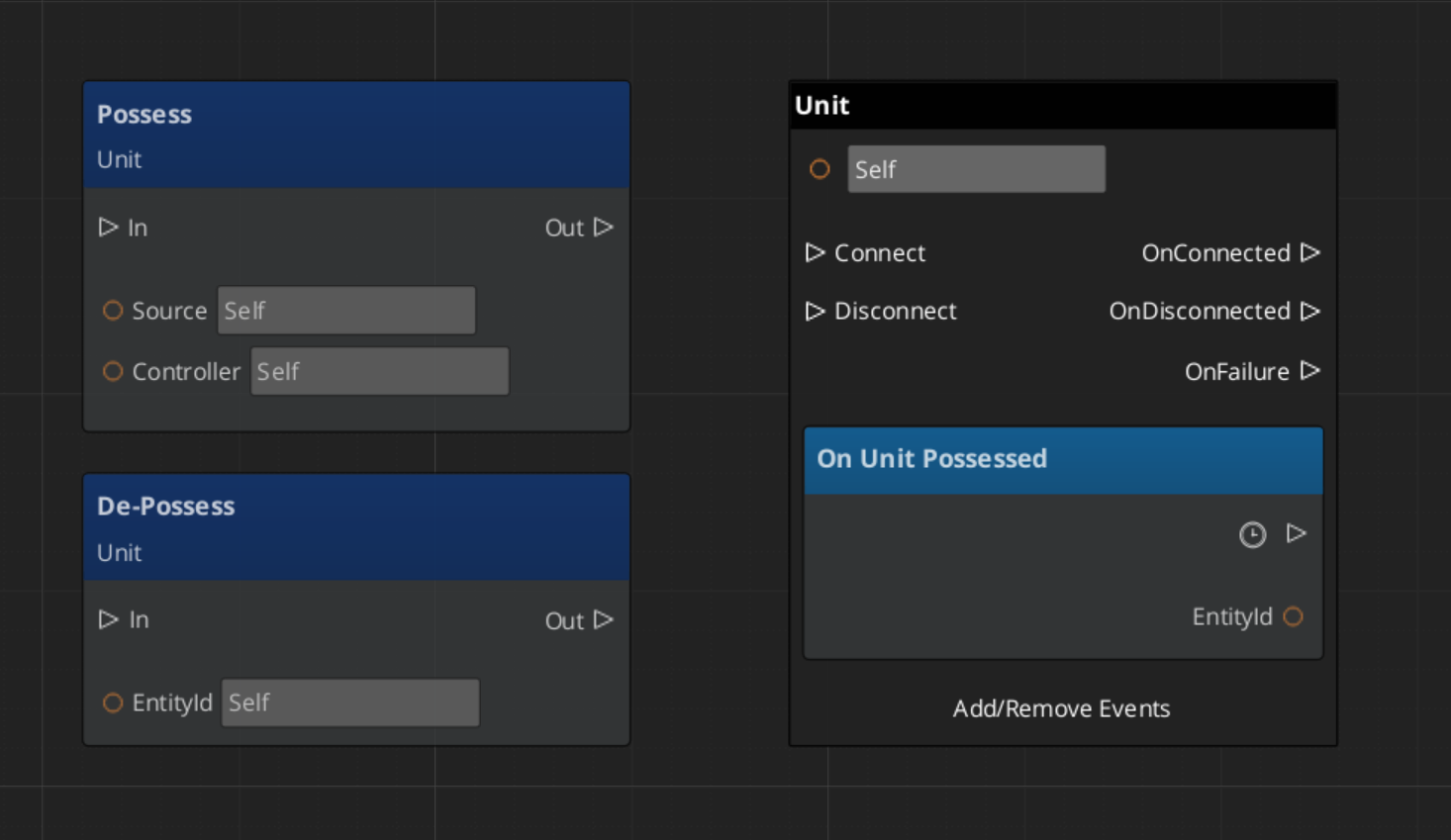
Reacting to unit standby events:
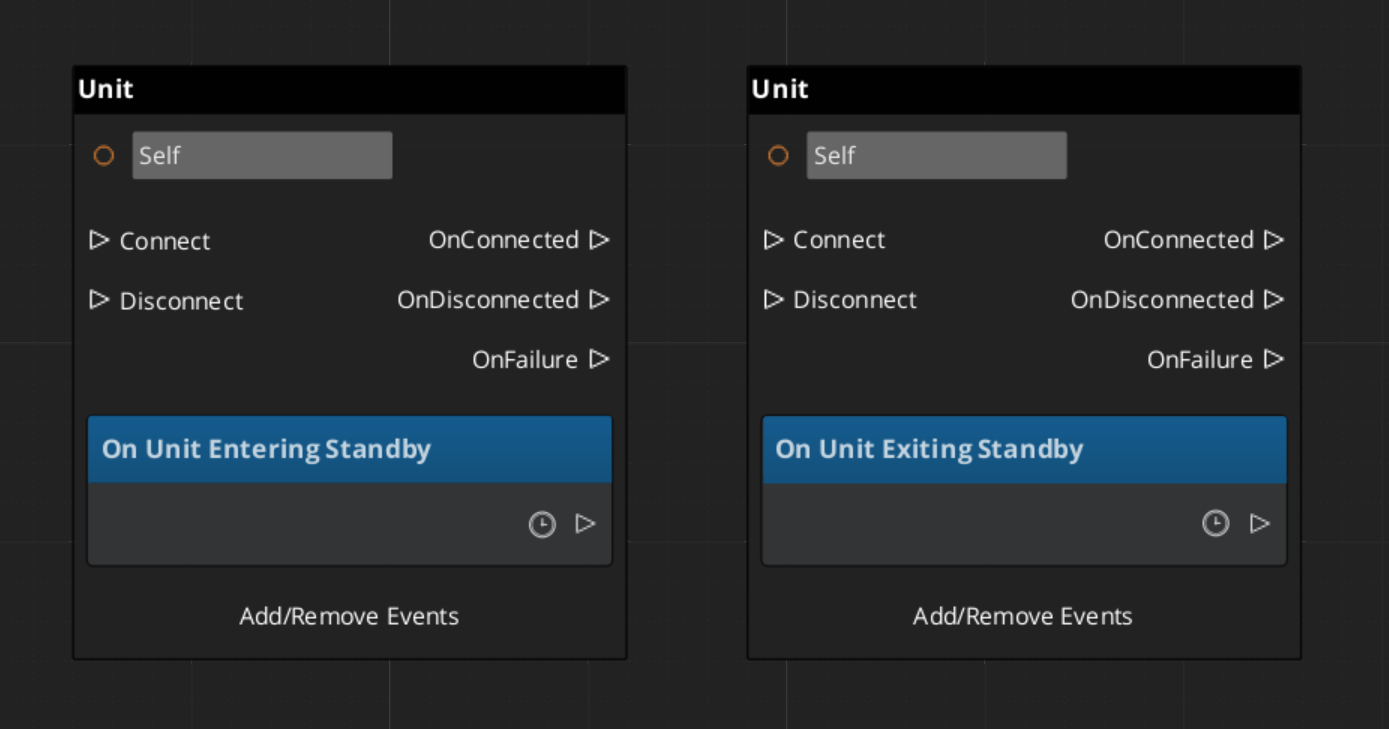
Extension Guide
Extend the Unit Manager to add custom spawn logic, additional tracking, or project-specific unit lifecycle behavior. The Unit Manager extends GS_ManagerComponent, so follow the standard Manager extension pattern.
#pragma once
#include <GS_Unit/GS_UnitBus.h>
#include <Source/Managers/GS_UnitManagerComponent.h>

namespace MyProject
{
    class MyUnitManager : public GS_Unit::GS_UnitManagerComponent
    {
    public:
        AZ_COMPONENT_DECL(MyUnitManager);

        static void Reflect(AZ::ReflectContext* context);

    protected:
        // Override manager lifecycle hooks
        void OnStartupComplete() override;
        void OnEnterStandby() override;
        void OnExitStandby() override;
    };
}
Implementation (.cpp)
#include "MyUnitManager.h"
#include <AzCore/Serialization/SerializeContext.h>

namespace MyProject
{
    AZ_COMPONENT_IMPL(MyUnitManager, "MyUnitManager", "{YOUR-UUID-HERE}");

    void MyUnitManager::Reflect(AZ::ReflectContext* context)
    {
        if (auto serializeContext = azrtti_cast<AZ::SerializeContext*>(context))
        {
            serializeContext->Class<MyUnitManager, GS_Unit::GS_UnitManagerComponent>()
                ->Version(0);

            if (AZ::EditContext* editContext = serializeContext->GetEditContext())
            {
                editContext->Class<MyUnitManager>("My Unit Manager", "Custom unit manager")
                    ->ClassElement(AZ::Edit::ClassElements::EditorData, "")
                        ->Attribute(AZ::Edit::Attributes::Category, "MyProject")
                        ->Attribute(AZ::Edit::Attributes::AppearsInAddComponentMenu, AZ_CRC_CE("Game"));
            }
        }
    }

    void MyUnitManager::OnStartupComplete()
    {
        GS_UnitManagerComponent::OnStartupComplete();
        // Custom post-startup logic
    }

    void MyUnitManager::OnEnterStandby()
    {
        GS_UnitManagerComponent::OnEnterStandby();
        // Custom standby logic
    }

    void MyUnitManager::OnExitStandby()
    {
        GS_UnitManagerComponent::OnExitStandby();
        // Custom resume logic
    }
}
See Also
For component references:
For related resources:
Get GS_Unit
GS_Unit — Explore this gem on the product page and add it to your project.
14.2 - Unit Controllers
The controller-unit possession model — base controller, player controller, and AI controller components for driving unit behavior.
Unit Controllers are the decision-making layer in the GS_Unit architecture. A controller “possesses” a unit entity, giving it authority over that unit’s actions. This possession model cleanly separates the what (the unit with its movement, abilities, and stats) from the who (the controller providing intent — player input or AI logic).
The system provides three controller components:
- GS_UnitControllerComponent – The base controller with possession logic, placement helpers, and the virtual interface for extension.
- GS_PlayerControllerComponent – A player-specific controller that integrates with the Input Data subsystem to translate player input into unit commands.
- GS_AIControllerComponent – An AI controller for NPC units, providing hooks for behavior trees or custom AI logic.
For usage guides and setup examples, see The Basics: GS_Unit.
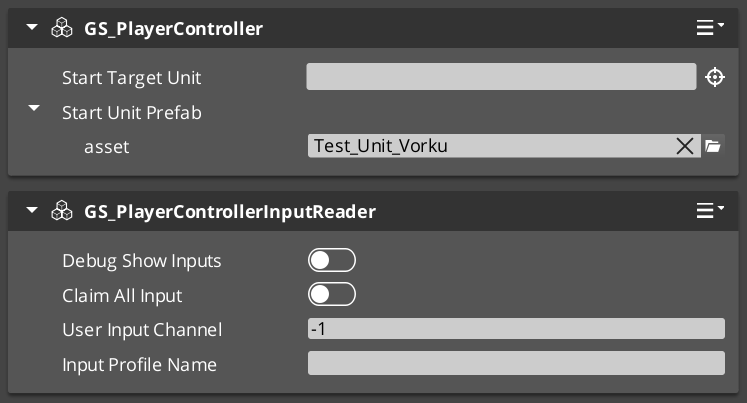
Contents
How It Works
Possession Model
Breakdown
Every unit has exactly one controller at a time, or no controller at all. Possession is established by calling Possess on the unit and released by calling DePossess. The unit fires UnitPossessed on UnitNotificationBus whenever ownership changes so other systems can react.
| Concept | Description |
|---|
| Possession | A controller attaches to a unit. The unit accepts input and movement commands from that controller only. |
| DePossession | The controller releases the unit. The unit halts input processing and enters a neutral state. |
| UnitPossessed event | Fires on UnitNotificationBus (addressed by entity ID) whenever a unit’s controller changes. |
| GetController | Returns the entity ID of the current controller, or an invalid ID if none. |
| GetUniqueName | Returns the string name assigned by the Unit Manager when this unit was spawned. |
Unit Placement
Controllers provide helper methods for positioning their possessed unit:
PlaceUnitAtExit – Places the unit at the level’s designated exit point.PlaceUnitAtEntity – Places the unit at a specific entity’s world position.
Unique Names
Both controllers and units maintain a unique name string. The base controller provides a virtual SetUniqueName() method that subclasses override to generate names from their specific context (e.g., player slot number, AI template name).
Component Reference
GS_UnitControllerComponent (Base)
The base controller class. All controller types inherit from this. It handles possession, placement, unique name generation, and the notification plumbing. Extend this class to create custom controller types.
GS_PlayerControllerComponent
Extends AZ::Component. The player controller adds input handling on top of the base controller pattern. It registers itself with the Unit Manager via RegisterPlayerController and integrates with the Input Data subsystem to feed player input into the possessed unit’s movement and action systems.
Typical entity setup for a player controller:
GS_PlayerControllerComponentGS_InputDataComponent – Holds the current input stateGS_PlayerControllerInputReaderComponent – Reads raw input into InputData- One or more
InputReactorComponents – Translate input data into movement vectors or action triggers
GS_AIControllerComponent
Extends AZ::Component. The AI controller provides the same possession interface as the player controller but is driven by AI logic rather than player input. It does not connect to the input subsystem. Instead, it exposes hooks for behavior trees, scripted sequences, or custom AI decision-making to issue commands to the possessed unit.
API Reference
Request Bus: UnitControllerRequestBus
Commands sent to a specific controller. ById bus — addressed by the controller’s entity ID.
| Method | Parameters | Returns | Description |
|---|
PossessUnit | AZ::EntityId targetUnit | void | Possesses the target unit. Broadcasts PossessedTargetUnit notification. |
DePossessUnit | — | void | Releases the currently possessed unit. |
PlaceUnitAtExit | — | void | Moves the possessed unit to the level’s exit point. |
PlaceUnitAtEntity | AZ::EntityId targetEntity | void | Moves the possessed unit to the world position of the target entity. |
GetUnit | — | AZ::EntityId | Returns the entity ID of the currently possessed unit. |
GetUniqueName | — | AZStd::string | Returns the unique name of this controller. |
Notification Bus: UnitControllerNotificationBus
Events broadcast by a controller. ById bus — addressed by the controller’s entity ID. Subscribe to receive updates about controller state changes.
| Event | Parameters | Description |
|---|
PossessedTargetUnit | AZ::EntityId unitId | Fired when this controller possesses a unit. GS_PlayerControllerInputReaderComponent listens to this to begin routing input to the new unit. |
Virtual Methods
Override these when extending the base controller. Always call the base implementation.
| Method | Parameters | Returns | Description |
|---|
PostActivateProcessing() | — | void | Called after the controller’s Activate() completes. Override to add custom initialization that depends on the controller being fully active. |
SetUniqueName() | — | void | Called during initialization to set the controller’s unique name. Override to generate names from your project’s naming scheme. |
Usage Examples
C++ – Possessing a Unit
#include <GS_Unit/GS_UnitBus.h>

// From a controller, possess a unit
GS_Unit::UnitControllerRequestBus::Event(
    GetEntityId(),
    &GS_Unit::UnitControllerRequestBus::Events::PossessUnit,
    targetUnitEntityId
);
C++ – Querying a Controller’s Unit
#include <GS_Unit/GS_UnitBus.h>

AZ::EntityId possessedUnit;
GS_Unit::UnitControllerRequestBus::EventResult(
    possessedUnit,
    controllerEntityId,
    &GS_Unit::UnitControllerRequestBus::Events::GetUnit
);
Script Canvas
Possessing and de-possessing a unit from a controller:
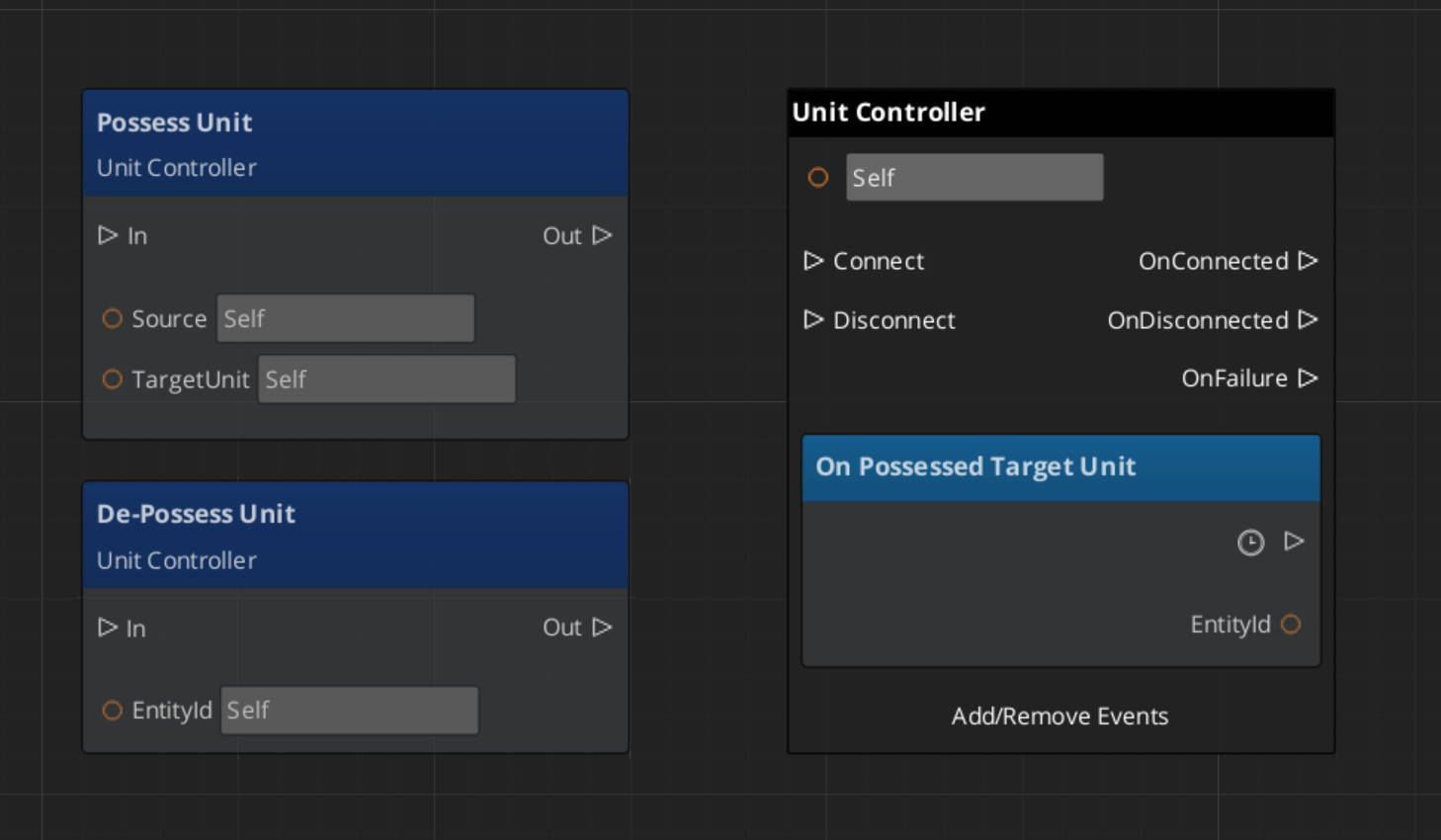
Getting the unit possessed by a controller:
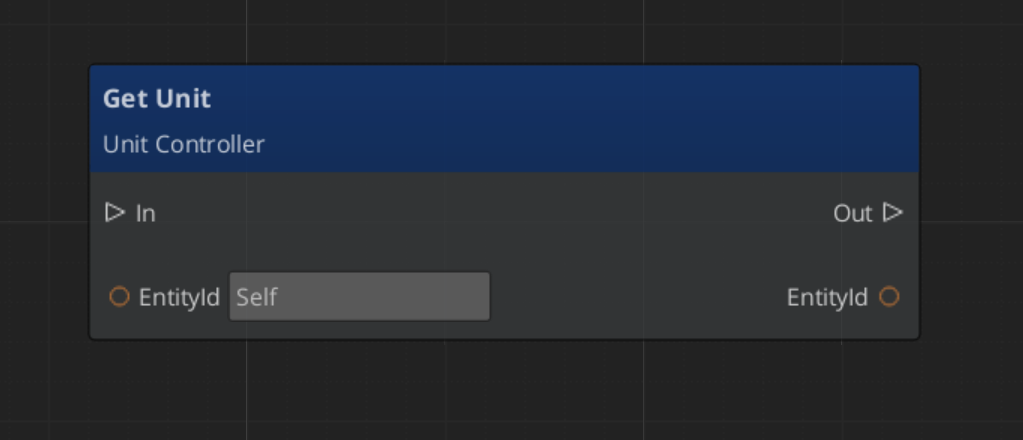
Extension Guide
Use the UnitController ClassWizard template to generate a new controller with boilerplate already in place — see GS_Unit Templates.
Create custom controllers by extending GS_UnitControllerComponent. This is the standard approach for game-specific controller logic such as party management, vehicle control, or specialized AI behaviors.
#pragma once
#include <GS_Unit/GS_UnitBus.h>
#include <Source/Controllers/GS_UnitControllerComponent.h>

namespace MyProject
{
    class MyCustomController : public GS_Unit::GS_UnitControllerComponent
    {
    public:
        AZ_COMPONENT_DECL(MyCustomController);

        static void Reflect(AZ::ReflectContext* context);

    protected:
        void PostActivateProcessing() override;
        void SetUniqueName() override;
    };
}
Implementation (.cpp)
#include "MyCustomController.h"
#include <AzCore/Serialization/SerializeContext.h>

namespace MyProject
{
    AZ_COMPONENT_IMPL(MyCustomController, "MyCustomController", "{YOUR-UUID-HERE}");

    void MyCustomController::Reflect(AZ::ReflectContext* context)
    {
        if (auto serializeContext = azrtti_cast<AZ::SerializeContext*>(context))
        {
            serializeContext->Class<MyCustomController, GS_Unit::GS_UnitControllerComponent>()
                ->Version(0);

            if (AZ::EditContext* editContext = serializeContext->GetEditContext())
            {
                editContext->Class<MyCustomController>(
                    "My Custom Controller", "Project-specific controller logic")
                    ->ClassElement(AZ::Edit::ClassElements::EditorData, "")
                        ->Attribute(AZ::Edit::Attributes::Category, "MyProject")
                        ->Attribute(AZ::Edit::Attributes::AppearsInAddComponentMenu, AZ_CRC_CE("Game"));
            }
        }
    }

    void MyCustomController::PostActivateProcessing()
    {
        GS_UnitControllerComponent::PostActivateProcessing();
        // Custom post-activation logic — connect to AI systems, load profiles, etc.
    }

    void MyCustomController::SetUniqueName()
    {
        // Generate a unique name from your project's naming scheme
        uniqueName = AZStd::string::format("CustomController_%d", m_controllerIndex);
    }
}
See Also
For component references:
- Unit Manager – Spawning and lifecycle management
- Units – Unit entity setup and the GS_UnitComponent
- Input Data – Input state and reaction components used by player controllers
- Movement – Movement components driven by controller input
Get GS_Unit
GS_Unit — Explore this gem on the product page and add it to your project.
14.3 - Input Data
The decoupled input pipeline — reading hardware events on the controller, storing state on the unit, and reacting to state changes through reactor components.
The Input Data subsystem bridges the controller entity (where hardware input is read) and the unit entity (where input is acted on). The controller reads raw device events and routes named event values into the unit’s GS_InputDataComponent. Reactor components on the unit then convert that stored state into movement vectors or game actions.
This separation keeps units ignorant of input bindings — any controller can possess any unit without the unit needing to change.
For usage guides and setup examples, see The Basics: GS_Unit.
Contents
How It Works
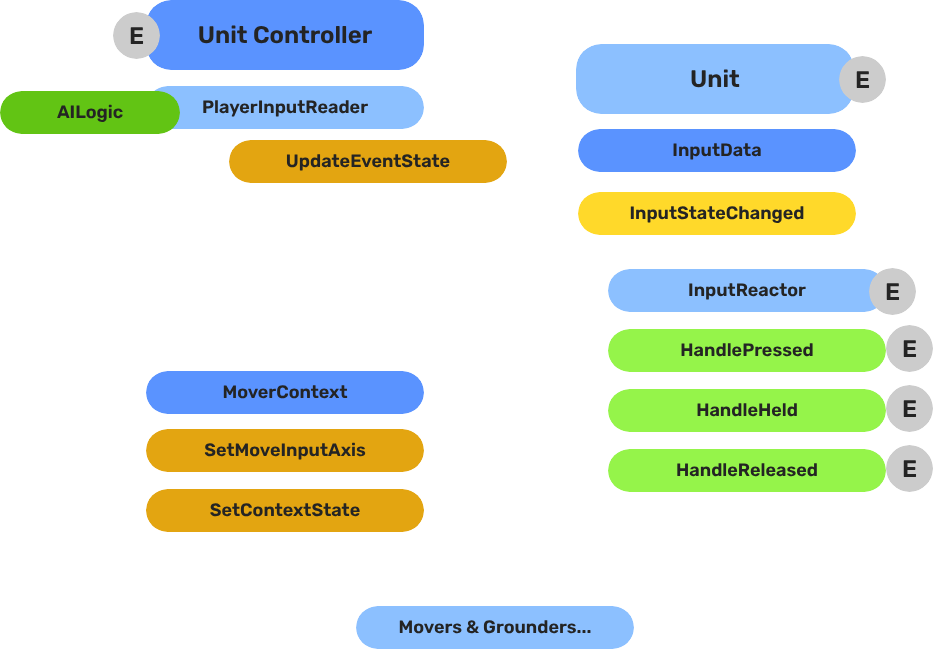
Breakdown
The input pipeline has three stages. Each stage is a separate component on the unit entity, and they run in order every frame:
| Stage | Component | What It Does |
|---|
| 1 — Read | GS_PlayerControllerInputReaderComponent | Reads raw input events from the active input profile and writes them into GS_InputDataComponent. |
| 2 — Store | GS_InputDataComponent | Holds the current frame’s input state — button presses, axis values — as structured data. |
| 3 — React | Reactor components | Read from GS_InputDataComponent and produce intent: movement vectors, action triggers, etc. |
All reactor components downstream of the store stage read from the same GS_InputDataComponent, so there is no duplicated hardware polling and no risk of two reactors seeing different input states for the same frame.
- The Basics: Controllers — Possession, input routing, and controller assignment.
- The Basics: Core Input — Input profiles, action mappings, and options setup.
- The Basics: Unit Input — Input readers, axis configuration, and ScriptCanvas usage.
- Framework API: Unit Controllers — Controller components, possession API, and C++ extension.
- Framework API: Input Reader — Profile binding, action event reading, and C++ extension.
- Framework API: Input Reactor — InputDataComponent schema, reactor base class, and C++ extension.
- Framework API: Mover Context — Context state, mode authority, and C++ extension.
Component Reference
Stores the current input state for a unit as a name-value map. Receives input from the controller via InputDataRequestBus. Broadcasts state changes to reactor components via InputDataNotificationBus.
Data: AZStd::unordered_map<AZStd::string, float> inputEventStates
Also listens to UnitNotificationBus::UnitPossessed to store the owning controller reference.
Listens to InputDataNotificationBus. Tracks a set of event names (inputReactEvents). Fires the correct virtual based on zero-crossing:
| Virtual | Trigger |
|---|
HandlePressed(stateName) | Value changed 0 → non-zero |
HandleHeld(stateName) | Value remains non-zero |
HandleReleased(stateName) | Value changed non-zero → 0 |
Variant for analogue axis input. Fires HandleAxisChanged(stateName, value) whenever the value changes, without pressed/held/released semantics.
KeyboardMovement_InputReactorComponent
Converts four discrete key events into a 2D movement axis. Maps moveUp/moveDown/moveLeft/moveRight event names to +1/-1 contributions on X and Y, then calls MoverContextRequestBus::SetMoveInputAxis("x"/"y", value).
| Field | Description |
|---|
moveUpEvent | Event name for the forward/up key |
moveDownEvent | Event name for the back/down key |
moveLeftEvent | Event name for the left key |
moveRightEvent | Event name for the right key |
JoyAxisMovement_AxisReactorComponent
Directly maps two joystick axis event names to the mover context X and Y axes via SetMoveInputAxis.
| Field | Description |
|---|
xAxisName | Input event name for the horizontal axis |
yAxisName | Input event name for the vertical axis |
Extends GS_Core::GS_InputReaderComponent. Sits on the controller entity. Routes input to the possessed unit on HandleFireInput. Updates its possessedUnit reference when PossessedTargetUnit fires. See Player Input Reader for full details.
API Reference
Commands sent to a specific unit’s input data component. ById bus — addressed by unit entity ID.
| Method | Parameters | Returns | Description |
|---|
UpdateEventState | AZStd::string stateName, float value | void | Writes the value for the named event and broadcasts InputStateChanged. |
ClearInputState | — | void | Zeros all stored values and broadcasts ClearInput. |
GetEventState | AZStd::string stateName | float | Returns the current float value for the named event. |
Events broadcast to reactor components on the unit. ById bus — addressed by unit entity ID.
| Event | Parameters | Description |
|---|
InputStateChanged | AZStd::string stateName, float value | Fired when any input event value changes. Reactor components compare against their tracked events and respond. |
ClearInput | — | Fired when all input states are cleared. |
See Also
For detailed component pages:
For related components:
Get GS_Unit
GS_Unit — Explore this gem on the product page and add it to your project.
14.3.1 - Input Reactor
Base and concrete reactor components — convert unit input state into pressed/held/released events or axis changes for movement and actions.
Input reactor components sit on the unit entity and listen to InputDataNotificationBus. They are the unit-side response layer that turns stored input state into game actions — movement vectors, ability triggers, UI navigation, etc.
For usage guides and setup examples, see The Basics: GS_Unit.

Contents
How It Works
Each reactor declares which event names it cares about (inputReactEvents). When InputDataNotificationBus::InputStateChanged fires, the reactor compares the incoming stateName against its list. If it matches, it compares the new value against the previously stored value and calls the correct virtual method:
- 0 → non-zero →
HandlePressed - non-zero → non-zero →
HandleHeld - non-zero → 0 →
HandleReleased - any change →
HandleAxisChanged (axis variant only)
Reactors store lastInputValues per event name to track zero-crossings between frames.
Base Classes
GS_InputReactorComponent
Base class for discrete button/key input. Extend this to react to named input events with press, hold, and release semantics.
Virtual methods to override:
| Method | Parameters | Description |
|---|
HandlePressed | AZStd::string stateName | Called when the event value crosses from 0 to non-zero. |
HandleHeld | AZStd::string stateName | Called each frame while the event value remains non-zero. |
HandleReleased | AZStd::string stateName | Called when the event value crosses from non-zero to 0. |
Fields:
| Field | Description |
|---|
inputReactEvents | List of event name strings this reactor listens for |
lastInputValues | Map of {eventName → float} tracking previous values for zero-crossing detection |
GS_InputAxisReactorComponent
Base class for analogue axis input. Extend this for joystick, trigger, or any continuous value that should not use pressed/held/released semantics.
Virtual methods to override:
| Method | Parameters | Description |
|---|
HandleAxisChanged | AZStd::string stateName, float value | Called whenever the axis value changes. |
Concrete Reactors
KeyboardMovement_InputReactorComponent
Converts four discrete directional key events into a 2D movement axis. Maps moveUp/moveDown/moveLeft/moveRight to +1/-1 contributions on the X and Y axes. On any key press or release, recomputes the combined axis and calls MoverContextRequestBus::SetMoveInputAxis("x"/"y", value) on the unit.
| Field | Description |
|---|
moveUpEvent | Event name for the forward/up key |
moveDownEvent | Event name for the back/down key |
moveLeftEvent | Event name for the left key |
moveRightEvent | Event name for the right key |
Internal accumulation fields:
| Field | Description |
|---|
xAxisPositive / xAxisNegative | Accumulated +X and -X contributions |
yAxisPositive / yAxisNegative | Accumulated +Y and -Y contributions |
JoyAxisMovement_AxisReactorComponent
Directly maps two joystick axis event names to the Mover Context X and Y movement axes. Calls MoverContextRequestBus::SetMoveInputAxis("x"/"y", value) directly from HandleAxisChanged.
| Field | Description |
|---|
xAxisName | Input event name for the horizontal axis |
yAxisName | Input event name for the vertical axis |
API Reference
Reactors themselves do not expose a request bus. They consume InputDataNotificationBus and produce calls to MoverContextRequestBus or other action buses.
InputDataNotificationBus (consumed)
| Event | Description |
|---|
InputStateChanged(stateName, value) | Triggers zero-crossing comparison and calls HandlePressed/HandleHeld/HandleReleased/HandleAxisChanged. |
ClearInput() | Resets all lastInputValues to zero, triggering releases for any held inputs. |
MoverContextRequestBus (produced by movement reactors)
| Call | Description |
|---|
SetMoveInputAxis("x", value) | Sets the horizontal axis input (−1 to 1) on the unit’s MoverContext. |
SetMoveInputAxis("y", value) | Sets the vertical axis input (−1 to 1) on the unit’s MoverContext. |
Extension Guide
Use the InputReactor ClassWizard template to generate a new input reactor with boilerplate already in place — see GS_Unit Templates.
Create custom reactor components by extending GS_InputReactorComponent or GS_InputAxisReactorComponent.
#pragma once
#include <GS_Unit/InputData/GS_InputReactorComponent.h>

namespace MyProject
{
    class AbilityInputReactor : public GS_Unit::GS_InputReactorComponent
    {
    public:
        AZ_COMPONENT_DECL(AbilityInputReactor);
        static void Reflect(AZ::ReflectContext* context);

    protected:
        void HandlePressed(const AZStd::string& stateName) override;
        void HandleReleased(const AZStd::string& stateName) override;
    };
}
In Reflect(), add the event names you want to listen to:
// In your component's activation or reflection, populate inputReactEvents:
inputReactEvents.push_back("ability_primary");
inputReactEvents.push_back("ability_secondary");
See Also
Get GS_Unit
GS_Unit — Explore this gem on the product page and add it to your project.
14.3.2 - Player Input Reader
Controller-side component that reads hardware input events and routes them to the possessed unit’s input data component.
GS_PlayerControllerInputReaderComponent is the bridge between the O3DE input system and the GS_Unit input pipeline. It sits on the controller entity alongside GS_PlayerControllerComponent and is responsible for reading raw hardware events and routing them to whichever unit is currently possessed.
For usage guides and setup examples, see The Basics: GS_Unit.

Contents
How It Works
Inheritance Chain
GS_PlayerControllerInputReaderComponent extends GS_Core::GS_InputReaderComponent, which listens to AzFramework::InputChannelNotificationBus. When a hardware input fires, the base class matches the event against the configured GS_InputProfile and calls HandleFireInput(eventName, value).
HandleFireInput(eventName, value) checks whether a unit is currently possessed. If so, it routes the event to the unit:
GS_Unit::InputDataRequestBus::Event(
    possessedUnit,
    &GS_Unit::InputDataRequestBus::Events::UpdateEventState,
    eventName, value
);
If no unit is possessed, the input is silently dropped.
Tracking the Possessed Unit
The component listens to UnitControllerNotificationBus::PossessedTargetUnit on its own controller entity. When the controller possesses a new unit, this callback fires and the component updates its local possessedUnit reference. All future input calls then route to the new unit automatically.
Setup
Add GS_PlayerControllerInputReaderComponent to the controller entity alongside:
GS_PlayerControllerComponent — the controller that manages possession- A
GS_InputProfile asset assigned to the input reader’s inspector slot — defines which input events to listen for and their names
The input reader does not need to be configured per-unit. Changing possession automatically redirects all future input.
API Reference
GS_PlayerControllerInputReaderComponent does not expose a public request bus. It consumes two buses and produces one:
Consumed
| Bus | Event | Description |
|---|
AzFramework::InputChannelNotificationBus | OnInputChannelEvent | Receives raw hardware input from O3DE. Matched against the GS_InputProfile. |
UnitControllerNotificationBus | PossessedTargetUnit(unitId) | Updates the local possessedUnit reference when the controller possesses a new unit. |
Produced
| Bus | Method | Description |
|---|
InputDataRequestBus | UpdateEventState(eventName, value) | Routes matched input events to the possessed unit’s GS_InputDataComponent. |
Virtual Methods
| Method | Parameters | Description |
|---|
HandleFireInput | AZStd::string eventName, float value | Called by the base class when a matched input event fires. Routes to the possessed unit if valid. |
See Also
Get GS_Unit
GS_Unit — Explore this gem on the product page and add it to your project.
14.4 - Units
What makes an entity a unit — the GS_UnitComponent, entity configuration, collision setup, and links to movement subsystems.
A “unit” in GS_Play is any entity that can be possessed by a controller and driven through gameplay. The GS_UnitComponent is the marker that transforms an ordinary entity into a unit. It provides the possession interface, unique naming, standby awareness, and registration with the Unit Manager.
Units are the characters, vehicles, creatures, or any other controllable actors in your game. They do not contain decision-making logic themselves — that comes from the controller that possesses them. A unit provides the body: movement, collision, visuals, and stats. The controller provides the brain: player input or AI logic.
For usage guides and setup examples, see The Basics: GS_Unit.

Contents
How It Works
Registration
When a GS_UnitComponent activates, it registers itself with the Unit Manager. This allows the manager to track all active units and respond to CheckIsUnit queries. When the component deactivates, it unregisters.
Possession
Units are possessed by controllers through the UnitRequestBus:
- A controller calls
Possess(controllerEntityId) on the unit. - The unit stores the controller reference and broadcasts
UnitPossessed on UnitNotificationBus. - The controller can now issue commands to the unit’s subsystems (movement, actions, etc.).
- Calling
DePossess() clears the controller reference.
Standby
Units receive standby signals from the Unit Manager. When entering standby, the unit broadcasts UnitEnteringStandby on its notification bus. Child components (movers, input reactors, etc.) listen for this and pause their processing. UnitExitingStandby reverses the process.
GS_UnitComponent Reference
Request Bus: UnitRequestBus
Commands sent to a specific unit. ById bus — addressed by the unit’s entity ID, multiple handlers.
| Method | Parameters | Returns | Description |
|---|
Possess | AZ::EntityId possessingController | void | Assigns a controller to this unit. |
DePossess | — | void | Removes the current controller from this unit. |
GetController | — | AZ::EntityId | Returns the entity ID of the currently possessing controller. |
GetUniqueName | — | AZStd::string | Returns the unique name assigned to this unit. |
Notification Bus: UnitNotificationBus
Events broadcast by a unit. ById bus — addressed by the unit’s entity ID.
| Event | Parameters | Description |
|---|
UnitPossessed | AZ::EntityId controller | Fired when a controller possesses this unit. |
UnitEnteringStandby | — | Fired when this unit enters standby. |
UnitExitingStandby | — | Fired when this unit exits standby. |
Virtual Methods
| Method | Parameters | Returns | Description |
|---|
SetUniqueName() | — | void | Called during initialization to generate the unit’s unique name. Override in subclasses to use project-specific naming. |
Setup
Unit Entity Configuration
A minimal unit entity requires:
- GS_UnitComponent – Registers the entity as a unit and provides the possession interface.
- Movement components – At least a mover and optionally a grounder for ground detection.
- PhysX collider – For physics interaction and ground detection.
A fully featured unit entity typically includes:
GS_UnitComponentGS_MoverContextComponent – Aggregates movement input from movers- A mover component (e.g.,
GS_3DFreeMoverComponent, GS_3DSlideMoverComponent, or GS_PhysicsMoverComponent) - A grounder component (e.g.,
GS_PhysicsRayGrounderComponent) for surface detection - PhysX Rigid Body and Collider components
- Mesh or Actor component for visuals
Unit Collider Configuration

Collision layers used for a unit collider, as seen in the Entity Inspector.
Units require properly configured PhysX collision layers to interact with the environment and other units. If you have not set up your PhysX Collision Layers or Groups yet, refer to the Setting Up Your Project Environment guide.
Typical collision layer assignments:
- Unit layer – The unit’s own collider. Collides with environment and other units.
- Ground detection layer – Used by grounder raycasts. Collides with terrain and walkable surfaces only.
See Also
For component references:
Get GS_Unit
GS_Unit — Explore this gem on the product page and add it to your project.
14.4.1 - Movement
The complete movement subsystem — movers, grounders, movement influence, and the movement profile asset for configuring unit locomotion.
The Movement subsystem handles all unit locomotion. It is mode-driven: a single named mode is active at a time, and only the mover and grounder whose mode name matches will run each tick. This makes locomotion fully composable without any mover combining logic.
The subsystem has four layers:
- Mover Context — Central hub. Transforms raw input into camera-relative and ground-projected vectors, owns mode switching, context states, and profile management.
- Movers — Translate MoverContext input into physics forces on the rigid body. One mover is active at a time per mode.
- Grounders — Detect ground contact, slope, and surface normal. Write results to the MoverContext and trigger mode switches.
- Movement Influence — Spatial zones and global fallbacks that supply the active
GS_UnitMovementProfile.
For usage guides and setup examples, see The Basics: GS_Unit.
Contents
Architecture
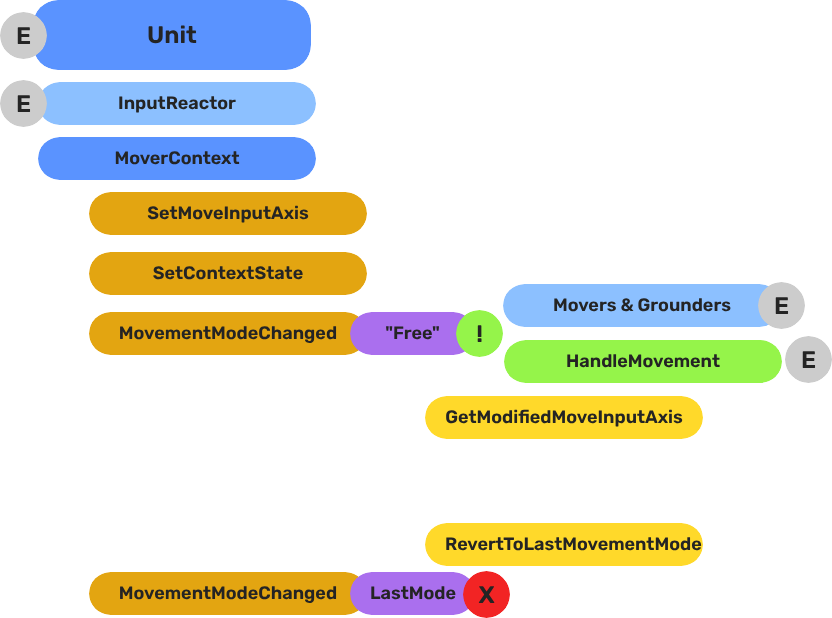
Breakdown
Movers and Grounders are multiple components on a Unit that are constantly changing activation based on the units state. When a mover is active, it freely processes the unit’s movement based on it’s functionality. At any moment, through internal or external forces, the Movement, Rotation, or Grounding state can change, which disables the old movers, and activates the new one to continue controlling the Unit.
Input
    ↓  InputDataNotificationBus::InputStateChanged
Input Reactor Components
    ↓  MoverContextRequestBus::SetMoveInputAxis
GS_MoverContextComponent
    ↓  ModifyInputAxis() → camera-relative
    ↓  GroundInputAxis() → ground-projected
    ↓  MoverContextNotificationBus::MovementModeChanged("Free")
GS_3DFreeMoverComponent  [active when mode == "Free"]
    ↓  AccelerationSpringDamper → rigidBody->SetLinearVelocity
GS_PhysicsRayGrounderComponent  [active when grounding mode == "Free"]
    ↓  MoverContextRequestBus::SetGroundNormal / SetContextState("grounding", ...)
    ↓  MoverContextRequestBus::ChangeMovementMode("Slide")  ← when slope too steep
GS_3DSlideMoverComponent  [active when mode == "Slide"]
The Slide mover activates when the Unit is walking on too steep an angle. It takes control over the unit, slides down the hill, then restores the previous movement behaviour.
- The Basics: Mover Context — Movement modes, grounding states, and configuration.
- The Basics: Movement — Mover types, grounder types, and ScriptCanvas usage.
- Framework API: Input Reactor — InputDataComponent schema, reactor base class, and C++ extension.
- Framework API: Mover Context — Context state, mode authority, and C++ extension.
- Framework API: Movers — Mover and grounder components, movement APIs, and C++ extension.
Movement Profile
GS_UnitMovementProfile is an asset that holds locomotion parameters. Movers read from the active profile via activeProfile pointer, which the MoverContext updates whenever the profile changes.
| Field | Type | Description |
|---|
LocomotionStyle | enum | Movement style archetype (affects animation matching). |
moveSpeed | float | Target movement speed (m/s). |
speedChangeSmoothing | float | Lerp factor for speed transitions between profiles. |
canSprint | bool | Whether this profile allows sprinting. |
canJump | bool | Whether this profile allows jumping. |
canRoll | bool | Whether this profile allows rolling. |
Create movement profiles as data assets in the Asset Editor. Assign a default profile to the GS_MoverContextComponent in the Inspector. Spatial influence zones can override the active profile at runtime.
Reading Movement Profile Data - ScriptCanvas
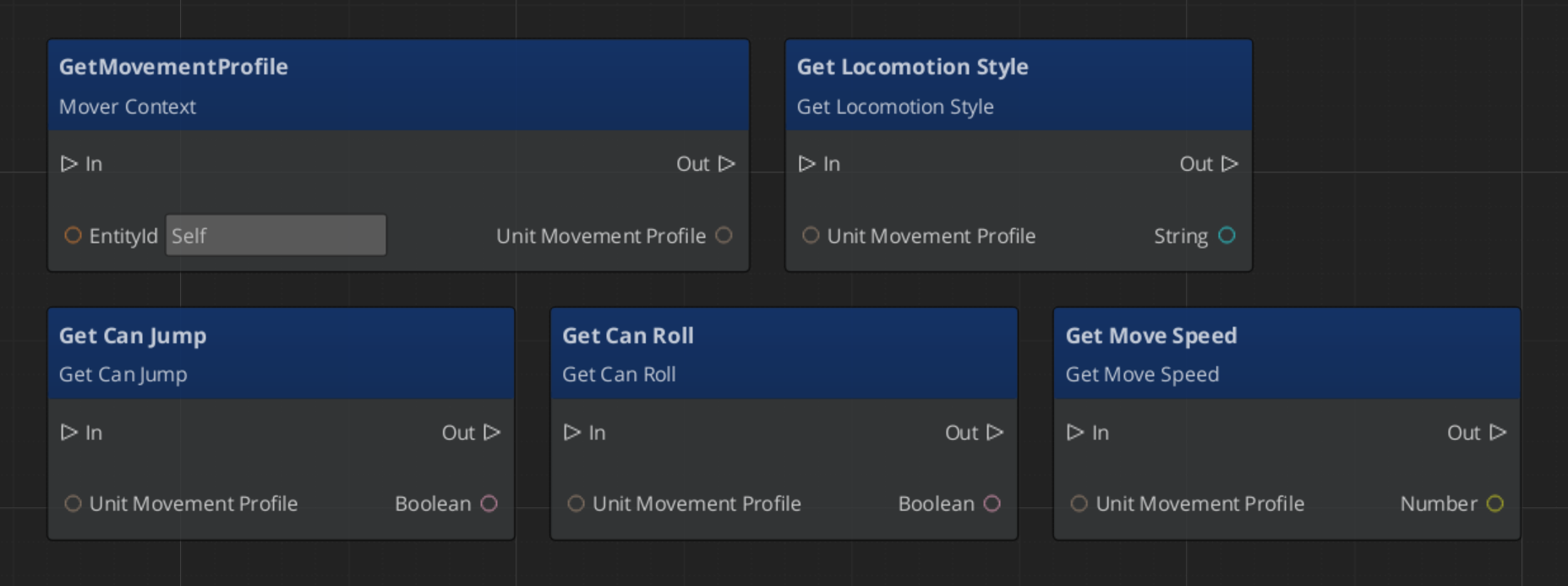
Movement Influence
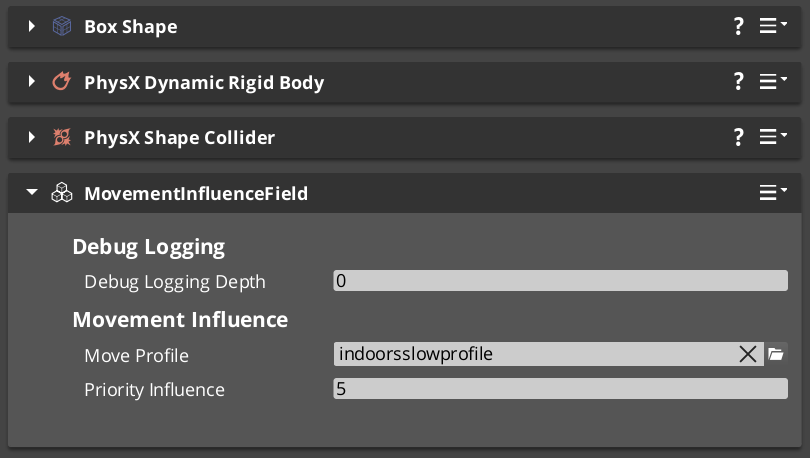
The MoverContext selects the active profile by priority:
- Influence list —
MovementInfluenceFieldComponent adds its profile when the unit enters its trigger volume. Multiple fields stack by priority. - Global fallback — if the influence list is empty and
allowGlobalInfluence is true, falls back to GlobalMovementRequestBus::GetGlobalMovementProfile. - Default profile — the
defaultMoveProfile assigned directly on the GS_MoverContextComponent.
MovementInfluenceFieldComponent
Inherits PhysicsTriggerComponent. On TriggerEnter, calls MoverContextRequestBus::AddMovementProfile(entityId, profile*) on the entering unit. On TriggerExit, calls RemoveMovementProfile(entityId).
Request Bus: MovementInfluenceRequestBus
ById bus — addressed by the influence field’s entity ID.
| Method | Parameters | Returns | Description |
|---|
GetPriority | — | int | Returns this field’s priority. Higher values take precedence when multiple fields overlap. |
GlobalMovementRequestBus
Broadcast bus — single global instance.
| Method | Parameters | Returns | Description |
|---|
GetGlobalMovementProfile | — | GS_UnitMovementProfile* | Returns the global fallback movement profile. Used by the MoverContext when no influence fields are active. |
Sub-Sections
- Mover Context — Input transformation, mode switching, context states, profile management
- Movers — Mover base class and concrete movers (
GS_3DFreeMoverComponent, GS_3DSlideMoverComponent) - Grounders — Grounder base class and concrete grounders (
GS_PhysicsRayGrounderComponent)
See Also
- Units — Unit entity setup and
GS_UnitComponent - Unit Controllers — Controllers that manage possession and drive input routing
- Input Data — The input pipeline that feeds movement reactors
- Stage Data — Handler for current stage functionality and global effects
- Springs Utility — Spring-damper functions used by movers and grounders
- Physics Trigger Volume — Physics overlap that triggers functionality.
Get GS_Unit
GS_Unit — Explore this gem on the product page and add it to your project.
14.4.1.1 - Mover Context
The central movement hub — transforms raw input into camera-relative and ground-projected vectors, manages mode switching, context states, and movement profiles.
GS_MoverContextComponent is the central state store for all movement on a unit. It sits between the input layer and the mover/grounder layer, holds all shared movement data, owns the mode-switching logic, and manages the active movement profile.
Movers and Grounders never communicate directly — they all read from and write to the MoverContext.
For usage guides and setup examples, see The Basics: GS_Unit.
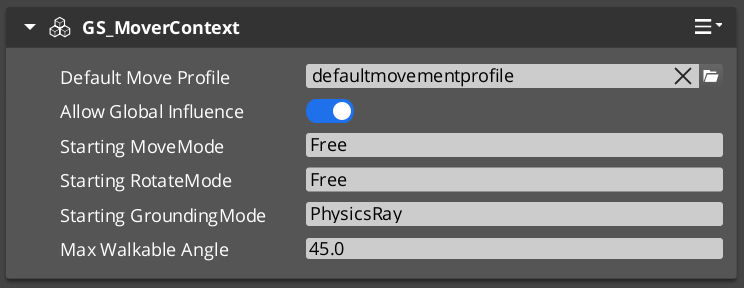
Contents
Raw input from reactor components arrives as a Vector2 (rawMoveInput). The MoverContext applies two sequential transformations each time input changes.
For a player unit (detected by “Player” tag): fetches the active camera’s world transform, flattens its forward and right vectors to the XY plane, then computes:
modifiedMoveInput = camForward * rawInput.Y + camRight * rawInput.X
For AI units (or when inputOverride = true): uses world cardinal axes (Y=forward, X=right).
Projects modifiedMoveInput onto the ground plane using the current groundNormal:
groundedMoveInput = modifiedMoveInput - groundNormal * dot(modifiedMoveInput, groundNormal)
Direction is then normalized and the original magnitude is restored. Movers use groundedMoveInput so movement always follows the surface contour, even on slopes.
Both steps run automatically whenever SetMoveInputAxis is called and again whenever SetGroundNormal is called (ground changed under a moving unit).
Mode Switching
The MoverContext maintains three independent mode strings, each with a current and last value:
| Mode Type | Current | Last |
|---|
| Movement mode | currentMoveMode | lastMoveMode |
| Rotation mode | currentRotateMode | lastRotateMode |
| Grounding mode | currentGroundingMode | lastGroundingMode |
ChangeMovementMode("Free") updates the string and broadcasts MoverContextNotificationBus::MovementModeChanged("Free"). Each Mover and Grounder component checks whether its own named mode matches the broadcast and activates or deactivates itself accordingly.
RevertToLastMovementMode() swaps current and last — enabling one-step undo (e.g., return from “Slide” to whatever was active before).
Context States
A generic key-value store for runtime state flags used by movers and grounders:
AZStd::unordered_map<AZStd::string, AZ::u32> contextStates
SetContextState(name, value) writes and broadcasts MoverContextNotificationBus::ContextStateChanged.
Known state keys:
| Key | Set by | Values | Meaning |
|---|
"grounding" | PhysicsRayGrounder | 0 = Falling, 1 = Grounded, 2 = Sliding | Ground contact state |
"StopMovement" | Various | 1 = stop | Signals the Free Mover to zero velocity |
Movement Profile Management
The MoverContext selects the active GS_UnitMovementProfile* by priority:
- Influence list —
AddMovementProfile(influencer, profile*) is called by MovementInfluenceFieldComponent when the unit enters a trigger volume. Multiple fields stack additively by priority via MovementInfluenceRequestBus::GetPriority. - Global fallback — if
influenceList is empty and allowGlobalInfluence is true, checks GlobalMovementRequestBus::GetGlobalMovementProfile. - Default profile — the asset-configured
defaultMoveProfile on the component.
When the profile changes, MoverContextNotificationBus::MovementProfileChanged(profile*) is broadcast. Movers update their cached activeProfile pointer.
Standby behavior:
UnitEnteringStandby → clears the influence list, broadcasts empty mode names (disables all movers/grounders)UnitExitingStandby → re-evaluates profile priority, re-broadcasts current mode names to re-enable the correct movers
Editor-Exposed Fields
| Field | Description |
|---|
defaultMoveProfile | Asset reference to the fallback GS_UnitMovementProfile |
allowGlobalInfluence | Whether to accept the global movement profile as a fallback |
startingMoveMode | Mode name to broadcast on activate (one-frame delayed to allow all components to start first) |
startingRotateMode | Rotation mode name to start with |
startingGroundingMode | Grounding mode name to start with |
maxWalkDegrees | Slope angle (degrees) above which movement is no longer considered grounded |
API Reference
Request Bus: MoverContextRequestBus
Commands sent to a specific unit’s MoverContext. ById bus — addressed by unit entity ID.
Input Axis:
| Method | Parameters | Returns | Description |
|---|
SetMoveInputAxis | AZStd::string axisName, float axisValue | void | Sets the raw input on “x” or “y”. Triggers ModifyInputAxis() and GroundInputAxis(). Clamps total magnitude to 1.0. |
GetMoveInputAxis | — | AZ::Vector2* | Returns pointer to rawMoveInput. |
GetModifiedMoveInputAxis | — | AZ::Vector3* | Returns pointer to camera-relative modifiedMoveInput. |
GetGroundMoveInputAxis | — | AZ::Vector3* | Returns pointer to ground-projected groundedMoveInput. |
Ground State:
| Method | Parameters | Returns | Description |
|---|
SetGroundNormal | AZ::Vector3 newNormal | void | Updates the ground normal and re-projects modifiedMoveInput. |
GetGroundNormal | — | AZ::Vector3* | Returns pointer to current ground normal. |
GetSlopeDirection | — | AZ::Vector3* | Returns pointer to the current slope direction vector. |
GetSlopeAngle | — | float* | Returns pointer to the current slope angle (dot product with up). |
GetMaxWalkAngle | — | float* | Returns pointer to the cosine of maxWalkDegrees. |
Context States:
| Method | Parameters | Returns | Description |
|---|
SetContextState | AZStd::string stateName, AZ::u32 stateValue | void | Writes a state value and broadcasts ContextStateChanged. |
GetContextState | AZStd::string stateName | AZ::u32 | Returns the current value for the named state. |
Mode Switching:
| Method | Parameters | Returns | Description |
|---|
ChangeMovementMode | AZStd::string targetMoveMode | void | Sets current move mode and broadcasts MovementModeChanged. |
RevertToLastMovementMode | — | void | Swaps current and last move mode. |
ChangeRotationMode | AZStd::string targetRotateMode | void | Sets current rotation mode and broadcasts RotationModeChanged. |
RevertToLastRotationMode | — | void | Swaps current and last rotation mode. |
ChangeGroundingMode | AZStd::string targetGroundingMode | void | Sets current grounding mode and broadcasts GroundingModeChanged. |
RevertToLastGroundingMode | — | void | Swaps current and last grounding mode. |
Profile Management:
| Method | Parameters | Returns | Description |
|---|
AddMovementProfile | AZ::EntityId influencer, GS_UnitMovementProfile* profile | void | Adds an influence-field profile to the priority list and re-evaluates. |
RemoveMovementProfile | AZ::EntityId influencer | void | Removes an influence-field profile and re-evaluates. |
Notification Bus: MoverContextNotificationBus
Events broadcast by the MoverContext. ById bus — addressed by unit entity ID. Movers and Grounders subscribe to this.
| Event | Parameters | Description |
|---|
MovementModeChanged | AZStd::string modeName | Fired when the movement mode changes. Movers activate or deactivate based on their m_moveModeName. |
RotationModeChanged | AZStd::string modeName | Fired when the rotation mode changes. |
GroundingModeChanged | AZStd::string modeName | Fired when the grounding mode changes. Grounders activate or deactivate based on their m_groundModeName. |
ContextStateChanged | AZStd::string stateName, AZ::u32 value | Fired when a context state value changes. |
MovementProfileChanged | GS_UnitMovementProfile* profile | Fired when the active movement profile is replaced. Movers update their activeProfile pointer. |
Virtual Methods
Override these when extending the MoverContext.
| Method | Description |
|---|
ModifyInputAxis() | Transforms rawMoveInput into modifiedMoveInput (camera-relative). Override for custom camera or axis mapping. |
GroundInputAxis() | Projects modifiedMoveInput onto the ground plane into groundedMoveInput. Override for custom surface projection. |
Script Canvas Examples
Changing movement mode:
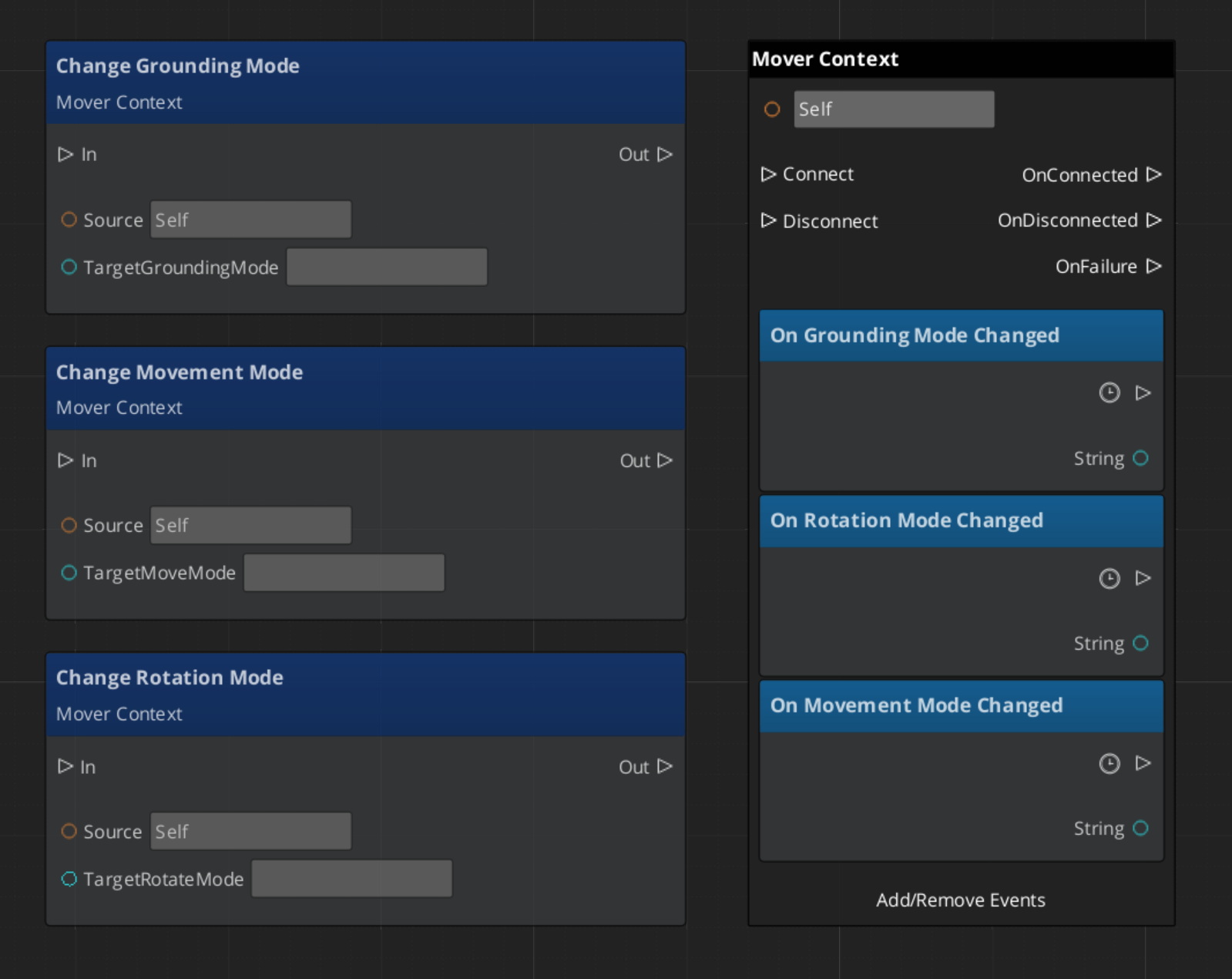
Reverting to the previous movement mode:
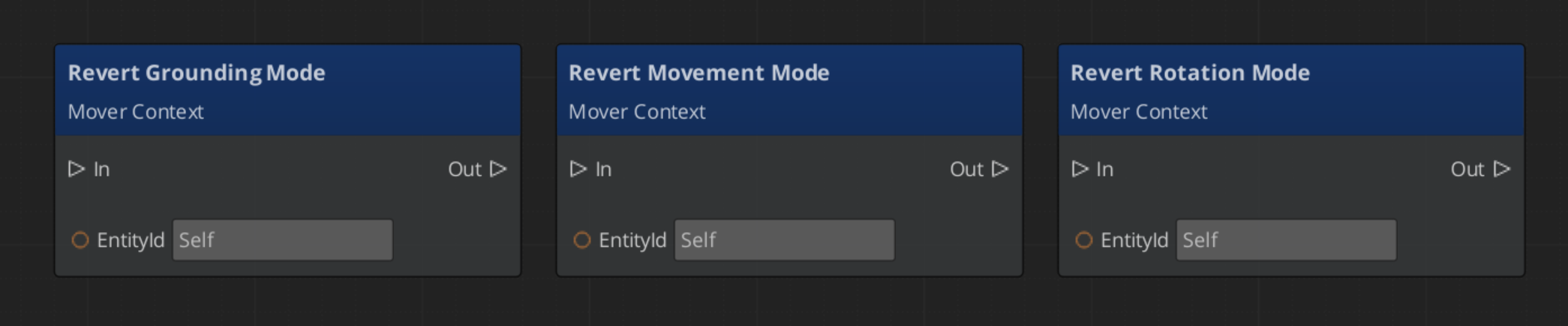
Setting a context state flag:
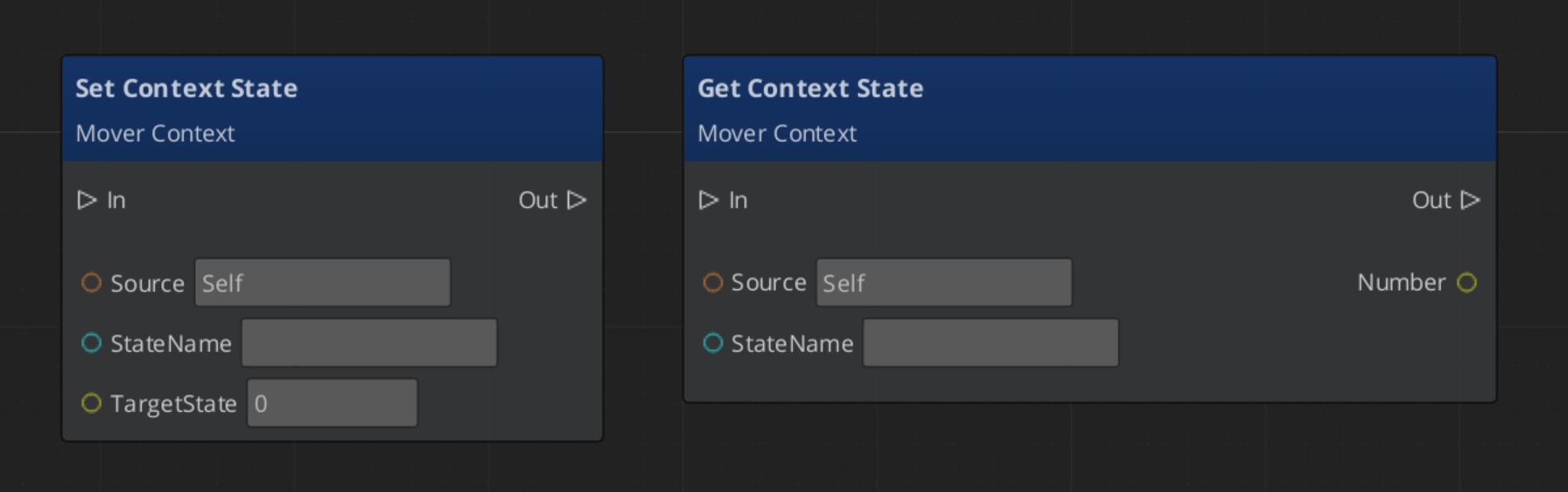
See Also
- Movers — Mover components that read from the MoverContext
- Grounders — Grounder components that write ground state to the MoverContext
- Movement — Movement system overview
- Input Data — The input pipeline that feeds
SetMoveInputAxis
Get GS_Unit
GS_Unit — Explore this gem on the product page and add it to your project.
14.4.1.2 - Movers
Mover base class and concrete mover components — translate MoverContext input into physics-based unit motion via named mode activation.
Movers translate the processed movement input from the MoverContext into physics forces on the unit’s rigid body. Each mover activates for a specific named mode — when the MoverContext broadcasts MovementModeChanged("Free"), only the mover whose m_moveModeName matches "Free" activates. All others deactivate. This makes the locomotion system fully mode-driven and composable.
For usage guides and setup examples, see The Basics: GS_Unit.

Contents
Class Hierarchy
GS_MoverComponent (base — mode-aware activation, tick management)
  └── GS_PhysicsMoverComponent (adds RigidBody cache + validity check)
        ├── GS_3DFreeMoverComponent    (mode: "Free")
        └── GS_3DSlideMoverComponent   (mode: "Slide")
GS_MoverComponent (Base)
Tick: AzPhysics::SystemEvents::OnPostSimulateEvent (after the physics step). Optional debugForceTick uses AZ::TickBus for debugging without physics.
Mode-Aware Activation
Listens to MoverContextNotificationBus::MovementModeChanged and RotationModeChanged. Compares the broadcast mode name against its own m_moveModeName and m_rotateModeName. Calls ToggleMovement(true/false) and ToggleRotation(true/false) accordingly. The physics post-simulate handler is only registered when the mover is active, saving ticks when inactive.
Per-Tick Processing
Each tick:
CheckCanOperate() — validates that the required pointers and state are validHandleMovement() — calculates and applies movement (no-op in base)HandleRotation() — calculates and applies rotation (no-op in base)
Key Fields
| Field | Description |
|---|
m_moveModeName | Mode string this mover activates for (set in Activate()) |
m_rotateModeName | Mode string this mover’s rotation activates for |
movementActive / rotationActive | Whether movement/rotation processing is currently running |
delta | Cached frame delta time |
activeProfile | Pointer to current GS_UnitMovementProfile (updated via MovementProfileChanged) |
debugForceTick | If true, uses game tick instead of post-simulate (for debugging without physics) |
GS_PhysicsMoverComponent
Extends GS_MoverComponent. On activate, fetches AzPhysics::RigidBody* from the entity. CheckCanOperate() verifies the rigid body pointer is valid before allowing tick processing.
Concrete Movers
| Component | Mode Name | Description |
|---|
| GS_3DFreeMoverComponent | "Free" | Standard 3D locomotion — camera-relative, spring-damped velocity and rotation |
| GS_3DSlideMoverComponent | "Slide" | Slope-sliding locomotion — activated by the grounder when slope exceeds maxWalkAngle |
API Reference
Movers consume two buses and produce one:
Consumed
| Bus | Event | Description |
|---|
MoverContextNotificationBus | MovementModeChanged(modeName) | Activates or deactivates movement processing based on mode name match. |
MoverContextNotificationBus | RotationModeChanged(modeName) | Activates or deactivates rotation processing based on mode name match. |
MoverContextNotificationBus | ContextStateChanged(stateName, value) | Allows movers to react to state flags (e.g. "StopMovement"). |
MoverContextNotificationBus | MovementProfileChanged(profile*) | Updates the cached activeProfile pointer. |
Virtual Methods
Override these when extending any mover:
| Method | Parameters | Returns | Description |
|---|
ToggleMovement | bool on | void | Called when the movement mode activates or deactivates. |
ToggleRotation | bool on | void | Called when the rotation mode activates or deactivates. |
HandleMovement | — | void | Called each tick when movement is active. Override to implement movement logic. |
HandleRotation | — | void | Called each tick when rotation is active. Override to implement rotation logic. |
CheckCanOperate | — | bool | Returns true if the mover has everything it needs to run this tick. |
Extension Guide
Use the Mover ClassWizard template to generate a new mover with boilerplate already in place — see GS_Unit Templates. The template offers two base class options: Physics Mover (default) for rigid-body locomotion, and Base Mover for transform-only movement.
Extend GS_PhysicsMoverComponent to create a custom physics-driven mover.
#pragma once
#include <Source/Unit/Mover/GS_PhysicsMoverComponent.h>

namespace MyProject
{
    class MyCustomMover : public GS_Unit::GS_PhysicsMoverComponent
    {
    public:
        AZ_COMPONENT_DECL(MyCustomMover);
        static void Reflect(AZ::ReflectContext* context);

    protected:
        void Activate() override;

        void HandleMovement() override;
        void HandleRotation() override;

    private:
        // Mode name must be set in Activate():
        // m_moveModeName = "MyMode";
        // m_rotateModeName = "MyMode";
    };
}
In HandleMovement(), read from the MoverContext and write to the rigid body:
void MyCustomMover::HandleMovement()
{
    AZ::Vector3* groundedInput = nullptr;
    GS_Unit::MoverContextRequestBus::EventResult(
        groundedInput, GetEntityId(),
        &GS_Unit::MoverContextRequestBus::Events::GetGroundMoveInputAxis
    );

    if (!groundedInput || groundedInput->IsZero()) return;

    AZ::Vector3 targetVelocity = *groundedInput * activeProfile->moveSpeed;
    m_rigidBody->SetLinearVelocity(targetVelocity);
}
See Also
Get GS_Unit
GS_Unit — Explore this gem on the product page and add it to your project.
14.4.1.2.1 - 3D Free Mover
Standard 3D locomotion — camera-relative movement and rotation driven by spring-damped physics, with optional slope slowdown.
GS_3DFreeMoverComponent is the standard mover for walking characters. It reads the ground-projected input vector from the MoverContext, applies optional slope attenuation, computes a destination velocity, and drives the rigid body via AccelerationSpringDamper. Rotation is handled separately using QuaternionSpringDamper to face the last non-zero movement direction.
Mode names: "Free" (both movement and rotation)
For usage guides and setup examples, see The Basics: GS_Unit.

Contents
How It Works
HandleMovement()
Called each post-physics tick while movement mode is "Free":
- Reads
groundedMoveInput pointer from MoverContextRequestBus::GetGroundMoveInputAxis. - If
EnableSlopeSlowdown is true, attenuates the input vector on steep slopes (see Slope Slowdown). - Multiplies the attenuated direction by
CalculateSpeed() to get destinationVelocity. - Fetches
rigidBody->GetLinearVelocity() as the current velocity. - Calls
GS_Core::Springs::AccelerationSpringDamper(position, velocity, cachedAcceleration, destinationVelocity, moveHalflife, delta). - Applies the result:
rigidBody->SetLinearVelocity(velocity).
The cachedAcceleration is a member field that persists between frames to produce smooth acceleration response even on sudden direction changes.
HandleRotation()
- Reads
groundedMoveInput from the MoverContext. - Updates
lastDirection only when groundedMoveInput is non-zero — so the unit keeps facing the last direction when stopped. - Computes target yaw from
lastDirection using atan2f. - Calls
GS_Core::Springs::QuaternionSpringDamper(currentRotation, cachedAngularVelocity, targetRotation, rotateHalflife, delta). - Applies
cachedAngularVelocity.Z to rigidBody->SetAngularVelocity().
StopMovement State
When ContextStateChanged("StopMovement", 1) fires, the mover zeros both velocity and cached acceleration, then clears the state back to 0. This allows other systems (e.g. landing from a jump, ability wind-up) to cleanly halt the unit.
Slope Slowdown
When EnableSlopeSlowdown is true, the mover reduces movement speed as the slope angle increases toward maxWalkAngle. The attenuation curve uses an exponent applied to the dot product of the movement direction against the uphill slope direction:
attenuation = 1.0 - uphillSlowStrength * pow(dot(moveDir, slopeDir), uphillSlowExponent)
              × remap(slopeAngle, startSlowAngle, maxWalkAngle, 0, 1)
The slowdown begins at startSlowAngle degrees and reaches maximum reduction at maxWalkAngle. At or beyond maxWalkAngle, the grounder will switch the unit to "Slide" mode regardless.
Speed Calculation
CalculateSpeed() lerps curSpeed toward activeProfile->moveSpeed each frame:
curSpeed = AZ::Lerp(curSpeed, activeProfile->moveSpeed, expf(-speedChangeSmoothing * delta));
speedChangeSmoothing is read from activeProfile. This produces a smooth speed transition when the movement profile changes (e.g. entering a slow zone).
Editor-Exposed Settings
| Field | Default | Description |
|---|
moveHalflife | 0.1 | Spring halflife for movement velocity. Smaller = snappier acceleration. |
rotateHalflife | 0.2 | Spring halflife for rotation. Smaller = faster turn response. |
EnableSlopeSlowdown | true | Whether steep slopes reduce movement speed. |
uphillSlowStrength | 0.5 | Maximum speed reduction factor at the max walkable angle (0 = no reduction, 1 = full stop). |
uphillSlowExponent | 2.5 | Curve shape of the slowdown ramp. Higher = slower onset, steeper drop near max. |
startSlowAngle | 30° | Slope angle at which slowdown begins. |
Extension Guide
Extend GS_3DFreeMoverComponent to override movement or rotation behavior while keeping the base spring physics.
#pragma once
#include <Source/Unit/Mover/GS_3DFreeMoverComponent.h>

namespace MyProject
{
    class MyFreeMove : public GS_Unit::GS_3DFreeMoverComponent
    {
    public:
        AZ_COMPONENT_DECL(MyFreeMove);
        static void Reflect(AZ::ReflectContext* context);

    protected:
        void HandleMovement() override;
    };
}
void MyFreeMove::HandleMovement()
{
    // Call base for standard spring movement
    GS_3DFreeMoverComponent::HandleMovement();

    // Add custom post-processing (e.g. strafe penalty, footstep IK correction)
}
See Also
Get GS_Unit
GS_Unit — Explore this gem on the product page and add it to your project.
14.4.1.2.2 - Slide Mover
Slope-sliding locomotion — automatically activated when slope exceeds maxWalkAngle, drives the unit down the slope via spring-damped physics with optional input resistance and automatic recovery.
GS_3DSlideMoverComponent handles slope-sliding locomotion. It activates automatically when the grounder detects a slope angle exceeding maxWalkAngle, and deactivates when the slope eases or the unit slows enough to recover.
Mode names: "Slide" (both movement and rotation)
For usage guides and setup examples, see The Basics: GS_Unit.
Contents
How It Works
HandleMovement()
Called each post-physics tick while movement mode is "Slide":
- Reads
slopeDir from MoverContextRequestBus::GetSlopeDirection. - Computes
destinationVelocity = slopeDir * baseSlideSpeed. - If
EnableInputSlideResistance is true, reads groundedMoveInput and applies an opposing influence:destinationVelocity += groundedMoveInput * InputResistanceInfluence
- Fetches
rigidBody->GetLinearVelocity() as the current velocity. - Calls
GS_Core::Springs::AccelerationSpringDamper(position, velocity, cachedAcceleration, destinationVelocity, moveHalflife, delta). - Applies the result:
rigidBody->SetLinearVelocity(velocity). - Calls
FinishSliding() to check whether the slide should end.
HandleRotation()
- Reads
slopeDir from the MoverContext. - Computes target yaw from slope direction using
atan2f — unit faces down the slope. - Calls
GS_Core::Springs::QuaternionSpringDamper(currentRotation, cachedAngularVelocity, targetRotation, rotateHalflife, delta). - Applies
cachedAngularVelocity.Z to rigidBody->SetAngularVelocity().
Finish Sliding
FinishSliding() is called every movement tick. It returns true and triggers recovery when both conditions are met:
- The current slope angle is below
minSlideAngle - The unit’s current speed is below
minSpeedToStop
On recovery:
MoverContextRequestBus::ChangeMovementMode(recoveryMoveMode);
MoverContextRequestBus::ChangeRotationMode(recoveryRotateMode);
Both modes default to "Free", returning the unit to standard locomotion.
Editor-Exposed Settings
| Field | Default | Description |
|---|
moveHalflife | 0.1 | Spring halflife for slide velocity. |
rotateHalflife | 0.15 | Spring halflife for rotation toward slope direction. |
baseSlideSpeed | 8.0 | Target speed along the slope direction (m/s). |
EnableInputSlideResistance | true | Whether player input can partially resist or redirect the slide. |
InputResistanceInfluence | 2.0 | Scalar applied to groundedMoveInput when computing resistance. Higher = more player control. |
minSlideAngle | 20° | Slope angle below which the unit may recover (if also slow enough). |
minSpeedToStop | 1.5 | Speed threshold below which the unit may recover (if also on shallow slope). |
recoveryMoveMode | "Free" | Movement mode to switch to on recovery. |
recoveryRotateMode | "Free" | Rotation mode to switch to on recovery. |
Extension Guide
Extend GS_3DSlideMoverComponent to override slide behavior while keeping the base spring physics and recovery logic.
#pragma once
#include <Source/Unit/Mover/GS_3DSlideMoverComponent.h>

namespace MyProject
{
    class MySlide : public GS_Unit::GS_3DSlideMoverComponent
    {
    public:
        AZ_COMPONENT_DECL(MySlide);
        static void Reflect(AZ::ReflectContext* context);

    protected:
        void HandleMovement() override;
    };
}
void MySlide::HandleMovement()
{
    // Call base for standard slope physics
    GS_3DSlideMoverComponent::HandleMovement();

    // Add custom post-processing (e.g. audio trigger, particle effect on slide)
}
See Also
Get GS_Unit
GS_Unit — Explore this gem on the product page and add it to your project.
14.4.1.2.3 - 3D Strafe Mover
Aim-relative strafing movement for first-person and third-person units. Not yet implemented.
The 3D Strafe Mover provides aim-relative movement where the unit strafes relative to its facing direction. This is the standard movement model for first-person and third-person shooters where the camera or aim direction determines the movement frame.
This component is not yet implemented. This page will be updated with full API reference and usage documentation when the component is available.
For usage guides and setup examples, see The Basics: GS_Unit.
See Also
Get GS_Unit
GS_Unit — Explore this gem on the product page and add it to your project.
14.4.1.2.4 - Side Scroller Mover
2D side-scrolling movement constrained to a horizontal plane. Not yet implemented.
The Side Scroller Mover provides two-dimensional movement constrained to a horizontal plane with vertical jump support. This is the standard movement model for side-scrolling platformers, beat-em-ups, and other 2D gameplay projected in a 3D environment.
This component is not yet implemented. This page will be updated with full API reference and usage documentation when the component is available.
For usage guides and setup examples, see The Basics: GS_Unit.
See Also
- Movement – Movement subsystem overview
- Movers – All available mover components
Get GS_Unit
GS_Unit — Explore this gem on the product page and add it to your project.
14.4.1.2.5 - Grid Step Mover
Tile-based grid movement for turn-based or grid-locked unit locomotion. Not yet implemented.
The Grid Step Mover provides discrete, tile-based movement for units that move in fixed steps along a grid. This is the standard movement model for turn-based RPGs, tactics games, puzzle games, and any project that uses grid-locked locomotion.
This component is not yet implemented. This page will be updated with full API reference and usage documentation when the component is available.
For usage guides and setup examples, see The Basics: GS_Unit.
See Also
- Movement – Movement subsystem overview
- Movers – All available mover components
Get GS_Unit
GS_Unit — Explore this gem on the product page and add it to your project.
14.4.1.3 - Grounders
Grounder base class and concrete grounder components — detect ground contact, compute ground normals and slope data, and drive mode switching on the MoverContext.
Grounders run each physics tick to determine whether the unit is in contact with the ground, what the slope looks like, and whether the surface is walkable. They write their findings to the MoverContext and switch movement modes when the ground state changes.
For usage guides and setup examples, see The Basics: GS_Unit.

Contents
Class Hierarchy
GS_GrounderComponent (base — mode-aware activation, tick management)
  └── GS_PhysicsRayGrounderComponent  (grounding mode: "Free")
GS_GrounderComponent (Base)
Tick: AzPhysics::SystemEvents::OnPostSimulateEvent (after the physics step).
Mode-Aware Activation
Listens to MoverContextNotificationBus::GroundingModeChanged. Compares the broadcast mode name against its own m_groundModeName. Calls ToggleGrounder(true/false) accordingly. The physics post-simulate handler is only registered when the grounder is active.
Per-Tick Processing
Each tick:
CheckCanOperate() — validates required pointers and stateHandleGrounding() — performs ground detection and updates MoverContext (no-op in base)
Key Fields
| Field | Description |
|---|
m_groundModeName | Grounding mode string this grounder activates for |
delta | Cached frame delta time |
Concrete Grounders
API Reference
Virtual Methods
Override these when extending any grounder:
| Method | Parameters | Returns | Description |
|---|
ToggleGrounder | bool on | void | Called when the grounding mode activates or deactivates. |
HandleGrounding | — | void | Called each tick when the grounder is active. Override to implement ground detection logic. |
GroundingStateChange | AZ::u32 newState | void | Called when ground contact state changes. Override to react to grounding transitions. |
CheckCanOperate | — | bool | Returns true if the grounder has everything it needs to run this tick. |
Consumed Buses
| Bus | Event | Description |
|---|
MoverContextNotificationBus | GroundingModeChanged(modeName) | Activates or deactivates this grounder based on mode name match. |
Produced Calls
| Bus | Method | Description |
|---|
MoverContextRequestBus | SetGroundNormal(normal) | Updates the ground normal used by the MoverContext for input projection. |
MoverContextRequestBus | SetContextState("grounding", value) | Sets grounding state: 0 = Falling, 1 = Grounded, 2 = Sliding. |
MoverContextRequestBus | ChangeMovementMode(modeName) | Switches to "Slide" when slope exceeds maxWalkAngle, or back to "Free" on recovery. |
Extension Guide
Use the Grounder ClassWizard template to generate a new grounder with boilerplate already in place — see GS_Unit Templates. The template offers two base class options: Physics Ray Grounder (default, includes raycast, coyote time, and gravity) or Base Grounder for fully custom detection.
Extend GS_GrounderComponent to implement custom ground detection.
#pragma once
#include <Source/Unit/Grounder/GS_GrounderComponent.h>

namespace MyProject
{
    class MyGrounder : public GS_Unit::GS_GrounderComponent
    {
    public:
        AZ_COMPONENT_DECL(MyGrounder);
        static void Reflect(AZ::ReflectContext* context);

    protected:
        void Activate() override;

        void HandleGrounding() override;
        void GroundingStateChange(AZ::u32 newState) override;

    private:
        // Set in Activate():
        // m_groundModeName = "Free";
    };
}
In HandleGrounding(), run your detection and write results to the MoverContext:
void MyGrounder::HandleGrounding()
{
    AZ::Vector3 groundNormal = AZ::Vector3::CreateAxisZ();
    bool isGrounded = false;

    // ... custom detection logic ...

    GS_Unit::MoverContextRequestBus::Event(
        GetEntityId(),
        &GS_Unit::MoverContextRequestBus::Events::SetGroundNormal,
        groundNormal
    );

    AZ::u32 state = isGrounded ? 1 : 0;
    GS_Unit::MoverContextRequestBus::Event(
        GetEntityId(),
        &GS_Unit::MoverContextRequestBus::Events::SetContextState,
        "grounding", state
    );
}
See Also
Get GS_Unit
GS_Unit — Explore this gem on the product page and add it to your project.
14.4.1.3.1 - 3D Free Grounder
Raycast-based grounder for standard 3D locomotion — detects ground contact with coyote time, applies manual gravity when airborne, switches to Slide mode on steep slopes.
GS_PhysicsRayGrounderComponent is the standard grounder for walking characters. Each physics tick it casts a ray downward from the unit’s capsule base, evaluates the slope, applies gravity when airborne, and updates the MoverContext with ground normal and grounding state.
Grounding mode name: "Free"
For usage guides and setup examples, see The Basics: GS_Unit.

Contents
How It Works
Each post-physics tick, the grounder runs two operations in order:
GroundCheck() — determines contact, slope, and normalGroundingMove() — applies gravity or snap force based on contact result
Ground Check
GroundCheck() casts a sphere (matching the capsule base radius) downward from the unit’s feet:
- If the ray hits geometry within
groundCheckDistance:- Computes slope angle from the hit normal vs. world up.
- Updates
MoverContextRequestBus::SetGroundNormal(hitNormal). - If slope angle ≤
maxWalkAngle (from the MoverContext): reports Grounded. - If slope angle >
maxWalkAngle: reports Sliding. - Resets coyote timer.
- If no hit:
- Increments
coyoteTimer. - If
coyoteTimer < coyoteTime: still reports Grounded (coyote grace period). - If
coyoteTimer ≥ coyoteTime: reports Falling.
Grounding Move
GroundingMove() applies vertical forces based on the current state:
Grounded: Applies a downward TimedSpringDamper to keep the unit snapped to the surface without bouncing.
Falling: Applies manual gravity — adds gravityScale * AZ::Physics::DefaultGravity to the rigid body’s linear velocity each frame:
AZ::Vector3 velocity = rigidBody->GetLinearVelocity();
velocity.SetZ(velocity.GetZ() + gravity * delta);
rigidBody->SetLinearVelocity(velocity);
Sliding: Does not override vertical velocity — the Free Mover’s AccelerationSpringDamper handles the slide direction entirely.
Grounding State Changes
GroundingStateChange(newState) is called whenever the ground state changes:
| State | Value | Trigger | Action |
|---|
| Falling | 0 | Lost ground contact beyond coyote time | SetContextState("grounding", 0) |
| Grounded | 1 | Ray hit within walkable angle | SetContextState("grounding", 1) |
| Sliding | 2 | Ray hit but slope > maxWalkAngle | SetContextState("grounding", 2), ChangeMovementMode("Slide") |
When returning to Grounded from Sliding, the grounder calls ChangeMovementMode("Free") to restore locomotion.
Editor-Exposed Settings
| Field | Default | Description |
|---|
groundCheckDistance | 0.15 | Raycast distance below the capsule base to detect ground. |
capsuleRadius | 0.3 | Radius of the sphere used for the downward cast (should match capsule). |
coyoteTime | 0.12 | Seconds of grace period before reporting Falling after losing ground contact. |
gravityScale | 1.0 | Multiplier on AZ::Physics::DefaultGravity applied when airborne. |
snapHalflife | 0.05 | Spring halflife for the ground-snap TimedSpringDamper. Smaller = tighter snap. |
Extension Guide
Extend GS_PhysicsRayGrounderComponent to add custom ground detection or state reactions.
#pragma once
#include <Source/Unit/Grounder/GS_PhysicsRayGrounderComponent.h>

namespace MyProject
{
    class MyGrounder : public GS_Unit::GS_PhysicsRayGrounderComponent
    {
    public:
        AZ_COMPONENT_DECL(MyGrounder);
        static void Reflect(AZ::ReflectContext* context);

    protected:
        void GroundingStateChange(AZ::u32 newState) override;
    };
}
void MyGrounder::GroundingStateChange(AZ::u32 newState)
{
    // Call base to handle mode switching
    GS_PhysicsRayGrounderComponent::GroundingStateChange(newState);

    if (newState == 0)
    {
        // Unit became airborne — trigger jump animation, etc.
    }
}
See Also
Get GS_Unit
GS_Unit — Explore this gem on the product page and add it to your project.
14.5 - Templates
ClassWizard templates for GS_Unit — unit controllers, input reactors, mover components, and grounder components.
All GS_Unit extension types are generated through the ClassWizard CLI. The wizard handles UUID generation, cmake file-list registration, and module descriptor injection automatically.
For usage guides and setup examples, see The Basics: GS_Unit.
python ClassWizard.py \
    --template <TemplateName> \
    --gem <GemPath> \
    --name <SymbolName> \
    [--input-var key=value ...]
Contents
Unit Controller
Template: UnitController
Creates a Controller component that lives on the Controller Entity (the player or AI controller, not the Unit Entity itself). Manages which Unit is currently possessed, and coordinates possession/unpossession events to sibling controller-side components.
Generated files:
Source/${Name}ControllerComponent.h/.cpp
CLI:
python ClassWizard.py --template UnitController --gem <GemPath> --name <Name>
Post-generation: Implement OnPossess(unitEntityId) and OnUnpossess() to route activation to the correct input readers and other controller components. The controller entity is persistent; the unit entity is swappable.
See also: Unit Controllers — full extension guide with header and implementation examples.
Template: InputReactor
Sits on the Unit Entity. Subscribes to named input events from InputDataNotificationBus (broadcast by an InputReaderComponent on the Controller side) and translates them into MoverContextRequestBus calls.
Generated files:
Source/${Name}InputReactorComponent.h/.cpp
CLI:
python ClassWizard.py --template InputReactor --gem <GemPath> --name <Name>
Post-generation:
- Register event name strings in
inputReactEvents in Activate(). - Implement each
OnInputEvent(name, value) handler to call the appropriate MoverContextRequestBus method. - Multiple reactors can coexist on a Unit, each handling different input channels.
See also: Input Reactor — full extension guide with examples.
Mover Component
Template: Mover
Creates a Mover component that drives an entity’s movement each tick. Activates when GS_MoverContextComponent switches to the matching mode name, then calls HandleMovement() and HandleRotation() while active.
Two base classes available via --input-var:
| Option | Base Class | Movement Drive | Physics Required |
|---|
| Physics Mover (default) | GS_PhysicsMoverComponent | rigidBody linear/angular velocity, post-simulate tick | Yes — PhysicsRigidBodyService |
| Base Mover | GS_MoverComponent | TransformBus world translation, AZ::TickBus | No |
Generated files (Physics Mover):
Source/${Name}PhysicsMoverComponent.h/.cpp
Generated files (Base Mover):
Source/${Name}MoverComponent.h/.cpp
CLI:
# Physics Mover (default):
python ClassWizard.py --template Mover --gem <GemPath> --name <Name> \
    --input-var mover_base="Physics Mover"

# Base Mover:
python ClassWizard.py --template Mover --gem <GemPath> --name <Name> \
    --input-var mover_base="Base Mover"
Post-generation:
- Set
m_moveModeName and m_rotateModeName strings in Activate() to match the mode names configured in your MoverContext. - Implement
HandleMovement() and HandleRotation(). The Physics Mover template comes pre-filled with spring-damper stubs using AccelerationSpringDamper and QuaternionSpringDamper. - In
CheckCanOperate(), lazy-fetch any additional context pointers your mover needs. - One Mover per movement mode. All Mover components on a Unit Entity coexist — the MoverContext activates only the matching one at a time.
See also: Movers — full mover architecture and extension guide with code examples.
Grounder Component
Template: Grounder
Creates a Grounder component that determines ground state (Falling / Grounded / Sliding) each tick and reports it back to GS_MoverContextComponent. Active when the MoverContext switches to the matching grounding mode name.
Two base classes available via --input-var:
| Option | Base Class | Detection | Extras |
|---|
| Physics Ray Grounder (default) | GS_PhysicsRayGrounderComponent | Downward raycast from base class | Coyote time, spring position correction, gravity application |
| Base Grounder | GS_GrounderComponent | Bring your own detection | Tick only |
Generated files (Physics Ray Grounder):
Source/${Name}PhysicsRayGrounderComponent.h/.cpp
Generated files (Base Grounder):
Source/${Name}GrounderComponent.h/.cpp
CLI:
# Physics Ray Grounder (default):
python ClassWizard.py --template Grounder --gem <GemPath> --name <Name> \
    --input-var grounder_base="Physics Ray Grounder"

# Base Grounder:
python ClassWizard.py --template Grounder --gem <GemPath> --name <Name> \
    --input-var grounder_base="Base Grounder"
Post-generation:
- Set
m_groundModeName in Activate(). - For Physics Ray Grounder: The base class handles the raycast, spring correction, and gravity. Override
HandleGrounding() and GroundingStateChange() only to add custom reactions — call the base first. - For Base Grounder: Implement
HandleGrounding() with your detection method. Call GroundingStateChange(0/1/2) when state changes (0 = Falling, 1 = Grounded, 2 = Sliding), and SetGroundNormal() on the MoverContext when on a surface. - Typically one grounder per unit type. Swap the grounder via mode name for units that switch between ground-based and other locomotion.
See also: Grounders — full grounder architecture and extension guide with code examples.
See Also
For the full API, component properties, and C++ extension guide:
For all ClassWizard templates across GS_Play gems:
Get GS_Unit
GS_Unit — Explore this gem on the product page and add it to your project.
14.6 - 3rd Party Implementations
For usage guides and setup examples, see The Basics: GS_Unit.
Get GS_Unit
GS_Unit — Explore this gem on the product page and add it to your project.
15 - 3rd Party API
API for 3rd party support.
How to handle 3rd party support.